MS Project
Overview
Prepared By
Maher Al-Mohamad
ERP Functional Analyst
maher.almohamad@outlook.com
Objectives
• Projects management Basics
• Getting started with MS Project
• Creating a project ( Tasks, Resources, …)
• Views and Reports
Projects Management
Introduction
maher.almohamad@outlook.com
A temporary endeavor
undertaken to create a unique
product, service, or result.
A Project is
maher.almohamad@outlook.com
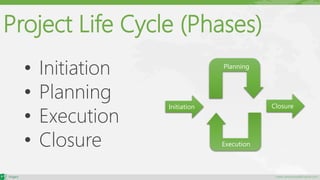
Project Life Cycle (Phases)
• Initiation
• Planning
• Execution
• Closure
Initiation Closure
Planning
Execution
maher.almohamad@outlook.com
The application of knowledge, skills, tools, and techniques
to project activities, in order to meet or exceed stakeholder
needs and expectations from a defined project - balancing
the following:
• Scope, time, cost, and quality
• Stakeholders’ expectations
• Requirements (needs) vs. unidentified requirements (expectations)
Projects Management is
maher.almohamad@outlook.com
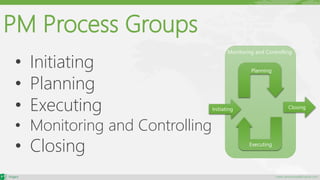
Monitoring and Controlling
PM Process Groups
• Initiating
• Planning
• Executing
• Monitoring and Controlling
• Closing
Initiating Closing
Planning
Executing
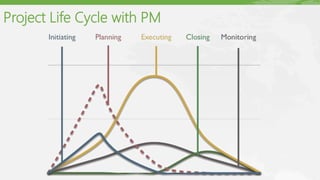
Project Life Cycle with PM
maher.almohamad@outlook.com
Project Manager
A project manager is a professional in the field
of project management.
Project managers can have the
responsibility of the planning,
execution, and closing of any
project.
maher.almohamad@outlook.com
MS Project
Microsoft Project is a project management
software program, which is designed to assist a
project manager in developing a plan, assigning
resources to tasks, tracking progress, managing the
budget, and analysing workloads.
maher.almohamad@outlook.com
Note
Microsoft project expert isn’t a replacement for
the project manager.
Microsoft Project doesn’t ensure a successful
project if a person doesn’t understand project
management. However, Microsoft Project can assist
a project manager in becoming more effective.
MS Project
Getting Started
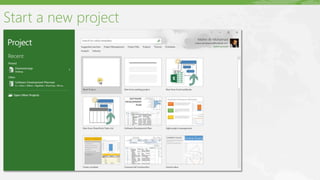
Start a new project
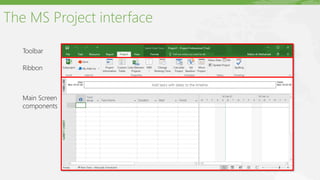
The MS Project interface
Toolbar
Ribbon
Main Screen
components
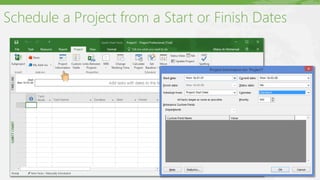
Schedule a Project from a Start or Finish Dates
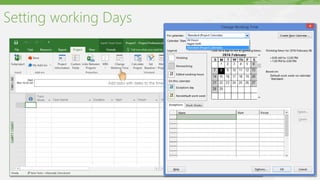
Setting working Days
maher.almohamad@outlook.com
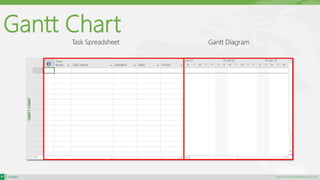
Gantt Chart
Task Spreadsheet Gantt Diagram
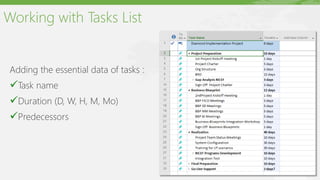
Working with Tasks List
Adding the essential data of tasks :
Task name
Duration (D, W, H, M, Mo)
Predecessors
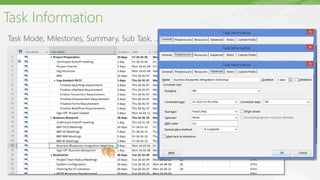
Task Information
Task Mode, Milestones, Summary, Sub Task, …
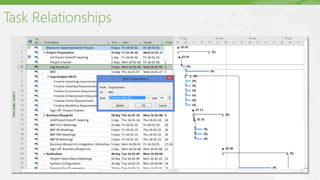
Task Relationships
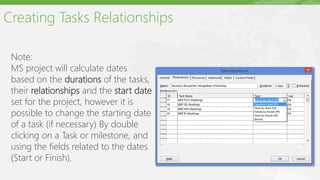
Creating Tasks Relationships
Note:
MS project will calculate dates
based on the durations of the tasks,
their relationships and the start date
set for the project, however it is
possible to change the starting date
of a task (if necessary) By double
clicking on a Task or milestone, and
using the fields related to the dates
(Start or Finish).
maher.almohamad@outlook.com
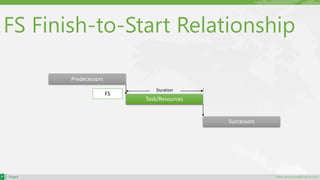
FS Finish-to-Start Relationship
Task/Resources
Successors
Duration
Predecessors
FS
maher.almohamad@outlook.com
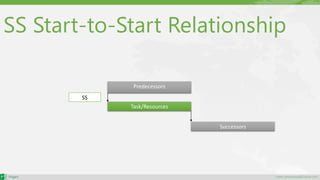
SS Start-to-Start Relationship
Task/Resources
Successors
Predecessors
SS
maher.almohamad@outlook.com
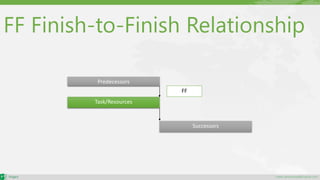
FF Finish-to-Finish Relationship
Task/Resources
Successors
Predecessors
FF
maher.almohamad@outlook.com
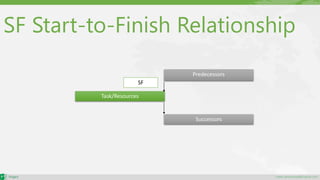
SF Start-to-Finish Relationship
Task/Resources
Successors
Predecessors
SF
maher.almohamad@outlook.com
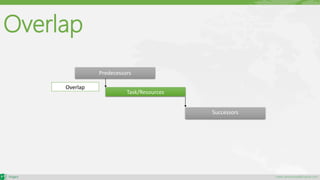
Overlap
Task/Resources
Successors
Predecessors
Overlap
maher.almohamad@outlook.com
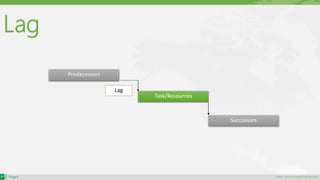
Lag
Task/Resources
Successors
Predecessors
Lag
maher.almohamad@outlook.com
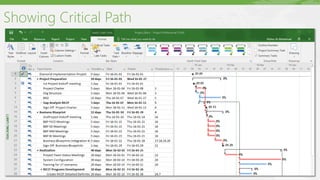
The Critical Path
CP is the flow of tasks, of which, a delay in any one of
these tasks will cause a delay to the project.
It is the longest path through the project network
diagram and the shortest possible time to complete
the project.
Showing Critical Path
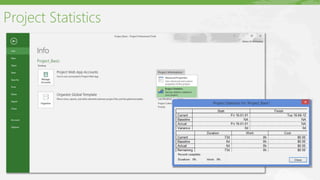
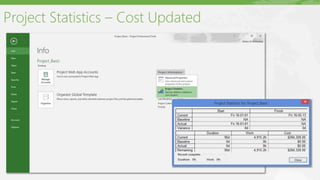
Project Statistics
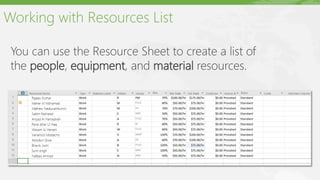
Working with Resources List
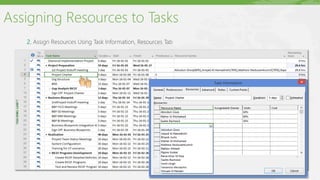
You can use the Resource Sheet to create a list of
the people, equipment, and material resources.
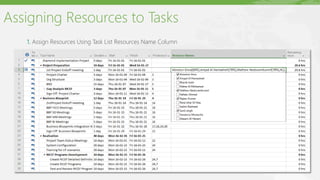
Assigning Resources to Tasks
1. Assign Resources Using Task List Resources Name Column
Assigning Resources to Tasks
2. Assign Resources Using Task Information, Resources Tab
Assigning Resources to Tasks
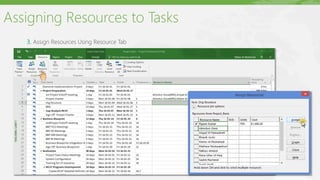
3. Assign Resources Using Resource Tab
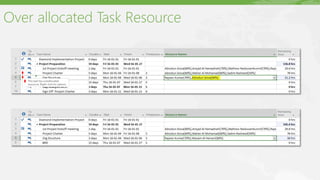
Over allocated Task Resource
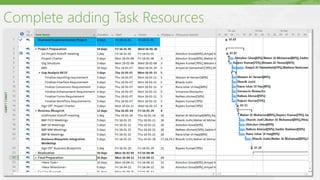
Complete adding Task Resources
Project Statistics – Cost Updated
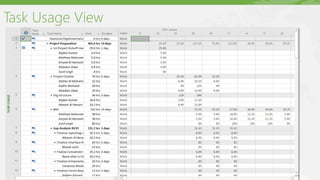
Task Usage View
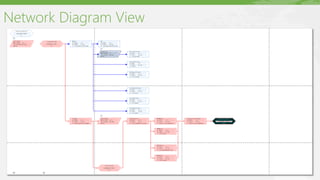
Network Diagram View
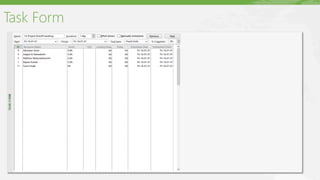
Task Form
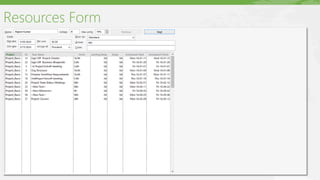
Resources Form
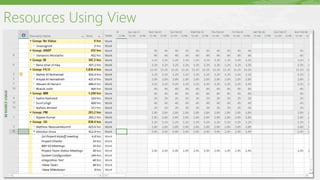
Resources Using View
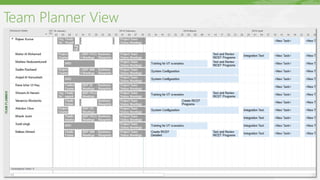
Team Planner View
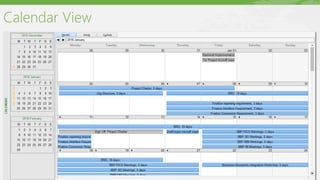
Calendar View
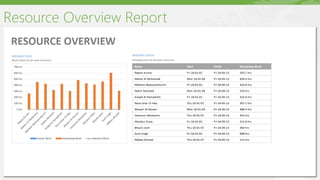
Resource Overview Report
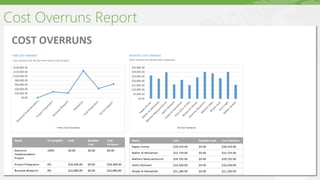
Cost Overruns Report
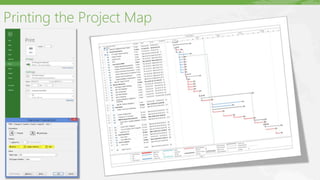
Printing the Project Map
Thank You
Maher Al-Mohamad
ERP Functional Analyst

Ms project 2016 overview

Editor's Notes

  • #5 A project is a temporary effort of sequential activities designed to accomplish a unique purpose. a temporary endeavor that helps to accomplish some specific objective by utilizing definite interconnected tasks and the effective utilization of resources. To achieve an objective One Time (Start and finish dates) Constraints of time, cost and resources Performed by People – Single or Group Coordinated and controlled activities Specific Deliverables Progressive Elaboration
  • #8 Initiating •Set the project goal •Identify the necessary start or finish date limitations •Identify the project manager •Identify budget and quality considerations Planning •Enter project tasks, duration and relationships •Identify project milestones •Define available resources and costs •Assign resources to tasks Monitoring and Controlling  •Producing work results •Requesting changes •Recommending improvements •Creating project records, reports, and presentations •Updating project •Managing resources and tasks •Meet management timing, resource, and cost objectives •Identify budget and quality considerations Closing •Review and analyze performance of the project •Create a Closure Report •Archive records
  • #14 File> New> blank project.
  • #15  The Quick Access Toolbar (File, Task, Resource, Reports, Project, View, Format) The Ribbon (tabs, buttons and drop-down list) Main Screen components
  • #16 By default, the new project file is scheduled from a Project Start Date All tasks are scheduled to begin as soon as possible MS Project calculates the project’s Finish date based on Tasks, Durations, Dependencies. When a project is scheduled from a Finish date, such as a conference, all tasks are scheduled to begin as late as possible
  • #17 The project calendar defines the general working and nonworking days and time for tasks. By default, the entire project, each task, and each resource is scheduled according to the Standard calendar The Standard calendar specifies that Monday through Friday are working days with 8 hours of work completed each day. Saturday and Sunday are designated as nonworking days. The Calendar can be modified to identify holidays or other nonworking days or times in which work should not be scheduled.
  • #18 Select Gantt Chart view from the view menu. You’ll have a spreadsheet where you can now enter information of all the activities i.e. task name, duration, start date, end date, and various other fields. You can enter required information in two ways, in spreadsheet or when you double click on cell you get pop up window in which you can enter all the information of that particular activity.
  • #29 CPA helps you to identify the minimum length of time needed to complete a project. For finding CP list all the activities and enter early start, late start, early finish and late finish info of all the activities. Project automatically calculates ES, EF, LS and LF based on the starting/ending dates you have provided to find CP.
  • #32  1. On the View menu, click Resource Sheet. 2. On the View menu, point to Table, and then click Entry. 3. In the Resource Name field, type a resource name. 4. You can go through the fields in the sheet, but for the simplicity of the example just focus on the name and initials of the Resource 5. Below is an example of some Human resources added to the Resource Sheet (We could add also other type of resources such as Equipments, Consumables, etc.)