Backtrack 3 and USB The Quick and Dirty Pictorial Guide to a Non-Persistent USB Installation
Who is Michael Smith? 8 years active duty army Graduate of Russian basic course, Defense Language Institute, Monterey, CA DotCom survivor Infantryman, deployed to Afghanistan (2004) CISSP #50247 (2003), ISSEP (2005) Former CISO, Unisys Federal Service Delivery Center Currently a Manager in a Big Four Firm
Non-Persistent Install Format USB Drive as VFAT/Windows 32 Copy /boot and /BT3 to the USB Drive Make a Master Boot Record on the USB Drive From Windows: Double-click on boot/bootinst.bat From Linux: cd /path/to/mount/point ./bootinst.sh Boot from the USB Drive Happy Hacking!
Non-Persistent Install from Windows Format the USB Drive as FAT32
Non-Persistent Install from Windows Get IsoBuster from the following url: http://www.isobuster.com/isobusterdownload.php Install the software using the default options IsoBuster lets us rip apart .iso images.  We’ll need this to extract the files for the USB Install
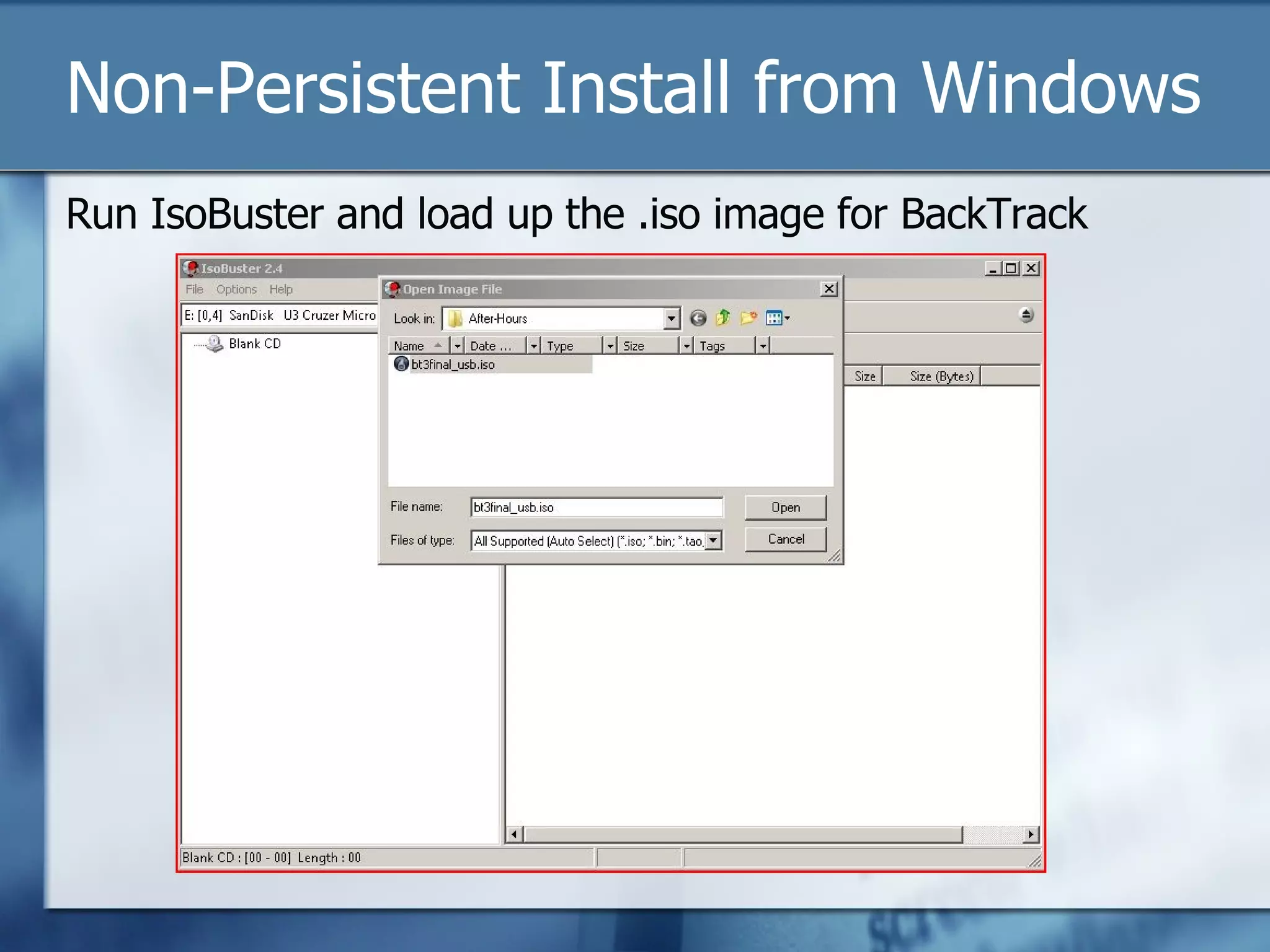
Non-Persistent Install from Windows Run IsoBuster and load up the .iso image for BackTrack
Non-Persistent Install from Windows Drag-n-Drop the boot and BT3 directories from IsoBuster to the USB Drive
Non-Persistent Install from Windows Pro-Tip:  For the corporate-issue Lenovo Thinkpad T60, you’ll need the ATI drivers to get the GUI to work. You can get the driver from from the following url: http://www.offensive-security.com/modules/ati.lzm Copy this file to the BT3/modules/ directory and it will be automagically installed.
Non-Persistent Install from Windows Make the USB Drive bootable by double-clicking on boot/bootinst.bat.  You might get an MBR error, the install still worked.
Windows Non-Persistent Install Caveats Vista permissions to write to drives might bomb the MBR installation, try it on XP or a different machine. Install is basically a LiveCD on a USB Drive There is a way to save changes, look at the BackTrack Wiki Don’t worry about messing up the install, it’s easy to blow away and start over!
USB Booting The Pictorial Guide to the Lenovo ThinkPad  T60
Booting From USB Drive Go into BIOS Settings Boot off USB Drive Pick the right BackTrack boot option Happy Hacking!!
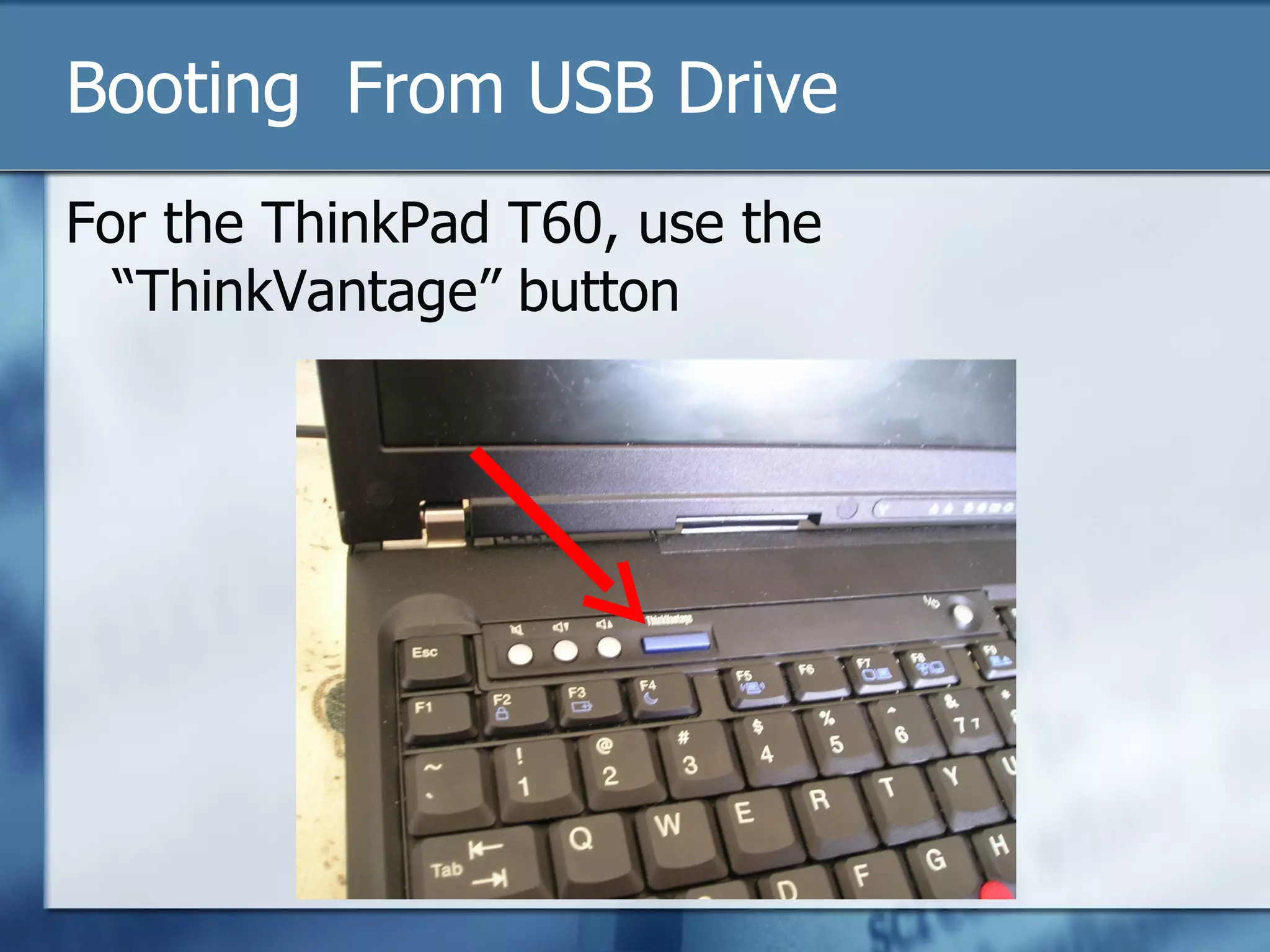
Booting  From USB Drive For the ThinkPad T60, use the “ThinkVantage” button
Booting From USB Drive Hit F12 to get to the boot menu
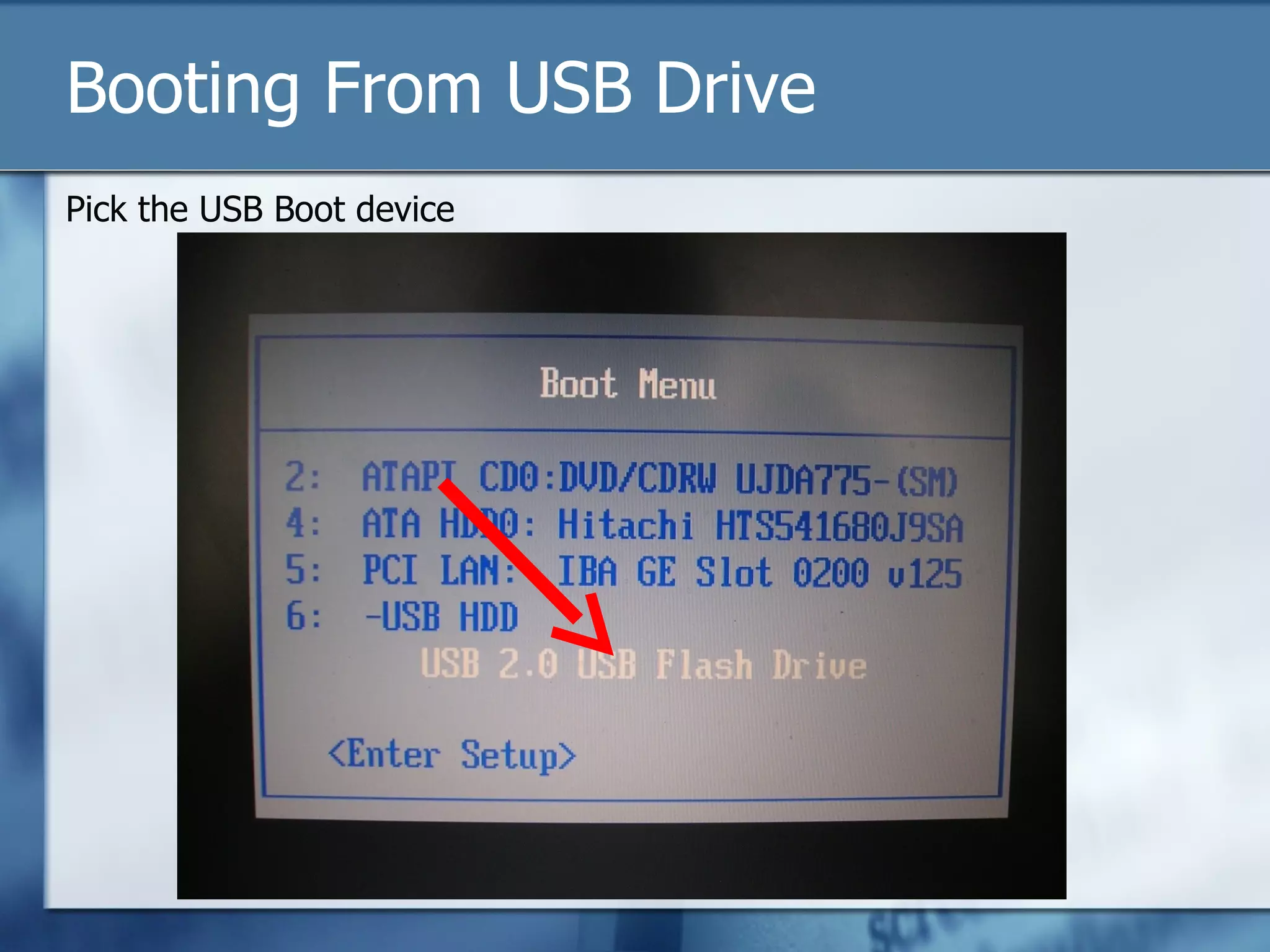
Booting From USB Drive Pick the USB Boot device
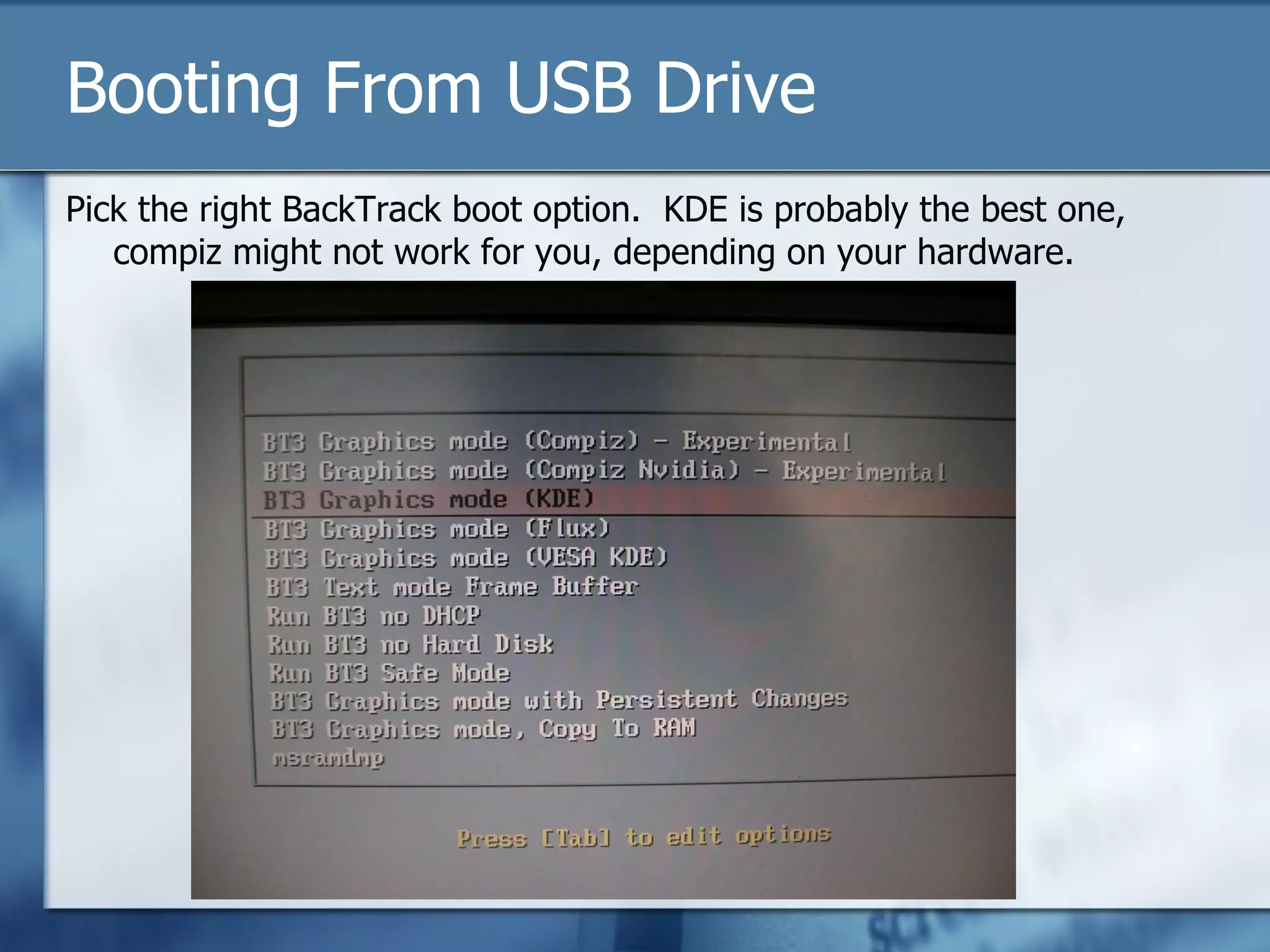
Booting From USB Drive Pick the right BackTrack boot option.  KDE is probably the best one, compiz might not work for you, depending on your hardware.
Questions, Comments, or War Stories? http://www.guerilla-ciso.com/   rybolov(a)ryzhe.ath.cx

Backtrack 3 USB

  • 1.
    Backtrack 3 andUSB The Quick and Dirty Pictorial Guide to a Non-Persistent USB Installation
  • 2.
    Who is MichaelSmith? 8 years active duty army Graduate of Russian basic course, Defense Language Institute, Monterey, CA DotCom survivor Infantryman, deployed to Afghanistan (2004) CISSP #50247 (2003), ISSEP (2005) Former CISO, Unisys Federal Service Delivery Center Currently a Manager in a Big Four Firm
  • 3.
    Non-Persistent Install FormatUSB Drive as VFAT/Windows 32 Copy /boot and /BT3 to the USB Drive Make a Master Boot Record on the USB Drive From Windows: Double-click on boot/bootinst.bat From Linux: cd /path/to/mount/point ./bootinst.sh Boot from the USB Drive Happy Hacking!
  • 4.
    Non-Persistent Install fromWindows Format the USB Drive as FAT32
  • 5.
    Non-Persistent Install fromWindows Get IsoBuster from the following url: http://www.isobuster.com/isobusterdownload.php Install the software using the default options IsoBuster lets us rip apart .iso images. We’ll need this to extract the files for the USB Install
  • 6.
    Non-Persistent Install fromWindows Run IsoBuster and load up the .iso image for BackTrack
  • 7.
    Non-Persistent Install fromWindows Drag-n-Drop the boot and BT3 directories from IsoBuster to the USB Drive
  • 8.
    Non-Persistent Install fromWindows Pro-Tip: For the corporate-issue Lenovo Thinkpad T60, you’ll need the ATI drivers to get the GUI to work. You can get the driver from from the following url: http://www.offensive-security.com/modules/ati.lzm Copy this file to the BT3/modules/ directory and it will be automagically installed.
  • 9.
    Non-Persistent Install fromWindows Make the USB Drive bootable by double-clicking on boot/bootinst.bat. You might get an MBR error, the install still worked.
  • 10.
    Windows Non-Persistent InstallCaveats Vista permissions to write to drives might bomb the MBR installation, try it on XP or a different machine. Install is basically a LiveCD on a USB Drive There is a way to save changes, look at the BackTrack Wiki Don’t worry about messing up the install, it’s easy to blow away and start over!
  • 11.
    USB Booting ThePictorial Guide to the Lenovo ThinkPad T60
  • 12.
    Booting From USBDrive Go into BIOS Settings Boot off USB Drive Pick the right BackTrack boot option Happy Hacking!!
  • 13.
    Booting FromUSB Drive For the ThinkPad T60, use the “ThinkVantage” button
  • 14.
    Booting From USBDrive Hit F12 to get to the boot menu
  • 15.
    Booting From USBDrive Pick the USB Boot device
  • 16.
    Booting From USBDrive Pick the right BackTrack boot option. KDE is probably the best one, compiz might not work for you, depending on your hardware.
  • 17.
    Questions, Comments, orWar Stories? http://www.guerilla-ciso.com/ rybolov(a)ryzhe.ath.cx