INFORMATION SHEET 1.2-2
Bootable Media
Create bootable disk using (a) third-party application and (b) DOS
command
LEARNING OBJECTIVES
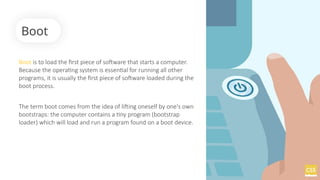
Boot is to load the first piece of software that starts a computer.
Because the operating system is essential for running all other
programs, it is usually the first piece of software loaded during the
boot process.
The term boot comes from the idea of lifting oneself by one's own
bootstraps: the computer contains a tiny program (bootstrap
loader) which will load and run a program found on a boot device.
Boot
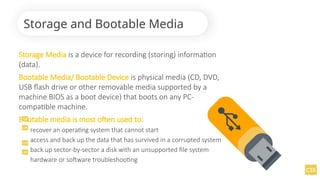
Storage Media is a device for recording (storing) information
(data).
Bootable Media/ Bootable Device is physical media (CD, DVD,
USB flash drive or other removable media supported by a
machine BIOS as a boot device) that boots on any PC-
compatible machine.
Bootable media is most often used to:
recover an operating system that cannot start
access and back up the data that has survived in a corrupted system
back up sector-by-sector a disk with an unsupported file system
hardware or software troubleshooting
Storage and Bootable Media
Cold Boot
To perform a cold boot (also called a "hard boot") means to start up a
computer that is turned off. It is typically performed by pressing the power
button of the computer.
Warm Boot
To perform warm boot (also called a "soft boot") means to restart a
computer. It is typically initiated from the operating system, rather than
pressing a button on the computer itself.
Process of booting
Create windows installer using flash drive
Small portable computing devices such as Netbooks and MIDs (Mobile
Internet Devices) offer great mobility, but they lack optical drives
(CD/DVD). An optical drive is important when you need to install
software from a CD or DVD. An external optical drive would work, but
you may not want to lug it around with you. So what’s the solution? Use
a USB flash drive as a bootable installation media.
What You Need:
A USB flash drive with good storage capacity; preferably 8GB
or more.
Access to a computer running Windows 11 or Windows 10.
A CD or DVD contains an operating system or downloaded
disc image.
Materials, tools and equipment
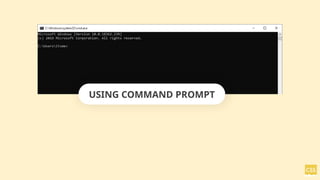
USING COMMAND PROMPT
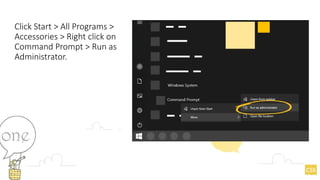
Click Start > All Programs >
Accessories > Right click on
Command Prompt > Run as
Administrator.
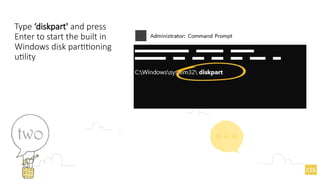
Type ‘diskpart' and press
Enter to start the built in
Windows disk partitioning
utility
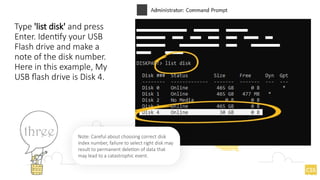
Type 'list disk' and press
Enter. Identify your USB
Flash drive and make a
note of the disk number.
Here in this example, My
USB flash drive is Disk 4.
Note: Careful about choosing correct disk
index number, failure to select right disk may
result to permanent deletion of data that
may lead to a catastrophic event.
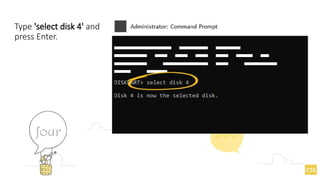
Type 'select disk 4' and
press Enter.
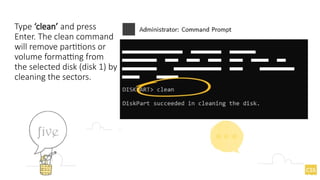
Type ‘clean’ and press
Enter. The clean command
will remove partitions or
volume formatting from
the selected disk (disk 1) by
cleaning the sectors.
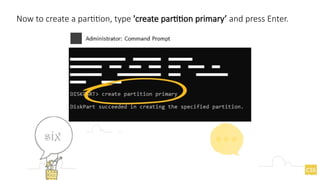
Now to create a partition, type 'create partition primary’ and press Enter.
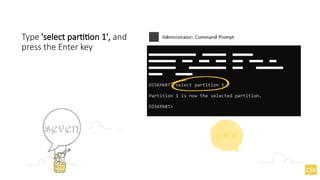
Type 'select partition 1', and
press the Enter key
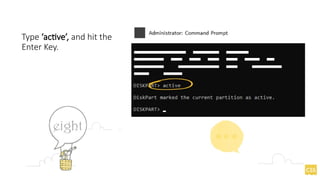
Type ‘active’, and hit the
Enter Key.
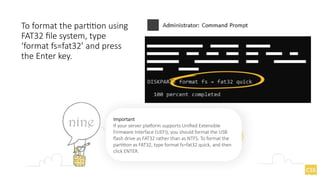
To format the partition using
FAT32 file system, type
‘format fs=fat32’ and press
the Enter key.
Important
If your server platform supports Unified Extensible
Firmware Interface (UEFI), you should format the USB
flash drive as FAT32 rather than as NTFS. To format the
partition as FAT32, type format fs=fat32 quick, and then
click ENTER.
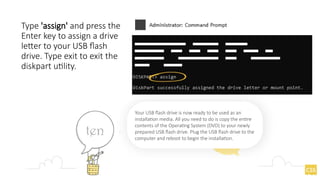
Type 'assign' and press the
Enter key to assign a drive
letter to your USB flash
drive. Type exit to exit the
diskpart utility.
Your USB flash drive is now ready to be used as an
installation media. All you need to do is copy the entire
contents of the Operating System (DVD) to your newly
prepared USB flash drive. Plug the USB flash drive to the
computer and reboot to begin the installation.
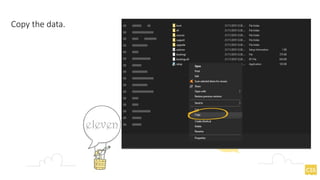
Copy the data.
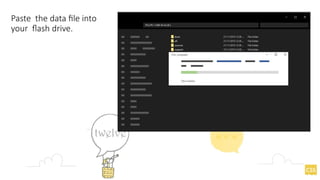
Paste the data file into
your flash drive.
USING 3rd
party
application
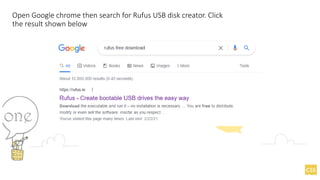
Open Google chrome then search for Rufus USB disk creator. Click
the result shown below
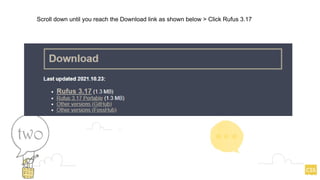
Scroll down until you reach the Download link as shown below > Click Rufus 3.17
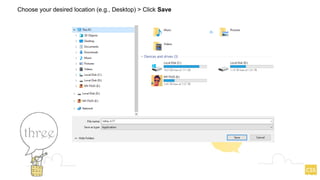
Choose your desired location (e.g., Desktop) > Click Save
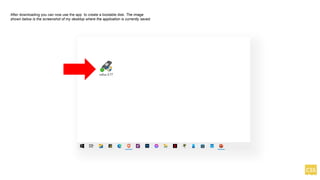
After downloading you can now use the app to create a bootable disk. The image
shown below is the screenshot of my desktop where the application is currently saved.
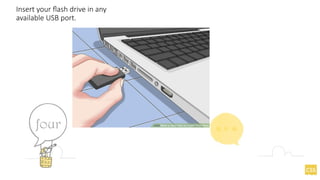
Insert your flash drive in any
available USB port.
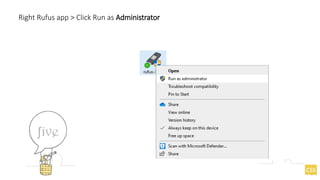
Right Rufus app > Click Run as Administrator
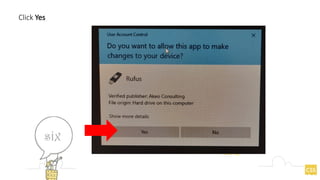
Click Yes
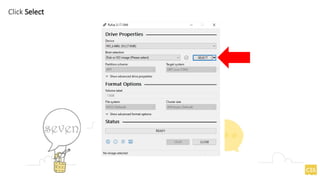
Click Select
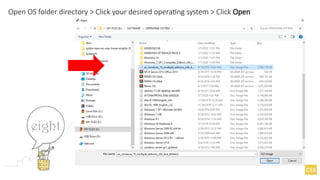
Open OS folder directory > Click your desired operating system > Click Open
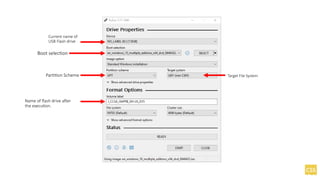
Current name of
USB Flash drive
Boot selection
Partition Scheme
Name of flash drive after
the execution.
Target File System
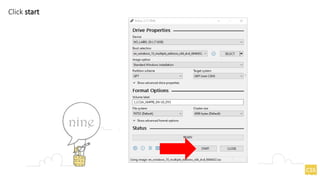
Click start
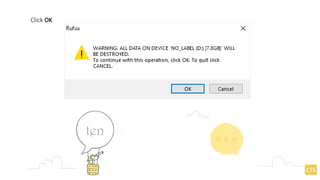
Click OK
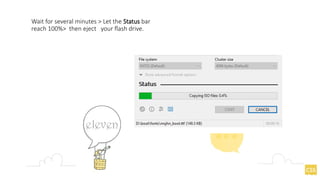
Wait for several minutes > Let the Status bar
reach 100%> then eject your flash drive.
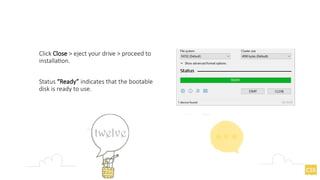
Status “Ready” indicates that the bootable
disk is ready to use.
Click Close > eject your drive > proceed to
installation.

1.2-2 Bootable Media new, Installer windows.pptx

  • 1.
  • 2.
    Create bootable diskusing (a) third-party application and (b) DOS command LEARNING OBJECTIVES
  • 3.
    Boot is toload the first piece of software that starts a computer. Because the operating system is essential for running all other programs, it is usually the first piece of software loaded during the boot process. The term boot comes from the idea of lifting oneself by one's own bootstraps: the computer contains a tiny program (bootstrap loader) which will load and run a program found on a boot device. Boot
  • 4.
    Storage Media isa device for recording (storing) information (data). Bootable Media/ Bootable Device is physical media (CD, DVD, USB flash drive or other removable media supported by a machine BIOS as a boot device) that boots on any PC- compatible machine. Bootable media is most often used to: recover an operating system that cannot start access and back up the data that has survived in a corrupted system back up sector-by-sector a disk with an unsupported file system hardware or software troubleshooting Storage and Bootable Media
  • 5.
    Cold Boot To performa cold boot (also called a "hard boot") means to start up a computer that is turned off. It is typically performed by pressing the power button of the computer. Warm Boot To perform warm boot (also called a "soft boot") means to restart a computer. It is typically initiated from the operating system, rather than pressing a button on the computer itself. Process of booting
  • 6.
    Create windows installerusing flash drive Small portable computing devices such as Netbooks and MIDs (Mobile Internet Devices) offer great mobility, but they lack optical drives (CD/DVD). An optical drive is important when you need to install software from a CD or DVD. An external optical drive would work, but you may not want to lug it around with you. So what’s the solution? Use a USB flash drive as a bootable installation media.
  • 7.
    What You Need: AUSB flash drive with good storage capacity; preferably 8GB or more. Access to a computer running Windows 11 or Windows 10. A CD or DVD contains an operating system or downloaded disc image. Materials, tools and equipment
  • 8.
  • 9.
    Click Start >All Programs > Accessories > Right click on Command Prompt > Run as Administrator.
  • 10.
    Type ‘diskpart' andpress Enter to start the built in Windows disk partitioning utility
  • 11.
    Type 'list disk'and press Enter. Identify your USB Flash drive and make a note of the disk number. Here in this example, My USB flash drive is Disk 4. Note: Careful about choosing correct disk index number, failure to select right disk may result to permanent deletion of data that may lead to a catastrophic event.
  • 12.
    Type 'select disk4' and press Enter.
  • 13.
    Type ‘clean’ andpress Enter. The clean command will remove partitions or volume formatting from the selected disk (disk 1) by cleaning the sectors.
  • 14.
    Now to createa partition, type 'create partition primary’ and press Enter.
  • 15.
    Type 'select partition1', and press the Enter key
  • 16.
    Type ‘active’, andhit the Enter Key.
  • 17.
    To format thepartition using FAT32 file system, type ‘format fs=fat32’ and press the Enter key. Important If your server platform supports Unified Extensible Firmware Interface (UEFI), you should format the USB flash drive as FAT32 rather than as NTFS. To format the partition as FAT32, type format fs=fat32 quick, and then click ENTER.
  • 18.
    Type 'assign' andpress the Enter key to assign a drive letter to your USB flash drive. Type exit to exit the diskpart utility. Your USB flash drive is now ready to be used as an installation media. All you need to do is copy the entire contents of the Operating System (DVD) to your newly prepared USB flash drive. Plug the USB flash drive to the computer and reboot to begin the installation.
  • 19.
  • 20.
    Paste the datafile into your flash drive.
  • 21.
  • 22.
    Open Google chromethen search for Rufus USB disk creator. Click the result shown below
  • 23.
    Scroll down untilyou reach the Download link as shown below > Click Rufus 3.17
  • 24.
    Choose your desiredlocation (e.g., Desktop) > Click Save
  • 25.
    After downloading youcan now use the app to create a bootable disk. The image shown below is the screenshot of my desktop where the application is currently saved.
  • 26.
    Insert your flashdrive in any available USB port.
  • 27.
    Right Rufus app> Click Run as Administrator
  • 28.
  • 29.
  • 30.
    Open OS folderdirectory > Click your desired operating system > Click Open
  • 31.
    Current name of USBFlash drive Boot selection Partition Scheme Name of flash drive after the execution. Target File System
  • 32.
  • 33.
  • 34.
    Wait for severalminutes > Let the Status bar reach 100%> then eject your flash drive.
  • 35.
    Status “Ready” indicatesthat the bootable disk is ready to use. Click Close > eject your drive > proceed to installation.