What is aBOOTABLE Flash Drive?
•A bootable flash drive is a USB drive that has
been configured to contain an operating
system's installation files and can be used to
start (or "boot") a computer. This allows you to
install or repair the operating system on a
computer or run the operating system directly
from the USB drive without altering the
computer's internal storage.
3.
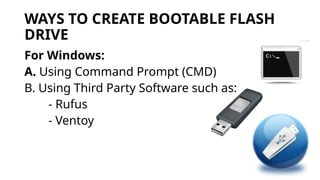
WAYS TO CREATEBOOTABLE FLASH
DRIVE
For Windows:
A. Using Command Prompt (CMD)
B. Using Third Party Software such as:
- Rufus
- Ventoy
4.
A. USING COMMANDPROMPT (CMD)
To create a bootable USB
flash drive
1. Insert a USB flash drive into
a running computer.
2. Open a Command Prompt
window as an administrator.
5.
A. USING COMMANDPROMPT (CMD)
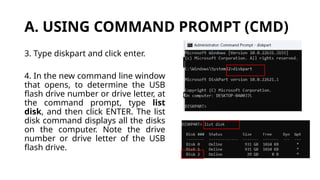
3. Type diskpart and click enter.
4. In the new command line window
that opens, to determine the USB
flash drive number or drive letter, at
the command prompt, type list
disk, and then click ENTER. The list
disk command displays all the disks
on the computer. Note the drive
number or drive letter of the USB
flash drive.
6.
A. USING COMMANDPROMPT (CMD)
5. At the command prompt,
type select disk <X>, where
X is the drive number or
drive letter of the USB flash
drive, and then click ENTER.
6. Type clean, and the click
ENTER. This command
DELETES all data from the
USB flash drive.
7.
A. USING COMMANDPROMPT (CMD)
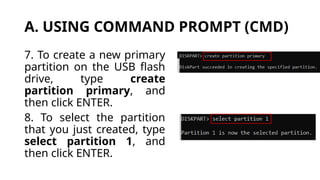
7. To create a new primary
partition on the USB flash
drive, type create
partition primary, and
then click ENTER.
8. To select the partition
that you just created, type
select partition 1, and
then click ENTER.
8.
A. USING COMMANDPROMPT (CMD)
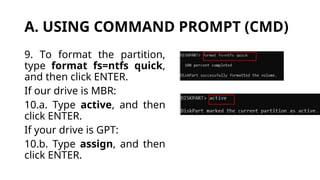
9. To format the partition,
type format fs=ntfs quick,
and then click ENTER.
If our drive is MBR:
10.a. Type active, and then
click ENTER.
If your drive is GPT:
10.b. Type assign, and then
click ENTER.
9.
A. USING COMMANDPROMPT (CMD)
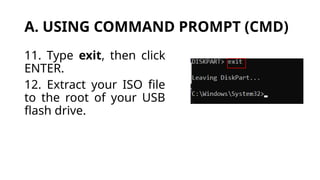
11. Type exit, then click
ENTER.
12. Extract your ISO file
to the root of your USB
flash drive.
10.
B. USING THIRD-PARTYSOFTWARE
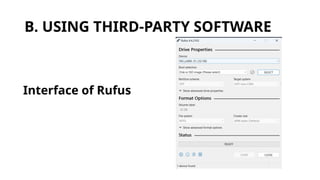
1. Rufus
- Rufus is a free and open-source utility software
for Windows that allows users to create bootable
USB drives. It is particularly popular for creating
USB installation media for various operating
systems, such as Windows, Linux distributions, or
other utility software. Rufus can be downloaded
at https://rufus.ie/en/.
B. USING THIRD-PARTYSOFTWARE
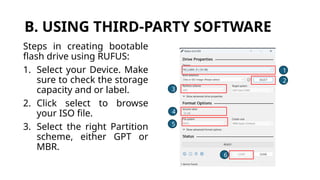
Steps in creating bootable
flash drive using RUFUS:
1. Select your Device. Make
sure to check the storage
capacity and or label.
2. Click select to browse
your ISO file.
3. Select the right Partition
scheme, either GPT or
MBR.
1
2
3
4
5
6
13.
B. USING THIRD-PARTYSOFTWARE
Steps in creating bootable
flash drive using RUFUS:
4. You can customize the
volume label or you can
leave as is.
5. Select NTFS as your file
system.
6. Click start to begin the
process.
1
2
3
4
5
6
14.
B. USING THIRD-PARTYSOFTWARE
2. Ventoy
- Ventoy is an open-source tool that allows you to
create a bootable USB drive capable of storing
multiple ISO files. Unlike traditional methods where
each ISO file requires its own dedicated USB drive,
Ventoy enables you to have a single USB drive with
multiple bootable operating systems or utilities. It if
available for download at
https://www.ventoy.net/en/download.html.
B. USING THIRD-PARTYSOFTWARE
Steps in creating bootable
flash drive using Ventoy.
1. Select your Device,
double check the storage
capacity, and or label.
2. Click on Option.
3. Select what partition
style.
4. Click Install.
5. Copy your ISO files on
the USB flash drive.
1
2
3
4
Editor's Notes
#8 FAT32: Supports individual files up to 4 GB and volumes up to 2 TB.
NTFS: Supports significantly larger individual file sizes (up to 16 exabytes) and larger volumes.
1 EB – 1, 000, 000 GB