Development Team ofthe Self-Learning Module
Writer: Ronald S. Bobis
Editor: Lerma I. Cantanero
Reviewers: Felix C. Vergara (Content)
Illustrator: Name
Layout Artist: Name
Management Team: Ma. Evalou Concepcion A. Agustin
OIC-Schools Division Superintendent
Aurelio G. Alfonso EdD
OIC-Assistant Schools Division Superintendent
Victor M. Javeña EdD
Chief, School Governance and Operations Division and
OIC-Chief, Curriculum Implementation Division
Education Program Supervisors
Librada L. Agon EdD (EPP/TLE/TVL/TVE)
Liza A. Alvarez (Science/STEM/SSP)
Bernard R. Balitao (AP/HUMSS)
Joselito E. Calios (English/SPFL/GAS)
Norlyn D. Conde EdD (MAPEH/SPA/SPS/HOPE/A&D/Sports)
Wilma Q. Del Rosario (LRMS/ADM)
Ma. Teresita E. Herrera EdD (Filipino/GAS/Piling Larang)
Perlita M. Ignacio PhD (EsP)
Dulce O. Santos PhD (Kindergarten/MTB-MLE) Teresita
P. Tagulao EdD (Mathematics/ABM)
Computer Systems Servicing – Grade 11 Quarter 1 – Module 16: Introduction
to bootable software First Edition, 2020
Republic Act 8293, Section 176 states that no copyright shall subsist in any
work of the Government of the Philippines. However, prior approval of the
government agency or office wherein the work is created shall be necessary for
exploitation of such work for profit. Such agency or office may, among other things,
impose as a condition the payment of royalties.
Borrowed materials (i.e., songs, stories, poems, pictures, photos, brand names,
trademarks, etc.) included in this module are owned by their respective copyright
holders. Every effort has been exerted to locate and seek permission to use these
materials from their respective copyright owners. The publisher and authors do not
represent nor claim ownership over them.
Published by the Department of Education - Schools Division of Pasig City
3.
Printed in thePhilippines by Department of Education – Schools Division of
Pasig City
Computer Systems 11
Servicing
Introduction to bootable sof tware
Self-Learning Module16
Quarter 1
4.
RECAP
In the previousmodule, you have learned about the comparison and difference
between BIOS and UEFI. You were made aware that about the BIOS and UEFI are two
computer firmware interfaces which act as an interpreter between the operating
system and the firmware. Both of these interfaces are used to configure the hardware
components at device initialization and to launch the operating system that is stored
on the hard drive. And nowadays UEFI is gradually replacing the traditional BIOS on
most modern PCs because it includes more security features than the legacy BIOS
mode and also boots faster than legacy systems. Unless your machine supports UEFI
firmware, you can use UEFI boot instead of BIOS to convert the MBR drive to GPT
disk. When you boot from a network that only supports BIOS, though, you'll
need to boot to the legacy BIOS mode. This module is all about the introduction to
bootable software’s.
5.
LESSON
Back in thedays, we had no other choice than burning the whole system
onto a CD or DVD to update an operating system, or to build a rescue disk. Even
though we have nothing against CD / DVD, the method is clunky, time-consuming
and not user-friendly while most manufacturers are burying the CD / DVD writer
on their way.
Luckily to our rescue we have USB flash drives. They are easy to bring, and
simple to use. Furthermore, unlike CDs or DVDs, we can reuse a USB Flash drive
and then format the disk and put everything else on it after using it. Yet we will
need a Bootable Program to allow a USB bootable usable.
To complete the process, you'll need:
• A Web-connected Windows or MacOS computer.
• A flash drive with at least 8 GB of space.
• A disk image (iso file).
We've picked 10 best USB applications for Windows / Mac to help you build
a USB bootable Drive.
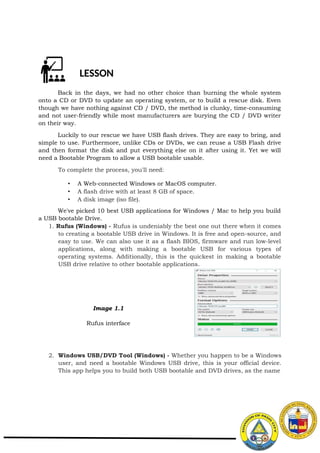
1. Rufus (Windows) - Rufus is undeniably the best one out there when it comes
to creating a bootable USB drive in Windows. It is free and open-source, and
easy to use. We can also use it as a flash BIOS, firmware and run low-level
applications, along with making a bootable USB for various types of
operating systems. Additionally, this is the quickest in making a bootable
USB drive relative to other bootable applications.
Image 1.1
Rufus interface
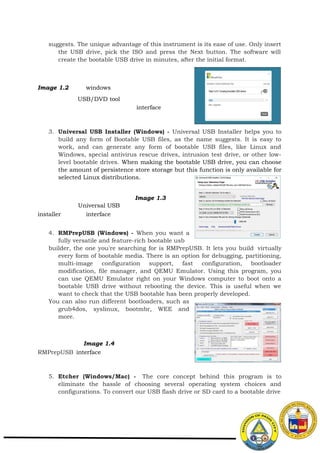
2. Windows USB/DVD Tool (Windows) - Whether you happen to be a Windows
user, and need a bootable Windows USB drive, this is your official device.
This app helps you to build both USB bootable and DVD drives, as the name
6.
suggests. The uniqueadvantage of this instrument is its ease of use. Only insert
the USB drive, pick the ISO and press the Next button. The software will
create the bootable USB drive in minutes, after the initial format.
Image 1.2 windows
USB/DVD tool
interface
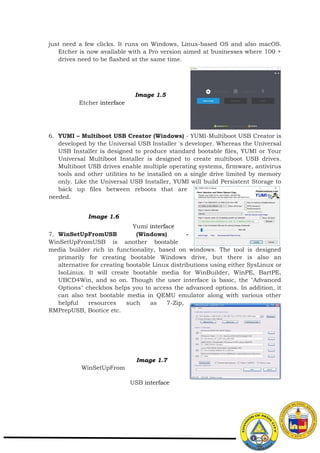
3. Universal USB Installer (Windows) - Universal USB Installer helps you to
build any form of Bootable USB files, as the name suggests. It is easy to
work, and can generate any form of bootable USB files, like Linux and
Windows, special antivirus rescue drives, intrusion test drive, or other low-
level bootable drives. When making the bootable USB drive, you can choose
the amount of persistence store storage but this function is only available for
selected Linux distributions.
Image 1.3
Universal USB
installer interface
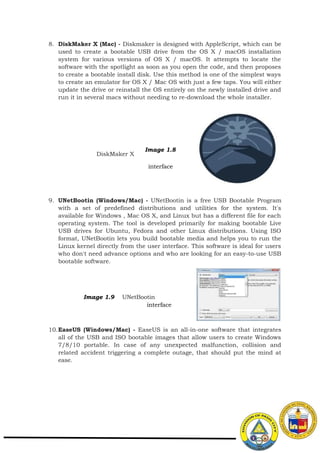
4. RMPrepUSB (Windows) - When you want a
fully versatile and feature-rich bootable usb
builder, the one you're searching for is RMPrepUSB. It lets you build virtually
every form of bootable media. There is an option for debugging, partitioning,
multi-image configuration support, fast configuration, bootloader
modification, file manager, and QEMU Emulator. Using this program, you
can use QEMU Emulator right on your Windows computer to boot onto a
bootable USB drive without rebooting the device. This is useful when we
want to check that the USB bootable has been properly developed.
You can also run different bootloaders, such as
grub4dos, syslinux, bootmbr, WEE and
more.
Image 1.4
RMPrepUSB interface
5. Etcher (Windows/Mac) - The core concept behind this program is to
eliminate the hassle of choosing several operating system choices and
configurations. To convert our USB flash drive or SD card to a bootable drive
7.
just need afew clicks. It runs on Windows, Linux-based OS and also macOS.
Etcher is now available with a Pro version aimed at businesses where 100 +
drives need to be flashed at the same time.
Image 1.5
Etcher interface
6. YUMI – Multiboot USB Creator (Windows) - YUMI-Multiboot USB Creator is
developed by the Universal USB Installer 's developer. Whereas the Universal
USB Installer is designed to produce standard bootable files, YUMI or Your
Universal Multiboot Installer is designed to create multiboot USB drives.
Multiboot USB drives enable multiple operating systems, firmware, antivirus
tools and other utilities to be installed on a single drive limited by memory
only. Like the Universal USB Installer, YUMI will build Persistent Storage to
back up files between reboots that are
needed.
Image 1.6
Yumi interface
7. WinSetUpFromUSB (Windows) -
WinSetUpFromUSB is another bootable
media builder rich in functionality, based on windows. The tool is designed
primarily for creating bootable Windows drive, but there is also an
alternative for creating bootable Linux distributions using either SysLinux or
IsoLinux. It will create bootable media for WinBuilder, WinPE, BartPE,
UBCD4Win, and so on. Though the user interface is basic, the "Advanced
Options" checkbox helps you to access the advanced options. In addition, it
can also test bootable media in QEMU emulator along with various other
helpful resources such as 7-Zip,
RMPrepUSB, Bootice etc.
Image 1.7
WinSetUpFrom
USB interface
8.
8. DiskMaker X(Mac) - Diskmaker is designed with AppleScript, which can be
used to create a bootable USB drive from the OS X / macOS installation
system for various versions of OS X / macOS. It attempts to locate the
software with the spotlight as soon as you open the code, and then proposes
to create a bootable install disk. Use this method is one of the simplest ways
to create an emulator for OS X / Mac OS with just a few taps. You will either
update the drive or reinstall the OS entirely on the newly installed drive and
run it in several macs without needing to re-download the whole installer.
DiskMaker X
Image 1.8
interface
9. UNetBootin (Windows/Mac) - UNetBootin is a free USB Bootable Program
with a set of predefined distributions and utilities for the system. It's
available for Windows , Mac OS X, and Linux but has a different file for each
operating system. The tool is developed primarily for making bootable Live
USB drives for Ubuntu, Fedora and other Linux distributions. Using ISO
format, UNetBootin lets you build bootable media and helps you to run the
Linux kernel directly from the user interface. This software is ideal for users
who don't need advance options and who are looking for an easy-to-use USB
bootable software.
Image 1.9 UNetBootin
interface
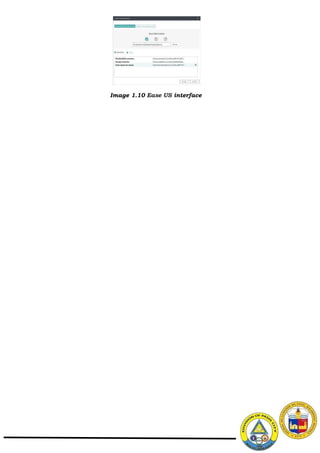
10.EaseUS (Windows/Mac) - EaseUS is an all-in-one software that integrates
all of the USB and ISO bootable images that allow users to create Windows
7/8/10 portable. In case of any unexpected malfunction, collision and
related accident triggering a complete outage, that should put the mind at
ease.