Proposing a Course/Activity on MLP 
A Step-by-Step Guide
Logging In 
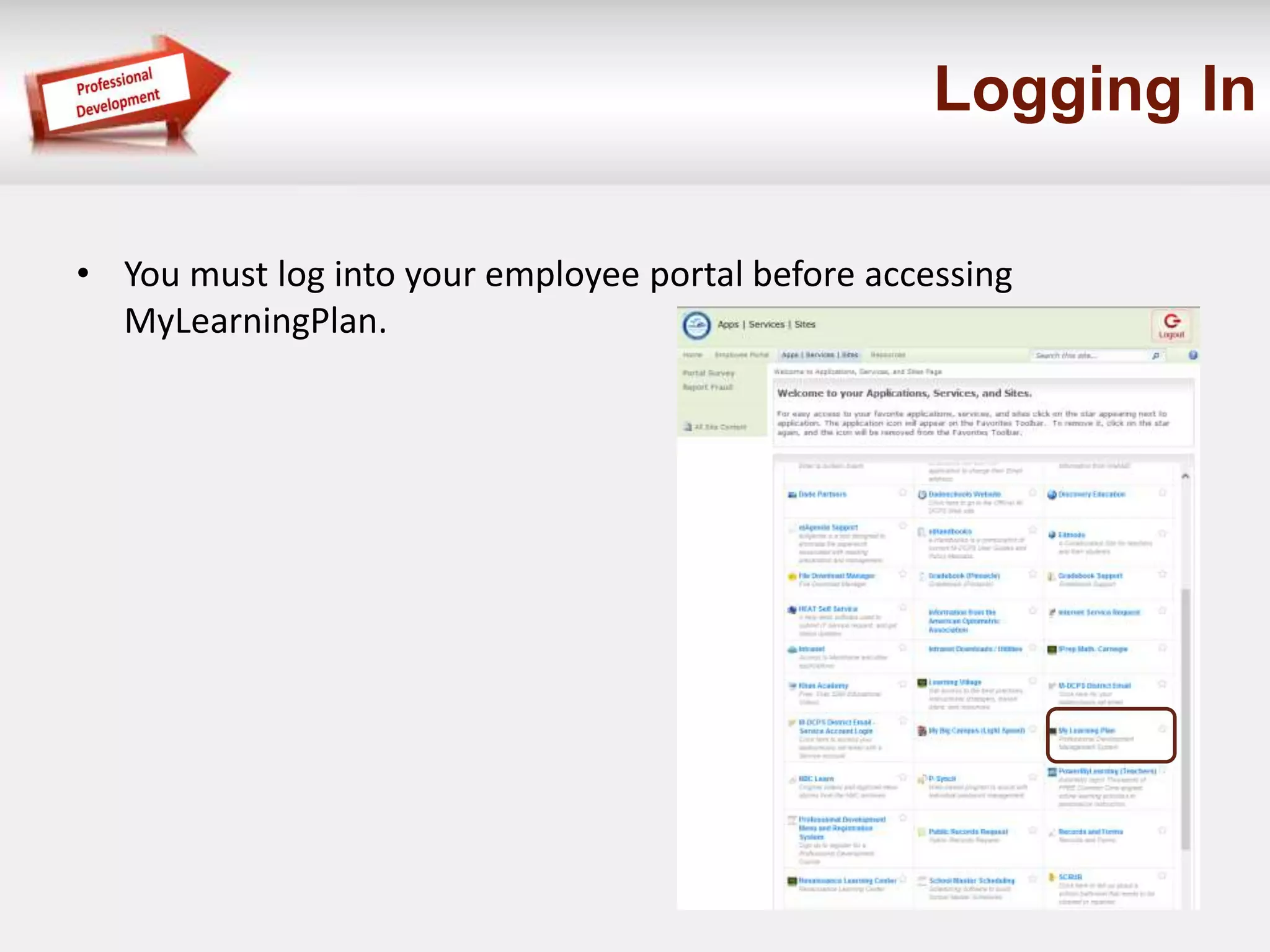
• You must log into your employee portal before accessing 
MyLearningPlan.
My Requests Dashboard 
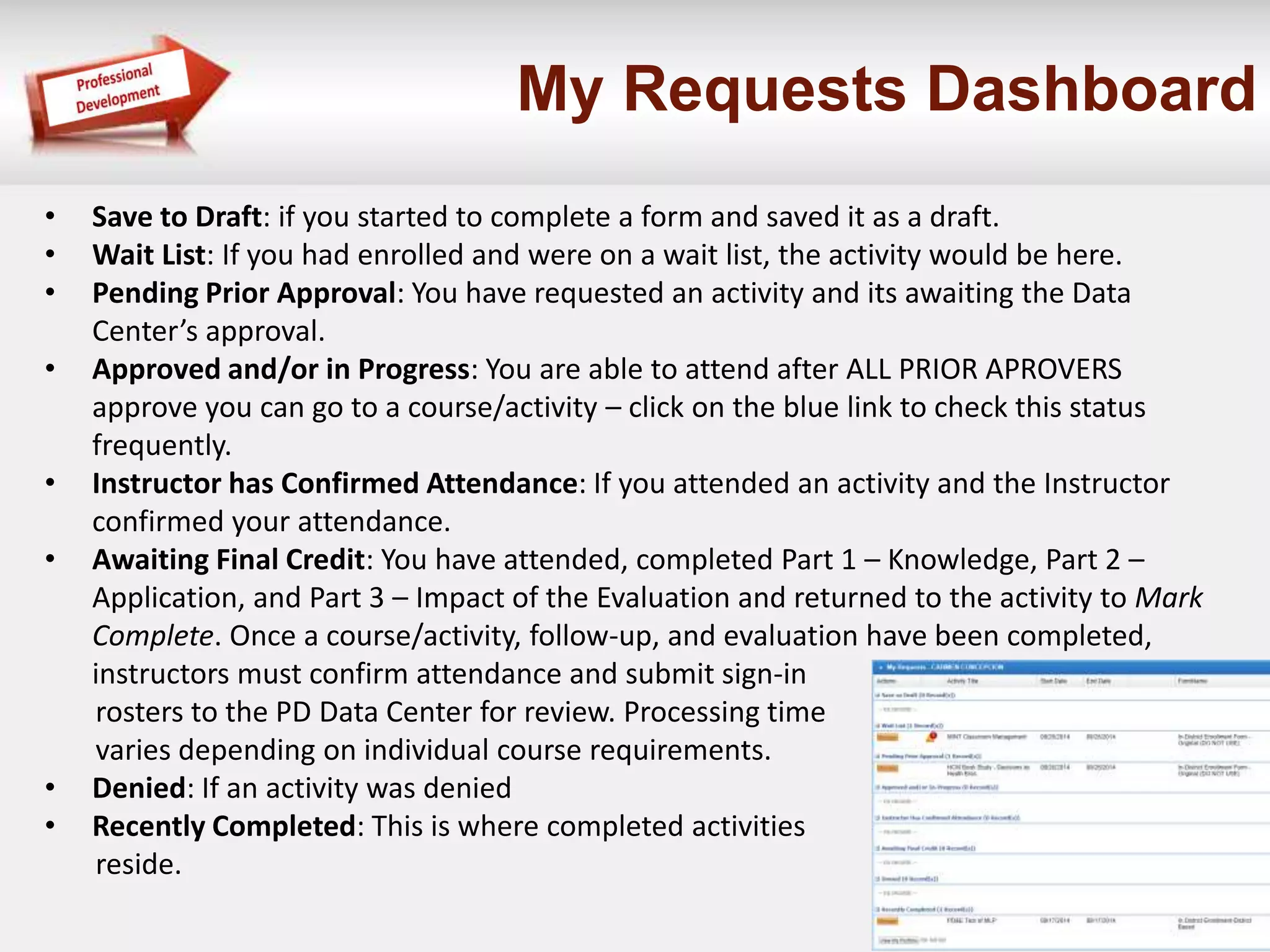
• Save to Draft: if you started to complete a form and saved it as a draft. 
• Wait List: If you had enrolled and were on a wait list, the activity would be here. 
• Pending Prior Approval: You have requested an activity and its awaiting the Data 
Center’s approval. 
• Approved and/or in Progress: You are able to attend after ALL PRIOR APROVERS 
approve you can go to a course/activity – click on the blue link to check this status 
frequently. 
• Instructor has Confirmed Attendance: If you attended an activity and the Instructor 
confirmed your attendance. 
• Awaiting Final Credit: You have attended, completed Part 1 – Knowledge, Part 2 – 
Application, and Part 3 – Impact of the Evaluation and returned to the activity to Mark 
Complete. Once a course/activity, follow-up, and evaluation have been completed, 
instructors must confirm attendance and submit sign-in 
rosters to the PD Data Center for review. Processing time 
varies depending on individual course requirements. 
• Denied: If an activity was denied 
• Recently Completed: This is where completed activities 
reside.
MyLearningPlan 
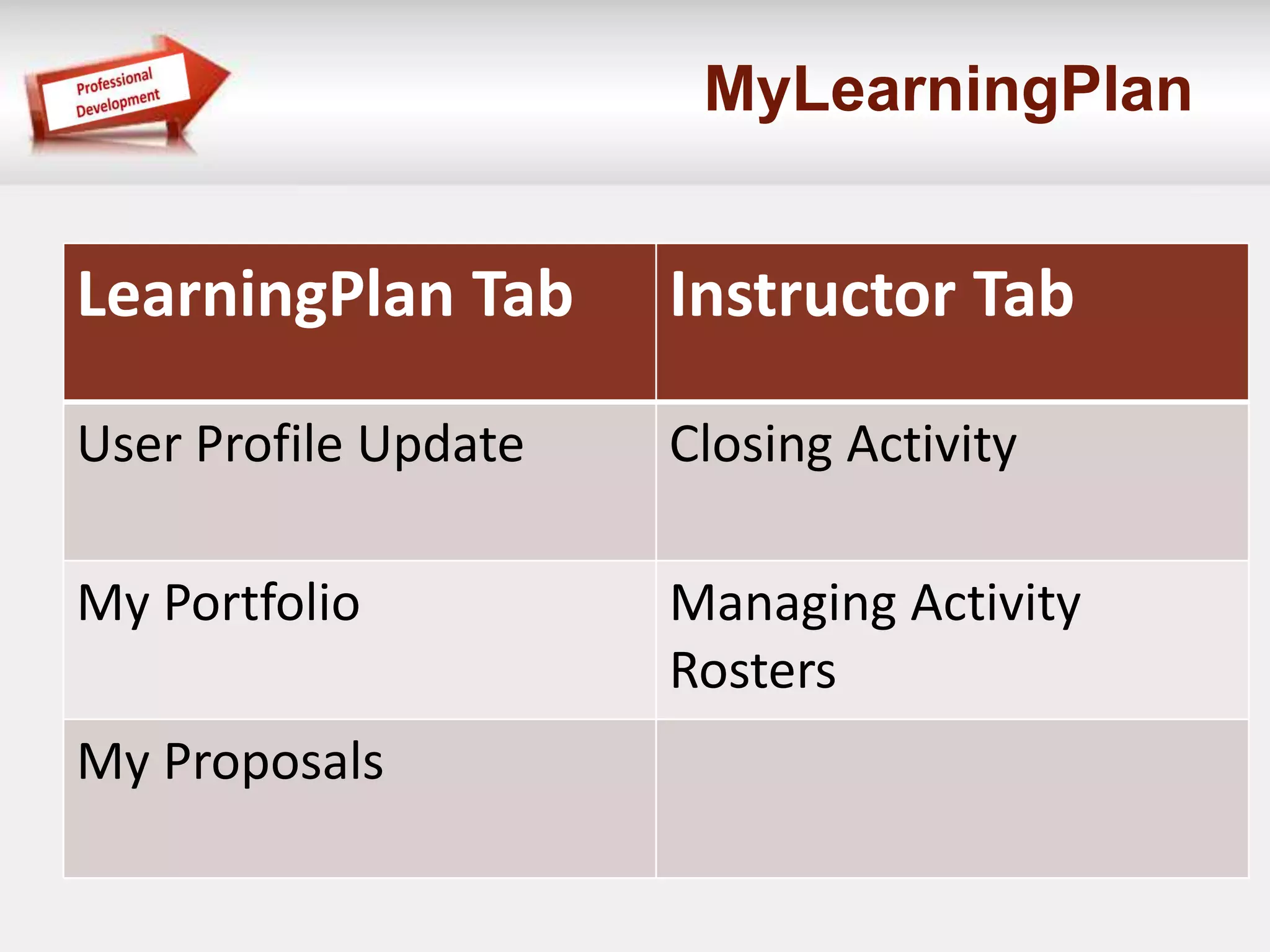
LearningPlan Tab Instructor Tab 
User Profile Update Closing Activity 
My Portfolio Managing Activity 
Rosters 
My Proposals
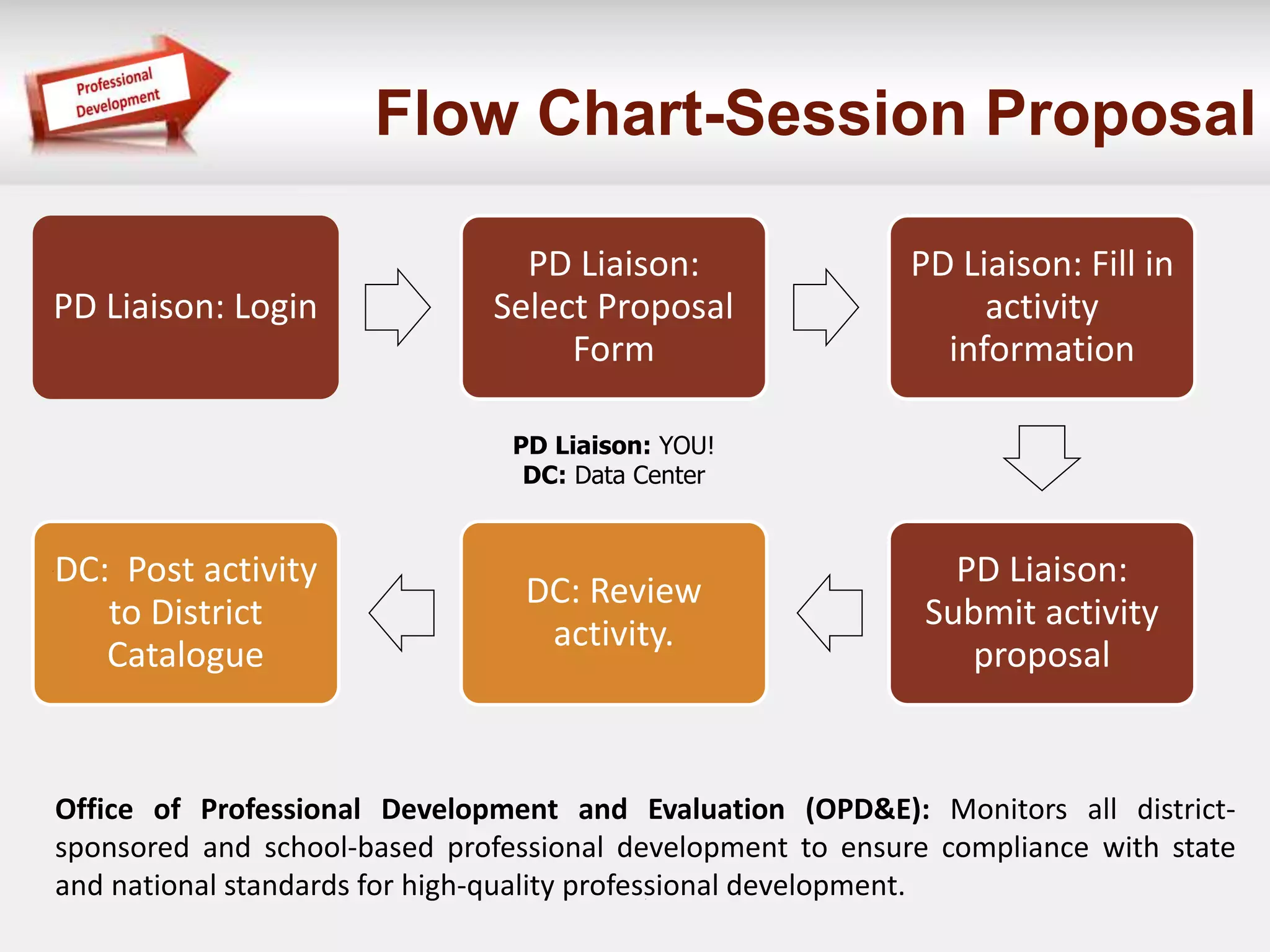
Flow Chart-Session Proposal 
PD Liaison: Login 
PD Liaison: 
Select Proposal 
Form 
PD Liaison: Fill in 
activity 
information 
PD Liaison: 
Submit activity 
proposal 
DC: Review 
activity. 
DC: Post activity 
to District 
Catalogue 
PD Liaison: YOU! 
DC: Data Center 
Office of Professional Development and Evaluation (OPD&E): Monitors all district-sponsored 
and school-based professional development to ensure compliance with state 
and national standards for high-quality professional development.
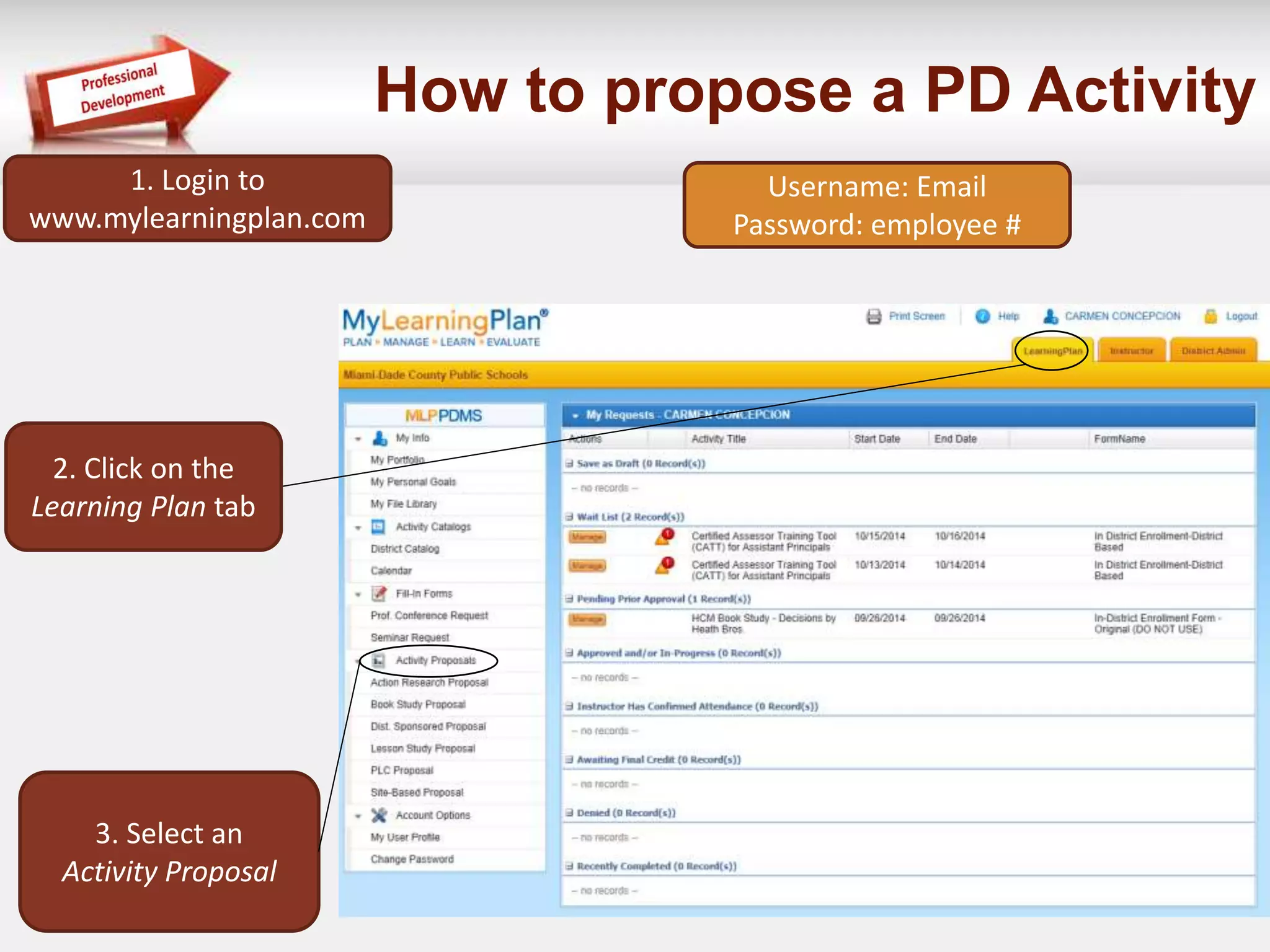
How to propose a PD Activity 
1. Login to 
www.mylearningplan.com 
2. Click on the 
Learning Plan tab 
3. Select an 
Activity Proposal 
Username: Email 
Password: employee #
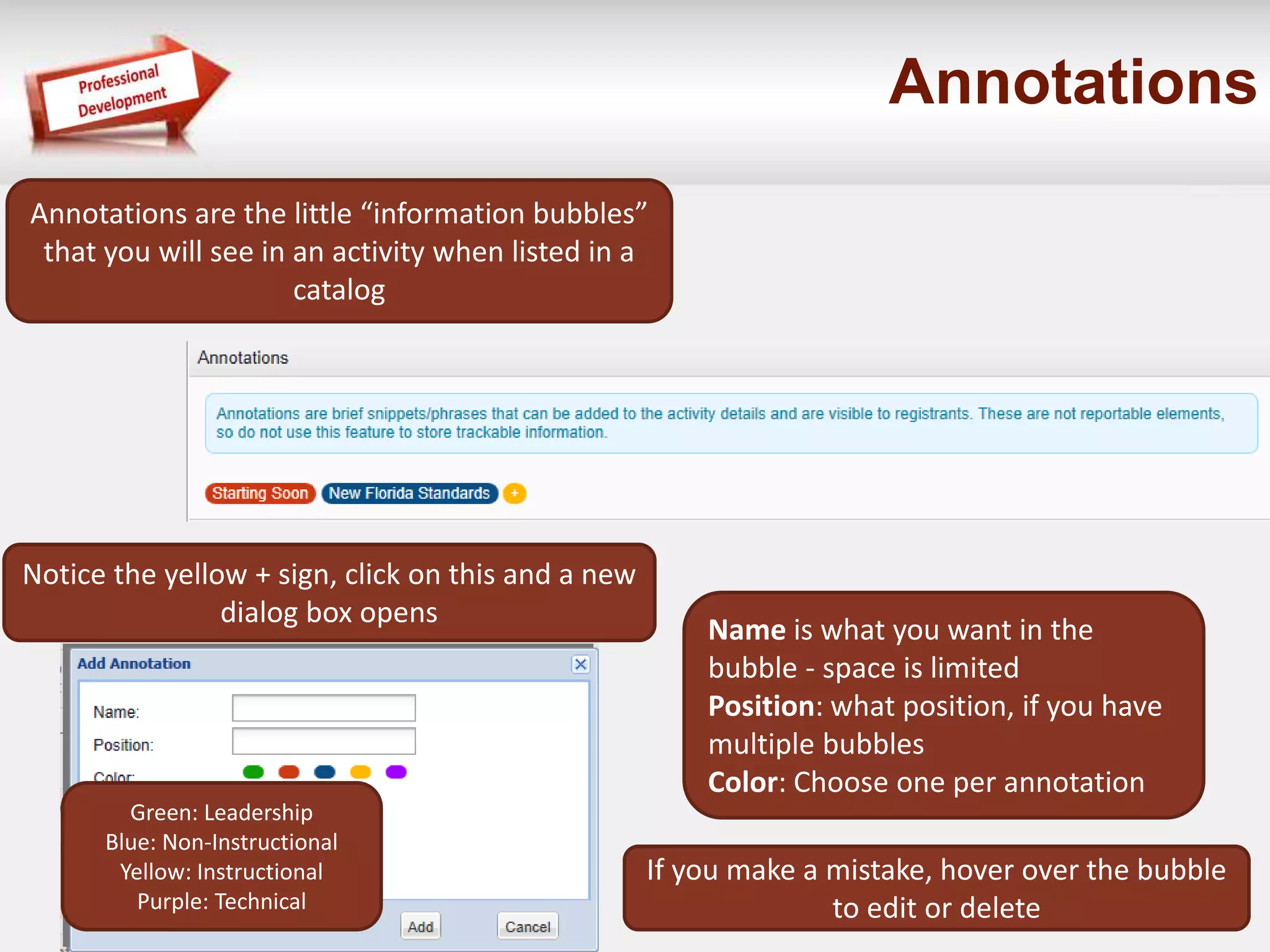
Annotations 
Annotations are the little “information bubbles” 
that you will see in an activity when listed in a 
catalog 
Notice the yellow + sign, click on this and a new 
dialog box opens 
Name is what you want in the 
bubble - space is limited 
Position: what position, if you have 
multiple bubbles 
Color: Choose one per annotation 
If you make a mistake, hover over the bubble 
to edit or delete 
Green: Leadership 
Blue: Non-Instructional 
Yellow: Instructional 
Purple: Technical
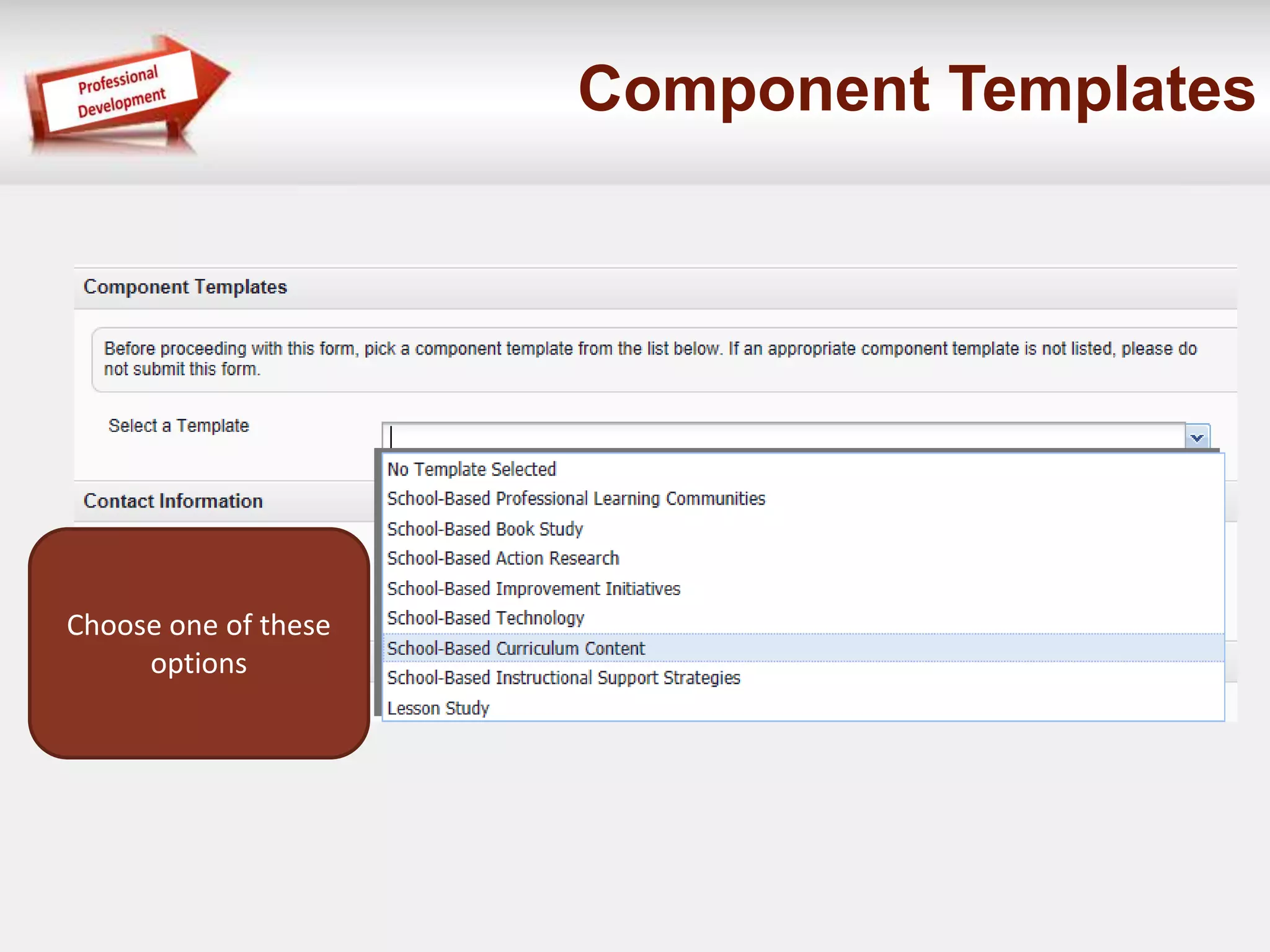
Component Templates 
Choose one of these 
options
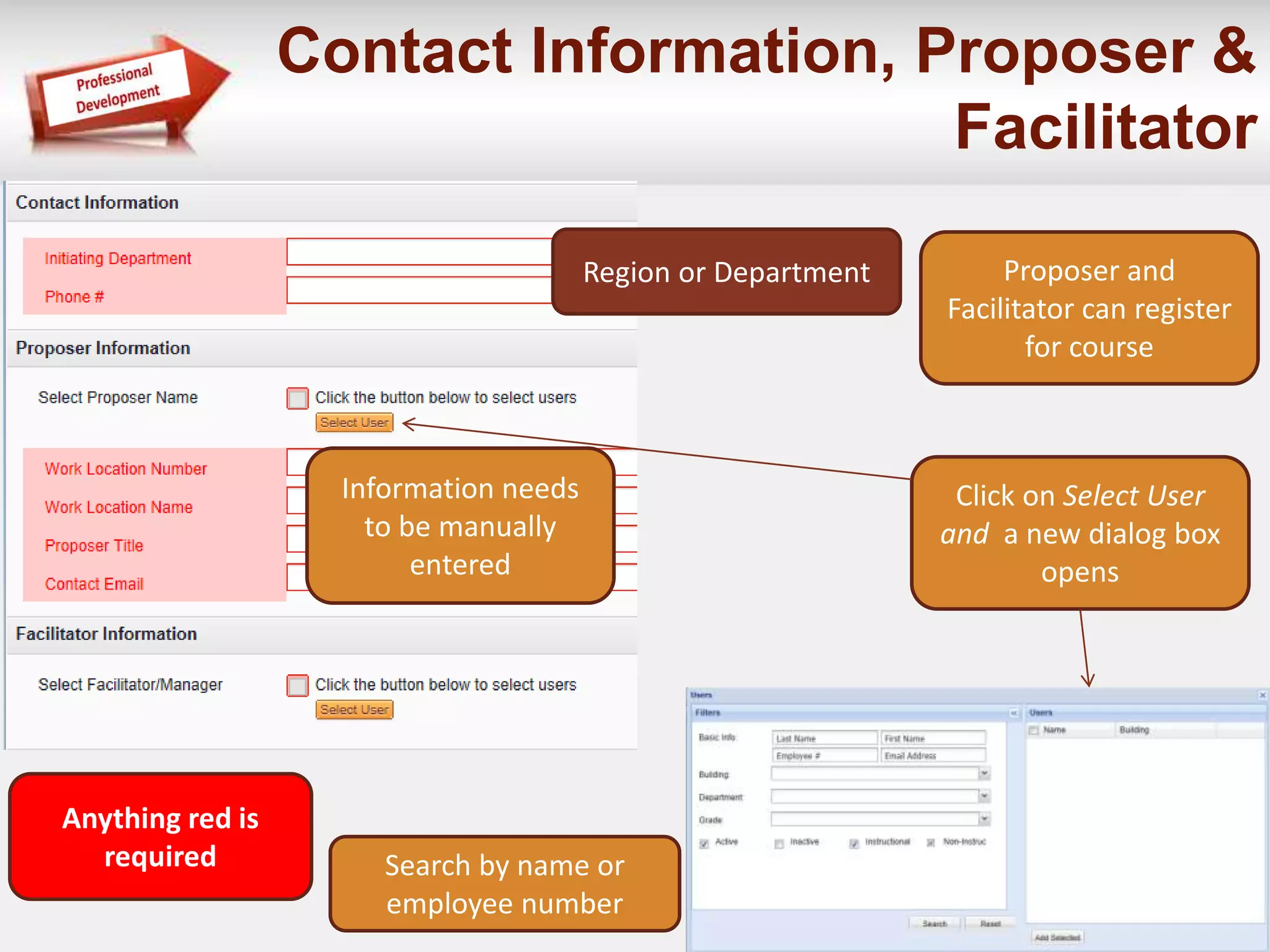
Contact Information, Proposer & 
Facilitator 
Click on Select User 
and a new dialog box 
opens 
Information needs 
to be manually 
entered 
Region or Department 
Search by name or 
employee number 
Anything red is 
required 
Proposer and 
Facilitator can register 
for course
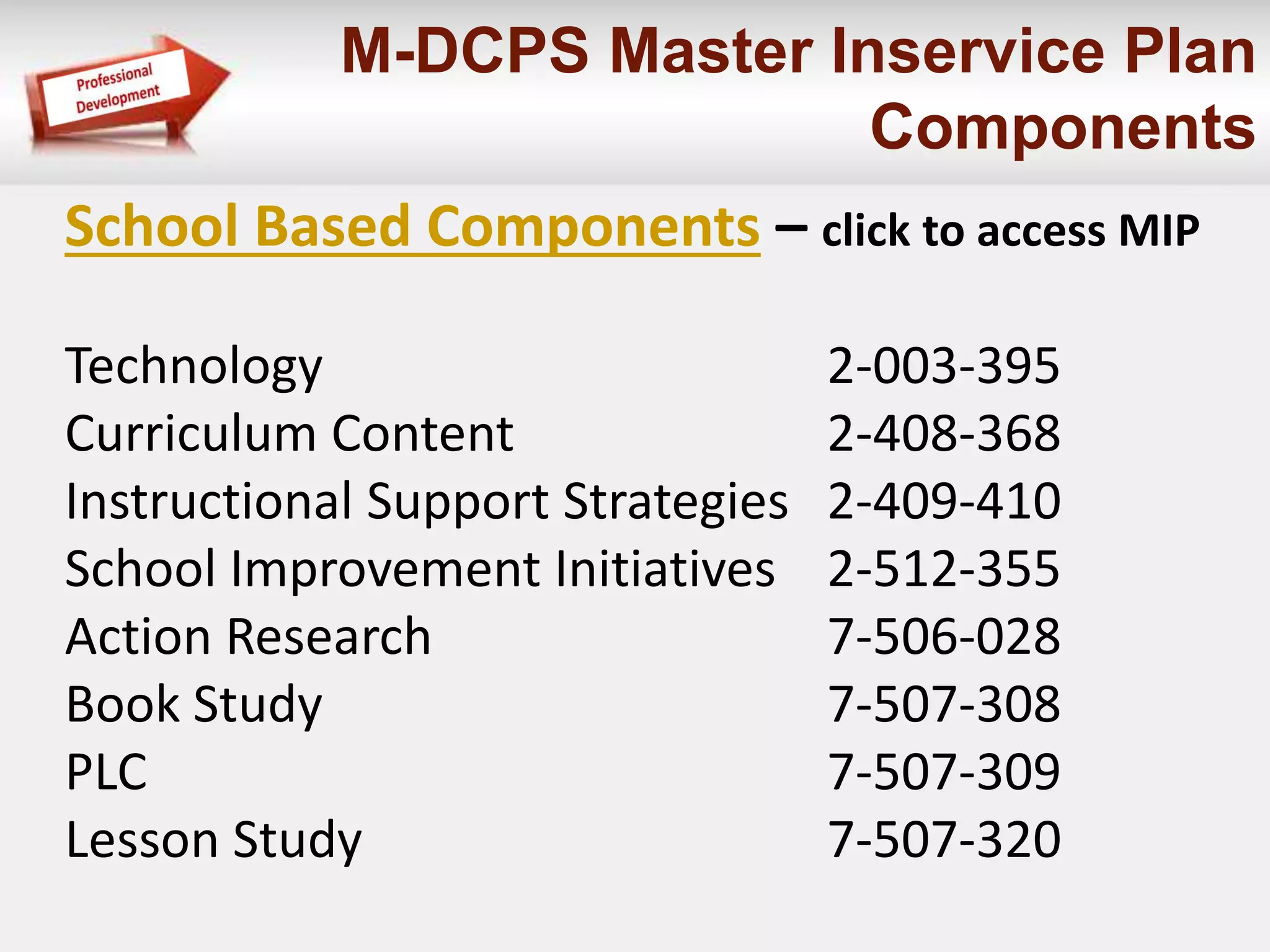
M-DCPS Master Inservice Plan 
Components 
School Based Components – click to access MIP 
Technology 2-003-395 
Curriculum Content 2-408-368 
Instructional Support Strategies 2-409-410 
School Improvement Initiatives 2-512-355 
Action Research 7-506-028 
Book Study 7-507-308 
PLC 7-507-309 
Lesson Study 7-507-320
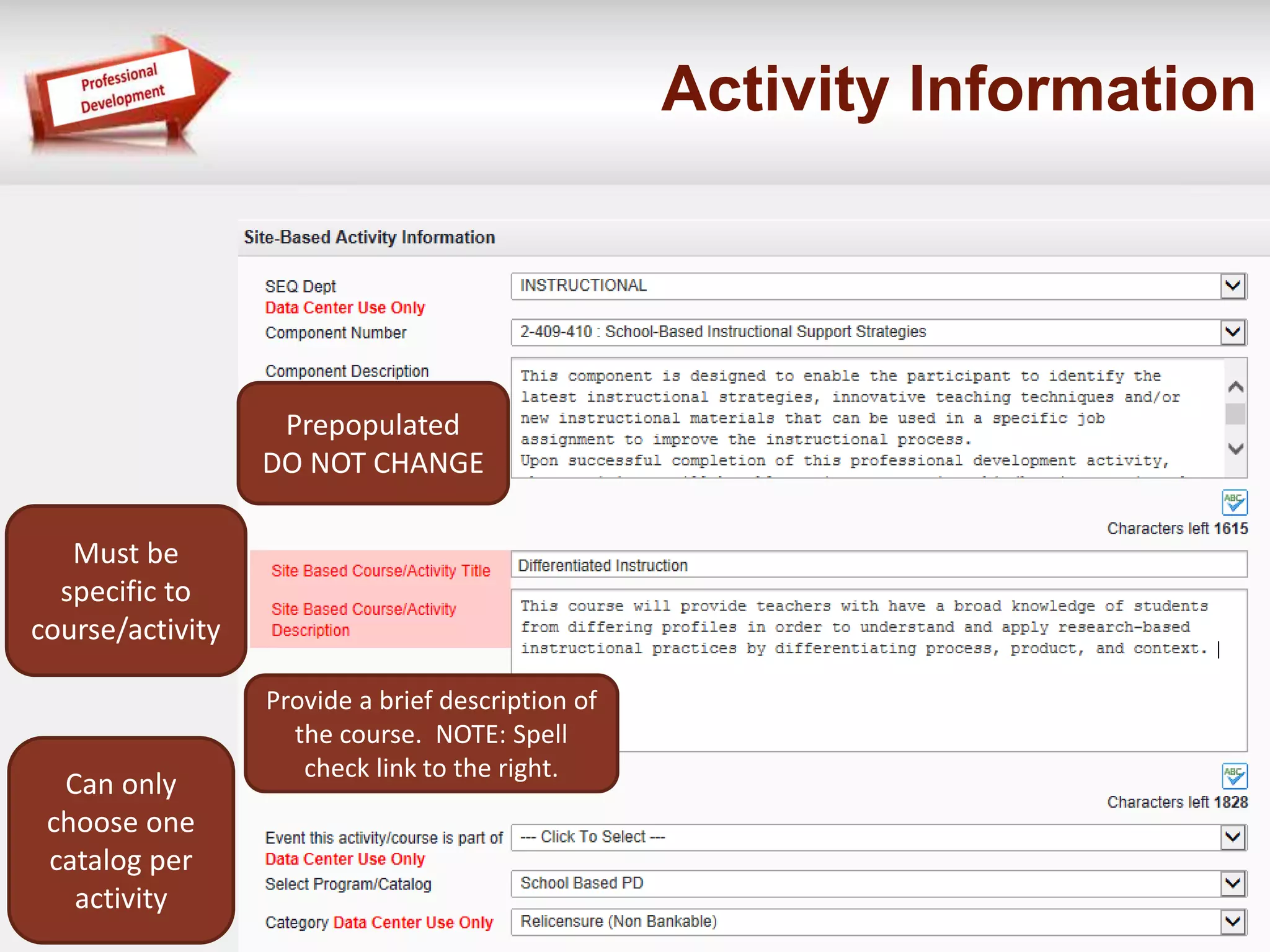
Can only 
choose one 
catalog per 
activity 
Prepopulated 
DO NOT CHANGE 
Provide a brief description of 
the course. NOTE: Spell 
check link to the right. 
Must be 
specific to 
course/activity 
Activity Information
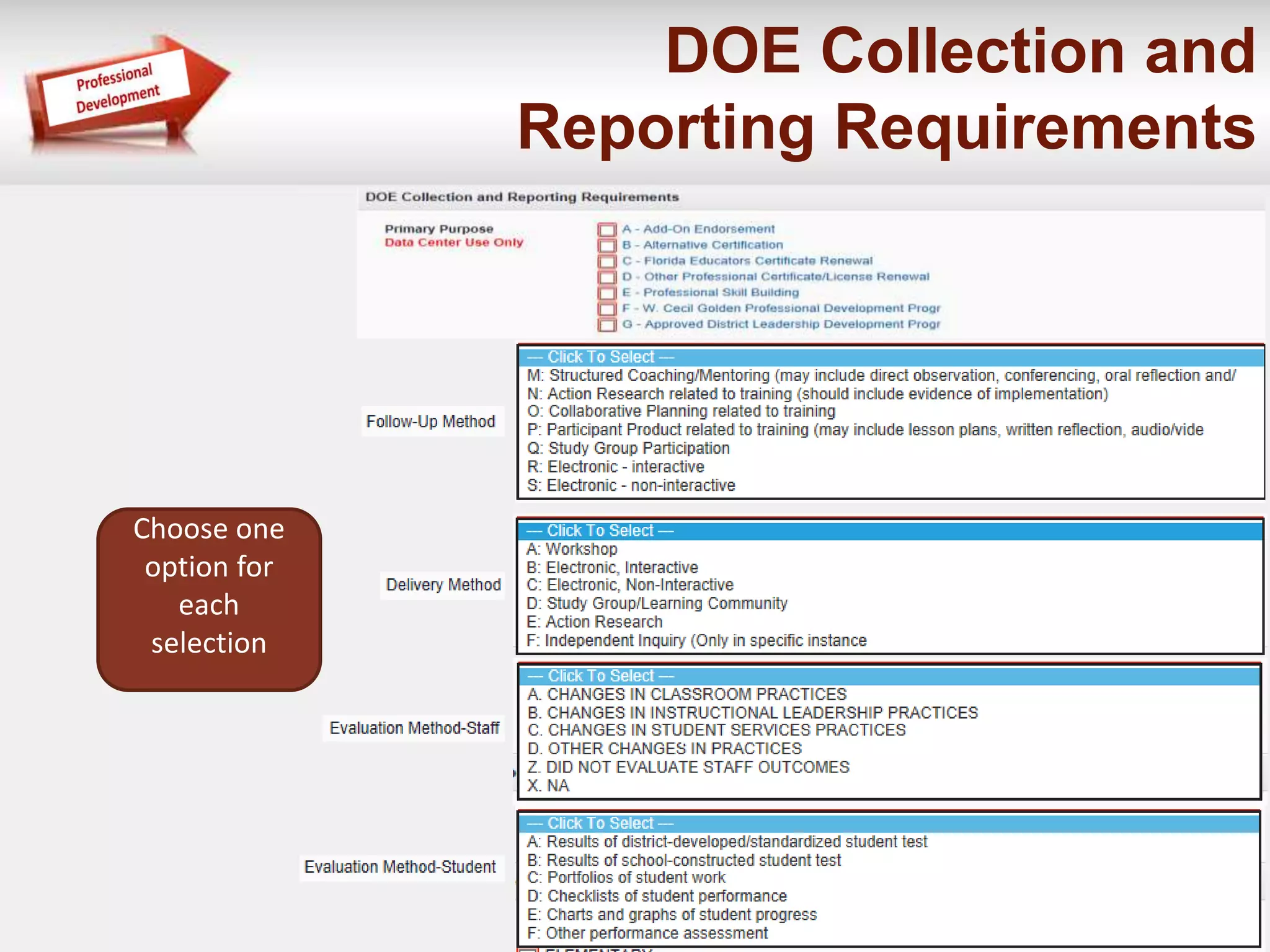
DOE Collection and 
Reporting Requirements 
Choose one 
option for 
each 
selection
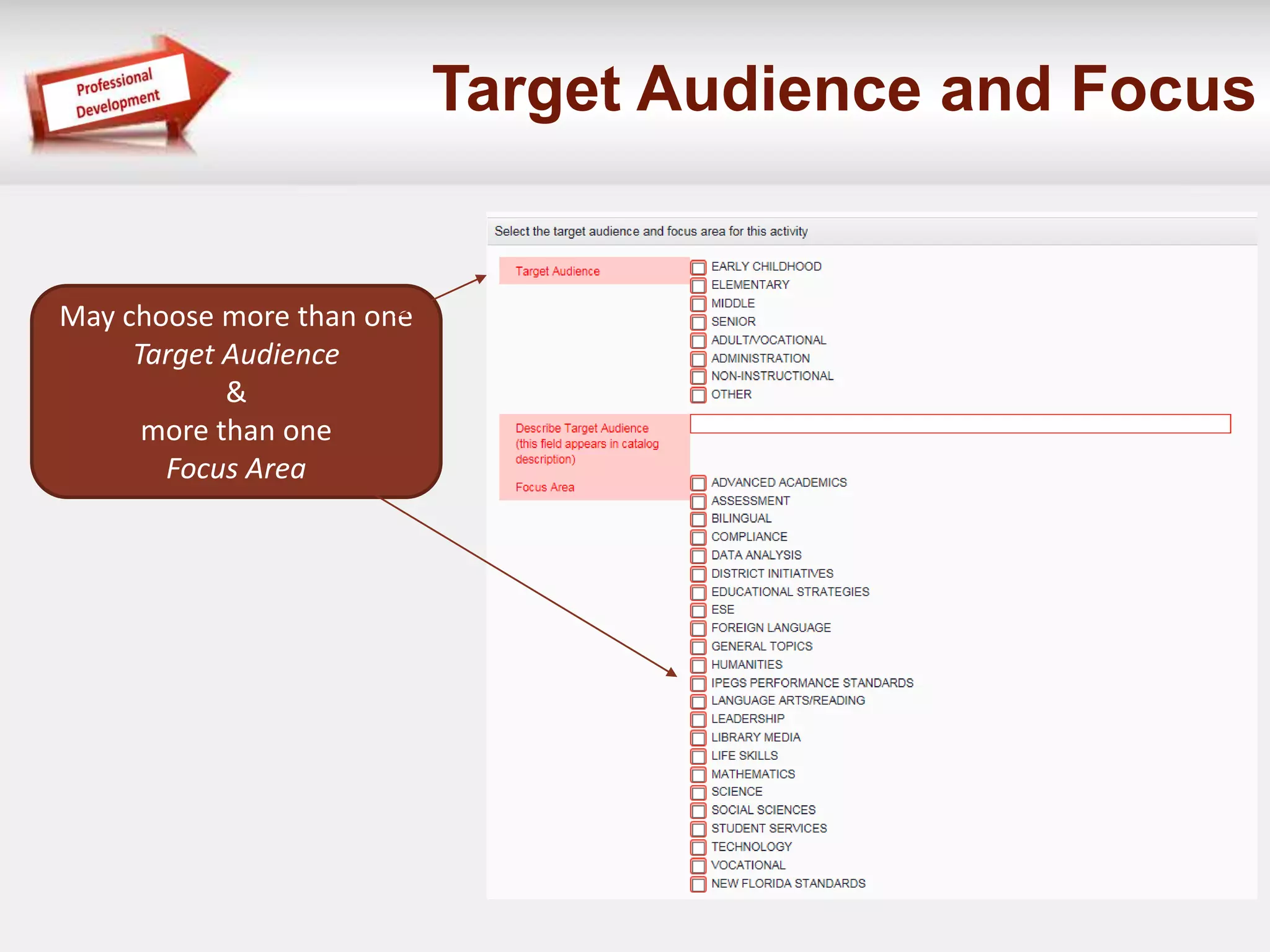
Target Audience and Focus 
May choose more than one 
Target Audience 
& 
more than one 
Focus Area
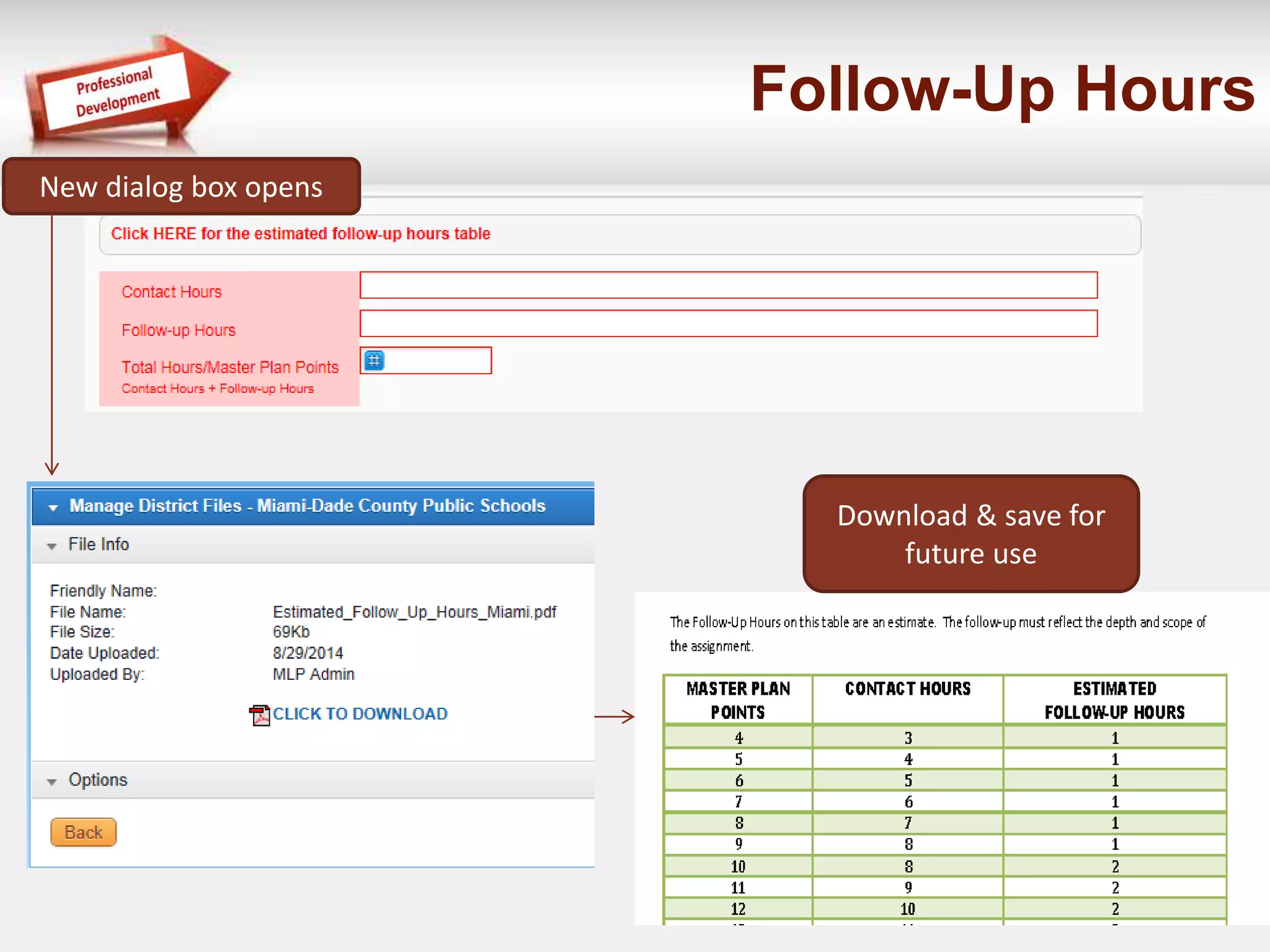
Follow-Up Hours 
New dialog box opens 
Download & save for 
future use
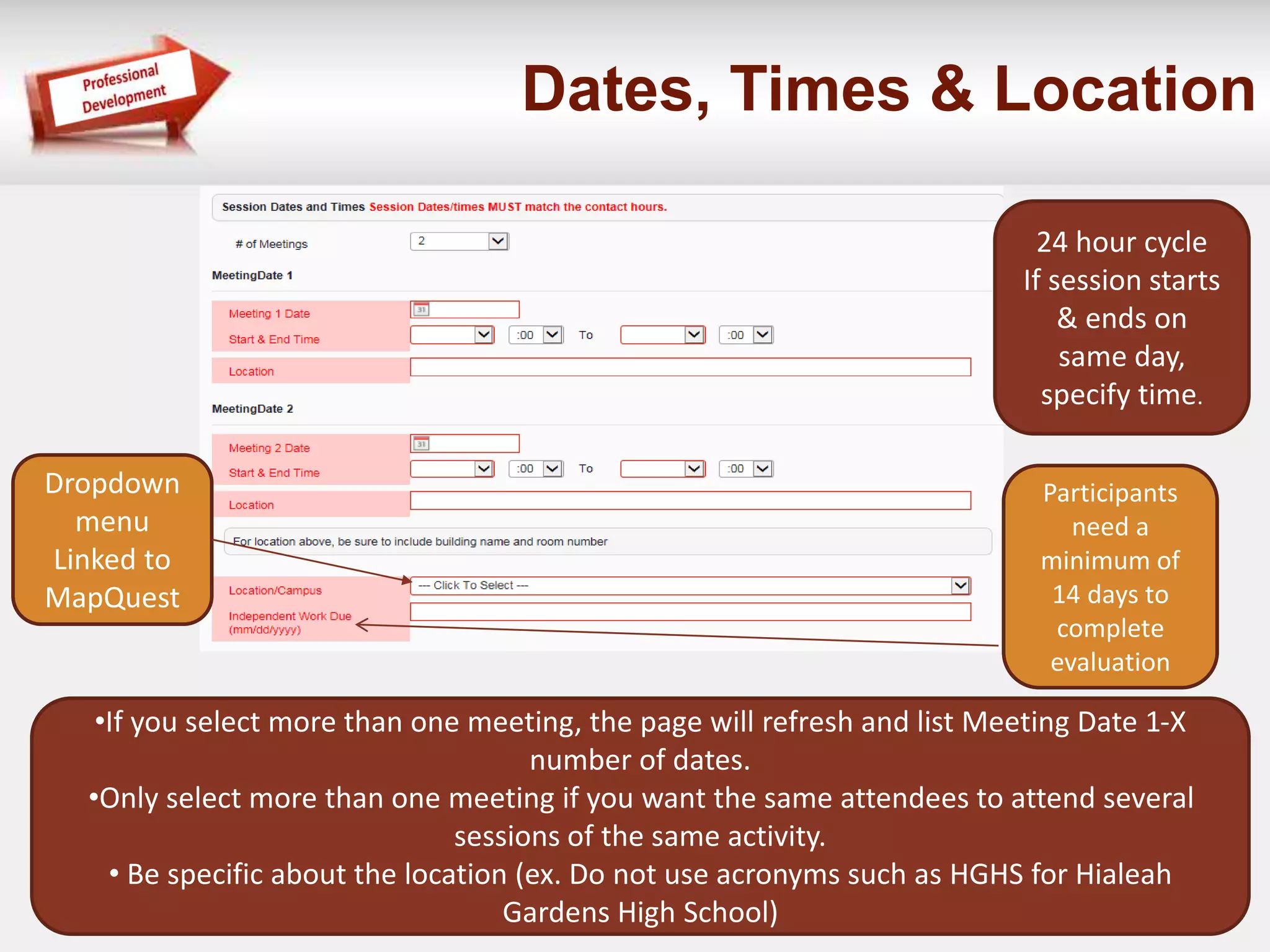
Dates, Times & Location 
•If you select more than one meeting, the page will refresh and list Meeting Date 1-X 
number of dates. 
•Only select more than one meeting if you want the same attendees to attend several 
sessions of the same activity. 
• Be specific about the location (ex. Do not use acronyms such as HGHS for Hialeah 
Gardens High School) 
24 hour cycle 
If session starts 
& ends on 
same day, 
specify time. 
Dropdown 
menu 
Linked to 
MapQuest 
Participants 
need a 
minimum of 
14 days to 
complete 
evaluation
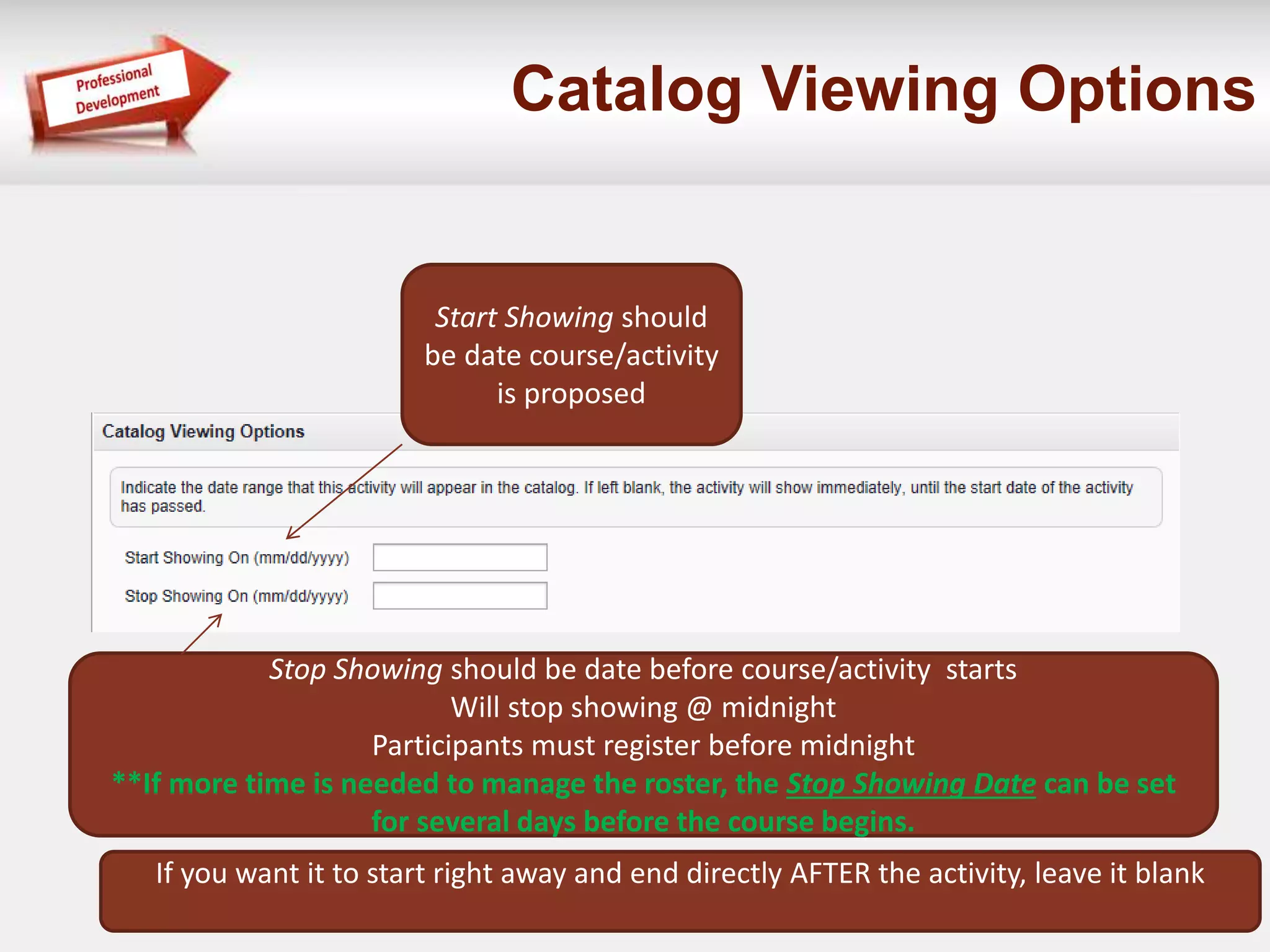
Catalog Viewing Options 
Start Showing should 
be date course/activity 
is proposed 
Stop Showing should be date before course/activity starts 
Will stop showing @ midnight 
Participants must register before midnight 
**If more time is needed to manage the roster, the Stop Showing Date can be set 
for several days before the course begins. 
If you want it to start right away and end directly AFTER the activity, leave it blank
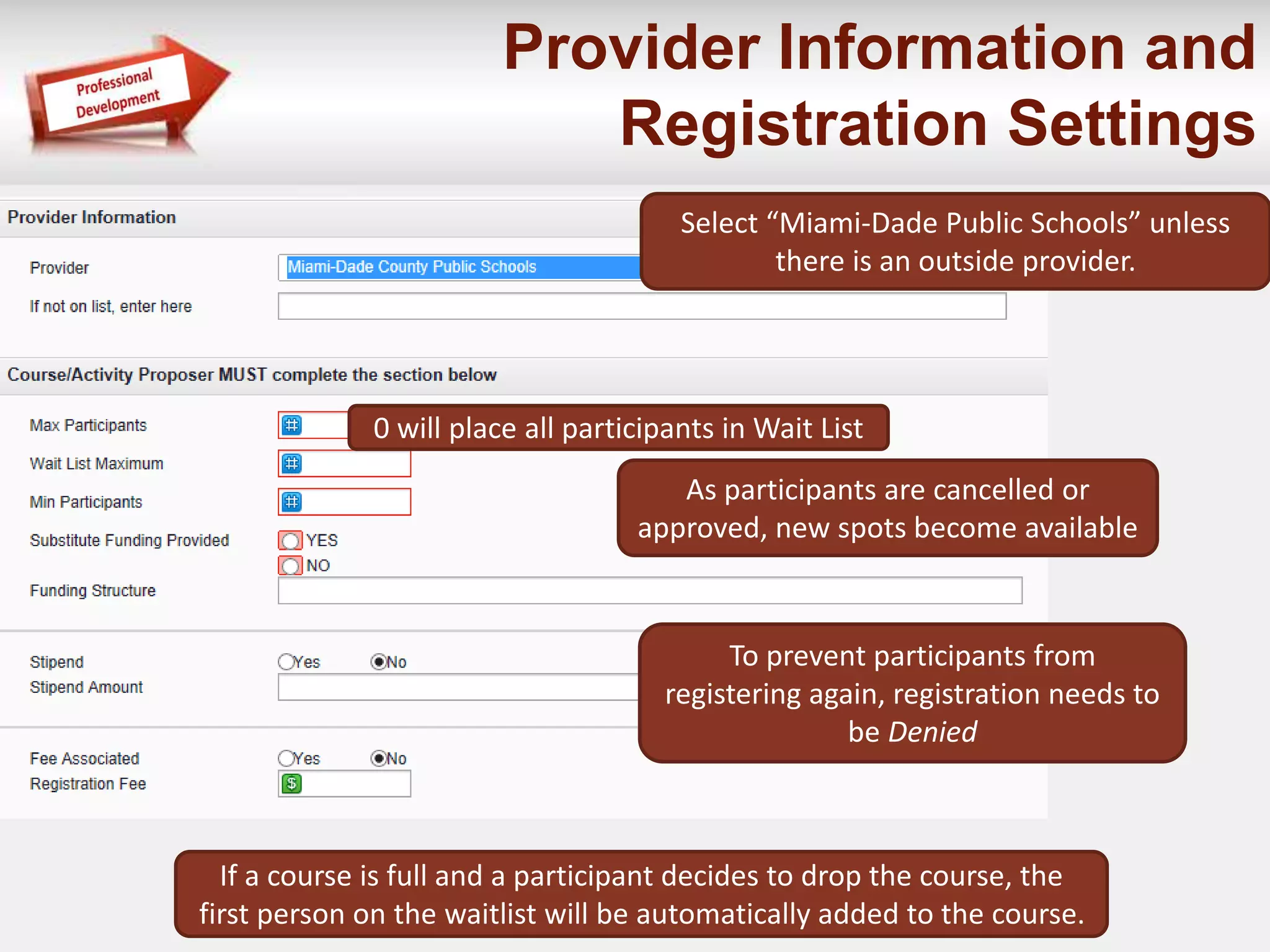
Provider Information and 
Registration Settings 
Select “Miami-Dade Public Schools” unless 
there is an outside provider. 
0 will place all participants in Wait List 
As participants are cancelled or 
approved, new spots become available 
To prevent participants from 
registering again, registration needs to 
be Denied 
If a course is full and a participant decides to drop the course, the 
first person on the waitlist will be automatically added to the course.
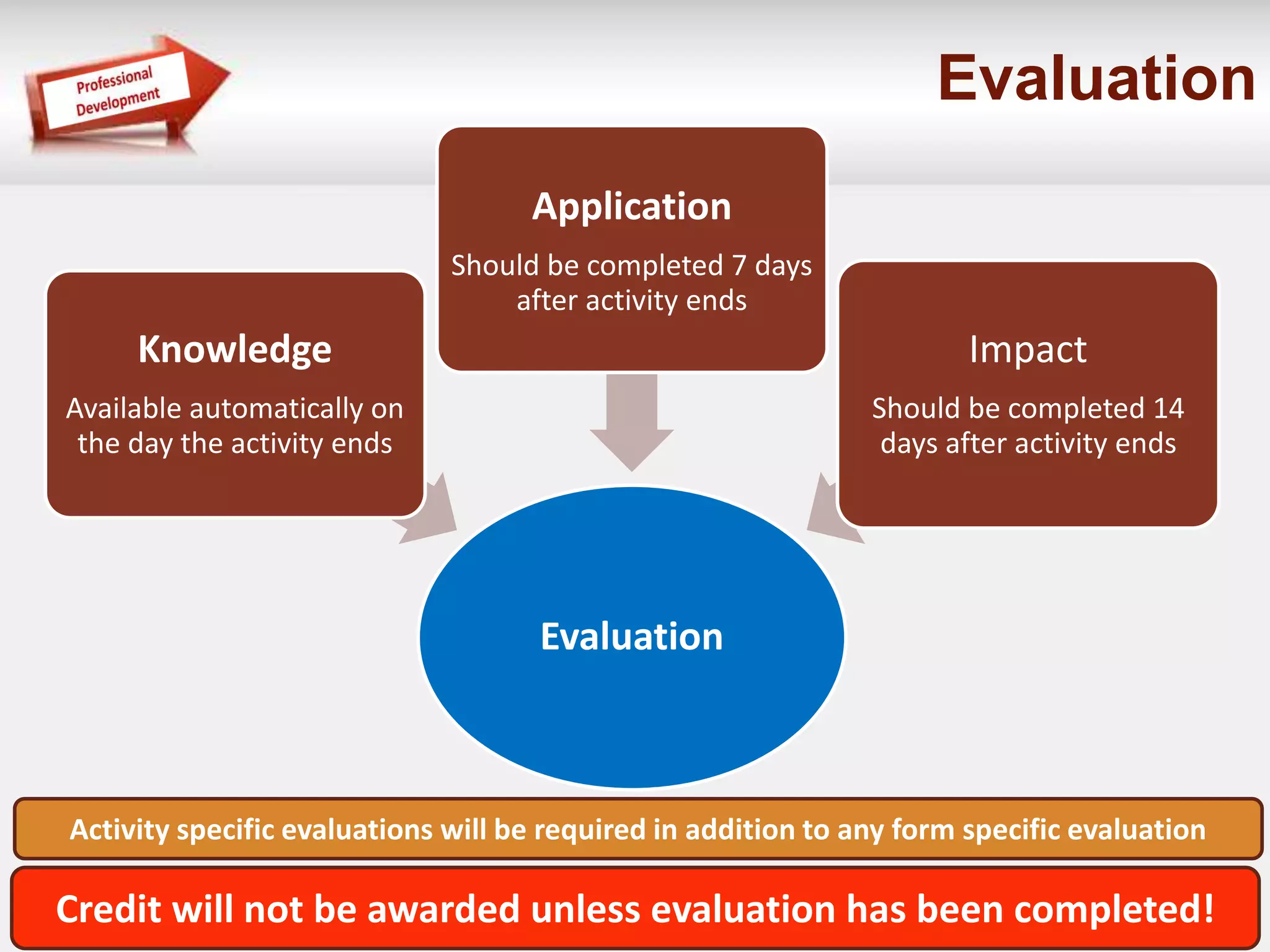
Evaluation 
Evaluation 
Knowledge 
Available automatically on 
the day the activity ends 
Application 
Should be completed 7 days 
after activity ends 
Impact 
Should be completed 14 
days after activity ends 
Activity specific evaluations will be required in addition to any form specific evaluation 
Credit will not be awarded unless evaluation has been completed!
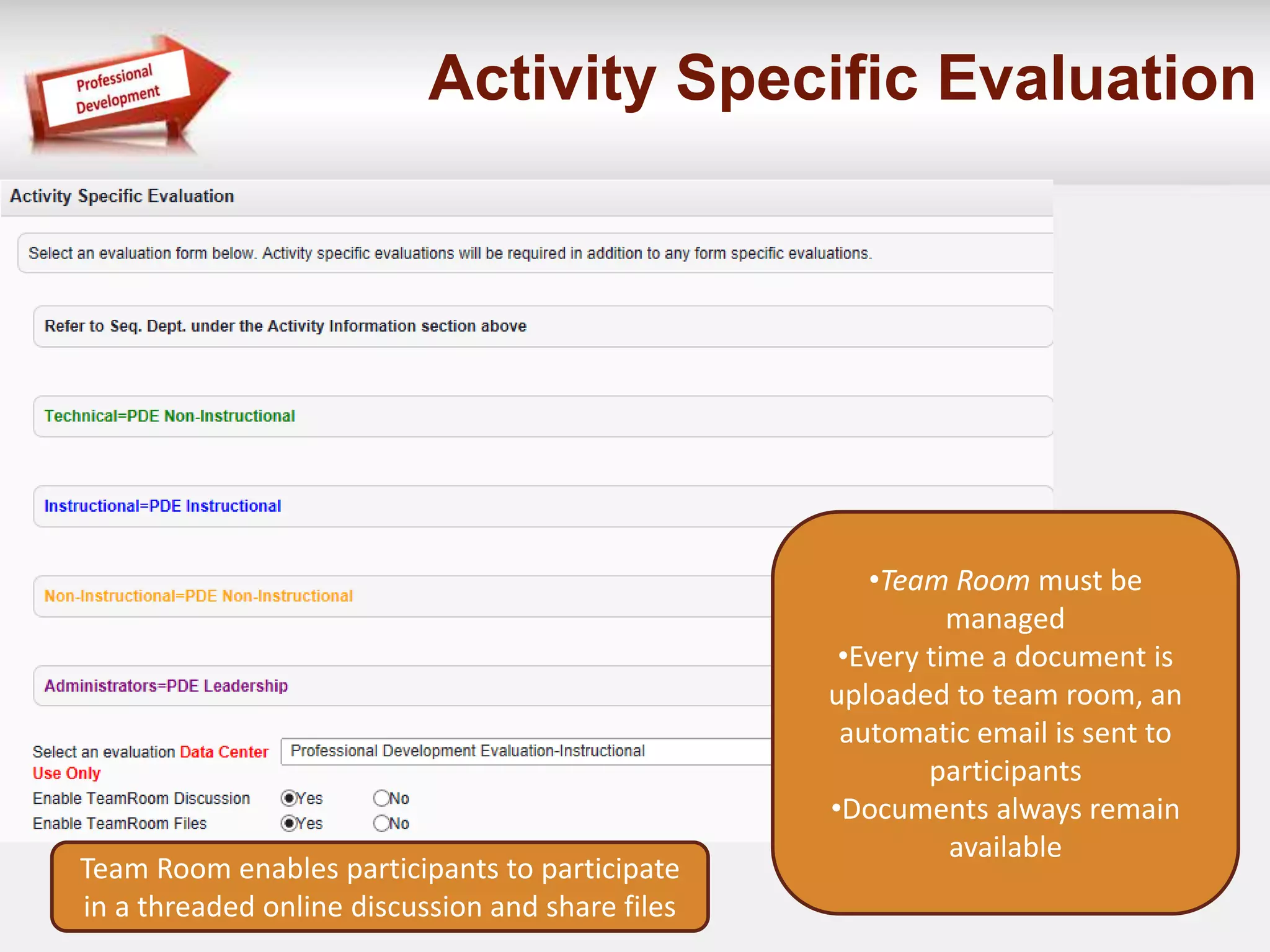
Activity Specific Evaluation 
•Team Room must be 
managed 
•Every time a document is 
uploaded to team room, an 
automatic email is sent to 
participants 
•Documents always remain 
available 
Team Room enables participants to participate 
in a threaded online discussion and share files
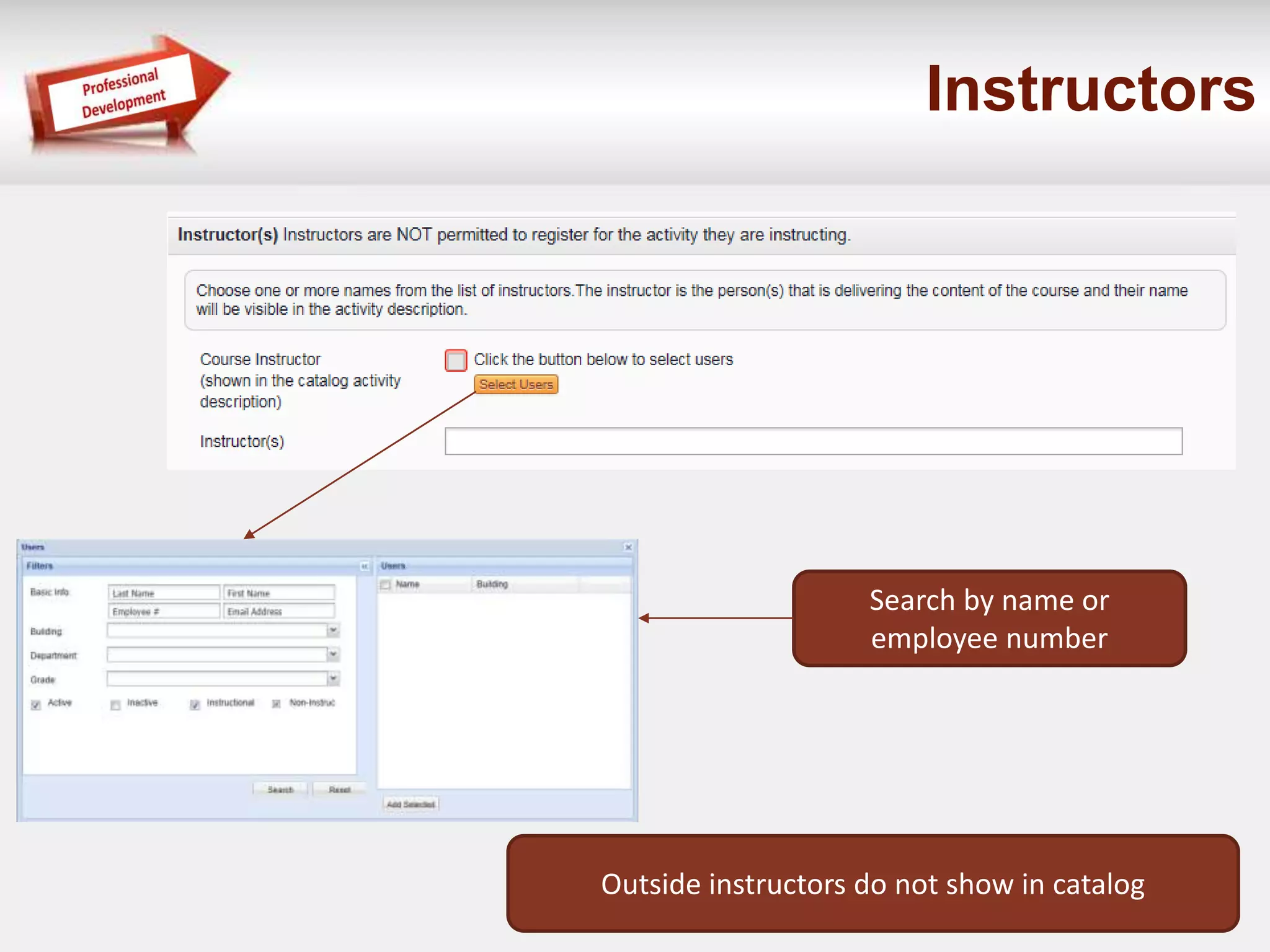
Instructors 
Search by name or 
employee number 
Outside instructors do not show in catalog
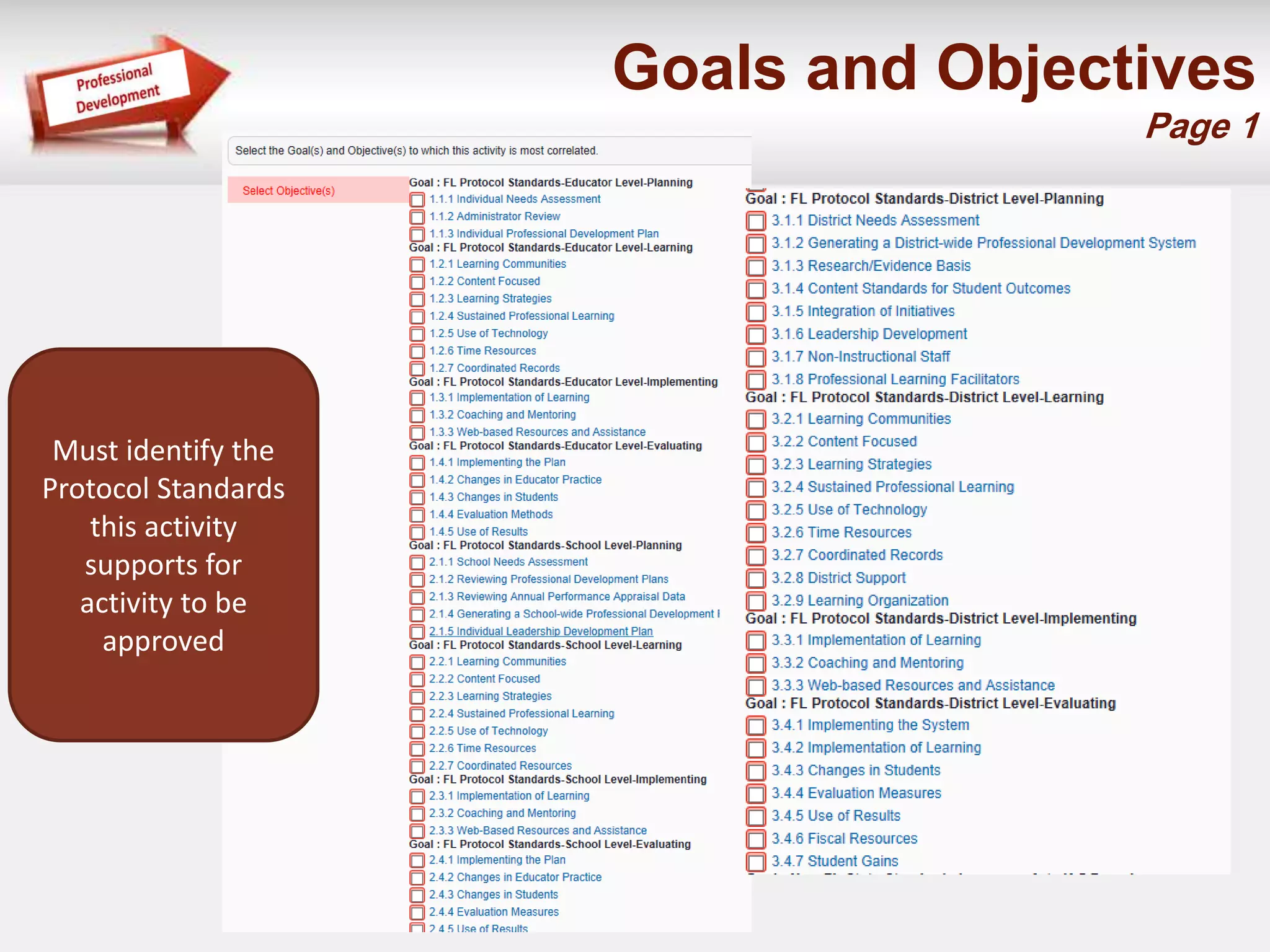
Goals and Objectives 
Page 1 
Must identify the 
Protocol Standards 
this activity 
supports for 
activity to be 
approved
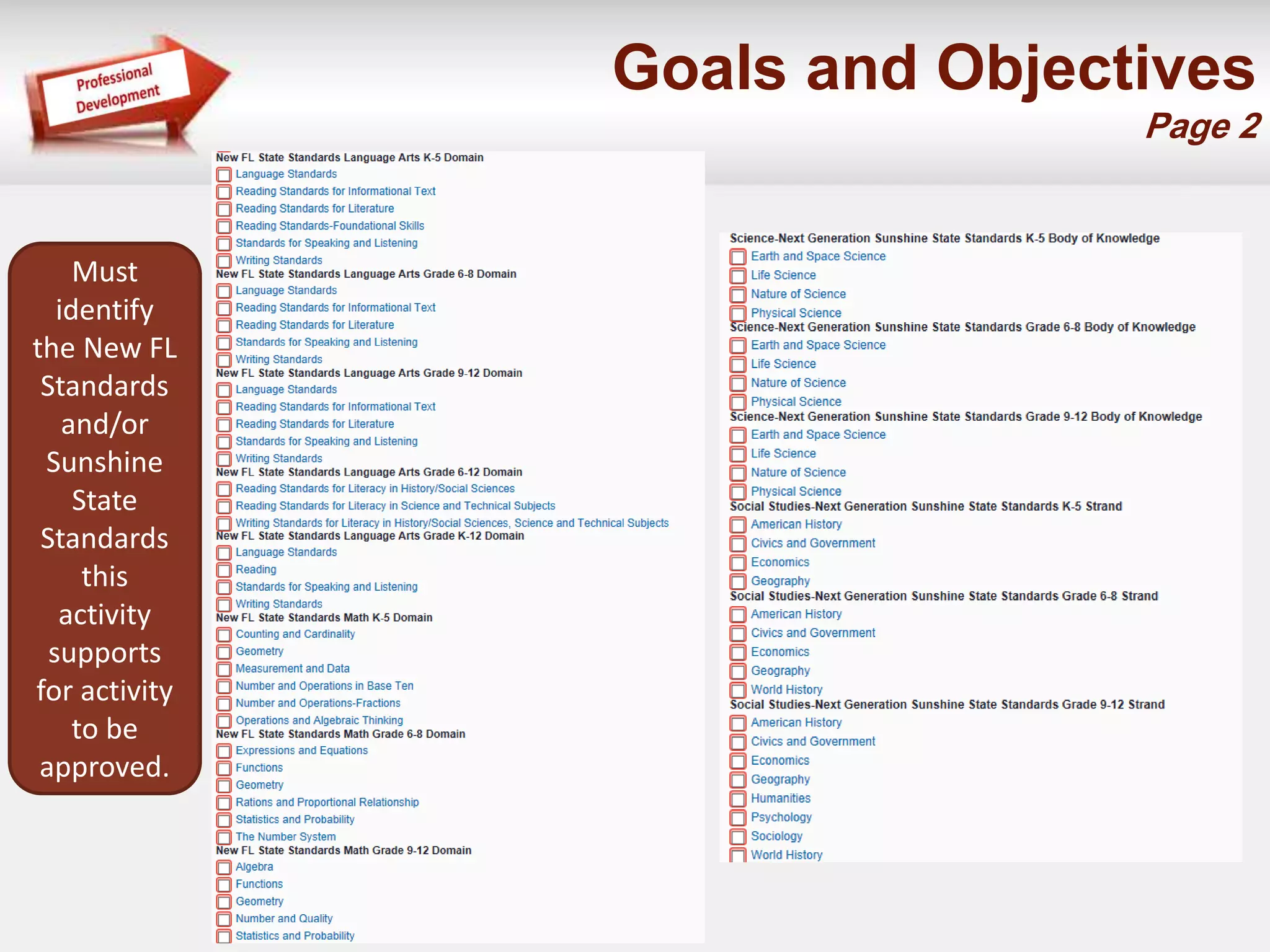
Goals and Objectives 
Page 2 
Must 
identify 
the New FL 
Standards 
and/or 
Sunshine 
State 
Standards 
this 
activity 
supports 
for activity 
to be 
approved.
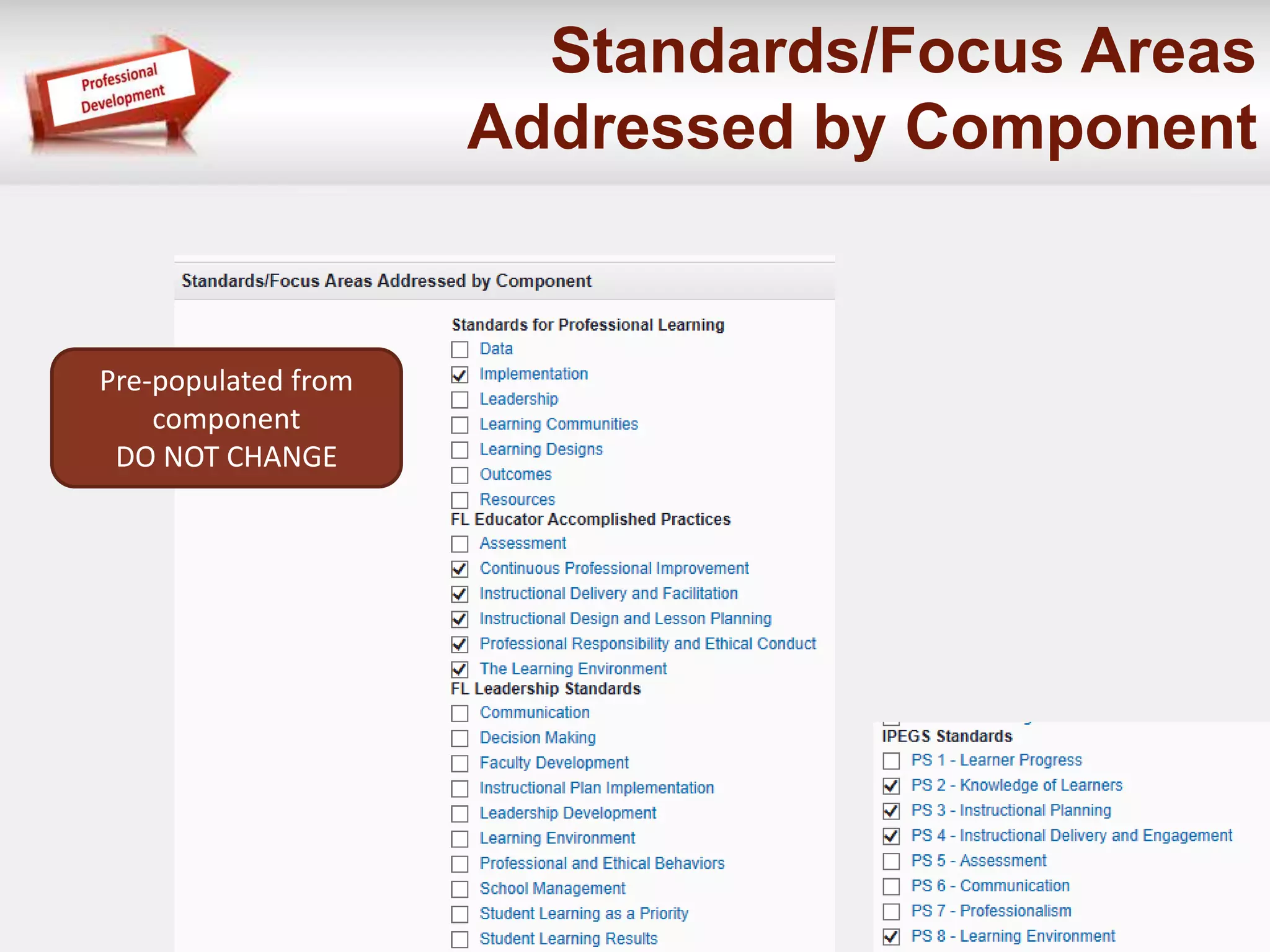
Standards/Focus Areas 
Addressed by Component 
Pre-populated from 
component 
DO NOT CHANGE
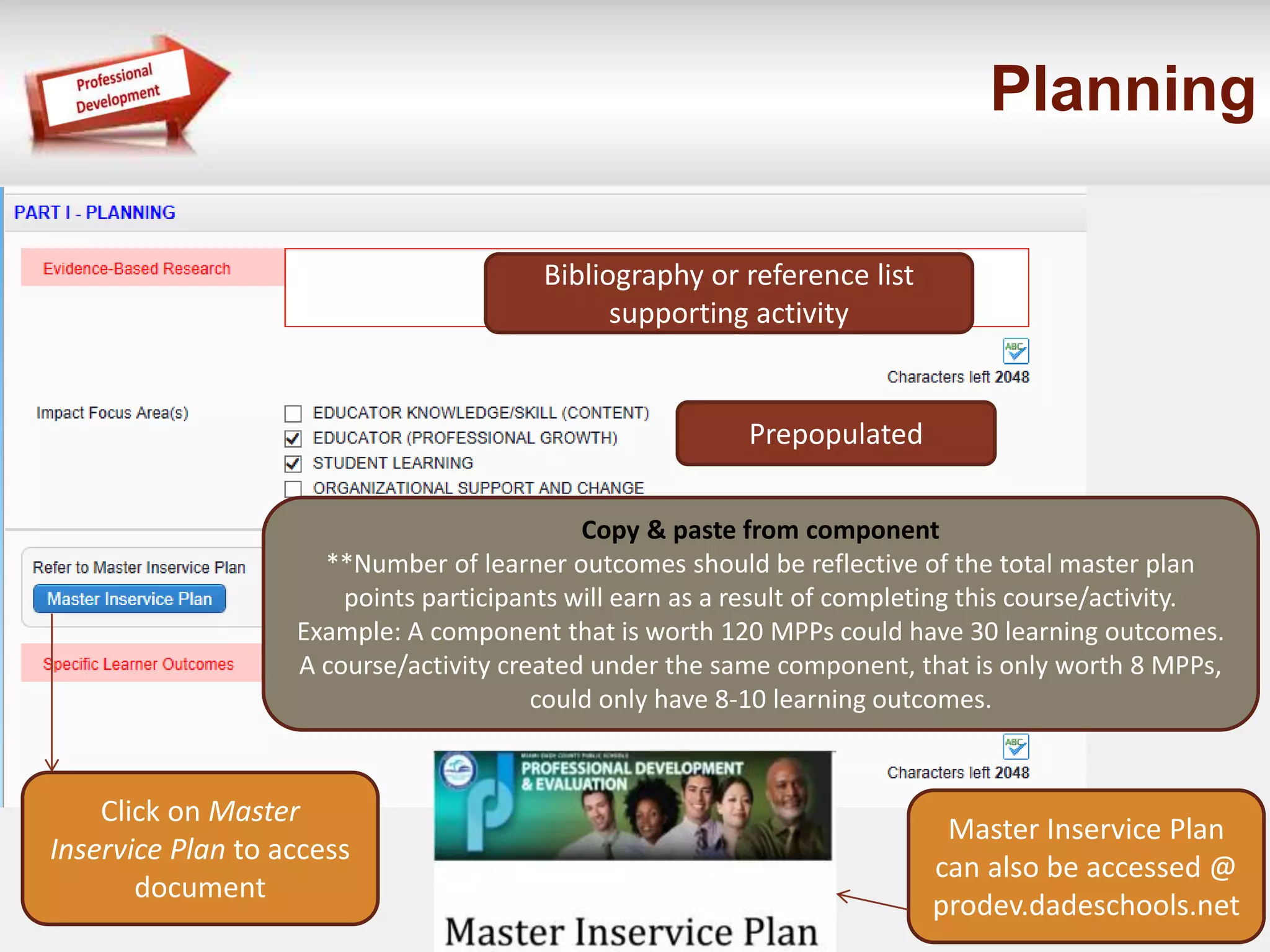
Planning 
Bibliography or reference list 
supporting activity 
Prepopulated 
Copy & paste from component 
**Number of learner outcomes should be reflective of the total master plan 
points participants will earn as a result of completing this course/activity. 
Example: A component that is worth 120 MPPs could have 30 learning outcomes. 
A course/activity created under the same component, that is only worth 8 MPPs, 
could only have 8-10 learning outcomes. 
Click on Master 
Inservice Plan to access 
document 
Master Inservice Plan 
can also be accessed @ 
prodev.dadeschools.net
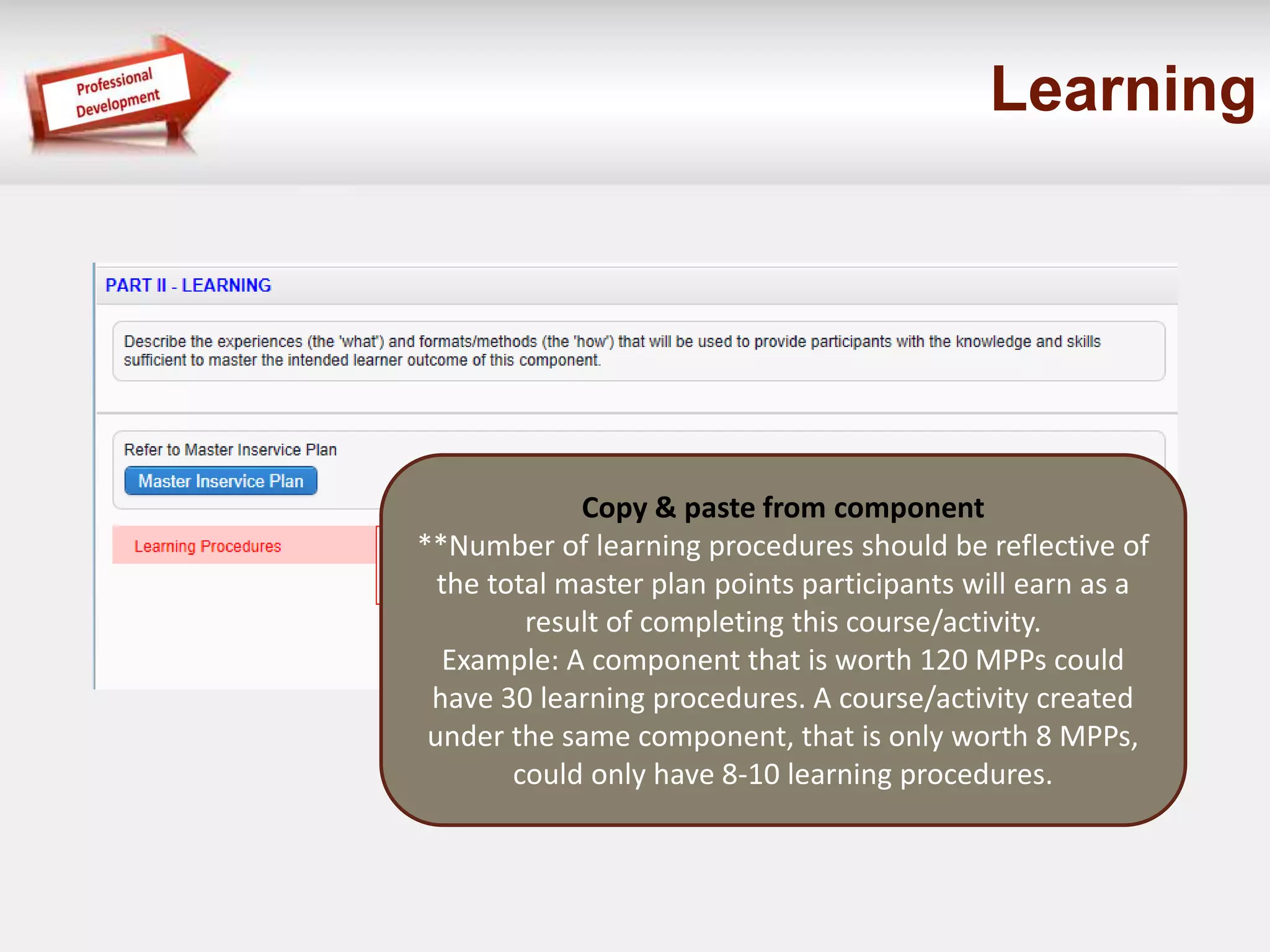
Learning 
Copy & paste from component 
**Number of learning procedures should be reflective of 
the total master plan points participants will earn as a 
result of completing this course/activity. 
Example: A component that is worth 120 MPPs could 
have 30 learning procedures. A course/activity created 
under the same component, that is only worth 8 MPPs, 
could only have 8-10 learning procedures.
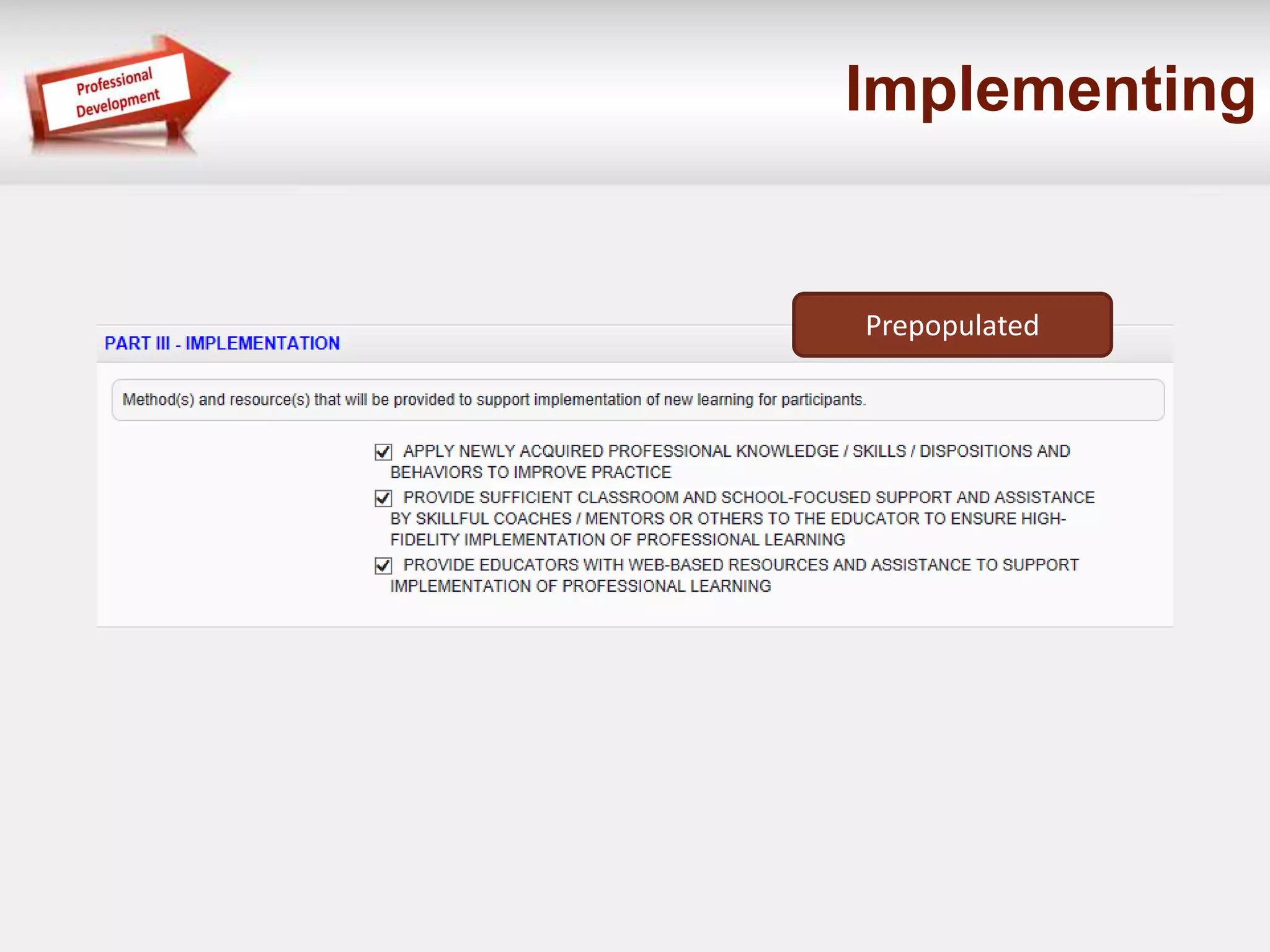
Implementing 
Prepopulated
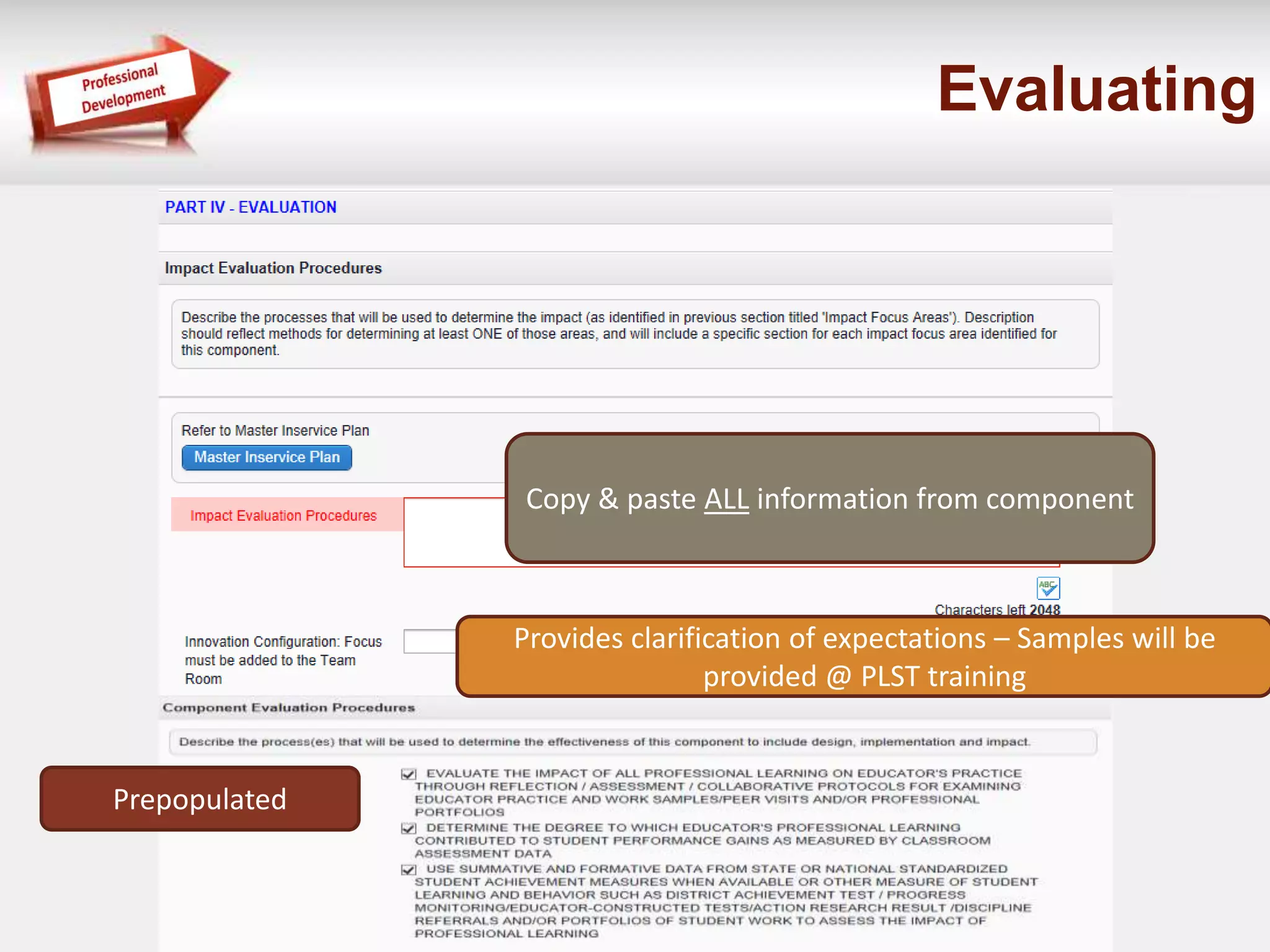
Evaluating 
Prepopulated 
Copy & paste ALL information from component 
Provides clarification of expectations – Samples will be 
provided @ PLST training
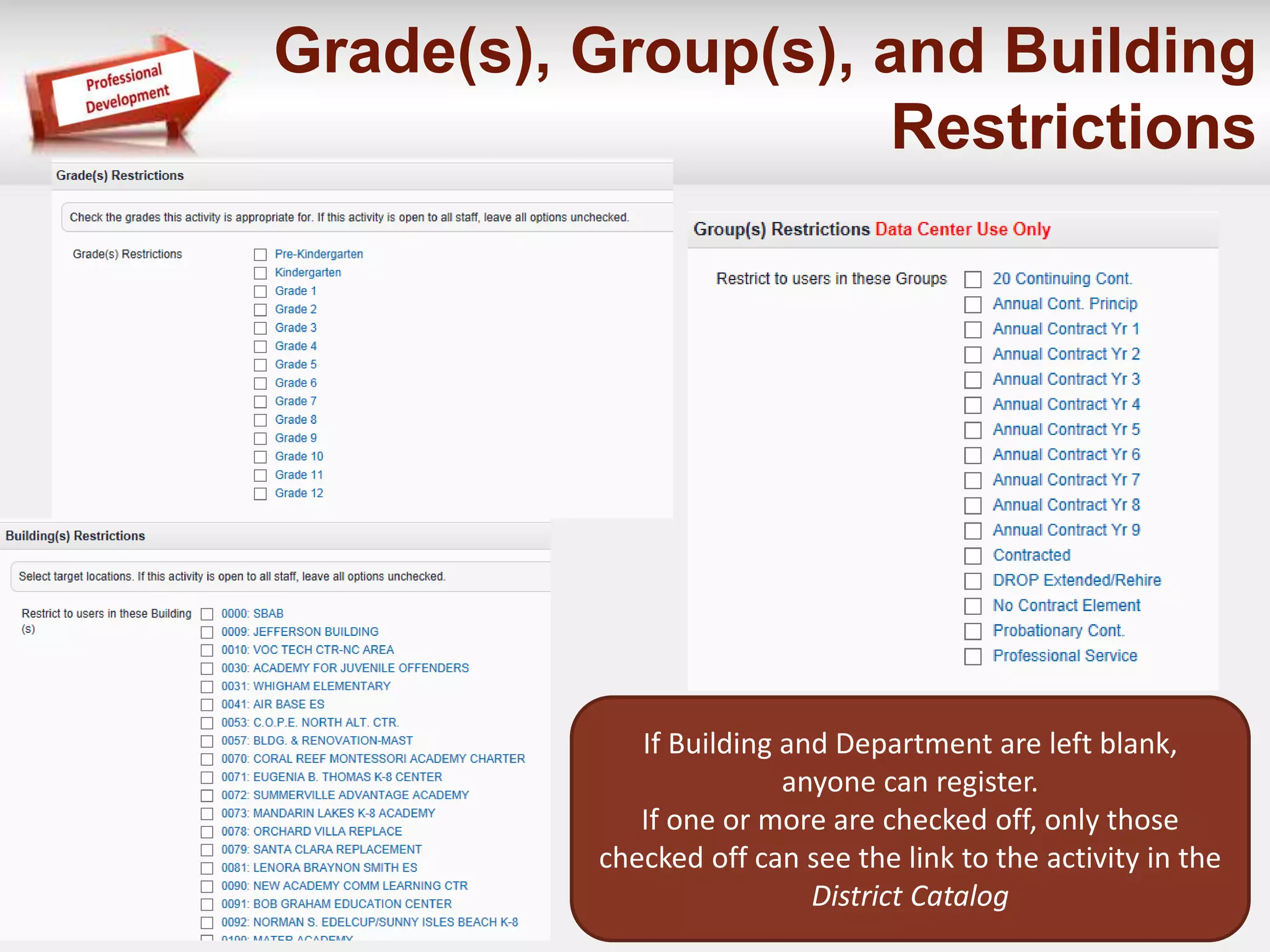
Grade(s), Group(s), and Building 
Restrictions 
If Building and Department are left blank, 
anyone can register. 
If one or more are checked off, only those 
checked off can see the link to the activity in the 
District Catalog
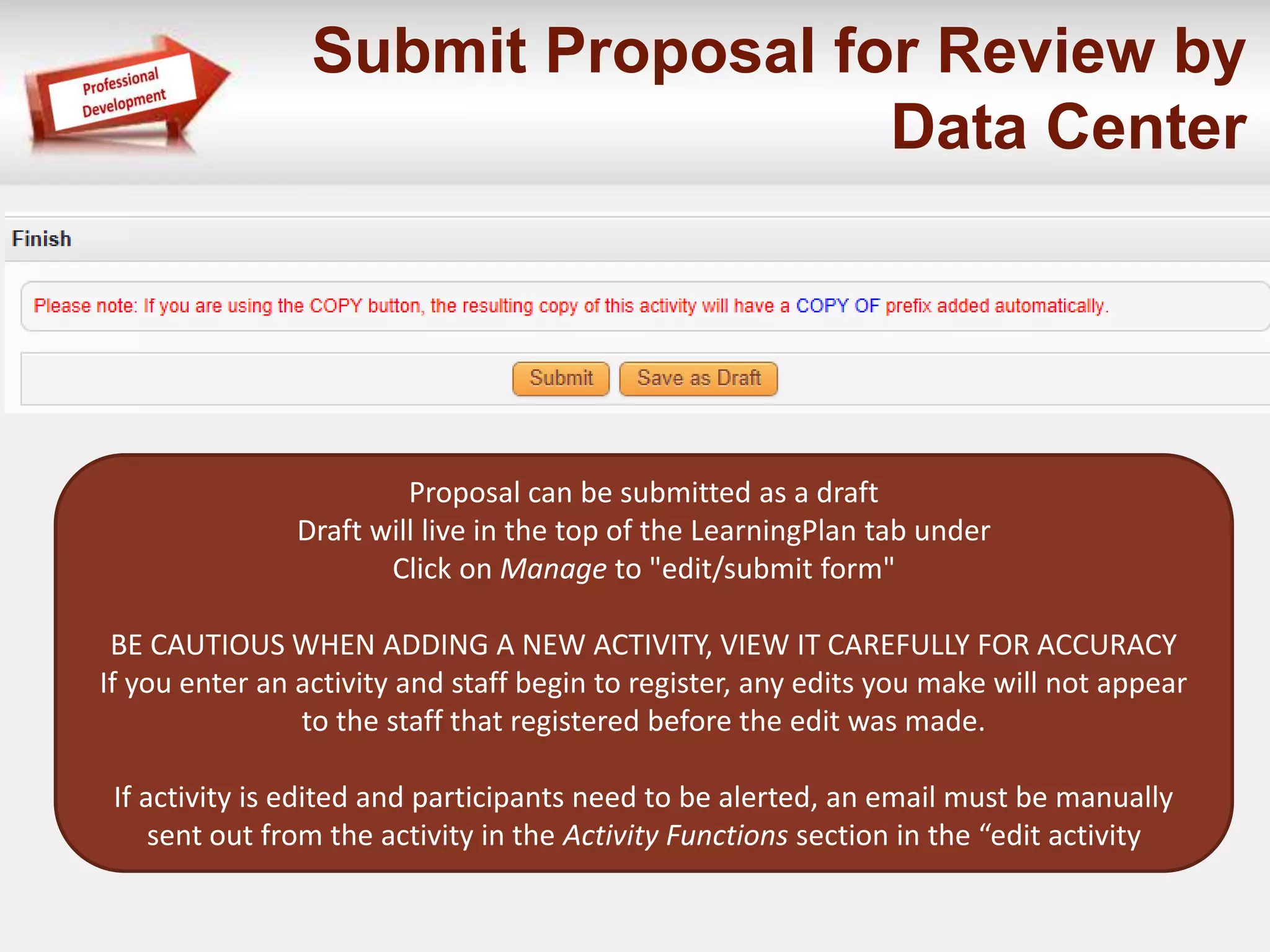
Submit Proposal for Review by 
Data Center 
Proposal can be submitted as a draft 
Draft will live in the top of the LearningPlan tab under 
Click on Manage to "edit/submit form" 
BE CAUTIOUS WHEN ADDING A NEW ACTIVITY, VIEW IT CAREFULLY FOR ACCURACY 
If you enter an activity and staff begin to register, any edits you make will not appear 
to the staff that registered before the edit was made. 
If activity is edited and participants need to be alerted, an email must be manually 
sent out from the activity in the Activity Functions section in the “edit activity
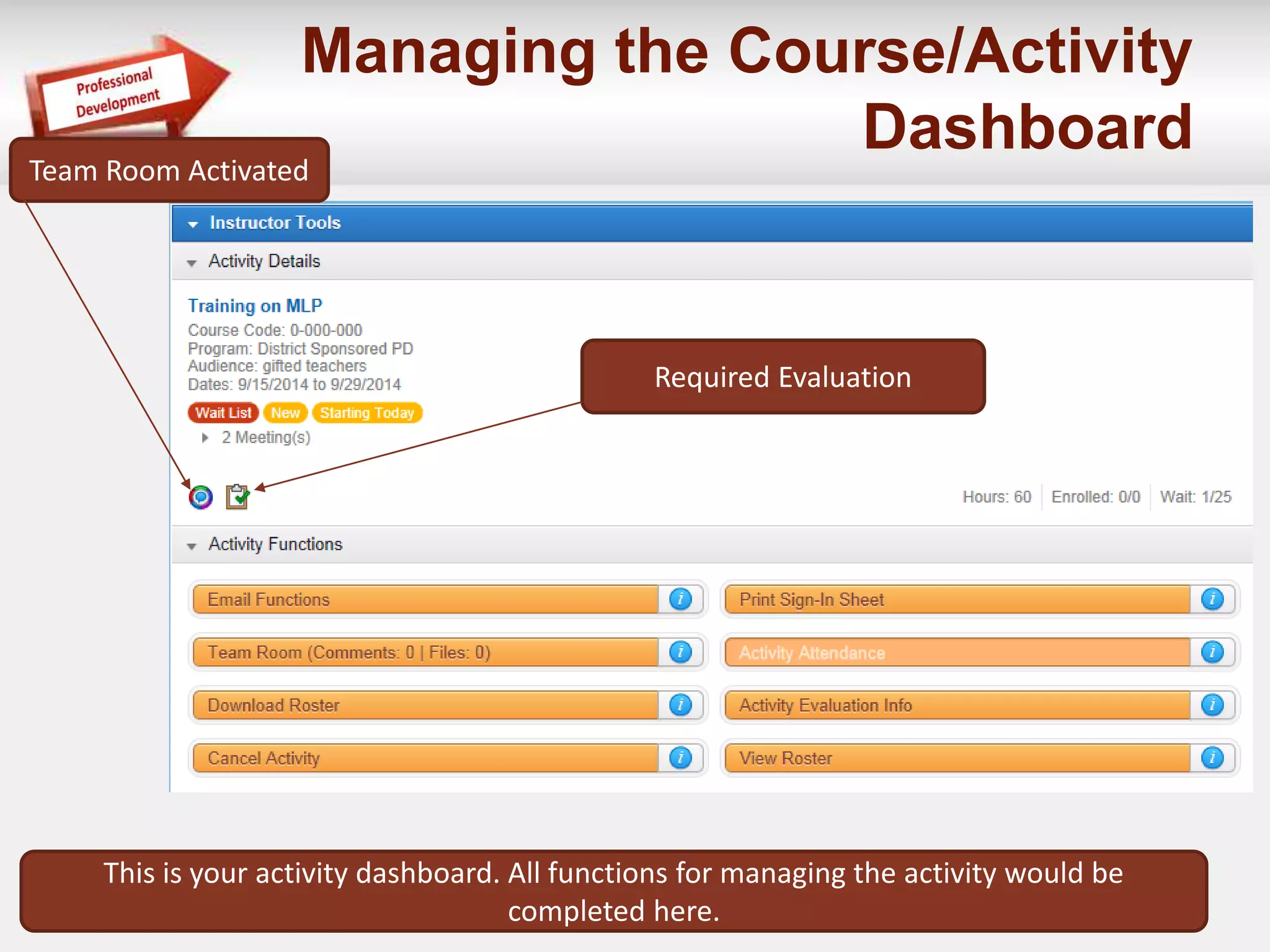
Managing the Course/Activity 
Dashboard 
This is your activity dashboard. All functions for managing the activity would be 
completed here. 
Team Room Activated 
Required Evaluation
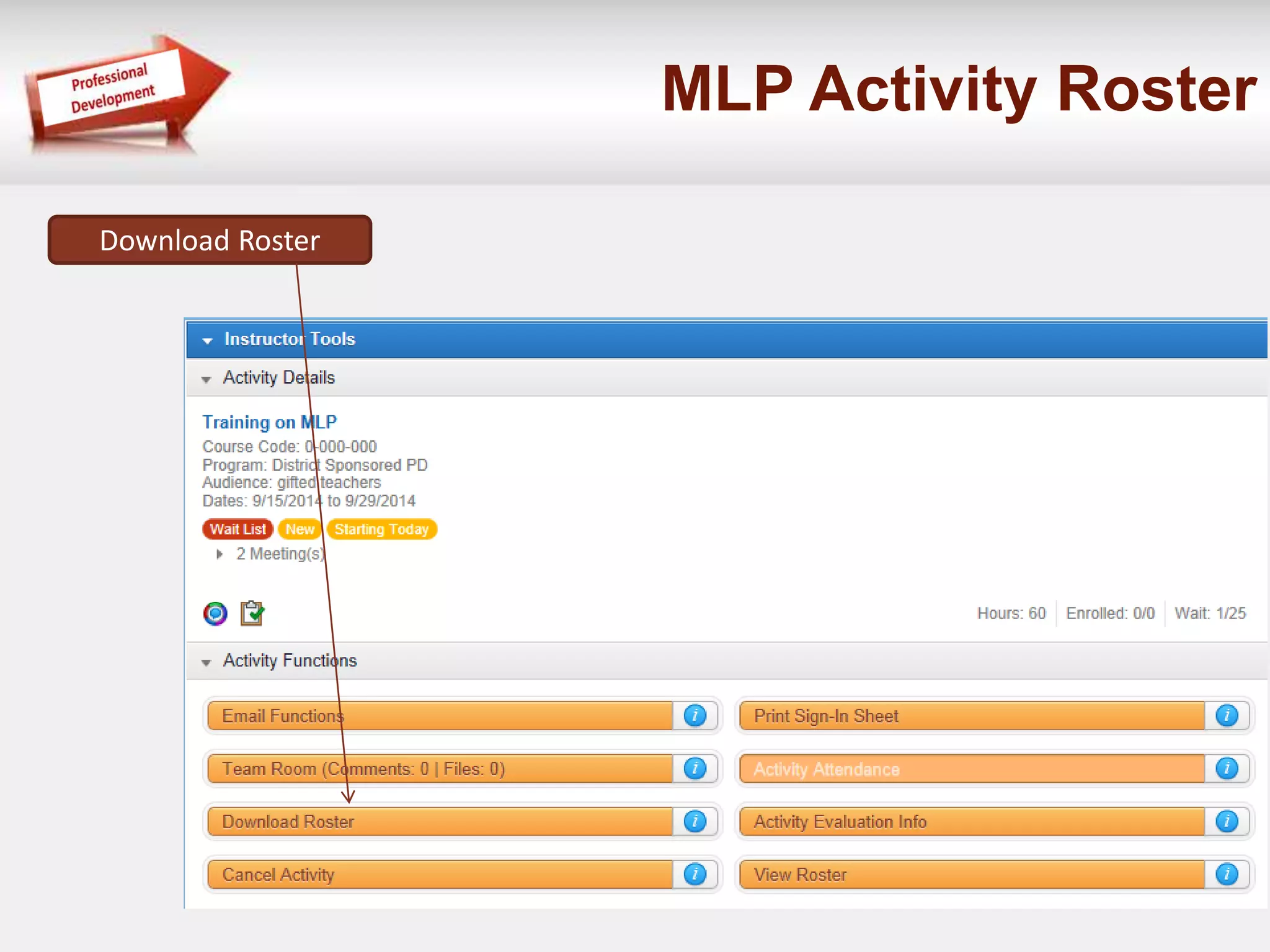
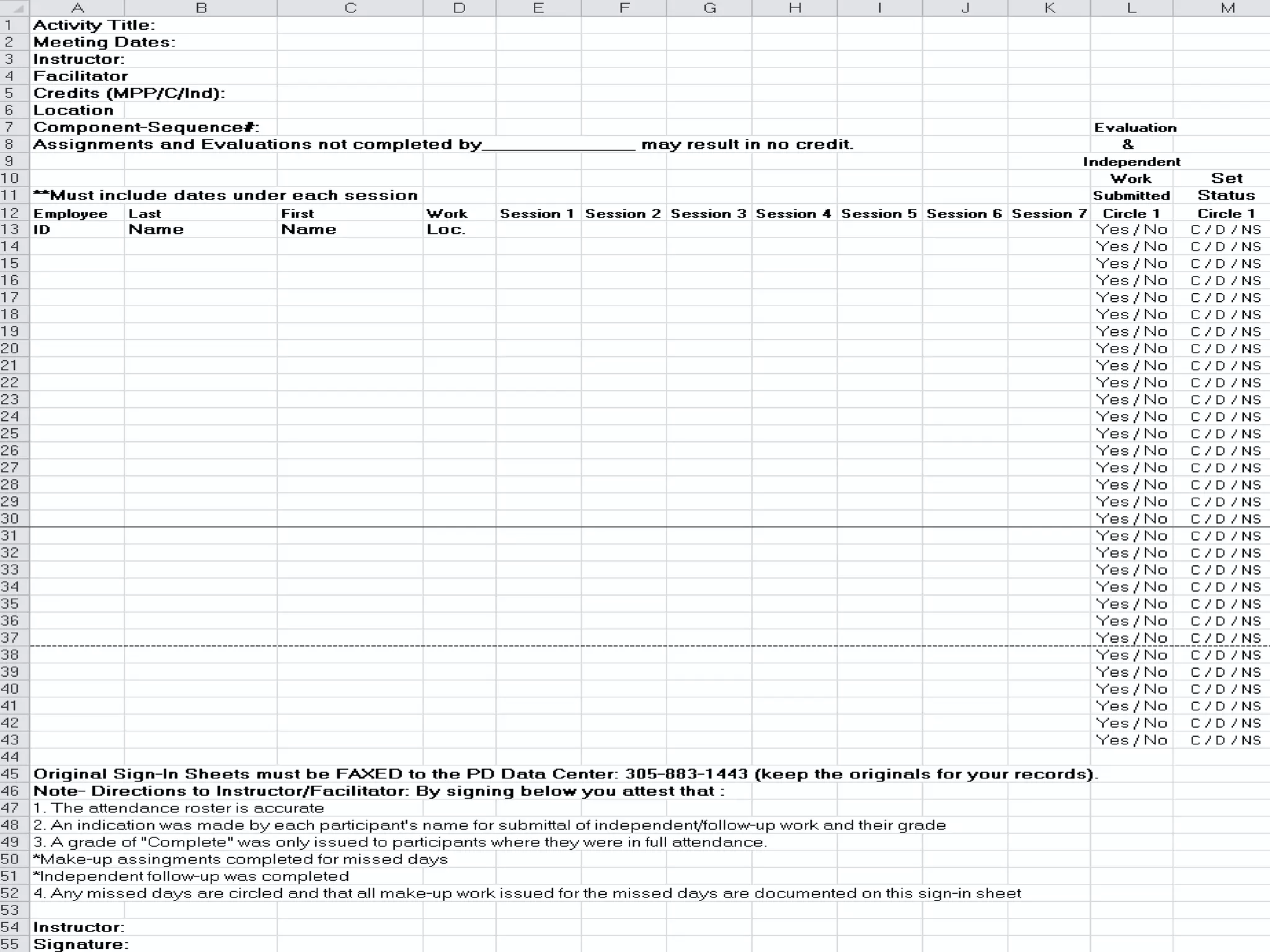
MLP Activity Roster 
Download Roster
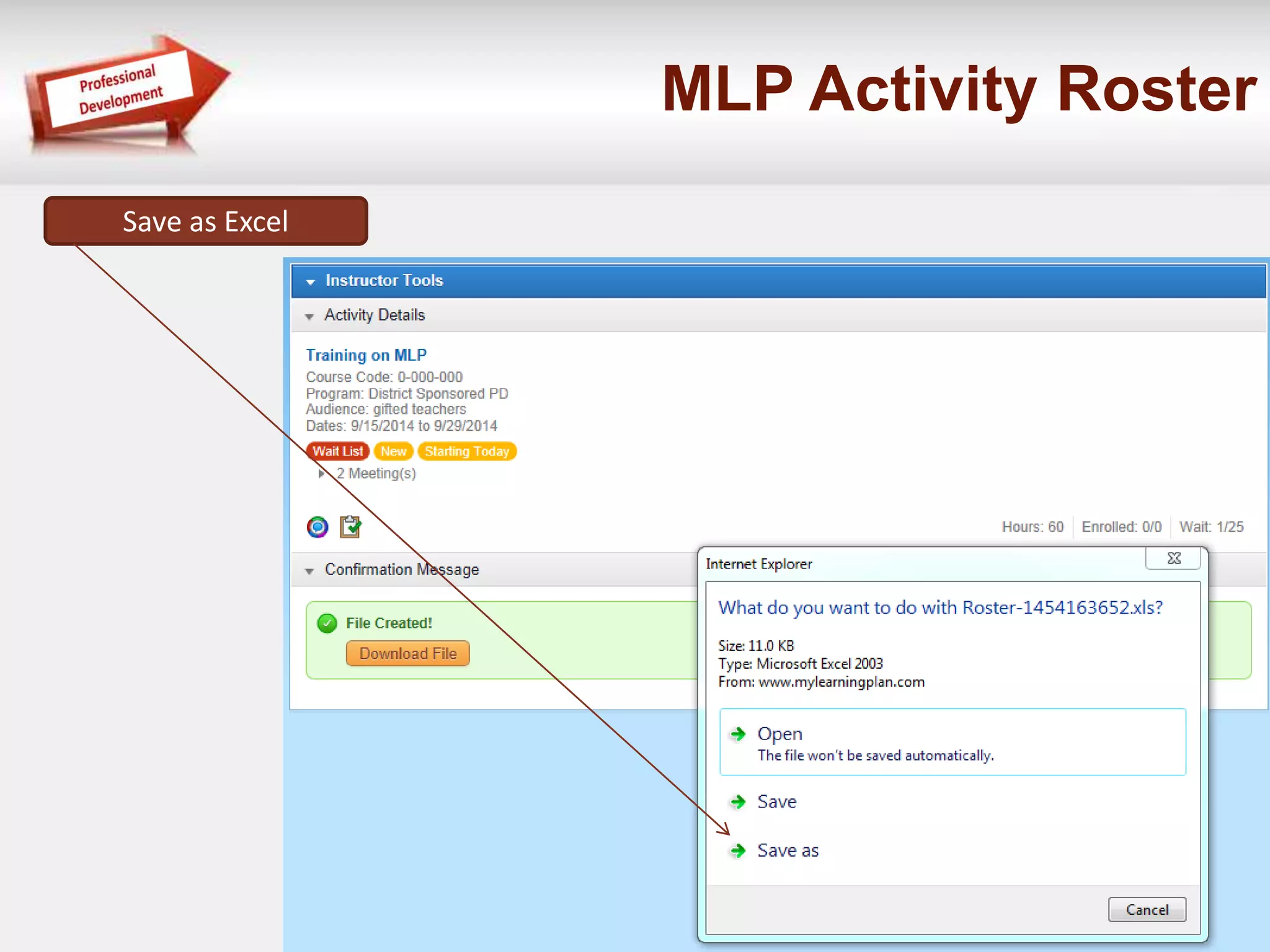
MLP Activity Roster 
Save as Excel
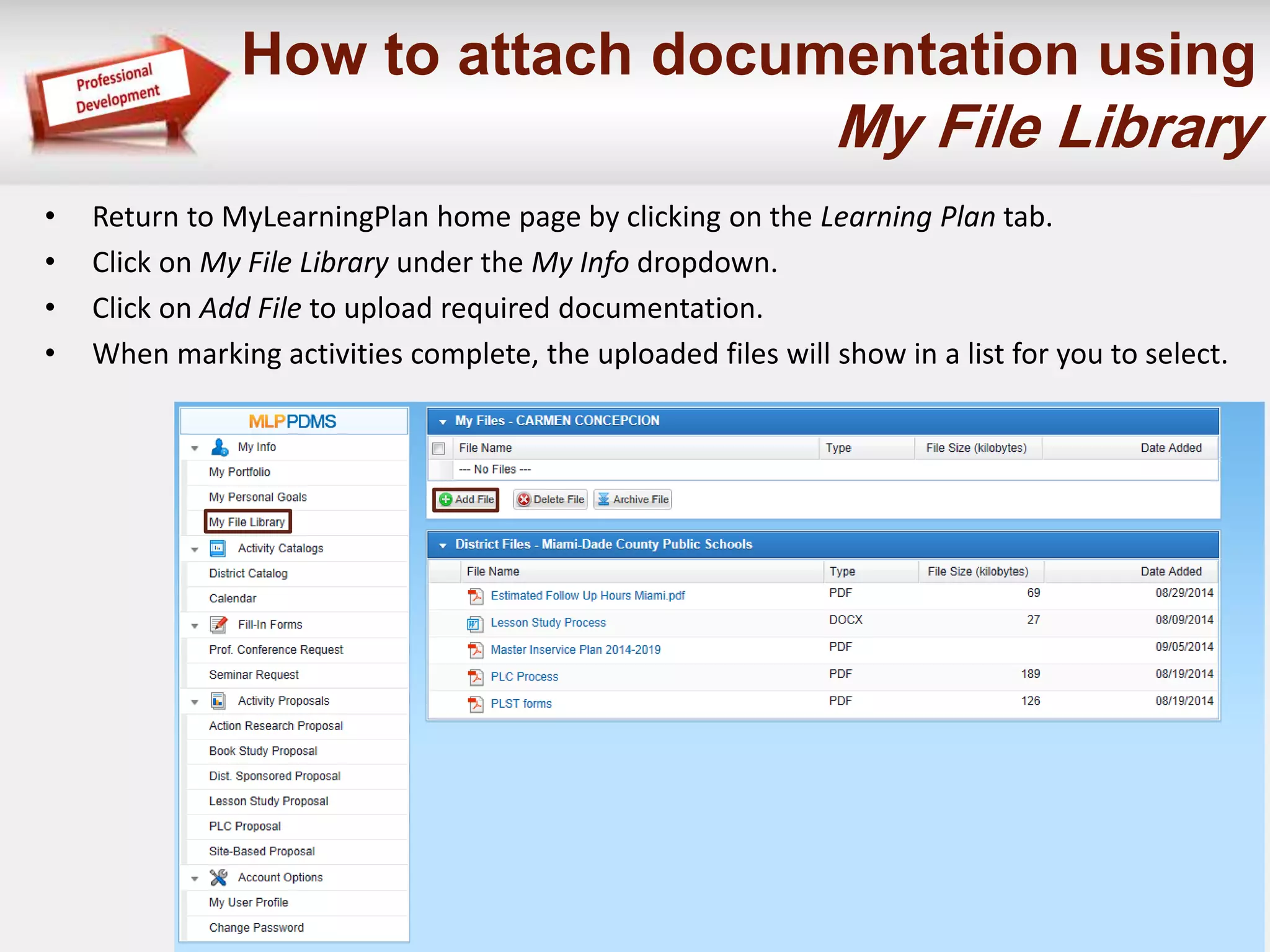
How to attach documentation using 
My File Library 
• Return to MyLearningPlan home page by clicking on the Learning Plan tab. 
• Click on My File Library under the My Info dropdown. 
• Click on Add File to upload required documentation. 
• When marking activities complete, the uploaded files will show in a list for you to select.
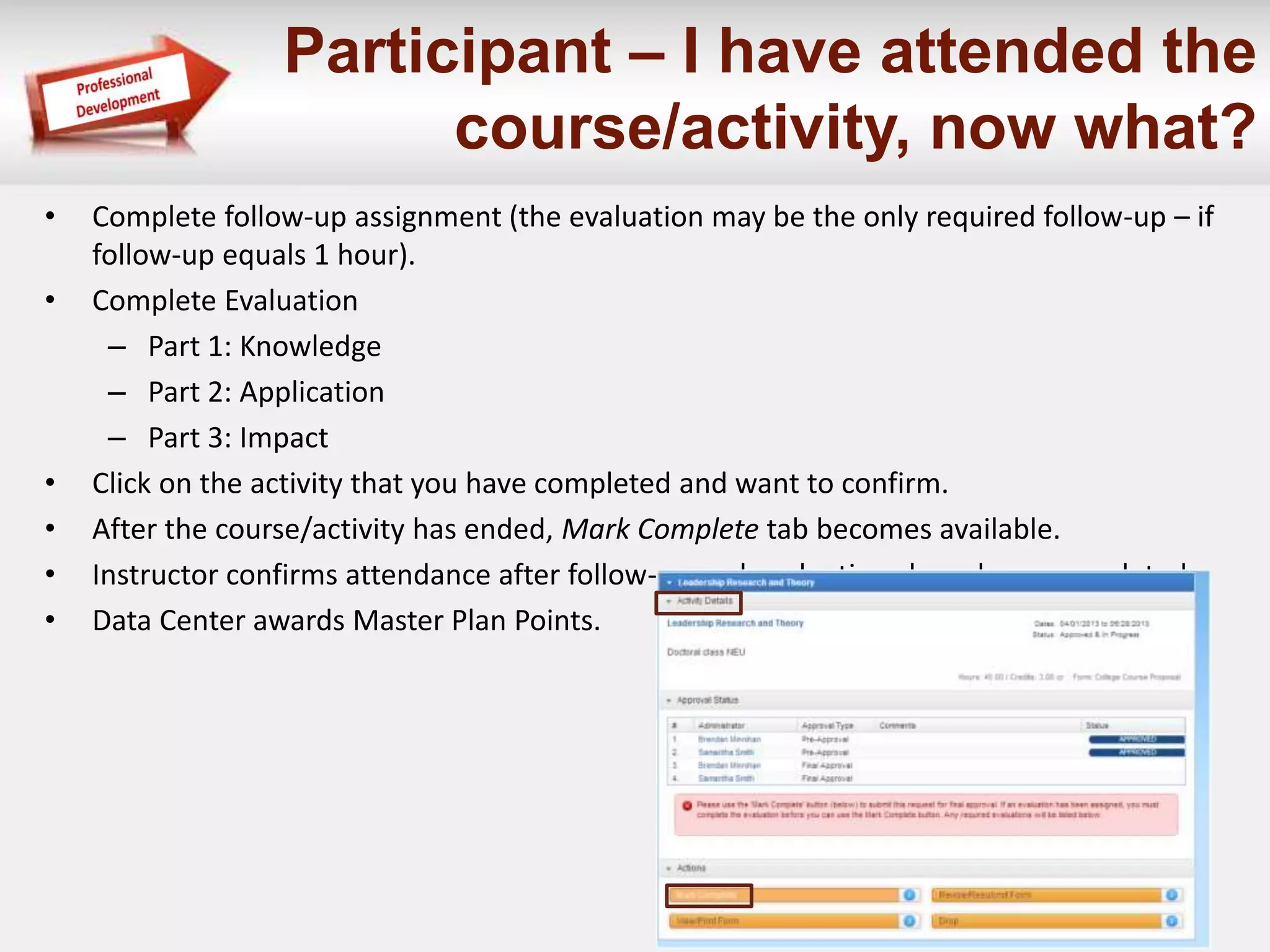
Participant – I have attended the 
course/activity, now what? 
• Complete follow-up assignment (the evaluation may be the only required follow-up – if 
follow-up equals 1 hour). 
• Complete Evaluation 
– Part 1: Knowledge 
– Part 2: Application 
– Part 3: Impact 
• Click on the activity that you have completed and want to confirm. 
• After the course/activity has ended, Mark Complete tab becomes available. 
• Instructor confirms attendance after follow-up and evaluations have been completed. 
• Data Center awards Master Plan Points.
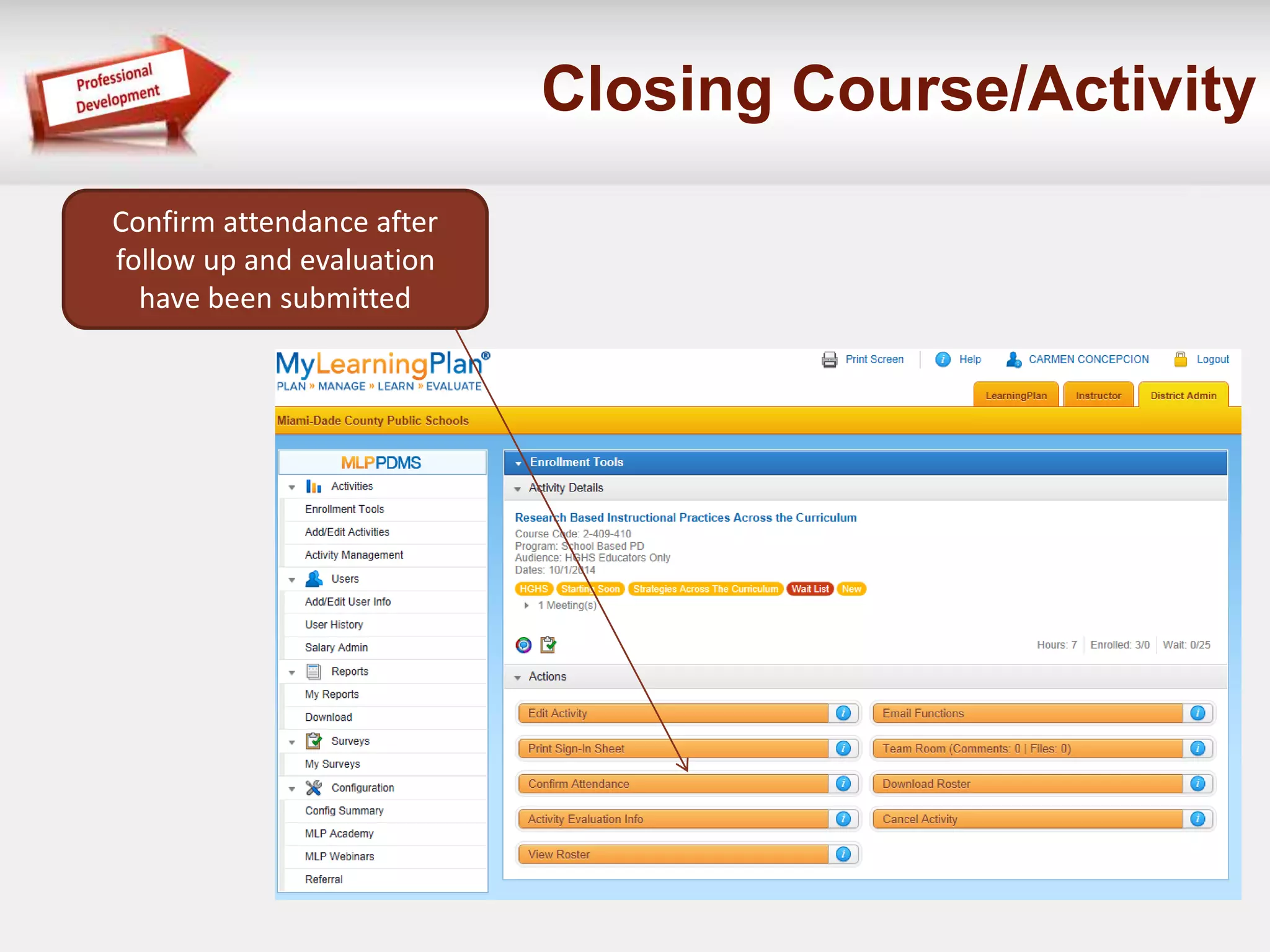
Closing Course/Activity 
Confirm attendance after 
follow up and evaluation 
have been submitted
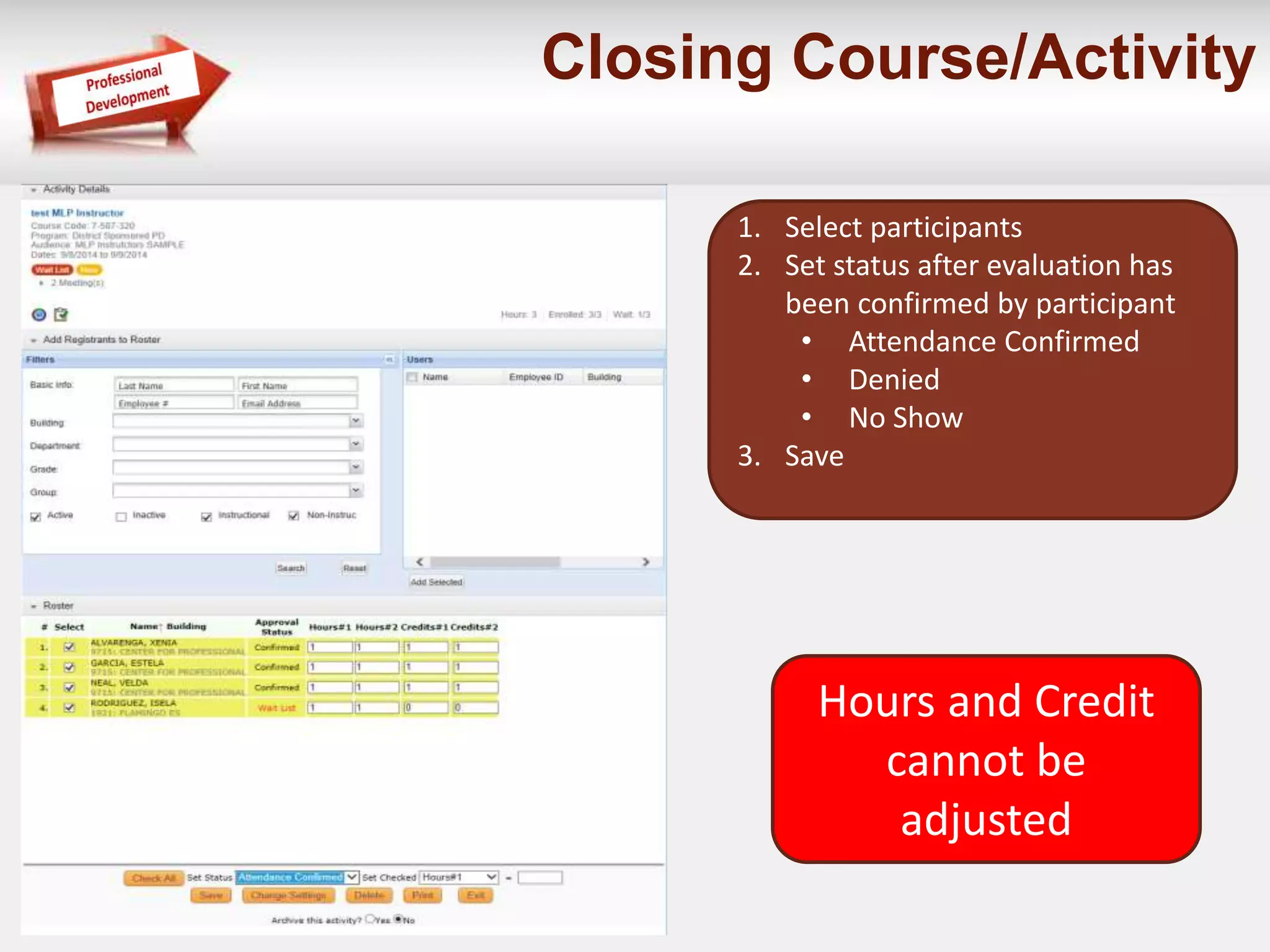
Closing Course/Activity 
1. Select participants 
2. Set status after evaluation has 
been confirmed by participant 
• Attendance Confirmed 
• Denied 
• No Show 
3. Save 
Hours and Credit 
cannot be 
adjusted
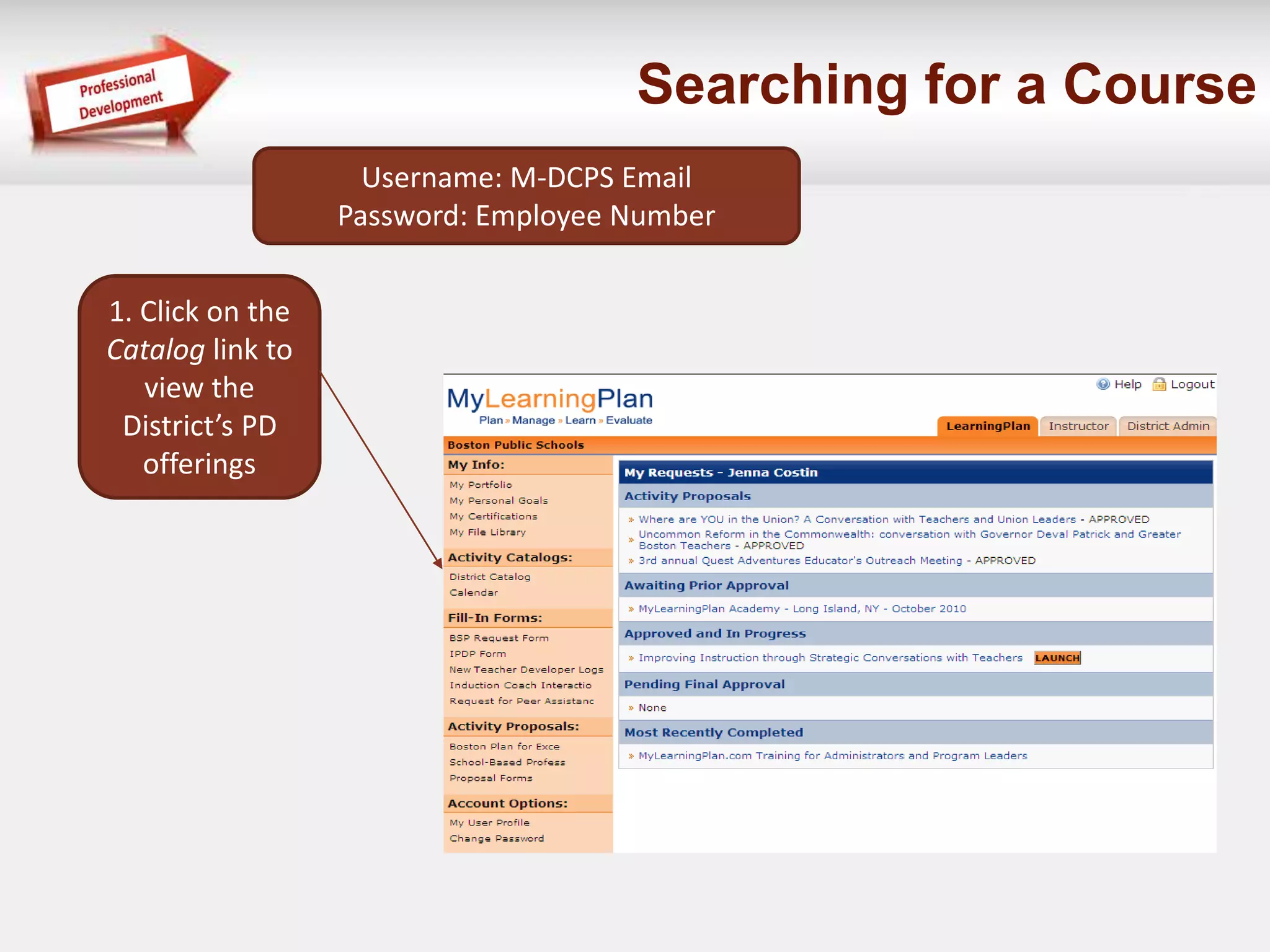
Searching for a Course 
Username: M-DCPS Email 
Password: Employee Number 
1. Click on the 
Catalog link to 
view the 
District’s PD 
offerings
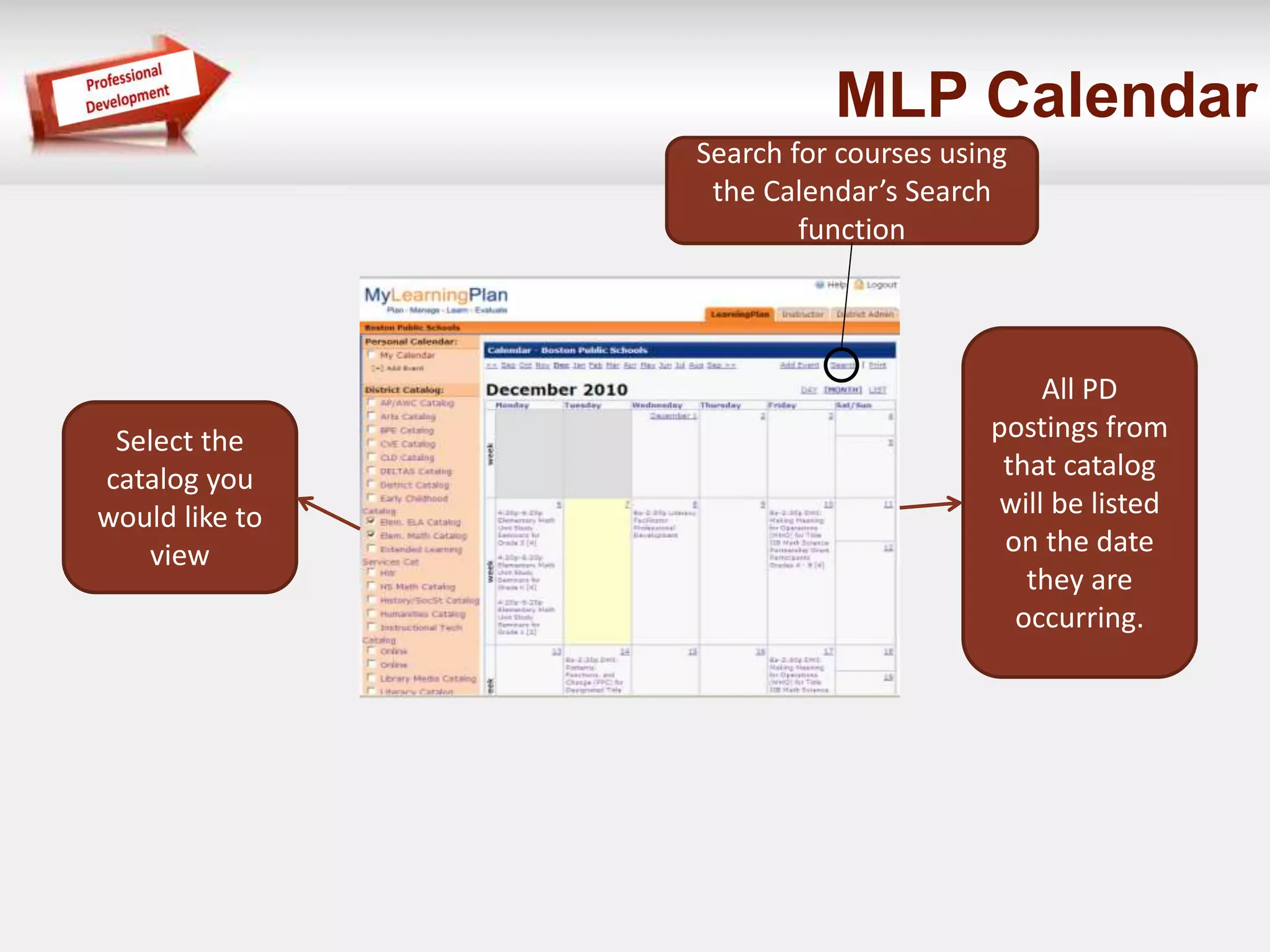
MLP Calendar 
Select the 
catalog you 
would like to 
view 
All PD 
postings from 
that catalog 
will be listed 
on the date 
they are 
occurring. 
Search for courses using 
the Calendar’s Search 
function
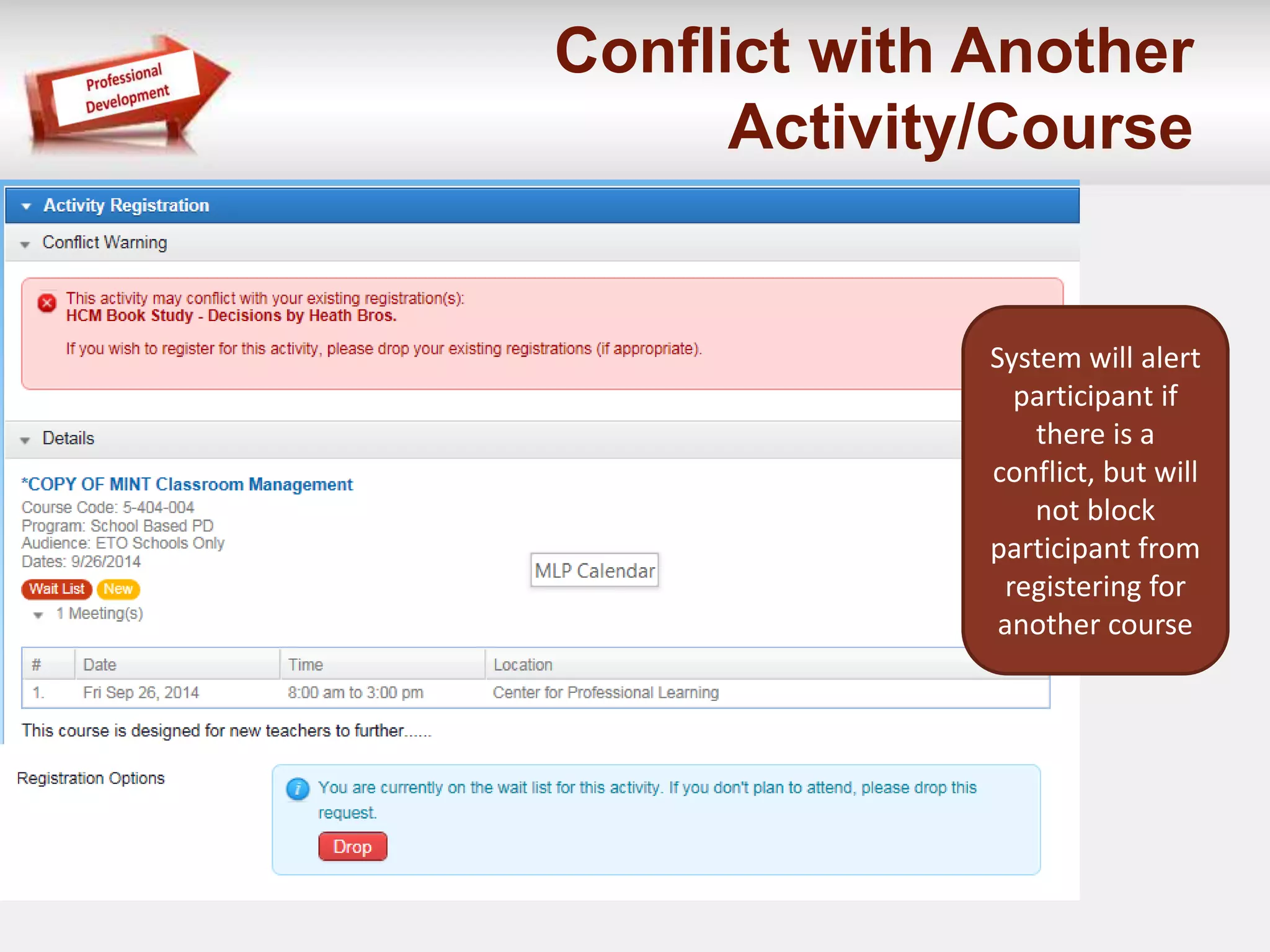
Conflict with Another 
Activity/Course 
System will alert 
participant if 
there is a 
conflict, but will 
not block 
participant from 
registering for 
another course
For questions, please contact your 
Professional Development & Evaluation 
Support Liaison

Step by Step Guide to Propose Course on MLP

  • 1.
    Proposing a Course/Activityon MLP A Step-by-Step Guide
  • 2.
    Logging In •You must log into your employee portal before accessing MyLearningPlan.
  • 3.
    My Requests Dashboard • Save to Draft: if you started to complete a form and saved it as a draft. • Wait List: If you had enrolled and were on a wait list, the activity would be here. • Pending Prior Approval: You have requested an activity and its awaiting the Data Center’s approval. • Approved and/or in Progress: You are able to attend after ALL PRIOR APROVERS approve you can go to a course/activity – click on the blue link to check this status frequently. • Instructor has Confirmed Attendance: If you attended an activity and the Instructor confirmed your attendance. • Awaiting Final Credit: You have attended, completed Part 1 – Knowledge, Part 2 – Application, and Part 3 – Impact of the Evaluation and returned to the activity to Mark Complete. Once a course/activity, follow-up, and evaluation have been completed, instructors must confirm attendance and submit sign-in rosters to the PD Data Center for review. Processing time varies depending on individual course requirements. • Denied: If an activity was denied • Recently Completed: This is where completed activities reside.
  • 4.
    MyLearningPlan LearningPlan TabInstructor Tab User Profile Update Closing Activity My Portfolio Managing Activity Rosters My Proposals
  • 5.
    Flow Chart-Session Proposal PD Liaison: Login PD Liaison: Select Proposal Form PD Liaison: Fill in activity information PD Liaison: Submit activity proposal DC: Review activity. DC: Post activity to District Catalogue PD Liaison: YOU! DC: Data Center Office of Professional Development and Evaluation (OPD&E): Monitors all district-sponsored and school-based professional development to ensure compliance with state and national standards for high-quality professional development.
  • 6.
    How to proposea PD Activity 1. Login to www.mylearningplan.com 2. Click on the Learning Plan tab 3. Select an Activity Proposal Username: Email Password: employee #
  • 7.
    Annotations Annotations arethe little “information bubbles” that you will see in an activity when listed in a catalog Notice the yellow + sign, click on this and a new dialog box opens Name is what you want in the bubble - space is limited Position: what position, if you have multiple bubbles Color: Choose one per annotation If you make a mistake, hover over the bubble to edit or delete Green: Leadership Blue: Non-Instructional Yellow: Instructional Purple: Technical
  • 8.
    Component Templates Chooseone of these options
  • 9.
    Contact Information, Proposer& Facilitator Click on Select User and a new dialog box opens Information needs to be manually entered Region or Department Search by name or employee number Anything red is required Proposer and Facilitator can register for course
  • 10.
    M-DCPS Master InservicePlan Components School Based Components – click to access MIP Technology 2-003-395 Curriculum Content 2-408-368 Instructional Support Strategies 2-409-410 School Improvement Initiatives 2-512-355 Action Research 7-506-028 Book Study 7-507-308 PLC 7-507-309 Lesson Study 7-507-320
  • 11.
    Can only chooseone catalog per activity Prepopulated DO NOT CHANGE Provide a brief description of the course. NOTE: Spell check link to the right. Must be specific to course/activity Activity Information
  • 12.
    DOE Collection and Reporting Requirements Choose one option for each selection
  • 13.
    Target Audience andFocus May choose more than one Target Audience & more than one Focus Area
  • 14.
    Follow-Up Hours Newdialog box opens Download & save for future use
  • 15.
    Dates, Times &Location •If you select more than one meeting, the page will refresh and list Meeting Date 1-X number of dates. •Only select more than one meeting if you want the same attendees to attend several sessions of the same activity. • Be specific about the location (ex. Do not use acronyms such as HGHS for Hialeah Gardens High School) 24 hour cycle If session starts & ends on same day, specify time. Dropdown menu Linked to MapQuest Participants need a minimum of 14 days to complete evaluation
  • 16.
    Catalog Viewing Options Start Showing should be date course/activity is proposed Stop Showing should be date before course/activity starts Will stop showing @ midnight Participants must register before midnight **If more time is needed to manage the roster, the Stop Showing Date can be set for several days before the course begins. If you want it to start right away and end directly AFTER the activity, leave it blank
  • 17.
    Provider Information and Registration Settings Select “Miami-Dade Public Schools” unless there is an outside provider. 0 will place all participants in Wait List As participants are cancelled or approved, new spots become available To prevent participants from registering again, registration needs to be Denied If a course is full and a participant decides to drop the course, the first person on the waitlist will be automatically added to the course.
  • 18.
    Evaluation Evaluation Knowledge Available automatically on the day the activity ends Application Should be completed 7 days after activity ends Impact Should be completed 14 days after activity ends Activity specific evaluations will be required in addition to any form specific evaluation Credit will not be awarded unless evaluation has been completed!
  • 19.
    Activity Specific Evaluation •Team Room must be managed •Every time a document is uploaded to team room, an automatic email is sent to participants •Documents always remain available Team Room enables participants to participate in a threaded online discussion and share files
  • 20.
    Instructors Search byname or employee number Outside instructors do not show in catalog
  • 21.
    Goals and Objectives Page 1 Must identify the Protocol Standards this activity supports for activity to be approved
  • 22.
    Goals and Objectives Page 2 Must identify the New FL Standards and/or Sunshine State Standards this activity supports for activity to be approved.
  • 23.
    Standards/Focus Areas Addressedby Component Pre-populated from component DO NOT CHANGE
  • 24.
    Planning Bibliography orreference list supporting activity Prepopulated Copy & paste from component **Number of learner outcomes should be reflective of the total master plan points participants will earn as a result of completing this course/activity. Example: A component that is worth 120 MPPs could have 30 learning outcomes. A course/activity created under the same component, that is only worth 8 MPPs, could only have 8-10 learning outcomes. Click on Master Inservice Plan to access document Master Inservice Plan can also be accessed @ prodev.dadeschools.net
  • 25.
    Learning Copy &paste from component **Number of learning procedures should be reflective of the total master plan points participants will earn as a result of completing this course/activity. Example: A component that is worth 120 MPPs could have 30 learning procedures. A course/activity created under the same component, that is only worth 8 MPPs, could only have 8-10 learning procedures.
  • 26.
  • 27.
    Evaluating Prepopulated Copy& paste ALL information from component Provides clarification of expectations – Samples will be provided @ PLST training
  • 28.
    Grade(s), Group(s), andBuilding Restrictions If Building and Department are left blank, anyone can register. If one or more are checked off, only those checked off can see the link to the activity in the District Catalog
  • 29.
    Submit Proposal forReview by Data Center Proposal can be submitted as a draft Draft will live in the top of the LearningPlan tab under Click on Manage to "edit/submit form" BE CAUTIOUS WHEN ADDING A NEW ACTIVITY, VIEW IT CAREFULLY FOR ACCURACY If you enter an activity and staff begin to register, any edits you make will not appear to the staff that registered before the edit was made. If activity is edited and participants need to be alerted, an email must be manually sent out from the activity in the Activity Functions section in the “edit activity
  • 30.
    Managing the Course/Activity Dashboard This is your activity dashboard. All functions for managing the activity would be completed here. Team Room Activated Required Evaluation
  • 31.
    MLP Activity Roster Download Roster
  • 32.
    MLP Activity Roster Save as Excel
  • 34.
    How to attachdocumentation using My File Library • Return to MyLearningPlan home page by clicking on the Learning Plan tab. • Click on My File Library under the My Info dropdown. • Click on Add File to upload required documentation. • When marking activities complete, the uploaded files will show in a list for you to select.
  • 35.
    Participant – Ihave attended the course/activity, now what? • Complete follow-up assignment (the evaluation may be the only required follow-up – if follow-up equals 1 hour). • Complete Evaluation – Part 1: Knowledge – Part 2: Application – Part 3: Impact • Click on the activity that you have completed and want to confirm. • After the course/activity has ended, Mark Complete tab becomes available. • Instructor confirms attendance after follow-up and evaluations have been completed. • Data Center awards Master Plan Points.
  • 36.
    Closing Course/Activity Confirmattendance after follow up and evaluation have been submitted
  • 37.
    Closing Course/Activity 1.Select participants 2. Set status after evaluation has been confirmed by participant • Attendance Confirmed • Denied • No Show 3. Save Hours and Credit cannot be adjusted
  • 38.
    Searching for aCourse Username: M-DCPS Email Password: Employee Number 1. Click on the Catalog link to view the District’s PD offerings
  • 39.
    MLP Calendar Selectthe catalog you would like to view All PD postings from that catalog will be listed on the date they are occurring. Search for courses using the Calendar’s Search function
  • 40.
    Conflict with Another Activity/Course System will alert participant if there is a conflict, but will not block participant from registering for another course
  • 41.
    For questions, pleasecontact your Professional Development & Evaluation Support Liaison