The TI-83 (plus) Graphing Calculator
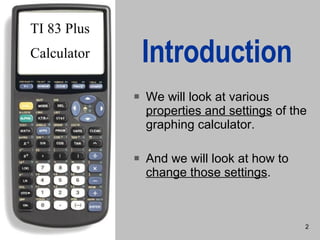
Introduction We will look at various  properties and settings  of the graphing calculator. And we will look at how to  change those settings . TI 83 Plus Calculator
Turning the calculator on and off. Press the  on  button to turn it on and “ second” off  to turn it off. Ti-83 (plus) Graphing  Calculator
Home Screen The home screen is where calculations are performed. It is also the starting point to change settings. “ Second quit ” always brings you back to the home screen.
Delete Key The delete key deletes one character at a time. Insert  (second DEL) allows you to insert characters without deleting them.
Clear Key The Clear key erases a line or the entire Home Screen if pushed a second time.
Enter Key This key will carry out any operations that were typed on the screen.
Entry Key Entry key  (second ENTER) allows you to display what was entered previously without retyping.
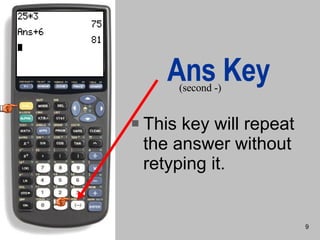
Ans Key This key will repeat the answer without retyping it. (second -)
Arrow Keys Arrow keys move the cursor left, right, up and down. When used with the “ second ” key, the up and down arrows darken or lighten the screen
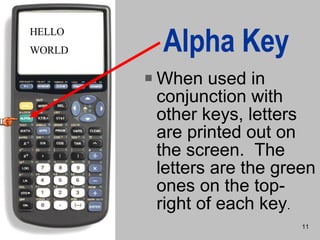
Alpha Key When used in conjunction with other keys, letters are printed out on the screen.  The letters are the green ones on the top-right of each key . HELLO WORLD
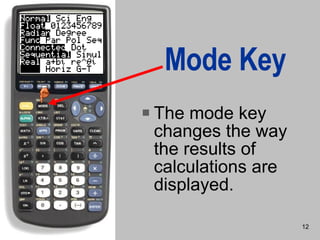
Mode Key The mode key changes the way the results of calculations are displayed.
 
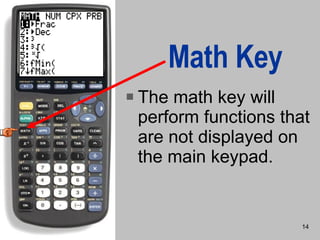
Math Key The math key will perform functions that are not displayed on the main keypad.
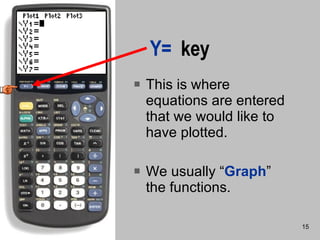
Y=   key This is where equations are entered that we would like to have plotted. We usually “ Graph ” the functions.
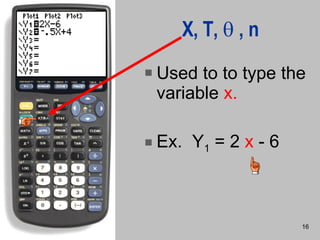
X, T,   , n Used to to type the variable  x. Ex.  Y 1  = 2  x  - 6
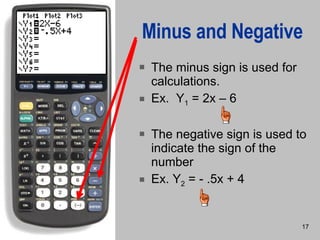
Minus and Negative The minus sign is used for calculations. Ex.  Y 1  = 2x – 6 The negative sign is used to indicate the sign of the number Ex. Y 2  = - .5x + 4
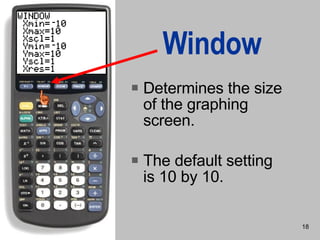
Window Determines the size of the graphing screen. The default setting is 10 by 10.
A Better Window A better setting for most graphs is 9.4 for x and 6.2 for y. This setting makes the graph easier to read.
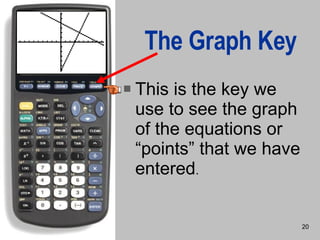
The Graph Key This is the key we use to see the graph of the equations or “points” that we have entered .
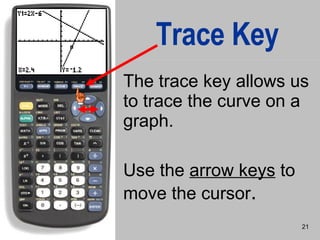
Trace Key The trace key allows us to trace the curve on a graph. Use the  arrow keys  to move the cursor .
Use  the up and down   arrow keys  to switch between functions . Trace
Zoom Key   Zoom settings allow us to change the view of a graph by “zooming” in or out. It can also allow us to “zoom in” on a portion of a graph .
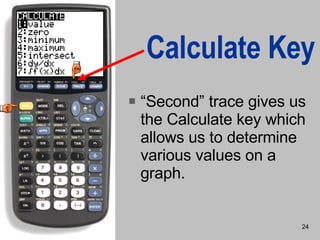
Calculate Key “ Second” trace gives us the Calculate key which allows us to determine various values on a graph.
 
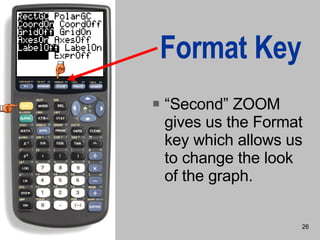
Format Key “ Second” ZOOM gives us the Format key which allows us to change the look of the graph.
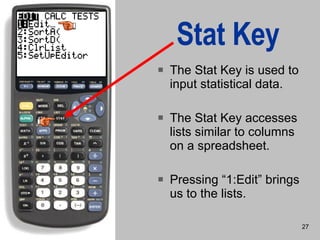
Stat Key The Stat Key is used to input statistical data. The Stat Key accesses lists similar to columns on a spreadsheet. Pressing “1:Edit” brings us to the lists.
Edit Lists Lists allow us to input sets of data and then graph the data and analyze the data.
Stats Plot The stats plot key allows us to choose one of three graphs to plot with the data in the lists.
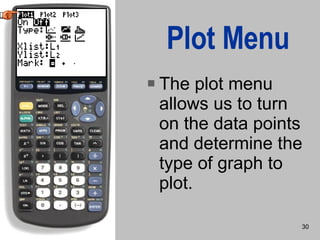
Plot Menu The plot menu allows us to turn on the data points and determine the type of graph to plot.
 
The End (for now)

Graphing Calculator

  • 1.
    The TI-83 (plus)Graphing Calculator
  • 2.
    Introduction We willlook at various properties and settings of the graphing calculator. And we will look at how to change those settings . TI 83 Plus Calculator
  • 3.
    Turning the calculatoron and off. Press the on button to turn it on and “ second” off to turn it off. Ti-83 (plus) Graphing Calculator
  • 4.
    Home Screen Thehome screen is where calculations are performed. It is also the starting point to change settings. “ Second quit ” always brings you back to the home screen.
  • 5.
    Delete Key Thedelete key deletes one character at a time. Insert (second DEL) allows you to insert characters without deleting them.
  • 6.
    Clear Key TheClear key erases a line or the entire Home Screen if pushed a second time.
  • 7.
    Enter Key Thiskey will carry out any operations that were typed on the screen.
  • 8.
    Entry Key Entrykey (second ENTER) allows you to display what was entered previously without retyping.
  • 9.
    Ans Key Thiskey will repeat the answer without retyping it. (second -)
  • 10.
    Arrow Keys Arrowkeys move the cursor left, right, up and down. When used with the “ second ” key, the up and down arrows darken or lighten the screen
  • 11.
    Alpha Key Whenused in conjunction with other keys, letters are printed out on the screen. The letters are the green ones on the top-right of each key . HELLO WORLD
  • 12.
    Mode Key Themode key changes the way the results of calculations are displayed.
  • 13.
  • 14.
    Math Key Themath key will perform functions that are not displayed on the main keypad.
  • 15.
    Y= key This is where equations are entered that we would like to have plotted. We usually “ Graph ” the functions.
  • 16.
    X, T,  , n Used to to type the variable x. Ex. Y 1 = 2 x - 6
  • 17.
    Minus and NegativeThe minus sign is used for calculations. Ex. Y 1 = 2x – 6 The negative sign is used to indicate the sign of the number Ex. Y 2 = - .5x + 4
  • 18.
    Window Determines thesize of the graphing screen. The default setting is 10 by 10.
  • 19.
    A Better WindowA better setting for most graphs is 9.4 for x and 6.2 for y. This setting makes the graph easier to read.
  • 20.
    The Graph KeyThis is the key we use to see the graph of the equations or “points” that we have entered .
  • 21.
    Trace Key Thetrace key allows us to trace the curve on a graph. Use the arrow keys to move the cursor .
  • 22.
    Use theup and down arrow keys to switch between functions . Trace
  • 23.
    Zoom Key Zoom settings allow us to change the view of a graph by “zooming” in or out. It can also allow us to “zoom in” on a portion of a graph .
  • 24.
    Calculate Key “Second” trace gives us the Calculate key which allows us to determine various values on a graph.
  • 25.
  • 26.
    Format Key “Second” ZOOM gives us the Format key which allows us to change the look of the graph.
  • 27.
    Stat Key TheStat Key is used to input statistical data. The Stat Key accesses lists similar to columns on a spreadsheet. Pressing “1:Edit” brings us to the lists.
  • 28.
    Edit Lists Listsallow us to input sets of data and then graph the data and analyze the data.
  • 29.
    Stats Plot Thestats plot key allows us to choose one of three graphs to plot with the data in the lists.
  • 30.
    Plot Menu Theplot menu allows us to turn on the data points and determine the type of graph to plot.
  • 31.
  • 32.