Project Maths: Use of Casio Calculators
• BIMDAS
• CURSOR KEYS
• MODE
• SETUP
• MEMORIES
• GENERAL FUNCTIONS
• SEXIGESIMAL
• PRIME FACTORS
• CLEAR MEMORY
• RANDOM
• POLAR ↔RECTANGULAR
• STATISTICS MODE
• TABLE MODE
• VERIFY MODE
• KNOWING YOUR CALCULATOR
fx-83GT PLUS
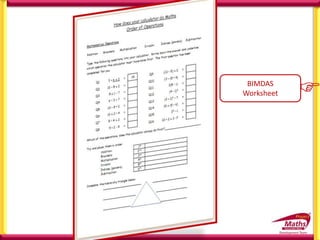
BIMDAS
Worksheet 
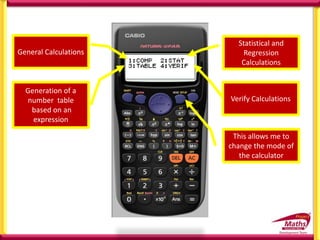
This allows me to
access all the
alternate functions
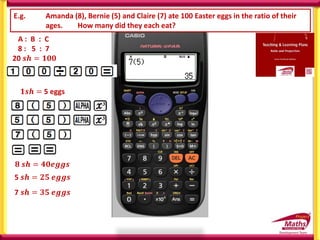
written in yellow
above the key
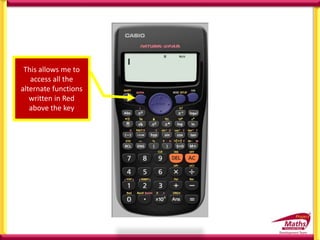
This allows me to
access all the
alternate functions
written in Red
above the key
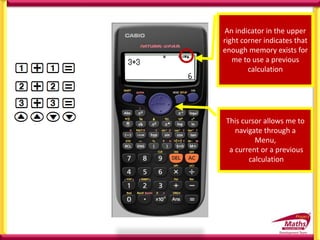
This cursor allows me to
navigate through a
Menu,
a current or a previous
calculation
An indicator in the upper
right corner indicates that
enough memory exists for
me to use a previous
calculation
This allows me to
change the mode of
the calculator
General Calculations
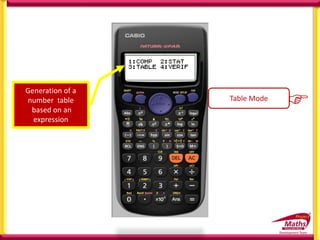
Generation of a
number table
based on an
expression
Statistical and
Regression
Calculations
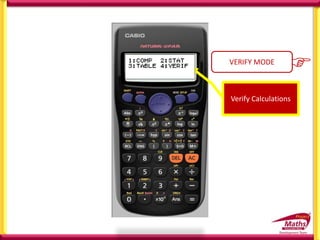
Verify Calculations
Natural Display Linear Display
If we press the shift
Key before we press
this key we can alter
the way the
calculator is
SET UP
If we press the shift
Key before we press
this key we can alter
the way the
calculator is
SET UP
1 MthIO 2 LineIO Specifies the display format.
Natural Display (MthIO)
Causes fraction, irrational numbers, and other expressions to
be displayed as they are written on the paper.
Linear Display (LineIO) causes fractions and other expressions
to be displayed in a single line.
3 Deg 4 Rad 5 Gra Specifies degrees, radians or grads as the angle unit for value
input and calculation result display.
Note: D R G are displayed on the top line of the calculator
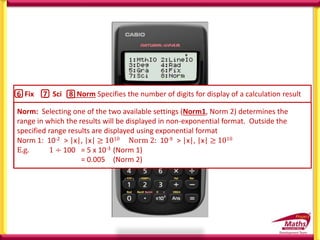
6 Fix 7 Sci 8 Norm Specifies the number of digits for display of a calculation result
Fix: The value you specify (from 0 to 9) controls the number of decimal places for
displayed calculation results. Calculation results are rounded off to the specified digit
before being displayed.
e.g. 100 ÷ 7 = 14.286 (Fix 3)
= 14.29 (Fix 2)
Sci: Scientific notation The value you specify (from 1 to 10) controls the number of
decimal places for displayed calculation results. Calculation results are rounded off to
the specified digit before being displayed.
e.g. 100 ÷ 7 = 1.4286 x 101 (Sci 5)
= 1.429 x 101 (Sci 4)
Norm: Selecting one of the two available settings (Norm1, Norm 2) determines the
range in which the results will be displayed in non-exponential format. Outside the
specified range results are displayed using exponential format
Norm 1: 10-2 > |x|, |x| ≥ 1010 Norm 2: 10-9 > |x|, |x| ≥ 1010
E.g. 1 ÷ 100 = 5 x 10⁻³ (Norm 1)
= 0.005 (Norm 2)
An indicator in the
upper right corner
indicates that
another menu exists
below the current
one
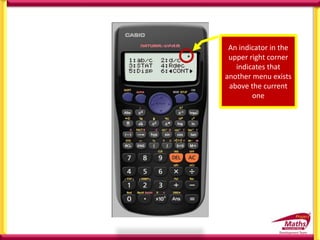
An indicator in the
upper right corner
indicates that
another menu exists
above the current
one
 1 ab/c  2 d/c Specifies either mixed fraction (ab/c) or improper fraction
(d/c) for display of fractions in calculation results
 3 STAT 1 ON ; 2 OFF Specifies whether or not to display a FREQ (frequency )
column in the STAT Mode Stat Editor.
 4 Rdec 1 ON ; 2 OFF Specifies whether or not to display calculation results
using recurring decimal form.
 5 Disp 1 Dot ; 2 Comma Specifies whether to display a dot or a comma for the
calculation reskt decimal point. A dot is always displayed during input.
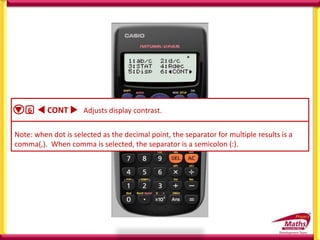
Note: when dot is selected as the decimal point, the separator for multiple results is a
comma(,). When comma is selected, the separator is a semicolon (:).
 6  CONT  Adjusts display contrast.
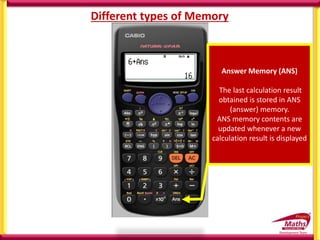
Different types of Memory
Answer Memory (ANS)
The last calculation result
obtained is stored in ANS
(answer) memory.
ANS memory contents are
updated whenever a new
calculation result is displayed
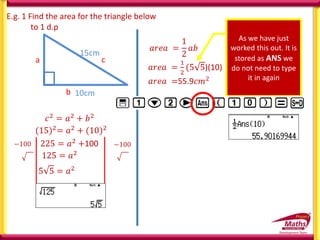
E.g. 1 Find the area for the triangle below
to 1 d.p
10cm
15cm
b
c
a
𝑐2
= 𝑎2
+ 𝑏2
(15)2= 𝑎2 + (10)2
225 = 𝑎2 +100
−100 −100
5 5 = 𝑎2
125 = 𝑎2
𝑎𝑟𝑒𝑎 =
1
2
𝑎𝑏
𝑎𝑟𝑒𝑎 =
1
2
(5 5)(10)
As we have just
worked this out. It is
stored as ANS we
do not need to type
it in again
𝑎𝑟𝑒𝑎 =55.9𝑐𝑚2
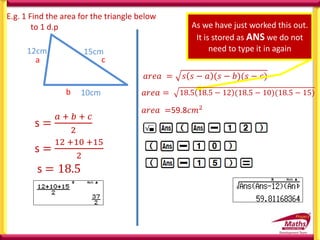
s =
12 +10 +15
2
E.g. 1 Find the area for the triangle below
to 1 d.p
10cm
15cm
b
c
a
s =
𝑎 + 𝑏 + 𝑐
2
𝑎𝑟𝑒𝑎 = 𝑠 𝑠 − 𝑎 (𝑠 − 𝑏)(𝑠 − 𝑐)
As we have just worked this out.
It is stored as ANS we do not
need to type it in again
𝑎𝑟𝑒𝑎 =59.8𝑐𝑚2
12cm
s = 18.5
𝑎𝑟𝑒𝑎 = 18.5 18.5 − 12 (18.5 − 10)(18.5 − 15)
𝑎𝑟𝑒𝑎 =
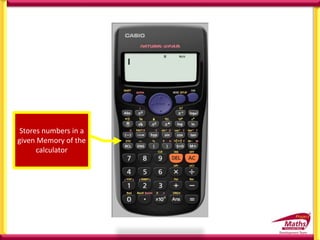
Stores numbers in a
given Memory of the
calculator
Different types of Memory
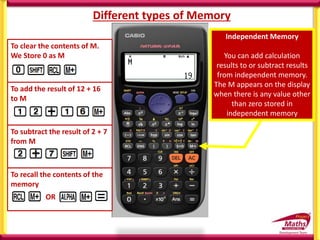
Independent Memory
You can add calculation
results to or subtract results
from independent memory.
The M appears on the display
when there is any value other
than zero stored in
independent memory
To add the result of 12 + 16
to M
To subtract the result of 2 + 7
from M
To clear the contents of M.
We Store 0 as M
To recall the contents of the
memory
OR
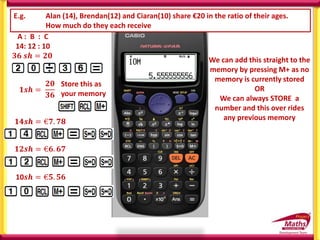
We can add this straight to the
memory by pressing M+ as no
memory is currently stored
OR
We can always STORE a
number and this over rides
any previous memory
E.g. Alan (14), Brendan(12) and Ciaran(10) share €20 in the ratio of their ages.
How much do they each receive
A : B : C
14: 12 : 10
𝟑𝟔 𝒔𝒉 = 𝟐𝟎
𝟏𝒔𝒉 =
𝟐𝟎
𝟑𝟔
Store this as
your memory
𝟏𝟒𝒔𝒉 = €𝟕. 𝟕𝟖
𝟏𝟐𝒔𝒉 = €𝟔. 𝟔𝟕
10𝒔𝒉 = €𝟓. 𝟓𝟔
𝟏𝟒𝒔𝒉 =
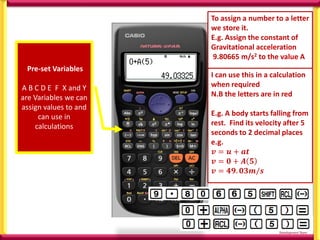
Pre-set Variables
A B C D E F X and Y
are Variables we can
assign values to and
can use in
calculations
To assign a number to a letter
we store it.
E.g. Assign the constant of
Gravitational acceleration
9.80665 m/s2 to the value A
I can use this in a calculation
when required
N.B the letters are in red
E.g. A body starts falling from
rest. Find its velocity after 5
seconds to 2 decimal places
e.g.
𝒗 = 𝒖 + 𝒂𝒕
𝒗 = 𝟎 + 𝑨 𝟓
𝒗 = 𝟒𝟗. 𝟎𝟑𝒎/𝒔
E.g. 1 Store the values for A, b and c into
the memory of your calculator for
the triangle below.
Use the Cosine rule to find [xy].
X
y z
10cm
15cm
350
A
b
c
a
𝑎2= 79.25438671
𝑎2 = 𝑏2 + 𝑐2 − 2𝑏𝑐 𝐶𝑜𝑠𝐴
𝑎 = 8.90
E.g. 2 Input values for a, b and c into
the memory of your calculator for
the quadratic equation below
and solve it.
3𝑥2 + 2𝑥 − 4 = 0
𝑥 =
−𝑏 ± 𝑏2 − 4𝑎𝑐
2𝑎
𝑥 = 0.86 𝑜𝑟 𝑥 = −1.54
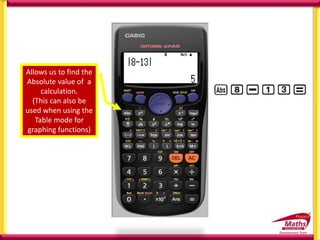
Allows us to find the
Absolute value of a
calculation.
(This can also be
used when using the
Table mode for
graphing functions)
Multi Statements
The colon character
:
can connect two or
more expression and
execute them in
sequence from left
to right when you
press =
May be useful when
doing ratio
E.g. Amanda (8), Bernie (5) and Claire (7) ate 100 Easter eggs in the ratio of their
ages. How many did they each eat?
A : B : C
8 : 5 : 7
20 𝒔𝒉 = 𝟏𝟎𝟎
𝟏𝒔𝒉 =
𝟏𝟎𝟎
𝟐𝟎
𝟖 𝒔𝒉 = 𝟒𝟎𝒆𝒈𝒈𝒔
5 𝒔𝒉 = 𝟐𝟓 𝒆𝒈𝒈𝒔
7 𝒔𝒉 = 𝟑𝟓 𝒆𝒈𝒈𝒔
𝟏𝒔𝒉 = 5 eggs
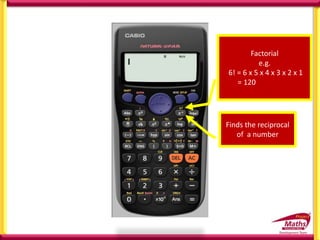
Finds the reciprocal
of a number
Factorial
e.g.
6! = 6 x 5 x 4 x 3 x 2 x 1
= 120
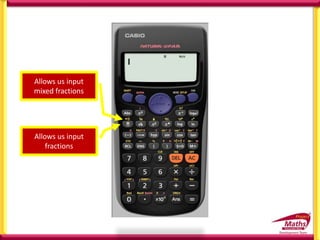
Allows us input
fractions
Allows us input
mixed fractions
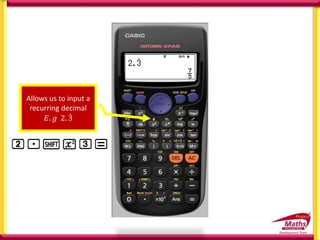
Allows us to input a
recurring decimal
𝐸. 𝑔 2. 3
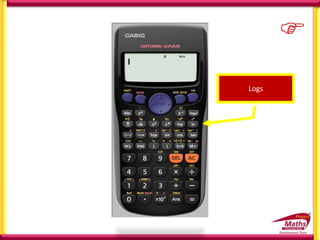
Logs

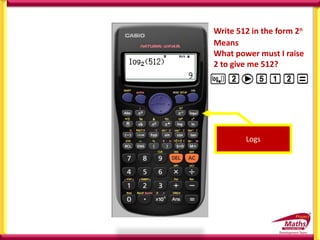
Means
What power must I raise
2 to give me 512?
Logs
Write 512 in the form 2n
Degree, Minute , Second
allows mathematical
operations between
sexagesimal and decimal
values, displaying the
result as a sexagesimal
value
A bus leaves Dublin at 12:50
an arrives in Donegal at
16:40. How long did the
journey take?
3hrs 50 mins
3.83 hrs
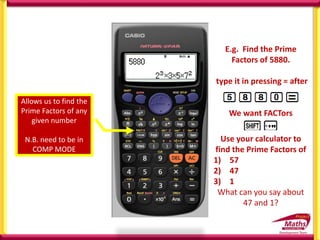
Allows us to find the
Prime Factors of any
given number
N.B. need to be in
COMP MODE
E.g. Find the Prime
Factors of 5880.
type it in pressing = after
We want FACTors
Use your calculator to
find the Prime Factors of
1) 57
2) 47
3) 1
What can you say about
47 and 1?
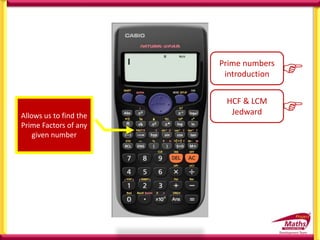
Allows us to find the
Prime Factors of any
given number
Prime numbers
introduction 
HCF & LCM
Jedward 
Write 512 in the form 2n
Allows us to find the
Prime Factors of any
given number
Hyperbolic
trigonometric
functions
Trig functions
Ensure students can
set up the calculator
into Degrees
or
Allows us to change
angle format between
Degrees, Radians and
Grads without
changing the Set up of
the calculator.
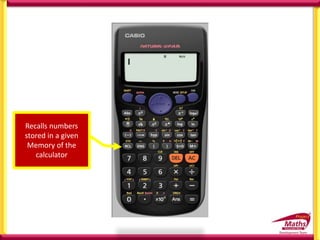
Recalls numbers
stored in a given
Memory of the
calculator
Transforms a displayed value
into engineering notation.
Note that exponents occur
only in multiples of positive
and negative 3. Engineering
notation only allows
multiples of 3 as exponents.
Each time pressed
afterwards, the decimal
point will move three places
to the right
Once in engineering
notation the decimal
point will move
three places to the
left
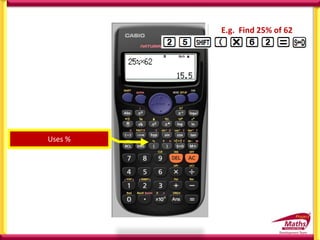
Uses %
E.g. Find 25% of 62
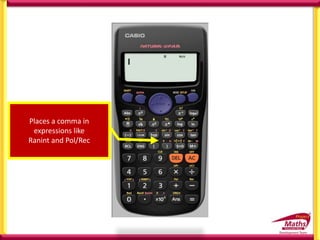
Places a comma in
expressions like
Ranint and Pol/Rec
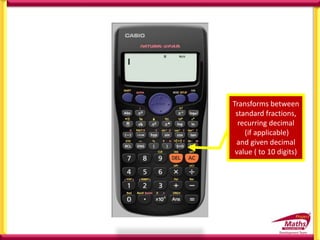
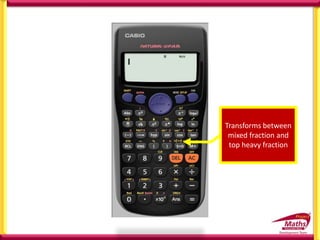
Transforms between
standard fractions,
recurring decimal
(if applicable)
and given decimal
value ( to 10 digits)
Transforms between
mixed fraction and
top heavy fraction
To add a result to the
Independent
Memory M
To subtract a result
from the
Independent
Memory M
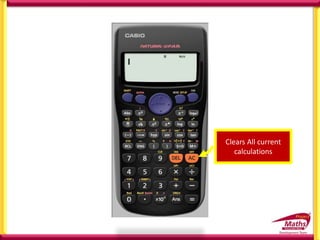
Clears All current
calculations
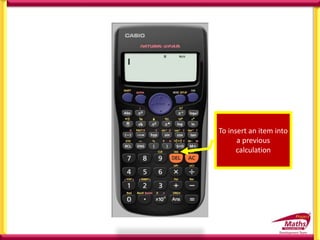
To insert an item into
a previous
calculation
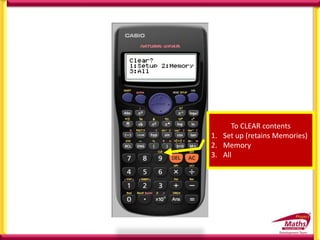
To CLEAR contents
1. Set up (retains Memories)
2. Memory
3. All
Combinations


Permutations
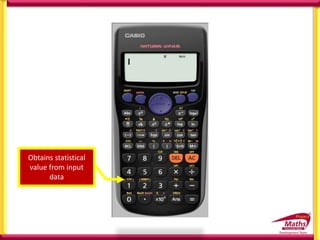
Obtains statistical
value from input
data
Gives a choice of
statements when in
verify mode
Rectangular coordinates
are of the form (x,y)
Polar coordinates are of
the form ( r, θ).
Pol converts Rectangular
to Polar
Rec converts Polar to
Rectangular
E.g. Express 1+ 2i in
the Polar form
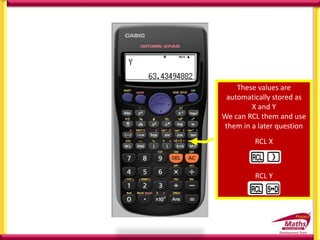
These values are
automatically stored as
X and Y
We can RCL them and use
them in a later question
RCL X
RCL Y
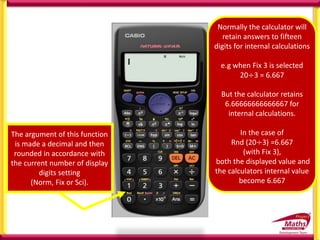
The argument of this function
is made a decimal and then
rounded in accordance with
the current number of display
digits setting
(Norm, Fix or Sci).
Normally the calculator will
retain answers to fifteen
digits for internal calculations
e.g when Fix 3 is selected
20÷3 = 6.667
But the calculator retains
6.66666666666667 for
internal calculations.
In the case of
Rnd (20÷3) =6.667
(with Fix 3),
both the displayed value and
the calculators internal value
become 6.667
RAN#
Generates a pseudo
random number
0 < x < 1
The result is
displayed as a
fraction when
Natural Display
is selected
Ran#

Ranint
Ranint#(a,b)
Generates a random
integer within the
range a and b
Ranint

Allows us to use
Scientific Notation
Allows us to use the
constant 𝜋
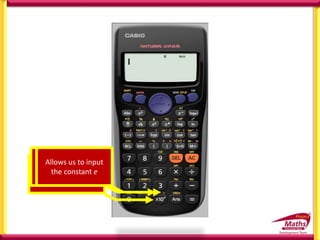
Allows us to input
the constant e
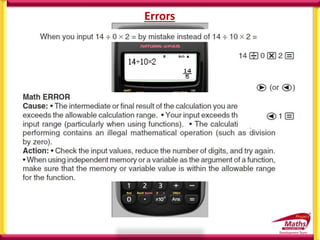
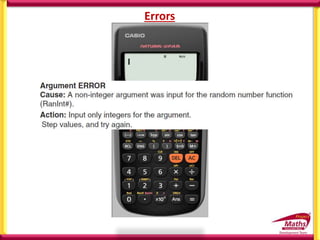
Errors
Errors
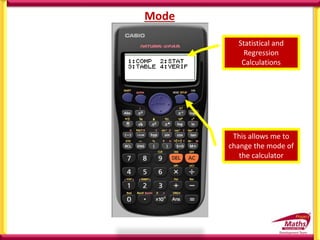
This allows me to
change the mode of
the calculator
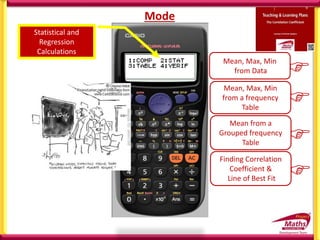
Statistical and
Regression
Calculations
Mode
Mode
Mean, Max, Min
from a frequency
Table
Mean, Max, Min
from Data 

Mean from a
Grouped frequency
Table 
Finding Correlation
Coefficient &
Line of Best Fit 
Statistical and
Regression
Calculations
Generation of a
number table
based on an
expression
Table Mode

Verify Calculations
VERIFY MODE

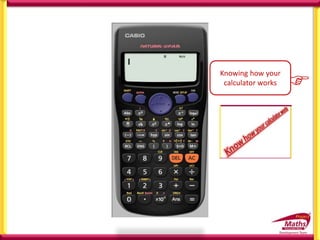
Knowing how your
calculator works

Project Maths: Use of Casio Calculators
• BIMDAS
• CURSOR KEYS
• MODE
• SETUP
• MEMORIES
• GENERAL FUNCTIONS
• SEXIGESIMAL
• PRIME FACTORS
• CLEAR MEMORY
• RANDOM
• POLAR ↔RECTANGULAR
• STATISTICS MODE
• TABLE MODE
• VERIFY MODE
• KNOWING YOUR CALCULATOR

Overview Of Using Calculator

  • 1.
    Project Maths: Useof Casio Calculators • BIMDAS • CURSOR KEYS • MODE • SETUP • MEMORIES • GENERAL FUNCTIONS • SEXIGESIMAL • PRIME FACTORS • CLEAR MEMORY • RANDOM • POLAR ↔RECTANGULAR • STATISTICS MODE • TABLE MODE • VERIFY MODE • KNOWING YOUR CALCULATOR
  • 2.
  • 3.
  • 4.
    This allows meto access all the alternate functions written in yellow above the key
  • 5.
    This allows meto access all the alternate functions written in Red above the key
  • 6.
    This cursor allowsme to navigate through a Menu, a current or a previous calculation An indicator in the upper right corner indicates that enough memory exists for me to use a previous calculation
  • 7.
    This allows meto change the mode of the calculator General Calculations Generation of a number table based on an expression Statistical and Regression Calculations Verify Calculations
  • 8.
    Natural Display LinearDisplay If we press the shift Key before we press this key we can alter the way the calculator is SET UP If we press the shift Key before we press this key we can alter the way the calculator is SET UP 1 MthIO 2 LineIO Specifies the display format. Natural Display (MthIO) Causes fraction, irrational numbers, and other expressions to be displayed as they are written on the paper. Linear Display (LineIO) causes fractions and other expressions to be displayed in a single line.
  • 9.
    3 Deg 4Rad 5 Gra Specifies degrees, radians or grads as the angle unit for value input and calculation result display. Note: D R G are displayed on the top line of the calculator
  • 10.
    6 Fix 7Sci 8 Norm Specifies the number of digits for display of a calculation result Fix: The value you specify (from 0 to 9) controls the number of decimal places for displayed calculation results. Calculation results are rounded off to the specified digit before being displayed. e.g. 100 ÷ 7 = 14.286 (Fix 3) = 14.29 (Fix 2) Sci: Scientific notation The value you specify (from 1 to 10) controls the number of decimal places for displayed calculation results. Calculation results are rounded off to the specified digit before being displayed. e.g. 100 ÷ 7 = 1.4286 x 101 (Sci 5) = 1.429 x 101 (Sci 4) Norm: Selecting one of the two available settings (Norm1, Norm 2) determines the range in which the results will be displayed in non-exponential format. Outside the specified range results are displayed using exponential format Norm 1: 10-2 > |x|, |x| ≥ 1010 Norm 2: 10-9 > |x|, |x| ≥ 1010 E.g. 1 ÷ 100 = 5 x 10⁻³ (Norm 1) = 0.005 (Norm 2)
  • 11.
    An indicator inthe upper right corner indicates that another menu exists below the current one An indicator in the upper right corner indicates that another menu exists above the current one
  • 12.
     1 ab/c 2 d/c Specifies either mixed fraction (ab/c) or improper fraction (d/c) for display of fractions in calculation results  3 STAT 1 ON ; 2 OFF Specifies whether or not to display a FREQ (frequency ) column in the STAT Mode Stat Editor.  4 Rdec 1 ON ; 2 OFF Specifies whether or not to display calculation results using recurring decimal form.  5 Disp 1 Dot ; 2 Comma Specifies whether to display a dot or a comma for the calculation reskt decimal point. A dot is always displayed during input. Note: when dot is selected as the decimal point, the separator for multiple results is a comma(,). When comma is selected, the separator is a semicolon (:).  6  CONT  Adjusts display contrast.
  • 13.
    Different types ofMemory Answer Memory (ANS) The last calculation result obtained is stored in ANS (answer) memory. ANS memory contents are updated whenever a new calculation result is displayed
  • 14.
    E.g. 1 Findthe area for the triangle below to 1 d.p 10cm 15cm b c a 𝑐2 = 𝑎2 + 𝑏2 (15)2= 𝑎2 + (10)2 225 = 𝑎2 +100 −100 −100 5 5 = 𝑎2 125 = 𝑎2 𝑎𝑟𝑒𝑎 = 1 2 𝑎𝑏 𝑎𝑟𝑒𝑎 = 1 2 (5 5)(10) As we have just worked this out. It is stored as ANS we do not need to type it in again 𝑎𝑟𝑒𝑎 =55.9𝑐𝑚2
  • 15.
    s = 12 +10+15 2 E.g. 1 Find the area for the triangle below to 1 d.p 10cm 15cm b c a s = 𝑎 + 𝑏 + 𝑐 2 𝑎𝑟𝑒𝑎 = 𝑠 𝑠 − 𝑎 (𝑠 − 𝑏)(𝑠 − 𝑐) As we have just worked this out. It is stored as ANS we do not need to type it in again 𝑎𝑟𝑒𝑎 =59.8𝑐𝑚2 12cm s = 18.5 𝑎𝑟𝑒𝑎 = 18.5 18.5 − 12 (18.5 − 10)(18.5 − 15) 𝑎𝑟𝑒𝑎 =
  • 16.
    Stores numbers ina given Memory of the calculator
  • 17.
    Different types ofMemory Independent Memory You can add calculation results to or subtract results from independent memory. The M appears on the display when there is any value other than zero stored in independent memory To add the result of 12 + 16 to M To subtract the result of 2 + 7 from M To clear the contents of M. We Store 0 as M To recall the contents of the memory OR
  • 18.
    We can addthis straight to the memory by pressing M+ as no memory is currently stored OR We can always STORE a number and this over rides any previous memory E.g. Alan (14), Brendan(12) and Ciaran(10) share €20 in the ratio of their ages. How much do they each receive A : B : C 14: 12 : 10 𝟑𝟔 𝒔𝒉 = 𝟐𝟎 𝟏𝒔𝒉 = 𝟐𝟎 𝟑𝟔 Store this as your memory 𝟏𝟒𝒔𝒉 = €𝟕. 𝟕𝟖 𝟏𝟐𝒔𝒉 = €𝟔. 𝟔𝟕 10𝒔𝒉 = €𝟓. 𝟓𝟔 𝟏𝟒𝒔𝒉 =
  • 19.
    Pre-set Variables A BC D E F X and Y are Variables we can assign values to and can use in calculations To assign a number to a letter we store it. E.g. Assign the constant of Gravitational acceleration 9.80665 m/s2 to the value A I can use this in a calculation when required N.B the letters are in red E.g. A body starts falling from rest. Find its velocity after 5 seconds to 2 decimal places e.g. 𝒗 = 𝒖 + 𝒂𝒕 𝒗 = 𝟎 + 𝑨 𝟓 𝒗 = 𝟒𝟗. 𝟎𝟑𝒎/𝒔
  • 20.
    E.g. 1 Storethe values for A, b and c into the memory of your calculator for the triangle below. Use the Cosine rule to find [xy]. X y z 10cm 15cm 350 A b c a 𝑎2= 79.25438671 𝑎2 = 𝑏2 + 𝑐2 − 2𝑏𝑐 𝐶𝑜𝑠𝐴 𝑎 = 8.90 E.g. 2 Input values for a, b and c into the memory of your calculator for the quadratic equation below and solve it. 3𝑥2 + 2𝑥 − 4 = 0 𝑥 = −𝑏 ± 𝑏2 − 4𝑎𝑐 2𝑎 𝑥 = 0.86 𝑜𝑟 𝑥 = −1.54
  • 21.
    Allows us tofind the Absolute value of a calculation. (This can also be used when using the Table mode for graphing functions)
  • 22.
    Multi Statements The coloncharacter : can connect two or more expression and execute them in sequence from left to right when you press = May be useful when doing ratio
  • 23.
    E.g. Amanda (8),Bernie (5) and Claire (7) ate 100 Easter eggs in the ratio of their ages. How many did they each eat? A : B : C 8 : 5 : 7 20 𝒔𝒉 = 𝟏𝟎𝟎 𝟏𝒔𝒉 = 𝟏𝟎𝟎 𝟐𝟎 𝟖 𝒔𝒉 = 𝟒𝟎𝒆𝒈𝒈𝒔 5 𝒔𝒉 = 𝟐𝟓 𝒆𝒈𝒈𝒔 7 𝒔𝒉 = 𝟑𝟓 𝒆𝒈𝒈𝒔 𝟏𝒔𝒉 = 5 eggs
  • 24.
    Finds the reciprocal ofa number Factorial e.g. 6! = 6 x 5 x 4 x 3 x 2 x 1 = 120
  • 25.
    Allows us input fractions Allowsus input mixed fractions
  • 26.
    Allows us toinput a recurring decimal 𝐸. 𝑔 2. 3
  • 27.
  • 28.
    Means What power mustI raise 2 to give me 512? Logs Write 512 in the form 2n
  • 29.
    Degree, Minute ,Second allows mathematical operations between sexagesimal and decimal values, displaying the result as a sexagesimal value A bus leaves Dublin at 12:50 an arrives in Donegal at 16:40. How long did the journey take? 3hrs 50 mins 3.83 hrs
  • 30.
    Allows us tofind the Prime Factors of any given number N.B. need to be in COMP MODE E.g. Find the Prime Factors of 5880. type it in pressing = after We want FACTors Use your calculator to find the Prime Factors of 1) 57 2) 47 3) 1 What can you say about 47 and 1?
  • 31.
    Allows us tofind the Prime Factors of any given number Prime numbers introduction  HCF & LCM Jedward 
  • 32.
    Write 512 inthe form 2n Allows us to find the Prime Factors of any given number
  • 33.
    Hyperbolic trigonometric functions Trig functions Ensure studentscan set up the calculator into Degrees or Allows us to change angle format between Degrees, Radians and Grads without changing the Set up of the calculator.
  • 34.
    Recalls numbers stored ina given Memory of the calculator
  • 35.
    Transforms a displayedvalue into engineering notation. Note that exponents occur only in multiples of positive and negative 3. Engineering notation only allows multiples of 3 as exponents. Each time pressed afterwards, the decimal point will move three places to the right Once in engineering notation the decimal point will move three places to the left
  • 36.
  • 37.
    Places a commain expressions like Ranint and Pol/Rec
  • 38.
    Transforms between standard fractions, recurringdecimal (if applicable) and given decimal value ( to 10 digits)
  • 39.
    Transforms between mixed fractionand top heavy fraction
  • 40.
    To add aresult to the Independent Memory M
  • 41.
    To subtract aresult from the Independent Memory M
  • 42.
  • 43.
    To insert anitem into a previous calculation
  • 44.
    To CLEAR contents 1.Set up (retains Memories) 2. Memory 3. All
  • 45.
  • 46.
  • 47.
  • 48.
    Gives a choiceof statements when in verify mode
  • 49.
    Rectangular coordinates are ofthe form (x,y) Polar coordinates are of the form ( r, θ). Pol converts Rectangular to Polar Rec converts Polar to Rectangular E.g. Express 1+ 2i in the Polar form
  • 50.
    These values are automaticallystored as X and Y We can RCL them and use them in a later question RCL X RCL Y
  • 51.
    The argument ofthis function is made a decimal and then rounded in accordance with the current number of display digits setting (Norm, Fix or Sci). Normally the calculator will retain answers to fifteen digits for internal calculations e.g when Fix 3 is selected 20÷3 = 6.667 But the calculator retains 6.66666666666667 for internal calculations. In the case of Rnd (20÷3) =6.667 (with Fix 3), both the displayed value and the calculators internal value become 6.667
  • 52.
    RAN# Generates a pseudo randomnumber 0 < x < 1 The result is displayed as a fraction when Natural Display is selected Ran# 
  • 53.
    Ranint Ranint#(a,b) Generates a random integerwithin the range a and b Ranint 
  • 54.
    Allows us touse Scientific Notation Allows us to use the constant 𝜋 Allows us to input the constant e
  • 55.
  • 56.
  • 58.
    This allows meto change the mode of the calculator Statistical and Regression Calculations Mode
  • 59.
    Mode Mean, Max, Min froma frequency Table Mean, Max, Min from Data   Mean from a Grouped frequency Table  Finding Correlation Coefficient & Line of Best Fit  Statistical and Regression Calculations
  • 60.
    Generation of a numbertable based on an expression Table Mode 
  • 61.
  • 62.
  • 64.
    Project Maths: Useof Casio Calculators • BIMDAS • CURSOR KEYS • MODE • SETUP • MEMORIES • GENERAL FUNCTIONS • SEXIGESIMAL • PRIME FACTORS • CLEAR MEMORY • RANDOM • POLAR ↔RECTANGULAR • STATISTICS MODE • TABLE MODE • VERIFY MODE • KNOWING YOUR CALCULATOR

Editor's Notes

  • #2 Wednesday 27 September 2023
  • #65 Wednesday 27 September 2023