• 개요
• 기업전사 포탈, 업무 포탈, 부서별 포탈과 같은 전통적인
포탈에서 협업 포탈 및 팀 사이트, CoP, 마이 사이트 등 최근
동향을 반영한 자율적인 소규모 사이트에 이르는 다양한 포탈을
하나의 플랫폼으로 제공합니다.
• 주요 기능
• 인증 및 권한 관리
• 기본 통합 인증은 Active Directory를 기반으로 하나 표준
LDAP 디렉토리와의 호환 가능하며, 클레임 기반 인증 및
OAuth등을 지원하므로 다양한 형태의 SSO 가능
• 사용자 및 그룹을 대상으로 콘텐츠 및 사이트에 대한 접근
권한 및 정보 권한 제공
• 화면 구성 및 관리
• 웹파트(포틀릿) 기반의 화면 구성으로 개인화 제공
• WYSWIG기반의 페이지 편집 및 다양한 테마(템플릿) 구성 기능
• 다국어 및 크로스 브라우저 지원
• 리거시(LOB) 연동
• 화면(WSRP, iFrame 등) 및 데이터(Odata, XML, Web Service)
기반 리거시 연동 지원
• 다중 포탈 환경
• 게시성 정보를 주로 서비스하는 전사 포탈과 협업 지원을
위한 조직/팀/개인/역할별 포탈을 제공할 수 있으며 포탈의
계층 구조를 자유롭게 설계
• 기타
• 통합 검색 및 모바일 환경 지원
4.
• 개요
• 소셜은사람을 조직의 중심에 두고 고객, 직원, 파트너 등 작업을
실제로 처리하기 위해 필요한 사람 및 정보와 연결하는 방법에
대한 것입니다.
• 주요 기능
• 마이크로블로깅
• 사람, 문서, 사이트 및 태그에 대한 팔로잉
• 전사 및 그룹별 대화 기능
• 사진, 문서, 동영상 첨부
• 커뮤니티
• 커뮤니티별 회원수, 토론을 게시한 횟수 등의 통계 제공
• 커뮤니티에서 활동한 이력을 기반으로 활동이 많은 사람에게
보상을 제공할 수 있도록 평판 관리 기능 제공
• 댓글 및 좋아요 기능 제공
• 대화 검색
• 마이크로블로깅, 커뮤니티의 포스트 및 댓글 등 모든 대화에
대한 검색 제공
• 기타
• 블로그, 위키 등 웹 2.0 기능 제공
• PC, 스마트폰, 태블릿 등 다양한 장치 지원 (WP, iOS, Android
등)
5.
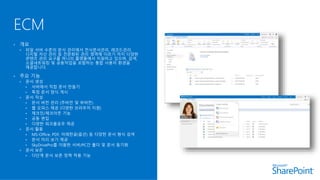
• 개요
• 파일서버 수준의 문서 관리에서 전사문서관리, 레코드관리,
디지털 자산 관리 등 전문화된 관리 영역에 이르기 까지 다양한
콘텐츠 관리 요구를 하나의 플랫폼에서 지원하고 있으며, 검색,
소셜네트워킹 및 공동작업을 포함하는 통합 사용자 환경을
제공합니다.
• 주요 기능
• 문서 생성
• 서버에서 직접 문서 만들기
• 특정 문서 양식 게시
• 문서 작성
• 문서 버전 관리 (주버전 및 부버전)
• 웹 오피스 제공 (다양한 브라우저 지원)
• 체크인/체크아웃 기능
• 공동 편집
• 다양한 워크플로우 제공
• 문서 활용
• MS-Office, PDF, 아래한글(옵션) 등 다양한 문서 형식 검색
• 문서 미리 보기 제공
• SkyDrivePro를 이용한 서버/PC간 폴더 및 문서 동기화
• 문서 보존
• 다단계 문서 보존 정책 적용 기능
6.
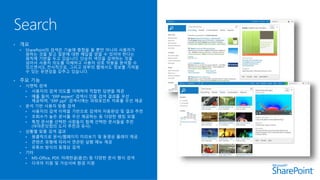
• 개요
• SharePoint의검색은 기술에 중점을 둘 뿐만 아니라 사용자가
원하는 것을 찾고 질문에 대한 해답을 얻을 수 있어야 한다는
원칙에 기반을 두고 있습니다. 단순히 색인을 검색하는 것을
넘어서 사용자 의도를 이해하고 사용자 상호 작용을 분석할 수
있으면서도 전사적으로, 그리고 외부의 웹에서도 정보를 가져올
수 있는 유연성을 갖추고 있습니다.
• 주요 기능
• 시맨틱 검색
• 사용자의 검색 의도를 이해하여 적합한 답변을 제공
• 예를 들어, “ERP expert” 검색시 인물 검색 결과를 우선
제공하며, “ERP ppt” 검색시에는 파워포인트 자료를 우선 제공
• 분석 기반 사용자 맞춤 검색
• 사용자의 검색 이력을 기반으로 검색어 자동완성 및 결과 추천
• 조회수가 높은 문서를 우선 제공하는 등 다양한 랭킹 모델
• 특정 문서를 선택한 사람들이 함께 선택한 문서들을 추천
(아마존닷컴의 도서 추천과 유사)
• 상황별 맞춤 검색 결과
• 원클릭으로 문서/웹페이지 미리보기 및 동영상 플레이 제공
• 콘텐츠 유형에 따라서 연관된 실행 메뉴 제공
• 유튜브 방식의 동영상 검색
• 기타
• MS-Office, PDF, 아래한글(옵션) 등 다양한 문서 형식 검색
• 다국어 지원 및 가상서버 환경 지원
7.
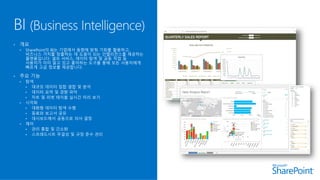
• 개요
• SharePoint의BI는 기업에서 동향에 맞춰 기회를 활용하고,
비즈니스 가치를 창출하는 데 도움이 되는 인텔리전스를 제공하는
플랫폼입니다. 셀프 서비스, 데이터 탐색 및 공동 작업 등
사용자가 이미 알고 있고 좋아하는 도구를 통해 모든 사용자에게
빠르게 고급 정보를 제공합니다.
• 주요 기능
• 탐색
• 대규모 데이터 집합 결합 및 분석
• 데이터 요약 및 경향 파악
• 차트 및 피벗 테이블 실시간 미리 보기
• 시각화
• 대화형 데이터 탐색 수행
• 동료와 보고서 공유
• 대시보드에서 공동으로 의사 결정
• 제어
• 관리 통합 및 간소화
• 스프레드시트 무결성 및 규정 준수 관리
8.
10억명
smartphones by 2016,
350Mof those being
used at work
82%
of the world's online
population engages in
social networking
50%
of enterprise customers
are “on the road” to
cloud
9.
OnlineOn Premises
Hybrid
Cloud onyour terms
Messaging
Voice
& Video
Content
Management
Enterprise
Social
Reporting
& Analytics
Best experience across devices
Integrated best-of-breed solutions
10.
THE NEW WAYTO
WORK TOGETHER
• SharePoint 2013은 협업의 새로운 방법을 제시합니다.
• 새로운 소셜 기능은 아이디어 공유, 동료 업무에 대한 관심 유지, 문제 해결을
위한 답변 검색, 몰랐던 사내 전문가의 발견 등을 손쉽게 만들어 줍니다.
• 새로운 사용자 경험은 모든 콘텐츠를 손쉽게 관리, 동기화 및 공유하도록 하며,
원하는 것을 빠르게 찾고, 팀원 모두가 공감 및 공유할 수 있는 사이트 구축을
지원합니다.
#9 Forrester Research의 2016년 예상치
1 Billion = 10억명. 이 중 35%인 3억5천만명이 업무용으로 사용 (태블릿은 1억2천6백만)
기업의 관점에서 소셜은 두가지 측면을 고려할 수 있는데, 하나는 고객과의소통이며, 다른 한가지는 기업내 협업과 혁신의 증진이다.
IDC에 따르면 50%의 기업이 Cloud를 도입 중임.
#10 Multiple devices support
Unique cloud strategy : Hybrid, SaaS/PaaS/etc
Deliver best of breed solutions : Exchange, Yammer, SharePoint, SQLServer
#13 As organizations look at becoming more social it’s crucial to think beyond a set of features, and start to understand how social can help them achieve some of their key business needs; such as keeping employees up-to-date, breaking down silos, increasing reuse of information, documenting tacit knowledge, finding who knows what, making collaborative decisions and putting social to work.
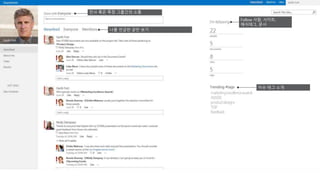
#14 Storyline: Garth uses his newsfeed as the place to track conversations, follow people, document, sites and tags(including the conversations on the new marketing campaign).
Product:
The heart of the social experience in SharePoint 2013 is the newsfeed – it’s a summary of all your social interactions from your microblogs and community conversations, to the sites, content, and people you follow.
The newsfeed gives people the ability to post, to reply to others comments, to like. If you’re following a hashtag, or someone posts a comment on a community of site all of this activity will appear on your newsfeed. The newsfeed can also be filtered to show information targeted directly at you, including @mentions, to help you quickly get involved in the conversation.
There are multiple feeds as part of the social experience, your personal newsfeed, an ‘everyone’ or company feed that is used to share information with everyone at the company, and individual site feeds. It’s possible to post straight to another feed, such as a site feed or company feed, straight from your microblog.
Following in SharePoint 2013 includes not only people, but documents, sites and tags. Trending tags displayed based on social analytics designed to help everyone in the organization keep a close eye on what everyone in the organization is talking about at any one time.
#15 Storyline: As the Garth engages in conversations he finds people that have great insight and follows them – the recommended people helps him find more people that will allow him to continue to learn more about what people inside the organization are saying.
Product: Following is a huge part of increasing adoption of social within an enterprise, and with 15 it’s really easy to follow a person, site, hashtag or even document, Think about that. If we’re all working on a project together I can just follow a document, and then go to my feed, and know if there have been changes to that document? It’s a great way for me to stay on top of work that I’m interested in, or involved in, without having to send emails every day to someone asking for progress. SharePoint 15 will also make recommendations on who or what you should be following. It’s never been easier to expand your social network.
#17 With the next release of SharePoint we’ve focused on creating a brand new and simplified user experience so that common tasks like document sharing, editing lists inline and create sites in a few simple clicks are easier than ever but still keeping you firmly in control of your content.
#18 We’ve really focused on making sharing simple in this release. You can drag and drop content directly into your document libraries and by hovering over a document you can see live document preview and at a glance see who you’re sharing with and when the document was last edited. Without leaving the library you can edit your documents using Office Web Apps, and in one click share it with a colleague. We’re taking document sharing and storage one step further with the introduction of SkyDrive Pro.
#19 SkyDrive Pro is a service that we’re introducing with the next release of SharePoint that allows organizations to provision and manage personal cloud storage for their employees. You can now sync your content in SharePoint to your desktop with SkyDrive Pro, so if you’re working remotely or about to jump on a plane your docs are just a mouse click away.
#20 With the next release of SharePoint we’ve focused on creating a brand new and simplified user experience so that common tasks like document sharing, editing lists inline and create sites in a few simple clicks are easier than ever but still keeping you firmly in control of your content.
#21 Excel은 기존에도 다양한 기본 데이터 정리 기능을 제공했지만 Excel 2013에서는 이러한 기능을 강화하는 유용한 도구 몇 가지가 추가되었습니다. 새로운 빠른 채우기 기능은 데이터의 패턴을 지능적으로 알아내고 나머지 셀을 채우는 방법을 제안합니다. 빠른 분석 기능은 여러 가지 조건부 서식을 미리 보거나 중복 또는 고유한 값을 즉시 파악할 뿐만 아니라 데이터에 따라 권장 차트를 추가할 수 있도록 지원합니다.
#22 피벗 테이블 및 차트가 분리되었으므로 사전에 테이블을 만들지 않아도 별도의 차트를 만들 수 있습니다. 또한 데이터에서 시간 차원을 자동으로 탐지하고 데이터를 적절히 필터링하도록 도와주는 시간 표시 막대라고 하는 새 슬라이서도 있습니다. 이제 빠른 탐색 기능을 사용하여 자체 드릴다운 및 드릴스루 기능을 쉽게 사용할 수 있습니다. 시간별 데이터를 표시하는 경향 차트를 빠르게 만들 수 있는 기능을 제공합니다.
#23 SharePoint의 독립 실행형 버전 Power View는 시각화 환경에 도입된 흥미로운 기능이었지만 이제 Excel에 기본 기능으로 포함되면서 무궁무진한 기회를 제공합니다. 이 기능은 사용자가 직관적인 차트, 그리드 및 필터로 대화형 보고서를 만들어 고급 정보를 정의하고 다른 사람과 공유하도록 지원합니다.
#24 SharePoint의 Excel 서비스를 사용하여 통합 문서를 SharePoint에 직접 저장하고 게시할 수 있습니다. 이 기능은 이제 필드 채우기 및 빠른 탐색과 같은 기능을 사용하여 브라우저 및 Excel 클라이언트 간에 높은 수준의 패리티를 지원할 뿐만 아니라 SharePoint의 공동 편집과 같은 모든 기능을 활용합니다.
#25 SharePoint의 검색 기능은 IT 부서에서 최종 사용자의 비즈니스 요구 사항에 맞게 결과 집합을 사용자 지정하는 데 사용됩니다. BI 관련 보고서에 검색 결과를 자동으로 표시하고 빠른 참조를 위해 파일 미리 보기를 제공하는 '보고서'라는 기본 제공 범주가 있습니다.
#26 SharePoint 중앙 관리는 IT 전문가 및 고급 사용자가 통합 환경에서 BI 환경을 사용자 지정하고 관리하는 데 사용되는 중앙 도구입니다. BI의 핵심 서비스를 활성화 및 모니터링하고 사용자의 사용 패턴을 평가하여 보안을 분석하고 데이터베이스 용량을 계획할 수 있습니다.
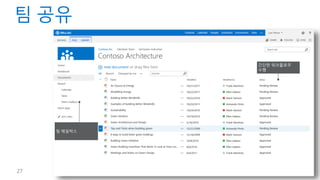
#27 With every SharePoint release pushed to redefine the boundaries of collaboration. A big part of this is comes from helping teams organize their content so that they can work together effectively but what makes SharePoint truly unique is that it’s scalable enough to organize and manage all your information assets so you can access everything you need from one place.
#28 We’ve introduced a new feature that’s available in both SharePoint and Outlook so you can bring together all your team’s email and documents in one place. So if a colleague updates a client proposal or sends an email to the team on new product pricing you see the changes instantly and your team’s always in sync. Often teams cross company boundaries. You could be working with an external partner or customer.
#29 Sharing documents is easier than ever before. You can provide external partners and vendors secure access to SharePoint sites or documents without violating the data governance and protection policies set by IT. You can enforce sign-in and set permissions at the document or site level to ensure you can work togehter with anyone securely.
#30 With the latest version of SharePoint and Project you can organize everything from personal tasks, lightweight group or team projects, or organization wide change projects.
#31 We’re introducing a new lightweight task management feature in SharePoint to help coordinate tasks across the entire team. Sites make it so easy for teams to work together, sharing content, organizing tasks, editing lists and it’s designed to work with Microsoft Project so it’s easy to aggregate all your project tasks across the team or the entire organization giving project managers broad visibility into the priorities and initiatives people are working on.
#32 Storyline: Mary is part of the project, and several other projects, no matter where she(in the office or on the road) she will always know what needs to be done across all of her projects.
Product: The last screen I showed you was the ability for teams to work together on a site and organize tasks – but what about ME, how do I manage all of my tasks. If I’m a member of a few virtual teams(with tasks assigned to me), and let’s say I also have entered some personal tasks using Outlook. SharePoint and Outlook make this easier then ever with the all-up Tasks view in your personal site. Here you’ll see an aggregated view of all of your tasks on a timeline. As part of the connected experience the tasks that appear here will also appear in Outlook – so regardless of where you are, you’ll always know what you need to get done.
#34 When it comes to staying connected, you need more than just isolated social features based on consumer technologies. You still need to author documents, go to meetings, run projects, and respond to email. SharePoint’s core capabilities like social, search and business intelligence provide a fabric that binds these experiences so people can discover experts, answers, and connections to people and information.
You can discover people across the organization who can answer questions and provide instant feedback on documents or project tasks you’re working on.
#35 People search in SharePoint allows you to find people across based not only on their profile, but on the work they produce. This means that finding an expert on a topic becomes much easier and far more accurate. The people search experience is dedicated to making it easier to find people and understand how that person can help. In this example the hover card shows not only information from the profile, but also shows content that matches the person that may be of interest. With a single click you can follow that person, send them an IM, or speak to them in Lync.
#36 The improvements we’ve made to search go beyond getting more relevant results, but also uncovering knowledge and then sharing your insights. Social and Search are the cornerstone of helping people discover answers, and when you combine that with the power of rich BI tools such as Excel and Power View you can move beyond insights and get answers.
#37 When customers/companies look for a search solution, they are not just looking for a search engine/core, its not just about delivering a search index, a search box, it’s the end-to-end experience they need and want.
Here it is the new SharePoint search experience, we paid huge amount of attention to make the search experience intuitive, engaging and easy to use.
What you’ll notice is that true to our goal with the new and innovative experience we can surface the right information you need when you need it.
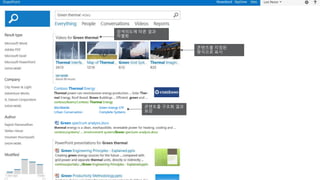
With this example query “Green Thermal Decks”, you’ll see that we surfaced PPT decks and placed them on top of the search results based on a combination of query rules and usage pattern analysis. Again a search engine should know what you are looking for and show you that, this is now part of our new search experience.
Ultimately our goal is to get people the info they need as quickly as possible, and if we can do that without even showing a search result page that is a win. Here is a example of autocomplete experience that not only shows you common queries, but actually allows you to navigate back to past results you’ve interacted with.
In the background so much is going on to show and surface these results, and make sure the right results are surfaced in a intuitive way to the right users, this is why ours is more then a just search engine or a search box… but a unique experience.
#38 Answering a question is only helpful if the user can act on it, and SharePoint makes acting natural and intuitive with the introduction of the hover card.
From the hover card you can do a live preview of a document, deep dive into that document, in meaning not just to the right document but to the right part of the of the document with the introduction of a new features called “deep links”.
And finally you can act on that result with contextual actions based on the document itself.
So for an example for a person result, actions can be follow/send email/view profile, while for a video it can be play/share/etc.
All of this is also extensible and customizable allowing you to make search actionable for any content and create a richer experience.
#39 (combo story line with next slide)
Here you can see a example search for “green thermal video”, notice that the search engine has surfaced videos on top.
Naturally videos don’t tend to have much metadata, and therefore often don’t surface near the top, as common/generic search algorithm’s don’t consider them relevant compared to documents which have richer metadata. However a search engine that is not keyword, but intent driven is able to show users what they actually are looking for.
Document deep links: This is our ability to look through a document and figure out how it has been divided up. For example, if you look at word document a title in bigger font and underlined it – or tagged as a section title – will get extracted and stored so that the UX can quickly jump straight to it. This works for PowerPoint's & Word documents.
#40 SharePoint 2013’s new unified search platform takes information discovery to the next level. It’s an intelligent search engine and as a result is always improving, always looking for ways to improve the relevance of search results; The search engine can look beyond the query and understood the meaning and can be integrated with your own business applications to help you discover results and get answers.
#41 In SharePoint 2013 we’re introducing an entirely new feature called “community sites” You can think about it like a discussion forum, where you can discover connections, ask questions and discover new content and identify people across the organization who can provide instant feedback on documents or project tasks you’re working on.
#44 With Office 15 we focused on delivering a consumer experience and compliance with no impact to end user productivity. Information workers spend a lot of time using Office (both client and server), and we’ve made a number of investments in W15 to deliver a strong set of eDiscovery capabilities.
Pause to ask whether Gartner is familiar with the general discovery process of Identify/Preserve, Search/Process, Review and Produce (i.e. EDRM model)?
No?
There are 4 basic steps (based on EDRM process):
Identify & Preserve: Identify the data you need an broadly preserve it to protect it from being changed (large volume)
Search and Process: Search data and minimize the amount of data you need to deal with using keywords, de-duplication features, etc. (narrow down)
Review: Once you’ve done that, you go through the manual review process to determine what specific items are relevant and then
Produce: Produce it for delivery
In 15, we’re helping simplify the eDiscovery process. We’ve built the ability into the platform (Exchange, Lync, SharePoint) to perform the discovery process in-place. What that means is that data is not taken out of its native store and duplicated into a separate repository. We are providing the tools a customer needs to operate on data where it lives, lets you find the minimum amount of data you need and preserve it. We also provide an easy way to package it up and deliver it to outside legal counsel, contract reviewer or tool (e.g. relativity, summation, etc.) in a standard format (EDRM XML)
Our eDiscovery benefits fall into three areas:
Centralized Management
In typical enterprises, discoverable content lives in multiple places. In W15, we’ve simplified the discovery experience across the places where most of this content lives (Exchange, SP, Lync, File Shares, on prem and online). By having a central console for managing discovery across SP farms and Exchange servers, we improve visibility across the enterprise
We’re also delivering a unified search and hold experience in W15. The underlying engine for discovery (FAST Search) is the SAME across the platform.
Finally, since we’re doing discovery and hold in one place, you get to keep more data where it is instead of duplicating it into separate archives. This simplifies policy management as well (e.g. you get to continue using access control and retention policies, etc.)
Reduced Costs
There are a few areas where cost reductions are prominent with our discovery solution in 15:
First, you find only what you need among the vast corpus of data you have with targeted search (using keywords and filters).
By preserving in-place only the data you need, you prevent over-preservation and also reduce the storage requirements for held data. This also holds true by reducing the amount of data that needs to be duplicated to separate archives.
By reducing the volume of data, you also reap the benefit of relying less on third party tools, many of which are priced by the amount of data that flows through them
Empower Legal Teams
With 15, we enable legal teams to do what they do without intervention from IT. Direct access to search, hold and export without the need for special tools or custom code saves time to get to the right data (it can take weeks to get the right content otherwise)
Native format, in native store, quickly. Since content is held in-place, teams can respond quickly by accessing data in its native format (without any loss of fidelity often associated with copying data to separate archives)
Finally but importantly, the ediscovery process of search and holding in-place is done behind the scenes without affecting the productivity of the end user










![[ISTN] 일하는 방식의 변화, 디지털 워크플레이스 구축을 위한 지능형 솔루션](https://cdn.slidesharecdn.com/ss_thumbnails/istn-talkit-9-v132-20210906-210916021154-thumbnail.jpg?width=640&height=640&fit=bounds)

![[9]ix.유엔진 사용자매뉴얼 gw리뉴얼_2차_110819](https://cdn.slidesharecdn.com/ss_thumbnails/9ix-gw2110819-110821223507-phpapp02-thumbnail.jpg?width=640&height=640&fit=bounds)


![[월간금융] 스마트워크 필수활용팁(1)](https://cdn.slidesharecdn.com/ss_thumbnails/66-71-110304224641-phpapp01-thumbnail.jpg?width=640&height=640&fit=bounds)


