DRESSING
PROCEDURE
Prepared by:
SRN NOORHAZAMIN
NURSING EDUCATION SERVICES
INTRODUCTION
 Effective wound dressing
promotes wound healing and
lead to early discharge and thus
save cost.
OBJECTIVES
To ensure nurses perform wound dressing
using aseptic technique.
 To assess the caring component during
dressing.
 To document wound findings after the
procedure in the appropriate patient’s
records.
STANDARD
 Nurses perform wound dressing using
aseptic technique.
 Nurses exhibit the caring component
during dressing.
 Nurses document wound findings in the
appropriate patient’s records.
PURPOSE
 To protect the wound from mechanical
injury.
 To protect the wound from microbial
contamination.
 To provide or maintain moist wound
healing.
PURPOSE
 To provide thermal insulation.
 To absorb drainage or debride a wound or
both.
 To prevent haemorrhage (when applied as
a pressure dressing or with elastic
bandage).
PURPOSE
 To splint or immobilize the wound site
and thereby facilitate healing and prevent
injury.
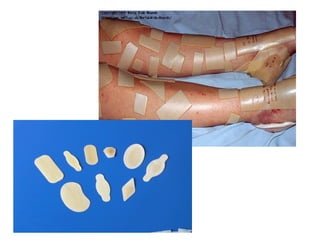
GAUZE
 Used in minor wound.
TULLE
 Doesn’t stick to wound surface. It is
best used for patient with sensitive
skin.
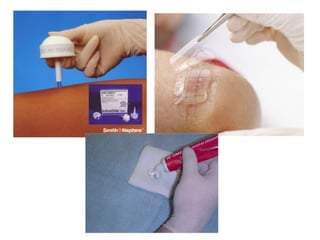
SEMI PERMEABLE
 Composed of sterile sheet, it is
transparent which can allow to check
on the wound regularly. Suitable for
shallow wound.
HYDROCOLLOIDS
 It is available in many forms and can
cover larger wound.
HYDROGELS
 Composed mainly of water in a
composite network.
HYDROfIBRE
 Soft non-woven pad that interacts
with wound drainage. It provides a
moist environment for deep wounds that
needs to be sealed yet air can penetrate.
ASEPTIC WOUND
DRESSING
 S1
 Greet and acknowledge patient.
ASEPTIC WOUND
DRESSING
 S2
 Inform patient and explain
procedure and assess pain.
ASEPTIC WOUND
DRESSING
 T3
 Prepare trolley for dressing.
ASEPTIC WOUND
DRESSING
 S4
 Provide privacy to patient.
ASEPTIC WOUND
DRESSING
 S5
 Place patient in comfortable
position.
ASEPTIC WOUND
DRESSING
 T6
 Perform hand hygiene (hand rub).
ASEPTIC WOUND
DRESSING
 T7
 Wear mask and hand rub.
ASEPTIC WOUND
DRESSING
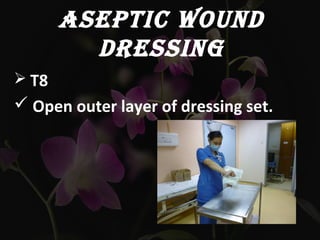
 T8
 Open outer layer of dressing set.
ASEPTIC WOUND
DRESSING
 T9
 Discard soiled dressing.
ASEPTIC WOUND
DRESSING
 T10
 Perform hand hygiene (hand wash).
ASEPTIC WOUND
DRESSING
 T11
 Open inner layer of dressing and add
necessary items using non touch
technique.
ASEPTIC WOUND
DRESSING
 T12
 Perform hand hygiene (hand wash).
ASEPTIC WOUND
DRESSING
 T13
 Wear sterile glove (optional) and
prepare swabs.
ASEPTIC WOUND
DRESSING
 T14 Perform dressing
T14.1 Maintain sterile field.
T14.2 Correct aseptic technique
while performing dressing.
T14.3 Apply and secure
appropriate wound dressing.
ASEPTIC WOUND
DRESSING
 T15
 Perform hand hygiene (hand wash).
ASEPTIC WOUND
DRESSING
 D16 Document findings
D16.1 Wound size and depth.
D16.2 Nature of wound :
Swelling, dirty, clean, slough,
gangrene, healing process.
D16.3 Nature of discharge :
Smell, color, serous, bloody,
pus.
Wound Dressing
Wound Dressing
Wound Dressing
Wound Dressing
Wound Dressing

Wound Dressing

Editor's Notes

  • #2 Animated floating petals (Difficult) Tip: For best results with the animation effects on this slide, choose a picture with an object that is made up of multiple parts, like the flower in this example. To reproduce the background effects on this slide, do the following: On the Home tab, in the Slides group, click Layout, and then click Blank. Right-click the slide and then click Format Background. In the Format Background dialog box, click Fill in the left pane. In the Fill pane, select Picture or texture fill, and then under Insert from, click File. In the Insert Picture dialog box, select a picture, and then click Insert. On the Insert tab, in the Illustrations group, click Shapes, and then under Rectangles, click Rectangle (first option from the left). On the slide, drag to draw a rectangle. Select the rectangle. Under Drawing Tools, on the Format tab, in the Size group, do the following: In the Shape Height box, enter 7.5”. In the Shape Width box, enter 10”. On the Home tab, in the Drawing group, click the arrow next to Shape Outline, and then click No Outline. On the Home tab, in the Drawing group, click the arrow next to Shape Fill, point to Gradient, and then click More Gradients. In the Format Shape dialog box, click Fill in the left pane. In the Fill pane, select Gradient fill, and then do the following: In the Type list, select Radial. Click the button next to Direction, and then click From Center (third option from the left). Under Gradient stops, click Add gradient stops or Remove gradient stops until two stops appear in the drop-down list. Also under Gradient stops, customize the gradient stops that you added as follows: Select the first stop in the slider, and then do the following: In the Position box, enter 0%. Click the button next to Color, and then under Theme Colors click Black, Text 1, Lighter 5% (sixth row, second option from the left). In the Transparency box, enter 40%. Select the last stop in the slider, and then do the following: In the Position box, enter 100%. Click the button next to Color, and then under Theme Colors click Black, Text 1, Lighter 5% (sixth row, second option from the left). In the Transparency box, enter 10%. Select the rectangle. On the Home tab, in the Drawing group, click Arrange, point to Align, and then do the following: Click Align Middle. Click Align Center. To reproduce the shape effects on this slide, do the following: On the Insert tab, in the Illustrations group, click Shapes, and then under Lines, click Freeform (11th option from the left). On the slide, click points to trace an outline around a shape on the background picture (in the example above, one of the flower petals). Right-click the freeform shape and click Edit Points. To make the freeform shape more similar to the shape on the picture, right-click a place to include another point, and click Add Points. Drag the new point to follow the contour of the shape on the picture. To outline rounded edges of the shape on the picture, right-click a straight line segment, and click Curved Segment. Select the freeform shape. On the Home tab, in the bottom right corner of the Drawing group, click the Format Shape dialog box launcher. In the Format Shape dialog box, click Line Color in the left pane, and then in the Line Color pane, select No line. Also in the Format Shape dialog box, click Fill in the left pane, and then in the Fill pane, select Slide background fill. Repeat the process in steps 1-5 to create six full-color shapes on the slide (in the example above, six flower petals from the same flower). To reproduce the animation effects on this slide, do the following: On the slide, select the rectangle. On the Animations tab, in the Advanced Animation group, click Add Animation, and then under Entrance click Fade. Also on the Animations tab, in the Timing group, do the following: In the Start list, select After Previous. In the Duration box, enter 2.00 seconds. On the slide, select one of the freeform shapes. On the Animations tab, in the Advanced Animation group, click Add Animation, and then under Emphasis click Spin. Also on the Animations tab, in the Timing group, do the following: In the Start list, select With Previous. In the Duration box, enter 2.00 seconds. On the Animations tab, in the Advanced Animation group, click Add Animation, and then under Emphasis click Grow/Shrink. Also on the Animations tab, in the Timing group, do the following: In the Start list, select With Previous. In the Duration box, enter 2.00 seconds. On the Animations tab, in the Advanced Animation group, click Add Animation, and then click More Motion Paths. In the Add Motion Path dialog box, under Lines & Curves, click S Curve 1. Also on the Animations tab, in the Timing group, do the following: In the Start list, select With Previous. In the Duration box, enter 2.00 seconds. On the slide, select the S curve motion path. Point to the endpoint (red arrow) of the selected right motion path until the cursor becomes a two-headed arrow. Drag the endpoint off the right side of the slide. Right-click the motion path and select Edit Points, and then do the following: Right-click the middle point in the motion path animation and select Smooth Point. Click the middle point. Drag one of the blue sizing lines until the curve in the motion path is smooth. On the slide, select the animated freeform shape. On the Animations tab, in the Advanced Animation group, click Animation Painter, and then click one of the other freeform shapes. Repeat this process for each of the remaining freeform shapes. Also on the Animations tab, in the Advanced Animation group, click Animation Pane. In the Animation Pane, do the following to edit the animation effects: Select the second animation (first freeform shape spin effect). On the Animations tab, in the Animation group, click the Effect Options dialog box launcher. In the Spin dialog box, do the following: On the Effect tab, in the Amount list, in the Custom box, enter 360⁰, and then press ENTER. Also in the Amount list, click Counterclockwise. On the Timing tab, in the Start list, select After Previous. Select the third animation (first freeform shape grow/shrink effect). On the Animations tab, in the Animation group, click the Effect Options dialog box launcher. In the Grow/Shrink dialog box, do the following: On the Effect tab, in the Size list, in the Custom box, enter 40%, and then press ENTER. Also in the Size list, click Vertical. Select the fifth animation (second freeform shape spin effect). On the Animations tab, in the Animation group, click the Effect Options dialog box launcher. In the Spin dialog box, do the following: On the Effect tab, in the Amount list, in the Custom box, enter 30⁰, and then press ENTER. Also in the Amount list, click Clockwise. On the Timing tab, in the Delay box, enter 0.1. Select the sixth animation (first freeform shape grow/shrink effect). On the Animations tab, in the Animation group, click the Effect Options dialog box launcher. In the Grow/Shrink dialog box, do the following: On the Effect tab, in the Size list, in the Custom box, enter 40%, and then press ENTER. Also in the Size list, click Vertical. On the Timing tab, in the Delay box, enter 0.1. Select the seventh animation (first S-curve motion path effect). On the Animations tab, in the Timing group, in the Delay box, enter 0.1. Select the eighth animation (third freeform shape spin effect). On the Animations tab, in the Animation group, click the Effect Options dialog box launcher. In the Spin dialog box, do the following: On the Effect tab, in the Amount list, in the Custom box, enter 40⁰, and then press ENTER. Also in the Amount list, click Clockwise. On the Timing tab, in the Delay box, enter 0.3. Select the ninth animation (third freeform shape grow/shrink effect). On the Animations tab, in the Animation group, click the Effect Options dialog box launcher. In the Grow/Shrink dialog box, do the following: On the Effect tab, in the Size list, in the Custom box, enter 50%, and then press ENTER. Also in the Size list, click Horizontal. On the Timing tab, in the Delay box, enter 0.3. Select the 10th animation (first S-curve motion path effect). On the Animations tab, in the Timing group, in the Delay box, enter 0.3. Select the 11th animation (fourth freeform shape spin effect). On the Animations tab, in the Animation group, click the Effect Options dialog box launcher. In the Spin dialog box, do the following: On the Effect tab, in the Amount list, in the Custom box, enter 90⁰, and then press ENTER. Also in the Amount list, click Counterclockwise. On the Timing tab, in the Delay box, enter 0.4. Select the 12th animation (fourth freeform shape grow/shrink effect). On the Animations tab, in the Animation group, click the Effect Options dialog box launcher. In the Grow/Shrink dialog box, do the following: On the Effect tab, in the Size list, in the Custom box, enter 40%, and then press ENTER. Also in the Size list, click Vertical. On the Timing tab, in the Delay box, enter 0.4. Select the 13th animation (first S-curve motion path effect). On the Animations tab, in the Timing group, in the Delay box, enter 0.4. Select the 14th animation (fifth freeform shape spin effect). On the Animations tab, in the Animation group, click the Effect Options dialog box launcher. In the Spin dialog box, do the following: On the Effect tab, in the Amount list, in the Custom box, enter 90⁰, and then press ENTER. Also in the Amount list, click Clockwise. On the Timing tab, in the Delay box, enter 0.5. Select the 15th animation (fifth freeform shape grow/shrink effect). On the Animations tab, in the Animation group, click the Effect Options dialog box launcher. In the Grow/Shrink dialog box, do the following: On the Effect tab, in the Size list, in the Custom box, enter 50%, and then press ENTER. Also in the Size list, click Horizontal. On the Timing tab, in the Delay box, enter 0.5. Select the 16th animation (first S-curve motion path effect). On the Animations tab, in the Timing group, in the Delay box, enter 0.5. Select the 17th animation (sixth freeform shape spin effect). On the Animations tab, in the Animation group, click the Effect Options dialog box launcher. In the Spin dialog box, do the following: On the Effect tab, in the Amount list, in the Custom box, enter 360⁰, and then press ENTER. Also in the Amount list, click Clockwise. On the Timing tab, in the Delay box, enter 0.6. Select the 18th animation (sixth freeform shape grow/shrink effect). On the Animations tab, in the Animation group, click the Effect Options dialog box launcher. In the Grow/Shrink dialog box, do the following: On the Effect tab, in the Size list, in the Custom box, enter 50%, and then press ENTER. Also in the Size list, click Horizontal. On the Timing tab, in the Delay box, enter 0.6. Select the 19th animation (first S-curve motion path effect). On the Animations tab, in the Timing group, in the Delay box, enter 0.6.
  • #3 Animated floating petals (Difficult) Tip: For best results with the animation effects on this slide, choose a picture with an object that is made up of multiple parts, like the flower in this example. To reproduce the background effects on this slide, do the following: On the Home tab, in the Slides group, click Layout, and then click Blank. Right-click the slide and then click Format Background. In the Format Background dialog box, click Fill in the left pane. In the Fill pane, select Picture or texture fill, and then under Insert from, click File. In the Insert Picture dialog box, select a picture, and then click Insert. On the Insert tab, in the Illustrations group, click Shapes, and then under Rectangles, click Rectangle (first option from the left). On the slide, drag to draw a rectangle. Select the rectangle. Under Drawing Tools, on the Format tab, in the Size group, do the following: In the Shape Height box, enter 7.5”. In the Shape Width box, enter 10”. On the Home tab, in the Drawing group, click the arrow next to Shape Outline, and then click No Outline. On the Home tab, in the Drawing group, click the arrow next to Shape Fill, point to Gradient, and then click More Gradients. In the Format Shape dialog box, click Fill in the left pane. In the Fill pane, select Gradient fill, and then do the following: In the Type list, select Radial. Click the button next to Direction, and then click From Center (third option from the left). Under Gradient stops, click Add gradient stops or Remove gradient stops until two stops appear in the drop-down list. Also under Gradient stops, customize the gradient stops that you added as follows: Select the first stop in the slider, and then do the following: In the Position box, enter 0%. Click the button next to Color, and then under Theme Colors click Black, Text 1, Lighter 5% (sixth row, second option from the left). In the Transparency box, enter 40%. Select the last stop in the slider, and then do the following: In the Position box, enter 100%. Click the button next to Color, and then under Theme Colors click Black, Text 1, Lighter 5% (sixth row, second option from the left). In the Transparency box, enter 10%. Select the rectangle. On the Home tab, in the Drawing group, click Arrange, point to Align, and then do the following: Click Align Middle. Click Align Center. To reproduce the shape effects on this slide, do the following: On the Insert tab, in the Illustrations group, click Shapes, and then under Lines, click Freeform (11th option from the left). On the slide, click points to trace an outline around a shape on the background picture (in the example above, one of the flower petals). Right-click the freeform shape and click Edit Points. To make the freeform shape more similar to the shape on the picture, right-click a place to include another point, and click Add Points. Drag the new point to follow the contour of the shape on the picture. To outline rounded edges of the shape on the picture, right-click a straight line segment, and click Curved Segment. Select the freeform shape. On the Home tab, in the bottom right corner of the Drawing group, click the Format Shape dialog box launcher. In the Format Shape dialog box, click Line Color in the left pane, and then in the Line Color pane, select No line. Also in the Format Shape dialog box, click Fill in the left pane, and then in the Fill pane, select Slide background fill. Repeat the process in steps 1-5 to create six full-color shapes on the slide (in the example above, six flower petals from the same flower). To reproduce the animation effects on this slide, do the following: On the slide, select the rectangle. On the Animations tab, in the Advanced Animation group, click Add Animation, and then under Entrance click Fade. Also on the Animations tab, in the Timing group, do the following: In the Start list, select After Previous. In the Duration box, enter 2.00 seconds. On the slide, select one of the freeform shapes. On the Animations tab, in the Advanced Animation group, click Add Animation, and then under Emphasis click Spin. Also on the Animations tab, in the Timing group, do the following: In the Start list, select With Previous. In the Duration box, enter 2.00 seconds. On the Animations tab, in the Advanced Animation group, click Add Animation, and then under Emphasis click Grow/Shrink. Also on the Animations tab, in the Timing group, do the following: In the Start list, select With Previous. In the Duration box, enter 2.00 seconds. On the Animations tab, in the Advanced Animation group, click Add Animation, and then click More Motion Paths. In the Add Motion Path dialog box, under Lines & Curves, click S Curve 1. Also on the Animations tab, in the Timing group, do the following: In the Start list, select With Previous. In the Duration box, enter 2.00 seconds. On the slide, select the S curve motion path. Point to the endpoint (red arrow) of the selected right motion path until the cursor becomes a two-headed arrow. Drag the endpoint off the right side of the slide. Right-click the motion path and select Edit Points, and then do the following: Right-click the middle point in the motion path animation and select Smooth Point. Click the middle point. Drag one of the blue sizing lines until the curve in the motion path is smooth. On the slide, select the animated freeform shape. On the Animations tab, in the Advanced Animation group, click Animation Painter, and then click one of the other freeform shapes. Repeat this process for each of the remaining freeform shapes. Also on the Animations tab, in the Advanced Animation group, click Animation Pane. In the Animation Pane, do the following to edit the animation effects: Select the second animation (first freeform shape spin effect). On the Animations tab, in the Animation group, click the Effect Options dialog box launcher. In the Spin dialog box, do the following: On the Effect tab, in the Amount list, in the Custom box, enter 360⁰, and then press ENTER. Also in the Amount list, click Counterclockwise. On the Timing tab, in the Start list, select After Previous. Select the third animation (first freeform shape grow/shrink effect). On the Animations tab, in the Animation group, click the Effect Options dialog box launcher. In the Grow/Shrink dialog box, do the following: On the Effect tab, in the Size list, in the Custom box, enter 40%, and then press ENTER. Also in the Size list, click Vertical. Select the fifth animation (second freeform shape spin effect). On the Animations tab, in the Animation group, click the Effect Options dialog box launcher. In the Spin dialog box, do the following: On the Effect tab, in the Amount list, in the Custom box, enter 30⁰, and then press ENTER. Also in the Amount list, click Clockwise. On the Timing tab, in the Delay box, enter 0.1. Select the sixth animation (first freeform shape grow/shrink effect). On the Animations tab, in the Animation group, click the Effect Options dialog box launcher. In the Grow/Shrink dialog box, do the following: On the Effect tab, in the Size list, in the Custom box, enter 40%, and then press ENTER. Also in the Size list, click Vertical. On the Timing tab, in the Delay box, enter 0.1. Select the seventh animation (first S-curve motion path effect). On the Animations tab, in the Timing group, in the Delay box, enter 0.1. Select the eighth animation (third freeform shape spin effect). On the Animations tab, in the Animation group, click the Effect Options dialog box launcher. In the Spin dialog box, do the following: On the Effect tab, in the Amount list, in the Custom box, enter 40⁰, and then press ENTER. Also in the Amount list, click Clockwise. On the Timing tab, in the Delay box, enter 0.3. Select the ninth animation (third freeform shape grow/shrink effect). On the Animations tab, in the Animation group, click the Effect Options dialog box launcher. In the Grow/Shrink dialog box, do the following: On the Effect tab, in the Size list, in the Custom box, enter 50%, and then press ENTER. Also in the Size list, click Horizontal. On the Timing tab, in the Delay box, enter 0.3. Select the 10th animation (first S-curve motion path effect). On the Animations tab, in the Timing group, in the Delay box, enter 0.3. Select the 11th animation (fourth freeform shape spin effect). On the Animations tab, in the Animation group, click the Effect Options dialog box launcher. In the Spin dialog box, do the following: On the Effect tab, in the Amount list, in the Custom box, enter 90⁰, and then press ENTER. Also in the Amount list, click Counterclockwise. On the Timing tab, in the Delay box, enter 0.4. Select the 12th animation (fourth freeform shape grow/shrink effect). On the Animations tab, in the Animation group, click the Effect Options dialog box launcher. In the Grow/Shrink dialog box, do the following: On the Effect tab, in the Size list, in the Custom box, enter 40%, and then press ENTER. Also in the Size list, click Vertical. On the Timing tab, in the Delay box, enter 0.4. Select the 13th animation (first S-curve motion path effect). On the Animations tab, in the Timing group, in the Delay box, enter 0.4. Select the 14th animation (fifth freeform shape spin effect). On the Animations tab, in the Animation group, click the Effect Options dialog box launcher. In the Spin dialog box, do the following: On the Effect tab, in the Amount list, in the Custom box, enter 90⁰, and then press ENTER. Also in the Amount list, click Clockwise. On the Timing tab, in the Delay box, enter 0.5. Select the 15th animation (fifth freeform shape grow/shrink effect). On the Animations tab, in the Animation group, click the Effect Options dialog box launcher. In the Grow/Shrink dialog box, do the following: On the Effect tab, in the Size list, in the Custom box, enter 50%, and then press ENTER. Also in the Size list, click Horizontal. On the Timing tab, in the Delay box, enter 0.5. Select the 16th animation (first S-curve motion path effect). On the Animations tab, in the Timing group, in the Delay box, enter 0.5. Select the 17th animation (sixth freeform shape spin effect). On the Animations tab, in the Animation group, click the Effect Options dialog box launcher. In the Spin dialog box, do the following: On the Effect tab, in the Amount list, in the Custom box, enter 360⁰, and then press ENTER. Also in the Amount list, click Clockwise. On the Timing tab, in the Delay box, enter 0.6. Select the 18th animation (sixth freeform shape grow/shrink effect). On the Animations tab, in the Animation group, click the Effect Options dialog box launcher. In the Grow/Shrink dialog box, do the following: On the Effect tab, in the Size list, in the Custom box, enter 50%, and then press ENTER. Also in the Size list, click Horizontal. On the Timing tab, in the Delay box, enter 0.6. Select the 19th animation (first S-curve motion path effect). On the Animations tab, in the Timing group, in the Delay box, enter 0.6.
  • #4 Animated floating petals (Difficult) Tip: For best results with the animation effects on this slide, choose a picture with an object that is made up of multiple parts, like the flower in this example. To reproduce the background effects on this slide, do the following: On the Home tab, in the Slides group, click Layout, and then click Blank. Right-click the slide and then click Format Background. In the Format Background dialog box, click Fill in the left pane. In the Fill pane, select Picture or texture fill, and then under Insert from, click File. In the Insert Picture dialog box, select a picture, and then click Insert. On the Insert tab, in the Illustrations group, click Shapes, and then under Rectangles, click Rectangle (first option from the left). On the slide, drag to draw a rectangle. Select the rectangle. Under Drawing Tools, on the Format tab, in the Size group, do the following: In the Shape Height box, enter 7.5”. In the Shape Width box, enter 10”. On the Home tab, in the Drawing group, click the arrow next to Shape Outline, and then click No Outline. On the Home tab, in the Drawing group, click the arrow next to Shape Fill, point to Gradient, and then click More Gradients. In the Format Shape dialog box, click Fill in the left pane. In the Fill pane, select Gradient fill, and then do the following: In the Type list, select Radial. Click the button next to Direction, and then click From Center (third option from the left). Under Gradient stops, click Add gradient stops or Remove gradient stops until two stops appear in the drop-down list. Also under Gradient stops, customize the gradient stops that you added as follows: Select the first stop in the slider, and then do the following: In the Position box, enter 0%. Click the button next to Color, and then under Theme Colors click Black, Text 1, Lighter 5% (sixth row, second option from the left). In the Transparency box, enter 40%. Select the last stop in the slider, and then do the following: In the Position box, enter 100%. Click the button next to Color, and then under Theme Colors click Black, Text 1, Lighter 5% (sixth row, second option from the left). In the Transparency box, enter 10%. Select the rectangle. On the Home tab, in the Drawing group, click Arrange, point to Align, and then do the following: Click Align Middle. Click Align Center. To reproduce the shape effects on this slide, do the following: On the Insert tab, in the Illustrations group, click Shapes, and then under Lines, click Freeform (11th option from the left). On the slide, click points to trace an outline around a shape on the background picture (in the example above, one of the flower petals). Right-click the freeform shape and click Edit Points. To make the freeform shape more similar to the shape on the picture, right-click a place to include another point, and click Add Points. Drag the new point to follow the contour of the shape on the picture. To outline rounded edges of the shape on the picture, right-click a straight line segment, and click Curved Segment. Select the freeform shape. On the Home tab, in the bottom right corner of the Drawing group, click the Format Shape dialog box launcher. In the Format Shape dialog box, click Line Color in the left pane, and then in the Line Color pane, select No line. Also in the Format Shape dialog box, click Fill in the left pane, and then in the Fill pane, select Slide background fill. Repeat the process in steps 1-5 to create six full-color shapes on the slide (in the example above, six flower petals from the same flower). To reproduce the animation effects on this slide, do the following: On the slide, select the rectangle. On the Animations tab, in the Advanced Animation group, click Add Animation, and then under Entrance click Fade. Also on the Animations tab, in the Timing group, do the following: In the Start list, select After Previous. In the Duration box, enter 2.00 seconds. On the slide, select one of the freeform shapes. On the Animations tab, in the Advanced Animation group, click Add Animation, and then under Emphasis click Spin. Also on the Animations tab, in the Timing group, do the following: In the Start list, select With Previous. In the Duration box, enter 2.00 seconds. On the Animations tab, in the Advanced Animation group, click Add Animation, and then under Emphasis click Grow/Shrink. Also on the Animations tab, in the Timing group, do the following: In the Start list, select With Previous. In the Duration box, enter 2.00 seconds. On the Animations tab, in the Advanced Animation group, click Add Animation, and then click More Motion Paths. In the Add Motion Path dialog box, under Lines & Curves, click S Curve 1. Also on the Animations tab, in the Timing group, do the following: In the Start list, select With Previous. In the Duration box, enter 2.00 seconds. On the slide, select the S curve motion path. Point to the endpoint (red arrow) of the selected right motion path until the cursor becomes a two-headed arrow. Drag the endpoint off the right side of the slide. Right-click the motion path and select Edit Points, and then do the following: Right-click the middle point in the motion path animation and select Smooth Point. Click the middle point. Drag one of the blue sizing lines until the curve in the motion path is smooth. On the slide, select the animated freeform shape. On the Animations tab, in the Advanced Animation group, click Animation Painter, and then click one of the other freeform shapes. Repeat this process for each of the remaining freeform shapes. Also on the Animations tab, in the Advanced Animation group, click Animation Pane. In the Animation Pane, do the following to edit the animation effects: Select the second animation (first freeform shape spin effect). On the Animations tab, in the Animation group, click the Effect Options dialog box launcher. In the Spin dialog box, do the following: On the Effect tab, in the Amount list, in the Custom box, enter 360⁰, and then press ENTER. Also in the Amount list, click Counterclockwise. On the Timing tab, in the Start list, select After Previous. Select the third animation (first freeform shape grow/shrink effect). On the Animations tab, in the Animation group, click the Effect Options dialog box launcher. In the Grow/Shrink dialog box, do the following: On the Effect tab, in the Size list, in the Custom box, enter 40%, and then press ENTER. Also in the Size list, click Vertical. Select the fifth animation (second freeform shape spin effect). On the Animations tab, in the Animation group, click the Effect Options dialog box launcher. In the Spin dialog box, do the following: On the Effect tab, in the Amount list, in the Custom box, enter 30⁰, and then press ENTER. Also in the Amount list, click Clockwise. On the Timing tab, in the Delay box, enter 0.1. Select the sixth animation (first freeform shape grow/shrink effect). On the Animations tab, in the Animation group, click the Effect Options dialog box launcher. In the Grow/Shrink dialog box, do the following: On the Effect tab, in the Size list, in the Custom box, enter 40%, and then press ENTER. Also in the Size list, click Vertical. On the Timing tab, in the Delay box, enter 0.1. Select the seventh animation (first S-curve motion path effect). On the Animations tab, in the Timing group, in the Delay box, enter 0.1. Select the eighth animation (third freeform shape spin effect). On the Animations tab, in the Animation group, click the Effect Options dialog box launcher. In the Spin dialog box, do the following: On the Effect tab, in the Amount list, in the Custom box, enter 40⁰, and then press ENTER. Also in the Amount list, click Clockwise. On the Timing tab, in the Delay box, enter 0.3. Select the ninth animation (third freeform shape grow/shrink effect). On the Animations tab, in the Animation group, click the Effect Options dialog box launcher. In the Grow/Shrink dialog box, do the following: On the Effect tab, in the Size list, in the Custom box, enter 50%, and then press ENTER. Also in the Size list, click Horizontal. On the Timing tab, in the Delay box, enter 0.3. Select the 10th animation (first S-curve motion path effect). On the Animations tab, in the Timing group, in the Delay box, enter 0.3. Select the 11th animation (fourth freeform shape spin effect). On the Animations tab, in the Animation group, click the Effect Options dialog box launcher. In the Spin dialog box, do the following: On the Effect tab, in the Amount list, in the Custom box, enter 90⁰, and then press ENTER. Also in the Amount list, click Counterclockwise. On the Timing tab, in the Delay box, enter 0.4. Select the 12th animation (fourth freeform shape grow/shrink effect). On the Animations tab, in the Animation group, click the Effect Options dialog box launcher. In the Grow/Shrink dialog box, do the following: On the Effect tab, in the Size list, in the Custom box, enter 40%, and then press ENTER. Also in the Size list, click Vertical. On the Timing tab, in the Delay box, enter 0.4. Select the 13th animation (first S-curve motion path effect). On the Animations tab, in the Timing group, in the Delay box, enter 0.4. Select the 14th animation (fifth freeform shape spin effect). On the Animations tab, in the Animation group, click the Effect Options dialog box launcher. In the Spin dialog box, do the following: On the Effect tab, in the Amount list, in the Custom box, enter 90⁰, and then press ENTER. Also in the Amount list, click Clockwise. On the Timing tab, in the Delay box, enter 0.5. Select the 15th animation (fifth freeform shape grow/shrink effect). On the Animations tab, in the Animation group, click the Effect Options dialog box launcher. In the Grow/Shrink dialog box, do the following: On the Effect tab, in the Size list, in the Custom box, enter 50%, and then press ENTER. Also in the Size list, click Horizontal. On the Timing tab, in the Delay box, enter 0.5. Select the 16th animation (first S-curve motion path effect). On the Animations tab, in the Timing group, in the Delay box, enter 0.5. Select the 17th animation (sixth freeform shape spin effect). On the Animations tab, in the Animation group, click the Effect Options dialog box launcher. In the Spin dialog box, do the following: On the Effect tab, in the Amount list, in the Custom box, enter 360⁰, and then press ENTER. Also in the Amount list, click Clockwise. On the Timing tab, in the Delay box, enter 0.6. Select the 18th animation (sixth freeform shape grow/shrink effect). On the Animations tab, in the Animation group, click the Effect Options dialog box launcher. In the Grow/Shrink dialog box, do the following: On the Effect tab, in the Size list, in the Custom box, enter 50%, and then press ENTER. Also in the Size list, click Horizontal. On the Timing tab, in the Delay box, enter 0.6. Select the 19th animation (first S-curve motion path effect). On the Animations tab, in the Timing group, in the Delay box, enter 0.6.
  • #5 Animated floating petals (Difficult) Tip: For best results with the animation effects on this slide, choose a picture with an object that is made up of multiple parts, like the flower in this example. To reproduce the background effects on this slide, do the following: On the Home tab, in the Slides group, click Layout, and then click Blank. Right-click the slide and then click Format Background. In the Format Background dialog box, click Fill in the left pane. In the Fill pane, select Picture or texture fill, and then under Insert from, click File. In the Insert Picture dialog box, select a picture, and then click Insert. On the Insert tab, in the Illustrations group, click Shapes, and then under Rectangles, click Rectangle (first option from the left). On the slide, drag to draw a rectangle. Select the rectangle. Under Drawing Tools, on the Format tab, in the Size group, do the following: In the Shape Height box, enter 7.5”. In the Shape Width box, enter 10”. On the Home tab, in the Drawing group, click the arrow next to Shape Outline, and then click No Outline. On the Home tab, in the Drawing group, click the arrow next to Shape Fill, point to Gradient, and then click More Gradients. In the Format Shape dialog box, click Fill in the left pane. In the Fill pane, select Gradient fill, and then do the following: In the Type list, select Radial. Click the button next to Direction, and then click From Center (third option from the left). Under Gradient stops, click Add gradient stops or Remove gradient stops until two stops appear in the drop-down list. Also under Gradient stops, customize the gradient stops that you added as follows: Select the first stop in the slider, and then do the following: In the Position box, enter 0%. Click the button next to Color, and then under Theme Colors click Black, Text 1, Lighter 5% (sixth row, second option from the left). In the Transparency box, enter 40%. Select the last stop in the slider, and then do the following: In the Position box, enter 100%. Click the button next to Color, and then under Theme Colors click Black, Text 1, Lighter 5% (sixth row, second option from the left). In the Transparency box, enter 10%. Select the rectangle. On the Home tab, in the Drawing group, click Arrange, point to Align, and then do the following: Click Align Middle. Click Align Center. To reproduce the shape effects on this slide, do the following: On the Insert tab, in the Illustrations group, click Shapes, and then under Lines, click Freeform (11th option from the left). On the slide, click points to trace an outline around a shape on the background picture (in the example above, one of the flower petals). Right-click the freeform shape and click Edit Points. To make the freeform shape more similar to the shape on the picture, right-click a place to include another point, and click Add Points. Drag the new point to follow the contour of the shape on the picture. To outline rounded edges of the shape on the picture, right-click a straight line segment, and click Curved Segment. Select the freeform shape. On the Home tab, in the bottom right corner of the Drawing group, click the Format Shape dialog box launcher. In the Format Shape dialog box, click Line Color in the left pane, and then in the Line Color pane, select No line. Also in the Format Shape dialog box, click Fill in the left pane, and then in the Fill pane, select Slide background fill. Repeat the process in steps 1-5 to create six full-color shapes on the slide (in the example above, six flower petals from the same flower). To reproduce the animation effects on this slide, do the following: On the slide, select the rectangle. On the Animations tab, in the Advanced Animation group, click Add Animation, and then under Entrance click Fade. Also on the Animations tab, in the Timing group, do the following: In the Start list, select After Previous. In the Duration box, enter 2.00 seconds. On the slide, select one of the freeform shapes. On the Animations tab, in the Advanced Animation group, click Add Animation, and then under Emphasis click Spin. Also on the Animations tab, in the Timing group, do the following: In the Start list, select With Previous. In the Duration box, enter 2.00 seconds. On the Animations tab, in the Advanced Animation group, click Add Animation, and then under Emphasis click Grow/Shrink. Also on the Animations tab, in the Timing group, do the following: In the Start list, select With Previous. In the Duration box, enter 2.00 seconds. On the Animations tab, in the Advanced Animation group, click Add Animation, and then click More Motion Paths. In the Add Motion Path dialog box, under Lines & Curves, click S Curve 1. Also on the Animations tab, in the Timing group, do the following: In the Start list, select With Previous. In the Duration box, enter 2.00 seconds. On the slide, select the S curve motion path. Point to the endpoint (red arrow) of the selected right motion path until the cursor becomes a two-headed arrow. Drag the endpoint off the right side of the slide. Right-click the motion path and select Edit Points, and then do the following: Right-click the middle point in the motion path animation and select Smooth Point. Click the middle point. Drag one of the blue sizing lines until the curve in the motion path is smooth. On the slide, select the animated freeform shape. On the Animations tab, in the Advanced Animation group, click Animation Painter, and then click one of the other freeform shapes. Repeat this process for each of the remaining freeform shapes. Also on the Animations tab, in the Advanced Animation group, click Animation Pane. In the Animation Pane, do the following to edit the animation effects: Select the second animation (first freeform shape spin effect). On the Animations tab, in the Animation group, click the Effect Options dialog box launcher. In the Spin dialog box, do the following: On the Effect tab, in the Amount list, in the Custom box, enter 360⁰, and then press ENTER. Also in the Amount list, click Counterclockwise. On the Timing tab, in the Start list, select After Previous. Select the third animation (first freeform shape grow/shrink effect). On the Animations tab, in the Animation group, click the Effect Options dialog box launcher. In the Grow/Shrink dialog box, do the following: On the Effect tab, in the Size list, in the Custom box, enter 40%, and then press ENTER. Also in the Size list, click Vertical. Select the fifth animation (second freeform shape spin effect). On the Animations tab, in the Animation group, click the Effect Options dialog box launcher. In the Spin dialog box, do the following: On the Effect tab, in the Amount list, in the Custom box, enter 30⁰, and then press ENTER. Also in the Amount list, click Clockwise. On the Timing tab, in the Delay box, enter 0.1. Select the sixth animation (first freeform shape grow/shrink effect). On the Animations tab, in the Animation group, click the Effect Options dialog box launcher. In the Grow/Shrink dialog box, do the following: On the Effect tab, in the Size list, in the Custom box, enter 40%, and then press ENTER. Also in the Size list, click Vertical. On the Timing tab, in the Delay box, enter 0.1. Select the seventh animation (first S-curve motion path effect). On the Animations tab, in the Timing group, in the Delay box, enter 0.1. Select the eighth animation (third freeform shape spin effect). On the Animations tab, in the Animation group, click the Effect Options dialog box launcher. In the Spin dialog box, do the following: On the Effect tab, in the Amount list, in the Custom box, enter 40⁰, and then press ENTER. Also in the Amount list, click Clockwise. On the Timing tab, in the Delay box, enter 0.3. Select the ninth animation (third freeform shape grow/shrink effect). On the Animations tab, in the Animation group, click the Effect Options dialog box launcher. In the Grow/Shrink dialog box, do the following: On the Effect tab, in the Size list, in the Custom box, enter 50%, and then press ENTER. Also in the Size list, click Horizontal. On the Timing tab, in the Delay box, enter 0.3. Select the 10th animation (first S-curve motion path effect). On the Animations tab, in the Timing group, in the Delay box, enter 0.3. Select the 11th animation (fourth freeform shape spin effect). On the Animations tab, in the Animation group, click the Effect Options dialog box launcher. In the Spin dialog box, do the following: On the Effect tab, in the Amount list, in the Custom box, enter 90⁰, and then press ENTER. Also in the Amount list, click Counterclockwise. On the Timing tab, in the Delay box, enter 0.4. Select the 12th animation (fourth freeform shape grow/shrink effect). On the Animations tab, in the Animation group, click the Effect Options dialog box launcher. In the Grow/Shrink dialog box, do the following: On the Effect tab, in the Size list, in the Custom box, enter 40%, and then press ENTER. Also in the Size list, click Vertical. On the Timing tab, in the Delay box, enter 0.4. Select the 13th animation (first S-curve motion path effect). On the Animations tab, in the Timing group, in the Delay box, enter 0.4. Select the 14th animation (fifth freeform shape spin effect). On the Animations tab, in the Animation group, click the Effect Options dialog box launcher. In the Spin dialog box, do the following: On the Effect tab, in the Amount list, in the Custom box, enter 90⁰, and then press ENTER. Also in the Amount list, click Clockwise. On the Timing tab, in the Delay box, enter 0.5. Select the 15th animation (fifth freeform shape grow/shrink effect). On the Animations tab, in the Animation group, click the Effect Options dialog box launcher. In the Grow/Shrink dialog box, do the following: On the Effect tab, in the Size list, in the Custom box, enter 50%, and then press ENTER. Also in the Size list, click Horizontal. On the Timing tab, in the Delay box, enter 0.5. Select the 16th animation (first S-curve motion path effect). On the Animations tab, in the Timing group, in the Delay box, enter 0.5. Select the 17th animation (sixth freeform shape spin effect). On the Animations tab, in the Animation group, click the Effect Options dialog box launcher. In the Spin dialog box, do the following: On the Effect tab, in the Amount list, in the Custom box, enter 360⁰, and then press ENTER. Also in the Amount list, click Clockwise. On the Timing tab, in the Delay box, enter 0.6. Select the 18th animation (sixth freeform shape grow/shrink effect). On the Animations tab, in the Animation group, click the Effect Options dialog box launcher. In the Grow/Shrink dialog box, do the following: On the Effect tab, in the Size list, in the Custom box, enter 50%, and then press ENTER. Also in the Size list, click Horizontal. On the Timing tab, in the Delay box, enter 0.6. Select the 19th animation (first S-curve motion path effect). On the Animations tab, in the Timing group, in the Delay box, enter 0.6.
  • #6 Animated floating petals (Difficult) Tip: For best results with the animation effects on this slide, choose a picture with an object that is made up of multiple parts, like the flower in this example. To reproduce the background effects on this slide, do the following: On the Home tab, in the Slides group, click Layout, and then click Blank. Right-click the slide and then click Format Background. In the Format Background dialog box, click Fill in the left pane. In the Fill pane, select Picture or texture fill, and then under Insert from, click File. In the Insert Picture dialog box, select a picture, and then click Insert. On the Insert tab, in the Illustrations group, click Shapes, and then under Rectangles, click Rectangle (first option from the left). On the slide, drag to draw a rectangle. Select the rectangle. Under Drawing Tools, on the Format tab, in the Size group, do the following: In the Shape Height box, enter 7.5”. In the Shape Width box, enter 10”. On the Home tab, in the Drawing group, click the arrow next to Shape Outline, and then click No Outline. On the Home tab, in the Drawing group, click the arrow next to Shape Fill, point to Gradient, and then click More Gradients. In the Format Shape dialog box, click Fill in the left pane. In the Fill pane, select Gradient fill, and then do the following: In the Type list, select Radial. Click the button next to Direction, and then click From Center (third option from the left). Under Gradient stops, click Add gradient stops or Remove gradient stops until two stops appear in the drop-down list. Also under Gradient stops, customize the gradient stops that you added as follows: Select the first stop in the slider, and then do the following: In the Position box, enter 0%. Click the button next to Color, and then under Theme Colors click Black, Text 1, Lighter 5% (sixth row, second option from the left). In the Transparency box, enter 40%. Select the last stop in the slider, and then do the following: In the Position box, enter 100%. Click the button next to Color, and then under Theme Colors click Black, Text 1, Lighter 5% (sixth row, second option from the left). In the Transparency box, enter 10%. Select the rectangle. On the Home tab, in the Drawing group, click Arrange, point to Align, and then do the following: Click Align Middle. Click Align Center. To reproduce the shape effects on this slide, do the following: On the Insert tab, in the Illustrations group, click Shapes, and then under Lines, click Freeform (11th option from the left). On the slide, click points to trace an outline around a shape on the background picture (in the example above, one of the flower petals). Right-click the freeform shape and click Edit Points. To make the freeform shape more similar to the shape on the picture, right-click a place to include another point, and click Add Points. Drag the new point to follow the contour of the shape on the picture. To outline rounded edges of the shape on the picture, right-click a straight line segment, and click Curved Segment. Select the freeform shape. On the Home tab, in the bottom right corner of the Drawing group, click the Format Shape dialog box launcher. In the Format Shape dialog box, click Line Color in the left pane, and then in the Line Color pane, select No line. Also in the Format Shape dialog box, click Fill in the left pane, and then in the Fill pane, select Slide background fill. Repeat the process in steps 1-5 to create six full-color shapes on the slide (in the example above, six flower petals from the same flower). To reproduce the animation effects on this slide, do the following: On the slide, select the rectangle. On the Animations tab, in the Advanced Animation group, click Add Animation, and then under Entrance click Fade. Also on the Animations tab, in the Timing group, do the following: In the Start list, select After Previous. In the Duration box, enter 2.00 seconds. On the slide, select one of the freeform shapes. On the Animations tab, in the Advanced Animation group, click Add Animation, and then under Emphasis click Spin. Also on the Animations tab, in the Timing group, do the following: In the Start list, select With Previous. In the Duration box, enter 2.00 seconds. On the Animations tab, in the Advanced Animation group, click Add Animation, and then under Emphasis click Grow/Shrink. Also on the Animations tab, in the Timing group, do the following: In the Start list, select With Previous. In the Duration box, enter 2.00 seconds. On the Animations tab, in the Advanced Animation group, click Add Animation, and then click More Motion Paths. In the Add Motion Path dialog box, under Lines & Curves, click S Curve 1. Also on the Animations tab, in the Timing group, do the following: In the Start list, select With Previous. In the Duration box, enter 2.00 seconds. On the slide, select the S curve motion path. Point to the endpoint (red arrow) of the selected right motion path until the cursor becomes a two-headed arrow. Drag the endpoint off the right side of the slide. Right-click the motion path and select Edit Points, and then do the following: Right-click the middle point in the motion path animation and select Smooth Point. Click the middle point. Drag one of the blue sizing lines until the curve in the motion path is smooth. On the slide, select the animated freeform shape. On the Animations tab, in the Advanced Animation group, click Animation Painter, and then click one of the other freeform shapes. Repeat this process for each of the remaining freeform shapes. Also on the Animations tab, in the Advanced Animation group, click Animation Pane. In the Animation Pane, do the following to edit the animation effects: Select the second animation (first freeform shape spin effect). On the Animations tab, in the Animation group, click the Effect Options dialog box launcher. In the Spin dialog box, do the following: On the Effect tab, in the Amount list, in the Custom box, enter 360⁰, and then press ENTER. Also in the Amount list, click Counterclockwise. On the Timing tab, in the Start list, select After Previous. Select the third animation (first freeform shape grow/shrink effect). On the Animations tab, in the Animation group, click the Effect Options dialog box launcher. In the Grow/Shrink dialog box, do the following: On the Effect tab, in the Size list, in the Custom box, enter 40%, and then press ENTER. Also in the Size list, click Vertical. Select the fifth animation (second freeform shape spin effect). On the Animations tab, in the Animation group, click the Effect Options dialog box launcher. In the Spin dialog box, do the following: On the Effect tab, in the Amount list, in the Custom box, enter 30⁰, and then press ENTER. Also in the Amount list, click Clockwise. On the Timing tab, in the Delay box, enter 0.1. Select the sixth animation (first freeform shape grow/shrink effect). On the Animations tab, in the Animation group, click the Effect Options dialog box launcher. In the Grow/Shrink dialog box, do the following: On the Effect tab, in the Size list, in the Custom box, enter 40%, and then press ENTER. Also in the Size list, click Vertical. On the Timing tab, in the Delay box, enter 0.1. Select the seventh animation (first S-curve motion path effect). On the Animations tab, in the Timing group, in the Delay box, enter 0.1. Select the eighth animation (third freeform shape spin effect). On the Animations tab, in the Animation group, click the Effect Options dialog box launcher. In the Spin dialog box, do the following: On the Effect tab, in the Amount list, in the Custom box, enter 40⁰, and then press ENTER. Also in the Amount list, click Clockwise. On the Timing tab, in the Delay box, enter 0.3. Select the ninth animation (third freeform shape grow/shrink effect). On the Animations tab, in the Animation group, click the Effect Options dialog box launcher. In the Grow/Shrink dialog box, do the following: On the Effect tab, in the Size list, in the Custom box, enter 50%, and then press ENTER. Also in the Size list, click Horizontal. On the Timing tab, in the Delay box, enter 0.3. Select the 10th animation (first S-curve motion path effect). On the Animations tab, in the Timing group, in the Delay box, enter 0.3. Select the 11th animation (fourth freeform shape spin effect). On the Animations tab, in the Animation group, click the Effect Options dialog box launcher. In the Spin dialog box, do the following: On the Effect tab, in the Amount list, in the Custom box, enter 90⁰, and then press ENTER. Also in the Amount list, click Counterclockwise. On the Timing tab, in the Delay box, enter 0.4. Select the 12th animation (fourth freeform shape grow/shrink effect). On the Animations tab, in the Animation group, click the Effect Options dialog box launcher. In the Grow/Shrink dialog box, do the following: On the Effect tab, in the Size list, in the Custom box, enter 40%, and then press ENTER. Also in the Size list, click Vertical. On the Timing tab, in the Delay box, enter 0.4. Select the 13th animation (first S-curve motion path effect). On the Animations tab, in the Timing group, in the Delay box, enter 0.4. Select the 14th animation (fifth freeform shape spin effect). On the Animations tab, in the Animation group, click the Effect Options dialog box launcher. In the Spin dialog box, do the following: On the Effect tab, in the Amount list, in the Custom box, enter 90⁰, and then press ENTER. Also in the Amount list, click Clockwise. On the Timing tab, in the Delay box, enter 0.5. Select the 15th animation (fifth freeform shape grow/shrink effect). On the Animations tab, in the Animation group, click the Effect Options dialog box launcher. In the Grow/Shrink dialog box, do the following: On the Effect tab, in the Size list, in the Custom box, enter 50%, and then press ENTER. Also in the Size list, click Horizontal. On the Timing tab, in the Delay box, enter 0.5. Select the 16th animation (first S-curve motion path effect). On the Animations tab, in the Timing group, in the Delay box, enter 0.5. Select the 17th animation (sixth freeform shape spin effect). On the Animations tab, in the Animation group, click the Effect Options dialog box launcher. In the Spin dialog box, do the following: On the Effect tab, in the Amount list, in the Custom box, enter 360⁰, and then press ENTER. Also in the Amount list, click Clockwise. On the Timing tab, in the Delay box, enter 0.6. Select the 18th animation (sixth freeform shape grow/shrink effect). On the Animations tab, in the Animation group, click the Effect Options dialog box launcher. In the Grow/Shrink dialog box, do the following: On the Effect tab, in the Size list, in the Custom box, enter 50%, and then press ENTER. Also in the Size list, click Horizontal. On the Timing tab, in the Delay box, enter 0.6. Select the 19th animation (first S-curve motion path effect). On the Animations tab, in the Timing group, in the Delay box, enter 0.6.
  • #7 Animated floating petals (Difficult) Tip: For best results with the animation effects on this slide, choose a picture with an object that is made up of multiple parts, like the flower in this example. To reproduce the background effects on this slide, do the following: On the Home tab, in the Slides group, click Layout, and then click Blank. Right-click the slide and then click Format Background. In the Format Background dialog box, click Fill in the left pane. In the Fill pane, select Picture or texture fill, and then under Insert from, click File. In the Insert Picture dialog box, select a picture, and then click Insert. On the Insert tab, in the Illustrations group, click Shapes, and then under Rectangles, click Rectangle (first option from the left). On the slide, drag to draw a rectangle. Select the rectangle. Under Drawing Tools, on the Format tab, in the Size group, do the following: In the Shape Height box, enter 7.5”. In the Shape Width box, enter 10”. On the Home tab, in the Drawing group, click the arrow next to Shape Outline, and then click No Outline. On the Home tab, in the Drawing group, click the arrow next to Shape Fill, point to Gradient, and then click More Gradients. In the Format Shape dialog box, click Fill in the left pane. In the Fill pane, select Gradient fill, and then do the following: In the Type list, select Radial. Click the button next to Direction, and then click From Center (third option from the left). Under Gradient stops, click Add gradient stops or Remove gradient stops until two stops appear in the drop-down list. Also under Gradient stops, customize the gradient stops that you added as follows: Select the first stop in the slider, and then do the following: In the Position box, enter 0%. Click the button next to Color, and then under Theme Colors click Black, Text 1, Lighter 5% (sixth row, second option from the left). In the Transparency box, enter 40%. Select the last stop in the slider, and then do the following: In the Position box, enter 100%. Click the button next to Color, and then under Theme Colors click Black, Text 1, Lighter 5% (sixth row, second option from the left). In the Transparency box, enter 10%. Select the rectangle. On the Home tab, in the Drawing group, click Arrange, point to Align, and then do the following: Click Align Middle. Click Align Center. To reproduce the shape effects on this slide, do the following: On the Insert tab, in the Illustrations group, click Shapes, and then under Lines, click Freeform (11th option from the left). On the slide, click points to trace an outline around a shape on the background picture (in the example above, one of the flower petals). Right-click the freeform shape and click Edit Points. To make the freeform shape more similar to the shape on the picture, right-click a place to include another point, and click Add Points. Drag the new point to follow the contour of the shape on the picture. To outline rounded edges of the shape on the picture, right-click a straight line segment, and click Curved Segment. Select the freeform shape. On the Home tab, in the bottom right corner of the Drawing group, click the Format Shape dialog box launcher. In the Format Shape dialog box, click Line Color in the left pane, and then in the Line Color pane, select No line. Also in the Format Shape dialog box, click Fill in the left pane, and then in the Fill pane, select Slide background fill. Repeat the process in steps 1-5 to create six full-color shapes on the slide (in the example above, six flower petals from the same flower). To reproduce the animation effects on this slide, do the following: On the slide, select the rectangle. On the Animations tab, in the Advanced Animation group, click Add Animation, and then under Entrance click Fade. Also on the Animations tab, in the Timing group, do the following: In the Start list, select After Previous. In the Duration box, enter 2.00 seconds. On the slide, select one of the freeform shapes. On the Animations tab, in the Advanced Animation group, click Add Animation, and then under Emphasis click Spin. Also on the Animations tab, in the Timing group, do the following: In the Start list, select With Previous. In the Duration box, enter 2.00 seconds. On the Animations tab, in the Advanced Animation group, click Add Animation, and then under Emphasis click Grow/Shrink. Also on the Animations tab, in the Timing group, do the following: In the Start list, select With Previous. In the Duration box, enter 2.00 seconds. On the Animations tab, in the Advanced Animation group, click Add Animation, and then click More Motion Paths. In the Add Motion Path dialog box, under Lines & Curves, click S Curve 1. Also on the Animations tab, in the Timing group, do the following: In the Start list, select With Previous. In the Duration box, enter 2.00 seconds. On the slide, select the S curve motion path. Point to the endpoint (red arrow) of the selected right motion path until the cursor becomes a two-headed arrow. Drag the endpoint off the right side of the slide. Right-click the motion path and select Edit Points, and then do the following: Right-click the middle point in the motion path animation and select Smooth Point. Click the middle point. Drag one of the blue sizing lines until the curve in the motion path is smooth. On the slide, select the animated freeform shape. On the Animations tab, in the Advanced Animation group, click Animation Painter, and then click one of the other freeform shapes. Repeat this process for each of the remaining freeform shapes. Also on the Animations tab, in the Advanced Animation group, click Animation Pane. In the Animation Pane, do the following to edit the animation effects: Select the second animation (first freeform shape spin effect). On the Animations tab, in the Animation group, click the Effect Options dialog box launcher. In the Spin dialog box, do the following: On the Effect tab, in the Amount list, in the Custom box, enter 360⁰, and then press ENTER. Also in the Amount list, click Counterclockwise. On the Timing tab, in the Start list, select After Previous. Select the third animation (first freeform shape grow/shrink effect). On the Animations tab, in the Animation group, click the Effect Options dialog box launcher. In the Grow/Shrink dialog box, do the following: On the Effect tab, in the Size list, in the Custom box, enter 40%, and then press ENTER. Also in the Size list, click Vertical. Select the fifth animation (second freeform shape spin effect). On the Animations tab, in the Animation group, click the Effect Options dialog box launcher. In the Spin dialog box, do the following: On the Effect tab, in the Amount list, in the Custom box, enter 30⁰, and then press ENTER. Also in the Amount list, click Clockwise. On the Timing tab, in the Delay box, enter 0.1. Select the sixth animation (first freeform shape grow/shrink effect). On the Animations tab, in the Animation group, click the Effect Options dialog box launcher. In the Grow/Shrink dialog box, do the following: On the Effect tab, in the Size list, in the Custom box, enter 40%, and then press ENTER. Also in the Size list, click Vertical. On the Timing tab, in the Delay box, enter 0.1. Select the seventh animation (first S-curve motion path effect). On the Animations tab, in the Timing group, in the Delay box, enter 0.1. Select the eighth animation (third freeform shape spin effect). On the Animations tab, in the Animation group, click the Effect Options dialog box launcher. In the Spin dialog box, do the following: On the Effect tab, in the Amount list, in the Custom box, enter 40⁰, and then press ENTER. Also in the Amount list, click Clockwise. On the Timing tab, in the Delay box, enter 0.3. Select the ninth animation (third freeform shape grow/shrink effect). On the Animations tab, in the Animation group, click the Effect Options dialog box launcher. In the Grow/Shrink dialog box, do the following: On the Effect tab, in the Size list, in the Custom box, enter 50%, and then press ENTER. Also in the Size list, click Horizontal. On the Timing tab, in the Delay box, enter 0.3. Select the 10th animation (first S-curve motion path effect). On the Animations tab, in the Timing group, in the Delay box, enter 0.3. Select the 11th animation (fourth freeform shape spin effect). On the Animations tab, in the Animation group, click the Effect Options dialog box launcher. In the Spin dialog box, do the following: On the Effect tab, in the Amount list, in the Custom box, enter 90⁰, and then press ENTER. Also in the Amount list, click Counterclockwise. On the Timing tab, in the Delay box, enter 0.4. Select the 12th animation (fourth freeform shape grow/shrink effect). On the Animations tab, in the Animation group, click the Effect Options dialog box launcher. In the Grow/Shrink dialog box, do the following: On the Effect tab, in the Size list, in the Custom box, enter 40%, and then press ENTER. Also in the Size list, click Vertical. On the Timing tab, in the Delay box, enter 0.4. Select the 13th animation (first S-curve motion path effect). On the Animations tab, in the Timing group, in the Delay box, enter 0.4. Select the 14th animation (fifth freeform shape spin effect). On the Animations tab, in the Animation group, click the Effect Options dialog box launcher. In the Spin dialog box, do the following: On the Effect tab, in the Amount list, in the Custom box, enter 90⁰, and then press ENTER. Also in the Amount list, click Clockwise. On the Timing tab, in the Delay box, enter 0.5. Select the 15th animation (fifth freeform shape grow/shrink effect). On the Animations tab, in the Animation group, click the Effect Options dialog box launcher. In the Grow/Shrink dialog box, do the following: On the Effect tab, in the Size list, in the Custom box, enter 50%, and then press ENTER. Also in the Size list, click Horizontal. On the Timing tab, in the Delay box, enter 0.5. Select the 16th animation (first S-curve motion path effect). On the Animations tab, in the Timing group, in the Delay box, enter 0.5. Select the 17th animation (sixth freeform shape spin effect). On the Animations tab, in the Animation group, click the Effect Options dialog box launcher. In the Spin dialog box, do the following: On the Effect tab, in the Amount list, in the Custom box, enter 360⁰, and then press ENTER. Also in the Amount list, click Clockwise. On the Timing tab, in the Delay box, enter 0.6. Select the 18th animation (sixth freeform shape grow/shrink effect). On the Animations tab, in the Animation group, click the Effect Options dialog box launcher. In the Grow/Shrink dialog box, do the following: On the Effect tab, in the Size list, in the Custom box, enter 50%, and then press ENTER. Also in the Size list, click Horizontal. On the Timing tab, in the Delay box, enter 0.6. Select the 19th animation (first S-curve motion path effect). On the Animations tab, in the Timing group, in the Delay box, enter 0.6.
  • #8 Animated floating petals (Difficult) Tip: For best results with the animation effects on this slide, choose a picture with an object that is made up of multiple parts, like the flower in this example. To reproduce the background effects on this slide, do the following: On the Home tab, in the Slides group, click Layout, and then click Blank. Right-click the slide and then click Format Background. In the Format Background dialog box, click Fill in the left pane. In the Fill pane, select Picture or texture fill, and then under Insert from, click File. In the Insert Picture dialog box, select a picture, and then click Insert. On the Insert tab, in the Illustrations group, click Shapes, and then under Rectangles, click Rectangle (first option from the left). On the slide, drag to draw a rectangle. Select the rectangle. Under Drawing Tools, on the Format tab, in the Size group, do the following: In the Shape Height box, enter 7.5”. In the Shape Width box, enter 10”. On the Home tab, in the Drawing group, click the arrow next to Shape Outline, and then click No Outline. On the Home tab, in the Drawing group, click the arrow next to Shape Fill, point to Gradient, and then click More Gradients. In the Format Shape dialog box, click Fill in the left pane. In the Fill pane, select Gradient fill, and then do the following: In the Type list, select Radial. Click the button next to Direction, and then click From Center (third option from the left). Under Gradient stops, click Add gradient stops or Remove gradient stops until two stops appear in the drop-down list. Also under Gradient stops, customize the gradient stops that you added as follows: Select the first stop in the slider, and then do the following: In the Position box, enter 0%. Click the button next to Color, and then under Theme Colors click Black, Text 1, Lighter 5% (sixth row, second option from the left). In the Transparency box, enter 40%. Select the last stop in the slider, and then do the following: In the Position box, enter 100%. Click the button next to Color, and then under Theme Colors click Black, Text 1, Lighter 5% (sixth row, second option from the left). In the Transparency box, enter 10%. Select the rectangle. On the Home tab, in the Drawing group, click Arrange, point to Align, and then do the following: Click Align Middle. Click Align Center. To reproduce the shape effects on this slide, do the following: On the Insert tab, in the Illustrations group, click Shapes, and then under Lines, click Freeform (11th option from the left). On the slide, click points to trace an outline around a shape on the background picture (in the example above, one of the flower petals). Right-click the freeform shape and click Edit Points. To make the freeform shape more similar to the shape on the picture, right-click a place to include another point, and click Add Points. Drag the new point to follow the contour of the shape on the picture. To outline rounded edges of the shape on the picture, right-click a straight line segment, and click Curved Segment. Select the freeform shape. On the Home tab, in the bottom right corner of the Drawing group, click the Format Shape dialog box launcher. In the Format Shape dialog box, click Line Color in the left pane, and then in the Line Color pane, select No line. Also in the Format Shape dialog box, click Fill in the left pane, and then in the Fill pane, select Slide background fill. Repeat the process in steps 1-5 to create six full-color shapes on the slide (in the example above, six flower petals from the same flower). To reproduce the animation effects on this slide, do the following: On the slide, select the rectangle. On the Animations tab, in the Advanced Animation group, click Add Animation, and then under Entrance click Fade. Also on the Animations tab, in the Timing group, do the following: In the Start list, select After Previous. In the Duration box, enter 2.00 seconds. On the slide, select one of the freeform shapes. On the Animations tab, in the Advanced Animation group, click Add Animation, and then under Emphasis click Spin. Also on the Animations tab, in the Timing group, do the following: In the Start list, select With Previous. In the Duration box, enter 2.00 seconds. On the Animations tab, in the Advanced Animation group, click Add Animation, and then under Emphasis click Grow/Shrink. Also on the Animations tab, in the Timing group, do the following: In the Start list, select With Previous. In the Duration box, enter 2.00 seconds. On the Animations tab, in the Advanced Animation group, click Add Animation, and then click More Motion Paths. In the Add Motion Path dialog box, under Lines & Curves, click S Curve 1. Also on the Animations tab, in the Timing group, do the following: In the Start list, select With Previous. In the Duration box, enter 2.00 seconds. On the slide, select the S curve motion path. Point to the endpoint (red arrow) of the selected right motion path until the cursor becomes a two-headed arrow. Drag the endpoint off the right side of the slide. Right-click the motion path and select Edit Points, and then do the following: Right-click the middle point in the motion path animation and select Smooth Point. Click the middle point. Drag one of the blue sizing lines until the curve in the motion path is smooth. On the slide, select the animated freeform shape. On the Animations tab, in the Advanced Animation group, click Animation Painter, and then click one of the other freeform shapes. Repeat this process for each of the remaining freeform shapes. Also on the Animations tab, in the Advanced Animation group, click Animation Pane. In the Animation Pane, do the following to edit the animation effects: Select the second animation (first freeform shape spin effect). On the Animations tab, in the Animation group, click the Effect Options dialog box launcher. In the Spin dialog box, do the following: On the Effect tab, in the Amount list, in the Custom box, enter 360⁰, and then press ENTER. Also in the Amount list, click Counterclockwise. On the Timing tab, in the Start list, select After Previous. Select the third animation (first freeform shape grow/shrink effect). On the Animations tab, in the Animation group, click the Effect Options dialog box launcher. In the Grow/Shrink dialog box, do the following: On the Effect tab, in the Size list, in the Custom box, enter 40%, and then press ENTER. Also in the Size list, click Vertical. Select the fifth animation (second freeform shape spin effect). On the Animations tab, in the Animation group, click the Effect Options dialog box launcher. In the Spin dialog box, do the following: On the Effect tab, in the Amount list, in the Custom box, enter 30⁰, and then press ENTER. Also in the Amount list, click Clockwise. On the Timing tab, in the Delay box, enter 0.1. Select the sixth animation (first freeform shape grow/shrink effect). On the Animations tab, in the Animation group, click the Effect Options dialog box launcher. In the Grow/Shrink dialog box, do the following: On the Effect tab, in the Size list, in the Custom box, enter 40%, and then press ENTER. Also in the Size list, click Vertical. On the Timing tab, in the Delay box, enter 0.1. Select the seventh animation (first S-curve motion path effect). On the Animations tab, in the Timing group, in the Delay box, enter 0.1. Select the eighth animation (third freeform shape spin effect). On the Animations tab, in the Animation group, click the Effect Options dialog box launcher. In the Spin dialog box, do the following: On the Effect tab, in the Amount list, in the Custom box, enter 40⁰, and then press ENTER. Also in the Amount list, click Clockwise. On the Timing tab, in the Delay box, enter 0.3. Select the ninth animation (third freeform shape grow/shrink effect). On the Animations tab, in the Animation group, click the Effect Options dialog box launcher. In the Grow/Shrink dialog box, do the following: On the Effect tab, in the Size list, in the Custom box, enter 50%, and then press ENTER. Also in the Size list, click Horizontal. On the Timing tab, in the Delay box, enter 0.3. Select the 10th animation (first S-curve motion path effect). On the Animations tab, in the Timing group, in the Delay box, enter 0.3. Select the 11th animation (fourth freeform shape spin effect). On the Animations tab, in the Animation group, click the Effect Options dialog box launcher. In the Spin dialog box, do the following: On the Effect tab, in the Amount list, in the Custom box, enter 90⁰, and then press ENTER. Also in the Amount list, click Counterclockwise. On the Timing tab, in the Delay box, enter 0.4. Select the 12th animation (fourth freeform shape grow/shrink effect). On the Animations tab, in the Animation group, click the Effect Options dialog box launcher. In the Grow/Shrink dialog box, do the following: On the Effect tab, in the Size list, in the Custom box, enter 40%, and then press ENTER. Also in the Size list, click Vertical. On the Timing tab, in the Delay box, enter 0.4. Select the 13th animation (first S-curve motion path effect). On the Animations tab, in the Timing group, in the Delay box, enter 0.4. Select the 14th animation (fifth freeform shape spin effect). On the Animations tab, in the Animation group, click the Effect Options dialog box launcher. In the Spin dialog box, do the following: On the Effect tab, in the Amount list, in the Custom box, enter 90⁰, and then press ENTER. Also in the Amount list, click Clockwise. On the Timing tab, in the Delay box, enter 0.5. Select the 15th animation (fifth freeform shape grow/shrink effect). On the Animations tab, in the Animation group, click the Effect Options dialog box launcher. In the Grow/Shrink dialog box, do the following: On the Effect tab, in the Size list, in the Custom box, enter 50%, and then press ENTER. Also in the Size list, click Horizontal. On the Timing tab, in the Delay box, enter 0.5. Select the 16th animation (first S-curve motion path effect). On the Animations tab, in the Timing group, in the Delay box, enter 0.5. Select the 17th animation (sixth freeform shape spin effect). On the Animations tab, in the Animation group, click the Effect Options dialog box launcher. In the Spin dialog box, do the following: On the Effect tab, in the Amount list, in the Custom box, enter 360⁰, and then press ENTER. Also in the Amount list, click Clockwise. On the Timing tab, in the Delay box, enter 0.6. Select the 18th animation (sixth freeform shape grow/shrink effect). On the Animations tab, in the Animation group, click the Effect Options dialog box launcher. In the Grow/Shrink dialog box, do the following: On the Effect tab, in the Size list, in the Custom box, enter 50%, and then press ENTER. Also in the Size list, click Horizontal. On the Timing tab, in the Delay box, enter 0.6. Select the 19th animation (first S-curve motion path effect). On the Animations tab, in the Timing group, in the Delay box, enter 0.6.
  • #9 Animated floating petals (Difficult) Tip: For best results with the animation effects on this slide, choose a picture with an object that is made up of multiple parts, like the flower in this example. To reproduce the background effects on this slide, do the following: On the Home tab, in the Slides group, click Layout, and then click Blank. Right-click the slide and then click Format Background. In the Format Background dialog box, click Fill in the left pane. In the Fill pane, select Picture or texture fill, and then under Insert from, click File. In the Insert Picture dialog box, select a picture, and then click Insert. On the Insert tab, in the Illustrations group, click Shapes, and then under Rectangles, click Rectangle (first option from the left). On the slide, drag to draw a rectangle. Select the rectangle. Under Drawing Tools, on the Format tab, in the Size group, do the following: In the Shape Height box, enter 7.5”. In the Shape Width box, enter 10”. On the Home tab, in the Drawing group, click the arrow next to Shape Outline, and then click No Outline. On the Home tab, in the Drawing group, click the arrow next to Shape Fill, point to Gradient, and then click More Gradients. In the Format Shape dialog box, click Fill in the left pane. In the Fill pane, select Gradient fill, and then do the following: In the Type list, select Radial. Click the button next to Direction, and then click From Center (third option from the left). Under Gradient stops, click Add gradient stops or Remove gradient stops until two stops appear in the drop-down list. Also under Gradient stops, customize the gradient stops that you added as follows: Select the first stop in the slider, and then do the following: In the Position box, enter 0%. Click the button next to Color, and then under Theme Colors click Black, Text 1, Lighter 5% (sixth row, second option from the left). In the Transparency box, enter 40%. Select the last stop in the slider, and then do the following: In the Position box, enter 100%. Click the button next to Color, and then under Theme Colors click Black, Text 1, Lighter 5% (sixth row, second option from the left). In the Transparency box, enter 10%. Select the rectangle. On the Home tab, in the Drawing group, click Arrange, point to Align, and then do the following: Click Align Middle. Click Align Center. To reproduce the shape effects on this slide, do the following: On the Insert tab, in the Illustrations group, click Shapes, and then under Lines, click Freeform (11th option from the left). On the slide, click points to trace an outline around a shape on the background picture (in the example above, one of the flower petals). Right-click the freeform shape and click Edit Points. To make the freeform shape more similar to the shape on the picture, right-click a place to include another point, and click Add Points. Drag the new point to follow the contour of the shape on the picture. To outline rounded edges of the shape on the picture, right-click a straight line segment, and click Curved Segment. Select the freeform shape. On the Home tab, in the bottom right corner of the Drawing group, click the Format Shape dialog box launcher. In the Format Shape dialog box, click Line Color in the left pane, and then in the Line Color pane, select No line. Also in the Format Shape dialog box, click Fill in the left pane, and then in the Fill pane, select Slide background fill. Repeat the process in steps 1-5 to create six full-color shapes on the slide (in the example above, six flower petals from the same flower). To reproduce the animation effects on this slide, do the following: On the slide, select the rectangle. On the Animations tab, in the Advanced Animation group, click Add Animation, and then under Entrance click Fade. Also on the Animations tab, in the Timing group, do the following: In the Start list, select After Previous. In the Duration box, enter 2.00 seconds. On the slide, select one of the freeform shapes. On the Animations tab, in the Advanced Animation group, click Add Animation, and then under Emphasis click Spin. Also on the Animations tab, in the Timing group, do the following: In the Start list, select With Previous. In the Duration box, enter 2.00 seconds. On the Animations tab, in the Advanced Animation group, click Add Animation, and then under Emphasis click Grow/Shrink. Also on the Animations tab, in the Timing group, do the following: In the Start list, select With Previous. In the Duration box, enter 2.00 seconds. On the Animations tab, in the Advanced Animation group, click Add Animation, and then click More Motion Paths. In the Add Motion Path dialog box, under Lines & Curves, click S Curve 1. Also on the Animations tab, in the Timing group, do the following: In the Start list, select With Previous. In the Duration box, enter 2.00 seconds. On the slide, select the S curve motion path. Point to the endpoint (red arrow) of the selected right motion path until the cursor becomes a two-headed arrow. Drag the endpoint off the right side of the slide. Right-click the motion path and select Edit Points, and then do the following: Right-click the middle point in the motion path animation and select Smooth Point. Click the middle point. Drag one of the blue sizing lines until the curve in the motion path is smooth. On the slide, select the animated freeform shape. On the Animations tab, in the Advanced Animation group, click Animation Painter, and then click one of the other freeform shapes. Repeat this process for each of the remaining freeform shapes. Also on the Animations tab, in the Advanced Animation group, click Animation Pane. In the Animation Pane, do the following to edit the animation effects: Select the second animation (first freeform shape spin effect). On the Animations tab, in the Animation group, click the Effect Options dialog box launcher. In the Spin dialog box, do the following: On the Effect tab, in the Amount list, in the Custom box, enter 360⁰, and then press ENTER. Also in the Amount list, click Counterclockwise. On the Timing tab, in the Start list, select After Previous. Select the third animation (first freeform shape grow/shrink effect). On the Animations tab, in the Animation group, click the Effect Options dialog box launcher. In the Grow/Shrink dialog box, do the following: On the Effect tab, in the Size list, in the Custom box, enter 40%, and then press ENTER. Also in the Size list, click Vertical. Select the fifth animation (second freeform shape spin effect). On the Animations tab, in the Animation group, click the Effect Options dialog box launcher. In the Spin dialog box, do the following: On the Effect tab, in the Amount list, in the Custom box, enter 30⁰, and then press ENTER. Also in the Amount list, click Clockwise. On the Timing tab, in the Delay box, enter 0.1. Select the sixth animation (first freeform shape grow/shrink effect). On the Animations tab, in the Animation group, click the Effect Options dialog box launcher. In the Grow/Shrink dialog box, do the following: On the Effect tab, in the Size list, in the Custom box, enter 40%, and then press ENTER. Also in the Size list, click Vertical. On the Timing tab, in the Delay box, enter 0.1. Select the seventh animation (first S-curve motion path effect). On the Animations tab, in the Timing group, in the Delay box, enter 0.1. Select the eighth animation (third freeform shape spin effect). On the Animations tab, in the Animation group, click the Effect Options dialog box launcher. In the Spin dialog box, do the following: On the Effect tab, in the Amount list, in the Custom box, enter 40⁰, and then press ENTER. Also in the Amount list, click Clockwise. On the Timing tab, in the Delay box, enter 0.3. Select the ninth animation (third freeform shape grow/shrink effect). On the Animations tab, in the Animation group, click the Effect Options dialog box launcher. In the Grow/Shrink dialog box, do the following: On the Effect tab, in the Size list, in the Custom box, enter 50%, and then press ENTER. Also in the Size list, click Horizontal. On the Timing tab, in the Delay box, enter 0.3. Select the 10th animation (first S-curve motion path effect). On the Animations tab, in the Timing group, in the Delay box, enter 0.3. Select the 11th animation (fourth freeform shape spin effect). On the Animations tab, in the Animation group, click the Effect Options dialog box launcher. In the Spin dialog box, do the following: On the Effect tab, in the Amount list, in the Custom box, enter 90⁰, and then press ENTER. Also in the Amount list, click Counterclockwise. On the Timing tab, in the Delay box, enter 0.4. Select the 12th animation (fourth freeform shape grow/shrink effect). On the Animations tab, in the Animation group, click the Effect Options dialog box launcher. In the Grow/Shrink dialog box, do the following: On the Effect tab, in the Size list, in the Custom box, enter 40%, and then press ENTER. Also in the Size list, click Vertical. On the Timing tab, in the Delay box, enter 0.4. Select the 13th animation (first S-curve motion path effect). On the Animations tab, in the Timing group, in the Delay box, enter 0.4. Select the 14th animation (fifth freeform shape spin effect). On the Animations tab, in the Animation group, click the Effect Options dialog box launcher. In the Spin dialog box, do the following: On the Effect tab, in the Amount list, in the Custom box, enter 90⁰, and then press ENTER. Also in the Amount list, click Clockwise. On the Timing tab, in the Delay box, enter 0.5. Select the 15th animation (fifth freeform shape grow/shrink effect). On the Animations tab, in the Animation group, click the Effect Options dialog box launcher. In the Grow/Shrink dialog box, do the following: On the Effect tab, in the Size list, in the Custom box, enter 50%, and then press ENTER. Also in the Size list, click Horizontal. On the Timing tab, in the Delay box, enter 0.5. Select the 16th animation (first S-curve motion path effect). On the Animations tab, in the Timing group, in the Delay box, enter 0.5. Select the 17th animation (sixth freeform shape spin effect). On the Animations tab, in the Animation group, click the Effect Options dialog box launcher. In the Spin dialog box, do the following: On the Effect tab, in the Amount list, in the Custom box, enter 360⁰, and then press ENTER. Also in the Amount list, click Clockwise. On the Timing tab, in the Delay box, enter 0.6. Select the 18th animation (sixth freeform shape grow/shrink effect). On the Animations tab, in the Animation group, click the Effect Options dialog box launcher. In the Grow/Shrink dialog box, do the following: On the Effect tab, in the Size list, in the Custom box, enter 50%, and then press ENTER. Also in the Size list, click Horizontal. On the Timing tab, in the Delay box, enter 0.6. Select the 19th animation (first S-curve motion path effect). On the Animations tab, in the Timing group, in the Delay box, enter 0.6.
  • #10 Animated floating petals (Difficult) Tip: For best results with the animation effects on this slide, choose a picture with an object that is made up of multiple parts, like the flower in this example. To reproduce the background effects on this slide, do the following: On the Home tab, in the Slides group, click Layout, and then click Blank. Right-click the slide and then click Format Background. In the Format Background dialog box, click Fill in the left pane. In the Fill pane, select Picture or texture fill, and then under Insert from, click File. In the Insert Picture dialog box, select a picture, and then click Insert. On the Insert tab, in the Illustrations group, click Shapes, and then under Rectangles, click Rectangle (first option from the left). On the slide, drag to draw a rectangle. Select the rectangle. Under Drawing Tools, on the Format tab, in the Size group, do the following: In the Shape Height box, enter 7.5”. In the Shape Width box, enter 10”. On the Home tab, in the Drawing group, click the arrow next to Shape Outline, and then click No Outline. On the Home tab, in the Drawing group, click the arrow next to Shape Fill, point to Gradient, and then click More Gradients. In the Format Shape dialog box, click Fill in the left pane. In the Fill pane, select Gradient fill, and then do the following: In the Type list, select Radial. Click the button next to Direction, and then click From Center (third option from the left). Under Gradient stops, click Add gradient stops or Remove gradient stops until two stops appear in the drop-down list. Also under Gradient stops, customize the gradient stops that you added as follows: Select the first stop in the slider, and then do the following: In the Position box, enter 0%. Click the button next to Color, and then under Theme Colors click Black, Text 1, Lighter 5% (sixth row, second option from the left). In the Transparency box, enter 40%. Select the last stop in the slider, and then do the following: In the Position box, enter 100%. Click the button next to Color, and then under Theme Colors click Black, Text 1, Lighter 5% (sixth row, second option from the left). In the Transparency box, enter 10%. Select the rectangle. On the Home tab, in the Drawing group, click Arrange, point to Align, and then do the following: Click Align Middle. Click Align Center. To reproduce the shape effects on this slide, do the following: On the Insert tab, in the Illustrations group, click Shapes, and then under Lines, click Freeform (11th option from the left). On the slide, click points to trace an outline around a shape on the background picture (in the example above, one of the flower petals). Right-click the freeform shape and click Edit Points. To make the freeform shape more similar to the shape on the picture, right-click a place to include another point, and click Add Points. Drag the new point to follow the contour of the shape on the picture. To outline rounded edges of the shape on the picture, right-click a straight line segment, and click Curved Segment. Select the freeform shape. On the Home tab, in the bottom right corner of the Drawing group, click the Format Shape dialog box launcher. In the Format Shape dialog box, click Line Color in the left pane, and then in the Line Color pane, select No line. Also in the Format Shape dialog box, click Fill in the left pane, and then in the Fill pane, select Slide background fill. Repeat the process in steps 1-5 to create six full-color shapes on the slide (in the example above, six flower petals from the same flower). To reproduce the animation effects on this slide, do the following: On the slide, select the rectangle. On the Animations tab, in the Advanced Animation group, click Add Animation, and then under Entrance click Fade. Also on the Animations tab, in the Timing group, do the following: In the Start list, select After Previous. In the Duration box, enter 2.00 seconds. On the slide, select one of the freeform shapes. On the Animations tab, in the Advanced Animation group, click Add Animation, and then under Emphasis click Spin. Also on the Animations tab, in the Timing group, do the following: In the Start list, select With Previous. In the Duration box, enter 2.00 seconds. On the Animations tab, in the Advanced Animation group, click Add Animation, and then under Emphasis click Grow/Shrink. Also on the Animations tab, in the Timing group, do the following: In the Start list, select With Previous. In the Duration box, enter 2.00 seconds. On the Animations tab, in the Advanced Animation group, click Add Animation, and then click More Motion Paths. In the Add Motion Path dialog box, under Lines & Curves, click S Curve 1. Also on the Animations tab, in the Timing group, do the following: In the Start list, select With Previous. In the Duration box, enter 2.00 seconds. On the slide, select the S curve motion path. Point to the endpoint (red arrow) of the selected right motion path until the cursor becomes a two-headed arrow. Drag the endpoint off the right side of the slide. Right-click the motion path and select Edit Points, and then do the following: Right-click the middle point in the motion path animation and select Smooth Point. Click the middle point. Drag one of the blue sizing lines until the curve in the motion path is smooth. On the slide, select the animated freeform shape. On the Animations tab, in the Advanced Animation group, click Animation Painter, and then click one of the other freeform shapes. Repeat this process for each of the remaining freeform shapes. Also on the Animations tab, in the Advanced Animation group, click Animation Pane. In the Animation Pane, do the following to edit the animation effects: Select the second animation (first freeform shape spin effect). On the Animations tab, in the Animation group, click the Effect Options dialog box launcher. In the Spin dialog box, do the following: On the Effect tab, in the Amount list, in the Custom box, enter 360⁰, and then press ENTER. Also in the Amount list, click Counterclockwise. On the Timing tab, in the Start list, select After Previous. Select the third animation (first freeform shape grow/shrink effect). On the Animations tab, in the Animation group, click the Effect Options dialog box launcher. In the Grow/Shrink dialog box, do the following: On the Effect tab, in the Size list, in the Custom box, enter 40%, and then press ENTER. Also in the Size list, click Vertical. Select the fifth animation (second freeform shape spin effect). On the Animations tab, in the Animation group, click the Effect Options dialog box launcher. In the Spin dialog box, do the following: On the Effect tab, in the Amount list, in the Custom box, enter 30⁰, and then press ENTER. Also in the Amount list, click Clockwise. On the Timing tab, in the Delay box, enter 0.1. Select the sixth animation (first freeform shape grow/shrink effect). On the Animations tab, in the Animation group, click the Effect Options dialog box launcher. In the Grow/Shrink dialog box, do the following: On the Effect tab, in the Size list, in the Custom box, enter 40%, and then press ENTER. Also in the Size list, click Vertical. On the Timing tab, in the Delay box, enter 0.1. Select the seventh animation (first S-curve motion path effect). On the Animations tab, in the Timing group, in the Delay box, enter 0.1. Select the eighth animation (third freeform shape spin effect). On the Animations tab, in the Animation group, click the Effect Options dialog box launcher. In the Spin dialog box, do the following: On the Effect tab, in the Amount list, in the Custom box, enter 40⁰, and then press ENTER. Also in the Amount list, click Clockwise. On the Timing tab, in the Delay box, enter 0.3. Select the ninth animation (third freeform shape grow/shrink effect). On the Animations tab, in the Animation group, click the Effect Options dialog box launcher. In the Grow/Shrink dialog box, do the following: On the Effect tab, in the Size list, in the Custom box, enter 50%, and then press ENTER. Also in the Size list, click Horizontal. On the Timing tab, in the Delay box, enter 0.3. Select the 10th animation (first S-curve motion path effect). On the Animations tab, in the Timing group, in the Delay box, enter 0.3. Select the 11th animation (fourth freeform shape spin effect). On the Animations tab, in the Animation group, click the Effect Options dialog box launcher. In the Spin dialog box, do the following: On the Effect tab, in the Amount list, in the Custom box, enter 90⁰, and then press ENTER. Also in the Amount list, click Counterclockwise. On the Timing tab, in the Delay box, enter 0.4. Select the 12th animation (fourth freeform shape grow/shrink effect). On the Animations tab, in the Animation group, click the Effect Options dialog box launcher. In the Grow/Shrink dialog box, do the following: On the Effect tab, in the Size list, in the Custom box, enter 40%, and then press ENTER. Also in the Size list, click Vertical. On the Timing tab, in the Delay box, enter 0.4. Select the 13th animation (first S-curve motion path effect). On the Animations tab, in the Timing group, in the Delay box, enter 0.4. Select the 14th animation (fifth freeform shape spin effect). On the Animations tab, in the Animation group, click the Effect Options dialog box launcher. In the Spin dialog box, do the following: On the Effect tab, in the Amount list, in the Custom box, enter 90⁰, and then press ENTER. Also in the Amount list, click Clockwise. On the Timing tab, in the Delay box, enter 0.5. Select the 15th animation (fifth freeform shape grow/shrink effect). On the Animations tab, in the Animation group, click the Effect Options dialog box launcher. In the Grow/Shrink dialog box, do the following: On the Effect tab, in the Size list, in the Custom box, enter 50%, and then press ENTER. Also in the Size list, click Horizontal. On the Timing tab, in the Delay box, enter 0.5. Select the 16th animation (first S-curve motion path effect). On the Animations tab, in the Timing group, in the Delay box, enter 0.5. Select the 17th animation (sixth freeform shape spin effect). On the Animations tab, in the Animation group, click the Effect Options dialog box launcher. In the Spin dialog box, do the following: On the Effect tab, in the Amount list, in the Custom box, enter 360⁰, and then press ENTER. Also in the Amount list, click Clockwise. On the Timing tab, in the Delay box, enter 0.6. Select the 18th animation (sixth freeform shape grow/shrink effect). On the Animations tab, in the Animation group, click the Effect Options dialog box launcher. In the Grow/Shrink dialog box, do the following: On the Effect tab, in the Size list, in the Custom box, enter 50%, and then press ENTER. Also in the Size list, click Horizontal. On the Timing tab, in the Delay box, enter 0.6. Select the 19th animation (first S-curve motion path effect). On the Animations tab, in the Timing group, in the Delay box, enter 0.6.
  • #12 Animated floating petals (Difficult) Tip: For best results with the animation effects on this slide, choose a picture with an object that is made up of multiple parts, like the flower in this example. To reproduce the background effects on this slide, do the following: On the Home tab, in the Slides group, click Layout, and then click Blank. Right-click the slide and then click Format Background. In the Format Background dialog box, click Fill in the left pane. In the Fill pane, select Picture or texture fill, and then under Insert from, click File. In the Insert Picture dialog box, select a picture, and then click Insert. On the Insert tab, in the Illustrations group, click Shapes, and then under Rectangles, click Rectangle (first option from the left). On the slide, drag to draw a rectangle. Select the rectangle. Under Drawing Tools, on the Format tab, in the Size group, do the following: In the Shape Height box, enter 7.5”. In the Shape Width box, enter 10”. On the Home tab, in the Drawing group, click the arrow next to Shape Outline, and then click No Outline. On the Home tab, in the Drawing group, click the arrow next to Shape Fill, point to Gradient, and then click More Gradients. In the Format Shape dialog box, click Fill in the left pane. In the Fill pane, select Gradient fill, and then do the following: In the Type list, select Radial. Click the button next to Direction, and then click From Center (third option from the left). Under Gradient stops, click Add gradient stops or Remove gradient stops until two stops appear in the drop-down list. Also under Gradient stops, customize the gradient stops that you added as follows: Select the first stop in the slider, and then do the following: In the Position box, enter 0%. Click the button next to Color, and then under Theme Colors click Black, Text 1, Lighter 5% (sixth row, second option from the left). In the Transparency box, enter 40%. Select the last stop in the slider, and then do the following: In the Position box, enter 100%. Click the button next to Color, and then under Theme Colors click Black, Text 1, Lighter 5% (sixth row, second option from the left). In the Transparency box, enter 10%. Select the rectangle. On the Home tab, in the Drawing group, click Arrange, point to Align, and then do the following: Click Align Middle. Click Align Center. To reproduce the shape effects on this slide, do the following: On the Insert tab, in the Illustrations group, click Shapes, and then under Lines, click Freeform (11th option from the left). On the slide, click points to trace an outline around a shape on the background picture (in the example above, one of the flower petals). Right-click the freeform shape and click Edit Points. To make the freeform shape more similar to the shape on the picture, right-click a place to include another point, and click Add Points. Drag the new point to follow the contour of the shape on the picture. To outline rounded edges of the shape on the picture, right-click a straight line segment, and click Curved Segment. Select the freeform shape. On the Home tab, in the bottom right corner of the Drawing group, click the Format Shape dialog box launcher. In the Format Shape dialog box, click Line Color in the left pane, and then in the Line Color pane, select No line. Also in the Format Shape dialog box, click Fill in the left pane, and then in the Fill pane, select Slide background fill. Repeat the process in steps 1-5 to create six full-color shapes on the slide (in the example above, six flower petals from the same flower). To reproduce the animation effects on this slide, do the following: On the slide, select the rectangle. On the Animations tab, in the Advanced Animation group, click Add Animation, and then under Entrance click Fade. Also on the Animations tab, in the Timing group, do the following: In the Start list, select After Previous. In the Duration box, enter 2.00 seconds. On the slide, select one of the freeform shapes. On the Animations tab, in the Advanced Animation group, click Add Animation, and then under Emphasis click Spin. Also on the Animations tab, in the Timing group, do the following: In the Start list, select With Previous. In the Duration box, enter 2.00 seconds. On the Animations tab, in the Advanced Animation group, click Add Animation, and then under Emphasis click Grow/Shrink. Also on the Animations tab, in the Timing group, do the following: In the Start list, select With Previous. In the Duration box, enter 2.00 seconds. On the Animations tab, in the Advanced Animation group, click Add Animation, and then click More Motion Paths. In the Add Motion Path dialog box, under Lines & Curves, click S Curve 1. Also on the Animations tab, in the Timing group, do the following: In the Start list, select With Previous. In the Duration box, enter 2.00 seconds. On the slide, select the S curve motion path. Point to the endpoint (red arrow) of the selected right motion path until the cursor becomes a two-headed arrow. Drag the endpoint off the right side of the slide. Right-click the motion path and select Edit Points, and then do the following: Right-click the middle point in the motion path animation and select Smooth Point. Click the middle point. Drag one of the blue sizing lines until the curve in the motion path is smooth. On the slide, select the animated freeform shape. On the Animations tab, in the Advanced Animation group, click Animation Painter, and then click one of the other freeform shapes. Repeat this process for each of the remaining freeform shapes. Also on the Animations tab, in the Advanced Animation group, click Animation Pane. In the Animation Pane, do the following to edit the animation effects: Select the second animation (first freeform shape spin effect). On the Animations tab, in the Animation group, click the Effect Options dialog box launcher. In the Spin dialog box, do the following: On the Effect tab, in the Amount list, in the Custom box, enter 360⁰, and then press ENTER. Also in the Amount list, click Counterclockwise. On the Timing tab, in the Start list, select After Previous. Select the third animation (first freeform shape grow/shrink effect). On the Animations tab, in the Animation group, click the Effect Options dialog box launcher. In the Grow/Shrink dialog box, do the following: On the Effect tab, in the Size list, in the Custom box, enter 40%, and then press ENTER. Also in the Size list, click Vertical. Select the fifth animation (second freeform shape spin effect). On the Animations tab, in the Animation group, click the Effect Options dialog box launcher. In the Spin dialog box, do the following: On the Effect tab, in the Amount list, in the Custom box, enter 30⁰, and then press ENTER. Also in the Amount list, click Clockwise. On the Timing tab, in the Delay box, enter 0.1. Select the sixth animation (first freeform shape grow/shrink effect). On the Animations tab, in the Animation group, click the Effect Options dialog box launcher. In the Grow/Shrink dialog box, do the following: On the Effect tab, in the Size list, in the Custom box, enter 40%, and then press ENTER. Also in the Size list, click Vertical. On the Timing tab, in the Delay box, enter 0.1. Select the seventh animation (first S-curve motion path effect). On the Animations tab, in the Timing group, in the Delay box, enter 0.1. Select the eighth animation (third freeform shape spin effect). On the Animations tab, in the Animation group, click the Effect Options dialog box launcher. In the Spin dialog box, do the following: On the Effect tab, in the Amount list, in the Custom box, enter 40⁰, and then press ENTER. Also in the Amount list, click Clockwise. On the Timing tab, in the Delay box, enter 0.3. Select the ninth animation (third freeform shape grow/shrink effect). On the Animations tab, in the Animation group, click the Effect Options dialog box launcher. In the Grow/Shrink dialog box, do the following: On the Effect tab, in the Size list, in the Custom box, enter 50%, and then press ENTER. Also in the Size list, click Horizontal. On the Timing tab, in the Delay box, enter 0.3. Select the 10th animation (first S-curve motion path effect). On the Animations tab, in the Timing group, in the Delay box, enter 0.3. Select the 11th animation (fourth freeform shape spin effect). On the Animations tab, in the Animation group, click the Effect Options dialog box launcher. In the Spin dialog box, do the following: On the Effect tab, in the Amount list, in the Custom box, enter 90⁰, and then press ENTER. Also in the Amount list, click Counterclockwise. On the Timing tab, in the Delay box, enter 0.4. Select the 12th animation (fourth freeform shape grow/shrink effect). On the Animations tab, in the Animation group, click the Effect Options dialog box launcher. In the Grow/Shrink dialog box, do the following: On the Effect tab, in the Size list, in the Custom box, enter 40%, and then press ENTER. Also in the Size list, click Vertical. On the Timing tab, in the Delay box, enter 0.4. Select the 13th animation (first S-curve motion path effect). On the Animations tab, in the Timing group, in the Delay box, enter 0.4. Select the 14th animation (fifth freeform shape spin effect). On the Animations tab, in the Animation group, click the Effect Options dialog box launcher. In the Spin dialog box, do the following: On the Effect tab, in the Amount list, in the Custom box, enter 90⁰, and then press ENTER. Also in the Amount list, click Clockwise. On the Timing tab, in the Delay box, enter 0.5. Select the 15th animation (fifth freeform shape grow/shrink effect). On the Animations tab, in the Animation group, click the Effect Options dialog box launcher. In the Grow/Shrink dialog box, do the following: On the Effect tab, in the Size list, in the Custom box, enter 50%, and then press ENTER. Also in the Size list, click Horizontal. On the Timing tab, in the Delay box, enter 0.5. Select the 16th animation (first S-curve motion path effect). On the Animations tab, in the Timing group, in the Delay box, enter 0.5. Select the 17th animation (sixth freeform shape spin effect). On the Animations tab, in the Animation group, click the Effect Options dialog box launcher. In the Spin dialog box, do the following: On the Effect tab, in the Amount list, in the Custom box, enter 360⁰, and then press ENTER. Also in the Amount list, click Clockwise. On the Timing tab, in the Delay box, enter 0.6. Select the 18th animation (sixth freeform shape grow/shrink effect). On the Animations tab, in the Animation group, click the Effect Options dialog box launcher. In the Grow/Shrink dialog box, do the following: On the Effect tab, in the Size list, in the Custom box, enter 50%, and then press ENTER. Also in the Size list, click Horizontal. On the Timing tab, in the Delay box, enter 0.6. Select the 19th animation (first S-curve motion path effect). On the Animations tab, in the Timing group, in the Delay box, enter 0.6.
  • #14 Animated floating petals (Difficult) Tip: For best results with the animation effects on this slide, choose a picture with an object that is made up of multiple parts, like the flower in this example. To reproduce the background effects on this slide, do the following: On the Home tab, in the Slides group, click Layout, and then click Blank. Right-click the slide and then click Format Background. In the Format Background dialog box, click Fill in the left pane. In the Fill pane, select Picture or texture fill, and then under Insert from, click File. In the Insert Picture dialog box, select a picture, and then click Insert. On the Insert tab, in the Illustrations group, click Shapes, and then under Rectangles, click Rectangle (first option from the left). On the slide, drag to draw a rectangle. Select the rectangle. Under Drawing Tools, on the Format tab, in the Size group, do the following: In the Shape Height box, enter 7.5”. In the Shape Width box, enter 10”. On the Home tab, in the Drawing group, click the arrow next to Shape Outline, and then click No Outline. On the Home tab, in the Drawing group, click the arrow next to Shape Fill, point to Gradient, and then click More Gradients. In the Format Shape dialog box, click Fill in the left pane. In the Fill pane, select Gradient fill, and then do the following: In the Type list, select Radial. Click the button next to Direction, and then click From Center (third option from the left). Under Gradient stops, click Add gradient stops or Remove gradient stops until two stops appear in the drop-down list. Also under Gradient stops, customize the gradient stops that you added as follows: Select the first stop in the slider, and then do the following: In the Position box, enter 0%. Click the button next to Color, and then under Theme Colors click Black, Text 1, Lighter 5% (sixth row, second option from the left). In the Transparency box, enter 40%. Select the last stop in the slider, and then do the following: In the Position box, enter 100%. Click the button next to Color, and then under Theme Colors click Black, Text 1, Lighter 5% (sixth row, second option from the left). In the Transparency box, enter 10%. Select the rectangle. On the Home tab, in the Drawing group, click Arrange, point to Align, and then do the following: Click Align Middle. Click Align Center. To reproduce the shape effects on this slide, do the following: On the Insert tab, in the Illustrations group, click Shapes, and then under Lines, click Freeform (11th option from the left). On the slide, click points to trace an outline around a shape on the background picture (in the example above, one of the flower petals). Right-click the freeform shape and click Edit Points. To make the freeform shape more similar to the shape on the picture, right-click a place to include another point, and click Add Points. Drag the new point to follow the contour of the shape on the picture. To outline rounded edges of the shape on the picture, right-click a straight line segment, and click Curved Segment. Select the freeform shape. On the Home tab, in the bottom right corner of the Drawing group, click the Format Shape dialog box launcher. In the Format Shape dialog box, click Line Color in the left pane, and then in the Line Color pane, select No line. Also in the Format Shape dialog box, click Fill in the left pane, and then in the Fill pane, select Slide background fill. Repeat the process in steps 1-5 to create six full-color shapes on the slide (in the example above, six flower petals from the same flower). To reproduce the animation effects on this slide, do the following: On the slide, select the rectangle. On the Animations tab, in the Advanced Animation group, click Add Animation, and then under Entrance click Fade. Also on the Animations tab, in the Timing group, do the following: In the Start list, select After Previous. In the Duration box, enter 2.00 seconds. On the slide, select one of the freeform shapes. On the Animations tab, in the Advanced Animation group, click Add Animation, and then under Emphasis click Spin. Also on the Animations tab, in the Timing group, do the following: In the Start list, select With Previous. In the Duration box, enter 2.00 seconds. On the Animations tab, in the Advanced Animation group, click Add Animation, and then under Emphasis click Grow/Shrink. Also on the Animations tab, in the Timing group, do the following: In the Start list, select With Previous. In the Duration box, enter 2.00 seconds. On the Animations tab, in the Advanced Animation group, click Add Animation, and then click More Motion Paths. In the Add Motion Path dialog box, under Lines & Curves, click S Curve 1. Also on the Animations tab, in the Timing group, do the following: In the Start list, select With Previous. In the Duration box, enter 2.00 seconds. On the slide, select the S curve motion path. Point to the endpoint (red arrow) of the selected right motion path until the cursor becomes a two-headed arrow. Drag the endpoint off the right side of the slide. Right-click the motion path and select Edit Points, and then do the following: Right-click the middle point in the motion path animation and select Smooth Point. Click the middle point. Drag one of the blue sizing lines until the curve in the motion path is smooth. On the slide, select the animated freeform shape. On the Animations tab, in the Advanced Animation group, click Animation Painter, and then click one of the other freeform shapes. Repeat this process for each of the remaining freeform shapes. Also on the Animations tab, in the Advanced Animation group, click Animation Pane. In the Animation Pane, do the following to edit the animation effects: Select the second animation (first freeform shape spin effect). On the Animations tab, in the Animation group, click the Effect Options dialog box launcher. In the Spin dialog box, do the following: On the Effect tab, in the Amount list, in the Custom box, enter 360⁰, and then press ENTER. Also in the Amount list, click Counterclockwise. On the Timing tab, in the Start list, select After Previous. Select the third animation (first freeform shape grow/shrink effect). On the Animations tab, in the Animation group, click the Effect Options dialog box launcher. In the Grow/Shrink dialog box, do the following: On the Effect tab, in the Size list, in the Custom box, enter 40%, and then press ENTER. Also in the Size list, click Vertical. Select the fifth animation (second freeform shape spin effect). On the Animations tab, in the Animation group, click the Effect Options dialog box launcher. In the Spin dialog box, do the following: On the Effect tab, in the Amount list, in the Custom box, enter 30⁰, and then press ENTER. Also in the Amount list, click Clockwise. On the Timing tab, in the Delay box, enter 0.1. Select the sixth animation (first freeform shape grow/shrink effect). On the Animations tab, in the Animation group, click the Effect Options dialog box launcher. In the Grow/Shrink dialog box, do the following: On the Effect tab, in the Size list, in the Custom box, enter 40%, and then press ENTER. Also in the Size list, click Vertical. On the Timing tab, in the Delay box, enter 0.1. Select the seventh animation (first S-curve motion path effect). On the Animations tab, in the Timing group, in the Delay box, enter 0.1. Select the eighth animation (third freeform shape spin effect). On the Animations tab, in the Animation group, click the Effect Options dialog box launcher. In the Spin dialog box, do the following: On the Effect tab, in the Amount list, in the Custom box, enter 40⁰, and then press ENTER. Also in the Amount list, click Clockwise. On the Timing tab, in the Delay box, enter 0.3. Select the ninth animation (third freeform shape grow/shrink effect). On the Animations tab, in the Animation group, click the Effect Options dialog box launcher. In the Grow/Shrink dialog box, do the following: On the Effect tab, in the Size list, in the Custom box, enter 50%, and then press ENTER. Also in the Size list, click Horizontal. On the Timing tab, in the Delay box, enter 0.3. Select the 10th animation (first S-curve motion path effect). On the Animations tab, in the Timing group, in the Delay box, enter 0.3. Select the 11th animation (fourth freeform shape spin effect). On the Animations tab, in the Animation group, click the Effect Options dialog box launcher. In the Spin dialog box, do the following: On the Effect tab, in the Amount list, in the Custom box, enter 90⁰, and then press ENTER. Also in the Amount list, click Counterclockwise. On the Timing tab, in the Delay box, enter 0.4. Select the 12th animation (fourth freeform shape grow/shrink effect). On the Animations tab, in the Animation group, click the Effect Options dialog box launcher. In the Grow/Shrink dialog box, do the following: On the Effect tab, in the Size list, in the Custom box, enter 40%, and then press ENTER. Also in the Size list, click Vertical. On the Timing tab, in the Delay box, enter 0.4. Select the 13th animation (first S-curve motion path effect). On the Animations tab, in the Timing group, in the Delay box, enter 0.4. Select the 14th animation (fifth freeform shape spin effect). On the Animations tab, in the Animation group, click the Effect Options dialog box launcher. In the Spin dialog box, do the following: On the Effect tab, in the Amount list, in the Custom box, enter 90⁰, and then press ENTER. Also in the Amount list, click Clockwise. On the Timing tab, in the Delay box, enter 0.5. Select the 15th animation (fifth freeform shape grow/shrink effect). On the Animations tab, in the Animation group, click the Effect Options dialog box launcher. In the Grow/Shrink dialog box, do the following: On the Effect tab, in the Size list, in the Custom box, enter 50%, and then press ENTER. Also in the Size list, click Horizontal. On the Timing tab, in the Delay box, enter 0.5. Select the 16th animation (first S-curve motion path effect). On the Animations tab, in the Timing group, in the Delay box, enter 0.5. Select the 17th animation (sixth freeform shape spin effect). On the Animations tab, in the Animation group, click the Effect Options dialog box launcher. In the Spin dialog box, do the following: On the Effect tab, in the Amount list, in the Custom box, enter 360⁰, and then press ENTER. Also in the Amount list, click Clockwise. On the Timing tab, in the Delay box, enter 0.6. Select the 18th animation (sixth freeform shape grow/shrink effect). On the Animations tab, in the Animation group, click the Effect Options dialog box launcher. In the Grow/Shrink dialog box, do the following: On the Effect tab, in the Size list, in the Custom box, enter 50%, and then press ENTER. Also in the Size list, click Horizontal. On the Timing tab, in the Delay box, enter 0.6. Select the 19th animation (first S-curve motion path effect). On the Animations tab, in the Timing group, in the Delay box, enter 0.6.
  • #16 Animated floating petals (Difficult) Tip: For best results with the animation effects on this slide, choose a picture with an object that is made up of multiple parts, like the flower in this example. To reproduce the background effects on this slide, do the following: On the Home tab, in the Slides group, click Layout, and then click Blank. Right-click the slide and then click Format Background. In the Format Background dialog box, click Fill in the left pane. In the Fill pane, select Picture or texture fill, and then under Insert from, click File. In the Insert Picture dialog box, select a picture, and then click Insert. On the Insert tab, in the Illustrations group, click Shapes, and then under Rectangles, click Rectangle (first option from the left). On the slide, drag to draw a rectangle. Select the rectangle. Under Drawing Tools, on the Format tab, in the Size group, do the following: In the Shape Height box, enter 7.5”. In the Shape Width box, enter 10”. On the Home tab, in the Drawing group, click the arrow next to Shape Outline, and then click No Outline. On the Home tab, in the Drawing group, click the arrow next to Shape Fill, point to Gradient, and then click More Gradients. In the Format Shape dialog box, click Fill in the left pane. In the Fill pane, select Gradient fill, and then do the following: In the Type list, select Radial. Click the button next to Direction, and then click From Center (third option from the left). Under Gradient stops, click Add gradient stops or Remove gradient stops until two stops appear in the drop-down list. Also under Gradient stops, customize the gradient stops that you added as follows: Select the first stop in the slider, and then do the following: In the Position box, enter 0%. Click the button next to Color, and then under Theme Colors click Black, Text 1, Lighter 5% (sixth row, second option from the left). In the Transparency box, enter 40%. Select the last stop in the slider, and then do the following: In the Position box, enter 100%. Click the button next to Color, and then under Theme Colors click Black, Text 1, Lighter 5% (sixth row, second option from the left). In the Transparency box, enter 10%. Select the rectangle. On the Home tab, in the Drawing group, click Arrange, point to Align, and then do the following: Click Align Middle. Click Align Center. To reproduce the shape effects on this slide, do the following: On the Insert tab, in the Illustrations group, click Shapes, and then under Lines, click Freeform (11th option from the left). On the slide, click points to trace an outline around a shape on the background picture (in the example above, one of the flower petals). Right-click the freeform shape and click Edit Points. To make the freeform shape more similar to the shape on the picture, right-click a place to include another point, and click Add Points. Drag the new point to follow the contour of the shape on the picture. To outline rounded edges of the shape on the picture, right-click a straight line segment, and click Curved Segment. Select the freeform shape. On the Home tab, in the bottom right corner of the Drawing group, click the Format Shape dialog box launcher. In the Format Shape dialog box, click Line Color in the left pane, and then in the Line Color pane, select No line. Also in the Format Shape dialog box, click Fill in the left pane, and then in the Fill pane, select Slide background fill. Repeat the process in steps 1-5 to create six full-color shapes on the slide (in the example above, six flower petals from the same flower). To reproduce the animation effects on this slide, do the following: On the slide, select the rectangle. On the Animations tab, in the Advanced Animation group, click Add Animation, and then under Entrance click Fade. Also on the Animations tab, in the Timing group, do the following: In the Start list, select After Previous. In the Duration box, enter 2.00 seconds. On the slide, select one of the freeform shapes. On the Animations tab, in the Advanced Animation group, click Add Animation, and then under Emphasis click Spin. Also on the Animations tab, in the Timing group, do the following: In the Start list, select With Previous. In the Duration box, enter 2.00 seconds. On the Animations tab, in the Advanced Animation group, click Add Animation, and then under Emphasis click Grow/Shrink. Also on the Animations tab, in the Timing group, do the following: In the Start list, select With Previous. In the Duration box, enter 2.00 seconds. On the Animations tab, in the Advanced Animation group, click Add Animation, and then click More Motion Paths. In the Add Motion Path dialog box, under Lines & Curves, click S Curve 1. Also on the Animations tab, in the Timing group, do the following: In the Start list, select With Previous. In the Duration box, enter 2.00 seconds. On the slide, select the S curve motion path. Point to the endpoint (red arrow) of the selected right motion path until the cursor becomes a two-headed arrow. Drag the endpoint off the right side of the slide. Right-click the motion path and select Edit Points, and then do the following: Right-click the middle point in the motion path animation and select Smooth Point. Click the middle point. Drag one of the blue sizing lines until the curve in the motion path is smooth. On the slide, select the animated freeform shape. On the Animations tab, in the Advanced Animation group, click Animation Painter, and then click one of the other freeform shapes. Repeat this process for each of the remaining freeform shapes. Also on the Animations tab, in the Advanced Animation group, click Animation Pane. In the Animation Pane, do the following to edit the animation effects: Select the second animation (first freeform shape spin effect). On the Animations tab, in the Animation group, click the Effect Options dialog box launcher. In the Spin dialog box, do the following: On the Effect tab, in the Amount list, in the Custom box, enter 360⁰, and then press ENTER. Also in the Amount list, click Counterclockwise. On the Timing tab, in the Start list, select After Previous. Select the third animation (first freeform shape grow/shrink effect). On the Animations tab, in the Animation group, click the Effect Options dialog box launcher. In the Grow/Shrink dialog box, do the following: On the Effect tab, in the Size list, in the Custom box, enter 40%, and then press ENTER. Also in the Size list, click Vertical. Select the fifth animation (second freeform shape spin effect). On the Animations tab, in the Animation group, click the Effect Options dialog box launcher. In the Spin dialog box, do the following: On the Effect tab, in the Amount list, in the Custom box, enter 30⁰, and then press ENTER. Also in the Amount list, click Clockwise. On the Timing tab, in the Delay box, enter 0.1. Select the sixth animation (first freeform shape grow/shrink effect). On the Animations tab, in the Animation group, click the Effect Options dialog box launcher. In the Grow/Shrink dialog box, do the following: On the Effect tab, in the Size list, in the Custom box, enter 40%, and then press ENTER. Also in the Size list, click Vertical. On the Timing tab, in the Delay box, enter 0.1. Select the seventh animation (first S-curve motion path effect). On the Animations tab, in the Timing group, in the Delay box, enter 0.1. Select the eighth animation (third freeform shape spin effect). On the Animations tab, in the Animation group, click the Effect Options dialog box launcher. In the Spin dialog box, do the following: On the Effect tab, in the Amount list, in the Custom box, enter 40⁰, and then press ENTER. Also in the Amount list, click Clockwise. On the Timing tab, in the Delay box, enter 0.3. Select the ninth animation (third freeform shape grow/shrink effect). On the Animations tab, in the Animation group, click the Effect Options dialog box launcher. In the Grow/Shrink dialog box, do the following: On the Effect tab, in the Size list, in the Custom box, enter 50%, and then press ENTER. Also in the Size list, click Horizontal. On the Timing tab, in the Delay box, enter 0.3. Select the 10th animation (first S-curve motion path effect). On the Animations tab, in the Timing group, in the Delay box, enter 0.3. Select the 11th animation (fourth freeform shape spin effect). On the Animations tab, in the Animation group, click the Effect Options dialog box launcher. In the Spin dialog box, do the following: On the Effect tab, in the Amount list, in the Custom box, enter 90⁰, and then press ENTER. Also in the Amount list, click Counterclockwise. On the Timing tab, in the Delay box, enter 0.4. Select the 12th animation (fourth freeform shape grow/shrink effect). On the Animations tab, in the Animation group, click the Effect Options dialog box launcher. In the Grow/Shrink dialog box, do the following: On the Effect tab, in the Size list, in the Custom box, enter 40%, and then press ENTER. Also in the Size list, click Vertical. On the Timing tab, in the Delay box, enter 0.4. Select the 13th animation (first S-curve motion path effect). On the Animations tab, in the Timing group, in the Delay box, enter 0.4. Select the 14th animation (fifth freeform shape spin effect). On the Animations tab, in the Animation group, click the Effect Options dialog box launcher. In the Spin dialog box, do the following: On the Effect tab, in the Amount list, in the Custom box, enter 90⁰, and then press ENTER. Also in the Amount list, click Clockwise. On the Timing tab, in the Delay box, enter 0.5. Select the 15th animation (fifth freeform shape grow/shrink effect). On the Animations tab, in the Animation group, click the Effect Options dialog box launcher. In the Grow/Shrink dialog box, do the following: On the Effect tab, in the Size list, in the Custom box, enter 50%, and then press ENTER. Also in the Size list, click Horizontal. On the Timing tab, in the Delay box, enter 0.5. Select the 16th animation (first S-curve motion path effect). On the Animations tab, in the Timing group, in the Delay box, enter 0.5. Select the 17th animation (sixth freeform shape spin effect). On the Animations tab, in the Animation group, click the Effect Options dialog box launcher. In the Spin dialog box, do the following: On the Effect tab, in the Amount list, in the Custom box, enter 360⁰, and then press ENTER. Also in the Amount list, click Clockwise. On the Timing tab, in the Delay box, enter 0.6. Select the 18th animation (sixth freeform shape grow/shrink effect). On the Animations tab, in the Animation group, click the Effect Options dialog box launcher. In the Grow/Shrink dialog box, do the following: On the Effect tab, in the Size list, in the Custom box, enter 50%, and then press ENTER. Also in the Size list, click Horizontal. On the Timing tab, in the Delay box, enter 0.6. Select the 19th animation (first S-curve motion path effect). On the Animations tab, in the Timing group, in the Delay box, enter 0.6.
  • #18 Animated floating petals (Difficult) Tip: For best results with the animation effects on this slide, choose a picture with an object that is made up of multiple parts, like the flower in this example. To reproduce the background effects on this slide, do the following: On the Home tab, in the Slides group, click Layout, and then click Blank. Right-click the slide and then click Format Background. In the Format Background dialog box, click Fill in the left pane. In the Fill pane, select Picture or texture fill, and then under Insert from, click File. In the Insert Picture dialog box, select a picture, and then click Insert. On the Insert tab, in the Illustrations group, click Shapes, and then under Rectangles, click Rectangle (first option from the left). On the slide, drag to draw a rectangle. Select the rectangle. Under Drawing Tools, on the Format tab, in the Size group, do the following: In the Shape Height box, enter 7.5”. In the Shape Width box, enter 10”. On the Home tab, in the Drawing group, click the arrow next to Shape Outline, and then click No Outline. On the Home tab, in the Drawing group, click the arrow next to Shape Fill, point to Gradient, and then click More Gradients. In the Format Shape dialog box, click Fill in the left pane. In the Fill pane, select Gradient fill, and then do the following: In the Type list, select Radial. Click the button next to Direction, and then click From Center (third option from the left). Under Gradient stops, click Add gradient stops or Remove gradient stops until two stops appear in the drop-down list. Also under Gradient stops, customize the gradient stops that you added as follows: Select the first stop in the slider, and then do the following: In the Position box, enter 0%. Click the button next to Color, and then under Theme Colors click Black, Text 1, Lighter 5% (sixth row, second option from the left). In the Transparency box, enter 40%. Select the last stop in the slider, and then do the following: In the Position box, enter 100%. Click the button next to Color, and then under Theme Colors click Black, Text 1, Lighter 5% (sixth row, second option from the left). In the Transparency box, enter 10%. Select the rectangle. On the Home tab, in the Drawing group, click Arrange, point to Align, and then do the following: Click Align Middle. Click Align Center. To reproduce the shape effects on this slide, do the following: On the Insert tab, in the Illustrations group, click Shapes, and then under Lines, click Freeform (11th option from the left). On the slide, click points to trace an outline around a shape on the background picture (in the example above, one of the flower petals). Right-click the freeform shape and click Edit Points. To make the freeform shape more similar to the shape on the picture, right-click a place to include another point, and click Add Points. Drag the new point to follow the contour of the shape on the picture. To outline rounded edges of the shape on the picture, right-click a straight line segment, and click Curved Segment. Select the freeform shape. On the Home tab, in the bottom right corner of the Drawing group, click the Format Shape dialog box launcher. In the Format Shape dialog box, click Line Color in the left pane, and then in the Line Color pane, select No line. Also in the Format Shape dialog box, click Fill in the left pane, and then in the Fill pane, select Slide background fill. Repeat the process in steps 1-5 to create six full-color shapes on the slide (in the example above, six flower petals from the same flower). To reproduce the animation effects on this slide, do the following: On the slide, select the rectangle. On the Animations tab, in the Advanced Animation group, click Add Animation, and then under Entrance click Fade. Also on the Animations tab, in the Timing group, do the following: In the Start list, select After Previous. In the Duration box, enter 2.00 seconds. On the slide, select one of the freeform shapes. On the Animations tab, in the Advanced Animation group, click Add Animation, and then under Emphasis click Spin. Also on the Animations tab, in the Timing group, do the following: In the Start list, select With Previous. In the Duration box, enter 2.00 seconds. On the Animations tab, in the Advanced Animation group, click Add Animation, and then under Emphasis click Grow/Shrink. Also on the Animations tab, in the Timing group, do the following: In the Start list, select With Previous. In the Duration box, enter 2.00 seconds. On the Animations tab, in the Advanced Animation group, click Add Animation, and then click More Motion Paths. In the Add Motion Path dialog box, under Lines & Curves, click S Curve 1. Also on the Animations tab, in the Timing group, do the following: In the Start list, select With Previous. In the Duration box, enter 2.00 seconds. On the slide, select the S curve motion path. Point to the endpoint (red arrow) of the selected right motion path until the cursor becomes a two-headed arrow. Drag the endpoint off the right side of the slide. Right-click the motion path and select Edit Points, and then do the following: Right-click the middle point in the motion path animation and select Smooth Point. Click the middle point. Drag one of the blue sizing lines until the curve in the motion path is smooth. On the slide, select the animated freeform shape. On the Animations tab, in the Advanced Animation group, click Animation Painter, and then click one of the other freeform shapes. Repeat this process for each of the remaining freeform shapes. Also on the Animations tab, in the Advanced Animation group, click Animation Pane. In the Animation Pane, do the following to edit the animation effects: Select the second animation (first freeform shape spin effect). On the Animations tab, in the Animation group, click the Effect Options dialog box launcher. In the Spin dialog box, do the following: On the Effect tab, in the Amount list, in the Custom box, enter 360⁰, and then press ENTER. Also in the Amount list, click Counterclockwise. On the Timing tab, in the Start list, select After Previous. Select the third animation (first freeform shape grow/shrink effect). On the Animations tab, in the Animation group, click the Effect Options dialog box launcher. In the Grow/Shrink dialog box, do the following: On the Effect tab, in the Size list, in the Custom box, enter 40%, and then press ENTER. Also in the Size list, click Vertical. Select the fifth animation (second freeform shape spin effect). On the Animations tab, in the Animation group, click the Effect Options dialog box launcher. In the Spin dialog box, do the following: On the Effect tab, in the Amount list, in the Custom box, enter 30⁰, and then press ENTER. Also in the Amount list, click Clockwise. On the Timing tab, in the Delay box, enter 0.1. Select the sixth animation (first freeform shape grow/shrink effect). On the Animations tab, in the Animation group, click the Effect Options dialog box launcher. In the Grow/Shrink dialog box, do the following: On the Effect tab, in the Size list, in the Custom box, enter 40%, and then press ENTER. Also in the Size list, click Vertical. On the Timing tab, in the Delay box, enter 0.1. Select the seventh animation (first S-curve motion path effect). On the Animations tab, in the Timing group, in the Delay box, enter 0.1. Select the eighth animation (third freeform shape spin effect). On the Animations tab, in the Animation group, click the Effect Options dialog box launcher. In the Spin dialog box, do the following: On the Effect tab, in the Amount list, in the Custom box, enter 40⁰, and then press ENTER. Also in the Amount list, click Clockwise. On the Timing tab, in the Delay box, enter 0.3. Select the ninth animation (third freeform shape grow/shrink effect). On the Animations tab, in the Animation group, click the Effect Options dialog box launcher. In the Grow/Shrink dialog box, do the following: On the Effect tab, in the Size list, in the Custom box, enter 50%, and then press ENTER. Also in the Size list, click Horizontal. On the Timing tab, in the Delay box, enter 0.3. Select the 10th animation (first S-curve motion path effect). On the Animations tab, in the Timing group, in the Delay box, enter 0.3. Select the 11th animation (fourth freeform shape spin effect). On the Animations tab, in the Animation group, click the Effect Options dialog box launcher. In the Spin dialog box, do the following: On the Effect tab, in the Amount list, in the Custom box, enter 90⁰, and then press ENTER. Also in the Amount list, click Counterclockwise. On the Timing tab, in the Delay box, enter 0.4. Select the 12th animation (fourth freeform shape grow/shrink effect). On the Animations tab, in the Animation group, click the Effect Options dialog box launcher. In the Grow/Shrink dialog box, do the following: On the Effect tab, in the Size list, in the Custom box, enter 40%, and then press ENTER. Also in the Size list, click Vertical. On the Timing tab, in the Delay box, enter 0.4. Select the 13th animation (first S-curve motion path effect). On the Animations tab, in the Timing group, in the Delay box, enter 0.4. Select the 14th animation (fifth freeform shape spin effect). On the Animations tab, in the Animation group, click the Effect Options dialog box launcher. In the Spin dialog box, do the following: On the Effect tab, in the Amount list, in the Custom box, enter 90⁰, and then press ENTER. Also in the Amount list, click Clockwise. On the Timing tab, in the Delay box, enter 0.5. Select the 15th animation (fifth freeform shape grow/shrink effect). On the Animations tab, in the Animation group, click the Effect Options dialog box launcher. In the Grow/Shrink dialog box, do the following: On the Effect tab, in the Size list, in the Custom box, enter 50%, and then press ENTER. Also in the Size list, click Horizontal. On the Timing tab, in the Delay box, enter 0.5. Select the 16th animation (first S-curve motion path effect). On the Animations tab, in the Timing group, in the Delay box, enter 0.5. Select the 17th animation (sixth freeform shape spin effect). On the Animations tab, in the Animation group, click the Effect Options dialog box launcher. In the Spin dialog box, do the following: On the Effect tab, in the Amount list, in the Custom box, enter 360⁰, and then press ENTER. Also in the Amount list, click Clockwise. On the Timing tab, in the Delay box, enter 0.6. Select the 18th animation (sixth freeform shape grow/shrink effect). On the Animations tab, in the Animation group, click the Effect Options dialog box launcher. In the Grow/Shrink dialog box, do the following: On the Effect tab, in the Size list, in the Custom box, enter 50%, and then press ENTER. Also in the Size list, click Horizontal. On the Timing tab, in the Delay box, enter 0.6. Select the 19th animation (first S-curve motion path effect). On the Animations tab, in the Timing group, in the Delay box, enter 0.6.
  • #20 Animated floating petals (Difficult) Tip: For best results with the animation effects on this slide, choose a picture with an object that is made up of multiple parts, like the flower in this example. To reproduce the background effects on this slide, do the following: On the Home tab, in the Slides group, click Layout, and then click Blank. Right-click the slide and then click Format Background. In the Format Background dialog box, click Fill in the left pane. In the Fill pane, select Picture or texture fill, and then under Insert from, click File. In the Insert Picture dialog box, select a picture, and then click Insert. On the Insert tab, in the Illustrations group, click Shapes, and then under Rectangles, click Rectangle (first option from the left). On the slide, drag to draw a rectangle. Select the rectangle. Under Drawing Tools, on the Format tab, in the Size group, do the following: In the Shape Height box, enter 7.5”. In the Shape Width box, enter 10”. On the Home tab, in the Drawing group, click the arrow next to Shape Outline, and then click No Outline. On the Home tab, in the Drawing group, click the arrow next to Shape Fill, point to Gradient, and then click More Gradients. In the Format Shape dialog box, click Fill in the left pane. In the Fill pane, select Gradient fill, and then do the following: In the Type list, select Radial. Click the button next to Direction, and then click From Center (third option from the left). Under Gradient stops, click Add gradient stops or Remove gradient stops until two stops appear in the drop-down list. Also under Gradient stops, customize the gradient stops that you added as follows: Select the first stop in the slider, and then do the following: In the Position box, enter 0%. Click the button next to Color, and then under Theme Colors click Black, Text 1, Lighter 5% (sixth row, second option from the left). In the Transparency box, enter 40%. Select the last stop in the slider, and then do the following: In the Position box, enter 100%. Click the button next to Color, and then under Theme Colors click Black, Text 1, Lighter 5% (sixth row, second option from the left). In the Transparency box, enter 10%. Select the rectangle. On the Home tab, in the Drawing group, click Arrange, point to Align, and then do the following: Click Align Middle. Click Align Center. To reproduce the shape effects on this slide, do the following: On the Insert tab, in the Illustrations group, click Shapes, and then under Lines, click Freeform (11th option from the left). On the slide, click points to trace an outline around a shape on the background picture (in the example above, one of the flower petals). Right-click the freeform shape and click Edit Points. To make the freeform shape more similar to the shape on the picture, right-click a place to include another point, and click Add Points. Drag the new point to follow the contour of the shape on the picture. To outline rounded edges of the shape on the picture, right-click a straight line segment, and click Curved Segment. Select the freeform shape. On the Home tab, in the bottom right corner of the Drawing group, click the Format Shape dialog box launcher. In the Format Shape dialog box, click Line Color in the left pane, and then in the Line Color pane, select No line. Also in the Format Shape dialog box, click Fill in the left pane, and then in the Fill pane, select Slide background fill. Repeat the process in steps 1-5 to create six full-color shapes on the slide (in the example above, six flower petals from the same flower). To reproduce the animation effects on this slide, do the following: On the slide, select the rectangle. On the Animations tab, in the Advanced Animation group, click Add Animation, and then under Entrance click Fade. Also on the Animations tab, in the Timing group, do the following: In the Start list, select After Previous. In the Duration box, enter 2.00 seconds. On the slide, select one of the freeform shapes. On the Animations tab, in the Advanced Animation group, click Add Animation, and then under Emphasis click Spin. Also on the Animations tab, in the Timing group, do the following: In the Start list, select With Previous. In the Duration box, enter 2.00 seconds. On the Animations tab, in the Advanced Animation group, click Add Animation, and then under Emphasis click Grow/Shrink. Also on the Animations tab, in the Timing group, do the following: In the Start list, select With Previous. In the Duration box, enter 2.00 seconds. On the Animations tab, in the Advanced Animation group, click Add Animation, and then click More Motion Paths. In the Add Motion Path dialog box, under Lines & Curves, click S Curve 1. Also on the Animations tab, in the Timing group, do the following: In the Start list, select With Previous. In the Duration box, enter 2.00 seconds. On the slide, select the S curve motion path. Point to the endpoint (red arrow) of the selected right motion path until the cursor becomes a two-headed arrow. Drag the endpoint off the right side of the slide. Right-click the motion path and select Edit Points, and then do the following: Right-click the middle point in the motion path animation and select Smooth Point. Click the middle point. Drag one of the blue sizing lines until the curve in the motion path is smooth. On the slide, select the animated freeform shape. On the Animations tab, in the Advanced Animation group, click Animation Painter, and then click one of the other freeform shapes. Repeat this process for each of the remaining freeform shapes. Also on the Animations tab, in the Advanced Animation group, click Animation Pane. In the Animation Pane, do the following to edit the animation effects: Select the second animation (first freeform shape spin effect). On the Animations tab, in the Animation group, click the Effect Options dialog box launcher. In the Spin dialog box, do the following: On the Effect tab, in the Amount list, in the Custom box, enter 360⁰, and then press ENTER. Also in the Amount list, click Counterclockwise. On the Timing tab, in the Start list, select After Previous. Select the third animation (first freeform shape grow/shrink effect). On the Animations tab, in the Animation group, click the Effect Options dialog box launcher. In the Grow/Shrink dialog box, do the following: On the Effect tab, in the Size list, in the Custom box, enter 40%, and then press ENTER. Also in the Size list, click Vertical. Select the fifth animation (second freeform shape spin effect). On the Animations tab, in the Animation group, click the Effect Options dialog box launcher. In the Spin dialog box, do the following: On the Effect tab, in the Amount list, in the Custom box, enter 30⁰, and then press ENTER. Also in the Amount list, click Clockwise. On the Timing tab, in the Delay box, enter 0.1. Select the sixth animation (first freeform shape grow/shrink effect). On the Animations tab, in the Animation group, click the Effect Options dialog box launcher. In the Grow/Shrink dialog box, do the following: On the Effect tab, in the Size list, in the Custom box, enter 40%, and then press ENTER. Also in the Size list, click Vertical. On the Timing tab, in the Delay box, enter 0.1. Select the seventh animation (first S-curve motion path effect). On the Animations tab, in the Timing group, in the Delay box, enter 0.1. Select the eighth animation (third freeform shape spin effect). On the Animations tab, in the Animation group, click the Effect Options dialog box launcher. In the Spin dialog box, do the following: On the Effect tab, in the Amount list, in the Custom box, enter 40⁰, and then press ENTER. Also in the Amount list, click Clockwise. On the Timing tab, in the Delay box, enter 0.3. Select the ninth animation (third freeform shape grow/shrink effect). On the Animations tab, in the Animation group, click the Effect Options dialog box launcher. In the Grow/Shrink dialog box, do the following: On the Effect tab, in the Size list, in the Custom box, enter 50%, and then press ENTER. Also in the Size list, click Horizontal. On the Timing tab, in the Delay box, enter 0.3. Select the 10th animation (first S-curve motion path effect). On the Animations tab, in the Timing group, in the Delay box, enter 0.3. Select the 11th animation (fourth freeform shape spin effect). On the Animations tab, in the Animation group, click the Effect Options dialog box launcher. In the Spin dialog box, do the following: On the Effect tab, in the Amount list, in the Custom box, enter 90⁰, and then press ENTER. Also in the Amount list, click Counterclockwise. On the Timing tab, in the Delay box, enter 0.4. Select the 12th animation (fourth freeform shape grow/shrink effect). On the Animations tab, in the Animation group, click the Effect Options dialog box launcher. In the Grow/Shrink dialog box, do the following: On the Effect tab, in the Size list, in the Custom box, enter 40%, and then press ENTER. Also in the Size list, click Vertical. On the Timing tab, in the Delay box, enter 0.4. Select the 13th animation (first S-curve motion path effect). On the Animations tab, in the Timing group, in the Delay box, enter 0.4. Select the 14th animation (fifth freeform shape spin effect). On the Animations tab, in the Animation group, click the Effect Options dialog box launcher. In the Spin dialog box, do the following: On the Effect tab, in the Amount list, in the Custom box, enter 90⁰, and then press ENTER. Also in the Amount list, click Clockwise. On the Timing tab, in the Delay box, enter 0.5. Select the 15th animation (fifth freeform shape grow/shrink effect). On the Animations tab, in the Animation group, click the Effect Options dialog box launcher. In the Grow/Shrink dialog box, do the following: On the Effect tab, in the Size list, in the Custom box, enter 50%, and then press ENTER. Also in the Size list, click Horizontal. On the Timing tab, in the Delay box, enter 0.5. Select the 16th animation (first S-curve motion path effect). On the Animations tab, in the Timing group, in the Delay box, enter 0.5. Select the 17th animation (sixth freeform shape spin effect). On the Animations tab, in the Animation group, click the Effect Options dialog box launcher. In the Spin dialog box, do the following: On the Effect tab, in the Amount list, in the Custom box, enter 360⁰, and then press ENTER. Also in the Amount list, click Clockwise. On the Timing tab, in the Delay box, enter 0.6. Select the 18th animation (sixth freeform shape grow/shrink effect). On the Animations tab, in the Animation group, click the Effect Options dialog box launcher. In the Grow/Shrink dialog box, do the following: On the Effect tab, in the Size list, in the Custom box, enter 50%, and then press ENTER. Also in the Size list, click Horizontal. On the Timing tab, in the Delay box, enter 0.6. Select the 19th animation (first S-curve motion path effect). On the Animations tab, in the Timing group, in the Delay box, enter 0.6.
  • #22 Animated floating petals (Difficult) Tip: For best results with the animation effects on this slide, choose a picture with an object that is made up of multiple parts, like the flower in this example. To reproduce the background effects on this slide, do the following: On the Home tab, in the Slides group, click Layout, and then click Blank. Right-click the slide and then click Format Background. In the Format Background dialog box, click Fill in the left pane. In the Fill pane, select Picture or texture fill, and then under Insert from, click File. In the Insert Picture dialog box, select a picture, and then click Insert. On the Insert tab, in the Illustrations group, click Shapes, and then under Rectangles, click Rectangle (first option from the left). On the slide, drag to draw a rectangle. Select the rectangle. Under Drawing Tools, on the Format tab, in the Size group, do the following: In the Shape Height box, enter 7.5”. In the Shape Width box, enter 10”. On the Home tab, in the Drawing group, click the arrow next to Shape Outline, and then click No Outline. On the Home tab, in the Drawing group, click the arrow next to Shape Fill, point to Gradient, and then click More Gradients. In the Format Shape dialog box, click Fill in the left pane. In the Fill pane, select Gradient fill, and then do the following: In the Type list, select Radial. Click the button next to Direction, and then click From Center (third option from the left). Under Gradient stops, click Add gradient stops or Remove gradient stops until two stops appear in the drop-down list. Also under Gradient stops, customize the gradient stops that you added as follows: Select the first stop in the slider, and then do the following: In the Position box, enter 0%. Click the button next to Color, and then under Theme Colors click Black, Text 1, Lighter 5% (sixth row, second option from the left). In the Transparency box, enter 40%. Select the last stop in the slider, and then do the following: In the Position box, enter 100%. Click the button next to Color, and then under Theme Colors click Black, Text 1, Lighter 5% (sixth row, second option from the left). In the Transparency box, enter 10%. Select the rectangle. On the Home tab, in the Drawing group, click Arrange, point to Align, and then do the following: Click Align Middle. Click Align Center. To reproduce the shape effects on this slide, do the following: On the Insert tab, in the Illustrations group, click Shapes, and then under Lines, click Freeform (11th option from the left). On the slide, click points to trace an outline around a shape on the background picture (in the example above, one of the flower petals). Right-click the freeform shape and click Edit Points. To make the freeform shape more similar to the shape on the picture, right-click a place to include another point, and click Add Points. Drag the new point to follow the contour of the shape on the picture. To outline rounded edges of the shape on the picture, right-click a straight line segment, and click Curved Segment. Select the freeform shape. On the Home tab, in the bottom right corner of the Drawing group, click the Format Shape dialog box launcher. In the Format Shape dialog box, click Line Color in the left pane, and then in the Line Color pane, select No line. Also in the Format Shape dialog box, click Fill in the left pane, and then in the Fill pane, select Slide background fill. Repeat the process in steps 1-5 to create six full-color shapes on the slide (in the example above, six flower petals from the same flower). To reproduce the animation effects on this slide, do the following: On the slide, select the rectangle. On the Animations tab, in the Advanced Animation group, click Add Animation, and then under Entrance click Fade. Also on the Animations tab, in the Timing group, do the following: In the Start list, select After Previous. In the Duration box, enter 2.00 seconds. On the slide, select one of the freeform shapes. On the Animations tab, in the Advanced Animation group, click Add Animation, and then under Emphasis click Spin. Also on the Animations tab, in the Timing group, do the following: In the Start list, select With Previous. In the Duration box, enter 2.00 seconds. On the Animations tab, in the Advanced Animation group, click Add Animation, and then under Emphasis click Grow/Shrink. Also on the Animations tab, in the Timing group, do the following: In the Start list, select With Previous. In the Duration box, enter 2.00 seconds. On the Animations tab, in the Advanced Animation group, click Add Animation, and then click More Motion Paths. In the Add Motion Path dialog box, under Lines & Curves, click S Curve 1. Also on the Animations tab, in the Timing group, do the following: In the Start list, select With Previous. In the Duration box, enter 2.00 seconds. On the slide, select the S curve motion path. Point to the endpoint (red arrow) of the selected right motion path until the cursor becomes a two-headed arrow. Drag the endpoint off the right side of the slide. Right-click the motion path and select Edit Points, and then do the following: Right-click the middle point in the motion path animation and select Smooth Point. Click the middle point. Drag one of the blue sizing lines until the curve in the motion path is smooth. On the slide, select the animated freeform shape. On the Animations tab, in the Advanced Animation group, click Animation Painter, and then click one of the other freeform shapes. Repeat this process for each of the remaining freeform shapes. Also on the Animations tab, in the Advanced Animation group, click Animation Pane. In the Animation Pane, do the following to edit the animation effects: Select the second animation (first freeform shape spin effect). On the Animations tab, in the Animation group, click the Effect Options dialog box launcher. In the Spin dialog box, do the following: On the Effect tab, in the Amount list, in the Custom box, enter 360⁰, and then press ENTER. Also in the Amount list, click Counterclockwise. On the Timing tab, in the Start list, select After Previous. Select the third animation (first freeform shape grow/shrink effect). On the Animations tab, in the Animation group, click the Effect Options dialog box launcher. In the Grow/Shrink dialog box, do the following: On the Effect tab, in the Size list, in the Custom box, enter 40%, and then press ENTER. Also in the Size list, click Vertical. Select the fifth animation (second freeform shape spin effect). On the Animations tab, in the Animation group, click the Effect Options dialog box launcher. In the Spin dialog box, do the following: On the Effect tab, in the Amount list, in the Custom box, enter 30⁰, and then press ENTER. Also in the Amount list, click Clockwise. On the Timing tab, in the Delay box, enter 0.1. Select the sixth animation (first freeform shape grow/shrink effect). On the Animations tab, in the Animation group, click the Effect Options dialog box launcher. In the Grow/Shrink dialog box, do the following: On the Effect tab, in the Size list, in the Custom box, enter 40%, and then press ENTER. Also in the Size list, click Vertical. On the Timing tab, in the Delay box, enter 0.1. Select the seventh animation (first S-curve motion path effect). On the Animations tab, in the Timing group, in the Delay box, enter 0.1. Select the eighth animation (third freeform shape spin effect). On the Animations tab, in the Animation group, click the Effect Options dialog box launcher. In the Spin dialog box, do the following: On the Effect tab, in the Amount list, in the Custom box, enter 40⁰, and then press ENTER. Also in the Amount list, click Clockwise. On the Timing tab, in the Delay box, enter 0.3. Select the ninth animation (third freeform shape grow/shrink effect). On the Animations tab, in the Animation group, click the Effect Options dialog box launcher. In the Grow/Shrink dialog box, do the following: On the Effect tab, in the Size list, in the Custom box, enter 50%, and then press ENTER. Also in the Size list, click Horizontal. On the Timing tab, in the Delay box, enter 0.3. Select the 10th animation (first S-curve motion path effect). On the Animations tab, in the Timing group, in the Delay box, enter 0.3. Select the 11th animation (fourth freeform shape spin effect). On the Animations tab, in the Animation group, click the Effect Options dialog box launcher. In the Spin dialog box, do the following: On the Effect tab, in the Amount list, in the Custom box, enter 90⁰, and then press ENTER. Also in the Amount list, click Counterclockwise. On the Timing tab, in the Delay box, enter 0.4. Select the 12th animation (fourth freeform shape grow/shrink effect). On the Animations tab, in the Animation group, click the Effect Options dialog box launcher. In the Grow/Shrink dialog box, do the following: On the Effect tab, in the Size list, in the Custom box, enter 40%, and then press ENTER. Also in the Size list, click Vertical. On the Timing tab, in the Delay box, enter 0.4. Select the 13th animation (first S-curve motion path effect). On the Animations tab, in the Timing group, in the Delay box, enter 0.4. Select the 14th animation (fifth freeform shape spin effect). On the Animations tab, in the Animation group, click the Effect Options dialog box launcher. In the Spin dialog box, do the following: On the Effect tab, in the Amount list, in the Custom box, enter 90⁰, and then press ENTER. Also in the Amount list, click Clockwise. On the Timing tab, in the Delay box, enter 0.5. Select the 15th animation (fifth freeform shape grow/shrink effect). On the Animations tab, in the Animation group, click the Effect Options dialog box launcher. In the Grow/Shrink dialog box, do the following: On the Effect tab, in the Size list, in the Custom box, enter 50%, and then press ENTER. Also in the Size list, click Horizontal. On the Timing tab, in the Delay box, enter 0.5. Select the 16th animation (first S-curve motion path effect). On the Animations tab, in the Timing group, in the Delay box, enter 0.5. Select the 17th animation (sixth freeform shape spin effect). On the Animations tab, in the Animation group, click the Effect Options dialog box launcher. In the Spin dialog box, do the following: On the Effect tab, in the Amount list, in the Custom box, enter 360⁰, and then press ENTER. Also in the Amount list, click Clockwise. On the Timing tab, in the Delay box, enter 0.6. Select the 18th animation (sixth freeform shape grow/shrink effect). On the Animations tab, in the Animation group, click the Effect Options dialog box launcher. In the Grow/Shrink dialog box, do the following: On the Effect tab, in the Size list, in the Custom box, enter 50%, and then press ENTER. Also in the Size list, click Horizontal. On the Timing tab, in the Delay box, enter 0.6. Select the 19th animation (first S-curve motion path effect). On the Animations tab, in the Timing group, in the Delay box, enter 0.6.
  • #23 Animated floating petals (Difficult) Tip: For best results with the animation effects on this slide, choose a picture with an object that is made up of multiple parts, like the flower in this example. To reproduce the background effects on this slide, do the following: On the Home tab, in the Slides group, click Layout, and then click Blank. Right-click the slide and then click Format Background. In the Format Background dialog box, click Fill in the left pane. In the Fill pane, select Picture or texture fill, and then under Insert from, click File. In the Insert Picture dialog box, select a picture, and then click Insert. On the Insert tab, in the Illustrations group, click Shapes, and then under Rectangles, click Rectangle (first option from the left). On the slide, drag to draw a rectangle. Select the rectangle. Under Drawing Tools, on the Format tab, in the Size group, do the following: In the Shape Height box, enter 7.5”. In the Shape Width box, enter 10”. On the Home tab, in the Drawing group, click the arrow next to Shape Outline, and then click No Outline. On the Home tab, in the Drawing group, click the arrow next to Shape Fill, point to Gradient, and then click More Gradients. In the Format Shape dialog box, click Fill in the left pane. In the Fill pane, select Gradient fill, and then do the following: In the Type list, select Radial. Click the button next to Direction, and then click From Center (third option from the left). Under Gradient stops, click Add gradient stops or Remove gradient stops until two stops appear in the drop-down list. Also under Gradient stops, customize the gradient stops that you added as follows: Select the first stop in the slider, and then do the following: In the Position box, enter 0%. Click the button next to Color, and then under Theme Colors click Black, Text 1, Lighter 5% (sixth row, second option from the left). In the Transparency box, enter 40%. Select the last stop in the slider, and then do the following: In the Position box, enter 100%. Click the button next to Color, and then under Theme Colors click Black, Text 1, Lighter 5% (sixth row, second option from the left). In the Transparency box, enter 10%. Select the rectangle. On the Home tab, in the Drawing group, click Arrange, point to Align, and then do the following: Click Align Middle. Click Align Center. To reproduce the shape effects on this slide, do the following: On the Insert tab, in the Illustrations group, click Shapes, and then under Lines, click Freeform (11th option from the left). On the slide, click points to trace an outline around a shape on the background picture (in the example above, one of the flower petals). Right-click the freeform shape and click Edit Points. To make the freeform shape more similar to the shape on the picture, right-click a place to include another point, and click Add Points. Drag the new point to follow the contour of the shape on the picture. To outline rounded edges of the shape on the picture, right-click a straight line segment, and click Curved Segment. Select the freeform shape. On the Home tab, in the bottom right corner of the Drawing group, click the Format Shape dialog box launcher. In the Format Shape dialog box, click Line Color in the left pane, and then in the Line Color pane, select No line. Also in the Format Shape dialog box, click Fill in the left pane, and then in the Fill pane, select Slide background fill. Repeat the process in steps 1-5 to create six full-color shapes on the slide (in the example above, six flower petals from the same flower). To reproduce the animation effects on this slide, do the following: On the slide, select the rectangle. On the Animations tab, in the Advanced Animation group, click Add Animation, and then under Entrance click Fade. Also on the Animations tab, in the Timing group, do the following: In the Start list, select After Previous. In the Duration box, enter 2.00 seconds. On the slide, select one of the freeform shapes. On the Animations tab, in the Advanced Animation group, click Add Animation, and then under Emphasis click Spin. Also on the Animations tab, in the Timing group, do the following: In the Start list, select With Previous. In the Duration box, enter 2.00 seconds. On the Animations tab, in the Advanced Animation group, click Add Animation, and then under Emphasis click Grow/Shrink. Also on the Animations tab, in the Timing group, do the following: In the Start list, select With Previous. In the Duration box, enter 2.00 seconds. On the Animations tab, in the Advanced Animation group, click Add Animation, and then click More Motion Paths. In the Add Motion Path dialog box, under Lines & Curves, click S Curve 1. Also on the Animations tab, in the Timing group, do the following: In the Start list, select With Previous. In the Duration box, enter 2.00 seconds. On the slide, select the S curve motion path. Point to the endpoint (red arrow) of the selected right motion path until the cursor becomes a two-headed arrow. Drag the endpoint off the right side of the slide. Right-click the motion path and select Edit Points, and then do the following: Right-click the middle point in the motion path animation and select Smooth Point. Click the middle point. Drag one of the blue sizing lines until the curve in the motion path is smooth. On the slide, select the animated freeform shape. On the Animations tab, in the Advanced Animation group, click Animation Painter, and then click one of the other freeform shapes. Repeat this process for each of the remaining freeform shapes. Also on the Animations tab, in the Advanced Animation group, click Animation Pane. In the Animation Pane, do the following to edit the animation effects: Select the second animation (first freeform shape spin effect). On the Animations tab, in the Animation group, click the Effect Options dialog box launcher. In the Spin dialog box, do the following: On the Effect tab, in the Amount list, in the Custom box, enter 360⁰, and then press ENTER. Also in the Amount list, click Counterclockwise. On the Timing tab, in the Start list, select After Previous. Select the third animation (first freeform shape grow/shrink effect). On the Animations tab, in the Animation group, click the Effect Options dialog box launcher. In the Grow/Shrink dialog box, do the following: On the Effect tab, in the Size list, in the Custom box, enter 40%, and then press ENTER. Also in the Size list, click Vertical. Select the fifth animation (second freeform shape spin effect). On the Animations tab, in the Animation group, click the Effect Options dialog box launcher. In the Spin dialog box, do the following: On the Effect tab, in the Amount list, in the Custom box, enter 30⁰, and then press ENTER. Also in the Amount list, click Clockwise. On the Timing tab, in the Delay box, enter 0.1. Select the sixth animation (first freeform shape grow/shrink effect). On the Animations tab, in the Animation group, click the Effect Options dialog box launcher. In the Grow/Shrink dialog box, do the following: On the Effect tab, in the Size list, in the Custom box, enter 40%, and then press ENTER. Also in the Size list, click Vertical. On the Timing tab, in the Delay box, enter 0.1. Select the seventh animation (first S-curve motion path effect). On the Animations tab, in the Timing group, in the Delay box, enter 0.1. Select the eighth animation (third freeform shape spin effect). On the Animations tab, in the Animation group, click the Effect Options dialog box launcher. In the Spin dialog box, do the following: On the Effect tab, in the Amount list, in the Custom box, enter 40⁰, and then press ENTER. Also in the Amount list, click Clockwise. On the Timing tab, in the Delay box, enter 0.3. Select the ninth animation (third freeform shape grow/shrink effect). On the Animations tab, in the Animation group, click the Effect Options dialog box launcher. In the Grow/Shrink dialog box, do the following: On the Effect tab, in the Size list, in the Custom box, enter 50%, and then press ENTER. Also in the Size list, click Horizontal. On the Timing tab, in the Delay box, enter 0.3. Select the 10th animation (first S-curve motion path effect). On the Animations tab, in the Timing group, in the Delay box, enter 0.3. Select the 11th animation (fourth freeform shape spin effect). On the Animations tab, in the Animation group, click the Effect Options dialog box launcher. In the Spin dialog box, do the following: On the Effect tab, in the Amount list, in the Custom box, enter 90⁰, and then press ENTER. Also in the Amount list, click Counterclockwise. On the Timing tab, in the Delay box, enter 0.4. Select the 12th animation (fourth freeform shape grow/shrink effect). On the Animations tab, in the Animation group, click the Effect Options dialog box launcher. In the Grow/Shrink dialog box, do the following: On the Effect tab, in the Size list, in the Custom box, enter 40%, and then press ENTER. Also in the Size list, click Vertical. On the Timing tab, in the Delay box, enter 0.4. Select the 13th animation (first S-curve motion path effect). On the Animations tab, in the Timing group, in the Delay box, enter 0.4. Select the 14th animation (fifth freeform shape spin effect). On the Animations tab, in the Animation group, click the Effect Options dialog box launcher. In the Spin dialog box, do the following: On the Effect tab, in the Amount list, in the Custom box, enter 90⁰, and then press ENTER. Also in the Amount list, click Clockwise. On the Timing tab, in the Delay box, enter 0.5. Select the 15th animation (fifth freeform shape grow/shrink effect). On the Animations tab, in the Animation group, click the Effect Options dialog box launcher. In the Grow/Shrink dialog box, do the following: On the Effect tab, in the Size list, in the Custom box, enter 50%, and then press ENTER. Also in the Size list, click Horizontal. On the Timing tab, in the Delay box, enter 0.5. Select the 16th animation (first S-curve motion path effect). On the Animations tab, in the Timing group, in the Delay box, enter 0.5. Select the 17th animation (sixth freeform shape spin effect). On the Animations tab, in the Animation group, click the Effect Options dialog box launcher. In the Spin dialog box, do the following: On the Effect tab, in the Amount list, in the Custom box, enter 360⁰, and then press ENTER. Also in the Amount list, click Clockwise. On the Timing tab, in the Delay box, enter 0.6. Select the 18th animation (sixth freeform shape grow/shrink effect). On the Animations tab, in the Animation group, click the Effect Options dialog box launcher. In the Grow/Shrink dialog box, do the following: On the Effect tab, in the Size list, in the Custom box, enter 50%, and then press ENTER. Also in the Size list, click Horizontal. On the Timing tab, in the Delay box, enter 0.6. Select the 19th animation (first S-curve motion path effect). On the Animations tab, in the Timing group, in the Delay box, enter 0.6.
  • #24 Animated floating petals (Difficult) Tip: For best results with the animation effects on this slide, choose a picture with an object that is made up of multiple parts, like the flower in this example. To reproduce the background effects on this slide, do the following: On the Home tab, in the Slides group, click Layout, and then click Blank. Right-click the slide and then click Format Background. In the Format Background dialog box, click Fill in the left pane. In the Fill pane, select Picture or texture fill, and then under Insert from, click File. In the Insert Picture dialog box, select a picture, and then click Insert. On the Insert tab, in the Illustrations group, click Shapes, and then under Rectangles, click Rectangle (first option from the left). On the slide, drag to draw a rectangle. Select the rectangle. Under Drawing Tools, on the Format tab, in the Size group, do the following: In the Shape Height box, enter 7.5”. In the Shape Width box, enter 10”. On the Home tab, in the Drawing group, click the arrow next to Shape Outline, and then click No Outline. On the Home tab, in the Drawing group, click the arrow next to Shape Fill, point to Gradient, and then click More Gradients. In the Format Shape dialog box, click Fill in the left pane. In the Fill pane, select Gradient fill, and then do the following: In the Type list, select Radial. Click the button next to Direction, and then click From Center (third option from the left). Under Gradient stops, click Add gradient stops or Remove gradient stops until two stops appear in the drop-down list. Also under Gradient stops, customize the gradient stops that you added as follows: Select the first stop in the slider, and then do the following: In the Position box, enter 0%. Click the button next to Color, and then under Theme Colors click Black, Text 1, Lighter 5% (sixth row, second option from the left). In the Transparency box, enter 40%. Select the last stop in the slider, and then do the following: In the Position box, enter 100%. Click the button next to Color, and then under Theme Colors click Black, Text 1, Lighter 5% (sixth row, second option from the left). In the Transparency box, enter 10%. Select the rectangle. On the Home tab, in the Drawing group, click Arrange, point to Align, and then do the following: Click Align Middle. Click Align Center. To reproduce the shape effects on this slide, do the following: On the Insert tab, in the Illustrations group, click Shapes, and then under Lines, click Freeform (11th option from the left). On the slide, click points to trace an outline around a shape on the background picture (in the example above, one of the flower petals). Right-click the freeform shape and click Edit Points. To make the freeform shape more similar to the shape on the picture, right-click a place to include another point, and click Add Points. Drag the new point to follow the contour of the shape on the picture. To outline rounded edges of the shape on the picture, right-click a straight line segment, and click Curved Segment. Select the freeform shape. On the Home tab, in the bottom right corner of the Drawing group, click the Format Shape dialog box launcher. In the Format Shape dialog box, click Line Color in the left pane, and then in the Line Color pane, select No line. Also in the Format Shape dialog box, click Fill in the left pane, and then in the Fill pane, select Slide background fill. Repeat the process in steps 1-5 to create six full-color shapes on the slide (in the example above, six flower petals from the same flower). To reproduce the animation effects on this slide, do the following: On the slide, select the rectangle. On the Animations tab, in the Advanced Animation group, click Add Animation, and then under Entrance click Fade. Also on the Animations tab, in the Timing group, do the following: In the Start list, select After Previous. In the Duration box, enter 2.00 seconds. On the slide, select one of the freeform shapes. On the Animations tab, in the Advanced Animation group, click Add Animation, and then under Emphasis click Spin. Also on the Animations tab, in the Timing group, do the following: In the Start list, select With Previous. In the Duration box, enter 2.00 seconds. On the Animations tab, in the Advanced Animation group, click Add Animation, and then under Emphasis click Grow/Shrink. Also on the Animations tab, in the Timing group, do the following: In the Start list, select With Previous. In the Duration box, enter 2.00 seconds. On the Animations tab, in the Advanced Animation group, click Add Animation, and then click More Motion Paths. In the Add Motion Path dialog box, under Lines & Curves, click S Curve 1. Also on the Animations tab, in the Timing group, do the following: In the Start list, select With Previous. In the Duration box, enter 2.00 seconds. On the slide, select the S curve motion path. Point to the endpoint (red arrow) of the selected right motion path until the cursor becomes a two-headed arrow. Drag the endpoint off the right side of the slide. Right-click the motion path and select Edit Points, and then do the following: Right-click the middle point in the motion path animation and select Smooth Point. Click the middle point. Drag one of the blue sizing lines until the curve in the motion path is smooth. On the slide, select the animated freeform shape. On the Animations tab, in the Advanced Animation group, click Animation Painter, and then click one of the other freeform shapes. Repeat this process for each of the remaining freeform shapes. Also on the Animations tab, in the Advanced Animation group, click Animation Pane. In the Animation Pane, do the following to edit the animation effects: Select the second animation (first freeform shape spin effect). On the Animations tab, in the Animation group, click the Effect Options dialog box launcher. In the Spin dialog box, do the following: On the Effect tab, in the Amount list, in the Custom box, enter 360⁰, and then press ENTER. Also in the Amount list, click Counterclockwise. On the Timing tab, in the Start list, select After Previous. Select the third animation (first freeform shape grow/shrink effect). On the Animations tab, in the Animation group, click the Effect Options dialog box launcher. In the Grow/Shrink dialog box, do the following: On the Effect tab, in the Size list, in the Custom box, enter 40%, and then press ENTER. Also in the Size list, click Vertical. Select the fifth animation (second freeform shape spin effect). On the Animations tab, in the Animation group, click the Effect Options dialog box launcher. In the Spin dialog box, do the following: On the Effect tab, in the Amount list, in the Custom box, enter 30⁰, and then press ENTER. Also in the Amount list, click Clockwise. On the Timing tab, in the Delay box, enter 0.1. Select the sixth animation (first freeform shape grow/shrink effect). On the Animations tab, in the Animation group, click the Effect Options dialog box launcher. In the Grow/Shrink dialog box, do the following: On the Effect tab, in the Size list, in the Custom box, enter 40%, and then press ENTER. Also in the Size list, click Vertical. On the Timing tab, in the Delay box, enter 0.1. Select the seventh animation (first S-curve motion path effect). On the Animations tab, in the Timing group, in the Delay box, enter 0.1. Select the eighth animation (third freeform shape spin effect). On the Animations tab, in the Animation group, click the Effect Options dialog box launcher. In the Spin dialog box, do the following: On the Effect tab, in the Amount list, in the Custom box, enter 40⁰, and then press ENTER. Also in the Amount list, click Clockwise. On the Timing tab, in the Delay box, enter 0.3. Select the ninth animation (third freeform shape grow/shrink effect). On the Animations tab, in the Animation group, click the Effect Options dialog box launcher. In the Grow/Shrink dialog box, do the following: On the Effect tab, in the Size list, in the Custom box, enter 50%, and then press ENTER. Also in the Size list, click Horizontal. On the Timing tab, in the Delay box, enter 0.3. Select the 10th animation (first S-curve motion path effect). On the Animations tab, in the Timing group, in the Delay box, enter 0.3. Select the 11th animation (fourth freeform shape spin effect). On the Animations tab, in the Animation group, click the Effect Options dialog box launcher. In the Spin dialog box, do the following: On the Effect tab, in the Amount list, in the Custom box, enter 90⁰, and then press ENTER. Also in the Amount list, click Counterclockwise. On the Timing tab, in the Delay box, enter 0.4. Select the 12th animation (fourth freeform shape grow/shrink effect). On the Animations tab, in the Animation group, click the Effect Options dialog box launcher. In the Grow/Shrink dialog box, do the following: On the Effect tab, in the Size list, in the Custom box, enter 40%, and then press ENTER. Also in the Size list, click Vertical. On the Timing tab, in the Delay box, enter 0.4. Select the 13th animation (first S-curve motion path effect). On the Animations tab, in the Timing group, in the Delay box, enter 0.4. Select the 14th animation (fifth freeform shape spin effect). On the Animations tab, in the Animation group, click the Effect Options dialog box launcher. In the Spin dialog box, do the following: On the Effect tab, in the Amount list, in the Custom box, enter 90⁰, and then press ENTER. Also in the Amount list, click Clockwise. On the Timing tab, in the Delay box, enter 0.5. Select the 15th animation (fifth freeform shape grow/shrink effect). On the Animations tab, in the Animation group, click the Effect Options dialog box launcher. In the Grow/Shrink dialog box, do the following: On the Effect tab, in the Size list, in the Custom box, enter 50%, and then press ENTER. Also in the Size list, click Horizontal. On the Timing tab, in the Delay box, enter 0.5. Select the 16th animation (first S-curve motion path effect). On the Animations tab, in the Timing group, in the Delay box, enter 0.5. Select the 17th animation (sixth freeform shape spin effect). On the Animations tab, in the Animation group, click the Effect Options dialog box launcher. In the Spin dialog box, do the following: On the Effect tab, in the Amount list, in the Custom box, enter 360⁰, and then press ENTER. Also in the Amount list, click Clockwise. On the Timing tab, in the Delay box, enter 0.6. Select the 18th animation (sixth freeform shape grow/shrink effect). On the Animations tab, in the Animation group, click the Effect Options dialog box launcher. In the Grow/Shrink dialog box, do the following: On the Effect tab, in the Size list, in the Custom box, enter 50%, and then press ENTER. Also in the Size list, click Horizontal. On the Timing tab, in the Delay box, enter 0.6. Select the 19th animation (first S-curve motion path effect). On the Animations tab, in the Timing group, in the Delay box, enter 0.6.
  • #25 Animated floating petals (Difficult) Tip: For best results with the animation effects on this slide, choose a picture with an object that is made up of multiple parts, like the flower in this example. To reproduce the background effects on this slide, do the following: On the Home tab, in the Slides group, click Layout, and then click Blank. Right-click the slide and then click Format Background. In the Format Background dialog box, click Fill in the left pane. In the Fill pane, select Picture or texture fill, and then under Insert from, click File. In the Insert Picture dialog box, select a picture, and then click Insert. On the Insert tab, in the Illustrations group, click Shapes, and then under Rectangles, click Rectangle (first option from the left). On the slide, drag to draw a rectangle. Select the rectangle. Under Drawing Tools, on the Format tab, in the Size group, do the following: In the Shape Height box, enter 7.5”. In the Shape Width box, enter 10”. On the Home tab, in the Drawing group, click the arrow next to Shape Outline, and then click No Outline. On the Home tab, in the Drawing group, click the arrow next to Shape Fill, point to Gradient, and then click More Gradients. In the Format Shape dialog box, click Fill in the left pane. In the Fill pane, select Gradient fill, and then do the following: In the Type list, select Radial. Click the button next to Direction, and then click From Center (third option from the left). Under Gradient stops, click Add gradient stops or Remove gradient stops until two stops appear in the drop-down list. Also under Gradient stops, customize the gradient stops that you added as follows: Select the first stop in the slider, and then do the following: In the Position box, enter 0%. Click the button next to Color, and then under Theme Colors click Black, Text 1, Lighter 5% (sixth row, second option from the left). In the Transparency box, enter 40%. Select the last stop in the slider, and then do the following: In the Position box, enter 100%. Click the button next to Color, and then under Theme Colors click Black, Text 1, Lighter 5% (sixth row, second option from the left). In the Transparency box, enter 10%. Select the rectangle. On the Home tab, in the Drawing group, click Arrange, point to Align, and then do the following: Click Align Middle. Click Align Center. To reproduce the shape effects on this slide, do the following: On the Insert tab, in the Illustrations group, click Shapes, and then under Lines, click Freeform (11th option from the left). On the slide, click points to trace an outline around a shape on the background picture (in the example above, one of the flower petals). Right-click the freeform shape and click Edit Points. To make the freeform shape more similar to the shape on the picture, right-click a place to include another point, and click Add Points. Drag the new point to follow the contour of the shape on the picture. To outline rounded edges of the shape on the picture, right-click a straight line segment, and click Curved Segment. Select the freeform shape. On the Home tab, in the bottom right corner of the Drawing group, click the Format Shape dialog box launcher. In the Format Shape dialog box, click Line Color in the left pane, and then in the Line Color pane, select No line. Also in the Format Shape dialog box, click Fill in the left pane, and then in the Fill pane, select Slide background fill. Repeat the process in steps 1-5 to create six full-color shapes on the slide (in the example above, six flower petals from the same flower). To reproduce the animation effects on this slide, do the following: On the slide, select the rectangle. On the Animations tab, in the Advanced Animation group, click Add Animation, and then under Entrance click Fade. Also on the Animations tab, in the Timing group, do the following: In the Start list, select After Previous. In the Duration box, enter 2.00 seconds. On the slide, select one of the freeform shapes. On the Animations tab, in the Advanced Animation group, click Add Animation, and then under Emphasis click Spin. Also on the Animations tab, in the Timing group, do the following: In the Start list, select With Previous. In the Duration box, enter 2.00 seconds. On the Animations tab, in the Advanced Animation group, click Add Animation, and then under Emphasis click Grow/Shrink. Also on the Animations tab, in the Timing group, do the following: In the Start list, select With Previous. In the Duration box, enter 2.00 seconds. On the Animations tab, in the Advanced Animation group, click Add Animation, and then click More Motion Paths. In the Add Motion Path dialog box, under Lines & Curves, click S Curve 1. Also on the Animations tab, in the Timing group, do the following: In the Start list, select With Previous. In the Duration box, enter 2.00 seconds. On the slide, select the S curve motion path. Point to the endpoint (red arrow) of the selected right motion path until the cursor becomes a two-headed arrow. Drag the endpoint off the right side of the slide. Right-click the motion path and select Edit Points, and then do the following: Right-click the middle point in the motion path animation and select Smooth Point. Click the middle point. Drag one of the blue sizing lines until the curve in the motion path is smooth. On the slide, select the animated freeform shape. On the Animations tab, in the Advanced Animation group, click Animation Painter, and then click one of the other freeform shapes. Repeat this process for each of the remaining freeform shapes. Also on the Animations tab, in the Advanced Animation group, click Animation Pane. In the Animation Pane, do the following to edit the animation effects: Select the second animation (first freeform shape spin effect). On the Animations tab, in the Animation group, click the Effect Options dialog box launcher. In the Spin dialog box, do the following: On the Effect tab, in the Amount list, in the Custom box, enter 360⁰, and then press ENTER. Also in the Amount list, click Counterclockwise. On the Timing tab, in the Start list, select After Previous. Select the third animation (first freeform shape grow/shrink effect). On the Animations tab, in the Animation group, click the Effect Options dialog box launcher. In the Grow/Shrink dialog box, do the following: On the Effect tab, in the Size list, in the Custom box, enter 40%, and then press ENTER. Also in the Size list, click Vertical. Select the fifth animation (second freeform shape spin effect). On the Animations tab, in the Animation group, click the Effect Options dialog box launcher. In the Spin dialog box, do the following: On the Effect tab, in the Amount list, in the Custom box, enter 30⁰, and then press ENTER. Also in the Amount list, click Clockwise. On the Timing tab, in the Delay box, enter 0.1. Select the sixth animation (first freeform shape grow/shrink effect). On the Animations tab, in the Animation group, click the Effect Options dialog box launcher. In the Grow/Shrink dialog box, do the following: On the Effect tab, in the Size list, in the Custom box, enter 40%, and then press ENTER. Also in the Size list, click Vertical. On the Timing tab, in the Delay box, enter 0.1. Select the seventh animation (first S-curve motion path effect). On the Animations tab, in the Timing group, in the Delay box, enter 0.1. Select the eighth animation (third freeform shape spin effect). On the Animations tab, in the Animation group, click the Effect Options dialog box launcher. In the Spin dialog box, do the following: On the Effect tab, in the Amount list, in the Custom box, enter 40⁰, and then press ENTER. Also in the Amount list, click Clockwise. On the Timing tab, in the Delay box, enter 0.3. Select the ninth animation (third freeform shape grow/shrink effect). On the Animations tab, in the Animation group, click the Effect Options dialog box launcher. In the Grow/Shrink dialog box, do the following: On the Effect tab, in the Size list, in the Custom box, enter 50%, and then press ENTER. Also in the Size list, click Horizontal. On the Timing tab, in the Delay box, enter 0.3. Select the 10th animation (first S-curve motion path effect). On the Animations tab, in the Timing group, in the Delay box, enter 0.3. Select the 11th animation (fourth freeform shape spin effect). On the Animations tab, in the Animation group, click the Effect Options dialog box launcher. In the Spin dialog box, do the following: On the Effect tab, in the Amount list, in the Custom box, enter 90⁰, and then press ENTER. Also in the Amount list, click Counterclockwise. On the Timing tab, in the Delay box, enter 0.4. Select the 12th animation (fourth freeform shape grow/shrink effect). On the Animations tab, in the Animation group, click the Effect Options dialog box launcher. In the Grow/Shrink dialog box, do the following: On the Effect tab, in the Size list, in the Custom box, enter 40%, and then press ENTER. Also in the Size list, click Vertical. On the Timing tab, in the Delay box, enter 0.4. Select the 13th animation (first S-curve motion path effect). On the Animations tab, in the Timing group, in the Delay box, enter 0.4. Select the 14th animation (fifth freeform shape spin effect). On the Animations tab, in the Animation group, click the Effect Options dialog box launcher. In the Spin dialog box, do the following: On the Effect tab, in the Amount list, in the Custom box, enter 90⁰, and then press ENTER. Also in the Amount list, click Clockwise. On the Timing tab, in the Delay box, enter 0.5. Select the 15th animation (fifth freeform shape grow/shrink effect). On the Animations tab, in the Animation group, click the Effect Options dialog box launcher. In the Grow/Shrink dialog box, do the following: On the Effect tab, in the Size list, in the Custom box, enter 50%, and then press ENTER. Also in the Size list, click Horizontal. On the Timing tab, in the Delay box, enter 0.5. Select the 16th animation (first S-curve motion path effect). On the Animations tab, in the Timing group, in the Delay box, enter 0.5. Select the 17th animation (sixth freeform shape spin effect). On the Animations tab, in the Animation group, click the Effect Options dialog box launcher. In the Spin dialog box, do the following: On the Effect tab, in the Amount list, in the Custom box, enter 360⁰, and then press ENTER. Also in the Amount list, click Clockwise. On the Timing tab, in the Delay box, enter 0.6. Select the 18th animation (sixth freeform shape grow/shrink effect). On the Animations tab, in the Animation group, click the Effect Options dialog box launcher. In the Grow/Shrink dialog box, do the following: On the Effect tab, in the Size list, in the Custom box, enter 50%, and then press ENTER. Also in the Size list, click Horizontal. On the Timing tab, in the Delay box, enter 0.6. Select the 19th animation (first S-curve motion path effect). On the Animations tab, in the Timing group, in the Delay box, enter 0.6.
  • #26 Animated floating petals (Difficult) Tip: For best results with the animation effects on this slide, choose a picture with an object that is made up of multiple parts, like the flower in this example. To reproduce the background effects on this slide, do the following: On the Home tab, in the Slides group, click Layout, and then click Blank. Right-click the slide and then click Format Background. In the Format Background dialog box, click Fill in the left pane. In the Fill pane, select Picture or texture fill, and then under Insert from, click File. In the Insert Picture dialog box, select a picture, and then click Insert. On the Insert tab, in the Illustrations group, click Shapes, and then under Rectangles, click Rectangle (first option from the left). On the slide, drag to draw a rectangle. Select the rectangle. Under Drawing Tools, on the Format tab, in the Size group, do the following: In the Shape Height box, enter 7.5”. In the Shape Width box, enter 10”. On the Home tab, in the Drawing group, click the arrow next to Shape Outline, and then click No Outline. On the Home tab, in the Drawing group, click the arrow next to Shape Fill, point to Gradient, and then click More Gradients. In the Format Shape dialog box, click Fill in the left pane. In the Fill pane, select Gradient fill, and then do the following: In the Type list, select Radial. Click the button next to Direction, and then click From Center (third option from the left). Under Gradient stops, click Add gradient stops or Remove gradient stops until two stops appear in the drop-down list. Also under Gradient stops, customize the gradient stops that you added as follows: Select the first stop in the slider, and then do the following: In the Position box, enter 0%. Click the button next to Color, and then under Theme Colors click Black, Text 1, Lighter 5% (sixth row, second option from the left). In the Transparency box, enter 40%. Select the last stop in the slider, and then do the following: In the Position box, enter 100%. Click the button next to Color, and then under Theme Colors click Black, Text 1, Lighter 5% (sixth row, second option from the left). In the Transparency box, enter 10%. Select the rectangle. On the Home tab, in the Drawing group, click Arrange, point to Align, and then do the following: Click Align Middle. Click Align Center. To reproduce the shape effects on this slide, do the following: On the Insert tab, in the Illustrations group, click Shapes, and then under Lines, click Freeform (11th option from the left). On the slide, click points to trace an outline around a shape on the background picture (in the example above, one of the flower petals). Right-click the freeform shape and click Edit Points. To make the freeform shape more similar to the shape on the picture, right-click a place to include another point, and click Add Points. Drag the new point to follow the contour of the shape on the picture. To outline rounded edges of the shape on the picture, right-click a straight line segment, and click Curved Segment. Select the freeform shape. On the Home tab, in the bottom right corner of the Drawing group, click the Format Shape dialog box launcher. In the Format Shape dialog box, click Line Color in the left pane, and then in the Line Color pane, select No line. Also in the Format Shape dialog box, click Fill in the left pane, and then in the Fill pane, select Slide background fill. Repeat the process in steps 1-5 to create six full-color shapes on the slide (in the example above, six flower petals from the same flower). To reproduce the animation effects on this slide, do the following: On the slide, select the rectangle. On the Animations tab, in the Advanced Animation group, click Add Animation, and then under Entrance click Fade. Also on the Animations tab, in the Timing group, do the following: In the Start list, select After Previous. In the Duration box, enter 2.00 seconds. On the slide, select one of the freeform shapes. On the Animations tab, in the Advanced Animation group, click Add Animation, and then under Emphasis click Spin. Also on the Animations tab, in the Timing group, do the following: In the Start list, select With Previous. In the Duration box, enter 2.00 seconds. On the Animations tab, in the Advanced Animation group, click Add Animation, and then under Emphasis click Grow/Shrink. Also on the Animations tab, in the Timing group, do the following: In the Start list, select With Previous. In the Duration box, enter 2.00 seconds. On the Animations tab, in the Advanced Animation group, click Add Animation, and then click More Motion Paths. In the Add Motion Path dialog box, under Lines & Curves, click S Curve 1. Also on the Animations tab, in the Timing group, do the following: In the Start list, select With Previous. In the Duration box, enter 2.00 seconds. On the slide, select the S curve motion path. Point to the endpoint (red arrow) of the selected right motion path until the cursor becomes a two-headed arrow. Drag the endpoint off the right side of the slide. Right-click the motion path and select Edit Points, and then do the following: Right-click the middle point in the motion path animation and select Smooth Point. Click the middle point. Drag one of the blue sizing lines until the curve in the motion path is smooth. On the slide, select the animated freeform shape. On the Animations tab, in the Advanced Animation group, click Animation Painter, and then click one of the other freeform shapes. Repeat this process for each of the remaining freeform shapes. Also on the Animations tab, in the Advanced Animation group, click Animation Pane. In the Animation Pane, do the following to edit the animation effects: Select the second animation (first freeform shape spin effect). On the Animations tab, in the Animation group, click the Effect Options dialog box launcher. In the Spin dialog box, do the following: On the Effect tab, in the Amount list, in the Custom box, enter 360⁰, and then press ENTER. Also in the Amount list, click Counterclockwise. On the Timing tab, in the Start list, select After Previous. Select the third animation (first freeform shape grow/shrink effect). On the Animations tab, in the Animation group, click the Effect Options dialog box launcher. In the Grow/Shrink dialog box, do the following: On the Effect tab, in the Size list, in the Custom box, enter 40%, and then press ENTER. Also in the Size list, click Vertical. Select the fifth animation (second freeform shape spin effect). On the Animations tab, in the Animation group, click the Effect Options dialog box launcher. In the Spin dialog box, do the following: On the Effect tab, in the Amount list, in the Custom box, enter 30⁰, and then press ENTER. Also in the Amount list, click Clockwise. On the Timing tab, in the Delay box, enter 0.1. Select the sixth animation (first freeform shape grow/shrink effect). On the Animations tab, in the Animation group, click the Effect Options dialog box launcher. In the Grow/Shrink dialog box, do the following: On the Effect tab, in the Size list, in the Custom box, enter 40%, and then press ENTER. Also in the Size list, click Vertical. On the Timing tab, in the Delay box, enter 0.1. Select the seventh animation (first S-curve motion path effect). On the Animations tab, in the Timing group, in the Delay box, enter 0.1. Select the eighth animation (third freeform shape spin effect). On the Animations tab, in the Animation group, click the Effect Options dialog box launcher. In the Spin dialog box, do the following: On the Effect tab, in the Amount list, in the Custom box, enter 40⁰, and then press ENTER. Also in the Amount list, click Clockwise. On the Timing tab, in the Delay box, enter 0.3. Select the ninth animation (third freeform shape grow/shrink effect). On the Animations tab, in the Animation group, click the Effect Options dialog box launcher. In the Grow/Shrink dialog box, do the following: On the Effect tab, in the Size list, in the Custom box, enter 50%, and then press ENTER. Also in the Size list, click Horizontal. On the Timing tab, in the Delay box, enter 0.3. Select the 10th animation (first S-curve motion path effect). On the Animations tab, in the Timing group, in the Delay box, enter 0.3. Select the 11th animation (fourth freeform shape spin effect). On the Animations tab, in the Animation group, click the Effect Options dialog box launcher. In the Spin dialog box, do the following: On the Effect tab, in the Amount list, in the Custom box, enter 90⁰, and then press ENTER. Also in the Amount list, click Counterclockwise. On the Timing tab, in the Delay box, enter 0.4. Select the 12th animation (fourth freeform shape grow/shrink effect). On the Animations tab, in the Animation group, click the Effect Options dialog box launcher. In the Grow/Shrink dialog box, do the following: On the Effect tab, in the Size list, in the Custom box, enter 40%, and then press ENTER. Also in the Size list, click Vertical. On the Timing tab, in the Delay box, enter 0.4. Select the 13th animation (first S-curve motion path effect). On the Animations tab, in the Timing group, in the Delay box, enter 0.4. Select the 14th animation (fifth freeform shape spin effect). On the Animations tab, in the Animation group, click the Effect Options dialog box launcher. In the Spin dialog box, do the following: On the Effect tab, in the Amount list, in the Custom box, enter 90⁰, and then press ENTER. Also in the Amount list, click Clockwise. On the Timing tab, in the Delay box, enter 0.5. Select the 15th animation (fifth freeform shape grow/shrink effect). On the Animations tab, in the Animation group, click the Effect Options dialog box launcher. In the Grow/Shrink dialog box, do the following: On the Effect tab, in the Size list, in the Custom box, enter 50%, and then press ENTER. Also in the Size list, click Horizontal. On the Timing tab, in the Delay box, enter 0.5. Select the 16th animation (first S-curve motion path effect). On the Animations tab, in the Timing group, in the Delay box, enter 0.5. Select the 17th animation (sixth freeform shape spin effect). On the Animations tab, in the Animation group, click the Effect Options dialog box launcher. In the Spin dialog box, do the following: On the Effect tab, in the Amount list, in the Custom box, enter 360⁰, and then press ENTER. Also in the Amount list, click Clockwise. On the Timing tab, in the Delay box, enter 0.6. Select the 18th animation (sixth freeform shape grow/shrink effect). On the Animations tab, in the Animation group, click the Effect Options dialog box launcher. In the Grow/Shrink dialog box, do the following: On the Effect tab, in the Size list, in the Custom box, enter 50%, and then press ENTER. Also in the Size list, click Horizontal. On the Timing tab, in the Delay box, enter 0.6. Select the 19th animation (first S-curve motion path effect). On the Animations tab, in the Timing group, in the Delay box, enter 0.6.
  • #27 Animated floating petals (Difficult) Tip: For best results with the animation effects on this slide, choose a picture with an object that is made up of multiple parts, like the flower in this example. To reproduce the background effects on this slide, do the following: On the Home tab, in the Slides group, click Layout, and then click Blank. Right-click the slide and then click Format Background. In the Format Background dialog box, click Fill in the left pane. In the Fill pane, select Picture or texture fill, and then under Insert from, click File. In the Insert Picture dialog box, select a picture, and then click Insert. On the Insert tab, in the Illustrations group, click Shapes, and then under Rectangles, click Rectangle (first option from the left). On the slide, drag to draw a rectangle. Select the rectangle. Under Drawing Tools, on the Format tab, in the Size group, do the following: In the Shape Height box, enter 7.5”. In the Shape Width box, enter 10”. On the Home tab, in the Drawing group, click the arrow next to Shape Outline, and then click No Outline. On the Home tab, in the Drawing group, click the arrow next to Shape Fill, point to Gradient, and then click More Gradients. In the Format Shape dialog box, click Fill in the left pane. In the Fill pane, select Gradient fill, and then do the following: In the Type list, select Radial. Click the button next to Direction, and then click From Center (third option from the left). Under Gradient stops, click Add gradient stops or Remove gradient stops until two stops appear in the drop-down list. Also under Gradient stops, customize the gradient stops that you added as follows: Select the first stop in the slider, and then do the following: In the Position box, enter 0%. Click the button next to Color, and then under Theme Colors click Black, Text 1, Lighter 5% (sixth row, second option from the left). In the Transparency box, enter 40%. Select the last stop in the slider, and then do the following: In the Position box, enter 100%. Click the button next to Color, and then under Theme Colors click Black, Text 1, Lighter 5% (sixth row, second option from the left). In the Transparency box, enter 10%. Select the rectangle. On the Home tab, in the Drawing group, click Arrange, point to Align, and then do the following: Click Align Middle. Click Align Center. To reproduce the shape effects on this slide, do the following: On the Insert tab, in the Illustrations group, click Shapes, and then under Lines, click Freeform (11th option from the left). On the slide, click points to trace an outline around a shape on the background picture (in the example above, one of the flower petals). Right-click the freeform shape and click Edit Points. To make the freeform shape more similar to the shape on the picture, right-click a place to include another point, and click Add Points. Drag the new point to follow the contour of the shape on the picture. To outline rounded edges of the shape on the picture, right-click a straight line segment, and click Curved Segment. Select the freeform shape. On the Home tab, in the bottom right corner of the Drawing group, click the Format Shape dialog box launcher. In the Format Shape dialog box, click Line Color in the left pane, and then in the Line Color pane, select No line. Also in the Format Shape dialog box, click Fill in the left pane, and then in the Fill pane, select Slide background fill. Repeat the process in steps 1-5 to create six full-color shapes on the slide (in the example above, six flower petals from the same flower). To reproduce the animation effects on this slide, do the following: On the slide, select the rectangle. On the Animations tab, in the Advanced Animation group, click Add Animation, and then under Entrance click Fade. Also on the Animations tab, in the Timing group, do the following: In the Start list, select After Previous. In the Duration box, enter 2.00 seconds. On the slide, select one of the freeform shapes. On the Animations tab, in the Advanced Animation group, click Add Animation, and then under Emphasis click Spin. Also on the Animations tab, in the Timing group, do the following: In the Start list, select With Previous. In the Duration box, enter 2.00 seconds. On the Animations tab, in the Advanced Animation group, click Add Animation, and then under Emphasis click Grow/Shrink. Also on the Animations tab, in the Timing group, do the following: In the Start list, select With Previous. In the Duration box, enter 2.00 seconds. On the Animations tab, in the Advanced Animation group, click Add Animation, and then click More Motion Paths. In the Add Motion Path dialog box, under Lines & Curves, click S Curve 1. Also on the Animations tab, in the Timing group, do the following: In the Start list, select With Previous. In the Duration box, enter 2.00 seconds. On the slide, select the S curve motion path. Point to the endpoint (red arrow) of the selected right motion path until the cursor becomes a two-headed arrow. Drag the endpoint off the right side of the slide. Right-click the motion path and select Edit Points, and then do the following: Right-click the middle point in the motion path animation and select Smooth Point. Click the middle point. Drag one of the blue sizing lines until the curve in the motion path is smooth. On the slide, select the animated freeform shape. On the Animations tab, in the Advanced Animation group, click Animation Painter, and then click one of the other freeform shapes. Repeat this process for each of the remaining freeform shapes. Also on the Animations tab, in the Advanced Animation group, click Animation Pane. In the Animation Pane, do the following to edit the animation effects: Select the second animation (first freeform shape spin effect). On the Animations tab, in the Animation group, click the Effect Options dialog box launcher. In the Spin dialog box, do the following: On the Effect tab, in the Amount list, in the Custom box, enter 360⁰, and then press ENTER. Also in the Amount list, click Counterclockwise. On the Timing tab, in the Start list, select After Previous. Select the third animation (first freeform shape grow/shrink effect). On the Animations tab, in the Animation group, click the Effect Options dialog box launcher. In the Grow/Shrink dialog box, do the following: On the Effect tab, in the Size list, in the Custom box, enter 40%, and then press ENTER. Also in the Size list, click Vertical. Select the fifth animation (second freeform shape spin effect). On the Animations tab, in the Animation group, click the Effect Options dialog box launcher. In the Spin dialog box, do the following: On the Effect tab, in the Amount list, in the Custom box, enter 30⁰, and then press ENTER. Also in the Amount list, click Clockwise. On the Timing tab, in the Delay box, enter 0.1. Select the sixth animation (first freeform shape grow/shrink effect). On the Animations tab, in the Animation group, click the Effect Options dialog box launcher. In the Grow/Shrink dialog box, do the following: On the Effect tab, in the Size list, in the Custom box, enter 40%, and then press ENTER. Also in the Size list, click Vertical. On the Timing tab, in the Delay box, enter 0.1. Select the seventh animation (first S-curve motion path effect). On the Animations tab, in the Timing group, in the Delay box, enter 0.1. Select the eighth animation (third freeform shape spin effect). On the Animations tab, in the Animation group, click the Effect Options dialog box launcher. In the Spin dialog box, do the following: On the Effect tab, in the Amount list, in the Custom box, enter 40⁰, and then press ENTER. Also in the Amount list, click Clockwise. On the Timing tab, in the Delay box, enter 0.3. Select the ninth animation (third freeform shape grow/shrink effect). On the Animations tab, in the Animation group, click the Effect Options dialog box launcher. In the Grow/Shrink dialog box, do the following: On the Effect tab, in the Size list, in the Custom box, enter 50%, and then press ENTER. Also in the Size list, click Horizontal. On the Timing tab, in the Delay box, enter 0.3. Select the 10th animation (first S-curve motion path effect). On the Animations tab, in the Timing group, in the Delay box, enter 0.3. Select the 11th animation (fourth freeform shape spin effect). On the Animations tab, in the Animation group, click the Effect Options dialog box launcher. In the Spin dialog box, do the following: On the Effect tab, in the Amount list, in the Custom box, enter 90⁰, and then press ENTER. Also in the Amount list, click Counterclockwise. On the Timing tab, in the Delay box, enter 0.4. Select the 12th animation (fourth freeform shape grow/shrink effect). On the Animations tab, in the Animation group, click the Effect Options dialog box launcher. In the Grow/Shrink dialog box, do the following: On the Effect tab, in the Size list, in the Custom box, enter 40%, and then press ENTER. Also in the Size list, click Vertical. On the Timing tab, in the Delay box, enter 0.4. Select the 13th animation (first S-curve motion path effect). On the Animations tab, in the Timing group, in the Delay box, enter 0.4. Select the 14th animation (fifth freeform shape spin effect). On the Animations tab, in the Animation group, click the Effect Options dialog box launcher. In the Spin dialog box, do the following: On the Effect tab, in the Amount list, in the Custom box, enter 90⁰, and then press ENTER. Also in the Amount list, click Clockwise. On the Timing tab, in the Delay box, enter 0.5. Select the 15th animation (fifth freeform shape grow/shrink effect). On the Animations tab, in the Animation group, click the Effect Options dialog box launcher. In the Grow/Shrink dialog box, do the following: On the Effect tab, in the Size list, in the Custom box, enter 50%, and then press ENTER. Also in the Size list, click Horizontal. On the Timing tab, in the Delay box, enter 0.5. Select the 16th animation (first S-curve motion path effect). On the Animations tab, in the Timing group, in the Delay box, enter 0.5. Select the 17th animation (sixth freeform shape spin effect). On the Animations tab, in the Animation group, click the Effect Options dialog box launcher. In the Spin dialog box, do the following: On the Effect tab, in the Amount list, in the Custom box, enter 360⁰, and then press ENTER. Also in the Amount list, click Clockwise. On the Timing tab, in the Delay box, enter 0.6. Select the 18th animation (sixth freeform shape grow/shrink effect). On the Animations tab, in the Animation group, click the Effect Options dialog box launcher. In the Grow/Shrink dialog box, do the following: On the Effect tab, in the Size list, in the Custom box, enter 50%, and then press ENTER. Also in the Size list, click Horizontal. On the Timing tab, in the Delay box, enter 0.6. Select the 19th animation (first S-curve motion path effect). On the Animations tab, in the Timing group, in the Delay box, enter 0.6.
  • #28 Animated floating petals (Difficult) Tip: For best results with the animation effects on this slide, choose a picture with an object that is made up of multiple parts, like the flower in this example. To reproduce the background effects on this slide, do the following: On the Home tab, in the Slides group, click Layout, and then click Blank. Right-click the slide and then click Format Background. In the Format Background dialog box, click Fill in the left pane. In the Fill pane, select Picture or texture fill, and then under Insert from, click File. In the Insert Picture dialog box, select a picture, and then click Insert. On the Insert tab, in the Illustrations group, click Shapes, and then under Rectangles, click Rectangle (first option from the left). On the slide, drag to draw a rectangle. Select the rectangle. Under Drawing Tools, on the Format tab, in the Size group, do the following: In the Shape Height box, enter 7.5”. In the Shape Width box, enter 10”. On the Home tab, in the Drawing group, click the arrow next to Shape Outline, and then click No Outline. On the Home tab, in the Drawing group, click the arrow next to Shape Fill, point to Gradient, and then click More Gradients. In the Format Shape dialog box, click Fill in the left pane. In the Fill pane, select Gradient fill, and then do the following: In the Type list, select Radial. Click the button next to Direction, and then click From Center (third option from the left). Under Gradient stops, click Add gradient stops or Remove gradient stops until two stops appear in the drop-down list. Also under Gradient stops, customize the gradient stops that you added as follows: Select the first stop in the slider, and then do the following: In the Position box, enter 0%. Click the button next to Color, and then under Theme Colors click Black, Text 1, Lighter 5% (sixth row, second option from the left). In the Transparency box, enter 40%. Select the last stop in the slider, and then do the following: In the Position box, enter 100%. Click the button next to Color, and then under Theme Colors click Black, Text 1, Lighter 5% (sixth row, second option from the left). In the Transparency box, enter 10%. Select the rectangle. On the Home tab, in the Drawing group, click Arrange, point to Align, and then do the following: Click Align Middle. Click Align Center. To reproduce the shape effects on this slide, do the following: On the Insert tab, in the Illustrations group, click Shapes, and then under Lines, click Freeform (11th option from the left). On the slide, click points to trace an outline around a shape on the background picture (in the example above, one of the flower petals). Right-click the freeform shape and click Edit Points. To make the freeform shape more similar to the shape on the picture, right-click a place to include another point, and click Add Points. Drag the new point to follow the contour of the shape on the picture. To outline rounded edges of the shape on the picture, right-click a straight line segment, and click Curved Segment. Select the freeform shape. On the Home tab, in the bottom right corner of the Drawing group, click the Format Shape dialog box launcher. In the Format Shape dialog box, click Line Color in the left pane, and then in the Line Color pane, select No line. Also in the Format Shape dialog box, click Fill in the left pane, and then in the Fill pane, select Slide background fill. Repeat the process in steps 1-5 to create six full-color shapes on the slide (in the example above, six flower petals from the same flower). To reproduce the animation effects on this slide, do the following: On the slide, select the rectangle. On the Animations tab, in the Advanced Animation group, click Add Animation, and then under Entrance click Fade. Also on the Animations tab, in the Timing group, do the following: In the Start list, select After Previous. In the Duration box, enter 2.00 seconds. On the slide, select one of the freeform shapes. On the Animations tab, in the Advanced Animation group, click Add Animation, and then under Emphasis click Spin. Also on the Animations tab, in the Timing group, do the following: In the Start list, select With Previous. In the Duration box, enter 2.00 seconds. On the Animations tab, in the Advanced Animation group, click Add Animation, and then under Emphasis click Grow/Shrink. Also on the Animations tab, in the Timing group, do the following: In the Start list, select With Previous. In the Duration box, enter 2.00 seconds. On the Animations tab, in the Advanced Animation group, click Add Animation, and then click More Motion Paths. In the Add Motion Path dialog box, under Lines & Curves, click S Curve 1. Also on the Animations tab, in the Timing group, do the following: In the Start list, select With Previous. In the Duration box, enter 2.00 seconds. On the slide, select the S curve motion path. Point to the endpoint (red arrow) of the selected right motion path until the cursor becomes a two-headed arrow. Drag the endpoint off the right side of the slide. Right-click the motion path and select Edit Points, and then do the following: Right-click the middle point in the motion path animation and select Smooth Point. Click the middle point. Drag one of the blue sizing lines until the curve in the motion path is smooth. On the slide, select the animated freeform shape. On the Animations tab, in the Advanced Animation group, click Animation Painter, and then click one of the other freeform shapes. Repeat this process for each of the remaining freeform shapes. Also on the Animations tab, in the Advanced Animation group, click Animation Pane. In the Animation Pane, do the following to edit the animation effects: Select the second animation (first freeform shape spin effect). On the Animations tab, in the Animation group, click the Effect Options dialog box launcher. In the Spin dialog box, do the following: On the Effect tab, in the Amount list, in the Custom box, enter 360⁰, and then press ENTER. Also in the Amount list, click Counterclockwise. On the Timing tab, in the Start list, select After Previous. Select the third animation (first freeform shape grow/shrink effect). On the Animations tab, in the Animation group, click the Effect Options dialog box launcher. In the Grow/Shrink dialog box, do the following: On the Effect tab, in the Size list, in the Custom box, enter 40%, and then press ENTER. Also in the Size list, click Vertical. Select the fifth animation (second freeform shape spin effect). On the Animations tab, in the Animation group, click the Effect Options dialog box launcher. In the Spin dialog box, do the following: On the Effect tab, in the Amount list, in the Custom box, enter 30⁰, and then press ENTER. Also in the Amount list, click Clockwise. On the Timing tab, in the Delay box, enter 0.1. Select the sixth animation (first freeform shape grow/shrink effect). On the Animations tab, in the Animation group, click the Effect Options dialog box launcher. In the Grow/Shrink dialog box, do the following: On the Effect tab, in the Size list, in the Custom box, enter 40%, and then press ENTER. Also in the Size list, click Vertical. On the Timing tab, in the Delay box, enter 0.1. Select the seventh animation (first S-curve motion path effect). On the Animations tab, in the Timing group, in the Delay box, enter 0.1. Select the eighth animation (third freeform shape spin effect). On the Animations tab, in the Animation group, click the Effect Options dialog box launcher. In the Spin dialog box, do the following: On the Effect tab, in the Amount list, in the Custom box, enter 40⁰, and then press ENTER. Also in the Amount list, click Clockwise. On the Timing tab, in the Delay box, enter 0.3. Select the ninth animation (third freeform shape grow/shrink effect). On the Animations tab, in the Animation group, click the Effect Options dialog box launcher. In the Grow/Shrink dialog box, do the following: On the Effect tab, in the Size list, in the Custom box, enter 50%, and then press ENTER. Also in the Size list, click Horizontal. On the Timing tab, in the Delay box, enter 0.3. Select the 10th animation (first S-curve motion path effect). On the Animations tab, in the Timing group, in the Delay box, enter 0.3. Select the 11th animation (fourth freeform shape spin effect). On the Animations tab, in the Animation group, click the Effect Options dialog box launcher. In the Spin dialog box, do the following: On the Effect tab, in the Amount list, in the Custom box, enter 90⁰, and then press ENTER. Also in the Amount list, click Counterclockwise. On the Timing tab, in the Delay box, enter 0.4. Select the 12th animation (fourth freeform shape grow/shrink effect). On the Animations tab, in the Animation group, click the Effect Options dialog box launcher. In the Grow/Shrink dialog box, do the following: On the Effect tab, in the Size list, in the Custom box, enter 40%, and then press ENTER. Also in the Size list, click Vertical. On the Timing tab, in the Delay box, enter 0.4. Select the 13th animation (first S-curve motion path effect). On the Animations tab, in the Timing group, in the Delay box, enter 0.4. Select the 14th animation (fifth freeform shape spin effect). On the Animations tab, in the Animation group, click the Effect Options dialog box launcher. In the Spin dialog box, do the following: On the Effect tab, in the Amount list, in the Custom box, enter 90⁰, and then press ENTER. Also in the Amount list, click Clockwise. On the Timing tab, in the Delay box, enter 0.5. Select the 15th animation (fifth freeform shape grow/shrink effect). On the Animations tab, in the Animation group, click the Effect Options dialog box launcher. In the Grow/Shrink dialog box, do the following: On the Effect tab, in the Size list, in the Custom box, enter 50%, and then press ENTER. Also in the Size list, click Horizontal. On the Timing tab, in the Delay box, enter 0.5. Select the 16th animation (first S-curve motion path effect). On the Animations tab, in the Timing group, in the Delay box, enter 0.5. Select the 17th animation (sixth freeform shape spin effect). On the Animations tab, in the Animation group, click the Effect Options dialog box launcher. In the Spin dialog box, do the following: On the Effect tab, in the Amount list, in the Custom box, enter 360⁰, and then press ENTER. Also in the Amount list, click Clockwise. On the Timing tab, in the Delay box, enter 0.6. Select the 18th animation (sixth freeform shape grow/shrink effect). On the Animations tab, in the Animation group, click the Effect Options dialog box launcher. In the Grow/Shrink dialog box, do the following: On the Effect tab, in the Size list, in the Custom box, enter 50%, and then press ENTER. Also in the Size list, click Horizontal. On the Timing tab, in the Delay box, enter 0.6. Select the 19th animation (first S-curve motion path effect). On the Animations tab, in the Timing group, in the Delay box, enter 0.6.
  • #29 Animated floating petals (Difficult) Tip: For best results with the animation effects on this slide, choose a picture with an object that is made up of multiple parts, like the flower in this example. To reproduce the background effects on this slide, do the following: On the Home tab, in the Slides group, click Layout, and then click Blank. Right-click the slide and then click Format Background. In the Format Background dialog box, click Fill in the left pane. In the Fill pane, select Picture or texture fill, and then under Insert from, click File. In the Insert Picture dialog box, select a picture, and then click Insert. On the Insert tab, in the Illustrations group, click Shapes, and then under Rectangles, click Rectangle (first option from the left). On the slide, drag to draw a rectangle. Select the rectangle. Under Drawing Tools, on the Format tab, in the Size group, do the following: In the Shape Height box, enter 7.5”. In the Shape Width box, enter 10”. On the Home tab, in the Drawing group, click the arrow next to Shape Outline, and then click No Outline. On the Home tab, in the Drawing group, click the arrow next to Shape Fill, point to Gradient, and then click More Gradients. In the Format Shape dialog box, click Fill in the left pane. In the Fill pane, select Gradient fill, and then do the following: In the Type list, select Radial. Click the button next to Direction, and then click From Center (third option from the left). Under Gradient stops, click Add gradient stops or Remove gradient stops until two stops appear in the drop-down list. Also under Gradient stops, customize the gradient stops that you added as follows: Select the first stop in the slider, and then do the following: In the Position box, enter 0%. Click the button next to Color, and then under Theme Colors click Black, Text 1, Lighter 5% (sixth row, second option from the left). In the Transparency box, enter 40%. Select the last stop in the slider, and then do the following: In the Position box, enter 100%. Click the button next to Color, and then under Theme Colors click Black, Text 1, Lighter 5% (sixth row, second option from the left). In the Transparency box, enter 10%. Select the rectangle. On the Home tab, in the Drawing group, click Arrange, point to Align, and then do the following: Click Align Middle. Click Align Center. To reproduce the shape effects on this slide, do the following: On the Insert tab, in the Illustrations group, click Shapes, and then under Lines, click Freeform (11th option from the left). On the slide, click points to trace an outline around a shape on the background picture (in the example above, one of the flower petals). Right-click the freeform shape and click Edit Points. To make the freeform shape more similar to the shape on the picture, right-click a place to include another point, and click Add Points. Drag the new point to follow the contour of the shape on the picture. To outline rounded edges of the shape on the picture, right-click a straight line segment, and click Curved Segment. Select the freeform shape. On the Home tab, in the bottom right corner of the Drawing group, click the Format Shape dialog box launcher. In the Format Shape dialog box, click Line Color in the left pane, and then in the Line Color pane, select No line. Also in the Format Shape dialog box, click Fill in the left pane, and then in the Fill pane, select Slide background fill. Repeat the process in steps 1-5 to create six full-color shapes on the slide (in the example above, six flower petals from the same flower). To reproduce the animation effects on this slide, do the following: On the slide, select the rectangle. On the Animations tab, in the Advanced Animation group, click Add Animation, and then under Entrance click Fade. Also on the Animations tab, in the Timing group, do the following: In the Start list, select After Previous. In the Duration box, enter 2.00 seconds. On the slide, select one of the freeform shapes. On the Animations tab, in the Advanced Animation group, click Add Animation, and then under Emphasis click Spin. Also on the Animations tab, in the Timing group, do the following: In the Start list, select With Previous. In the Duration box, enter 2.00 seconds. On the Animations tab, in the Advanced Animation group, click Add Animation, and then under Emphasis click Grow/Shrink. Also on the Animations tab, in the Timing group, do the following: In the Start list, select With Previous. In the Duration box, enter 2.00 seconds. On the Animations tab, in the Advanced Animation group, click Add Animation, and then click More Motion Paths. In the Add Motion Path dialog box, under Lines & Curves, click S Curve 1. Also on the Animations tab, in the Timing group, do the following: In the Start list, select With Previous. In the Duration box, enter 2.00 seconds. On the slide, select the S curve motion path. Point to the endpoint (red arrow) of the selected right motion path until the cursor becomes a two-headed arrow. Drag the endpoint off the right side of the slide. Right-click the motion path and select Edit Points, and then do the following: Right-click the middle point in the motion path animation and select Smooth Point. Click the middle point. Drag one of the blue sizing lines until the curve in the motion path is smooth. On the slide, select the animated freeform shape. On the Animations tab, in the Advanced Animation group, click Animation Painter, and then click one of the other freeform shapes. Repeat this process for each of the remaining freeform shapes. Also on the Animations tab, in the Advanced Animation group, click Animation Pane. In the Animation Pane, do the following to edit the animation effects: Select the second animation (first freeform shape spin effect). On the Animations tab, in the Animation group, click the Effect Options dialog box launcher. In the Spin dialog box, do the following: On the Effect tab, in the Amount list, in the Custom box, enter 360⁰, and then press ENTER. Also in the Amount list, click Counterclockwise. On the Timing tab, in the Start list, select After Previous. Select the third animation (first freeform shape grow/shrink effect). On the Animations tab, in the Animation group, click the Effect Options dialog box launcher. In the Grow/Shrink dialog box, do the following: On the Effect tab, in the Size list, in the Custom box, enter 40%, and then press ENTER. Also in the Size list, click Vertical. Select the fifth animation (second freeform shape spin effect). On the Animations tab, in the Animation group, click the Effect Options dialog box launcher. In the Spin dialog box, do the following: On the Effect tab, in the Amount list, in the Custom box, enter 30⁰, and then press ENTER. Also in the Amount list, click Clockwise. On the Timing tab, in the Delay box, enter 0.1. Select the sixth animation (first freeform shape grow/shrink effect). On the Animations tab, in the Animation group, click the Effect Options dialog box launcher. In the Grow/Shrink dialog box, do the following: On the Effect tab, in the Size list, in the Custom box, enter 40%, and then press ENTER. Also in the Size list, click Vertical. On the Timing tab, in the Delay box, enter 0.1. Select the seventh animation (first S-curve motion path effect). On the Animations tab, in the Timing group, in the Delay box, enter 0.1. Select the eighth animation (third freeform shape spin effect). On the Animations tab, in the Animation group, click the Effect Options dialog box launcher. In the Spin dialog box, do the following: On the Effect tab, in the Amount list, in the Custom box, enter 40⁰, and then press ENTER. Also in the Amount list, click Clockwise. On the Timing tab, in the Delay box, enter 0.3. Select the ninth animation (third freeform shape grow/shrink effect). On the Animations tab, in the Animation group, click the Effect Options dialog box launcher. In the Grow/Shrink dialog box, do the following: On the Effect tab, in the Size list, in the Custom box, enter 50%, and then press ENTER. Also in the Size list, click Horizontal. On the Timing tab, in the Delay box, enter 0.3. Select the 10th animation (first S-curve motion path effect). On the Animations tab, in the Timing group, in the Delay box, enter 0.3. Select the 11th animation (fourth freeform shape spin effect). On the Animations tab, in the Animation group, click the Effect Options dialog box launcher. In the Spin dialog box, do the following: On the Effect tab, in the Amount list, in the Custom box, enter 90⁰, and then press ENTER. Also in the Amount list, click Counterclockwise. On the Timing tab, in the Delay box, enter 0.4. Select the 12th animation (fourth freeform shape grow/shrink effect). On the Animations tab, in the Animation group, click the Effect Options dialog box launcher. In the Grow/Shrink dialog box, do the following: On the Effect tab, in the Size list, in the Custom box, enter 40%, and then press ENTER. Also in the Size list, click Vertical. On the Timing tab, in the Delay box, enter 0.4. Select the 13th animation (first S-curve motion path effect). On the Animations tab, in the Timing group, in the Delay box, enter 0.4. Select the 14th animation (fifth freeform shape spin effect). On the Animations tab, in the Animation group, click the Effect Options dialog box launcher. In the Spin dialog box, do the following: On the Effect tab, in the Amount list, in the Custom box, enter 90⁰, and then press ENTER. Also in the Amount list, click Clockwise. On the Timing tab, in the Delay box, enter 0.5. Select the 15th animation (fifth freeform shape grow/shrink effect). On the Animations tab, in the Animation group, click the Effect Options dialog box launcher. In the Grow/Shrink dialog box, do the following: On the Effect tab, in the Size list, in the Custom box, enter 50%, and then press ENTER. Also in the Size list, click Horizontal. On the Timing tab, in the Delay box, enter 0.5. Select the 16th animation (first S-curve motion path effect). On the Animations tab, in the Timing group, in the Delay box, enter 0.5. Select the 17th animation (sixth freeform shape spin effect). On the Animations tab, in the Animation group, click the Effect Options dialog box launcher. In the Spin dialog box, do the following: On the Effect tab, in the Amount list, in the Custom box, enter 360⁰, and then press ENTER. Also in the Amount list, click Clockwise. On the Timing tab, in the Delay box, enter 0.6. Select the 18th animation (sixth freeform shape grow/shrink effect). On the Animations tab, in the Animation group, click the Effect Options dialog box launcher. In the Grow/Shrink dialog box, do the following: On the Effect tab, in the Size list, in the Custom box, enter 50%, and then press ENTER. Also in the Size list, click Horizontal. On the Timing tab, in the Delay box, enter 0.6. Select the 19th animation (first S-curve motion path effect). On the Animations tab, in the Timing group, in the Delay box, enter 0.6.
  • #30 Animated floating petals (Difficult) Tip: For best results with the animation effects on this slide, choose a picture with an object that is made up of multiple parts, like the flower in this example. To reproduce the background effects on this slide, do the following: On the Home tab, in the Slides group, click Layout, and then click Blank. Right-click the slide and then click Format Background. In the Format Background dialog box, click Fill in the left pane. In the Fill pane, select Picture or texture fill, and then under Insert from, click File. In the Insert Picture dialog box, select a picture, and then click Insert. On the Insert tab, in the Illustrations group, click Shapes, and then under Rectangles, click Rectangle (first option from the left). On the slide, drag to draw a rectangle. Select the rectangle. Under Drawing Tools, on the Format tab, in the Size group, do the following: In the Shape Height box, enter 7.5”. In the Shape Width box, enter 10”. On the Home tab, in the Drawing group, click the arrow next to Shape Outline, and then click No Outline. On the Home tab, in the Drawing group, click the arrow next to Shape Fill, point to Gradient, and then click More Gradients. In the Format Shape dialog box, click Fill in the left pane. In the Fill pane, select Gradient fill, and then do the following: In the Type list, select Radial. Click the button next to Direction, and then click From Center (third option from the left). Under Gradient stops, click Add gradient stops or Remove gradient stops until two stops appear in the drop-down list. Also under Gradient stops, customize the gradient stops that you added as follows: Select the first stop in the slider, and then do the following: In the Position box, enter 0%. Click the button next to Color, and then under Theme Colors click Black, Text 1, Lighter 5% (sixth row, second option from the left). In the Transparency box, enter 40%. Select the last stop in the slider, and then do the following: In the Position box, enter 100%. Click the button next to Color, and then under Theme Colors click Black, Text 1, Lighter 5% (sixth row, second option from the left). In the Transparency box, enter 10%. Select the rectangle. On the Home tab, in the Drawing group, click Arrange, point to Align, and then do the following: Click Align Middle. Click Align Center. To reproduce the shape effects on this slide, do the following: On the Insert tab, in the Illustrations group, click Shapes, and then under Lines, click Freeform (11th option from the left). On the slide, click points to trace an outline around a shape on the background picture (in the example above, one of the flower petals). Right-click the freeform shape and click Edit Points. To make the freeform shape more similar to the shape on the picture, right-click a place to include another point, and click Add Points. Drag the new point to follow the contour of the shape on the picture. To outline rounded edges of the shape on the picture, right-click a straight line segment, and click Curved Segment. Select the freeform shape. On the Home tab, in the bottom right corner of the Drawing group, click the Format Shape dialog box launcher. In the Format Shape dialog box, click Line Color in the left pane, and then in the Line Color pane, select No line. Also in the Format Shape dialog box, click Fill in the left pane, and then in the Fill pane, select Slide background fill. Repeat the process in steps 1-5 to create six full-color shapes on the slide (in the example above, six flower petals from the same flower). To reproduce the animation effects on this slide, do the following: On the slide, select the rectangle. On the Animations tab, in the Advanced Animation group, click Add Animation, and then under Entrance click Fade. Also on the Animations tab, in the Timing group, do the following: In the Start list, select After Previous. In the Duration box, enter 2.00 seconds. On the slide, select one of the freeform shapes. On the Animations tab, in the Advanced Animation group, click Add Animation, and then under Emphasis click Spin. Also on the Animations tab, in the Timing group, do the following: In the Start list, select With Previous. In the Duration box, enter 2.00 seconds. On the Animations tab, in the Advanced Animation group, click Add Animation, and then under Emphasis click Grow/Shrink. Also on the Animations tab, in the Timing group, do the following: In the Start list, select With Previous. In the Duration box, enter 2.00 seconds. On the Animations tab, in the Advanced Animation group, click Add Animation, and then click More Motion Paths. In the Add Motion Path dialog box, under Lines & Curves, click S Curve 1. Also on the Animations tab, in the Timing group, do the following: In the Start list, select With Previous. In the Duration box, enter 2.00 seconds. On the slide, select the S curve motion path. Point to the endpoint (red arrow) of the selected right motion path until the cursor becomes a two-headed arrow. Drag the endpoint off the right side of the slide. Right-click the motion path and select Edit Points, and then do the following: Right-click the middle point in the motion path animation and select Smooth Point. Click the middle point. Drag one of the blue sizing lines until the curve in the motion path is smooth. On the slide, select the animated freeform shape. On the Animations tab, in the Advanced Animation group, click Animation Painter, and then click one of the other freeform shapes. Repeat this process for each of the remaining freeform shapes. Also on the Animations tab, in the Advanced Animation group, click Animation Pane. In the Animation Pane, do the following to edit the animation effects: Select the second animation (first freeform shape spin effect). On the Animations tab, in the Animation group, click the Effect Options dialog box launcher. In the Spin dialog box, do the following: On the Effect tab, in the Amount list, in the Custom box, enter 360⁰, and then press ENTER. Also in the Amount list, click Counterclockwise. On the Timing tab, in the Start list, select After Previous. Select the third animation (first freeform shape grow/shrink effect). On the Animations tab, in the Animation group, click the Effect Options dialog box launcher. In the Grow/Shrink dialog box, do the following: On the Effect tab, in the Size list, in the Custom box, enter 40%, and then press ENTER. Also in the Size list, click Vertical. Select the fifth animation (second freeform shape spin effect). On the Animations tab, in the Animation group, click the Effect Options dialog box launcher. In the Spin dialog box, do the following: On the Effect tab, in the Amount list, in the Custom box, enter 30⁰, and then press ENTER. Also in the Amount list, click Clockwise. On the Timing tab, in the Delay box, enter 0.1. Select the sixth animation (first freeform shape grow/shrink effect). On the Animations tab, in the Animation group, click the Effect Options dialog box launcher. In the Grow/Shrink dialog box, do the following: On the Effect tab, in the Size list, in the Custom box, enter 40%, and then press ENTER. Also in the Size list, click Vertical. On the Timing tab, in the Delay box, enter 0.1. Select the seventh animation (first S-curve motion path effect). On the Animations tab, in the Timing group, in the Delay box, enter 0.1. Select the eighth animation (third freeform shape spin effect). On the Animations tab, in the Animation group, click the Effect Options dialog box launcher. In the Spin dialog box, do the following: On the Effect tab, in the Amount list, in the Custom box, enter 40⁰, and then press ENTER. Also in the Amount list, click Clockwise. On the Timing tab, in the Delay box, enter 0.3. Select the ninth animation (third freeform shape grow/shrink effect). On the Animations tab, in the Animation group, click the Effect Options dialog box launcher. In the Grow/Shrink dialog box, do the following: On the Effect tab, in the Size list, in the Custom box, enter 50%, and then press ENTER. Also in the Size list, click Horizontal. On the Timing tab, in the Delay box, enter 0.3. Select the 10th animation (first S-curve motion path effect). On the Animations tab, in the Timing group, in the Delay box, enter 0.3. Select the 11th animation (fourth freeform shape spin effect). On the Animations tab, in the Animation group, click the Effect Options dialog box launcher. In the Spin dialog box, do the following: On the Effect tab, in the Amount list, in the Custom box, enter 90⁰, and then press ENTER. Also in the Amount list, click Counterclockwise. On the Timing tab, in the Delay box, enter 0.4. Select the 12th animation (fourth freeform shape grow/shrink effect). On the Animations tab, in the Animation group, click the Effect Options dialog box launcher. In the Grow/Shrink dialog box, do the following: On the Effect tab, in the Size list, in the Custom box, enter 40%, and then press ENTER. Also in the Size list, click Vertical. On the Timing tab, in the Delay box, enter 0.4. Select the 13th animation (first S-curve motion path effect). On the Animations tab, in the Timing group, in the Delay box, enter 0.4. Select the 14th animation (fifth freeform shape spin effect). On the Animations tab, in the Animation group, click the Effect Options dialog box launcher. In the Spin dialog box, do the following: On the Effect tab, in the Amount list, in the Custom box, enter 90⁰, and then press ENTER. Also in the Amount list, click Clockwise. On the Timing tab, in the Delay box, enter 0.5. Select the 15th animation (fifth freeform shape grow/shrink effect). On the Animations tab, in the Animation group, click the Effect Options dialog box launcher. In the Grow/Shrink dialog box, do the following: On the Effect tab, in the Size list, in the Custom box, enter 50%, and then press ENTER. Also in the Size list, click Horizontal. On the Timing tab, in the Delay box, enter 0.5. Select the 16th animation (first S-curve motion path effect). On the Animations tab, in the Timing group, in the Delay box, enter 0.5. Select the 17th animation (sixth freeform shape spin effect). On the Animations tab, in the Animation group, click the Effect Options dialog box launcher. In the Spin dialog box, do the following: On the Effect tab, in the Amount list, in the Custom box, enter 360⁰, and then press ENTER. Also in the Amount list, click Clockwise. On the Timing tab, in the Delay box, enter 0.6. Select the 18th animation (sixth freeform shape grow/shrink effect). On the Animations tab, in the Animation group, click the Effect Options dialog box launcher. In the Grow/Shrink dialog box, do the following: On the Effect tab, in the Size list, in the Custom box, enter 50%, and then press ENTER. Also in the Size list, click Horizontal. On the Timing tab, in the Delay box, enter 0.6. Select the 19th animation (first S-curve motion path effect). On the Animations tab, in the Timing group, in the Delay box, enter 0.6.
  • #31 Animated floating petals (Difficult) Tip: For best results with the animation effects on this slide, choose a picture with an object that is made up of multiple parts, like the flower in this example. To reproduce the background effects on this slide, do the following: On the Home tab, in the Slides group, click Layout, and then click Blank. Right-click the slide and then click Format Background. In the Format Background dialog box, click Fill in the left pane. In the Fill pane, select Picture or texture fill, and then under Insert from, click File. In the Insert Picture dialog box, select a picture, and then click Insert. On the Insert tab, in the Illustrations group, click Shapes, and then under Rectangles, click Rectangle (first option from the left). On the slide, drag to draw a rectangle. Select the rectangle. Under Drawing Tools, on the Format tab, in the Size group, do the following: In the Shape Height box, enter 7.5”. In the Shape Width box, enter 10”. On the Home tab, in the Drawing group, click the arrow next to Shape Outline, and then click No Outline. On the Home tab, in the Drawing group, click the arrow next to Shape Fill, point to Gradient, and then click More Gradients. In the Format Shape dialog box, click Fill in the left pane. In the Fill pane, select Gradient fill, and then do the following: In the Type list, select Radial. Click the button next to Direction, and then click From Center (third option from the left). Under Gradient stops, click Add gradient stops or Remove gradient stops until two stops appear in the drop-down list. Also under Gradient stops, customize the gradient stops that you added as follows: Select the first stop in the slider, and then do the following: In the Position box, enter 0%. Click the button next to Color, and then under Theme Colors click Black, Text 1, Lighter 5% (sixth row, second option from the left). In the Transparency box, enter 40%. Select the last stop in the slider, and then do the following: In the Position box, enter 100%. Click the button next to Color, and then under Theme Colors click Black, Text 1, Lighter 5% (sixth row, second option from the left). In the Transparency box, enter 10%. Select the rectangle. On the Home tab, in the Drawing group, click Arrange, point to Align, and then do the following: Click Align Middle. Click Align Center. To reproduce the shape effects on this slide, do the following: On the Insert tab, in the Illustrations group, click Shapes, and then under Lines, click Freeform (11th option from the left). On the slide, click points to trace an outline around a shape on the background picture (in the example above, one of the flower petals). Right-click the freeform shape and click Edit Points. To make the freeform shape more similar to the shape on the picture, right-click a place to include another point, and click Add Points. Drag the new point to follow the contour of the shape on the picture. To outline rounded edges of the shape on the picture, right-click a straight line segment, and click Curved Segment. Select the freeform shape. On the Home tab, in the bottom right corner of the Drawing group, click the Format Shape dialog box launcher. In the Format Shape dialog box, click Line Color in the left pane, and then in the Line Color pane, select No line. Also in the Format Shape dialog box, click Fill in the left pane, and then in the Fill pane, select Slide background fill. Repeat the process in steps 1-5 to create six full-color shapes on the slide (in the example above, six flower petals from the same flower). To reproduce the animation effects on this slide, do the following: On the slide, select the rectangle. On the Animations tab, in the Advanced Animation group, click Add Animation, and then under Entrance click Fade. Also on the Animations tab, in the Timing group, do the following: In the Start list, select After Previous. In the Duration box, enter 2.00 seconds. On the slide, select one of the freeform shapes. On the Animations tab, in the Advanced Animation group, click Add Animation, and then under Emphasis click Spin. Also on the Animations tab, in the Timing group, do the following: In the Start list, select With Previous. In the Duration box, enter 2.00 seconds. On the Animations tab, in the Advanced Animation group, click Add Animation, and then under Emphasis click Grow/Shrink. Also on the Animations tab, in the Timing group, do the following: In the Start list, select With Previous. In the Duration box, enter 2.00 seconds. On the Animations tab, in the Advanced Animation group, click Add Animation, and then click More Motion Paths. In the Add Motion Path dialog box, under Lines & Curves, click S Curve 1. Also on the Animations tab, in the Timing group, do the following: In the Start list, select With Previous. In the Duration box, enter 2.00 seconds. On the slide, select the S curve motion path. Point to the endpoint (red arrow) of the selected right motion path until the cursor becomes a two-headed arrow. Drag the endpoint off the right side of the slide. Right-click the motion path and select Edit Points, and then do the following: Right-click the middle point in the motion path animation and select Smooth Point. Click the middle point. Drag one of the blue sizing lines until the curve in the motion path is smooth. On the slide, select the animated freeform shape. On the Animations tab, in the Advanced Animation group, click Animation Painter, and then click one of the other freeform shapes. Repeat this process for each of the remaining freeform shapes. Also on the Animations tab, in the Advanced Animation group, click Animation Pane. In the Animation Pane, do the following to edit the animation effects: Select the second animation (first freeform shape spin effect). On the Animations tab, in the Animation group, click the Effect Options dialog box launcher. In the Spin dialog box, do the following: On the Effect tab, in the Amount list, in the Custom box, enter 360⁰, and then press ENTER. Also in the Amount list, click Counterclockwise. On the Timing tab, in the Start list, select After Previous. Select the third animation (first freeform shape grow/shrink effect). On the Animations tab, in the Animation group, click the Effect Options dialog box launcher. In the Grow/Shrink dialog box, do the following: On the Effect tab, in the Size list, in the Custom box, enter 40%, and then press ENTER. Also in the Size list, click Vertical. Select the fifth animation (second freeform shape spin effect). On the Animations tab, in the Animation group, click the Effect Options dialog box launcher. In the Spin dialog box, do the following: On the Effect tab, in the Amount list, in the Custom box, enter 30⁰, and then press ENTER. Also in the Amount list, click Clockwise. On the Timing tab, in the Delay box, enter 0.1. Select the sixth animation (first freeform shape grow/shrink effect). On the Animations tab, in the Animation group, click the Effect Options dialog box launcher. In the Grow/Shrink dialog box, do the following: On the Effect tab, in the Size list, in the Custom box, enter 40%, and then press ENTER. Also in the Size list, click Vertical. On the Timing tab, in the Delay box, enter 0.1. Select the seventh animation (first S-curve motion path effect). On the Animations tab, in the Timing group, in the Delay box, enter 0.1. Select the eighth animation (third freeform shape spin effect). On the Animations tab, in the Animation group, click the Effect Options dialog box launcher. In the Spin dialog box, do the following: On the Effect tab, in the Amount list, in the Custom box, enter 40⁰, and then press ENTER. Also in the Amount list, click Clockwise. On the Timing tab, in the Delay box, enter 0.3. Select the ninth animation (third freeform shape grow/shrink effect). On the Animations tab, in the Animation group, click the Effect Options dialog box launcher. In the Grow/Shrink dialog box, do the following: On the Effect tab, in the Size list, in the Custom box, enter 50%, and then press ENTER. Also in the Size list, click Horizontal. On the Timing tab, in the Delay box, enter 0.3. Select the 10th animation (first S-curve motion path effect). On the Animations tab, in the Timing group, in the Delay box, enter 0.3. Select the 11th animation (fourth freeform shape spin effect). On the Animations tab, in the Animation group, click the Effect Options dialog box launcher. In the Spin dialog box, do the following: On the Effect tab, in the Amount list, in the Custom box, enter 90⁰, and then press ENTER. Also in the Amount list, click Counterclockwise. On the Timing tab, in the Delay box, enter 0.4. Select the 12th animation (fourth freeform shape grow/shrink effect). On the Animations tab, in the Animation group, click the Effect Options dialog box launcher. In the Grow/Shrink dialog box, do the following: On the Effect tab, in the Size list, in the Custom box, enter 40%, and then press ENTER. Also in the Size list, click Vertical. On the Timing tab, in the Delay box, enter 0.4. Select the 13th animation (first S-curve motion path effect). On the Animations tab, in the Timing group, in the Delay box, enter 0.4. Select the 14th animation (fifth freeform shape spin effect). On the Animations tab, in the Animation group, click the Effect Options dialog box launcher. In the Spin dialog box, do the following: On the Effect tab, in the Amount list, in the Custom box, enter 90⁰, and then press ENTER. Also in the Amount list, click Clockwise. On the Timing tab, in the Delay box, enter 0.5. Select the 15th animation (fifth freeform shape grow/shrink effect). On the Animations tab, in the Animation group, click the Effect Options dialog box launcher. In the Grow/Shrink dialog box, do the following: On the Effect tab, in the Size list, in the Custom box, enter 50%, and then press ENTER. Also in the Size list, click Horizontal. On the Timing tab, in the Delay box, enter 0.5. Select the 16th animation (first S-curve motion path effect). On the Animations tab, in the Timing group, in the Delay box, enter 0.5. Select the 17th animation (sixth freeform shape spin effect). On the Animations tab, in the Animation group, click the Effect Options dialog box launcher. In the Spin dialog box, do the following: On the Effect tab, in the Amount list, in the Custom box, enter 360⁰, and then press ENTER. Also in the Amount list, click Clockwise. On the Timing tab, in the Delay box, enter 0.6. Select the 18th animation (sixth freeform shape grow/shrink effect). On the Animations tab, in the Animation group, click the Effect Options dialog box launcher. In the Grow/Shrink dialog box, do the following: On the Effect tab, in the Size list, in the Custom box, enter 50%, and then press ENTER. Also in the Size list, click Horizontal. On the Timing tab, in the Delay box, enter 0.6. Select the 19th animation (first S-curve motion path effect). On the Animations tab, in the Timing group, in the Delay box, enter 0.6.
  • #32 Animated floating petals (Difficult) Tip: For best results with the animation effects on this slide, choose a picture with an object that is made up of multiple parts, like the flower in this example. To reproduce the background effects on this slide, do the following: On the Home tab, in the Slides group, click Layout, and then click Blank. Right-click the slide and then click Format Background. In the Format Background dialog box, click Fill in the left pane. In the Fill pane, select Picture or texture fill, and then under Insert from, click File. In the Insert Picture dialog box, select a picture, and then click Insert. On the Insert tab, in the Illustrations group, click Shapes, and then under Rectangles, click Rectangle (first option from the left). On the slide, drag to draw a rectangle. Select the rectangle. Under Drawing Tools, on the Format tab, in the Size group, do the following: In the Shape Height box, enter 7.5”. In the Shape Width box, enter 10”. On the Home tab, in the Drawing group, click the arrow next to Shape Outline, and then click No Outline. On the Home tab, in the Drawing group, click the arrow next to Shape Fill, point to Gradient, and then click More Gradients. In the Format Shape dialog box, click Fill in the left pane. In the Fill pane, select Gradient fill, and then do the following: In the Type list, select Radial. Click the button next to Direction, and then click From Center (third option from the left). Under Gradient stops, click Add gradient stops or Remove gradient stops until two stops appear in the drop-down list. Also under Gradient stops, customize the gradient stops that you added as follows: Select the first stop in the slider, and then do the following: In the Position box, enter 0%. Click the button next to Color, and then under Theme Colors click Black, Text 1, Lighter 5% (sixth row, second option from the left). In the Transparency box, enter 40%. Select the last stop in the slider, and then do the following: In the Position box, enter 100%. Click the button next to Color, and then under Theme Colors click Black, Text 1, Lighter 5% (sixth row, second option from the left). In the Transparency box, enter 10%. Select the rectangle. On the Home tab, in the Drawing group, click Arrange, point to Align, and then do the following: Click Align Middle. Click Align Center. To reproduce the shape effects on this slide, do the following: On the Insert tab, in the Illustrations group, click Shapes, and then under Lines, click Freeform (11th option from the left). On the slide, click points to trace an outline around a shape on the background picture (in the example above, one of the flower petals). Right-click the freeform shape and click Edit Points. To make the freeform shape more similar to the shape on the picture, right-click a place to include another point, and click Add Points. Drag the new point to follow the contour of the shape on the picture. To outline rounded edges of the shape on the picture, right-click a straight line segment, and click Curved Segment. Select the freeform shape. On the Home tab, in the bottom right corner of the Drawing group, click the Format Shape dialog box launcher. In the Format Shape dialog box, click Line Color in the left pane, and then in the Line Color pane, select No line. Also in the Format Shape dialog box, click Fill in the left pane, and then in the Fill pane, select Slide background fill. Repeat the process in steps 1-5 to create six full-color shapes on the slide (in the example above, six flower petals from the same flower). To reproduce the animation effects on this slide, do the following: On the slide, select the rectangle. On the Animations tab, in the Advanced Animation group, click Add Animation, and then under Entrance click Fade. Also on the Animations tab, in the Timing group, do the following: In the Start list, select After Previous. In the Duration box, enter 2.00 seconds. On the slide, select one of the freeform shapes. On the Animations tab, in the Advanced Animation group, click Add Animation, and then under Emphasis click Spin. Also on the Animations tab, in the Timing group, do the following: In the Start list, select With Previous. In the Duration box, enter 2.00 seconds. On the Animations tab, in the Advanced Animation group, click Add Animation, and then under Emphasis click Grow/Shrink. Also on the Animations tab, in the Timing group, do the following: In the Start list, select With Previous. In the Duration box, enter 2.00 seconds. On the Animations tab, in the Advanced Animation group, click Add Animation, and then click More Motion Paths. In the Add Motion Path dialog box, under Lines & Curves, click S Curve 1. Also on the Animations tab, in the Timing group, do the following: In the Start list, select With Previous. In the Duration box, enter 2.00 seconds. On the slide, select the S curve motion path. Point to the endpoint (red arrow) of the selected right motion path until the cursor becomes a two-headed arrow. Drag the endpoint off the right side of the slide. Right-click the motion path and select Edit Points, and then do the following: Right-click the middle point in the motion path animation and select Smooth Point. Click the middle point. Drag one of the blue sizing lines until the curve in the motion path is smooth. On the slide, select the animated freeform shape. On the Animations tab, in the Advanced Animation group, click Animation Painter, and then click one of the other freeform shapes. Repeat this process for each of the remaining freeform shapes. Also on the Animations tab, in the Advanced Animation group, click Animation Pane. In the Animation Pane, do the following to edit the animation effects: Select the second animation (first freeform shape spin effect). On the Animations tab, in the Animation group, click the Effect Options dialog box launcher. In the Spin dialog box, do the following: On the Effect tab, in the Amount list, in the Custom box, enter 360⁰, and then press ENTER. Also in the Amount list, click Counterclockwise. On the Timing tab, in the Start list, select After Previous. Select the third animation (first freeform shape grow/shrink effect). On the Animations tab, in the Animation group, click the Effect Options dialog box launcher. In the Grow/Shrink dialog box, do the following: On the Effect tab, in the Size list, in the Custom box, enter 40%, and then press ENTER. Also in the Size list, click Vertical. Select the fifth animation (second freeform shape spin effect). On the Animations tab, in the Animation group, click the Effect Options dialog box launcher. In the Spin dialog box, do the following: On the Effect tab, in the Amount list, in the Custom box, enter 30⁰, and then press ENTER. Also in the Amount list, click Clockwise. On the Timing tab, in the Delay box, enter 0.1. Select the sixth animation (first freeform shape grow/shrink effect). On the Animations tab, in the Animation group, click the Effect Options dialog box launcher. In the Grow/Shrink dialog box, do the following: On the Effect tab, in the Size list, in the Custom box, enter 40%, and then press ENTER. Also in the Size list, click Vertical. On the Timing tab, in the Delay box, enter 0.1. Select the seventh animation (first S-curve motion path effect). On the Animations tab, in the Timing group, in the Delay box, enter 0.1. Select the eighth animation (third freeform shape spin effect). On the Animations tab, in the Animation group, click the Effect Options dialog box launcher. In the Spin dialog box, do the following: On the Effect tab, in the Amount list, in the Custom box, enter 40⁰, and then press ENTER. Also in the Amount list, click Clockwise. On the Timing tab, in the Delay box, enter 0.3. Select the ninth animation (third freeform shape grow/shrink effect). On the Animations tab, in the Animation group, click the Effect Options dialog box launcher. In the Grow/Shrink dialog box, do the following: On the Effect tab, in the Size list, in the Custom box, enter 50%, and then press ENTER. Also in the Size list, click Horizontal. On the Timing tab, in the Delay box, enter 0.3. Select the 10th animation (first S-curve motion path effect). On the Animations tab, in the Timing group, in the Delay box, enter 0.3. Select the 11th animation (fourth freeform shape spin effect). On the Animations tab, in the Animation group, click the Effect Options dialog box launcher. In the Spin dialog box, do the following: On the Effect tab, in the Amount list, in the Custom box, enter 90⁰, and then press ENTER. Also in the Amount list, click Counterclockwise. On the Timing tab, in the Delay box, enter 0.4. Select the 12th animation (fourth freeform shape grow/shrink effect). On the Animations tab, in the Animation group, click the Effect Options dialog box launcher. In the Grow/Shrink dialog box, do the following: On the Effect tab, in the Size list, in the Custom box, enter 40%, and then press ENTER. Also in the Size list, click Vertical. On the Timing tab, in the Delay box, enter 0.4. Select the 13th animation (first S-curve motion path effect). On the Animations tab, in the Timing group, in the Delay box, enter 0.4. Select the 14th animation (fifth freeform shape spin effect). On the Animations tab, in the Animation group, click the Effect Options dialog box launcher. In the Spin dialog box, do the following: On the Effect tab, in the Amount list, in the Custom box, enter 90⁰, and then press ENTER. Also in the Amount list, click Clockwise. On the Timing tab, in the Delay box, enter 0.5. Select the 15th animation (fifth freeform shape grow/shrink effect). On the Animations tab, in the Animation group, click the Effect Options dialog box launcher. In the Grow/Shrink dialog box, do the following: On the Effect tab, in the Size list, in the Custom box, enter 50%, and then press ENTER. Also in the Size list, click Horizontal. On the Timing tab, in the Delay box, enter 0.5. Select the 16th animation (first S-curve motion path effect). On the Animations tab, in the Timing group, in the Delay box, enter 0.5. Select the 17th animation (sixth freeform shape spin effect). On the Animations tab, in the Animation group, click the Effect Options dialog box launcher. In the Spin dialog box, do the following: On the Effect tab, in the Amount list, in the Custom box, enter 360⁰, and then press ENTER. Also in the Amount list, click Clockwise. On the Timing tab, in the Delay box, enter 0.6. Select the 18th animation (sixth freeform shape grow/shrink effect). On the Animations tab, in the Animation group, click the Effect Options dialog box launcher. In the Grow/Shrink dialog box, do the following: On the Effect tab, in the Size list, in the Custom box, enter 50%, and then press ENTER. Also in the Size list, click Horizontal. On the Timing tab, in the Delay box, enter 0.6. Select the 19th animation (first S-curve motion path effect). On the Animations tab, in the Timing group, in the Delay box, enter 0.6.
  • #33 Animated floating petals (Difficult) Tip: For best results with the animation effects on this slide, choose a picture with an object that is made up of multiple parts, like the flower in this example. To reproduce the background effects on this slide, do the following: On the Home tab, in the Slides group, click Layout, and then click Blank. Right-click the slide and then click Format Background. In the Format Background dialog box, click Fill in the left pane. In the Fill pane, select Picture or texture fill, and then under Insert from, click File. In the Insert Picture dialog box, select a picture, and then click Insert. On the Insert tab, in the Illustrations group, click Shapes, and then under Rectangles, click Rectangle (first option from the left). On the slide, drag to draw a rectangle. Select the rectangle. Under Drawing Tools, on the Format tab, in the Size group, do the following: In the Shape Height box, enter 7.5”. In the Shape Width box, enter 10”. On the Home tab, in the Drawing group, click the arrow next to Shape Outline, and then click No Outline. On the Home tab, in the Drawing group, click the arrow next to Shape Fill, point to Gradient, and then click More Gradients. In the Format Shape dialog box, click Fill in the left pane. In the Fill pane, select Gradient fill, and then do the following: In the Type list, select Radial. Click the button next to Direction, and then click From Center (third option from the left). Under Gradient stops, click Add gradient stops or Remove gradient stops until two stops appear in the drop-down list. Also under Gradient stops, customize the gradient stops that you added as follows: Select the first stop in the slider, and then do the following: In the Position box, enter 0%. Click the button next to Color, and then under Theme Colors click Black, Text 1, Lighter 5% (sixth row, second option from the left). In the Transparency box, enter 40%. Select the last stop in the slider, and then do the following: In the Position box, enter 100%. Click the button next to Color, and then under Theme Colors click Black, Text 1, Lighter 5% (sixth row, second option from the left). In the Transparency box, enter 10%. Select the rectangle. On the Home tab, in the Drawing group, click Arrange, point to Align, and then do the following: Click Align Middle. Click Align Center. To reproduce the shape effects on this slide, do the following: On the Insert tab, in the Illustrations group, click Shapes, and then under Lines, click Freeform (11th option from the left). On the slide, click points to trace an outline around a shape on the background picture (in the example above, one of the flower petals). Right-click the freeform shape and click Edit Points. To make the freeform shape more similar to the shape on the picture, right-click a place to include another point, and click Add Points. Drag the new point to follow the contour of the shape on the picture. To outline rounded edges of the shape on the picture, right-click a straight line segment, and click Curved Segment. Select the freeform shape. On the Home tab, in the bottom right corner of the Drawing group, click the Format Shape dialog box launcher. In the Format Shape dialog box, click Line Color in the left pane, and then in the Line Color pane, select No line. Also in the Format Shape dialog box, click Fill in the left pane, and then in the Fill pane, select Slide background fill. Repeat the process in steps 1-5 to create six full-color shapes on the slide (in the example above, six flower petals from the same flower). To reproduce the animation effects on this slide, do the following: On the slide, select the rectangle. On the Animations tab, in the Advanced Animation group, click Add Animation, and then under Entrance click Fade. Also on the Animations tab, in the Timing group, do the following: In the Start list, select After Previous. In the Duration box, enter 2.00 seconds. On the slide, select one of the freeform shapes. On the Animations tab, in the Advanced Animation group, click Add Animation, and then under Emphasis click Spin. Also on the Animations tab, in the Timing group, do the following: In the Start list, select With Previous. In the Duration box, enter 2.00 seconds. On the Animations tab, in the Advanced Animation group, click Add Animation, and then under Emphasis click Grow/Shrink. Also on the Animations tab, in the Timing group, do the following: In the Start list, select With Previous. In the Duration box, enter 2.00 seconds. On the Animations tab, in the Advanced Animation group, click Add Animation, and then click More Motion Paths. In the Add Motion Path dialog box, under Lines & Curves, click S Curve 1. Also on the Animations tab, in the Timing group, do the following: In the Start list, select With Previous. In the Duration box, enter 2.00 seconds. On the slide, select the S curve motion path. Point to the endpoint (red arrow) of the selected right motion path until the cursor becomes a two-headed arrow. Drag the endpoint off the right side of the slide. Right-click the motion path and select Edit Points, and then do the following: Right-click the middle point in the motion path animation and select Smooth Point. Click the middle point. Drag one of the blue sizing lines until the curve in the motion path is smooth. On the slide, select the animated freeform shape. On the Animations tab, in the Advanced Animation group, click Animation Painter, and then click one of the other freeform shapes. Repeat this process for each of the remaining freeform shapes. Also on the Animations tab, in the Advanced Animation group, click Animation Pane. In the Animation Pane, do the following to edit the animation effects: Select the second animation (first freeform shape spin effect). On the Animations tab, in the Animation group, click the Effect Options dialog box launcher. In the Spin dialog box, do the following: On the Effect tab, in the Amount list, in the Custom box, enter 360⁰, and then press ENTER. Also in the Amount list, click Counterclockwise. On the Timing tab, in the Start list, select After Previous. Select the third animation (first freeform shape grow/shrink effect). On the Animations tab, in the Animation group, click the Effect Options dialog box launcher. In the Grow/Shrink dialog box, do the following: On the Effect tab, in the Size list, in the Custom box, enter 40%, and then press ENTER. Also in the Size list, click Vertical. Select the fifth animation (second freeform shape spin effect). On the Animations tab, in the Animation group, click the Effect Options dialog box launcher. In the Spin dialog box, do the following: On the Effect tab, in the Amount list, in the Custom box, enter 30⁰, and then press ENTER. Also in the Amount list, click Clockwise. On the Timing tab, in the Delay box, enter 0.1. Select the sixth animation (first freeform shape grow/shrink effect). On the Animations tab, in the Animation group, click the Effect Options dialog box launcher. In the Grow/Shrink dialog box, do the following: On the Effect tab, in the Size list, in the Custom box, enter 40%, and then press ENTER. Also in the Size list, click Vertical. On the Timing tab, in the Delay box, enter 0.1. Select the seventh animation (first S-curve motion path effect). On the Animations tab, in the Timing group, in the Delay box, enter 0.1. Select the eighth animation (third freeform shape spin effect). On the Animations tab, in the Animation group, click the Effect Options dialog box launcher. In the Spin dialog box, do the following: On the Effect tab, in the Amount list, in the Custom box, enter 40⁰, and then press ENTER. Also in the Amount list, click Clockwise. On the Timing tab, in the Delay box, enter 0.3. Select the ninth animation (third freeform shape grow/shrink effect). On the Animations tab, in the Animation group, click the Effect Options dialog box launcher. In the Grow/Shrink dialog box, do the following: On the Effect tab, in the Size list, in the Custom box, enter 50%, and then press ENTER. Also in the Size list, click Horizontal. On the Timing tab, in the Delay box, enter 0.3. Select the 10th animation (first S-curve motion path effect). On the Animations tab, in the Timing group, in the Delay box, enter 0.3. Select the 11th animation (fourth freeform shape spin effect). On the Animations tab, in the Animation group, click the Effect Options dialog box launcher. In the Spin dialog box, do the following: On the Effect tab, in the Amount list, in the Custom box, enter 90⁰, and then press ENTER. Also in the Amount list, click Counterclockwise. On the Timing tab, in the Delay box, enter 0.4. Select the 12th animation (fourth freeform shape grow/shrink effect). On the Animations tab, in the Animation group, click the Effect Options dialog box launcher. In the Grow/Shrink dialog box, do the following: On the Effect tab, in the Size list, in the Custom box, enter 40%, and then press ENTER. Also in the Size list, click Vertical. On the Timing tab, in the Delay box, enter 0.4. Select the 13th animation (first S-curve motion path effect). On the Animations tab, in the Timing group, in the Delay box, enter 0.4. Select the 14th animation (fifth freeform shape spin effect). On the Animations tab, in the Animation group, click the Effect Options dialog box launcher. In the Spin dialog box, do the following: On the Effect tab, in the Amount list, in the Custom box, enter 90⁰, and then press ENTER. Also in the Amount list, click Clockwise. On the Timing tab, in the Delay box, enter 0.5. Select the 15th animation (fifth freeform shape grow/shrink effect). On the Animations tab, in the Animation group, click the Effect Options dialog box launcher. In the Grow/Shrink dialog box, do the following: On the Effect tab, in the Size list, in the Custom box, enter 50%, and then press ENTER. Also in the Size list, click Horizontal. On the Timing tab, in the Delay box, enter 0.5. Select the 16th animation (first S-curve motion path effect). On the Animations tab, in the Timing group, in the Delay box, enter 0.5. Select the 17th animation (sixth freeform shape spin effect). On the Animations tab, in the Animation group, click the Effect Options dialog box launcher. In the Spin dialog box, do the following: On the Effect tab, in the Amount list, in the Custom box, enter 360⁰, and then press ENTER. Also in the Amount list, click Clockwise. On the Timing tab, in the Delay box, enter 0.6. Select the 18th animation (sixth freeform shape grow/shrink effect). On the Animations tab, in the Animation group, click the Effect Options dialog box launcher. In the Grow/Shrink dialog box, do the following: On the Effect tab, in the Size list, in the Custom box, enter 50%, and then press ENTER. Also in the Size list, click Horizontal. On the Timing tab, in the Delay box, enter 0.6. Select the 19th animation (first S-curve motion path effect). On the Animations tab, in the Timing group, in the Delay box, enter 0.6.
  • #34 Animated floating petals (Difficult) Tip: For best results with the animation effects on this slide, choose a picture with an object that is made up of multiple parts, like the flower in this example. To reproduce the background effects on this slide, do the following: On the Home tab, in the Slides group, click Layout, and then click Blank. Right-click the slide and then click Format Background. In the Format Background dialog box, click Fill in the left pane. In the Fill pane, select Picture or texture fill, and then under Insert from, click File. In the Insert Picture dialog box, select a picture, and then click Insert. On the Insert tab, in the Illustrations group, click Shapes, and then under Rectangles, click Rectangle (first option from the left). On the slide, drag to draw a rectangle. Select the rectangle. Under Drawing Tools, on the Format tab, in the Size group, do the following: In the Shape Height box, enter 7.5”. In the Shape Width box, enter 10”. On the Home tab, in the Drawing group, click the arrow next to Shape Outline, and then click No Outline. On the Home tab, in the Drawing group, click the arrow next to Shape Fill, point to Gradient, and then click More Gradients. In the Format Shape dialog box, click Fill in the left pane. In the Fill pane, select Gradient fill, and then do the following: In the Type list, select Radial. Click the button next to Direction, and then click From Center (third option from the left). Under Gradient stops, click Add gradient stops or Remove gradient stops until two stops appear in the drop-down list. Also under Gradient stops, customize the gradient stops that you added as follows: Select the first stop in the slider, and then do the following: In the Position box, enter 0%. Click the button next to Color, and then under Theme Colors click Black, Text 1, Lighter 5% (sixth row, second option from the left). In the Transparency box, enter 40%. Select the last stop in the slider, and then do the following: In the Position box, enter 100%. Click the button next to Color, and then under Theme Colors click Black, Text 1, Lighter 5% (sixth row, second option from the left). In the Transparency box, enter 10%. Select the rectangle. On the Home tab, in the Drawing group, click Arrange, point to Align, and then do the following: Click Align Middle. Click Align Center. To reproduce the shape effects on this slide, do the following: On the Insert tab, in the Illustrations group, click Shapes, and then under Lines, click Freeform (11th option from the left). On the slide, click points to trace an outline around a shape on the background picture (in the example above, one of the flower petals). Right-click the freeform shape and click Edit Points. To make the freeform shape more similar to the shape on the picture, right-click a place to include another point, and click Add Points. Drag the new point to follow the contour of the shape on the picture. To outline rounded edges of the shape on the picture, right-click a straight line segment, and click Curved Segment. Select the freeform shape. On the Home tab, in the bottom right corner of the Drawing group, click the Format Shape dialog box launcher. In the Format Shape dialog box, click Line Color in the left pane, and then in the Line Color pane, select No line. Also in the Format Shape dialog box, click Fill in the left pane, and then in the Fill pane, select Slide background fill. Repeat the process in steps 1-5 to create six full-color shapes on the slide (in the example above, six flower petals from the same flower). To reproduce the animation effects on this slide, do the following: On the slide, select the rectangle. On the Animations tab, in the Advanced Animation group, click Add Animation, and then under Entrance click Fade. Also on the Animations tab, in the Timing group, do the following: In the Start list, select After Previous. In the Duration box, enter 2.00 seconds. On the slide, select one of the freeform shapes. On the Animations tab, in the Advanced Animation group, click Add Animation, and then under Emphasis click Spin. Also on the Animations tab, in the Timing group, do the following: In the Start list, select With Previous. In the Duration box, enter 2.00 seconds. On the Animations tab, in the Advanced Animation group, click Add Animation, and then under Emphasis click Grow/Shrink. Also on the Animations tab, in the Timing group, do the following: In the Start list, select With Previous. In the Duration box, enter 2.00 seconds. On the Animations tab, in the Advanced Animation group, click Add Animation, and then click More Motion Paths. In the Add Motion Path dialog box, under Lines & Curves, click S Curve 1. Also on the Animations tab, in the Timing group, do the following: In the Start list, select With Previous. In the Duration box, enter 2.00 seconds. On the slide, select the S curve motion path. Point to the endpoint (red arrow) of the selected right motion path until the cursor becomes a two-headed arrow. Drag the endpoint off the right side of the slide. Right-click the motion path and select Edit Points, and then do the following: Right-click the middle point in the motion path animation and select Smooth Point. Click the middle point. Drag one of the blue sizing lines until the curve in the motion path is smooth. On the slide, select the animated freeform shape. On the Animations tab, in the Advanced Animation group, click Animation Painter, and then click one of the other freeform shapes. Repeat this process for each of the remaining freeform shapes. Also on the Animations tab, in the Advanced Animation group, click Animation Pane. In the Animation Pane, do the following to edit the animation effects: Select the second animation (first freeform shape spin effect). On the Animations tab, in the Animation group, click the Effect Options dialog box launcher. In the Spin dialog box, do the following: On the Effect tab, in the Amount list, in the Custom box, enter 360⁰, and then press ENTER. Also in the Amount list, click Counterclockwise. On the Timing tab, in the Start list, select After Previous. Select the third animation (first freeform shape grow/shrink effect). On the Animations tab, in the Animation group, click the Effect Options dialog box launcher. In the Grow/Shrink dialog box, do the following: On the Effect tab, in the Size list, in the Custom box, enter 40%, and then press ENTER. Also in the Size list, click Vertical. Select the fifth animation (second freeform shape spin effect). On the Animations tab, in the Animation group, click the Effect Options dialog box launcher. In the Spin dialog box, do the following: On the Effect tab, in the Amount list, in the Custom box, enter 30⁰, and then press ENTER. Also in the Amount list, click Clockwise. On the Timing tab, in the Delay box, enter 0.1. Select the sixth animation (first freeform shape grow/shrink effect). On the Animations tab, in the Animation group, click the Effect Options dialog box launcher. In the Grow/Shrink dialog box, do the following: On the Effect tab, in the Size list, in the Custom box, enter 40%, and then press ENTER. Also in the Size list, click Vertical. On the Timing tab, in the Delay box, enter 0.1. Select the seventh animation (first S-curve motion path effect). On the Animations tab, in the Timing group, in the Delay box, enter 0.1. Select the eighth animation (third freeform shape spin effect). On the Animations tab, in the Animation group, click the Effect Options dialog box launcher. In the Spin dialog box, do the following: On the Effect tab, in the Amount list, in the Custom box, enter 40⁰, and then press ENTER. Also in the Amount list, click Clockwise. On the Timing tab, in the Delay box, enter 0.3. Select the ninth animation (third freeform shape grow/shrink effect). On the Animations tab, in the Animation group, click the Effect Options dialog box launcher. In the Grow/Shrink dialog box, do the following: On the Effect tab, in the Size list, in the Custom box, enter 50%, and then press ENTER. Also in the Size list, click Horizontal. On the Timing tab, in the Delay box, enter 0.3. Select the 10th animation (first S-curve motion path effect). On the Animations tab, in the Timing group, in the Delay box, enter 0.3. Select the 11th animation (fourth freeform shape spin effect). On the Animations tab, in the Animation group, click the Effect Options dialog box launcher. In the Spin dialog box, do the following: On the Effect tab, in the Amount list, in the Custom box, enter 90⁰, and then press ENTER. Also in the Amount list, click Counterclockwise. On the Timing tab, in the Delay box, enter 0.4. Select the 12th animation (fourth freeform shape grow/shrink effect). On the Animations tab, in the Animation group, click the Effect Options dialog box launcher. In the Grow/Shrink dialog box, do the following: On the Effect tab, in the Size list, in the Custom box, enter 40%, and then press ENTER. Also in the Size list, click Vertical. On the Timing tab, in the Delay box, enter 0.4. Select the 13th animation (first S-curve motion path effect). On the Animations tab, in the Timing group, in the Delay box, enter 0.4. Select the 14th animation (fifth freeform shape spin effect). On the Animations tab, in the Animation group, click the Effect Options dialog box launcher. In the Spin dialog box, do the following: On the Effect tab, in the Amount list, in the Custom box, enter 90⁰, and then press ENTER. Also in the Amount list, click Clockwise. On the Timing tab, in the Delay box, enter 0.5. Select the 15th animation (fifth freeform shape grow/shrink effect). On the Animations tab, in the Animation group, click the Effect Options dialog box launcher. In the Grow/Shrink dialog box, do the following: On the Effect tab, in the Size list, in the Custom box, enter 50%, and then press ENTER. Also in the Size list, click Horizontal. On the Timing tab, in the Delay box, enter 0.5. Select the 16th animation (first S-curve motion path effect). On the Animations tab, in the Timing group, in the Delay box, enter 0.5. Select the 17th animation (sixth freeform shape spin effect). On the Animations tab, in the Animation group, click the Effect Options dialog box launcher. In the Spin dialog box, do the following: On the Effect tab, in the Amount list, in the Custom box, enter 360⁰, and then press ENTER. Also in the Amount list, click Clockwise. On the Timing tab, in the Delay box, enter 0.6. Select the 18th animation (sixth freeform shape grow/shrink effect). On the Animations tab, in the Animation group, click the Effect Options dialog box launcher. In the Grow/Shrink dialog box, do the following: On the Effect tab, in the Size list, in the Custom box, enter 50%, and then press ENTER. Also in the Size list, click Horizontal. On the Timing tab, in the Delay box, enter 0.6. Select the 19th animation (first S-curve motion path effect). On the Animations tab, in the Timing group, in the Delay box, enter 0.6.
  • #35 Animated floating petals (Difficult) Tip: For best results with the animation effects on this slide, choose a picture with an object that is made up of multiple parts, like the flower in this example. To reproduce the background effects on this slide, do the following: On the Home tab, in the Slides group, click Layout, and then click Blank. Right-click the slide and then click Format Background. In the Format Background dialog box, click Fill in the left pane. In the Fill pane, select Picture or texture fill, and then under Insert from, click File. In the Insert Picture dialog box, select a picture, and then click Insert. On the Insert tab, in the Illustrations group, click Shapes, and then under Rectangles, click Rectangle (first option from the left). On the slide, drag to draw a rectangle. Select the rectangle. Under Drawing Tools, on the Format tab, in the Size group, do the following: In the Shape Height box, enter 7.5”. In the Shape Width box, enter 10”. On the Home tab, in the Drawing group, click the arrow next to Shape Outline, and then click No Outline. On the Home tab, in the Drawing group, click the arrow next to Shape Fill, point to Gradient, and then click More Gradients. In the Format Shape dialog box, click Fill in the left pane. In the Fill pane, select Gradient fill, and then do the following: In the Type list, select Radial. Click the button next to Direction, and then click From Center (third option from the left). Under Gradient stops, click Add gradient stops or Remove gradient stops until two stops appear in the drop-down list. Also under Gradient stops, customize the gradient stops that you added as follows: Select the first stop in the slider, and then do the following: In the Position box, enter 0%. Click the button next to Color, and then under Theme Colors click Black, Text 1, Lighter 5% (sixth row, second option from the left). In the Transparency box, enter 40%. Select the last stop in the slider, and then do the following: In the Position box, enter 100%. Click the button next to Color, and then under Theme Colors click Black, Text 1, Lighter 5% (sixth row, second option from the left). In the Transparency box, enter 10%. Select the rectangle. On the Home tab, in the Drawing group, click Arrange, point to Align, and then do the following: Click Align Middle. Click Align Center. To reproduce the shape effects on this slide, do the following: On the Insert tab, in the Illustrations group, click Shapes, and then under Lines, click Freeform (11th option from the left). On the slide, click points to trace an outline around a shape on the background picture (in the example above, one of the flower petals). Right-click the freeform shape and click Edit Points. To make the freeform shape more similar to the shape on the picture, right-click a place to include another point, and click Add Points. Drag the new point to follow the contour of the shape on the picture. To outline rounded edges of the shape on the picture, right-click a straight line segment, and click Curved Segment. Select the freeform shape. On the Home tab, in the bottom right corner of the Drawing group, click the Format Shape dialog box launcher. In the Format Shape dialog box, click Line Color in the left pane, and then in the Line Color pane, select No line. Also in the Format Shape dialog box, click Fill in the left pane, and then in the Fill pane, select Slide background fill. Repeat the process in steps 1-5 to create six full-color shapes on the slide (in the example above, six flower petals from the same flower). To reproduce the animation effects on this slide, do the following: On the slide, select the rectangle. On the Animations tab, in the Advanced Animation group, click Add Animation, and then under Entrance click Fade. Also on the Animations tab, in the Timing group, do the following: In the Start list, select After Previous. In the Duration box, enter 2.00 seconds. On the slide, select one of the freeform shapes. On the Animations tab, in the Advanced Animation group, click Add Animation, and then under Emphasis click Spin. Also on the Animations tab, in the Timing group, do the following: In the Start list, select With Previous. In the Duration box, enter 2.00 seconds. On the Animations tab, in the Advanced Animation group, click Add Animation, and then under Emphasis click Grow/Shrink. Also on the Animations tab, in the Timing group, do the following: In the Start list, select With Previous. In the Duration box, enter 2.00 seconds. On the Animations tab, in the Advanced Animation group, click Add Animation, and then click More Motion Paths. In the Add Motion Path dialog box, under Lines & Curves, click S Curve 1. Also on the Animations tab, in the Timing group, do the following: In the Start list, select With Previous. In the Duration box, enter 2.00 seconds. On the slide, select the S curve motion path. Point to the endpoint (red arrow) of the selected right motion path until the cursor becomes a two-headed arrow. Drag the endpoint off the right side of the slide. Right-click the motion path and select Edit Points, and then do the following: Right-click the middle point in the motion path animation and select Smooth Point. Click the middle point. Drag one of the blue sizing lines until the curve in the motion path is smooth. On the slide, select the animated freeform shape. On the Animations tab, in the Advanced Animation group, click Animation Painter, and then click one of the other freeform shapes. Repeat this process for each of the remaining freeform shapes. Also on the Animations tab, in the Advanced Animation group, click Animation Pane. In the Animation Pane, do the following to edit the animation effects: Select the second animation (first freeform shape spin effect). On the Animations tab, in the Animation group, click the Effect Options dialog box launcher. In the Spin dialog box, do the following: On the Effect tab, in the Amount list, in the Custom box, enter 360⁰, and then press ENTER. Also in the Amount list, click Counterclockwise. On the Timing tab, in the Start list, select After Previous. Select the third animation (first freeform shape grow/shrink effect). On the Animations tab, in the Animation group, click the Effect Options dialog box launcher. In the Grow/Shrink dialog box, do the following: On the Effect tab, in the Size list, in the Custom box, enter 40%, and then press ENTER. Also in the Size list, click Vertical. Select the fifth animation (second freeform shape spin effect). On the Animations tab, in the Animation group, click the Effect Options dialog box launcher. In the Spin dialog box, do the following: On the Effect tab, in the Amount list, in the Custom box, enter 30⁰, and then press ENTER. Also in the Amount list, click Clockwise. On the Timing tab, in the Delay box, enter 0.1. Select the sixth animation (first freeform shape grow/shrink effect). On the Animations tab, in the Animation group, click the Effect Options dialog box launcher. In the Grow/Shrink dialog box, do the following: On the Effect tab, in the Size list, in the Custom box, enter 40%, and then press ENTER. Also in the Size list, click Vertical. On the Timing tab, in the Delay box, enter 0.1. Select the seventh animation (first S-curve motion path effect). On the Animations tab, in the Timing group, in the Delay box, enter 0.1. Select the eighth animation (third freeform shape spin effect). On the Animations tab, in the Animation group, click the Effect Options dialog box launcher. In the Spin dialog box, do the following: On the Effect tab, in the Amount list, in the Custom box, enter 40⁰, and then press ENTER. Also in the Amount list, click Clockwise. On the Timing tab, in the Delay box, enter 0.3. Select the ninth animation (third freeform shape grow/shrink effect). On the Animations tab, in the Animation group, click the Effect Options dialog box launcher. In the Grow/Shrink dialog box, do the following: On the Effect tab, in the Size list, in the Custom box, enter 50%, and then press ENTER. Also in the Size list, click Horizontal. On the Timing tab, in the Delay box, enter 0.3. Select the 10th animation (first S-curve motion path effect). On the Animations tab, in the Timing group, in the Delay box, enter 0.3. Select the 11th animation (fourth freeform shape spin effect). On the Animations tab, in the Animation group, click the Effect Options dialog box launcher. In the Spin dialog box, do the following: On the Effect tab, in the Amount list, in the Custom box, enter 90⁰, and then press ENTER. Also in the Amount list, click Counterclockwise. On the Timing tab, in the Delay box, enter 0.4. Select the 12th animation (fourth freeform shape grow/shrink effect). On the Animations tab, in the Animation group, click the Effect Options dialog box launcher. In the Grow/Shrink dialog box, do the following: On the Effect tab, in the Size list, in the Custom box, enter 40%, and then press ENTER. Also in the Size list, click Vertical. On the Timing tab, in the Delay box, enter 0.4. Select the 13th animation (first S-curve motion path effect). On the Animations tab, in the Timing group, in the Delay box, enter 0.4. Select the 14th animation (fifth freeform shape spin effect). On the Animations tab, in the Animation group, click the Effect Options dialog box launcher. In the Spin dialog box, do the following: On the Effect tab, in the Amount list, in the Custom box, enter 90⁰, and then press ENTER. Also in the Amount list, click Clockwise. On the Timing tab, in the Delay box, enter 0.5. Select the 15th animation (fifth freeform shape grow/shrink effect). On the Animations tab, in the Animation group, click the Effect Options dialog box launcher. In the Grow/Shrink dialog box, do the following: On the Effect tab, in the Size list, in the Custom box, enter 50%, and then press ENTER. Also in the Size list, click Horizontal. On the Timing tab, in the Delay box, enter 0.5. Select the 16th animation (first S-curve motion path effect). On the Animations tab, in the Timing group, in the Delay box, enter 0.5. Select the 17th animation (sixth freeform shape spin effect). On the Animations tab, in the Animation group, click the Effect Options dialog box launcher. In the Spin dialog box, do the following: On the Effect tab, in the Amount list, in the Custom box, enter 360⁰, and then press ENTER. Also in the Amount list, click Clockwise. On the Timing tab, in the Delay box, enter 0.6. Select the 18th animation (sixth freeform shape grow/shrink effect). On the Animations tab, in the Animation group, click the Effect Options dialog box launcher. In the Grow/Shrink dialog box, do the following: On the Effect tab, in the Size list, in the Custom box, enter 50%, and then press ENTER. Also in the Size list, click Horizontal. On the Timing tab, in the Delay box, enter 0.6. Select the 19th animation (first S-curve motion path effect). On the Animations tab, in the Timing group, in the Delay box, enter 0.6.
  • #36 Animated floating petals (Difficult) Tip: For best results with the animation effects on this slide, choose a picture with an object that is made up of multiple parts, like the flower in this example. To reproduce the background effects on this slide, do the following: On the Home tab, in the Slides group, click Layout, and then click Blank. Right-click the slide and then click Format Background. In the Format Background dialog box, click Fill in the left pane. In the Fill pane, select Picture or texture fill, and then under Insert from, click File. In the Insert Picture dialog box, select a picture, and then click Insert. On the Insert tab, in the Illustrations group, click Shapes, and then under Rectangles, click Rectangle (first option from the left). On the slide, drag to draw a rectangle. Select the rectangle. Under Drawing Tools, on the Format tab, in the Size group, do the following: In the Shape Height box, enter 7.5”. In the Shape Width box, enter 10”. On the Home tab, in the Drawing group, click the arrow next to Shape Outline, and then click No Outline. On the Home tab, in the Drawing group, click the arrow next to Shape Fill, point to Gradient, and then click More Gradients. In the Format Shape dialog box, click Fill in the left pane. In the Fill pane, select Gradient fill, and then do the following: In the Type list, select Radial. Click the button next to Direction, and then click From Center (third option from the left). Under Gradient stops, click Add gradient stops or Remove gradient stops until two stops appear in the drop-down list. Also under Gradient stops, customize the gradient stops that you added as follows: Select the first stop in the slider, and then do the following: In the Position box, enter 0%. Click the button next to Color, and then under Theme Colors click Black, Text 1, Lighter 5% (sixth row, second option from the left). In the Transparency box, enter 40%. Select the last stop in the slider, and then do the following: In the Position box, enter 100%. Click the button next to Color, and then under Theme Colors click Black, Text 1, Lighter 5% (sixth row, second option from the left). In the Transparency box, enter 10%. Select the rectangle. On the Home tab, in the Drawing group, click Arrange, point to Align, and then do the following: Click Align Middle. Click Align Center. To reproduce the shape effects on this slide, do the following: On the Insert tab, in the Illustrations group, click Shapes, and then under Lines, click Freeform (11th option from the left). On the slide, click points to trace an outline around a shape on the background picture (in the example above, one of the flower petals). Right-click the freeform shape and click Edit Points. To make the freeform shape more similar to the shape on the picture, right-click a place to include another point, and click Add Points. Drag the new point to follow the contour of the shape on the picture. To outline rounded edges of the shape on the picture, right-click a straight line segment, and click Curved Segment. Select the freeform shape. On the Home tab, in the bottom right corner of the Drawing group, click the Format Shape dialog box launcher. In the Format Shape dialog box, click Line Color in the left pane, and then in the Line Color pane, select No line. Also in the Format Shape dialog box, click Fill in the left pane, and then in the Fill pane, select Slide background fill. Repeat the process in steps 1-5 to create six full-color shapes on the slide (in the example above, six flower petals from the same flower). To reproduce the animation effects on this slide, do the following: On the slide, select the rectangle. On the Animations tab, in the Advanced Animation group, click Add Animation, and then under Entrance click Fade. Also on the Animations tab, in the Timing group, do the following: In the Start list, select After Previous. In the Duration box, enter 2.00 seconds. On the slide, select one of the freeform shapes. On the Animations tab, in the Advanced Animation group, click Add Animation, and then under Emphasis click Spin. Also on the Animations tab, in the Timing group, do the following: In the Start list, select With Previous. In the Duration box, enter 2.00 seconds. On the Animations tab, in the Advanced Animation group, click Add Animation, and then under Emphasis click Grow/Shrink. Also on the Animations tab, in the Timing group, do the following: In the Start list, select With Previous. In the Duration box, enter 2.00 seconds. On the Animations tab, in the Advanced Animation group, click Add Animation, and then click More Motion Paths. In the Add Motion Path dialog box, under Lines & Curves, click S Curve 1. Also on the Animations tab, in the Timing group, do the following: In the Start list, select With Previous. In the Duration box, enter 2.00 seconds. On the slide, select the S curve motion path. Point to the endpoint (red arrow) of the selected right motion path until the cursor becomes a two-headed arrow. Drag the endpoint off the right side of the slide. Right-click the motion path and select Edit Points, and then do the following: Right-click the middle point in the motion path animation and select Smooth Point. Click the middle point. Drag one of the blue sizing lines until the curve in the motion path is smooth. On the slide, select the animated freeform shape. On the Animations tab, in the Advanced Animation group, click Animation Painter, and then click one of the other freeform shapes. Repeat this process for each of the remaining freeform shapes. Also on the Animations tab, in the Advanced Animation group, click Animation Pane. In the Animation Pane, do the following to edit the animation effects: Select the second animation (first freeform shape spin effect). On the Animations tab, in the Animation group, click the Effect Options dialog box launcher. In the Spin dialog box, do the following: On the Effect tab, in the Amount list, in the Custom box, enter 360⁰, and then press ENTER. Also in the Amount list, click Counterclockwise. On the Timing tab, in the Start list, select After Previous. Select the third animation (first freeform shape grow/shrink effect). On the Animations tab, in the Animation group, click the Effect Options dialog box launcher. In the Grow/Shrink dialog box, do the following: On the Effect tab, in the Size list, in the Custom box, enter 40%, and then press ENTER. Also in the Size list, click Vertical. Select the fifth animation (second freeform shape spin effect). On the Animations tab, in the Animation group, click the Effect Options dialog box launcher. In the Spin dialog box, do the following: On the Effect tab, in the Amount list, in the Custom box, enter 30⁰, and then press ENTER. Also in the Amount list, click Clockwise. On the Timing tab, in the Delay box, enter 0.1. Select the sixth animation (first freeform shape grow/shrink effect). On the Animations tab, in the Animation group, click the Effect Options dialog box launcher. In the Grow/Shrink dialog box, do the following: On the Effect tab, in the Size list, in the Custom box, enter 40%, and then press ENTER. Also in the Size list, click Vertical. On the Timing tab, in the Delay box, enter 0.1. Select the seventh animation (first S-curve motion path effect). On the Animations tab, in the Timing group, in the Delay box, enter 0.1. Select the eighth animation (third freeform shape spin effect). On the Animations tab, in the Animation group, click the Effect Options dialog box launcher. In the Spin dialog box, do the following: On the Effect tab, in the Amount list, in the Custom box, enter 40⁰, and then press ENTER. Also in the Amount list, click Clockwise. On the Timing tab, in the Delay box, enter 0.3. Select the ninth animation (third freeform shape grow/shrink effect). On the Animations tab, in the Animation group, click the Effect Options dialog box launcher. In the Grow/Shrink dialog box, do the following: On the Effect tab, in the Size list, in the Custom box, enter 50%, and then press ENTER. Also in the Size list, click Horizontal. On the Timing tab, in the Delay box, enter 0.3. Select the 10th animation (first S-curve motion path effect). On the Animations tab, in the Timing group, in the Delay box, enter 0.3. Select the 11th animation (fourth freeform shape spin effect). On the Animations tab, in the Animation group, click the Effect Options dialog box launcher. In the Spin dialog box, do the following: On the Effect tab, in the Amount list, in the Custom box, enter 90⁰, and then press ENTER. Also in the Amount list, click Counterclockwise. On the Timing tab, in the Delay box, enter 0.4. Select the 12th animation (fourth freeform shape grow/shrink effect). On the Animations tab, in the Animation group, click the Effect Options dialog box launcher. In the Grow/Shrink dialog box, do the following: On the Effect tab, in the Size list, in the Custom box, enter 40%, and then press ENTER. Also in the Size list, click Vertical. On the Timing tab, in the Delay box, enter 0.4. Select the 13th animation (first S-curve motion path effect). On the Animations tab, in the Timing group, in the Delay box, enter 0.4. Select the 14th animation (fifth freeform shape spin effect). On the Animations tab, in the Animation group, click the Effect Options dialog box launcher. In the Spin dialog box, do the following: On the Effect tab, in the Amount list, in the Custom box, enter 90⁰, and then press ENTER. Also in the Amount list, click Clockwise. On the Timing tab, in the Delay box, enter 0.5. Select the 15th animation (fifth freeform shape grow/shrink effect). On the Animations tab, in the Animation group, click the Effect Options dialog box launcher. In the Grow/Shrink dialog box, do the following: On the Effect tab, in the Size list, in the Custom box, enter 50%, and then press ENTER. Also in the Size list, click Horizontal. On the Timing tab, in the Delay box, enter 0.5. Select the 16th animation (first S-curve motion path effect). On the Animations tab, in the Timing group, in the Delay box, enter 0.5. Select the 17th animation (sixth freeform shape spin effect). On the Animations tab, in the Animation group, click the Effect Options dialog box launcher. In the Spin dialog box, do the following: On the Effect tab, in the Amount list, in the Custom box, enter 360⁰, and then press ENTER. Also in the Amount list, click Clockwise. On the Timing tab, in the Delay box, enter 0.6. Select the 18th animation (sixth freeform shape grow/shrink effect). On the Animations tab, in the Animation group, click the Effect Options dialog box launcher. In the Grow/Shrink dialog box, do the following: On the Effect tab, in the Size list, in the Custom box, enter 50%, and then press ENTER. Also in the Size list, click Horizontal. On the Timing tab, in the Delay box, enter 0.6. Select the 19th animation (first S-curve motion path effect). On the Animations tab, in the Timing group, in the Delay box, enter 0.6.
  • #37 Animated floating petals (Difficult) Tip: For best results with the animation effects on this slide, choose a picture with an object that is made up of multiple parts, like the flower in this example. To reproduce the background effects on this slide, do the following: On the Home tab, in the Slides group, click Layout, and then click Blank. Right-click the slide and then click Format Background. In the Format Background dialog box, click Fill in the left pane. In the Fill pane, select Picture or texture fill, and then under Insert from, click File. In the Insert Picture dialog box, select a picture, and then click Insert. On the Insert tab, in the Illustrations group, click Shapes, and then under Rectangles, click Rectangle (first option from the left). On the slide, drag to draw a rectangle. Select the rectangle. Under Drawing Tools, on the Format tab, in the Size group, do the following: In the Shape Height box, enter 7.5”. In the Shape Width box, enter 10”. On the Home tab, in the Drawing group, click the arrow next to Shape Outline, and then click No Outline. On the Home tab, in the Drawing group, click the arrow next to Shape Fill, point to Gradient, and then click More Gradients. In the Format Shape dialog box, click Fill in the left pane. In the Fill pane, select Gradient fill, and then do the following: In the Type list, select Radial. Click the button next to Direction, and then click From Center (third option from the left). Under Gradient stops, click Add gradient stops or Remove gradient stops until two stops appear in the drop-down list. Also under Gradient stops, customize the gradient stops that you added as follows: Select the first stop in the slider, and then do the following: In the Position box, enter 0%. Click the button next to Color, and then under Theme Colors click Black, Text 1, Lighter 5% (sixth row, second option from the left). In the Transparency box, enter 40%. Select the last stop in the slider, and then do the following: In the Position box, enter 100%. Click the button next to Color, and then under Theme Colors click Black, Text 1, Lighter 5% (sixth row, second option from the left). In the Transparency box, enter 10%. Select the rectangle. On the Home tab, in the Drawing group, click Arrange, point to Align, and then do the following: Click Align Middle. Click Align Center. To reproduce the shape effects on this slide, do the following: On the Insert tab, in the Illustrations group, click Shapes, and then under Lines, click Freeform (11th option from the left). On the slide, click points to trace an outline around a shape on the background picture (in the example above, one of the flower petals). Right-click the freeform shape and click Edit Points. To make the freeform shape more similar to the shape on the picture, right-click a place to include another point, and click Add Points. Drag the new point to follow the contour of the shape on the picture. To outline rounded edges of the shape on the picture, right-click a straight line segment, and click Curved Segment. Select the freeform shape. On the Home tab, in the bottom right corner of the Drawing group, click the Format Shape dialog box launcher. In the Format Shape dialog box, click Line Color in the left pane, and then in the Line Color pane, select No line. Also in the Format Shape dialog box, click Fill in the left pane, and then in the Fill pane, select Slide background fill. Repeat the process in steps 1-5 to create six full-color shapes on the slide (in the example above, six flower petals from the same flower). To reproduce the animation effects on this slide, do the following: On the slide, select the rectangle. On the Animations tab, in the Advanced Animation group, click Add Animation, and then under Entrance click Fade. Also on the Animations tab, in the Timing group, do the following: In the Start list, select After Previous. In the Duration box, enter 2.00 seconds. On the slide, select one of the freeform shapes. On the Animations tab, in the Advanced Animation group, click Add Animation, and then under Emphasis click Spin. Also on the Animations tab, in the Timing group, do the following: In the Start list, select With Previous. In the Duration box, enter 2.00 seconds. On the Animations tab, in the Advanced Animation group, click Add Animation, and then under Emphasis click Grow/Shrink. Also on the Animations tab, in the Timing group, do the following: In the Start list, select With Previous. In the Duration box, enter 2.00 seconds. On the Animations tab, in the Advanced Animation group, click Add Animation, and then click More Motion Paths. In the Add Motion Path dialog box, under Lines & Curves, click S Curve 1. Also on the Animations tab, in the Timing group, do the following: In the Start list, select With Previous. In the Duration box, enter 2.00 seconds. On the slide, select the S curve motion path. Point to the endpoint (red arrow) of the selected right motion path until the cursor becomes a two-headed arrow. Drag the endpoint off the right side of the slide. Right-click the motion path and select Edit Points, and then do the following: Right-click the middle point in the motion path animation and select Smooth Point. Click the middle point. Drag one of the blue sizing lines until the curve in the motion path is smooth. On the slide, select the animated freeform shape. On the Animations tab, in the Advanced Animation group, click Animation Painter, and then click one of the other freeform shapes. Repeat this process for each of the remaining freeform shapes. Also on the Animations tab, in the Advanced Animation group, click Animation Pane. In the Animation Pane, do the following to edit the animation effects: Select the second animation (first freeform shape spin effect). On the Animations tab, in the Animation group, click the Effect Options dialog box launcher. In the Spin dialog box, do the following: On the Effect tab, in the Amount list, in the Custom box, enter 360⁰, and then press ENTER. Also in the Amount list, click Counterclockwise. On the Timing tab, in the Start list, select After Previous. Select the third animation (first freeform shape grow/shrink effect). On the Animations tab, in the Animation group, click the Effect Options dialog box launcher. In the Grow/Shrink dialog box, do the following: On the Effect tab, in the Size list, in the Custom box, enter 40%, and then press ENTER. Also in the Size list, click Vertical. Select the fifth animation (second freeform shape spin effect). On the Animations tab, in the Animation group, click the Effect Options dialog box launcher. In the Spin dialog box, do the following: On the Effect tab, in the Amount list, in the Custom box, enter 30⁰, and then press ENTER. Also in the Amount list, click Clockwise. On the Timing tab, in the Delay box, enter 0.1. Select the sixth animation (first freeform shape grow/shrink effect). On the Animations tab, in the Animation group, click the Effect Options dialog box launcher. In the Grow/Shrink dialog box, do the following: On the Effect tab, in the Size list, in the Custom box, enter 40%, and then press ENTER. Also in the Size list, click Vertical. On the Timing tab, in the Delay box, enter 0.1. Select the seventh animation (first S-curve motion path effect). On the Animations tab, in the Timing group, in the Delay box, enter 0.1. Select the eighth animation (third freeform shape spin effect). On the Animations tab, in the Animation group, click the Effect Options dialog box launcher. In the Spin dialog box, do the following: On the Effect tab, in the Amount list, in the Custom box, enter 40⁰, and then press ENTER. Also in the Amount list, click Clockwise. On the Timing tab, in the Delay box, enter 0.3. Select the ninth animation (third freeform shape grow/shrink effect). On the Animations tab, in the Animation group, click the Effect Options dialog box launcher. In the Grow/Shrink dialog box, do the following: On the Effect tab, in the Size list, in the Custom box, enter 50%, and then press ENTER. Also in the Size list, click Horizontal. On the Timing tab, in the Delay box, enter 0.3. Select the 10th animation (first S-curve motion path effect). On the Animations tab, in the Timing group, in the Delay box, enter 0.3. Select the 11th animation (fourth freeform shape spin effect). On the Animations tab, in the Animation group, click the Effect Options dialog box launcher. In the Spin dialog box, do the following: On the Effect tab, in the Amount list, in the Custom box, enter 90⁰, and then press ENTER. Also in the Amount list, click Counterclockwise. On the Timing tab, in the Delay box, enter 0.4. Select the 12th animation (fourth freeform shape grow/shrink effect). On the Animations tab, in the Animation group, click the Effect Options dialog box launcher. In the Grow/Shrink dialog box, do the following: On the Effect tab, in the Size list, in the Custom box, enter 40%, and then press ENTER. Also in the Size list, click Vertical. On the Timing tab, in the Delay box, enter 0.4. Select the 13th animation (first S-curve motion path effect). On the Animations tab, in the Timing group, in the Delay box, enter 0.4. Select the 14th animation (fifth freeform shape spin effect). On the Animations tab, in the Animation group, click the Effect Options dialog box launcher. In the Spin dialog box, do the following: On the Effect tab, in the Amount list, in the Custom box, enter 90⁰, and then press ENTER. Also in the Amount list, click Clockwise. On the Timing tab, in the Delay box, enter 0.5. Select the 15th animation (fifth freeform shape grow/shrink effect). On the Animations tab, in the Animation group, click the Effect Options dialog box launcher. In the Grow/Shrink dialog box, do the following: On the Effect tab, in the Size list, in the Custom box, enter 50%, and then press ENTER. Also in the Size list, click Horizontal. On the Timing tab, in the Delay box, enter 0.5. Select the 16th animation (first S-curve motion path effect). On the Animations tab, in the Timing group, in the Delay box, enter 0.5. Select the 17th animation (sixth freeform shape spin effect). On the Animations tab, in the Animation group, click the Effect Options dialog box launcher. In the Spin dialog box, do the following: On the Effect tab, in the Amount list, in the Custom box, enter 360⁰, and then press ENTER. Also in the Amount list, click Clockwise. On the Timing tab, in the Delay box, enter 0.6. Select the 18th animation (sixth freeform shape grow/shrink effect). On the Animations tab, in the Animation group, click the Effect Options dialog box launcher. In the Grow/Shrink dialog box, do the following: On the Effect tab, in the Size list, in the Custom box, enter 50%, and then press ENTER. Also in the Size list, click Horizontal. On the Timing tab, in the Delay box, enter 0.6. Select the 19th animation (first S-curve motion path effect). On the Animations tab, in the Timing group, in the Delay box, enter 0.6.
  • #38 Animated floating petals (Difficult) Tip: For best results with the animation effects on this slide, choose a picture with an object that is made up of multiple parts, like the flower in this example. To reproduce the background effects on this slide, do the following: On the Home tab, in the Slides group, click Layout, and then click Blank. Right-click the slide and then click Format Background. In the Format Background dialog box, click Fill in the left pane. In the Fill pane, select Picture or texture fill, and then under Insert from, click File. In the Insert Picture dialog box, select a picture, and then click Insert. On the Insert tab, in the Illustrations group, click Shapes, and then under Rectangles, click Rectangle (first option from the left). On the slide, drag to draw a rectangle. Select the rectangle. Under Drawing Tools, on the Format tab, in the Size group, do the following: In the Shape Height box, enter 7.5”. In the Shape Width box, enter 10”. On the Home tab, in the Drawing group, click the arrow next to Shape Outline, and then click No Outline. On the Home tab, in the Drawing group, click the arrow next to Shape Fill, point to Gradient, and then click More Gradients. In the Format Shape dialog box, click Fill in the left pane. In the Fill pane, select Gradient fill, and then do the following: In the Type list, select Radial. Click the button next to Direction, and then click From Center (third option from the left). Under Gradient stops, click Add gradient stops or Remove gradient stops until two stops appear in the drop-down list. Also under Gradient stops, customize the gradient stops that you added as follows: Select the first stop in the slider, and then do the following: In the Position box, enter 0%. Click the button next to Color, and then under Theme Colors click Black, Text 1, Lighter 5% (sixth row, second option from the left). In the Transparency box, enter 40%. Select the last stop in the slider, and then do the following: In the Position box, enter 100%. Click the button next to Color, and then under Theme Colors click Black, Text 1, Lighter 5% (sixth row, second option from the left). In the Transparency box, enter 10%. Select the rectangle. On the Home tab, in the Drawing group, click Arrange, point to Align, and then do the following: Click Align Middle. Click Align Center. To reproduce the shape effects on this slide, do the following: On the Insert tab, in the Illustrations group, click Shapes, and then under Lines, click Freeform (11th option from the left). On the slide, click points to trace an outline around a shape on the background picture (in the example above, one of the flower petals). Right-click the freeform shape and click Edit Points. To make the freeform shape more similar to the shape on the picture, right-click a place to include another point, and click Add Points. Drag the new point to follow the contour of the shape on the picture. To outline rounded edges of the shape on the picture, right-click a straight line segment, and click Curved Segment. Select the freeform shape. On the Home tab, in the bottom right corner of the Drawing group, click the Format Shape dialog box launcher. In the Format Shape dialog box, click Line Color in the left pane, and then in the Line Color pane, select No line. Also in the Format Shape dialog box, click Fill in the left pane, and then in the Fill pane, select Slide background fill. Repeat the process in steps 1-5 to create six full-color shapes on the slide (in the example above, six flower petals from the same flower). To reproduce the animation effects on this slide, do the following: On the slide, select the rectangle. On the Animations tab, in the Advanced Animation group, click Add Animation, and then under Entrance click Fade. Also on the Animations tab, in the Timing group, do the following: In the Start list, select After Previous. In the Duration box, enter 2.00 seconds. On the slide, select one of the freeform shapes. On the Animations tab, in the Advanced Animation group, click Add Animation, and then under Emphasis click Spin. Also on the Animations tab, in the Timing group, do the following: In the Start list, select With Previous. In the Duration box, enter 2.00 seconds. On the Animations tab, in the Advanced Animation group, click Add Animation, and then under Emphasis click Grow/Shrink. Also on the Animations tab, in the Timing group, do the following: In the Start list, select With Previous. In the Duration box, enter 2.00 seconds. On the Animations tab, in the Advanced Animation group, click Add Animation, and then click More Motion Paths. In the Add Motion Path dialog box, under Lines & Curves, click S Curve 1. Also on the Animations tab, in the Timing group, do the following: In the Start list, select With Previous. In the Duration box, enter 2.00 seconds. On the slide, select the S curve motion path. Point to the endpoint (red arrow) of the selected right motion path until the cursor becomes a two-headed arrow. Drag the endpoint off the right side of the slide. Right-click the motion path and select Edit Points, and then do the following: Right-click the middle point in the motion path animation and select Smooth Point. Click the middle point. Drag one of the blue sizing lines until the curve in the motion path is smooth. On the slide, select the animated freeform shape. On the Animations tab, in the Advanced Animation group, click Animation Painter, and then click one of the other freeform shapes. Repeat this process for each of the remaining freeform shapes. Also on the Animations tab, in the Advanced Animation group, click Animation Pane. In the Animation Pane, do the following to edit the animation effects: Select the second animation (first freeform shape spin effect). On the Animations tab, in the Animation group, click the Effect Options dialog box launcher. In the Spin dialog box, do the following: On the Effect tab, in the Amount list, in the Custom box, enter 360⁰, and then press ENTER. Also in the Amount list, click Counterclockwise. On the Timing tab, in the Start list, select After Previous. Select the third animation (first freeform shape grow/shrink effect). On the Animations tab, in the Animation group, click the Effect Options dialog box launcher. In the Grow/Shrink dialog box, do the following: On the Effect tab, in the Size list, in the Custom box, enter 40%, and then press ENTER. Also in the Size list, click Vertical. Select the fifth animation (second freeform shape spin effect). On the Animations tab, in the Animation group, click the Effect Options dialog box launcher. In the Spin dialog box, do the following: On the Effect tab, in the Amount list, in the Custom box, enter 30⁰, and then press ENTER. Also in the Amount list, click Clockwise. On the Timing tab, in the Delay box, enter 0.1. Select the sixth animation (first freeform shape grow/shrink effect). On the Animations tab, in the Animation group, click the Effect Options dialog box launcher. In the Grow/Shrink dialog box, do the following: On the Effect tab, in the Size list, in the Custom box, enter 40%, and then press ENTER. Also in the Size list, click Vertical. On the Timing tab, in the Delay box, enter 0.1. Select the seventh animation (first S-curve motion path effect). On the Animations tab, in the Timing group, in the Delay box, enter 0.1. Select the eighth animation (third freeform shape spin effect). On the Animations tab, in the Animation group, click the Effect Options dialog box launcher. In the Spin dialog box, do the following: On the Effect tab, in the Amount list, in the Custom box, enter 40⁰, and then press ENTER. Also in the Amount list, click Clockwise. On the Timing tab, in the Delay box, enter 0.3. Select the ninth animation (third freeform shape grow/shrink effect). On the Animations tab, in the Animation group, click the Effect Options dialog box launcher. In the Grow/Shrink dialog box, do the following: On the Effect tab, in the Size list, in the Custom box, enter 50%, and then press ENTER. Also in the Size list, click Horizontal. On the Timing tab, in the Delay box, enter 0.3. Select the 10th animation (first S-curve motion path effect). On the Animations tab, in the Timing group, in the Delay box, enter 0.3. Select the 11th animation (fourth freeform shape spin effect). On the Animations tab, in the Animation group, click the Effect Options dialog box launcher. In the Spin dialog box, do the following: On the Effect tab, in the Amount list, in the Custom box, enter 90⁰, and then press ENTER. Also in the Amount list, click Counterclockwise. On the Timing tab, in the Delay box, enter 0.4. Select the 12th animation (fourth freeform shape grow/shrink effect). On the Animations tab, in the Animation group, click the Effect Options dialog box launcher. In the Grow/Shrink dialog box, do the following: On the Effect tab, in the Size list, in the Custom box, enter 40%, and then press ENTER. Also in the Size list, click Vertical. On the Timing tab, in the Delay box, enter 0.4. Select the 13th animation (first S-curve motion path effect). On the Animations tab, in the Timing group, in the Delay box, enter 0.4. Select the 14th animation (fifth freeform shape spin effect). On the Animations tab, in the Animation group, click the Effect Options dialog box launcher. In the Spin dialog box, do the following: On the Effect tab, in the Amount list, in the Custom box, enter 90⁰, and then press ENTER. Also in the Amount list, click Clockwise. On the Timing tab, in the Delay box, enter 0.5. Select the 15th animation (fifth freeform shape grow/shrink effect). On the Animations tab, in the Animation group, click the Effect Options dialog box launcher. In the Grow/Shrink dialog box, do the following: On the Effect tab, in the Size list, in the Custom box, enter 50%, and then press ENTER. Also in the Size list, click Horizontal. On the Timing tab, in the Delay box, enter 0.5. Select the 16th animation (first S-curve motion path effect). On the Animations tab, in the Timing group, in the Delay box, enter 0.5. Select the 17th animation (sixth freeform shape spin effect). On the Animations tab, in the Animation group, click the Effect Options dialog box launcher. In the Spin dialog box, do the following: On the Effect tab, in the Amount list, in the Custom box, enter 360⁰, and then press ENTER. Also in the Amount list, click Clockwise. On the Timing tab, in the Delay box, enter 0.6. Select the 18th animation (sixth freeform shape grow/shrink effect). On the Animations tab, in the Animation group, click the Effect Options dialog box launcher. In the Grow/Shrink dialog box, do the following: On the Effect tab, in the Size list, in the Custom box, enter 50%, and then press ENTER. Also in the Size list, click Horizontal. On the Timing tab, in the Delay box, enter 0.6. Select the 19th animation (first S-curve motion path effect). On the Animations tab, in the Timing group, in the Delay box, enter 0.6.
  • #39 Animated floating petals (Difficult) Tip: For best results with the animation effects on this slide, choose a picture with an object that is made up of multiple parts, like the flower in this example. To reproduce the background effects on this slide, do the following: On the Home tab, in the Slides group, click Layout, and then click Blank. Right-click the slide and then click Format Background. In the Format Background dialog box, click Fill in the left pane. In the Fill pane, select Picture or texture fill, and then under Insert from, click File. In the Insert Picture dialog box, select a picture, and then click Insert. On the Insert tab, in the Illustrations group, click Shapes, and then under Rectangles, click Rectangle (first option from the left). On the slide, drag to draw a rectangle. Select the rectangle. Under Drawing Tools, on the Format tab, in the Size group, do the following: In the Shape Height box, enter 7.5”. In the Shape Width box, enter 10”. On the Home tab, in the Drawing group, click the arrow next to Shape Outline, and then click No Outline. On the Home tab, in the Drawing group, click the arrow next to Shape Fill, point to Gradient, and then click More Gradients. In the Format Shape dialog box, click Fill in the left pane. In the Fill pane, select Gradient fill, and then do the following: In the Type list, select Radial. Click the button next to Direction, and then click From Center (third option from the left). Under Gradient stops, click Add gradient stops or Remove gradient stops until two stops appear in the drop-down list. Also under Gradient stops, customize the gradient stops that you added as follows: Select the first stop in the slider, and then do the following: In the Position box, enter 0%. Click the button next to Color, and then under Theme Colors click Black, Text 1, Lighter 5% (sixth row, second option from the left). In the Transparency box, enter 40%. Select the last stop in the slider, and then do the following: In the Position box, enter 100%. Click the button next to Color, and then under Theme Colors click Black, Text 1, Lighter 5% (sixth row, second option from the left). In the Transparency box, enter 10%. Select the rectangle. On the Home tab, in the Drawing group, click Arrange, point to Align, and then do the following: Click Align Middle. Click Align Center. To reproduce the shape effects on this slide, do the following: On the Insert tab, in the Illustrations group, click Shapes, and then under Lines, click Freeform (11th option from the left). On the slide, click points to trace an outline around a shape on the background picture (in the example above, one of the flower petals). Right-click the freeform shape and click Edit Points. To make the freeform shape more similar to the shape on the picture, right-click a place to include another point, and click Add Points. Drag the new point to follow the contour of the shape on the picture. To outline rounded edges of the shape on the picture, right-click a straight line segment, and click Curved Segment. Select the freeform shape. On the Home tab, in the bottom right corner of the Drawing group, click the Format Shape dialog box launcher. In the Format Shape dialog box, click Line Color in the left pane, and then in the Line Color pane, select No line. Also in the Format Shape dialog box, click Fill in the left pane, and then in the Fill pane, select Slide background fill. Repeat the process in steps 1-5 to create six full-color shapes on the slide (in the example above, six flower petals from the same flower). To reproduce the animation effects on this slide, do the following: On the slide, select the rectangle. On the Animations tab, in the Advanced Animation group, click Add Animation, and then under Entrance click Fade. Also on the Animations tab, in the Timing group, do the following: In the Start list, select After Previous. In the Duration box, enter 2.00 seconds. On the slide, select one of the freeform shapes. On the Animations tab, in the Advanced Animation group, click Add Animation, and then under Emphasis click Spin. Also on the Animations tab, in the Timing group, do the following: In the Start list, select With Previous. In the Duration box, enter 2.00 seconds. On the Animations tab, in the Advanced Animation group, click Add Animation, and then under Emphasis click Grow/Shrink. Also on the Animations tab, in the Timing group, do the following: In the Start list, select With Previous. In the Duration box, enter 2.00 seconds. On the Animations tab, in the Advanced Animation group, click Add Animation, and then click More Motion Paths. In the Add Motion Path dialog box, under Lines & Curves, click S Curve 1. Also on the Animations tab, in the Timing group, do the following: In the Start list, select With Previous. In the Duration box, enter 2.00 seconds. On the slide, select the S curve motion path. Point to the endpoint (red arrow) of the selected right motion path until the cursor becomes a two-headed arrow. Drag the endpoint off the right side of the slide. Right-click the motion path and select Edit Points, and then do the following: Right-click the middle point in the motion path animation and select Smooth Point. Click the middle point. Drag one of the blue sizing lines until the curve in the motion path is smooth. On the slide, select the animated freeform shape. On the Animations tab, in the Advanced Animation group, click Animation Painter, and then click one of the other freeform shapes. Repeat this process for each of the remaining freeform shapes. Also on the Animations tab, in the Advanced Animation group, click Animation Pane. In the Animation Pane, do the following to edit the animation effects: Select the second animation (first freeform shape spin effect). On the Animations tab, in the Animation group, click the Effect Options dialog box launcher. In the Spin dialog box, do the following: On the Effect tab, in the Amount list, in the Custom box, enter 360⁰, and then press ENTER. Also in the Amount list, click Counterclockwise. On the Timing tab, in the Start list, select After Previous. Select the third animation (first freeform shape grow/shrink effect). On the Animations tab, in the Animation group, click the Effect Options dialog box launcher. In the Grow/Shrink dialog box, do the following: On the Effect tab, in the Size list, in the Custom box, enter 40%, and then press ENTER. Also in the Size list, click Vertical. Select the fifth animation (second freeform shape spin effect). On the Animations tab, in the Animation group, click the Effect Options dialog box launcher. In the Spin dialog box, do the following: On the Effect tab, in the Amount list, in the Custom box, enter 30⁰, and then press ENTER. Also in the Amount list, click Clockwise. On the Timing tab, in the Delay box, enter 0.1. Select the sixth animation (first freeform shape grow/shrink effect). On the Animations tab, in the Animation group, click the Effect Options dialog box launcher. In the Grow/Shrink dialog box, do the following: On the Effect tab, in the Size list, in the Custom box, enter 40%, and then press ENTER. Also in the Size list, click Vertical. On the Timing tab, in the Delay box, enter 0.1. Select the seventh animation (first S-curve motion path effect). On the Animations tab, in the Timing group, in the Delay box, enter 0.1. Select the eighth animation (third freeform shape spin effect). On the Animations tab, in the Animation group, click the Effect Options dialog box launcher. In the Spin dialog box, do the following: On the Effect tab, in the Amount list, in the Custom box, enter 40⁰, and then press ENTER. Also in the Amount list, click Clockwise. On the Timing tab, in the Delay box, enter 0.3. Select the ninth animation (third freeform shape grow/shrink effect). On the Animations tab, in the Animation group, click the Effect Options dialog box launcher. In the Grow/Shrink dialog box, do the following: On the Effect tab, in the Size list, in the Custom box, enter 50%, and then press ENTER. Also in the Size list, click Horizontal. On the Timing tab, in the Delay box, enter 0.3. Select the 10th animation (first S-curve motion path effect). On the Animations tab, in the Timing group, in the Delay box, enter 0.3. Select the 11th animation (fourth freeform shape spin effect). On the Animations tab, in the Animation group, click the Effect Options dialog box launcher. In the Spin dialog box, do the following: On the Effect tab, in the Amount list, in the Custom box, enter 90⁰, and then press ENTER. Also in the Amount list, click Counterclockwise. On the Timing tab, in the Delay box, enter 0.4. Select the 12th animation (fourth freeform shape grow/shrink effect). On the Animations tab, in the Animation group, click the Effect Options dialog box launcher. In the Grow/Shrink dialog box, do the following: On the Effect tab, in the Size list, in the Custom box, enter 40%, and then press ENTER. Also in the Size list, click Vertical. On the Timing tab, in the Delay box, enter 0.4. Select the 13th animation (first S-curve motion path effect). On the Animations tab, in the Timing group, in the Delay box, enter 0.4. Select the 14th animation (fifth freeform shape spin effect). On the Animations tab, in the Animation group, click the Effect Options dialog box launcher. In the Spin dialog box, do the following: On the Effect tab, in the Amount list, in the Custom box, enter 90⁰, and then press ENTER. Also in the Amount list, click Clockwise. On the Timing tab, in the Delay box, enter 0.5. Select the 15th animation (fifth freeform shape grow/shrink effect). On the Animations tab, in the Animation group, click the Effect Options dialog box launcher. In the Grow/Shrink dialog box, do the following: On the Effect tab, in the Size list, in the Custom box, enter 50%, and then press ENTER. Also in the Size list, click Horizontal. On the Timing tab, in the Delay box, enter 0.5. Select the 16th animation (first S-curve motion path effect). On the Animations tab, in the Timing group, in the Delay box, enter 0.5. Select the 17th animation (sixth freeform shape spin effect). On the Animations tab, in the Animation group, click the Effect Options dialog box launcher. In the Spin dialog box, do the following: On the Effect tab, in the Amount list, in the Custom box, enter 360⁰, and then press ENTER. Also in the Amount list, click Clockwise. On the Timing tab, in the Delay box, enter 0.6. Select the 18th animation (sixth freeform shape grow/shrink effect). On the Animations tab, in the Animation group, click the Effect Options dialog box launcher. In the Grow/Shrink dialog box, do the following: On the Effect tab, in the Size list, in the Custom box, enter 50%, and then press ENTER. Also in the Size list, click Horizontal. On the Timing tab, in the Delay box, enter 0.6. Select the 19th animation (first S-curve motion path effect). On the Animations tab, in the Timing group, in the Delay box, enter 0.6.
  • #40 Animated floating petals (Difficult) Tip: For best results with the animation effects on this slide, choose a picture with an object that is made up of multiple parts, like the flower in this example. To reproduce the background effects on this slide, do the following: On the Home tab, in the Slides group, click Layout, and then click Blank. Right-click the slide and then click Format Background. In the Format Background dialog box, click Fill in the left pane. In the Fill pane, select Picture or texture fill, and then under Insert from, click File. In the Insert Picture dialog box, select a picture, and then click Insert. On the Insert tab, in the Illustrations group, click Shapes, and then under Rectangles, click Rectangle (first option from the left). On the slide, drag to draw a rectangle. Select the rectangle. Under Drawing Tools, on the Format tab, in the Size group, do the following: In the Shape Height box, enter 7.5”. In the Shape Width box, enter 10”. On the Home tab, in the Drawing group, click the arrow next to Shape Outline, and then click No Outline. On the Home tab, in the Drawing group, click the arrow next to Shape Fill, point to Gradient, and then click More Gradients. In the Format Shape dialog box, click Fill in the left pane. In the Fill pane, select Gradient fill, and then do the following: In the Type list, select Radial. Click the button next to Direction, and then click From Center (third option from the left). Under Gradient stops, click Add gradient stops or Remove gradient stops until two stops appear in the drop-down list. Also under Gradient stops, customize the gradient stops that you added as follows: Select the first stop in the slider, and then do the following: In the Position box, enter 0%. Click the button next to Color, and then under Theme Colors click Black, Text 1, Lighter 5% (sixth row, second option from the left). In the Transparency box, enter 40%. Select the last stop in the slider, and then do the following: In the Position box, enter 100%. Click the button next to Color, and then under Theme Colors click Black, Text 1, Lighter 5% (sixth row, second option from the left). In the Transparency box, enter 10%. Select the rectangle. On the Home tab, in the Drawing group, click Arrange, point to Align, and then do the following: Click Align Middle. Click Align Center. To reproduce the shape effects on this slide, do the following: On the Insert tab, in the Illustrations group, click Shapes, and then under Lines, click Freeform (11th option from the left). On the slide, click points to trace an outline around a shape on the background picture (in the example above, one of the flower petals). Right-click the freeform shape and click Edit Points. To make the freeform shape more similar to the shape on the picture, right-click a place to include another point, and click Add Points. Drag the new point to follow the contour of the shape on the picture. To outline rounded edges of the shape on the picture, right-click a straight line segment, and click Curved Segment. Select the freeform shape. On the Home tab, in the bottom right corner of the Drawing group, click the Format Shape dialog box launcher. In the Format Shape dialog box, click Line Color in the left pane, and then in the Line Color pane, select No line. Also in the Format Shape dialog box, click Fill in the left pane, and then in the Fill pane, select Slide background fill. Repeat the process in steps 1-5 to create six full-color shapes on the slide (in the example above, six flower petals from the same flower). To reproduce the animation effects on this slide, do the following: On the slide, select the rectangle. On the Animations tab, in the Advanced Animation group, click Add Animation, and then under Entrance click Fade. Also on the Animations tab, in the Timing group, do the following: In the Start list, select After Previous. In the Duration box, enter 2.00 seconds. On the slide, select one of the freeform shapes. On the Animations tab, in the Advanced Animation group, click Add Animation, and then under Emphasis click Spin. Also on the Animations tab, in the Timing group, do the following: In the Start list, select With Previous. In the Duration box, enter 2.00 seconds. On the Animations tab, in the Advanced Animation group, click Add Animation, and then under Emphasis click Grow/Shrink. Also on the Animations tab, in the Timing group, do the following: In the Start list, select With Previous. In the Duration box, enter 2.00 seconds. On the Animations tab, in the Advanced Animation group, click Add Animation, and then click More Motion Paths. In the Add Motion Path dialog box, under Lines & Curves, click S Curve 1. Also on the Animations tab, in the Timing group, do the following: In the Start list, select With Previous. In the Duration box, enter 2.00 seconds. On the slide, select the S curve motion path. Point to the endpoint (red arrow) of the selected right motion path until the cursor becomes a two-headed arrow. Drag the endpoint off the right side of the slide. Right-click the motion path and select Edit Points, and then do the following: Right-click the middle point in the motion path animation and select Smooth Point. Click the middle point. Drag one of the blue sizing lines until the curve in the motion path is smooth. On the slide, select the animated freeform shape. On the Animations tab, in the Advanced Animation group, click Animation Painter, and then click one of the other freeform shapes. Repeat this process for each of the remaining freeform shapes. Also on the Animations tab, in the Advanced Animation group, click Animation Pane. In the Animation Pane, do the following to edit the animation effects: Select the second animation (first freeform shape spin effect). On the Animations tab, in the Animation group, click the Effect Options dialog box launcher. In the Spin dialog box, do the following: On the Effect tab, in the Amount list, in the Custom box, enter 360⁰, and then press ENTER. Also in the Amount list, click Counterclockwise. On the Timing tab, in the Start list, select After Previous. Select the third animation (first freeform shape grow/shrink effect). On the Animations tab, in the Animation group, click the Effect Options dialog box launcher. In the Grow/Shrink dialog box, do the following: On the Effect tab, in the Size list, in the Custom box, enter 40%, and then press ENTER. Also in the Size list, click Vertical. Select the fifth animation (second freeform shape spin effect). On the Animations tab, in the Animation group, click the Effect Options dialog box launcher. In the Spin dialog box, do the following: On the Effect tab, in the Amount list, in the Custom box, enter 30⁰, and then press ENTER. Also in the Amount list, click Clockwise. On the Timing tab, in the Delay box, enter 0.1. Select the sixth animation (first freeform shape grow/shrink effect). On the Animations tab, in the Animation group, click the Effect Options dialog box launcher. In the Grow/Shrink dialog box, do the following: On the Effect tab, in the Size list, in the Custom box, enter 40%, and then press ENTER. Also in the Size list, click Vertical. On the Timing tab, in the Delay box, enter 0.1. Select the seventh animation (first S-curve motion path effect). On the Animations tab, in the Timing group, in the Delay box, enter 0.1. Select the eighth animation (third freeform shape spin effect). On the Animations tab, in the Animation group, click the Effect Options dialog box launcher. In the Spin dialog box, do the following: On the Effect tab, in the Amount list, in the Custom box, enter 40⁰, and then press ENTER. Also in the Amount list, click Clockwise. On the Timing tab, in the Delay box, enter 0.3. Select the ninth animation (third freeform shape grow/shrink effect). On the Animations tab, in the Animation group, click the Effect Options dialog box launcher. In the Grow/Shrink dialog box, do the following: On the Effect tab, in the Size list, in the Custom box, enter 50%, and then press ENTER. Also in the Size list, click Horizontal. On the Timing tab, in the Delay box, enter 0.3. Select the 10th animation (first S-curve motion path effect). On the Animations tab, in the Timing group, in the Delay box, enter 0.3. Select the 11th animation (fourth freeform shape spin effect). On the Animations tab, in the Animation group, click the Effect Options dialog box launcher. In the Spin dialog box, do the following: On the Effect tab, in the Amount list, in the Custom box, enter 90⁰, and then press ENTER. Also in the Amount list, click Counterclockwise. On the Timing tab, in the Delay box, enter 0.4. Select the 12th animation (fourth freeform shape grow/shrink effect). On the Animations tab, in the Animation group, click the Effect Options dialog box launcher. In the Grow/Shrink dialog box, do the following: On the Effect tab, in the Size list, in the Custom box, enter 40%, and then press ENTER. Also in the Size list, click Vertical. On the Timing tab, in the Delay box, enter 0.4. Select the 13th animation (first S-curve motion path effect). On the Animations tab, in the Timing group, in the Delay box, enter 0.4. Select the 14th animation (fifth freeform shape spin effect). On the Animations tab, in the Animation group, click the Effect Options dialog box launcher. In the Spin dialog box, do the following: On the Effect tab, in the Amount list, in the Custom box, enter 90⁰, and then press ENTER. Also in the Amount list, click Clockwise. On the Timing tab, in the Delay box, enter 0.5. Select the 15th animation (fifth freeform shape grow/shrink effect). On the Animations tab, in the Animation group, click the Effect Options dialog box launcher. In the Grow/Shrink dialog box, do the following: On the Effect tab, in the Size list, in the Custom box, enter 50%, and then press ENTER. Also in the Size list, click Horizontal. On the Timing tab, in the Delay box, enter 0.5. Select the 16th animation (first S-curve motion path effect). On the Animations tab, in the Timing group, in the Delay box, enter 0.5. Select the 17th animation (sixth freeform shape spin effect). On the Animations tab, in the Animation group, click the Effect Options dialog box launcher. In the Spin dialog box, do the following: On the Effect tab, in the Amount list, in the Custom box, enter 360⁰, and then press ENTER. Also in the Amount list, click Clockwise. On the Timing tab, in the Delay box, enter 0.6. Select the 18th animation (sixth freeform shape grow/shrink effect). On the Animations tab, in the Animation group, click the Effect Options dialog box launcher. In the Grow/Shrink dialog box, do the following: On the Effect tab, in the Size list, in the Custom box, enter 50%, and then press ENTER. Also in the Size list, click Horizontal. On the Timing tab, in the Delay box, enter 0.6. Select the 19th animation (first S-curve motion path effect). On the Animations tab, in the Timing group, in the Delay box, enter 0.6.
  • #42 Animated floating petals (Difficult) Tip: For best results with the animation effects on this slide, choose a picture with an object that is made up of multiple parts, like the flower in this example. To reproduce the background effects on this slide, do the following: On the Home tab, in the Slides group, click Layout, and then click Blank. Right-click the slide and then click Format Background. In the Format Background dialog box, click Fill in the left pane. In the Fill pane, select Picture or texture fill, and then under Insert from, click File. In the Insert Picture dialog box, select a picture, and then click Insert. On the Insert tab, in the Illustrations group, click Shapes, and then under Rectangles, click Rectangle (first option from the left). On the slide, drag to draw a rectangle. Select the rectangle. Under Drawing Tools, on the Format tab, in the Size group, do the following: In the Shape Height box, enter 7.5”. In the Shape Width box, enter 10”. On the Home tab, in the Drawing group, click the arrow next to Shape Outline, and then click No Outline. On the Home tab, in the Drawing group, click the arrow next to Shape Fill, point to Gradient, and then click More Gradients. In the Format Shape dialog box, click Fill in the left pane. In the Fill pane, select Gradient fill, and then do the following: In the Type list, select Radial. Click the button next to Direction, and then click From Center (third option from the left). Under Gradient stops, click Add gradient stops or Remove gradient stops until two stops appear in the drop-down list. Also under Gradient stops, customize the gradient stops that you added as follows: Select the first stop in the slider, and then do the following: In the Position box, enter 0%. Click the button next to Color, and then under Theme Colors click Black, Text 1, Lighter 5% (sixth row, second option from the left). In the Transparency box, enter 40%. Select the last stop in the slider, and then do the following: In the Position box, enter 100%. Click the button next to Color, and then under Theme Colors click Black, Text 1, Lighter 5% (sixth row, second option from the left). In the Transparency box, enter 10%. Select the rectangle. On the Home tab, in the Drawing group, click Arrange, point to Align, and then do the following: Click Align Middle. Click Align Center. To reproduce the shape effects on this slide, do the following: On the Insert tab, in the Illustrations group, click Shapes, and then under Lines, click Freeform (11th option from the left). On the slide, click points to trace an outline around a shape on the background picture (in the example above, one of the flower petals). Right-click the freeform shape and click Edit Points. To make the freeform shape more similar to the shape on the picture, right-click a place to include another point, and click Add Points. Drag the new point to follow the contour of the shape on the picture. To outline rounded edges of the shape on the picture, right-click a straight line segment, and click Curved Segment. Select the freeform shape. On the Home tab, in the bottom right corner of the Drawing group, click the Format Shape dialog box launcher. In the Format Shape dialog box, click Line Color in the left pane, and then in the Line Color pane, select No line. Also in the Format Shape dialog box, click Fill in the left pane, and then in the Fill pane, select Slide background fill. Repeat the process in steps 1-5 to create six full-color shapes on the slide (in the example above, six flower petals from the same flower). To reproduce the animation effects on this slide, do the following: On the slide, select the rectangle. On the Animations tab, in the Advanced Animation group, click Add Animation, and then under Entrance click Fade. Also on the Animations tab, in the Timing group, do the following: In the Start list, select After Previous. In the Duration box, enter 2.00 seconds. On the slide, select one of the freeform shapes. On the Animations tab, in the Advanced Animation group, click Add Animation, and then under Emphasis click Spin. Also on the Animations tab, in the Timing group, do the following: In the Start list, select With Previous. In the Duration box, enter 2.00 seconds. On the Animations tab, in the Advanced Animation group, click Add Animation, and then under Emphasis click Grow/Shrink. Also on the Animations tab, in the Timing group, do the following: In the Start list, select With Previous. In the Duration box, enter 2.00 seconds. On the Animations tab, in the Advanced Animation group, click Add Animation, and then click More Motion Paths. In the Add Motion Path dialog box, under Lines & Curves, click S Curve 1. Also on the Animations tab, in the Timing group, do the following: In the Start list, select With Previous. In the Duration box, enter 2.00 seconds. On the slide, select the S curve motion path. Point to the endpoint (red arrow) of the selected right motion path until the cursor becomes a two-headed arrow. Drag the endpoint off the right side of the slide. Right-click the motion path and select Edit Points, and then do the following: Right-click the middle point in the motion path animation and select Smooth Point. Click the middle point. Drag one of the blue sizing lines until the curve in the motion path is smooth. On the slide, select the animated freeform shape. On the Animations tab, in the Advanced Animation group, click Animation Painter, and then click one of the other freeform shapes. Repeat this process for each of the remaining freeform shapes. Also on the Animations tab, in the Advanced Animation group, click Animation Pane. In the Animation Pane, do the following to edit the animation effects: Select the second animation (first freeform shape spin effect). On the Animations tab, in the Animation group, click the Effect Options dialog box launcher. In the Spin dialog box, do the following: On the Effect tab, in the Amount list, in the Custom box, enter 360⁰, and then press ENTER. Also in the Amount list, click Counterclockwise. On the Timing tab, in the Start list, select After Previous. Select the third animation (first freeform shape grow/shrink effect). On the Animations tab, in the Animation group, click the Effect Options dialog box launcher. In the Grow/Shrink dialog box, do the following: On the Effect tab, in the Size list, in the Custom box, enter 40%, and then press ENTER. Also in the Size list, click Vertical. Select the fifth animation (second freeform shape spin effect). On the Animations tab, in the Animation group, click the Effect Options dialog box launcher. In the Spin dialog box, do the following: On the Effect tab, in the Amount list, in the Custom box, enter 30⁰, and then press ENTER. Also in the Amount list, click Clockwise. On the Timing tab, in the Delay box, enter 0.1. Select the sixth animation (first freeform shape grow/shrink effect). On the Animations tab, in the Animation group, click the Effect Options dialog box launcher. In the Grow/Shrink dialog box, do the following: On the Effect tab, in the Size list, in the Custom box, enter 40%, and then press ENTER. Also in the Size list, click Vertical. On the Timing tab, in the Delay box, enter 0.1. Select the seventh animation (first S-curve motion path effect). On the Animations tab, in the Timing group, in the Delay box, enter 0.1. Select the eighth animation (third freeform shape spin effect). On the Animations tab, in the Animation group, click the Effect Options dialog box launcher. In the Spin dialog box, do the following: On the Effect tab, in the Amount list, in the Custom box, enter 40⁰, and then press ENTER. Also in the Amount list, click Clockwise. On the Timing tab, in the Delay box, enter 0.3. Select the ninth animation (third freeform shape grow/shrink effect). On the Animations tab, in the Animation group, click the Effect Options dialog box launcher. In the Grow/Shrink dialog box, do the following: On the Effect tab, in the Size list, in the Custom box, enter 50%, and then press ENTER. Also in the Size list, click Horizontal. On the Timing tab, in the Delay box, enter 0.3. Select the 10th animation (first S-curve motion path effect). On the Animations tab, in the Timing group, in the Delay box, enter 0.3. Select the 11th animation (fourth freeform shape spin effect). On the Animations tab, in the Animation group, click the Effect Options dialog box launcher. In the Spin dialog box, do the following: On the Effect tab, in the Amount list, in the Custom box, enter 90⁰, and then press ENTER. Also in the Amount list, click Counterclockwise. On the Timing tab, in the Delay box, enter 0.4. Select the 12th animation (fourth freeform shape grow/shrink effect). On the Animations tab, in the Animation group, click the Effect Options dialog box launcher. In the Grow/Shrink dialog box, do the following: On the Effect tab, in the Size list, in the Custom box, enter 40%, and then press ENTER. Also in the Size list, click Vertical. On the Timing tab, in the Delay box, enter 0.4. Select the 13th animation (first S-curve motion path effect). On the Animations tab, in the Timing group, in the Delay box, enter 0.4. Select the 14th animation (fifth freeform shape spin effect). On the Animations tab, in the Animation group, click the Effect Options dialog box launcher. In the Spin dialog box, do the following: On the Effect tab, in the Amount list, in the Custom box, enter 90⁰, and then press ENTER. Also in the Amount list, click Clockwise. On the Timing tab, in the Delay box, enter 0.5. Select the 15th animation (fifth freeform shape grow/shrink effect). On the Animations tab, in the Animation group, click the Effect Options dialog box launcher. In the Grow/Shrink dialog box, do the following: On the Effect tab, in the Size list, in the Custom box, enter 50%, and then press ENTER. Also in the Size list, click Horizontal. On the Timing tab, in the Delay box, enter 0.5. Select the 16th animation (first S-curve motion path effect). On the Animations tab, in the Timing group, in the Delay box, enter 0.5. Select the 17th animation (sixth freeform shape spin effect). On the Animations tab, in the Animation group, click the Effect Options dialog box launcher. In the Spin dialog box, do the following: On the Effect tab, in the Amount list, in the Custom box, enter 360⁰, and then press ENTER. Also in the Amount list, click Clockwise. On the Timing tab, in the Delay box, enter 0.6. Select the 18th animation (sixth freeform shape grow/shrink effect). On the Animations tab, in the Animation group, click the Effect Options dialog box launcher. In the Grow/Shrink dialog box, do the following: On the Effect tab, in the Size list, in the Custom box, enter 50%, and then press ENTER. Also in the Size list, click Horizontal. On the Timing tab, in the Delay box, enter 0.6. Select the 19th animation (first S-curve motion path effect). On the Animations tab, in the Timing group, in the Delay box, enter 0.6.
  • #43 Animated floating petals (Difficult) Tip: For best results with the animation effects on this slide, choose a picture with an object that is made up of multiple parts, like the flower in this example. To reproduce the background effects on this slide, do the following: On the Home tab, in the Slides group, click Layout, and then click Blank. Right-click the slide and then click Format Background. In the Format Background dialog box, click Fill in the left pane. In the Fill pane, select Picture or texture fill, and then under Insert from, click File. In the Insert Picture dialog box, select a picture, and then click Insert. On the Insert tab, in the Illustrations group, click Shapes, and then under Rectangles, click Rectangle (first option from the left). On the slide, drag to draw a rectangle. Select the rectangle. Under Drawing Tools, on the Format tab, in the Size group, do the following: In the Shape Height box, enter 7.5”. In the Shape Width box, enter 10”. On the Home tab, in the Drawing group, click the arrow next to Shape Outline, and then click No Outline. On the Home tab, in the Drawing group, click the arrow next to Shape Fill, point to Gradient, and then click More Gradients. In the Format Shape dialog box, click Fill in the left pane. In the Fill pane, select Gradient fill, and then do the following: In the Type list, select Radial. Click the button next to Direction, and then click From Center (third option from the left). Under Gradient stops, click Add gradient stops or Remove gradient stops until two stops appear in the drop-down list. Also under Gradient stops, customize the gradient stops that you added as follows: Select the first stop in the slider, and then do the following: In the Position box, enter 0%. Click the button next to Color, and then under Theme Colors click Black, Text 1, Lighter 5% (sixth row, second option from the left). In the Transparency box, enter 40%. Select the last stop in the slider, and then do the following: In the Position box, enter 100%. Click the button next to Color, and then under Theme Colors click Black, Text 1, Lighter 5% (sixth row, second option from the left). In the Transparency box, enter 10%. Select the rectangle. On the Home tab, in the Drawing group, click Arrange, point to Align, and then do the following: Click Align Middle. Click Align Center. To reproduce the shape effects on this slide, do the following: On the Insert tab, in the Illustrations group, click Shapes, and then under Lines, click Freeform (11th option from the left). On the slide, click points to trace an outline around a shape on the background picture (in the example above, one of the flower petals). Right-click the freeform shape and click Edit Points. To make the freeform shape more similar to the shape on the picture, right-click a place to include another point, and click Add Points. Drag the new point to follow the contour of the shape on the picture. To outline rounded edges of the shape on the picture, right-click a straight line segment, and click Curved Segment. Select the freeform shape. On the Home tab, in the bottom right corner of the Drawing group, click the Format Shape dialog box launcher. In the Format Shape dialog box, click Line Color in the left pane, and then in the Line Color pane, select No line. Also in the Format Shape dialog box, click Fill in the left pane, and then in the Fill pane, select Slide background fill. Repeat the process in steps 1-5 to create six full-color shapes on the slide (in the example above, six flower petals from the same flower). To reproduce the animation effects on this slide, do the following: On the slide, select the rectangle. On the Animations tab, in the Advanced Animation group, click Add Animation, and then under Entrance click Fade. Also on the Animations tab, in the Timing group, do the following: In the Start list, select After Previous. In the Duration box, enter 2.00 seconds. On the slide, select one of the freeform shapes. On the Animations tab, in the Advanced Animation group, click Add Animation, and then under Emphasis click Spin. Also on the Animations tab, in the Timing group, do the following: In the Start list, select With Previous. In the Duration box, enter 2.00 seconds. On the Animations tab, in the Advanced Animation group, click Add Animation, and then under Emphasis click Grow/Shrink. Also on the Animations tab, in the Timing group, do the following: In the Start list, select With Previous. In the Duration box, enter 2.00 seconds. On the Animations tab, in the Advanced Animation group, click Add Animation, and then click More Motion Paths. In the Add Motion Path dialog box, under Lines & Curves, click S Curve 1. Also on the Animations tab, in the Timing group, do the following: In the Start list, select With Previous. In the Duration box, enter 2.00 seconds. On the slide, select the S curve motion path. Point to the endpoint (red arrow) of the selected right motion path until the cursor becomes a two-headed arrow. Drag the endpoint off the right side of the slide. Right-click the motion path and select Edit Points, and then do the following: Right-click the middle point in the motion path animation and select Smooth Point. Click the middle point. Drag one of the blue sizing lines until the curve in the motion path is smooth. On the slide, select the animated freeform shape. On the Animations tab, in the Advanced Animation group, click Animation Painter, and then click one of the other freeform shapes. Repeat this process for each of the remaining freeform shapes. Also on the Animations tab, in the Advanced Animation group, click Animation Pane. In the Animation Pane, do the following to edit the animation effects: Select the second animation (first freeform shape spin effect). On the Animations tab, in the Animation group, click the Effect Options dialog box launcher. In the Spin dialog box, do the following: On the Effect tab, in the Amount list, in the Custom box, enter 360⁰, and then press ENTER. Also in the Amount list, click Counterclockwise. On the Timing tab, in the Start list, select After Previous. Select the third animation (first freeform shape grow/shrink effect). On the Animations tab, in the Animation group, click the Effect Options dialog box launcher. In the Grow/Shrink dialog box, do the following: On the Effect tab, in the Size list, in the Custom box, enter 40%, and then press ENTER. Also in the Size list, click Vertical. Select the fifth animation (second freeform shape spin effect). On the Animations tab, in the Animation group, click the Effect Options dialog box launcher. In the Spin dialog box, do the following: On the Effect tab, in the Amount list, in the Custom box, enter 30⁰, and then press ENTER. Also in the Amount list, click Clockwise. On the Timing tab, in the Delay box, enter 0.1. Select the sixth animation (first freeform shape grow/shrink effect). On the Animations tab, in the Animation group, click the Effect Options dialog box launcher. In the Grow/Shrink dialog box, do the following: On the Effect tab, in the Size list, in the Custom box, enter 40%, and then press ENTER. Also in the Size list, click Vertical. On the Timing tab, in the Delay box, enter 0.1. Select the seventh animation (first S-curve motion path effect). On the Animations tab, in the Timing group, in the Delay box, enter 0.1. Select the eighth animation (third freeform shape spin effect). On the Animations tab, in the Animation group, click the Effect Options dialog box launcher. In the Spin dialog box, do the following: On the Effect tab, in the Amount list, in the Custom box, enter 40⁰, and then press ENTER. Also in the Amount list, click Clockwise. On the Timing tab, in the Delay box, enter 0.3. Select the ninth animation (third freeform shape grow/shrink effect). On the Animations tab, in the Animation group, click the Effect Options dialog box launcher. In the Grow/Shrink dialog box, do the following: On the Effect tab, in the Size list, in the Custom box, enter 50%, and then press ENTER. Also in the Size list, click Horizontal. On the Timing tab, in the Delay box, enter 0.3. Select the 10th animation (first S-curve motion path effect). On the Animations tab, in the Timing group, in the Delay box, enter 0.3. Select the 11th animation (fourth freeform shape spin effect). On the Animations tab, in the Animation group, click the Effect Options dialog box launcher. In the Spin dialog box, do the following: On the Effect tab, in the Amount list, in the Custom box, enter 90⁰, and then press ENTER. Also in the Amount list, click Counterclockwise. On the Timing tab, in the Delay box, enter 0.4. Select the 12th animation (fourth freeform shape grow/shrink effect). On the Animations tab, in the Animation group, click the Effect Options dialog box launcher. In the Grow/Shrink dialog box, do the following: On the Effect tab, in the Size list, in the Custom box, enter 40%, and then press ENTER. Also in the Size list, click Vertical. On the Timing tab, in the Delay box, enter 0.4. Select the 13th animation (first S-curve motion path effect). On the Animations tab, in the Timing group, in the Delay box, enter 0.4. Select the 14th animation (fifth freeform shape spin effect). On the Animations tab, in the Animation group, click the Effect Options dialog box launcher. In the Spin dialog box, do the following: On the Effect tab, in the Amount list, in the Custom box, enter 90⁰, and then press ENTER. Also in the Amount list, click Clockwise. On the Timing tab, in the Delay box, enter 0.5. Select the 15th animation (fifth freeform shape grow/shrink effect). On the Animations tab, in the Animation group, click the Effect Options dialog box launcher. In the Grow/Shrink dialog box, do the following: On the Effect tab, in the Size list, in the Custom box, enter 50%, and then press ENTER. Also in the Size list, click Horizontal. On the Timing tab, in the Delay box, enter 0.5. Select the 16th animation (first S-curve motion path effect). On the Animations tab, in the Timing group, in the Delay box, enter 0.5. Select the 17th animation (sixth freeform shape spin effect). On the Animations tab, in the Animation group, click the Effect Options dialog box launcher. In the Spin dialog box, do the following: On the Effect tab, in the Amount list, in the Custom box, enter 360⁰, and then press ENTER. Also in the Amount list, click Clockwise. On the Timing tab, in the Delay box, enter 0.6. Select the 18th animation (sixth freeform shape grow/shrink effect). On the Animations tab, in the Animation group, click the Effect Options dialog box launcher. In the Grow/Shrink dialog box, do the following: On the Effect tab, in the Size list, in the Custom box, enter 50%, and then press ENTER. Also in the Size list, click Horizontal. On the Timing tab, in the Delay box, enter 0.6. Select the 19th animation (first S-curve motion path effect). On the Animations tab, in the Timing group, in the Delay box, enter 0.6.