Workshops on
Born-Digital Materials Workflow

        Peter Chan, Digital Archivist
               Oct. 20, 2011
Week 2 Agenda
• Accessioning
  – virus check;
  – disk imaging;
  – create FTK case;
  – collection summary
  – AT accession record
Virus Check
• Quarantine for 30 days (count from the day
  the media arrive at Stanford)
• Run Sophos
• Remove virus, if any, before creating
  disk/logical image (unless you are capturing
  the disk for a researcher in computer virus!)
Disk / Forensic image
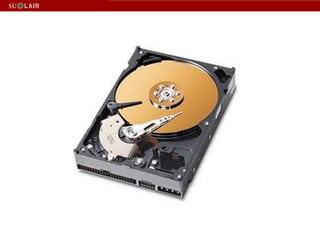
• A complete bit-by-bit copy of a storage
  medium or device, such as a hard drive, SSD
  (solid state drive), tape drive, floppy disk,
  CD/DVD/BD, or flash memory device.
• The image can be stored in one or more files.
• Deleted files, if any, may be copied in this
  process.
Logical image
• A copy of the files in the directory(folder) / directories(folders)
  specified in the copy process.
• The full path of each file is recorded and the files are embedded in
  one or more files in AD1 format.

• Since deleted files and unpartitioned space are not represented in a
  directory, they are not copied in the process.
• The host operating system has to recognize the target directory
  (folder) for the operation. (You cannot perform a logical copy of an
  Apple disk using FTK Imager under Windows perform).
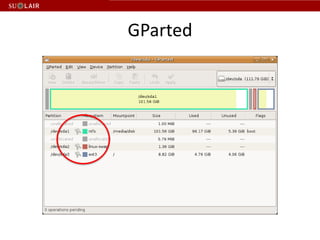
Disk Partition
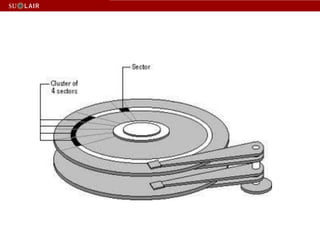
• Disk partitioning is the act of dividing a
  physical hard disk drive into multiple logical
  storage units.
• The logical units can have different file
  systems so that we can set the same physical
  machine as a Window based PC and/or a Linux
  based PC and/or a Mac PC.
GParted
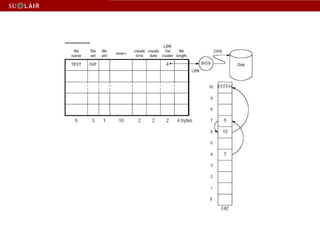
File System
• Microsoft: FAT12 (File Allocation Table), FAT16, FAT32,
  exFAT (FAT64), NTFS (New Technology File System)

• Apple: Apple ProDOS, HFS (Hierarchical File System),
  HFS+

• CPM file system

• Linux: ext (extended filesystem), ext2, ext3, ext4

• Optical Discs: ISO 9660, UDF (Universal Disk Format)
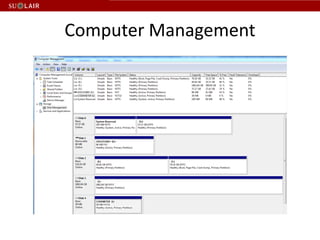
Computer Management
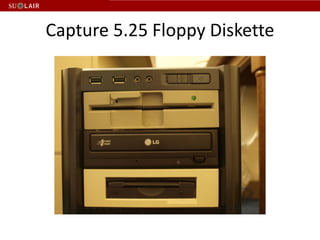
Capture 5.25 Floppy Diskette
Compare 4 5.25 Floppy Drive Solutions
• https://docs.google.com/document/d/1TLY3
  mn3duadGBLqqb2_XnYoF3jakjmo1hXfzvmWC
  TzE/edit?hl=en_US
Hard Disk Interface
•   SCSI
•   IDE
•   Firewire 1394
•   SATA
•   USB
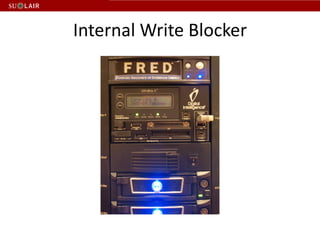
Internal Write Blocker
Image Log Spreadsheet
• Use the following columns
  – Box#
  – CM#
  – Media Details (3.5, 5.25, single/double sided,
    single/double/high density, etc.)
  – Image Result (successful / unreadable)
  – Note (bad sector, etc.)
  – Manufacturer
  – Earliest modification/creation year of files
  – Folder title (if removed from collection folder)
• Use “Call No. Imaging Log” as file name
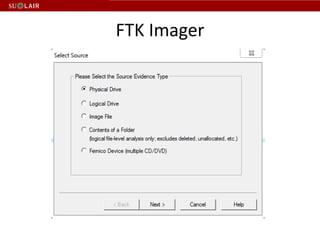
FTK Imager
Create Disk Image
•   Physical Drive – hard / flash memory drive
•   Logical Drive – floppy / CD / DVD drive
•   Contents of a Folder – logical image
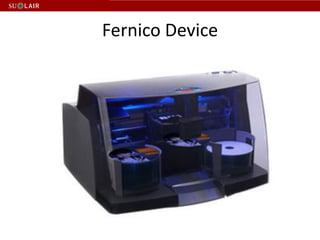
•   Fernico Device – a device which backs up
    forensic data from network locations or from
    locally attached hard drives, automatically
    spanning the content over a series of discs.
Fernico Device
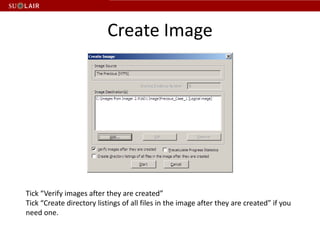
Create Image


Tick “Verify images after they are created”
Tick “Create directory listings of all files in the image after they are created” if you
need one.
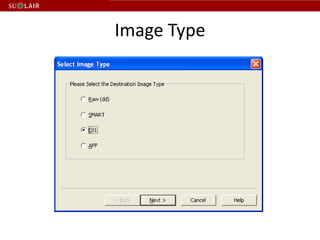
Image Type
Image Type
• Raw (dd) – commonly used disk image format
  created by the UNIX command dd
• SMART – proprietary disk image format created by
  ASR Data.
• E01 – proprietary disk image format created by
  EnCase.
• AFF – an open source disk image format, allow
  encryption of disk image
• AD1 - proprietary logical disk image format created
  by AccessData.
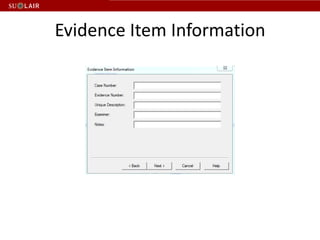
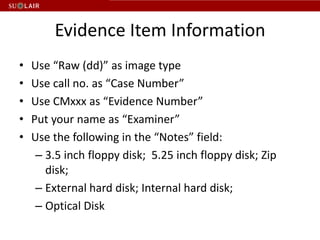
Evidence Item Information
•   Use “Raw (dd)” as image type
•   Use call no. as “Case Number”
•   Use CMxxx as “Evidence Number”
•   Put your name as “Examiner”
•   Use the following in the “Notes” field:
     – 3.5 inch floppy disk; 5.25 inch floppy disk; Zip
       disk;
     – External hard disk; Internal hard disk;
     – Optical Disk
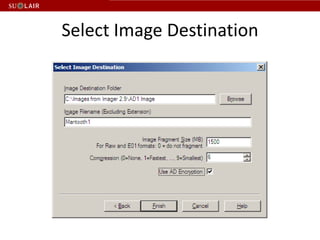
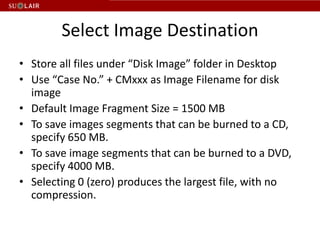
Select Image Destination
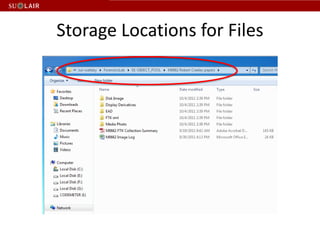
• Store all files under “Disk Image” folder in Desktop
• Use “Case No.” + CMxxx as Image Filename for disk
  image
• Default Image Fragment Size = 1500 MB
• To save images segments that can be burned to a CD,
  specify 650 MB.
• To save image segments that can be burned to a DVD,
  specify 4000 MB.
• Selecting 0 (zero) produces the largest file, with no
  compression.
Storage Locations for Files
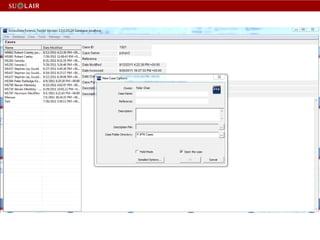
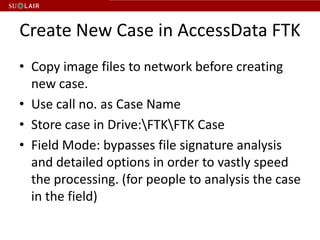
Create New Case in AccessData FTK
• Copy image files to network before creating
  new case.
• Use call no. as Case Name
• Store case in Drive:FTKFTK Case
• Field Mode: bypasses file signature analysis
  and detailed options in order to vastly speed
  the processing. (for people to analysis the case
  in the field)
Evidence Processing
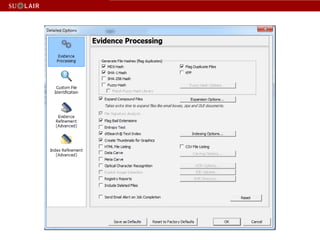
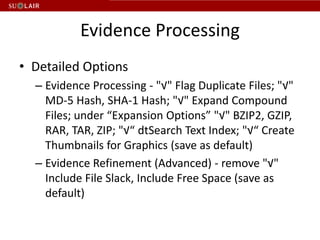
• Detailed Options
  – Evidence Processing - "√" Flag Duplicate Files; "√"
    MD-5 Hash, SHA-1 Hash; "√" Expand Compound
    Files; under “Expansion Options” "√" BZIP2, GZIP,
    RAR, TAR, ZIP; "√“ dtSearch Text Index; "√“ Create
    Thumbnails for Graphics (save as default)
  – Evidence Refinement (Advanced) - remove "√"
    Include File Slack, Include Free Space (save as
    default)
Evidence Processing
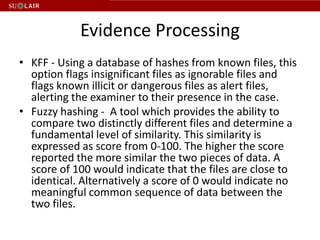
• KFF - Using a database of hashes from known files, this
  option flags insignificant files as ignorable files and
  flags known illicit or dangerous files as alert files,
  alerting the examiner to their presence in the case.
• Fuzzy hashing - A tool which provides the ability to
  compare two distinctly different files and determine a
  fundamental level of similarity. This similarity is
  expressed as score from 0-100. The higher the score
  reported the more similar the two pieces of data. A
  score of 100 would indicate that the files are close to
  identical. Alternatively a score of 0 would indicate no
  meaningful common sequence of data between the
  two files.
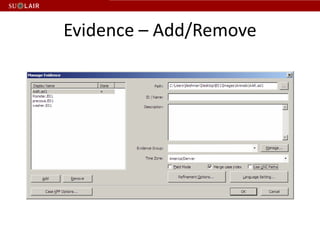
Evidence – Add/Remove
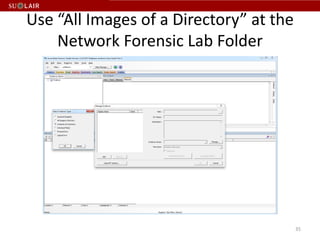
Use “All Images of a Directory” at the
    Network Forensic Lab Folder


                                         35
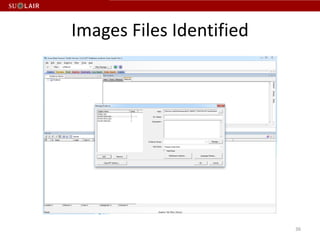
Images Files Identified


                          36
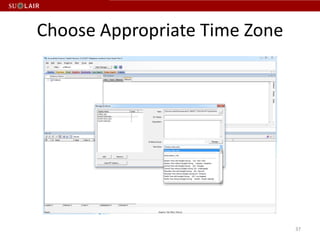
Choose Appropriate Time Zone


                               37
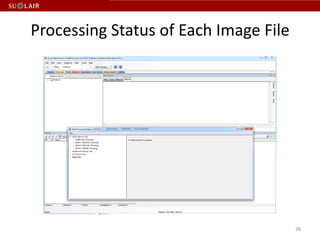
Processing Status of Each Image File


                                       38
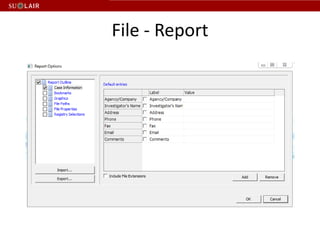
File - Report
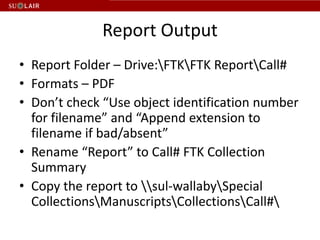
Report Output
• Report Folder – Drive:FTKFTK ReportCall#
• Formats – PDF
• Don’t check “Use object identification number
  for filename” and “Append extension to
  filename if bad/absent”
• Rename “Report” to Call# FTK Collection
  Summary
• Copy the report to sul-wallabySpecial
  CollectionsManuscriptsCollectionsCall#
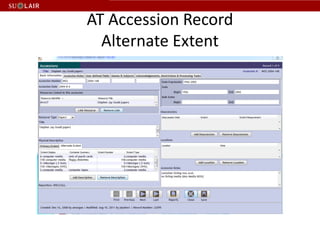
AT Accession Record
  Alternate Extent
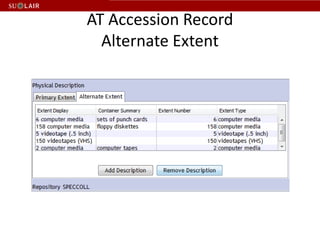
AT Accession Record
  Alternate Extent
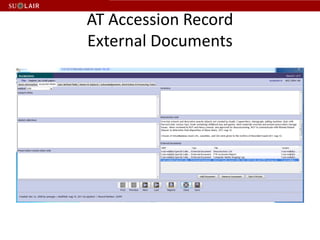
AT Accession Record
External Documents
External Documents Location
• sul-wallabySpecial
  CollectionsManuscriptsCollectionsM1437
  Gould

• M1437 FTK Accession Report

• M1437 Computer Media Imaging Log

Workshop 2 revised

  • 1.
    Workshops on Born-Digital MaterialsWorkflow Peter Chan, Digital Archivist Oct. 20, 2011
  • 2.
    Week 2 Agenda •Accessioning – virus check; – disk imaging; – create FTK case; – collection summary – AT accession record
  • 3.
    Virus Check • Quarantinefor 30 days (count from the day the media arrive at Stanford) • Run Sophos • Remove virus, if any, before creating disk/logical image (unless you are capturing the disk for a researcher in computer virus!)
  • 4.
    Disk / Forensicimage • A complete bit-by-bit copy of a storage medium or device, such as a hard drive, SSD (solid state drive), tape drive, floppy disk, CD/DVD/BD, or flash memory device. • The image can be stored in one or more files. • Deleted files, if any, may be copied in this process.
  • 5.
    Logical image • Acopy of the files in the directory(folder) / directories(folders) specified in the copy process. • The full path of each file is recorded and the files are embedded in one or more files in AD1 format. • Since deleted files and unpartitioned space are not represented in a directory, they are not copied in the process. • The host operating system has to recognize the target directory (folder) for the operation. (You cannot perform a logical copy of an Apple disk using FTK Imager under Windows perform).
  • 8.
    Disk Partition • Diskpartitioning is the act of dividing a physical hard disk drive into multiple logical storage units. • The logical units can have different file systems so that we can set the same physical machine as a Window based PC and/or a Linux based PC and/or a Mac PC.
  • 9.
  • 10.
    File System • Microsoft:FAT12 (File Allocation Table), FAT16, FAT32, exFAT (FAT64), NTFS (New Technology File System) • Apple: Apple ProDOS, HFS (Hierarchical File System), HFS+ • CPM file system • Linux: ext (extended filesystem), ext2, ext3, ext4 • Optical Discs: ISO 9660, UDF (Universal Disk Format)
  • 11.
  • 13.
  • 14.
    Compare 4 5.25Floppy Drive Solutions • https://docs.google.com/document/d/1TLY3 mn3duadGBLqqb2_XnYoF3jakjmo1hXfzvmWC TzE/edit?hl=en_US
  • 15.
    Hard Disk Interface • SCSI • IDE • Firewire 1394 • SATA • USB
  • 16.
  • 17.
    Image Log Spreadsheet •Use the following columns – Box# – CM# – Media Details (3.5, 5.25, single/double sided, single/double/high density, etc.) – Image Result (successful / unreadable) – Note (bad sector, etc.) – Manufacturer – Earliest modification/creation year of files – Folder title (if removed from collection folder) • Use “Call No. Imaging Log” as file name
  • 18.
  • 19.
    Create Disk Image • Physical Drive – hard / flash memory drive • Logical Drive – floppy / CD / DVD drive • Contents of a Folder – logical image • Fernico Device – a device which backs up forensic data from network locations or from locally attached hard drives, automatically spanning the content over a series of discs.
  • 20.
  • 21.
    Create Image Tick “Verifyimages after they are created” Tick “Create directory listings of all files in the image after they are created” if you need one.
  • 22.
  • 23.
    Image Type • Raw(dd) – commonly used disk image format created by the UNIX command dd • SMART – proprietary disk image format created by ASR Data. • E01 – proprietary disk image format created by EnCase. • AFF – an open source disk image format, allow encryption of disk image • AD1 - proprietary logical disk image format created by AccessData.
  • 24.
  • 25.
    Evidence Item Information • Use “Raw (dd)” as image type • Use call no. as “Case Number” • Use CMxxx as “Evidence Number” • Put your name as “Examiner” • Use the following in the “Notes” field: – 3.5 inch floppy disk; 5.25 inch floppy disk; Zip disk; – External hard disk; Internal hard disk; – Optical Disk
  • 26.
  • 27.
    Select Image Destination •Store all files under “Disk Image” folder in Desktop • Use “Case No.” + CMxxx as Image Filename for disk image • Default Image Fragment Size = 1500 MB • To save images segments that can be burned to a CD, specify 650 MB. • To save image segments that can be burned to a DVD, specify 4000 MB. • Selecting 0 (zero) produces the largest file, with no compression.
  • 28.
  • 30.
    Create New Casein AccessData FTK • Copy image files to network before creating new case. • Use call no. as Case Name • Store case in Drive:FTKFTK Case • Field Mode: bypasses file signature analysis and detailed options in order to vastly speed the processing. (for people to analysis the case in the field)
  • 32.
    Evidence Processing • DetailedOptions – Evidence Processing - "√" Flag Duplicate Files; "√" MD-5 Hash, SHA-1 Hash; "√" Expand Compound Files; under “Expansion Options” "√" BZIP2, GZIP, RAR, TAR, ZIP; "√“ dtSearch Text Index; "√“ Create Thumbnails for Graphics (save as default) – Evidence Refinement (Advanced) - remove "√" Include File Slack, Include Free Space (save as default)
  • 33.
    Evidence Processing • KFF- Using a database of hashes from known files, this option flags insignificant files as ignorable files and flags known illicit or dangerous files as alert files, alerting the examiner to their presence in the case. • Fuzzy hashing - A tool which provides the ability to compare two distinctly different files and determine a fundamental level of similarity. This similarity is expressed as score from 0-100. The higher the score reported the more similar the two pieces of data. A score of 100 would indicate that the files are close to identical. Alternatively a score of 0 would indicate no meaningful common sequence of data between the two files.
  • 34.
  • 35.
    Use “All Imagesof a Directory” at the Network Forensic Lab Folder 35
  • 36.
  • 37.
  • 38.
    Processing Status ofEach Image File 38
  • 39.
  • 40.
    Report Output • ReportFolder – Drive:FTKFTK ReportCall# • Formats – PDF • Don’t check “Use object identification number for filename” and “Append extension to filename if bad/absent” • Rename “Report” to Call# FTK Collection Summary • Copy the report to sul-wallabySpecial CollectionsManuscriptsCollectionsCall#
  • 41.
    AT Accession Record Alternate Extent
  • 42.
    AT Accession Record Alternate Extent
  • 43.
  • 44.
    External Documents Location •sul-wallabySpecial CollectionsManuscriptsCollectionsM1437 Gould • M1437 FTK Accession Report • M1437 Computer Media Imaging Log