Hacks	
  for	
  
Windows	
  
How	
  to	
  improve	
  your	
  
Windows	
  experience	
  	
  
Reasons	
  why	
  
your	
  
computers	
  
slows	
  down	
  
•  Bad	
  users’	
  habits	
  
•  Other	
  reasons	
  due	
  to	
  system	
  
configuration	
  
Bad	
  users’	
  
habits	
  
a.  Too	
  many	
  files	
  and	


  folders	
  
b.  Installing/uninstalling	


  programs	
  too	
  	
  often	
  
c.  Too	
  many	
  auto	
  starting	


  programs	
  
Bad	
  users’	
  habits	
  	
  
Too	
  many	
  filers	
  and	
  folders	


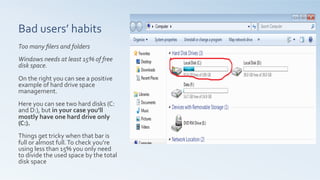
Windows	
  needs	
  at	
  least	
  15%	
  of	
  free	
  
disk	
  space.	


On	
  the	
  right	
  you	
  can	
  see	
  a	
  positive	
  
example	
  of	
  hard	
  drive	
  space	
  
management.	


Here	
  you	
  can	
  see	
  two	
  hard	
  disks	
  (C:	
  
and	
  D:),	
  but	
  in	
  your	
  case	
  you’ll	
  
mostly	
  have	
  one	
  hard	
  drive	
  only	
  	
  
(C:).	


Things	
  get	
  tricky	
  when	
  that	
  bar	
  is	
  
full	
  or	
  almost	
  full.	
  To	
  check	
  you’re	
  
using	
  less	
  than	
  15%	
  you	
  only	
  need	
  
to	
  divide	
  the	
  used	
  space	
  by	
  the	
  total	
  
disk	
  space	
  	
  
Bad	
  users’	
  habits	
  	
  
Too	
  many	
  auto	
  starting	
  programs	


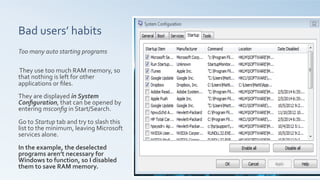
  They	
  use	
  too	
  much	
  RAM	
  memory,	
  so	
  
that	
  nothing	
  is	
  left	
  for	
  other	
  
applications	
  or	
  files.	


They	
  are	
  displayed	
  in	
  System	
  
Configuration,	
  that	
  can	
  be	
  opened	
  by	
  
entering	
  msconfig	
  in	
  Start/Search.	


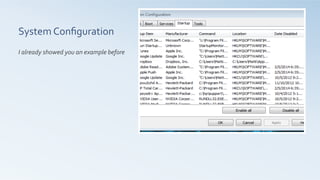
Go	
  to	
  Startup	
  tab	
  and	
  try	
  to	
  slash	
  this	
  
list	
  to	
  the	
  minimum,	
  leaving	
  Microsoft	
  
services	
  alone.	


In	
  the	
  example,	
  the	
  deselected	
  
programs	
  aren’t	
  necessary	
  for	
  
Windows	
  to	
  function,	
  so	
  I	
  disabled	
  
them	
  to	
  save	
  RAM	
  memory.	
  
System	
  
configuration	
  
problems	
  
Outdated	
  or	
  insufficient	
  
hardware	
  
System	
  Configuration	
  
problems	
  	
  
Outdated	
  /	
  insufficient	
  hardware	


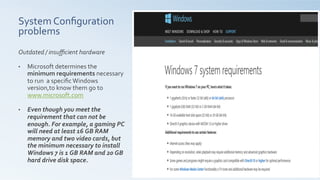
•  Microsoft	
  determines	
  the	
  
minimum	
  requirements	
  necessary	
  
to	
  run	
  	
  a	
  specific	
  Windows	
  
version,to	
  know	
  them	
  go	
  to	
  
www.microsoft.com	


•  Even	
  though	
  you	
  meet	
  the	
  
requirement	
  that	
  can	
  not	
  be	
  
enough.	
  For	
  example,	
  a	
  gaming	
  PC	
  
will	
  need	
  at	
  least	
  16	
  GB	
  RAM	
  
memory	
  and	
  two	
  video	
  cards,	
  but	
  
the	
  minimum	
  necessary	
  to	
  install	
  
Windows	
  7	
  is	
  1	
  GB	
  RAM	
  and	
  20	
  GB	
  
hard	
  drive	
  disk	
  space.	
  	
  
Solutions	
  	
  
•  Windows	
  tools	
  
•  Third-­‐party	
  tools	
  
Windows	
  tools	
  	
  
•  System	
  Configuration	
  	
  
•  Disk	
  Cleanup	
  Utility	
  
•  Windows	
  Experience	
  
Index	
  
System	
  Configuration	
  
I	
  already	
  showed	
  you	
  an	
  example	
  before	
  	
  
Windows	
  Experience	
  
Index	


Assigns	
  the	
  system	
  an	
  overall	
  score,	
  
ranging	
  from	
  1.0	
  to	
  7.9,	
  determined	
  	
  
by	
  individual	
  scores	
  for	
  each	
  hardware	
  
category.	
  
Shows	
  what	
  hardware	
  component	
  
needs	
  to	
  be	
  upgraded.	
  In	
  this	
  example	
  
it’s	
  the	
  video	
  card,	
  because	
  it	
  scores	
  
3.0	
  (half	
  the	
  other	
  components).	
  	
  
Windows	
  Experience	
  Index	
  -­‐	
  Does	
  
Windows	
  play	
  bingo?	
  for	
  more	
  details.	


Disk	
  Cleanup	
  Utility	


This	
  built-­‐in	
  Windows	
  functionality	
  is	
  
used	
  to	
  delete	
  temporary	
  files.	
  To	
  use	
  
it	
  you'll	
  need	
  to	
  right-­‐click	
  the	
  volume	
  
where	
  Windows	
  is	
  installed	
  and	
  select	
  
Properties	
  and	
  then	
  choose	
  Disk	
  
Cleanup	
  (you	
  can	
  also	
  access	
  it	
  by	
  
entering	
  cleanmgr.exe	
  in	
  Start/
Search).	
  	
  
The	
  utility	
  calculates	
  how	
  much	
  space	
  
can	
  be	
  freed.	
  	
  At	
  this	
  point	
  you	
  can	
  
click	
  OK	
  and	
  proceed	
  cleaning	
  up	
  the	
  
selected	
  files.	
  If	
  you	
  need	
  more	
  space	
  
you	
  can	
  click	
  Cleanup	
  System	
  Files	
  to	
  
select	
  temporary	
  system	
  files	
  that	
  can	
  
be	
  deleted	
  	
  
Third-­‐party	
  
tools	
  
•  CCleaner	
  
•  WinPatrol	
  
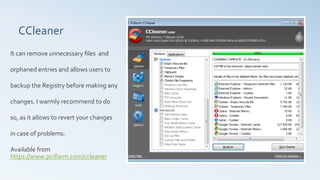
CCleaner	


It	
  can	
  remove	
  unnecessary	
  files	
  	
  and	
  
orphaned	
  entries	
  and	
  allows	
  users	
  to	
  
backup	
  the	
  Registry	
  before	
  making	
  any	
  
changes.	
  I	
  warmly	
  recommend	
  to	
  do	
  
so,	
  as	
  it	
  allows	
  to	
  revert	
  your	
  changes	
  
in	
  case	
  of	
  problems.	


Available	
  from	
  	
  
https://www.piriform.com/ccleaner	


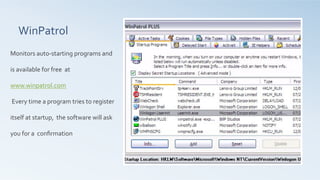
WinPatrol	


Monitors	
  auto-­‐starting	
  programs	
  and	
  
is	
  available	
  for	
  free	
  	
  at	
  
www.winpatrol.com	
  
	
  Every	
  time	
  a	
  program	
  tries	
  to	
  register	
  
itself	
  at	
  startup,	
  	
  the	
  software	
  will	
  ask	
  
you	
  for	
  a	
  	
  confirmation	


Slow PC? Find out the reasons and solve it!

  • 1.
    Hacks  for   Windows   How  to  improve  your   Windows  experience    
  • 2.
    Reasons  why   your   computers   slows  down   •  Bad  users’  habits   •  Other  reasons  due  to  system   configuration  
  • 3.
    Bad  users’   habits   a.  Too  many  files  and            folders   b.  Installing/uninstalling            programs  too    often   c.  Too  many  auto  starting          programs  
  • 4.
    Bad  users’  habits     Too  many  filers  and  folders     Windows  needs  at  least  15%  of  free   disk  space.     On  the  right  you  can  see  a  positive   example  of  hard  drive  space   management.       Here  you  can  see  two  hard  disks  (C:   and  D:),  but  in  your  case  you’ll   mostly  have  one  hard  drive  only     (C:).     Things  get  tricky  when  that  bar  is   full  or  almost  full.  To  check  you’re   using  less  than  15%  you  only  need   to  divide  the  used  space  by  the  total   disk  space    
  • 5.
    Bad  users’  habits     Too  many  auto  starting  programs        They  use  too  much  RAM  memory,  so   that  nothing  is  left  for  other   applications  or  files.     They  are  displayed  in  System   Configuration,  that  can  be  opened  by   entering  msconfig  in  Start/Search.     Go  to  Startup  tab  and  try  to  slash  this   list  to  the  minimum,  leaving  Microsoft   services  alone.       In  the  example,  the  deselected   programs  aren’t  necessary  for   Windows  to  function,  so  I  disabled   them  to  save  RAM  memory.  
  • 6.
    System   configuration   problems   Outdated  or  insufficient   hardware  
  • 7.
    System  Configuration   problems     Outdated  /  insufficient  hardware     •  Microsoft  determines  the   minimum  requirements  necessary   to  run    a  specific  Windows   version,to  know  them  go  to   www.microsoft.com     •  Even  though  you  meet  the   requirement  that  can  not  be   enough.  For  example,  a  gaming  PC   will  need  at  least  16  GB  RAM   memory  and  two  video  cards,  but   the  minimum  necessary  to  install   Windows  7  is  1  GB  RAM  and  20  GB   hard  drive  disk  space.    
  • 8.
    Solutions     • Windows  tools   •  Third-­‐party  tools  
  • 9.
    Windows  tools     •  System  Configuration     •  Disk  Cleanup  Utility   •  Windows  Experience   Index  
  • 10.
    System  Configuration   I  already  showed  you  an  example  before    
  • 11.
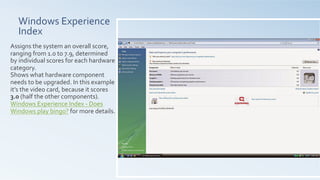
    Windows  Experience   Index       Assigns  the  system  an  overall  score,   ranging  from  1.0  to  7.9,  determined     by  individual  scores  for  each  hardware   category.   Shows  what  hardware  component   needs  to  be  upgraded.  In  this  example   it’s  the  video  card,  because  it  scores   3.0  (half  the  other  components).     Windows  Experience  Index  -­‐  Does   Windows  play  bingo?  for  more  details.      
  • 12.
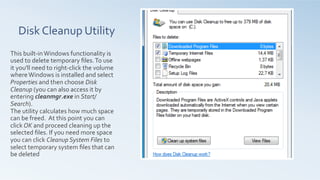
    Disk  Cleanup  Utility       This  built-­‐in  Windows  functionality  is   used  to  delete  temporary  files.  To  use   it  you'll  need  to  right-­‐click  the  volume   where  Windows  is  installed  and  select   Properties  and  then  choose  Disk   Cleanup  (you  can  also  access  it  by   entering  cleanmgr.exe  in  Start/ Search).     The  utility  calculates  how  much  space   can  be  freed.    At  this  point  you  can   click  OK  and  proceed  cleaning  up  the   selected  files.  If  you  need  more  space   you  can  click  Cleanup  System  Files  to   select  temporary  system  files  that  can   be  deleted    
  • 13.
    Third-­‐party   tools   • CCleaner   •  WinPatrol  
  • 14.
    CCleaner     It  can  remove  unnecessary  files    and   orphaned  entries  and  allows  users  to   backup  the  Registry  before  making  any   changes.  I  warmly  recommend  to  do   so,  as  it  allows  to  revert  your  changes   in  case  of  problems.       Available  from     https://www.piriform.com/ccleaner      
  • 15.
    WinPatrol     Monitors  auto-­‐starting  programs  and   is  available  for  free    at   www.winpatrol.com    Every  time  a  program  tries  to  register   itself  at  startup,    the  software  will  ask   you  for  a    confirmation