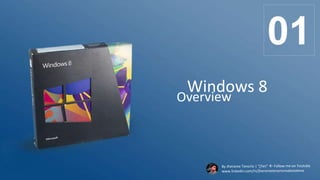
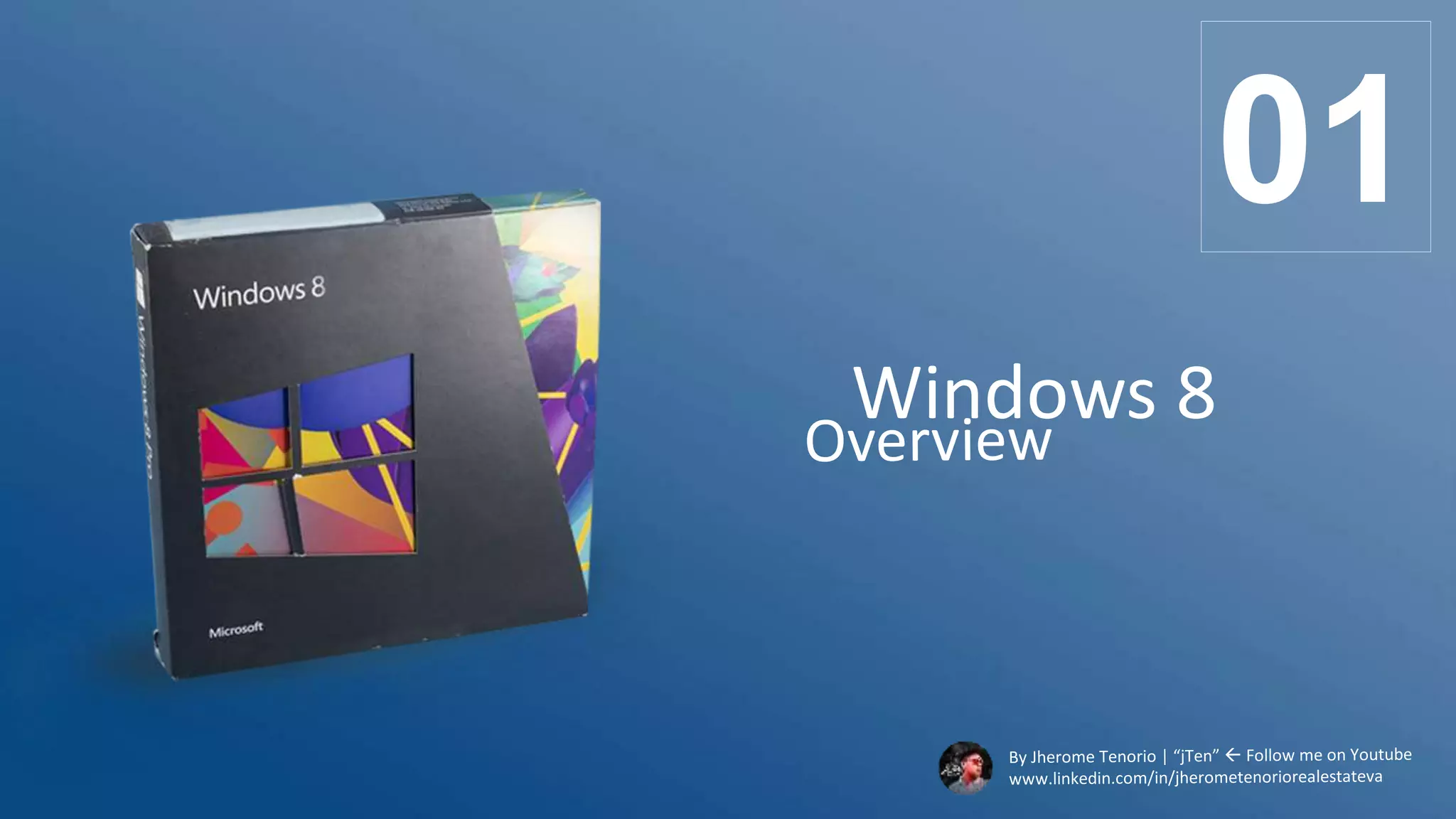
Windows 8
01
Windows 8 is a personal
computer operating system
that is part of the Windows
NT family.
• Released for manufacturing:
August 1, 2012
• Generally on retail:
October 26, 2012
• Successor of Windows 7
02WHATIS
WINDOWS 8
WHATIS
WINDOWS 8
03
• It introduced significant changes to the
Windows operating system and its user
interface (UI)
• It targets both desktop computers and
tablets
• It is a touch-optimized platform based on
the modern Metro design architecture,
which specifies how applications are
delivered and rendered in the UI.
• Boasted faster startup times and better
performance, but it failed to reach critical
mass among business and consumes.
HISTORY&
DEVELOP
MENT
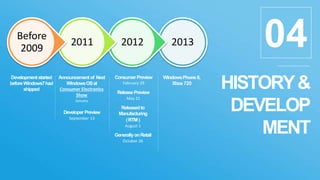
Development started
beforeWindows7had
shipped
201320122011
Before
2009 04
Announcement of Next
WindowsOSat
Consumer Electronics
Show
January
Consumer Preview
February 29
ReleasePreview
May 31
Developer Preview
September 13
Releasedto
Manufacturing
(RTM)
August 1
WindowsPhone 8,
Xbox 720
GenerallyonRetail
October 26
HISTORY&
DEVELOP
MENT
05
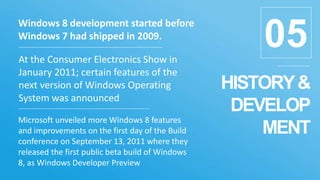
Windows 8 development started before
Windows 7 had shipped in 2009.
At the Consumer Electronics Show in
January 2011; certain features of the
next version of Windows Operating
System was announced
Microsoft unveiled more Windows 8 features
and improvements on the first day of the Build
conference on September 13, 2011 where they
released the first public beta build of Windows
8, as Windows Developer Preview
HISTORY&
DEVELOP
MENT
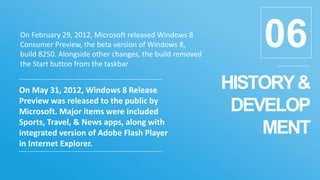
06On February 29, 2012, Microsoft released Windows 8
Consumer Preview, the beta version of Windows 8,
build 8250. Alongside other changes, the build removed
the Start button from the taskbar
On May 31, 2012, Windows 8 Release
Preview was released to the public by
Microsoft. Major items were included
Sports, Travel, & News apps, along with
integrated version of Adobe Flash Player
in Internet Explorer.
HISTORY&
DEVELOP
MENT
07
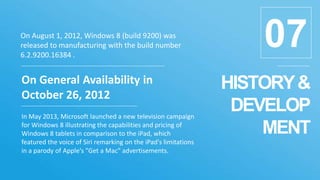
On General Availability in
October 26, 2012
In May 2013, Microsoft launched a new television campaign
for Windows 8 illustrating the capabilities and pricing of
Windows 8 tablets in comparison to the iPad, which
featured the voice of Siri remarking on the iPad's limitations
in a parody of Apple's "Get a Mac" advertisements.
On August 1, 2012, Windows 8 (build 9200) was
released to manufacturing with the build number
6.2.9200.16384 .
WINDOWS 8
FEATURES
There is lots of more
than this……. 08
NEW / CHANGED FEATURES 09
Windows To Go
Faster startup through UEFI
New lock screen w/ a clock & notifications
New "Hybrid Boot" mode
Has native support for USB 3.0 devices
Advanced Format support
Support for near field communication
Windows Explorer to File Explorer
Ability to pause file transfers
Conflict management ability
when copying files
New "File History" function
allows incremental revisions of
files to be backed up to &
restored from a secondary
storage device
NEW / CHANGED FEATURES 10Storage Spaces allows users to
combine different sized hard disks
into virtual drives & specify
mirroring, parity, or no
redundancy on a folder-by-folder
basis.
Ability to move selected files or
folders via drag and drop
Redesigned Task Manager
• New processes tab
• Heat map using different
colors indicating the level of
resource usage
• Network and disk counters
• Grouping by process type
• Friendly names for processes
• Blue Screen of Death updated
w/ a simpler & modern design
SECURITY FEATURES
PINs & picture passwords for touchscreens
It supports SECURE BOOT,
uses a public-key
infrastructure to verify the
integrity of the OS &
prevent unauthorized
programs such as bootkits
from infecting the device's
boot process.
11
Addition of antivirus capabilities
SmartScreen filtering
Family Safety offers Parental controls
REFRESH & RESET functions for System
Recovery
System recovery from USB drive
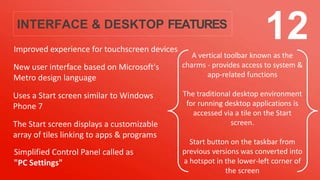
INTERFACE & DESKTOP FEATURES
Improved experience for touchscreen devices
A vertical toolbar known as the
charms - provides access to system &
app-related functions
The traditional desktop environment
for running desktop applications is
accessed via a tile on the Start
screen.
Start button on the taskbar from
previous versions was converted into
a hotspot in the lower-left corner of
the screen
12
New user interface based on Microsoft's
Metro design language
Uses a Start screen similar to Windows
Phone 7
The Start screen displays a customizable
array of tiles linking to apps & programs
Simplified Control Panel called as
"PC Settings"
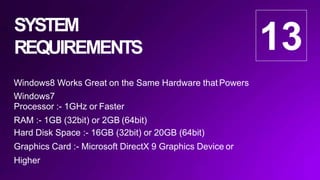
SYSTEM
REQUIREMENTS
Windows8 Works Great on the Same Hardware that Powers
Windows7
Processor :- 1GHz or Faster
RAM :- 1GB (32bit) or 2GB (64bit)
Hard Disk Space :- 16GB (32bit) or 20GB (64bit)
Graphics Card :- Microsoft DirectX 9 Graphics Device or
Higher
13
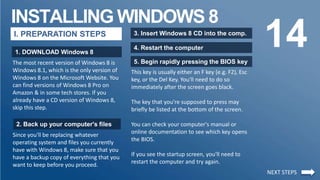
INSTALLING WINDOWS 8
14I. PREPARATION STEPS
1. DOWNLOAD Windows 8
The most recent version of Windows 8 is
Windows 8.1, which is the only version of
Windows 8 on the Microsoft Website. You
can find versions of Windows 8 Pro on
Amazon & in some tech stores. If you
already have a CD version of Windows 8,
skip this step.
2. Back up your computer's files
Since you'll be replacing whatever
operating system and files you currently
have with Windows 8, make sure that you
have a backup copy of everything that you
want to keep before you proceed.
3. Insert Windows 8 CD into the comp.
4. Restart the computer
5. Begin rapidly pressing the BIOS key
This key is usually either an F key (e.g. F2), Esc
key, or the Del Key. You'll need to do so
immediately after the screen goes black.
The key that you're supposed to press may
briefly be listed at the bottom of the screen.
You can check your computer's manual or
online documentation to see which key opens
the BIOS.
If you see the startup screen, you'll need to
restart the computer and try again.
NEXT STEPS
INSTALLING WINDOWS 8
15I. PREPARATION STEPS
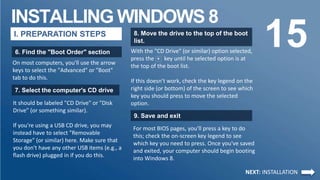
6. Find the "Boot Order" section
On most computers, you'll use the arrow
keys to select the "Advanced" or "Boot"
tab to do this.
7. Select the computer's CD drive
It should be labeled "CD Drive" or "Disk
Drive" (or something similar).
If you're using a USB CD drive, you may
instead have to select "Removable
Storage" (or similar) here. Make sure that
you don't have any other USB items (e.g., a
flash drive) plugged in if you do this.
8. Move the drive to the top of the boot
list.
9. Save and exit
With the "CD Drive" (or similar) option selected,
press the + key until he selected option is at
the top of the boot list.
If this doesn't work, check the key legend on the
right side (or bottom) of the screen to see which
key you should press to move the selected
option.
NEXT: INSTALLATION
For most BIOS pages, you'll press a key to do
this; check the on-screen key legend to see
which key you need to press. Once you've saved
and exited, your computer should begin booting
into Windows 8.
INSTALLING WINDOWS 8
16I. INSTALLATION STEPS
1. Select a language, time, and
keyboard setting.
3. CLICK [INSTALL NOW]
5. Check the "I accept" box then Click
on the NEXT button
Type in the 25-character code that's listed on
the Windows 8 CD case, box, or manual, then
click Next to proceed.
If you bought your Windows 8 CD back when
Windows 8 came out, you may have a copy of
the code in an email in your Microsoft-
registered email account.
2. Click NEXT
4. Enter your Windows 8 product key
6. Click on “Custom Install Windows
only”
It's an option on the "Which Type of Installation
do you Want" screen.
NEXT STEPS
7. Click on Drive options (advance)
INSTALLING WINDOWS 8
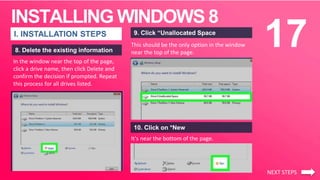
17I. INSTALLATION STEPS
8. Delete the existing information
This should be the only option in the window
near the top of the page.
9. Click “Unallocated Space
10. Click on *New
It's near the bottom of the page.
NEXT STEPS
In the window near the top of the page,
click a drive name, then click Delete and
confirm the decision if prompted. Repeat
this process for all drives listed.
INSTALLING WINDOWS 8
18I. INSTALLATION STEPS
11. Click [Apply] then [Next] Your computer will restart multiple times during
the installation process. Once Windows 8 is done
installing, you should be at the login screen.
You may be prompted to do some personalization
work (e.g., selecting a theme & color) before you
can continue to use Windows 8.
12. Wait for Windows 8 to finish
installing
Both buttons are at the bottom of the page.
Doing so will confirm your installation
location and begin installing Windows 8
onto your computer.
SOFTWARE
SUPPORT
19Runs on CPUs compatible with x86
architecture 3rd generation (known as
IA-32) or newer
Can run 32-bit and 16-bit applications
although 16-bit support must be
enabled first.
Restricted to supporting only 4
gigabytes of memory
THE 32 BIT ARCHITECHTURE
The three desktop editions of
Windows 8 support 32-bit and
64-bit architectures
SOFTWARE
SUPPORT
20Runs on CPUs compatible with x86 8th
generation or newer
Can run 32-bit and 64-bit programs.
Can theoretically support 2048
gigabytes of memory.
Require a different set of device drivers
than those of 32-bit operating systems.
THE 64 BIT ARCHITECHTURE
Windows 8
Baselineversion of Windows8 for consumers Runson PC
and x86-basedtablets
Windows8 Pro
Advanced version of Windows8 for business Runson PC
and x86-basedtablets
Enhancedvirtualization, file system encryption
Windows8 Enterprise
Advanced version of Windows8 for enterprise RunsonPC
Enhancedvirtualization, advanced security PC
management and deployment WindowsTo Go
21
VARIANTS
Windows RT
Specialversion of Windows8 for ARM Runs
only on ARM-based tablets and PCs
Supportsonly METROpart of the OS
Cannot be purchased, preinstalled on device
Windows Phone 8
Specialversion of Windows8 for mobile phones
Supportsonly METROpart of the OS
Stillhasa lot of differencesdespite shared OScore
Cannot be purchased, preinstalled on device
22
VARIANTS
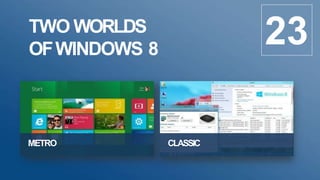
TWO WORLDS
OFWINDOWS 8
METRO CLASSIC
23
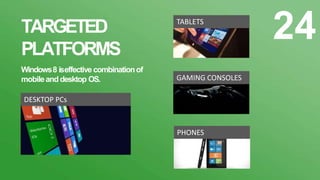
TARGETED
PLATFORMS
Windows8 iseffective combinationof
mobileanddesktop OS.
24
DESKTOP PCs
TABLETS
PHONES
GAMING CONSOLES
Sources:
SlideShare.com
www.wikihow.com/Install-Windows-8
en.wikipedia.org/wiki/Windows_8#Early_development
searchenterprisedesktop.techtarget.com/definition/Windows-8
Jherome S. Tenorio | jTen
Associate in Computer Technology - Multimedia and Web Design – University of Baguio
Bachelor in Science and Information Technology – Apayao State College
Digital Marketer
Graphic Designer
Full Stack Web Developer
Real Estate Virtual Assistant
https://twitter.com/jTenTechTorials
https://www.facebook.com/JTenTechTorials/
https://www.linkedin.com/in/jherometenoriorealestateva/
25

Windows 8 overview by jten techtorials

  • 1.
  • 2.
    Windows 8 isa personal computer operating system that is part of the Windows NT family. • Released for manufacturing: August 1, 2012 • Generally on retail: October 26, 2012 • Successor of Windows 7 02WHATIS WINDOWS 8
  • 3.
    WHATIS WINDOWS 8 03 • Itintroduced significant changes to the Windows operating system and its user interface (UI) • It targets both desktop computers and tablets • It is a touch-optimized platform based on the modern Metro design architecture, which specifies how applications are delivered and rendered in the UI. • Boasted faster startup times and better performance, but it failed to reach critical mass among business and consumes.
  • 4.
    HISTORY& DEVELOP MENT Development started beforeWindows7had shipped 201320122011 Before 2009 04 Announcementof Next WindowsOSat Consumer Electronics Show January Consumer Preview February 29 ReleasePreview May 31 Developer Preview September 13 Releasedto Manufacturing (RTM) August 1 WindowsPhone 8, Xbox 720 GenerallyonRetail October 26
  • 5.
    HISTORY& DEVELOP MENT 05 Windows 8 developmentstarted before Windows 7 had shipped in 2009. At the Consumer Electronics Show in January 2011; certain features of the next version of Windows Operating System was announced Microsoft unveiled more Windows 8 features and improvements on the first day of the Build conference on September 13, 2011 where they released the first public beta build of Windows 8, as Windows Developer Preview
  • 6.
    HISTORY& DEVELOP MENT 06On February 29,2012, Microsoft released Windows 8 Consumer Preview, the beta version of Windows 8, build 8250. Alongside other changes, the build removed the Start button from the taskbar On May 31, 2012, Windows 8 Release Preview was released to the public by Microsoft. Major items were included Sports, Travel, & News apps, along with integrated version of Adobe Flash Player in Internet Explorer.
  • 7.
    HISTORY& DEVELOP MENT 07 On General Availabilityin October 26, 2012 In May 2013, Microsoft launched a new television campaign for Windows 8 illustrating the capabilities and pricing of Windows 8 tablets in comparison to the iPad, which featured the voice of Siri remarking on the iPad's limitations in a parody of Apple's "Get a Mac" advertisements. On August 1, 2012, Windows 8 (build 9200) was released to manufacturing with the build number 6.2.9200.16384 .
  • 8.
    WINDOWS 8 FEATURES There islots of more than this……. 08
  • 9.
    NEW / CHANGEDFEATURES 09 Windows To Go Faster startup through UEFI New lock screen w/ a clock & notifications New "Hybrid Boot" mode Has native support for USB 3.0 devices Advanced Format support Support for near field communication Windows Explorer to File Explorer Ability to pause file transfers Conflict management ability when copying files New "File History" function allows incremental revisions of files to be backed up to & restored from a secondary storage device
  • 10.
    NEW / CHANGEDFEATURES 10Storage Spaces allows users to combine different sized hard disks into virtual drives & specify mirroring, parity, or no redundancy on a folder-by-folder basis. Ability to move selected files or folders via drag and drop Redesigned Task Manager • New processes tab • Heat map using different colors indicating the level of resource usage • Network and disk counters • Grouping by process type • Friendly names for processes • Blue Screen of Death updated w/ a simpler & modern design
  • 11.
    SECURITY FEATURES PINs &picture passwords for touchscreens It supports SECURE BOOT, uses a public-key infrastructure to verify the integrity of the OS & prevent unauthorized programs such as bootkits from infecting the device's boot process. 11 Addition of antivirus capabilities Addition of antivirus capabilities SmartScreen filtering Family Safety offers Parental controls REFRESH & RESET functions for System Recovery System recovery from USB drive
  • 12.
    INTERFACE & DESKTOPFEATURES Improved experience for touchscreen devices A vertical toolbar known as the charms - provides access to system & app-related functions The traditional desktop environment for running desktop applications is accessed via a tile on the Start screen. Start button on the taskbar from previous versions was converted into a hotspot in the lower-left corner of the screen 12 New user interface based on Microsoft's Metro design language Uses a Start screen similar to Windows Phone 7 The Start screen displays a customizable array of tiles linking to apps & programs Simplified Control Panel called as "PC Settings"
  • 13.
    SYSTEM REQUIREMENTS Windows8 Works Greaton the Same Hardware that Powers Windows7 Processor :- 1GHz or Faster RAM :- 1GB (32bit) or 2GB (64bit) Hard Disk Space :- 16GB (32bit) or 20GB (64bit) Graphics Card :- Microsoft DirectX 9 Graphics Device or Higher 13
  • 14.
    INSTALLING WINDOWS 8 14I.PREPARATION STEPS 1. DOWNLOAD Windows 8 The most recent version of Windows 8 is Windows 8.1, which is the only version of Windows 8 on the Microsoft Website. You can find versions of Windows 8 Pro on Amazon & in some tech stores. If you already have a CD version of Windows 8, skip this step. 2. Back up your computer's files Since you'll be replacing whatever operating system and files you currently have with Windows 8, make sure that you have a backup copy of everything that you want to keep before you proceed. 3. Insert Windows 8 CD into the comp. 4. Restart the computer 5. Begin rapidly pressing the BIOS key This key is usually either an F key (e.g. F2), Esc key, or the Del Key. You'll need to do so immediately after the screen goes black. The key that you're supposed to press may briefly be listed at the bottom of the screen. You can check your computer's manual or online documentation to see which key opens the BIOS. If you see the startup screen, you'll need to restart the computer and try again. NEXT STEPS
  • 15.
    INSTALLING WINDOWS 8 15I.PREPARATION STEPS 6. Find the "Boot Order" section On most computers, you'll use the arrow keys to select the "Advanced" or "Boot" tab to do this. 7. Select the computer's CD drive It should be labeled "CD Drive" or "Disk Drive" (or something similar). If you're using a USB CD drive, you may instead have to select "Removable Storage" (or similar) here. Make sure that you don't have any other USB items (e.g., a flash drive) plugged in if you do this. 8. Move the drive to the top of the boot list. 9. Save and exit With the "CD Drive" (or similar) option selected, press the + key until he selected option is at the top of the boot list. If this doesn't work, check the key legend on the right side (or bottom) of the screen to see which key you should press to move the selected option. NEXT: INSTALLATION For most BIOS pages, you'll press a key to do this; check the on-screen key legend to see which key you need to press. Once you've saved and exited, your computer should begin booting into Windows 8.
  • 16.
    INSTALLING WINDOWS 8 16I.INSTALLATION STEPS 1. Select a language, time, and keyboard setting. 3. CLICK [INSTALL NOW] 5. Check the "I accept" box then Click on the NEXT button Type in the 25-character code that's listed on the Windows 8 CD case, box, or manual, then click Next to proceed. If you bought your Windows 8 CD back when Windows 8 came out, you may have a copy of the code in an email in your Microsoft- registered email account. 2. Click NEXT 4. Enter your Windows 8 product key 6. Click on “Custom Install Windows only” It's an option on the "Which Type of Installation do you Want" screen. NEXT STEPS 7. Click on Drive options (advance)
  • 17.
    INSTALLING WINDOWS 8 17I.INSTALLATION STEPS 8. Delete the existing information This should be the only option in the window near the top of the page. 9. Click “Unallocated Space 10. Click on *New It's near the bottom of the page. NEXT STEPS In the window near the top of the page, click a drive name, then click Delete and confirm the decision if prompted. Repeat this process for all drives listed.
  • 18.
    INSTALLING WINDOWS 8 18I.INSTALLATION STEPS 11. Click [Apply] then [Next] Your computer will restart multiple times during the installation process. Once Windows 8 is done installing, you should be at the login screen. You may be prompted to do some personalization work (e.g., selecting a theme & color) before you can continue to use Windows 8. 12. Wait for Windows 8 to finish installing Both buttons are at the bottom of the page. Doing so will confirm your installation location and begin installing Windows 8 onto your computer.
  • 19.
    SOFTWARE SUPPORT 19Runs on CPUscompatible with x86 architecture 3rd generation (known as IA-32) or newer Can run 32-bit and 16-bit applications although 16-bit support must be enabled first. Restricted to supporting only 4 gigabytes of memory THE 32 BIT ARCHITECHTURE The three desktop editions of Windows 8 support 32-bit and 64-bit architectures
  • 20.
    SOFTWARE SUPPORT 20Runs on CPUscompatible with x86 8th generation or newer Can run 32-bit and 64-bit programs. Can theoretically support 2048 gigabytes of memory. Require a different set of device drivers than those of 32-bit operating systems. THE 64 BIT ARCHITECHTURE
  • 21.
    Windows 8 Baselineversion ofWindows8 for consumers Runson PC and x86-basedtablets Windows8 Pro Advanced version of Windows8 for business Runson PC and x86-basedtablets Enhancedvirtualization, file system encryption Windows8 Enterprise Advanced version of Windows8 for enterprise RunsonPC Enhancedvirtualization, advanced security PC management and deployment WindowsTo Go 21 VARIANTS
  • 22.
    Windows RT Specialversion ofWindows8 for ARM Runs only on ARM-based tablets and PCs Supportsonly METROpart of the OS Cannot be purchased, preinstalled on device Windows Phone 8 Specialversion of Windows8 for mobile phones Supportsonly METROpart of the OS Stillhasa lot of differencesdespite shared OScore Cannot be purchased, preinstalled on device 22 VARIANTS
  • 23.
  • 24.
    TARGETED PLATFORMS Windows8 iseffective combinationof mobileanddesktopOS. 24 DESKTOP PCs TABLETS PHONES GAMING CONSOLES
  • 25.
    Sources: SlideShare.com www.wikihow.com/Install-Windows-8 en.wikipedia.org/wiki/Windows_8#Early_development searchenterprisedesktop.techtarget.com/definition/Windows-8 Jherome S. Tenorio| jTen Associate in Computer Technology - Multimedia and Web Design – University of Baguio Bachelor in Science and Information Technology – Apayao State College Digital Marketer Graphic Designer Full Stack Web Developer Real Estate Virtual Assistant https://twitter.com/jTenTechTorials https://www.facebook.com/JTenTechTorials/ https://www.linkedin.com/in/jherometenoriorealestateva/ 25

Editor's Notes

  • #10 • Faster startup through UEFI (Unified Extensible Firmware Interface) integration • New "Hybrid Boot" mode (hibernates the Windows kernel on shutdown to speed up the subsequent boot) • New lock screen w/ a clock & notifications • Ability for enterprise users to create live USB versions of Windows (Windows To Go) • Has native support for USB 3.0 devices which allows for faster data transfers and improved power management with compatible devices, and hard disk. • Advanced Format support, as well as support for near field communication to facilitate sharing and communication between devices. • Windows Explorer, which has been renamed File Explorer, now includes a ribbon in place of the command bar • File operation dialog boxes have been updated to provide more detailed statistics • A new "File History" function allows incremental revisions of files to be backed up to & restored from a secondary storage device
  • #11 • Storage Spaces allows users to combine different sized hard disks into virtual drives & specify mirroring, parity, or no redundancy on a folder-by-folder basis. • Ability to move selected files or folders via drag and drop from a parent folder into a subfolder listed within the breadcrumb hierarchy of the address bar in File Explorer. • Task Manager has been redesigned • New processes tab with the option to display fewer or more details of running applications and background processes • Friendly names for processes & a new option w/c allows users to search the web to find information about obscure processes. • Blue Screen of Death has been updated with a simpler and modern design with less technical information displayed.
  • #12 • Two new authentication methods tailored towards touchscreens (PINs and picture passwords) • Addition of antivirus capabilities to Windows Defender • Family Safety offers Parental controls w/c allows parents to monitor and manage their children's activities on a device with activity reports and safety controls. • integrated system recovery through the new "Refresh" and "Reset" functions • system recovery from USB drive • Windows 8 supports a feature of the UEFI specification known as "Secure boot", which uses a public-key infrastructure to verify the integrity of the operating system and prevent unauthorized programs such as bootkits from infecting the device's boot process.
  • #13 • uses a Start screen similar to that of Windows Phone 7 as the primary means of launching applications. • Alongside the traditional Control Panel, a new simplified and touch-optimized settings app known as "PC Settings" is used for basic configuration and user settings. • It does not include many of the advanced options still accessible from the normal Control Panel. • A vertical toolbar known as the charms[115] (accessed by swiping from the right edge of a touchscreen, swiping from the right edge of a trackpad, or pointing the cursor at hotspots in the right corners of a screen), provides access to system and app-related functions, such as search, sharing, device management, settings, and a Start button. • The traditional desktop environment for running desktop applications is accessed via a tile on the Start screen. • The Start button on the taskbar from previous versions of Windows has been converted into a hotspot in the lower-left corner of the screen, which displays a large tooltip displaying a thumbnail of the Start screen.