Wimba 1.0: Basic Training for
Engaging Participants in the
Wimba Live Classroom
Live Lecture Training Part 1
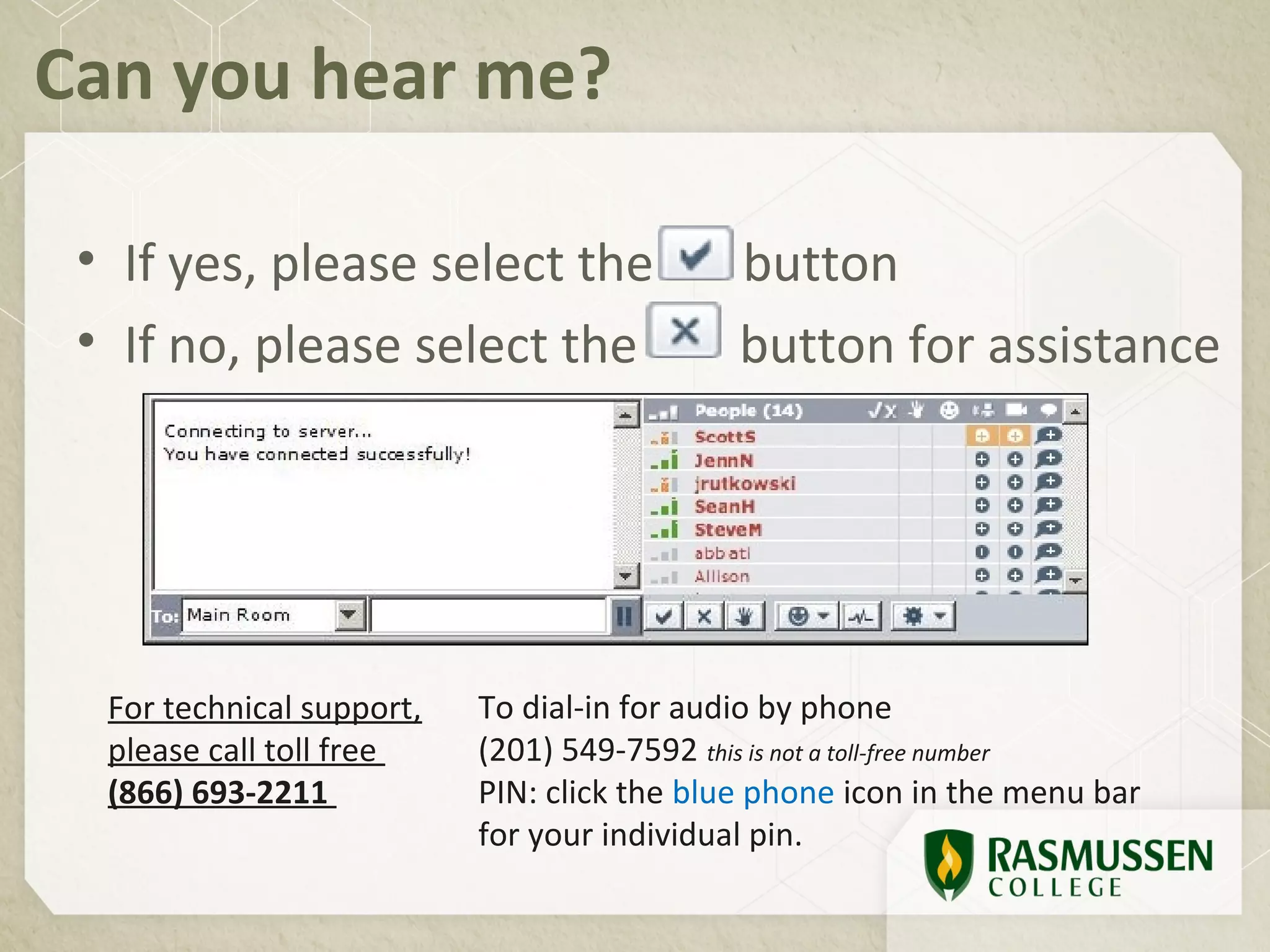
Can you hear me?

 • If yes, please select the                 button
 • If no, please select the                  button for assistance


  For technical support,   To dial-in for audio by phone
  please call toll free    (201) 549-7592 this is not a toll-free number
  (866) 693-2211           PIN: click the blue phone icon in the menu bar
                           for your individual pin.
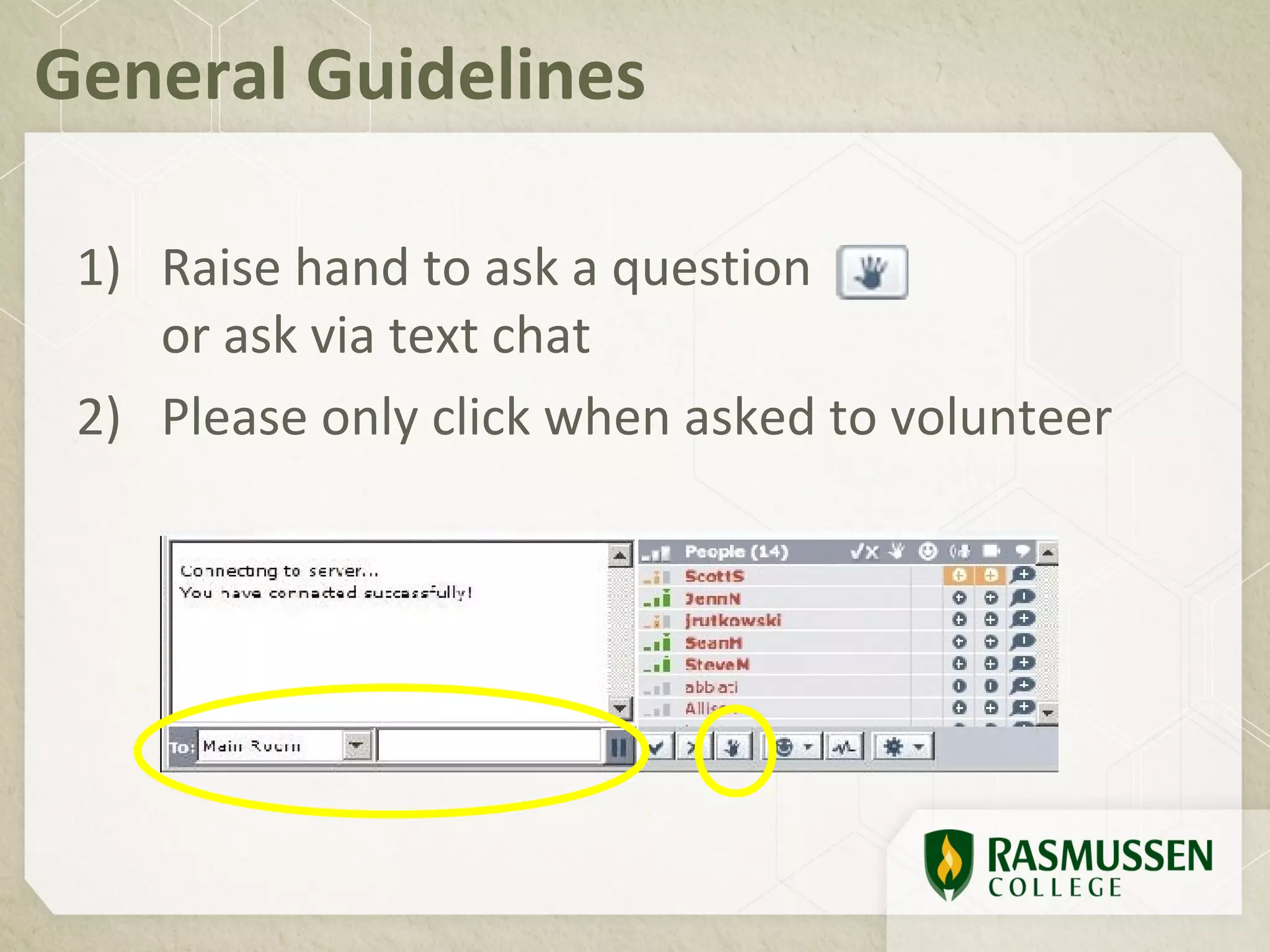
General Guidelines

 1) Raise hand to ask a question
    or ask via text chat
 2) Please only click when asked to volunteer
Agenda
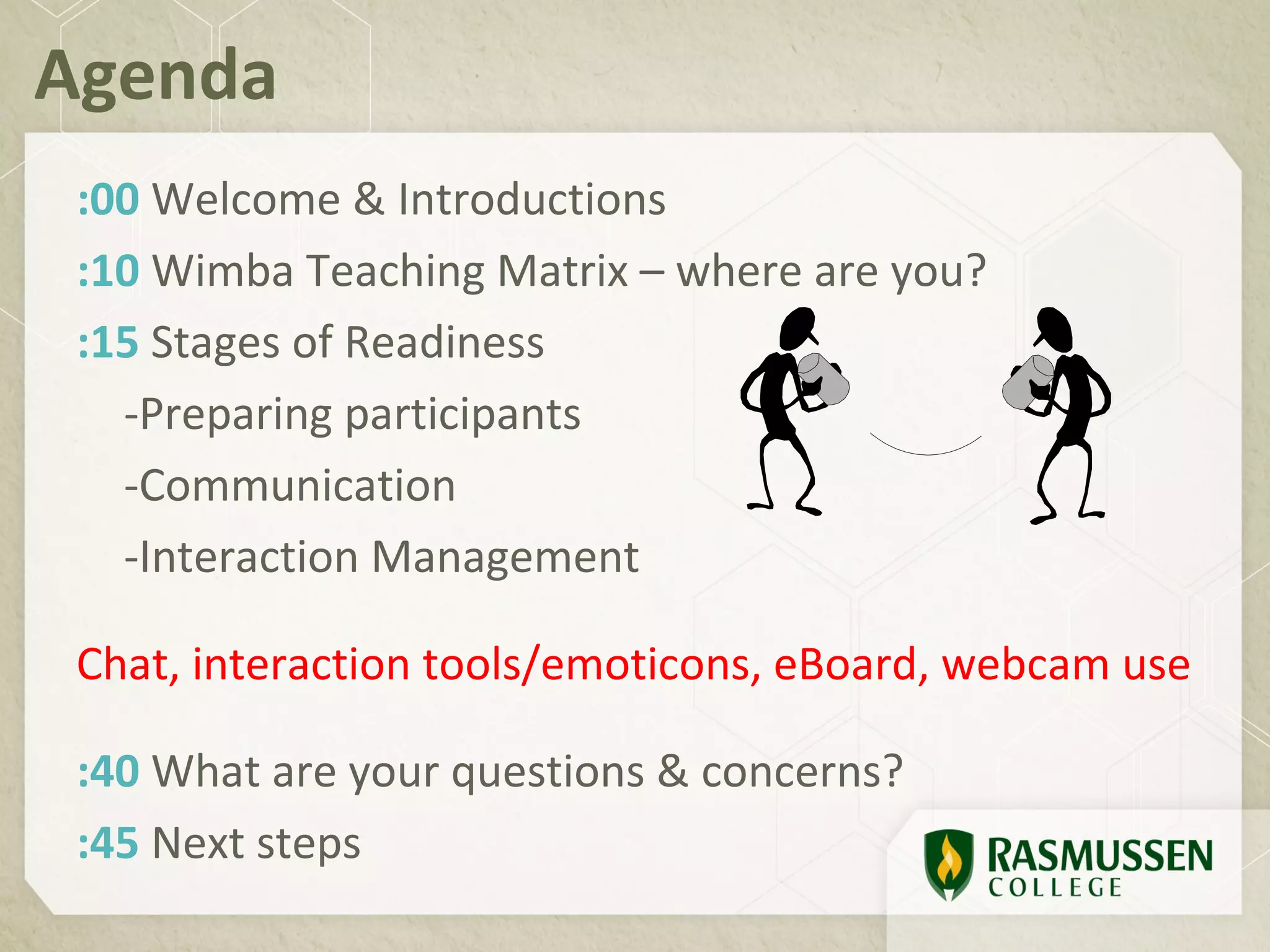
 :00 Welcome & Introductions
 :10 Wimba Teaching Matrix – where are you?
 :15 Stages of Readiness
   -Preparing participants
   -Communication
   -Interaction Management

 Chat, interaction tools/emoticons, eBoard, webcam use

 :40 What are your questions & concerns?
 :45 Next steps
Wimba Teaching Matrix
 • Stage 1: Preparing participants
 • Stage 2: Communication
 • Stage 3: Interaction Management


 Return for Wimba 2.0!! Discussion of Stages 4 & 5
 • Stage 4: Content
 • Stage 5: Evaluation
Stage 1: Expect the best, plan
for the worst, and prepare to
be surprised.
Preparing participants
Stage 1: Preparing participants
Send correspondence to participants
Provide PSC 24/7 support number
Direct users to blue phone icon & telephone
 support for audio issues.
Hold open house/orientation events to
 introduce participants to Wimba & course.
Use Netstats to determine participant
 connection status.
Sample invite
**WEDNESDAY MORNING REVIEW SESSION**
Grab a cup of coffee and join me this morning at 8am
CST/9am EST for a review of Module 06 and the
Professional Practice Activity. Here's the Wimba URL:
http://bit.ly/M120WimbaRoom
Need technical assistance before or during the
session? Contact the PSC for 24/7 support at 1-866-
693-2211
See you in a bit!
Heather
Stage 2 – We have two ears &
one mouth so that we can listen
twice as much as we speak.
Communication
Stage 2: Communication
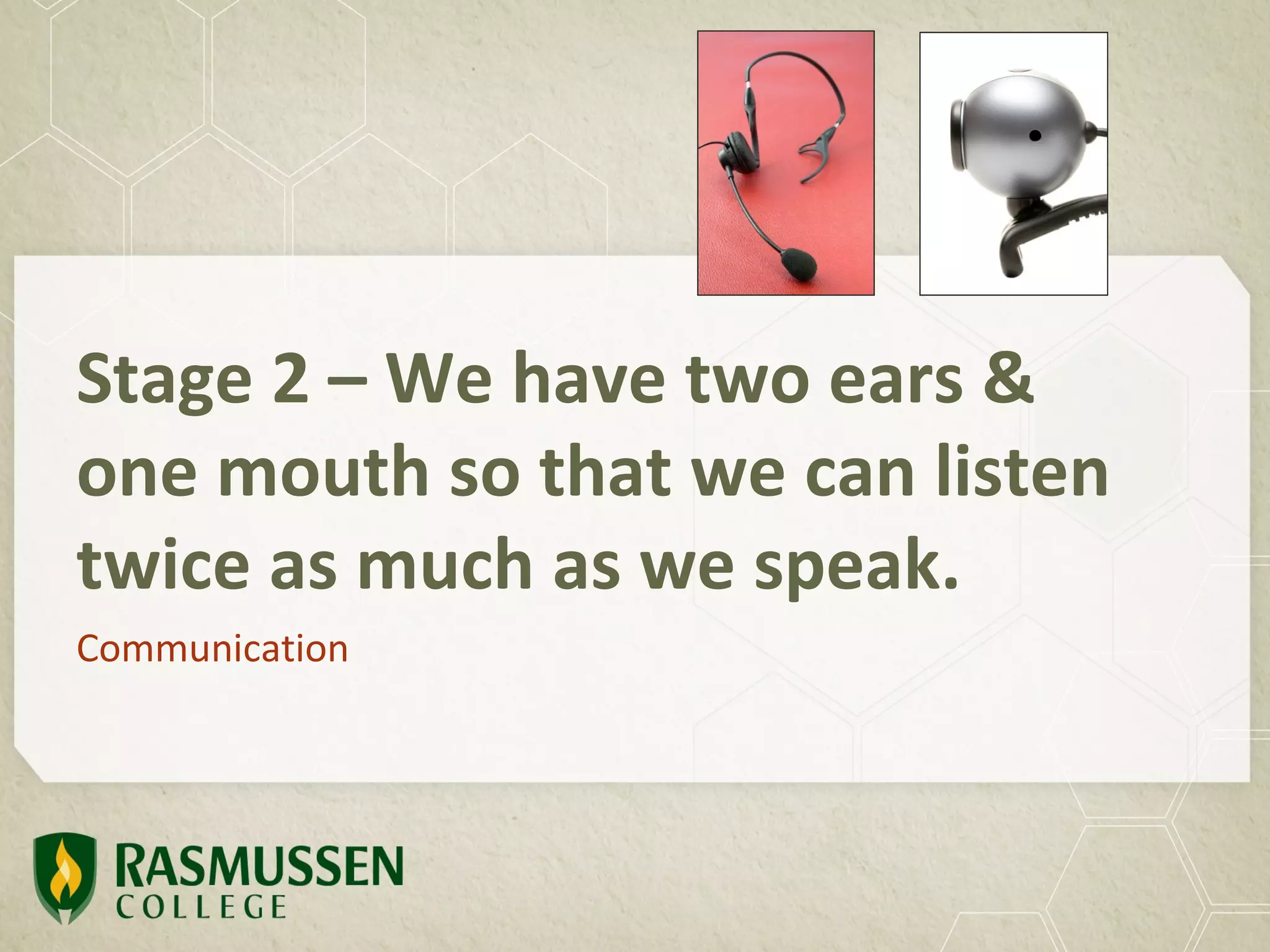
 MUST HAVE A HEADSET.
 Use Ctrl key or TALK button to talk.
 Use Dial-in option to speak if audio fails.
 Utilize Lock Talk option.
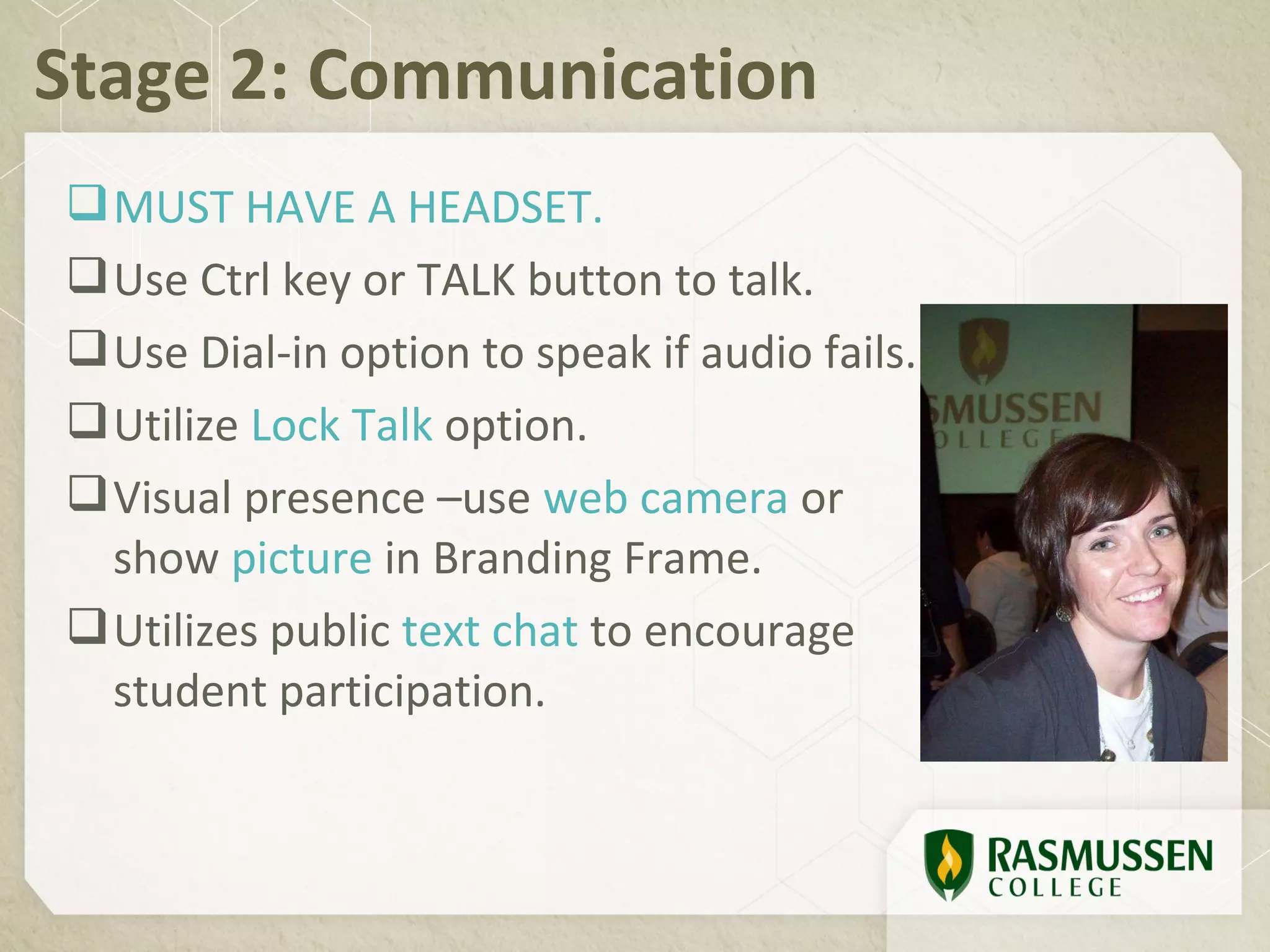
 Visual presence –use web camera or
  show picture in Branding Frame.
 Utilizes public text chat to encourage
  student participation.
Icebreakers
Use at least 1 to begin your session
•Where are from? What’s your program?
•Best movie you’ve ever seen.
•Favorite ice cream flavor.
•Favorite seasonal activity.
•What quarter are you in? How far along in your
program?
•Favorite TV show.
Stage 3 – Communication is
the real work of leadership.
Interaction Management
Stage 3: Interaction Management
Encourage student participation, set ground
 rules.
Ask students to raise/lower hand for
 questions, clear hand raises.
Control conversation to deliver information.
Use yes/no function to ask questions.
Ask for volunteers to answer questions.
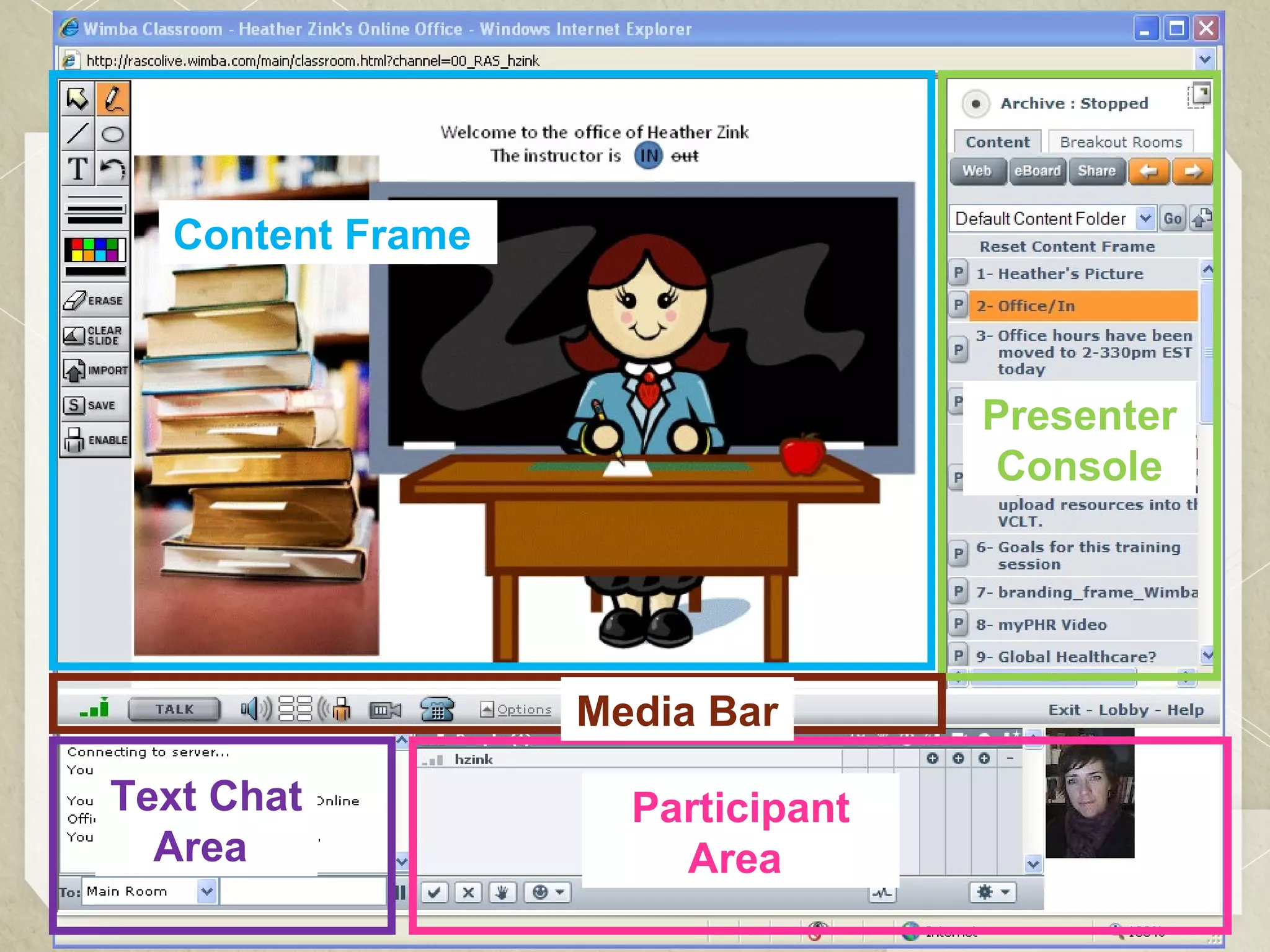
Picture of wimba classrom
  Content Frame


                                  Presenter
                                   Console


                  Media Bar

Text Chat           Participant
  Area                Area
Presenter’s Console: Access Content

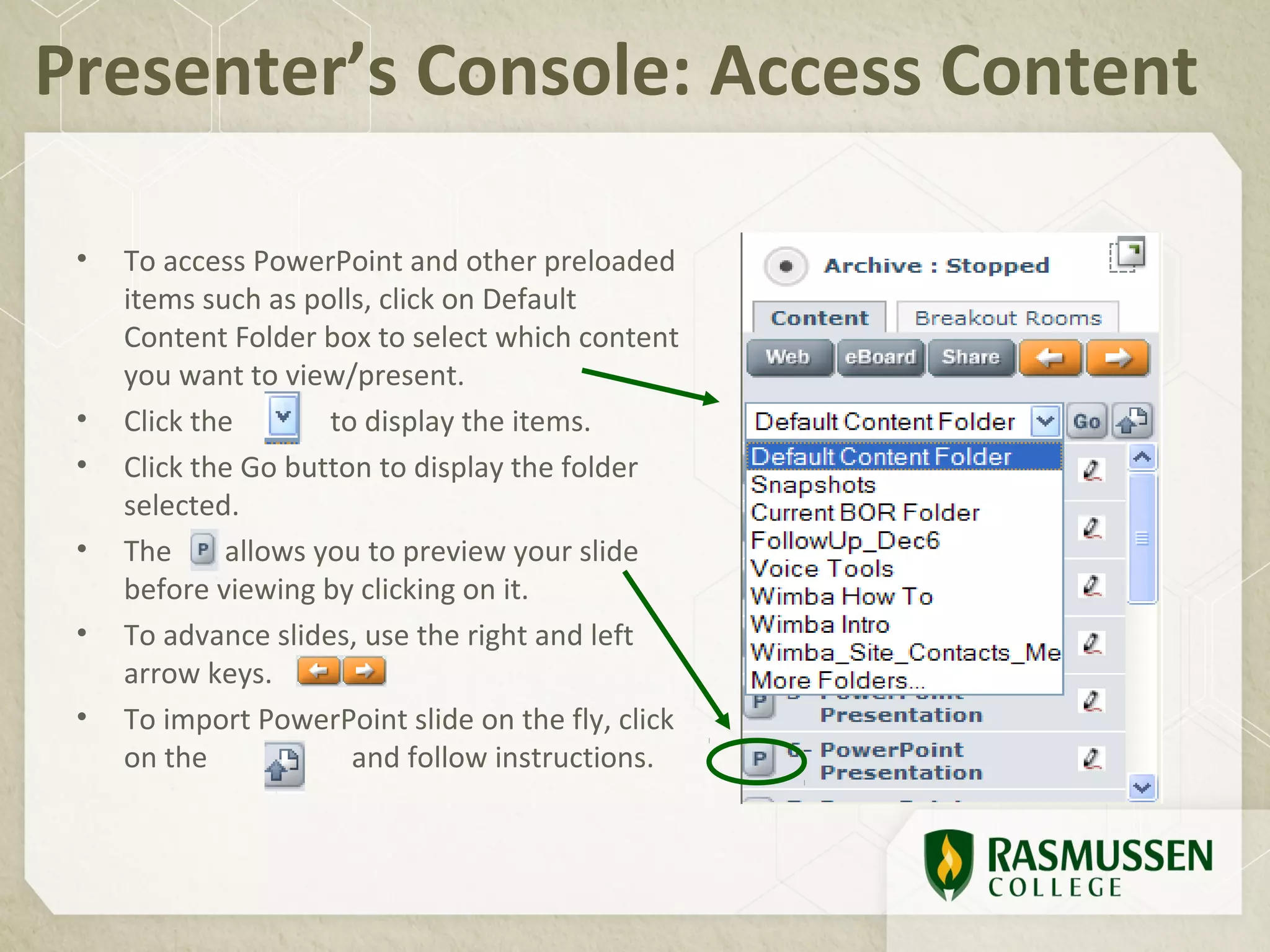
 •   To access PowerPoint and other preloaded
     items such as polls, click on Default
     Content Folder box to select which content
     you want to view/present.
 •   Click the       to display the items.
 •   Click the Go button to display the folder
     selected.
 •   The     allows you to preview your slide
     before viewing by clicking on it.
 •   To advance slides, use the right and left
     arrow keys.
 •   To import PowerPoint slide on the fly, click
     on the            and follow instructions.
eBoard Features
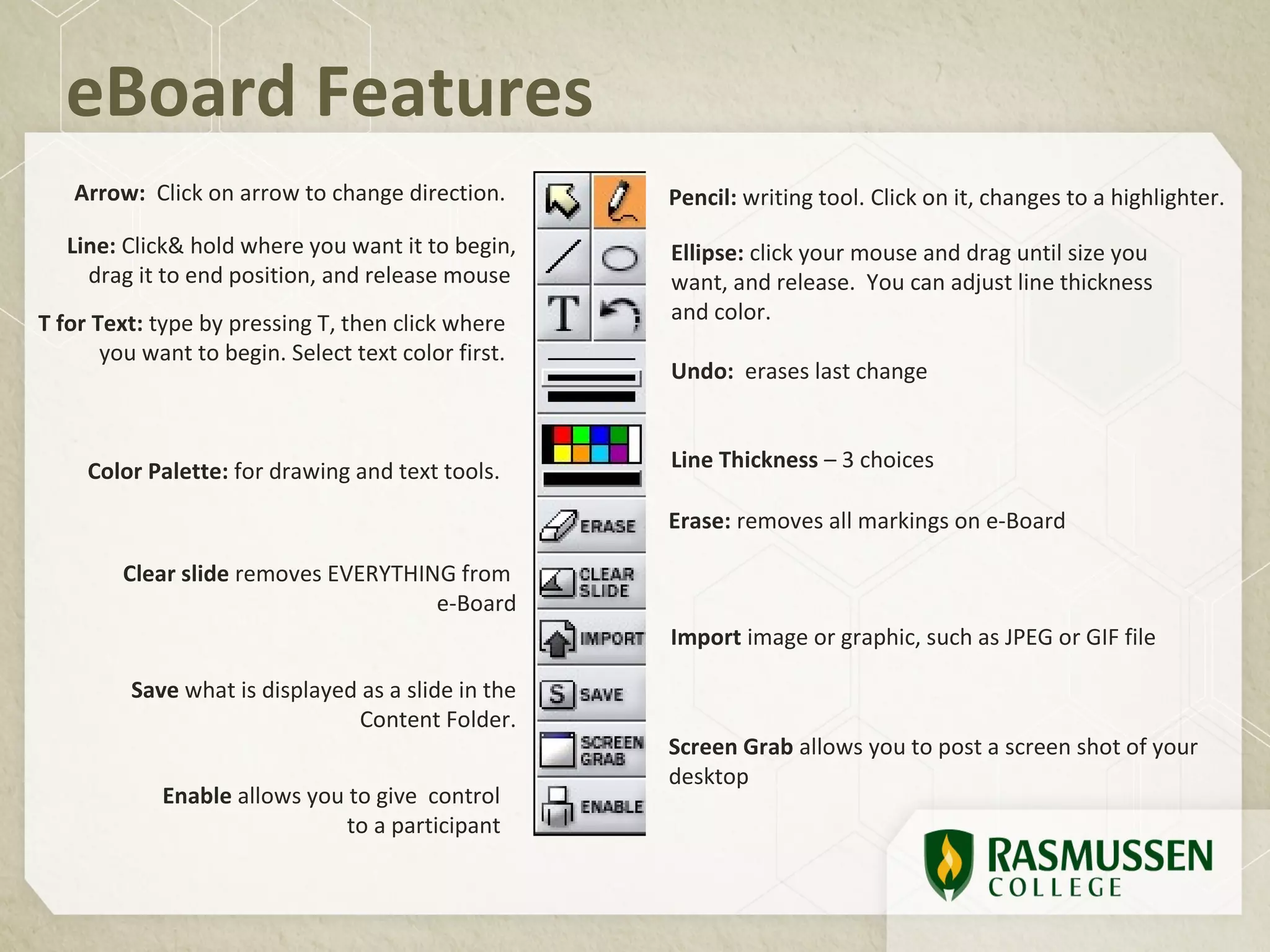
   Arrow: Click on arrow to change direction.        Pencil: writing tool. Click on it, changes to a highlighter.
   Line: Click& hold where you want it to begin,     Ellipse: click your mouse and drag until size you
     drag it to end position, and release mouse      want, and release. You can adjust line thickness
T for Text: type by pressing T, then click where     and color.
       you want to begin. Select text color first.
                                                     Undo: erases last change


     Color Palette: for drawing and text tools.      Line Thickness – 3 choices

                                                     Erase: removes all markings on e-Board

         Clear slide removes EVERYTHING from
                                      e-Board
                                                     Import image or graphic, such as JPEG or GIF file

         Save what is displayed as a slide in the
                               Content Folder.
                                                     Screen Grab allows you to post a screen shot of your
                                                     desktop
             Enable allows you to give control
                               to a participant
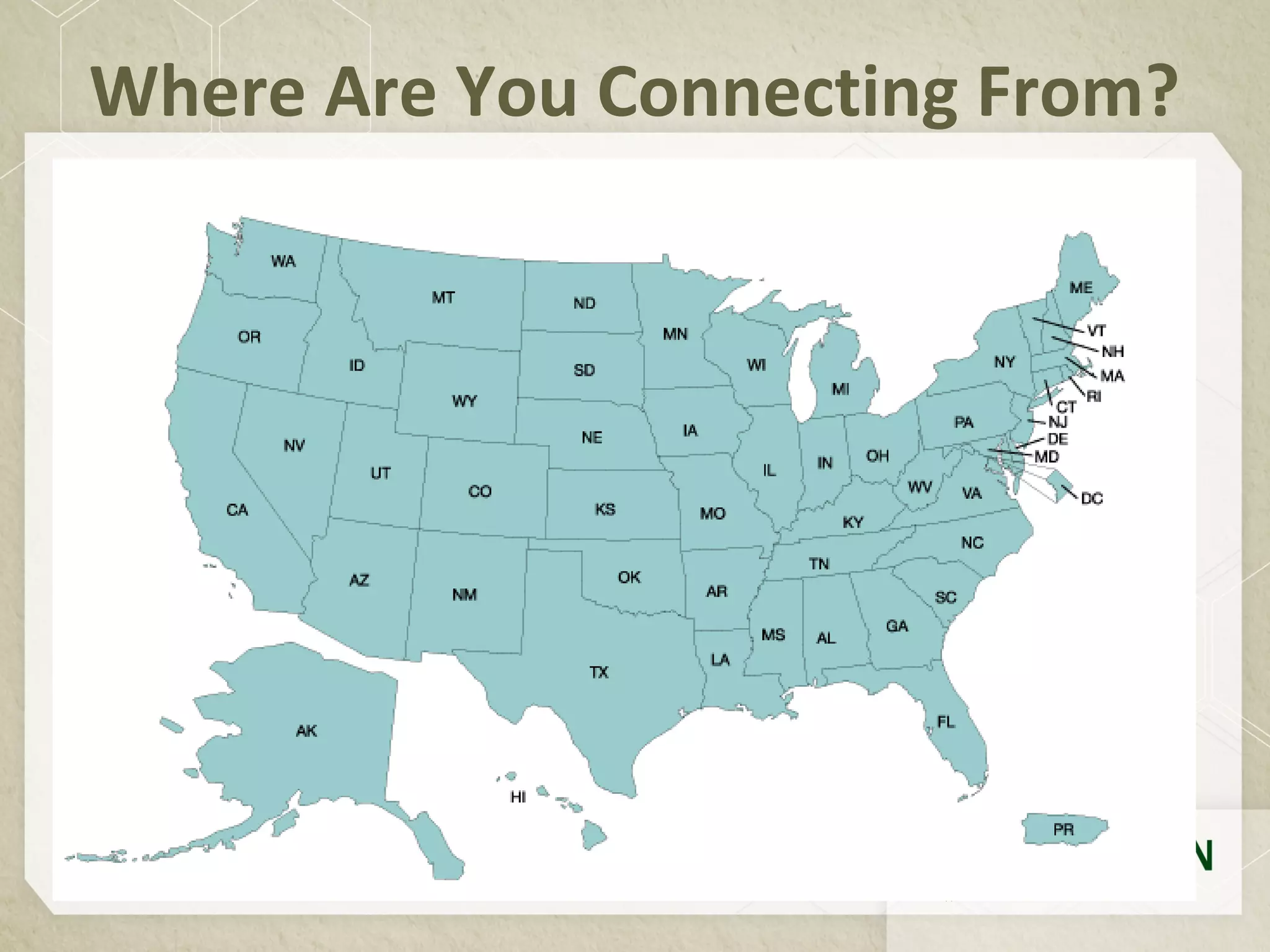
Where Are You Connecting From?
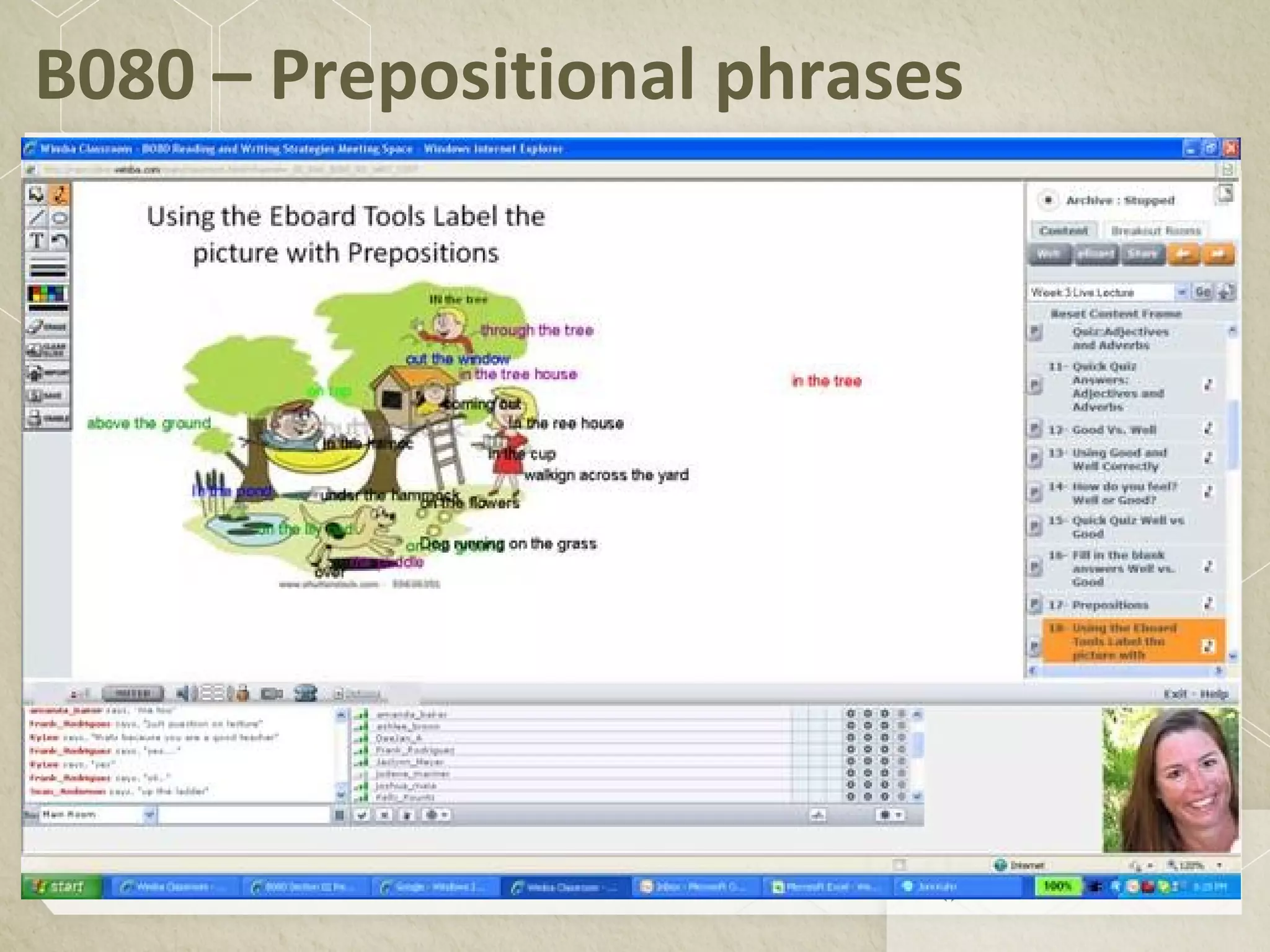
B080 – Prepositional phrases
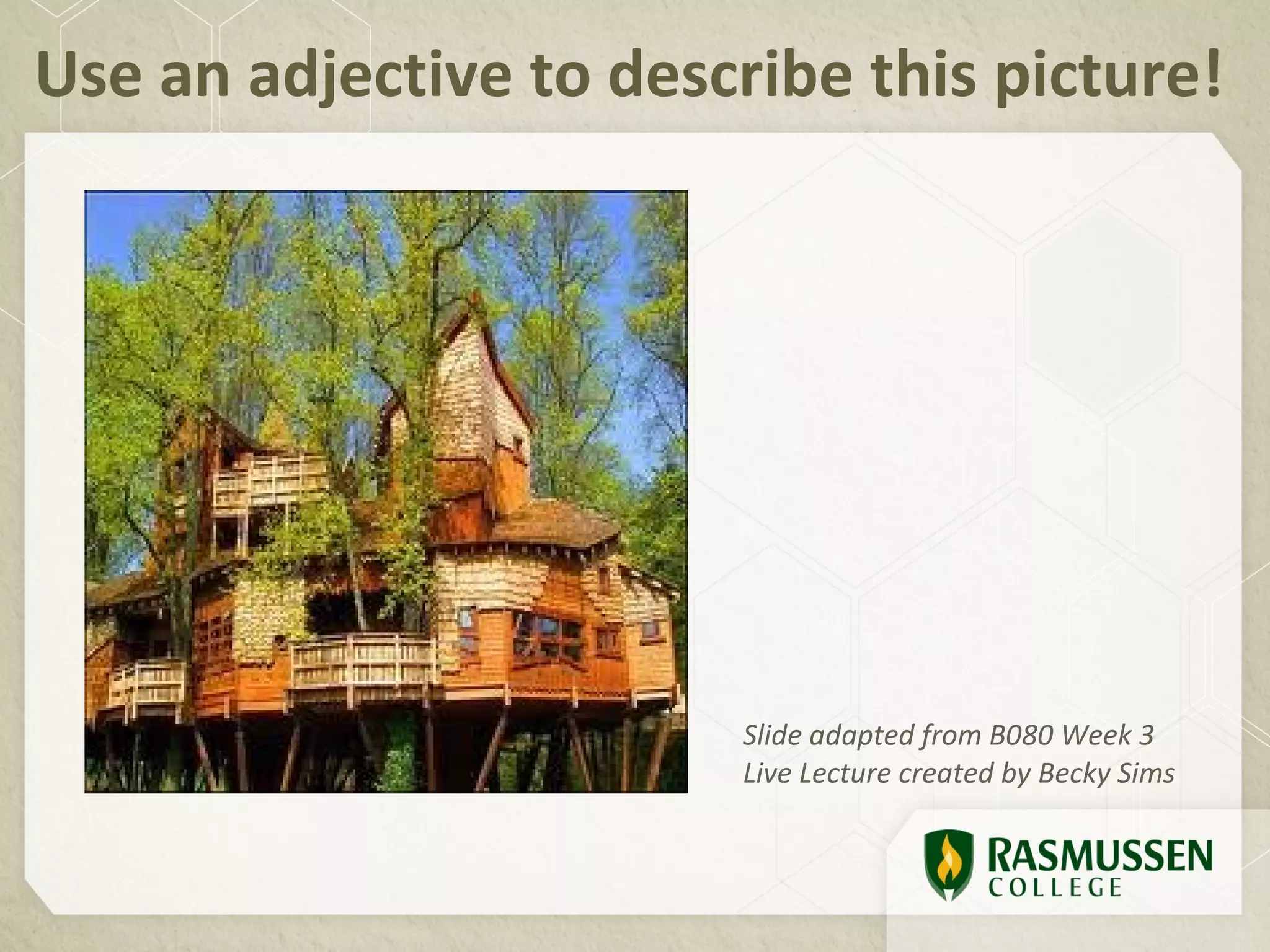
Use an adjective to describe this picture!


                         Slide adapted from B080 Week 3
                         Live Lecture created by Becky Sims
Questions or concerns?
• Stage 1: Preparing participants
• Stage 2: Communication
• Stage 3: Interaction Management

Wimba 2.0 Practice Session
• Stage 4: Content
• Stage 5: Evaluation
Food for Thought
• Complete the Wimba Teaching Matrix
  – Are you a Novice, Elite or Pro?
  – Where do you want to be? Return at the end of the term
    and re-evaluate.

• How will you implement these ideas into your
  classroom? Choose one for your next Wimba session.
• How can you alter a session you’ve done this
  quarter?

Wimba1.0

  • 1.
    Wimba 1.0: BasicTraining for Engaging Participants in the Wimba Live Classroom Live Lecture Training Part 1
  • 2.
    Can you hearme? • If yes, please select the button • If no, please select the button for assistance For technical support, To dial-in for audio by phone please call toll free (201) 549-7592 this is not a toll-free number (866) 693-2211 PIN: click the blue phone icon in the menu bar for your individual pin.
  • 3.
    General Guidelines 1)Raise hand to ask a question or ask via text chat 2) Please only click when asked to volunteer
  • 4.
    Agenda :00 Welcome& Introductions :10 Wimba Teaching Matrix – where are you? :15 Stages of Readiness -Preparing participants -Communication -Interaction Management Chat, interaction tools/emoticons, eBoard, webcam use :40 What are your questions & concerns? :45 Next steps
  • 5.
    Wimba Teaching Matrix • Stage 1: Preparing participants • Stage 2: Communication • Stage 3: Interaction Management Return for Wimba 2.0!! Discussion of Stages 4 & 5 • Stage 4: Content • Stage 5: Evaluation
  • 6.
    Stage 1: Expectthe best, plan for the worst, and prepare to be surprised. Preparing participants
  • 7.
    Stage 1: Preparingparticipants Send correspondence to participants Provide PSC 24/7 support number Direct users to blue phone icon & telephone support for audio issues. Hold open house/orientation events to introduce participants to Wimba & course. Use Netstats to determine participant connection status.
  • 8.
    Sample invite **WEDNESDAY MORNINGREVIEW SESSION** Grab a cup of coffee and join me this morning at 8am CST/9am EST for a review of Module 06 and the Professional Practice Activity. Here's the Wimba URL: http://bit.ly/M120WimbaRoom Need technical assistance before or during the session? Contact the PSC for 24/7 support at 1-866- 693-2211 See you in a bit! Heather
  • 9.
    Stage 2 –We have two ears & one mouth so that we can listen twice as much as we speak. Communication
  • 10.
    Stage 2: Communication MUST HAVE A HEADSET.  Use Ctrl key or TALK button to talk.  Use Dial-in option to speak if audio fails.  Utilize Lock Talk option.  Visual presence –use web camera or show picture in Branding Frame.  Utilizes public text chat to encourage student participation.
  • 11.
    Icebreakers Use at least1 to begin your session •Where are from? What’s your program? •Best movie you’ve ever seen. •Favorite ice cream flavor. •Favorite seasonal activity. •What quarter are you in? How far along in your program? •Favorite TV show.
  • 12.
    Stage 3 –Communication is the real work of leadership. Interaction Management
  • 13.
    Stage 3: InteractionManagement Encourage student participation, set ground rules. Ask students to raise/lower hand for questions, clear hand raises. Control conversation to deliver information. Use yes/no function to ask questions. Ask for volunteers to answer questions.
  • 14.
    Picture of wimbaclassrom Content Frame Presenter Console Media Bar Text Chat Participant Area Area
  • 15.
    Presenter’s Console: AccessContent • To access PowerPoint and other preloaded items such as polls, click on Default Content Folder box to select which content you want to view/present. • Click the to display the items. • Click the Go button to display the folder selected. • The allows you to preview your slide before viewing by clicking on it. • To advance slides, use the right and left arrow keys. • To import PowerPoint slide on the fly, click on the and follow instructions.
  • 16.
    eBoard Features Arrow: Click on arrow to change direction. Pencil: writing tool. Click on it, changes to a highlighter. Line: Click& hold where you want it to begin, Ellipse: click your mouse and drag until size you drag it to end position, and release mouse want, and release. You can adjust line thickness T for Text: type by pressing T, then click where and color. you want to begin. Select text color first. Undo: erases last change Color Palette: for drawing and text tools. Line Thickness – 3 choices Erase: removes all markings on e-Board Clear slide removes EVERYTHING from e-Board Import image or graphic, such as JPEG or GIF file Save what is displayed as a slide in the Content Folder. Screen Grab allows you to post a screen shot of your desktop Enable allows you to give control to a participant
  • 17.
    Where Are YouConnecting From?
  • 18.
  • 19.
    Use an adjectiveto describe this picture! Slide adapted from B080 Week 3 Live Lecture created by Becky Sims
  • 20.
    Questions or concerns? •Stage 1: Preparing participants • Stage 2: Communication • Stage 3: Interaction Management Wimba 2.0 Practice Session • Stage 4: Content • Stage 5: Evaluation
  • 21.
    Food for Thought •Complete the Wimba Teaching Matrix – Are you a Novice, Elite or Pro? – Where do you want to be? Return at the end of the term and re-evaluate. • How will you implement these ideas into your classroom? Choose one for your next Wimba session. • How can you alter a session you’ve done this quarter?