Live Classroom
      Blackboard 9.1
Overview

   Online synchronous meetings
   Optional archive feature for asynchronous users
   Share PPT content
   Text chat or audio interaction
   Emoticons
   Whiteboard
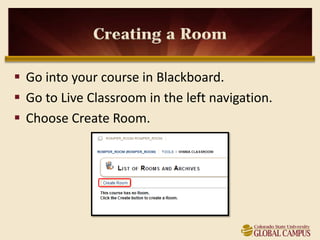
Creating a Room

 Go into your course in Blackboard.
 Go to Live Classroom in the left navigation.
 Choose Create Room.
Room Settings

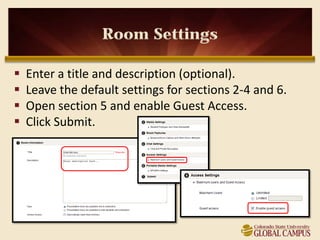
   Enter a title and description (optional).
   Leave the default settings for sections 2-4 and 6.
   Open section 5 and enable Guest Access.
   Click Submit.
Entering a Room

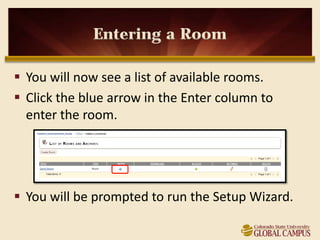
 You will now see a list of available rooms.
 Click the blue arrow in the Enter column to
  enter the room.


 You will be prompted to run the Setup Wizard.
Setup Wizard

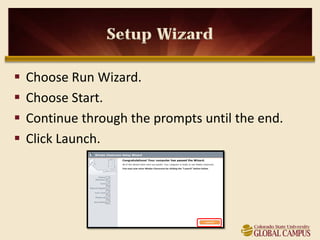
   Choose Run Wizard.
   Choose Start.
   Continue through the prompts until the end.
   Click Launch.
Adding Content

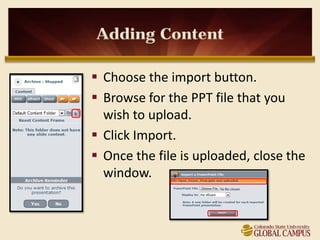
 Choose the import button.
 Browse for the PPT file that you
  wish to upload.
 Click Import.
 Once the file is uploaded, close the
  window.
Creating Archives


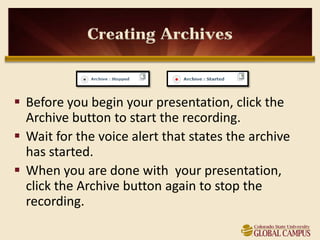
 Before you begin your presentation, click the
  Archive button to start the recording.
 Wait for the voice alert that states the archive
  has started.
 When you are done with your presentation,
  click the Archive button again to stop the
  recording.
Participant Tools

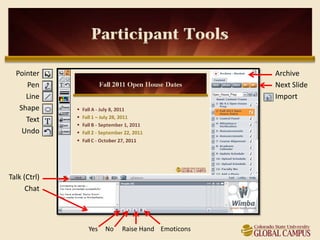
  Pointer                                       Archive
     Pen                                        Next Slide
     Line                                       Import
   Shape
     Text
    Undo


Talk (Ctrl)
      Chat


              Yes   No   Raise Hand Emoticons
Viewing Archives


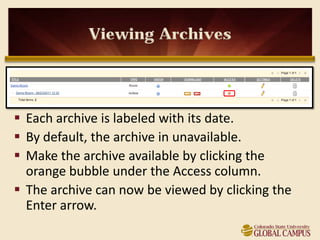
 Each archive is labeled with its date.
 By default, the archive in unavailable.
 Make the archive available by clicking the
  orange bubble under the Access column.
 The archive can now be viewed by clicking the
  Enter arrow.

11 live classroom guide

  • 1.
    Live Classroom Blackboard 9.1
  • 2.
    Overview  Online synchronous meetings  Optional archive feature for asynchronous users  Share PPT content  Text chat or audio interaction  Emoticons  Whiteboard
  • 3.
    Creating a Room Go into your course in Blackboard.  Go to Live Classroom in the left navigation.  Choose Create Room.
  • 4.
    Room Settings  Enter a title and description (optional).  Leave the default settings for sections 2-4 and 6.  Open section 5 and enable Guest Access.  Click Submit.
  • 5.
    Entering a Room You will now see a list of available rooms.  Click the blue arrow in the Enter column to enter the room.  You will be prompted to run the Setup Wizard.
  • 6.
    Setup Wizard  Choose Run Wizard.  Choose Start.  Continue through the prompts until the end.  Click Launch.
  • 7.
    Adding Content  Choosethe import button.  Browse for the PPT file that you wish to upload.  Click Import.  Once the file is uploaded, close the window.
  • 8.
    Creating Archives  Beforeyou begin your presentation, click the Archive button to start the recording.  Wait for the voice alert that states the archive has started.  When you are done with your presentation, click the Archive button again to stop the recording.
  • 9.
    Participant Tools Pointer Archive Pen Next Slide Line Import Shape Text Undo Talk (Ctrl) Chat Yes No Raise Hand Emoticons
  • 10.
    Viewing Archives  Eacharchive is labeled with its date.  By default, the archive in unavailable.  Make the archive available by clicking the orange bubble under the Access column.  The archive can now be viewed by clicking the Enter arrow.