Getting Started with Wimba  Live Classroom Just a few things for facilitators to know… brought to you by the Office of Learning Technology
What Is Wimba Classroom? An online platform that allows you to connect in real time with others.  Features: Interactive whiteboard Screen sharing File uploads (ppt, pdf) Archiving Video/voice Presenter on the fly Breakout rooms
What Can I Use It For? Connect with colleagues or students not on campus tutorials meetings interviews presentations/idea sharing enhancing WebCT Vista with real time communication training
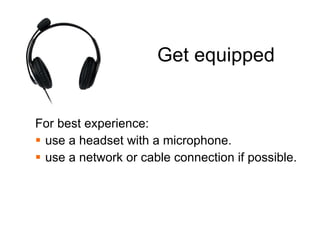
Get equipped For best experience: use a headset with a microphone. use a network or cable connection if possible.
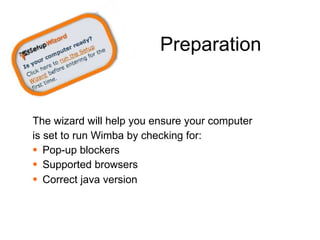
Preparation The wizard will help you ensure your computer is set to run Wimba by checking for: Pop-up blockers Supported browsers Correct java version
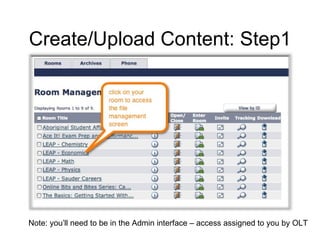
Create/Upload Content: Step1 Note: you’ll need to be in the Admin interface – access assigned to you by OLT
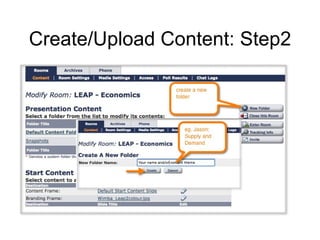
Create/Upload Content: Step2
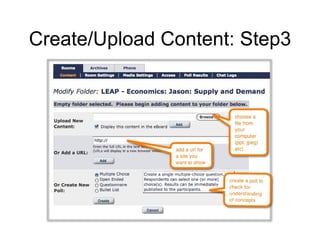
Create/Upload Content: Step3
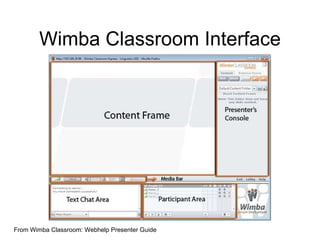
Wimba Classroom Interface From Wimba Classroom: Webhelp Presenter Guide
Do a run through Practice with colleagues Add interactive features (polls) to gage student learning. Familiarize yourself with all Wimba features you plan to use. Resource: Webhelp from Wimba: http://webhelp.wimba.com/WC/v5_2/Presenter_Guide/
Before Your Session:  Invite Participants Send an email with login instructions and classroom url Remind students to run the wizard at least an hour before session start. 1
At the Start: Run a Sound Check Can you hear the Presenter?   if you can hear presenter   if you cannot hear the presenter
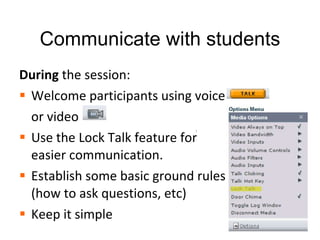
During: Welcome and Orient Participants Welcome participants using voice or video Use the Lock Talk feature for easier communication. Establish some basic ground rules (how to ask questions, etc) Keep it simple 1
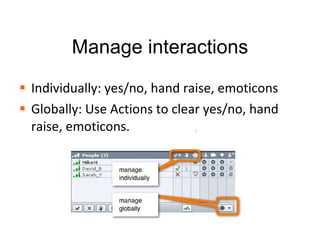
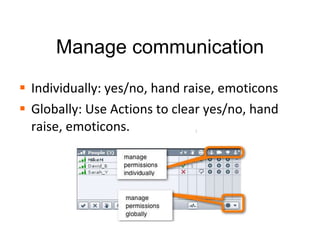
Manage interactions Individually: yes/no, hand raise, emoticons Globally: Use Actions to clear yes/no, hand raise, emoticons. 1
Manage communication Individually: yes/no, hand raise, emoticons Globally: Use Actions to clear yes/no, hand raise, emoticons. 1
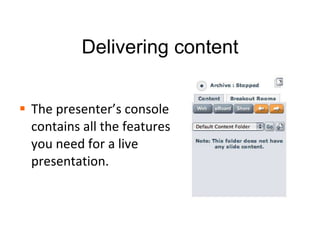
Delivering content The presenter’s console contains all the features you need for a live presentation. 1
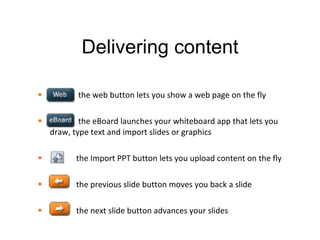
Delivering content the web button lets you show a web page on the fly the eBoard launches your whiteboard app that lets you draw, type text and import slides or graphics the Import PPT button lets you upload content on the fly the previous slide button moves you back a slide the next slide button advances your slides 1
Get 24x7 Technical Support : 1.866.350.4978 (US & Canada) [email_address] brought to you by the Office of Learning Technology

Wimba Classroom: Facilitators

  • 1.
    Getting Started withWimba Live Classroom Just a few things for facilitators to know… brought to you by the Office of Learning Technology
  • 2.
    What Is WimbaClassroom? An online platform that allows you to connect in real time with others. Features: Interactive whiteboard Screen sharing File uploads (ppt, pdf) Archiving Video/voice Presenter on the fly Breakout rooms
  • 3.
    What Can IUse It For? Connect with colleagues or students not on campus tutorials meetings interviews presentations/idea sharing enhancing WebCT Vista with real time communication training
  • 4.
    Get equipped Forbest experience: use a headset with a microphone. use a network or cable connection if possible.
  • 5.
    Preparation The wizardwill help you ensure your computer is set to run Wimba by checking for: Pop-up blockers Supported browsers Correct java version
  • 6.
    Create/Upload Content: Step1Note: you’ll need to be in the Admin interface – access assigned to you by OLT
  • 7.
  • 8.
  • 9.
    Wimba Classroom InterfaceFrom Wimba Classroom: Webhelp Presenter Guide
  • 10.
    Do a runthrough Practice with colleagues Add interactive features (polls) to gage student learning. Familiarize yourself with all Wimba features you plan to use. Resource: Webhelp from Wimba: http://webhelp.wimba.com/WC/v5_2/Presenter_Guide/
  • 11.
    Before Your Session: Invite Participants Send an email with login instructions and classroom url Remind students to run the wizard at least an hour before session start. 1
  • 12.
    At the Start:Run a Sound Check Can you hear the Presenter? if you can hear presenter if you cannot hear the presenter
  • 13.
    During: Welcome andOrient Participants Welcome participants using voice or video Use the Lock Talk feature for easier communication. Establish some basic ground rules (how to ask questions, etc) Keep it simple 1
  • 14.
    Manage interactions Individually:yes/no, hand raise, emoticons Globally: Use Actions to clear yes/no, hand raise, emoticons. 1
  • 15.
    Manage communication Individually:yes/no, hand raise, emoticons Globally: Use Actions to clear yes/no, hand raise, emoticons. 1
  • 16.
    Delivering content Thepresenter’s console contains all the features you need for a live presentation. 1
  • 17.
    Delivering content theweb button lets you show a web page on the fly the eBoard launches your whiteboard app that lets you draw, type text and import slides or graphics the Import PPT button lets you upload content on the fly the previous slide button moves you back a slide the next slide button advances your slides 1
  • 18.
    Get 24x7 TechnicalSupport : 1.866.350.4978 (US & Canada) [email_address] brought to you by the Office of Learning Technology

Editor's Notes

  • #2 Change image to participant
  • #11 Add presenter view Have participants circle what’s different what is different in permission
  • #12 This slide was eliminated from part 1 for UTK12 as the session was live.
  • #13 Change image to participant