What is Computer Memory
 Computer memory is any physical device capable of storing information
temporarily, like RAM (random access memory), or permanently, like ROM
(read-only memory). Memory devices utilize integrated circuits and are used by
operating systems, software, and hardware.
 Although memory is technically any form of electronic storage, it is used most
often to identify fast, temporary forms of storage. If your computer's CPU had to
constantly access the hard drive to retrieve every piece of data it needs, it would
operate very slowly. When the information is kept in memory, the CPU can
access it much more quickly. Most forms of memory are intended to store data
temporarily.
What is RAM?
RAM stands for Random Access Memory. It is also called direct access
memory. Random access means that each individual byte in entire memory can
be accessed directly. RAM is used to store data and instruction temporarily.
RAM is volatile memory. It means that its contents are lost when the power is
turned off.
RAM Operation:
i- Read Operation
ii- Write Operation
RAM is used to Read and Write data into it which is accessed by CPU
randomly.
Dynamic RAM and Static RAM
► Definition: DRAM stands for Dynamic Random Access Memory. DRAM is a
technical term for a type of random access memory (RAM) that can retain its
contents only for a very brief period and must, therefore, be continually refreshed
by reading its contents at short intervals.
► Definition: Static Random Access Memory (Static RAM or SRAM) is a type
of RAM that holds data in a static form, that is, as long as the memory has power.
Unlike dynamic RAM, it does not need to be refreshed.
Memory Hierarchy
Let's take a look at a typical scenario:
► You turn the computer on.
► The computer loads data from read-only memory (ROM) and performs a
power-on self-test (POST) to make sure all the major components are
functioning properly. As part of this test, the memory controller checks all of
the memory addresses with a quick read/write operation to ensure that there are
no errors in the memory chips. Read/write means that data is written to a bit and
then read from that bit.
► The computer loads the basic input/output system (BIOS) from ROM. The
BIOS provides the most basic information about storage devices, boot sequence,
security, Plug and Play (auto device recognition) capability and a few other
items.
Let's take a look at a typical scenario:
► The computer loads the operating system (OS) from the hard drive into the
system's RAM. Generally, the critical parts of the operating system are
maintained in RAM as long as the computer is on. This allows the CPU to have
immediate access to the operating system, which enhances the performance and
functionality of the overall system.
► When you open an application, it is loaded into RAM. To conserve RAM usage,
many applications load only the essential parts of the program initially and then
load other pieces as needed.
► After an application is loaded, any files that are opened for use in that application
are loaded into RAM. When you save a file and close the application, the file is
written to the specified storage device, and then it and the application are purged
from RAM
►
What is Read-Only Memory (ROM)?
► ROM stands for Read-Only Memory. It is a non-volatile memory that is used to
stores important information which is used to operate the system. As its name
refers to read-only memory, we can only read the programs and data stored on it.
The information stored in the ROM in binary format. It is also known as
permanent memory.
PROM (programmable read-only
memory
► It is blank when new and must be programmed with what ever data is necessary.
► That is they can be programmed once and never erased.
► It is used in low-level programs such as firmware or microcode.
EPROM (Electrically programmable
read-only memory
► EPROM also called EROM, is a type of PROM but it can be reprogrammed.
► The data store in EPROM can be Erased and reprogrammed again by
ultraviolet light. Reprogrammed of it is limited.
► Before the era of EEPROM and flash memory, EPROM was used in
microcontrollers. EEPROM (Electrically erasable programmable
read-only memory
EEPROM (Electrically Erasable
programmable read-only memory)
► As its name refers, it can be programmed and erased electrically.
► EPROM also called EROM, is a type of PROM but it can be reprogrammed.
► The data and program of this ROM can be erased and programmed about ten
thousand times.
► The duration of erasing and programming of the EEPROM is near about 4ms to
10ms.
► It is used in microcontrollers and remote keyless systems.
Advantages of Read-Only Memory
► It is cheaper than RAM and it is non-volatile memory.
► It is more reliable as compared to RAM.
► Its circuit is simple as compared to RAM.
► It doesn’t need refreshing time because it is static. It is easy to test.
Disadvantages of Read-Only Memory
► It is a read-only memory, so it cannot be modified.
► It is slower as compared to RAM.
Virtual memory
 Virtual memory is a common technique used in a computer's operating
system (OS). Virtual memory uses both hardware and software to enable a
computer to compensate for physical memory shortages, temporarily
transferring data from random access memory (RAM) to disk storage.
Cashe memory
Where is the cache memory located?
► The cache memory is located very close to the CPU, either on the CPU chip itself
or on the motherboard in the immediate vicinity of the CPU and connected by a
dedicated data bus. So instructions and data can be read from it (and written to it)
much more quickly than is the case with normal RAM.
Registers
The final step in memory is the registers. These are memory cells built right into the
CPU that contain specific data needed by the CPU, particularly the arithmetic and
logic unit (ALU). An integral part of the CPU itself, they are controlled directly by
the compiler that sends information for the CPU to process.
Cache and Registers
► Even with a wide and fast bus, it still takes longer for data to get from the
memory card to the CPU than it takes for the CPU to actually process the data.
Caches are designed to alleviate this bottleneck by making the data used most
often by the CPU instantly available. This is accomplished by building a small
amount of memory, known as primary or level 1 cache, right into the CPU.
Level 1 cache is very small, normally ranging between 2 kilobytes (KB) and 64
KB.
Cache and Registers
► The secondary or level 2 cache typically resides on a memory card located near
the CPU. The level 2 cache has a direct connection to the CPU. A dedicated
integrated circuit on the motherboard, the L2 controller, regulates the use of the
level 2 cache by the CPU. Depending on the CPU, the size of the level 2 cache
ranges from 256 KB to 2 megabytes (MB). In most systems, data needed by the
CPU is accessed from the cache approximately 95 percent of the time, greatly
reducing the overhead needed when the CPU has to wait for data from the main
memory.
BIOS (basic input/output system)
► BIOS (basic input/output system) is the program a computer's microprocessor
uses to start the computer system after it is powered on. It also manages data
flow between the computer's operating system (OS) and attached devices, such as
the hard disk, video adapter, keyboard, mouse and printer.
► Is BIOS a hardware or software?
► When you start your computer, BIOS is the first software that runs. It identifies
your computer's hardware, configures it, tests it, and connects it to the
operating system for further instruction. This is called the boot process
Virtual Memory
► Virtual memory is a common technique used in a computer's operating
system (OS). Virtual memory uses both hardware and software to enable a
computer to compensate for physical memory shortages, temporarily transferring
data from random access memory (RAM) to disk storage.
Where is Memory used?
 Cell Phones
 PDAs
 Game Consoles
 Car Radios
 VCRs
 TVs
The Need for Speed
► Why so many? The answer to this question can teach you a lot about memory!
► Fast, powerful CPUs need quick and easy access to large amounts of data in
order to maximize their performance. If the CPU cannot get to the data it needs,
it literally stops and waits for it. Modern CPUs running at speeds of about 1
gigahertz can consume massive amounts of data -- potentially billions of bytes
per second. The problem that computer designers face is that memory that can
keep up with a 1-gigahertz CPU is extremely expensive -- much more expensive
than anyone can afford in large quantities.
The Need for Speed
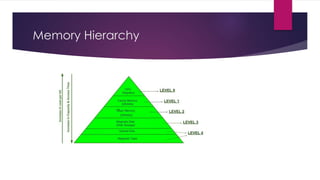
► Computer designers have solved the cost problem by "tiering" memory -- using
expensive memory in small quantities and then backing it up with larger
quantities of less expensive memory.
► The cheapest form of read/write memory in wide use today is the hard disk.
Hard disks provide large quantities of inexpensive, permanent storage. You can
buy hard disk space for pennies per megabyte, but it can take a good bit of time
(approaching a second) to read a megabyte off a hard disk. Because storage space
on a hard disk is so cheap and plentiful, it forms the final stage of a CPUs
memory hierarchy, called virtual memory.
The Need for Speed
► One common question about desktop computers that comes up all the time is, "Why
does a computer need so many memory systems?" A typical computer has:
► Level 1 and Level 2 Cashe
► Normal System RAM
► Virtual Memory
► A hard disk
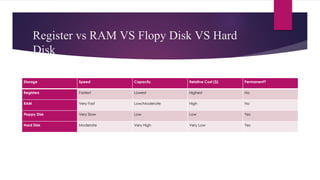
Register vs RAM VS Flopy Disk VS Hard
Disk
Storage Speed Capacity Relative Cost ($) Permanent?
Registers Fastest Lowest Highest No
RAM Very Fast Low/Moderate High No
Floppy Disk Very Slow Low Low Yes
Hard Disk Moderate Very High Very Low Yes
A history of computer memory:
► Here are just a few selected milestones in the development of computer memory; for the
bigger picture, please check out our detailed article on the history of computers.
► 1804: Joseph Marie Jacquard uses cards with holes punched into them to control textile-
weaving looms. Punched cards, as they're known, survive as an important form of
computer memory until the early 1970s.
► In the stored program concept, both the instructions and the data (that the instructions
operate on) are stored in the computer memory itself. Before the introduction of this idea,
instructions and data were considered two totally different entities and were thus stored
separately.
► Computers that store both instructions and data on the same memory are said to be based
on the Von Neumann architecture. Modern desktop computers are still based on the
same stored program concept.
END

What is Computer Memory.ppt

  • 1.
    What is ComputerMemory  Computer memory is any physical device capable of storing information temporarily, like RAM (random access memory), or permanently, like ROM (read-only memory). Memory devices utilize integrated circuits and are used by operating systems, software, and hardware.  Although memory is technically any form of electronic storage, it is used most often to identify fast, temporary forms of storage. If your computer's CPU had to constantly access the hard drive to retrieve every piece of data it needs, it would operate very slowly. When the information is kept in memory, the CPU can access it much more quickly. Most forms of memory are intended to store data temporarily.
  • 2.
    What is RAM? RAMstands for Random Access Memory. It is also called direct access memory. Random access means that each individual byte in entire memory can be accessed directly. RAM is used to store data and instruction temporarily. RAM is volatile memory. It means that its contents are lost when the power is turned off. RAM Operation: i- Read Operation ii- Write Operation RAM is used to Read and Write data into it which is accessed by CPU randomly.
  • 3.
    Dynamic RAM andStatic RAM ► Definition: DRAM stands for Dynamic Random Access Memory. DRAM is a technical term for a type of random access memory (RAM) that can retain its contents only for a very brief period and must, therefore, be continually refreshed by reading its contents at short intervals. ► Definition: Static Random Access Memory (Static RAM or SRAM) is a type of RAM that holds data in a static form, that is, as long as the memory has power. Unlike dynamic RAM, it does not need to be refreshed.
  • 4.
  • 5.
    Let's take alook at a typical scenario: ► You turn the computer on. ► The computer loads data from read-only memory (ROM) and performs a power-on self-test (POST) to make sure all the major components are functioning properly. As part of this test, the memory controller checks all of the memory addresses with a quick read/write operation to ensure that there are no errors in the memory chips. Read/write means that data is written to a bit and then read from that bit. ► The computer loads the basic input/output system (BIOS) from ROM. The BIOS provides the most basic information about storage devices, boot sequence, security, Plug and Play (auto device recognition) capability and a few other items.
  • 6.
    Let's take alook at a typical scenario: ► The computer loads the operating system (OS) from the hard drive into the system's RAM. Generally, the critical parts of the operating system are maintained in RAM as long as the computer is on. This allows the CPU to have immediate access to the operating system, which enhances the performance and functionality of the overall system. ► When you open an application, it is loaded into RAM. To conserve RAM usage, many applications load only the essential parts of the program initially and then load other pieces as needed. ► After an application is loaded, any files that are opened for use in that application are loaded into RAM. When you save a file and close the application, the file is written to the specified storage device, and then it and the application are purged from RAM ►
  • 7.
    What is Read-OnlyMemory (ROM)? ► ROM stands for Read-Only Memory. It is a non-volatile memory that is used to stores important information which is used to operate the system. As its name refers to read-only memory, we can only read the programs and data stored on it. The information stored in the ROM in binary format. It is also known as permanent memory.
  • 8.
    PROM (programmable read-only memory ►It is blank when new and must be programmed with what ever data is necessary. ► That is they can be programmed once and never erased. ► It is used in low-level programs such as firmware or microcode.
  • 9.
    EPROM (Electrically programmable read-onlymemory ► EPROM also called EROM, is a type of PROM but it can be reprogrammed. ► The data store in EPROM can be Erased and reprogrammed again by ultraviolet light. Reprogrammed of it is limited. ► Before the era of EEPROM and flash memory, EPROM was used in microcontrollers. EEPROM (Electrically erasable programmable read-only memory
  • 10.
    EEPROM (Electrically Erasable programmableread-only memory) ► As its name refers, it can be programmed and erased electrically. ► EPROM also called EROM, is a type of PROM but it can be reprogrammed. ► The data and program of this ROM can be erased and programmed about ten thousand times. ► The duration of erasing and programming of the EEPROM is near about 4ms to 10ms. ► It is used in microcontrollers and remote keyless systems.
  • 11.
    Advantages of Read-OnlyMemory ► It is cheaper than RAM and it is non-volatile memory. ► It is more reliable as compared to RAM. ► Its circuit is simple as compared to RAM. ► It doesn’t need refreshing time because it is static. It is easy to test.
  • 12.
    Disadvantages of Read-OnlyMemory ► It is a read-only memory, so it cannot be modified. ► It is slower as compared to RAM.
  • 13.
    Virtual memory  Virtualmemory is a common technique used in a computer's operating system (OS). Virtual memory uses both hardware and software to enable a computer to compensate for physical memory shortages, temporarily transferring data from random access memory (RAM) to disk storage.
  • 14.
    Cashe memory Where isthe cache memory located? ► The cache memory is located very close to the CPU, either on the CPU chip itself or on the motherboard in the immediate vicinity of the CPU and connected by a dedicated data bus. So instructions and data can be read from it (and written to it) much more quickly than is the case with normal RAM.
  • 15.
    Registers The final stepin memory is the registers. These are memory cells built right into the CPU that contain specific data needed by the CPU, particularly the arithmetic and logic unit (ALU). An integral part of the CPU itself, they are controlled directly by the compiler that sends information for the CPU to process.
  • 16.
    Cache and Registers ►Even with a wide and fast bus, it still takes longer for data to get from the memory card to the CPU than it takes for the CPU to actually process the data. Caches are designed to alleviate this bottleneck by making the data used most often by the CPU instantly available. This is accomplished by building a small amount of memory, known as primary or level 1 cache, right into the CPU. Level 1 cache is very small, normally ranging between 2 kilobytes (KB) and 64 KB.
  • 17.
    Cache and Registers ►The secondary or level 2 cache typically resides on a memory card located near the CPU. The level 2 cache has a direct connection to the CPU. A dedicated integrated circuit on the motherboard, the L2 controller, regulates the use of the level 2 cache by the CPU. Depending on the CPU, the size of the level 2 cache ranges from 256 KB to 2 megabytes (MB). In most systems, data needed by the CPU is accessed from the cache approximately 95 percent of the time, greatly reducing the overhead needed when the CPU has to wait for data from the main memory.
  • 18.
    BIOS (basic input/outputsystem) ► BIOS (basic input/output system) is the program a computer's microprocessor uses to start the computer system after it is powered on. It also manages data flow between the computer's operating system (OS) and attached devices, such as the hard disk, video adapter, keyboard, mouse and printer. ► Is BIOS a hardware or software? ► When you start your computer, BIOS is the first software that runs. It identifies your computer's hardware, configures it, tests it, and connects it to the operating system for further instruction. This is called the boot process
  • 19.
    Virtual Memory ► Virtualmemory is a common technique used in a computer's operating system (OS). Virtual memory uses both hardware and software to enable a computer to compensate for physical memory shortages, temporarily transferring data from random access memory (RAM) to disk storage.
  • 20.
    Where is Memoryused?  Cell Phones  PDAs  Game Consoles  Car Radios  VCRs  TVs
  • 21.
    The Need forSpeed ► Why so many? The answer to this question can teach you a lot about memory! ► Fast, powerful CPUs need quick and easy access to large amounts of data in order to maximize their performance. If the CPU cannot get to the data it needs, it literally stops and waits for it. Modern CPUs running at speeds of about 1 gigahertz can consume massive amounts of data -- potentially billions of bytes per second. The problem that computer designers face is that memory that can keep up with a 1-gigahertz CPU is extremely expensive -- much more expensive than anyone can afford in large quantities.
  • 22.
    The Need forSpeed ► Computer designers have solved the cost problem by "tiering" memory -- using expensive memory in small quantities and then backing it up with larger quantities of less expensive memory. ► The cheapest form of read/write memory in wide use today is the hard disk. Hard disks provide large quantities of inexpensive, permanent storage. You can buy hard disk space for pennies per megabyte, but it can take a good bit of time (approaching a second) to read a megabyte off a hard disk. Because storage space on a hard disk is so cheap and plentiful, it forms the final stage of a CPUs memory hierarchy, called virtual memory.
  • 23.
    The Need forSpeed ► One common question about desktop computers that comes up all the time is, "Why does a computer need so many memory systems?" A typical computer has: ► Level 1 and Level 2 Cashe ► Normal System RAM ► Virtual Memory ► A hard disk
  • 24.
    Register vs RAMVS Flopy Disk VS Hard Disk Storage Speed Capacity Relative Cost ($) Permanent? Registers Fastest Lowest Highest No RAM Very Fast Low/Moderate High No Floppy Disk Very Slow Low Low Yes Hard Disk Moderate Very High Very Low Yes
  • 25.
    A history ofcomputer memory: ► Here are just a few selected milestones in the development of computer memory; for the bigger picture, please check out our detailed article on the history of computers. ► 1804: Joseph Marie Jacquard uses cards with holes punched into them to control textile- weaving looms. Punched cards, as they're known, survive as an important form of computer memory until the early 1970s. ► In the stored program concept, both the instructions and the data (that the instructions operate on) are stored in the computer memory itself. Before the introduction of this idea, instructions and data were considered two totally different entities and were thus stored separately. ► Computers that store both instructions and data on the same memory are said to be based on the Von Neumann architecture. Modern desktop computers are still based on the same stored program concept.
  • 26.