etwinning.net
Adding Content
in the Twinspace
TTI course: beginners
Menu
 Images
 Videos
 Files
 Pages
Images
IMAGES
Non-verbal communication is important for an eTwinning project. Images also
make the Twinspace more attractive.
You can create stand-alone albums with e.g. pictures of activities or you can
integrate pictures in PAGES, FORUM posts or PROJECT JOURNAL posts.
4
IMAGES
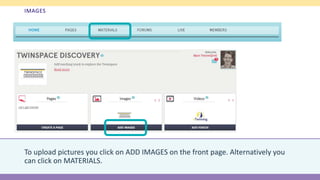
To upload pictures you click on ADD IMAGES on the front page. Alternatively you
can click on MATERIALS.
IMAGES
It is advisable to create IMAGE ALBUMS. The maximum size of a picture is 4 Mb.
Only these formats are allowed: gif, jpg, jpeg, png.
If you want to integrate pictures in a PAGE, FORUM or PROJECT JOURNAL post, you
first of all need to upload your pictures in this section.
IMAGES
For copyright reasons is advisable to use only pictures of which you own the rights or that have been
shared under Creative Commons License.
1. Pictures you took yourself or that belong to Public Domain can be used freely without attribution of
the name of the author.
2. When you use pictures under Creative Commons License you need to give credit to the author in
the proper way.
Videos
VIDEOS
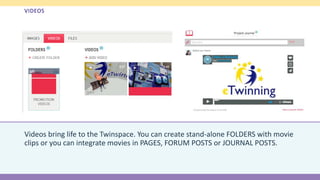
Videos bring life to the Twinspace. You can create stand-alone FOLDERS with movie
clips or you can integrate movies in PAGES, FORUM POSTS or JOURNAL POSTS.
VIDEOS
To upload videos you click on ADD IMAGES on the front page. Alternatively you can
click on MATERIALS.
VIDEOS
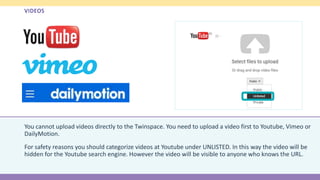
You cannot upload videos directly to the Twinspace. You need to upload a video first to Youtube, Vimeo or
DailyMotion.
For safety reasons you should categorize videos at Youtube under UNLISTED. In this way the video will be
hidden for the Youtube search engine. However the video will be visible to anyone who knows the URL.
VIDEOS
To transfer the video to the Twinspace, you first COPY the URL of the previously
uploaded video at YouTube, Vimeo or Dailymotion and then PASTE it in the MATERIALS
section of the Twinspace.
VIDEOS
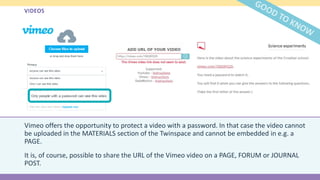
Vimeo offers the opportunity to protect a video with a password. In that case the video cannot
be uploaded in the MATERIALS section of the Twinspace and cannot be embedded in e.g. a
PAGE.
It is, of course, possible to share the URL of the Vimeo video on a PAGE, FORUM or JOURNAL
POST.
Files
FILES
The Twinspace offers the opportunity to share various types of files. You can create stand-alone
folders or you can integrate a direct link to the FILES on a PAGE, FORUM or PROJECT JOURNAL
post.
Allowed files are text files (.pdf, .txt, .doc, .docx), presentations (.ppt, .pptx), spreadsheets (.xls,
.xlsx) and compressed files (.zip, .rar). The maximum file’s size is 20 Mb.
FILES
To upload files click on MATERIALS.
FILES
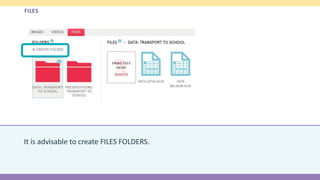
It is advisable to create FILES FOLDERS.
FILES
All files in the Twinspace are visible to all members. It is not possible to share files
only with teachers.
If a file type is not supported by the Twinspace, it is always possible to compress it
to a .zip or .rar file.
Pages
PAGES
With pages you can tell the story of your project. Uploaded materials like pictures,
videos, presentations and other project outcomes can be presented in a coherent
context.
PAGES
To start you click on CREATE A PAGE on the front page. Alternatively you can click
on PAGES.
PAGES
 Click CREATE A PAGE to get started.
 Write a title.
PAGES
When creating a page you decide who is the (co-) author of the page. By default the
Administrators (founders) and the Teachers can edit any page in the Twinspace.
Pupil administrators can create new pages. Pupils can only add content to a particular
page when given the rights.
PAGES
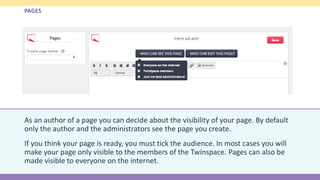
As an author of a page you can decide about the visibility of your page. By default
only the author and the administrators see the page you create.
If you think your page is ready, you must tick the audience. In most cases you will
make your page only visible to the members of the Twinspace. Pages can also be
made visible to everyone on the internet.
Materials
PAGES
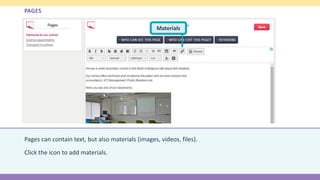
Pages can contain text, but also materials (images, videos, files).
Click the icon to add materials.
PAGES
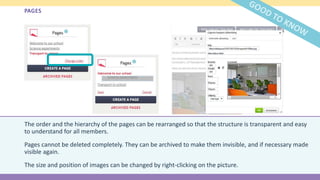
The order and the hierarchy of the pages can be rearranged so that the structure is transparent and easy
to understand for all members.
Pages cannot be deleted completely. They can be archived to make them invisible, and if necessary made
visible again.
The size and position of images can be changed by right-clicking on the picture.
PAGES
Make clear arrangements with all members of the Twinspace:
discuss the structure and the order of the pages with all the teachers of the project. If
not the Twinspace might end up in a mess.
Students can also be given ownership by giving them editing rights to particular pages
so that they can add content.
etwinning.net
Concept, text and editing by eTwinning Central Support Service - 2015
Under Creative Commons License

TTI course: add content to Twinspace

  • 1.
    etwinning.net Adding Content in theTwinspace TTI course: beginners
  • 2.
  • 3.
  • 4.
    IMAGES Non-verbal communication isimportant for an eTwinning project. Images also make the Twinspace more attractive. You can create stand-alone albums with e.g. pictures of activities or you can integrate pictures in PAGES, FORUM posts or PROJECT JOURNAL posts. 4
  • 5.
    IMAGES To upload picturesyou click on ADD IMAGES on the front page. Alternatively you can click on MATERIALS.
  • 6.
    IMAGES It is advisableto create IMAGE ALBUMS. The maximum size of a picture is 4 Mb. Only these formats are allowed: gif, jpg, jpeg, png. If you want to integrate pictures in a PAGE, FORUM or PROJECT JOURNAL post, you first of all need to upload your pictures in this section.
  • 7.
    IMAGES For copyright reasonsis advisable to use only pictures of which you own the rights or that have been shared under Creative Commons License. 1. Pictures you took yourself or that belong to Public Domain can be used freely without attribution of the name of the author. 2. When you use pictures under Creative Commons License you need to give credit to the author in the proper way.
  • 8.
  • 9.
    VIDEOS Videos bring lifeto the Twinspace. You can create stand-alone FOLDERS with movie clips or you can integrate movies in PAGES, FORUM POSTS or JOURNAL POSTS.
  • 10.
    VIDEOS To upload videosyou click on ADD IMAGES on the front page. Alternatively you can click on MATERIALS.
  • 11.
    VIDEOS You cannot uploadvideos directly to the Twinspace. You need to upload a video first to Youtube, Vimeo or DailyMotion. For safety reasons you should categorize videos at Youtube under UNLISTED. In this way the video will be hidden for the Youtube search engine. However the video will be visible to anyone who knows the URL.
  • 12.
    VIDEOS To transfer thevideo to the Twinspace, you first COPY the URL of the previously uploaded video at YouTube, Vimeo or Dailymotion and then PASTE it in the MATERIALS section of the Twinspace.
  • 13.
    VIDEOS Vimeo offers theopportunity to protect a video with a password. In that case the video cannot be uploaded in the MATERIALS section of the Twinspace and cannot be embedded in e.g. a PAGE. It is, of course, possible to share the URL of the Vimeo video on a PAGE, FORUM or JOURNAL POST.
  • 14.
  • 15.
    FILES The Twinspace offersthe opportunity to share various types of files. You can create stand-alone folders or you can integrate a direct link to the FILES on a PAGE, FORUM or PROJECT JOURNAL post. Allowed files are text files (.pdf, .txt, .doc, .docx), presentations (.ppt, .pptx), spreadsheets (.xls, .xlsx) and compressed files (.zip, .rar). The maximum file’s size is 20 Mb.
  • 16.
    FILES To upload filesclick on MATERIALS.
  • 17.
    FILES It is advisableto create FILES FOLDERS.
  • 18.
    FILES All files inthe Twinspace are visible to all members. It is not possible to share files only with teachers. If a file type is not supported by the Twinspace, it is always possible to compress it to a .zip or .rar file.
  • 19.
  • 20.
    PAGES With pages youcan tell the story of your project. Uploaded materials like pictures, videos, presentations and other project outcomes can be presented in a coherent context.
  • 21.
    PAGES To start youclick on CREATE A PAGE on the front page. Alternatively you can click on PAGES.
  • 22.
    PAGES  Click CREATEA PAGE to get started.  Write a title.
  • 23.
    PAGES When creating apage you decide who is the (co-) author of the page. By default the Administrators (founders) and the Teachers can edit any page in the Twinspace. Pupil administrators can create new pages. Pupils can only add content to a particular page when given the rights.
  • 24.
    PAGES As an authorof a page you can decide about the visibility of your page. By default only the author and the administrators see the page you create. If you think your page is ready, you must tick the audience. In most cases you will make your page only visible to the members of the Twinspace. Pages can also be made visible to everyone on the internet.
  • 25.
    Materials PAGES Pages can containtext, but also materials (images, videos, files). Click the icon to add materials.
  • 26.
    PAGES The order andthe hierarchy of the pages can be rearranged so that the structure is transparent and easy to understand for all members. Pages cannot be deleted completely. They can be archived to make them invisible, and if necessary made visible again. The size and position of images can be changed by right-clicking on the picture.
  • 27.
    PAGES Make clear arrangementswith all members of the Twinspace: discuss the structure and the order of the pages with all the teachers of the project. If not the Twinspace might end up in a mess. Students can also be given ownership by giving them editing rights to particular pages so that they can add content.
  • 28.
    etwinning.net Concept, text andediting by eTwinning Central Support Service - 2015 Under Creative Commons License