

PROF. DR. MOHAMED AMIN EMBI
CENTRE FOR ACADEMIC ADVANCEMENT
Go to: http://www.dropbox.com/
Downloading Dropbox
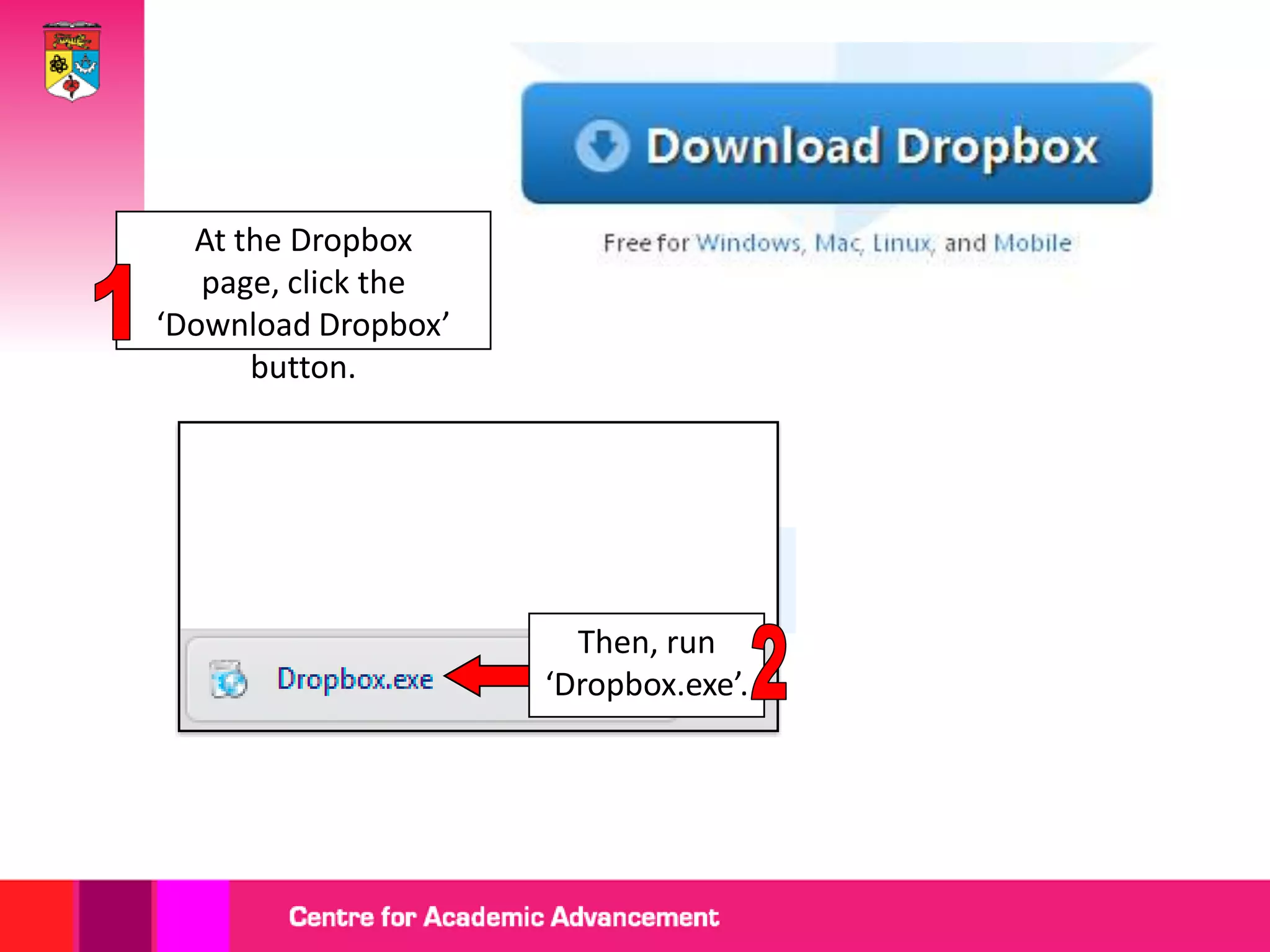
At the Dropbox
   page, click the
‘Download Dropbox’
      button.


                       Then, run
                     ‘Dropbox.exe’.
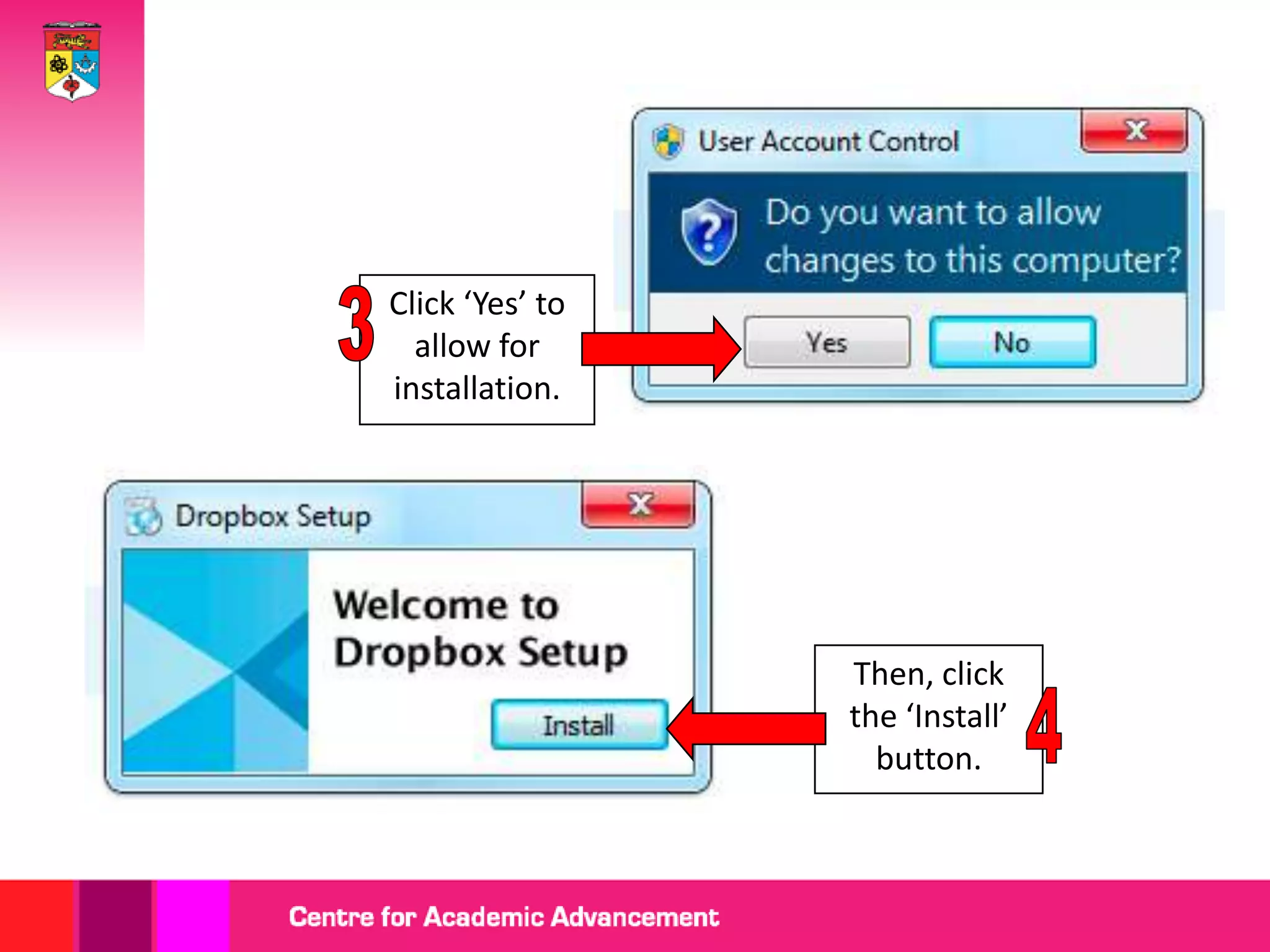
Click ‘Yes’ to
  allow for
installation.


                 Then, click
                 the ‘Install’
                   button.
Creating a Dropbox Account
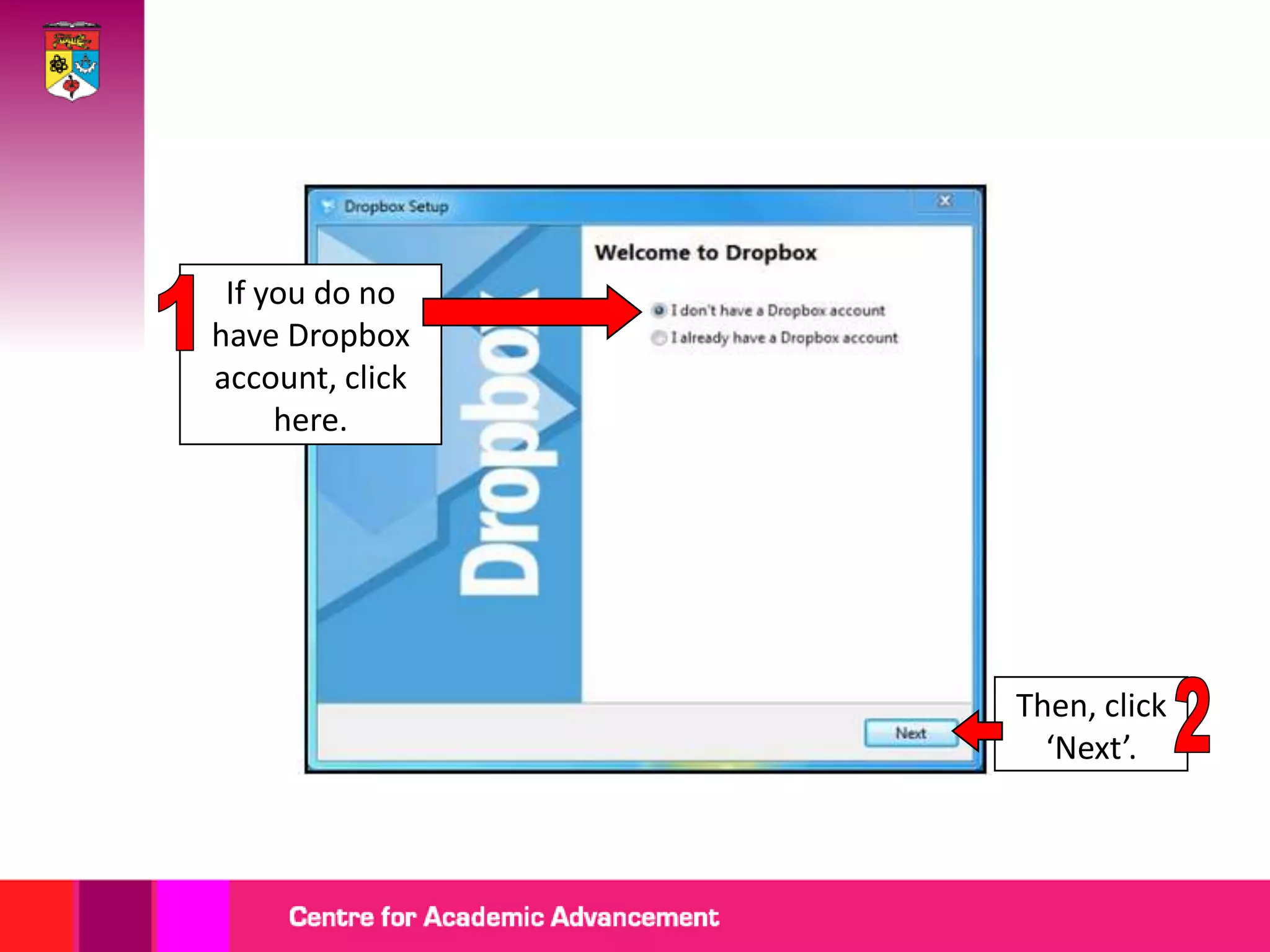
If you do no
have Dropbox
account, click
     here.


                 Then, click
                   ‘Next’.
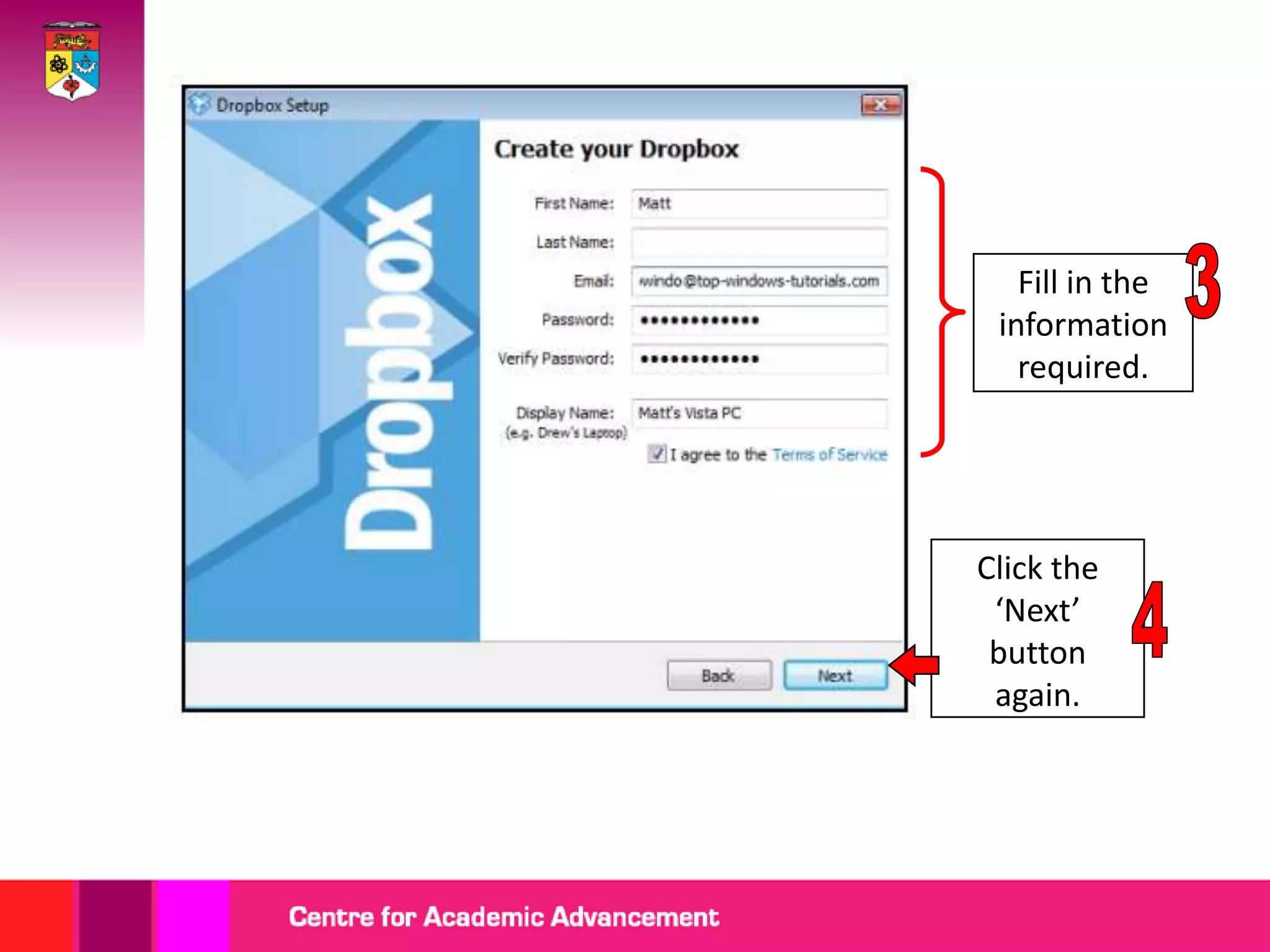
Fill in the
 information
   required.


Click the
 ‘Next’
 button
 again.
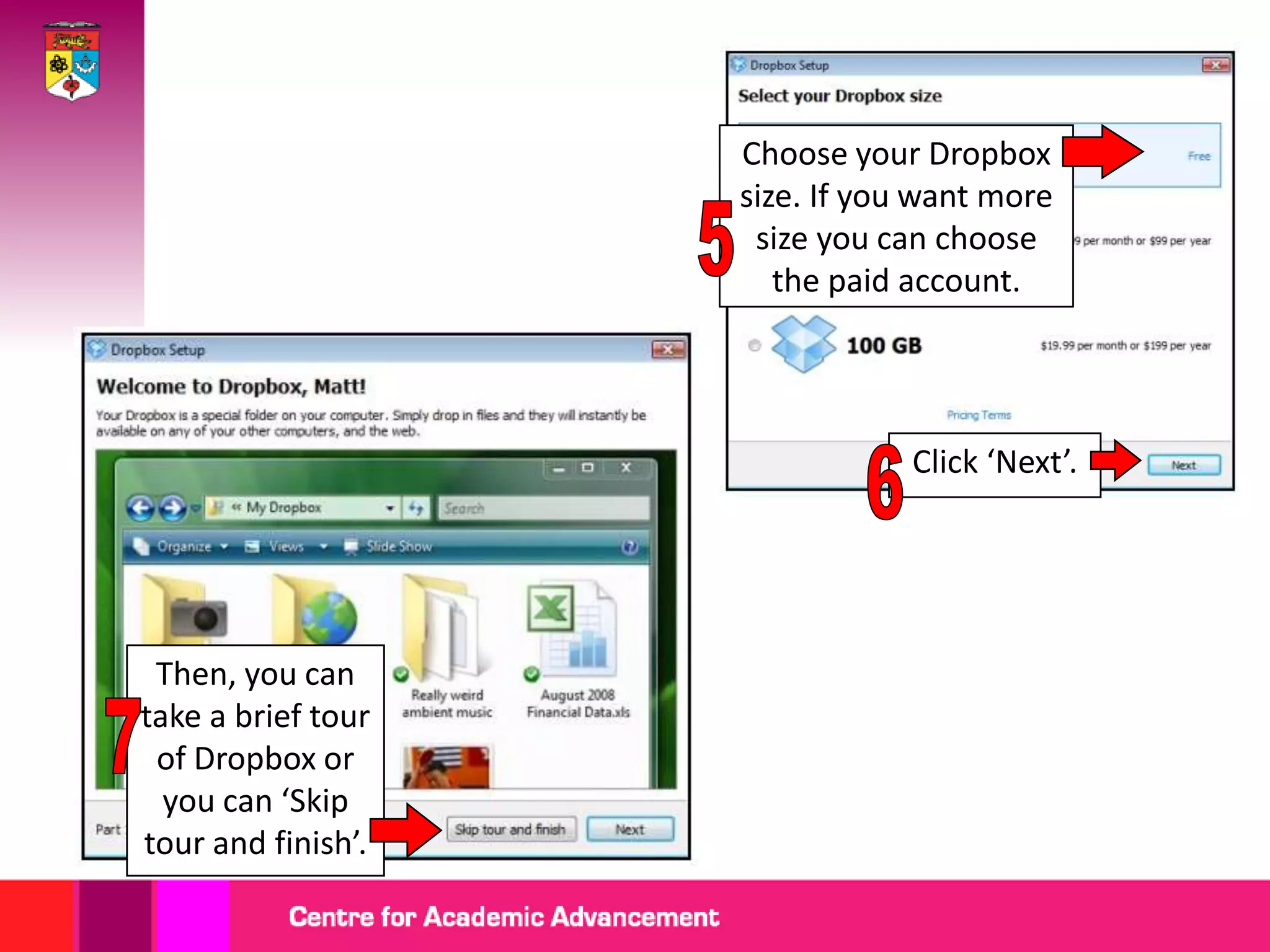
Choose your Dropbox
                    size. If you want more
                     size you can choose
                       the paid account.


                                Click ‘Next’.


 Then, you can
take a brief tour
 of Dropbox or
  you can ‘Skip
tour and finish’.
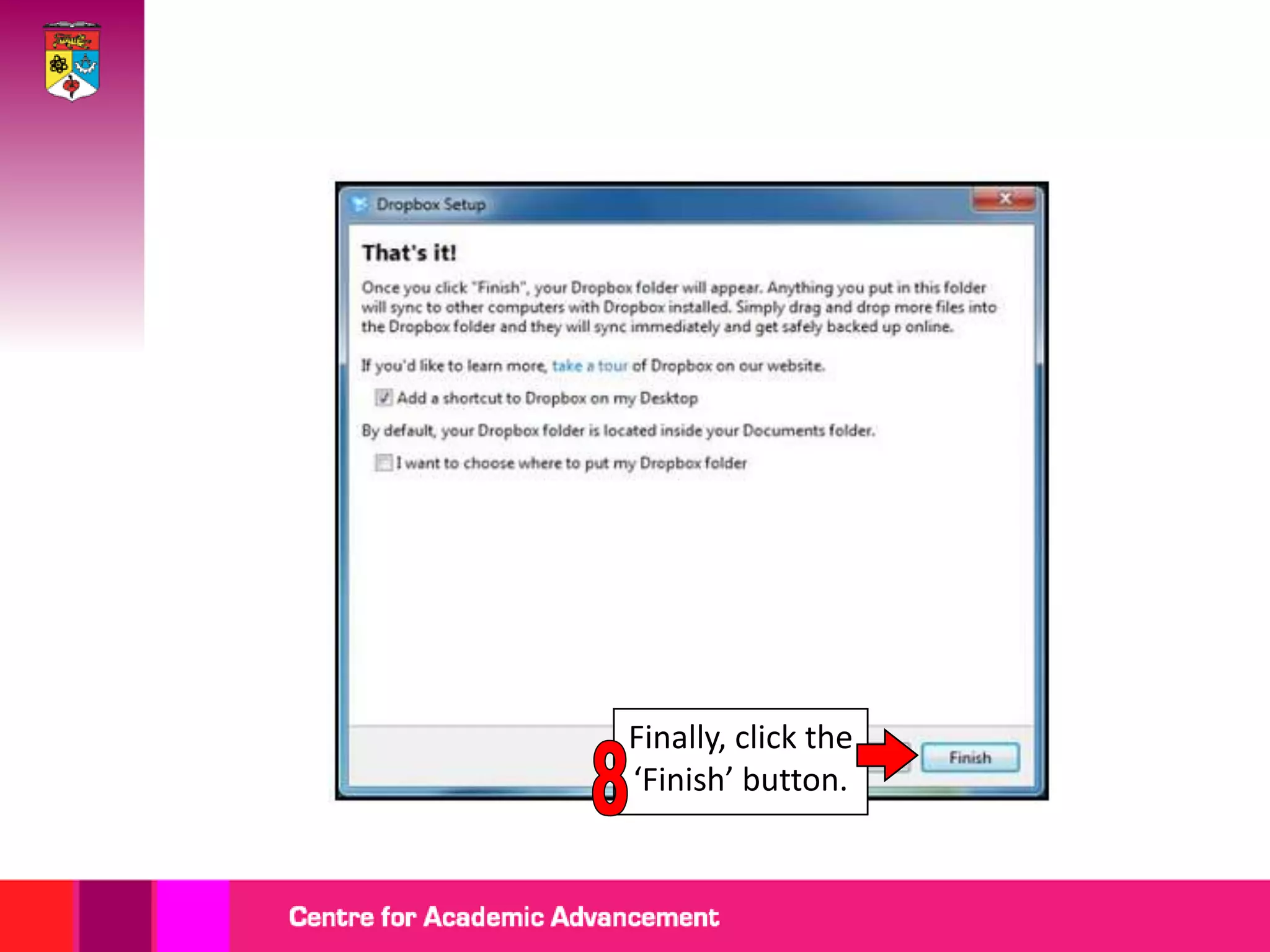
Finally, click the
‘Finish’ button.
Dropbox Desktop
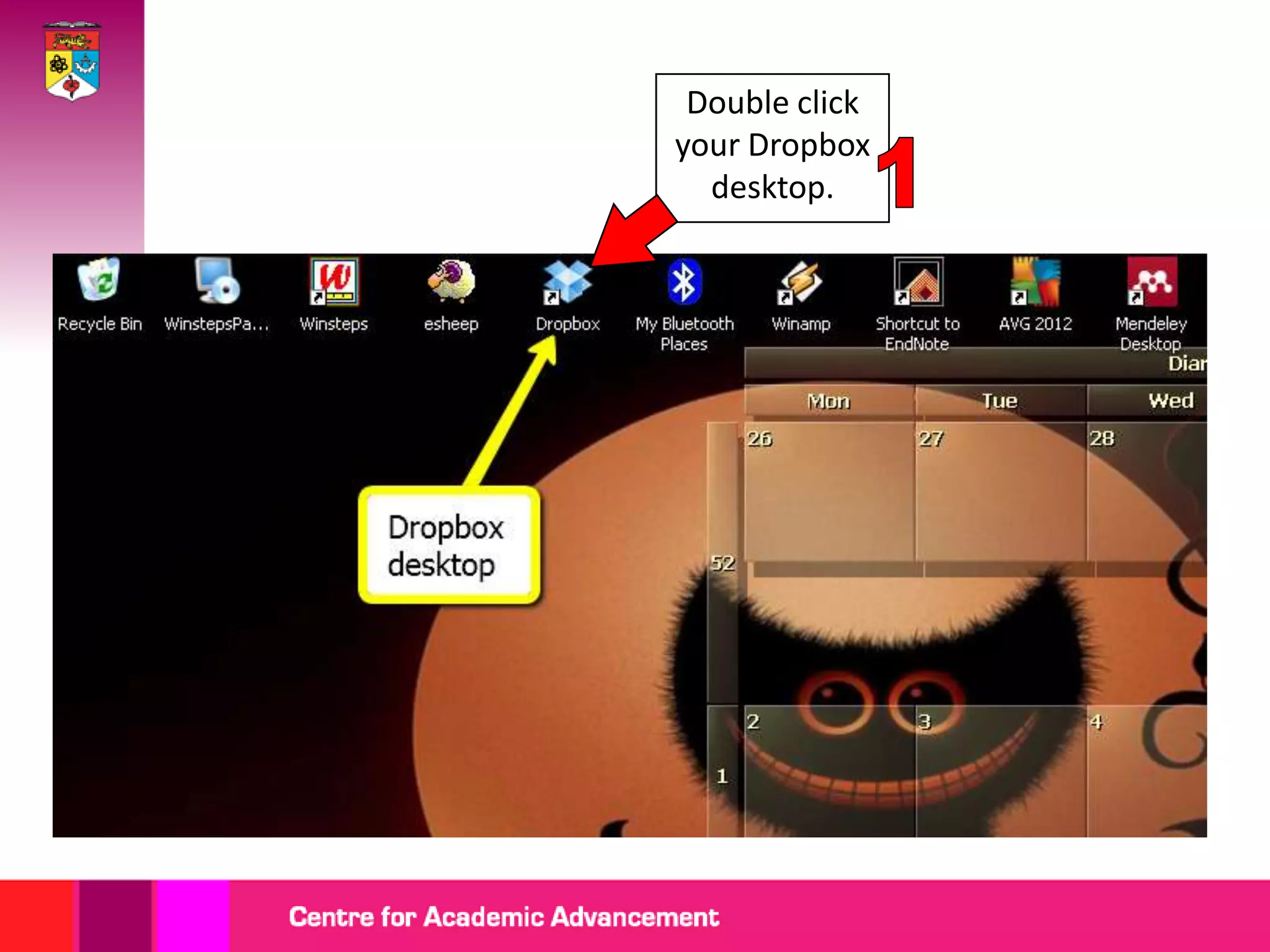
Double click
your Dropbox
  desktop.
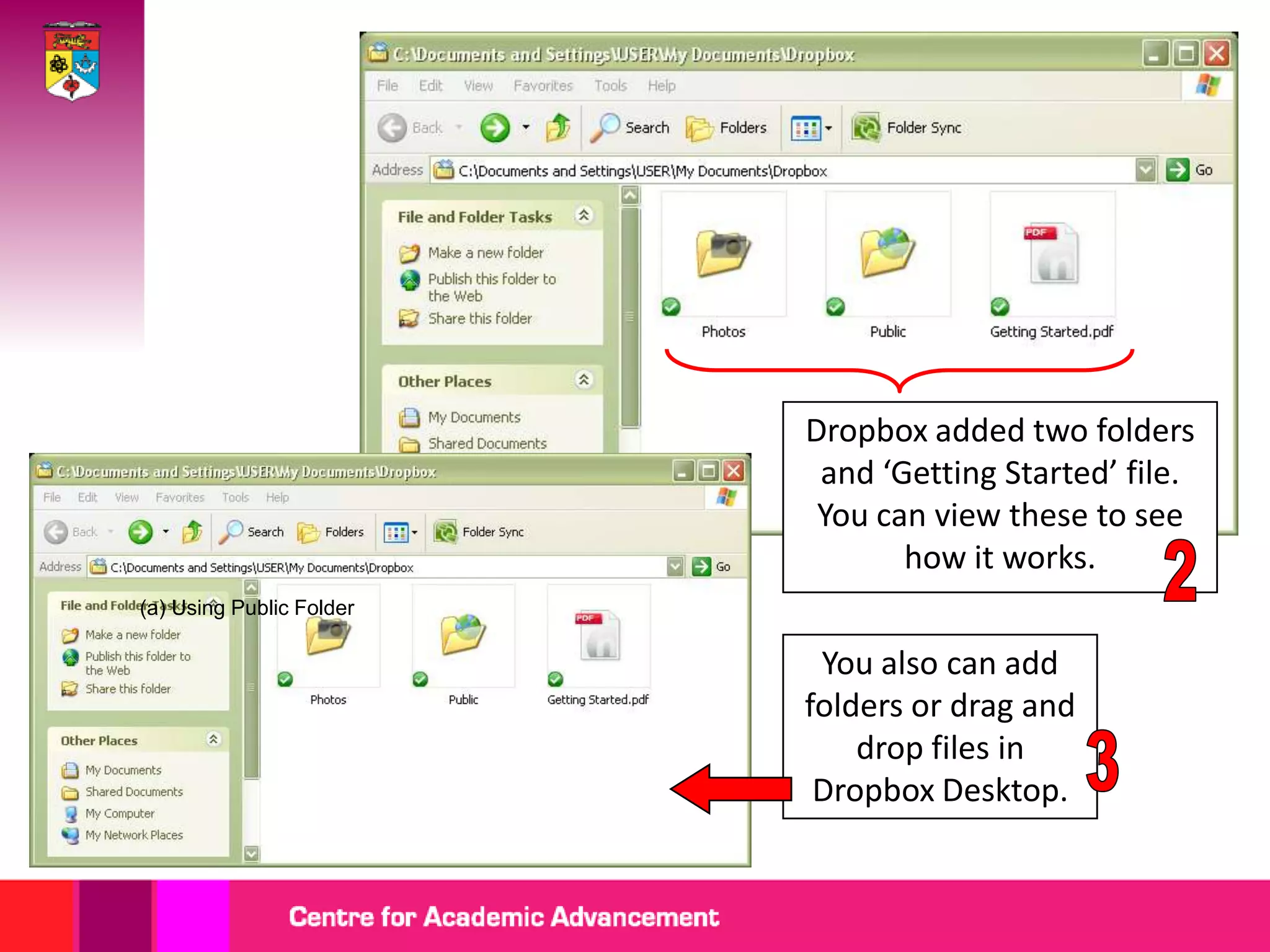
Dropbox added two folders
                           and ‘Getting Started’ file.
                           You can view these to see
                                 how it works.
(a) Using Public Folder

                           You also can add
                          folders or drag and
                              drop files in
                           Dropbox Desktop.
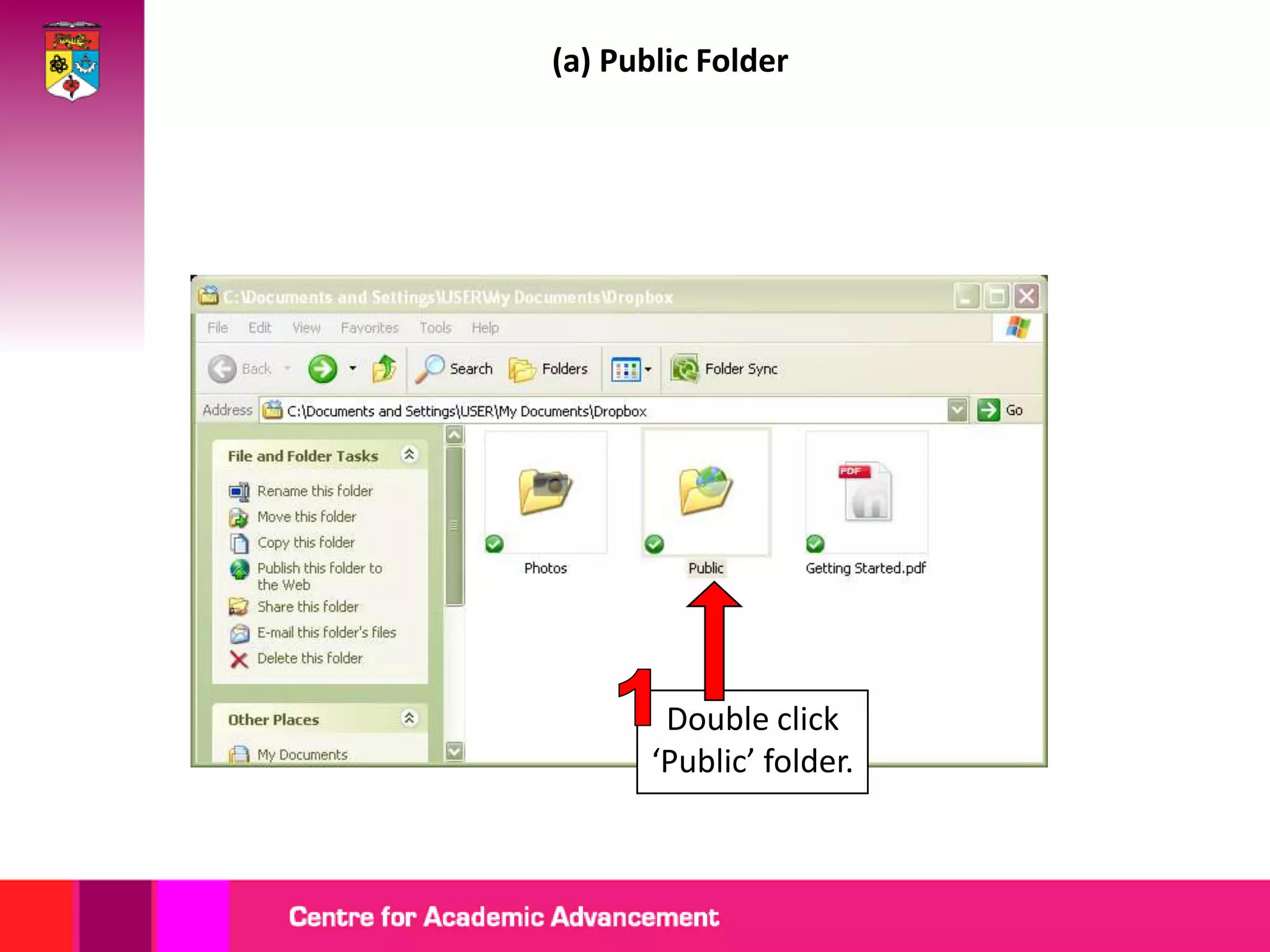
(a) Public Folder


        Double click
       ‘Public’ folder.
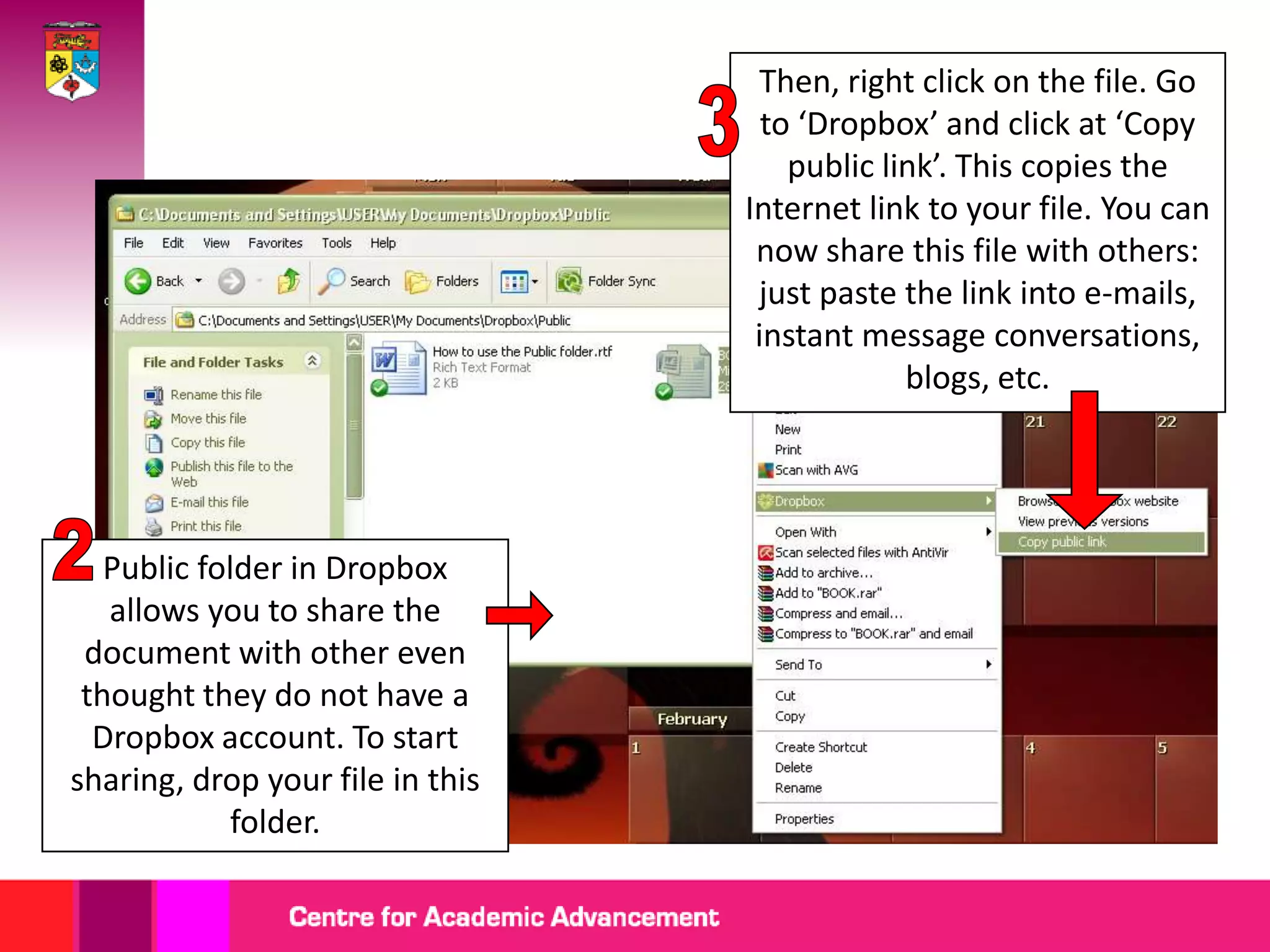
Then, right click on the file. Go
                                    to ‘Dropbox’ and click at ‘Copy
                                      public link’. This copies the
                                  Internet link to your file. You can
                                   now share this file with others:
                                   just paste the link into e-mails,
                                   instant message conversations,
                                               blogs, etc.


   Public folder in Dropbox
   allows you to share the
 document with other even
 thought they do not have a
  Dropbox account. To start
sharing, drop your file in this
            folder.
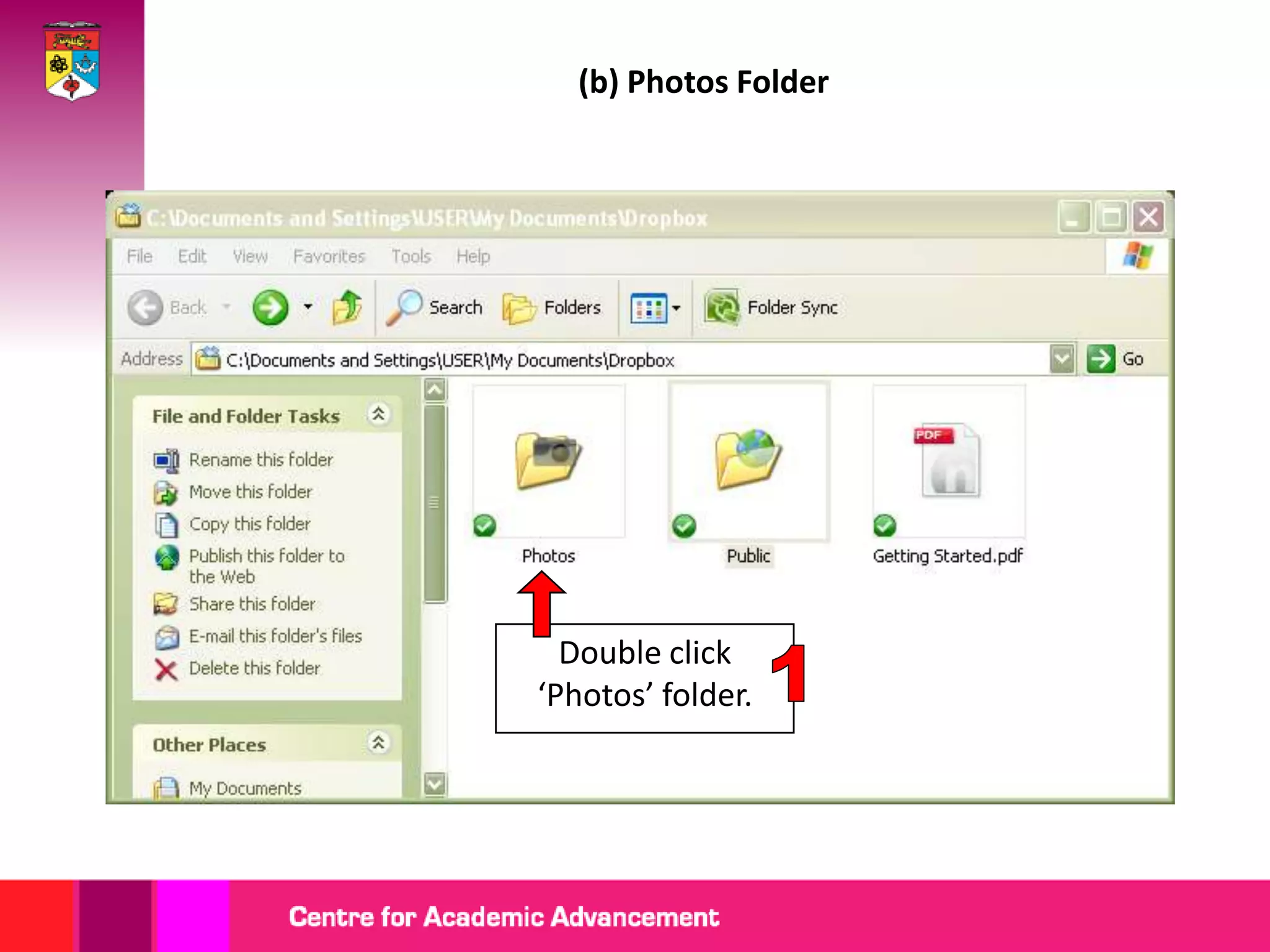
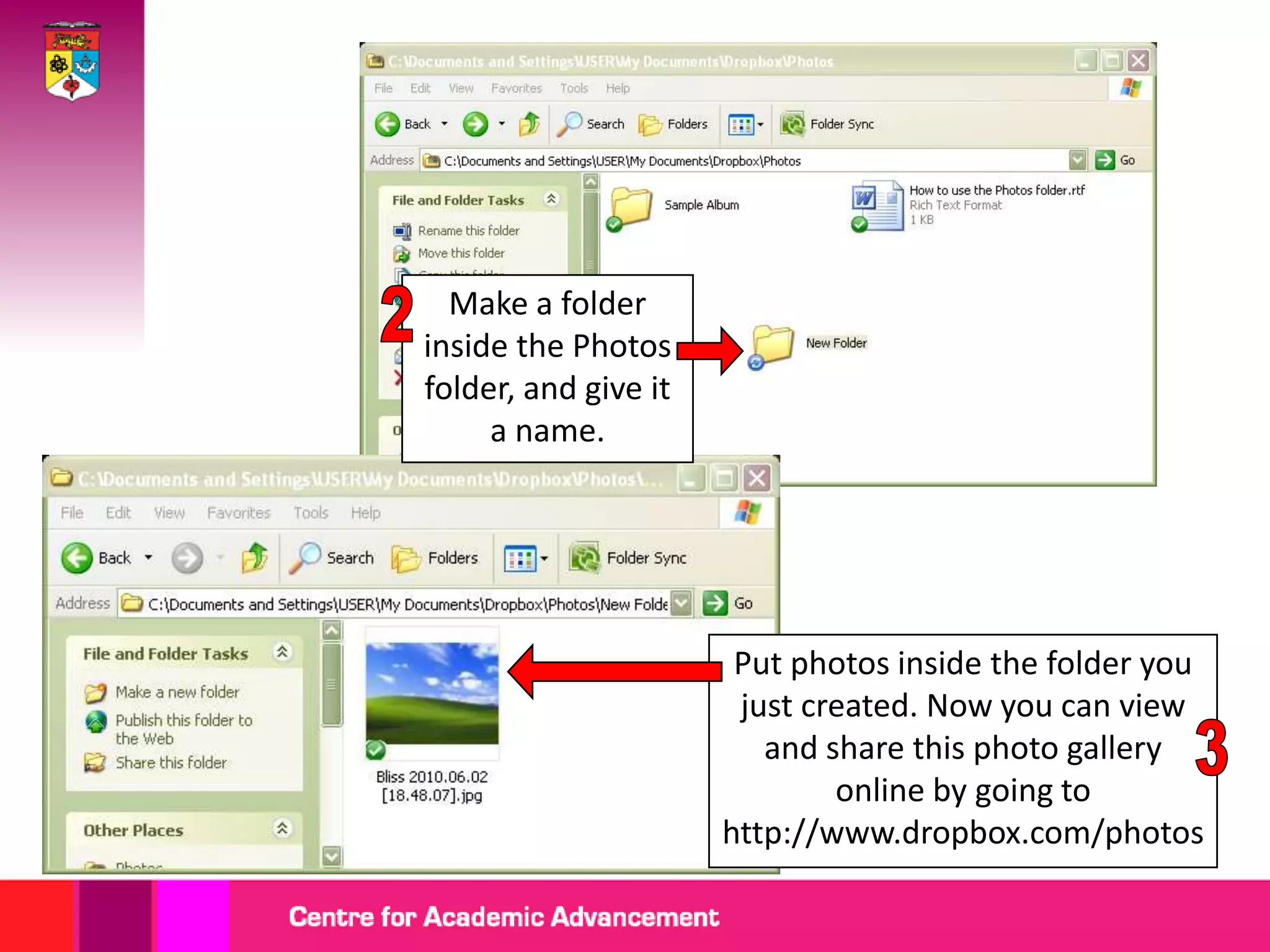
(b) Photos Folder


  Double click
‘Photos’ folder.
Make a folder
inside the Photos
folder, and give it
     a name.


                       Put photos inside the folder you
                       just created. Now you can view
                         and share this photo gallery
                              online by going to
                      http://www.dropbox.com/photos
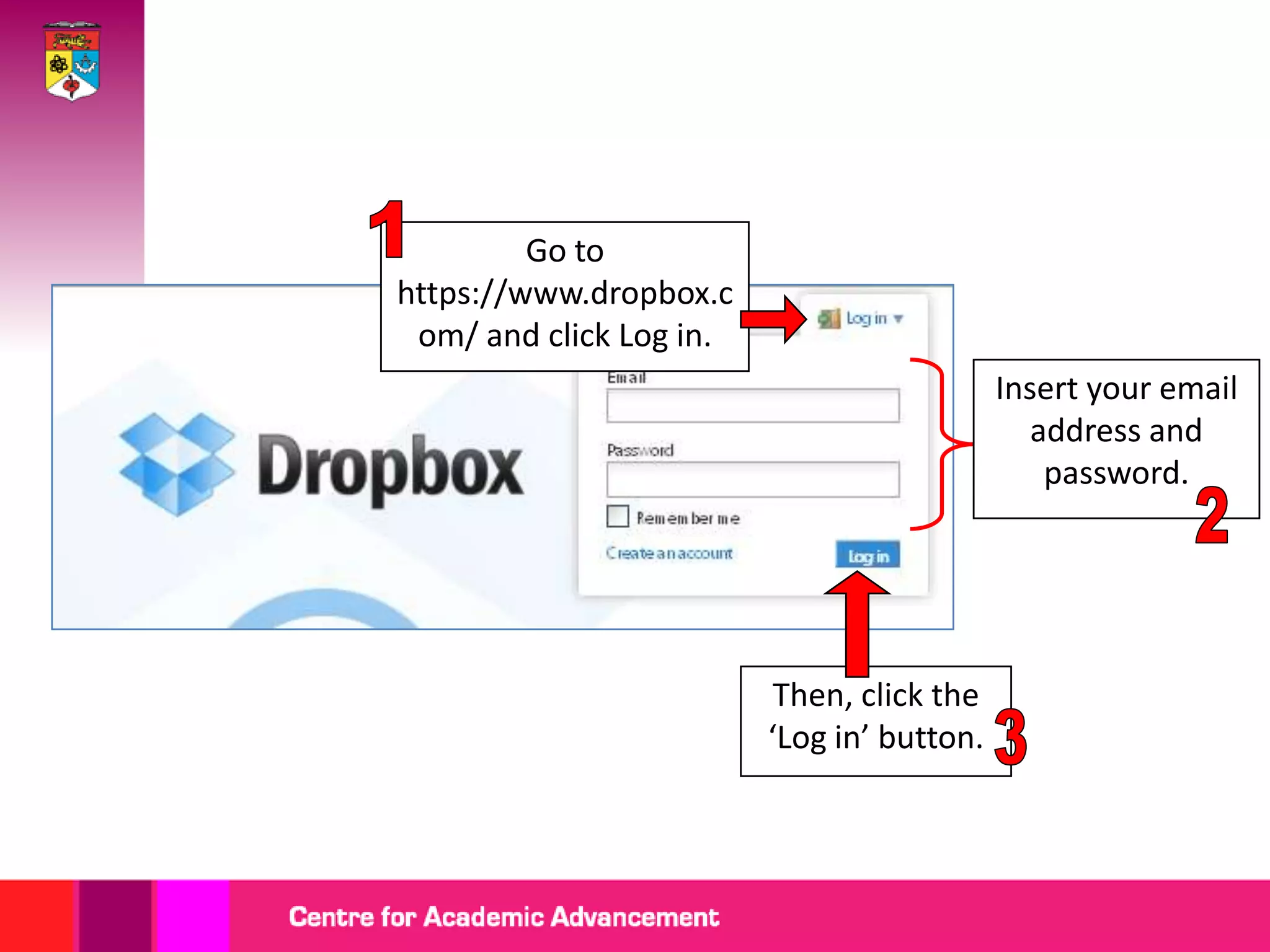
Dropbox Website
Go to
https://www.dropbox.c
 om/ and click Log in.
                                            Insert your email
                                               address and
                                                password.


                          Then, click the
                         ‘Log in’ button.
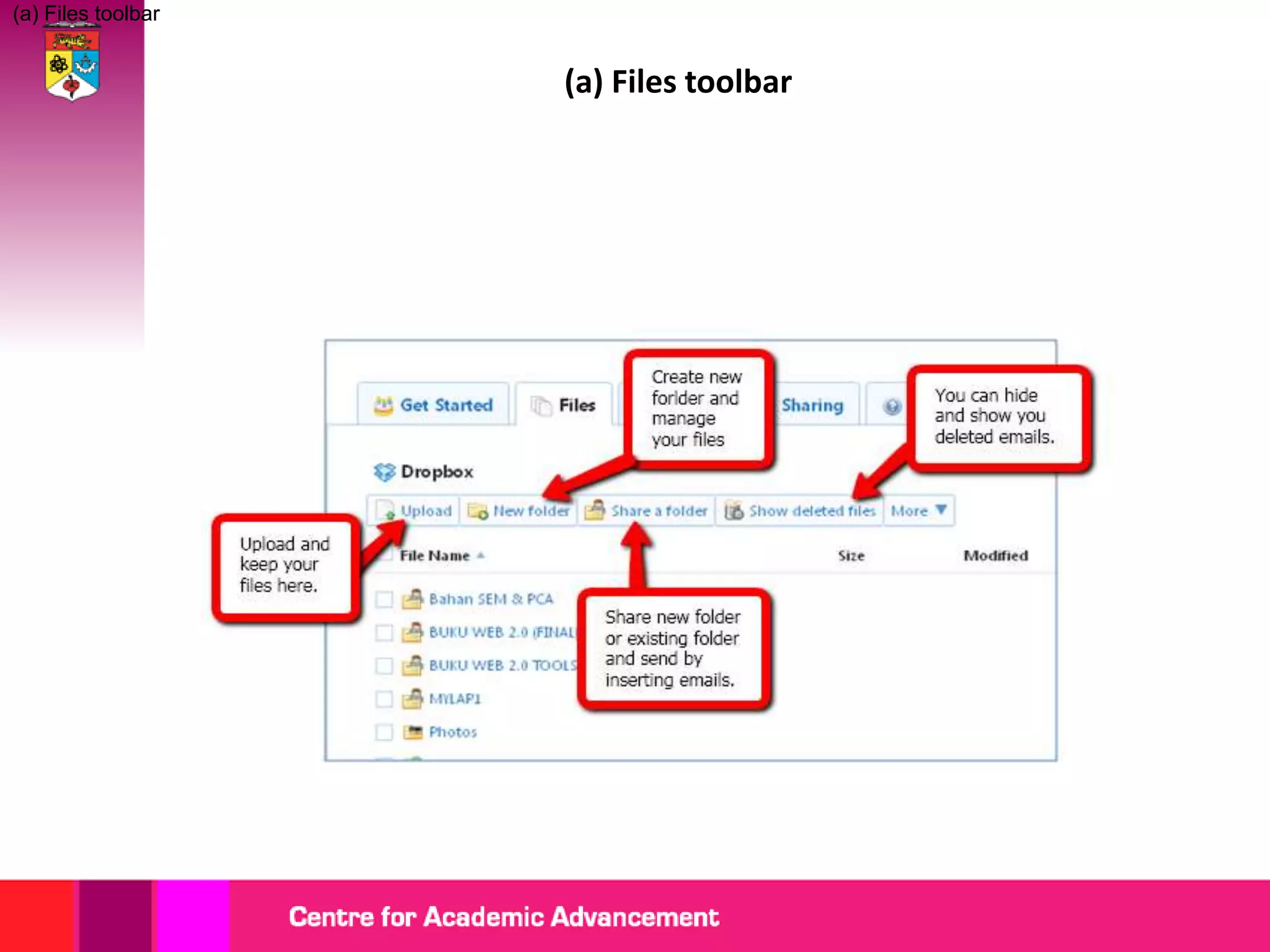
(a) Files toolbar


                    (a) Files toolbar
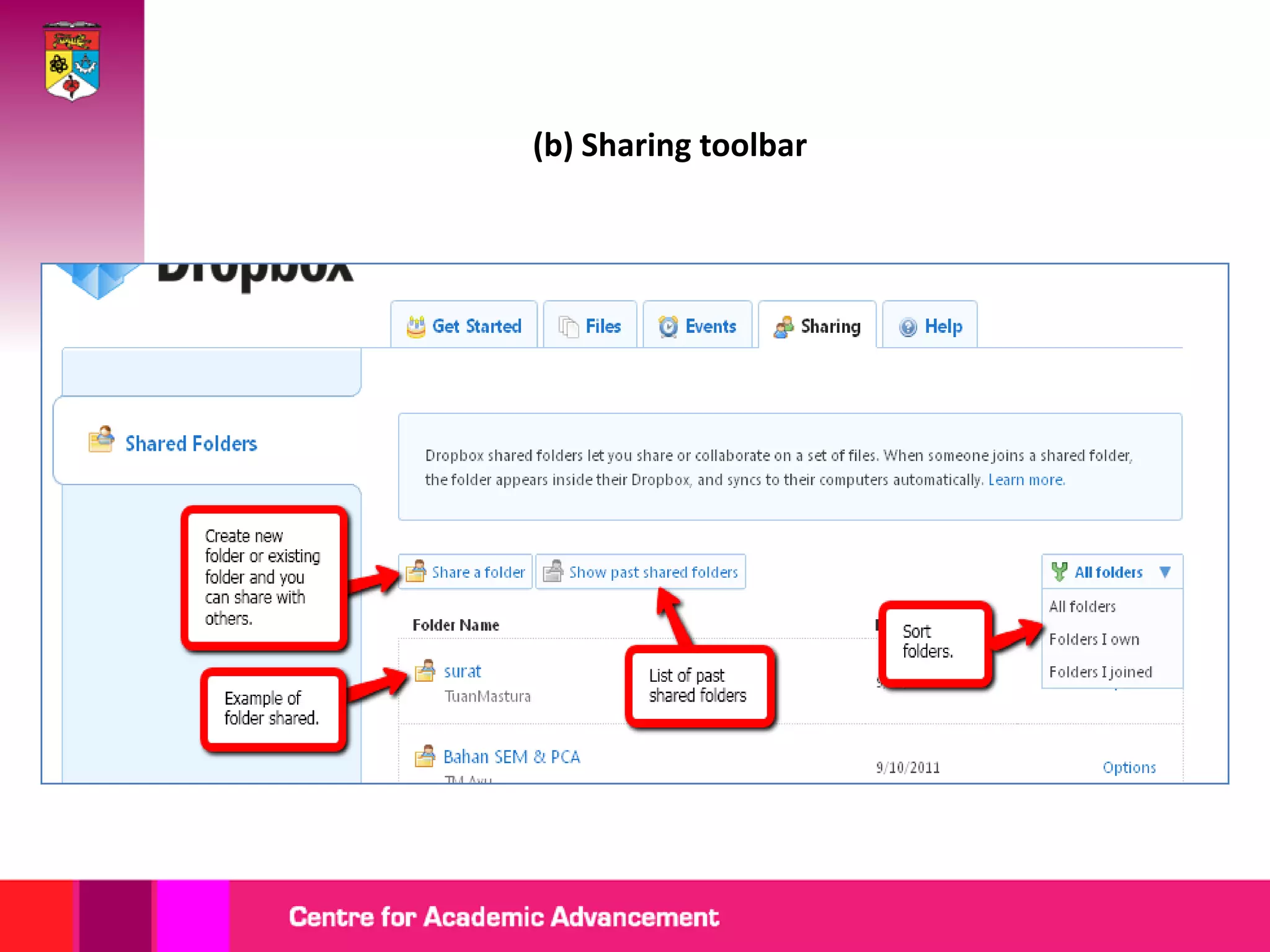
(b) Sharing toolbar
Getting started with dropbox

Getting started with dropbox