WEB SERVERS AND
WEB BROWSERS
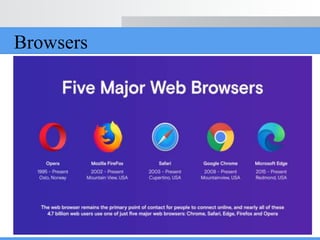
Browsers
INTRODUCTION
• A web browser is a software application for
retrieving, presenting, and traversing information
resources on the World Wide Web. An
information resource is identified by a Uniform
Resource Identifier (URI) and may be a web
page, image, video, or other piece of content.
WEB BROWSER-ARCHITECTURE
• There are many commercial browsers that
interpret and display a web document. Almost all
of them use the same architecture.
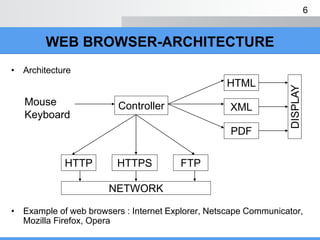
• The browser is usually is made of three parts:
controller, client programs, and interpreters. The
controller gets input from the keyboard or the
mouse and uses the client program to access the
document.
WEB BROWSER-ARCHITECTURE
• Architecture
• Example of web browsers : Internet Explorer, Netscape Communicator,
Mozilla Firefox, Opera
6
Mouse
Keyboard
Controller
HTML
XML
PDF
DISPLAY
HTTP HTTPS FTP
NETWORK
PLUGIN
• A plugin is a piece of code that can be loaded into same
address space as the browser process.
• Because plugins run in the same address space as the
browser, they have to be carefully constructed. A faulty
plugin could corrupt some of the browser’s internal data
structures. In general, writing plugins requires a great deal
of care.
• To use plugins, the browser configured with:
– The pathname of a directory that contains he available plugins
– A table that describes which plugins to use with which MIME types.
7
INTRODUCTION TO WEB SERVER
• Web server
– Specialized software that responds to client requests by providing
resources
– When users enter URL into Web browsers, they request specific
documents from Web server
– Maps URL to file on server and returns requested document to
client
– Communicates with client using HTTP
• Protocol for transferring requests and files over the Internet
• Example of Web servers
– Internet Information Services (IIS), Personal Web Server (PWS),
Apache Web Server, Tomcat
8
WEB SERVER
IIS PWS Apache
Company Microsoft
Corporation
Microsoft
Corporation
Apache Software
Foundation
Version 5.0 4.0 1.3.20
Released 2/17/00 12/4/97 5/21/01
Platforms Windows 2000 Windows 95/98/
Millennium Edition (Me)/NT
UNIX, Windows NT/2000,
experimentally supports Windows
95/98
Brief
description
The most popular Web
server for Windows 2000.
A basic Web server for publishing
personal Web pages.
Currently the most
popular Web server.
Price Included with
Windows 2000.
Freeware. Packaged with Microsoft
IIS in NT 4.0 Option Pack. Also
included in
Windows 98.
Freeware.
11
GENERAL SERVER CHARACTERISTICS
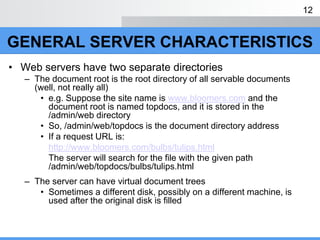
• Web servers have two separate directories
– The document root is the root directory of all servable documents
(well, not really all)
• e.g. Suppose the site name is www.bloomers.com and the
document root is named topdocs, and it is stored in the
/admin/web directory
• So, /admin/web/topdocs is the document directory address
• If a request URL is:
http://www.bloomers.com/bulbs/tulips.html
The server will search for the file with the given path
/admin/web/topdocs/bulbs/tulips.html
– The server can have virtual document trees
• Sometimes a different disk, possibly on a different machine, is
used after the original disk is filled
12
GENERAL SERVER CHARACTERISTICS
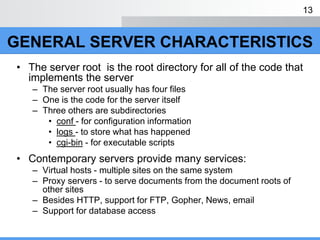
• The server root is the root directory for all of the code that
implements the server
– The server root usually has four files
– One is the code for the server itself
– Three others are subdirectories
• conf - for configuration information
• logs - to store what has happened
• cgi-bin - for executable scripts
• Contemporary servers provide many services:
– Virtual hosts - multiple sites on the same system
– Proxy servers - to serve documents from the document roots of
other sites
– Besides HTTP, support for FTP, Gopher, News, email
– Support for database access
13
HTTP REQUEST TYPES
• Also known as request methods
• Most popular are get and post
– Retrieve and send client form data to Web server
– get request
• Sends form content as part of URL
• Retrieves appropriate resource from Web server
• Limits query to 1024 characters
– post request
• Updates contents of Web server (posting new messages
to forum)
• Has no limit for length of query
• Not part of URL and cannot be seen by user
• Posts data to server-side form handler
• Browsers cache (save on disk) Web pages
– Allows for quick reloading
– Cache responses to get request
– Do not cache responses to post request
HTTP REQUEST TYPES
15
ACCESSING WEB SERVERS
• Requesting documents
– Must know machine name on which Web server resides
– Through local Web servers or remote Web servers
– Through domain name or Internet Protocol (IP) address
• Local Web server
– Resides on users’ machines
– Requests documents in two ways
• Machine name
• localhost (Host name that references local machine)
16
• Remote Web server
– Resides on different machines
• Domain name
– Represents group of hosts on Internet
– Combines with how name (www) and top-level domain to from fully
qualified host name
• Top-level domain (TLD)
– Describes type of organization that owns domain name
• .com or .org
• Fully qualified host name
– Provides user friendly way to identify site on Internet
ACCESSING WEB SERVERS
17
• IP address
– Unique address for locating computers on Internet
• Domain name server (DNS)
– Maintains database of host names and corresponding IP
addresses
– Translates fully qualified host name to IP address
• Known as DNS lookup
ACCESSING WEB SERVERS
18
INTERNET INFORMATION SERVICES
• Internet Information Services (IIS)
– Enterprise-level Web server
– Included with Windows 2000
– Allows computer to serve documents
• Internet Services Manager (FIGURE A)
– Open Control Panel, double click Administrative Tools icon, then
double click Internet Services Manager icon
– Administration program for IIS
– Place documents to be requested in default directory or virtual
directory
• Default: C:InetpubWwwroot
• Virtual: alias for existing directory on local machine
19
Start > Settings > Control panel> program and features > turn windows features on and off
Figure A : Internet Services Manager dialog.
INTERNET INFORMATION SERVICES
21
• Default FTP Site and Default Web Site
– Permit transferring documents between computer and server
– HTTP used frequently to request documents
• Default SMTP Virtual Server
– Allows for creation of mail server
• Create virtual directory in Default Web Site
– Most Web documents reside in Webpub directory
• Right click Webpub, select New, then Virtual Directory
• Initiates Virtual Directory Creation Wizard (Figure B)
– Guides user through virtual directory creation process
INTERNET INFORMATION SERVICES
22
Figure B : Virtual Directory Creation Wizard welcome dialog.
INTERNET INFORMATION SERVICES
23
• Virtual Directory Alias (Fig. C)
– Enter name for virtual directory
• Name should not conflict with an existing virtual directory
• Web Site Content Directory (Fig. D)
– Enter path of directory containing Web documents
• Access Permissions (Fig. E)
– Presents security level choices
– Select access level appropriate for Web document
INTERNET INFORMATION SERVICES
24
Figure C : Virtual Directory Alias dialog.
INTERNET INFORMATION SERVICES
25
Figure D : Web Site Content Directory dialog.
INTERNET INFORMATION SERVICES
26
• Access Permissions (Figure E)
– Presents security level choices
– Select access level appropriate for Web document
– Read allows users to read and download files
– Run Scripts allows scripts to run in directory
– Execute allows applications to run in directory
– Write allows Web page to accept user input
– Browse allows users to navigate between documents
– Read and Run Scripts selected by default
INTERNET INFORMATION SERVICES
27
Figure E : Access Permissions dialog.
INTERNET INFORMATION SERVICES
28
PERSONAL WEB SERVER (PWS)
• PWS
– Scaled-down version of IIS
– Intended for personal computers (PC)
– Ideal for educational institutions, small businesses and individuals
– Does not require PC to be used exclusively as Web server
• Personal Web Manager (Fig. F)
– Administration program for PWS
– Place documents to be requested in default directory or virtual
directory
• Default: C:Inetpubwwwroot
• Virtual: alias for existing directory on local machine
29
Figure F : Personal Web Manager dialog.
PERSONAL WEB SERVER (PWS)
30
• Edit Directory (Fig. G)
– Directory field
• Enter directory path that contains Web documents
– Alias field
• Enter name to virtual directory
– Access section
• Select security level for virtual directory
• Read allows users to read and download files
• Execute allows applications to run in directory
• Scripts allows scripts to run in directory
• Read and Scripts selected by default
PERSONAL WEB SERVER (PWS)
31
Figure G : Creating a virtual directory in PWS in Edit Directory.
PERSONAL WEB SERVER (PWS)
32
APACHE WEB SERVER
• Apache Web Server
– Maintained by Apache Software Foundation
– Currently most popular Web server
• Stable
• Efficient
• Portable
– Successively select Start Programs Apache httpd Server 
Control Apache Server  Start (Figure H)
33
Figure H : Starting the Apache Web server.
APACHE WEB SERVER
34
SYSTEM ARCHITECTURE
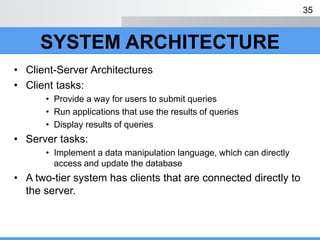
• Client-Server Architectures
• Client tasks:
• Provide a way for users to submit queries
• Run applications that use the results of queries
• Display results of queries
• Server tasks:
• Implement a data manipulation language, which can directly
access and update the database
• A two-tier system has clients that are connected directly to
the server.
35
SYSTEM ARCHITECTURE – 2 tier
SYSTEM ARCHITECTURE
• Problems with a two-tier system:
• Because the relative power of clients has grown considerably, we
could shift processing to the client, but then maintaining data
integrity is difficult
• Web server part of multi-tier application
• Divide functionality into separate tiers
• Logical groupings of functionality
• Can reside on same computer or on different computers
• Following diagrams illustrates 3-tier application
37
Client Tier
MiddleTier
InformationTier
SYSTEM ARCHITECTURE- 3 tier
• Client tier
– Referred to as top tier
– Application’s user interface
– Users interact with application through user interface
– Interacts with middle tier to make requests and to retrieve
data from information tier
– Displays data to user
SYSTEM ARCHITECTURE
39
• Information tier
– Referred to as data tier or bottom tier
– Maintains data for application
– Stores data in relational database management system
• Middle tier
– Implements business logic and presentation logic
– Controls interactions between application clients and application
data
– Acts as intermediary between data in information tier and
application clients
SYSTEM ARCHITECTURE
40
• Middle tier (cont)
– Controller logic
• Processes client requests from top tier
• Retrieves data from database
– Presentation logic
• Processes data from information tier
• Presents content to client
– Business logic
• Enforces business rules
– Dictates how clients can access application data and how
applications process data
• Ensures data validity before updating database
SYSTEM ARCHITECTURE
41

web_server_browser.ppt

  • 1.
  • 2.
  • 3.
    INTRODUCTION • A webbrowser is a software application for retrieving, presenting, and traversing information resources on the World Wide Web. An information resource is identified by a Uniform Resource Identifier (URI) and may be a web page, image, video, or other piece of content.
  • 5.
    WEB BROWSER-ARCHITECTURE • Thereare many commercial browsers that interpret and display a web document. Almost all of them use the same architecture. • The browser is usually is made of three parts: controller, client programs, and interpreters. The controller gets input from the keyboard or the mouse and uses the client program to access the document.
  • 6.
    WEB BROWSER-ARCHITECTURE • Architecture •Example of web browsers : Internet Explorer, Netscape Communicator, Mozilla Firefox, Opera 6 Mouse Keyboard Controller HTML XML PDF DISPLAY HTTP HTTPS FTP NETWORK
  • 7.
    PLUGIN • A pluginis a piece of code that can be loaded into same address space as the browser process. • Because plugins run in the same address space as the browser, they have to be carefully constructed. A faulty plugin could corrupt some of the browser’s internal data structures. In general, writing plugins requires a great deal of care. • To use plugins, the browser configured with: – The pathname of a directory that contains he available plugins – A table that describes which plugins to use with which MIME types. 7
  • 8.
    INTRODUCTION TO WEBSERVER • Web server – Specialized software that responds to client requests by providing resources – When users enter URL into Web browsers, they request specific documents from Web server – Maps URL to file on server and returns requested document to client – Communicates with client using HTTP • Protocol for transferring requests and files over the Internet • Example of Web servers – Internet Information Services (IIS), Personal Web Server (PWS), Apache Web Server, Tomcat 8
  • 11.
    WEB SERVER IIS PWSApache Company Microsoft Corporation Microsoft Corporation Apache Software Foundation Version 5.0 4.0 1.3.20 Released 2/17/00 12/4/97 5/21/01 Platforms Windows 2000 Windows 95/98/ Millennium Edition (Me)/NT UNIX, Windows NT/2000, experimentally supports Windows 95/98 Brief description The most popular Web server for Windows 2000. A basic Web server for publishing personal Web pages. Currently the most popular Web server. Price Included with Windows 2000. Freeware. Packaged with Microsoft IIS in NT 4.0 Option Pack. Also included in Windows 98. Freeware. 11
  • 12.
    GENERAL SERVER CHARACTERISTICS •Web servers have two separate directories – The document root is the root directory of all servable documents (well, not really all) • e.g. Suppose the site name is www.bloomers.com and the document root is named topdocs, and it is stored in the /admin/web directory • So, /admin/web/topdocs is the document directory address • If a request URL is: http://www.bloomers.com/bulbs/tulips.html The server will search for the file with the given path /admin/web/topdocs/bulbs/tulips.html – The server can have virtual document trees • Sometimes a different disk, possibly on a different machine, is used after the original disk is filled 12
  • 13.
    GENERAL SERVER CHARACTERISTICS •The server root is the root directory for all of the code that implements the server – The server root usually has four files – One is the code for the server itself – Three others are subdirectories • conf - for configuration information • logs - to store what has happened • cgi-bin - for executable scripts • Contemporary servers provide many services: – Virtual hosts - multiple sites on the same system – Proxy servers - to serve documents from the document roots of other sites – Besides HTTP, support for FTP, Gopher, News, email – Support for database access 13
  • 14.
    HTTP REQUEST TYPES •Also known as request methods • Most popular are get and post – Retrieve and send client form data to Web server – get request • Sends form content as part of URL • Retrieves appropriate resource from Web server • Limits query to 1024 characters – post request • Updates contents of Web server (posting new messages to forum) • Has no limit for length of query • Not part of URL and cannot be seen by user
  • 15.
    • Posts datato server-side form handler • Browsers cache (save on disk) Web pages – Allows for quick reloading – Cache responses to get request – Do not cache responses to post request HTTP REQUEST TYPES 15
  • 16.
    ACCESSING WEB SERVERS •Requesting documents – Must know machine name on which Web server resides – Through local Web servers or remote Web servers – Through domain name or Internet Protocol (IP) address • Local Web server – Resides on users’ machines – Requests documents in two ways • Machine name • localhost (Host name that references local machine) 16
  • 17.
    • Remote Webserver – Resides on different machines • Domain name – Represents group of hosts on Internet – Combines with how name (www) and top-level domain to from fully qualified host name • Top-level domain (TLD) – Describes type of organization that owns domain name • .com or .org • Fully qualified host name – Provides user friendly way to identify site on Internet ACCESSING WEB SERVERS 17
  • 18.
    • IP address –Unique address for locating computers on Internet • Domain name server (DNS) – Maintains database of host names and corresponding IP addresses – Translates fully qualified host name to IP address • Known as DNS lookup ACCESSING WEB SERVERS 18
  • 19.
    INTERNET INFORMATION SERVICES •Internet Information Services (IIS) – Enterprise-level Web server – Included with Windows 2000 – Allows computer to serve documents • Internet Services Manager (FIGURE A) – Open Control Panel, double click Administrative Tools icon, then double click Internet Services Manager icon – Administration program for IIS – Place documents to be requested in default directory or virtual directory • Default: C:InetpubWwwroot • Virtual: alias for existing directory on local machine 19
  • 20.
    Start > Settings> Control panel> program and features > turn windows features on and off
  • 21.
    Figure A :Internet Services Manager dialog. INTERNET INFORMATION SERVICES 21
  • 22.
    • Default FTPSite and Default Web Site – Permit transferring documents between computer and server – HTTP used frequently to request documents • Default SMTP Virtual Server – Allows for creation of mail server • Create virtual directory in Default Web Site – Most Web documents reside in Webpub directory • Right click Webpub, select New, then Virtual Directory • Initiates Virtual Directory Creation Wizard (Figure B) – Guides user through virtual directory creation process INTERNET INFORMATION SERVICES 22
  • 23.
    Figure B :Virtual Directory Creation Wizard welcome dialog. INTERNET INFORMATION SERVICES 23
  • 24.
    • Virtual DirectoryAlias (Fig. C) – Enter name for virtual directory • Name should not conflict with an existing virtual directory • Web Site Content Directory (Fig. D) – Enter path of directory containing Web documents • Access Permissions (Fig. E) – Presents security level choices – Select access level appropriate for Web document INTERNET INFORMATION SERVICES 24
  • 25.
    Figure C :Virtual Directory Alias dialog. INTERNET INFORMATION SERVICES 25
  • 26.
    Figure D :Web Site Content Directory dialog. INTERNET INFORMATION SERVICES 26
  • 27.
    • Access Permissions(Figure E) – Presents security level choices – Select access level appropriate for Web document – Read allows users to read and download files – Run Scripts allows scripts to run in directory – Execute allows applications to run in directory – Write allows Web page to accept user input – Browse allows users to navigate between documents – Read and Run Scripts selected by default INTERNET INFORMATION SERVICES 27
  • 28.
    Figure E :Access Permissions dialog. INTERNET INFORMATION SERVICES 28
  • 29.
    PERSONAL WEB SERVER(PWS) • PWS – Scaled-down version of IIS – Intended for personal computers (PC) – Ideal for educational institutions, small businesses and individuals – Does not require PC to be used exclusively as Web server • Personal Web Manager (Fig. F) – Administration program for PWS – Place documents to be requested in default directory or virtual directory • Default: C:Inetpubwwwroot • Virtual: alias for existing directory on local machine 29
  • 30.
    Figure F :Personal Web Manager dialog. PERSONAL WEB SERVER (PWS) 30
  • 31.
    • Edit Directory(Fig. G) – Directory field • Enter directory path that contains Web documents – Alias field • Enter name to virtual directory – Access section • Select security level for virtual directory • Read allows users to read and download files • Execute allows applications to run in directory • Scripts allows scripts to run in directory • Read and Scripts selected by default PERSONAL WEB SERVER (PWS) 31
  • 32.
    Figure G :Creating a virtual directory in PWS in Edit Directory. PERSONAL WEB SERVER (PWS) 32
  • 33.
    APACHE WEB SERVER •Apache Web Server – Maintained by Apache Software Foundation – Currently most popular Web server • Stable • Efficient • Portable – Successively select Start Programs Apache httpd Server  Control Apache Server  Start (Figure H) 33
  • 34.
    Figure H :Starting the Apache Web server. APACHE WEB SERVER 34
  • 35.
    SYSTEM ARCHITECTURE • Client-ServerArchitectures • Client tasks: • Provide a way for users to submit queries • Run applications that use the results of queries • Display results of queries • Server tasks: • Implement a data manipulation language, which can directly access and update the database • A two-tier system has clients that are connected directly to the server. 35
  • 36.
  • 37.
    SYSTEM ARCHITECTURE • Problemswith a two-tier system: • Because the relative power of clients has grown considerably, we could shift processing to the client, but then maintaining data integrity is difficult • Web server part of multi-tier application • Divide functionality into separate tiers • Logical groupings of functionality • Can reside on same computer or on different computers • Following diagrams illustrates 3-tier application 37
  • 38.
  • 39.
    • Client tier –Referred to as top tier – Application’s user interface – Users interact with application through user interface – Interacts with middle tier to make requests and to retrieve data from information tier – Displays data to user SYSTEM ARCHITECTURE 39
  • 40.
    • Information tier –Referred to as data tier or bottom tier – Maintains data for application – Stores data in relational database management system • Middle tier – Implements business logic and presentation logic – Controls interactions between application clients and application data – Acts as intermediary between data in information tier and application clients SYSTEM ARCHITECTURE 40
  • 41.
    • Middle tier(cont) – Controller logic • Processes client requests from top tier • Retrieves data from database – Presentation logic • Processes data from information tier • Presents content to client – Business logic • Enforces business rules – Dictates how clients can access application data and how applications process data • Ensures data validity before updating database SYSTEM ARCHITECTURE 41