"Whilst Amazon Seller Services Private Limited ("Amazon") has used reasonable endeavors to
ensure that the information provided is accurate and up to date as at the time of issue, it makes no
guarantee whatsoever as to the accuracy, completeness or usefulness of the information. Amazon
hereby disclaims all liability to the maximum extent permitted by law and does not give any warranties
(including any statutory ones) in relation to the information. It assumes no responsibility for
consequences resulting from the use of the information thereof, or in any respect of the contents of
such information, including, but not limited to, errors or omissions, the accuracy or reasonableness of
the information provided. Information provided may be changed or updated by Amazon, without notice
to the sellers, at Amazon’s sole discretion. Any copying, redistribution or republication of the
information, or the content thereof, by the sellers without prior written consent of Amazon is strictly
prohibited. By proceeding to use the information, the seller expressly waives any and all rights of
action and/or remedies under law that he or she may have against Amazon arising out of use and/or
reliance on the information.“
Legal Disclaimer
seller university
Seller Rewards ProgramHow To List Products Under Watches Category
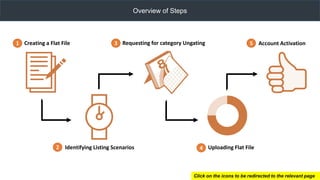
Creating a Flat File
Identifying Listing Scenarios
Requesting for category Ungating
Uploading Flat File
Account Activation1
2
3
4
5
Click on the icons to be redirected to the relevant page
Overview of Steps
1. Creating a Flat File
Step 1.1
Login to seller central website: https://sellercentral.amazon.in
Step 1.2
Hover over Inventory and click on Add Products via Upload
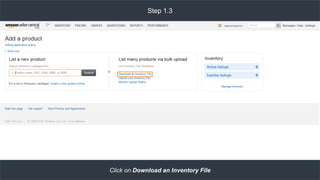
Step 1.3
Click on Download an Inventory File
Step 1.4
Scroll down & click on Category-specific inventory files
Step 1.5
Maximize the window
Click on Watches under Flat File Templates and Open File
Step 1.6
Open file  Enable Content
Start filling the fields in the Flat File by referring the next step
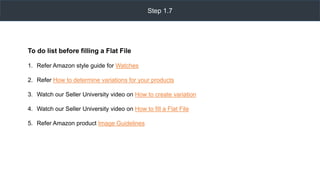
To do list before filling a Flat File
1. Refer Amazon style guide for Watches
2. Refer How to determine variations for your products
3. Watch our Seller University video on How to create variation
4. Watch our Seller University video on How to fill a Flat File
5. Refer Amazon product Image Guidelines
Step 1.7
2. Identifying Listing Scenarios
Scenario 1
(Step 2.1)
Scenario 2
(Step 2.2)
Scenario 3
(Step 2.3)
Scenario 4
(Step 2.4)
Products you want to sell,
which are already sold on
Amazon.in
1. Products you want to sell
which are not yet sold on
Amazon.in
2. But has UPC/EAN code
available on the product
1.If you are the manufacturer
or brand owner
2. And the products do not
have UPC/EAN/ISBN
(Bar code)
1. If you are a distributor or
reseller
2. And the product do not
have UPC/EAN/ISBN
(Bar code)
Click on the step number to be redirected to the relevant page
Step 2 - Listing Scenarios
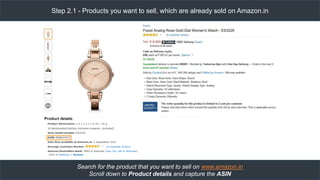
Step 2.1 - Products you want to sell, which are already sold on Amazon.in
Search for the product that you want to sell on www.amazon.in
Scroll down to Product details and capture the ASIN
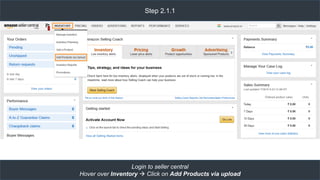
Step 2.1.1
Login to seller central
Hover over Inventory  Click on Add Products via upload
Scroll down and click on Listing Loader  Download Now  Open the file
Note: ***Watch our Seller University video on How to use a Listing Loader template
Step 2.1.2
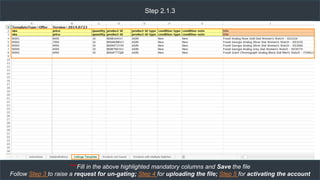
Step 2.1.3
***Fill in the above highlighted mandatory columns and Save the file
Follow Step 3 to raise a request for un-gating; Step 4 for uploading the file; Step 5 for activating the account
Step 2.2 - Products you want to sell which are not yet sold on Amazon.in, But has UPC/EAN (Bar code)
available on the product
*** Watch our Seller University video on How to fill a Flat File or follow Step 1 for creating a flat file and Save the file
Follow Step 3 to raise a request for un-gating; Step 4 for uploading the file; Step 5 for activating the account
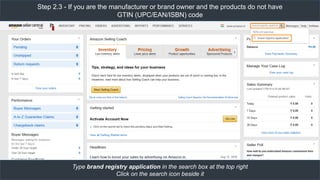
Step 2.3 - If you are the manufacturer or brand owner and the products do not have
GTIN (UPC/EAN/ISBN) code
Type brand registry application in the search box at the top right
Click on the search icon beside it
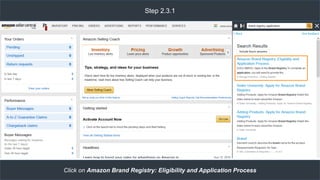
Step 2.3.1
Click on Amazon Brand Registry: Eligibility and Application Process
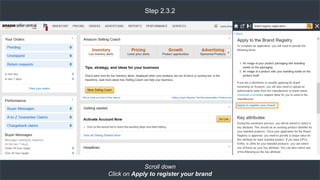
Step 2.3.2
Scroll down
Click on Apply to register your brand
Step 2.3.3
Enter and Attach Brand details Click on Submit
Note: *** Brand registry gets approved within 24-48 hours & mail notification will be sent.
Step 2.3.4
After the Brand is approved, start filling the flat file with the approved Brand name excluding Product ID and Type,
Refer video on How to fill a Flat File or follow Step 1 (creating a flat file) and Save the file
Follow Step 3 to raise a request for un-gating; Follow Step 4 for uploading the file
Follow Step 5 for activating the account
Step 2.4 - If you are a distributor or reseller and the product do not have
GTIN (UPC/EAN/ISBN) code
Type GTIN in the search box at the top right
Click on the search icon beside it
Step 2.4.1
Click on the 2nd option How to list products that do not have GTIN
Step 2.4.2
Scroll down
Click on Request approval
Step 2.4.3
Select the appropriate option from the list based on your products
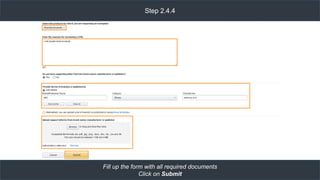
Step 2.4.4
Fill up the form with all required documents
Click on Submit
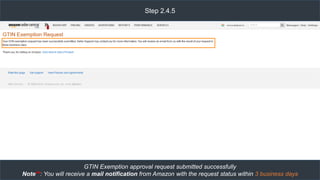
Step 2.4.5
GTIN Exemption approval request submitted successfully
Note**: You will receive a mail notification from Amazon with the request status within 3 business days
Step 2.4.6
After the GTIN exemption is approved start filling the flat file with the UPC exempted Brand name
Refer video on How to fill a Flat File or follow Step 1 (creating a flat file) and Save the file.
Follow Step 3 to raise a request for un-gating; Follow Step 4 for uploading the file
Follow Step 5 for activating the account
3. Requesting for Category Un-gating
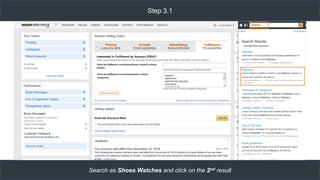
Step 3.1
Search as Shoes Watches and click on the 2nd result
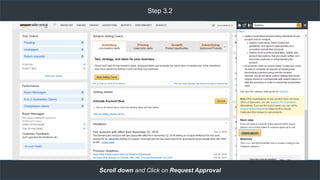
Step 3.2
Scroll down and Click on Request Approval
Step 3.3
**Attach minimum 3 Invoices which satisfies the above mentioned points
Enter Email address, Phone number and Click on Agree and Submit
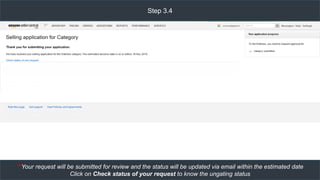
Step 3.4
**Your request will be submitted for review and the status will be updated via email within the estimated date
Click on Check status of your request to know the ungating status
4. Uploading a Flat File
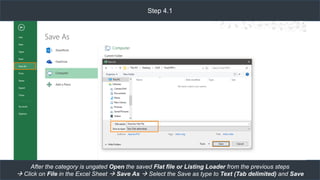
Step 4.1
After the category is ungated Open the saved Flat file or Listing Loader from the previous steps
 Click on File in the Excel Sheet  Save As  Select the Save as type to Text (Tab delimited) and Save
Step 4.2
Hover over Inventory  click on Add Products via Upload
Step 4.3
Click on Upload your Inventory file  select Inventory file under File type Browse  Check the file & Upload
Note: ***Upload the file which is saved in Text(tab delimited) format
5. Account Activation
Step 5.1
Go to Seller Central home page by clicking on Amazon Seller Central logo
Update the details under all the highlighted tabs
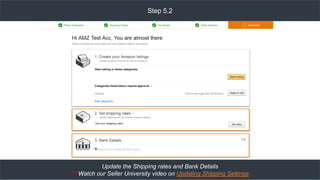
Step 5.2
Update the Shipping rates and Bank Details
***Watch our Seller University video on Updating Shipping Settings
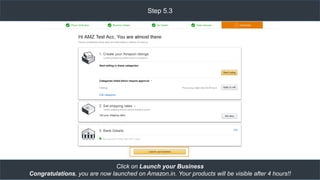
Step 5.3
Click on Launch your Business
Congratulations, you are now launched on Amazon.in. Your products will be visible after 4 hours!!
Watch our variety of educational videos on the different aspects of Selling on Amazon on the
Seller University Portal
seller university
Seller Rewards ProgramThank You

How to add products under Watches category @ Amazon

  • 2.
    "Whilst Amazon SellerServices Private Limited ("Amazon") has used reasonable endeavors to ensure that the information provided is accurate and up to date as at the time of issue, it makes no guarantee whatsoever as to the accuracy, completeness or usefulness of the information. Amazon hereby disclaims all liability to the maximum extent permitted by law and does not give any warranties (including any statutory ones) in relation to the information. It assumes no responsibility for consequences resulting from the use of the information thereof, or in any respect of the contents of such information, including, but not limited to, errors or omissions, the accuracy or reasonableness of the information provided. Information provided may be changed or updated by Amazon, without notice to the sellers, at Amazon’s sole discretion. Any copying, redistribution or republication of the information, or the content thereof, by the sellers without prior written consent of Amazon is strictly prohibited. By proceeding to use the information, the seller expressly waives any and all rights of action and/or remedies under law that he or she may have against Amazon arising out of use and/or reliance on the information.“ Legal Disclaimer
  • 3.
    seller university Seller RewardsProgramHow To List Products Under Watches Category
  • 4.
    Creating a FlatFile Identifying Listing Scenarios Requesting for category Ungating Uploading Flat File Account Activation1 2 3 4 5 Click on the icons to be redirected to the relevant page Overview of Steps
  • 5.
    1. Creating aFlat File
  • 6.
    Step 1.1 Login toseller central website: https://sellercentral.amazon.in
  • 7.
    Step 1.2 Hover overInventory and click on Add Products via Upload
  • 8.
    Step 1.3 Click onDownload an Inventory File
  • 9.
    Step 1.4 Scroll down& click on Category-specific inventory files
  • 10.
    Step 1.5 Maximize thewindow Click on Watches under Flat File Templates and Open File
  • 11.
    Step 1.6 Open file Enable Content Start filling the fields in the Flat File by referring the next step
  • 12.
    To do listbefore filling a Flat File 1. Refer Amazon style guide for Watches 2. Refer How to determine variations for your products 3. Watch our Seller University video on How to create variation 4. Watch our Seller University video on How to fill a Flat File 5. Refer Amazon product Image Guidelines Step 1.7
  • 13.
  • 14.
    Scenario 1 (Step 2.1) Scenario2 (Step 2.2) Scenario 3 (Step 2.3) Scenario 4 (Step 2.4) Products you want to sell, which are already sold on Amazon.in 1. Products you want to sell which are not yet sold on Amazon.in 2. But has UPC/EAN code available on the product 1.If you are the manufacturer or brand owner 2. And the products do not have UPC/EAN/ISBN (Bar code) 1. If you are a distributor or reseller 2. And the product do not have UPC/EAN/ISBN (Bar code) Click on the step number to be redirected to the relevant page Step 2 - Listing Scenarios
  • 15.
    Step 2.1 -Products you want to sell, which are already sold on Amazon.in Search for the product that you want to sell on www.amazon.in Scroll down to Product details and capture the ASIN
  • 16.
    Step 2.1.1 Login toseller central Hover over Inventory  Click on Add Products via upload
  • 17.
    Scroll down andclick on Listing Loader  Download Now  Open the file Note: ***Watch our Seller University video on How to use a Listing Loader template Step 2.1.2
  • 18.
    Step 2.1.3 ***Fill inthe above highlighted mandatory columns and Save the file Follow Step 3 to raise a request for un-gating; Step 4 for uploading the file; Step 5 for activating the account
  • 19.
    Step 2.2 -Products you want to sell which are not yet sold on Amazon.in, But has UPC/EAN (Bar code) available on the product *** Watch our Seller University video on How to fill a Flat File or follow Step 1 for creating a flat file and Save the file Follow Step 3 to raise a request for un-gating; Step 4 for uploading the file; Step 5 for activating the account
  • 20.
    Step 2.3 -If you are the manufacturer or brand owner and the products do not have GTIN (UPC/EAN/ISBN) code Type brand registry application in the search box at the top right Click on the search icon beside it
  • 21.
    Step 2.3.1 Click onAmazon Brand Registry: Eligibility and Application Process
  • 22.
    Step 2.3.2 Scroll down Clickon Apply to register your brand
  • 23.
    Step 2.3.3 Enter andAttach Brand details Click on Submit Note: *** Brand registry gets approved within 24-48 hours & mail notification will be sent.
  • 24.
    Step 2.3.4 After theBrand is approved, start filling the flat file with the approved Brand name excluding Product ID and Type, Refer video on How to fill a Flat File or follow Step 1 (creating a flat file) and Save the file Follow Step 3 to raise a request for un-gating; Follow Step 4 for uploading the file Follow Step 5 for activating the account
  • 25.
    Step 2.4 -If you are a distributor or reseller and the product do not have GTIN (UPC/EAN/ISBN) code Type GTIN in the search box at the top right Click on the search icon beside it
  • 26.
    Step 2.4.1 Click onthe 2nd option How to list products that do not have GTIN
  • 27.
    Step 2.4.2 Scroll down Clickon Request approval
  • 28.
    Step 2.4.3 Select theappropriate option from the list based on your products
  • 29.
    Step 2.4.4 Fill upthe form with all required documents Click on Submit
  • 30.
    Step 2.4.5 GTIN Exemptionapproval request submitted successfully Note**: You will receive a mail notification from Amazon with the request status within 3 business days
  • 31.
    Step 2.4.6 After theGTIN exemption is approved start filling the flat file with the UPC exempted Brand name Refer video on How to fill a Flat File or follow Step 1 (creating a flat file) and Save the file. Follow Step 3 to raise a request for un-gating; Follow Step 4 for uploading the file Follow Step 5 for activating the account
  • 32.
    3. Requesting forCategory Un-gating
  • 33.
    Step 3.1 Search asShoes Watches and click on the 2nd result
  • 34.
    Step 3.2 Scroll downand Click on Request Approval
  • 35.
    Step 3.3 **Attach minimum3 Invoices which satisfies the above mentioned points Enter Email address, Phone number and Click on Agree and Submit
  • 36.
    Step 3.4 **Your requestwill be submitted for review and the status will be updated via email within the estimated date Click on Check status of your request to know the ungating status
  • 37.
    4. Uploading aFlat File
  • 38.
    Step 4.1 After thecategory is ungated Open the saved Flat file or Listing Loader from the previous steps  Click on File in the Excel Sheet  Save As  Select the Save as type to Text (Tab delimited) and Save
  • 39.
    Step 4.2 Hover overInventory  click on Add Products via Upload
  • 40.
    Step 4.3 Click onUpload your Inventory file  select Inventory file under File type Browse  Check the file & Upload Note: ***Upload the file which is saved in Text(tab delimited) format
  • 41.
  • 42.
    Step 5.1 Go toSeller Central home page by clicking on Amazon Seller Central logo Update the details under all the highlighted tabs
  • 43.
    Step 5.2 Update theShipping rates and Bank Details ***Watch our Seller University video on Updating Shipping Settings
  • 44.
    Step 5.3 Click onLaunch your Business Congratulations, you are now launched on Amazon.in. Your products will be visible after 4 hours!!
  • 45.
    Watch our varietyof educational videos on the different aspects of Selling on Amazon on the Seller University Portal
  • 46.