E-Commerce
What is an E-Commerce Test?
An E-Commerce Test will validate that an
E-Commerce portal is functioning
correctly. The eValid ability to function as
a normal browser allows validating E-
Commerce portals that use cookies or
other methods to maintain browser
state throughout the test.
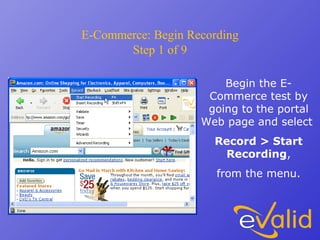
E-Commerce: Begin Recording
Step 1 of 9
Begin the E-
Commerce test by
going to the portal
Web page and select
Record > Start
Recording,
from the menu.
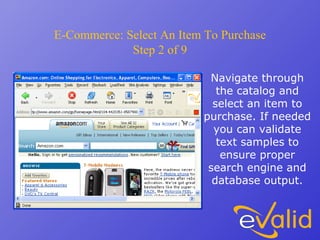
E-Commerce: Select An Item To Purchase
Step 2 of 9
Navigate through
the catalog and
select an item to
purchase. If needed
you can validate
text samples to
ensure proper
search engine and
database output.
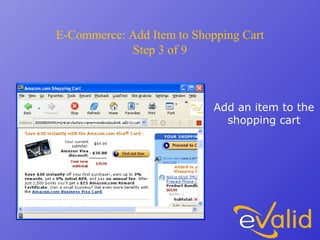
E-Commerce: Add Item to Shopping Cart
Step 3 of 9
Add an item to the
shopping cart
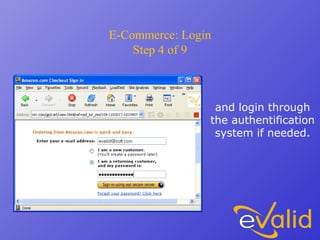
E-Commerce: Login
Step 4 of 9
and login through
the authentification
system if needed.
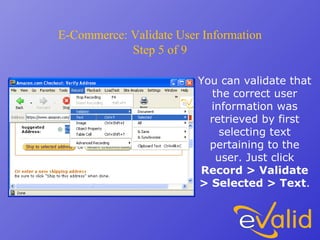
E-Commerce: Validate User Information
Step 5 of 9
You can validate that
the correct user
information was
retrieved by first
selecting text
pertaining to the
user. Just click
Record > Validate
> Selected > Text.
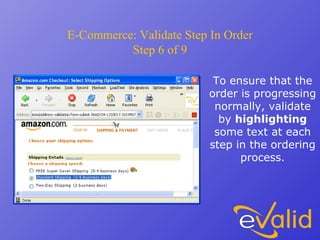
E-Commerce: Validate Step In Order
Step 6 of 9
To ensure that the
order is progressing
normally, validate
by highlighting
some text at each
step in the ordering
process.
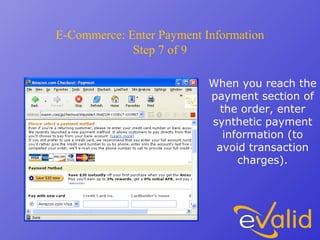
E-Commerce: Enter Payment Information
Step 7 of 9
When you reach the
payment section of
the order, enter
synthetic payment
information (to
avoid transaction
charges).
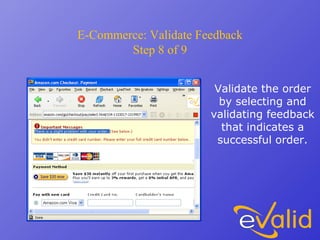
E-Commerce: Validate Feedback
Step 8 of 9
Validate the order
by selecting and
validating feedback
that indicates a
successful order.
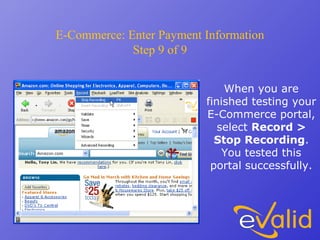
E-Commerce: Enter Payment Information
Step 9 of 9
When you are
finished testing your
E-Commerce portal,
select Record >
Stop Recording.
You tested this
portal successfully.

Ec ch4 e valid

  • 1.
  • 2.
    What is anE-Commerce Test? An E-Commerce Test will validate that an E-Commerce portal is functioning correctly. The eValid ability to function as a normal browser allows validating E- Commerce portals that use cookies or other methods to maintain browser state throughout the test.
  • 3.
    E-Commerce: Begin Recording Step1 of 9 Begin the E- Commerce test by going to the portal Web page and select Record > Start Recording, from the menu.
  • 4.
    E-Commerce: Select AnItem To Purchase Step 2 of 9 Navigate through the catalog and select an item to purchase. If needed you can validate text samples to ensure proper search engine and database output.
  • 5.
    E-Commerce: Add Itemto Shopping Cart Step 3 of 9 Add an item to the shopping cart
  • 6.
    E-Commerce: Login Step 4of 9 and login through the authentification system if needed.
  • 7.
    E-Commerce: Validate UserInformation Step 5 of 9 You can validate that the correct user information was retrieved by first selecting text pertaining to the user. Just click Record > Validate > Selected > Text.
  • 8.
    E-Commerce: Validate StepIn Order Step 6 of 9 To ensure that the order is progressing normally, validate by highlighting some text at each step in the ordering process.
  • 9.
    E-Commerce: Enter PaymentInformation Step 7 of 9 When you reach the payment section of the order, enter synthetic payment information (to avoid transaction charges).
  • 10.
    E-Commerce: Validate Feedback Step8 of 9 Validate the order by selecting and validating feedback that indicates a successful order.
  • 11.
    E-Commerce: Enter PaymentInformation Step 9 of 9 When you are finished testing your E-Commerce portal, select Record > Stop Recording. You tested this portal successfully.