Amazon Services  Title  2
"Please note that certain content / information contained in this document has been derived by
Amazon Seller Services Private Limited ("Amazon") from the tutorial video made available by the
Goods and Services Tax Network (GSTN) at http://tutorial.gst.gov.in/video/ and is for informational
purposes only. Amazon makes no guarantee whatsoever as to the accuracy, completeness or
usefulness of any information contained in the document and assumes no responsibility for
consequences resulting from the use of the information thereof. By proceeding to use the
information, you expressly waive any and all rights of action and/or remedies under law that you may
have against Amazon arising out of use and/or reliance on this information. For more information on
the Goods and Service Tax enrollment process, you may access the tutorial video (at the web-link
provided above)".
Legal Disclaimer
seller university
Submitting the Enrollment
Application
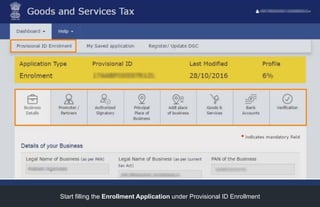
Start filling the Enrollment Application under Provisional ID Enrollment
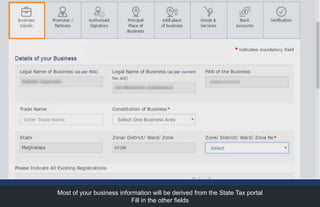
Most of your business information will be derived from the State Tax portal
Fill in the other fields
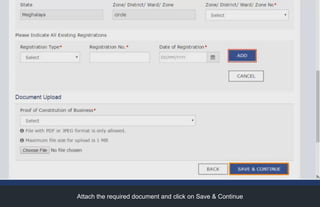
Attach the required document and click on Save & Continue
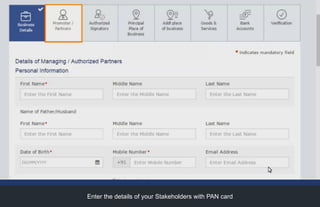
Enter the details of your Stakeholders with PAN card
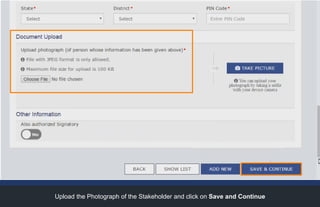
Upload the Photograph of the Stakeholder and click on Save and Continue
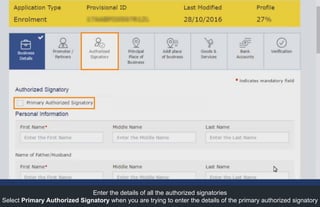
Enter the details of all the authorized signatories
Select Primary Authorized Signatory when you are trying to enter the details of the primary authorized signatory
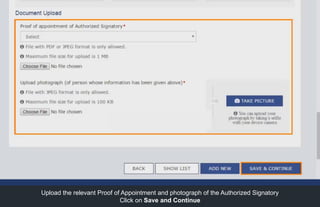
Upload the relevant Proof of Appointment and photograph of the Authorized Signatory
Click on Save and Continue
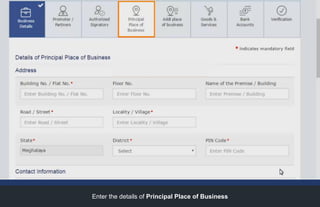
Enter the details of Principal Place of Business
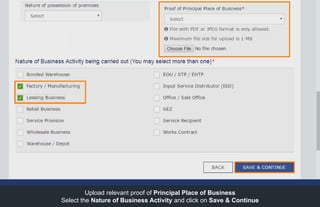
Upload relevant proof of Principal Place of Business
Select the Nature of Business Activity and click on Save & Continue
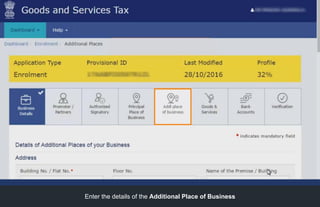
Enter the details of the Additional Place of Business
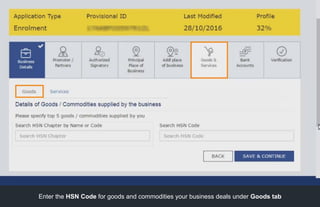
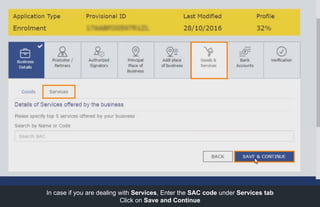
Enter the HSN Code for goods and commodities your business deals under Goods tab
In case if you are dealing with Services, Enter the SAC code under Services tab
Click on Save and Continue
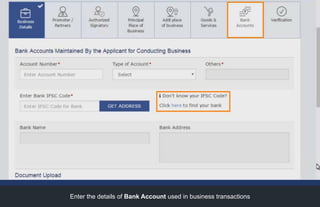
Enter the details of Bank Account used in business transactions
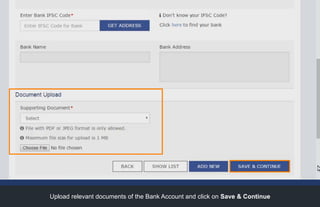
Upload relevant documents of the Bank Account and click on Save & Continue
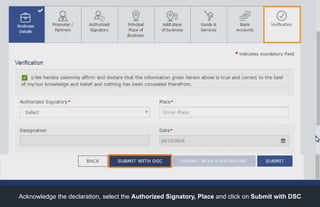
Acknowledge the declaration, select the Authorized Signatory, Place and click on Submit with DSC
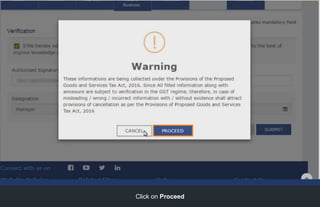
Click on Proceed
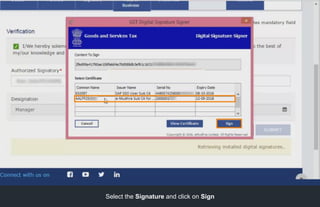
Select the Signature and click on Sign
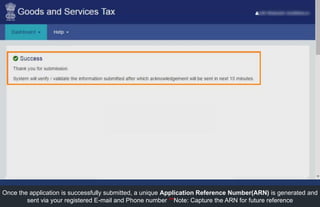
Once the application is successfully submitted, a unique Application Reference Number(ARN) is generated and
sent via your registered E-mail and Phone number **Note: Capture the ARN for future reference
seller university
Thank You

Step 4 how to submit the enrollment application(pdf) @ Amazon

  • 2.
    Amazon Services Title 2 "Please note that certain content / information contained in this document has been derived by Amazon Seller Services Private Limited ("Amazon") from the tutorial video made available by the Goods and Services Tax Network (GSTN) at http://tutorial.gst.gov.in/video/ and is for informational purposes only. Amazon makes no guarantee whatsoever as to the accuracy, completeness or usefulness of any information contained in the document and assumes no responsibility for consequences resulting from the use of the information thereof. By proceeding to use the information, you expressly waive any and all rights of action and/or remedies under law that you may have against Amazon arising out of use and/or reliance on this information. For more information on the Goods and Service Tax enrollment process, you may access the tutorial video (at the web-link provided above)". Legal Disclaimer
  • 3.
    seller university Submitting theEnrollment Application
  • 4.
    Start filling theEnrollment Application under Provisional ID Enrollment
  • 5.
    Most of yourbusiness information will be derived from the State Tax portal Fill in the other fields
  • 6.
    Attach the requireddocument and click on Save & Continue
  • 7.
    Enter the detailsof your Stakeholders with PAN card
  • 8.
    Upload the Photographof the Stakeholder and click on Save and Continue
  • 9.
    Enter the detailsof all the authorized signatories Select Primary Authorized Signatory when you are trying to enter the details of the primary authorized signatory
  • 10.
    Upload the relevantProof of Appointment and photograph of the Authorized Signatory Click on Save and Continue
  • 11.
    Enter the detailsof Principal Place of Business
  • 12.
    Upload relevant proofof Principal Place of Business Select the Nature of Business Activity and click on Save & Continue
  • 13.
    Enter the detailsof the Additional Place of Business
  • 14.
    Enter the HSNCode for goods and commodities your business deals under Goods tab
  • 15.
    In case ifyou are dealing with Services, Enter the SAC code under Services tab Click on Save and Continue
  • 16.
    Enter the detailsof Bank Account used in business transactions
  • 17.
    Upload relevant documentsof the Bank Account and click on Save & Continue
  • 18.
    Acknowledge the declaration,select the Authorized Signatory, Place and click on Submit with DSC
  • 19.
  • 20.
    Select the Signatureand click on Sign
  • 21.
    Once the applicationis successfully submitted, a unique Application Reference Number(ARN) is generated and sent via your registered E-mail and Phone number **Note: Capture the ARN for future reference
  • 22.