Copyright © 2015 VMware, Inc. All rights reserved. This product is protected by U.S. and international copyright and intellectual property laws. VMware products are covered by one or more patents listed at http://www.vmware.com/go/patents. VMware is a registered trademark or trademark of VMware, Inc., in the United States and/or other jurisdictions. All other marks and names mentioned herein may be trademarks of their respective companies.
For multiple solutions, install
agents in this order:
• VMware Tools™
• View Agent
• User Environment Manager
FlexEngine
• App Volumes Agent
If you update one agent, you
must reinstall or update the rest!
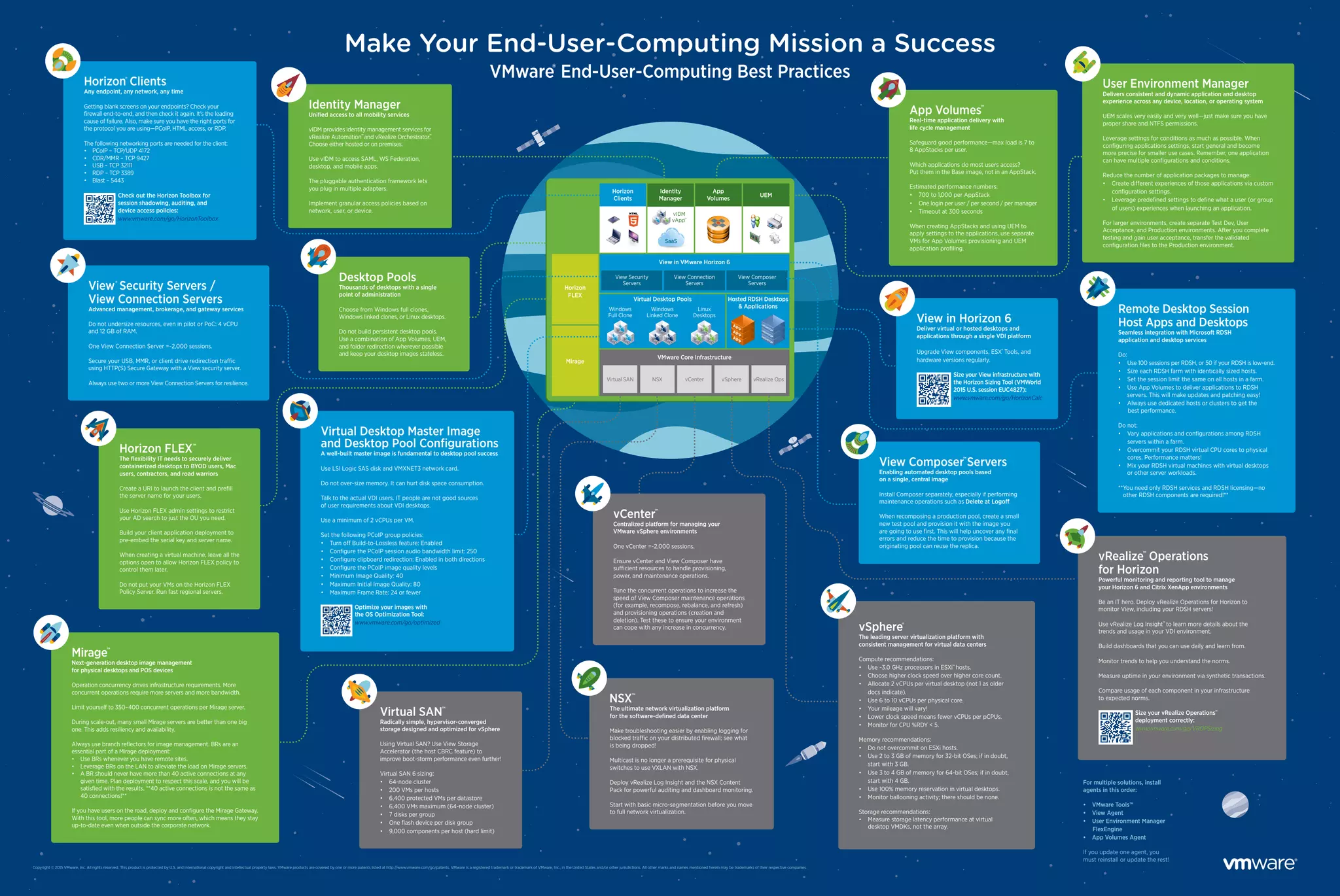
Horizon
Clients
Identity
Manager
Linux
Desktops
Windows
Linked Clone
vIDM
vApp™
SaaS
Windows
Full Clone
View Security
Servers
Virtual SAN NSX vCenter vSphere vRealize Ops
View Connection
Servers
View Composer
Servers
Horizon
FLEX
View in VMware Horizon 6
Virtual Desktop Pools Hosted RDSH Desktops
& Applications
Mirage
VMware Core Infrastructure
App
Volumes
UEM
Horizon FLEX™
The flexibility IT needs to securely deliver
containerized desktops to BYOD users, Mac
users, contractors, and road warriors
Create a URI to launch the client and prefill
the server name for your users.
Use Horizon FLEX admin settings to restrict
your AD search to just the OU you need.
Build your client application deployment to
pre-embed the serial key and server name.
When creating a virtual machine, leave all the
options open to allow Horizon FLEX policy to
control them later.
Do not put your VMs on the Horizon FLEX
Policy Server. Run fast regional servers.
View in Horizon 6
Deliver virtual or hosted desktops and
applications through a single VDI platform
Upgrade View components, ESX®
Tools, and
hardware versions regularly.
Size your View infrastructure with
the Horizon Sizing Tool (VMWorld
2015 U.S. session EUC4827):
www.vmware.com/go/HorizonCalc
User Environment Manager
Delivers consistent and dynamic application and desktop
experience across any device, location, or operating system
UEM scales very easily and very well—just make sure you have
proper share and NTFS permissions.
Leverage settings for conditions as much as possible. When
configuring applications settings, start general and become
more precise for smaller use cases. Remember, one application
can have multiple configurations and conditions.
Reduce the number of application packages to manage:
• Create different experiences of those applications via custom
configuration settings.
• Leverage predefined settings to define what a user (or group
of users) experiences when launching an application.
For larger environments, create separate Test Dev, User
Acceptance, and Production environments. After you complete
testing and gain user acceptance, transfer the validated
configuration files to the Production environment.
View®
Security Servers /
View Connection Servers
Advanced management, brokerage, and gateway services
Do not undersize resources, even in pilot or PoC: 4 vCPU
and 12 GB of RAM.
One View Connection Server =~2,000 sessions.
Secure your USB, MMR, or client drive redirection traffic
using HTTP(S) Secure Gateway with a View security server.
Always use two or more View Connection Servers for resilience.
NSX™
The ultimate network virtualization platform
for the software-defined data center
Make troubleshooting easier by enabling logging for
blocked traffic on your distributed firewall; see what
is being dropped!
Multicast is no longer a prerequisite for physical
switches to use VXLAN with NSX.
Deploy vRealize Log Insight and the NSX Content
Pack for powerful auditing and dashboard monitoring.
Start with basic micro-segmentation before you move
to full network virtualization.
vSphere®
The leading server virtualization platform with
consistent management for virtual data centers
Compute recommendations:
• Use ~3.0 GHz processors in ESXi™
hosts.
• Choose higher clock speed over higher core count.
• Allocate 2 vCPUs per virtual desktop (not 1 as older
docs indicate).
• Use 6 to 10 vCPUs per physical core.
• Your mileage will vary!
• Lower clock speed means fewer vCPUs per pCPUs.
• Monitor for CPU %RDY < 5.
Memory recommendations:
• Do not overcommit on ESXi hosts.
• Use 2 to 3 GB of memory for 32-bit OSes; if in doubt,
start with 3 GB.
• Use 3 to 4 GB of memory for 64-bit OSes; if in doubt,
start with 4 GB.
• Use 100% memory reservation in virtual desktops.
• Monitor ballooning activity; there should be none.
Storage recommendations:
• Measure storage latency performance at virtual
desktop VMDKs, not the array.
Desktop Pools
Thousands of desktops with a single
point of administration
Choose from Windows full clones,
Windows linked clones, or Linux desktops.
Do not build persistent desktop pools.
Use a combination of App Volumes, UEM,
and folder redirection wherever possible
and keep your desktop images stateless.
App Volumes™
Real-time application delivery with
life cycle management
Safeguard good performance—max load is 7 to
8 AppStacks per user.
Which applications do most users access?
Put them in the Base image, not in an AppStack.
Estimated performance numbers:
• 700 to 1,000 per AppStack
• One login per user / per second / per manager
• Timeout at 300 seconds
When creating AppStacks and using UEM to
apply settings to the applications, use separate
VMs for App Volumes provisioning and UEM
application profiling.
Virtual SAN™
Radically simple, hypervisor-converged
storage designed and optimized for vSphere
Using Virtual SAN? Use View Storage
Accelerator (the host CBRC feature) to
improve boot-storm performance even further!
Virtual SAN 6 sizing:
• 64-node cluster
• 200 VMs per hosts
• 6,400 protected VMs per datastore
• 6,400 VMs maximum (64-node cluster)
• 7 disks per group
• One flash device per disk group
• 9,000 components per host (hard limit)
Remote Desktop Session
Host Apps and Desktops
Seamless integration with Microsoft RDSH
application and desktop services
Do:
• Use 100 sessions per RDSH, or 50 if your RDSH is low-end.
• Size each RDSH farm with identically sized hosts.
• Set the session limit the same on all hosts in a farm.
• Use App Volumes to deliver applications to RDSH
servers. This will make updates and patching easy!
• Always use dedicated hosts or clusters to get the
best performance.
Do not:
• Vary applications and configurations among RDSH
servers within a farm.
• Overcommit your RDSH virtual CPU cores to physical
cores. Performance matters!
• Mix your RDSH virtual machines with virtual desktops
or other server workloads.
**You need only RDSH services and RDSH licensing—no
other RDSH components are required!**
Mirage™
Next-generation desktop image management
for physical desktops and POS devices
Operation concurrency drives infrastructure requirements. More
concurrent operations require more servers and more bandwidth.
Limit yourself to 350–400 concurrent operations per Mirage server.
During scale-out, many small Mirage servers are better than one big
one. This adds resiliency and availability.
Always use branch reflectors for image management. BRs are an
essential part of a Mirage deployment:
• Use BRs whenever you have remote sites.
• Leverage BRs on the LAN to alleviate the load on Mirage servers.
• A BR should never have more than 40 active connections at any
given time. Plan deployment to respect this scale, and you will be
satisfied with the results. **40 active connections is not the same as
40 connections!**
If you have users on the road, deploy and configure the Mirage Gateway.
With this tool, more people can sync more often, which means they stay
up-to-date even when outside the corporate network.
Identity Manager
Unified access to all mobility services
vIDM provides identity management services for
vRealize Automation™
and vRealize Orchestrator™
.
Choose either hosted or on premises.
Use vIDM to access SAML, WS Federation,
desktop, and mobile apps.
The pluggable authentication framework lets
you plug in multiple adapters.
Implement granular access policies based on
network, user, or device.
vCenter™
Centralized platform for managing your
VMware vSphere environments
One vCenter =~2,000 sessions.
Ensure vCenter and View Composer have
sufficient resources to handle provisioning,
power, and maintenance operations.
Tune the concurrent operations to increase the
speed of View Composer maintenance operations
(for example, recompose, rebalance, and refresh)
and provisioning operations (creation and
deletion). Test these to ensure your environment
can cope with any increase in concurrency.
Horizon®
Clients
Any endpoint, any network, any time
Getting blank screens on your endpoints? Check your
firewall end-to-end, and then check it again. It’s the leading
cause of failure. Also, make sure you have the right ports for
the protocol you are using—PCoIP, HTML access, or RDP.
The following networking ports are needed for the client:
• PCoIP – TCP/UDP 4172
• CDR/MMR – TCP 9427
• USB – TCP 32111
• RDP – TCP 3389
• Blast – 5443
Check out the Horizon Toolbox for
session shadowing, auditing, and
device access policies:
www.vmware.com/go/HorizonToolbox
Virtual Desktop Master Image
and Desktop Pool Configurations
A well-built master image is fundamental to desktop pool success
Use LSI Logic SAS disk and VMXNET3 network card.
Do not over-size memory. It can hurt disk space consumption.
Talk to the actual VDI users. IT people are not good sources
of user requirements about VDI desktops.
Use a minimum of 2 vCPUs per VM.
Set the following PCoIP group policies:
• Turn off Build-to-Lossless feature: Enabled
• Configure the PCoIP session audio bandwidth limit: 250
• Configure clipboard redirection: Enabled in both directions
• Configure the PCoIP image quality levels
• Minimum Image Quality: 40
• Maximum Initial Image Quality: 80
• Maximum Frame Rate: 24 or fewer
Optimize your images with
the OS Optimization Tool:
www.vmware.com/go/optimized
vRealize™
Operations
for Horizon
Powerful monitoring and reporting tool to manage
your Horizon 6 and Citrix XenApp environments
Be an IT hero. Deploy vRealize Operations for Horizon to
monitor View, including your RDSH servers!
Use vRealize Log Insight™
to learn more details about the
trends and usage in your VDI environment.
Build dashboards that you can use daily and learn from.
Monitor trends to help you understand the norms.
Measure uptime in your environment via synthetic transactions.
Compare usage of each component in your infrastructure
to expected norms.
Size your vRealize Operations™
deployment correctly:
www.vmware.com/go/VROPSizing
View Composer™
Servers
Enabling automated desktop pools based
on a single, central image
Install Composer separately, especially if performing
maintenance operations such as Delete at Logoff.
When recomposing a production pool, create a small
new test pool and provision it with the image you
are going to use first. This will help uncover any final
errors and reduce the time to provision because the
originating pool can reuse the replica.
VMware®
End-User-Computing Best Practices
Make Your End-User-Computing Mission a Success

VMware End-User-Computing Best Practices Poster

  • 1.
    Copyright © 2015VMware, Inc. All rights reserved. This product is protected by U.S. and international copyright and intellectual property laws. VMware products are covered by one or more patents listed at http://www.vmware.com/go/patents. VMware is a registered trademark or trademark of VMware, Inc., in the United States and/or other jurisdictions. All other marks and names mentioned herein may be trademarks of their respective companies. For multiple solutions, install agents in this order: • VMware Tools™ • View Agent • User Environment Manager FlexEngine • App Volumes Agent If you update one agent, you must reinstall or update the rest! Horizon Clients Identity Manager Linux Desktops Windows Linked Clone vIDM vApp™ SaaS Windows Full Clone View Security Servers Virtual SAN NSX vCenter vSphere vRealize Ops View Connection Servers View Composer Servers Horizon FLEX View in VMware Horizon 6 Virtual Desktop Pools Hosted RDSH Desktops & Applications Mirage VMware Core Infrastructure App Volumes UEM Horizon FLEX™ The flexibility IT needs to securely deliver containerized desktops to BYOD users, Mac users, contractors, and road warriors Create a URI to launch the client and prefill the server name for your users. Use Horizon FLEX admin settings to restrict your AD search to just the OU you need. Build your client application deployment to pre-embed the serial key and server name. When creating a virtual machine, leave all the options open to allow Horizon FLEX policy to control them later. Do not put your VMs on the Horizon FLEX Policy Server. Run fast regional servers. View in Horizon 6 Deliver virtual or hosted desktops and applications through a single VDI platform Upgrade View components, ESX® Tools, and hardware versions regularly. Size your View infrastructure with the Horizon Sizing Tool (VMWorld 2015 U.S. session EUC4827): www.vmware.com/go/HorizonCalc User Environment Manager Delivers consistent and dynamic application and desktop experience across any device, location, or operating system UEM scales very easily and very well—just make sure you have proper share and NTFS permissions. Leverage settings for conditions as much as possible. When configuring applications settings, start general and become more precise for smaller use cases. Remember, one application can have multiple configurations and conditions. Reduce the number of application packages to manage: • Create different experiences of those applications via custom configuration settings. • Leverage predefined settings to define what a user (or group of users) experiences when launching an application. For larger environments, create separate Test Dev, User Acceptance, and Production environments. After you complete testing and gain user acceptance, transfer the validated configuration files to the Production environment. View® Security Servers / View Connection Servers Advanced management, brokerage, and gateway services Do not undersize resources, even in pilot or PoC: 4 vCPU and 12 GB of RAM. One View Connection Server =~2,000 sessions. Secure your USB, MMR, or client drive redirection traffic using HTTP(S) Secure Gateway with a View security server. Always use two or more View Connection Servers for resilience. NSX™ The ultimate network virtualization platform for the software-defined data center Make troubleshooting easier by enabling logging for blocked traffic on your distributed firewall; see what is being dropped! Multicast is no longer a prerequisite for physical switches to use VXLAN with NSX. Deploy vRealize Log Insight and the NSX Content Pack for powerful auditing and dashboard monitoring. Start with basic micro-segmentation before you move to full network virtualization. vSphere® The leading server virtualization platform with consistent management for virtual data centers Compute recommendations: • Use ~3.0 GHz processors in ESXi™ hosts. • Choose higher clock speed over higher core count. • Allocate 2 vCPUs per virtual desktop (not 1 as older docs indicate). • Use 6 to 10 vCPUs per physical core. • Your mileage will vary! • Lower clock speed means fewer vCPUs per pCPUs. • Monitor for CPU %RDY < 5. Memory recommendations: • Do not overcommit on ESXi hosts. • Use 2 to 3 GB of memory for 32-bit OSes; if in doubt, start with 3 GB. • Use 3 to 4 GB of memory for 64-bit OSes; if in doubt, start with 4 GB. • Use 100% memory reservation in virtual desktops. • Monitor ballooning activity; there should be none. Storage recommendations: • Measure storage latency performance at virtual desktop VMDKs, not the array. Desktop Pools Thousands of desktops with a single point of administration Choose from Windows full clones, Windows linked clones, or Linux desktops. Do not build persistent desktop pools. Use a combination of App Volumes, UEM, and folder redirection wherever possible and keep your desktop images stateless. App Volumes™ Real-time application delivery with life cycle management Safeguard good performance—max load is 7 to 8 AppStacks per user. Which applications do most users access? Put them in the Base image, not in an AppStack. Estimated performance numbers: • 700 to 1,000 per AppStack • One login per user / per second / per manager • Timeout at 300 seconds When creating AppStacks and using UEM to apply settings to the applications, use separate VMs for App Volumes provisioning and UEM application profiling. Virtual SAN™ Radically simple, hypervisor-converged storage designed and optimized for vSphere Using Virtual SAN? Use View Storage Accelerator (the host CBRC feature) to improve boot-storm performance even further! Virtual SAN 6 sizing: • 64-node cluster • 200 VMs per hosts • 6,400 protected VMs per datastore • 6,400 VMs maximum (64-node cluster) • 7 disks per group • One flash device per disk group • 9,000 components per host (hard limit) Remote Desktop Session Host Apps and Desktops Seamless integration with Microsoft RDSH application and desktop services Do: • Use 100 sessions per RDSH, or 50 if your RDSH is low-end. • Size each RDSH farm with identically sized hosts. • Set the session limit the same on all hosts in a farm. • Use App Volumes to deliver applications to RDSH servers. This will make updates and patching easy! • Always use dedicated hosts or clusters to get the best performance. Do not: • Vary applications and configurations among RDSH servers within a farm. • Overcommit your RDSH virtual CPU cores to physical cores. Performance matters! • Mix your RDSH virtual machines with virtual desktops or other server workloads. **You need only RDSH services and RDSH licensing—no other RDSH components are required!** Mirage™ Next-generation desktop image management for physical desktops and POS devices Operation concurrency drives infrastructure requirements. More concurrent operations require more servers and more bandwidth. Limit yourself to 350–400 concurrent operations per Mirage server. During scale-out, many small Mirage servers are better than one big one. This adds resiliency and availability. Always use branch reflectors for image management. BRs are an essential part of a Mirage deployment: • Use BRs whenever you have remote sites. • Leverage BRs on the LAN to alleviate the load on Mirage servers. • A BR should never have more than 40 active connections at any given time. Plan deployment to respect this scale, and you will be satisfied with the results. **40 active connections is not the same as 40 connections!** If you have users on the road, deploy and configure the Mirage Gateway. With this tool, more people can sync more often, which means they stay up-to-date even when outside the corporate network. Identity Manager Unified access to all mobility services vIDM provides identity management services for vRealize Automation™ and vRealize Orchestrator™ . Choose either hosted or on premises. Use vIDM to access SAML, WS Federation, desktop, and mobile apps. The pluggable authentication framework lets you plug in multiple adapters. Implement granular access policies based on network, user, or device. vCenter™ Centralized platform for managing your VMware vSphere environments One vCenter =~2,000 sessions. Ensure vCenter and View Composer have sufficient resources to handle provisioning, power, and maintenance operations. Tune the concurrent operations to increase the speed of View Composer maintenance operations (for example, recompose, rebalance, and refresh) and provisioning operations (creation and deletion). Test these to ensure your environment can cope with any increase in concurrency. Horizon® Clients Any endpoint, any network, any time Getting blank screens on your endpoints? Check your firewall end-to-end, and then check it again. It’s the leading cause of failure. Also, make sure you have the right ports for the protocol you are using—PCoIP, HTML access, or RDP. The following networking ports are needed for the client: • PCoIP – TCP/UDP 4172 • CDR/MMR – TCP 9427 • USB – TCP 32111 • RDP – TCP 3389 • Blast – 5443 Check out the Horizon Toolbox for session shadowing, auditing, and device access policies: www.vmware.com/go/HorizonToolbox Virtual Desktop Master Image and Desktop Pool Configurations A well-built master image is fundamental to desktop pool success Use LSI Logic SAS disk and VMXNET3 network card. Do not over-size memory. It can hurt disk space consumption. Talk to the actual VDI users. IT people are not good sources of user requirements about VDI desktops. Use a minimum of 2 vCPUs per VM. Set the following PCoIP group policies: • Turn off Build-to-Lossless feature: Enabled • Configure the PCoIP session audio bandwidth limit: 250 • Configure clipboard redirection: Enabled in both directions • Configure the PCoIP image quality levels • Minimum Image Quality: 40 • Maximum Initial Image Quality: 80 • Maximum Frame Rate: 24 or fewer Optimize your images with the OS Optimization Tool: www.vmware.com/go/optimized vRealize™ Operations for Horizon Powerful monitoring and reporting tool to manage your Horizon 6 and Citrix XenApp environments Be an IT hero. Deploy vRealize Operations for Horizon to monitor View, including your RDSH servers! Use vRealize Log Insight™ to learn more details about the trends and usage in your VDI environment. Build dashboards that you can use daily and learn from. Monitor trends to help you understand the norms. Measure uptime in your environment via synthetic transactions. Compare usage of each component in your infrastructure to expected norms. Size your vRealize Operations™ deployment correctly: www.vmware.com/go/VROPSizing View Composer™ Servers Enabling automated desktop pools based on a single, central image Install Composer separately, especially if performing maintenance operations such as Delete at Logoff. When recomposing a production pool, create a small new test pool and provision it with the image you are going to use first. This will help uncover any final errors and reduce the time to provision because the originating pool can reuse the replica. VMware® End-User-Computing Best Practices Make Your End-User-Computing Mission a Success