Getting Started with Vivado
Tutorial 1
1
2
3
4
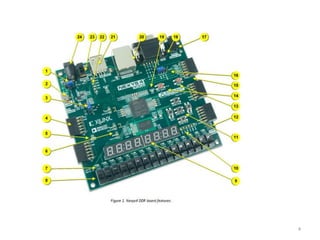
Callout Component Description
1 Power select jumper and battery header
2 Shared UART/ JTAG USB port
3 External configuration jumper (SD / USB)
4 Pmod port(s)
5 Microphone
6 Power supply test point(s)
7 LEDs (16)
8 Slide switches
9 Eight digit 7-seg display
10 JTAG port for (optional) external cable
11 Five pushbuttons
12 Temperature sensor
13 FPGA configuration reset button
14 CPU reset button (for soft cores)
15 Analog signal Pmod port (XADC)
16 Programming mode jumper
17 Audio connector
18 VGA connector
19 FPGA programming done LED
20 Ethernet connector
21 USB host connector
22 PIC24 programming port (factory use)
23 Power switch
24 Power jack
5
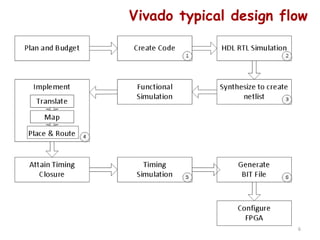
Vivado typical design flow
6
Objectives
After completing this tutorial, you will be able to:
• Create a Vivado project sourcing HDL model(s) and targeting a
specific FPGA device located on the Nexys4 DDR board
• Use the provided user constraint file (XDC) to constrain pin
locations
• Synthesize and implement the design
• Generate the bitstream
• Download the design and verify the functionality on board
7
Task
•Implement a simple 2-input logic AND gate with VHDL
•Test design on FPGA development board. Connect inputs to
Push Buttons or Switches and observe output on an LED. For pin
numbers check either manual or the board itself (written in
parenthesis besides each component).
1. Starting Vivado
Open Vivado via the start menu or desktop shortcut
8
2. The Start Page
This is the screen Vivado's start-up screen. The different options available are described
below using the image as a guide.
9
Create New Project: This button will open the New Project wizard. This wizard steps
the user through creating a new project.
Open Project: This button will open a file browser. Navigate to the desired Xilinx
Project (.xpr) file and click Open to open the project in Vivado.
Open Example Project: This will guide the user through creating a new project based
on an example project. These projects will not work on all devices. Many Digilent
example projects are instead released on Github, and linked to through the target
FPGA System Board's Resource Center, which can be found through the list of List of
Digilent FPGA System Boards.
Open Hardware Manager: This will open the Hardware Manager without an
associated project. If connecting to and programming a device is all that the user
wants to do, then this is the button to use.
10
3. Creating a New Project
3.1
From the start page, click the Create New Project button to start the New Project Wizard.
11
12
3.2
The text in this dialog describes the steps that will be taken to create a project. Click Next to continue.
13
3.3
The first page is used to set the name of the project. Vivado will use this name when generating its folder
structure. Do NOT use spaces in the project name or location path. This will cause problems with Vivado.
14
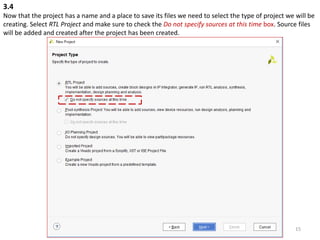
3.4
Now that the project has a name and a place to save its files we need to select the type of project we will be
creating. Select RTL Project and make sure to check the Do not specify sources at this time box. Source files
will be added and created after the project has been created.
15
3.5. The target device choosing (xc7100csg324-1)
16
3.6
The next section gives a summary of the options selected throughout the wizard. Verify that the
information looks correct and click Finish
17
18
Getting Started with Vivado_V
19
4. The Flow Navigator
The Flow Navigator is the most important pane of the
main Vivado window to know. It is how a user
navigates between different Vivado tools.
The Navigator is broken into seven sections:
Project Manager: Allows for quick access to project
settings, adding sources, language templates, and the
IP catalog.
IP Integrator: Tools for creating complex designs in a
graphical user interface, rather than by writing large
source files.
Simulation: Allows a developer to verify the output of
their deisgn prior to programming the target device.
RTL Analysis: Lets the developer see how the tools are
interpreting their code.
Synthesis: Gives access to Synthesis settings and post-
synthesis reports.
Implementation: Gives access to Implementation
settings and post-implementation reports.
Program and Debug: Gives access to settings for
bitstream generation and tools to program FPGAs.
20
5. The Project Manager
This tool is where most development will occur and is the initial tool open after creating a new project.
The Project Manager consists of four panes, Sources, Properties, Results, and the Workspace, described
below.
21
22
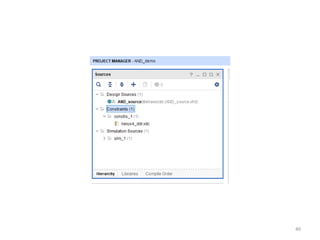
Sources Pane
The Sources pane contains the project hierarchy and is used for opening up files. The folder structure is
organized such that the HDL files are kept under the Design Sources folder, constraints are kept under the
Constraints folder, and simulation files are kept under the Simulation Sources folder. Files can be opened
in the Workspace by double-clicking on the corresponding entry in the Sources pane. Sources can also be
added by either right clicking the folder to add the file to and selecting Add Sources or by clicking the Add
Sources button ( ).
23
The Properties pane allows for viewing and editing of file properties. When a file is
selected in the Sources pane its properties are shown in here. This pane can usually
be ignored.
24
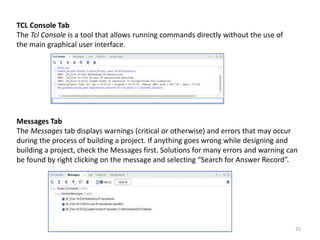
TCL Console Tab
The Tcl Console is a tool that allows running commands directly without the use of
the main graphical user interface.
Messages Tab
The Messages tab displays warnings (critical or otherwise) and errors that may occur
during the process of building a project. If anything goes wrong while designing and
building a project, check the Messages first. Solutions for many errors and warning can
be found by right clicking on the message and selecting “Search for Answer Record”.
25
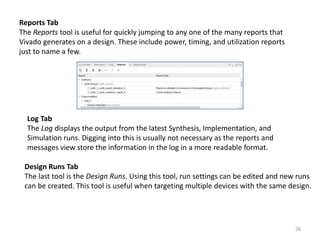
Reports Tab
The Reports tool is useful for quickly jumping to any one of the many reports that
Vivado generates on a design. These include power, timing, and utilization reports
just to name a few.
Log Tab
The Log displays the output from the latest Synthesis, Implementation, and
Simulation runs. Digging into this is usually not necessary as the reports and
messages view store the information in the log in a more readable format.
Design Runs Tab
The last tool is the Design Runs. Using this tool, run settings can be edited and new runs
can be created. This tool is useful when targeting multiple devices with the same design.
26
Workspace Pane
The most important pane in the Project Manager is the Workspace. The Workspace is
where reports are opened for viewing and source files are opened for editing. Initially the
Workspace displays the Project Summary which show some basic information from some
of the reports.
27
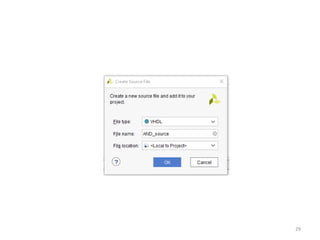
6. Creating a VHDL Source File
6.1 In the Project Manager section of the Flow Navigator, click the button again. Select Add or create design
sources then click Next.
28
29
30
31
32
33
34
35
36
1
2
37
7. Adding a Constraint File
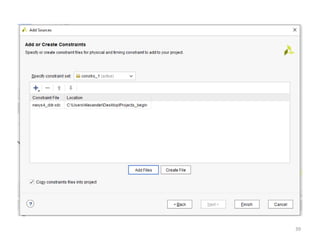
In order to connect the inputs and outputs of an HDL design with the physical pins of the
FPGA, a constraint file needs to be added or created. Digilent has produced a Xilinx
Design Constraint (XDC) file for each board. Download the master XDC file.
7.1
In the Project Manager section of the Flow Navigator, click the button. In the wizard that
pops up, select Add or create constraints then click Next.
38
39
40
41
8. Synthesis, Implementation, and Bitstream Generation
In order to create a file that can be used to program the target board, each stage of the
“compilation pipeline” needs to be run.
This starts with Synthesis. Synthesis turns HDL files into a transistor level description
based on timing and I/O constraints. To run Synthesis click either in the toolbar or in
the Flow Navigator. The output of Synthesis is then passed to Implementation.
Implementation has several steps. The steps that are always run are Opt Design
(Optimize the design to fit on the target FPGA), Place Design (Lay out the design in the
target FPGA fabric), and Route Design (Route signals through the fabric). To run
Implementation click either in the toolbar or in the Flow Navigator. This output is then
passed on to the Bitstream Generator.
The Bitstream Generator generates the final outputs needed for programming the
FPGA. To run Bitstream Generation click either in the toolbar or in the Flow Navigator.
With no settings changed, the generator will create a '.bit' file, which can be used to
program the design onto the target FPGA system board.
42
Bitstream Generation Completed Pop-Up
Once the bitstream has been generated, a pop-up will appear asking what Vivado
should do next. The options in this pop-up allow the user to do several different
things:
Open Implemented Design takes the user to a tool where they can view how the
project will be programmed into the fabric of the target FPGA chip.
View Reports takes the user to a list of many different reports and statistics about
how the project was laid out, including information about how fast the design can
potentially be run, and how much of the FPGA will be used to run the design.
Open Hardware Manager takes the user to a tool that can be used to program the
generated bitstream onto a connected FPGA board.
Generate Memory Configuration File lets the user create a file that can be used to
program a non-volatile memory part on an FPGA system board, so that the FPGA
can be automatically programmed each time that the board is powered on.
For the purposes of this guide, select Open Hardware Manager, then click OK.
43
44
45
46
9. The Hardware Manager
First, plug the target FPGA system board into the computer running Vivado using a
MicroUSB cable capable of transferring data. With the board plugged in, it needs to
be connected to the Vivado Hardware Server. There are two ways to do this through
the Vivado Hardware Manager:
9.1(A) Open New Hardware Target
9.1(A).1
The first method is to manually open the target. This is required if the hardware is
connected to a computer other than the one running Vivado (outside of the scope of
this guide). To get to the Open Hardware Target wizard either:
Open the Hardware Manager and click the link in the green banner at the top of the
screen.
Or click the button in the Flow Navigator under .
From the drop-down that opens from either button, click .
Once the wizard opens, click Next.
9.1(A).2
The next screen asks if the hardware server is local or remote. If the board is
connected to the host computer choose local, if it is connected to another machine
choose remote and fill in the Host Name and Port fields.
Click Next to continue.
47
9.1(A).3
This screen gives a list of devices connected to the hardware server. If there is only one
connected it should be the only device shown. If there are multiple connected devices,
determine the serial number of the device to connect to and find it in the list.
Click Next to continue.
9.1(A).4
The final screen shows a summary of the options selected in the wizard. Verify the
information and click Finish. The board is now connected to the hardware manager.
9.1(B) Auto-Connect
The second method is to automatically open the target. To get to the button either:
Open the Hardware Manager and click the link in the green banner at the top of the
window
Or click the button in the Flow Navigator under .
From the drop-down that opens from either button click . Vivado will attempt to find a
hardware server running on the local machine and will connect to the device from the
server.
48
9.2 Programming
To program the device with the bit file generated earlier, either click the link in the green
banner at the top of the window or click the button in the Flow Navigator under . From
the drop-down that opens, select the device to program (Example: ) and the following
window will open:
The Bitstream File field should be automatically filled in with the bit file generated earlier.
If not, click the button at the right end of the field and navigate to
<Project Directory>/<Project Name>.runs/impl_1/ and select the bit file (Example: ). Now
click Program. This will connect to the board, clear the current configuration, and program
using the new bit file. 49
Structure of six different gates
Tutorial Lab.
a => sw(1),
b => sw(0),
z => ld
50
Tutorial Lab
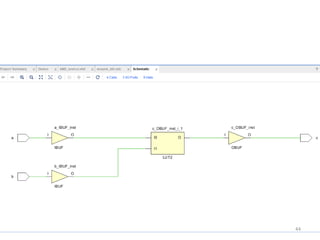
Schematic after synthesis
51
Schematic – elaborated design
52
library IEEE;
use IEEE.STD_LOGIC_1164.ALL;
entity gates2 is
Port ( a : in STD_LOGIC;
b : in STD_LOGIC;
z : out STD_LOGIC_VECTOR (5 downto 0));
end gates2;
architecture Behavioral of gates2 is
begin
z(5) <= a and b;
z(4) <= a nand b;
z(3) <= a or b;
z(2) <= a nor b;
z(1) <= a xor b;
z(0) <= a xnor b;
end Behavioral;
53
library IEEE;
use IEEE.STD_LOGIC_1164.ALL;
entity gates2_top is
Port ( sw : in STD_LOGIC_VECTOR (1 downto 0);
ld : out STD_LOGIC_VECTOR (5 downto 0));
end gates2_top;
architecture Behavioral of gates2_top is
component gates2
port(
a : in STD_LOGIC;
b : in STD_LOGIC;
z : out STD_LOGIC_VECTOR(5 downto 0)
);
end component;
begin
c1 : gates2
port map(
a => sw(1),
b => sw(0),
z => ld
);
end Behavioral;
gates2_top
54

verilog basics.ppt

  • 1.
    Getting Started withVivado Tutorial 1 1
  • 2.
  • 3.
  • 4.
  • 5.
    Callout Component Description 1Power select jumper and battery header 2 Shared UART/ JTAG USB port 3 External configuration jumper (SD / USB) 4 Pmod port(s) 5 Microphone 6 Power supply test point(s) 7 LEDs (16) 8 Slide switches 9 Eight digit 7-seg display 10 JTAG port for (optional) external cable 11 Five pushbuttons 12 Temperature sensor 13 FPGA configuration reset button 14 CPU reset button (for soft cores) 15 Analog signal Pmod port (XADC) 16 Programming mode jumper 17 Audio connector 18 VGA connector 19 FPGA programming done LED 20 Ethernet connector 21 USB host connector 22 PIC24 programming port (factory use) 23 Power switch 24 Power jack 5
  • 6.
  • 7.
    Objectives After completing thistutorial, you will be able to: • Create a Vivado project sourcing HDL model(s) and targeting a specific FPGA device located on the Nexys4 DDR board • Use the provided user constraint file (XDC) to constrain pin locations • Synthesize and implement the design • Generate the bitstream • Download the design and verify the functionality on board 7 Task •Implement a simple 2-input logic AND gate with VHDL •Test design on FPGA development board. Connect inputs to Push Buttons or Switches and observe output on an LED. For pin numbers check either manual or the board itself (written in parenthesis besides each component).
  • 8.
    1. Starting Vivado OpenVivado via the start menu or desktop shortcut 8
  • 9.
    2. The StartPage This is the screen Vivado's start-up screen. The different options available are described below using the image as a guide. 9
  • 10.
    Create New Project:This button will open the New Project wizard. This wizard steps the user through creating a new project. Open Project: This button will open a file browser. Navigate to the desired Xilinx Project (.xpr) file and click Open to open the project in Vivado. Open Example Project: This will guide the user through creating a new project based on an example project. These projects will not work on all devices. Many Digilent example projects are instead released on Github, and linked to through the target FPGA System Board's Resource Center, which can be found through the list of List of Digilent FPGA System Boards. Open Hardware Manager: This will open the Hardware Manager without an associated project. If connecting to and programming a device is all that the user wants to do, then this is the button to use. 10
  • 11.
    3. Creating aNew Project 3.1 From the start page, click the Create New Project button to start the New Project Wizard. 11
  • 12.
  • 13.
    3.2 The text inthis dialog describes the steps that will be taken to create a project. Click Next to continue. 13
  • 14.
    3.3 The first pageis used to set the name of the project. Vivado will use this name when generating its folder structure. Do NOT use spaces in the project name or location path. This will cause problems with Vivado. 14
  • 15.
    3.4 Now that theproject has a name and a place to save its files we need to select the type of project we will be creating. Select RTL Project and make sure to check the Do not specify sources at this time box. Source files will be added and created after the project has been created. 15
  • 16.
    3.5. The targetdevice choosing (xc7100csg324-1) 16
  • 17.
    3.6 The next sectiongives a summary of the options selected throughout the wizard. Verify that the information looks correct and click Finish 17
  • 18.
  • 19.
  • 20.
    4. The FlowNavigator The Flow Navigator is the most important pane of the main Vivado window to know. It is how a user navigates between different Vivado tools. The Navigator is broken into seven sections: Project Manager: Allows for quick access to project settings, adding sources, language templates, and the IP catalog. IP Integrator: Tools for creating complex designs in a graphical user interface, rather than by writing large source files. Simulation: Allows a developer to verify the output of their deisgn prior to programming the target device. RTL Analysis: Lets the developer see how the tools are interpreting their code. Synthesis: Gives access to Synthesis settings and post- synthesis reports. Implementation: Gives access to Implementation settings and post-implementation reports. Program and Debug: Gives access to settings for bitstream generation and tools to program FPGAs. 20
  • 21.
    5. The ProjectManager This tool is where most development will occur and is the initial tool open after creating a new project. The Project Manager consists of four panes, Sources, Properties, Results, and the Workspace, described below. 21
  • 22.
  • 23.
    Sources Pane The Sourcespane contains the project hierarchy and is used for opening up files. The folder structure is organized such that the HDL files are kept under the Design Sources folder, constraints are kept under the Constraints folder, and simulation files are kept under the Simulation Sources folder. Files can be opened in the Workspace by double-clicking on the corresponding entry in the Sources pane. Sources can also be added by either right clicking the folder to add the file to and selecting Add Sources or by clicking the Add Sources button ( ). 23
  • 24.
    The Properties paneallows for viewing and editing of file properties. When a file is selected in the Sources pane its properties are shown in here. This pane can usually be ignored. 24
  • 25.
    TCL Console Tab TheTcl Console is a tool that allows running commands directly without the use of the main graphical user interface. Messages Tab The Messages tab displays warnings (critical or otherwise) and errors that may occur during the process of building a project. If anything goes wrong while designing and building a project, check the Messages first. Solutions for many errors and warning can be found by right clicking on the message and selecting “Search for Answer Record”. 25
  • 26.
    Reports Tab The Reportstool is useful for quickly jumping to any one of the many reports that Vivado generates on a design. These include power, timing, and utilization reports just to name a few. Log Tab The Log displays the output from the latest Synthesis, Implementation, and Simulation runs. Digging into this is usually not necessary as the reports and messages view store the information in the log in a more readable format. Design Runs Tab The last tool is the Design Runs. Using this tool, run settings can be edited and new runs can be created. This tool is useful when targeting multiple devices with the same design. 26
  • 27.
    Workspace Pane The mostimportant pane in the Project Manager is the Workspace. The Workspace is where reports are opened for viewing and source files are opened for editing. Initially the Workspace displays the Project Summary which show some basic information from some of the reports. 27
  • 28.
    6. Creating aVHDL Source File 6.1 In the Project Manager section of the Flow Navigator, click the button again. Select Add or create design sources then click Next. 28
  • 29.
  • 30.
  • 31.
  • 32.
  • 33.
  • 34.
  • 35.
  • 36.
  • 37.
  • 38.
    7. Adding aConstraint File In order to connect the inputs and outputs of an HDL design with the physical pins of the FPGA, a constraint file needs to be added or created. Digilent has produced a Xilinx Design Constraint (XDC) file for each board. Download the master XDC file. 7.1 In the Project Manager section of the Flow Navigator, click the button. In the wizard that pops up, select Add or create constraints then click Next. 38
  • 39.
  • 40.
  • 41.
  • 42.
    8. Synthesis, Implementation,and Bitstream Generation In order to create a file that can be used to program the target board, each stage of the “compilation pipeline” needs to be run. This starts with Synthesis. Synthesis turns HDL files into a transistor level description based on timing and I/O constraints. To run Synthesis click either in the toolbar or in the Flow Navigator. The output of Synthesis is then passed to Implementation. Implementation has several steps. The steps that are always run are Opt Design (Optimize the design to fit on the target FPGA), Place Design (Lay out the design in the target FPGA fabric), and Route Design (Route signals through the fabric). To run Implementation click either in the toolbar or in the Flow Navigator. This output is then passed on to the Bitstream Generator. The Bitstream Generator generates the final outputs needed for programming the FPGA. To run Bitstream Generation click either in the toolbar or in the Flow Navigator. With no settings changed, the generator will create a '.bit' file, which can be used to program the design onto the target FPGA system board. 42
  • 43.
    Bitstream Generation CompletedPop-Up Once the bitstream has been generated, a pop-up will appear asking what Vivado should do next. The options in this pop-up allow the user to do several different things: Open Implemented Design takes the user to a tool where they can view how the project will be programmed into the fabric of the target FPGA chip. View Reports takes the user to a list of many different reports and statistics about how the project was laid out, including information about how fast the design can potentially be run, and how much of the FPGA will be used to run the design. Open Hardware Manager takes the user to a tool that can be used to program the generated bitstream onto a connected FPGA board. Generate Memory Configuration File lets the user create a file that can be used to program a non-volatile memory part on an FPGA system board, so that the FPGA can be automatically programmed each time that the board is powered on. For the purposes of this guide, select Open Hardware Manager, then click OK. 43
  • 44.
  • 45.
  • 46.
  • 47.
    9. The HardwareManager First, plug the target FPGA system board into the computer running Vivado using a MicroUSB cable capable of transferring data. With the board plugged in, it needs to be connected to the Vivado Hardware Server. There are two ways to do this through the Vivado Hardware Manager: 9.1(A) Open New Hardware Target 9.1(A).1 The first method is to manually open the target. This is required if the hardware is connected to a computer other than the one running Vivado (outside of the scope of this guide). To get to the Open Hardware Target wizard either: Open the Hardware Manager and click the link in the green banner at the top of the screen. Or click the button in the Flow Navigator under . From the drop-down that opens from either button, click . Once the wizard opens, click Next. 9.1(A).2 The next screen asks if the hardware server is local or remote. If the board is connected to the host computer choose local, if it is connected to another machine choose remote and fill in the Host Name and Port fields. Click Next to continue. 47
  • 48.
    9.1(A).3 This screen givesa list of devices connected to the hardware server. If there is only one connected it should be the only device shown. If there are multiple connected devices, determine the serial number of the device to connect to and find it in the list. Click Next to continue. 9.1(A).4 The final screen shows a summary of the options selected in the wizard. Verify the information and click Finish. The board is now connected to the hardware manager. 9.1(B) Auto-Connect The second method is to automatically open the target. To get to the button either: Open the Hardware Manager and click the link in the green banner at the top of the window Or click the button in the Flow Navigator under . From the drop-down that opens from either button click . Vivado will attempt to find a hardware server running on the local machine and will connect to the device from the server. 48
  • 49.
    9.2 Programming To programthe device with the bit file generated earlier, either click the link in the green banner at the top of the window or click the button in the Flow Navigator under . From the drop-down that opens, select the device to program (Example: ) and the following window will open: The Bitstream File field should be automatically filled in with the bit file generated earlier. If not, click the button at the right end of the field and navigate to <Project Directory>/<Project Name>.runs/impl_1/ and select the bit file (Example: ). Now click Program. This will connect to the board, clear the current configuration, and program using the new bit file. 49
  • 50.
    Structure of sixdifferent gates Tutorial Lab. a => sw(1), b => sw(0), z => ld 50
  • 51.
  • 52.
  • 53.
    library IEEE; use IEEE.STD_LOGIC_1164.ALL; entitygates2 is Port ( a : in STD_LOGIC; b : in STD_LOGIC; z : out STD_LOGIC_VECTOR (5 downto 0)); end gates2; architecture Behavioral of gates2 is begin z(5) <= a and b; z(4) <= a nand b; z(3) <= a or b; z(2) <= a nor b; z(1) <= a xor b; z(0) <= a xnor b; end Behavioral; 53
  • 54.
    library IEEE; use IEEE.STD_LOGIC_1164.ALL; entitygates2_top is Port ( sw : in STD_LOGIC_VECTOR (1 downto 0); ld : out STD_LOGIC_VECTOR (5 downto 0)); end gates2_top; architecture Behavioral of gates2_top is component gates2 port( a : in STD_LOGIC; b : in STD_LOGIC; z : out STD_LOGIC_VECTOR(5 downto 0) ); end component; begin c1 : gates2 port map( a => sw(1), b => sw(0), z => ld ); end Behavioral; gates2_top 54