Using Virtualization to Improve Development and Testing Anil Desai Austin .NET User’s Group January 9 th , 2006
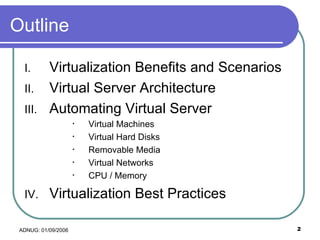
Outline Virtualization Benefits and Scenarios Virtual Server Architecture Automating Virtual Server Virtual Machines Virtual Hard Disks Removable Media Virtual Networks CPU / Memory Virtualization Best Practices
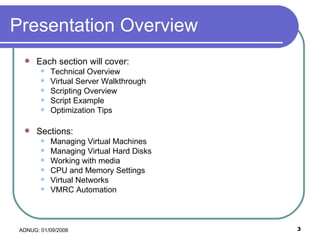
Presentation Overview Each section will cover: Technical Overview Virtual Server Walkthrough Scripting Overview Script Example Optimization Tips Sections: Managing Virtual Machines Managing Virtual Hard Disks Working with media CPU and Memory Settings Virtual Networks VMRC Automation
Virtualization Benefits and Scenarios How you can use virtualization to improve software development and testing
Introduction The question: “Is hardware getting faster faster than software is getting slower?” The Answer: The Old Days: Software would see  linear  speed increases. Today: Hardware is often left underutilized Business Case The modern IT environment: Capital costs for hardware are significant, but reasonable The real challenges today: Administration costs Server management Datacenter costs
Virtualization Features Benefits Simplified administration Hardware independence/portability Increased hardware utilization Server consolidation Decreased provisioning times Improved security Scenarios Software Development Testing / Quality Assurance Product evaluations / demonstrations Training Disaster Recovery
Development/Testing-Related Scenarios Setting up a complex test lab Testing multi-tier applications  Isolated networks Simulating multiple clients Rapid setup and tear-down of test environments Consistent configurations Ability to easily roll-back changes Automation of VM setup and software installation Other Benefits Portability of VMs Duplication of errors Simplified administration
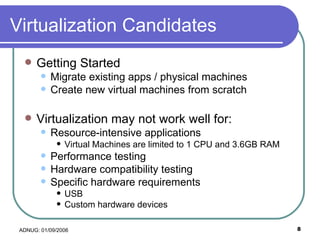
Virtualization Candidates Getting Started Migrate existing apps / physical machines Create new virtual machines from scratch Virtualization may not work well for: Resource-intensive applications Virtual Machines are limited to 1 CPU and 3.6GB RAM Performance testing Hardware compatibility testing Specific hardware requirements USB Custom hardware devices
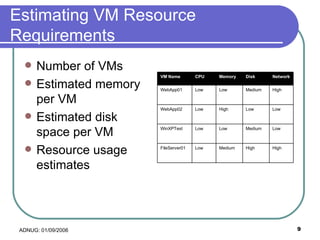
Estimating VM Resource Requirements Number of VMs Estimated memory per VM Estimated disk space per VM Resource usage estimates High High Medium Low FileServer01 Low Medium Low Low WinXPTest Low Low High Low WebApp02 High Medium Low Low WebApp01 Network Disk Memory CPU VM Name
Virtual Server Architecture An Overview of Virtual Server 2005
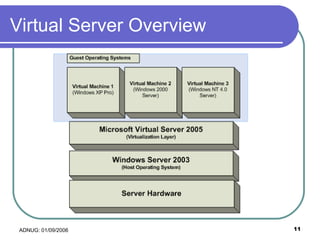
Virtual Server Overview
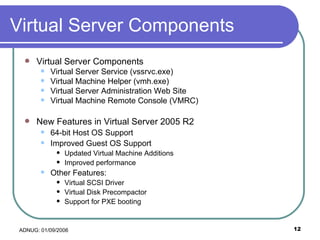
Virtual Server Components Virtual Server Components Virtual Server Service (vssrvc.exe) Virtual Machine Helper (vmh.exe) Virtual Server Administration Web Site Virtual Machine Remote Console (VMRC) New Features in Virtual Server 2005 R2 64-bit Host OS Support Improved Guest OS Support Updated Virtual Machine Additions Improved performance Other Features: Virtual SCSI Driver Virtual Disk Precompactor Support for PXE booting
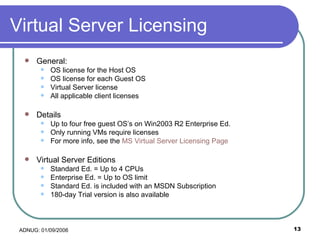
Virtual Server Licensing General: OS license for the Host OS OS license for each Guest OS Virtual Server license All applicable client licenses Details Up to four free guest OS’s on Win2003 R2 Enterprise Ed. Only running VMs require licenses For more info, see the  MS Virtual Server Licensing Page Virtual Server Editions Standard Ed. = Up to 4 CPUs Enterprise Ed. = Up to OS limit Standard Ed. is included with an MSDN Subscription  180-day Trial version is also available
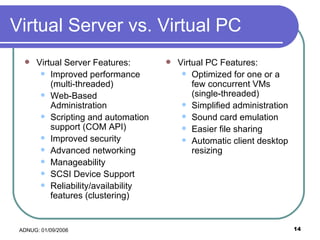
Virtual Server vs. Virtual PC Virtual Server Features: Improved performance (multi-threaded) Web-Based Administration Scripting and automation support (COM API) Improved security Advanced networking Manageability SCSI Device Support Reliability/availability features (clustering) Virtual PC Features: Optimized for one or a few concurrent VMs (single-threaded) Simplified administration Sound card emulation Easier file sharing Automatic client desktop resizing
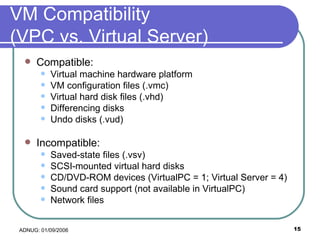
VM Compatibility  (VPC vs. Virtual Server) Compatible: Virtual machine hardware platform VM configuration files (.vmc) Virtual hard disk files (.vhd) Differencing disks Undo disks (.vud) Incompatible: Saved-state files (.vsv) SCSI-mounted virtual hard disks CD/DVD-ROM devices (VirtualPC = 1; Virtual Server = 4) Sound card support (not available in VirtualPC) Network files
Installing Virtual Server Pre-Installation: Admin Web Site Requires IIS (Application Server Role) On Windows XP, new Virtual Directory will be created On Windows Server, new web site will be created (port 1024) Warning: Network connections will be temporarily dropped during installation Administration Web Site: Default URL:  http:// ServerName :1024/VirtualServer/VSWebApp.exe Basic Virtual Server Settings Search Paths Enabling the VMRC Server Viewing the Event Log
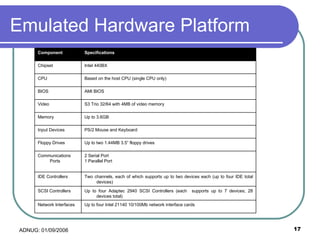
Emulated Hardware Platform Up to four Intel 21140 10/100Mb network interface cards Network Interfaces Up to four Adaptec 2940 SCSI Controllers (each  supports up to 7 devices; 28 devices total) SCSI Controllers Two channels, each of which supports up to two devices each (up to four IDE total devices) IDE Controllers 2 Serial Port 1 Parallel Port Communications Ports Up to two 1.44MB 3.5” floppy drives Floppy Drives PS/2 Mouse and Keyboard Input Devices Up to 3.6GB Memory S3 Trio 32/64 with 4MB of video memory Video AMI BIOS BIOS Based on the host CPU (single CPU only) CPU Intel 440BX Chipset Specifications Component
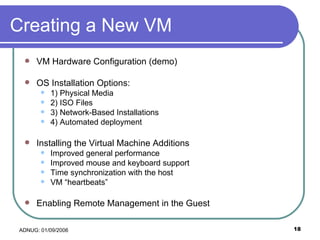
Creating a New VM VM Hardware Configuration (demo) OS Installation Options: 1) Physical Media 2) ISO Files 3) Network-Based Installations 4) Automated deployment Installing the Virtual Machine Additions Improved general performance Improved mouse and keyboard support Time synchronization with the host VM “heartbeats” Enabling Remote Management in the Guest
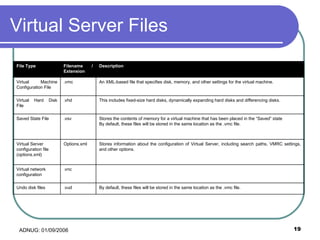
Virtual Server Files By default, these files will be stored in the same location as the .vmc file. .vud Undo disk files .vnc Virtual network configuration Stores information about the configuration of Virtual Server, including search paths, VMRC settings, and other options. Options.xml Virtual Server configuration file (options.xml) Stores the contents of memory for a virtual machine that has been placed in the “Saved” state By default, these files will be stored in the same location as the .vmc file. .vsv Saved State File This includes fixed-size hard disks, dynamically expanding hard disks and differencing disks. .vhd Virtual Hard Disk File  An XML-based file that specifies disk, memory, and other settings for the virtual machine. .vmc Virtual Machine Configuration File Description Filename / Extension File Type
Automating Virtual Server Accessing the Virtual Server COM API
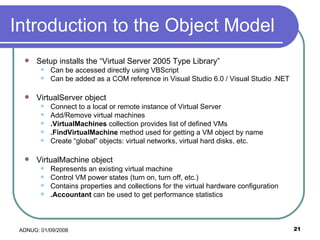
Introduction to the Object Model Setup installs the “Virtual Server 2005 Type Library” Can be accessed directly using VBScript Can be added as a COM reference in Visual Studio 6.0 / Visual Studio .NET VirtualServer object  Connect to a local or remote instance of Virtual Server Add/Remove virtual machines .VirtualMachines  collection provides list of defined VMs .FindVirtualMachine  method used for getting a VM object by name Create “global” objects: virtual networks, virtual hard disks, etc. VirtualMachine object Represents an existing virtual machine Control VM power states (turn on, turn off, etc.) Contains properties and collections for the virtual hardware configuration .Accountant  can be used to get performance statistics
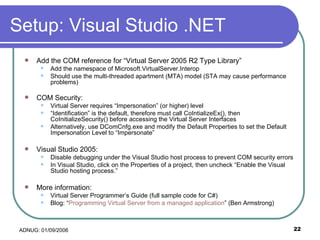
Setup: Visual Studio .NET Add the COM reference for “Virtual Server 2005 R2 Type Library” Add the namespace of Microsoft.VirtualServer.Interop Should use the multi-threaded apartment (MTA) model (STA may cause performance problems) COM Security:  Virtual Server requires “Impersonation” (or higher) level “ Identification” is the default, therefore must call CoIntializeEx(), then CoInitializeSecurity() before accessing the Virtual Server Interfaces Alternatively, use DComCnfg.exe and modify the Default Properties to set the Default Impersonation Level to “Impersonate” Visual Studio 2005:  Disable debugging under the Visual Studio host process to prevent COM security errors In Visual Studio, click on the Properties of a project, then uncheck “Enable the Visual Studio hosting process.” More information: Virtual Server Programmer’s Guide (full sample code for C#) Blog: “ Programming Virtual Server from a managed application ” (Ben Armstrong)
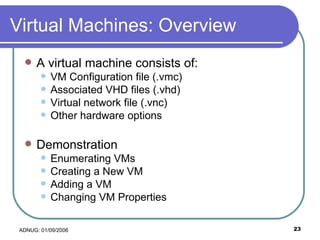
Virtual Machines: Overview A virtual machine consists of: VM Configuration file (.vmc) Associated VHD files (.vhd) Virtual network file (.vnc) Other hardware options Demonstration Enumerating VMs Creating a New VM Adding a VM Changing VM Properties
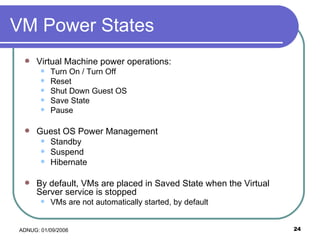
VM Power States Virtual Machine power operations: Turn On / Turn Off Reset Shut Down Guest OS Save State Pause Guest OS Power Management Standby Suspend Hibernate By default, VMs are placed in Saved State when the Virtual Server service is stopped VMs are not automatically started, by default
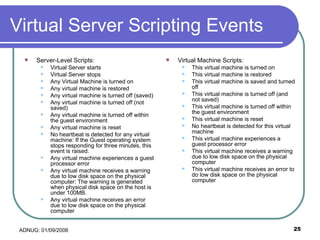
Virtual Server Scripting Events Server-Level Scripts: Virtual Server starts Virtual Server stops Any Virtual Machine is turned on Any virtual machine is restored Any virtual machine is turned off (saved) Any virtual machine is turned off (not saved) Any virtual machine is turned off within the guest environment Any virtual machine is reset No heartbeat is detected for any virtual machine: If the Guest operating system stops responding for three minutes, this event is raised. Any virtual machine experiences a guest processor error Any virtual machine receives a warning due to low disk space on the physical computer: The warning is generated when physical disk space on the host is under 100MB. Any virtual machine receives an error due to low disk space on the physical computer Virtual Machine Scripts: This virtual machine is turned on This virtual machine is restored This virtual machine is saved and turned off This virtual machine is turned off (and not saved) This virtual machine is turned off within the guest environment This virtual machine is reset No heartbeat is detected for this virtual machine This virtual machine experiences a guest processor error This virtual machine receives a warning due to low disk space on the physical computer This virtual machine receives an error to do low disk space on the physical computer
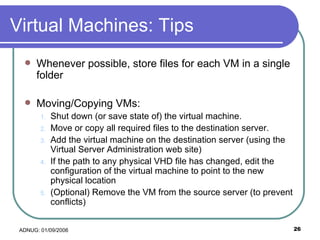
Virtual Machines: Tips Whenever possible, store files for each VM in a single folder Moving/Copying VMs: Shut down (or save state of) the virtual machine.  Move or copy all required files to the destination server.  Add the virtual machine on the destination server (using the Virtual Server Administration web site) If the path to any physical VHD file has changed, edit the configuration of the virtual machine to point to the new physical location  (Optional) Remove the VM from the source server (to prevent conflicts)
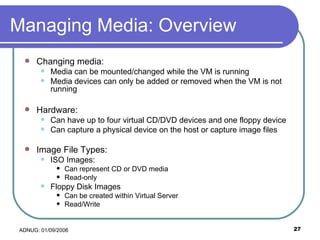
Managing Media: Overview Changing media: Media can be mounted/changed while the VM is running Media devices can only be added or removed when the VM is not running Hardware: Can have up to four virtual CD/DVD devices and one floppy device Can capture a physical device on the host or capture image files Image File Types: ISO Images:  Can represent CD or DVD media Read-only Floppy Disk Images Can be created within Virtual Server Read/Write
Managing Media: Scripts Adding/Removing DVD ROM drives: objVirtualMachine.DVDROMDrives: Collection of VMDVDDrive objects objVirtualMachine.AddDVDROMDrive( BusType, BusNumber, DeviceNumber ) objVirtualMachine.RemoveDVDROMDrive( VMDVDDrive object ) Capturing Media: objDVDRomDrive.AttachHostDrive(string  HostDriveLetter ) objDVDRomDrive.AttachImage(string  path ) objDVDRomDrive.ReleaseImage(string  path ) Tips: Mounting media files is useful for software deployment/updates Use startup Registry keys to automatically install software
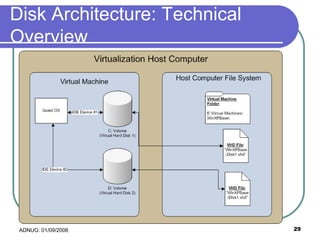
Disk Architecture: Technical Overview
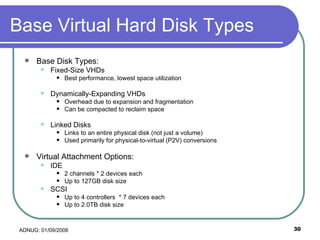
Base Virtual Hard Disk Types Base Disk Types: Fixed-Size VHDs Best performance, lowest space utilization Dynamically-Expanding VHDs Overhead due to expansion and fragmentation Can be compacted to reclaim space Linked Disks Links to an entire physical disk (not just a volume)  Used primarily for physical-to-virtual (P2V) conversions Virtual Attachment Options: IDE  2 channels * 2 devices each Up to 127GB disk size SCSI  Up to 4 controllers  * 7 devices each Up to 2.0TB disk size
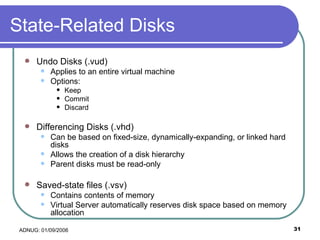
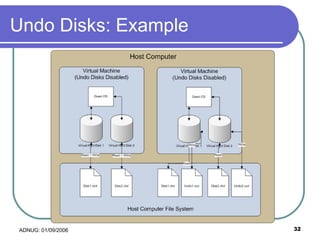
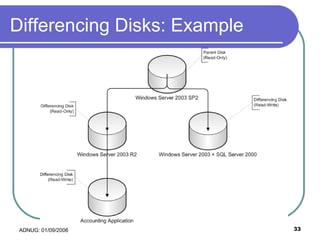
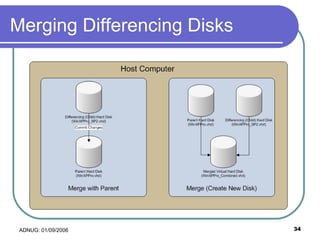
State-Related Disks Undo Disks (.vud) Applies to an entire virtual machine Options: Keep Commit Discard Differencing Disks (.vhd) Can be based on fixed-size, dynamically-expanding, or linked hard disks Allows the creation of a disk hierarchy Parent disks must be read-only Saved-state files (.vsv) Contains contents of memory Virtual Server automatically reserves disk space based on memory allocation
Undo Disks: Example
Differencing Disks: Example
Merging Differencing Disks
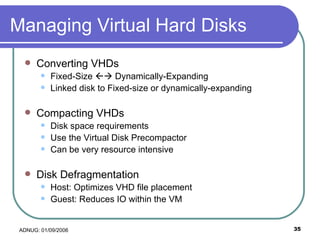
Managing Virtual Hard Disks Converting VHDs Fixed-Size    Dynamically-Expanding Linked disk to Fixed-size or dynamically-expanding Compacting VHDs Disk space requirements Use the Virtual Disk Precompactor Can be very resource intensive Disk Defragmentation Host: Optimizes VHD file placement Guest: Reduces IO within the VM
Disk Management: Scripting Enumerating virtual hard disk files objVirtualMachine.HardDiskConnections Collection of Hard Disk Connection objects objHDConnection.HardDisk.File Phyiscal filename/path of the VHD file Creating virtual hard disks objVirtualMachine.CreateDynamicVirtualHardDisk( path, size ) objVirtualMachine.CreateFixedVirtualHardDisk( path, size ) objVirtualServer. CreateDifferencingVirtualHardDisk  ( path, ParentPath ) Adding a virtual hard disk: objVirtualMachine.AddHardDiskConnection ( path, BusType, BusNumber, DeviceNumber )
Disk Management Tips: Monitor Disk Space PerfMon: Logical Disk    % Free Space Use Virtual Server / Virtual Machine events to send alerts Host Interface Types: IDE Serial ATA (SATA) SCSI RAID Controllers  Performance Tips Separate files across multiple spindles Use SCSI disks within the virtual machine Monitor disk resource usage to better distribute virtual machines
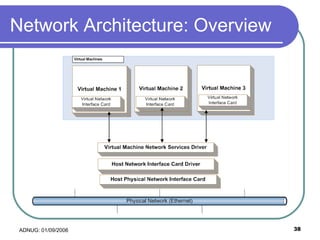
Network Architecture: Overview
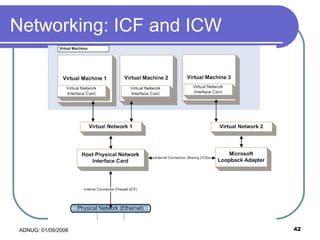
Network Architecture: Details Virtual network options: Guest-only Host Network Guest-to-host only (through Microsoft Loopback Adapter) Network Adapters All Ethernet NIC types are supported  The Virtual Machine Networking Service must be enabled for Virtual Server to use the adapter Each VM can have up to four virtual NICs A dedicated NIC can be used for Virtual Server Only the Virtual Machine Networking Service must be bound More Features Virtual DHCP Server for each virtual network Integration with Internet Connection Firewall (ICF) and Internet Connection Sharing (ICS)
Networking: Scripting Managing Virtual Networks: objVirtualServer.VirtualNetworks Collection of virtual networks  objVirtualServer.CreateVirtualNetwork ( name, path ) objVirtualServer.RegisterVirtualNetwork ( name, path ) Managing Virtual Network Adapters objVirtualMachine.NetworkAdapters Collection of network adapter objects objNetworkAdapter.AttachToVirtualNetwork() objNetworkAdapter.AttachToVirtualNetwork( NetworkName ) objNetworkAdapter.DetachFromVirtualNetwork()
Network-Based Storage Improving Performance: Use NIC Teaming Fail-over Load-balancing Use Jumbo Frames Remote Storage CIFS / SMB (UNC Shares) Multiple VMs can access the same files Network-Attached Storage (NAS) Dedicated “appliances” that provide file-level I/O Storage Area Networks (SANs) Fibre Channel-based, block-level I/O High performance, but highest cost iSCSI Block-level I/O over Ethernet Performance benefits of SANs with much lower costs (uses copper) Supported on the Host OS as well as from within Guest OS’s
Networking: ICF and ICW
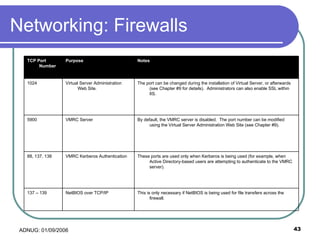
Networking: Firewalls This is only necessary if NetBIOS is being used for file transfers across the firewall. NetBIOS over TCP/IP 137 – 139 These ports are used only when Kerberos is being used (for example, when Active Directory-based users are attempting to authenticate to the VMRC server). VMRC Kerberos Authentication 88, 137, 138 By default, the VMRC server is disabled.  The port number can be modified using the Virtual Server Administration Web Site (see Chapter #9). VMRC Server 5900 The port can be changed during the installation of Virtual Server, or afterwards (see Chapter #9 for details).  Administrators can also enable SSL within IIS. Virtual Server Administration Web Site. 1024 Notes Purpose TCP Port Number
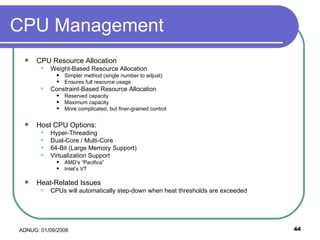
CPU Management CPU Resource Allocation Weight-Based Resource Allocation Simpler method (single number to adjust) Ensures full resource usage Constraint-Based Resource Allocation Reserved capacity Maximum capacity More complicated, but finer-grained control Host CPU Options: Hyper-Threading Dual-Core / Multi-Core 64-Bit (Large Memory Support) Virtualization Support AMD’s “Pacifica” Intel’s VT Heat-Related Issues CPUs will automatically step-down when heat thresholds are exceeded
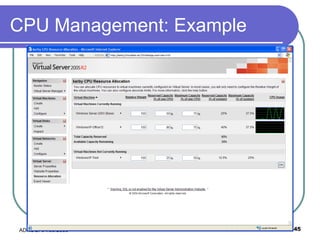
CPU Management: Example
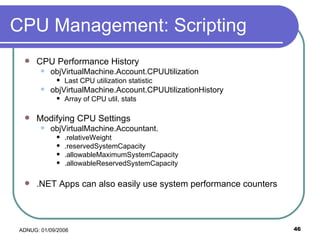
CPU Management: Scripting CPU Performance History objVirtualMachine.Account.CPUUtilization Last CPU utilization statistic  objVirtualMachine.Account.CPUUtilizationHistory Array of CPU util. stats Modifying CPU Settings objVirtualMachine.Accountant. .relativeWeight .reservedSystemCapacity .allowableMaximumSystemCapacity .allowableReservedSystemCapacity .NET Apps can also easily use system performance counters
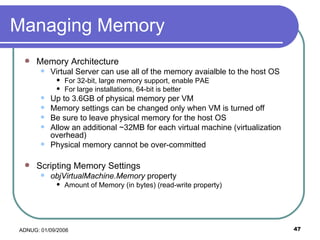
Managing Memory Memory Architecture Virtual Server can use all of the memory avaialble to the host OS For 32-bit, large memory support, enable PAE For large installations, 64-bit is better Up to 3.6GB of physical memory per VM Memory settings can be changed only when VM is turned off Be sure to leave physical memory for the host OS Allow an additional ~32MB for each virtual machine (virtualization overhead) Physical memory cannot be over-committed Scripting Memory Settings objVirtualMachine.Memory  property Amount of Memory (in bytes) (read-write property)
VMRC: Overview Configuring the VMRC Server VMRC Server is disabled by Enabled in Server Properties (VS Admin Web Site) Potential security issues with default configuration: Unencrypted communications NTLM security Can customize TCP address and ports Can enable SSL/TLS security Encryption Certificates VMRC Client ActiveX control that can be hosted in IE or within a client app COM Reference:  Virtual Machine Remote Control (VMRC) ActiveX client type library Added to .NET namespace VMRCClientControl.Interop In Visual Studio, add the ActiveX control using Tools    Choose Toolbox Items.  Under “COM Components”, enable “Microsoft Virtual Server VMRC Control”
Virtualization Best Practices Tips and techniques for making the most of virtualization
Managing Performance Profile your applications Windows System Monitor Counter Logs Event Viewer Task Manager Windows Management Instrumentation (WMI) Microsoft Operations Manager (MOM) Systems Management Server (SMS) Monitoring Approach: Host Server: Aggregate performance data Guest OS: Detailed resource usage
VM Maintenance Establish a base library of images Ensures consistency Helps in troubleshooting Prepare VMs for duplication (SysPrep) Create a Library of ISO files Manage virtual machines as if they were physical machines Security updates Automatic Updates (if supported in Guest OS)  Microsoft Baseline Security Analyzer (MBSA) Windows Server Update Services (SUS) Patches Corporate security standards Configure anti-spyware / anti-malware exceptions *.vhd, *.vud, *.vsv, *.iso Automate common tasks
VM Backup and Recovery Backup and Recovery Option 1: Shut down/save state of the VM Copy all required files. Resume the VM Option 2:  Use Backup Agents within the Guest OS. Automating backups: Build scripts/applications to automate virtual machine backup and recovery: 1) Save state of the virtual machine 2) Copy all related files 3) Resume the virtual machine
More Best Practices “ Virtualization on a stick!” Use removable media for creating portable VMs Treat virtual machines like physical ones Standard security and maintenance practices Consider performing Physical to Virtual (p2v) migrations Virtual Server Migration Toolkit (VSMT) Third-party utilities
The Future of Virtualization Other Virtualization Platforms: VMWare: Workstation GSX Server ESX Server XEN Open Source Virtualization Platform CPUs: Intel AMD  Sun Third-Party Vendors Windows Vista / Longhorn Server Virtualization will use a “hypervisor” approach and will be included in the platform
References Microsoft Resources Microsoft Virtual Server Web Site Downloadable White Papers and updates  Pricing and licensing information Microsoft Virtual Server Script Repository Hundreds of sample scripts (VBScript format) “ Program Customized Testing Environments Without Trashing Your Machine ” (Ben Waldron, MSDN Magazine) Community Resources http:// AnilDesai.net  (content planned for 01/2006)   Virtualization.info  (blog) Virtual PC Guy’s  WebLog  (Ben Armstrong)
For More Information Realizing the Power of Virtualization Microsoft TechNet Magazine (February, 2006) The Rational Guide to Managing Microsoft Virtual Server 2005 Q1, 2006 (Anil Desai) The Rational Guide to Scripting Virtual Server 2005 Q2, 2006 (Anil Desai) Contact Anil Desai E-Mail:  [email_address]   Web Site:  http://AnilDesai.net Copies of the slides and source code

Using Virtualization To Improve Development And Testing

  • 1.
    Using Virtualization toImprove Development and Testing Anil Desai Austin .NET User’s Group January 9 th , 2006
  • 2.
    Outline Virtualization Benefitsand Scenarios Virtual Server Architecture Automating Virtual Server Virtual Machines Virtual Hard Disks Removable Media Virtual Networks CPU / Memory Virtualization Best Practices
  • 3.
    Presentation Overview Eachsection will cover: Technical Overview Virtual Server Walkthrough Scripting Overview Script Example Optimization Tips Sections: Managing Virtual Machines Managing Virtual Hard Disks Working with media CPU and Memory Settings Virtual Networks VMRC Automation
  • 4.
    Virtualization Benefits andScenarios How you can use virtualization to improve software development and testing
  • 5.
    Introduction The question:“Is hardware getting faster faster than software is getting slower?” The Answer: The Old Days: Software would see linear speed increases. Today: Hardware is often left underutilized Business Case The modern IT environment: Capital costs for hardware are significant, but reasonable The real challenges today: Administration costs Server management Datacenter costs
  • 6.
    Virtualization Features BenefitsSimplified administration Hardware independence/portability Increased hardware utilization Server consolidation Decreased provisioning times Improved security Scenarios Software Development Testing / Quality Assurance Product evaluations / demonstrations Training Disaster Recovery
  • 7.
    Development/Testing-Related Scenarios Settingup a complex test lab Testing multi-tier applications Isolated networks Simulating multiple clients Rapid setup and tear-down of test environments Consistent configurations Ability to easily roll-back changes Automation of VM setup and software installation Other Benefits Portability of VMs Duplication of errors Simplified administration
  • 8.
    Virtualization Candidates GettingStarted Migrate existing apps / physical machines Create new virtual machines from scratch Virtualization may not work well for: Resource-intensive applications Virtual Machines are limited to 1 CPU and 3.6GB RAM Performance testing Hardware compatibility testing Specific hardware requirements USB Custom hardware devices
  • 9.
    Estimating VM ResourceRequirements Number of VMs Estimated memory per VM Estimated disk space per VM Resource usage estimates High High Medium Low FileServer01 Low Medium Low Low WinXPTest Low Low High Low WebApp02 High Medium Low Low WebApp01 Network Disk Memory CPU VM Name
  • 10.
    Virtual Server ArchitectureAn Overview of Virtual Server 2005
  • 11.
  • 12.
    Virtual Server ComponentsVirtual Server Components Virtual Server Service (vssrvc.exe) Virtual Machine Helper (vmh.exe) Virtual Server Administration Web Site Virtual Machine Remote Console (VMRC) New Features in Virtual Server 2005 R2 64-bit Host OS Support Improved Guest OS Support Updated Virtual Machine Additions Improved performance Other Features: Virtual SCSI Driver Virtual Disk Precompactor Support for PXE booting
  • 13.
    Virtual Server LicensingGeneral: OS license for the Host OS OS license for each Guest OS Virtual Server license All applicable client licenses Details Up to four free guest OS’s on Win2003 R2 Enterprise Ed. Only running VMs require licenses For more info, see the MS Virtual Server Licensing Page Virtual Server Editions Standard Ed. = Up to 4 CPUs Enterprise Ed. = Up to OS limit Standard Ed. is included with an MSDN Subscription 180-day Trial version is also available
  • 14.
    Virtual Server vs.Virtual PC Virtual Server Features: Improved performance (multi-threaded) Web-Based Administration Scripting and automation support (COM API) Improved security Advanced networking Manageability SCSI Device Support Reliability/availability features (clustering) Virtual PC Features: Optimized for one or a few concurrent VMs (single-threaded) Simplified administration Sound card emulation Easier file sharing Automatic client desktop resizing
  • 15.
    VM Compatibility (VPC vs. Virtual Server) Compatible: Virtual machine hardware platform VM configuration files (.vmc) Virtual hard disk files (.vhd) Differencing disks Undo disks (.vud) Incompatible: Saved-state files (.vsv) SCSI-mounted virtual hard disks CD/DVD-ROM devices (VirtualPC = 1; Virtual Server = 4) Sound card support (not available in VirtualPC) Network files
  • 16.
    Installing Virtual ServerPre-Installation: Admin Web Site Requires IIS (Application Server Role) On Windows XP, new Virtual Directory will be created On Windows Server, new web site will be created (port 1024) Warning: Network connections will be temporarily dropped during installation Administration Web Site: Default URL: http:// ServerName :1024/VirtualServer/VSWebApp.exe Basic Virtual Server Settings Search Paths Enabling the VMRC Server Viewing the Event Log
  • 17.
    Emulated Hardware PlatformUp to four Intel 21140 10/100Mb network interface cards Network Interfaces Up to four Adaptec 2940 SCSI Controllers (each supports up to 7 devices; 28 devices total) SCSI Controllers Two channels, each of which supports up to two devices each (up to four IDE total devices) IDE Controllers 2 Serial Port 1 Parallel Port Communications Ports Up to two 1.44MB 3.5” floppy drives Floppy Drives PS/2 Mouse and Keyboard Input Devices Up to 3.6GB Memory S3 Trio 32/64 with 4MB of video memory Video AMI BIOS BIOS Based on the host CPU (single CPU only) CPU Intel 440BX Chipset Specifications Component
  • 18.
    Creating a NewVM VM Hardware Configuration (demo) OS Installation Options: 1) Physical Media 2) ISO Files 3) Network-Based Installations 4) Automated deployment Installing the Virtual Machine Additions Improved general performance Improved mouse and keyboard support Time synchronization with the host VM “heartbeats” Enabling Remote Management in the Guest
  • 19.
    Virtual Server FilesBy default, these files will be stored in the same location as the .vmc file. .vud Undo disk files .vnc Virtual network configuration Stores information about the configuration of Virtual Server, including search paths, VMRC settings, and other options. Options.xml Virtual Server configuration file (options.xml) Stores the contents of memory for a virtual machine that has been placed in the “Saved” state By default, these files will be stored in the same location as the .vmc file. .vsv Saved State File This includes fixed-size hard disks, dynamically expanding hard disks and differencing disks. .vhd Virtual Hard Disk File An XML-based file that specifies disk, memory, and other settings for the virtual machine. .vmc Virtual Machine Configuration File Description Filename / Extension File Type
  • 20.
    Automating Virtual ServerAccessing the Virtual Server COM API
  • 21.
    Introduction to theObject Model Setup installs the “Virtual Server 2005 Type Library” Can be accessed directly using VBScript Can be added as a COM reference in Visual Studio 6.0 / Visual Studio .NET VirtualServer object Connect to a local or remote instance of Virtual Server Add/Remove virtual machines .VirtualMachines collection provides list of defined VMs .FindVirtualMachine method used for getting a VM object by name Create “global” objects: virtual networks, virtual hard disks, etc. VirtualMachine object Represents an existing virtual machine Control VM power states (turn on, turn off, etc.) Contains properties and collections for the virtual hardware configuration .Accountant can be used to get performance statistics
  • 22.
    Setup: Visual Studio.NET Add the COM reference for “Virtual Server 2005 R2 Type Library” Add the namespace of Microsoft.VirtualServer.Interop Should use the multi-threaded apartment (MTA) model (STA may cause performance problems) COM Security: Virtual Server requires “Impersonation” (or higher) level “ Identification” is the default, therefore must call CoIntializeEx(), then CoInitializeSecurity() before accessing the Virtual Server Interfaces Alternatively, use DComCnfg.exe and modify the Default Properties to set the Default Impersonation Level to “Impersonate” Visual Studio 2005: Disable debugging under the Visual Studio host process to prevent COM security errors In Visual Studio, click on the Properties of a project, then uncheck “Enable the Visual Studio hosting process.” More information: Virtual Server Programmer’s Guide (full sample code for C#) Blog: “ Programming Virtual Server from a managed application ” (Ben Armstrong)
  • 23.
    Virtual Machines: OverviewA virtual machine consists of: VM Configuration file (.vmc) Associated VHD files (.vhd) Virtual network file (.vnc) Other hardware options Demonstration Enumerating VMs Creating a New VM Adding a VM Changing VM Properties
  • 24.
    VM Power StatesVirtual Machine power operations: Turn On / Turn Off Reset Shut Down Guest OS Save State Pause Guest OS Power Management Standby Suspend Hibernate By default, VMs are placed in Saved State when the Virtual Server service is stopped VMs are not automatically started, by default
  • 25.
    Virtual Server ScriptingEvents Server-Level Scripts: Virtual Server starts Virtual Server stops Any Virtual Machine is turned on Any virtual machine is restored Any virtual machine is turned off (saved) Any virtual machine is turned off (not saved) Any virtual machine is turned off within the guest environment Any virtual machine is reset No heartbeat is detected for any virtual machine: If the Guest operating system stops responding for three minutes, this event is raised. Any virtual machine experiences a guest processor error Any virtual machine receives a warning due to low disk space on the physical computer: The warning is generated when physical disk space on the host is under 100MB. Any virtual machine receives an error due to low disk space on the physical computer Virtual Machine Scripts: This virtual machine is turned on This virtual machine is restored This virtual machine is saved and turned off This virtual machine is turned off (and not saved) This virtual machine is turned off within the guest environment This virtual machine is reset No heartbeat is detected for this virtual machine This virtual machine experiences a guest processor error This virtual machine receives a warning due to low disk space on the physical computer This virtual machine receives an error to do low disk space on the physical computer
  • 26.
    Virtual Machines: TipsWhenever possible, store files for each VM in a single folder Moving/Copying VMs: Shut down (or save state of) the virtual machine. Move or copy all required files to the destination server. Add the virtual machine on the destination server (using the Virtual Server Administration web site) If the path to any physical VHD file has changed, edit the configuration of the virtual machine to point to the new physical location (Optional) Remove the VM from the source server (to prevent conflicts)
  • 27.
    Managing Media: OverviewChanging media: Media can be mounted/changed while the VM is running Media devices can only be added or removed when the VM is not running Hardware: Can have up to four virtual CD/DVD devices and one floppy device Can capture a physical device on the host or capture image files Image File Types: ISO Images: Can represent CD or DVD media Read-only Floppy Disk Images Can be created within Virtual Server Read/Write
  • 28.
    Managing Media: ScriptsAdding/Removing DVD ROM drives: objVirtualMachine.DVDROMDrives: Collection of VMDVDDrive objects objVirtualMachine.AddDVDROMDrive( BusType, BusNumber, DeviceNumber ) objVirtualMachine.RemoveDVDROMDrive( VMDVDDrive object ) Capturing Media: objDVDRomDrive.AttachHostDrive(string HostDriveLetter ) objDVDRomDrive.AttachImage(string path ) objDVDRomDrive.ReleaseImage(string path ) Tips: Mounting media files is useful for software deployment/updates Use startup Registry keys to automatically install software
  • 29.
  • 30.
    Base Virtual HardDisk Types Base Disk Types: Fixed-Size VHDs Best performance, lowest space utilization Dynamically-Expanding VHDs Overhead due to expansion and fragmentation Can be compacted to reclaim space Linked Disks Links to an entire physical disk (not just a volume) Used primarily for physical-to-virtual (P2V) conversions Virtual Attachment Options: IDE 2 channels * 2 devices each Up to 127GB disk size SCSI Up to 4 controllers * 7 devices each Up to 2.0TB disk size
  • 31.
    State-Related Disks UndoDisks (.vud) Applies to an entire virtual machine Options: Keep Commit Discard Differencing Disks (.vhd) Can be based on fixed-size, dynamically-expanding, or linked hard disks Allows the creation of a disk hierarchy Parent disks must be read-only Saved-state files (.vsv) Contains contents of memory Virtual Server automatically reserves disk space based on memory allocation
  • 32.
  • 33.
  • 34.
  • 35.
    Managing Virtual HardDisks Converting VHDs Fixed-Size  Dynamically-Expanding Linked disk to Fixed-size or dynamically-expanding Compacting VHDs Disk space requirements Use the Virtual Disk Precompactor Can be very resource intensive Disk Defragmentation Host: Optimizes VHD file placement Guest: Reduces IO within the VM
  • 36.
    Disk Management: ScriptingEnumerating virtual hard disk files objVirtualMachine.HardDiskConnections Collection of Hard Disk Connection objects objHDConnection.HardDisk.File Phyiscal filename/path of the VHD file Creating virtual hard disks objVirtualMachine.CreateDynamicVirtualHardDisk( path, size ) objVirtualMachine.CreateFixedVirtualHardDisk( path, size ) objVirtualServer. CreateDifferencingVirtualHardDisk ( path, ParentPath ) Adding a virtual hard disk: objVirtualMachine.AddHardDiskConnection ( path, BusType, BusNumber, DeviceNumber )
  • 37.
    Disk Management Tips:Monitor Disk Space PerfMon: Logical Disk  % Free Space Use Virtual Server / Virtual Machine events to send alerts Host Interface Types: IDE Serial ATA (SATA) SCSI RAID Controllers Performance Tips Separate files across multiple spindles Use SCSI disks within the virtual machine Monitor disk resource usage to better distribute virtual machines
  • 38.
  • 39.
    Network Architecture: DetailsVirtual network options: Guest-only Host Network Guest-to-host only (through Microsoft Loopback Adapter) Network Adapters All Ethernet NIC types are supported The Virtual Machine Networking Service must be enabled for Virtual Server to use the adapter Each VM can have up to four virtual NICs A dedicated NIC can be used for Virtual Server Only the Virtual Machine Networking Service must be bound More Features Virtual DHCP Server for each virtual network Integration with Internet Connection Firewall (ICF) and Internet Connection Sharing (ICS)
  • 40.
    Networking: Scripting ManagingVirtual Networks: objVirtualServer.VirtualNetworks Collection of virtual networks objVirtualServer.CreateVirtualNetwork ( name, path ) objVirtualServer.RegisterVirtualNetwork ( name, path ) Managing Virtual Network Adapters objVirtualMachine.NetworkAdapters Collection of network adapter objects objNetworkAdapter.AttachToVirtualNetwork() objNetworkAdapter.AttachToVirtualNetwork( NetworkName ) objNetworkAdapter.DetachFromVirtualNetwork()
  • 41.
    Network-Based Storage ImprovingPerformance: Use NIC Teaming Fail-over Load-balancing Use Jumbo Frames Remote Storage CIFS / SMB (UNC Shares) Multiple VMs can access the same files Network-Attached Storage (NAS) Dedicated “appliances” that provide file-level I/O Storage Area Networks (SANs) Fibre Channel-based, block-level I/O High performance, but highest cost iSCSI Block-level I/O over Ethernet Performance benefits of SANs with much lower costs (uses copper) Supported on the Host OS as well as from within Guest OS’s
  • 42.
  • 43.
    Networking: Firewalls Thisis only necessary if NetBIOS is being used for file transfers across the firewall. NetBIOS over TCP/IP 137 – 139 These ports are used only when Kerberos is being used (for example, when Active Directory-based users are attempting to authenticate to the VMRC server). VMRC Kerberos Authentication 88, 137, 138 By default, the VMRC server is disabled. The port number can be modified using the Virtual Server Administration Web Site (see Chapter #9). VMRC Server 5900 The port can be changed during the installation of Virtual Server, or afterwards (see Chapter #9 for details). Administrators can also enable SSL within IIS. Virtual Server Administration Web Site. 1024 Notes Purpose TCP Port Number
  • 44.
    CPU Management CPUResource Allocation Weight-Based Resource Allocation Simpler method (single number to adjust) Ensures full resource usage Constraint-Based Resource Allocation Reserved capacity Maximum capacity More complicated, but finer-grained control Host CPU Options: Hyper-Threading Dual-Core / Multi-Core 64-Bit (Large Memory Support) Virtualization Support AMD’s “Pacifica” Intel’s VT Heat-Related Issues CPUs will automatically step-down when heat thresholds are exceeded
  • 45.
  • 46.
    CPU Management: ScriptingCPU Performance History objVirtualMachine.Account.CPUUtilization Last CPU utilization statistic objVirtualMachine.Account.CPUUtilizationHistory Array of CPU util. stats Modifying CPU Settings objVirtualMachine.Accountant. .relativeWeight .reservedSystemCapacity .allowableMaximumSystemCapacity .allowableReservedSystemCapacity .NET Apps can also easily use system performance counters
  • 47.
    Managing Memory MemoryArchitecture Virtual Server can use all of the memory avaialble to the host OS For 32-bit, large memory support, enable PAE For large installations, 64-bit is better Up to 3.6GB of physical memory per VM Memory settings can be changed only when VM is turned off Be sure to leave physical memory for the host OS Allow an additional ~32MB for each virtual machine (virtualization overhead) Physical memory cannot be over-committed Scripting Memory Settings objVirtualMachine.Memory property Amount of Memory (in bytes) (read-write property)
  • 48.
    VMRC: Overview Configuringthe VMRC Server VMRC Server is disabled by Enabled in Server Properties (VS Admin Web Site) Potential security issues with default configuration: Unencrypted communications NTLM security Can customize TCP address and ports Can enable SSL/TLS security Encryption Certificates VMRC Client ActiveX control that can be hosted in IE or within a client app COM Reference: Virtual Machine Remote Control (VMRC) ActiveX client type library Added to .NET namespace VMRCClientControl.Interop In Visual Studio, add the ActiveX control using Tools  Choose Toolbox Items. Under “COM Components”, enable “Microsoft Virtual Server VMRC Control”
  • 49.
    Virtualization Best PracticesTips and techniques for making the most of virtualization
  • 50.
    Managing Performance Profileyour applications Windows System Monitor Counter Logs Event Viewer Task Manager Windows Management Instrumentation (WMI) Microsoft Operations Manager (MOM) Systems Management Server (SMS) Monitoring Approach: Host Server: Aggregate performance data Guest OS: Detailed resource usage
  • 51.
    VM Maintenance Establisha base library of images Ensures consistency Helps in troubleshooting Prepare VMs for duplication (SysPrep) Create a Library of ISO files Manage virtual machines as if they were physical machines Security updates Automatic Updates (if supported in Guest OS) Microsoft Baseline Security Analyzer (MBSA) Windows Server Update Services (SUS) Patches Corporate security standards Configure anti-spyware / anti-malware exceptions *.vhd, *.vud, *.vsv, *.iso Automate common tasks
  • 52.
    VM Backup andRecovery Backup and Recovery Option 1: Shut down/save state of the VM Copy all required files. Resume the VM Option 2: Use Backup Agents within the Guest OS. Automating backups: Build scripts/applications to automate virtual machine backup and recovery: 1) Save state of the virtual machine 2) Copy all related files 3) Resume the virtual machine
  • 53.
    More Best Practices“ Virtualization on a stick!” Use removable media for creating portable VMs Treat virtual machines like physical ones Standard security and maintenance practices Consider performing Physical to Virtual (p2v) migrations Virtual Server Migration Toolkit (VSMT) Third-party utilities
  • 54.
    The Future ofVirtualization Other Virtualization Platforms: VMWare: Workstation GSX Server ESX Server XEN Open Source Virtualization Platform CPUs: Intel AMD Sun Third-Party Vendors Windows Vista / Longhorn Server Virtualization will use a “hypervisor” approach and will be included in the platform
  • 55.
    References Microsoft ResourcesMicrosoft Virtual Server Web Site Downloadable White Papers and updates Pricing and licensing information Microsoft Virtual Server Script Repository Hundreds of sample scripts (VBScript format) “ Program Customized Testing Environments Without Trashing Your Machine ” (Ben Waldron, MSDN Magazine) Community Resources http:// AnilDesai.net (content planned for 01/2006) Virtualization.info (blog) Virtual PC Guy’s WebLog (Ben Armstrong)
  • 56.
    For More InformationRealizing the Power of Virtualization Microsoft TechNet Magazine (February, 2006) The Rational Guide to Managing Microsoft Virtual Server 2005 Q1, 2006 (Anil Desai) The Rational Guide to Scripting Virtual Server 2005 Q2, 2006 (Anil Desai) Contact Anil Desai E-Mail: [email_address] Web Site: http://AnilDesai.net Copies of the slides and source code