
Using QGIS and
ISCGM Global Map
2013. 11. 04
Minpa Lee(mapplus@gmail.com)
Heegu Park(hgpark@gaia3d.com)
Lecturer
Name: Minpa Lee
Department: R&D, Mango System inc.

사진

Contact: #A201, 98, Haenggung-ro, Paldal-gu, Suwon-si,
Gyeonggi-do, 442-130, Korea
E-mail: mapplus@gmail.com

<Education Background>

- BA on Seoul National University, Korea, Geography Education(03. 1992 ~ 02. 1999)

<Community>
- OSGeo, Charter member
- OSGeo Korean Chapter, Korean Translator

2
Contents
• I. Overview–QGIS & Global map

• IV. Extending QGIS

– I-1. QGIS Overview
– I-2. ISCGM Global Map V.2

• II. Installing QGIS

– IV-1. QGIS Plugins

• V. Editing Global Map Data
–
–
–
–

– II-1. Installing QGIS
– II-2. Installing Google Earth

• III. Using QGIS
–
–
–
–

III-1. QGIS GUI
III-2. QGIS Toolbar
III-3. Working with Vector Data
III-4. Working with Raster Data

V-1. Setting Environment
V-2. Digitizing Toolbar
V-3. Digitizing an Existing Layer
V-4. Creating a New Layer

• VI. Import & Export
– VI-1. Import
– VI-2. Export
– VI-3. Export to OGC GML format

3
I. OVERVIEW
– QGIS & GLOBAL MAP
4
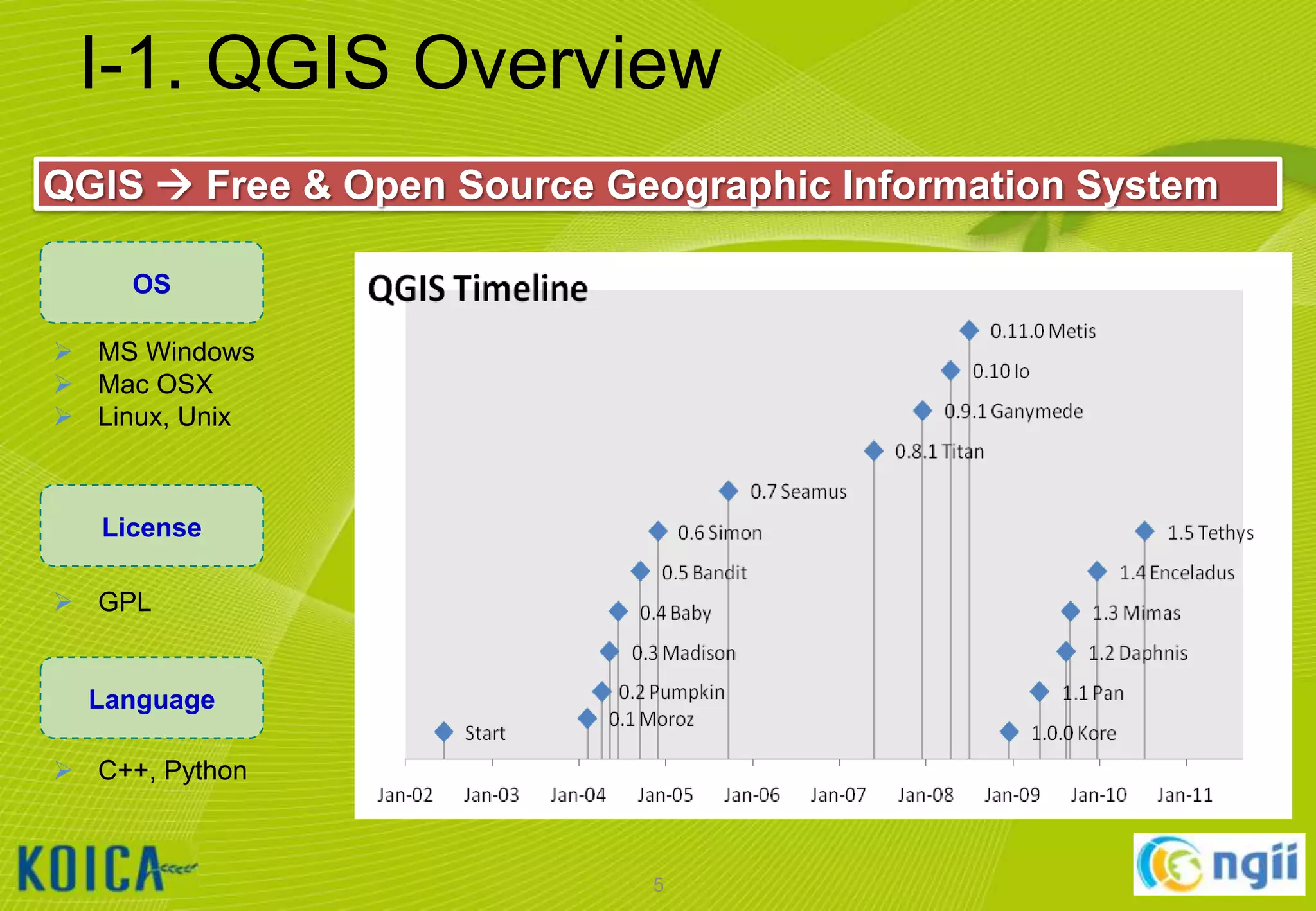
I-1. QGIS Overview
QGIS  Free & Open Source Geographic Information System
OS
 MS Windows
 Mac OSX
 Linux, Unix

License
 GPL

Language
 C++, Python

5
I-1. QGIS Overview
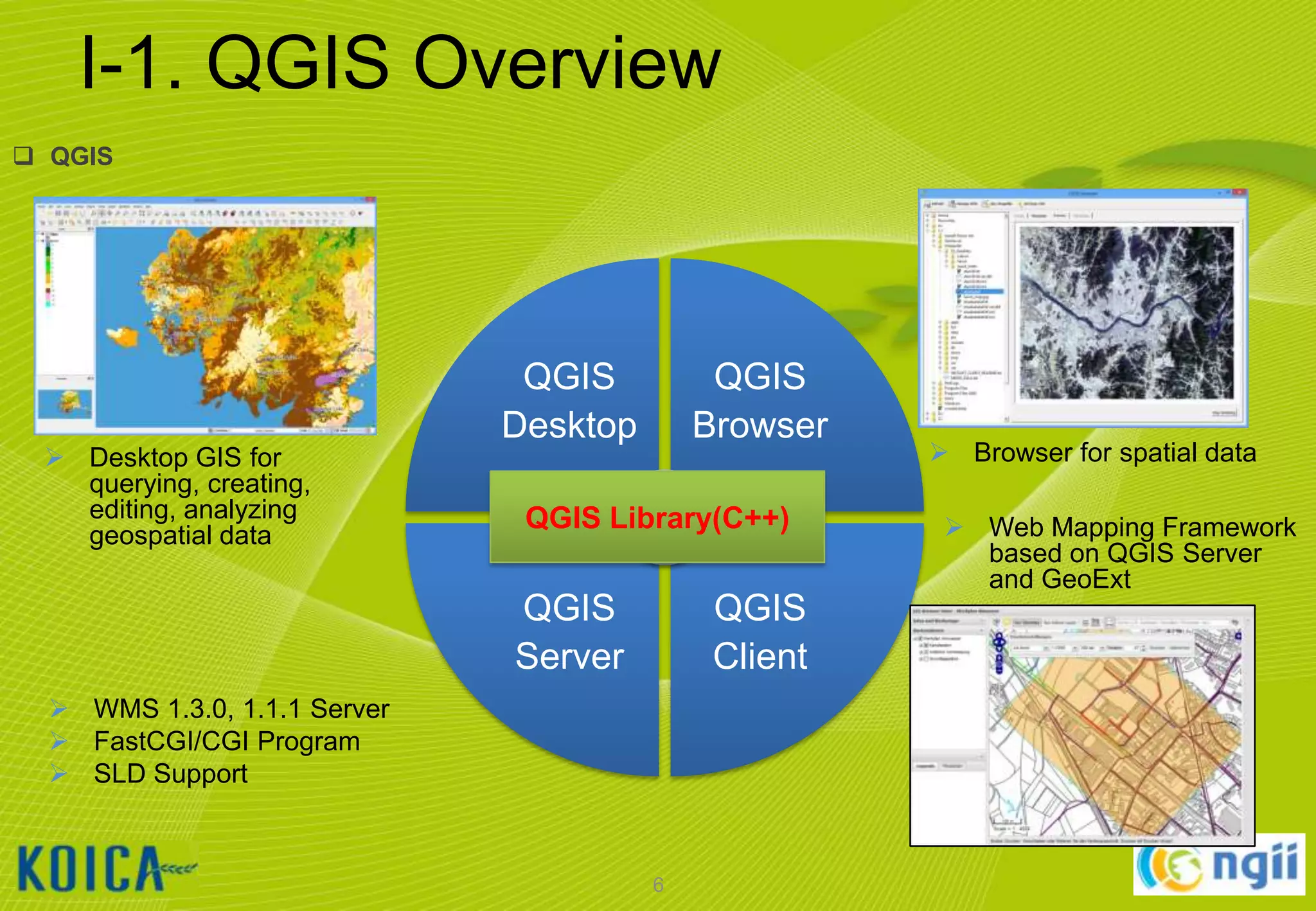
 QGIS

 Desktop GIS for
querying, creating,
editing, analyzing
geospatial data

QGIS
Desktop

QGIS
Browser

QGIS Library(C++)

QGIS
Server

QGIS
Client

 WMS 1.3.0, 1.1.1 Server
 FastCGI/CGI Program
 SLD Support

6

 Browser for spatial data
 Web Mapping Framework
based on QGIS Server
and GeoExt
I-2. ISCGM Global Map V.2
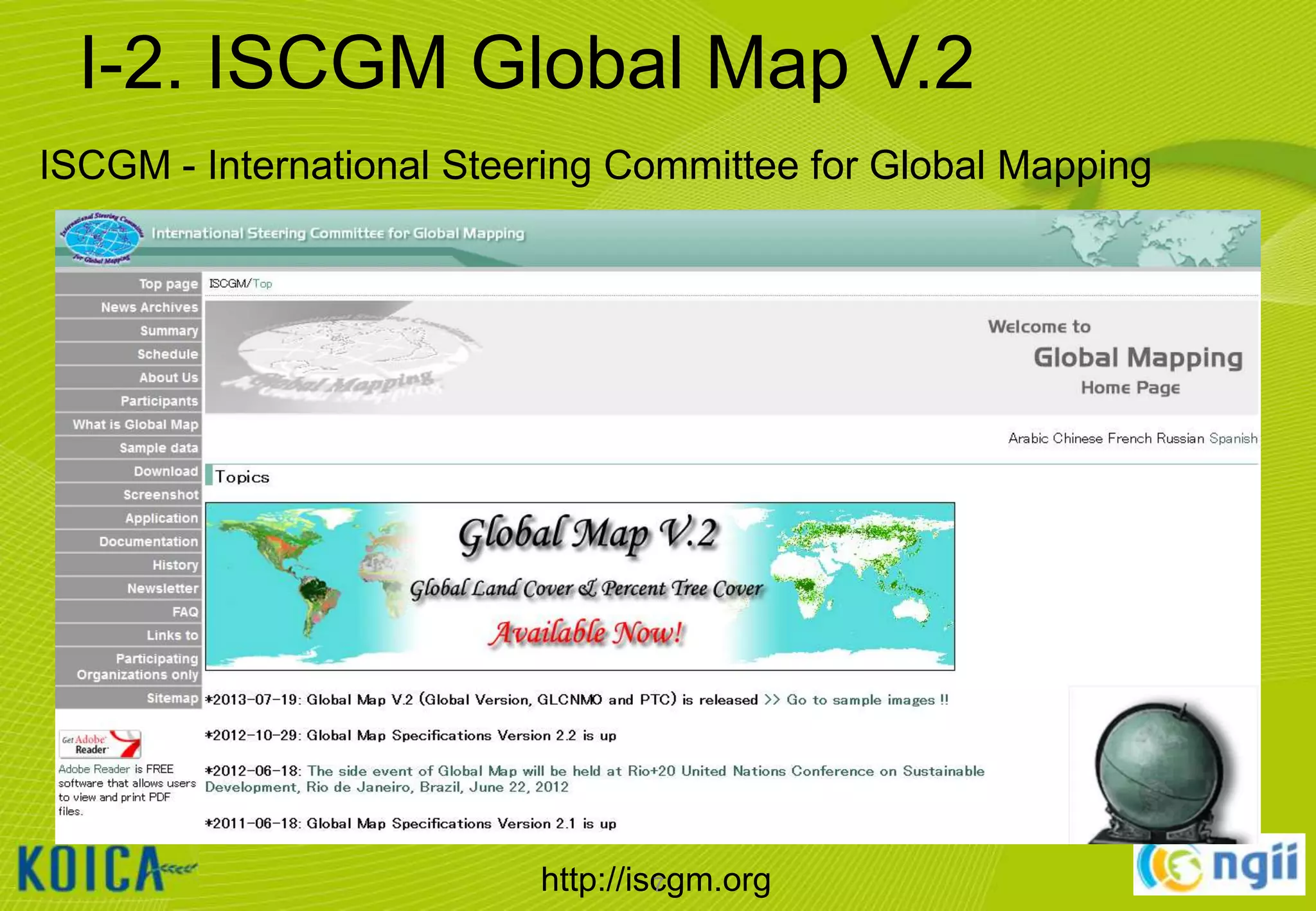
ISCGM - International Steering Committee for Global Mapping

http://iscgm.org
7
I-2. ISCGM Global Map V.2
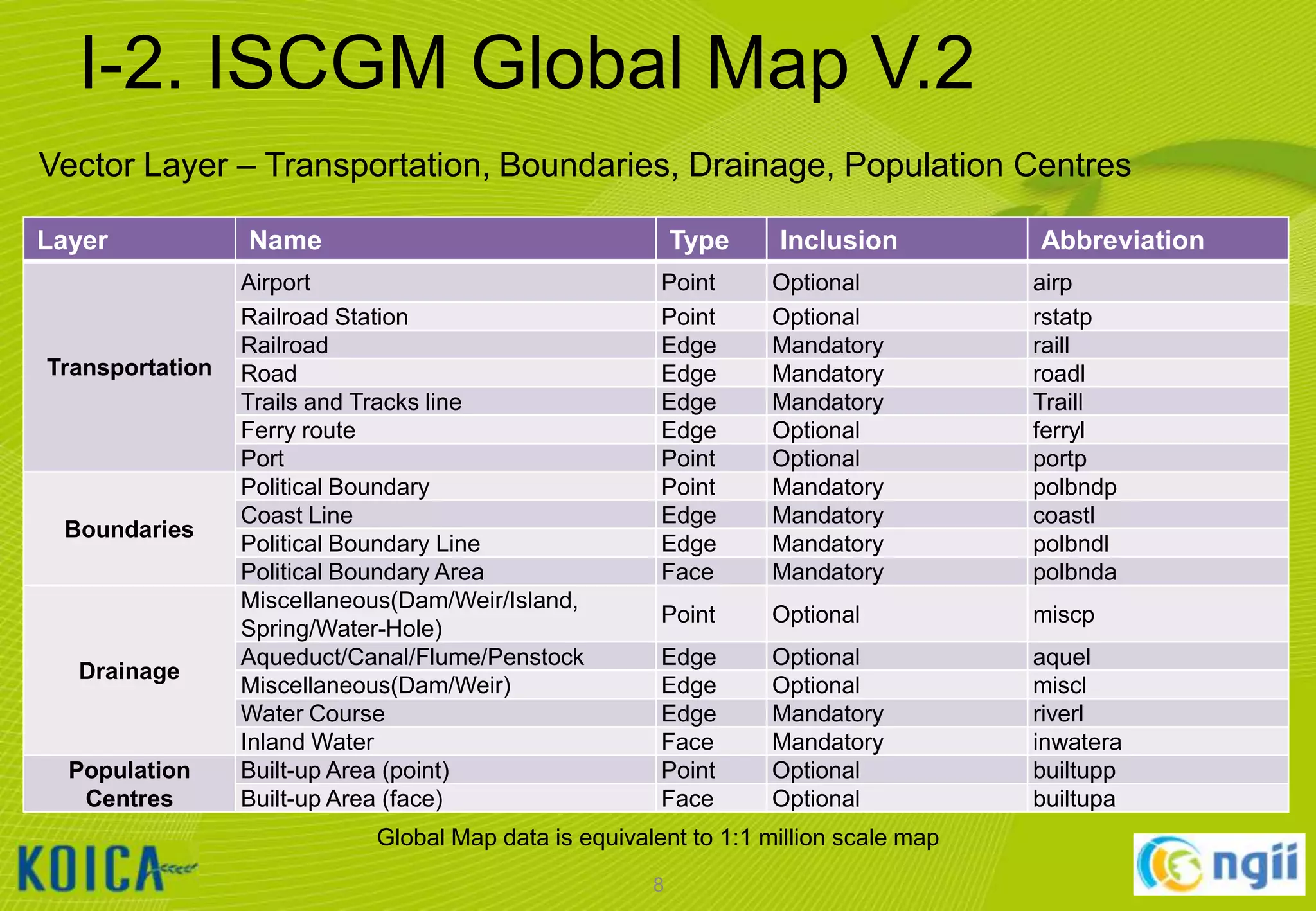
Vector Layer – Transportation, Boundaries, Drainage, Population Centres
Layer

Transportation

Boundaries

Drainage

Population
Centres

Name

Type

Airport
Railroad Station
Railroad
Road
Trails and Tracks line
Ferry route
Port
Political Boundary
Coast Line
Political Boundary Line
Political Boundary Area
Miscellaneous(Dam/Weir/Island,
Spring/Water-Hole)
Aqueduct/Canal/Flume/Penstock
Miscellaneous(Dam/Weir)
Water Course
Inland Water
Built-up Area (point)
Built-up Area (face)

Inclusion

Abbreviation

Point
Point
Edge
Edge
Edge
Edge
Point
Point
Edge
Edge
Face

Optional
Optional
Mandatory
Mandatory
Mandatory
Optional
Optional
Mandatory
Mandatory
Mandatory
Mandatory

airp
rstatp
raill
roadl
Traill
ferryl
portp
polbndp
coastl
polbndl
polbnda

Point

Optional

miscp

Edge
Edge
Edge
Face
Point
Face

Optional
Optional
Mandatory
Mandatory
Optional
Optional

aquel
miscl
riverl
inwatera
builtupp
builtupa

Global Map data is equivalent to 1:1 million scale map
8
I-2. ISCGM Global Map V.2
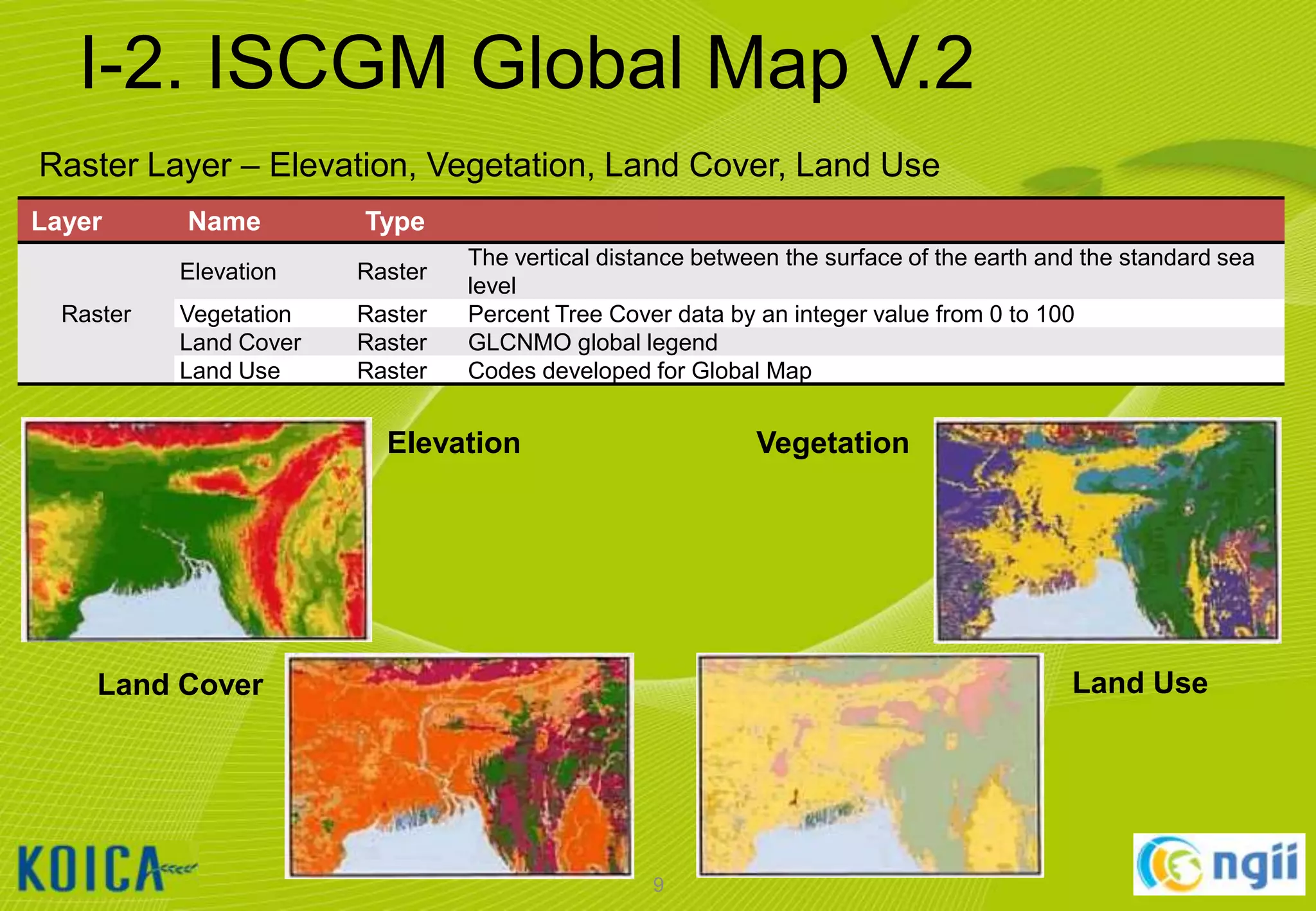
Raster Layer – Elevation, Vegetation, Land Cover, Land Use
Layer

Type

Elevation
Raster

Name

Raster

Vegetation
Land Cover
Land Use

Raster
Raster
Raster

The vertical distance between the surface of the earth and the standard sea
level
Percent Tree Cover data by an integer value from 0 to 100
GLCNMO global legend
Codes developed for Global Map

Elevation

Vegetation

Land Use

Land Cover

9
I-2. ISCGM Global Map V.2
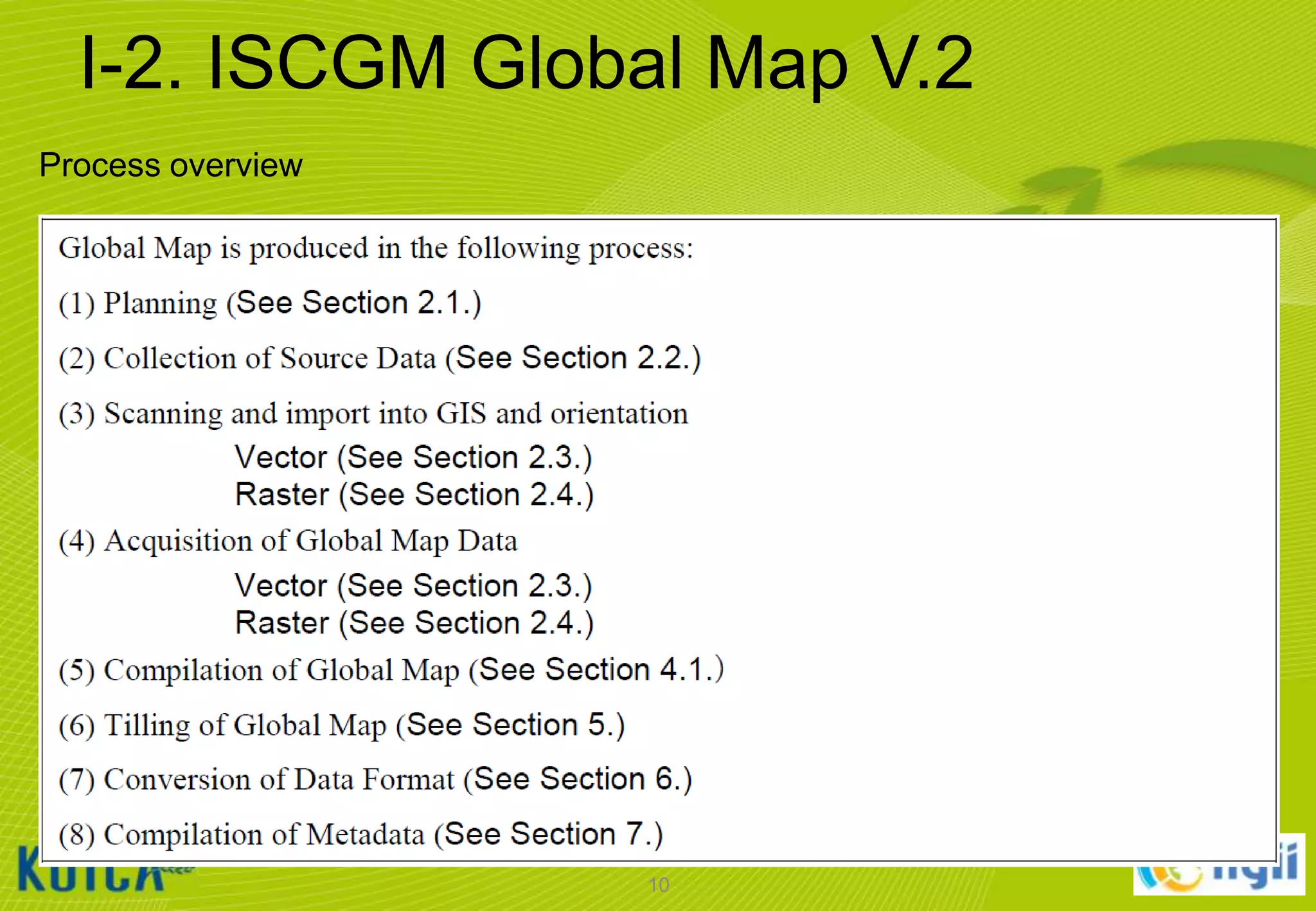
Process overview

10
I-2. ISCGM Global Map V.2
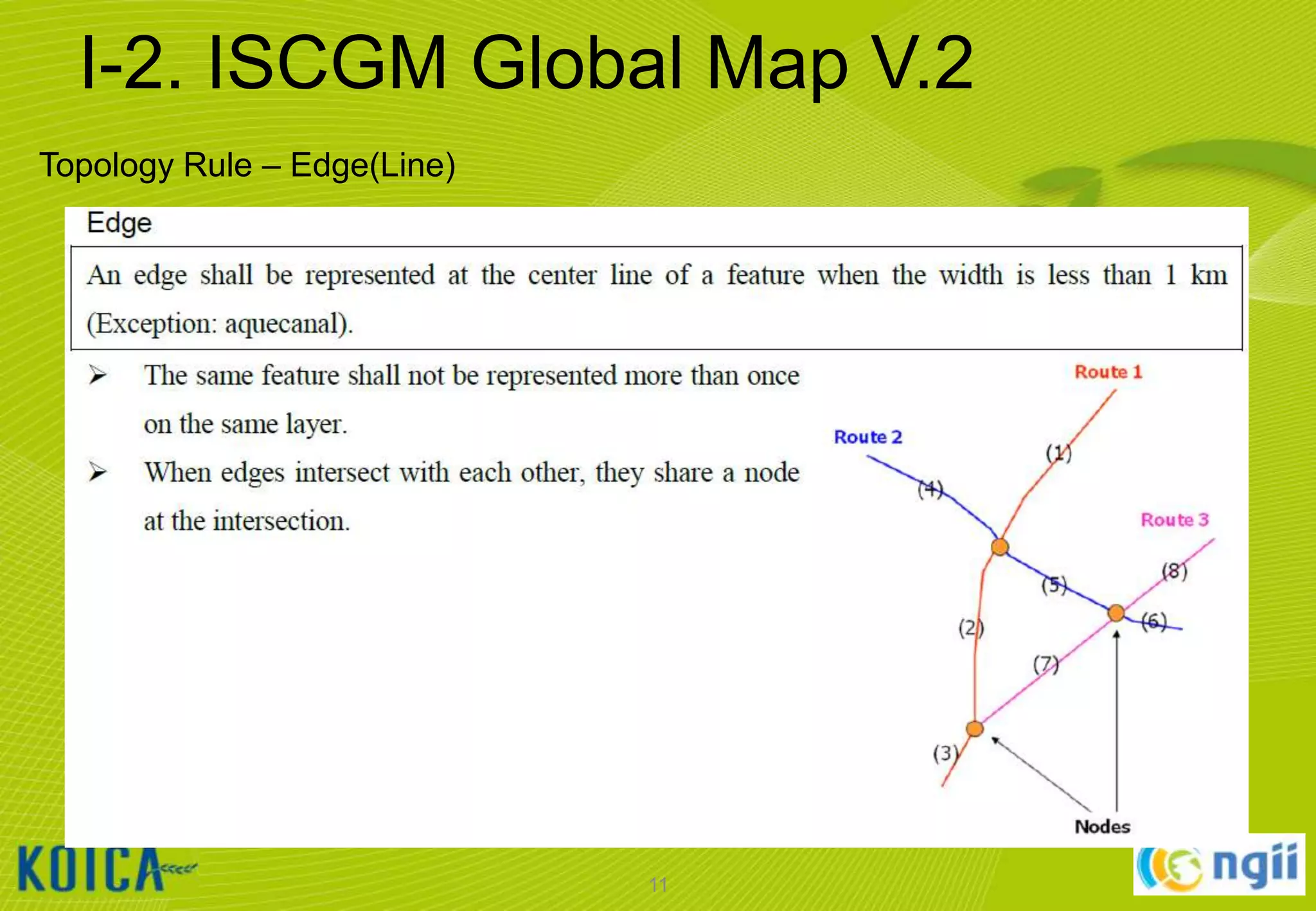
Topology Rule – Edge(Line)

11
I-2. ISCGM Global Map V.2
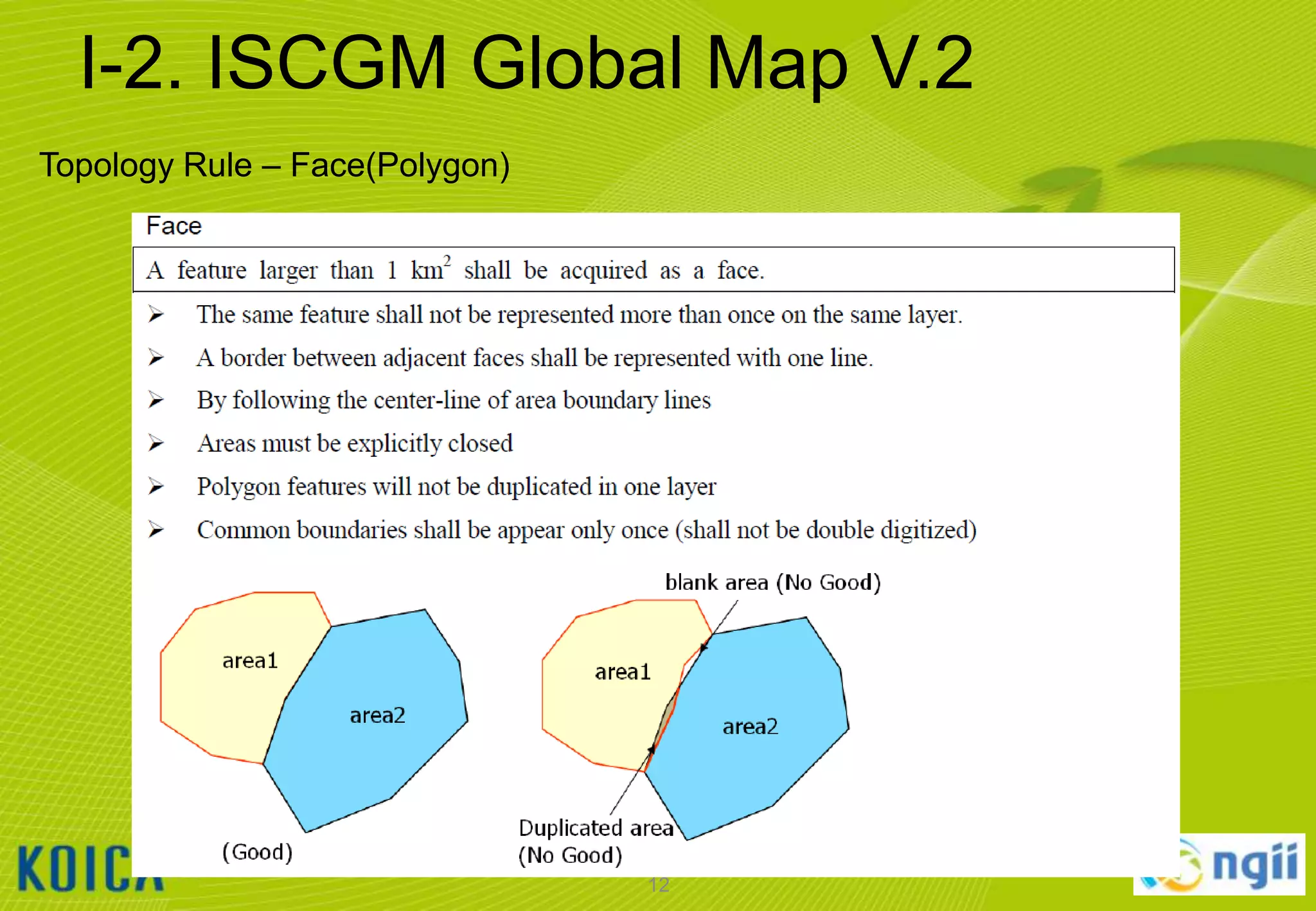
Topology Rule – Face(Polygon)

12
I-2. ISCGM Global Map V.2
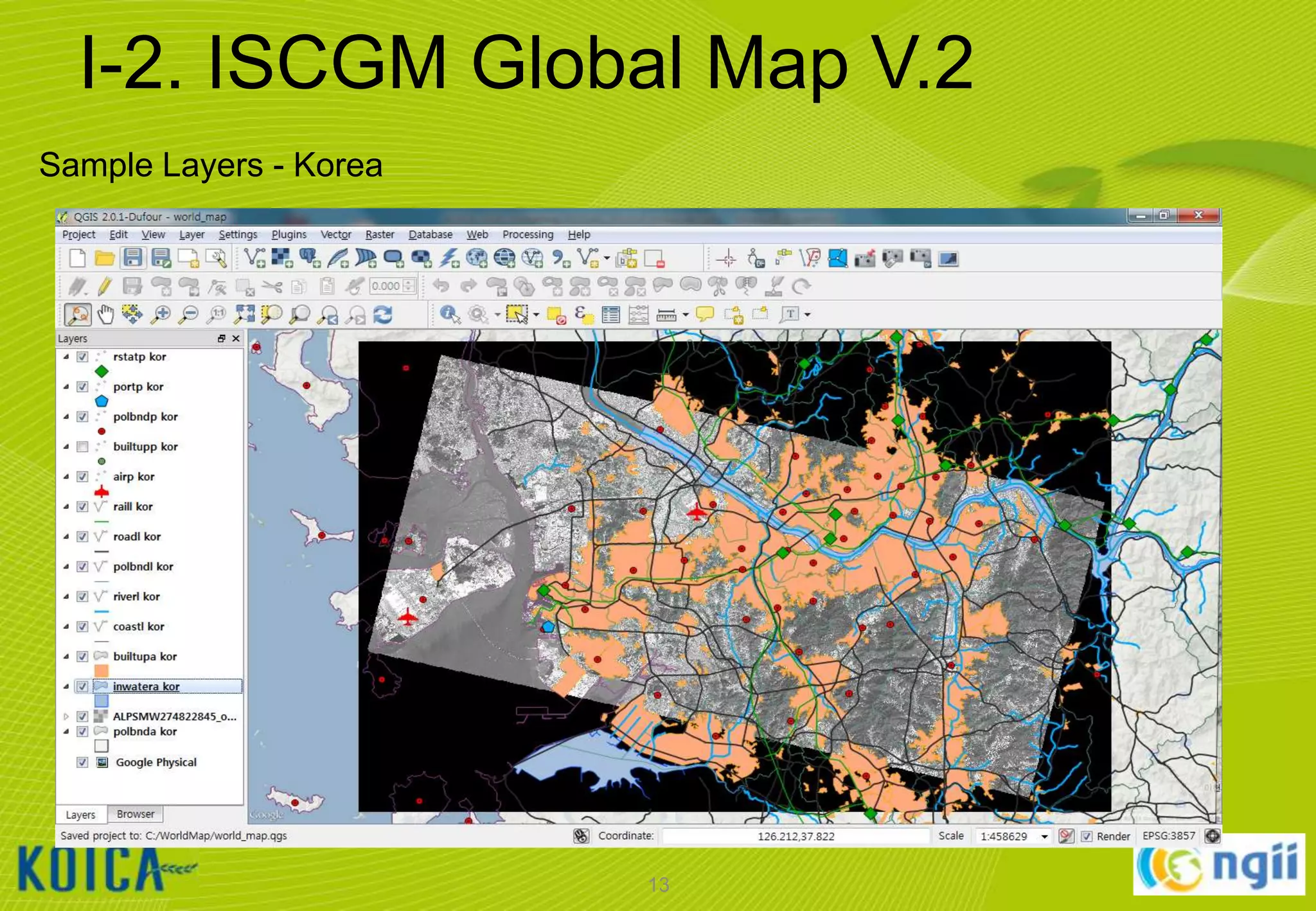
Sample Layers - Korea

13
II. INSTALLING QGIS

14
II-1. Installing QGIS
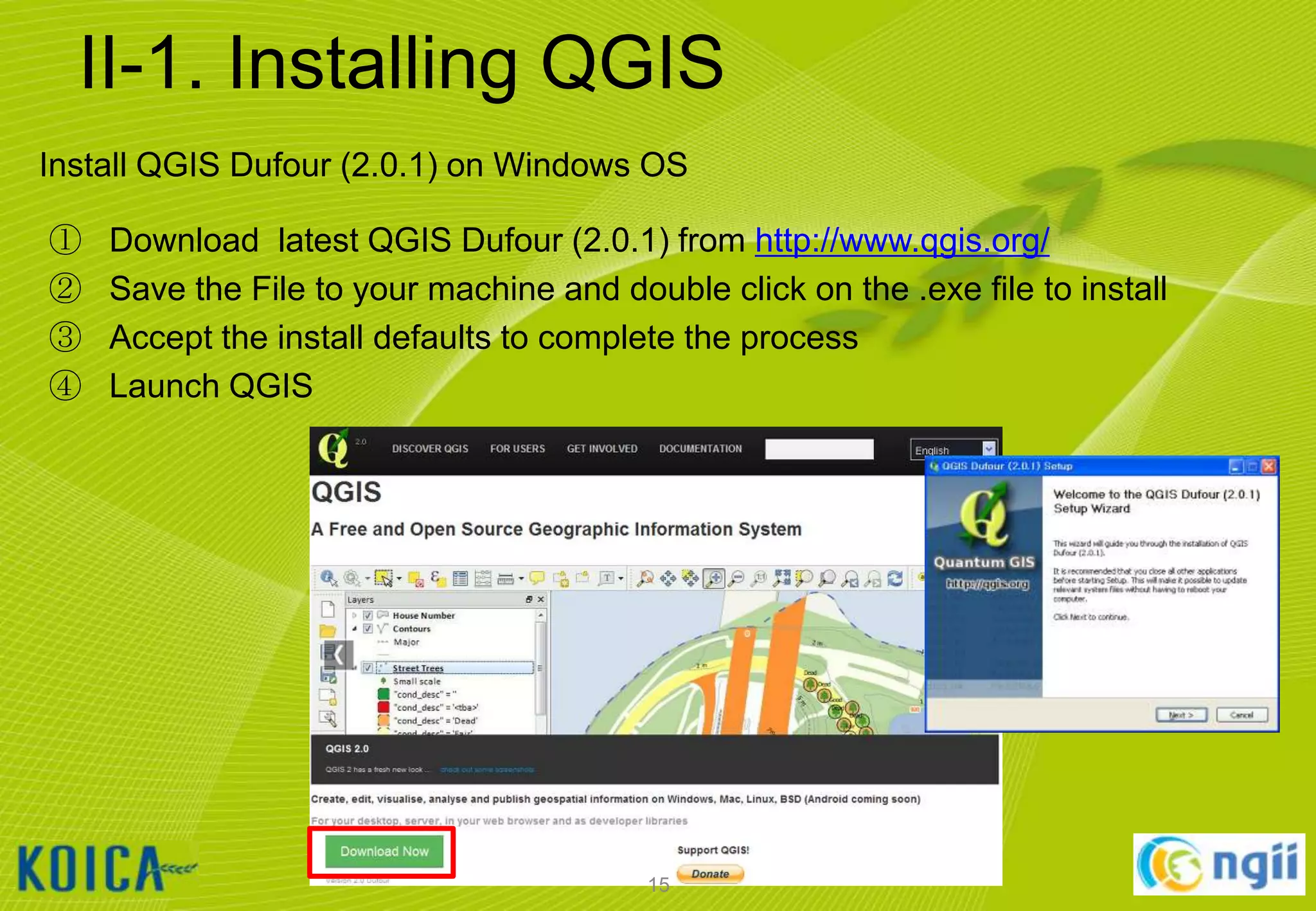
Install QGIS Dufour (2.0.1) on Windows OS
①
②
③
④

Download latest QGIS Dufour (2.0.1) from http://www.qgis.org/
Save the File to your machine and double click on the .exe file to install
Accept the install defaults to complete the process
Launch QGIS

15
II-1. Installing QGIS
Change the language setting/interface of QGIS
① Launch QGIS
② [설정]  [옵션…]  [언어설정]  [U.S. English]  [확인]
③ Select [Setting]  [Options…] menu and Select [Locale]  [U.S. English] 
[OK]
④ Restart QGIS

16
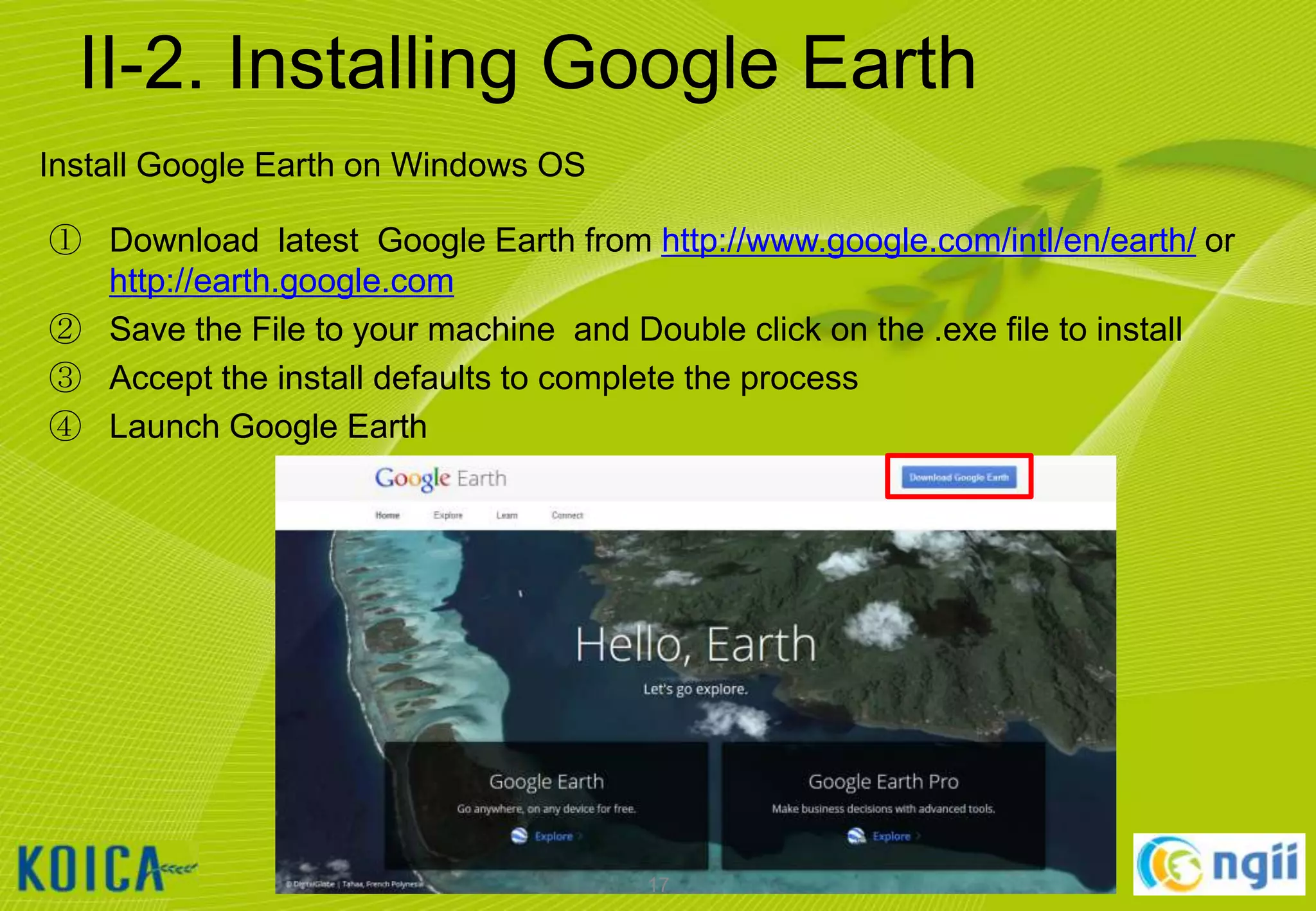
II-2. Installing Google Earth
Install Google Earth on Windows OS
① Download latest Google Earth from http://www.google.com/intl/en/earth/ or
http://earth.google.com
② Save the File to your machine and Double click on the .exe file to install
③ Accept the install defaults to complete the process
④ Launch Google Earth

17
II-2. Installing Google Earth
Change the language setting/interface of Google Earth
① Launch Google Earth
② [도구]  [옵션…]  [일반]  [언어 설정] [English (US)]  [확인]
③ Select [Tools]  [Options…]  [General]  [Language settings]  [ English
(US)]  [OK]
④ Restart Google Earth

18
III. USING QGIS

19
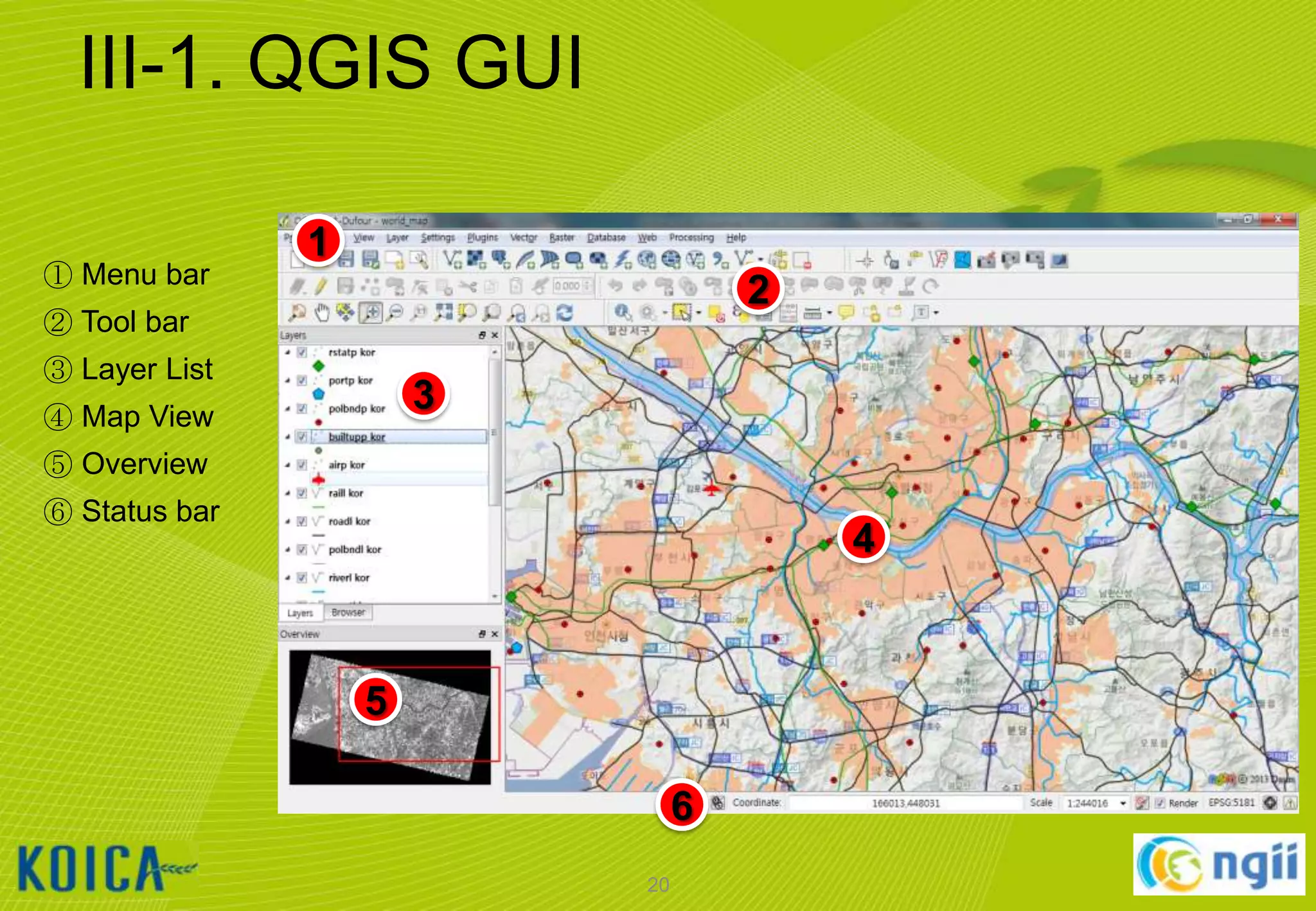
III-1. QGIS GUI
① Menu bar

1
2

② Tool bar

③ Layer List

3

④ Map View
⑤ Overview
⑥ Status bar

4

5
6
20
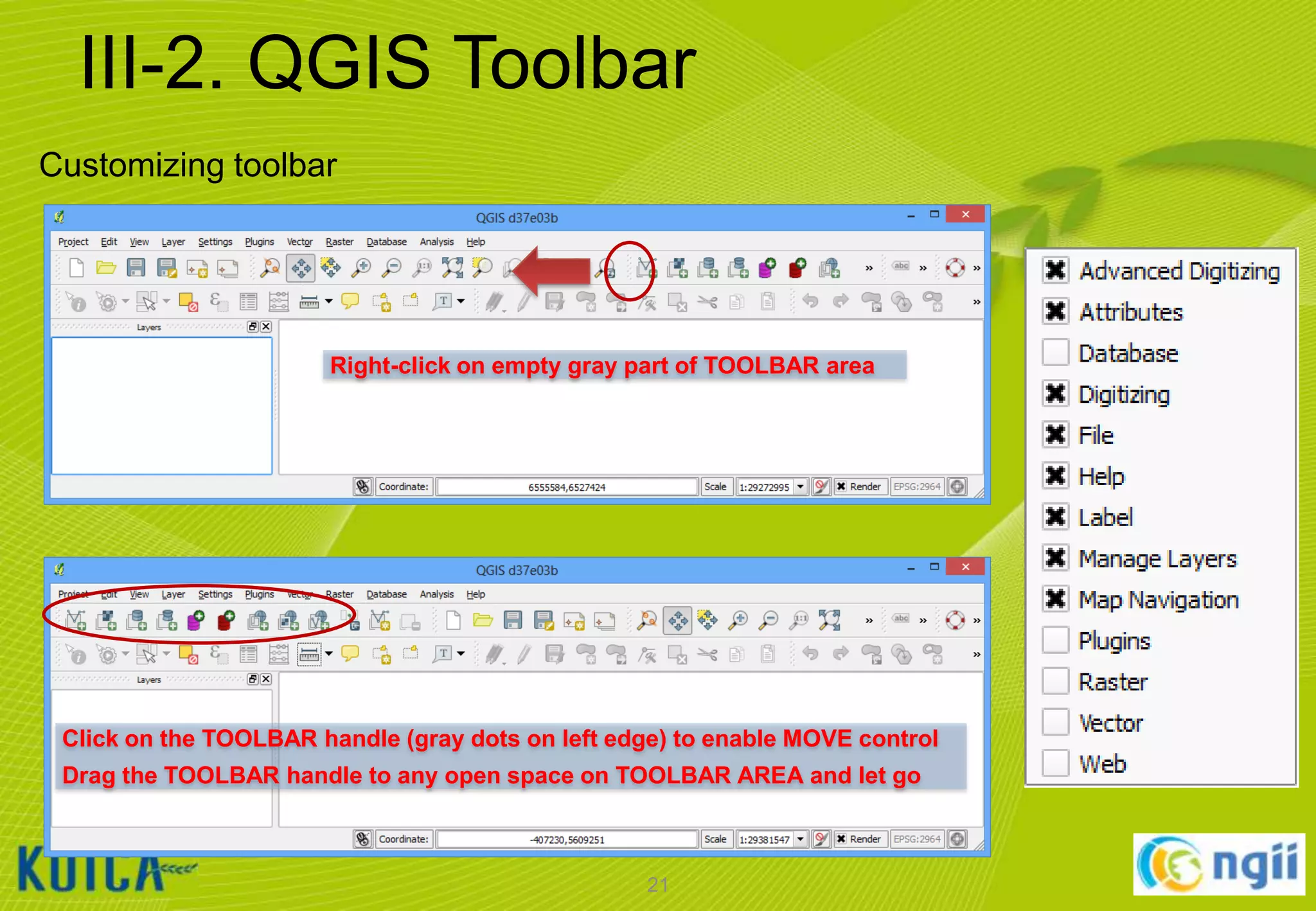
III-2. QGIS Toolbar
Customizing toolbar

Right-click on empty gray part of TOOLBAR area

Click on the TOOLBAR handle (gray dots on left edge) to enable MOVE control
Drag the TOOLBAR handle to any open space on TOOLBAR AREA and let go

21
III-3. Working with Vector Data
Adding vector data
• Click [Layer]  [Add Vector Layer…]
• Browse to the “C:WorldMapvector” folder and select all files that ends “*.shp“
• Notice that the Source Type will default to SYSTEM encoding.
– QGIS is VERY good at handling various character set encodings (such as multi-byte Chinese
& Japanese, or UTF-8)!

• Click [open] button to add the selected layers to the current project.

22
III-3. Working with Vector Data
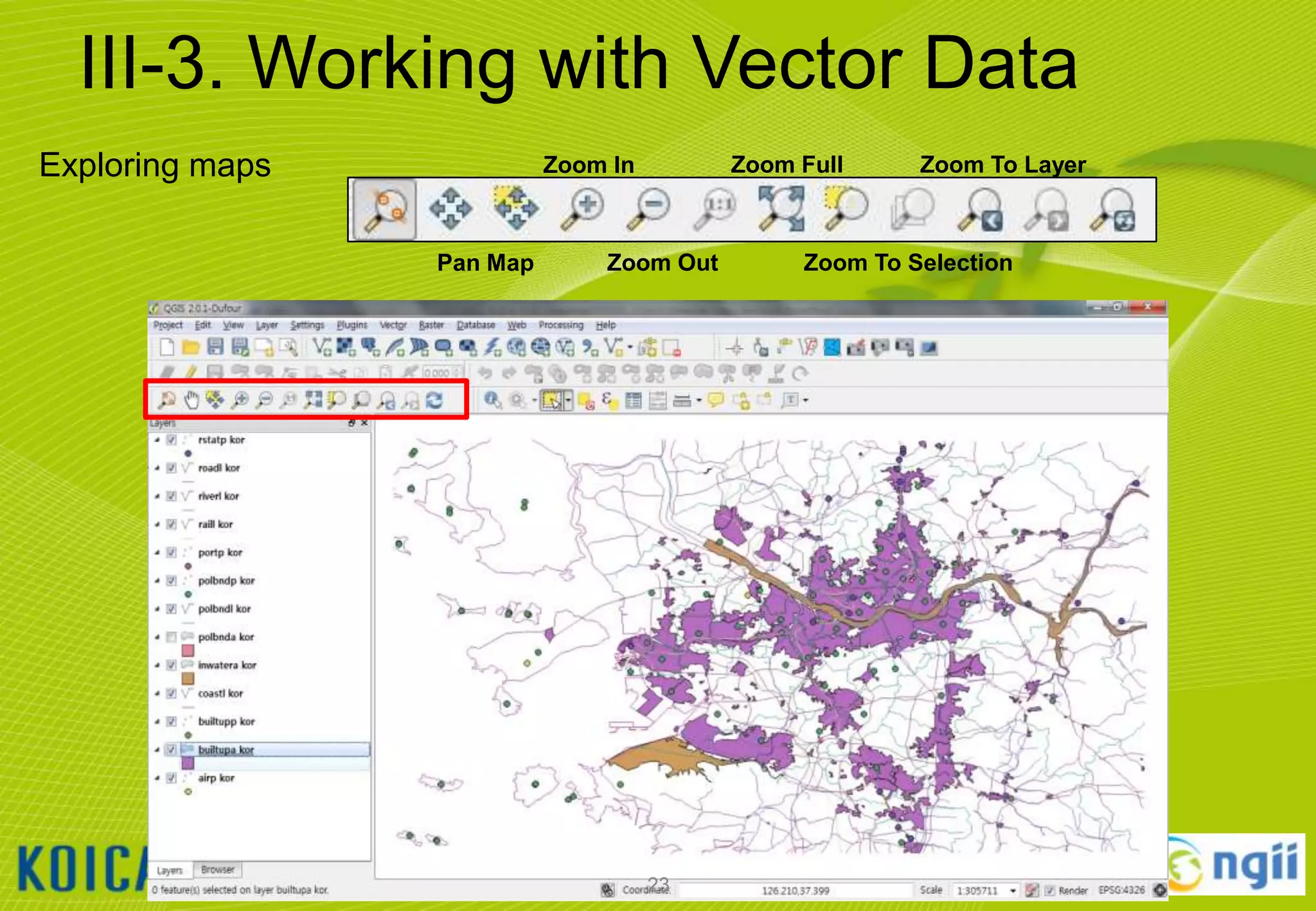
Exploring maps

Zoom Full

Zoom In

Pan Map

Zoom Out

23

Zoom To Layer

Zoom To Selection
III-3. Working with Vector Data
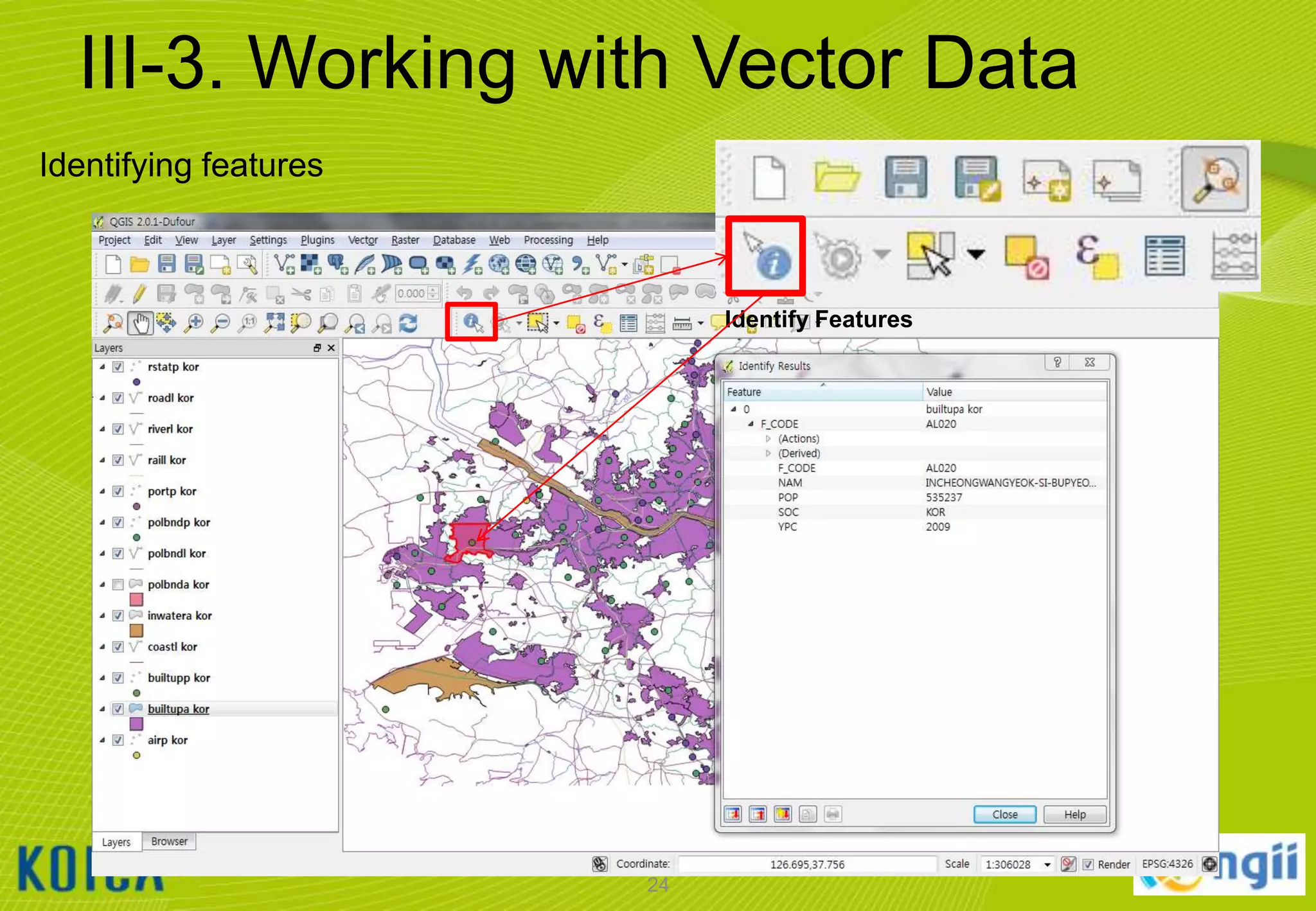
Identifying features

Identify Features

24
III-3. Working with Vector Data
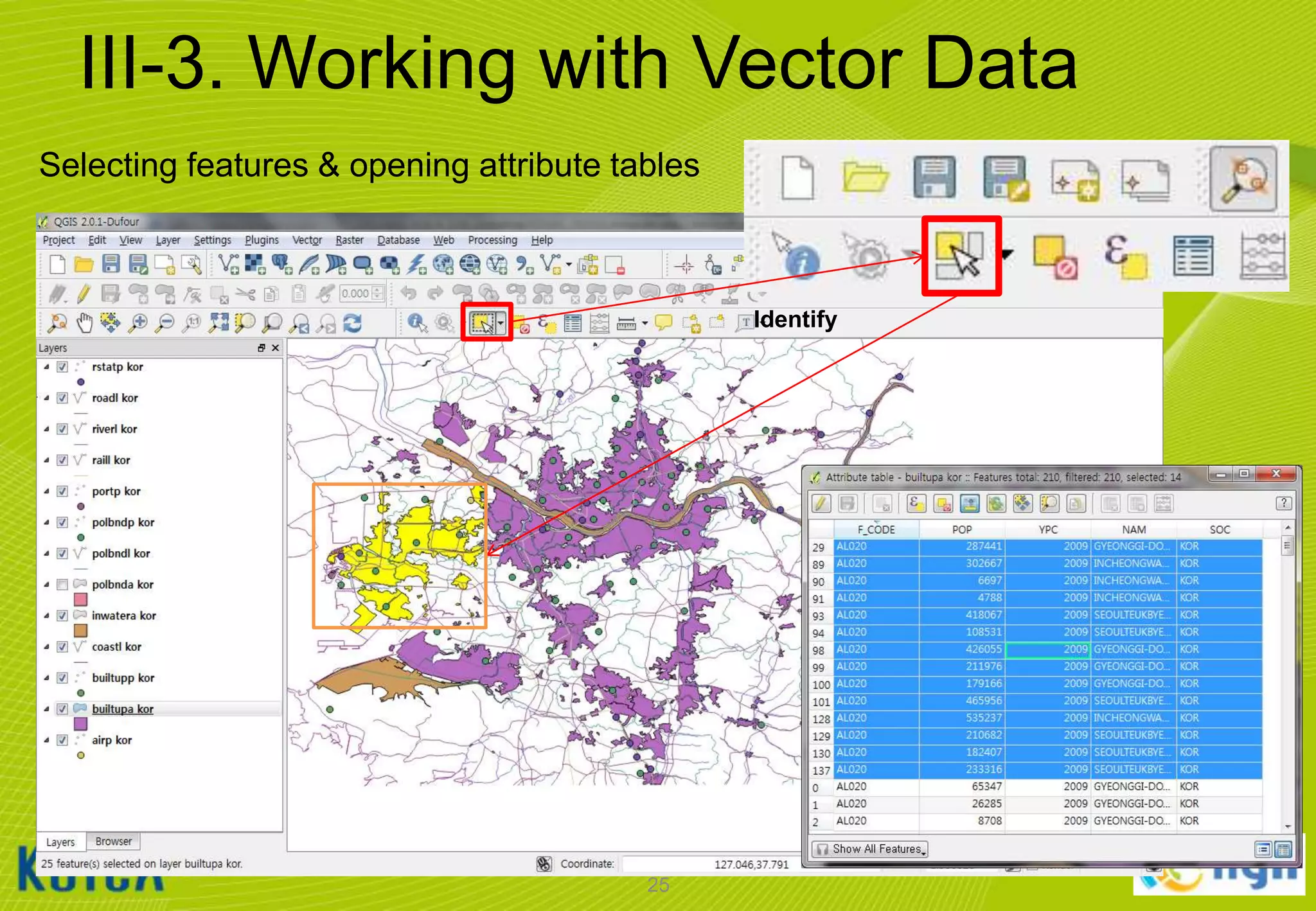
Selecting features & opening attribute tables

Identify

25
III-3. Working with Vector Data
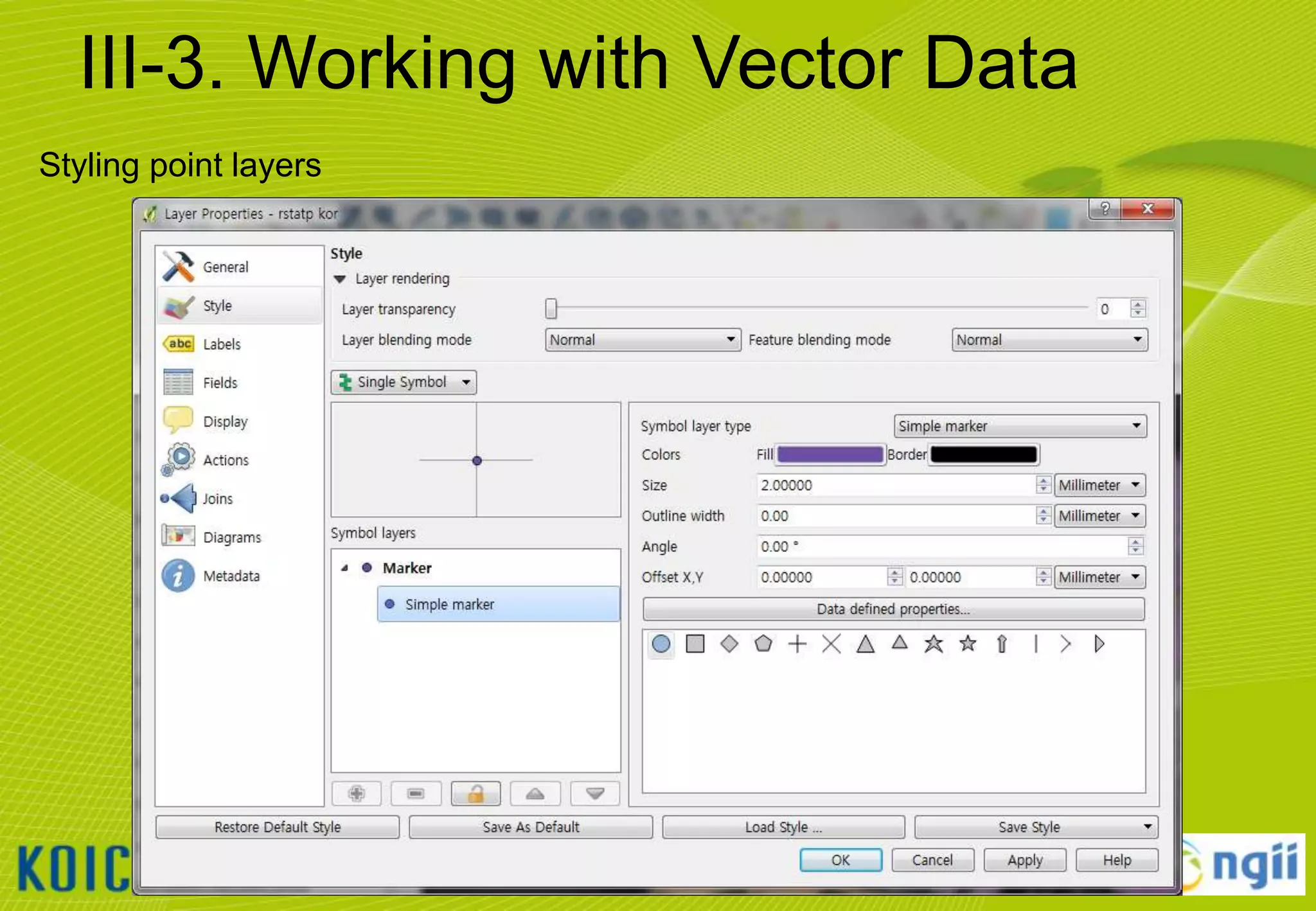
Styling point layers

26
III-3. Working with Vector Data
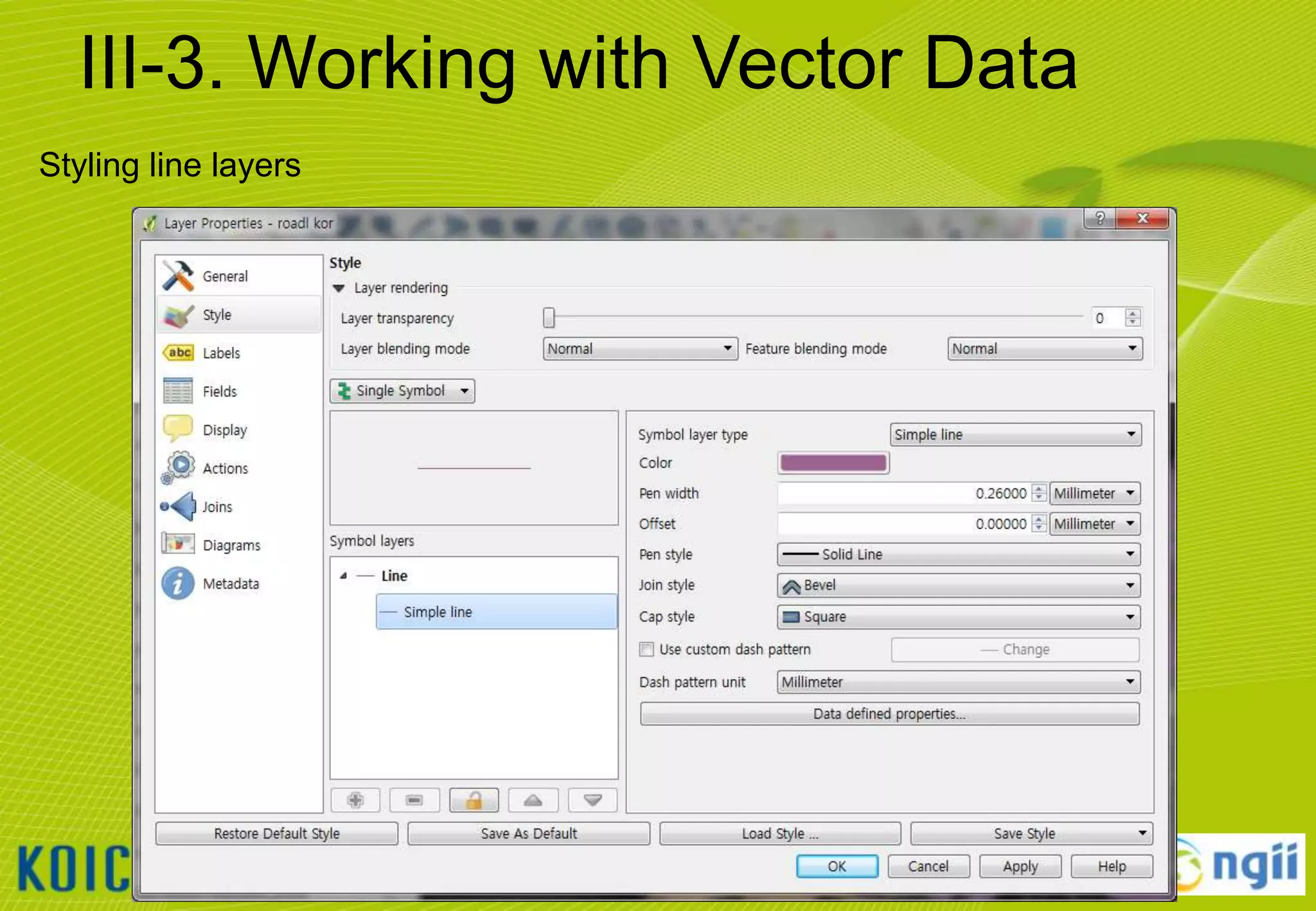
Styling line layers

27
III-3. Working with Vector Data
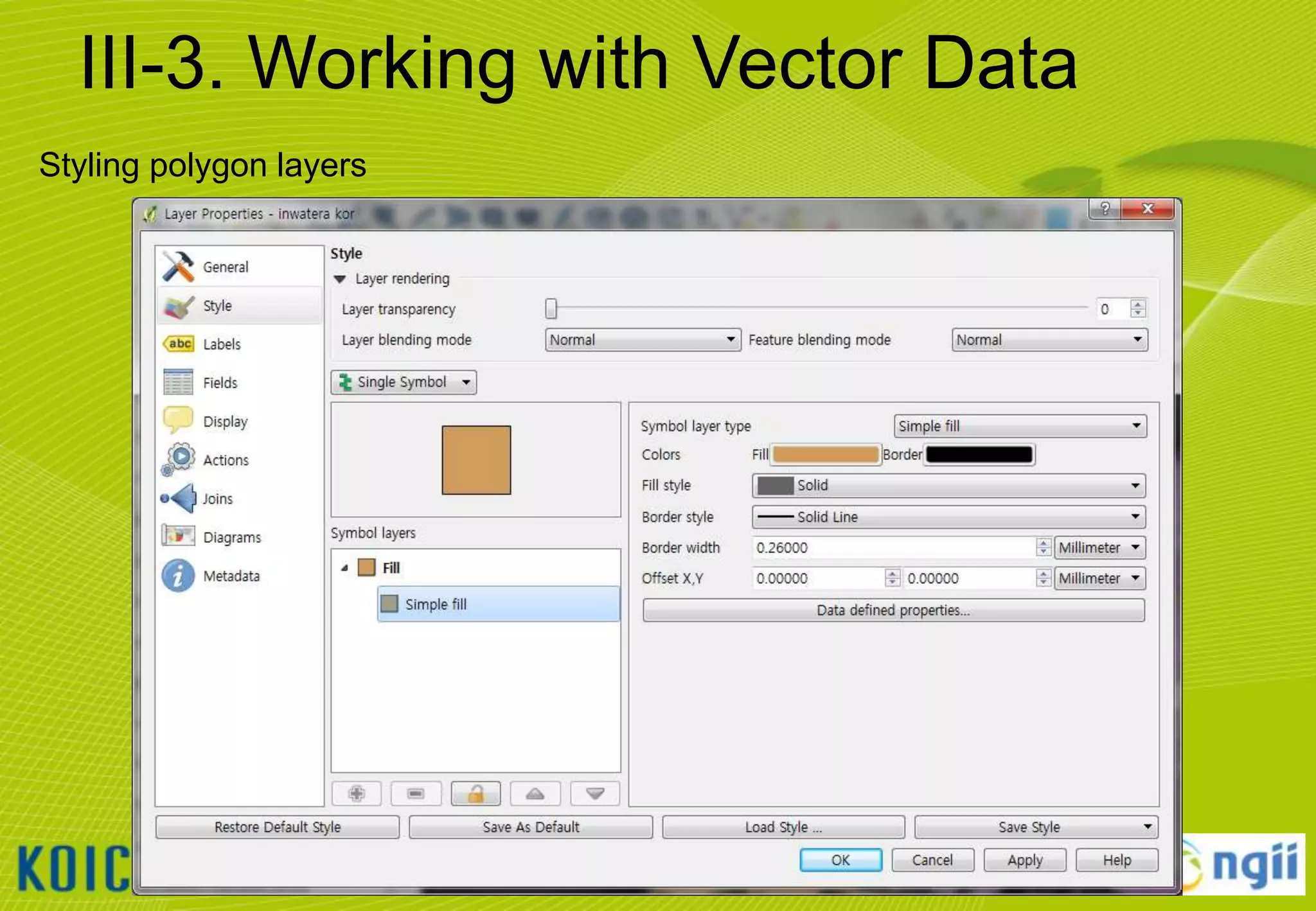
Styling polygon layers

28
III-3. Working with Vector Data
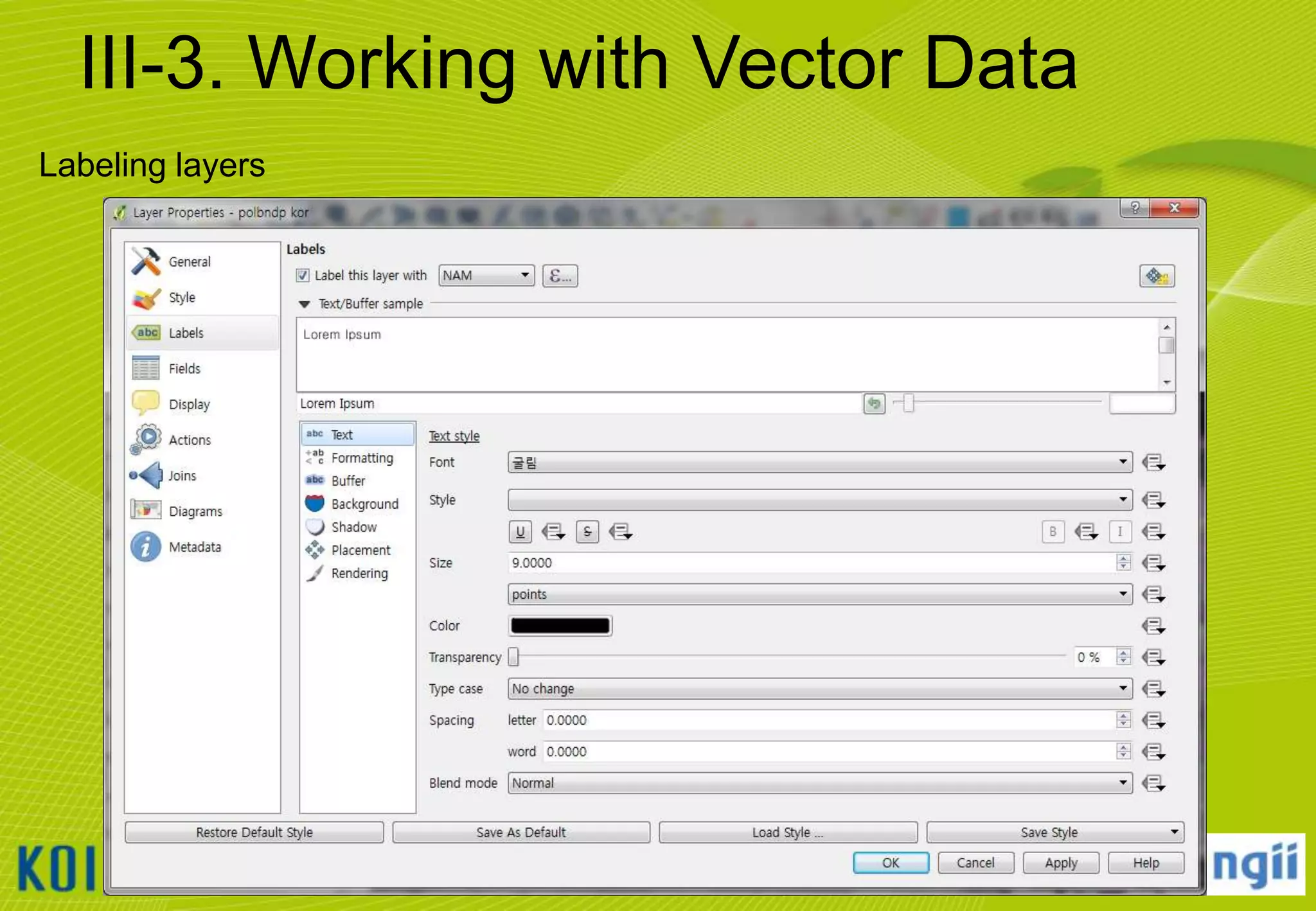
Labeling layers

29
III-4. Working with Raster Data
Adding raster data
• Click [Layer]  [Add Raster Layer…]
• Browse to the “C:WorldMap” folder and select the filename that ends
“ALPSMW274822845_ortho.tif“
• Click [open] button to add the selected layers to the current project.

30
III-4. Working with Raster Data
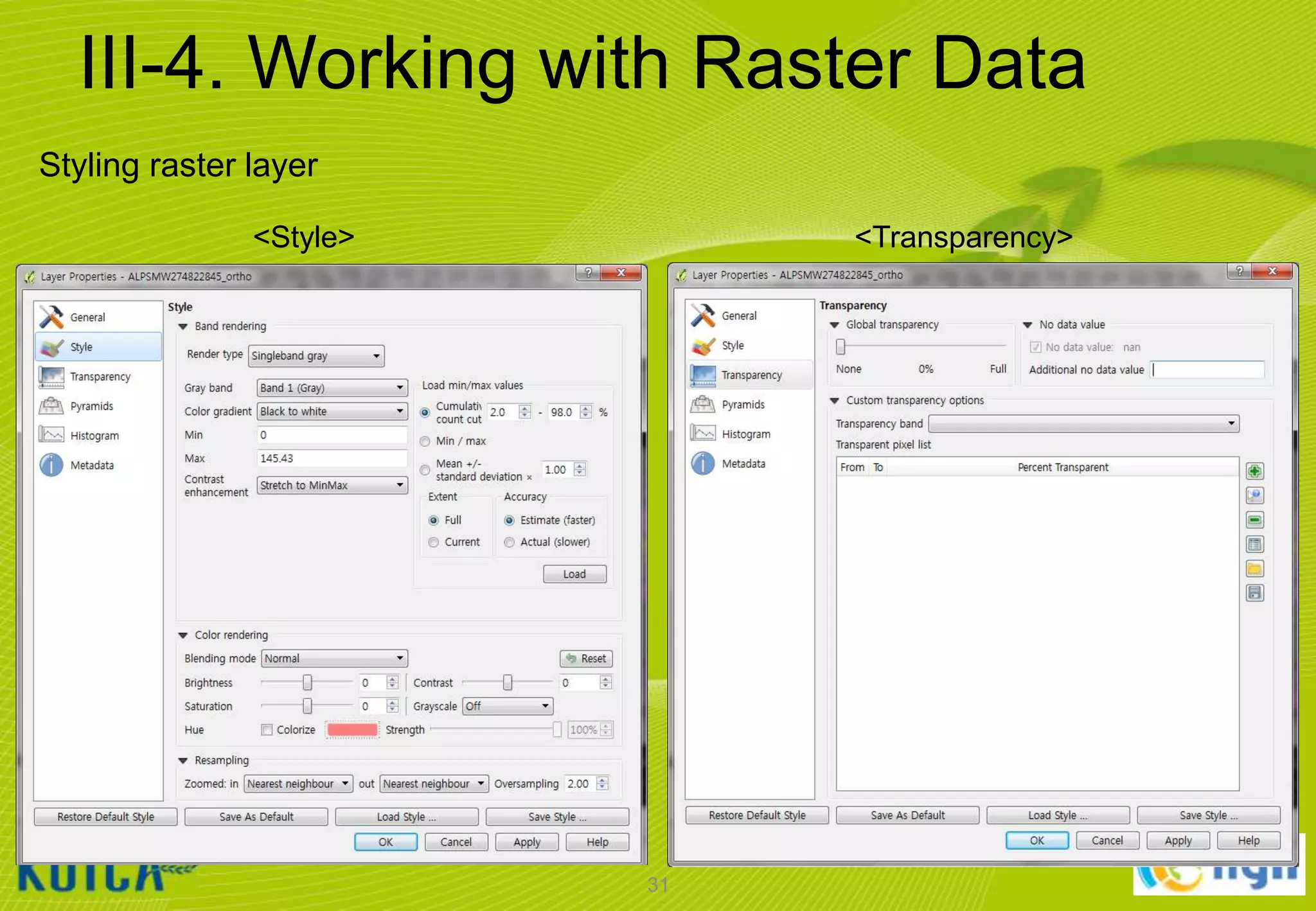
Styling raster layer
<Style>

<Transparency>

31
IV. EXTENDING QGIS

32
IV-1. QGIS Plugins
Installing QGIS plugins
① Click [Plugins]  [Manage and Install Plugins…] menu
② Select [OpenLayers Plugin]
③ Click [Install] button

 Manual Installation
① Copy [C:WorldMappluginopenlayers_plugin.zip] file to [C:Users[your login
name].qgis2pythonplugins] folder
② unzip files and restart QGIS

33
IV-1. QGIS Plugins
How to use OpenLayers Plugin
① Click [Plugins]  [OpenLayers Plugin] menu
② Select [Add Google Satellite layer]
③ Select vector layer and click [Zoom to Layer Extent]

34
V. EDITING GLOBAL MAP DATA

35
V-1. Setting Environment
Setting the Snapping Tolerance and Search Radius
①
②
③


Click [Settings]  [Options…] menu
Select Digitizing tab
Set snapping environment:
Default snap mode




Default snapping tolerance




To vertex and segment
10.0 pixels

Default radius for vertex edits


10.0 pixels

36
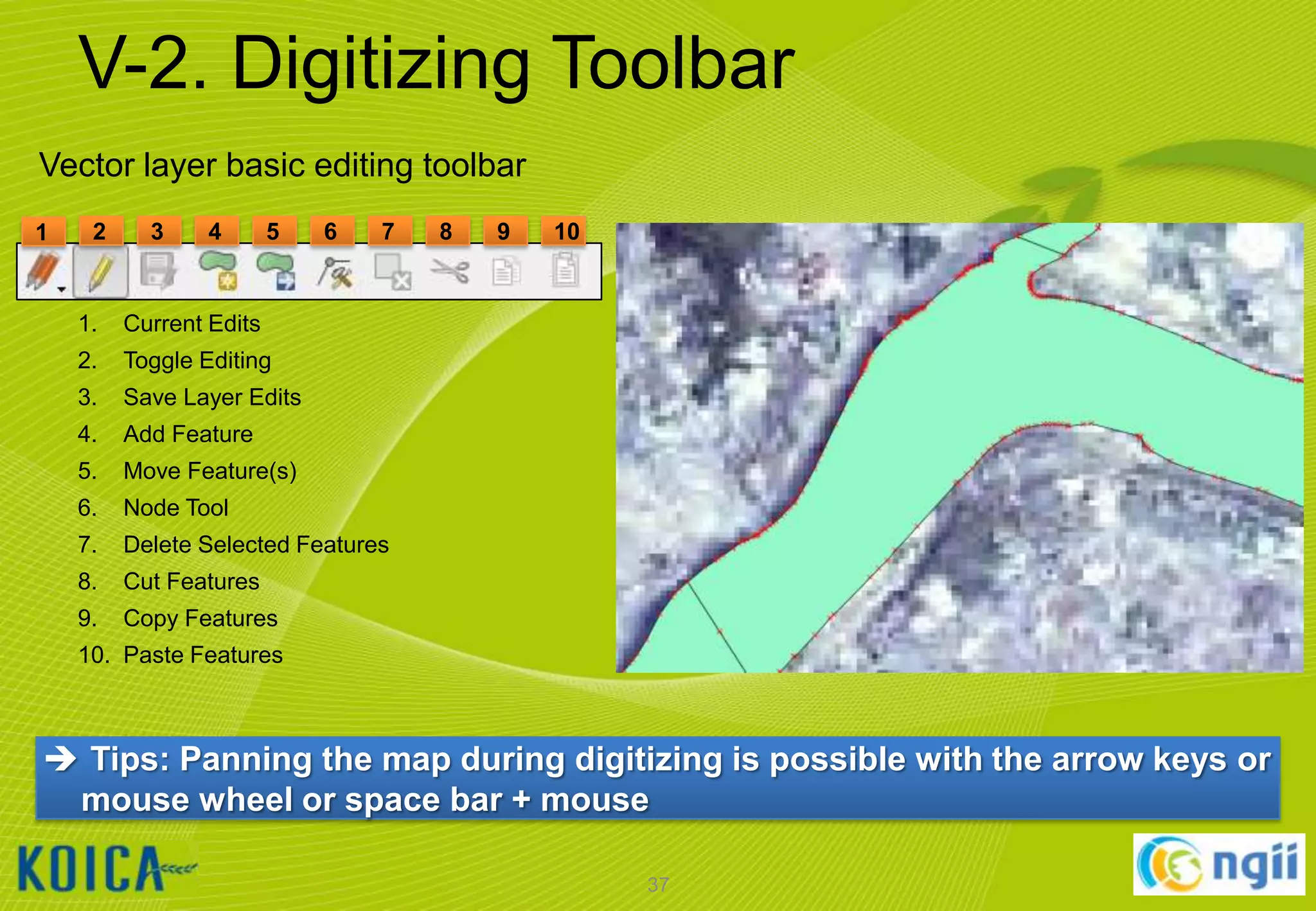
V-2. Digitizing Toolbar
Vector layer basic editing toolbar
1

2

3

4

5

6

7

1.

Save Layer Edits

4.

Add Feature

5.

Move Feature(s)

6.

Node Tool

7.

Delete Selected Features

8.

Cut Features

9.

10

Toggle Editing

3.

9

Current Edits

2.

8

Copy Features

10. Paste Features

 Tips: Panning the map during digitizing is possible with the arrow keys or
mouse wheel or space bar + mouse
37
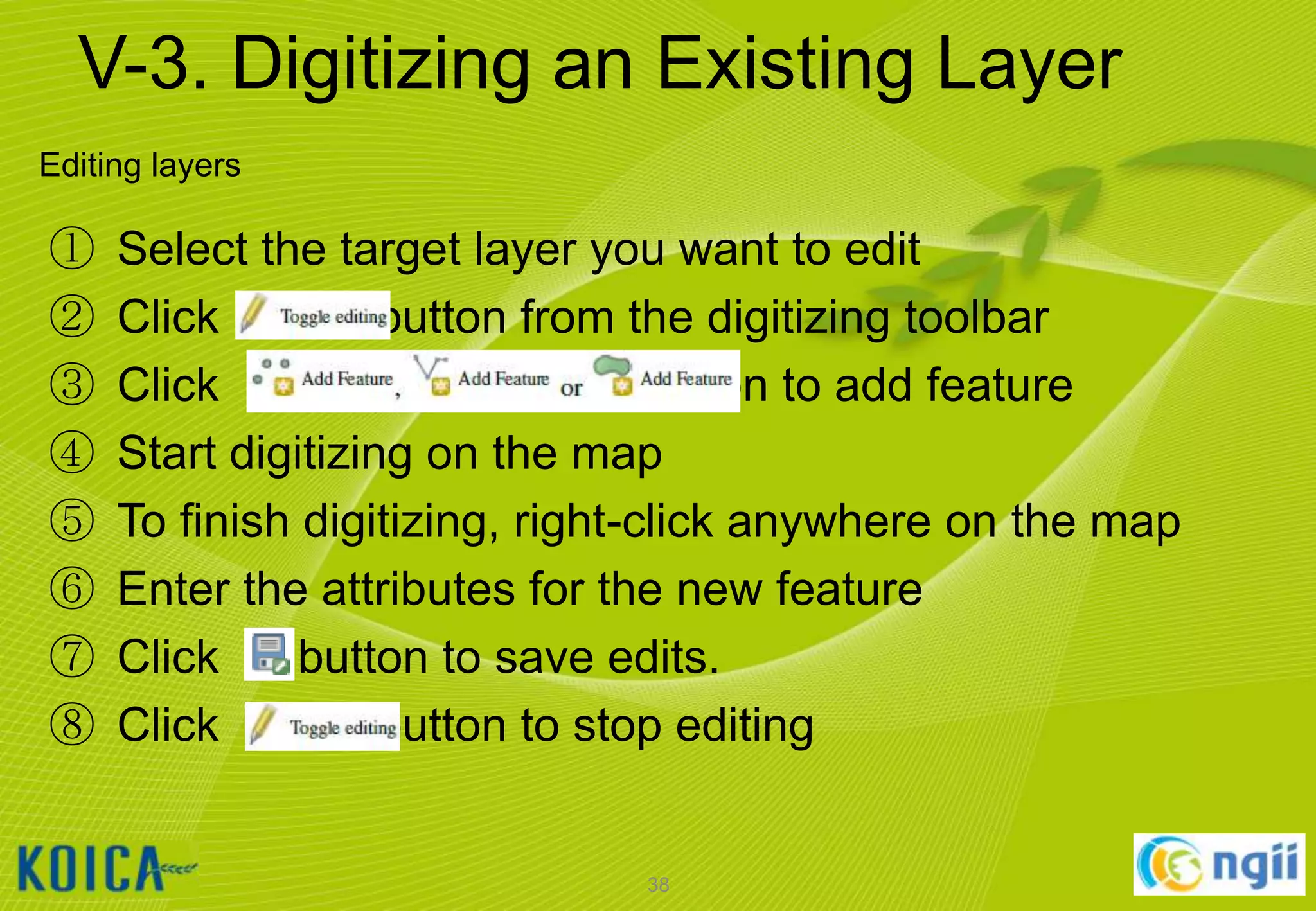
V-3. Digitizing an Existing Layer
Editing layers

①
②
③
④
⑤
⑥
⑦
⑧

Select the target layer you want to edit
Click
button from the digitizing toolbar
Click
button to add feature
Start digitizing on the map
To finish digitizing, right-click anywhere on the map
Enter the attributes for the new feature
Click
button to save edits.
Click
button to stop editing

38
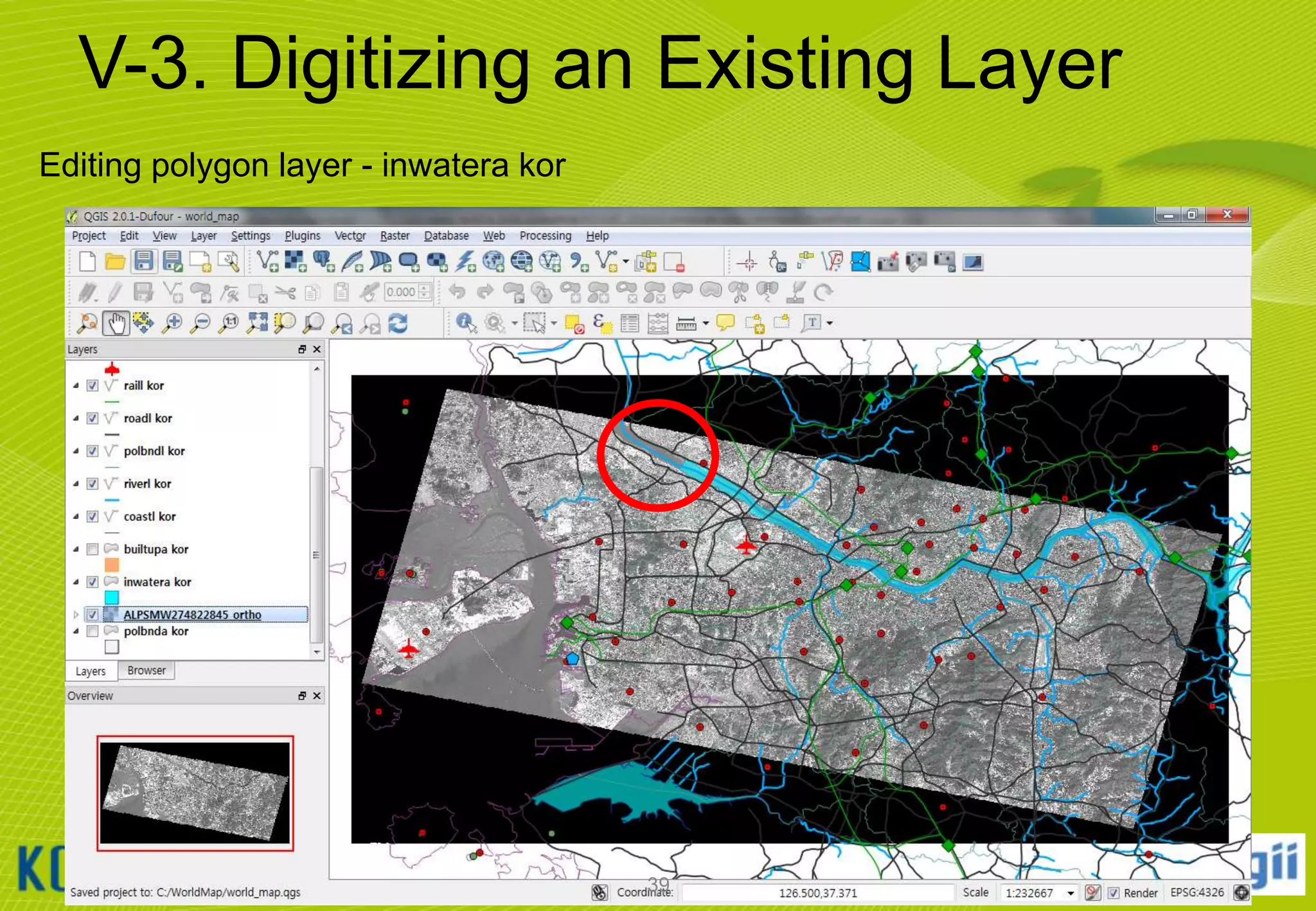
V-3. Digitizing an Existing Layer
Editing polygon layer - inwatera kor

39
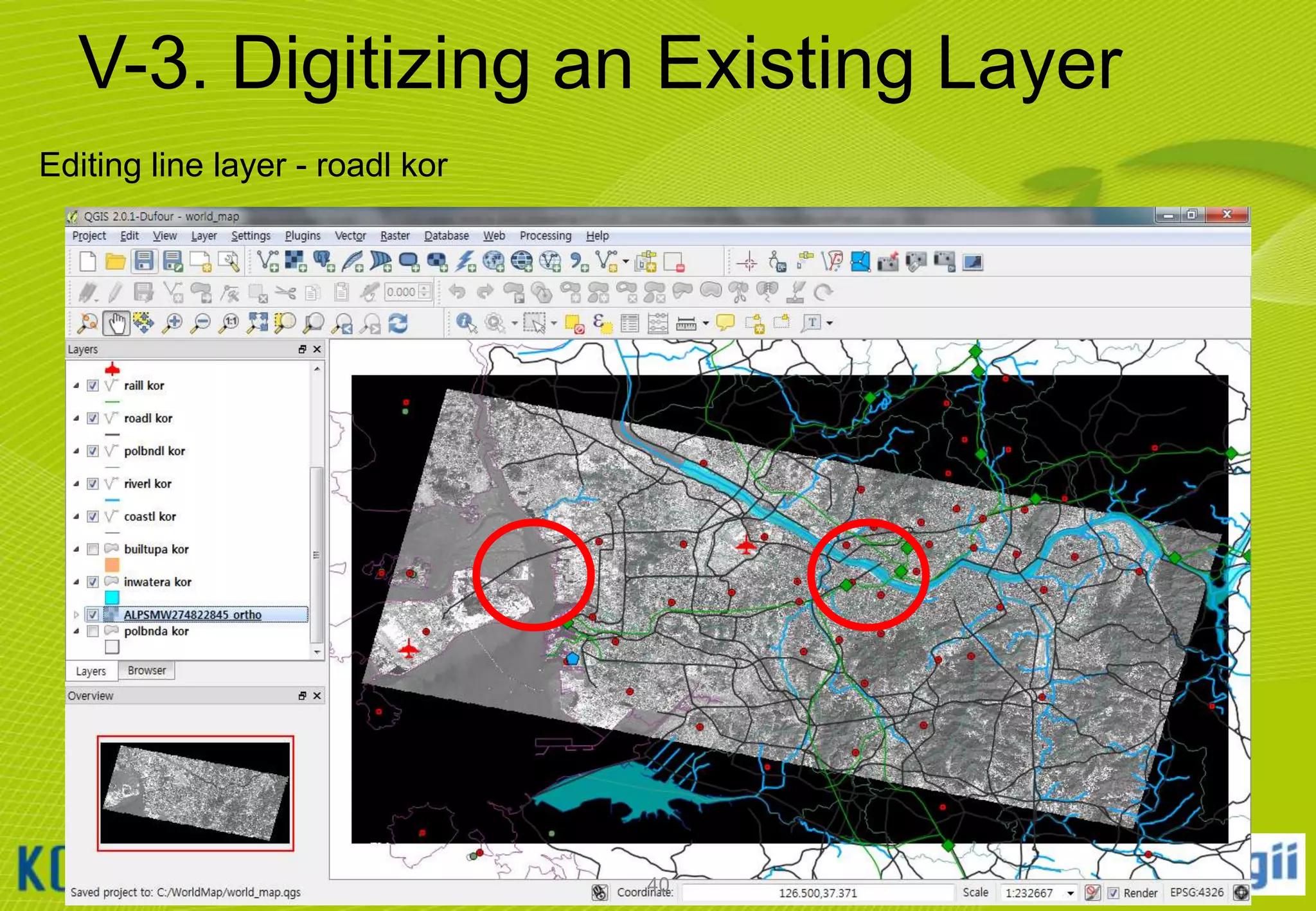
V-3. Digitizing an Existing Layer
Editing line layer - roadl kor

40
V-4. Creating a New Layer
Creating and Editing Shapefiles
①
②
③
④
⑤

Click [Layer]  [New]  [New Shapefile Layer…] menu
Select Polygon Type and set WGS 84 CRS
Enter “Name” by manually typing in the Name textbox
Click [Add to attributes list] button
Click OK button and specify new layer name

41
VI. IMPORT & EXPORT

42
VI-1. Import
Import CSV File 1
① Click [Layer]  [Add Delimited Text Layer…]
② Select the CSV file from [C:WorldMap events.csv]
③ Check X, Y fields



X = LON
Y = LAT

43
VI-1. Import
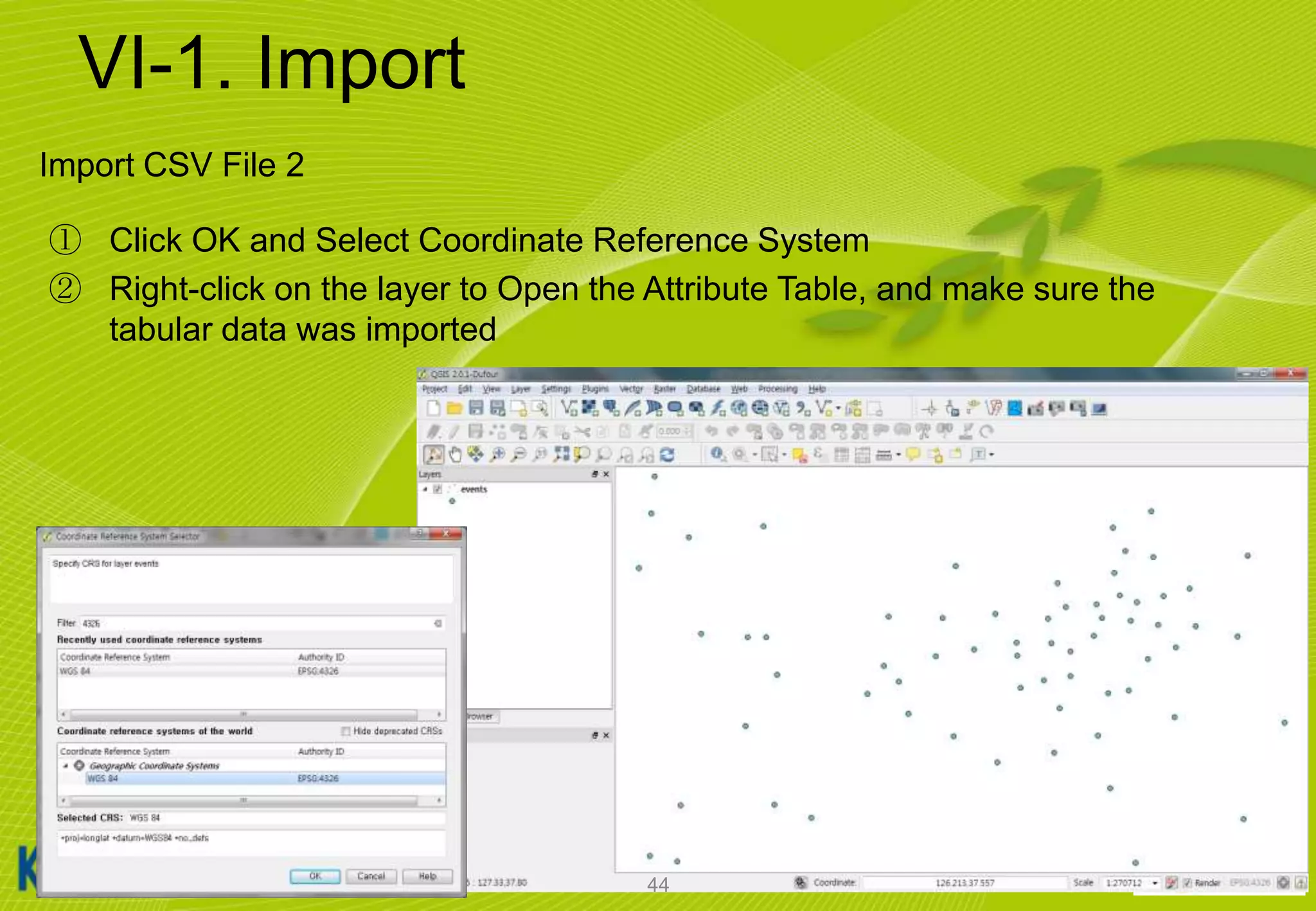
Import CSV File 2
① Click OK and Select Coordinate Reference System
② Right-click on the layer to Open the Attribute Table, and make sure the
tabular data was imported

44
VI-2. Export to Shapefile
Export to ESRI Shape file
① Select [events] layer
② Right-click and select [Save As…] menu
③ Options



CRS transformation
Encoding

④ Click OK

45
VI-2. Export to OGC GML format
OGC GML: XML grammar for expressing geographical features
① Add [roadl kor] layer from shapefiles and select layer
② Right-click and select [Save As…] menu
③ Select UTF-8 Encoding


Default xml encoding

④ Click OK

46
VI-2. Export to KML format
Export to Google Earth KML format
①
②
③
④
⑤

Add [roadl kor] layer from shapefiles and select layer
Right-click and select [Save As…] menu
Select WGS 84 CRS
Click OK
Go to [Windows Explorer] and double click kml file

47
Q&A

48
Reference
•QGIS Home: http://www.qgis.org
•QGIS Online Manuals: http://www.qgis.org/en/documentation/manuals.html
•QGIS Workshop : http://maps.cga.harvard.edu/qgis/
•UC Davis QGIS Lab: http://www.plantsciences.ucdavis.edu/plant/qgislabs.htm
•Scratching Surfaces : http://www.surfaces.co.il/?p=872
•Nathans QGIS Blog: http://woostuff.wordpress.com/
•Spatial Galaxy : http://spatialgalaxy.net/

49
THANK YOU!

50

Using QGIS and ISCGM Global Map

  • 1.
    Using QGIS and ISCGMGlobal Map 2013. 11. 04 Minpa Lee(mapplus@gmail.com) Heegu Park(hgpark@gaia3d.com)
  • 2.
    Lecturer Name: Minpa Lee Department:R&D, Mango System inc. 사진 Contact: #A201, 98, Haenggung-ro, Paldal-gu, Suwon-si, Gyeonggi-do, 442-130, Korea E-mail: mapplus@gmail.com <Education Background> - BA on Seoul National University, Korea, Geography Education(03. 1992 ~ 02. 1999) <Community> - OSGeo, Charter member - OSGeo Korean Chapter, Korean Translator 2
  • 3.
    Contents • I. Overview–QGIS& Global map • IV. Extending QGIS – I-1. QGIS Overview – I-2. ISCGM Global Map V.2 • II. Installing QGIS – IV-1. QGIS Plugins • V. Editing Global Map Data – – – – – II-1. Installing QGIS – II-2. Installing Google Earth • III. Using QGIS – – – – III-1. QGIS GUI III-2. QGIS Toolbar III-3. Working with Vector Data III-4. Working with Raster Data V-1. Setting Environment V-2. Digitizing Toolbar V-3. Digitizing an Existing Layer V-4. Creating a New Layer • VI. Import & Export – VI-1. Import – VI-2. Export – VI-3. Export to OGC GML format 3
  • 4.
    I. OVERVIEW – QGIS& GLOBAL MAP 4
  • 5.
    I-1. QGIS Overview QGIS Free & Open Source Geographic Information System OS  MS Windows  Mac OSX  Linux, Unix License  GPL Language  C++, Python 5
  • 6.
    I-1. QGIS Overview QGIS  Desktop GIS for querying, creating, editing, analyzing geospatial data QGIS Desktop QGIS Browser QGIS Library(C++) QGIS Server QGIS Client  WMS 1.3.0, 1.1.1 Server  FastCGI/CGI Program  SLD Support 6  Browser for spatial data  Web Mapping Framework based on QGIS Server and GeoExt
  • 7.
    I-2. ISCGM GlobalMap V.2 ISCGM - International Steering Committee for Global Mapping http://iscgm.org 7
  • 8.
    I-2. ISCGM GlobalMap V.2 Vector Layer – Transportation, Boundaries, Drainage, Population Centres Layer Transportation Boundaries Drainage Population Centres Name Type Airport Railroad Station Railroad Road Trails and Tracks line Ferry route Port Political Boundary Coast Line Political Boundary Line Political Boundary Area Miscellaneous(Dam/Weir/Island, Spring/Water-Hole) Aqueduct/Canal/Flume/Penstock Miscellaneous(Dam/Weir) Water Course Inland Water Built-up Area (point) Built-up Area (face) Inclusion Abbreviation Point Point Edge Edge Edge Edge Point Point Edge Edge Face Optional Optional Mandatory Mandatory Mandatory Optional Optional Mandatory Mandatory Mandatory Mandatory airp rstatp raill roadl Traill ferryl portp polbndp coastl polbndl polbnda Point Optional miscp Edge Edge Edge Face Point Face Optional Optional Mandatory Mandatory Optional Optional aquel miscl riverl inwatera builtupp builtupa Global Map data is equivalent to 1:1 million scale map 8
  • 9.
    I-2. ISCGM GlobalMap V.2 Raster Layer – Elevation, Vegetation, Land Cover, Land Use Layer Type Elevation Raster Name Raster Vegetation Land Cover Land Use Raster Raster Raster The vertical distance between the surface of the earth and the standard sea level Percent Tree Cover data by an integer value from 0 to 100 GLCNMO global legend Codes developed for Global Map Elevation Vegetation Land Use Land Cover 9
  • 10.
    I-2. ISCGM GlobalMap V.2 Process overview 10
  • 11.
    I-2. ISCGM GlobalMap V.2 Topology Rule – Edge(Line) 11
  • 12.
    I-2. ISCGM GlobalMap V.2 Topology Rule – Face(Polygon) 12
  • 13.
    I-2. ISCGM GlobalMap V.2 Sample Layers - Korea 13
  • 14.
  • 15.
    II-1. Installing QGIS InstallQGIS Dufour (2.0.1) on Windows OS ① ② ③ ④ Download latest QGIS Dufour (2.0.1) from http://www.qgis.org/ Save the File to your machine and double click on the .exe file to install Accept the install defaults to complete the process Launch QGIS 15
  • 16.
    II-1. Installing QGIS Changethe language setting/interface of QGIS ① Launch QGIS ② [설정]  [옵션…]  [언어설정]  [U.S. English]  [확인] ③ Select [Setting]  [Options…] menu and Select [Locale]  [U.S. English]  [OK] ④ Restart QGIS 16
  • 17.
    II-2. Installing GoogleEarth Install Google Earth on Windows OS ① Download latest Google Earth from http://www.google.com/intl/en/earth/ or http://earth.google.com ② Save the File to your machine and Double click on the .exe file to install ③ Accept the install defaults to complete the process ④ Launch Google Earth 17
  • 18.
    II-2. Installing GoogleEarth Change the language setting/interface of Google Earth ① Launch Google Earth ② [도구]  [옵션…]  [일반]  [언어 설정] [English (US)]  [확인] ③ Select [Tools]  [Options…]  [General]  [Language settings]  [ English (US)]  [OK] ④ Restart Google Earth 18
  • 19.
  • 20.
    III-1. QGIS GUI ①Menu bar 1 2 ② Tool bar ③ Layer List 3 ④ Map View ⑤ Overview ⑥ Status bar 4 5 6 20
  • 21.
    III-2. QGIS Toolbar Customizingtoolbar Right-click on empty gray part of TOOLBAR area Click on the TOOLBAR handle (gray dots on left edge) to enable MOVE control Drag the TOOLBAR handle to any open space on TOOLBAR AREA and let go 21
  • 22.
    III-3. Working withVector Data Adding vector data • Click [Layer]  [Add Vector Layer…] • Browse to the “C:WorldMapvector” folder and select all files that ends “*.shp“ • Notice that the Source Type will default to SYSTEM encoding. – QGIS is VERY good at handling various character set encodings (such as multi-byte Chinese & Japanese, or UTF-8)! • Click [open] button to add the selected layers to the current project. 22
  • 23.
    III-3. Working withVector Data Exploring maps Zoom Full Zoom In Pan Map Zoom Out 23 Zoom To Layer Zoom To Selection
  • 24.
    III-3. Working withVector Data Identifying features Identify Features 24
  • 25.
    III-3. Working withVector Data Selecting features & opening attribute tables Identify 25
  • 26.
    III-3. Working withVector Data Styling point layers 26
  • 27.
    III-3. Working withVector Data Styling line layers 27
  • 28.
    III-3. Working withVector Data Styling polygon layers 28
  • 29.
    III-3. Working withVector Data Labeling layers 29
  • 30.
    III-4. Working withRaster Data Adding raster data • Click [Layer]  [Add Raster Layer…] • Browse to the “C:WorldMap” folder and select the filename that ends “ALPSMW274822845_ortho.tif“ • Click [open] button to add the selected layers to the current project. 30
  • 31.
    III-4. Working withRaster Data Styling raster layer <Style> <Transparency> 31
  • 32.
  • 33.
    IV-1. QGIS Plugins InstallingQGIS plugins ① Click [Plugins]  [Manage and Install Plugins…] menu ② Select [OpenLayers Plugin] ③ Click [Install] button  Manual Installation ① Copy [C:WorldMappluginopenlayers_plugin.zip] file to [C:Users[your login name].qgis2pythonplugins] folder ② unzip files and restart QGIS 33
  • 34.
    IV-1. QGIS Plugins Howto use OpenLayers Plugin ① Click [Plugins]  [OpenLayers Plugin] menu ② Select [Add Google Satellite layer] ③ Select vector layer and click [Zoom to Layer Extent] 34
  • 35.
    V. EDITING GLOBALMAP DATA 35
  • 36.
    V-1. Setting Environment Settingthe Snapping Tolerance and Search Radius ① ② ③  Click [Settings]  [Options…] menu Select Digitizing tab Set snapping environment: Default snap mode   Default snapping tolerance   To vertex and segment 10.0 pixels Default radius for vertex edits  10.0 pixels 36
  • 37.
    V-2. Digitizing Toolbar Vectorlayer basic editing toolbar 1 2 3 4 5 6 7 1. Save Layer Edits 4. Add Feature 5. Move Feature(s) 6. Node Tool 7. Delete Selected Features 8. Cut Features 9. 10 Toggle Editing 3. 9 Current Edits 2. 8 Copy Features 10. Paste Features  Tips: Panning the map during digitizing is possible with the arrow keys or mouse wheel or space bar + mouse 37
  • 38.
    V-3. Digitizing anExisting Layer Editing layers ① ② ③ ④ ⑤ ⑥ ⑦ ⑧ Select the target layer you want to edit Click button from the digitizing toolbar Click button to add feature Start digitizing on the map To finish digitizing, right-click anywhere on the map Enter the attributes for the new feature Click button to save edits. Click button to stop editing 38
  • 39.
    V-3. Digitizing anExisting Layer Editing polygon layer - inwatera kor 39
  • 40.
    V-3. Digitizing anExisting Layer Editing line layer - roadl kor 40
  • 41.
    V-4. Creating aNew Layer Creating and Editing Shapefiles ① ② ③ ④ ⑤ Click [Layer]  [New]  [New Shapefile Layer…] menu Select Polygon Type and set WGS 84 CRS Enter “Name” by manually typing in the Name textbox Click [Add to attributes list] button Click OK button and specify new layer name 41
  • 42.
    VI. IMPORT &EXPORT 42
  • 43.
    VI-1. Import Import CSVFile 1 ① Click [Layer]  [Add Delimited Text Layer…] ② Select the CSV file from [C:WorldMap events.csv] ③ Check X, Y fields   X = LON Y = LAT 43
  • 44.
    VI-1. Import Import CSVFile 2 ① Click OK and Select Coordinate Reference System ② Right-click on the layer to Open the Attribute Table, and make sure the tabular data was imported 44
  • 45.
    VI-2. Export toShapefile Export to ESRI Shape file ① Select [events] layer ② Right-click and select [Save As…] menu ③ Options   CRS transformation Encoding ④ Click OK 45
  • 46.
    VI-2. Export toOGC GML format OGC GML: XML grammar for expressing geographical features ① Add [roadl kor] layer from shapefiles and select layer ② Right-click and select [Save As…] menu ③ Select UTF-8 Encoding  Default xml encoding ④ Click OK 46
  • 47.
    VI-2. Export toKML format Export to Google Earth KML format ① ② ③ ④ ⑤ Add [roadl kor] layer from shapefiles and select layer Right-click and select [Save As…] menu Select WGS 84 CRS Click OK Go to [Windows Explorer] and double click kml file 47
  • 48.
  • 49.
    Reference •QGIS Home: http://www.qgis.org •QGISOnline Manuals: http://www.qgis.org/en/documentation/manuals.html •QGIS Workshop : http://maps.cga.harvard.edu/qgis/ •UC Davis QGIS Lab: http://www.plantsciences.ucdavis.edu/plant/qgislabs.htm •Scratching Surfaces : http://www.surfaces.co.il/?p=872 •Nathans QGIS Blog: http://woostuff.wordpress.com/ •Spatial Galaxy : http://spatialgalaxy.net/ 49
  • 50.