GeoServer
Orientation
FOSDEM 2020
GeoServer
Basics
FOSDEM 2020
Jody Garnett
Technical Director
jody.garnett@gmail.com
@jodygarnett
GeoCat
Netherlands open-source company focused on
spatial data publication and discovery.
Introductions
Open Source Projects
• GeoServer, GeoTools, JTS, ImageN, uDig
Open Source Geospatial Foundation
• Incubation Committee Chair
• GeoTools Project Officer
• Marketing Committee Co-chair
Eclipse Foundation
• Technology Project Chair
Popular GeoServer Talks
GeoServer use in
organizations, and
technologies,
around the
worlds.
Beloved features,
and impressive
tricks, showing
what is possible
with GeoServer
Annual team
update and tour of
what is new!
Popular GeoServer Talks: Updated!
GeoServer use in
organizations, and
technologies,
around the
worlds.
Beloved features,
and impressive
tricks, showing
what is possible
with GeoServer
Annual team
update and tour of
what is new!
Downloaded
GeoServer, now
what does it do
again?
What is GeoServer for?
geoserver.org:
“GeoServer is an open
source server for sharing
geospatial data.”
GeoServer Vision
GeoServer is passionate about sharing data.
GeoServer was founded out of a community
project to map trees in New York city.
● If you are here to share a map..
GeoServer can do mapping
● But we don’t stop at a map ...
GeoServer will share the data
● And don’t stop at the data …
GeoServer encourages data editing
Approach:
Designed for
interoperability, it
publishes data from any
major spatial data source
using open standards.
GeoServer approach
GeoServer really does not want to “lock-in” in
you or your data, from the ground up:
● Access your data where it is stored
● An share your data with a wide audience
● We start with “industry standards”
● Add more protocols over time
Opposite of a “not-invented-here” attitude.
If GeoServer has to invent something in isolation
chances are we are doing it wrong.
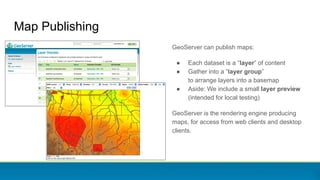
Map Publishing
GeoServer can publish maps:
● Each dataset is a “layer” of content
● Gather into a “layer group”
to arrange layers into a basemap
● Aside: We include a small layer preview
(intended for local testing)
GeoServer is the rendering engine producing
maps, for access from web clients and desktop
clients.
Map Publishing: Continued
GeoServer map publishing is about publishing a visualization.
More than one approach:
- Publish as a “Map” supporting, ad-hoc requests to draw imagery
- Publish entire “Tileset” of content
The result does not always look like an image:
- SVG and KML output combine vector output with styling
- Extensions provide PDF output for printing
- Vector-tile output pre-processed for client side drawing
Vector data: publishing
In the spirit of open, GeoServer is setup to share
the data being used to draw the map.
To reach a wide audience:
● Supports queries
● Range of output formats available
(and more available to install)
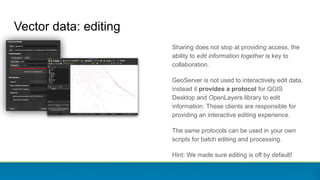
Sharing does not stop at providing access, the
ability to edit information together is key to
collaboration.
GeoServer is not used to interactively edit data,
instead it provides a protocol for QGIS
Desktop and OpenLayers library to edit
information. These clients are responsible for
providing an interactive editing experience.
The same protocols can be used in your own
scripts for batch editing and processing.
Hint: We made sure editing is off by default!
Vector data: editing
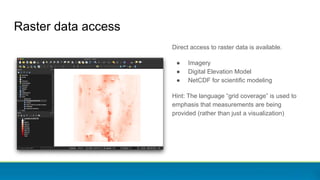
Raster data access
Direct access to raster data is available.
● Imagery
● Digital Elevation Model
● NetCDF for scientific modeling
Hint: The language “grid coverage” is used to
emphasis that measurements are being
provided (rather than just a visualization)
How do I use it?
GeoServer Configuration
GeoServer provides a web application for
configuration and setup.
A REST API is also available for automation.
Notes:
● “Web admin” is not really geoserver
○ Only used for setup geoserver
○ In production hide this!
● The links to “service capabilities” are the
actual web services
Natural Earth
A great public domain dataset used for web
illustrations.
Our example uses the “Quickstart” download
containing a range of vector and raster data
See: www.naturalearthdata.com
Workspace
Workspace
Workspace is used to:
● Folder to organize content
● “Namespace” for XML content publication
Notes:
● Workspace name used as a prefix for
each layer
● Namespace should be a unique URI
● One workspace can be the “default”
● Advanced: Each workspace can be used
as its own “virtual web service”
New Workspace
1. Data → Workspaces
2. Create new workspace
3. Fill in:
a. Name: ne
b. Namespace: http://ne
4. Mark as default workspace
Data Source
Vector Data Source
Data store:
● Used to connect to your data
○ Shapefile needs a file location
○ Database needs connection parameters
● Managed in a workspace
Notes:
● DataStore name is “internal” to GeoServer
○ So you can switch from Oracle to PostGIS
● Called a “DataStore” as we were focused
on editing (and thus storing information)
New Vector Data Source
1. Data → Stores
2. Add new store
3. Select Directory of spatial files (shapefiles)
4. Name: Culture
5. Connection Parameters
a. Use browse button to locate
Natural Earth 4.1.1/10m_cultural
6. Save
Add Raster Data Source
1. Data → Stores
2. Add new store
3. Select Directory of spatial files (shapefiles)
4. Name: NE
5. Connection Parameters
a. Browser to locate
NE1_50M_SR_W/NE1_50M_SR_W.tif
6. Save
Layer
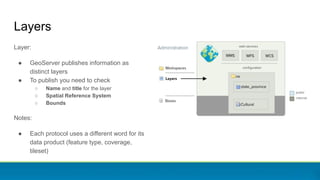
Layers
Layer:
● GeoServer publishes information as
distinct layers
● To publish you need to check
○ Name and title for the layer
○ Spatial Reference System
○ Bounds
Notes:
● Each protocol uses a different word for its
data product (feature type, coverage,
tileset)
1. Data → Layers
2. Use add new layer, and select ne:Culture
3. Ne_10m_admin_1_states_provinces_shp
New Vector Layer
1. Data → Layers
2. Use add new layer, and select ne:Culture
3. Ne_10m_admin_1_states_provinces_shp
4. Data
a. Name: states_provinces_shp
b. Title: States and Provinces
New Vector Layer: Description
New Vector Layer: Bounds
1. Data → Layers
2. Use add new layer, and select ne:Culture
3. Ne_10m_admin_1_states_provinces_shp
4. Data
a. Name: states_provinces_shp
b. Title: States and Provinces
5. Spatial Reference System:
EPSG:4326
6. Native bounding box:
Click compute from data
7. Lat/Lon Bounds:
8. Click compute from native bounds
9. Save
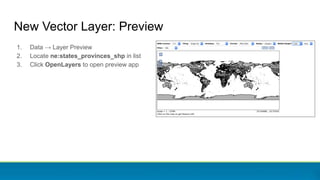
New Vector Layer: Preview
1. Data → Layer Preview
2. Locate ne:states_provinces_shp in list
3. Click OpenLayers to open preview app
New Raster Layer
1. Data → Layers
2. Use add new layer, select
“NE1_50M_SR_W”
3. Data
a. Name: “ne”
b. Title: “Natural Earth I”
4. Double check:
a. Spatial Reference System
b. Bounds
5. Save
New Raster Layer: Preview
1. Data → Layer Preview
2. Locate ne:ne1 in list
3. Click OpenLayers to open preview app
Layer Group
Layer Group
Layer groups are used:
● Can be used as a basemap
● Order of layers is in draw order
Notes:
● Can also use layer groups to define a
table-of-contents structure for published
content
1. Data → Layer Group
2. Click Add new layer group
3. Details:
a. Name: basemap
b. Title: Basemap
Create Layer Group
Create Layer Group
1. Data → Layer Group
2. Click Add new layer group
3. Details:
a. Name: basemap
b. Title: Basemap
4. Scroll down to Layers heading
5. Use add layer to add
ne:ne1
6. Use add layer to add
ne:state_province_shp
7. Scroll up to bounds
8. Click Generate Bounds
9. Save
Create Layer Group: Preview
1. Data → Layer Preview
2. Locate ne:basemap in list
3. Click OpenLayers to open preview app
Style
Used to configure the rendering process:
● We use an XML format called SLD
○ Intended for machine-to-machine use!
● We recommend people use CSS or YSLD
Notes:
● Built-in styles provided
● Styles folder used for icons and fonts
● Each workspace has a styles folder also
Style
1. Data → Styles
2. Click Add new style
a. Workspace: ne
b. Name: mapcolor9
c. Format: YSLD
3. Select Polygon, and Generate
New Style
1. Data → Styles
2. Click Add new style
a. Workspace: ne
b. Name: mapcolor9
c. Format: YSLD
3. Select Polygon, and Generate
4. Apply, and then Layer Preview tab
New Style: Live Preview
1. Data → Styles
2. Click Add new style
a. Workspace: ne
b. Name: mapcolor9
c. Format: YSLD
3. Select Polygon, and Generate
4. Apply, and then Layer Preview tab
5. Fill in style shown, and Apply
New Style: Theme
symbolizers:
- polygon:
stroke-color: 'gray'
stroke-width: 0.5
fill-color: ${Recode(mapcolor9,
'1','#8dd3c7',
'2','#ffffb3',
'3','#bebada',
'4','#fb8072',
'5','#80b1d3',
'6','#fdb462',
'7','#b3de69',
'8','#fccde5',
'9','#d9d9d9')}
Theme from user guide style workshop
1. Data → Styles
2. Click Add new style
a. Workspace: ne
b. Name: mapcolor9
c. Format: YSLD
3. Select Polygon, and Generate
4. Apply, and then Layer Preview tab
5. Fill in style shown, and Apply
(Theme on “mapcolor9” attribute)
New Style: Theme
New Style: Publishing
1. Data → Styles
2. Click Add new style
a. Workspace: ne
b. Name: mapcolor9
c. Format: YSLD
3. Select Polygon, and Generate
4. Apply, and then Layer Preview tab
5. Fill in style shown, and Apply
(Theme on “mapcolor9” attribute)
6. Use Publishing tab, set default for
ne:state_provinces_shp
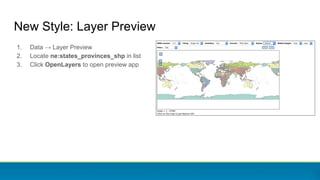
New Style: Layer Preview
1. Data → Layer Preview
2. Locate ne:states_provinces_shp in list
3. Click OpenLayers to open preview app
New Style: Layer Group Preview
Layer Group:
1. Data → Layer Group
2. Edit ne:basemap
3. Update layers to use the default style
checkbox for ne:states_provinces_shp
Layer Preview:
1. Data → Layer Preview
2. Locate ne:basemap in list
3. Click OpenLayers to open preview app
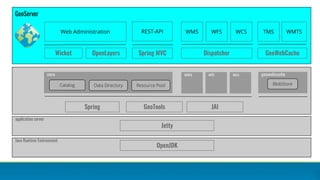
How does it work?
GeoServer
Wicket
GeoTools
geowebcache
Web Administration
BlobStore
OpenLayers
core
Catalog
application server
Jetty
Spring JAI
Spring MVC
REST-API
Data Directory Resource Pool
WMS
Dispatcher
WFS WCS TMS WMTS
GeoWebCache
Java Runtime Environment
OpenJDK
wms wfs wcs
GeoServer Internals
● Java Web Application
○ Spring Framework - powerful framework for wiring together application out of components
○ Apache Wicket User Interface - framework only a java developer could love
● Modular Architecture
○ Enables the community to build extensions
(a key success factor for open source projects)
● GeoTools Library
○ Handles the data access, reprojection, and rendering
○ Try and keep GeoServer “light” and focused on sharing by moving heavy lifting here
● Java Advanced Imaging (and JAI-ExT)
○ Image processing library offering on-demand processing model
○ JAI-EXT teaching the image processing engine new tricks (“no-data”, “foot-prints”, …)
Doing more
Extensions
We saw a lot of effort devoted to keeping GeoServer modular.
- Official GeoServer plugins are called extensions
- Extensions are formally “part of GeoServer”
- Must meet the same quality assurance and documentation requirements as core
- Included in the release process, they version numbers match!
Check out some extensions
● Oracle DataStore
○ Is Oracle required for your data management policies? You can still use open standards.
● WPS Extension
○ Providing an entirely new services, in this case one used for processing and analysis
● GeoMesa
○ Cloud database are supported also!
○ GeoMesa offers both a DataStore for data access, and also WPS Processes to better
summarize and work with massive cloud data volumes
● GeoFence
○ Integrates “GeoFence” security model, for “edit permission” with a specific operating area
● Vector Tiles
○ Generate pre-processed tiles of vector content ready for client-side rendering
Community Modules (for RnD)
Community modules started as a way to help developers share RnD ideas.
● Very helpful when working with grad students
● Also used by consulting teams take on specific challenges for their customers
● Ideally we want these to attract funding and become extensions
These are very much “use at your own risk”:
● These are not released as part of GeoServer
● You are expected to compile these yourself
● Not subject to any quality assurance or IP check
Check out some community modules
● JDBC Config / JDBC Store
○ Replace the entire catalog (config) and data directory (store)
○ Use with AWS to “carefully” manage a cloud cluster
● Backup and Restore
○ Transport configuration settings from test to production
● SOLR datastore
● Dynamic colormap generation
● MapML
● SAP Hana
● OGC API Features
Brought to you by
Project Steering Committee
GeoServer is setup as an “Open Source
Geospatial Foundation” project. With a core
“project steering committee” and notes on how
to keep everything running in a fair and
consistent manner.
Steering committee members vote on change
proposals, that come from a wide range of
organizations participating in RND.
We try and have a mix of skills, with developers,
users, managers, and designer joining the team
as required to help out.
PSC Members:
● Alessio Fabiani
● Andrea Aime
● Ian Turton
● Jody Garnett
● Jukka Rahkonen
● Kevin Smith
● Nuno Oliveira
● Simone Giannecchini
● Torben Barsballe
Being “vendor-neutral” has allowed GeoServer
to weather the success and failures of
participating organizations.
In addition to an open source license we make
use of the OSGeo Contributor License
agreement to help in this respect.
This also has allowed the PSC to contribute
code “up-stream” to more permissive projects.
Strong history of collaboration
Collaboration happens at the personal level, and
also across organizations.
The OpenPlannng Project started GeoServer
to support community mapping activities. Early
collaborations with GeoSolutions, Refractions
Research helped establish procedures to make
this an open project.
GeoServer supports an active RnD scene with
research labs, consulting companies and others
joining to add new features.
Try it out!
Running GeoServer
Options:
● “binary” download used to try things out on the command line, often for testing
or evaluation
● “Web Archive” for use with your application server (we recommend Tomcat)
● Sorry no Windows or macOS installers at present, due to vandalism
Alternatives:
● Docker? Nothing official, everyone is making their own …
● Hosted? A few companies offer hosting
Running GeoServer
Thanks
Questions welcome!
Mini production check-list
1. Please change the default
user name and password
2. Also change the master password
(used to encrypt on disk)
3. Update contact information
(See “Claudius Ptolomaeus”)
GeoServer 1.0
GeoServer 2.16.2
GeoServer at a Glance
Java Web Application to share and
edit geospatial data.
Publish data from any major spatial
data source using open standards.
Core Protocols
WMS – maps
WFS – vector
WFS-T – editing
WCS – coverage
WMTS – tiles
TMS – tiles
WMS-C – tiles
Extension/community protocols
WPS – process
CSW – search
OpenSearch for Earth Observation – search
OGC API - prototype json + rest standards

GeoServer Orientation

  • 1.
  • 2.
  • 3.
    Jody Garnett Technical Director jody.garnett@gmail.com @jodygarnett GeoCat Netherlandsopen-source company focused on spatial data publication and discovery. Introductions Open Source Projects • GeoServer, GeoTools, JTS, ImageN, uDig Open Source Geospatial Foundation • Incubation Committee Chair • GeoTools Project Officer • Marketing Committee Co-chair Eclipse Foundation • Technology Project Chair
  • 4.
    Popular GeoServer Talks GeoServeruse in organizations, and technologies, around the worlds. Beloved features, and impressive tricks, showing what is possible with GeoServer Annual team update and tour of what is new!
  • 5.
    Popular GeoServer Talks:Updated! GeoServer use in organizations, and technologies, around the worlds. Beloved features, and impressive tricks, showing what is possible with GeoServer Annual team update and tour of what is new! Downloaded GeoServer, now what does it do again?
  • 6.
  • 7.
    geoserver.org: “GeoServer is anopen source server for sharing geospatial data.” GeoServer Vision GeoServer is passionate about sharing data. GeoServer was founded out of a community project to map trees in New York city. ● If you are here to share a map.. GeoServer can do mapping ● But we don’t stop at a map ... GeoServer will share the data ● And don’t stop at the data … GeoServer encourages data editing
  • 8.
    Approach: Designed for interoperability, it publishesdata from any major spatial data source using open standards. GeoServer approach GeoServer really does not want to “lock-in” in you or your data, from the ground up: ● Access your data where it is stored ● An share your data with a wide audience ● We start with “industry standards” ● Add more protocols over time Opposite of a “not-invented-here” attitude. If GeoServer has to invent something in isolation chances are we are doing it wrong.
  • 9.
    Map Publishing GeoServer canpublish maps: ● Each dataset is a “layer” of content ● Gather into a “layer group” to arrange layers into a basemap ● Aside: We include a small layer preview (intended for local testing) GeoServer is the rendering engine producing maps, for access from web clients and desktop clients.
  • 10.
    Map Publishing: Continued GeoServermap publishing is about publishing a visualization. More than one approach: - Publish as a “Map” supporting, ad-hoc requests to draw imagery - Publish entire “Tileset” of content The result does not always look like an image: - SVG and KML output combine vector output with styling - Extensions provide PDF output for printing - Vector-tile output pre-processed for client side drawing
  • 11.
    Vector data: publishing Inthe spirit of open, GeoServer is setup to share the data being used to draw the map. To reach a wide audience: ● Supports queries ● Range of output formats available (and more available to install)
  • 12.
    Sharing does notstop at providing access, the ability to edit information together is key to collaboration. GeoServer is not used to interactively edit data, instead it provides a protocol for QGIS Desktop and OpenLayers library to edit information. These clients are responsible for providing an interactive editing experience. The same protocols can be used in your own scripts for batch editing and processing. Hint: We made sure editing is off by default! Vector data: editing
  • 13.
    Raster data access Directaccess to raster data is available. ● Imagery ● Digital Elevation Model ● NetCDF for scientific modeling Hint: The language “grid coverage” is used to emphasis that measurements are being provided (rather than just a visualization)
  • 14.
    How do Iuse it?
  • 15.
    GeoServer Configuration GeoServer providesa web application for configuration and setup. A REST API is also available for automation. Notes: ● “Web admin” is not really geoserver ○ Only used for setup geoserver ○ In production hide this! ● The links to “service capabilities” are the actual web services
  • 16.
    Natural Earth A greatpublic domain dataset used for web illustrations. Our example uses the “Quickstart” download containing a range of vector and raster data See: www.naturalearthdata.com
  • 17.
  • 18.
    Workspace Workspace is usedto: ● Folder to organize content ● “Namespace” for XML content publication Notes: ● Workspace name used as a prefix for each layer ● Namespace should be a unique URI ● One workspace can be the “default” ● Advanced: Each workspace can be used as its own “virtual web service”
  • 19.
    New Workspace 1. Data→ Workspaces 2. Create new workspace 3. Fill in: a. Name: ne b. Namespace: http://ne 4. Mark as default workspace
  • 20.
  • 21.
    Vector Data Source Datastore: ● Used to connect to your data ○ Shapefile needs a file location ○ Database needs connection parameters ● Managed in a workspace Notes: ● DataStore name is “internal” to GeoServer ○ So you can switch from Oracle to PostGIS ● Called a “DataStore” as we were focused on editing (and thus storing information)
  • 22.
    New Vector DataSource 1. Data → Stores 2. Add new store 3. Select Directory of spatial files (shapefiles) 4. Name: Culture 5. Connection Parameters a. Use browse button to locate Natural Earth 4.1.1/10m_cultural 6. Save
  • 23.
    Add Raster DataSource 1. Data → Stores 2. Add new store 3. Select Directory of spatial files (shapefiles) 4. Name: NE 5. Connection Parameters a. Browser to locate NE1_50M_SR_W/NE1_50M_SR_W.tif 6. Save
  • 24.
  • 25.
    Layers Layer: ● GeoServer publishesinformation as distinct layers ● To publish you need to check ○ Name and title for the layer ○ Spatial Reference System ○ Bounds Notes: ● Each protocol uses a different word for its data product (feature type, coverage, tileset)
  • 26.
    1. Data →Layers 2. Use add new layer, and select ne:Culture 3. Ne_10m_admin_1_states_provinces_shp New Vector Layer
  • 27.
    1. Data →Layers 2. Use add new layer, and select ne:Culture 3. Ne_10m_admin_1_states_provinces_shp 4. Data a. Name: states_provinces_shp b. Title: States and Provinces New Vector Layer: Description
  • 28.
    New Vector Layer:Bounds 1. Data → Layers 2. Use add new layer, and select ne:Culture 3. Ne_10m_admin_1_states_provinces_shp 4. Data a. Name: states_provinces_shp b. Title: States and Provinces 5. Spatial Reference System: EPSG:4326 6. Native bounding box: Click compute from data 7. Lat/Lon Bounds: 8. Click compute from native bounds 9. Save
  • 29.
    New Vector Layer:Preview 1. Data → Layer Preview 2. Locate ne:states_provinces_shp in list 3. Click OpenLayers to open preview app
  • 30.
    New Raster Layer 1.Data → Layers 2. Use add new layer, select “NE1_50M_SR_W” 3. Data a. Name: “ne” b. Title: “Natural Earth I” 4. Double check: a. Spatial Reference System b. Bounds 5. Save
  • 31.
    New Raster Layer:Preview 1. Data → Layer Preview 2. Locate ne:ne1 in list 3. Click OpenLayers to open preview app
  • 32.
  • 33.
    Layer Group Layer groupsare used: ● Can be used as a basemap ● Order of layers is in draw order Notes: ● Can also use layer groups to define a table-of-contents structure for published content
  • 34.
    1. Data →Layer Group 2. Click Add new layer group 3. Details: a. Name: basemap b. Title: Basemap Create Layer Group
  • 35.
    Create Layer Group 1.Data → Layer Group 2. Click Add new layer group 3. Details: a. Name: basemap b. Title: Basemap 4. Scroll down to Layers heading 5. Use add layer to add ne:ne1 6. Use add layer to add ne:state_province_shp 7. Scroll up to bounds 8. Click Generate Bounds 9. Save
  • 36.
    Create Layer Group:Preview 1. Data → Layer Preview 2. Locate ne:basemap in list 3. Click OpenLayers to open preview app
  • 37.
  • 38.
    Used to configurethe rendering process: ● We use an XML format called SLD ○ Intended for machine-to-machine use! ● We recommend people use CSS or YSLD Notes: ● Built-in styles provided ● Styles folder used for icons and fonts ● Each workspace has a styles folder also Style
  • 39.
    1. Data →Styles 2. Click Add new style a. Workspace: ne b. Name: mapcolor9 c. Format: YSLD 3. Select Polygon, and Generate New Style
  • 40.
    1. Data →Styles 2. Click Add new style a. Workspace: ne b. Name: mapcolor9 c. Format: YSLD 3. Select Polygon, and Generate 4. Apply, and then Layer Preview tab New Style: Live Preview
  • 41.
    1. Data →Styles 2. Click Add new style a. Workspace: ne b. Name: mapcolor9 c. Format: YSLD 3. Select Polygon, and Generate 4. Apply, and then Layer Preview tab 5. Fill in style shown, and Apply New Style: Theme symbolizers: - polygon: stroke-color: 'gray' stroke-width: 0.5 fill-color: ${Recode(mapcolor9, '1','#8dd3c7', '2','#ffffb3', '3','#bebada', '4','#fb8072', '5','#80b1d3', '6','#fdb462', '7','#b3de69', '8','#fccde5', '9','#d9d9d9')} Theme from user guide style workshop
  • 42.
    1. Data →Styles 2. Click Add new style a. Workspace: ne b. Name: mapcolor9 c. Format: YSLD 3. Select Polygon, and Generate 4. Apply, and then Layer Preview tab 5. Fill in style shown, and Apply (Theme on “mapcolor9” attribute) New Style: Theme
  • 43.
    New Style: Publishing 1.Data → Styles 2. Click Add new style a. Workspace: ne b. Name: mapcolor9 c. Format: YSLD 3. Select Polygon, and Generate 4. Apply, and then Layer Preview tab 5. Fill in style shown, and Apply (Theme on “mapcolor9” attribute) 6. Use Publishing tab, set default for ne:state_provinces_shp
  • 44.
    New Style: LayerPreview 1. Data → Layer Preview 2. Locate ne:states_provinces_shp in list 3. Click OpenLayers to open preview app
  • 45.
    New Style: LayerGroup Preview Layer Group: 1. Data → Layer Group 2. Edit ne:basemap 3. Update layers to use the default style checkbox for ne:states_provinces_shp Layer Preview: 1. Data → Layer Preview 2. Locate ne:basemap in list 3. Click OpenLayers to open preview app
  • 46.
  • 47.
    GeoServer Wicket GeoTools geowebcache Web Administration BlobStore OpenLayers core Catalog application server Jetty SpringJAI Spring MVC REST-API Data Directory Resource Pool WMS Dispatcher WFS WCS TMS WMTS GeoWebCache Java Runtime Environment OpenJDK wms wfs wcs
  • 48.
    GeoServer Internals ● JavaWeb Application ○ Spring Framework - powerful framework for wiring together application out of components ○ Apache Wicket User Interface - framework only a java developer could love ● Modular Architecture ○ Enables the community to build extensions (a key success factor for open source projects) ● GeoTools Library ○ Handles the data access, reprojection, and rendering ○ Try and keep GeoServer “light” and focused on sharing by moving heavy lifting here ● Java Advanced Imaging (and JAI-ExT) ○ Image processing library offering on-demand processing model ○ JAI-EXT teaching the image processing engine new tricks (“no-data”, “foot-prints”, …)
  • 49.
  • 50.
    Extensions We saw alot of effort devoted to keeping GeoServer modular. - Official GeoServer plugins are called extensions - Extensions are formally “part of GeoServer” - Must meet the same quality assurance and documentation requirements as core - Included in the release process, they version numbers match!
  • 51.
    Check out someextensions ● Oracle DataStore ○ Is Oracle required for your data management policies? You can still use open standards. ● WPS Extension ○ Providing an entirely new services, in this case one used for processing and analysis ● GeoMesa ○ Cloud database are supported also! ○ GeoMesa offers both a DataStore for data access, and also WPS Processes to better summarize and work with massive cloud data volumes ● GeoFence ○ Integrates “GeoFence” security model, for “edit permission” with a specific operating area ● Vector Tiles ○ Generate pre-processed tiles of vector content ready for client-side rendering
  • 52.
    Community Modules (forRnD) Community modules started as a way to help developers share RnD ideas. ● Very helpful when working with grad students ● Also used by consulting teams take on specific challenges for their customers ● Ideally we want these to attract funding and become extensions These are very much “use at your own risk”: ● These are not released as part of GeoServer ● You are expected to compile these yourself ● Not subject to any quality assurance or IP check
  • 53.
    Check out somecommunity modules ● JDBC Config / JDBC Store ○ Replace the entire catalog (config) and data directory (store) ○ Use with AWS to “carefully” manage a cloud cluster ● Backup and Restore ○ Transport configuration settings from test to production ● SOLR datastore ● Dynamic colormap generation ● MapML ● SAP Hana ● OGC API Features
  • 54.
  • 55.
    Project Steering Committee GeoServeris setup as an “Open Source Geospatial Foundation” project. With a core “project steering committee” and notes on how to keep everything running in a fair and consistent manner. Steering committee members vote on change proposals, that come from a wide range of organizations participating in RND. We try and have a mix of skills, with developers, users, managers, and designer joining the team as required to help out. PSC Members: ● Alessio Fabiani ● Andrea Aime ● Ian Turton ● Jody Garnett ● Jukka Rahkonen ● Kevin Smith ● Nuno Oliveira ● Simone Giannecchini ● Torben Barsballe
  • 56.
    Being “vendor-neutral” hasallowed GeoServer to weather the success and failures of participating organizations. In addition to an open source license we make use of the OSGeo Contributor License agreement to help in this respect. This also has allowed the PSC to contribute code “up-stream” to more permissive projects. Strong history of collaboration Collaboration happens at the personal level, and also across organizations. The OpenPlannng Project started GeoServer to support community mapping activities. Early collaborations with GeoSolutions, Refractions Research helped establish procedures to make this an open project. GeoServer supports an active RnD scene with research labs, consulting companies and others joining to add new features.
  • 57.
  • 58.
    Running GeoServer Options: ● “binary”download used to try things out on the command line, often for testing or evaluation ● “Web Archive” for use with your application server (we recommend Tomcat) ● Sorry no Windows or macOS installers at present, due to vandalism Alternatives: ● Docker? Nothing official, everyone is making their own … ● Hosted? A few companies offer hosting
  • 59.
  • 60.
  • 61.
    Mini production check-list 1.Please change the default user name and password 2. Also change the master password (used to encrypt on disk) 3. Update contact information (See “Claudius Ptolomaeus”) GeoServer 1.0 GeoServer 2.16.2
  • 62.
    GeoServer at aGlance Java Web Application to share and edit geospatial data. Publish data from any major spatial data source using open standards. Core Protocols WMS – maps WFS – vector WFS-T – editing WCS – coverage WMTS – tiles TMS – tiles WMS-C – tiles Extension/community protocols WPS – process CSW – search OpenSearch for Earth Observation – search OGC API - prototype json + rest standards