


Using ArcGIS with
OAuth 2.0
Aaron Parecki @aaronpk
CTO, Esri R&D Center Portland
Before OAuth

•

Apps stored the user’s password

•

Apps got complete access to a user’s
account

•

Users couldn’t revoke access to an app
except by changing their password

•

Compromised apps exposed the user’s
password

An Introduction to OAuth 2
Before OAuth

•

Services recognized the problems with password
authentication

•

Many services implemented things similar to
OAuth 1.0
Flickr: “FlickrAuth” frobs and tokens
- Google: “AuthSub”
- Facebook: requests signed with MD5 hashes
- Yahoo: BBAuth (“Browser-Based Auth”)
-

An Introduction to OAuth 2
The OAuth 2.0 Spec
http://oauth.net/2/
Definitions

• Resource

Owner: The User

• Resource

Server: The API

• Authorization

Server: Often the same as

the API server
• Client:

The Third-Party Application

An Introduction to OAuth 2
Use Cases
• Web-server

apps

• Browser-based

apps

• Username/password

• Application
• Mobile

access

apps

An Introduction to OAuth 2

access
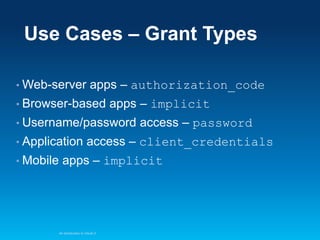
Use Cases – Grant Types
• Web-server

apps – authorization_code

• Browser-based

apps – implicit

• Username/password

• Application
• Mobile

access – password

access – client_credentials

apps – implicit

An Introduction to OAuth 2
Web Server Apps
Authorization Code Grant
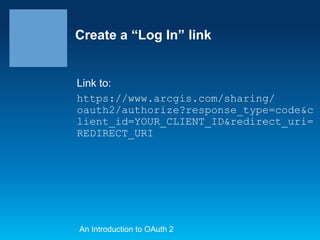
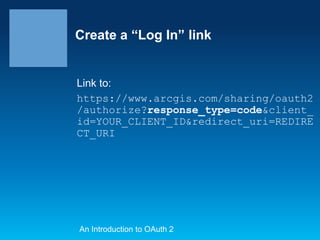
Create a “Log In” link

Link to:
https://www.arcgis.com/sharing/
oauth2/authorize?response_type=code&c
lient_id=YOUR_CLIENT_ID&redirect_uri=
REDIRECT_URI

An Introduction to OAuth 2
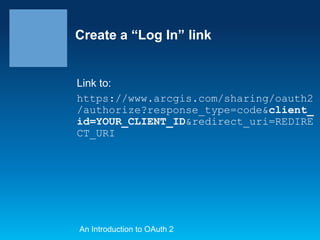
Create a “Log In” link

Link to:
https://www.arcgis.com/sharing/oauth2
/authorize?response_type=code&client_
id=YOUR_CLIENT_ID&redirect_uri=REDIRE
CT_URI

An Introduction to OAuth 2
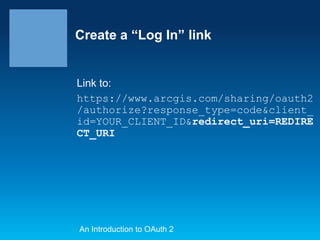
Create a “Log In” link

Link to:
https://www.arcgis.com/sharing/oauth2
/authorize?response_type=code&client_
id=YOUR_CLIENT_ID&redirect_uri=REDIRE
CT_URI

An Introduction to OAuth 2
Create a “Log In” link

Link to:
https://www.arcgis.com/sharing/oauth2
/authorize?response_type=code&client_
id=YOUR_CLIENT_ID&redirect_uri=REDIRE
CT_URI

An Introduction to OAuth 2
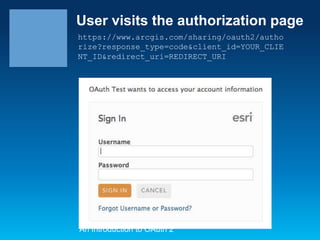
User visits the authorization page
https://www.arcgis.com/sharing/oauth2/autho
rize?response_type=code&client_id=YOUR_CLIE
NT_ID&redirect_uri=REDIRECT_URI

An Introduction to OAuth 2
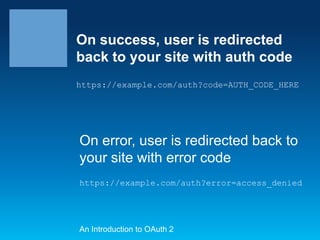
On success, user is redirected
back to your site with auth code
https://example.com/auth?code=AUTH_CODE_HERE

On error, user is redirected back to
your site with error code
https://example.com/auth?error=access_denied

An Introduction to OAuth 2
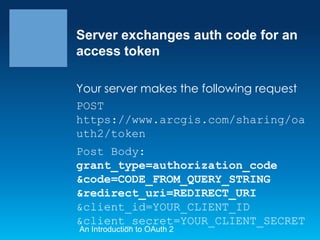
Server exchanges auth code for an
access token
Your server makes the following request
POST
https://www.arcgis.com/sharing/oa
uth2/token
Post Body:
grant_type=authorization_code
&code=CODE_FROM_QUERY_STRING
&redirect_uri=REDIRECT_URI
&client_id=YOUR_CLIENT_ID
&client_secret=YOUR_CLIENT_SECRET
An Introduction to OAuth 2
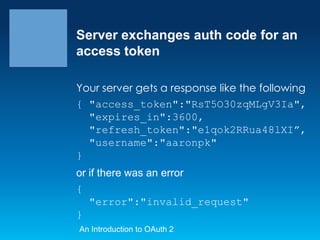
Server exchanges auth code for an
access token
Your server gets a response like the following
{ "access_token":"RsT5O30zqMLgV3Ia",
"expires_in":3600,
"refresh_token":"e1qok2RRua48lXI”,
"username":"aaronpk"
}
or if there was an error
{
"error":"invalid_request"
}
An Introduction to OAuth 2
Browser-Based Apps
Implicit Grant
Create a “Log In” link

Link to:
https://www.arcgis.com/sharing/
oauth2/authorize?response_type=token&
client_id=YOUR_CLIENT_ID&redirect_uri
=REDIRECT_URI

An Introduction to OAuth 2
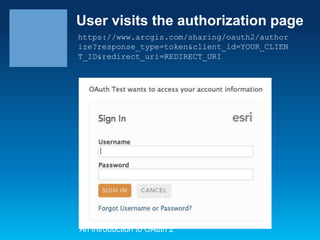
User visits the authorization page
https://www.arcgis.com/sharing/oauth2/author
ize?response_type=token&client_id=YOUR_CLIEN
T_ID&redirect_uri=REDIRECT_URI

An Introduction to OAuth 2
On success, user is redirected
back to your site with the access
token in the fragment
https://example.com/auth#token=ACCESS_TOKEN

On error, user is redirected back to
your site with error code
https://example.com/auth#error=access_denied

An Introduction to OAuth 2
Browser-Based Apps
•

Use the “Implicit” grant type

•

No server-side code needed

•

Client secret not used

•

Browser makes API requests directly

An Introduction to OAuth 2
Application Access
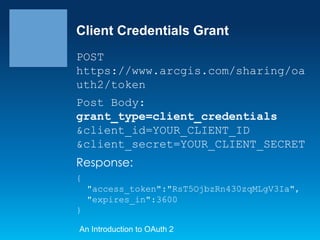
Client Credentials Grant
POST
https://www.arcgis.com/sharing/oa
uth2/token
Post Body:
grant_type=client_credentials
&client_id=YOUR_CLIENT_ID
&client_secret=YOUR_CLIENT_SECRET

Response:
{
"access_token":"RsT5OjbzRn430zqMLgV3Ia",
"expires_in":3600
}
An Introduction to OAuth 2
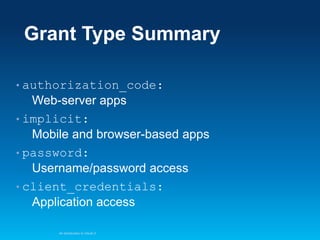
Grant Type Summary
• authorization_code:

Web-server apps
• implicit:
Mobile and browser-based apps
• password:
Username/password access
• client_credentials:
Application access
An Introduction to OAuth 2
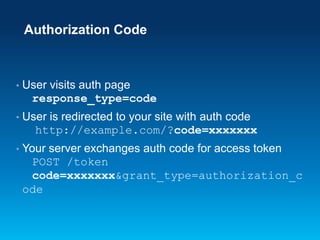
Authorization Code

•

User visits auth page
response_type=code

•

User is redirected to your site with auth code
http://example.com/?code=xxxxxxx

•

Your server exchanges auth code for access token
POST /token
code=xxxxxxx&grant_type=authorization_c
ode
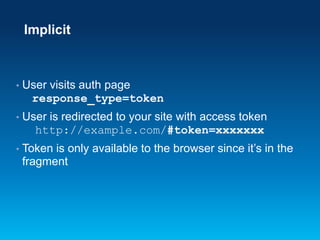
Implicit

•

User visits auth page
response_type=token

•

User is redirected to your site with access token
http://example.com/#token=xxxxxxx

•

Token is only available to the browser since it’s in the
fragment
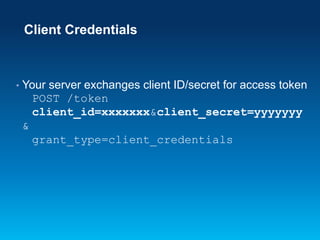
Client Credentials

•

Your server exchanges client ID/secret for access token
POST /token
client_id=xxxxxxx&client_secret=yyyyyyy
&
grant_type=client_credentials
Creating an App

An Introduction to OAuth 2
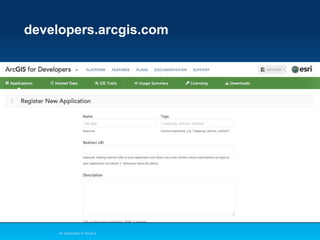
developers.arcgis.com

An Introduction to OAuth 2
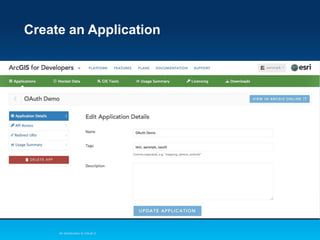
Create an Application

An Introduction to OAuth 2
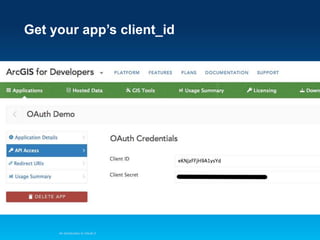
Get your app’s client_id

An Introduction to OAuth 2
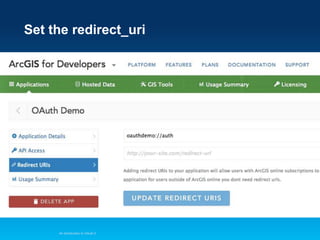
Set the redirect_uri

An Introduction to OAuth 2
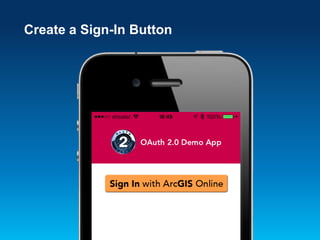
Create a Sign-In Button
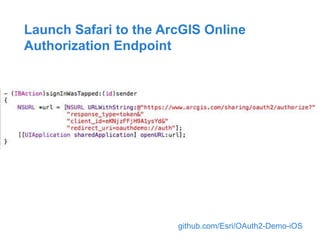
Launch Safari to the ArcGIS Online
Authorization Endpoint

github.com/Esri/OAuth2-Demo-iOS
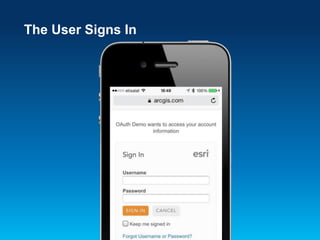
The User Signs In
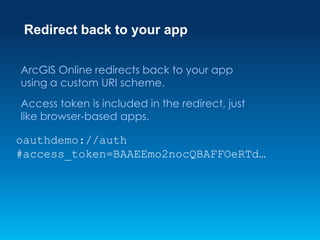
Redirect back to your app
ArcGIS Online redirects back to your app
using a custom URI scheme.
Access token is included in the redirect, just
like browser-based apps.

oauthdemo://auth
#access_token=BAAEEmo2nocQBAFFOeRTd…
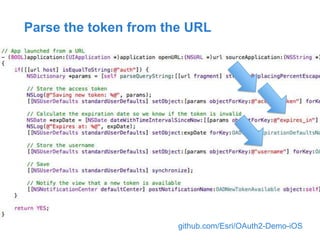
Parse the token from the URL

github.com/Esri/OAuth2-Demo-iOS
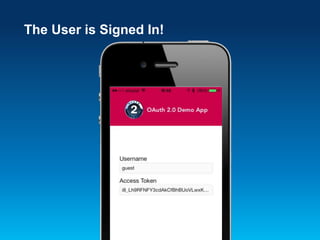
The User is Signed In!
Mobile Apps
•

Use the “Implicit” grant type

•

No server-side code needed

•

Client secret not used

•

Mobile app makes API requests directly
Accessing Resources
So you have an access token. Now what?
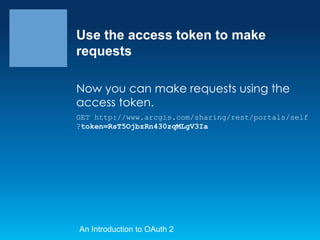
Use the access token to make
requests
Now you can make requests using the
access token.
GET http://www.arcgis.com/sharing/rest/portals/self
?token=RsT5OjbzRn430zqMLgV3Ia

An Introduction to OAuth 2
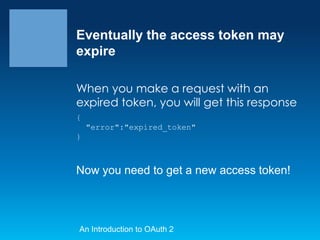
Eventually the access token may
expire
When you make a request with an
expired token, you will get this response
{

"error":"expired_token"
}

Now you need to get a new access token!

An Introduction to OAuth 2
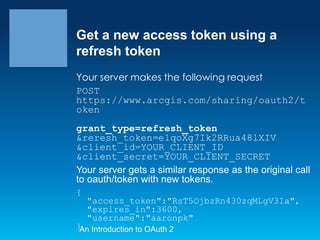
Get a new access token using a
refresh token
Your server makes the following request
POST
https://www.arcgis.com/sharing/oauth2/t
oken
grant_type=refresh_token
&reresh_token=e1qoXg7Ik2RRua48lXIV
&client_id=YOUR_CLIENT_ID
&client_secret=YOUR_CLIENT_SECRET
Your server gets a similar response as the original call
to oauth/token with new tokens.
{

"access_token":"RsT5OjbzRn430zqMLgV3Ia",
"expires_in":3600,
"username":"aaronpk"

} Introduction to OAuth 2
An
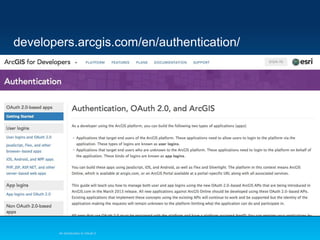
developers.arcgis.com/en/authentication/

An Introduction to OAuth 2
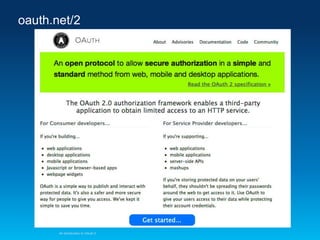
oauth.net/2

An Introduction to OAuth 2
Links
github.com/Esri/OAuth2-Demo-iOS
developers.arcgis.com
Thanks.

@aaronpk
aparecki@esri.com
github.com/aaronpk

Using ArcGIS with OAuth 2.0 - Esri DevSummit Dubai 2013

  • 1.
    Using ArcGIS with OAuth2.0 Aaron Parecki @aaronpk CTO, Esri R&D Center Portland
  • 2.
    Before OAuth • Apps storedthe user’s password • Apps got complete access to a user’s account • Users couldn’t revoke access to an app except by changing their password • Compromised apps exposed the user’s password An Introduction to OAuth 2
  • 3.
    Before OAuth • Services recognizedthe problems with password authentication • Many services implemented things similar to OAuth 1.0 Flickr: “FlickrAuth” frobs and tokens - Google: “AuthSub” - Facebook: requests signed with MD5 hashes - Yahoo: BBAuth (“Browser-Based Auth”) - An Introduction to OAuth 2
  • 4.
    The OAuth 2.0Spec http://oauth.net/2/
  • 5.
    Definitions • Resource Owner: TheUser • Resource Server: The API • Authorization Server: Often the same as the API server • Client: The Third-Party Application An Introduction to OAuth 2
  • 6.
    Use Cases • Web-server apps •Browser-based apps • Username/password • Application • Mobile access apps An Introduction to OAuth 2 access
  • 7.
    Use Cases –Grant Types • Web-server apps – authorization_code • Browser-based apps – implicit • Username/password • Application • Mobile access – password access – client_credentials apps – implicit An Introduction to OAuth 2
  • 8.
  • 9.
    Create a “LogIn” link Link to: https://www.arcgis.com/sharing/ oauth2/authorize?response_type=code&c lient_id=YOUR_CLIENT_ID&redirect_uri= REDIRECT_URI An Introduction to OAuth 2
  • 10.
    Create a “LogIn” link Link to: https://www.arcgis.com/sharing/oauth2 /authorize?response_type=code&client_ id=YOUR_CLIENT_ID&redirect_uri=REDIRE CT_URI An Introduction to OAuth 2
  • 11.
    Create a “LogIn” link Link to: https://www.arcgis.com/sharing/oauth2 /authorize?response_type=code&client_ id=YOUR_CLIENT_ID&redirect_uri=REDIRE CT_URI An Introduction to OAuth 2
  • 12.
    Create a “LogIn” link Link to: https://www.arcgis.com/sharing/oauth2 /authorize?response_type=code&client_ id=YOUR_CLIENT_ID&redirect_uri=REDIRE CT_URI An Introduction to OAuth 2
  • 13.
    User visits theauthorization page https://www.arcgis.com/sharing/oauth2/autho rize?response_type=code&client_id=YOUR_CLIE NT_ID&redirect_uri=REDIRECT_URI An Introduction to OAuth 2
  • 14.
    On success, useris redirected back to your site with auth code https://example.com/auth?code=AUTH_CODE_HERE On error, user is redirected back to your site with error code https://example.com/auth?error=access_denied An Introduction to OAuth 2
  • 15.
    Server exchanges authcode for an access token Your server makes the following request POST https://www.arcgis.com/sharing/oa uth2/token Post Body: grant_type=authorization_code &code=CODE_FROM_QUERY_STRING &redirect_uri=REDIRECT_URI &client_id=YOUR_CLIENT_ID &client_secret=YOUR_CLIENT_SECRET An Introduction to OAuth 2
  • 16.
    Server exchanges authcode for an access token Your server gets a response like the following { "access_token":"RsT5O30zqMLgV3Ia", "expires_in":3600, "refresh_token":"e1qok2RRua48lXI”, "username":"aaronpk" } or if there was an error { "error":"invalid_request" } An Introduction to OAuth 2
  • 17.
  • 18.
    Create a “LogIn” link Link to: https://www.arcgis.com/sharing/ oauth2/authorize?response_type=token& client_id=YOUR_CLIENT_ID&redirect_uri =REDIRECT_URI An Introduction to OAuth 2
  • 19.
    User visits theauthorization page https://www.arcgis.com/sharing/oauth2/author ize?response_type=token&client_id=YOUR_CLIEN T_ID&redirect_uri=REDIRECT_URI An Introduction to OAuth 2
  • 20.
    On success, useris redirected back to your site with the access token in the fragment https://example.com/auth#token=ACCESS_TOKEN On error, user is redirected back to your site with error code https://example.com/auth#error=access_denied An Introduction to OAuth 2
  • 21.
    Browser-Based Apps • Use the“Implicit” grant type • No server-side code needed • Client secret not used • Browser makes API requests directly An Introduction to OAuth 2
  • 22.
  • 23.
    Client Credentials Grant POST https://www.arcgis.com/sharing/oa uth2/token PostBody: grant_type=client_credentials &client_id=YOUR_CLIENT_ID &client_secret=YOUR_CLIENT_SECRET Response: { "access_token":"RsT5OjbzRn430zqMLgV3Ia", "expires_in":3600 } An Introduction to OAuth 2
  • 24.
    Grant Type Summary •authorization_code: Web-server apps • implicit: Mobile and browser-based apps • password: Username/password access • client_credentials: Application access An Introduction to OAuth 2
  • 25.
    Authorization Code • User visitsauth page response_type=code • User is redirected to your site with auth code http://example.com/?code=xxxxxxx • Your server exchanges auth code for access token POST /token code=xxxxxxx&grant_type=authorization_c ode
  • 26.
    Implicit • User visits authpage response_type=token • User is redirected to your site with access token http://example.com/#token=xxxxxxx • Token is only available to the browser since it’s in the fragment
  • 27.
    Client Credentials • Your serverexchanges client ID/secret for access token POST /token client_id=xxxxxxx&client_secret=yyyyyyy & grant_type=client_credentials
  • 28.
    Creating an App AnIntroduction to OAuth 2
  • 29.
  • 30.
    Create an Application AnIntroduction to OAuth 2
  • 31.
    Get your app’sclient_id An Introduction to OAuth 2
  • 32.
    Set the redirect_uri AnIntroduction to OAuth 2
  • 33.
  • 34.
    Launch Safari tothe ArcGIS Online Authorization Endpoint github.com/Esri/OAuth2-Demo-iOS
  • 35.
  • 36.
    Redirect back toyour app ArcGIS Online redirects back to your app using a custom URI scheme. Access token is included in the redirect, just like browser-based apps. oauthdemo://auth #access_token=BAAEEmo2nocQBAFFOeRTd…
  • 37.
    Parse the tokenfrom the URL github.com/Esri/OAuth2-Demo-iOS
  • 38.
    The User isSigned In!
  • 39.
    Mobile Apps • Use the“Implicit” grant type • No server-side code needed • Client secret not used • Mobile app makes API requests directly
  • 40.
    Accessing Resources So youhave an access token. Now what?
  • 41.
    Use the accesstoken to make requests Now you can make requests using the access token. GET http://www.arcgis.com/sharing/rest/portals/self ?token=RsT5OjbzRn430zqMLgV3Ia An Introduction to OAuth 2
  • 42.
    Eventually the accesstoken may expire When you make a request with an expired token, you will get this response { "error":"expired_token" } Now you need to get a new access token! An Introduction to OAuth 2
  • 43.
    Get a newaccess token using a refresh token Your server makes the following request POST https://www.arcgis.com/sharing/oauth2/t oken grant_type=refresh_token &reresh_token=e1qoXg7Ik2RRua48lXIV &client_id=YOUR_CLIENT_ID &client_secret=YOUR_CLIENT_SECRET Your server gets a similar response as the original call to oauth/token with new tokens. { "access_token":"RsT5OjbzRn430zqMLgV3Ia", "expires_in":3600, "username":"aaronpk" } Introduction to OAuth 2 An
  • 44.
  • 45.
  • 46.
  • 47.

Editor's Notes

  • #2 Esri Corporate Template V2September 6, 2013See http://arczone/resources/presentations.cfmfor more sample files and help.