Uploading Learning Materials
   to a Moodle Course
Centre for Learning, Teaching and Technology                                                                  Moodle Series: Uploading Learning Materials to a Moodle Course


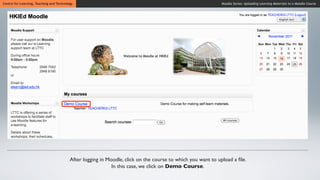
                                          After logging in Moodle, click on the course to which you want to upload a file.
                                                             In this case, we click on Demo Course.
Centre for Learning, Teaching and Technology                                                            Moodle Series: Uploading Learning Materials to a Moodle Course


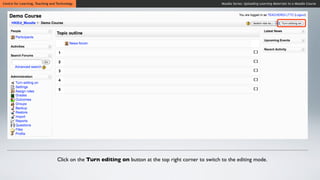
                                  Click on the Turn editing on button at the top right corner to switch to the editing mode.
Centre for Learning, Teaching and Technology                                                                 Moodle Series: Uploading Learning Materials to a Moodle Course


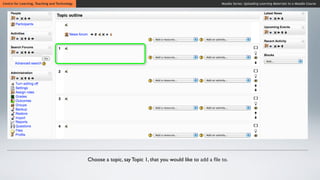
                                               Choose a topic, say Topic 1, that you would like to add a file to.
Centre for Learning, Teaching and Technology                                                       Moodle Series: Uploading Learning Materials to a Moodle Course


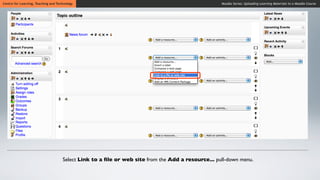
                                     Select Link to a file or web site from the Add a resource... pull-down menu.
Centre for Learning, Teaching and Technology                                                               Moodle Series: Uploading Learning Materials to a Moodle Course


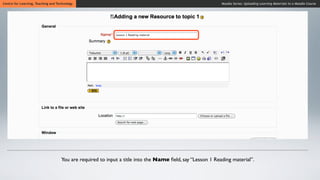
                                    You are required to input a title into the Name field, say “Lesson 1 Reading material”.
Centre for Learning, Teaching and Technology                                                          Moodle Series: Uploading Learning Materials to a Moodle Course


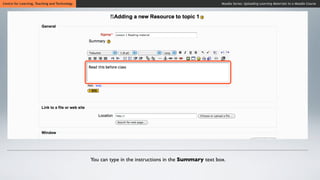
                                               You can type in the instructions in the Summary text box.
Centre for Learning, Teaching and Technology                                                     Moodle Series: Uploading Learning Materials to a Moodle Course


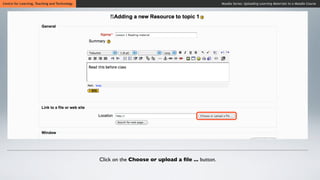
                                               Click on the Choose or upload a file ... button.
Centre for Learning, Teaching and Technology                                                            Moodle Series: Uploading Learning Materials to a Moodle Course


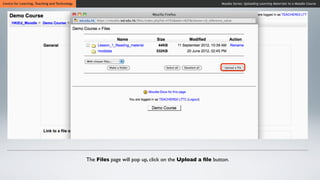
                                               The Files page will pop up, click on the Upload a file button.
Centre for Learning, Teaching and Technology                                                               Moodle Series: Uploading Learning Materials to a Moodle Course


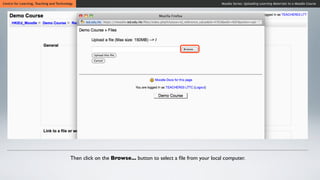
                                          Then click on the Browse... button to select a file from your local computer.
Centre for Learning, Teaching and Technology                                                     Moodle Series: Uploading Learning Materials to a Moodle Course


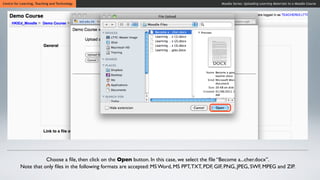
                     Choose a file, then click on the Open button. In this case, we select the file “Become a...cher.docx”.
          Note that only files in the following formats are accepted: MS Word, MS PPT, TXT, PDF, GIF, PNG, JPEG, SWF, MPEG and ZIP.
Centre for Learning, Teaching and Technology                                                           Moodle Series: Uploading Learning Materials to a Moodle Course


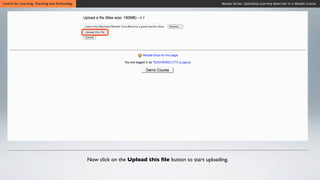
                                               Now click on the Upload this file button to start uploading.
Centre for Learning, Teaching and Technology                                                       Moodle Series: Uploading Learning Materials to a Moodle Course


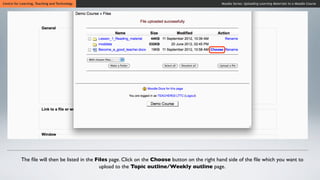
           The file will then be listed in the Files page. Click on the Choose button on the right hand side of the file which you want to
                                                upload to the Topic outline/Weekly outline page.
Centre for Learning, Teaching and Technology                                                     Moodle Series: Uploading Learning Materials to a Moodle Course


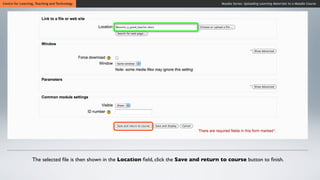
                  The selected file is then shown in the Location field, click the Save and return to course button to finish.
Centre for Learning, Teaching and Technology                                                          Moodle Series: Uploading Learning Materials to a Moodle Course


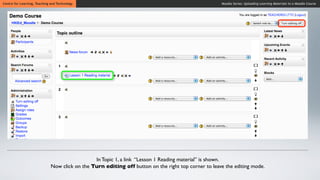
                                                In Topic 1, a link “Lesson 1 Reading material” is shown.
                              Now click on the Turn editing off button on the right top corner to leave the editing mode.
Centre for Learning, Teaching and Technology                                                               Moodle Series: Uploading Learning Materials to a Moodle Course


                                           Web page: http://www.ied.edu.hk/lttc
                                           Email:    lttc@ied.edu.hk


                                               This learning series numbered MOT41-12.09.v3 of the Centre for Learning, Teaching and
                                               Technology (LTTC) is licensed under a Creative Commons Attribution-NonCommercial-
                                               NoDerivs 3.0 Hong Kong License.

Uploading learning materials to a moodle course

  • 1.
  • 2.
    Centre for Learning,Teaching and Technology Moodle Series: Uploading Learning Materials to a Moodle Course After logging in Moodle, click on the course to which you want to upload a file. In this case, we click on Demo Course.
  • 3.
    Centre for Learning,Teaching and Technology Moodle Series: Uploading Learning Materials to a Moodle Course Click on the Turn editing on button at the top right corner to switch to the editing mode.
  • 4.
    Centre for Learning,Teaching and Technology Moodle Series: Uploading Learning Materials to a Moodle Course Choose a topic, say Topic 1, that you would like to add a file to.
  • 5.
    Centre for Learning,Teaching and Technology Moodle Series: Uploading Learning Materials to a Moodle Course Select Link to a file or web site from the Add a resource... pull-down menu.
  • 6.
    Centre for Learning,Teaching and Technology Moodle Series: Uploading Learning Materials to a Moodle Course You are required to input a title into the Name field, say “Lesson 1 Reading material”.
  • 7.
    Centre for Learning,Teaching and Technology Moodle Series: Uploading Learning Materials to a Moodle Course You can type in the instructions in the Summary text box.
  • 8.
    Centre for Learning,Teaching and Technology Moodle Series: Uploading Learning Materials to a Moodle Course Click on the Choose or upload a file ... button.
  • 9.
    Centre for Learning,Teaching and Technology Moodle Series: Uploading Learning Materials to a Moodle Course The Files page will pop up, click on the Upload a file button.
  • 10.
    Centre for Learning,Teaching and Technology Moodle Series: Uploading Learning Materials to a Moodle Course Then click on the Browse... button to select a file from your local computer.
  • 11.
    Centre for Learning,Teaching and Technology Moodle Series: Uploading Learning Materials to a Moodle Course Choose a file, then click on the Open button. In this case, we select the file “Become a...cher.docx”. Note that only files in the following formats are accepted: MS Word, MS PPT, TXT, PDF, GIF, PNG, JPEG, SWF, MPEG and ZIP.
  • 12.
    Centre for Learning,Teaching and Technology Moodle Series: Uploading Learning Materials to a Moodle Course Now click on the Upload this file button to start uploading.
  • 13.
    Centre for Learning,Teaching and Technology Moodle Series: Uploading Learning Materials to a Moodle Course The file will then be listed in the Files page. Click on the Choose button on the right hand side of the file which you want to upload to the Topic outline/Weekly outline page.
  • 14.
    Centre for Learning,Teaching and Technology Moodle Series: Uploading Learning Materials to a Moodle Course The selected file is then shown in the Location field, click the Save and return to course button to finish.
  • 15.
    Centre for Learning,Teaching and Technology Moodle Series: Uploading Learning Materials to a Moodle Course In Topic 1, a link “Lesson 1 Reading material” is shown. Now click on the Turn editing off button on the right top corner to leave the editing mode.
  • 16.
    Centre for Learning,Teaching and Technology Moodle Series: Uploading Learning Materials to a Moodle Course Web page: http://www.ied.edu.hk/lttc Email: lttc@ied.edu.hk This learning series numbered MOT41-12.09.v3 of the Centre for Learning, Teaching and Technology (LTTC) is licensed under a Creative Commons Attribution-NonCommercial- NoDerivs 3.0 Hong Kong License.