
















Moodle Platform
Step-by-Step Guide
Prepared and Developed by:
R. Rajputh (r.rajputh@uom.ac.mu)
Y. Rajabalee (y.rajabalee@uom.ac.mu)
M.I Santally (m.santally@uom.ac.mu)
2017
Licensed under Creative Commons – cc by sa
Objectives of the training
Upon completion of this training, you should be able to do the following:
Login on Moodle e-Learning Platform
Populate your course content on Moodle e-Learning Platform
Login on
Moodle e-Learning
Platform
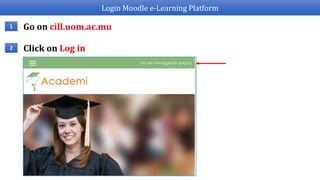
Login Moodle e-Learning Platform
Go on cill.uom.ac.mu1
Click on Log in2
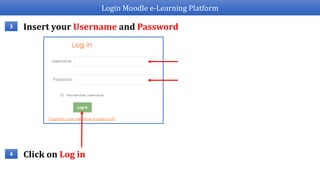
Login Moodle e-Learning Platform
Insert your Username and Password3
Click on Log in4
Login Moodle e-Learning Platform
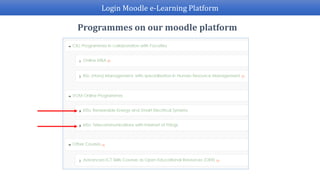
Programmes on our moodle platform
Login Moodle e-Learning Platform
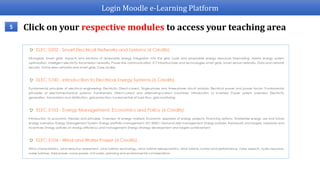
Click on your respective modules to access your teaching area5
Login Moodle e-Learning Platform
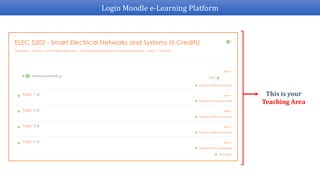
This is your
Teaching Area
Populate your course content
on Moodle e-Learning
Platform
Populate your course content on Moodle e-Learning Platform
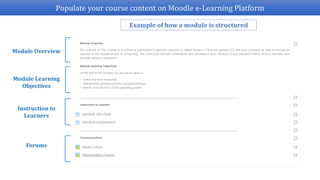
Example of how a module is structured
Module Overview
Module Learning
Objectives
Instruction to
Learners
Forums
Populate your course content on Moodle e-Learning Platform
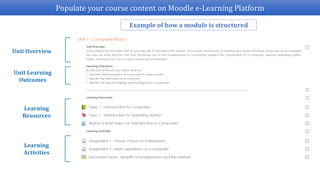
Example of how a module is structured
Unit Overview
Unit Learning
Outcomes
Learning
Resources
Learning
Activities
How to add a Label?
Populate your course content on Moodle e-Learning Platform
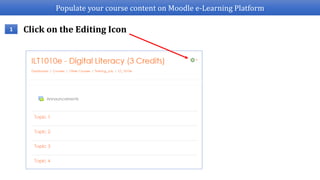
Click on the Editing Icon1
Populate your course content on Moodle e-Learning Platform
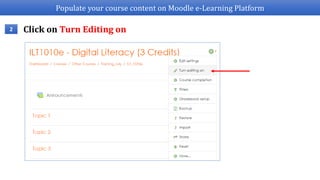
Click on Turn Editing on2
Populate your course content on Moodle e-Learning Platform
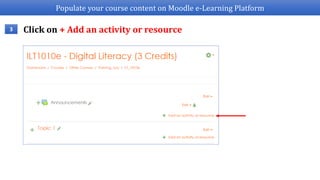
Click on + Add an activity or resource3
Populate your course content on Moodle e-Learning Platform
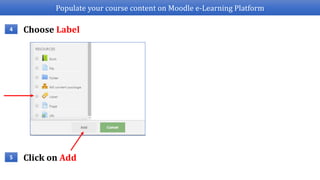
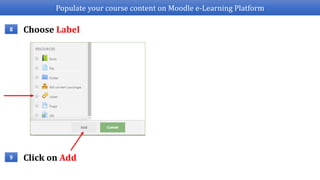
Choose Label4
Click on Add5
Populate your course content on Moodle e-Learning Platform
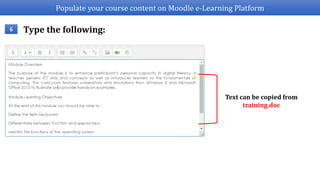
Type the following:6
Text can be copied from
training.doc
Populate your course content on Moodle e-Learning Platform
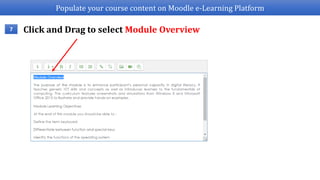
Click and Drag to select Module Overview7
Populate your course content on Moodle e-Learning Platform
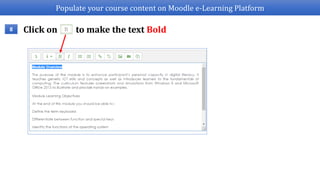
Click on to make the text Bold8
Populate your course content on Moodle e-Learning Platform
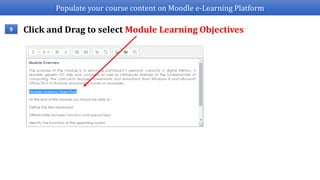
Click and Drag to select Module Learning Objectives9
Populate your course content on Moodle e-Learning Platform
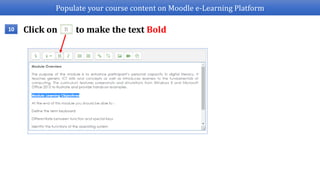
Click on to make the text Bold10
Populate your course content on Moodle e-Learning Platform
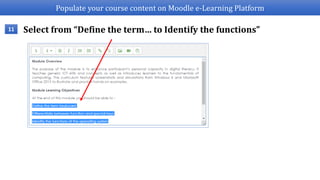
Select from “Define the term… to Identify the functions”11
Populate your course content on Moodle e-Learning Platform
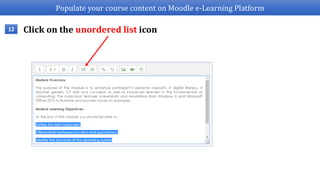
Click on the unordered list icon12
Populate your course content on Moodle e-Learning Platform
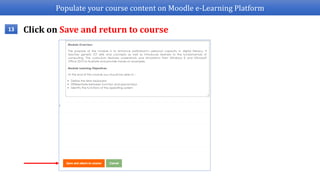
Click on Save and return to course13
Populate your course content on Moodle e-Learning Platform
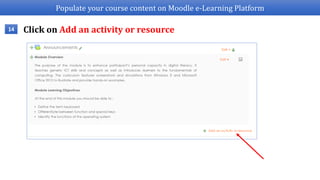
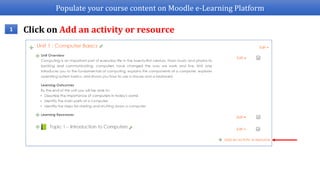
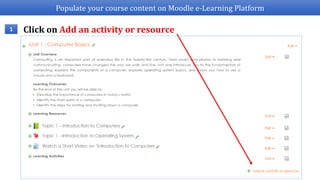
Click on Add an activity or resource14
Populate your course content on Moodle e-Learning Platform
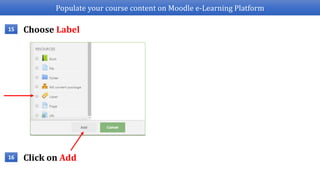
Choose Label15
Click on Add16
Populate your course content on Moodle e-Learning Platform
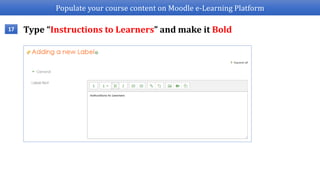
Type “Instructions to Learners” and make it Bold17
Populate your course content on Moodle e-Learning Platform
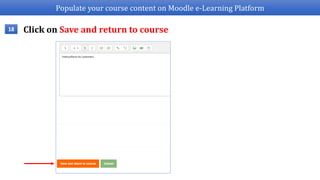
Click on Save and return to course18
How to add a Page?
Populate your course content on Moodle e-Learning Platform
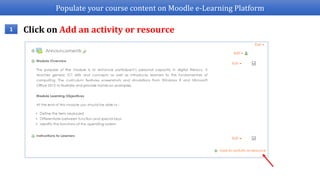
1 Click on Add an activity or resource
Populate your course content on Moodle e-Learning Platform
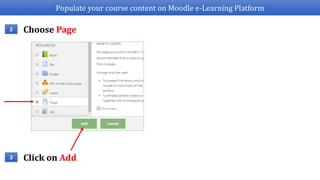
2
3
Choose Page
Click on Add
Populate your course content on Moodle e-Learning Platform
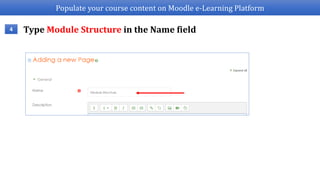
4 Type Module Structure in the Name field
Populate your course content on Moodle e-Learning Platform
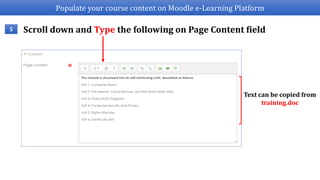
5 Scroll down and Type the following on Page Content field
Text can be copied from
training.doc
Populate your course content on Moodle e-Learning Platform
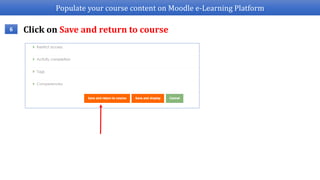
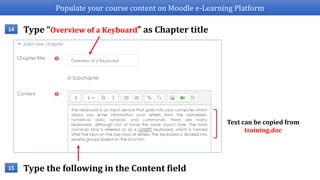
6 Click on Save and return to course
Populate your course content on Moodle e-Learning Platform
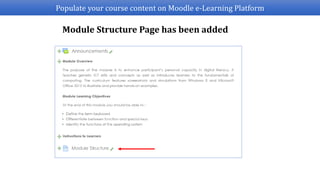
Module Structure Page has been added
Populate your course content on Moodle e-Learning Platform
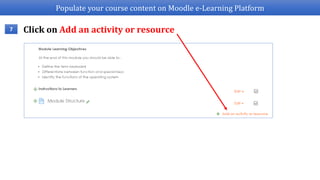
7 Click on Add an activity or resource
Populate your course content on Moodle e-Learning Platform
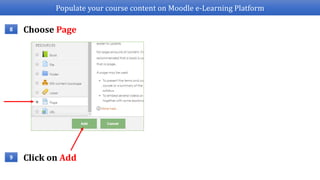
8
9
Choose Page
Click on Add
Populate your course content on Moodle e-Learning Platform
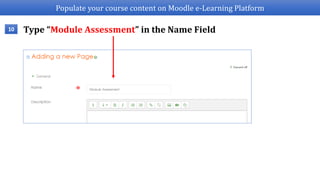
10 Type “Module Assessment” in the Name Field
Populate your course content on Moodle e-Learning Platform
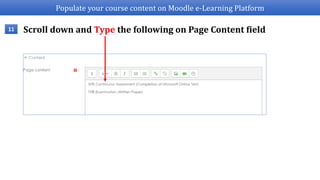
11 Scroll down and Type the following on Page Content field
Populate your course content on Moodle e-Learning Platform
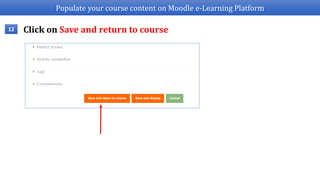
12 Click on Save and return to course
Populate your course content on Moodle e-Learning Platform
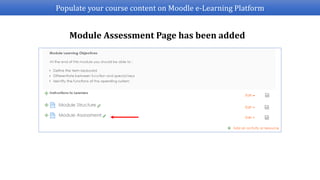
Module Assessment Page has been added
Populate your course content on Moodle e-Learning Platform
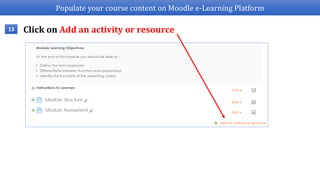
13 Click on Add an activity or resource
Populate your course content on Moodle e-Learning Platform
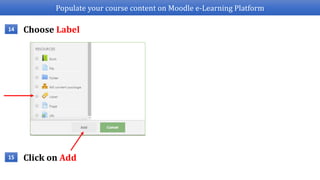
Choose Label14
Click on Add15
Populate your course content on Moodle e-Learning Platform
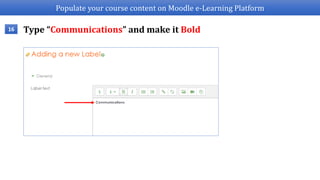
Type “Communications” and make it Bold16
Populate your course content on Moodle e-Learning Platform
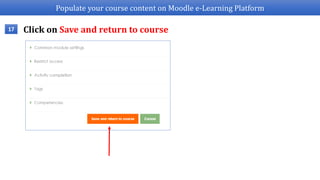
17 Click on Save and return to course
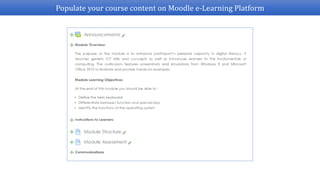
Populate your course content on Moodle e-Learning Platform
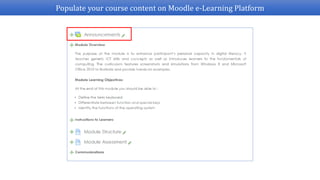
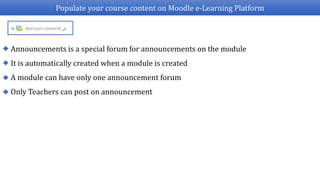
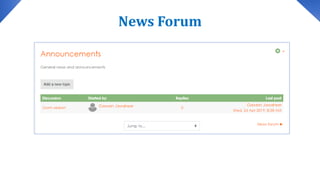
Announcements is a special forum for announcements on the module
A module can have only one announcement forum
Only Teachers can post on announcement
It is automatically created when a module is created
News Forum
News Forum is used to make general announcement on the module
Face to face session is scheduled on..
Class has been postponed..
Unit one is now available..
Make sure to read chapter 1..
For Example :
News Forum
News Forum
How to create a News Forum?
Populate your course content on Moodle e-Learning Platform
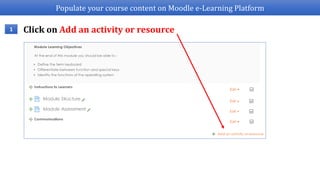
1 Click on Add an activity or resource
Populate your course content on Moodle e-Learning Platform
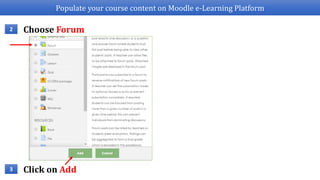
Choose Forum2
Click on Add3
Populate your course content on Moodle e-Learning Platform
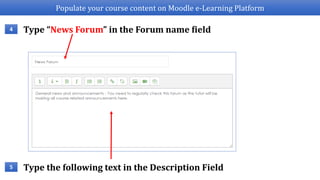
Type “News Forum” in the Forum name field4
Type the following text in the Description Field5
Populate your course content on Moodle e-Learning Platform
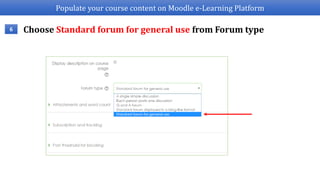
Choose Standard forum for general use from Forum type6
Populate your course content on Moodle e-Learning Platform
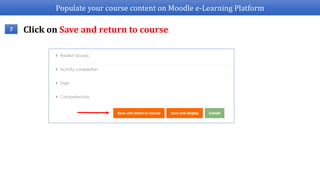
Click on Save and return to course7
Populate your course content on Moodle e-Learning Platform
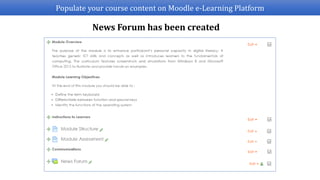
News Forum has been created
Populate your course content on Moodle e-Learning Platform
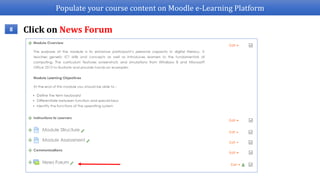
Click on News Forum8
Populate your course content on Moodle e-Learning Platform
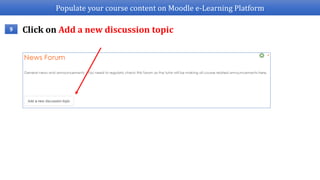
Click on Add a new discussion topic9
Populate your course content on Moodle e-Learning Platform
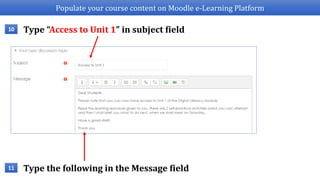
Type “Access to Unit 1” in subject field10
Type the following in the Message field11
Populate your course content on Moodle e-Learning Platform
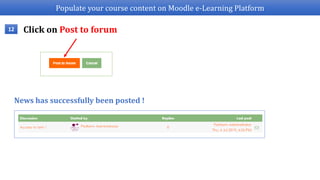
Click on Post to forum12
News has successfully been posted !
Populate your course content on Moodle e-Learning Platform
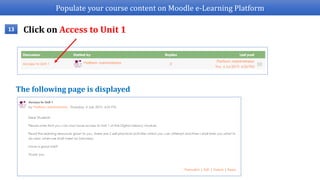
Click on Access to Unit 113
The following page is displayed
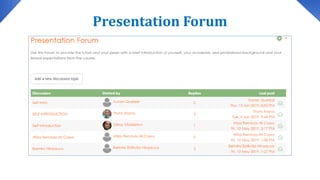
Presentation Forum
The tutor and students should use this forum to introduce themselves
Presentation Forum
How to create a Presentation Forum?
Populate your course content on Moodle e-Learning Platform
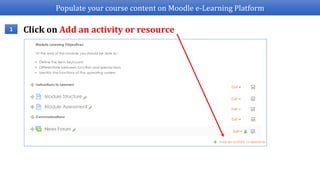
1 Click on Add an activity or resource
Populate your course content on Moodle e-Learning Platform
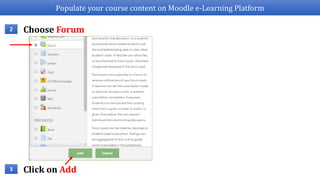
Choose Forum2
Click on Add3
Populate your course content on Moodle e-Learning Platform
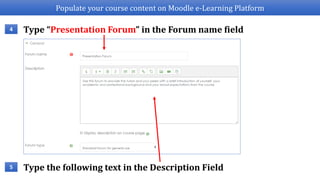
Type “Presentation Forum” in the Forum name field4
Type the following text in the Description Field5
Populate your course content on Moodle e-Learning Platform
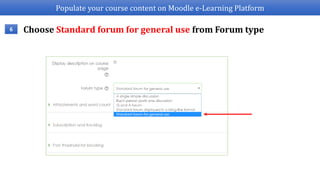
Choose Standard forum for general use from Forum type6
Populate your course content on Moodle e-Learning Platform
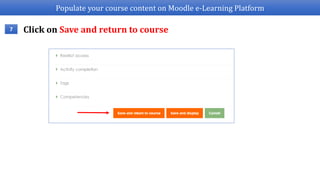
Click on Save and return to course7
Populate your course content on Moodle e-Learning Platform
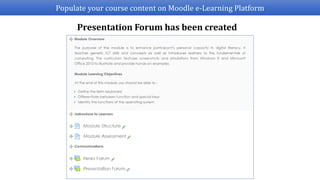
Presentation Forum has been created
Getting started with Unit 1
Populate your course content on Moodle e-Learning Platform
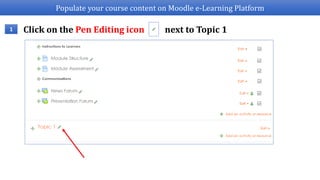
Click on the Pen Editing icon next to Topic 11
Populate your course content on Moodle e-Learning Platform
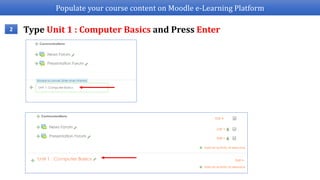
Type Unit 1 : Computer Basics and Press Enter2
Populate your course content on Moodle e-Learning Platform
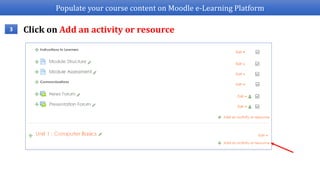
3 Click on Add an activity or resource
Populate your course content on Moodle e-Learning Platform
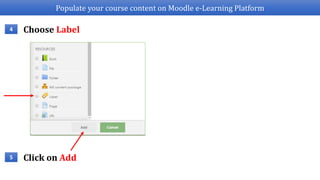
Choose Label4
Click on Add5
Populate your course content on Moodle e-Learning Platform
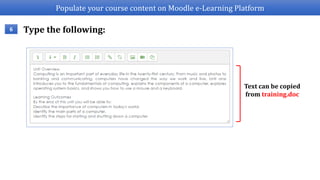
Type the following:6
Text can be copied
from training.doc
Populate your course content on Moodle e-Learning Platform
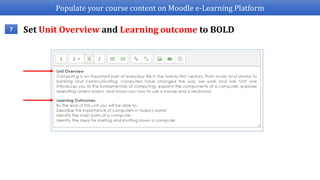
Set Unit Overview and Learning outcome to BOLD7
Populate your course content on Moodle e-Learning Platform
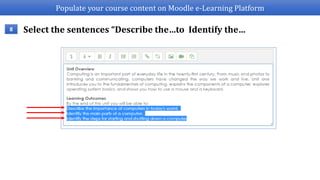
Select the sentences “Describe the…to Identify the…8
Populate your course content on Moodle e-Learning Platform
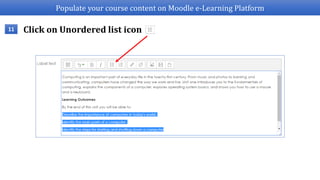
Click on Unordered list icon11
Populate your course content on Moodle e-Learning Platform
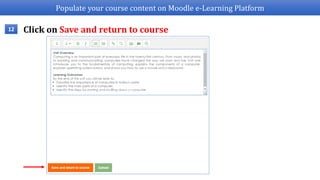
Click on Save and return to course12
Populate your course content on Moodle e-Learning Platform
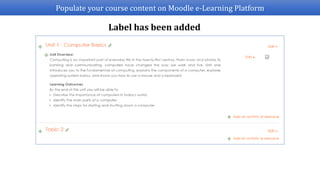
Label has been added
Populate your course content on Moodle e-Learning Platform
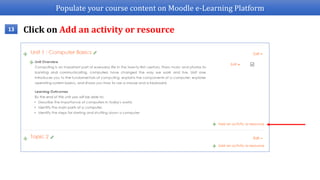
13 Click on Add an activity or resource
Populate your course content on Moodle e-Learning Platform
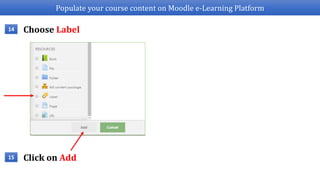
Choose Label14
Click on Add15
Populate your course content on Moodle e-Learning Platform
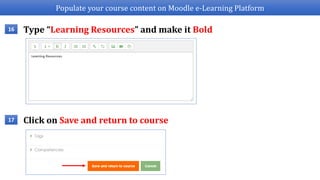
Type “Learning Resources” and make it Bold16
Click on Save and return to course17
Populate your course content on Moodle e-Learning Platform
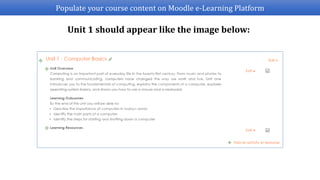
Unit 1 should appear like the image below:
How to add a Book?
Populate your course content on Moodle e-Learning Platform
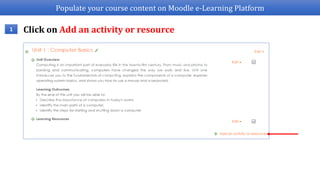
1 Click on Add an activity or resource
Populate your course content on Moodle e-Learning Platform
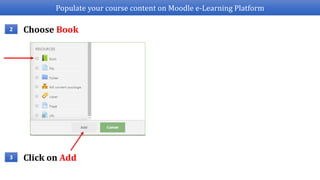
Choose Book2
Click on Add3
Populate your course content on Moodle e-Learning Platform
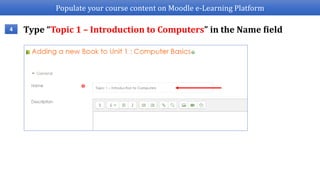
Type “Topic 1 – Introduction to Computers” in the Name field4
Populate your course content on Moodle e-Learning Platform
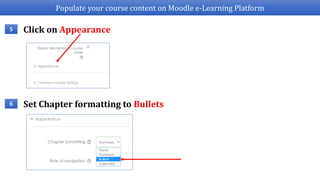
Click on Appearance5
Set Chapter formatting to Bullets6
Populate your course content on Moodle e-Learning Platform
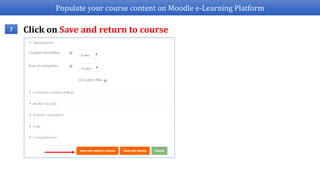
Click on Save and return to course7
Populate your course content on Moodle e-Learning Platform
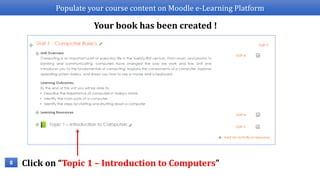
8
Your book has been created !
Click on “Topic 1 – Introduction to Computers”
Populate your course content on Moodle e-Learning Platform
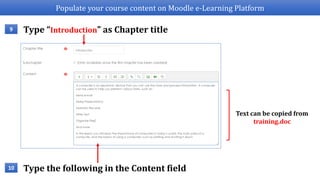
Type “Introduction” as Chapter title9
Text can be copied from
training.doc
Type the following in the Content field10
Populate your course content on Moodle e-Learning Platform
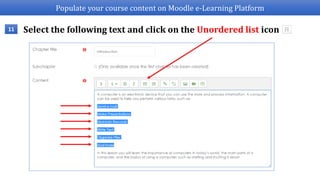
Select the following text and click on the Unordered list icon11
Populate your course content on Moodle e-Learning Platform
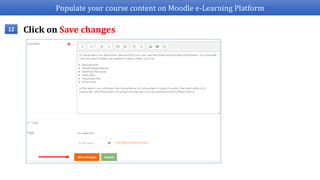
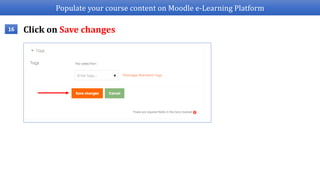
Click on Save changes12
Populate your course content on Moodle e-Learning Platform
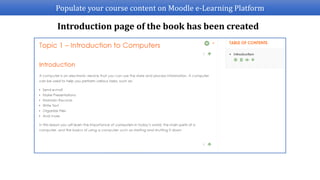
Introduction page of the book has been created
Populate your course content on Moodle e-Learning Platform
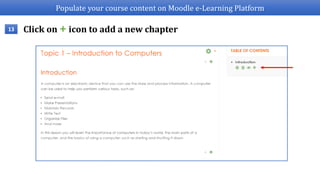
Click on + icon to add a new chapter13
Populate your course content on Moodle e-Learning Platform
Type “Overview of a Keyboard” as Chapter title14
Text can be copied from
training.doc
Type the following in the Content field15
Populate your course content on Moodle e-Learning Platform
Click on Save changes16
Populate your course content on Moodle e-Learning Platform
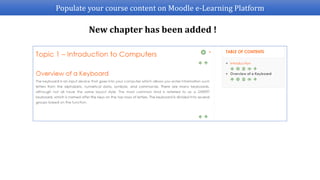
New chapter has been added !
How to add a File?
Populate your course content on Moodle e-Learning Platform
1 Click on Add an activity or resource
Populate your course content on Moodle e-Learning Platform
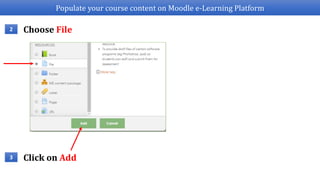
Choose File2
Click on Add3
Populate your course content on Moodle e-Learning Platform
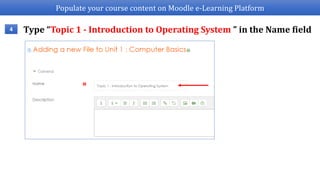
Type “Topic 1 - Introduction to Operating System ” in the Name field4
Populate your course content on Moodle e-Learning Platform
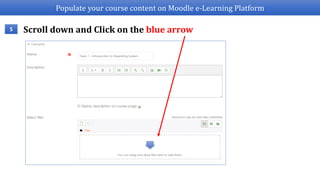
Scroll down and Click on the blue arrow5
Populate your course content on Moodle e-Learning Platform
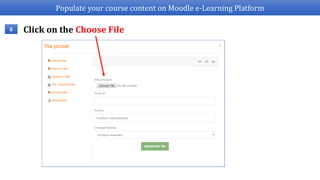
Click on the Choose File6
Populate your course content on Moodle e-Learning Platform
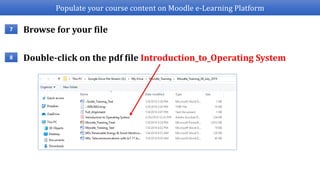
Browse for your file7
Double-click on the pdf file Introduction_to_Operating System8
Populate your course content on Moodle e-Learning Platform
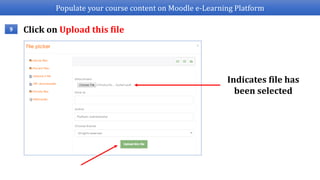
Click on Upload this file9
Indicates file has
been selected
Populate your course content on Moodle e-Learning Platform
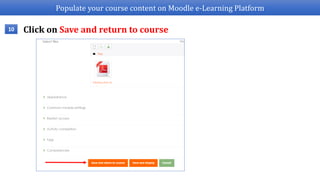
Click on Save and return to course10
Populate your course content on Moodle e-Learning Platform
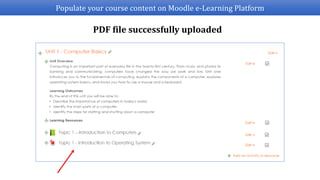
PDF file successfully uploaded
How to add an URL?
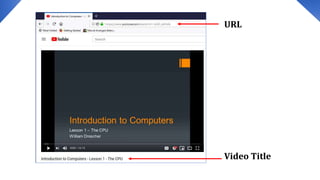
URL
Video Title
Populate your course content on Moodle e-Learning Platform
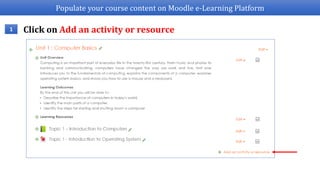
1 Click on Add an activity or resource
Populate your course content on Moodle e-Learning Platform
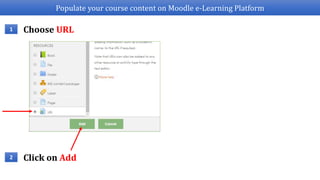
Choose URL1
Click on Add2
Populate your course content on Moodle e-Learning Platform
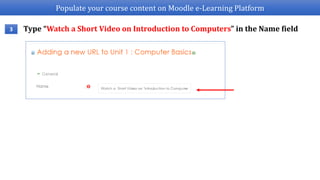
Type “Watch a Short Video on Introduction to Computers” in the Name field3
Populate your course content on Moodle e-Learning Platform
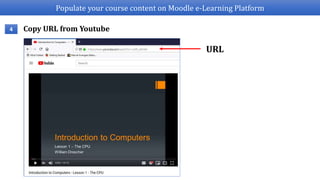
Copy URL from Youtube4
URL
Populate your course content on Moodle e-Learning Platform
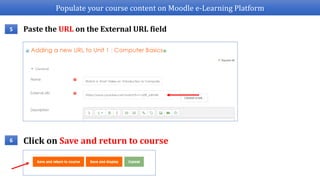
Paste the URL on the External URL field5
Click on Save and return to course6
Populate your course content on Moodle e-Learning Platform
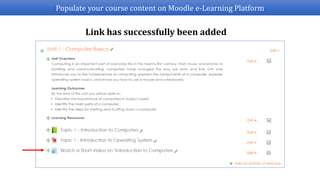
Link has successfully been added
Populate your course content on Moodle e-Learning Platform
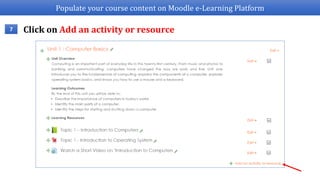
7 Click on Add an activity or resource
Populate your course content on Moodle e-Learning Platform
Choose Label8
Click on Add9
Populate your course content on Moodle e-Learning Platform
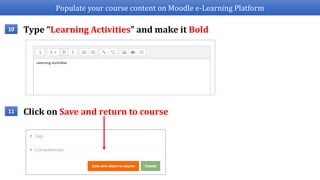
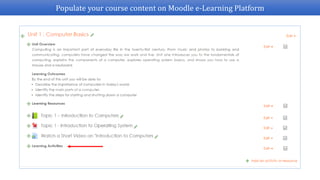
Type “Learning Activities” and make it Bold10
Click on Save and return to course11
Populate your course content on Moodle e-Learning Platform
How to add an Assignment?
Populate your course content on Moodle e-Learning Platform
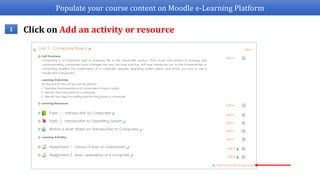
1 Click on Add an activity or resource
Populate your course content on Moodle e-Learning Platform
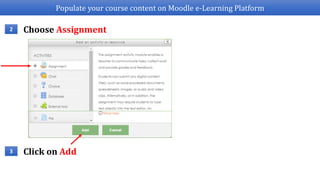
Choose Assignment2
Click on Add3
Populate your course content on Moodle e-Learning Platform
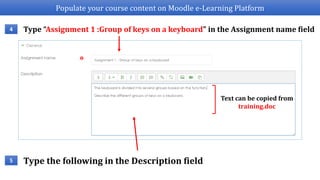
Type “Assignment 1 :Group of keys on a keyboard” in the Assignment name field4
Type the following in the Description field5
Text can be copied from
training.doc
Populate your course content on Moodle e-Learning Platform
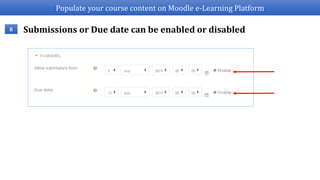
Submissions or Due date can be enabled or disabled6
Populate your course content on Moodle e-Learning Platform
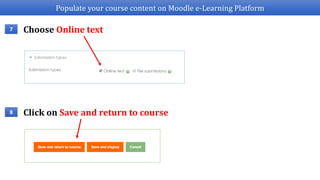
Choose Online text7
Click on Save and return to course8
Populate your course content on Moodle e-Learning Platform
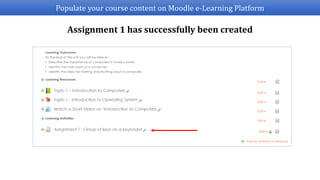
Assignment 1 has successfully been created
Populate your course content on Moodle e-Learning Platform
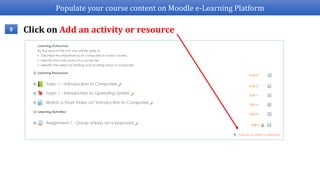
9 Click on Add an activity or resource
Populate your course content on Moodle e-Learning Platform
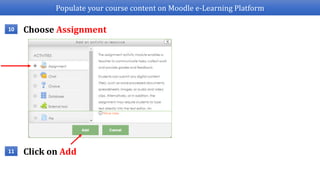
Choose Assignment10
Click on Add11
Populate your course content on Moodle e-Learning Platform
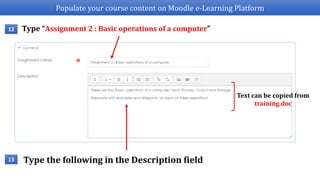
Type “Assignment 2 : Basic operations of a computer”12
Type the following in the Description field13
Text can be copied from
training.doc
Populate your course content on Moodle e-Learning Platform
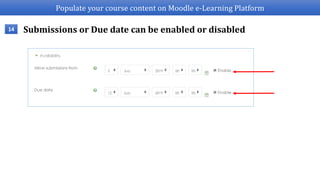
Submissions or Due date can be enabled or disabled14
Populate your course content on Moodle e-Learning Platform
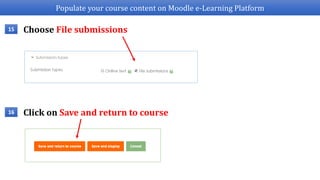
Choose File submissions15
Click on Save and return to course16
Populate your course content on Moodle e-Learning Platform
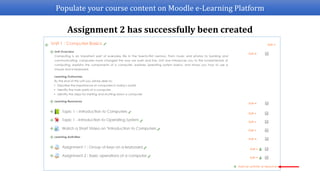
Assignment 2 has successfully been created
Discussion Forum
How to create a Discussion Forum?
Populate your course content on Moodle e-Learning Platform
1 Click on Add an activity or resource
Populate your course content on Moodle e-Learning Platform
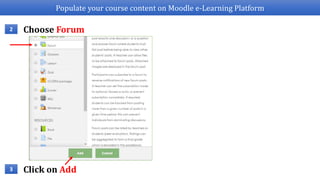
Choose Forum2
Click on Add3
Populate your course content on Moodle e-Learning Platform
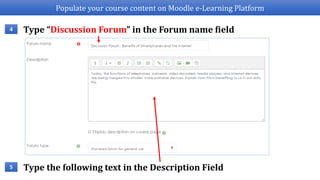
Type “Discussion Forum” in the Forum name field4
Type the following text in the Description Field5
Populate your course content on Moodle e-Learning Platform
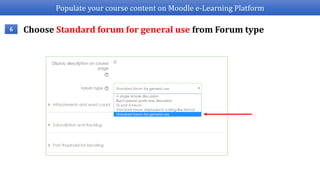
Choose Standard forum for general use from Forum type6
Populate your course content on Moodle e-Learning Platform
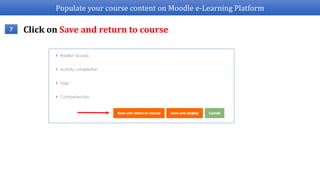
Click on Save and return to course7
Populate your course content on Moodle e-Learning Platform
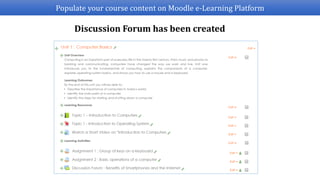
Discussion Forum has been created
Contacts
(Cill Platform Administrator)
Email : r.rajputh@uom.ac.mu
Rajputh Ravi
End of Session
THANK
YOU

Moodle Step-by-Step Guide

  • 1.
    Moodle Platform Step-by-Step Guide Preparedand Developed by: R. Rajputh (r.rajputh@uom.ac.mu) Y. Rajabalee (y.rajabalee@uom.ac.mu) M.I Santally (m.santally@uom.ac.mu) 2017 Licensed under Creative Commons – cc by sa
  • 2.
    Objectives of thetraining Upon completion of this training, you should be able to do the following: Login on Moodle e-Learning Platform Populate your course content on Moodle e-Learning Platform
  • 3.
  • 4.
    Login Moodle e-LearningPlatform Go on cill.uom.ac.mu1 Click on Log in2
  • 5.
    Login Moodle e-LearningPlatform Insert your Username and Password3 Click on Log in4
  • 6.
    Login Moodle e-LearningPlatform Programmes on our moodle platform
  • 7.
    Login Moodle e-LearningPlatform Click on your respective modules to access your teaching area5
  • 8.
    Login Moodle e-LearningPlatform This is your Teaching Area
  • 9.
    Populate your coursecontent on Moodle e-Learning Platform
  • 10.
    Populate your coursecontent on Moodle e-Learning Platform Example of how a module is structured Module Overview Module Learning Objectives Instruction to Learners Forums
  • 11.
    Populate your coursecontent on Moodle e-Learning Platform Example of how a module is structured Unit Overview Unit Learning Outcomes Learning Resources Learning Activities
  • 12.
    How to adda Label?
  • 13.
    Populate your coursecontent on Moodle e-Learning Platform Click on the Editing Icon1
  • 14.
    Populate your coursecontent on Moodle e-Learning Platform Click on Turn Editing on2
  • 15.
    Populate your coursecontent on Moodle e-Learning Platform Click on + Add an activity or resource3
  • 16.
    Populate your coursecontent on Moodle e-Learning Platform Choose Label4 Click on Add5
  • 17.
    Populate your coursecontent on Moodle e-Learning Platform Type the following:6 Text can be copied from training.doc
  • 18.
    Populate your coursecontent on Moodle e-Learning Platform Click and Drag to select Module Overview7
  • 19.
    Populate your coursecontent on Moodle e-Learning Platform Click on to make the text Bold8
  • 20.
    Populate your coursecontent on Moodle e-Learning Platform Click and Drag to select Module Learning Objectives9
  • 21.
    Populate your coursecontent on Moodle e-Learning Platform Click on to make the text Bold10
  • 22.
    Populate your coursecontent on Moodle e-Learning Platform Select from “Define the term… to Identify the functions”11
  • 23.
    Populate your coursecontent on Moodle e-Learning Platform Click on the unordered list icon12
  • 24.
    Populate your coursecontent on Moodle e-Learning Platform Click on Save and return to course13
  • 25.
    Populate your coursecontent on Moodle e-Learning Platform Click on Add an activity or resource14
  • 26.
    Populate your coursecontent on Moodle e-Learning Platform Choose Label15 Click on Add16
  • 27.
    Populate your coursecontent on Moodle e-Learning Platform Type “Instructions to Learners” and make it Bold17
  • 28.
    Populate your coursecontent on Moodle e-Learning Platform Click on Save and return to course18
  • 29.
    How to adda Page?
  • 30.
    Populate your coursecontent on Moodle e-Learning Platform 1 Click on Add an activity or resource
  • 31.
    Populate your coursecontent on Moodle e-Learning Platform 2 3 Choose Page Click on Add
  • 32.
    Populate your coursecontent on Moodle e-Learning Platform 4 Type Module Structure in the Name field
  • 33.
    Populate your coursecontent on Moodle e-Learning Platform 5 Scroll down and Type the following on Page Content field Text can be copied from training.doc
  • 34.
    Populate your coursecontent on Moodle e-Learning Platform 6 Click on Save and return to course
  • 35.
    Populate your coursecontent on Moodle e-Learning Platform Module Structure Page has been added
  • 36.
    Populate your coursecontent on Moodle e-Learning Platform 7 Click on Add an activity or resource
  • 37.
    Populate your coursecontent on Moodle e-Learning Platform 8 9 Choose Page Click on Add
  • 38.
    Populate your coursecontent on Moodle e-Learning Platform 10 Type “Module Assessment” in the Name Field
  • 39.
    Populate your coursecontent on Moodle e-Learning Platform 11 Scroll down and Type the following on Page Content field
  • 40.
    Populate your coursecontent on Moodle e-Learning Platform 12 Click on Save and return to course
  • 41.
    Populate your coursecontent on Moodle e-Learning Platform Module Assessment Page has been added
  • 42.
    Populate your coursecontent on Moodle e-Learning Platform 13 Click on Add an activity or resource
  • 43.
    Populate your coursecontent on Moodle e-Learning Platform Choose Label14 Click on Add15
  • 44.
    Populate your coursecontent on Moodle e-Learning Platform Type “Communications” and make it Bold16
  • 45.
    Populate your coursecontent on Moodle e-Learning Platform 17 Click on Save and return to course
  • 46.
    Populate your coursecontent on Moodle e-Learning Platform
  • 47.
    Populate your coursecontent on Moodle e-Learning Platform
  • 48.
    Populate your coursecontent on Moodle e-Learning Platform Announcements is a special forum for announcements on the module A module can have only one announcement forum Only Teachers can post on announcement It is automatically created when a module is created
  • 49.
    News Forum News Forumis used to make general announcement on the module Face to face session is scheduled on.. Class has been postponed.. Unit one is now available.. Make sure to read chapter 1.. For Example :
  • 50.
  • 51.
  • 52.
    How to createa News Forum?
  • 53.
    Populate your coursecontent on Moodle e-Learning Platform 1 Click on Add an activity or resource
  • 54.
    Populate your coursecontent on Moodle e-Learning Platform Choose Forum2 Click on Add3
  • 55.
    Populate your coursecontent on Moodle e-Learning Platform Type “News Forum” in the Forum name field4 Type the following text in the Description Field5
  • 56.
    Populate your coursecontent on Moodle e-Learning Platform Choose Standard forum for general use from Forum type6
  • 57.
    Populate your coursecontent on Moodle e-Learning Platform Click on Save and return to course7
  • 58.
    Populate your coursecontent on Moodle e-Learning Platform News Forum has been created
  • 59.
    Populate your coursecontent on Moodle e-Learning Platform Click on News Forum8
  • 60.
    Populate your coursecontent on Moodle e-Learning Platform Click on Add a new discussion topic9
  • 61.
    Populate your coursecontent on Moodle e-Learning Platform Type “Access to Unit 1” in subject field10 Type the following in the Message field11
  • 62.
    Populate your coursecontent on Moodle e-Learning Platform Click on Post to forum12 News has successfully been posted !
  • 63.
    Populate your coursecontent on Moodle e-Learning Platform Click on Access to Unit 113 The following page is displayed
  • 64.
    Presentation Forum The tutorand students should use this forum to introduce themselves
  • 65.
  • 66.
    How to createa Presentation Forum?
  • 67.
    Populate your coursecontent on Moodle e-Learning Platform 1 Click on Add an activity or resource
  • 68.
    Populate your coursecontent on Moodle e-Learning Platform Choose Forum2 Click on Add3
  • 69.
    Populate your coursecontent on Moodle e-Learning Platform Type “Presentation Forum” in the Forum name field4 Type the following text in the Description Field5
  • 70.
    Populate your coursecontent on Moodle e-Learning Platform Choose Standard forum for general use from Forum type6
  • 71.
    Populate your coursecontent on Moodle e-Learning Platform Click on Save and return to course7
  • 72.
    Populate your coursecontent on Moodle e-Learning Platform Presentation Forum has been created
  • 73.
  • 74.
    Populate your coursecontent on Moodle e-Learning Platform Click on the Pen Editing icon next to Topic 11
  • 75.
    Populate your coursecontent on Moodle e-Learning Platform Type Unit 1 : Computer Basics and Press Enter2
  • 76.
    Populate your coursecontent on Moodle e-Learning Platform 3 Click on Add an activity or resource
  • 77.
    Populate your coursecontent on Moodle e-Learning Platform Choose Label4 Click on Add5
  • 78.
    Populate your coursecontent on Moodle e-Learning Platform Type the following:6 Text can be copied from training.doc
  • 79.
    Populate your coursecontent on Moodle e-Learning Platform Set Unit Overview and Learning outcome to BOLD7
  • 80.
    Populate your coursecontent on Moodle e-Learning Platform Select the sentences “Describe the…to Identify the…8
  • 81.
    Populate your coursecontent on Moodle e-Learning Platform Click on Unordered list icon11
  • 82.
    Populate your coursecontent on Moodle e-Learning Platform Click on Save and return to course12
  • 83.
    Populate your coursecontent on Moodle e-Learning Platform Label has been added
  • 84.
    Populate your coursecontent on Moodle e-Learning Platform 13 Click on Add an activity or resource
  • 85.
    Populate your coursecontent on Moodle e-Learning Platform Choose Label14 Click on Add15
  • 86.
    Populate your coursecontent on Moodle e-Learning Platform Type “Learning Resources” and make it Bold16 Click on Save and return to course17
  • 87.
    Populate your coursecontent on Moodle e-Learning Platform Unit 1 should appear like the image below:
  • 88.
    How to adda Book?
  • 89.
    Populate your coursecontent on Moodle e-Learning Platform 1 Click on Add an activity or resource
  • 90.
    Populate your coursecontent on Moodle e-Learning Platform Choose Book2 Click on Add3
  • 91.
    Populate your coursecontent on Moodle e-Learning Platform Type “Topic 1 – Introduction to Computers” in the Name field4
  • 92.
    Populate your coursecontent on Moodle e-Learning Platform Click on Appearance5 Set Chapter formatting to Bullets6
  • 93.
    Populate your coursecontent on Moodle e-Learning Platform Click on Save and return to course7
  • 94.
    Populate your coursecontent on Moodle e-Learning Platform 8 Your book has been created ! Click on “Topic 1 – Introduction to Computers”
  • 95.
    Populate your coursecontent on Moodle e-Learning Platform Type “Introduction” as Chapter title9 Text can be copied from training.doc Type the following in the Content field10
  • 96.
    Populate your coursecontent on Moodle e-Learning Platform Select the following text and click on the Unordered list icon11
  • 97.
    Populate your coursecontent on Moodle e-Learning Platform Click on Save changes12
  • 98.
    Populate your coursecontent on Moodle e-Learning Platform Introduction page of the book has been created
  • 99.
    Populate your coursecontent on Moodle e-Learning Platform Click on + icon to add a new chapter13
  • 100.
    Populate your coursecontent on Moodle e-Learning Platform Type “Overview of a Keyboard” as Chapter title14 Text can be copied from training.doc Type the following in the Content field15
  • 101.
    Populate your coursecontent on Moodle e-Learning Platform Click on Save changes16
  • 102.
    Populate your coursecontent on Moodle e-Learning Platform New chapter has been added !
  • 103.
    How to adda File?
  • 104.
    Populate your coursecontent on Moodle e-Learning Platform 1 Click on Add an activity or resource
  • 105.
    Populate your coursecontent on Moodle e-Learning Platform Choose File2 Click on Add3
  • 106.
    Populate your coursecontent on Moodle e-Learning Platform Type “Topic 1 - Introduction to Operating System ” in the Name field4
  • 107.
    Populate your coursecontent on Moodle e-Learning Platform Scroll down and Click on the blue arrow5
  • 108.
    Populate your coursecontent on Moodle e-Learning Platform Click on the Choose File6
  • 109.
    Populate your coursecontent on Moodle e-Learning Platform Browse for your file7 Double-click on the pdf file Introduction_to_Operating System8
  • 110.
    Populate your coursecontent on Moodle e-Learning Platform Click on Upload this file9 Indicates file has been selected
  • 111.
    Populate your coursecontent on Moodle e-Learning Platform Click on Save and return to course10
  • 112.
    Populate your coursecontent on Moodle e-Learning Platform PDF file successfully uploaded
  • 113.
    How to addan URL?
  • 114.
  • 115.
    Populate your coursecontent on Moodle e-Learning Platform 1 Click on Add an activity or resource
  • 116.
    Populate your coursecontent on Moodle e-Learning Platform Choose URL1 Click on Add2
  • 117.
    Populate your coursecontent on Moodle e-Learning Platform Type “Watch a Short Video on Introduction to Computers” in the Name field3
  • 118.
    Populate your coursecontent on Moodle e-Learning Platform Copy URL from Youtube4 URL
  • 119.
    Populate your coursecontent on Moodle e-Learning Platform Paste the URL on the External URL field5 Click on Save and return to course6
  • 120.
    Populate your coursecontent on Moodle e-Learning Platform Link has successfully been added
  • 121.
    Populate your coursecontent on Moodle e-Learning Platform 7 Click on Add an activity or resource
  • 122.
    Populate your coursecontent on Moodle e-Learning Platform Choose Label8 Click on Add9
  • 123.
    Populate your coursecontent on Moodle e-Learning Platform Type “Learning Activities” and make it Bold10 Click on Save and return to course11
  • 124.
    Populate your coursecontent on Moodle e-Learning Platform
  • 125.
    How to addan Assignment?
  • 126.
    Populate your coursecontent on Moodle e-Learning Platform 1 Click on Add an activity or resource
  • 127.
    Populate your coursecontent on Moodle e-Learning Platform Choose Assignment2 Click on Add3
  • 128.
    Populate your coursecontent on Moodle e-Learning Platform Type “Assignment 1 :Group of keys on a keyboard” in the Assignment name field4 Type the following in the Description field5 Text can be copied from training.doc
  • 129.
    Populate your coursecontent on Moodle e-Learning Platform Submissions or Due date can be enabled or disabled6
  • 130.
    Populate your coursecontent on Moodle e-Learning Platform Choose Online text7 Click on Save and return to course8
  • 131.
    Populate your coursecontent on Moodle e-Learning Platform Assignment 1 has successfully been created
  • 132.
    Populate your coursecontent on Moodle e-Learning Platform 9 Click on Add an activity or resource
  • 133.
    Populate your coursecontent on Moodle e-Learning Platform Choose Assignment10 Click on Add11
  • 134.
    Populate your coursecontent on Moodle e-Learning Platform Type “Assignment 2 : Basic operations of a computer”12 Type the following in the Description field13 Text can be copied from training.doc
  • 135.
    Populate your coursecontent on Moodle e-Learning Platform Submissions or Due date can be enabled or disabled14
  • 136.
    Populate your coursecontent on Moodle e-Learning Platform Choose File submissions15 Click on Save and return to course16
  • 137.
    Populate your coursecontent on Moodle e-Learning Platform Assignment 2 has successfully been created
  • 138.
  • 139.
    How to createa Discussion Forum?
  • 140.
    Populate your coursecontent on Moodle e-Learning Platform 1 Click on Add an activity or resource
  • 141.
    Populate your coursecontent on Moodle e-Learning Platform Choose Forum2 Click on Add3
  • 142.
    Populate your coursecontent on Moodle e-Learning Platform Type “Discussion Forum” in the Forum name field4 Type the following text in the Description Field5
  • 143.
    Populate your coursecontent on Moodle e-Learning Platform Choose Standard forum for general use from Forum type6
  • 144.
    Populate your coursecontent on Moodle e-Learning Platform Click on Save and return to course7
  • 145.
    Populate your coursecontent on Moodle e-Learning Platform Discussion Forum has been created
  • 146.
    Contacts (Cill Platform Administrator) Email: r.rajputh@uom.ac.mu Rajputh Ravi
  • 147.