LINUX
PRESENTED BY- SAURABH UPADHYAY
TABLE OF CONTENTS
• What is Linux?
• More useful commands.
• File Management
• Directory Management
• File Permission / Access Modes
• Unix / Linux - Environment
• Pipes and Filters
• Processes Management
• Conclusion
WHAT IS LINUX?
Unix / Linux is a computer Operating System which is capable of handling
activities from multiple users at the same time. The development of Unix
started around 1969 at AT&T Bell Labs by Ken Thompson and Dennis
Ritchie. This tutorial gives a very good understanding on Unix.
Linux is a very popular operating system, and this course is followed by
thousands of people each day. Due to this, there are a lot of people online who
are also in the process of learning it.
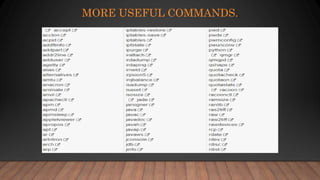
MORE USEFUL COMMANDS.
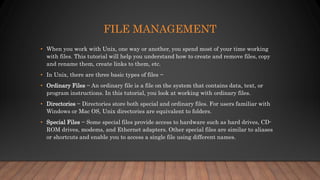
FILE MANAGEMENT
• When you work with Unix, one way or another, you spend most of your time working
with files. This tutorial will help you understand how to create and remove files, copy
and rename them, create links to them, etc.
• In Unix, there are three basic types of files −
• Ordinary Files − An ordinary file is a file on the system that contains data, text, or
program instructions. In this tutorial, you look at working with ordinary files.
• Directories − Directories store both special and ordinary files. For users familiar with
Windows or Mac OS, Unix directories are equivalent to folders.
• Special Files − Some special files provide access to hardware such as hard drives, CD-
ROM drives, modems, and Ethernet adapters. Other special files are similar to aliases
or shortcuts and enable you to access a single file using different names.
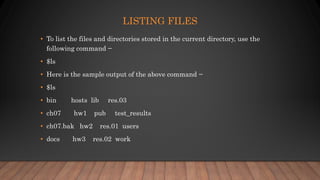
LISTING FILES
• To list the files and directories stored in the current directory, use the
following command −
• $ls
• Here is the sample output of the above command −
• $ls
• bin hosts lib res.03
• ch07 hw1 pub test_results
• ch07.bak hw2 res.01 users
• docs hw3 res.02 work
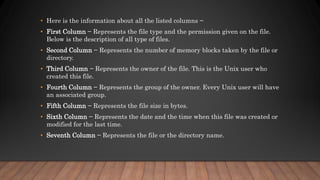
• Here is the information about all the listed columns −
• First Column − Represents the file type and the permission given on the file.
Below is the description of all type of files.
• Second Column − Represents the number of memory blocks taken by the file or
directory.
• Third Column − Represents the owner of the file. This is the Unix user who
created this file.
• Fourth Column − Represents the group of the owner. Every Unix user will have
an associated group.
• Fifth Column − Represents the file size in bytes.
• Sixth Column − Represents the date and the time when this file was created or
modified for the last time.
• Seventh Column − Represents the file or the directory name.
DIRECTORY MANAGEMENT
• Unix uses a hierarchical structure for organizing files and directories. This
structure is often referred to as a directory tree. The tree has a single root
node, the slash character (/), and all other directories are contained below
it.
• Home Directory
• Absolute/Relative Pathnames
• Listing Directories
• Creating Directories,etc
FILE PERMISSION / ACCESS MODES
• In this chapter, we will discuss in detail about file permission and access modes
in Unix. File ownership is an important component of Unix that provides a
secure method for storing files. Every file in Unix has the following attributes −
• Owner permissions − The owner's permissions determine what actions the
owner of the file can perform on the file.
• Group permissions − The group's permissions determine what actions a user,
who is a member of the group that a file belongs to, can perform on the file.
• Other (world) permissions − The permissions for others indicate what action all
other users can perform on the file.
• File Access Modes
• The permissions of a file are the first line of defense in the security of a Unix system. The basic
building blocks of Unix permissions are the read, write, and execute permissions, which Grants
the capability to modify, or remove the content of the file.
• Execute
• User with execute permissions can run a file as a program.
• Directory Access Modes
• Directory access modes are listed and organized in the same manner as any other file. There are a
few differences that need to be mentioned −
• Read
• Access to a directory means that the user can read the contents. The user can look at
the filenames inside the directory.
• Write
• Access means that the user can add or delete files from the directory.
UNIX / LINUX - ENVIRONMENT
• n this chapter, we will discuss in detail about the Unix environment. An
important Unix concept is the environment, which is defined by
environment variables. Some are set by the system, others by you, yet
others by the shell, or any program that loads another program.
• A variable is a character string to which we assign a value. The value
assigned could be a number, text, filename, device, or any other type of
data.
• Note that the environment variables are set without using the $ sign but while accessing
them we use the $ sign as prefix. These variables retain their values until we come out of
the shell.
• When you log in to the system, the shell undergoes a phase called initialization to set up the
environment. This is usually a two-step process that involves the shell reading the following
files −
• /etc./profile
• profile
• The process is as follows −
• The shell checks to see whether the file /etc/profile exists.
• If it exists, the shell reads it. Otherwise, this file is skipped. No error message is displayed.
• The shell checks to see whether the file .profile exists in your home directory. Your home
directory is the directory that you start out in after you log in.
• If it exists, the shell reads it; otherwise, the shell skips it. No error message is displayed.
PIPES AND FILTERS
• In this chapter, we will discuss in detail about pipes and filters in Unix. You
can connect two commands together so that the output from one program
becomes the input of the next program. Two or more commands connected
in this way form a pipe.
• To make a pipe, put a vertical bar (|) on the command line between two
commands.
• When a program takes its input from another program, it performs some
operation on that input, and writes the result to the standard output. It is
referred to as a filter.
PROCESSES MANAGEMENT
• In this chapter, we will discuss in detail about process management in Unix. When you
execute a program on your Unix system, the system creates a special environment for
that program. This environment contains everything needed for the system to run the
program as if no other program were running on the system.
• Whenever you issue a command in Unix, it creates, or starts, a new process. When you
tried out the ls command to list the directory contents, you started a process. A process,
in simple terms, is an instance of a running program.
• The operating system tracks processes through a five-digit ID number known as
the pid or the process ID. Each process in the system has a unique pid.
• Pids eventually repeat because all the possible numbers are used up and the next pid
rolls or starts over. At any point of time, no two processes with the same pid exist in the
system because it is the pid that Unix uses to track each process.
• Starting a Process
• When you start a process (run a command), there are two ways you can run
it −
• Foreground Processes
• Background Processes
• Foreground Processes
• By default, every process that you start runs in the foreground. It gets its
input from the keyboard and sends its output to the screen.
• The process runs in the foreground, the output is directed to my screen,
and if the ls command wants any input (which it does not), it waits for it
from the keyboard.
• While a program is running in the foreground and is time-consuming, no
other commands can be run (start any other processes) because the prompt
would not be available until the program finishes processing and comes
out.
CONCLUSION
• Unix is a computer Operating System which is capable of handling
activities from multiple users at the same time. The development of Unix
started around 1969 at AT&T Bell Labs by Ken Thompson and Dennis
Ritchie. This tutorial gives a very good understanding on Unix.
• We assume you have adequate exposure to Operating Systems and their
functionalities. A basic understanding on various computer concepts will
also help you in understanding the various exercises given in this tutorial.
Unix/Linux

Unix/Linux

  • 1.
  • 2.
    TABLE OF CONTENTS •What is Linux? • More useful commands. • File Management • Directory Management • File Permission / Access Modes • Unix / Linux - Environment • Pipes and Filters • Processes Management • Conclusion
  • 3.
    WHAT IS LINUX? Unix/ Linux is a computer Operating System which is capable of handling activities from multiple users at the same time. The development of Unix started around 1969 at AT&T Bell Labs by Ken Thompson and Dennis Ritchie. This tutorial gives a very good understanding on Unix. Linux is a very popular operating system, and this course is followed by thousands of people each day. Due to this, there are a lot of people online who are also in the process of learning it.
  • 4.
  • 5.
    FILE MANAGEMENT • Whenyou work with Unix, one way or another, you spend most of your time working with files. This tutorial will help you understand how to create and remove files, copy and rename them, create links to them, etc. • In Unix, there are three basic types of files − • Ordinary Files − An ordinary file is a file on the system that contains data, text, or program instructions. In this tutorial, you look at working with ordinary files. • Directories − Directories store both special and ordinary files. For users familiar with Windows or Mac OS, Unix directories are equivalent to folders. • Special Files − Some special files provide access to hardware such as hard drives, CD- ROM drives, modems, and Ethernet adapters. Other special files are similar to aliases or shortcuts and enable you to access a single file using different names.
  • 6.
    LISTING FILES • Tolist the files and directories stored in the current directory, use the following command − • $ls • Here is the sample output of the above command − • $ls • bin hosts lib res.03 • ch07 hw1 pub test_results • ch07.bak hw2 res.01 users • docs hw3 res.02 work
  • 7.
    • Here isthe information about all the listed columns − • First Column − Represents the file type and the permission given on the file. Below is the description of all type of files. • Second Column − Represents the number of memory blocks taken by the file or directory. • Third Column − Represents the owner of the file. This is the Unix user who created this file. • Fourth Column − Represents the group of the owner. Every Unix user will have an associated group. • Fifth Column − Represents the file size in bytes. • Sixth Column − Represents the date and the time when this file was created or modified for the last time. • Seventh Column − Represents the file or the directory name.
  • 8.
    DIRECTORY MANAGEMENT • Unixuses a hierarchical structure for organizing files and directories. This structure is often referred to as a directory tree. The tree has a single root node, the slash character (/), and all other directories are contained below it. • Home Directory • Absolute/Relative Pathnames • Listing Directories • Creating Directories,etc
  • 9.
    FILE PERMISSION /ACCESS MODES • In this chapter, we will discuss in detail about file permission and access modes in Unix. File ownership is an important component of Unix that provides a secure method for storing files. Every file in Unix has the following attributes − • Owner permissions − The owner's permissions determine what actions the owner of the file can perform on the file. • Group permissions − The group's permissions determine what actions a user, who is a member of the group that a file belongs to, can perform on the file. • Other (world) permissions − The permissions for others indicate what action all other users can perform on the file.
  • 10.
    • File AccessModes • The permissions of a file are the first line of defense in the security of a Unix system. The basic building blocks of Unix permissions are the read, write, and execute permissions, which Grants the capability to modify, or remove the content of the file. • Execute • User with execute permissions can run a file as a program. • Directory Access Modes • Directory access modes are listed and organized in the same manner as any other file. There are a few differences that need to be mentioned − • Read • Access to a directory means that the user can read the contents. The user can look at the filenames inside the directory. • Write • Access means that the user can add or delete files from the directory.
  • 11.
    UNIX / LINUX- ENVIRONMENT • n this chapter, we will discuss in detail about the Unix environment. An important Unix concept is the environment, which is defined by environment variables. Some are set by the system, others by you, yet others by the shell, or any program that loads another program. • A variable is a character string to which we assign a value. The value assigned could be a number, text, filename, device, or any other type of data.
  • 12.
    • Note thatthe environment variables are set without using the $ sign but while accessing them we use the $ sign as prefix. These variables retain their values until we come out of the shell. • When you log in to the system, the shell undergoes a phase called initialization to set up the environment. This is usually a two-step process that involves the shell reading the following files − • /etc./profile • profile • The process is as follows − • The shell checks to see whether the file /etc/profile exists. • If it exists, the shell reads it. Otherwise, this file is skipped. No error message is displayed. • The shell checks to see whether the file .profile exists in your home directory. Your home directory is the directory that you start out in after you log in. • If it exists, the shell reads it; otherwise, the shell skips it. No error message is displayed.
  • 13.
    PIPES AND FILTERS •In this chapter, we will discuss in detail about pipes and filters in Unix. You can connect two commands together so that the output from one program becomes the input of the next program. Two or more commands connected in this way form a pipe. • To make a pipe, put a vertical bar (|) on the command line between two commands. • When a program takes its input from another program, it performs some operation on that input, and writes the result to the standard output. It is referred to as a filter.
  • 14.
    PROCESSES MANAGEMENT • Inthis chapter, we will discuss in detail about process management in Unix. When you execute a program on your Unix system, the system creates a special environment for that program. This environment contains everything needed for the system to run the program as if no other program were running on the system. • Whenever you issue a command in Unix, it creates, or starts, a new process. When you tried out the ls command to list the directory contents, you started a process. A process, in simple terms, is an instance of a running program. • The operating system tracks processes through a five-digit ID number known as the pid or the process ID. Each process in the system has a unique pid. • Pids eventually repeat because all the possible numbers are used up and the next pid rolls or starts over. At any point of time, no two processes with the same pid exist in the system because it is the pid that Unix uses to track each process.
  • 15.
    • Starting aProcess • When you start a process (run a command), there are two ways you can run it − • Foreground Processes • Background Processes • Foreground Processes • By default, every process that you start runs in the foreground. It gets its input from the keyboard and sends its output to the screen.
  • 16.
    • The processruns in the foreground, the output is directed to my screen, and if the ls command wants any input (which it does not), it waits for it from the keyboard. • While a program is running in the foreground and is time-consuming, no other commands can be run (start any other processes) because the prompt would not be available until the program finishes processing and comes out.
  • 17.
    CONCLUSION • Unix isa computer Operating System which is capable of handling activities from multiple users at the same time. The development of Unix started around 1969 at AT&T Bell Labs by Ken Thompson and Dennis Ritchie. This tutorial gives a very good understanding on Unix. • We assume you have adequate exposure to Operating Systems and their functionalities. A basic understanding on various computer concepts will also help you in understanding the various exercises given in this tutorial.