Introduction to Unix and OS
Module 3
Simple filters
Dr. Girisha G S
Dept. of CSE
SoE,DSU, Bengaluru
1
Agenda
Commonly used Filter commands
- pr
- head
- tail
- cut
- paste
- sort
- uniq
- tr
2
Filters
Filters are the commands which accept data from standard input
manipulate it and write the results to standard output
What are Filers?
- The filters can read data from standard input when used without a
filename as argument, and from the file otherwise
pr : paginating files
- Displays the specified files on the standard output in a paginated form.
- pr command adds suitable headers, footers and formatted text.
- pr adds five lines of margin at the top and bottom. The header shows the date and
time of last modification of the file along with the filename and page number.
Syntax:
pr option(s) filename(s)
3
Example:
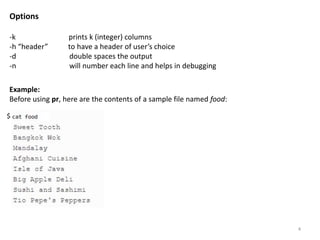
Before using pr, here are the contents of a sample file named food:
Options
-k prints k (integer) columns
-h “header” to have a header of user’s choice
-d double spaces the output
-n will number each line and helps in debugging
$
4
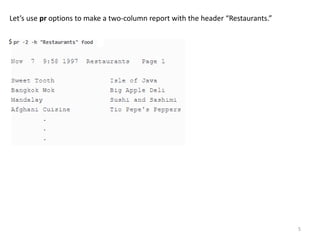
Let’s use pr options to make a two-column report with the header “Restaurants.”
$
5
head – displaying the beginning of the file
- head command displays the top of the file.
- It displays the first 10 lines of the file by default
Option
-n num : Prints the first ‘num’ lines instead of first 10 lines
Example – 1: consider the file having name state.txt contains all the names of the
Indian states . Without any option, head displays only the first 10 lines of the file
specified.
syntax:
head [option] [filename]…[filename]
$ cat state.txt
Andhra Pradesh
Arunachal Pradesh
Assam
Bihar
Chhattisgarh
Goa
Gujarat Haryana
Himachal Pradesh
Jammu and Kashmir
Jharkhand
Karnataka
Kerala
Madhya Pradesh
Maharashtra
Manipur
Meghalaya
Mizoram
Nagaland
Odisha
Punjab
Rajasthan
Sikkim
Tamil Nadu
Telangana
Tripura
Uttar Pradesh
Uttarakhand
West Bengal
$ head state.txt
Andhra Pradesh
Arunachal Pradesh
Assam
Bihar
Chhattisgarh
Goa
Gujarat
Haryana
Himachal Pradesh
Jammu and Kashmir
6
10
lines
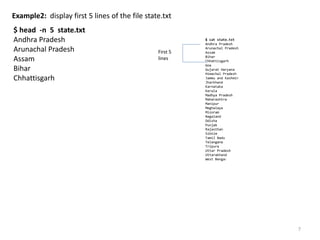
Example2: display first 5 lines of the file state.txt
$ head -n 5 state.txt
Andhra Pradesh
Arunachal Pradesh
Assam
Bihar
Chhattisgarh
7
$ cat state.txt
Andhra Pradesh
Arunachal Pradesh
Assam
Bihar
Chhattisgarh
Goa
Gujarat Haryana
Himachal Pradesh
Jammu and Kashmir
Jharkhand
Karnataka
Kerala
Madhya Pradesh
Maharashtra
Manipur
Meghalaya
Mizoram
Nagaland
Odisha
Punjab
Rajasthan
Sikkim
Tamil Nadu
Telangana
Tripura
Uttar Pradesh
Uttarakhand
West Bengal
First 5
lines
tail – displaying the end of a file
- tail command displays the end of the file.
- It displays the last 10 lines of the file by default
Option
-n num : Prints the last ‘num’ lines instead of first 10 lines
syntax:
tail [option] [filename]…[filename]
Example – 1: consider the file having name state.txt contains all the names of the Indian
states . Without any option, tail displays only the last 10 lines of the file specified.
$ tail state.txt
Odisha
Punjab
Rajasthan
Sikkim
Tamil Nadu
Telangana
Tripura
Uttar Pradesh
Uttarakhand
West Bengal
8
$ cat state.txt
Andhra Pradesh
Arunachal Pradesh
Assam
Bihar
Chhattisgarh
Goa
Gujarat Haryana
Himachal Pradesh
Jammu and Kashmir
Jharkhand
Karnataka
Kerala
Madhya Pradesh
Maharashtra
Manipur
Meghalaya
Mizoram
Nagaland
Odisha
Punjab
Rajasthan
Sikkim
Tamil Nadu
Telangana
Tripura
Uttar Pradesh
Uttarakhand
West Bengal
Last
10 lines
Example2: display last 3 lines of the file state.txt
$ tail -n 3 state.txt
Uttar Pradesh
Uttarakhand
West Bengal
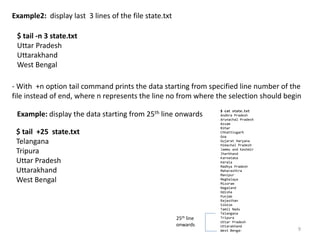
- With +n option tail command prints the data starting from specified line number of the
file instead of end, where n represents the line no from where the selection should begin
$ tail +25 state.txt
Telangana
Tripura
Uttar Pradesh
Uttarakhand
West Bengal
Example: display the data starting from 25th line onwards
9
$ cat state.txt
Andhra Pradesh
Arunachal Pradesh
Assam
Bihar
Chhattisgarh
Goa
Gujarat Haryana
Himachal Pradesh
Jammu and Kashmir
Jharkhand
Karnataka
Kerala
Madhya Pradesh
Maharashtra
Manipur
Meghalaya
Mizoram
Nagaland
Odisha
Punjab
Rajasthan
Sikkim
Tamil Nadu
Telangana
Tripura
Uttar Pradesh
Uttarakhand
West Bengal
25th line
onwards
cut - select parts of a line
- cut command is used to cut fields or columns of the text from a file and display it to
standard output
Syntax:
Cut [options] [file]
options:
-c cut characters from a file
-f cut the fields from a file
-d used to specify the delimeter
Example: Let's say you have a file named data.txt which contains the following text:
$ cat data.txt
one two three four five
alpha beta gamma delta epsilon
To "cut" only the third field of each line, use the command:
$ cut -f 3 data.txt
three
gamma
10
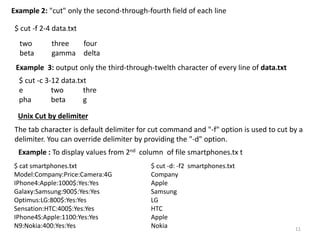
Example 2: "cut" only the second-through-fourth field of each line
$ cut -f 2-4 data.txt
two three four
beta gamma delta
Example 3: output only the third-through-twelth character of every line of data.txt
$ cut -c 3-12 data.txt
e two thre
pha beta g
Unix Cut by delimiter
Example : To display values from 2nd column of file smartphones.tx t
The tab character is default delimiter for cut command and "-f" option is used to cut by a
delimiter. You can override delimiter by providing the "-d" option.
$ cat smartphones.txt
Model:Company:Price:Camera:4G
IPhone4:Apple:1000$:Yes:Yes
Galaxy:Samsung:900$:Yes:Yes
Optimus:LG:800$:Yes:Yes
Sensation:HTC:400$:Yes:Yes
IPhone4S:Apple:1100:Yes:Yes
N9:Nokia:400:Yes:Yes
$ cut -d: -f2 smartphones.txt
Company
Apple
Samsung
LG
HTC
Apple
Nokia 11
paste – pasting files
- paste command will paste the content of the file side by side
- Uses the tab as default delimiter
Example: consider two files file1, file2 and the task is to merge lines of these two files.
$ cat file1
unix
linux
solaris
$ cat file2
os
server
system
$ paste file1 file2
unix os
linux server
solaris system
Syntax:
paste [options] [file]
12
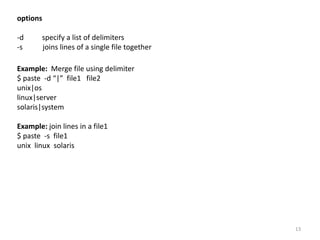
options
-d specify a list of delimiters
-s joins lines of a single file together
Example: Merge file using delimiter
$ paste -d “|” file1 file2
unix|os
linux|server
solaris|system
Example: join lines in a file1
$ paste -s file1
unix linux solaris
13

Unix - Filters

  • 1.
    Introduction to Unixand OS Module 3 Simple filters Dr. Girisha G S Dept. of CSE SoE,DSU, Bengaluru 1
  • 2.
    Agenda Commonly used Filtercommands - pr - head - tail - cut - paste - sort - uniq - tr 2
  • 3.
    Filters Filters are thecommands which accept data from standard input manipulate it and write the results to standard output What are Filers? - The filters can read data from standard input when used without a filename as argument, and from the file otherwise pr : paginating files - Displays the specified files on the standard output in a paginated form. - pr command adds suitable headers, footers and formatted text. - pr adds five lines of margin at the top and bottom. The header shows the date and time of last modification of the file along with the filename and page number. Syntax: pr option(s) filename(s) 3
  • 4.
    Example: Before using pr,here are the contents of a sample file named food: Options -k prints k (integer) columns -h “header” to have a header of user’s choice -d double spaces the output -n will number each line and helps in debugging $ 4
  • 5.
    Let’s use proptions to make a two-column report with the header “Restaurants.” $ 5
  • 6.
    head – displayingthe beginning of the file - head command displays the top of the file. - It displays the first 10 lines of the file by default Option -n num : Prints the first ‘num’ lines instead of first 10 lines Example – 1: consider the file having name state.txt contains all the names of the Indian states . Without any option, head displays only the first 10 lines of the file specified. syntax: head [option] [filename]…[filename] $ cat state.txt Andhra Pradesh Arunachal Pradesh Assam Bihar Chhattisgarh Goa Gujarat Haryana Himachal Pradesh Jammu and Kashmir Jharkhand Karnataka Kerala Madhya Pradesh Maharashtra Manipur Meghalaya Mizoram Nagaland Odisha Punjab Rajasthan Sikkim Tamil Nadu Telangana Tripura Uttar Pradesh Uttarakhand West Bengal $ head state.txt Andhra Pradesh Arunachal Pradesh Assam Bihar Chhattisgarh Goa Gujarat Haryana Himachal Pradesh Jammu and Kashmir 6 10 lines
  • 7.
    Example2: display first5 lines of the file state.txt $ head -n 5 state.txt Andhra Pradesh Arunachal Pradesh Assam Bihar Chhattisgarh 7 $ cat state.txt Andhra Pradesh Arunachal Pradesh Assam Bihar Chhattisgarh Goa Gujarat Haryana Himachal Pradesh Jammu and Kashmir Jharkhand Karnataka Kerala Madhya Pradesh Maharashtra Manipur Meghalaya Mizoram Nagaland Odisha Punjab Rajasthan Sikkim Tamil Nadu Telangana Tripura Uttar Pradesh Uttarakhand West Bengal First 5 lines
  • 8.
    tail – displayingthe end of a file - tail command displays the end of the file. - It displays the last 10 lines of the file by default Option -n num : Prints the last ‘num’ lines instead of first 10 lines syntax: tail [option] [filename]…[filename] Example – 1: consider the file having name state.txt contains all the names of the Indian states . Without any option, tail displays only the last 10 lines of the file specified. $ tail state.txt Odisha Punjab Rajasthan Sikkim Tamil Nadu Telangana Tripura Uttar Pradesh Uttarakhand West Bengal 8 $ cat state.txt Andhra Pradesh Arunachal Pradesh Assam Bihar Chhattisgarh Goa Gujarat Haryana Himachal Pradesh Jammu and Kashmir Jharkhand Karnataka Kerala Madhya Pradesh Maharashtra Manipur Meghalaya Mizoram Nagaland Odisha Punjab Rajasthan Sikkim Tamil Nadu Telangana Tripura Uttar Pradesh Uttarakhand West Bengal Last 10 lines
  • 9.
    Example2: display last3 lines of the file state.txt $ tail -n 3 state.txt Uttar Pradesh Uttarakhand West Bengal - With +n option tail command prints the data starting from specified line number of the file instead of end, where n represents the line no from where the selection should begin $ tail +25 state.txt Telangana Tripura Uttar Pradesh Uttarakhand West Bengal Example: display the data starting from 25th line onwards 9 $ cat state.txt Andhra Pradesh Arunachal Pradesh Assam Bihar Chhattisgarh Goa Gujarat Haryana Himachal Pradesh Jammu and Kashmir Jharkhand Karnataka Kerala Madhya Pradesh Maharashtra Manipur Meghalaya Mizoram Nagaland Odisha Punjab Rajasthan Sikkim Tamil Nadu Telangana Tripura Uttar Pradesh Uttarakhand West Bengal 25th line onwards
  • 10.
    cut - selectparts of a line - cut command is used to cut fields or columns of the text from a file and display it to standard output Syntax: Cut [options] [file] options: -c cut characters from a file -f cut the fields from a file -d used to specify the delimeter Example: Let's say you have a file named data.txt which contains the following text: $ cat data.txt one two three four five alpha beta gamma delta epsilon To "cut" only the third field of each line, use the command: $ cut -f 3 data.txt three gamma 10
  • 11.
    Example 2: "cut"only the second-through-fourth field of each line $ cut -f 2-4 data.txt two three four beta gamma delta Example 3: output only the third-through-twelth character of every line of data.txt $ cut -c 3-12 data.txt e two thre pha beta g Unix Cut by delimiter Example : To display values from 2nd column of file smartphones.tx t The tab character is default delimiter for cut command and "-f" option is used to cut by a delimiter. You can override delimiter by providing the "-d" option. $ cat smartphones.txt Model:Company:Price:Camera:4G IPhone4:Apple:1000$:Yes:Yes Galaxy:Samsung:900$:Yes:Yes Optimus:LG:800$:Yes:Yes Sensation:HTC:400$:Yes:Yes IPhone4S:Apple:1100:Yes:Yes N9:Nokia:400:Yes:Yes $ cut -d: -f2 smartphones.txt Company Apple Samsung LG HTC Apple Nokia 11
  • 12.
    paste – pastingfiles - paste command will paste the content of the file side by side - Uses the tab as default delimiter Example: consider two files file1, file2 and the task is to merge lines of these two files. $ cat file1 unix linux solaris $ cat file2 os server system $ paste file1 file2 unix os linux server solaris system Syntax: paste [options] [file] 12
  • 13.
    options -d specify alist of delimiters -s joins lines of a single file together Example: Merge file using delimiter $ paste -d “|” file1 file2 unix|os linux|server solaris|system Example: join lines in a file1 $ paste -s file1 unix linux solaris 13

Editor's Notes

  • #2 We use commands that filter data to select only the portion of data that we wish to view or operate on. t can be used to process information in powerful ways such as restructuring output to generate useful reports, modifying text in files and many other system administration tasks.
  • #4 Cut specified character or field from each line of stdin and print to stdout. Sort the lines in stdin, and print the result to stdout. Filters are programs that takes its input form from the std i/p, transforms it into a meaningful format, and then returns it as standard output.. A common use of filters is to modify output. Just as a common filter culls unwanted items, Unix filters can restructure output. docstore.mik.ua/orelly/unix3/lunix/ch05_02.htm Linux has a number of filters. Pr - Paginates files for printing. This command used to format the page style format file for printing, optionally in multiple columns. pr is a command used to paginate or columnate files for printing There are many options available with this command which help in making desired format changes on file The cat and more commands display the contents of a file, but if a file is to be printed then other information might need to be added to the output, such as a page number or a running header containing the filename. The pr command formats a file before displaying its contents and also prints the date, time, filename and page number at the top of every page.
  • #5 -k divides the data in to k columns -h assigns the header value as the report header -n denotes all lines with numbers
  • #6 The text is output in two-column pages. The top of each page has the date and time, header (or name of the file, if header is not supplied), and page number.
  • #7  It shows you the top few lines of a specified file. It can be useful when you want a quick peek at a large file, as an alternative to opening the file with a text editor If you want to see what is in a file without looking at the whole file, you may find the head command useful
  • #8 It shows you the last few lines of a specified file.
  • #10 where n represents the line number from where the selection should begin.
  • #11 is used to select sections of text from each line of file. Basically the cut command slices a line and extracts the text. tool to extract parts of each line of a file. What 'cut' does is, it cuts out a set of bytes or character or fields from each row of the file. Select only the characters from each line as specified in LIST select only these fields on each line In this example, each of these words is separated by a tab character, not spaces. The tab character is the default delimiter of cut, select fields or columns from a line by specifying a delimiter
  • #13 , there may arise a situation wherein you have to merge lines of multiple files to create more meaningful/useful data. there exists a command y paste that does this for you the paste command merges lines of files
  • #14 Paste command uses the tab delimiter by default for merging the files. You can change the delimiter to any other character by using the -d option., which requires you to provide the delimiting character you want to use. You can merge the files in sequentially using the -s option.  By default, the paste command merges the files in parallel.