Tech Mahindra Limited confidential© Tech Mahindra Limited 2008
UNIX
Day 2
CONFIDENTIAL© Copyright 2008
2
Objectives
 At the end of this session, you will be able to:
 Understand regular expressions
 Understand the grep family of commands
 Understand UNIX Shell features and its environment
 Read/Write basic shell scripts using decision making constructs
CONFIDENTIAL© Copyright 2008
3
Agenda: Day 2
 Regular Expressions and grep
 Unix Shell
 Unix Shell Environment
 Unix Shell Scripting
Tech Mahindra Limited confidential© Tech Mahindra Limited 2008
Regular Expressions and Grep
CONFIDENTIAL© Copyright 2008
5
Regular Expression
 Often called a pattern, is an expression that describes a set
of strings
 Example,
a regular expression “amit” may match “amit”,
“amita”,”amitabh”, “namit” etc…
 Many UNIX tools, primarily grep,sed & awk make use of
regular expressions in text processing
CONFIDENTIAL© Copyright 2008
6
Regular Expressions (contd.)
 Regular Expressions can be divided into:
 Basic regular expressions (BRE)
 Supported by grep
 Extended regular expressions (ERE)
 Supported by grep –E or egrep
CONFIDENTIAL© Copyright 2008
7
Basic Regular Expression
 Quote the next metacharacter
^ Match the beginning of the line
. Match any character
$ Match the end of the line
[] Character class
Special Operators
CONFIDENTIAL© Copyright 2008
8
Extended Regular Expression
| Alternation
() Grouping
Special Operators
CONFIDENTIAL© Copyright 2008
9
Examples
 “a.g” matches aag, abg, a1g, etc
 “a[pmt]g” matches apg, amg or atg
 “a[^pmt]g” matches aag, abg but not apg or amg or atg
 “^ftp” matches ftp at the beginning of a line
 “tle$” matches tle at the end of a line
 “^$” matches a line with nothing in it
 “jelly|cream” matches either jelly or cream
 “(eg|pe)gs” matches either eggs or pegs
CONFIDENTIAL© Copyright 2008
10
Quantifiers: number of repeats of the previous
character
* Match 0 or more times
+ Match 1 or more times
? Match 1 or 0 times
BRE
ERE
CONFIDENTIAL© Copyright 2008
11
Examples
 “adg*” ad followed by zero or more g characters
 “.*” Any character, any number of times
 “[qjk]” Either q or j or k
 “[^qjk]” Neither q nor j nor k
 “[a-z]” Anything from a to z inclusive
 “[^a-z]” No lower case letters
 “[a-zA-Z]” Any letter
 “[a-z]+” Any non-zero sequence of lower case letters
 “(da)+” Either da or dada or dadada or...
CONFIDENTIAL© Copyright 2008
12
grep family
 fgrep: fast searching for fixed strings
 $fgrep string file(s)
 It handles fixed character strings as text patterns
 Does not use regular expressions
 Faster than grep and egrep for searching text strings
 Examples
fgrep “Ramesh” datalist
 If found, lists the line(s) containing Ramesh
CONFIDENTIAL© Copyright 2008
13
grep family
 grep: is called as a global regular expression printer
 It searches for a given pattern in a file(s)
 $ grep -[cvnl] [pattern] [files]
Option Description
-c counts the total no of lines containing the pattern
-v displays all the lines not containing the pattern
-n displays lines with line number
-l displays file names containing the pattern
 Example:
grep “Agg*[ra][ra]wal” datalist
 It lists all lines where the pattern matches some text
 The possible matches for the text are:
Agrawal, Agarwal, Aggarwal, Aggrawal
(and many more combinations possible)
CONFIDENTIAL© Copyright 2008
14
grep family
 egrep: extended grep, supports both BRE as well as ERE
 grep –E can also be used in the place of egrep
 Examples:
 $ egrep ‘ (John|Johnathon) Smith ‘ employee.txt
 This will search for John Smith as well as for Johnathon Smith
 grep –E “(S|Sh)arma datalist
 Matches Sarma or Sharma in the text from datalist
Tech Mahindra Limited confidential© Tech Mahindra Limited 2008
Unix Shell
CONFIDENTIAL© Copyright 2008
16
Shell Features
 Command Prompt
 Command Interpretation and Shell Meta Characters
 I/O Redirection
 Pipes
 Shell Programming Constructs
 Job Control
 Command History
CONFIDENTIAL© Copyright 2008
17
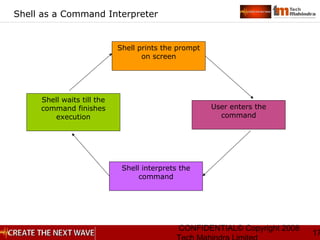
Shell as a Command Interpreter
Shell prints the prompt
on screen
User enters the
command
Shell interprets the
command
Shell waits till the
command finishes
execution
CONFIDENTIAL© Copyright 2008
18
Popular Unix Shells
 Bourne Shell
 Korn Shell
 C Shell
 Bourne Again Shell
CONFIDENTIAL© Copyright 2008
19
Bourne Shell
 The Bourne shell is the original UNIX shell program
 It is very widely used
 Invoked using sh or /bin/sh at the command prompt
 The Bourne shell supports conditional branching in the form
of if/then/else statements
 In addition, the Bourne shell supports case statements and
loops (for, while, and until)
 The Bourne shell uses the $ as a prompt
CONFIDENTIAL© Copyright 2008
20
Korn Shell
 The Korn shell is a newer variation of the Bourne shell.
 It supports everything the Bourne shell does, and adds
features not available in the Bourne shell.
 Invoked using ksh or /bin/ksh at the command shell prompt.
 The Korn shell was originally written by David Korn and is
copyrighted by AT&T.
 The programming structure of the Korn shell is very similar
to that of the Bourne shell. The Korn shell, however, is more
interactive.
CONFIDENTIAL© Copyright 2008
21
C Shell
 The C shell is a very commonly used shell
 Its programming structure closely resembles that of the
programming language "C."
 The C shell uses the "%" as a prompt
 The C shell supports all of the features that the Bourne shell
supports, and has a more natural syntax for programming
 The C shell is more interactive than the Bourne shell, with
additional features that are not available in older shells
 The configuration of the C shell is controlled by the .rc and
the .login files
CONFIDENTIAL© Copyright 2008
22
Bourne-Again Shell
 The Bourne-Again shell is a variation of the Bourne shell
 It is commonly used in Linux, but is widely available in other
standard UNIX distributions
 The Bourne Again shell is another modification of the Bourne
shell, and uses the $ as a prompt
 To start the Bourne Again shell, type "bash" at the shell
prompt
 The behavior and environment of the Bourne Again shell is
controlled by the .bashrc file, which is a hidden file in your
home directory
Tech Mahindra Limited confidential© Tech Mahindra Limited 2008
Unix Shell Environment
CONFIDENTIAL© Copyright 2008
24
Environmental Variables
 The Unix system is controlled by a number of shell variables
that are separately set by the system - some during boot
sequence, and some after logging in.
 These variables are called system variables or environment
variables.
 The set statement displays the complete list of all these
variables. These built-in variable names are defined in
uppercase.
CONFIDENTIAL© Copyright 2008
25
Environmental Variables
 PATH: is a variable that instructs the shell about the route
it should follow to locate any executable command
 HOME: when you log in, UNIX normally places you in a
directory named after your login name
 MAIL: determines where all incoming mail addressed to the
user is to be stored
 PS1 and PS2: PS1 - your command prompt and PS2-Multi-
line command string
 SHELL: determines the type of shell that a user sees on
logging in
Note: There are other environmental variables also but we have discussed
the important ones.
CONFIDENTIAL© Copyright 2008
26
Profile
 .profile (.bash_profile in Linux): the script executed during
login time
 The .profile must be located in your home directory, and it is
executed after /etc/profile, the universal profile for all users
 Universal environment settings are kept by the
administrator in /etc/profile so that they are available to all
users
CONFIDENTIAL© Copyright 2008
27
Setting Environment Variables
 Assigning a value to a variable will set an environment
variable temporarily
 For example:
$ x=50
This example will set value 50 to the variable x
CONFIDENTIAL© Copyright 2008
28
Setting Environment Variables
 The variable will not be available if you exit the shell. Add
this variable to configuration files e.g. “.profile” to set it
permanently
 If you no longer want a variable to be set, you can use the
unset command to erase its value
 For example:
$ unset x
This command will cause x to have no value set
CONFIDENTIAL© Copyright 2008
29
export
 By default, the values stored in shell variables are local to
the shell, i.e., they are available only in the shell in which
they are defined. They are not passed on to a child shell.
 But the shell can also export those variables recursively to
all child processes so that, once defined, they are available
globally. This is done with the export command.
 $ x=hello
 $ export x
 $ sh
 $ echo $x
 hello
CONFIDENTIAL© Copyright 2008
30
. (dot): Running commands from file
 If we have a list of commands in a file “sample”, we can execute it
using command:
 $ . sample
 It is like executing a shell script, but with following difference:
 Standard shell scripts cause a new sub shell to be created to
run the script.
 The dot command uses the same shell to execute the
commands.
 The dot command, however, creates no child process, so
any changes it produces apply to the original shell
 It also does not require the script to have executable
permission
Tech Mahindra Limited confidential© Tech Mahindra Limited 2008
Unix Shell Scripting
CONFIDENTIAL© Copyright 2008
32
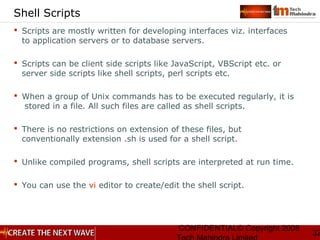
Shell Scripts
 Scripts are mostly written for developing interfaces viz. interfaces
to application servers or to database servers.
 Scripts can be client side scripts like JavaScript, VBScript etc. or
server side scripts like shell scripts, perl scripts etc.
 When a group of Unix commands has to be executed regularly, it is
stored in a file. All such files are called as shell scripts.
 There is no restrictions on extension of these files, but
conventionally extension .sh is used for a shell script.
 Unlike compiled programs, shell scripts are interpreted at run time.
 You can use the vi editor to create/edit the shell script.
CONFIDENTIAL© Copyright 2008
33
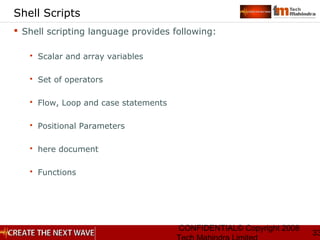
Shell Scripts
 Shell scripting language provides following:
 Scalar and array variables
 Set of operators
 Flow, Loop and case statements
 Positional Parameters
 here document
 Functions
CONFIDENTIAL© Copyright 2008
34
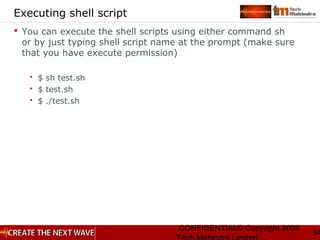
Executing shell script
 You can execute the shell scripts using either command sh
or by just typing shell script name at the prompt (make sure
that you have execute permission)
 $ sh test.sh
 $ test.sh
 $ ./test.sh
CONFIDENTIAL© Copyright 2008
35
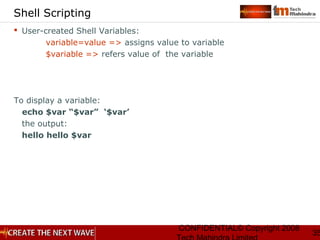
Shell Scripting
 User-created Shell Variables:
variable=value => assigns value to variable
$variable => refers value of the variable
To display a variable:
echo $var “$var” ‘$var’
the output:
hello hello $var
CONFIDENTIAL© Copyright 2008
36
Shell Scripting
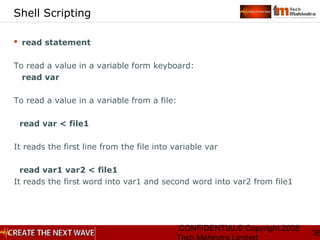
 read statement
To read a value in a variable form keyboard:
read var
To read a value in a variable from a file:
read var < file1
It reads the first line from the file into variable var
read var1 var2 < file1
It reads the first word into var1 and second word into var2 from file1
CONFIDENTIAL© Copyright 2008
37
Shell Scripting
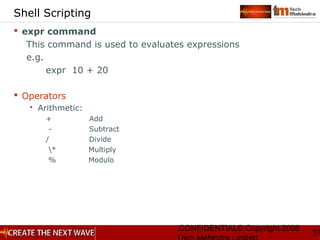
 expr command
This command is used to evaluates expressions
e.g.
expr 10 + 20
 Operators
 Arithmetic:
+ Add
- Subtract
/ Divide
* Multiply
% Modulo
CONFIDENTIAL© Copyright 2008
38
Shell Meta Characters
 Wildcard substitution: * ? []
 Redirection: >, >>, <, 2>, <<
 Piping: |
 Command substitution: ` `
 Sequential commands: semicolon (;)
 Inserting comment: #
 Command grouping: () parenthesis
CONFIDENTIAL© Copyright 2008
39
test command
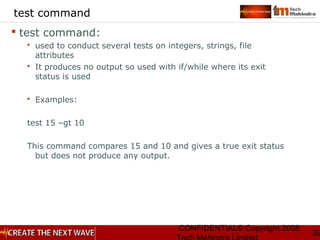
 test command:
 used to conduct several tests on integers, strings, file
attributes
 It produces no output so used with if/while where its exit
status is used
 Examples:
test 15 –gt 10
This command compares 15 and 10 and gives a true exit status
but does not produce any output.
CONFIDENTIAL© Copyright 2008
40
test command
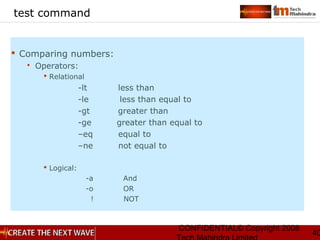
 Comparing numbers:
 Operators:
 Relational
-lt less than
-le less than equal to
-gt greater than
-ge greater than equal to
–eq equal to
–ne not equal to
 Logical:
-a And
-o OR
! NOT
CONFIDENTIAL© Copyright 2008
41
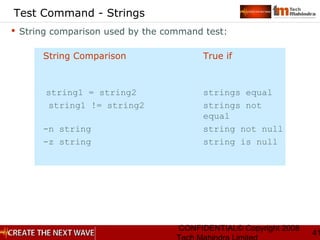
Test Command - Strings
 String comparison used by the command test:
String Comparison True if
string1 = string2 strings equal
string1 != string2 strings not
equal
-n string string not null
-z string string is null
CONFIDENTIAL© Copyright 2008
42
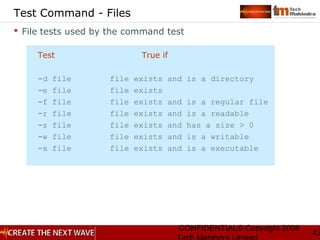
Test Command - Files
 File tests used by the command test
Test True if
-d file file exists and is a directory
-e file file exists
-f file file exists and is a regular file
-r file file exists and is a readable
-s file file exists and has a size > 0
-w file file exists and is a writable
-x file file exists and is a executable
CONFIDENTIAL© Copyright 2008
43
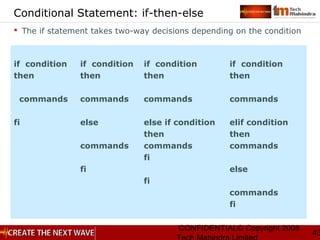
Conditional Statement: if-then-else
 The if statement takes two-way decisions depending on the condition
if condition
then
commands
fi
if condition
then
commands
else
commands
fi
if condition
then
commands
else if condition
then
commands
fi
fi
if condition
then
commands
elif condition
then
commands
else
commands
fi
CONFIDENTIAL© Copyright 2008
44
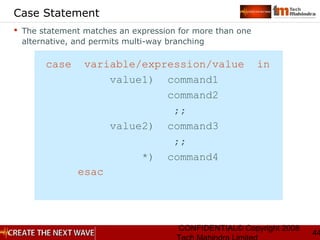
Case Statement
 The statement matches an expression for more than one
alternative, and permits multi-way branching
case variable/expression/value in
value1) command1
command2
;;
value2) command3
;;
*) command4
esac
CONFIDENTIAL© Copyright 2008
45
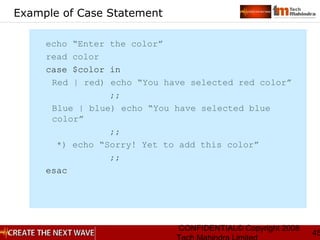
Example of Case Statement
echo “Enter the color”
read color
case $color in
Red | red) echo “You have selected red color”
;;
Blue | blue) echo “You have selected blue
color”
;;
*) echo “Sorry! Yet to add this color”
;;
esac
CONFIDENTIAL© Copyright 2008
46
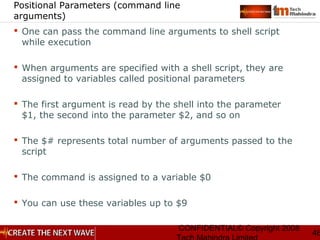
Positional Parameters (command line
arguments)
 One can pass the command line arguments to shell script
while execution
 When arguments are specified with a shell script, they are
assigned to variables called positional parameters
 The first argument is read by the shell into the parameter
$1, the second into the parameter $2, and so on
 The $# represents total number of arguments passed to the
script
 The command is assigned to a variable $0
 You can use these variables up to $9
CONFIDENTIAL© Copyright 2008
47
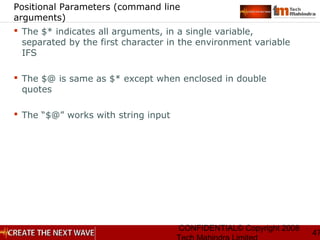
Positional Parameters (command line
arguments)
 The $* indicates all arguments, in a single variable,
separated by the first character in the environment variable
IFS
 The $@ is same as $* except when enclosed in double
quotes
 The “$@” works with string input
CONFIDENTIAL© Copyright 2008
48
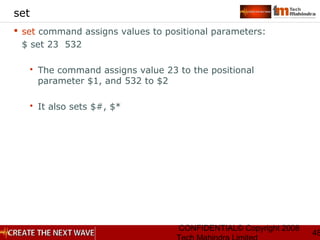
set
 set command assigns values to positional parameters:
$ set 23 532
 The command assigns value 23 to the positional
parameter $1, and 532 to $2
 It also sets $#, $*
CONFIDENTIAL© Copyright 2008
49
shift
 shift command shifts command line arguments to left
 The shift command copies the contents of a positional parameter
to its immediate lower numbered positional parameter. When
called once, contents of $2 are copied to $1, $3 to $2 and so on.
$ shift 2
 The command does two shifts i.e. $1=$3, $2=$4, and so on.
 Using shift command we can pass more than 9 command line
parameters to shell script
CONFIDENTIAL© Copyright 2008
50
Summary
In this session, we have covered:
 Regular Expressions and grep
 Unix Shell
 Unix Shell Environment
 Unix Shell Scripting
Tech Mahindra Limited confidential© Tech Mahindra Limited 2008
Thank You

Unix day2 v1.3

  • 1.
    Tech Mahindra Limitedconfidential© Tech Mahindra Limited 2008 UNIX Day 2
  • 2.
    CONFIDENTIAL© Copyright 2008 2 Objectives At the end of this session, you will be able to:  Understand regular expressions  Understand the grep family of commands  Understand UNIX Shell features and its environment  Read/Write basic shell scripts using decision making constructs
  • 3.
    CONFIDENTIAL© Copyright 2008 3 Agenda:Day 2  Regular Expressions and grep  Unix Shell  Unix Shell Environment  Unix Shell Scripting
  • 4.
    Tech Mahindra Limitedconfidential© Tech Mahindra Limited 2008 Regular Expressions and Grep
  • 5.
    CONFIDENTIAL© Copyright 2008 5 RegularExpression  Often called a pattern, is an expression that describes a set of strings  Example, a regular expression “amit” may match “amit”, “amita”,”amitabh”, “namit” etc…  Many UNIX tools, primarily grep,sed & awk make use of regular expressions in text processing
  • 6.
    CONFIDENTIAL© Copyright 2008 6 RegularExpressions (contd.)  Regular Expressions can be divided into:  Basic regular expressions (BRE)  Supported by grep  Extended regular expressions (ERE)  Supported by grep –E or egrep
  • 7.
    CONFIDENTIAL© Copyright 2008 7 BasicRegular Expression Quote the next metacharacter ^ Match the beginning of the line . Match any character $ Match the end of the line [] Character class Special Operators
  • 8.
    CONFIDENTIAL© Copyright 2008 8 ExtendedRegular Expression | Alternation () Grouping Special Operators
  • 9.
    CONFIDENTIAL© Copyright 2008 9 Examples “a.g” matches aag, abg, a1g, etc  “a[pmt]g” matches apg, amg or atg  “a[^pmt]g” matches aag, abg but not apg or amg or atg  “^ftp” matches ftp at the beginning of a line  “tle$” matches tle at the end of a line  “^$” matches a line with nothing in it  “jelly|cream” matches either jelly or cream  “(eg|pe)gs” matches either eggs or pegs
  • 10.
    CONFIDENTIAL© Copyright 2008 10 Quantifiers:number of repeats of the previous character * Match 0 or more times + Match 1 or more times ? Match 1 or 0 times BRE ERE
  • 11.
    CONFIDENTIAL© Copyright 2008 11 Examples “adg*” ad followed by zero or more g characters  “.*” Any character, any number of times  “[qjk]” Either q or j or k  “[^qjk]” Neither q nor j nor k  “[a-z]” Anything from a to z inclusive  “[^a-z]” No lower case letters  “[a-zA-Z]” Any letter  “[a-z]+” Any non-zero sequence of lower case letters  “(da)+” Either da or dada or dadada or...
  • 12.
    CONFIDENTIAL© Copyright 2008 12 grepfamily  fgrep: fast searching for fixed strings  $fgrep string file(s)  It handles fixed character strings as text patterns  Does not use regular expressions  Faster than grep and egrep for searching text strings  Examples fgrep “Ramesh” datalist  If found, lists the line(s) containing Ramesh
  • 13.
    CONFIDENTIAL© Copyright 2008 13 grepfamily  grep: is called as a global regular expression printer  It searches for a given pattern in a file(s)  $ grep -[cvnl] [pattern] [files] Option Description -c counts the total no of lines containing the pattern -v displays all the lines not containing the pattern -n displays lines with line number -l displays file names containing the pattern  Example: grep “Agg*[ra][ra]wal” datalist  It lists all lines where the pattern matches some text  The possible matches for the text are: Agrawal, Agarwal, Aggarwal, Aggrawal (and many more combinations possible)
  • 14.
    CONFIDENTIAL© Copyright 2008 14 grepfamily  egrep: extended grep, supports both BRE as well as ERE  grep –E can also be used in the place of egrep  Examples:  $ egrep ‘ (John|Johnathon) Smith ‘ employee.txt  This will search for John Smith as well as for Johnathon Smith  grep –E “(S|Sh)arma datalist  Matches Sarma or Sharma in the text from datalist
  • 15.
    Tech Mahindra Limitedconfidential© Tech Mahindra Limited 2008 Unix Shell
  • 16.
    CONFIDENTIAL© Copyright 2008 16 ShellFeatures  Command Prompt  Command Interpretation and Shell Meta Characters  I/O Redirection  Pipes  Shell Programming Constructs  Job Control  Command History
  • 17.
    CONFIDENTIAL© Copyright 2008 17 Shellas a Command Interpreter Shell prints the prompt on screen User enters the command Shell interprets the command Shell waits till the command finishes execution
  • 18.
    CONFIDENTIAL© Copyright 2008 18 PopularUnix Shells  Bourne Shell  Korn Shell  C Shell  Bourne Again Shell
  • 19.
    CONFIDENTIAL© Copyright 2008 19 BourneShell  The Bourne shell is the original UNIX shell program  It is very widely used  Invoked using sh or /bin/sh at the command prompt  The Bourne shell supports conditional branching in the form of if/then/else statements  In addition, the Bourne shell supports case statements and loops (for, while, and until)  The Bourne shell uses the $ as a prompt
  • 20.
    CONFIDENTIAL© Copyright 2008 20 KornShell  The Korn shell is a newer variation of the Bourne shell.  It supports everything the Bourne shell does, and adds features not available in the Bourne shell.  Invoked using ksh or /bin/ksh at the command shell prompt.  The Korn shell was originally written by David Korn and is copyrighted by AT&T.  The programming structure of the Korn shell is very similar to that of the Bourne shell. The Korn shell, however, is more interactive.
  • 21.
    CONFIDENTIAL© Copyright 2008 21 CShell  The C shell is a very commonly used shell  Its programming structure closely resembles that of the programming language "C."  The C shell uses the "%" as a prompt  The C shell supports all of the features that the Bourne shell supports, and has a more natural syntax for programming  The C shell is more interactive than the Bourne shell, with additional features that are not available in older shells  The configuration of the C shell is controlled by the .rc and the .login files
  • 22.
    CONFIDENTIAL© Copyright 2008 22 Bourne-AgainShell  The Bourne-Again shell is a variation of the Bourne shell  It is commonly used in Linux, but is widely available in other standard UNIX distributions  The Bourne Again shell is another modification of the Bourne shell, and uses the $ as a prompt  To start the Bourne Again shell, type "bash" at the shell prompt  The behavior and environment of the Bourne Again shell is controlled by the .bashrc file, which is a hidden file in your home directory
  • 23.
    Tech Mahindra Limitedconfidential© Tech Mahindra Limited 2008 Unix Shell Environment
  • 24.
    CONFIDENTIAL© Copyright 2008 24 EnvironmentalVariables  The Unix system is controlled by a number of shell variables that are separately set by the system - some during boot sequence, and some after logging in.  These variables are called system variables or environment variables.  The set statement displays the complete list of all these variables. These built-in variable names are defined in uppercase.
  • 25.
    CONFIDENTIAL© Copyright 2008 25 EnvironmentalVariables  PATH: is a variable that instructs the shell about the route it should follow to locate any executable command  HOME: when you log in, UNIX normally places you in a directory named after your login name  MAIL: determines where all incoming mail addressed to the user is to be stored  PS1 and PS2: PS1 - your command prompt and PS2-Multi- line command string  SHELL: determines the type of shell that a user sees on logging in Note: There are other environmental variables also but we have discussed the important ones.
  • 26.
    CONFIDENTIAL© Copyright 2008 26 Profile .profile (.bash_profile in Linux): the script executed during login time  The .profile must be located in your home directory, and it is executed after /etc/profile, the universal profile for all users  Universal environment settings are kept by the administrator in /etc/profile so that they are available to all users
  • 27.
    CONFIDENTIAL© Copyright 2008 27 SettingEnvironment Variables  Assigning a value to a variable will set an environment variable temporarily  For example: $ x=50 This example will set value 50 to the variable x
  • 28.
    CONFIDENTIAL© Copyright 2008 28 SettingEnvironment Variables  The variable will not be available if you exit the shell. Add this variable to configuration files e.g. “.profile” to set it permanently  If you no longer want a variable to be set, you can use the unset command to erase its value  For example: $ unset x This command will cause x to have no value set
  • 29.
    CONFIDENTIAL© Copyright 2008 29 export By default, the values stored in shell variables are local to the shell, i.e., they are available only in the shell in which they are defined. They are not passed on to a child shell.  But the shell can also export those variables recursively to all child processes so that, once defined, they are available globally. This is done with the export command.  $ x=hello  $ export x  $ sh  $ echo $x  hello
  • 30.
    CONFIDENTIAL© Copyright 2008 30 .(dot): Running commands from file  If we have a list of commands in a file “sample”, we can execute it using command:  $ . sample  It is like executing a shell script, but with following difference:  Standard shell scripts cause a new sub shell to be created to run the script.  The dot command uses the same shell to execute the commands.  The dot command, however, creates no child process, so any changes it produces apply to the original shell  It also does not require the script to have executable permission
  • 31.
    Tech Mahindra Limitedconfidential© Tech Mahindra Limited 2008 Unix Shell Scripting
  • 32.
    CONFIDENTIAL© Copyright 2008 32 ShellScripts  Scripts are mostly written for developing interfaces viz. interfaces to application servers or to database servers.  Scripts can be client side scripts like JavaScript, VBScript etc. or server side scripts like shell scripts, perl scripts etc.  When a group of Unix commands has to be executed regularly, it is stored in a file. All such files are called as shell scripts.  There is no restrictions on extension of these files, but conventionally extension .sh is used for a shell script.  Unlike compiled programs, shell scripts are interpreted at run time.  You can use the vi editor to create/edit the shell script.
  • 33.
    CONFIDENTIAL© Copyright 2008 33 ShellScripts  Shell scripting language provides following:  Scalar and array variables  Set of operators  Flow, Loop and case statements  Positional Parameters  here document  Functions
  • 34.
    CONFIDENTIAL© Copyright 2008 34 Executingshell script  You can execute the shell scripts using either command sh or by just typing shell script name at the prompt (make sure that you have execute permission)  $ sh test.sh  $ test.sh  $ ./test.sh
  • 35.
    CONFIDENTIAL© Copyright 2008 35 ShellScripting  User-created Shell Variables: variable=value => assigns value to variable $variable => refers value of the variable To display a variable: echo $var “$var” ‘$var’ the output: hello hello $var
  • 36.
    CONFIDENTIAL© Copyright 2008 36 ShellScripting  read statement To read a value in a variable form keyboard: read var To read a value in a variable from a file: read var < file1 It reads the first line from the file into variable var read var1 var2 < file1 It reads the first word into var1 and second word into var2 from file1
  • 37.
    CONFIDENTIAL© Copyright 2008 37 ShellScripting  expr command This command is used to evaluates expressions e.g. expr 10 + 20  Operators  Arithmetic: + Add - Subtract / Divide * Multiply % Modulo
  • 38.
    CONFIDENTIAL© Copyright 2008 38 ShellMeta Characters  Wildcard substitution: * ? []  Redirection: >, >>, <, 2>, <<  Piping: |  Command substitution: ` `  Sequential commands: semicolon (;)  Inserting comment: #  Command grouping: () parenthesis
  • 39.
    CONFIDENTIAL© Copyright 2008 39 testcommand  test command:  used to conduct several tests on integers, strings, file attributes  It produces no output so used with if/while where its exit status is used  Examples: test 15 –gt 10 This command compares 15 and 10 and gives a true exit status but does not produce any output.
  • 40.
    CONFIDENTIAL© Copyright 2008 40 testcommand  Comparing numbers:  Operators:  Relational -lt less than -le less than equal to -gt greater than -ge greater than equal to –eq equal to –ne not equal to  Logical: -a And -o OR ! NOT
  • 41.
    CONFIDENTIAL© Copyright 2008 41 TestCommand - Strings  String comparison used by the command test: String Comparison True if string1 = string2 strings equal string1 != string2 strings not equal -n string string not null -z string string is null
  • 42.
    CONFIDENTIAL© Copyright 2008 42 TestCommand - Files  File tests used by the command test Test True if -d file file exists and is a directory -e file file exists -f file file exists and is a regular file -r file file exists and is a readable -s file file exists and has a size > 0 -w file file exists and is a writable -x file file exists and is a executable
  • 43.
    CONFIDENTIAL© Copyright 2008 43 ConditionalStatement: if-then-else  The if statement takes two-way decisions depending on the condition if condition then commands fi if condition then commands else commands fi if condition then commands else if condition then commands fi fi if condition then commands elif condition then commands else commands fi
  • 44.
    CONFIDENTIAL© Copyright 2008 44 CaseStatement  The statement matches an expression for more than one alternative, and permits multi-way branching case variable/expression/value in value1) command1 command2 ;; value2) command3 ;; *) command4 esac
  • 45.
    CONFIDENTIAL© Copyright 2008 45 Exampleof Case Statement echo “Enter the color” read color case $color in Red | red) echo “You have selected red color” ;; Blue | blue) echo “You have selected blue color” ;; *) echo “Sorry! Yet to add this color” ;; esac
  • 46.
    CONFIDENTIAL© Copyright 2008 46 PositionalParameters (command line arguments)  One can pass the command line arguments to shell script while execution  When arguments are specified with a shell script, they are assigned to variables called positional parameters  The first argument is read by the shell into the parameter $1, the second into the parameter $2, and so on  The $# represents total number of arguments passed to the script  The command is assigned to a variable $0  You can use these variables up to $9
  • 47.
    CONFIDENTIAL© Copyright 2008 47 PositionalParameters (command line arguments)  The $* indicates all arguments, in a single variable, separated by the first character in the environment variable IFS  The $@ is same as $* except when enclosed in double quotes  The “$@” works with string input
  • 48.
    CONFIDENTIAL© Copyright 2008 48 set set command assigns values to positional parameters: $ set 23 532  The command assigns value 23 to the positional parameter $1, and 532 to $2  It also sets $#, $*
  • 49.
    CONFIDENTIAL© Copyright 2008 49 shift shift command shifts command line arguments to left  The shift command copies the contents of a positional parameter to its immediate lower numbered positional parameter. When called once, contents of $2 are copied to $1, $3 to $2 and so on. $ shift 2  The command does two shifts i.e. $1=$3, $2=$4, and so on.  Using shift command we can pass more than 9 command line parameters to shell script
  • 50.
    CONFIDENTIAL© Copyright 2008 50 Summary Inthis session, we have covered:  Regular Expressions and grep  Unix Shell  Unix Shell Environment  Unix Shell Scripting
  • 51.
    Tech Mahindra Limitedconfidential© Tech Mahindra Limited 2008 Thank You

Editor's Notes

  • #4 &amp;lt;number&amp;gt;
  • #6 Regular Expressions are different than Shell Meta Characters. Shell Meta Characters are interpreted by the shell while regular expressions are interpreted by regex parser within the command grep &amp; egrep make use of regular expression but not fgrep Using regex, grep display the macthing lines from the file(s) listed with the command Regular Expressions is one of the main features of the languages like Perl and Python
  • #7 grep –E or egrep support Basic as well as extended regular expressions If your grep version does not support grep –E , then go for egrep
  • #11 Quantifiers let the previous character or sequence of character or regex to repeat as many times. e.g. a* could match either no character or a or aa or aaa or aaaa …… And a+ could match either a or aa or aaa or aaaa ……
  • #13 fgrep also does pattern searching but without using Regex. As in the following example datafile: My cousin Ramesh was born in Delhi. Rameshwaram is a tourist place in Tamilnadu. Delhi is the capital of India. _______________________ Now run the command $ fgrep Ramesh datalist My cousin Ramesh was born in Delhi. Rameshwaram is a tourist place in Tamilnadu. $
  • #14 grep “^A.*” datalist This regular expression matches the lines which start with A and followed by any text (.*)
  • #17 Unix Shells are the executables that provide the user-interface to the user. Apart from providing the UI, Shells also provide: Command Interpretation using Shell Meta Characters I/O Re-Direction Pipes Command History Variables &amp; Programming Constructs Job Control ___________________________________________ Different Shells are developed by different programmers at various organizations, some of them have grown very popular and hence become defacto on almost all Unix flavors e.g. Bourne Shell, C Shell , Korn Shell and Bourne Again Shell.
  • #18 Shell as a Command Interpreter: The shell is an intermediary program, which interprets the command that are typed at the terminal, and translates them into commands that are understood by the kernel. The shell , thus, acts as a blanket around the kernel and eliminates the need for the programmer to communicate directly with the kernel The process of command interpretation by the shell can be explained as follows: On logging in, the shell displays the unix prompt indicating that it is ready to receive commands from the user. The user issues a command E.g. ls &amp;lt;directory_name&amp;gt; The shell: - read the command - Searches for and locates the file with that name in the directories containing utilities -loads the utility into memory and -executes the utility 4)After the execution is completed, the shell once again displays the prompt, conveying that it is ready for the next commnad
  • #35 Write the following programs in the vi editor, save and execute them as mentioned on the slide: test.sh _________ echo “Hello World” test1.sh _________ echo “Enter you name” read var1 echo “You Entered $var1”
  • #38 Multiplication operator has to be escaped with \ as it’s a shell meta character too. All these operators should be used with the command expr
  • #39 Shell Metacharacter let the user define a single text string that may match various actual text strings Shell meta characters are different than regular expressions. Ex. (date; cat employee.txt) &amp;gt; Report This will copy contents of employee.txt with current date to a file Report.
  • #41 test command can be used to compare numbers. Examples: test 10 –gt 15 Test command does not produce any output and hence primarily used with if/while construct where its exit status is used. NB: test 10 –gt 12 can also be written as [ 10 –gt 12 ] test command to check integers e.g. test 10 –gt 15 The options that could be used with test command are -gt -lt -ge -le -eq -ne
  • #42 test command is used for checking any condition in shell scripting For checking strings: $ string1=“Delhi” $ string2=“Mumbai” $ string3=“Delhi” $ test $string1 = $string2 (exit status is false – non zero value) $ test $string 1= $string3 ( exit status true – zero value) $ test –z $string4 (exit status true – zero value) Logical AND - &amp;&amp; , Logical OR || for conditional execution if the first command runs successfully, only then run the second – cmd1 &amp;&amp; cmd2 if the first command fails, only then run the second – cmd1 || cmd2 e.g. grep “^Sumit ” datalist &amp;&amp; echo “Sumit is found”
  • #43 Options of test command for files &amp; directories: $ test –f file2 It checks whether file2 exists and if yes, is it a regular file
  • #44 If operates on the exit status of the command that follows. In this example if checks the exit status of the test command. Any external command returns its exit status – ran successfully or failed with some error code – to the shell. This exit status is stored in a shell variable $? , and can be retrieved like – echo $? For success it is always 0, but for failure, it is the error code i.e. any not zero number. So the exit status 0 is like a true condition for shell programming constructs. if grep “^Ramesh “ datalist then echo “Found Ramesh” else echo “Ramesh Not Found” fi In this example, if Ramesh is there in the beginning of any line in the file, grep returns true exit status i.e. 0 so the if part of the example runs, otherwise grep returns any non zero number and hence the if fails and the else part runs.
  • #45 Menu based programs are typically written using a case statement: # This program demonstrates the use of case echo “__________________________________” echo “1. date 2. who “ echo “3. whoami 4. tty “ echo “__________________________________” echo “Enter Option” read opt case $opt in 1) date ;; 2) who ;; 3) whoami ;; 4) tty ;; *) echo “No Match Found” esac
  • #47 Command line arguments are accepted along with the program like $ prg1.sh Delhi Mumbai Chennai Kolkata Within the program, the command line arguments can be reffered as $1 refers to Delhi, $2 to Mubai ……. Run the following script to understand the concept # This script demonstrates the command line arguments echo “The first two command line arguments are $1 $2” echo “The command line arguments are $*” # $0 is not included in $* echo “The number of command line arguments are $#” # Script Ends