Programming and Development Tools                           Web Programming


                                                              UNIT


                                                        2.7
Web Programming
Images


 OBJECTIVES
 This unit helps you to add images to your Web page and catch the attention
 of the users.
 At the end of this unit, you will be able to
            Insert images into a Web page
            Format the Images
            Convert images into hyperlinks
            Add image maps to your Web page
            Add image as background of your Web page


Benchmark standard
          Add images to enhance the Web page to be more attractive and to
          convey meaningful messages through Web pages.


Images                                                                2.7-1
Programming and Development Tools                               Web Programming


Let us Revise!

    1. State the use of Link.
    2. Name the two types of Hyperlinks.
    3. Write how to change the colours of different links using the attributes of
       <BODY> tag.
    4. Write how to display a Web page in a new browser window.
    5. Write the use of Target attribute.


 Introduction
 Pictures reach the mind more easily than the text. One picture is worth than a
 hundred line of text. The users will be tired of reading text running to more
 lines. So, it is advisable to add images in appropriate positions in a Web page
 to create interest among the users. At the same time, too many images
 increase the time of loading the Web page in the browser.


 2.7.1 Inserting Images
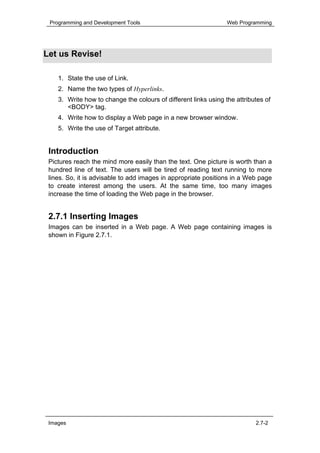
 Images can be inserted in a Web page. A Web page containing images is
 shown in Figure 2.7.1.


 Images                                                                    2.7-2
Programming and Development Tools                                  Web Programming


                 Figure 2.7.1: Web Page containing Images


     Hands-On!
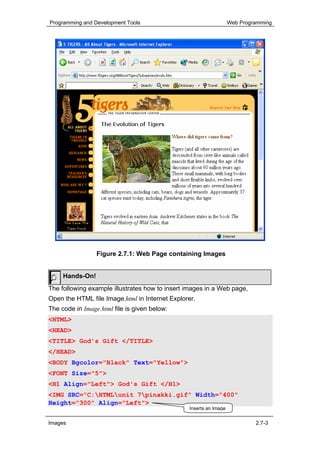
The following example illustrates how to insert images in a Web page,
Open the HTML file Image.html in Internet Explorer.
The code in Image.html file is given below:
<HTML>
<HEAD>
<TITLE> God's Gift </TITLE>
</HEAD>
<BODY Bgcolor="Black" Text="Yellow">
<FONT Size="5">
<H1 Align="Left"> God's Gift </H1>
<IMG SRC="C:HTMLunit 7pinakki.gif" Width="400"
Height="300" Align="Left">
                                                Inserts an Image


Images                                                                      2.7-3
Programming and Development Tools                                        Web Programming


<BR><BR>
All babies are good <BR> &nbsp; &nbsp; &nbsp; by birth
<BR>
It's all up to the parents <BR> &nbsp; to make it worth
</FONT>
</BODY>
</HTML>
                                  Code Sample 2.7.1


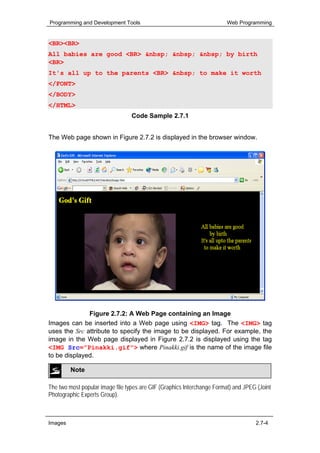
The Web page shown in Figure 2.7.2 is displayed in the browser window.


              Figure 2.7.2: A Web Page containing an Image
Images can be inserted into a Web page using <IMG> tag. The <IMG> tag
uses the Src attribute to specify the image to be displayed. For example, the
image in the Web page displayed in Figure 2.7.2 is displayed using the tag
<IMG Src=”Pinakki.gif”> where Pinakki.gif is the name of the image file
to be displayed.

         Note

The two most popular image file types are GIF (Graphics Interchange Format) and JPEG (Joint
Photographic Experts Group).


Images                                                                              2.7-4
Programming and Development Tools                                          Web Programming


2.7.2 Formatting Images
Images add attraction to the Web pages. But care should be taken to display
the image in correct size and position. Images can be formatted using the
attributes of <IMG> tag. These attributes are explained in Table 2.7.1.
         Attribute                          Use                       Example
           Align               To align the image to           <IMG Src=”Picture1.jpg”
                               the left, right, center,        Align=”Right”>
                               top or bottom with
                               respect to the text
           Width               To specify the width of         <IMG Src=”Picture1.jpg”
                               the image in pixels             Width=”400”>
          Height               To specify the height of        <IMG Src=”Picture1.jpg”
                               the image in pixels             Height=”400”>
            Alt                To display an alternate         <IMG Src=”Picture1.jpg”
                               message if the browser          Alt=”Your browser does
                               does not support this           not support images”>
                               tag
          HSpace               To adjust the horizontal        <IMG Src=”Picture1.jpg”
                               space between the               HSpace=”150”>
                               image and the text
          VSpace               To adjust the vertical          <IMG Src=”Picture1.jpg”
                               space between the               VSpace=”150”>
                               image and the text


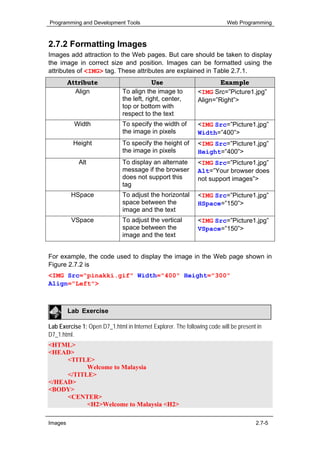
For example, the code used to display the image in the Web page shown in
Figure 2.7.2 is
<IMG Src="pinakki.gif" Width="400" Height="300"
Align="Left">


         Lab Exercise

Lab Exercise 1: Open D7_1.html in Internet Explorer. The following code will be present in
D7_1.html.
<HTML>
<HEAD>
     <TITLE>
           Welcome to Malaysia
     </TITLE>
</HEAD>
<BODY>
     <CENTER>
           <H2>Welcome to Malaysia <H2>

Images                                                                                 2.7-5
Programming and Development Tools                                              Web Programming


          <IMG Src = "Malaysia.jpg" Border =3 Height
          =75% Width =75%>
     </CENTER>
</BODY>
</HTML>

    1. Identify the tag which is used to insert the image in source code D7_1.html.
    2. Name the attributes which are used in source code D7_1.html.

Lab Exercise 2: Open D7_1.html in Internet Explorer.
    1. View the code in Notepad.
    2. Change the border style as thicker.
    3. Increase the height and width of the image to 50.

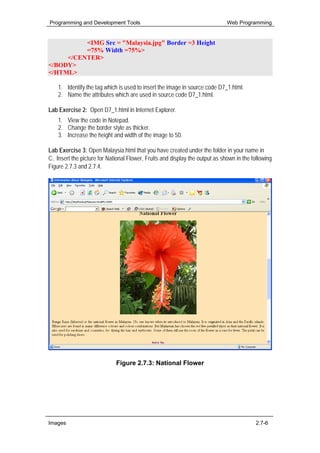
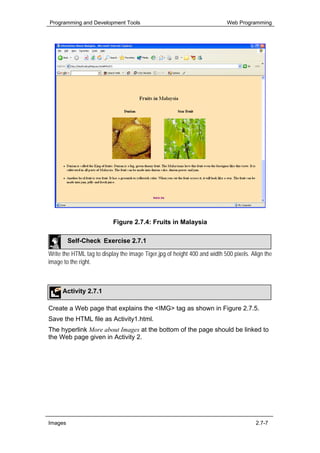
Lab Exercise 3: Open Malaysia.html that you have created under the folder in your name in
C:. Insert the picture for National Flower, Fruits and display the output as shown in the following
Figure 2.7.3 and 2.7.4.


                              Figure 2.7.3: National Flower


Images                                                                                     2.7-6
Programming and Development Tools                                          Web Programming


                           Figure 2.7.4: Fruits in Malaysia

         Self-Check Exercise 2.7.1

Write the HTML tag to display the image Tiger.jpg of height 400 and width 500 pixels. Align the
image to the right.


      Activity 2.7.1

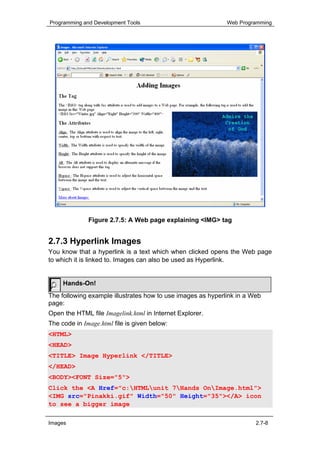
Create a Web page that explains the <IMG> tag as shown in Figure 2.7.5.
Save the HTML file as Activity1.html.
The hyperlink More about Images at the bottom of the page should be linked to
the Web page given in Activity 2.


Images                                                                                  2.7-7
Programming and Development Tools                            Web Programming


              Figure 2.7.5: A Web page explaining <IMG> tag


2.7.3 Hyperlink Images
You know that a hyperlink is a text which when clicked opens the Web page
to which it is linked to. Images can also be used as Hyperlink.


     Hands-On!
The following example illustrates how to use images as hyperlink in a Web
page:
Open the HTML file Imagelink.html in Internet Explorer.
The code in Image.html file is given below:
<HTML>
<HEAD>
<TITLE> Image Hyperlink </TITLE>
</HEAD>
<BODY><FONT Size="5">
Click the <A Href="c:HTMLunit 7Hands OnImage.html">
<IMG src="Pinakki.gif" Width="50" Height="35"></A> icon
to see a bigger image

Images                                                                 2.7-8
Programming and Development Tools                                 Web Programming


</FONT>                                   <IMG> tag placed inside <A>
                                          tag (Image acts as a
</BODY>                                   Hyperlink)
</HTML>
                             Code Sample 2.7.2


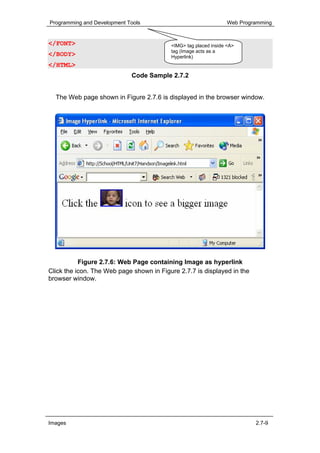
  The Web page shown in Figure 2.7.6 is displayed in the browser window.


           Figure 2.7.6: Web Page containing Image as hyperlink
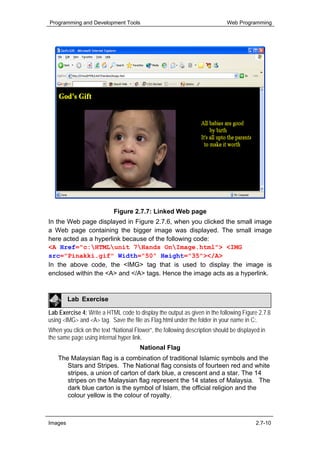
Click the icon. The Web page shown in Figure 2.7.7 is displayed in the
browser window.


Images                                                                     2.7-9
Programming and Development Tools                                            Web Programming


                            Figure 2.7.7: Linked Web page
In the Web page displayed in Figure 2.7.6, when you clicked the small image
a Web page containing the bigger image was displayed. The small image
here acted as a hyperlink because of the following code:
<A Href="c:HTMLunit 7Hands OnImage.html"> <IMG
src="Pinakki.gif" Width="50" Height="35"></A>
In the above code, the <IMG> tag that is used to display the image is
enclosed within the <A> and </A> tags. Hence the image acts as a hyperlink.


         Lab Exercise

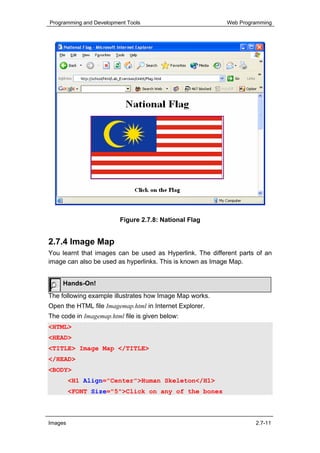
Lab Exercise 4: Write a HTML code to display the output as given in the following Figure 2.7.8
using <IMG> and <A> tag. Save the file as Flag.html under the folder in your name in C:.
When you click on the text “National Flower”, the following description should be displayed in
the same page using internal hyper link.
                                       National Flag
    The Malaysian flag is a combination of traditional Islamic symbols and the
       Stars and Stripes. The National flag consists of fourteen red and white
       stripes, a union of carton of dark blue, a crescent and a star. The 14
       stripes on the Malaysian flag represent the 14 states of Malaysia. The
       dark blue carton is the symbol of Islam, the official religion and the
       colour yellow is the colour of royalty.


Images                                                                                   2.7-10
Programming and Development Tools                          Web Programming


                         Figure 2.7.8: National Flag


2.7.4 Image Map
You learnt that images can be used as Hyperlink. The different parts of an
image can also be used as hyperlinks. This is known as Image Map.


     Hands-On!
The following example illustrates how Image Map works.
Open the HTML file Imagemap.html in Internet Explorer.
The code in Imagemap.html file is given below:
<HTML>
<HEAD>
<TITLE> Image Map </TITLE>
</HEAD>
<BODY>
         <H1 Align="Center">Human Skeleton</H1>
         <FONT Size="5">Click on any of the bones


Images                                                              2.7-11
Programming and Development Tools                          Web Programming


     <IMG Src="Skeleton.jpg" Align="Middle" Width=200
Height=500 Usemap="#Skeletonmap"> to know the name of it
         </FONT>
         <MAP Id="Skeletonmap">
     <AREA Shape="Circle" Coords="100,30,30" Alt="Skull"
Href="Skull.html">
     <AREA Shape="Rect" Coords="60,90,140,160" Alt="Ribs"
Href="Ribs.html">
     <AREA Shape="Rect" Coords="10,85,45,300" Alt="Hand"
Href="Hand.html">
     <AREA Shape="Rect" Coords="150,85,185,300"
Alt="Hand" Href="Hand.html">
     <AREA Shape="Rect" Coords="45,250,150,500" Alt="Leg"
Href="Leg.html">
         </MAP>
</BODY>
</HTML>
                             Code Sample 2.7.3
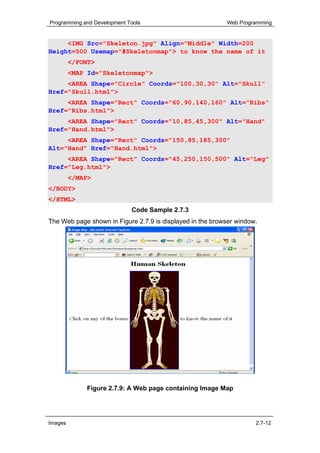
The Web page shown in Figure 2.7.9 is displayed in the browser window.


             Figure 2.7.9: A Web page containing Image Map


Images                                                               2.7-12
Programming and Development Tools                              Web Programming


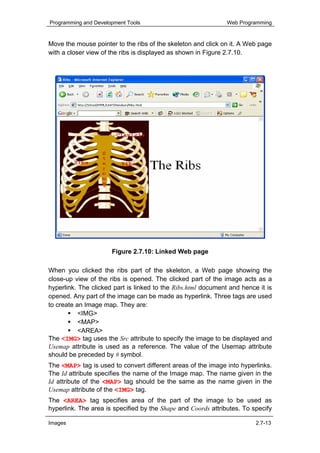
Move the mouse pointer to the ribs of the skeleton and click on it. A Web page
with a closer view of the ribs is displayed as shown in Figure 2.7.10.


                      Figure 2.7.10: Linked Web page

When you clicked the ribs part of the skeleton, a Web page showing the
close-up view of the ribs is opened. The clicked part of the image acts as a
hyperlink. The clicked part is linked to the Ribs.html document and hence it is
opened. Any part of the image can be made as hyperlink. Three tags are used
to create an Image map. They are:
           <IMG>
           <MAP>
           <AREA>
The <IMG> tag uses the Src attribute to specify the image to be displayed and
Usemap attribute is used as a reference. The value of the Usemap attribute
should be preceded by # symbol.
The <MAP> tag is used to convert different areas of the image into hyperlinks.
The Id attribute specifies the name of the Image map. The name given in the
Id attribute of the <MAP> tag should be the same as the name given in the
Usemap attribute of the <IMG> tag.
The <AREA> tag specifies area of the part of the image to be used as
hyperlink. The area is specified by the Shape and Coords attributes. To specify

Images                                                                   2.7-13
Programming and Development Tools                                         Web Programming


a rectangular area as hyperlink, give the value of Shape as Rect and give four
values separated by comma for Coords attribute. The first two values
represent the coordinates of the top left corner of the rectangle. The next two
values represent the coordinates of the bottom right corner of the rectangle.
For example, the following code is used to make the ribs part of the skeleton
shown in Figure 2.7.9 as hyperlink:
<AREA Shape="Rect" Coords="60,90,140,160" Alt="Ribs"
Href="Ribs.html">
To specify a circular area as hyperlink, give the value of Shape as Circle and
give three values separated by comma for Coords attribute. The first two
values represent the centre of the circle. The third value represents the radius
of the circle. For example, the following code is used to make the skull part of
the skeleton shown in Figure 2.7.9 as hyperlink:
<AREA Shape="Circle" Coords="100,30,30" Alt="Skull"
Href="Skull.html">
The Href attribute specifies the name of the HTML document to be opened
when clicked in the specified area.

          Note

The top left corner of the image is the origin. i.e (0, 0)

         Lab Exercise

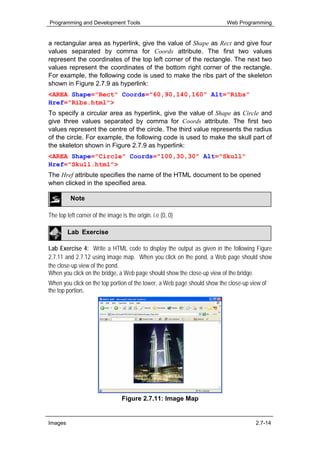
Lab Exercise 4: Write a HTML code to display the output as given in the following Figure
2.7.11 and 2.7.12 using image map. When you click on the pond, a Web page should show
the close-up view of the pond.
When you click on the bridge, a Web page should show the close-up view of the bridge.
When you click on the top portion of the tower, a Web page should show the close-up view of
the top portion.


                                  Figure 2.7.11: Image Map


Images                                                                                2.7-14
Programming and Development Tools                     Web Programming


                          Figure 2.7.12: Image Map


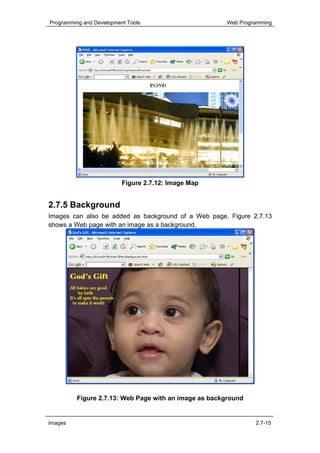
2.7.5 Background
Images can also be added as background of a Web page. Figure 2.7.13
shows a Web page with an image as a background.


         Figure 2.7.13: Web Page with an image as background


Images                                                         2.7-15
Programming and Development Tools                                 Web Programming


To add an image as a background instead of colour, replace BGCOLOR with
BACKGROUND attribute in the <BODY> tag as follows:
<BODY Background=”Pinakki.jpg”>
The value for the Background attribute is an image file. In the above example,
the background of the page will be blank, if the image file is not in its location.

     Activity 2.7.2

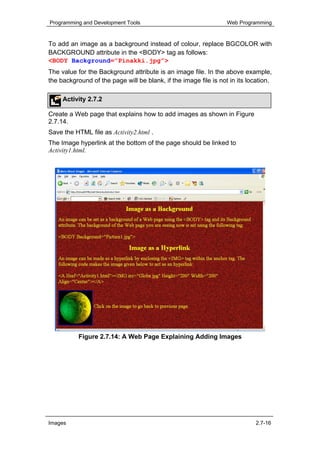
Create a Web page that explains how to add images as shown in Figure
2.7.14.
Save the HTML file as Activity2.html .
The Image hyperlink at the bottom of the page should be linked to
Activity1.html.


           Figure 2.7.14: A Web Page Explaining Adding Images


Images                                                                       2.7-16
Programming and Development Tools                           Web Programming


     Activity 2.7.3

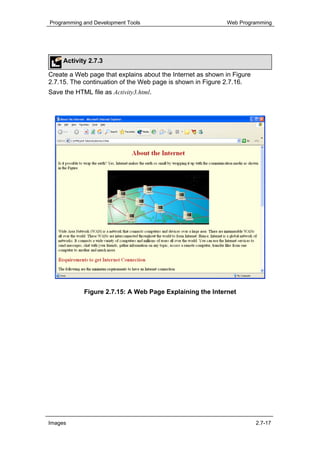
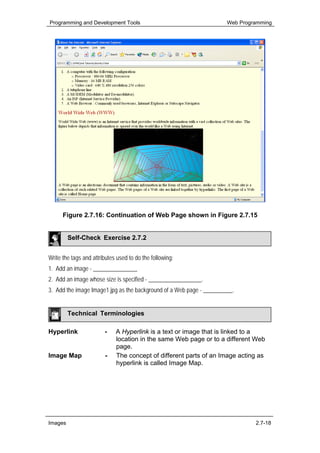
Create a Web page that explains about the Internet as shown in Figure
2.7.15. The continuation of the Web page is shown in Figure 2.7.16.
Save the HTML file as Activity3.html.


            Figure 2.7.15: A Web Page Explaining the Internet


Images                                                                  2.7-17
Programming and Development Tools                                     Web Programming


      Figure 2.7.16: Continuation of Web Page shown in Figure 2.7.15


         Self-Check Exercise 2.7.2


Write the tags and attributes used to do the following:
1. Add an image - _______________
2. Add an image whose size is specified - __________________.
3. Add the image Image1.jpg as the background of a Web page - __________.


         Technical Terminologies

Hyperlink               -    A Hyperlink is a text or image that is linked to a
                             location in the same Web page or to a different Web
                             page.
Image Map               -    The concept of different parts of an Image acting as
                             hyperlink is called Image Map.


Images                                                                         2.7-18
Programming and Development Tools                               Web Programming


 Summary
 In this unit, you learnt that
            Images can be inserted into a Web page using <IMG> tag.
            Images can be formatted using the attributes of <IMG> tag.
            Images can also be used as Hyperlink.
            The concept of different parts of an Image acting as hyperlink is
            called Image Map.
            To add an image as a background instead of colour, replace
            BGCOLOR with BACKGROUND attribute in the <BODY> tag.


Assignment

 I. Answer the following questions:
    1. Write how you will insert images in your Web page?
    2. Name the attributes that are used to change the size of the image in a
       Web page.
    3. Describe how you will convert an image to a hyperlink.
    4. Define Image Map?
    5. Write the tag and attribute used to display an image as the background
       of a Web page.


 Images                                                                    2.7-19
Programming and Development Tools                             Web Programming


Criterion Referenced Test
Instruction: Students must evaluate themselves to attain the list of
             competencies to be achieved.

Name:
Subject:     Programming and Development Tools
Unit:        Images

Please tick [ √ ] the appropriate box when you have achieved the respective
competency.

Date                                       Images
               C1 C2 C3 C4 C5


Comment


Competency codes:

C1 = Add an Image to a Web page.
C2 = Change the size of the image.
C3 = Create an image hyperlink.
C4 = Create an image map.
C5 = Add image as a background of a Web page.


Images                                                                  2.7-20

Unit 2.7 Images

  • 1.
    Programming and DevelopmentTools Web Programming UNIT 2.7 Web Programming Images OBJECTIVES This unit helps you to add images to your Web page and catch the attention of the users. At the end of this unit, you will be able to Insert images into a Web page Format the Images Convert images into hyperlinks Add image maps to your Web page Add image as background of your Web page Benchmark standard Add images to enhance the Web page to be more attractive and to convey meaningful messages through Web pages. Images 2.7-1
  • 2.
    Programming and DevelopmentTools Web Programming Let us Revise! 1. State the use of Link. 2. Name the two types of Hyperlinks. 3. Write how to change the colours of different links using the attributes of <BODY> tag. 4. Write how to display a Web page in a new browser window. 5. Write the use of Target attribute. Introduction Pictures reach the mind more easily than the text. One picture is worth than a hundred line of text. The users will be tired of reading text running to more lines. So, it is advisable to add images in appropriate positions in a Web page to create interest among the users. At the same time, too many images increase the time of loading the Web page in the browser. 2.7.1 Inserting Images Images can be inserted in a Web page. A Web page containing images is shown in Figure 2.7.1. Images 2.7-2
  • 3.
    Programming and DevelopmentTools Web Programming Figure 2.7.1: Web Page containing Images Hands-On! The following example illustrates how to insert images in a Web page, Open the HTML file Image.html in Internet Explorer. The code in Image.html file is given below: <HTML> <HEAD> <TITLE> God's Gift </TITLE> </HEAD> <BODY Bgcolor="Black" Text="Yellow"> <FONT Size="5"> <H1 Align="Left"> God's Gift </H1> <IMG SRC="C:HTMLunit 7pinakki.gif" Width="400" Height="300" Align="Left"> Inserts an Image Images 2.7-3
  • 4.
    Programming and DevelopmentTools Web Programming <BR><BR> All babies are good <BR> &nbsp; &nbsp; &nbsp; by birth <BR> It's all up to the parents <BR> &nbsp; to make it worth </FONT> </BODY> </HTML> Code Sample 2.7.1 The Web page shown in Figure 2.7.2 is displayed in the browser window. Figure 2.7.2: A Web Page containing an Image Images can be inserted into a Web page using <IMG> tag. The <IMG> tag uses the Src attribute to specify the image to be displayed. For example, the image in the Web page displayed in Figure 2.7.2 is displayed using the tag <IMG Src=”Pinakki.gif”> where Pinakki.gif is the name of the image file to be displayed. Note The two most popular image file types are GIF (Graphics Interchange Format) and JPEG (Joint Photographic Experts Group). Images 2.7-4
  • 5.
    Programming and DevelopmentTools Web Programming 2.7.2 Formatting Images Images add attraction to the Web pages. But care should be taken to display the image in correct size and position. Images can be formatted using the attributes of <IMG> tag. These attributes are explained in Table 2.7.1. Attribute Use Example Align To align the image to <IMG Src=”Picture1.jpg” the left, right, center, Align=”Right”> top or bottom with respect to the text Width To specify the width of <IMG Src=”Picture1.jpg” the image in pixels Width=”400”> Height To specify the height of <IMG Src=”Picture1.jpg” the image in pixels Height=”400”> Alt To display an alternate <IMG Src=”Picture1.jpg” message if the browser Alt=”Your browser does does not support this not support images”> tag HSpace To adjust the horizontal <IMG Src=”Picture1.jpg” space between the HSpace=”150”> image and the text VSpace To adjust the vertical <IMG Src=”Picture1.jpg” space between the VSpace=”150”> image and the text For example, the code used to display the image in the Web page shown in Figure 2.7.2 is <IMG Src="pinakki.gif" Width="400" Height="300" Align="Left"> Lab Exercise Lab Exercise 1: Open D7_1.html in Internet Explorer. The following code will be present in D7_1.html. <HTML> <HEAD> <TITLE> Welcome to Malaysia </TITLE> </HEAD> <BODY> <CENTER> <H2>Welcome to Malaysia <H2> Images 2.7-5
  • 6.
    Programming and DevelopmentTools Web Programming <IMG Src = "Malaysia.jpg" Border =3 Height =75% Width =75%> </CENTER> </BODY> </HTML> 1. Identify the tag which is used to insert the image in source code D7_1.html. 2. Name the attributes which are used in source code D7_1.html. Lab Exercise 2: Open D7_1.html in Internet Explorer. 1. View the code in Notepad. 2. Change the border style as thicker. 3. Increase the height and width of the image to 50. Lab Exercise 3: Open Malaysia.html that you have created under the folder in your name in C:. Insert the picture for National Flower, Fruits and display the output as shown in the following Figure 2.7.3 and 2.7.4. Figure 2.7.3: National Flower Images 2.7-6
  • 7.
    Programming and DevelopmentTools Web Programming Figure 2.7.4: Fruits in Malaysia Self-Check Exercise 2.7.1 Write the HTML tag to display the image Tiger.jpg of height 400 and width 500 pixels. Align the image to the right. Activity 2.7.1 Create a Web page that explains the <IMG> tag as shown in Figure 2.7.5. Save the HTML file as Activity1.html. The hyperlink More about Images at the bottom of the page should be linked to the Web page given in Activity 2. Images 2.7-7
  • 8.
    Programming and DevelopmentTools Web Programming Figure 2.7.5: A Web page explaining <IMG> tag 2.7.3 Hyperlink Images You know that a hyperlink is a text which when clicked opens the Web page to which it is linked to. Images can also be used as Hyperlink. Hands-On! The following example illustrates how to use images as hyperlink in a Web page: Open the HTML file Imagelink.html in Internet Explorer. The code in Image.html file is given below: <HTML> <HEAD> <TITLE> Image Hyperlink </TITLE> </HEAD> <BODY><FONT Size="5"> Click the <A Href="c:HTMLunit 7Hands OnImage.html"> <IMG src="Pinakki.gif" Width="50" Height="35"></A> icon to see a bigger image Images 2.7-8
  • 9.
    Programming and DevelopmentTools Web Programming </FONT> <IMG> tag placed inside <A> tag (Image acts as a </BODY> Hyperlink) </HTML> Code Sample 2.7.2 The Web page shown in Figure 2.7.6 is displayed in the browser window. Figure 2.7.6: Web Page containing Image as hyperlink Click the icon. The Web page shown in Figure 2.7.7 is displayed in the browser window. Images 2.7-9
  • 10.
    Programming and DevelopmentTools Web Programming Figure 2.7.7: Linked Web page In the Web page displayed in Figure 2.7.6, when you clicked the small image a Web page containing the bigger image was displayed. The small image here acted as a hyperlink because of the following code: <A Href="c:HTMLunit 7Hands OnImage.html"> <IMG src="Pinakki.gif" Width="50" Height="35"></A> In the above code, the <IMG> tag that is used to display the image is enclosed within the <A> and </A> tags. Hence the image acts as a hyperlink. Lab Exercise Lab Exercise 4: Write a HTML code to display the output as given in the following Figure 2.7.8 using <IMG> and <A> tag. Save the file as Flag.html under the folder in your name in C:. When you click on the text “National Flower”, the following description should be displayed in the same page using internal hyper link. National Flag The Malaysian flag is a combination of traditional Islamic symbols and the Stars and Stripes. The National flag consists of fourteen red and white stripes, a union of carton of dark blue, a crescent and a star. The 14 stripes on the Malaysian flag represent the 14 states of Malaysia. The dark blue carton is the symbol of Islam, the official religion and the colour yellow is the colour of royalty. Images 2.7-10
  • 11.
    Programming and DevelopmentTools Web Programming Figure 2.7.8: National Flag 2.7.4 Image Map You learnt that images can be used as Hyperlink. The different parts of an image can also be used as hyperlinks. This is known as Image Map. Hands-On! The following example illustrates how Image Map works. Open the HTML file Imagemap.html in Internet Explorer. The code in Imagemap.html file is given below: <HTML> <HEAD> <TITLE> Image Map </TITLE> </HEAD> <BODY> <H1 Align="Center">Human Skeleton</H1> <FONT Size="5">Click on any of the bones Images 2.7-11
  • 12.
    Programming and DevelopmentTools Web Programming <IMG Src="Skeleton.jpg" Align="Middle" Width=200 Height=500 Usemap="#Skeletonmap"> to know the name of it </FONT> <MAP Id="Skeletonmap"> <AREA Shape="Circle" Coords="100,30,30" Alt="Skull" Href="Skull.html"> <AREA Shape="Rect" Coords="60,90,140,160" Alt="Ribs" Href="Ribs.html"> <AREA Shape="Rect" Coords="10,85,45,300" Alt="Hand" Href="Hand.html"> <AREA Shape="Rect" Coords="150,85,185,300" Alt="Hand" Href="Hand.html"> <AREA Shape="Rect" Coords="45,250,150,500" Alt="Leg" Href="Leg.html"> </MAP> </BODY> </HTML> Code Sample 2.7.3 The Web page shown in Figure 2.7.9 is displayed in the browser window. Figure 2.7.9: A Web page containing Image Map Images 2.7-12
  • 13.
    Programming and DevelopmentTools Web Programming Move the mouse pointer to the ribs of the skeleton and click on it. A Web page with a closer view of the ribs is displayed as shown in Figure 2.7.10. Figure 2.7.10: Linked Web page When you clicked the ribs part of the skeleton, a Web page showing the close-up view of the ribs is opened. The clicked part of the image acts as a hyperlink. The clicked part is linked to the Ribs.html document and hence it is opened. Any part of the image can be made as hyperlink. Three tags are used to create an Image map. They are: <IMG> <MAP> <AREA> The <IMG> tag uses the Src attribute to specify the image to be displayed and Usemap attribute is used as a reference. The value of the Usemap attribute should be preceded by # symbol. The <MAP> tag is used to convert different areas of the image into hyperlinks. The Id attribute specifies the name of the Image map. The name given in the Id attribute of the <MAP> tag should be the same as the name given in the Usemap attribute of the <IMG> tag. The <AREA> tag specifies area of the part of the image to be used as hyperlink. The area is specified by the Shape and Coords attributes. To specify Images 2.7-13
  • 14.
    Programming and DevelopmentTools Web Programming a rectangular area as hyperlink, give the value of Shape as Rect and give four values separated by comma for Coords attribute. The first two values represent the coordinates of the top left corner of the rectangle. The next two values represent the coordinates of the bottom right corner of the rectangle. For example, the following code is used to make the ribs part of the skeleton shown in Figure 2.7.9 as hyperlink: <AREA Shape="Rect" Coords="60,90,140,160" Alt="Ribs" Href="Ribs.html"> To specify a circular area as hyperlink, give the value of Shape as Circle and give three values separated by comma for Coords attribute. The first two values represent the centre of the circle. The third value represents the radius of the circle. For example, the following code is used to make the skull part of the skeleton shown in Figure 2.7.9 as hyperlink: <AREA Shape="Circle" Coords="100,30,30" Alt="Skull" Href="Skull.html"> The Href attribute specifies the name of the HTML document to be opened when clicked in the specified area. Note The top left corner of the image is the origin. i.e (0, 0) Lab Exercise Lab Exercise 4: Write a HTML code to display the output as given in the following Figure 2.7.11 and 2.7.12 using image map. When you click on the pond, a Web page should show the close-up view of the pond. When you click on the bridge, a Web page should show the close-up view of the bridge. When you click on the top portion of the tower, a Web page should show the close-up view of the top portion. Figure 2.7.11: Image Map Images 2.7-14
  • 15.
    Programming and DevelopmentTools Web Programming Figure 2.7.12: Image Map 2.7.5 Background Images can also be added as background of a Web page. Figure 2.7.13 shows a Web page with an image as a background. Figure 2.7.13: Web Page with an image as background Images 2.7-15
  • 16.
    Programming and DevelopmentTools Web Programming To add an image as a background instead of colour, replace BGCOLOR with BACKGROUND attribute in the <BODY> tag as follows: <BODY Background=”Pinakki.jpg”> The value for the Background attribute is an image file. In the above example, the background of the page will be blank, if the image file is not in its location. Activity 2.7.2 Create a Web page that explains how to add images as shown in Figure 2.7.14. Save the HTML file as Activity2.html . The Image hyperlink at the bottom of the page should be linked to Activity1.html. Figure 2.7.14: A Web Page Explaining Adding Images Images 2.7-16
  • 17.
    Programming and DevelopmentTools Web Programming Activity 2.7.3 Create a Web page that explains about the Internet as shown in Figure 2.7.15. The continuation of the Web page is shown in Figure 2.7.16. Save the HTML file as Activity3.html. Figure 2.7.15: A Web Page Explaining the Internet Images 2.7-17
  • 18.
    Programming and DevelopmentTools Web Programming Figure 2.7.16: Continuation of Web Page shown in Figure 2.7.15 Self-Check Exercise 2.7.2 Write the tags and attributes used to do the following: 1. Add an image - _______________ 2. Add an image whose size is specified - __________________. 3. Add the image Image1.jpg as the background of a Web page - __________. Technical Terminologies Hyperlink - A Hyperlink is a text or image that is linked to a location in the same Web page or to a different Web page. Image Map - The concept of different parts of an Image acting as hyperlink is called Image Map. Images 2.7-18
  • 19.
    Programming and DevelopmentTools Web Programming Summary In this unit, you learnt that Images can be inserted into a Web page using <IMG> tag. Images can be formatted using the attributes of <IMG> tag. Images can also be used as Hyperlink. The concept of different parts of an Image acting as hyperlink is called Image Map. To add an image as a background instead of colour, replace BGCOLOR with BACKGROUND attribute in the <BODY> tag. Assignment I. Answer the following questions: 1. Write how you will insert images in your Web page? 2. Name the attributes that are used to change the size of the image in a Web page. 3. Describe how you will convert an image to a hyperlink. 4. Define Image Map? 5. Write the tag and attribute used to display an image as the background of a Web page. Images 2.7-19
  • 20.
    Programming and DevelopmentTools Web Programming Criterion Referenced Test Instruction: Students must evaluate themselves to attain the list of competencies to be achieved. Name: Subject: Programming and Development Tools Unit: Images Please tick [ √ ] the appropriate box when you have achieved the respective competency. Date Images C1 C2 C3 C4 C5 Comment Competency codes: C1 = Add an Image to a Web page. C2 = Change the size of the image. C3 = Create an image hyperlink. C4 = Create an image map. C5 = Add image as a background of a Web page. Images 2.7-20