UCCN 1003 (May 2010)


Data Communications & Networks
            (Lecture 03b)


     Introduction to Cisco Router
Purpose of a Router

• The basic purpose of a router
  – Computers that specialize in sending packets over the
    data network.
  – They are responsible for interconnecting networks by
    selecting the best path for a packet to travel and
    forwarding packets to their destination
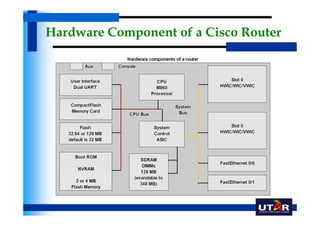
Hardware Component of a Cisco Router
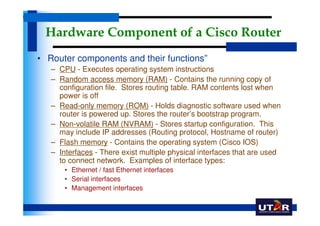
• Router components and their functions”
   – CPU - Executes operating system instructions
   – Random access memory (RAM) - Contains the running copy of
     configuration file. Stores routing table. RAM contents lost when
     power is off
   – Read-only memory (ROM) - Holds diagnostic software used when
     router is powered up. Stores the router’s bootstrap program.
   – Non-volatile RAM (NVRAM) - Stores startup configuration. This
     may include IP addresses (Routing protocol, Hostname of router)
   – Flash memory - Contains the operating system (Cisco IOS)
   – Interfaces - There exist multiple physical interfaces that are used
     to connect network. Examples of interface types:
       • Ethernet / fast Ethernet interfaces
       • Serial interfaces
       • Management interfaces
Hardware Component of a Cisco Router
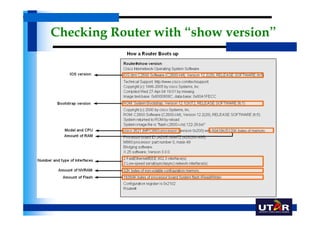
Checking Router with “show version”
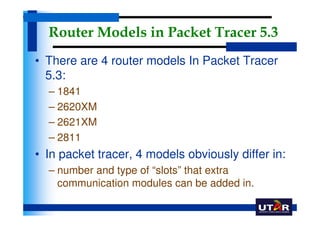
Router Models in Packet Tracer 5.3
• There are 4 router models In Packet Tracer
  5.3:
  – 1841
  – 2620XM
  – 2621XM
  – 2811
• In packet tracer, 4 models obviously differ in:
  – number and type of “slots” that extra
    communication modules can be added in.
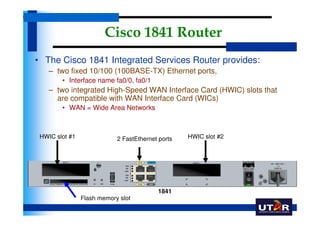
Cisco 1841 Router
• The Cisco 1841 Integrated Services Router provides:
    – two fixed 10/100 (100BASE-TX) Ethernet ports,
        • Interface name fa0/0, fa0/1
    – two integrated High-Speed WAN Interface Card (HWIC) slots that
      are compatible with WAN Interface Card (WICs)
        • WAN = Wide Area Networks


 HWIC slot #1               2 FastEthernet ports   HWIC slot #2


                                          1841
                Flash memory slot
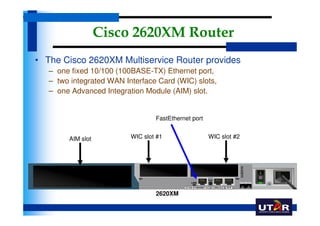
Cisco 2620XM Router
• The Cisco 2620XM Multiservice Router provides
   – one fixed 10/100 (100BASE-TX) Ethernet port,
   – two integrated WAN Interface Card (WIC) slots,
   – one Advanced Integration Module (AIM) slot.


                                  FastEthernet port


        AIM slot          WIC slot #1                 WIC slot #2


                                  2620XM
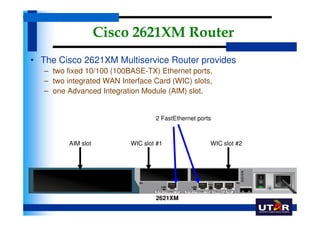
Cisco 2621XM Router
• The Cisco 2621XM Multiservice Router provides
   – two fixed 10/100 (100BASE-TX) Ethernet ports,
   – two integrated WAN Interface Card (WIC) slots,
   – one Advanced Integration Module (AIM) slot.


                                   2 FastEthernet ports


          AIM slot         WIC slot #1                WIC slot #2


                                   2621XM
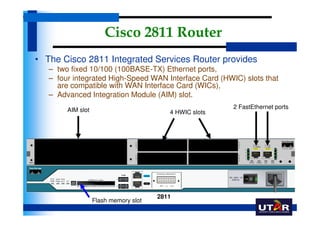
Cisco 2811 Router
• The Cisco 2811 Integrated Services Router provides
   – two fixed 10/100 (100BASE-TX) Ethernet ports,
   – four integrated High-Speed WAN Interface Card (HWIC) slots that
     are compatible with WAN Interface Card (WICs),
   – Advanced Integration Module (AIM) slot.
        AIM slot                                         2 FastEthernet ports
                                          4 HWIC slots


                                       2811
                   Flash memory slot
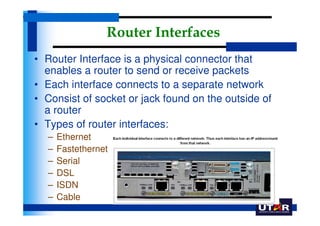
Router Interfaces
• Router Interface is a physical connector that
  enables a router to send or receive packets
• Each interface connects to a separate network
• Consist of socket or jack found on the outside of
  a router
• Types of router interfaces:
  –   Ethernet
  –   Fastethernet
  –   Serial
  –   DSL
  –   ISDN
  –   Cable
Cisco Modules for HWIC & WIC Slots
•   HWIC-4ESW
    – provides four switching ports.
•   HWIC-AP-AG-B
    – It supports Single Band 802.11b/g or Dual Band 802.11a/b/g radios.
•   WIC-1AM
    – features dual RJ-11 connectors, which are used for basic telephone service
      connections. The WIC-1AM uses one port for connection to a standard telephone line,
      and the other port can be connected to a basic analog telephone for use when the
      modem is idle.
•   WIC-1ENET
    – is a single-port 10 Mbps Ethernet interface card, for use with 10BASE-T Ethernet LANs.
•   WIC-1T
    – provides a single port serial connection to remote sites or legacy serial network devices
•   WIC-2AM
    – features dual RJ-11 connectors, which are used for basic telephone service
      connections. The WIC-2AM has two modem ports to allow multiple data communication
      connections.
•   WIC-2T
    – The 2-port asynchronous/synchronous serial network module provides flexible multi-
      protocol support, with each port individually configurable in synchronous or
      asynchronous mode,
Cisco Modules for AIM Slots
• NM-1E
  – features a single Ethernet port that can connect a LAN backbone which
    can also support either six PRI connections to aggregate ISDN lines, or
    24 synchronous/asynchronous ports.
• NM-1E2W
  – provides a single Ethernet port with two WIC slots that can support a
    single Ethernet LAN, together with two serial/ISDN backhaul lines, and
    still allow multiple serial or ISDN in the same chassis.
• NM-1FE-FX
  – provides one Fast-Ethernet interface for use with fiber media.
• NM-1FE-TX
  – provides one Fast-Ethernet interface for use with copper media.
• NM-1FE2W
  – provides one Fast-Ethernet interface for use with copper media, and two
    WIC expansion slots.
Cisco Modules for AIM Slots
• NM-2E2W
  – provides two Ethernet ports with two WIC slots that can support two
    Ethernet LANs, together with two serial/ISDN backhaul lines, and still allow
    multiple serial or ISDN in the same chassis.
• NM-2FE2W
  – provides two Fast-Ethernet interfaces for use with copper media, and two
    WIC expansion slots.
• NM-4A/S
  – The 4-port asynchronous/synchronous serial network module.
• NM-4E
  – four Ethernet ports.
• NM-8A/S
  – The 8-port asynchronous/synchronous serial network module
• NM-8AM
  – The NM-8AM Integrated V.92 analog modem network module provides
    eight RJ-11 jacks to connect the integrated modems to basic analog
    telephone lines on the public switched telephone network (PSTN) or
    private telephony systems.
Flash and NVRAM
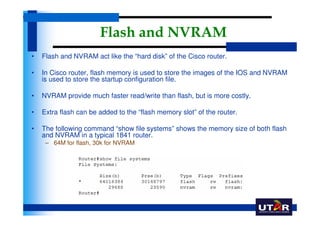
•   Flash and NVRAM act like the “hard disk” of the Cisco router.

•   In Cisco router, flash memory is used to store the images of the IOS and NVRAM
    is used to store the startup configuration file.

•   NVRAM provide much faster read/write than flash, but is more costly.

•   Extra flash can be added to the “flash memory slot” of the router.

•   The following command “show file systems” shows the memory size of both flash
    and NVRAM in a typical 1841 router.
     – 64M for flash, 30k for NVRAM
Cisco IOS
• Similar to a personal computer, a router cannot
  function without an operating system.
• The Cisco Internetwork Operating System (IOS) is
  the system software in Cisco devices.
• The Cisco IOS provides devices with the following
  network services:
  – Basic routing functions
  – Reliable and secure access to networked resources
  – Network scalability
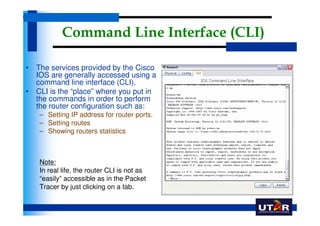
Command Line Interface (CLI)

• The services provided by the Cisco
  IOS are generally accessed using a
  command line interface (CLI).
• CLI is the “place” where you put in
  the commands in order to perform
  the router configuration such as:
   – Setting IP address for router ports.
   – Setting routes
   – Showing routers statistics


   Note:
   In real life, the router CLI is not as
   “easily” accessible as in the Packet
   Tracer by just clicking on a tab.
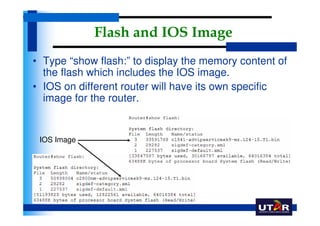
Flash and IOS Image
• Type “show flash:” to display the memory content of
  the flash which includes the IOS image.
• IOS on different router will have its own specific
  image for the router.


 IOS Image
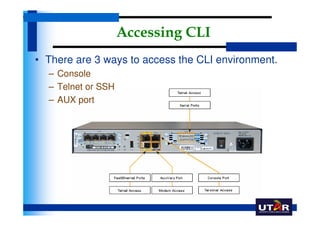
Accessing CLI
• There are 3 ways to access the CLI environment.
  – Console
  – Telnet or SSH
  – AUX port
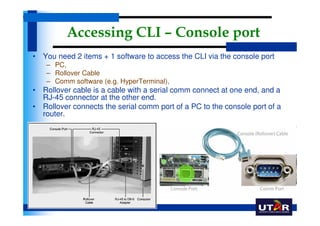
Accessing CLI – Console port
• You need 2 items + 1 software to access the CLI via the console port
    – PC,
    – Rollover Cable
    – Comm software (e.g. HyperTerminal),
• Rollover cable is a cable with a serial comm connect at one end, and a
  RJ-45 connector at the other end.
• Rollover connects the serial comm port of a PC to the console port of a
  router.
Accessing CLI – Console port
• The console port is often used to access a router
   – when the networking services have not been started or have failed.
   – When a router is first placed into service, networking parameters
     have not yet been configured yet.
   – The initial configuration of the network device
   – Disaster recovery procedures and troubleshooting where remote
     access is not possible
   – Password recovery procedures


• Accessing CLI through console port can’t be done remotely
  (from a far)
   – One has to be done next to the router with a PC/laptop
Accessing CLI – Console port - 3
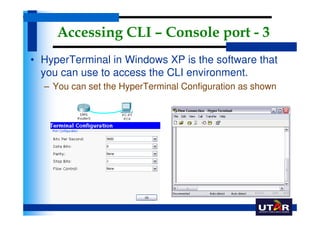
• HyperTerminal in Windows XP is the software that
  you can use to access the CLI environment.
  – You can set the HyperTerminal Configuration as shown
No DHCP or Data via Console

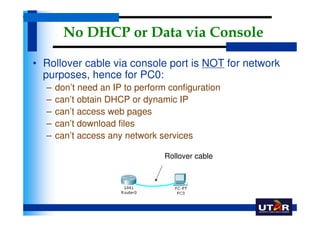
• Rollover cable via console port is NOT for network
  purposes, hence for PC0:
  –   don’t need an IP to perform configuration
  –   can’t obtain DHCP or dynamic IP
  –   can’t access web pages
  –   can’t download files
  –   can’t access any network services

                                 Rollover cable
Accessing CLI Remotely – Telnet & Aux
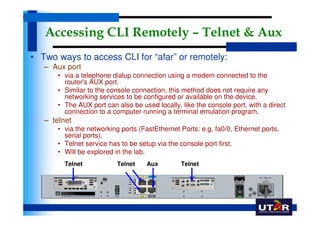
• Two ways to access CLI for “afar” or remotely:
   – Aux port
       • via a telephone dialup connection using a modem connected to the
         router's AUX port.
       • Similar to the console connection, this method does not require any
         networking services to be configured or available on the device.
       • The AUX port can also be used locally, like the console port, with a direct
         connection to a computer running a terminal emulation program.
   – telnet
       • via the networking ports (FastEthernet Ports: e.g. fa0/0, Ethernet ports,
         serial ports).
       • Telnet service has to be setup via the console port first.
       • Will be explored in the lab.
         Telnet            Telnet    Aux        Telnet
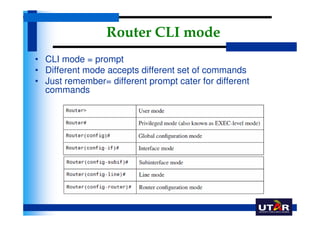
Router CLI mode
• CLI mode = prompt
• Different mode accepts different set of commands
• Just remember= different prompt cater for different
  commands
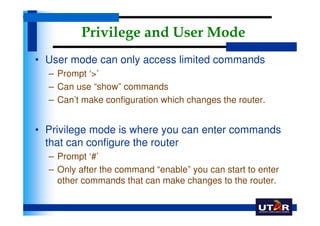
Privilege and User Mode
• User mode can only access limited commands
  – Prompt ‘>’
  – Can use “show” commands
  – Can’t make configuration which changes the router.


• Privilege mode is where you can enter commands
  that can configure the router
  – Prompt ‘#’
  – Only after the command “enable” you can start to enter
    other commands that can make changes to the router.
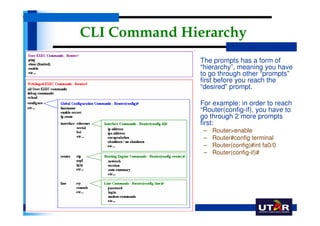
CLI Command Hierarchy
             •   The prompts has a form of
                 “hierarchy”, meaning you have
                 to go through other “prompts”
                 first before you reach the
                 “desired” prompt.

             •   For example: in order to reach
                 “Router(config-if), you have to
                 go through 2 more prompts
                 first:
                  –   Router>enable
                  –   Router#config terminal
                  –   Router(config)#int fa0/0
                  –   Router(config-if)#
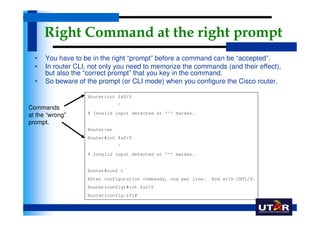
Right Command at the right prompt
  •   You have to be in the right “prompt” before a command can be “accepted”.
  •   In router CLI, not only you need to memorize the commands (and their effect),
      but also the “correct prompt” that you key in the command.
  •   So beware of the prompt (or CLI mode) when you configure the Cisco router.

                   Router>int fa0/0
                               ^
Commands
                   % Invalid input detected at '^' marker.
at the “wrong”
prompt.
                   Router>en
                   Router#int fa0/0
                               ^
                   % Invalid input detected at '^' marker.


                   Router#conf t
                   Enter configuration commands, one per line.   End with CNTL/Z.
                   Router(config)#int fa0/0
                   Router(config-if)#
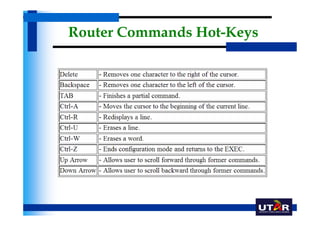
Router Commands Hot-Keys
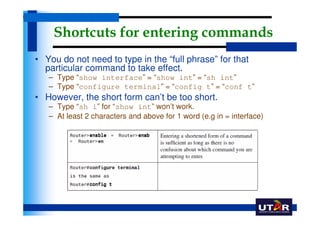
Shortcuts for entering commands
• You do not need to type in the “full phrase” for that
  particular command to take effect.
   – Type “show interface” = “show int” = “sh int”
   – Type “configure terminal” = “config t” = “conf t”
• However, the short form can’t be too short.
   – Type “sh i” for “show int” won’t work.
   – At least 2 characters and above for 1 word (e.g in = interface)
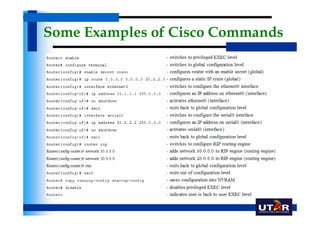
Some Examples of Cisco Commands
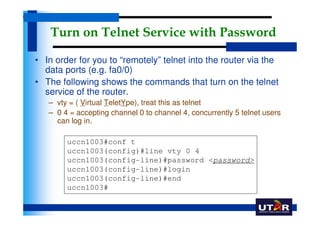
Turn on Telnet Service with Password

• In order for you to “remotely” telnet into the router via the
  data ports (e.g. fa0/0)
• The following shows the commands that turn on the telnet
  service of the router.
   – vty = ( Virtual TeletYpe), treat this as telnet
   – 0 4 = accepting channel 0 to channel 4, concurrently 5 telnet users
     can log in.

        uccn1003#conf t
        uccn1003(config)#line vty 0 4
        uccn1003(config-line)#password <password>
        uccn1003(config-line)#login
        uccn1003(config-line)#end
        uccn1003#
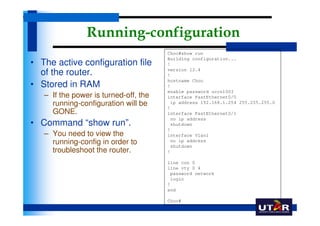
Running-configuration
                                       Choo#show run
                                       Building configuration...
• The active configuration file        !
                                       version 12.4
  of the router.                       !
                                       hostname Choo
• Stored in RAM                        !
                                       enable password uccn1003
   – If the power is turned-off, the   interface FastEthernet0/0
     running-configuration will be     !
                                        ip address 192.168.1.254 255.255.255.0

     GONE.                             interface FastEthernet0/1
                                        no ip address
• Command “show run”.                   shutdown
                                       !
   – You need to view the              interface Vlan1
     running-config in order to         no ip address
                                        shutdown
     troubleshoot the router.          !

                                       line con 0
                                       line vty 0 4
                                        password network
                                        login
                                       !
                                       end

                                       Choo#
Startup-configuration
• Stored in NVRAM.                         Choo#show start
                                           startup-config is not present
• Load in as running-config during         Choo#copy run start
                                           Destination filename [startup-config]?
  the router startup.                      Building configuration...
                                           [OK]
• Command for viewing the                  Choo#show start
                                           Using 508 bytes
  startup-config: “show start”             !
                                           version 12.4
• Backing up running-config in             !
                                           hostname Choo
  startup-config: “copy run start”         !
                                           enable password uccn1003
   – Note, when you turn off switches or   !
                                           interface FastEthernet0/0
     routers and then turn them back on,     ip address 192.168.1.254
     they will load their startup          255.255.255.0
                                           !
     configuration files.                  interface FastEthernet0/1
                                             no ip address
   – If you do not backup the running      shutdown
     configuration, it will be lost.       !
                                           end
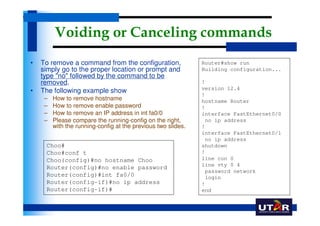
Voiding or Canceling commands
•   To remove a command from the configuration,                Router#show run
    simply go to the proper location or prompt and             Building configuration...
    type "no" followed by the command to be
    removed.                                                   !
                                                               version 12.4
•   The following example show
                                                               !
     –   How to remove hostname                                hostname Router
     –   How to remove enable password                         !
     –   How to remove an IP address in int fa0/0              interface FastEthernet0/0
     –   Please compare the running-config on the right,        no ip address
         with the running-config at the previous two slides.   !
                                                               interface FastEthernet0/1
                                                                no ip address
     Choo#                                                     shutdown
     Choo#conf t                                               !
     Choo(config)#no hostname Choo                             line con 0
                                                               line vty 0 4
     Router(config)#no enable password
                                                                password network
     Router(config)#int fa0/0                                   login
     Router(config-if)#no ip address                           !
     Router(config-if)#                                        end
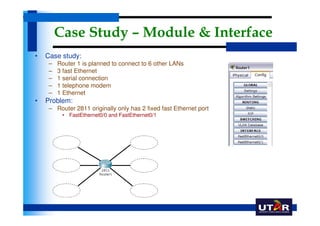
Case Study – Module & Interface
•   Case study:
     –   Router 1 is planned to connect to 6 other LANs
     –   3 fast Ethernet
     –   1 serial connection
     –   1 telephone modem
     –   1 Ethernet
•   Problem:
     – Router 2811 originally only has 2 fixed fast Ethernet port
          • FastEthernet0/0 and FastEthernet0/1
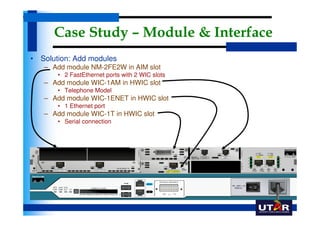
Case Study – Module & Interface
• Solution: Add modules
   – Add module NM-2FE2W in AIM slot
       • 2 FastEthernet ports with 2 WIC slots
   – Add module WIC-1AM in HWIC slot
       • Telephone Model
   – Add module WIC-1ENET in HWIC slot
       • 1 Ethernet port
   – Add module WIC-1T in HWIC slot
       • Serial connection
Case Study – Module & Interface
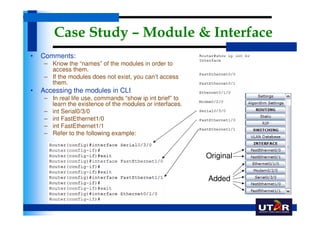
•   Comments:
     – Know the “names” of the modules in order to
       access them.
     – If the modules does not exist, you can’t access
       them.
•   Accessing the modules in CLI
     – In real life use, commands “show ip int brief” to
       learn the existence of the modules or interfaces.
     – int Serial0/3/0
     – int FastEthernet1/0
     – int FastEthernet1/1
     – Refer to the following example:


                                                           Original

                                                           Added
Conclusion
• You have been shown the basic overview of Cisco
  Router
  –   Cisco IOS
  –   Cisco CLI and how to access it
  –   Console port and rollover cables
  –   CLI modes and prompts
  –   Some simple cisco commands
  –   Running-config & startup-config
  –   Modules and interfaces.
• We will continue to learn other Cisco router
  commands in the Lab.
Quiz
MCQ
• Which of the following is a common use of the telnet utility?
   –   A) Checking Network Status
   –   B) Remote administration
   –   C) Accessing Web         D) Troubleshooting
   –   E) Downloading           F) Email


• The console port is used for_________?
   –   A) telneting                      B) phone line HyperTerminal
   –   C) password recovery              D) ipconfig
   –   E) passing data between routers   F) troubleshooting
   –   G) downloading files              H) examine configuration files
Answer
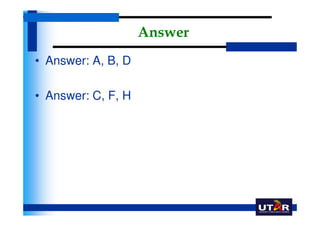
• Answer: A, B, D

• Answer: C, F, H
MCQ
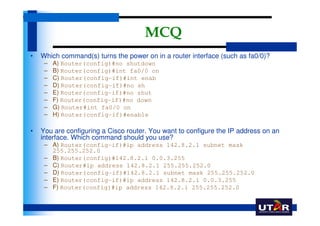
•   Which command(s) turns the power on in a router interface (such as fa0/0)?
     –   A) Router(config)#no shutdown
     –   B) Router(config)#int fa0/0 on
     –   C) Router(config-if)#int enab
     –   D) Router(config-if)#no sh
     –   E) Router(config-if)#no shut
     –   F) Router(config-if)#no down
     –   G) Router#int fa0/0 on
     –   H) Router(config-if)#enable

•   You are configuring a Cisco router. You want to configure the IP address on an
    interface. Which command should you use?
     – A) Router(config-if)#ip address 142.8.2.1 subnet mask
       255.255.252.0
     – B) Router(config)#142.8.2.1 0.0.3.255
     – C) Router#ip address 142.8.2.1 255.255.252.0
     – D) Router(config-if)#142.8.2.1 subnet mask 255.255.252.0
     – E) Router(config-if)#ip address 142.8.2.1 0.0.3.255
     – F) Router(config)#ip address 142.8.2.1 255.255.252.0
Answer
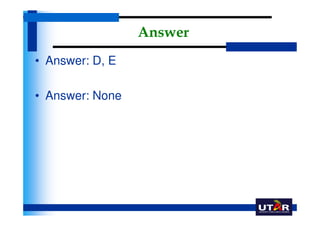
• Answer: D, E

• Answer: None

Uccn1003 -may10_-_lect03b_-_intro_to_cisco_router

  • 1.
    UCCN 1003 (May2010) Data Communications & Networks (Lecture 03b) Introduction to Cisco Router
  • 2.
    Purpose of aRouter • The basic purpose of a router – Computers that specialize in sending packets over the data network. – They are responsible for interconnecting networks by selecting the best path for a packet to travel and forwarding packets to their destination
  • 3.
    Hardware Component ofa Cisco Router • Router components and their functions” – CPU - Executes operating system instructions – Random access memory (RAM) - Contains the running copy of configuration file. Stores routing table. RAM contents lost when power is off – Read-only memory (ROM) - Holds diagnostic software used when router is powered up. Stores the router’s bootstrap program. – Non-volatile RAM (NVRAM) - Stores startup configuration. This may include IP addresses (Routing protocol, Hostname of router) – Flash memory - Contains the operating system (Cisco IOS) – Interfaces - There exist multiple physical interfaces that are used to connect network. Examples of interface types: • Ethernet / fast Ethernet interfaces • Serial interfaces • Management interfaces
  • 4.
    Hardware Component ofa Cisco Router
  • 5.
    Checking Router with“show version”
  • 6.
    Router Models inPacket Tracer 5.3 • There are 4 router models In Packet Tracer 5.3: – 1841 – 2620XM – 2621XM – 2811 • In packet tracer, 4 models obviously differ in: – number and type of “slots” that extra communication modules can be added in.
  • 7.
    Cisco 1841 Router •The Cisco 1841 Integrated Services Router provides: – two fixed 10/100 (100BASE-TX) Ethernet ports, • Interface name fa0/0, fa0/1 – two integrated High-Speed WAN Interface Card (HWIC) slots that are compatible with WAN Interface Card (WICs) • WAN = Wide Area Networks HWIC slot #1 2 FastEthernet ports HWIC slot #2 1841 Flash memory slot
  • 8.
    Cisco 2620XM Router •The Cisco 2620XM Multiservice Router provides – one fixed 10/100 (100BASE-TX) Ethernet port, – two integrated WAN Interface Card (WIC) slots, – one Advanced Integration Module (AIM) slot. FastEthernet port AIM slot WIC slot #1 WIC slot #2 2620XM
  • 9.
    Cisco 2621XM Router •The Cisco 2621XM Multiservice Router provides – two fixed 10/100 (100BASE-TX) Ethernet ports, – two integrated WAN Interface Card (WIC) slots, – one Advanced Integration Module (AIM) slot. 2 FastEthernet ports AIM slot WIC slot #1 WIC slot #2 2621XM
  • 10.
    Cisco 2811 Router •The Cisco 2811 Integrated Services Router provides – two fixed 10/100 (100BASE-TX) Ethernet ports, – four integrated High-Speed WAN Interface Card (HWIC) slots that are compatible with WAN Interface Card (WICs), – Advanced Integration Module (AIM) slot. AIM slot 2 FastEthernet ports 4 HWIC slots 2811 Flash memory slot
  • 11.
    Router Interfaces • RouterInterface is a physical connector that enables a router to send or receive packets • Each interface connects to a separate network • Consist of socket or jack found on the outside of a router • Types of router interfaces: – Ethernet – Fastethernet – Serial – DSL – ISDN – Cable
  • 12.
    Cisco Modules forHWIC & WIC Slots • HWIC-4ESW – provides four switching ports. • HWIC-AP-AG-B – It supports Single Band 802.11b/g or Dual Band 802.11a/b/g radios. • WIC-1AM – features dual RJ-11 connectors, which are used for basic telephone service connections. The WIC-1AM uses one port for connection to a standard telephone line, and the other port can be connected to a basic analog telephone for use when the modem is idle. • WIC-1ENET – is a single-port 10 Mbps Ethernet interface card, for use with 10BASE-T Ethernet LANs. • WIC-1T – provides a single port serial connection to remote sites or legacy serial network devices • WIC-2AM – features dual RJ-11 connectors, which are used for basic telephone service connections. The WIC-2AM has two modem ports to allow multiple data communication connections. • WIC-2T – The 2-port asynchronous/synchronous serial network module provides flexible multi- protocol support, with each port individually configurable in synchronous or asynchronous mode,
  • 13.
    Cisco Modules forAIM Slots • NM-1E – features a single Ethernet port that can connect a LAN backbone which can also support either six PRI connections to aggregate ISDN lines, or 24 synchronous/asynchronous ports. • NM-1E2W – provides a single Ethernet port with two WIC slots that can support a single Ethernet LAN, together with two serial/ISDN backhaul lines, and still allow multiple serial or ISDN in the same chassis. • NM-1FE-FX – provides one Fast-Ethernet interface for use with fiber media. • NM-1FE-TX – provides one Fast-Ethernet interface for use with copper media. • NM-1FE2W – provides one Fast-Ethernet interface for use with copper media, and two WIC expansion slots.
  • 14.
    Cisco Modules forAIM Slots • NM-2E2W – provides two Ethernet ports with two WIC slots that can support two Ethernet LANs, together with two serial/ISDN backhaul lines, and still allow multiple serial or ISDN in the same chassis. • NM-2FE2W – provides two Fast-Ethernet interfaces for use with copper media, and two WIC expansion slots. • NM-4A/S – The 4-port asynchronous/synchronous serial network module. • NM-4E – four Ethernet ports. • NM-8A/S – The 8-port asynchronous/synchronous serial network module • NM-8AM – The NM-8AM Integrated V.92 analog modem network module provides eight RJ-11 jacks to connect the integrated modems to basic analog telephone lines on the public switched telephone network (PSTN) or private telephony systems.
  • 15.
    Flash and NVRAM • Flash and NVRAM act like the “hard disk” of the Cisco router. • In Cisco router, flash memory is used to store the images of the IOS and NVRAM is used to store the startup configuration file. • NVRAM provide much faster read/write than flash, but is more costly. • Extra flash can be added to the “flash memory slot” of the router. • The following command “show file systems” shows the memory size of both flash and NVRAM in a typical 1841 router. – 64M for flash, 30k for NVRAM
  • 16.
    Cisco IOS • Similarto a personal computer, a router cannot function without an operating system. • The Cisco Internetwork Operating System (IOS) is the system software in Cisco devices. • The Cisco IOS provides devices with the following network services: – Basic routing functions – Reliable and secure access to networked resources – Network scalability
  • 17.
    Command Line Interface(CLI) • The services provided by the Cisco IOS are generally accessed using a command line interface (CLI). • CLI is the “place” where you put in the commands in order to perform the router configuration such as: – Setting IP address for router ports. – Setting routes – Showing routers statistics Note: In real life, the router CLI is not as “easily” accessible as in the Packet Tracer by just clicking on a tab.
  • 18.
    Flash and IOSImage • Type “show flash:” to display the memory content of the flash which includes the IOS image. • IOS on different router will have its own specific image for the router. IOS Image
  • 19.
    Accessing CLI • Thereare 3 ways to access the CLI environment. – Console – Telnet or SSH – AUX port
  • 20.
    Accessing CLI –Console port • You need 2 items + 1 software to access the CLI via the console port – PC, – Rollover Cable – Comm software (e.g. HyperTerminal), • Rollover cable is a cable with a serial comm connect at one end, and a RJ-45 connector at the other end. • Rollover connects the serial comm port of a PC to the console port of a router.
  • 21.
    Accessing CLI –Console port • The console port is often used to access a router – when the networking services have not been started or have failed. – When a router is first placed into service, networking parameters have not yet been configured yet. – The initial configuration of the network device – Disaster recovery procedures and troubleshooting where remote access is not possible – Password recovery procedures • Accessing CLI through console port can’t be done remotely (from a far) – One has to be done next to the router with a PC/laptop
  • 22.
    Accessing CLI –Console port - 3 • HyperTerminal in Windows XP is the software that you can use to access the CLI environment. – You can set the HyperTerminal Configuration as shown
  • 23.
    No DHCP orData via Console • Rollover cable via console port is NOT for network purposes, hence for PC0: – don’t need an IP to perform configuration – can’t obtain DHCP or dynamic IP – can’t access web pages – can’t download files – can’t access any network services Rollover cable
  • 24.
    Accessing CLI Remotely– Telnet & Aux • Two ways to access CLI for “afar” or remotely: – Aux port • via a telephone dialup connection using a modem connected to the router's AUX port. • Similar to the console connection, this method does not require any networking services to be configured or available on the device. • The AUX port can also be used locally, like the console port, with a direct connection to a computer running a terminal emulation program. – telnet • via the networking ports (FastEthernet Ports: e.g. fa0/0, Ethernet ports, serial ports). • Telnet service has to be setup via the console port first. • Will be explored in the lab. Telnet Telnet Aux Telnet
  • 25.
    Router CLI mode •CLI mode = prompt • Different mode accepts different set of commands • Just remember= different prompt cater for different commands
  • 26.
    Privilege and UserMode • User mode can only access limited commands – Prompt ‘>’ – Can use “show” commands – Can’t make configuration which changes the router. • Privilege mode is where you can enter commands that can configure the router – Prompt ‘#’ – Only after the command “enable” you can start to enter other commands that can make changes to the router.
  • 27.
    CLI Command Hierarchy • The prompts has a form of “hierarchy”, meaning you have to go through other “prompts” first before you reach the “desired” prompt. • For example: in order to reach “Router(config-if), you have to go through 2 more prompts first: – Router>enable – Router#config terminal – Router(config)#int fa0/0 – Router(config-if)#
  • 28.
    Right Command atthe right prompt • You have to be in the right “prompt” before a command can be “accepted”. • In router CLI, not only you need to memorize the commands (and their effect), but also the “correct prompt” that you key in the command. • So beware of the prompt (or CLI mode) when you configure the Cisco router. Router>int fa0/0 ^ Commands % Invalid input detected at '^' marker. at the “wrong” prompt. Router>en Router#int fa0/0 ^ % Invalid input detected at '^' marker. Router#conf t Enter configuration commands, one per line. End with CNTL/Z. Router(config)#int fa0/0 Router(config-if)#
  • 29.
  • 30.
    Shortcuts for enteringcommands • You do not need to type in the “full phrase” for that particular command to take effect. – Type “show interface” = “show int” = “sh int” – Type “configure terminal” = “config t” = “conf t” • However, the short form can’t be too short. – Type “sh i” for “show int” won’t work. – At least 2 characters and above for 1 word (e.g in = interface)
  • 31.
    Some Examples ofCisco Commands
  • 32.
    Turn on TelnetService with Password • In order for you to “remotely” telnet into the router via the data ports (e.g. fa0/0) • The following shows the commands that turn on the telnet service of the router. – vty = ( Virtual TeletYpe), treat this as telnet – 0 4 = accepting channel 0 to channel 4, concurrently 5 telnet users can log in. uccn1003#conf t uccn1003(config)#line vty 0 4 uccn1003(config-line)#password <password> uccn1003(config-line)#login uccn1003(config-line)#end uccn1003#
  • 33.
    Running-configuration Choo#show run Building configuration... • The active configuration file ! version 12.4 of the router. ! hostname Choo • Stored in RAM ! enable password uccn1003 – If the power is turned-off, the interface FastEthernet0/0 running-configuration will be ! ip address 192.168.1.254 255.255.255.0 GONE. interface FastEthernet0/1 no ip address • Command “show run”. shutdown ! – You need to view the interface Vlan1 running-config in order to no ip address shutdown troubleshoot the router. ! line con 0 line vty 0 4 password network login ! end Choo#
  • 34.
    Startup-configuration • Stored inNVRAM. Choo#show start startup-config is not present • Load in as running-config during Choo#copy run start Destination filename [startup-config]? the router startup. Building configuration... [OK] • Command for viewing the Choo#show start Using 508 bytes startup-config: “show start” ! version 12.4 • Backing up running-config in ! hostname Choo startup-config: “copy run start” ! enable password uccn1003 – Note, when you turn off switches or ! interface FastEthernet0/0 routers and then turn them back on, ip address 192.168.1.254 they will load their startup 255.255.255.0 ! configuration files. interface FastEthernet0/1 no ip address – If you do not backup the running shutdown configuration, it will be lost. ! end
  • 35.
    Voiding or Cancelingcommands • To remove a command from the configuration, Router#show run simply go to the proper location or prompt and Building configuration... type "no" followed by the command to be removed. ! version 12.4 • The following example show ! – How to remove hostname hostname Router – How to remove enable password ! – How to remove an IP address in int fa0/0 interface FastEthernet0/0 – Please compare the running-config on the right, no ip address with the running-config at the previous two slides. ! interface FastEthernet0/1 no ip address Choo# shutdown Choo#conf t ! Choo(config)#no hostname Choo line con 0 line vty 0 4 Router(config)#no enable password password network Router(config)#int fa0/0 login Router(config-if)#no ip address ! Router(config-if)# end
  • 36.
    Case Study –Module & Interface • Case study: – Router 1 is planned to connect to 6 other LANs – 3 fast Ethernet – 1 serial connection – 1 telephone modem – 1 Ethernet • Problem: – Router 2811 originally only has 2 fixed fast Ethernet port • FastEthernet0/0 and FastEthernet0/1
  • 37.
    Case Study –Module & Interface • Solution: Add modules – Add module NM-2FE2W in AIM slot • 2 FastEthernet ports with 2 WIC slots – Add module WIC-1AM in HWIC slot • Telephone Model – Add module WIC-1ENET in HWIC slot • 1 Ethernet port – Add module WIC-1T in HWIC slot • Serial connection
  • 38.
    Case Study –Module & Interface • Comments: – Know the “names” of the modules in order to access them. – If the modules does not exist, you can’t access them. • Accessing the modules in CLI – In real life use, commands “show ip int brief” to learn the existence of the modules or interfaces. – int Serial0/3/0 – int FastEthernet1/0 – int FastEthernet1/1 – Refer to the following example: Original Added
  • 39.
    Conclusion • You havebeen shown the basic overview of Cisco Router – Cisco IOS – Cisco CLI and how to access it – Console port and rollover cables – CLI modes and prompts – Some simple cisco commands – Running-config & startup-config – Modules and interfaces. • We will continue to learn other Cisco router commands in the Lab.
  • 40.
  • 41.
    MCQ • Which ofthe following is a common use of the telnet utility? – A) Checking Network Status – B) Remote administration – C) Accessing Web D) Troubleshooting – E) Downloading F) Email • The console port is used for_________? – A) telneting B) phone line HyperTerminal – C) password recovery D) ipconfig – E) passing data between routers F) troubleshooting – G) downloading files H) examine configuration files
  • 42.
    Answer • Answer: A,B, D • Answer: C, F, H
  • 43.
    MCQ • Which command(s) turns the power on in a router interface (such as fa0/0)? – A) Router(config)#no shutdown – B) Router(config)#int fa0/0 on – C) Router(config-if)#int enab – D) Router(config-if)#no sh – E) Router(config-if)#no shut – F) Router(config-if)#no down – G) Router#int fa0/0 on – H) Router(config-if)#enable • You are configuring a Cisco router. You want to configure the IP address on an interface. Which command should you use? – A) Router(config-if)#ip address 142.8.2.1 subnet mask 255.255.252.0 – B) Router(config)#142.8.2.1 0.0.3.255 – C) Router#ip address 142.8.2.1 255.255.252.0 – D) Router(config-if)#142.8.2.1 subnet mask 255.255.252.0 – E) Router(config-if)#ip address 142.8.2.1 0.0.3.255 – F) Router(config)#ip address 142.8.2.1 255.255.252.0
  • 44.
    Answer • Answer: D,E • Answer: None