Twitter is the most famous form of micro-
blogging. Tweets are limited to 140 char-
acters and shared amongst followers.
There are few rules for its use, but the
online community has a clear etiquette
Pedagogical Uses
  Information feed
  Marketing experience
  Creative assignments, working within 140-character
   limitations
Research Uses
  Raises public profile.
  Pre/during/post conference connections
  Create and maintain communities with others with simi-
   lar interests.
Setting Up an Account
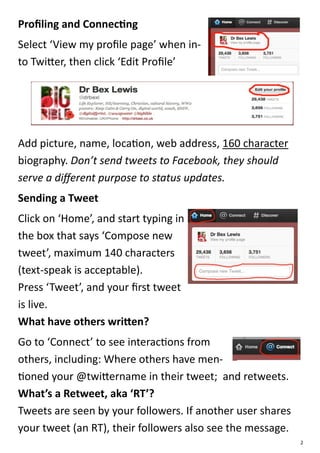
   Go to https://twitter.com and enter the simple infor-
    mation (email addresses can only be used once).
   You may need to be creative in
    choosing a user-name. Choose
    the shortest one that seems
    memorable.
   Follow the steps through. Look
    for the ‘Skip Here’ options at the
    bottom left of the page if required.
                                                            1
Profiling and Connecting
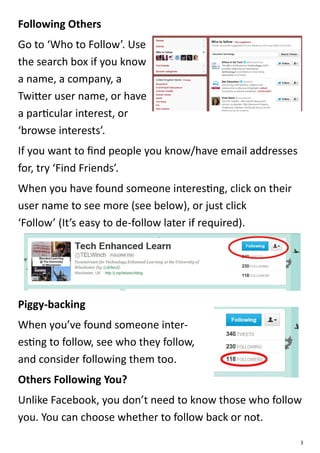
Select ‘View my profile page’ when in-
to Twitter, then click ‘Edit Profile’


Add picture, name, location, web address, 160 character
biography. Don’t send tweets to Facebook, they should
serve a different purpose to status updates.
Sending a Tweet
Click on ‘Home’, and start typing in
the box that says ‘Compose new
tweet’, maximum 140 characters
(text-speak is acceptable).
Press ‘Tweet’, and your first tweet
is live.
What have others written?
Go to ‘Connect’ to see interactions from
others, including: Where others have men-
tioned your @twittername in their tweet; and retweets.
What’s a Retweet, aka ‘RT’?
Tweets are seen by your followers. If another user shares
your tweet (an RT), their followers also see the message.
                                                            2
Following Others
Go to ‘Who to Follow’. Use
the search box if you know
a name, a company, a
Twitter user name, or have
a particular interest, or
‘browse interests’.
If you want to find people you know/have email addresses
for, try ‘Find Friends’.
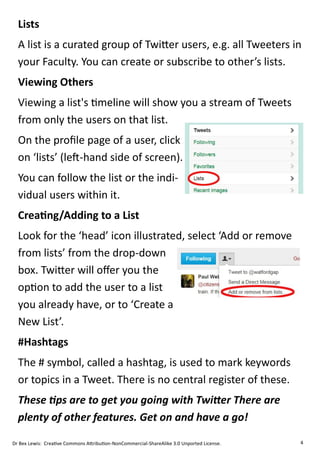
When you have found someone interesting, click on their
user name to see more (see below), or just click
‘Follow’ (It’s easy to de-follow later if required).


Piggy-backing
When you’ve found someone inter-
esting to follow, see who they follow,
and consider following them too.
Others Following You?
Unlike Facebook, you don’t need to know those who follow
you. You can choose whether to follow back or not.
                                                           3
Lists
  A list is a curated group of Twitter users, e.g. all Tweeters in
  your Faculty. You can create or subscribe to other’s lists.
  Viewing Others
  Viewing a list's timeline will show you a stream of Tweets
  from only the users on that list.
  On the profile page of a user, click
  on ‘lists’ (left-hand side of screen).
  You can follow the list or the indi-
  vidual users within it.
  Creating/Adding to a List
  Look for the ‘head’ icon illustrated, select ‘Add or remove
  from lists’ from the drop-down
  box. Twitter will offer you the
  option to add the user to a list
  you already have, or to ‘Create a
  New List’.
  #Hashtags
  The # symbol, called a hashtag, is used to mark keywords
  or topics in a Tweet. There is no central register of these.
  These tips are to get you going with Twitter There are
  plenty of other features. Get on and have a go!

Dr Bex Lewis: Creative Commons Attribution-NonCommercial-ShareAlike 3.0 Unported License.   4

Twitter

  • 1.
    Twitter is themost famous form of micro- blogging. Tweets are limited to 140 char- acters and shared amongst followers. There are few rules for its use, but the online community has a clear etiquette Pedagogical Uses  Information feed  Marketing experience  Creative assignments, working within 140-character limitations Research Uses  Raises public profile.  Pre/during/post conference connections  Create and maintain communities with others with simi- lar interests. Setting Up an Account  Go to https://twitter.com and enter the simple infor- mation (email addresses can only be used once).  You may need to be creative in choosing a user-name. Choose the shortest one that seems memorable.  Follow the steps through. Look for the ‘Skip Here’ options at the bottom left of the page if required. 1
  • 2.
    Profiling and Connecting Select‘View my profile page’ when in- to Twitter, then click ‘Edit Profile’ Add picture, name, location, web address, 160 character biography. Don’t send tweets to Facebook, they should serve a different purpose to status updates. Sending a Tweet Click on ‘Home’, and start typing in the box that says ‘Compose new tweet’, maximum 140 characters (text-speak is acceptable). Press ‘Tweet’, and your first tweet is live. What have others written? Go to ‘Connect’ to see interactions from others, including: Where others have men- tioned your @twittername in their tweet; and retweets. What’s a Retweet, aka ‘RT’? Tweets are seen by your followers. If another user shares your tweet (an RT), their followers also see the message. 2
  • 3.
    Following Others Go to‘Who to Follow’. Use the search box if you know a name, a company, a Twitter user name, or have a particular interest, or ‘browse interests’. If you want to find people you know/have email addresses for, try ‘Find Friends’. When you have found someone interesting, click on their user name to see more (see below), or just click ‘Follow’ (It’s easy to de-follow later if required). Piggy-backing When you’ve found someone inter- esting to follow, see who they follow, and consider following them too. Others Following You? Unlike Facebook, you don’t need to know those who follow you. You can choose whether to follow back or not. 3
  • 4.
    Lists Alist is a curated group of Twitter users, e.g. all Tweeters in your Faculty. You can create or subscribe to other’s lists. Viewing Others Viewing a list's timeline will show you a stream of Tweets from only the users on that list. On the profile page of a user, click on ‘lists’ (left-hand side of screen). You can follow the list or the indi- vidual users within it. Creating/Adding to a List Look for the ‘head’ icon illustrated, select ‘Add or remove from lists’ from the drop-down box. Twitter will offer you the option to add the user to a list you already have, or to ‘Create a New List’. #Hashtags The # symbol, called a hashtag, is used to mark keywords or topics in a Tweet. There is no central register of these. These tips are to get you going with Twitter There are plenty of other features. Get on and have a go! Dr Bex Lewis: Creative Commons Attribution-NonCommercial-ShareAlike 3.0 Unported License. 4