ANIMATION
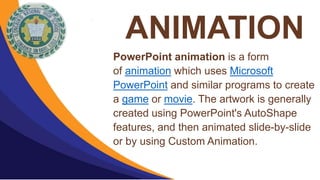
PowerPoint animation is a form
of animation which uses Microsoft
PowerPoint and similar programs to create
a game or movie. The artwork is generally
created using PowerPoint's AutoShape
features, and then animated slide-by-slide
or by using Custom Animation.
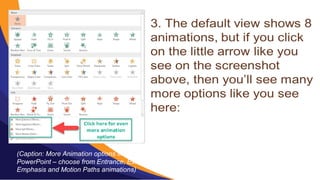
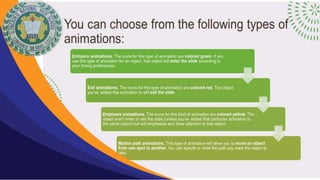
(Caption: More Animation options in
PowerPoint – choose from Entrance, Exit,
Emphasis and Motion Paths animations)
In the next sections, we’ll go over how to add the 4
different types of animations to your slides.
How To Add Animations to PowerPoint In 2 Simple Steps
To add entrance animations to any object in PowerPoint,
here’s what you need to do:
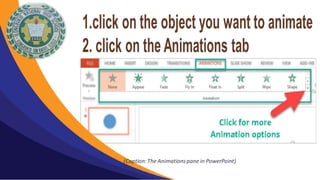
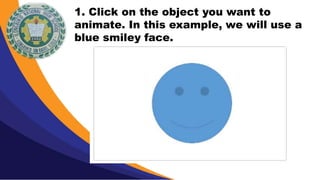
1. Click on the object you want to
animate. In this example, we will use a
blue smiley face.
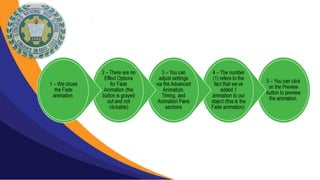
(Caption: The different options available for Fade
animation in PowerPoint)
2. Select the animation you want to use. For this example, we
used the entrance animation – fade animation. We set the
duration to 2.75 seconds. You will notice in the screenshot
below that the fade animation has no effect options (the button
is greyed out).
Guidelines:
•Simplicity is key. Simple animations like fade and
appear may not be as impressive as other animations
available, but these add a touch of elegance to well-
timed slides. It makes your slides look clean and
simple.
•Limit the number of animations on a slide. One or two
animations per slide should suffice. There’s really no
need to animate every single object on each slide.
Guidelines:
•Time your presentation well. Make sure
your objects appear right after you
introduce it. This keeps your audience’s
interest piqued.
•Don’t forget to practice. Practicing your
timings and your animations are key to a
successful presentation.
• Hyperlinks in PowerPoint are similar to links
you might have seen on a web site. They
allow you to jump back and forth between
specific slides in your presentation, to movie
files that don't work on PowerPoint slides, to
other files, or to a webpage (if you are
connected to the Internet).
ANIMATION AND HYPERLINK.pptx

ANIMATION AND HYPERLINK.pptx

  • 2.
    ANIMATION PowerPoint animation isa form of animation which uses Microsoft PowerPoint and similar programs to create a game or movie. The artwork is generally created using PowerPoint's AutoShape features, and then animated slide-by-slide or by using Custom Animation.
  • 4.
    (Caption: More Animationoptions in PowerPoint – choose from Entrance, Exit, Emphasis and Motion Paths animations)
  • 6.
    In the nextsections, we’ll go over how to add the 4 different types of animations to your slides. How To Add Animations to PowerPoint In 2 Simple Steps To add entrance animations to any object in PowerPoint, here’s what you need to do:
  • 7.
    1. Click onthe object you want to animate. In this example, we will use a blue smiley face.
  • 8.
    (Caption: The differentoptions available for Fade animation in PowerPoint) 2. Select the animation you want to use. For this example, we used the entrance animation – fade animation. We set the duration to 2.75 seconds. You will notice in the screenshot below that the fade animation has no effect options (the button is greyed out).
  • 10.
    Guidelines: •Simplicity is key.Simple animations like fade and appear may not be as impressive as other animations available, but these add a touch of elegance to well- timed slides. It makes your slides look clean and simple. •Limit the number of animations on a slide. One or two animations per slide should suffice. There’s really no need to animate every single object on each slide.
  • 11.
    Guidelines: •Time your presentationwell. Make sure your objects appear right after you introduce it. This keeps your audience’s interest piqued. •Don’t forget to practice. Practicing your timings and your animations are key to a successful presentation.
  • 12.
    • Hyperlinks inPowerPoint are similar to links you might have seen on a web site. They allow you to jump back and forth between specific slides in your presentation, to movie files that don't work on PowerPoint slides, to other files, or to a webpage (if you are connected to the Internet).