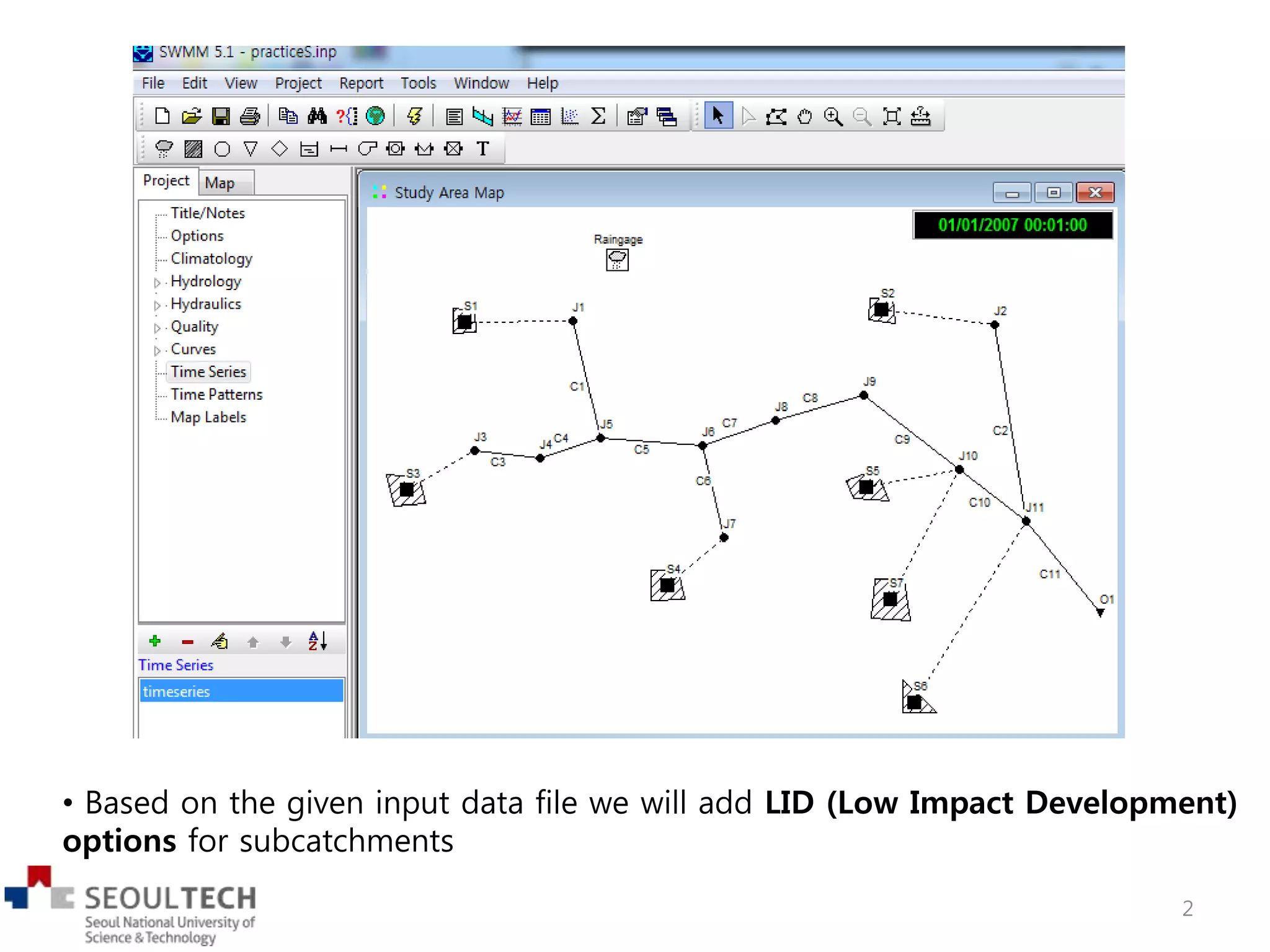
• Based on the given input data file we will add LID (Low Impact Development)
options for subcatchments
2
• EPA’s SWMM 5.1 has been extended to model the hydrologic performance
of specific types of low impact development (LID) controls.
• LID controls that you can choose include 7 green infrastructure practices
1. Permeable pavement
2. Rain gardens
3. Green roofs
4. Street planters
5. Rain barrels
6. Infiltration trenches
7. Vegetative swales (not optional in WMAM)
• You will edit 6 types of LID structures by using the LID control option of
EPA SWMM5.1
• Follow the instructions (step 1 to step 7) to enter all values
• The following tables are information of the LID control you will edit
3
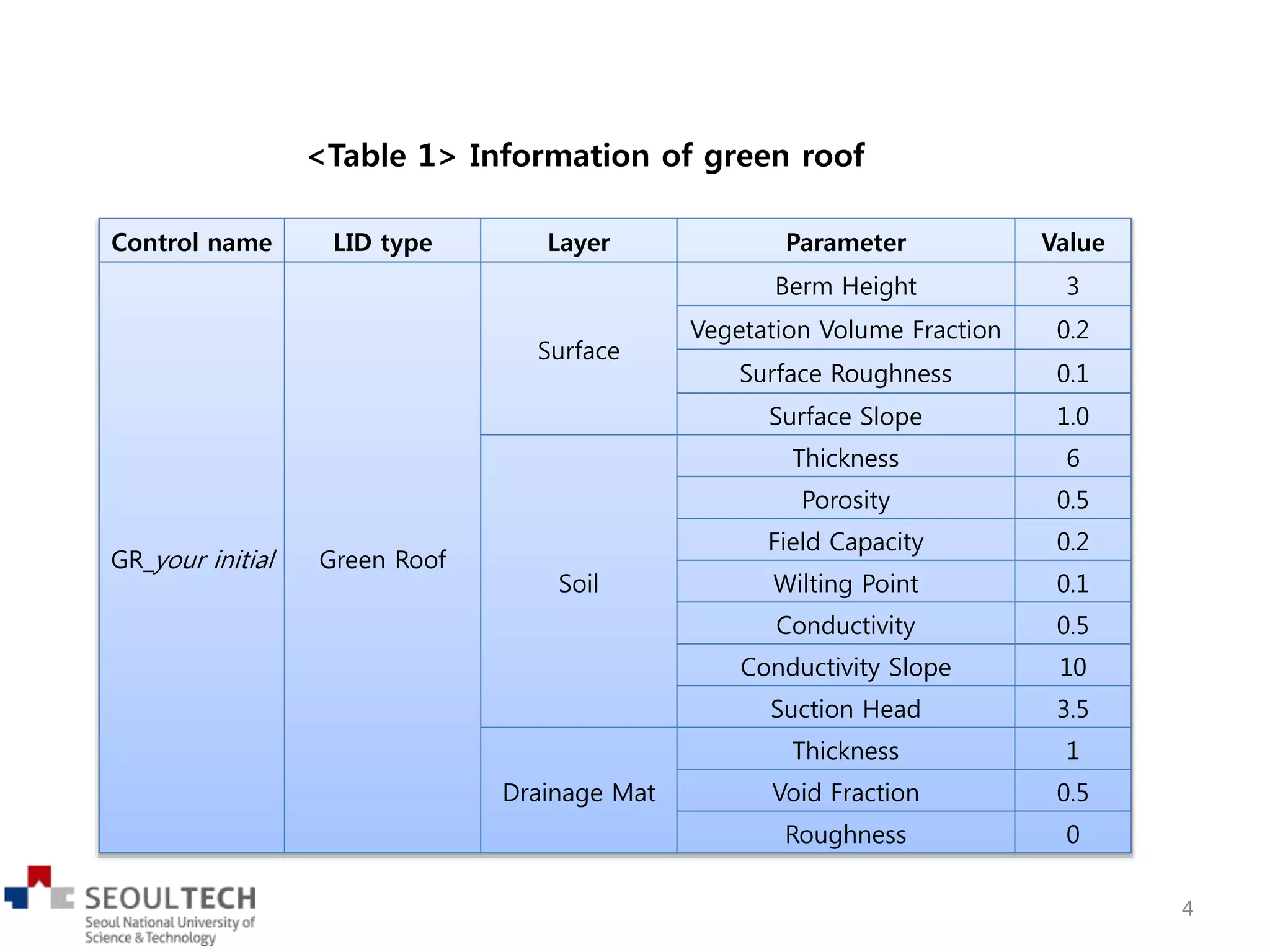
Control name LID type Layer Parameter Value
GR_your initial Green Roof
Surface
Berm Height 3
Vegetation Volume Fraction 0.2
Surface Roughness 0.1
Surface Slope 1.0
Soil
Thickness 6
Porosity 0.5
Field Capacity 0.2
Wilting Point 0.1
Conductivity 0.5
Conductivity Slope 10
Suction Head 3.5
Drainage Mat
Thickness 1
Void Fraction 0.5
Roughness 0
<Table 1> Information of green roof
4
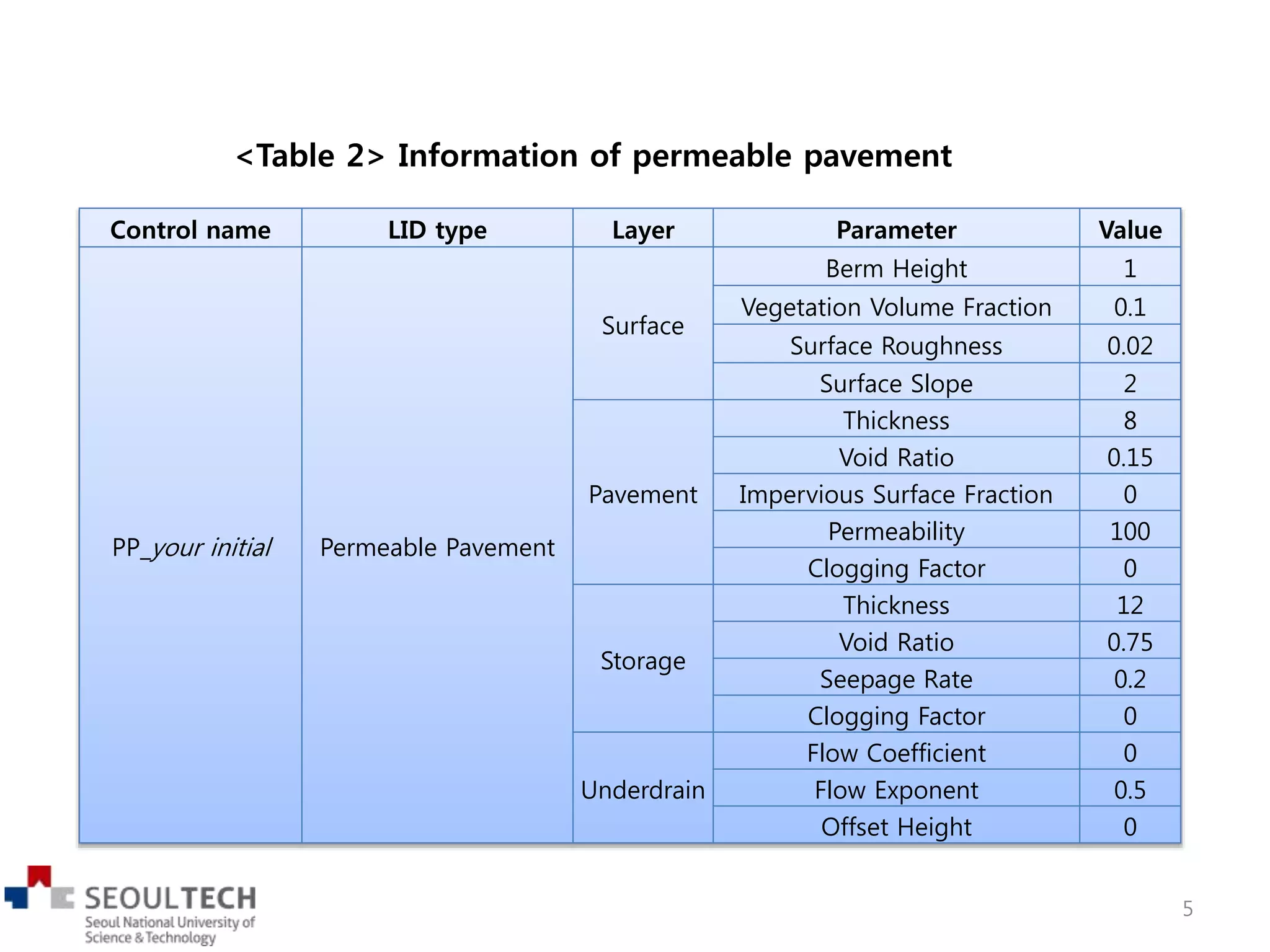
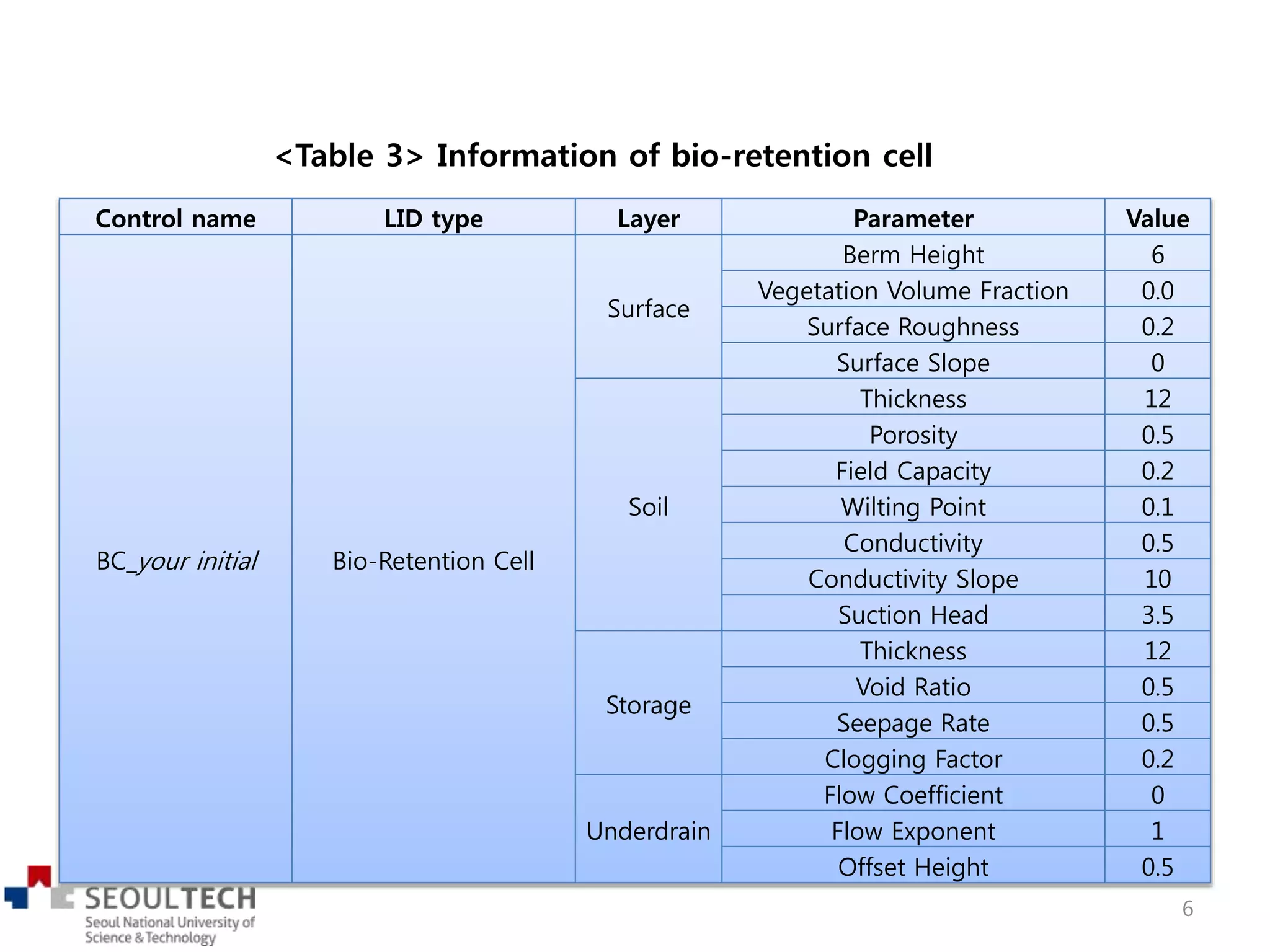
<Table 2> Information of permeable pavement
Control name LID type Layer Parameter Value
PP_your initial Permeable Pavement
Surface
Berm Height 1
Vegetation Volume Fraction 0.1
Surface Roughness 0.02
Surface Slope 2
Pavement
Thickness 8
Void Ratio 0.15
Impervious Surface Fraction 0
Permeability 100
Clogging Factor 0
Storage
Thickness 12
Void Ratio 0.75
Seepage Rate 0.2
Clogging Factor 0
Underdrain
Flow Coefficient 0
Flow Exponent 0.5
Offset Height 0
5
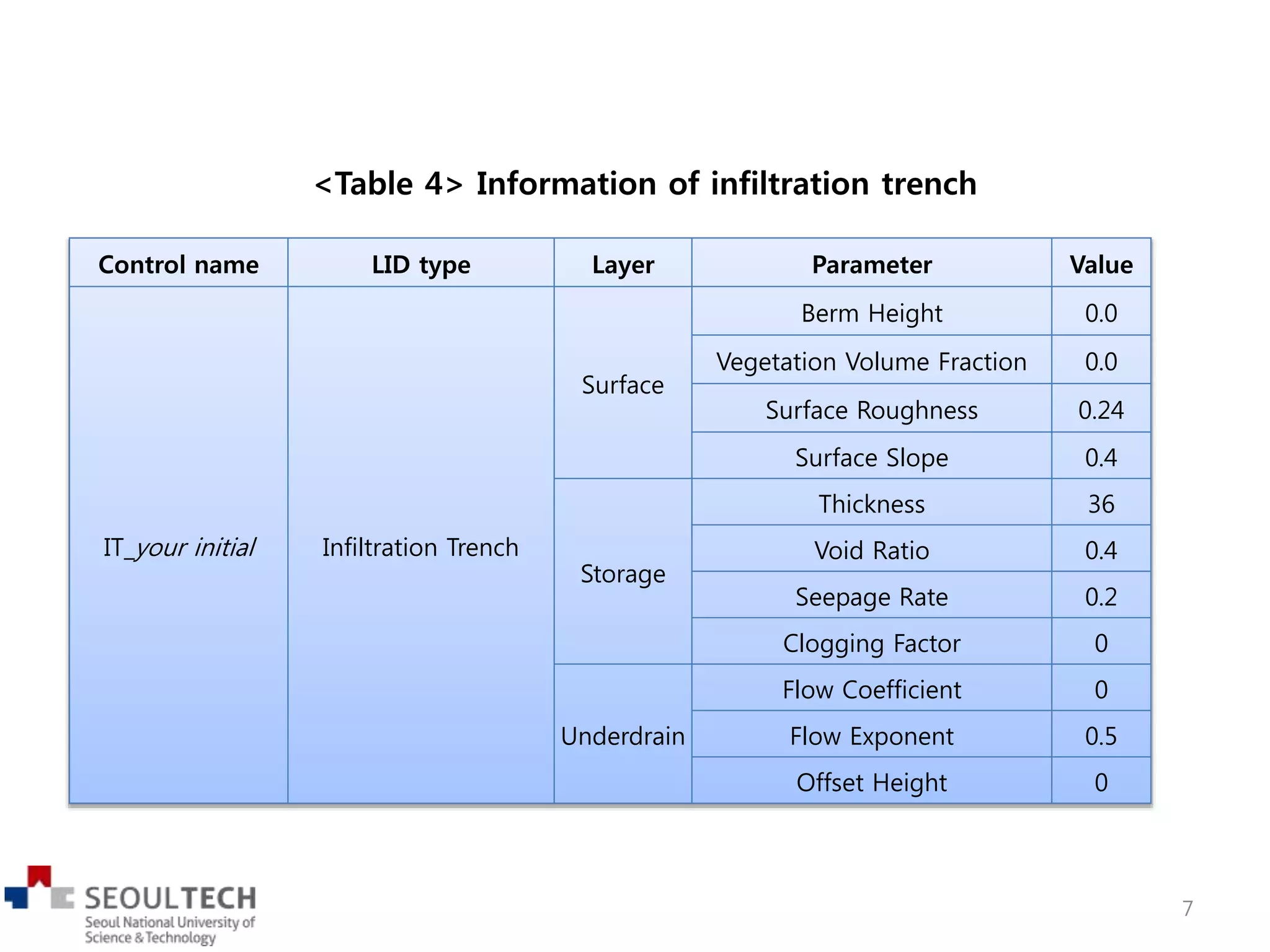
<Table 3> Information of bio-retention cell
Control name LID type Layer Parameter Value
BC_your initial Bio-Retention Cell
Surface
Berm Height 6
Vegetation Volume Fraction 0.0
Surface Roughness 0.2
Surface Slope 0
Soil
Thickness 12
Porosity 0.5
Field Capacity 0.2
Wilting Point 0.1
Conductivity 0.5
Conductivity Slope 10
Suction Head 3.5
Storage
Thickness 12
Void Ratio 0.5
Seepage Rate 0.5
Clogging Factor 0.2
Underdrain
Flow Coefficient 0
Flow Exponent 1
Offset Height 0.5
6
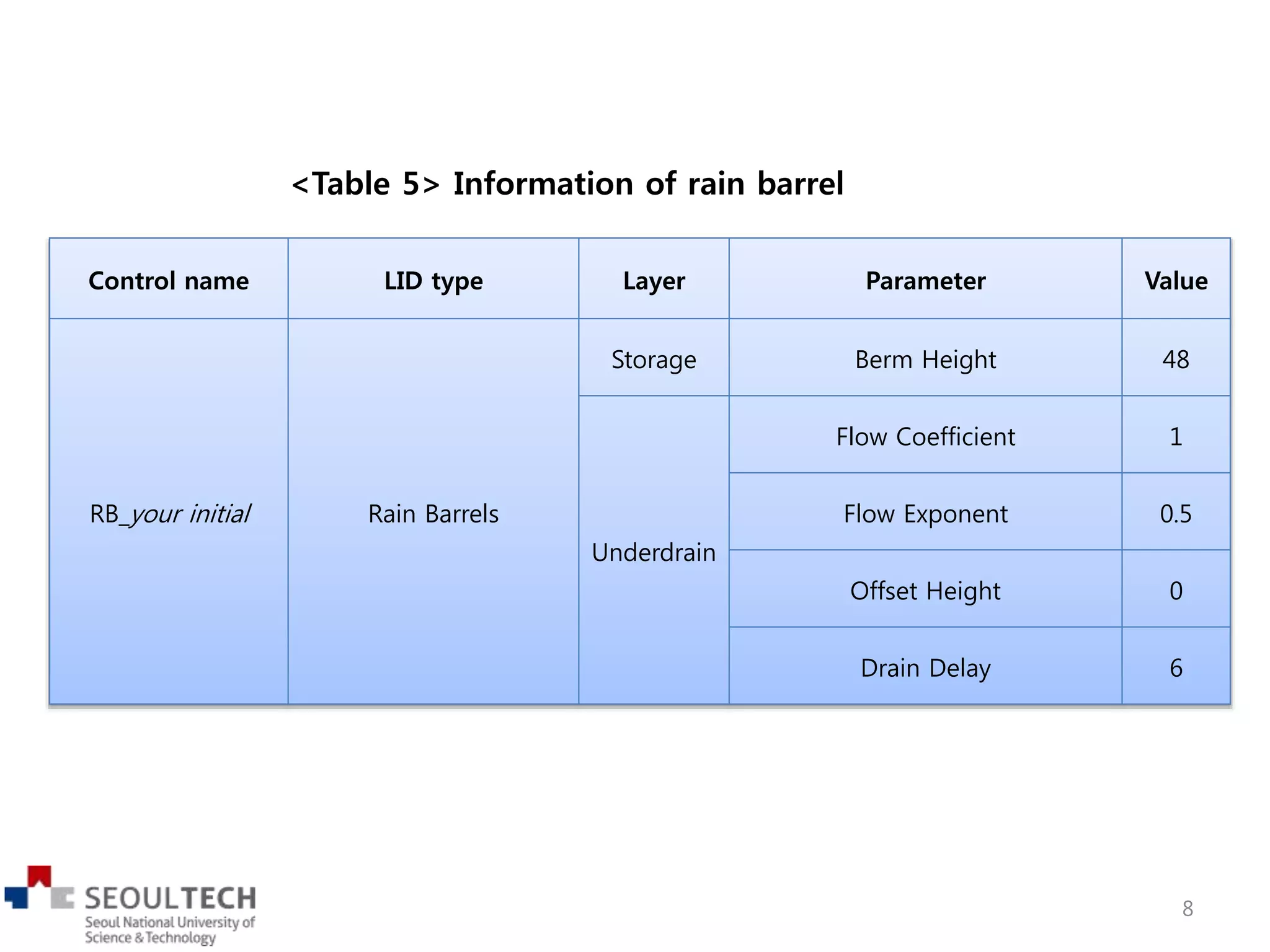
<Table 4> Information of infiltration trench
Control name LID type Layer Parameter Value
IT_your initial Infiltration Trench
Surface
Berm Height 0.0
Vegetation Volume Fraction 0.0
Surface Roughness 0.24
Surface Slope 0.4
Storage
Thickness 36
Void Ratio 0.4
Seepage Rate 0.2
Clogging Factor 0
Underdrain
Flow Coefficient 0
Flow Exponent 0.5
Offset Height 0
7
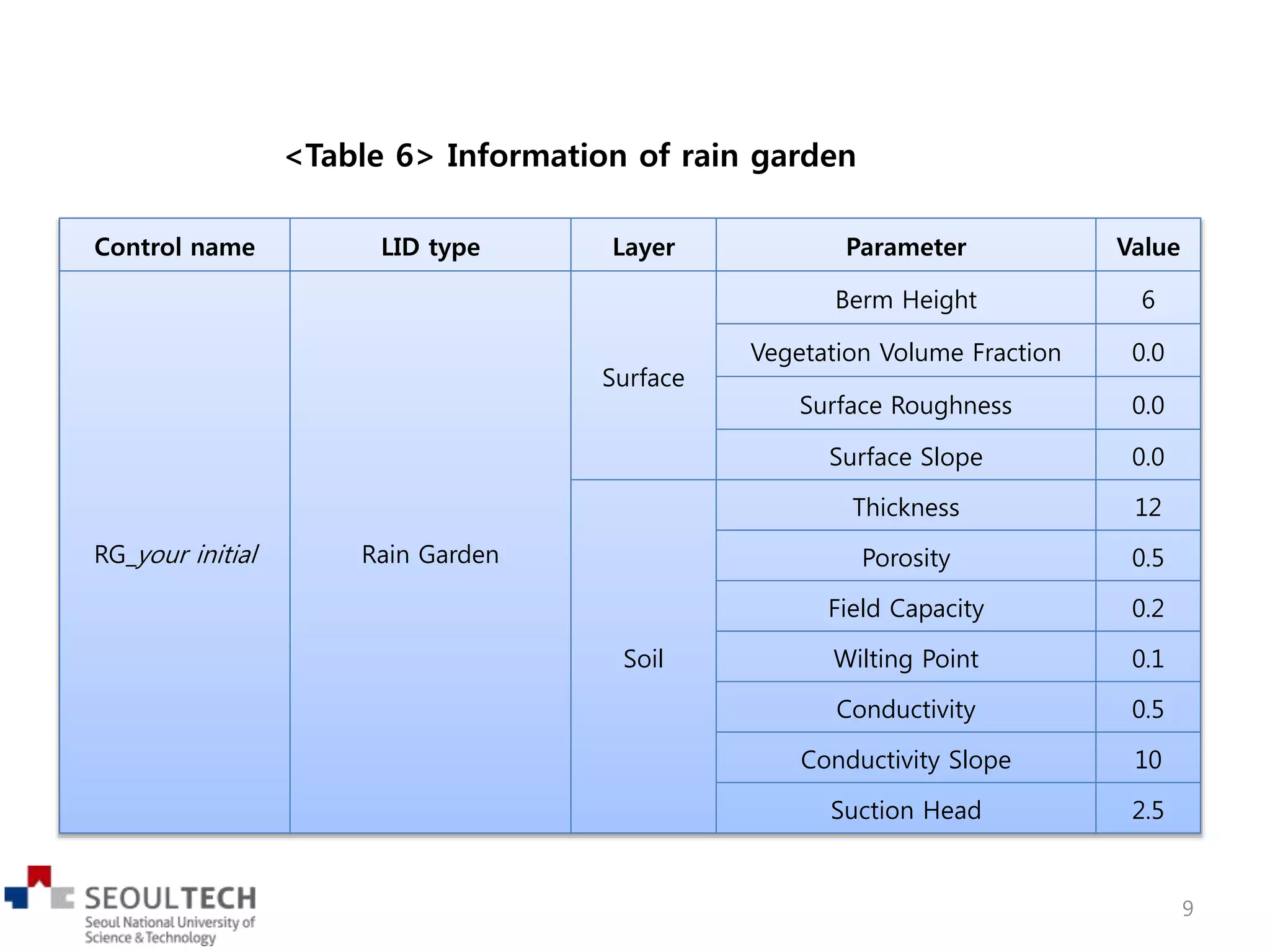
<Table 5> Information of rain barrel
Control name LID type Layer Parameter Value
RB_your initial Rain Barrels
Storage Berm Height 48
Underdrain
Flow Coefficient 1
Flow Exponent 0.5
Offset Height 0
Drain Delay 6
8
<Table 6> Information of rain garden
Control name LID type Layer Parameter Value
RG_your initial Rain Garden
Surface
Berm Height 6
Vegetation Volume Fraction 0.0
Surface Roughness 0.0
Surface Slope 0.0
Soil
Thickness 12
Porosity 0.5
Field Capacity 0.2
Wilting Point 0.1
Conductivity 0.5
Conductivity Slope 10
Suction Head 2.5
9
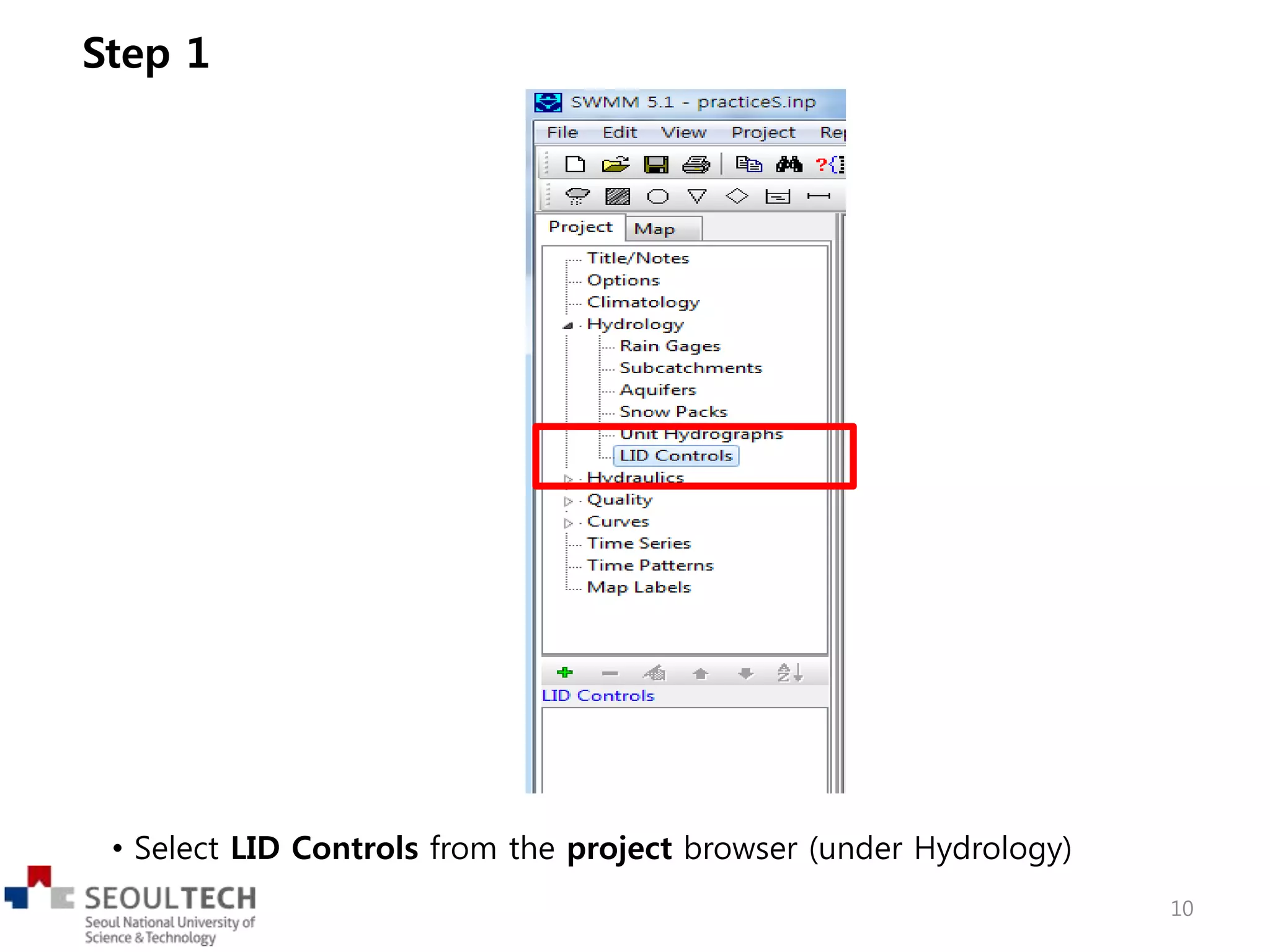
• Select LID Controls from the project browser (under Hydrology)
Step 1
10
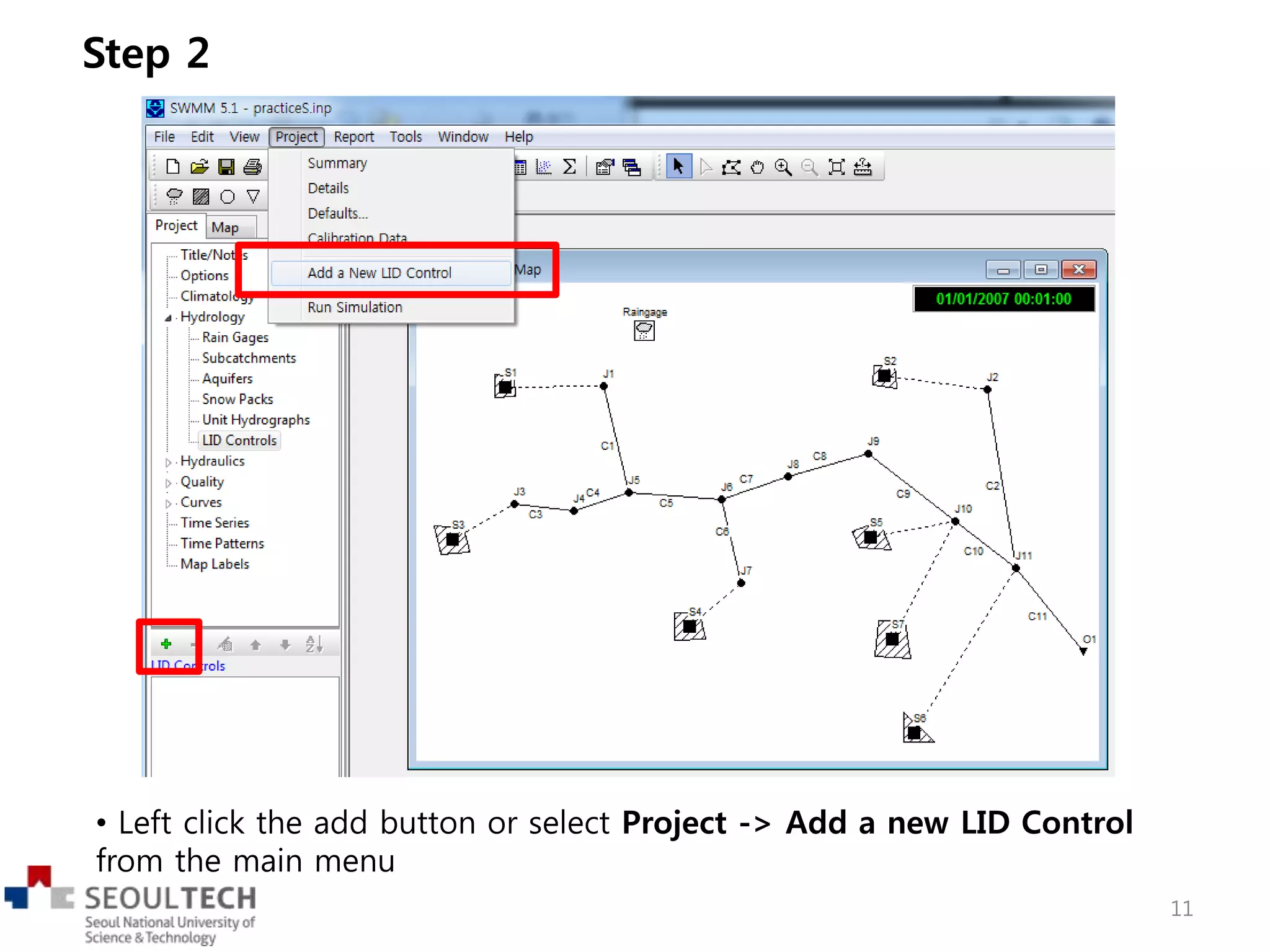
• Left click the add button or select Project -> Add a new LID Control
from the main menu
Step 2
11
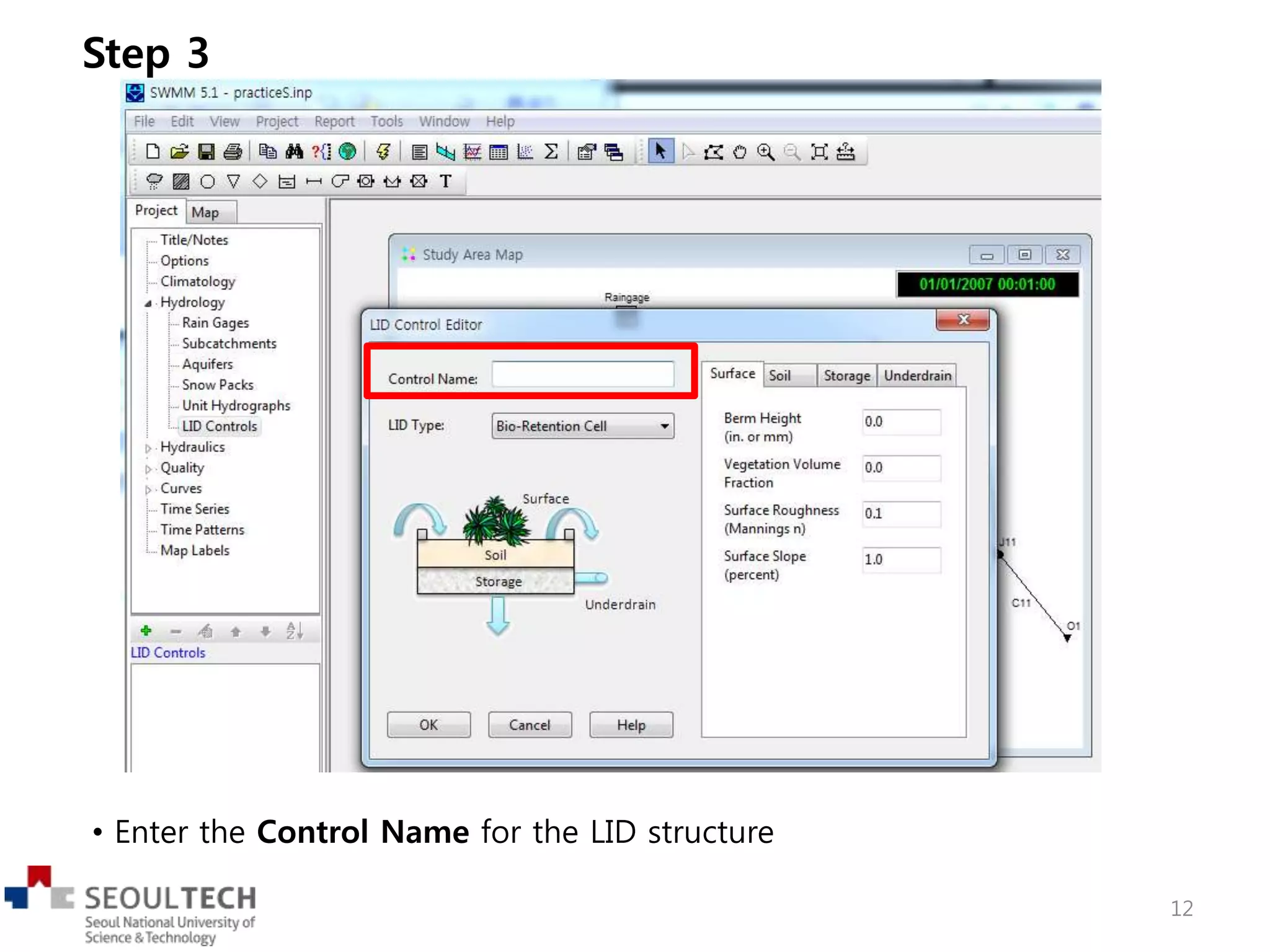
• Enter the Control Name for the LID structure
Step 3
12
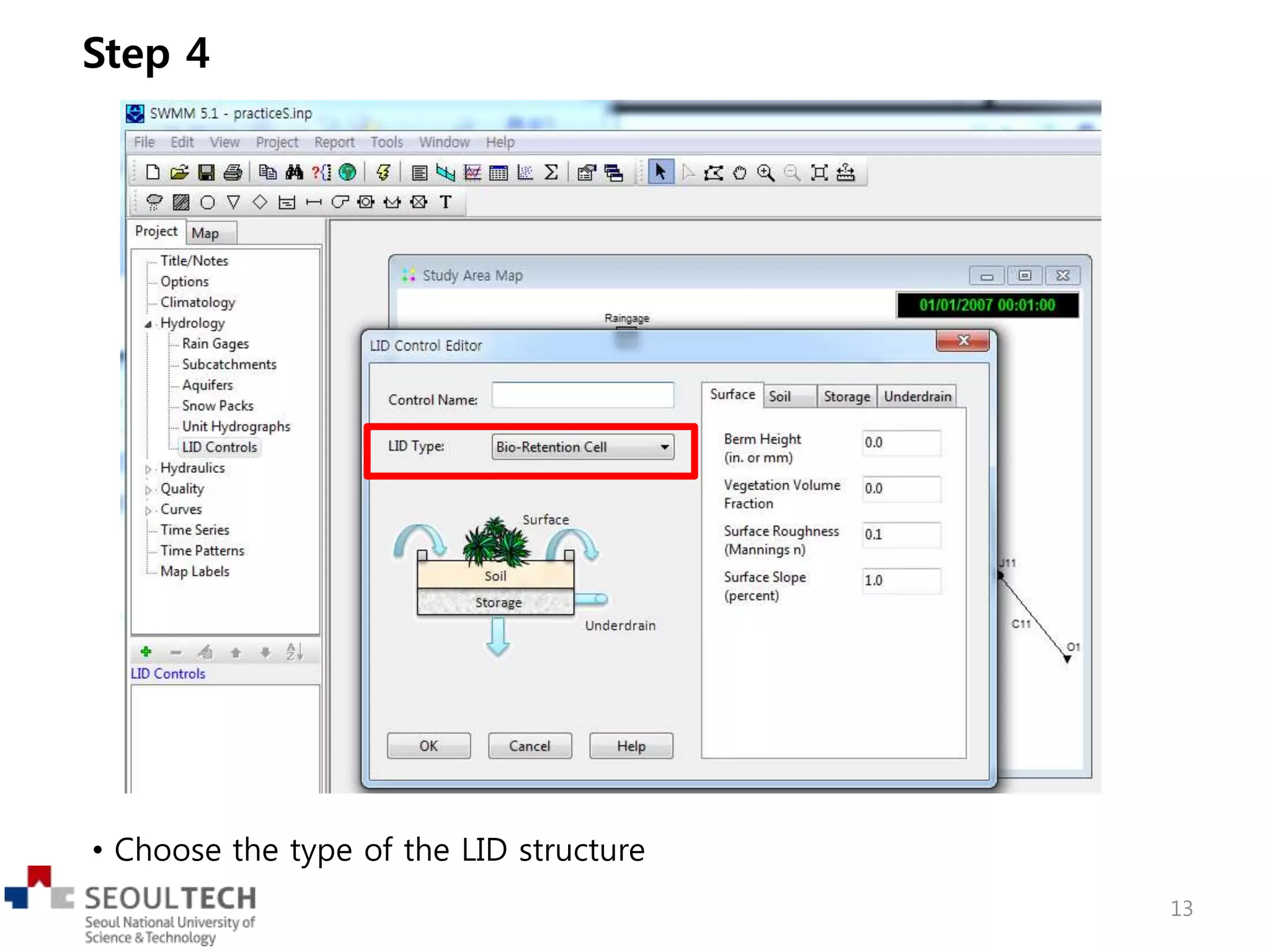
• Choose the type of the LID structure
Step 4
13
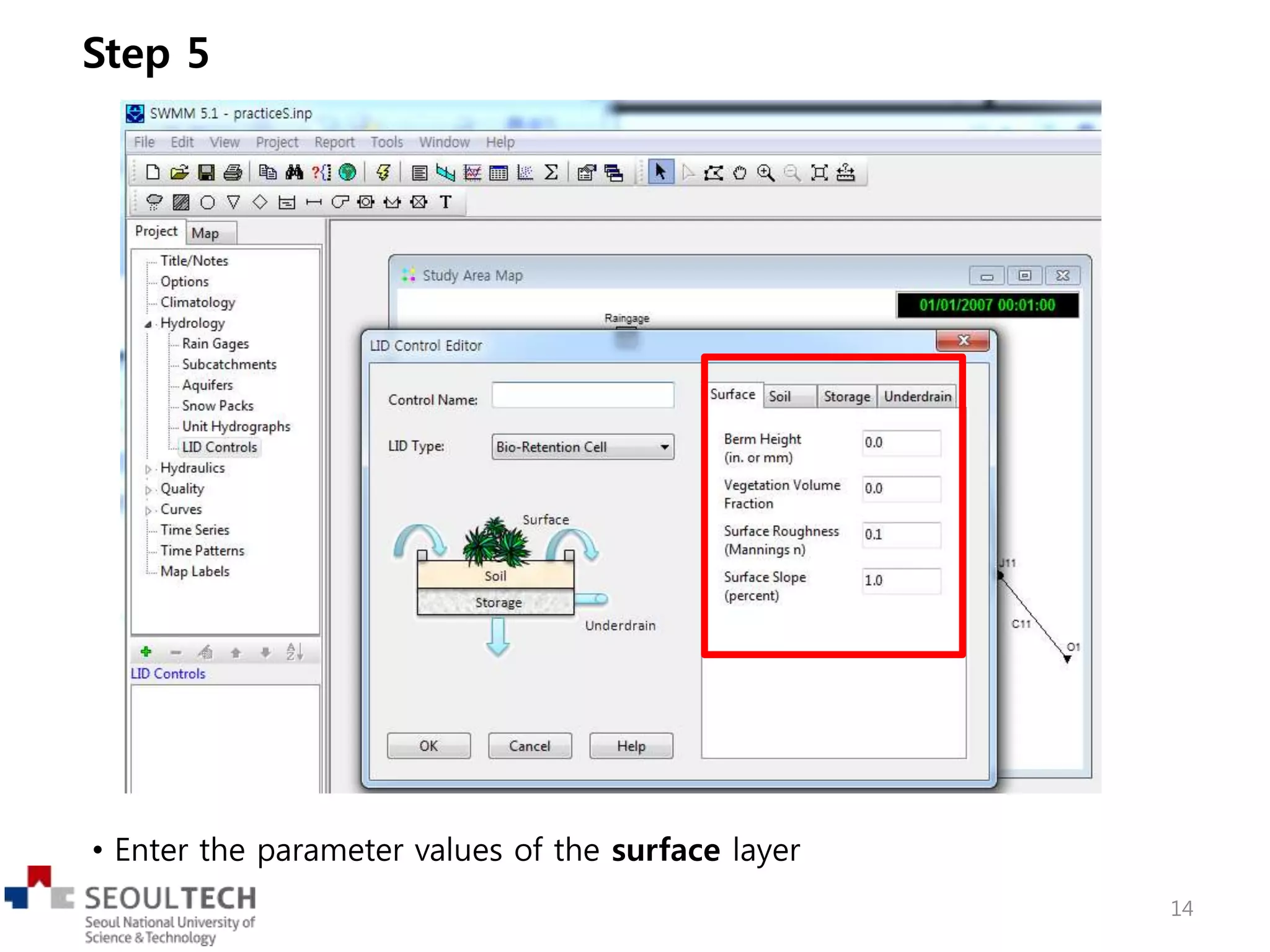
• Enter the parameter values of the surface layer
Step 5
14
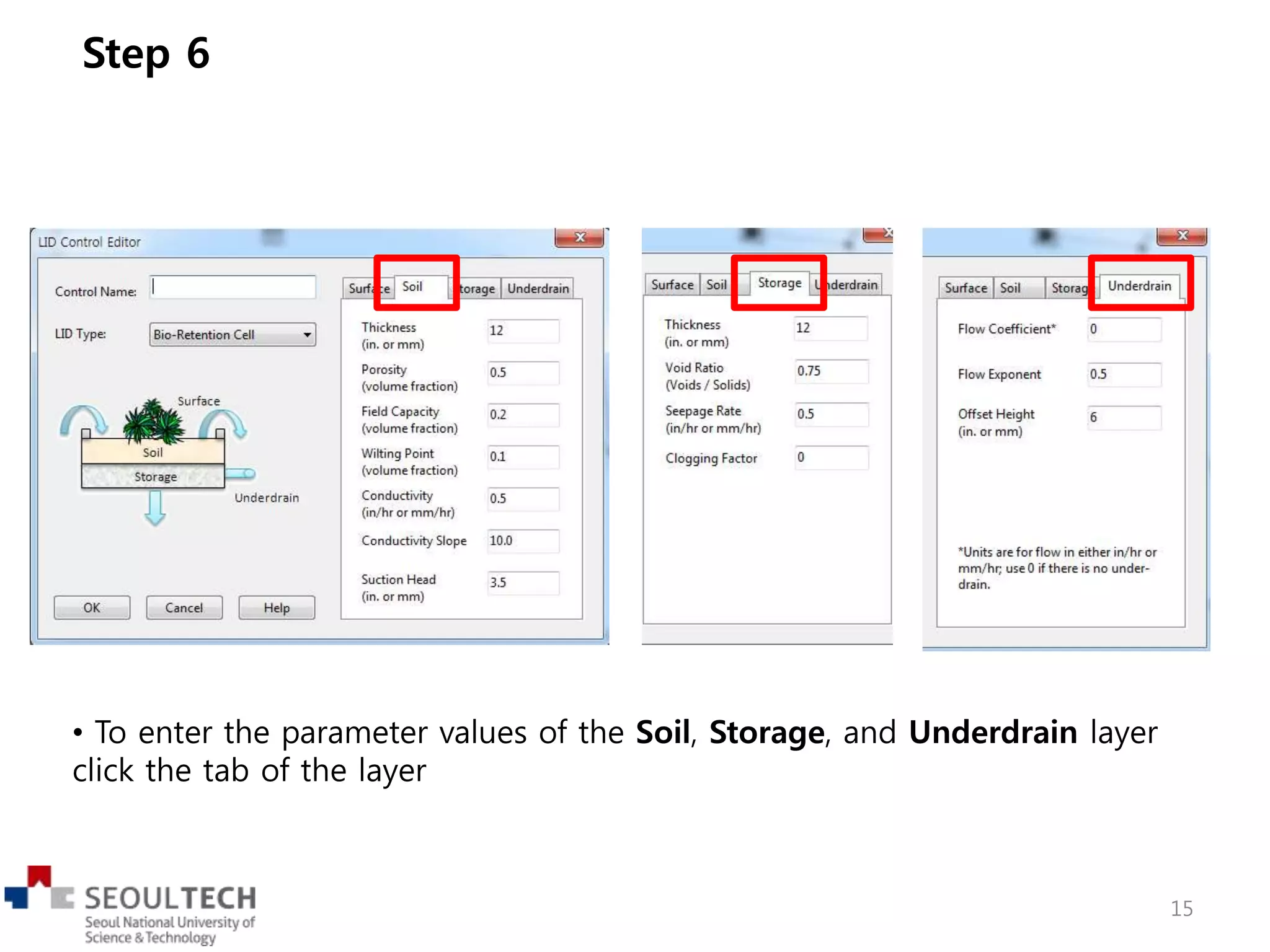
• To enter the parameter values of the Soil, Storage, and Underdrain layer
click the tab of the layer
Step 6
15
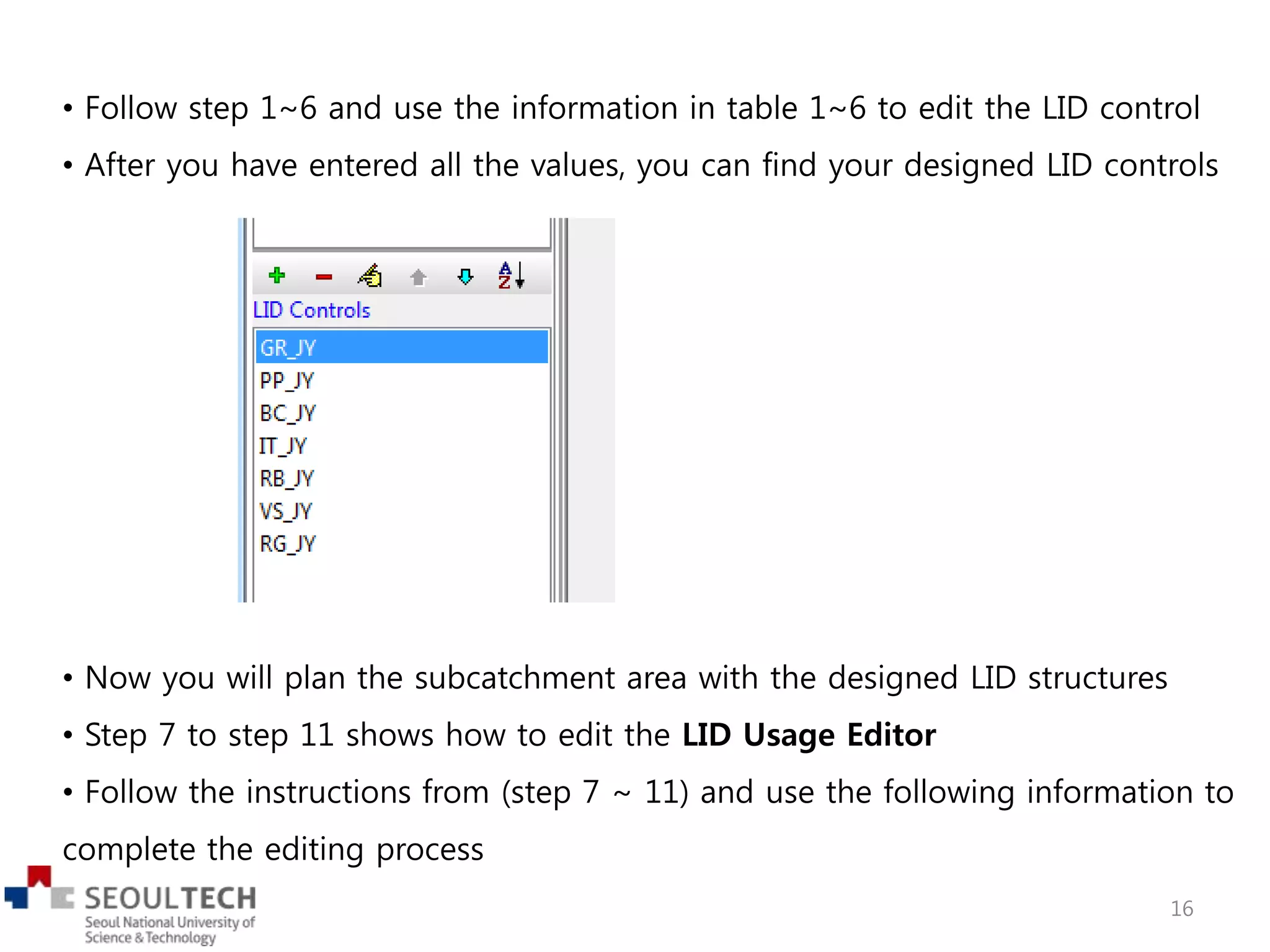
• Follow step 1~6 and use the information in table 1~6 to edit the LID control
• After you have entered all the values, you can find your designed LID controls
• Now you will plan the subcatchment area with the designed LID structures
• Step 7 to step 11 shows how to edit the LID Usage Editor
• Follow the instructions from (step 7 ~ 11) and use the following information to
complete the editing process
16
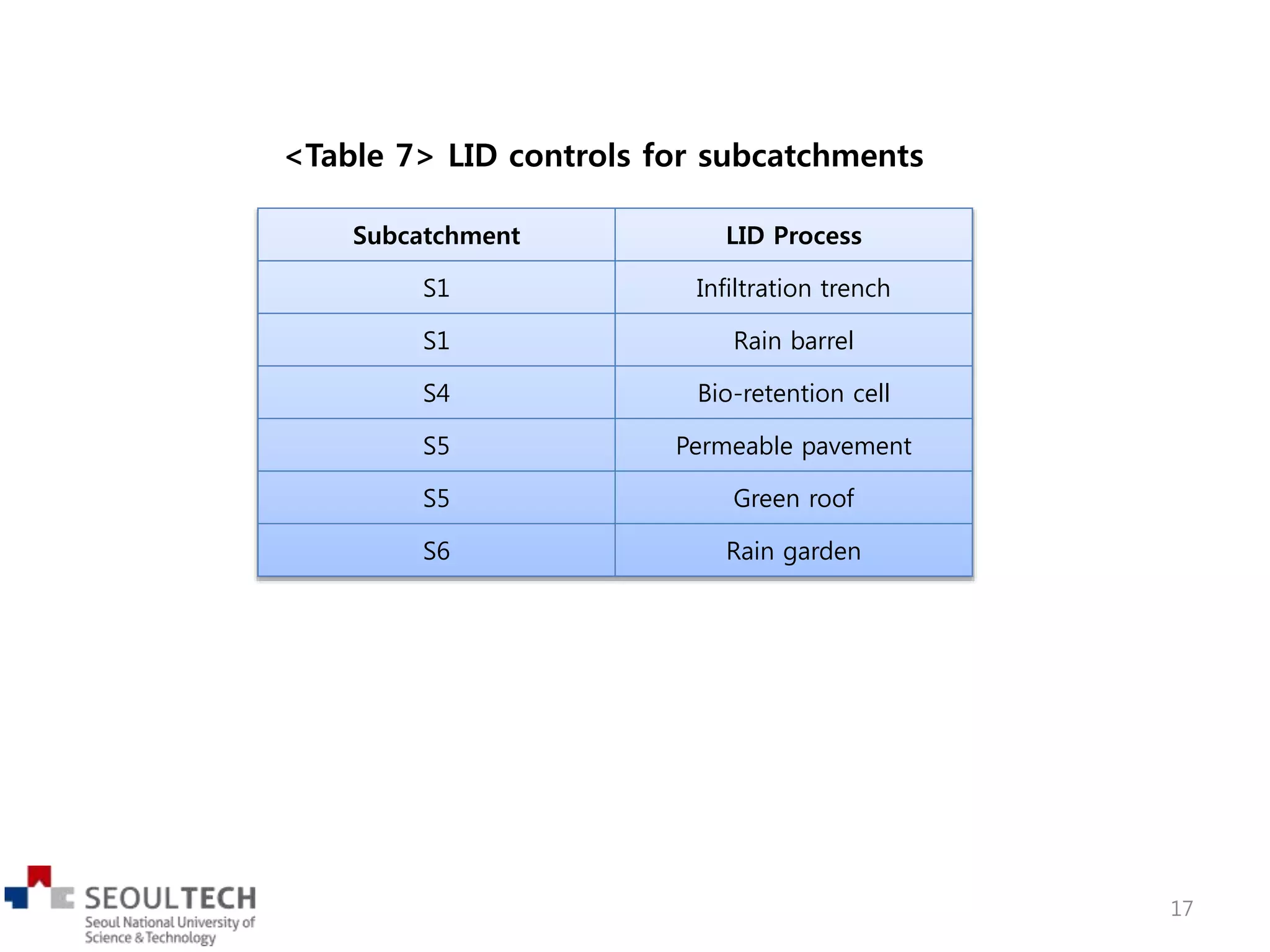
Subcatchment LID Process
S1 Infiltration trench
S1 Rain barrel
S4 Bio-retention cell
S5 Permeable pavement
S5 Green roof
S6 Rain garden
<Table 7> LID controls for subcatchments
17
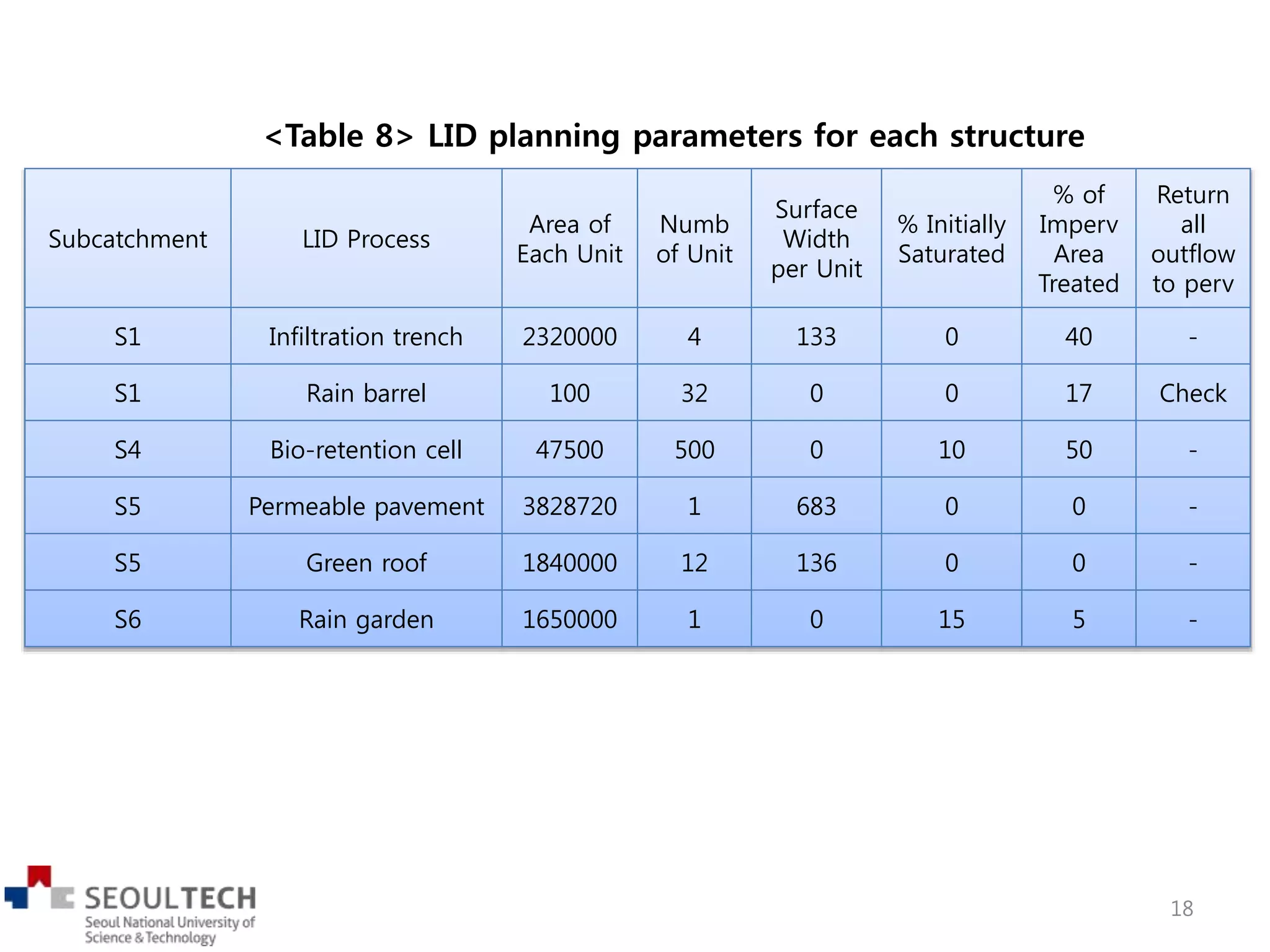
Subcatchment LID Process
Area of
Each Unit
Numb
of Unit
Surface
Width
per Unit
% Initially
Saturated
% of
Imperv
Area
Treated
Return
all
outflow
to perv
S1 Infiltration trench 2320000 4 133 0 40 -
S1 Rain barrel 100 32 0 0 17 Check
S4 Bio-retention cell 47500 500 0 10 50 -
S5 Permeable pavement 3828720 1 683 0 0 -
S5 Green roof 1840000 12 136 0 0 -
S6 Rain garden 1650000 1 0 15 5 -
<Table 8> LID planning parameters for each structure
18
• Open the editing window (properties) of one of the subcatchments
Step 7
19
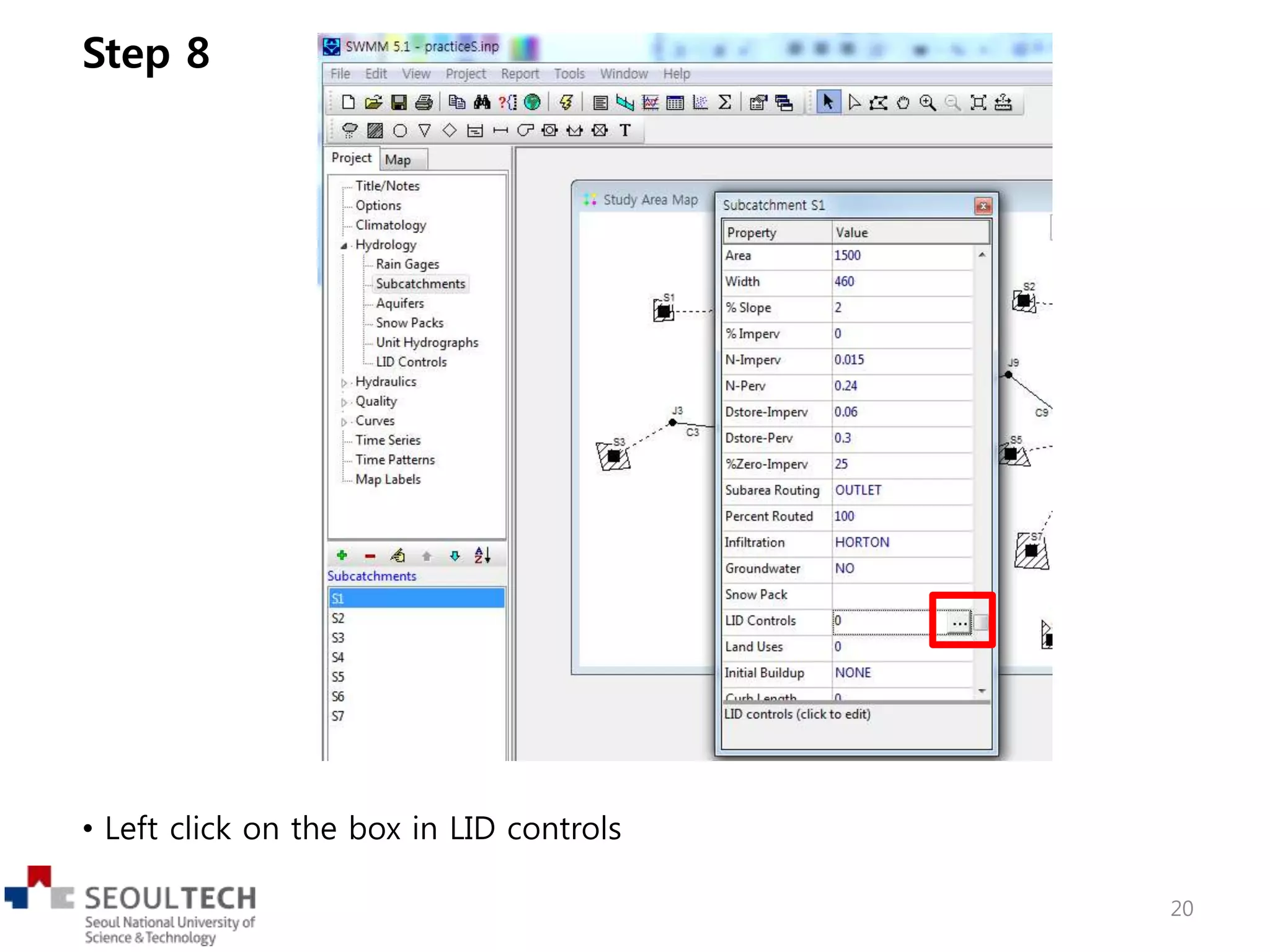
• Left click on the box in LID controls
Step 8
20
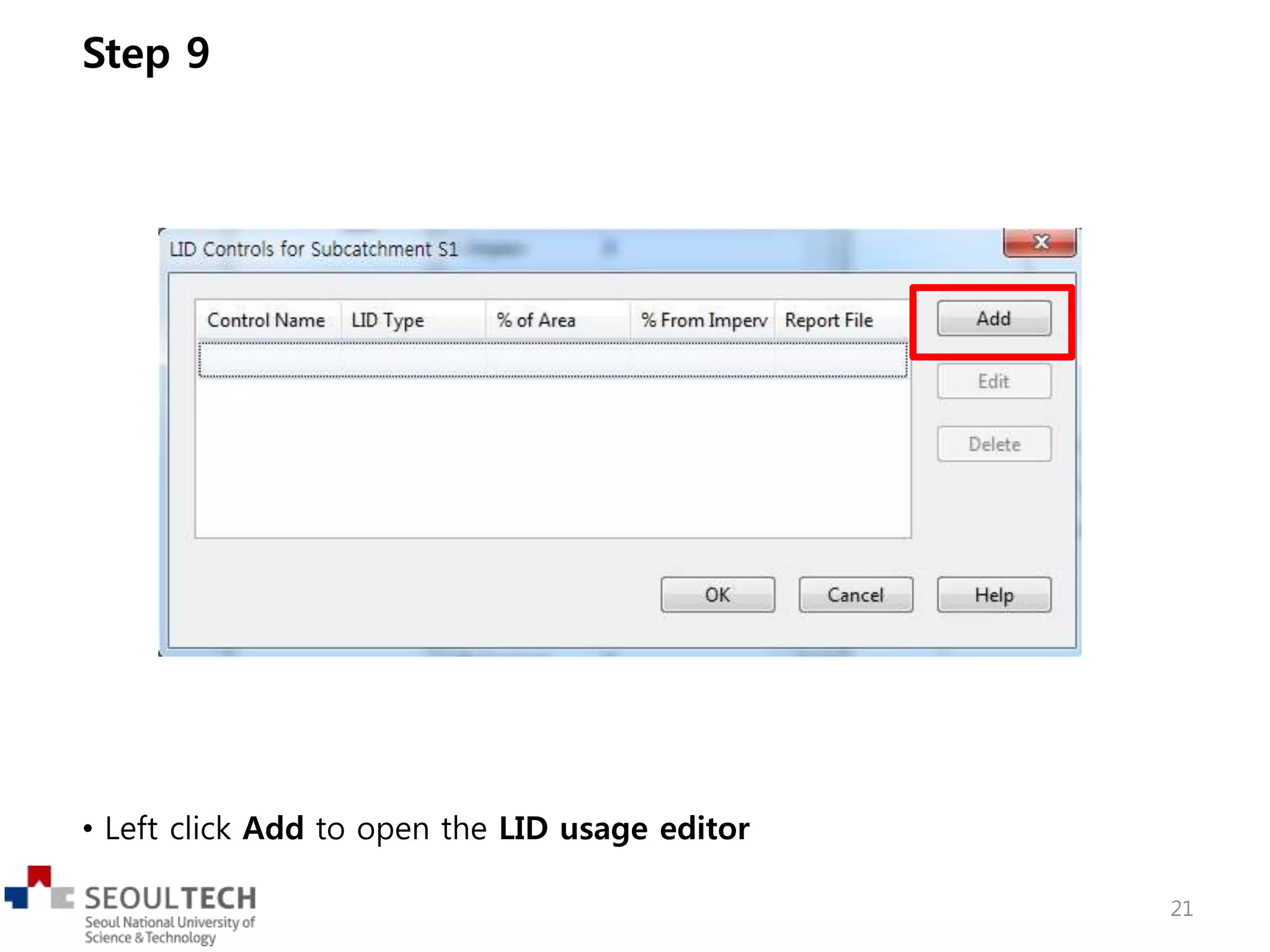
• Left click Add to open the LID usage editor
Step 9
21
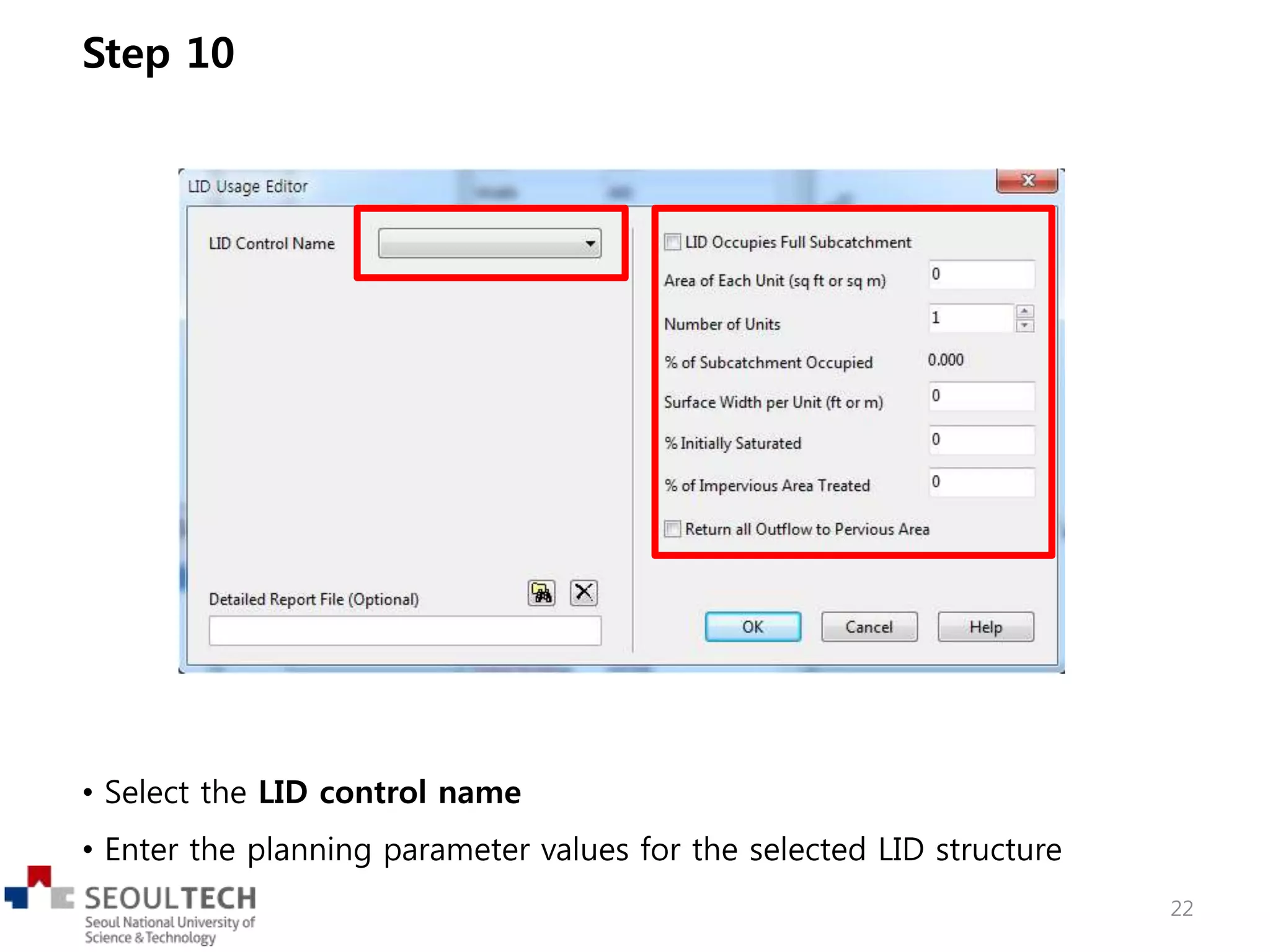
• Select the LID control name
• Enter the planning parameter values for the selected LID structure
Step 10
22
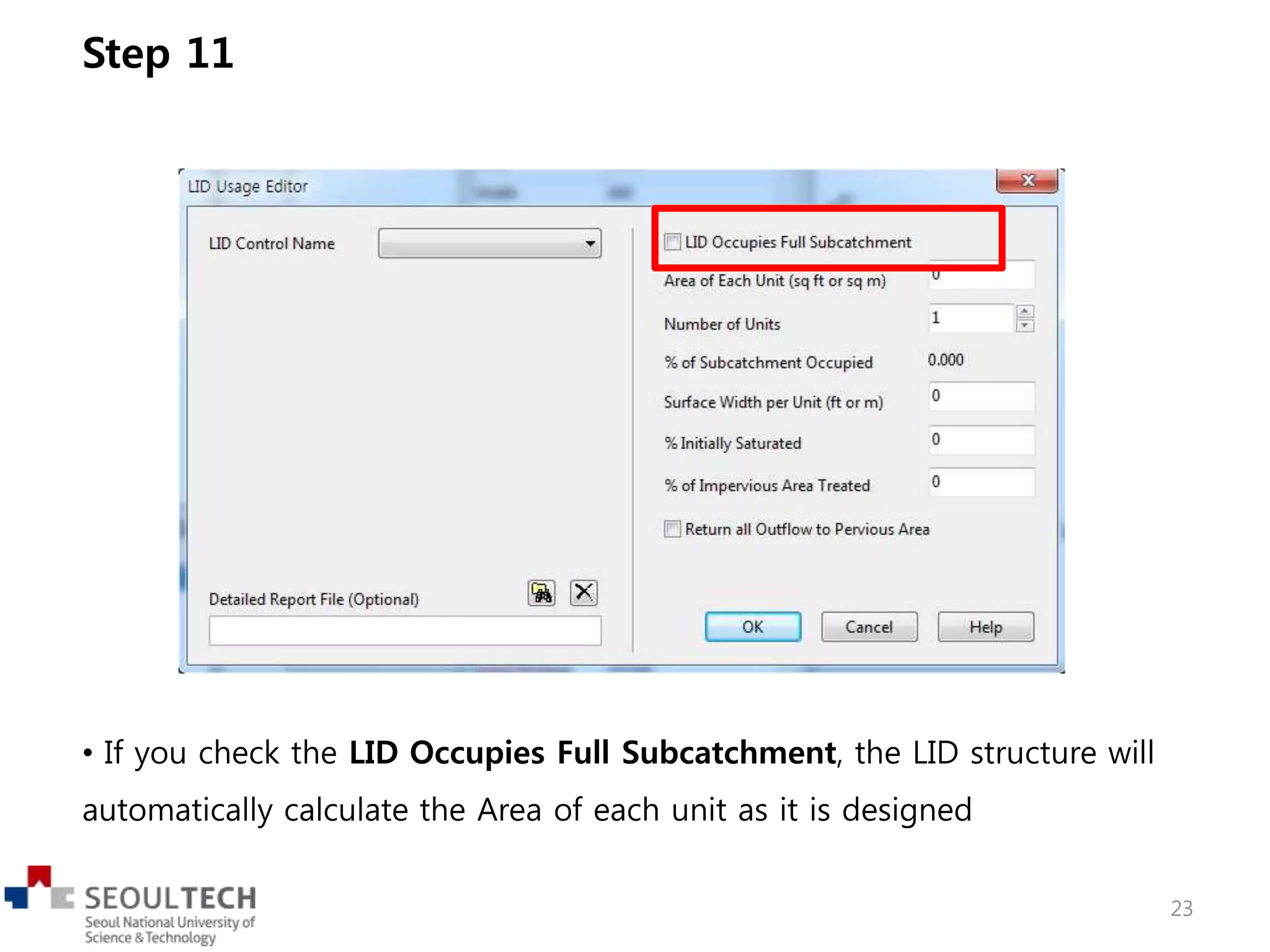
• If you check the LID Occupies Full Subcatchment, the LID structure will
automatically calculate the Area of each unit as it is designed
Step 11
23
Training SWMM LID control

Training SWMM LID control

  • 2.
    • Based onthe given input data file we will add LID (Low Impact Development) options for subcatchments 2
  • 3.
    • EPA’s SWMM5.1 has been extended to model the hydrologic performance of specific types of low impact development (LID) controls. • LID controls that you can choose include 7 green infrastructure practices 1. Permeable pavement 2. Rain gardens 3. Green roofs 4. Street planters 5. Rain barrels 6. Infiltration trenches 7. Vegetative swales (not optional in WMAM) • You will edit 6 types of LID structures by using the LID control option of EPA SWMM5.1 • Follow the instructions (step 1 to step 7) to enter all values • The following tables are information of the LID control you will edit 3
  • 4.
    Control name LIDtype Layer Parameter Value GR_your initial Green Roof Surface Berm Height 3 Vegetation Volume Fraction 0.2 Surface Roughness 0.1 Surface Slope 1.0 Soil Thickness 6 Porosity 0.5 Field Capacity 0.2 Wilting Point 0.1 Conductivity 0.5 Conductivity Slope 10 Suction Head 3.5 Drainage Mat Thickness 1 Void Fraction 0.5 Roughness 0 <Table 1> Information of green roof 4
  • 5.
    <Table 2> Informationof permeable pavement Control name LID type Layer Parameter Value PP_your initial Permeable Pavement Surface Berm Height 1 Vegetation Volume Fraction 0.1 Surface Roughness 0.02 Surface Slope 2 Pavement Thickness 8 Void Ratio 0.15 Impervious Surface Fraction 0 Permeability 100 Clogging Factor 0 Storage Thickness 12 Void Ratio 0.75 Seepage Rate 0.2 Clogging Factor 0 Underdrain Flow Coefficient 0 Flow Exponent 0.5 Offset Height 0 5
  • 6.
    <Table 3> Informationof bio-retention cell Control name LID type Layer Parameter Value BC_your initial Bio-Retention Cell Surface Berm Height 6 Vegetation Volume Fraction 0.0 Surface Roughness 0.2 Surface Slope 0 Soil Thickness 12 Porosity 0.5 Field Capacity 0.2 Wilting Point 0.1 Conductivity 0.5 Conductivity Slope 10 Suction Head 3.5 Storage Thickness 12 Void Ratio 0.5 Seepage Rate 0.5 Clogging Factor 0.2 Underdrain Flow Coefficient 0 Flow Exponent 1 Offset Height 0.5 6
  • 7.
    <Table 4> Informationof infiltration trench Control name LID type Layer Parameter Value IT_your initial Infiltration Trench Surface Berm Height 0.0 Vegetation Volume Fraction 0.0 Surface Roughness 0.24 Surface Slope 0.4 Storage Thickness 36 Void Ratio 0.4 Seepage Rate 0.2 Clogging Factor 0 Underdrain Flow Coefficient 0 Flow Exponent 0.5 Offset Height 0 7
  • 8.
    <Table 5> Informationof rain barrel Control name LID type Layer Parameter Value RB_your initial Rain Barrels Storage Berm Height 48 Underdrain Flow Coefficient 1 Flow Exponent 0.5 Offset Height 0 Drain Delay 6 8
  • 9.
    <Table 6> Informationof rain garden Control name LID type Layer Parameter Value RG_your initial Rain Garden Surface Berm Height 6 Vegetation Volume Fraction 0.0 Surface Roughness 0.0 Surface Slope 0.0 Soil Thickness 12 Porosity 0.5 Field Capacity 0.2 Wilting Point 0.1 Conductivity 0.5 Conductivity Slope 10 Suction Head 2.5 9
  • 10.
    • Select LIDControls from the project browser (under Hydrology) Step 1 10
  • 11.
    • Left clickthe add button or select Project -> Add a new LID Control from the main menu Step 2 11
  • 12.
    • Enter theControl Name for the LID structure Step 3 12
  • 13.
    • Choose thetype of the LID structure Step 4 13
  • 14.
    • Enter theparameter values of the surface layer Step 5 14
  • 15.
    • To enterthe parameter values of the Soil, Storage, and Underdrain layer click the tab of the layer Step 6 15
  • 16.
    • Follow step1~6 and use the information in table 1~6 to edit the LID control • After you have entered all the values, you can find your designed LID controls • Now you will plan the subcatchment area with the designed LID structures • Step 7 to step 11 shows how to edit the LID Usage Editor • Follow the instructions from (step 7 ~ 11) and use the following information to complete the editing process 16
  • 17.
    Subcatchment LID Process S1Infiltration trench S1 Rain barrel S4 Bio-retention cell S5 Permeable pavement S5 Green roof S6 Rain garden <Table 7> LID controls for subcatchments 17
  • 18.
    Subcatchment LID Process Areaof Each Unit Numb of Unit Surface Width per Unit % Initially Saturated % of Imperv Area Treated Return all outflow to perv S1 Infiltration trench 2320000 4 133 0 40 - S1 Rain barrel 100 32 0 0 17 Check S4 Bio-retention cell 47500 500 0 10 50 - S5 Permeable pavement 3828720 1 683 0 0 - S5 Green roof 1840000 12 136 0 0 - S6 Rain garden 1650000 1 0 15 5 - <Table 8> LID planning parameters for each structure 18
  • 19.
    • Open theediting window (properties) of one of the subcatchments Step 7 19
  • 20.
    • Left clickon the box in LID controls Step 8 20
  • 21.
    • Left clickAdd to open the LID usage editor Step 9 21
  • 22.
    • Select theLID control name • Enter the planning parameter values for the selected LID structure Step 10 22
  • 23.
    • If youcheck the LID Occupies Full Subcatchment, the LID structure will automatically calculate the Area of each unit as it is designed Step 11 23