The Social Web
Angie Simmons   U-Learn 08
Sharing on the web -
  W 2.0
   eb

“....an idea in people’s heads rather than a reality It’s actually an
                                                     .
idea that the reciprocity between the user and the provider is what’s
emphasized. In other words genuine interactivity if you like, simply
                                                   ,
because people can upload as well as download.” Stephen Fry
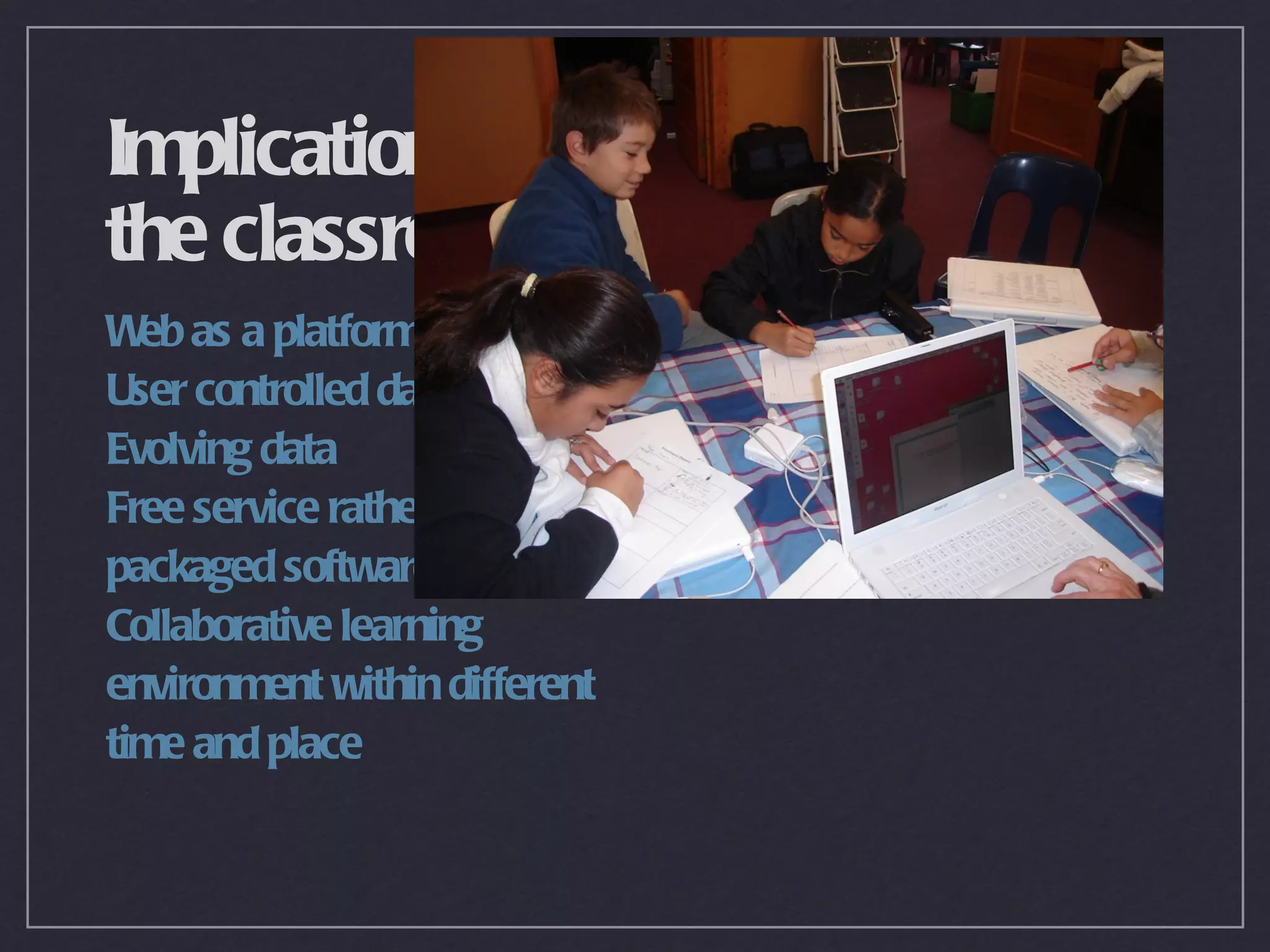
Implications for
the classroom
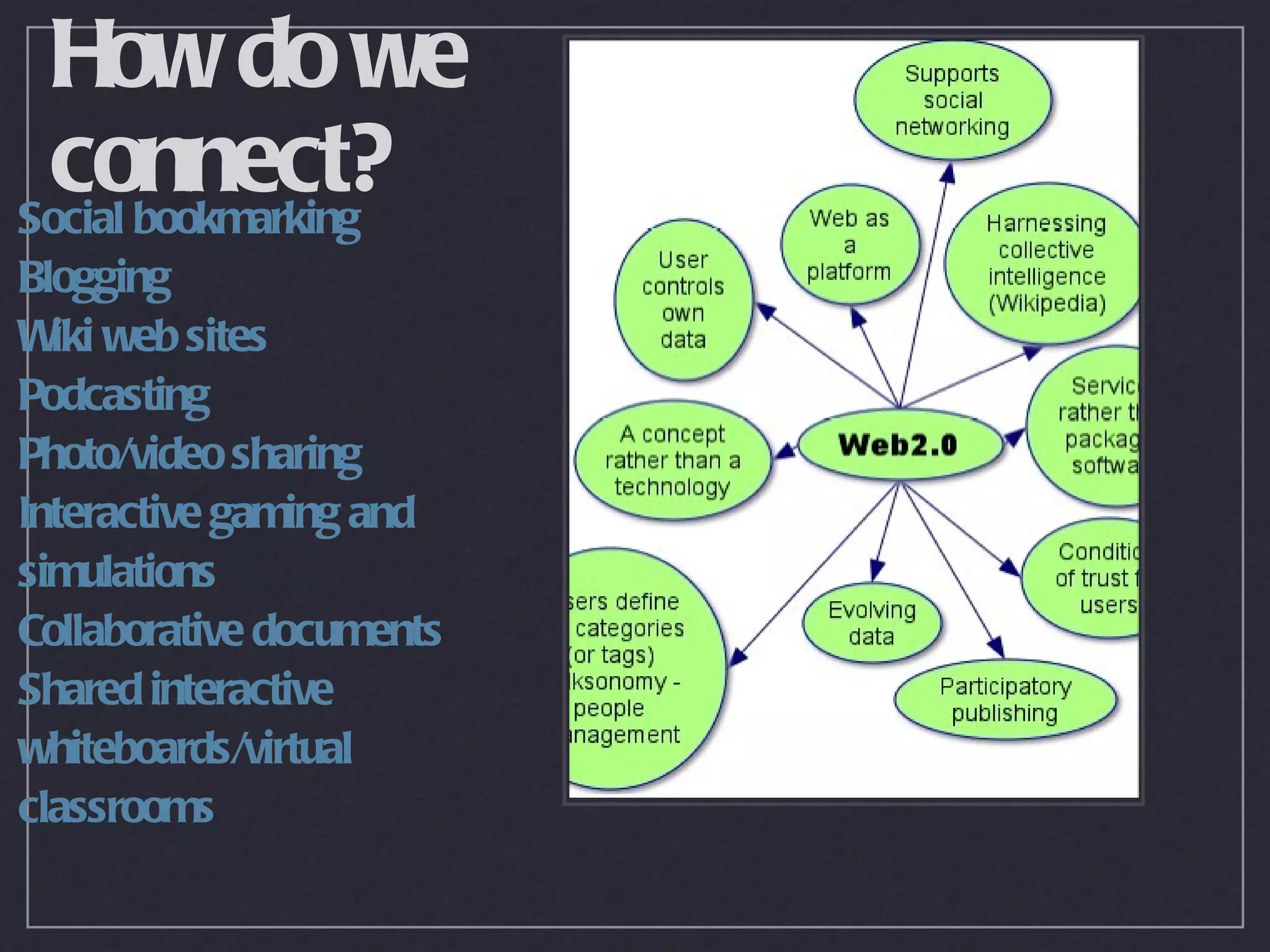
W as a platform
  eb
User controlled data
Evolving data
Free service rather than
packaged software
Collaborative learning
environment within different
time and place
How do we
 connect?
Social bookmarking
Blogging
W web sites
  iki
Podcasting
Photo/video sharing
Interactive gaming and
simulations
Collaborative documents
Shared interactive
whiteboards/virtual
classrooms
Challenges                      QuickTimeª and a
                            are GIF decompressor picture.
                                needed to see this


Connectivity
Internet safety
Netiquette
Validity
Appropriate
Links to curriculum goals
Create your own
 class wiki
T a walk through my
  ake
cluster wiki
 Create your own wiki
(Y need to make a plan
   ou
first!) Follow my instructions
on the workshop wiki
An alternative to wikispaces is
W  etpaint
Some examples
from our cluster
schools
St Josephs School
Marist School
Fun Stuff
 T making a Glogster poster as a background. In the poster you
  ry
 can insert images, videos and files around a theme with
 wonderful graphics. www.glogster.com
 Also try adding a jazzy title in Glittertext from Rock you
 See mine at My glog
 and another one
And what else.......
Set up class blogs at http://edublogs.org/ - you are the controller and
each student has a blog. Use this for writing, reflection and response.
Collaborative learning with another class distant in time and place
with Google Docs Check out all the tools you can use at
http://www.google.com/educators/tools.html
Podcasting - see examples at http://epnweb.org/ set up your own at
www.podomatic.com Use the instructions on my Cluster wiki
resource section
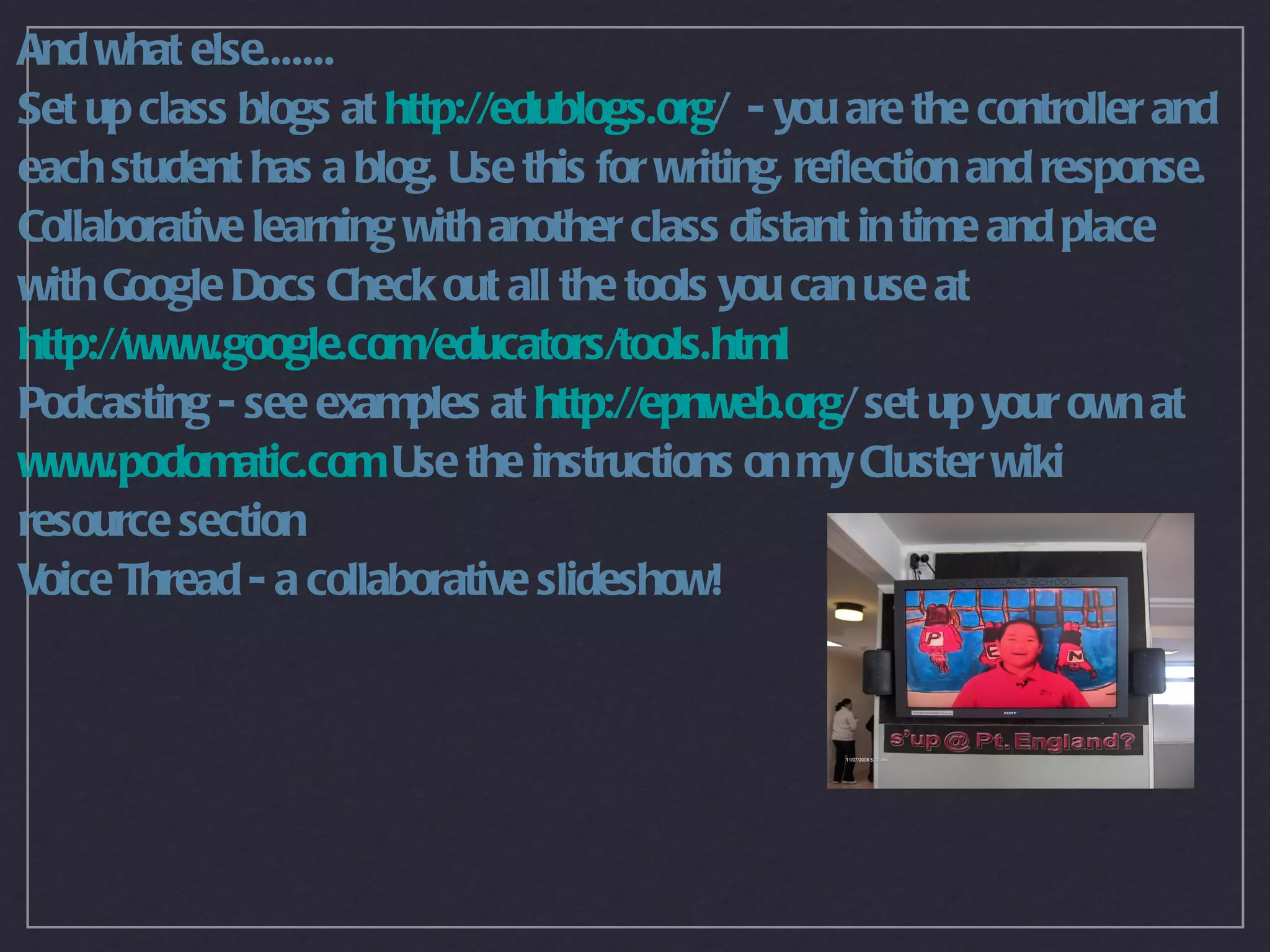
Voice Thread - a collaborative slideshow!
Google deserves a separate page
Collaborative learning with another class distant in time and place
with Google Docs
Check out all the tools you can use at
http://www.google.com/educators/tools.html
Have your own email, calendar, image storing/sharing page, blog,
RSS feed Reader, Documents (spreadsheet, W and Ppt) and web
                                                P
site all linked to your Google page. And there is so much more you
have access too, such as Google Earth. It is a one stop shop!
Check out this movie to learn more about how you can use this in
the classroom Google for Educators
Store, organise and embed
your photos as slideshows
in your blog or wiki

Y Google account gives you access to this or you could choose
 our
Flickr, Bubbleshare, Photobucket or many others. These image tools
allow you to embed code (HTML) T embedding your slideshows
                                  ry
into your wiki or blog.
This is a Bubbleshare slideshow
Video in the classroom
Make your own videos and upload
them to your own account so you can
embed them and show on your own
site.
T T
 ry eacher T ube                              QuickTimeª and a
or Teachers TV (UK)                         H.264 decompressor
                                      are needed to see this picture.

Have a look at the wonderful
educational videos on the
National Geographic channel
Check out Viddix and see how other
NZ teachers have used video in the
classroom
Interact with another class
in a different place or time
Use
www.hotchalk.com www.skrbl.com or http://thinkature.com as a virtual
Use Skype in the classroom to link with others by phone or web cam
http://www.skype.com/intl/en/
Or try mindmapping with simultaneous users at www.mindmeister.com
The Social Web

The Social Web

  • 1.
    The Social Web AngieSimmons U-Learn 08
  • 2.
    Sharing on theweb - W 2.0 eb “....an idea in people’s heads rather than a reality It’s actually an . idea that the reciprocity between the user and the provider is what’s emphasized. In other words genuine interactivity if you like, simply , because people can upload as well as download.” Stephen Fry
  • 3.
    Implications for the classroom Was a platform eb User controlled data Evolving data Free service rather than packaged software Collaborative learning environment within different time and place
  • 4.
    How do we connect? Social bookmarking Blogging W web sites iki Podcasting Photo/video sharing Interactive gaming and simulations Collaborative documents Shared interactive whiteboards/virtual classrooms
  • 5.
    Challenges QuickTimeª and a are GIF decompressor picture. needed to see this Connectivity Internet safety Netiquette Validity Appropriate Links to curriculum goals
  • 6.
    Create your own class wiki T a walk through my ake cluster wiki Create your own wiki (Y need to make a plan ou first!) Follow my instructions on the workshop wiki An alternative to wikispaces is W etpaint
  • 7.
    Some examples from ourcluster schools St Josephs School Marist School
  • 8.
    Fun Stuff Tmaking a Glogster poster as a background. In the poster you ry can insert images, videos and files around a theme with wonderful graphics. www.glogster.com Also try adding a jazzy title in Glittertext from Rock you See mine at My glog and another one
  • 9.
    And what else....... Setup class blogs at http://edublogs.org/ - you are the controller and each student has a blog. Use this for writing, reflection and response. Collaborative learning with another class distant in time and place with Google Docs Check out all the tools you can use at http://www.google.com/educators/tools.html Podcasting - see examples at http://epnweb.org/ set up your own at www.podomatic.com Use the instructions on my Cluster wiki resource section Voice Thread - a collaborative slideshow!
  • 10.
    Google deserves aseparate page Collaborative learning with another class distant in time and place with Google Docs Check out all the tools you can use at http://www.google.com/educators/tools.html Have your own email, calendar, image storing/sharing page, blog, RSS feed Reader, Documents (spreadsheet, W and Ppt) and web P site all linked to your Google page. And there is so much more you have access too, such as Google Earth. It is a one stop shop! Check out this movie to learn more about how you can use this in the classroom Google for Educators
  • 11.
    Store, organise andembed your photos as slideshows in your blog or wiki Y Google account gives you access to this or you could choose our Flickr, Bubbleshare, Photobucket or many others. These image tools allow you to embed code (HTML) T embedding your slideshows ry into your wiki or blog. This is a Bubbleshare slideshow
  • 12.
    Video in theclassroom Make your own videos and upload them to your own account so you can embed them and show on your own site. T T ry eacher T ube QuickTimeª and a or Teachers TV (UK) H.264 decompressor are needed to see this picture. Have a look at the wonderful educational videos on the National Geographic channel Check out Viddix and see how other NZ teachers have used video in the classroom
  • 13.
    Interact with anotherclass in a different place or time Use www.hotchalk.com www.skrbl.com or http://thinkature.com as a virtual Use Skype in the classroom to link with others by phone or web cam http://www.skype.com/intl/en/ Or try mindmapping with simultaneous users at www.mindmeister.com