© JYPR 2012 Page 1
Contents
MODULE ONE - Role of Technology and Media In Education...............................................................4
Introduction to Educational Technology and Media Teaching with Technology .....................................4
What are technologies for learning? ........................................................................................................4
The Role of Media in Learning ..................................................................................................................5
Educational Technology............................................................................................................................6
Benefits of Technology .............................................................................................................................7
What is learning? ......................................................................................................................................7
Learning Theories......................................................................................................................................7
Types of Learners......................................................................................................................................8
Learning Styles ..........................................................................................................................................9
Techniques to use in different learning styles........................................................................................10
Implementation of Technology...............................................................................................................11
Linking Technology to Learning Theories ...............................................................................................11
MODULE TWO - Computer Basics ....................................................................................................12
Categorization of Computers..................................................................................................................12
Hardware and Software..........................................................................................................................12
Input Devices...........................................................................................................................................13
Output Device.........................................................................................................................................15
Process and Storage Devices ..................................................................................................................16
Storage devices/resources......................................................................................................................17
What is meant by Software?...................................................................................................................21
Systems Software or operating software ...............................................................................................22
File Management Operations using Windows........................................................................................26
MODULE THREE - Word Processing...................................................................................................28
Word Processing .....................................................................................................................................28
Inserting charts in word ..........................................................................................................................33
Insert a table...........................................................................................................................................35
How to Use Text Wrapping.....................................................................................................................37
Starting Your Mail Merge Document......................................................................................................39
© JYPR 2012 Page 2
MODULE FOUR - Introduction to the Internet and issues in Media and Technology............................41
Welcome to the Internet ........................................................................................................................41
How Do I Connect to the Internet?.........................................................................................................42
Finding information using the uniform resource locator (URL)..............................................................44
Data Integrity and Security .....................................................................................................................45
VIRUSES...................................................................................................................................................46
Issues in Technology usage.....................................................................................................................48
Web Quest ..............................................................................................................................................49
MODULE FIVE - Using the ASSURE Model of lesson planning .............................................................50
The ASSURE model..................................................................................................................................50
Analyze Learners.................................................................................................................................50
State Objectives ..................................................................................................................................51
Select Media and Materials ................................................................................................................51
Utilize Media and Materials................................................................................................................51
Require Learner Performance.............................................................................................................52
Evaluate and Revise ............................................................................................................................52
MODULE SIX - Incorporating ICT’s in Lesson and Lesson planning ......................................................53
Stages of technology integration............................................................................................................53
Approaches to technology integration...................................................................................................54
Strategies for Implementation................................................................................................................55
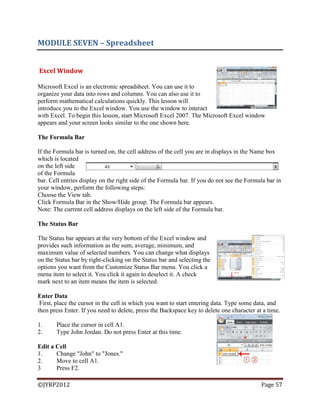
MODULE SEVEN – Spreadsheet.........................................................................................................57
Excel Window..........................................................................................................................................57
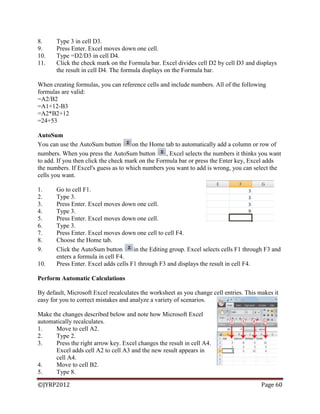
Entering Excel Formulas and Formatting Data .......................................................................................58
Perform Advanced Mathematical Calculations ......................................................................................61
Insert and Delete Columns and Rows.....................................................................................................61
Create Borders........................................................................................................................................62
Merge and Center...................................................................................................................................63
Move to a New Worksheet.....................................................................................................................63
Change Column Width............................................................................................................................64
Understanding Functions........................................................................................................................65
Create a Chart.........................................................................................................................................69
© JYPR 2012 Page 3
MODULE EIGHT – Power Point..........................................................................................................72
The PowerPoint Window........................................................................................................................72
Create New Slides ...................................................................................................................................73
Animations..............................................................................................................................................75
Add Sound and Set the Speed.................................................................................................................77
Print Your Slides......................................................................................................................................78
MODULE NINE - Window Movie Maker ............................................................................................79
HOW TO USE WINDOWS LIVE MOVIE MAKER .....................................................................79
Import photos and videos ...............................................................................................................79
Add a video.............................................................................................................................................79
Trim video...............................................................................................................................................79
Split a video ............................................................................................................................................80
Speed up or slow down a video ..............................................................................................................80
Edit the audio ..................................................................................................................................80
Add music...............................................................................................................................................80
Fade music in or out................................................................................................................................80
Change the start or end point of the music..............................................................................................81
Change the audio volume........................................................................................................................81
Add photos and videos............................................................................................................................81
Add music...............................................................................................................................................82
Choose an Auto Movie theme.................................................................................................................82
Publish your movie on the web...............................................................................................................82
Watch your movie online........................................................................................................................82
MODULE TEN - Non-projected Instructional Media and Planning for Media Usage.............................83
Role of Visuals in Instruction...................................................................................................................83
Visual Literacy .........................................................................................................................................83
Goal of visual design ...............................................................................................................................84
Elements of visual design........................................................................................................................84
RESOURCE MATERIALS.....................................................................................................................86
BIBLIOGRAPHY.................................................................................................................................87
© JYPR 2012 Page 4
MODULE ONE - Role of Technology and Media In Education
Introduction to Educational Technology and Media Teaching with Technology
Instruction is the arrangement of information and environment to facilitate learning. By
environment we mean not only where instruction takes place but also the methods, media and
technology needed to convey information and guide the learner‘s study. What is important is not
so much what technologies are present in the classroom but rather how the teacher guides
students in their use.
Technology does not imply one particular model, but a set of options.
 Technology options describe two different continua:
From teacher-centered to learner-centered
From enhancing the traditional classroom to asynchronous, location-
independent learning
 Technology means thinking differently about teaching and learning.
Technology changes how you teach and what you do in the classroom.
How might you enhance what you do in the classroom to meet differing learning
styles?
How might you promote critical thinking by your students through technology?
How might you promote active and collaborative learning with technology-based
instructional options?
How might you increase your availability to students in an effective and efficient
way?
What happens when you stop lecturing?
Technology means students taking responsibility for their own learning.
Students gain asynchronous access to course resources in order to reinforce
classroom learning and encourage deep learning.
Students are presented with information in non-traditional formats to push them to
think critically
Students gain more autonomy and options in collaborative learning activities
Students gain asynchronous access to you in a non-threatening environment
What are technologies for learning?
Technology for learning is specific teaching-learning patterns that serve reliably as templates for
achieving demonstrably effective learning. Successful instruction, regardless of the
psychological perspective – behaviourist, cognitivist, constructivist, or social-psychologist –
includes a number of common features;
Active participation and interaction
Practice
Individualized instruction
Reinforcement or feedback
© JYPR 2012 Page 5
Realistic context
Cooperative groups
The Role of Media in Learning
Media can serve many roles in learning. The instruction may be dependent on the presence of a
teacher (instructor directed) or it may not require a teacher (student-directed). The media is the
channel of communication. It refers to anything that carries information between a source and a
receiver. These include video, television, diagrams, printed materials, computers, and instructors.
These are considered instructional media when they carry messages with an instructional
purpose. The purpose of media is to facilitate communications. The teacher is no longer limited
to the confines of the classroom.
Teacher centred instruction
The most common use of media in an instructional situation is for supplemental support of the
live instructor in the classroom. Properly designed instructional media can enhance and promote
learning and support teacher-based instruction. But the effectiveness depends on the instructor.
Learner centred instruction
Media can be used effectively in formal education situations were a teacher is not available or is
working with other students. Cooperative learning is closely related to self-instruction. As
students work together in groups or in collaboration with the teacher on learning projects, they
take more responsibility for learning.
Instructional media and technologies for learning can help to provide a learning atmosphere in
which students actively participate. When instructional media and technology are used properly
and creatively in the classroom, it is the machines that are tuned on and off at will, not the
students.
Media Portfolios
A portfolio is a collection student work that illustrates growth over a period of time. Portfolios
often include such artefacts as student produced illustrated books, videos and audiovisual
presentations. Portfolios allow students to do the following;
Gather, organized and share information
Analyze relationships
Test hypotheses
Communicate the results effectively
Record a variety of performances
Reflect on their learning and activities
Emphasize their goals, outcomes and priorities
Demonstrate their creativity and personality
Portfolios could contain the following artefacts:
 Written documents
 Media presentations such as slides or photo essays
© JYPR 2012 Page 6
 Audio recording
 Video recordings
 Computer multimedia projects incorporating print, data, graphics and
moving images.
Portfolio assessments are used to measures student‘s achievements by their ability to create
tangible products exemplifying their accomplishments in terms of analysis, synthesis and
evaluation. It provides a broad picture of what students know and can do.
Electronic Portfolios are a means of organizing, designing and viewing traditional styles of
portfolios. They are a way of assessing student learning using technology.
Educational Technology
Educational Technology looks at both the TOOLS and the STRATEGIES for using these tools in
education. The technology component may be categorised as:
tool
teacher
student
Technology alone is not the determining factor in effective education. The important issue is what is
done with the technology: the instructional methods must be based on sound learning principles. There
is also evidence that the teacher is a critical variable in the effectiveness of computers (collis 1989). As
technology continues to advance, we must learn to use it wisely to motivate, instruct, and challenge
students.
Trends in Technology
Important skills for students include the ability to utilize technology to access, analyze, filter and organize
multidimensional information sources. Technology can also provide an excellent avenue for student
motivation, exploration and instruction in a multisensory, diverse world. Technology is only a tool - the
challenge rest with educators to effectively integrate it in appropriate places throughout the curriculum.
Integrating technology into education can be challenging, frustrating, time-consuming and expensive.
Technology aids the teacher/trainer or learner in performing a task.
Word Processing and Desktop Publishing
Spreadsheets
Databases
Graphics
Telecommunication
Integrated Packages
New Tools in educational Technology
Interactive whiteboard
Handhelds
Student Response
systems
Laptop carts for 1-1
computing
Digital projectors
Audio enhancements
Wireless environment
Inter Write school pads
Document cameras
©JYRP2012 Page 7
Benefits of Technology
Educators may be disappointed when they discover that measuring the effectiveness of the new,
diverse technologies in education is often more complicated than administering standardized
tests. Many of the educational multimedia programs are designed in an open-ended, exploration
format, and assessment of these programs through multiple-choice tests does not provide
adequate answers about their effectiveness. The following benefits can be presented based on
the attributes of the technologies and teachers‘ perceptions;
1) Instructional effectiveness – one benefit of multimedia instruction is an increase in
student achievement.
2) Active learning – interactive technologies provide stimulating environments that
encourage students‘ involvement in the learning process.
3) Critical Thinking – the structure and the use of technology can promote higher-level
thinking skills
4) Individualization – students are different, and they learn and develop in different
ways at varying rates
5) Motivation – motivating student is a constant challenge in education. Technologies
6) Flexibility for students with special needs – technology offers many advantages for
students with special needs
7) Cooperative learning – well-structured cooperative-learning activities can foster ―the
development of leadership abilities, a sense of teamwork, and improved self-esteem‖
8) Communication skills – can be enhanced by using technology in small groups and by
integrating telecommunications into the curriculum
9) Multisensory delivery – one benefit of multimedia instruction is that it provides
information through multiple sensory channels, allowing students with various
learning styles to assimilate and apply the knowledge.
10) Multicultural education – telecommunications make it possible to expand classroom
―walls‖ and to link students and teachers in national and international exchanges.
What is learning?
Learning is acquiring new or modifying existing knowledge, behaviours, skills, values, or
preferences and may involve synthesizing different types of information. Human learning may
occur as part of education, personal development, school or training. It may be goal-oriented and
may be aided by motivation. Learning involves;
 Acquisition of new information
 Transformation – the process of manipulating knowledge to make it fit
new tasks.
 Evaluation – checking whether the way we have manipulated information
is adequate to the task.
Learning Theories
Generally, accepted learning modalities are classified below.
Behaviourism - in this classroom, focus for learning is on feedback and reinforcement
©JYRP2012 Page 8
Behaviourist approaches:
rely on overt behaviour
are outcome based
rely on frequent reinforcement of responses
Behaviourist design is based on the presumption that human behaviour is
predictable.
Constructivism – in this classroom, focus for learning is on rich media, simulations and
immersive environments. Constructivists believe the environment needs to be highly adaptive to
the students. A constructivist designer might provide all information necessary for learning but
will allow the students to learn the material and information in a manner that is most comfortable
to the students
Constructivist approaches:
teacher provides resources and guidance
students decide how, when, where
Cognitivism – Cognitivist believe that learning is a process which is dictated by the student‘s
previous experiences, and the method of presenting information to the student. They focus
mainly on the way information is represented in memory, schemata, and mental modes.
Cognitive approaches:
rely on the student‘s schemas, attitudes and experiences
believe the new information has to fit into what currently exists
Social-psychological – These facilitators look at the effects of the social organization of the
classroom on learning.
Social-psychological approaches:
group structure of the classroom
Authority structure
Reward structure
No single theory of learning is adequate to account for all aspects of formal or informal learning.
A theory of learning does not automatically prescribe the best way to teach.
What we learn through formal instruction is only a very small subset of what we know.
Types of Learners
Active/Reflective -Active learners tend to retain and understand information best by doing
something active with it—discussing it, applying it, or explaining it to others.
Sensing -Sensing learners tend to like learning facts, solving problems by well-established
methods and dislike complications and surprises, patient with details and good at memorizing
facts and doing hands-on work, more practical and careful than instructors.
Intuitive learners often prefer discovering possibilities and relationships. Instructors like
innovation and dislike repetition. Instructors may be better at grasping new concepts and are
often more comfortable than sensors with abstractions and mathematical formulations.
Instructors tend to work faster and to be more innovative than sensors.
©JYRP2012 Page 9
Visual/Verbal Visual learners remember best what they see. Verbal learners get more out of
words. Everybody learns more when information is presented both visually and verbally.
Sequential/Global learners tend to gain understanding in linear steps, following logical paths to
find solutions. Global learners tend to learn in large chunks, absorbing material almost randomly
without seeing connections and then suddenly ―getting it.‖ Global learners may be able to solve
complex problems quickly or put things together in novel ways once they have grasped the big
picture, but they may have difficulty explaining how they did it.
Learning Styles
Learning styles refers to a cluster of psychological traits that determine how an individual
perceives, interacts with, and responds emotionally to learning environments. It is clear that
certain traits dramatically affect our ability to learn effectively from different methods and
media. There are many learning styles however we will discuss the major three:
Visual/Spatial: Learning through seeing.
These learners need to see the teacher's body language and facial expression to fully
understand the content of a lesson.
They tend to prefer sitting at the front of the classroom to avoid visual obstructions (e.g.
people's heads).
They may think in pictures and learn best from visual displays including: diagrams,
illustrated text books, overhead transparencies, videos, flipcharts and hand-outs.
During a lecture or classroom discussion, visual learners often prefer to take detailed
notes to absorb the information.
Verbal/Linguistic: Learning through hearing
They learn best through verbal lectures, discussions, talking things through and listening
to what others have to say.
Auditory learners interpret the underlying meanings of speech through listening to tone of
voice, pitch, speed and other nuances.
Written information may have little meaning until it is heard.
These learners often benefit from reading text aloud and using a tape recorder.
Body/Kinesthetic: Learning through moving, doing, and touching
Tactile/Kinesthetic persons learn best through a hands-on approach, actively exploring
the physical world around them.
They may find it hard to sit still for long periods and may become distracted by their need
for activity and exploration.
©JYRP2012 Page 10
Techniques to use in different learning styles
The following techniques can be used to help students develop, explore, and enhance their
learning strengths. The more a student can learn through a combination of all the modalities—
visual, auditory, and kinesthetic—the more permanent the learning will be.
Encourage Visual Learners to:
colour code to organize notes and possessions.
use colour to highlight important points in text.
take notes.
illustrate ideas as a picture before writing them down.
ask for written directions.
use flow charts and diagrams for note taking.
visualize spelling of words or facts to be memorized.
study in a quiet place away from verbal disturbances.
Encourage Verbal Learners to:
read aloud.
recite information to learn.
use tunes or rhymes as mnemonic devices.
read aloud and tape test questions or directions.
dictate to someone else and have that person write down the thoughts. Use verbal
analogies and storytelling to demonstrate their point.
Encourage Kinesthetic Learners to:
make models, do lab work, or role play to physically experience learning. Trace
letters and words with a pen or the index finger when reading and studying. Skim
through reading material before reading it in detail.
annotate text and write questions while reading.
translate information into diagrams or other visual study tools.
recite a list of items by counting on fingers.
memorize or drill while walking or dancing.
listen to music while studying.
Multiple Intelligence
 Linguistic intelligence ("word smart")
 Logical-mathematical intelligence ("number/reasoning smart")
 Spatial intelligence ("picture smart")
 Bodily-Kinesthetic intelligence ("body smart")
 Musical intelligence ("music smart")
 Interpersonal intelligence ("people smart")
 Intrapersonal intelligence ("self smart")
 Naturalist intelligence ("nature smart‖)
©JYRP2012 Page 11
Implementation of Technology
From Teaching to Learning – Creative active classrooms
Integrating technology into education is not an easy task; educators must make a constant effort
to keep abreast of the latest developments. Some suggestions for implementing technology are
Determine your instructional goals and objectives, and then locate the
technology to support them.
Seek support from administrators
Form partnerships with local businesses, and students‘ parents
Acquire technology in increments
Visit other schools and ask other educators for advice
Provide in-service training sessions
Provide training for teachers on the software and hardware that is available at
their schools
Provide follow-up support and coaching
Involve the students, and capitalize on their expertise
Investigate public domain and shareware sources
Investigate technical support and documentation
Subscribe to magazine and journals
Balance ―high tech‖ with ―high touch‖
Be flexible and ready for change.
Linking Technology to Learning Theories
What is important is not so much, what technologies are present in the classroom but rather how
the teacher guides students in their use. Teachers will always use some directed instruction as
the most efficient means of teaching students certain required skills: teachers will always need
motivating, cooperative learning activities to make sure that students want to learn and that they
can transfer what they learn to problems they encounter.
Technology-oriented teachers must learn to combine directed instruction and constructivist
approaches. To implement each of these strategies, teachers will select technology resources
and integration methods that are best suited to carrying them out.
Technology learning environment must be organized to permit student engagement with a wide
variety of material, tools and technical processes and to accommodate the research, planning and
the fabrication components of design. This environment must be
Be flexible
Support multiple groupings
Be multipurpose
Provide appropriate resources
©JYRP2012 Page 12
MODULE TWO - Computer Basics
Computers form an integral part of our lives. Today, most persons find it almost impossible to
live without some form of technology. The computer has become, for most, an everyday tool. It
is important as educators, that we are able to comfortably manipulate the computer and be able to
use its tools to facilitate learning and improve the teaching learning environment.
Categorization of Computers
Computers are categorized based upon their capacity to produce work per unit of time. Four
main types of computers are;
Microcomputers These have the least computer capacity are the smallest (physically).
Personal computers or PC‘s are the most common type in this category.
These can also include Pocket PC‘s, Laptops, Palmtops, Notebooks,
Desktops or Tower PC‘s. The size of the PC does not translate to its size
as some notebooks are more powerful than desktop PC‘s.
Workstations These look like PC‘s but have processing capabilities similar to the
mainframes. These are generally used for applications which require a lot
of computer processing, e.g., Computer Aided Design (CAD) (CAD are
applications used by engineers and architects to create very technical
drawings). As PC‘s become more powerful the gap between them and
workstations are slowly narrowing.
Mainframes These were the first types of computers to be used. They are physically
much larger than PC‘s and Workstations and have much greater
processing capabilities.
Supercomputers These are used by organizations that have high volumes of input and
output e.g. large banks and insurance companies.
Data – is unprocessed information that come in the form of symbols, letter, etc
Information – data that has been processed and translated into a form that allows one to
understand it
Hardware and Software
In order to process data to produce information a computer needs both hardware and software.
Hardware is all the parts of a computer system you can see and touch. It consists of all the
devices that make up the computer. These devices are also called peripherals.
Software is a set of instructions that a computer needs to carry out its tasks.
©JYRP2012 Page 13
The first thing you need to learn is how to start up your computer and shut down your system.
But before you can do that you need to know the basic parts of your system:
Visual Display Unit (Monitor) output device
Keyboard input device
CPU – Central Processing Unit processing device
Mouse Input device
Speakers output device
Printer output device
The basic computer components allow input and output of information.
Why do we need computers?
1. Speed in completing tasks
2. Accuracy of production
3. Storage ability
4. Cost effective in that it needs little maintenance but can work continuously
Input Devices
You use input devices to provide information to a computer, such as typing a letter or giving
instructions to a computer to perform a task. Some examples of input devices are described in the
following list.
Mouse: A device that you use to interact with
items displayed on the computer screen. A
standard mouse has a left and a right button.
Trackball
This is an alternative to the traditional mouse
and is favoured by graphic designers. It gives a
much finer control over the movement of items
on the screen.
Other screen pointing devices are pointing
stick, touch pad, joystick, light pen, digitizing
table.
Keyboard: A set of keys that resembles a
typewriter keyboard. You use the keyboard to
type text, such as letters or numbers into the
computer.
©JYRP2012 Page 14
Scanner: A device that is similar to a
photocopy machine. You can use this device to
transfer an exact copy of a photograph or
document into a computer. A scanner reads the
page and translates it into a digital format,
which a computer can read. For example, you
can scan photographs of your family using a
scanner.
Barcode Readers: When used in a business
barcodes provide a lot of information. Made
up of columns of thick and thin lines, at the
bottom of which a string of numbers is printed.
Multimedia devices
This is the combination of sound and images with text and graphics. To capture
sound and image data, special input devices are required.
Microphone: Voice input, for instance, can be recorded
via a microphone. A device that you can use to talk to
people in different parts of the world. You can record
sound into the computer by using a microphone. You
can also use a microphone to record your speech and let
the computer convert it into text.
Webcam: A device that is similar to a
video camera. It allows you to capture
and send the live pictures to the other
user. For example, a webcam allows your
friends and family to see you when
communicating with them.
Digital cameras record photographs
in the form of digital data that can be
stored on a computer. These are often
used to record photographs on identity
cards.
©JYRP2012 Page 15
Let‘s continue our discussion by looking at the second type of computer hardware.
Output Device
Output devices in the computer system are the equipment whereby the result of a computer
operation can be viewed, heard or printed. You use output devices to get feedback from a
computer after it performs a task. Some examples of output devices are described in the
following list.
Printers
One of the things that you need to make sure of is that you get the right printer. How do
you know what printer to get?
There are various types of printers available and these vary considerably in the quality of their
production.
Monitor: A device that is similar to a television. It is used
to display information, such as text and graphics, on the
computer.
Printer: A device that you use to transfer text and images
from a computer to a paper or to another medium, such as
a transparency film. You can use a printer to create a paper
copy of whatever you see on your monitor.
Plotter
A plotter is an output device similar to a printer, but
normally allows you to print larger images. It is used for
printing house plans and maps.
Multimedia Output Device
The most common multimedia output is sound, including
music. The audio output device on a computer is a
speaker. Headphones can also be used to receive audio
output.
©JYRP2012 Page 16
Impact Printer
Dot matrix printers are an example of impact printers. They
form characters from patterns of dots. They are inexpensive, but
the output can be difficult to read.
Non-impact Printers
Inkjet printers work by shooting a jet of ink in the shape of the
character required, they provide god, low-cost colour printing.
Laser printers – a laser beam is directed at an electro-statically
charged surface, creating a template of the page to be printed. This
template is then used to transfer the ink to the page. Toner sticks to
the light images and is transferred to paper.
Process and Storage Devices
The system unit is the name given to the main computer box that houses the various elements as
illustrated in the picture below.
How do we get the different computer
parts to work together so that your
computer can work? Let‘s start of our
discussion with the process devices.
Motherboard
Inside the systems unit is a circuit board with tiny electronic circuits and
other components which is called a mother board. It is sometimes called a
system board. The motherboard connects input (keyboard, mouse and
scanner), output (monitor, speakers, and printer), processing (CPU, RAM
and ROM) and storage (hard drive, CD-ROM/DVD-ROM and flash drives)
components together and tells the CPU how to run (Lubbe and Benson, 2010:18). Other
components on the motherboard include the video card, the sound card, and the circuits that
allow the computer to communicate with devices like the printer.
Motherboard
CPU
Drivers
Extension cards
Connection ports
©JYRP2012 Page 17
Expansion Cards
Yes you can play music and video files on your computer. But how is it possible?
Inside the computer system box you also find an expansion card which is another circuit board
that can be attached to the motherboard to add features such as video display and audio
capability to your computer. Expansion cards are also called expansion boards that enable your
computer to use the multimedia devices. An expansion card either improves the performance of
your computer or enhances its features. Examples of expansion cards that can be added include:
Video Card: It is connected to the computer monitor and is used to display information on the
monitor.
Network Interface Card (NIC): Remember we‘ve explained computer networks in Unit 1. The
NIC allows the computer to be connected to other computers so that information can be
exchanged between them.
Sound Card: It converts audio signals from a microphone, audio tape, or some other source to
digital signals, which can be stored as a computer audio file. Sound cards also convert computer
audio files to electrical signals, which you can play through a speaker or a headphone. The
microphone and the speakers or the headphones connect to the sound card.
Central Processing Unit and Memory (CPU)
The CPU is the most important element of a computer system.
Processing takes place in the CPU. This is the brain of the computer.
It takes raw data and turns it into information.
On personal computers and small workstations, the CPU is housed in
a single chip called a microprocessor.
The faster the CPU, the faster the computer can process data. The speed at which the CPU
operates is measured in megahertz (MHz) and Gigahertz (GHz).
The CPU is made up of:
a) Control Unit – which coordinates and controls all hardware operations and
the peripheral units of the computer systems
b) Arithmetic Logic Unit (ALU) which carries out the arithmetic operations
(addition, multiplication, division, subtraction and exponentials) and logical
operations
Storage devices/resources
All computers need to store and retrieve data for processing. The CPU is constantly using
memory from the time that it is switched on until the time you shut it down. There are two types
of storage devices as illustrated in the flow chart below.
©JYRP2012 Page 18
Primary Storage is also called main memory or immediate access store (IMAS). This is
necessary since the processing unit can only act on data and instructions that are held in primary
storage. Primary storage consists of two types of memory chips:
Random Access Memory (RAM)
Read Only Memory (ROM)
So we can compare the features of the two memory types as below:
Storage Devices
Primary Storage
Secondary
Storage
Random Access Memory (RAM)
RAM is the main working memory. RAM is only filled after a computer has been turned
on and is given something to do. It holds data and instructions
temporarily while processing takes place. RAM is volatile –
this means that if the power is turned off or the computer
reboots (start up again) all the information held in RAM will
be lost. RAM is measured in MB (megabytes) and most entry
level computers will have 1024 MB RAM but you also find
some computers having up to 3 GB RAM. RAM chips are
expensive and the price of a computer is determined by the amount of RAM space in the
chip.
Read Only Memory (ROM)
ROM memory holds data and instructions necessary for
starting up the computer when it is switched on. These
instructions are hard-wired at the time of manufacture.
ROM is permanent and cannot be deleted but can only be
accessed or read, hence the name Read Only Memory.
Data stored in ROM is non-volatile – meaning that
memory will not be lost when power is turned off.
©JYRP2012 Page 19
Fig. 2.1 Comparing RAM and ROM
RAM ROM
Needs power Does not need power
Data can be changed Data can‘t be changed
Data will be lost if power is turned off Data will not be lost if power is turned off
Volatile Non-volatile
Stores data currently being processed Fixed instructions is stored
[Source: Lubbe and Benson, 2010:20)
Units of Storage
The memory of all digital computers is two-state (bi-stable) devices. Computers operate using a
binary number system – and therefore use binary digits (bits). Bits have only two values by 0
and 1. A bit is the smallest unit of storage in a computer.
The amount of data and instructions that can be stored in the memory of a computer or secondary
storage is measured in bytes.
A byte is made up of a combination of eight (8) bits and has the storage power to represent one
character (a character is a letter or symbol or punctuation mark or blank space).
Units of Storage
1 byte
1 kilobyte (K)
1 megabyte (MB)
1 gigabyte (GB)
1 terabyte (TB)
8 bits
1024 bytes
1000 kilobytes (approx. 1 million bytes)
1000 megabytes (approx. 1 billion bytes)
1000 gigabytes (approx. 1 trillion bytes)
Secondary Storage devices
PCs use a simple method of designating disk drives to store data. These drives are assigned
letters of the alphabet.
A Drive Floppy drive. Still found in older computers
C Drive Internal hard drive (hard disk drive) situated inside the system case.
D Drive Usually the CD-ROM/DVD-ROM drive
E Drive Usually use for any other disks, such as CD-writer, USB flash drive, external
hard drive, etc.
[Source: Lubbe and Benson, 2010:23]
Data and information stored on a permanent basis for later use. Secondary storage is cheaper to
purchase and access. Hard disks, Zip drives, Optical disks (CD‘s and DVD‘s) are all examples
of secondary storage.
©JYRP2012 Page 20
Internal Hard Disks are rigid inflexible disks made of highly polished
metal. Data is stored magnetically. They can contain a single disk or
two or disks stacked on a single spindle. They come in a variety of
sizes but all have a very high storage capacity compared to floppy
disks. An average computer has a hard disk of about 80 - 250GB. It
provides direct access to information.
External hard disks/drive - same features as the internal
hard disks, but are external to the system unit and therefore
can be carried around. USB port is used to connect the
external hard drive to the PC (Lubbe and Benson, 2010:23).
Optical Disks are disks that are read by laser beams of lights.
The three main types are CD-R, CD-RW and DVD.
CD-R or CD-ROM (Compact Disk – Read Only Memory) are
so called because you can only red the information on the CD-ROM.
They are particularly useful for storing multi-media (texts, graphics,
sound and videos), application software packages (encyclopaedias,
training programs etc).
CD-R or Compact Disk Recordable allows you to write
information onto the disk only once using a CD recordable burner.
CD-RW or Compact Disk Rewriteable, allows you to write and
erase information from the disk many times. They are used to store large
volumes of information such as texts, graphics, sound and video.
DVD disks or Digital Versatile Disks are specifically created to store
movies. A typical DVD disk can hold between 4.7GB and 17GB of
information.
USB flash drive – consists of a flash memory data storage device
integrated with a USB (Universal Serial Bus) interface. USB flash drives
are typically removable and rewritable. They come in a variety of sizes to
include 128MB, 256MB, 512MB, 1G, 2G, 8G etc.
©JYRP2012 Page 21
Now that you have a basic understanding of the hardware components of a computer take some
time and do the following activity.
What is meant by Software?
A set of programmes associated with the operation of a computer, is called software. The
electronic circuits used in building the computer that executes the software is known as the
hardware of the computer. Software refers to the intangibles of the computer system. Intangible
means you cannot see or touch them.
Here is a simpler definition:
Software is a term used to describe all programmes that are installed in a
particular computer. This means all the programs that can run on a
computer.
When you buy a computer, it usually has some software preinstalled on its hard disk. This
enables you to use the computer the first time you turn it on. We should not neglect to mention
that some software is what is called proprietary software and some are public domain software.
Proprietary versus Open source software
Proprietary software is computer software licensed under exclusive legal right of the copyright
holder. The licensee is given the right to use the software under certain conditions, but restricted
from other uses, such as modification, further distribution, or reverse engineering. The
distributors of this type of software limit the number of computers on which software can be
used, and prohibit the user from installing the software on additional computers. Restricted use is
sometimes enforced through a technical measure, such as product activation, a product key or
serial number, a hardware key, or copy protection.
Public domain software is not subject to copyright and can be used for any purpose. This
includes free software, licensed by the owner under more permissive terms and open source
software.
Memory Card
Use mainly with digital cameras, cellular phones and music players (MP3,
MP4 and iPods). They offer high-re-record ability and fast and power-free
storage. Data can be access by linking the card to a computer using a USB
cable or a memory card reader.
©JYRP2012 Page 22
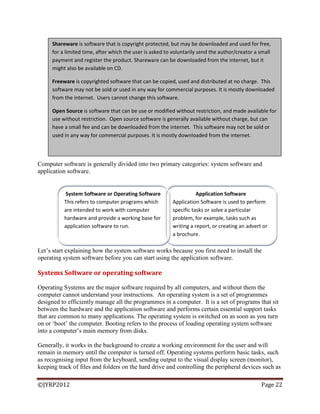
Computer software is generally divided into two primary categories: system software and
application software.
Let‘s start explaining how the system software works because you first need to install the
operating system software before you can start using the application software.
Systems Software or operating software
Operating Systems are the major software required by all computers, and without them the
computer cannot understand your instructions. An operating system is a set of programmes
designed to efficiently manage all the programmes in a computer. It is a set of programs that sit
between the hardware and the application software and performs certain essential support tasks
that are common to many applications. The operating system is switched on as soon as you turn
on or ‗boot‘ the computer. Booting refers to the process of loading operating system software
into a computer‘s main memory from disks.
Generally, it works in the background to create a working environment for the user and will
remain in memory until the computer is turned off. Operating systems perform basic tasks, such
as recognising input from the keyboard, sending output to the visual display screen (monitor),
keeping track of files and folders on the hard drive and controlling the peripheral devices such as
Application Software
Application Software is used to perform
specific tasks or solve a particular
problem, for example, tasks such as
writing a report, or creating an advert or
a brochure.
System Software or Operating Software
This refers to computer programs which
are intended to work with computer
hardware and provide a working base for
application software to run.
Shareware is software that is copyright protected, but may be downloaded and used for free,
for a limited time, after which the user is asked to voluntarily send the author/creator a small
payment and register the product. Shareware can be downloaded from the internet, but it
might also be available on CD.
Freeware is copyrighted software that can be copied, used and distributed at no charge. This
software may not be sold or used in any way for commercial purposes. It is mostly downloaded
from the internet. Users cannot change this software.
Open Source is software that can be use or modified without restriction, and made available for
use without restriction. Open source software is generally available without charge, but can
have a small fee and can be downloaded from the internet. This software may not be sold or
used in any way for commercial purposes. It is mostly downloaded from the internet.
©JYRP2012 Page 23
other disks drives and printers. When you buy a computer, whether it‘s a desktop or notebook, it
is preloaded with an operating system, for example Windows XP.
Types of Operating Systems
Examples of operating systems used in computers include:
Keep in mind that operating systems such as Windows and Mac OS are designed for specific
computers. For example the Windows Operating Systems is use in IBM compatible PCs,
whereas the Mac Os will only work on Macintosh computers. Both these operating systems are
commercial.
Functions of the Operating System
Birbal and Taylor, (2004: 39-40) summaries the functions of an operating system as follows:
Managing computer resources
The operating system allows application software programmes such as word processing,
spreadsheet and database packages to communicate with the computer‘s hardware. For example
if you work on a document in Excel and you want to print the document, you just press the print
button on the toolbar. Excel will direct the operating system to select a printer to print the
document. The operating system then notifies the computer to begin sending data and
instructions to the appropriate program to get the document printed. The operating system
therefore acts as an interface between the application programmes and the hardware.
Managing files and memory
The operating system manages all files on a computer. It keeps tracks of the locations where
programmes and data are stored within the computer‘s memory. For example, when you open a
file that has been saved to the hard drive, you are first instructing the computer to find the file,
and then to open it. The operating system also allows you to easily find files stored in secondary
Windows 98, Windows 2000, Windows XP, Vista,
Windows 7, Macintosh Operating systems like MAC
0S9 and OSX.
We also find other operating
systems such as Linux and
Ubuntu that are free to use
(non-commercial/ open
source).
©JYRP2012 Page 24
storages devices. Other file management functions include copying, erasing, renaming and
backing-up files.
Maintaining security
In networks and larger computers each user is given a user name or ID and password to gain
access to the computer system. The operating system keeps a register of all these names so that
only persons with valid usernames and passwords can access the system. This prevents access by
hackers and unauthorized persons.
The operating system also keeps a log which records users logged in, the length of time each user
stayed on the system, and heat they did. Administrators can check the log to look for security
breaches and abuse of resources.
A hacker is a person who tries to gain access to a computer system
without authorisation. Hacking is illegal in most countries.
Managing tasks
A computer can perform many tasks simultaneously. One way of doing this is multi-tasking –
ability of the computer to run more than one programme at the same time. For example, a user
can listen to music on his/her computer whilst at the same time typing a document or typing an e-
mail while another e-mail is being sent. In the case of networks the multi-user operating system
allows more than one user to access the same data at the same time.
Providing user interface
Many operating systems functions are never apparent on the computer‘s display screen.
What you do see is what is called the user interface. The interface helps the user to interact with
the computer.
For example, a spreadsheet program can be used by an individual person to draw up
his/her budget and an entrepreneur can use it to create financial accounts for the
business or a word processing program can be used by an individual person to write
letters and an entrepreneur to write reports to his/her financial statements.
©JYRP2012 Page 25
User Interface is the user-controllable part of the operating system which allows
you to communicate, or interact, with it. There are three types of user interfaces, for
both operating systems and application software: Command driven, Menu driven
and Graphical Driven.
Command driven interface requires that you enter a command by typing in
codes or words after the prompt on the display screen e.g. A:>
Menu driven interface allows you to use either a mouse or cursor-movement
(arrow keys) to make a selection from a menu.
Graphical driven interface also called WIMP (Windows, Icons, Menus and
Pointing Devices) is the easiest interface to use. It allows you to use graphics
(images) and menus as well as keystrokes to choose commands, start programs
and see lists of files and other options.
Most operating systems provide a graphical user interface (GUI), which displays images and
pictures that allow you to interact with the computer easily, to install hardware or software.
Windows XP provides a setup wizard, which guides the user through each step of a particular
task, such as installing hardware or software (Microsoft Corporation).
Application Software
Application software, also known as an application or an "app", is computer software designed to
help the user to perform singular or multiple related specific tasks. Application software needs
operating software to perform properly. Examples include enterprise software, accounting
software, office suites, graphics software, and media players. Many application programs deal
principally with documents.
An integrated software package such as Microsoft Office and OpenOffice is a set of related,
specialized programs combined in a unified package to allow data to be transferred easily
between programs. A basic integrated package may contain word processor, spreadsheet,
database, communications and graphics presentation programs. The major advantage of those is
that data can be transferred from one to the next easily, for instance, a graph can be placed in a
report by simply cutting and pasting.
Computer Software Open Source
©JYRP2012 Page 26
Word Processing: Letter writing. People can make changes such as spelling, margins, additions,
deletions, and movement of text.
Excel Spreadsheets: People can use spreadsheets to store numeric data, add, subtract and
manipulate numbers or text that can be used in calculations, address books or listings. You can
also create charts and graphs of for example monthly sales using spreadsheet application.
Access Databases: A database can sort the names, addresses and contact details of customers.
PowerPoint, Publisher: Letter writing. People can make changes such as spelling, margins,
additions, deletions, and movement of text.
Custom written (tailor-made) software is written to meet specific needs of the
individual/company that needs them.
File Management Operations using Windows
Each file in a computer has to be given a name to identify it. A file name in DOS can be longer
than eight characters while filenames in Windows 95 or later can be much longer.
File Management is the safe keeping of documents in a systematic manner on paper, or tape for
a specific period for easy and quick release to authorized personnel. It involves the maintenance,
sharing, protecting, and disposing of files.
A file is a document or a program on your computer storage device.
Naming a File
A file name usually consists of two parts: the name and the extension separated by a dot. The
extension tells you and the computer what type of file it is. When you click on the file to open it,
the computer then knows which application is needed to open the file.
Extension Association
BAT BATch files containing a series of DOS commands
COM Executable COMmand files
EXE EXEcutable Command file
TXT TeXT files – associated with the file ‗notepad‘ program
SYS Various types of SYStem files – usually driven to control devices
XLS A spreadsheet file created by Excel
WPD WordPerfect Documents (WordPerfect is a type of word processor)
JPG/JPEG A graphical file commonly used for photos and illustrations
BMP BitMaPped Graphics, such as photos and illustrations
PDF Portable Document Format – a file type that displays finished texts and graphics
in an application such as Acrobat Reader
©JYRP2012 Page 27
Directories or Folders
Directories or folders are used to hold documents, files or other folders. They allow users to
group documents and files that may be related in some way and place them in one location. For
example if you are creating a portfolio, you may have several pieces of information saved as
different files. One way of keeping all these files together so they can be easily viewed and
accessed is to store them in a folder.
©JYRP2012 Page 28
MODULE THREE - Word Processing
Word Processing is the preparation of documents such as letters, reports, memos, books or any
type of correspondence on a computer. A word processor is an application package that allows
you to do word processing.
Open a Blank Document
1. Open Word 2007.
2. Click the Microsoft Office button. A menu appears.
3. Click New. The New Document dialog box appears.
4. Click Blank Document.
5. Click Create. A new blank document opens.
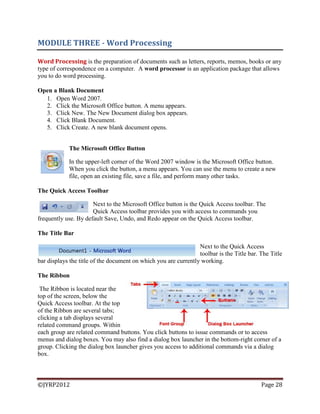
The Microsoft Office Button
In the upper-left corner of the Word 2007 window is the Microsoft Office button.
When you click the button, a menu appears. You can use the menu to create a new
file, open an existing file, save a file, and perform many other tasks.
The Quick Access Toolbar
Next to the Microsoft Office button is the Quick Access toolbar. The
Quick Access toolbar provides you with access to commands you
frequently use. By default Save, Undo, and Redo appear on the Quick Access toolbar.
The Title Bar
Next to the Quick Access
toolbar is the Title bar. The Title
bar displays the title of the document on which you are currently working.
The Ribbon
The Ribbon is located near the
top of the screen, below the
Quick Access toolbar. At the top
of the Ribbon are several tabs;
clicking a tab displays several
related command groups. Within
each group are related command buttons. You click buttons to issue commands or to access
menus and dialog boxes. You may also find a dialog box launcher in the bottom-right corner of a
group. Clicking the dialog box launcher gives you access to additional commands via a dialog
box.
©JYRP2012 Page 29
The Ruler
The ruler is found below the Ribbon. You can use the
ruler to change the
format of your document quickly. If your ruler is not visible,
follow the steps listed here:
1. Click the View tab to choose it.
2. Click the check box next to Ruler in the Show/Hide
group. The ruler appears below the Ribbon.
The Text Area
You type your document in the text area. The blinking vertical line in the upper-left corner of
the text area is the cursor. It marks the insertion point. As you
type, your text displays at the cursor location. The horizontal
line next to the cursor marks the end of the document.
The Vertical and Horizontal and Vertical Scroll Bars
The vertical and horizontal scroll bars enable you to move up,
down, and across your window simply by dragging the icon
located on the scroll bar.
The Status Bar
The Status bar appears at the very bottom of your window and
provides such information as the current page and the number
of words in your document. You can change what displays on
the Status bar by right-clicking on the Status bar and selecting
the options you want from the Customize Status Bar menu.
Understanding Document Views
You can display your document in one of five views: Draft,
Web Layout, Print Layout, Full Screen Reading, or Online
Layout.
Draft View
Draft view is the most frequently used view. You use Draft view to quickly edit your
document.
Web Layout
Web Layout view enables you to see your document as it would appear in a browser such
as Internet Explorer.
Print Layout
The Print Layout view shows the document as it will look when it is printed.
Reading Layout
Reading Layout view formats your screen to make reading your document more
comfortable.
©JYRP2012 Page 30
Outline View
Outline view displays the document in outline form. You can display headings without
the text. If you move a heading, the accompanying text moves with it.
Insert Sample text
1. In the text area type =rand()
2. Press enter
Change Line Spacing
1. Place your cursor anywhere in the first paragraph
of the sample text you created in Exercise 2.
2. Choose the Home tab.
3. Click the Line Spacing button in the
Paragraph group. A menu of options appears.
4. Click 2.0 to double-space the first paragraph.
Create a First-Line Indent
If you want to indent the first line of your paragraphs, you can use the Paragraph dialog box to
set the amount by which you want to indent. In the Special Field of the Paragraph dialog box,
you tell Word you want to indent the first line by choosing First Line from the menu options. In
the By field, you tell Word the amount, in inches by which you want to indent.
1. Place your cursor anywhere within the first paragraph of the sample text you created
2. Choose the Home tab.
3. In the Paragraphs group, click the launcher. The Paragraph
dialog box appears.
4. Choose the Indents and Spacing tab.
5. Click to open the drop-down menu on the Special field.
6. Click First Line.
7. Enter 0.5" in the By field.
8. Click OK. The first line of your paragraph is now indented
half an inch.
Align Paragraphs
Microsoft Word gives you a choice of several types of alignments. Left-aligned text is flush with
the left margin of your document and is the default setting. Right-aligned text is flush with the
right margin of your document, centered text is centered between the left and right margins, and
Justified text is flush with both the left and right margins.
©JYRP2012 Page 31
Right-align
1. Select the paragraphs you created.
2. Choose the Home tab.
3. Click the Align-right button in the Paragraph group. Word right-aligns your
paragraphs.
Left-align
1. Select the paragraphs you created.
2. Choose the Home tab.
3. Click the Align-left button in the Paragraph group. Word left-aligns your paragraph.
Center
1. Selected the paragraphs you created.
2. Choose the Home tab.
3. Click the Center button in the Paragraph group. Word centers your paragraph.
Justify
1. Select the paragraphs you created.
2. Choose the Home tab.
3. Click the Justify button in the Paragraph group. Word justifies your paragraph.
Create a Hanging Indent
The hanging indent feature indents each line except the first line by the amount specified in the
By field, as shown in the example.
1. Type the following:
Hanging Indent: The hanging indent feature indents the first
line by the amount specified in the Left field. Subsequent
lines are indented by the amount specified in the Left field
plus the amount specified in the By field.
2. Select the paragraph you just typed.
3. Choose the Home tab.
4. Click the launcher in the Paragraph group. The Paragraph
dialog box appears.
5. Choose the Indents and Spacing tab.
6. In the Special field, click to open the pull-down menu.
7. Click Hanging.
8. In the By box, type 2".
9. Click OK.
10. Place the cursor after the colon following "Hanging Indent."
11. Press the Tab key. Notice that the indentation changes.
©JYRP2012 Page 32
Add Bullets and Numbers
You can easily create bulleted or numbered lists of items. Several
bulleting and numbering styles are available, as shown in the
examples. You can select the one you wish to use.
1. Type the following list as shown:
Apple
Orange
Grape
Mango
Cherry
2. Select the words you just typed.
3. Choose the Home tab.
4. In the Paragraph group, click the down arrow next to the Bullets button . The Bullet
Library appears.
5. Click to select the type of bullet you want to use. Word adds bullets to your list.
Numbers
1. Type the following list as shown:
Apple
Orange
Grape
Mango
Cherry
2. Select the words you just typed.
3. Choose the Home tab.
4. In the Paragraph group, click the down arrow next to the Numbering button . The
Numbering Library appears.
5. Click to select the type of numbering you want to use. Word numbers your list.
Note: As you move your cursor over the various number styles, Word displays the
number style onscreen.
Save a File
Click the Microsoft Office button. A menu appears.
1. Click Save. The Save As dialog box appears if you are saving your document for the first
time.
2. Specify the correct folder in the Save In box.
3. Name your document by typing in the File Name box.
4. Click Save.
5. Click the Microsoft Office button. A menu appears.
6. Click Exit Word, which is located in the bottom-right corner of the window. Word closes.
©JYRP2012 Page 33
Set the Orientation
1. Choose the Page Layout tab.
2. Click Orientation in the Page Setup group. A menu appears.
3. Click Portrait. Word sets your page orientation to Portrait.
Set the Page Size
1. Choose the Page Layout tab.
2. Click Size in the Page Setup group. A menu appears.
3. Click Letter 8.5 x 11in. Word sets your page size.
Set the Margins
1. Choose the Page Layout tab.
2. Click Margins in the Page Setup group. A menu appears.
3. Click Moderate. Word sets your margins to the Moderate settings.
Add Page Numbers
1. Choose the Insert tab.
2. Click the Page Number button in the Header & Footer group. A
menu appears.
3. Click Bottom of Page.
4. Click the right-side option.
Inserting charts in word
Charts are a great way to present data in an easy-to-understand manner.
1. Position your cursor where you would like to insert the chart
2. Open the Insert ribbon
3. Click Chart in the Illustrations section
4. Select the style of chart you would like to insert
5. Click OK
The chart will appear in your document. Additionally, an Excel worksheet opens. You can enter
your data in the worksheet. Use the handle to adjust the range of data that appears in the chart. It
will automatically update the chart in Word.
Once your chart is created, you can use the tools in Word to change the chart style, layout and
formatting options.
©JYRP2012 Page 34
The Shapes Section of the Insert Ribbon
When you click the Insert menu in Word 2007, you‘ll be presented with
the Insert Ribbon. This displays commands for inserting different
elements into your Word document. It is divided into seven sections,
grouped by command.
The Shapes section on Word 2007‘s Insert Ribbon presents you with options for inserting
different auto shapes and drawing object into your document. Simply click one to insert it.
The Pages Section of the Insert Ribbon
The second section of Word 2007‘s Insert Ribbon is the Pages section. It will
help you insert a cover page, a blank page or page break. Just click the one
you‘d like to insert in your document.
The Illustrations Section of the Insert Ribbon
If you want to insert a picture, clip art or a chart into your document,
look to the Illustrations section of Word 2007‘s Insert Ribbon.
The Links Section of the Insert Ribbon
The Links section of Word 2007‘s Insert Ribbon will help you insert a
bookmark so you can quickly return to a specific part of your document. It
will also help you insert a cross-reference or hyperlink.
The Header and Footer Section of Insert Ribbon
The Header and Footer section of the Word 2007 Insert Ribbon makes
inserting a header or footer easy work. It will also help you insert page
numbers.
The Text Section of the Insert Ribbon
The Text section of the Word 2007 Insert Ribbon provides options
for working with clip art and drop caps. You can also insert Quick
Parts and text boxes. New to 2007 is the signature line. You‘ll also
find the option for inserting the date and time into your document.
©JYRP2012 Page 35
The Symbols section
No more searching for symbols! In Word 2007, you‘ll find the Symbols section
on the Insert Ribbon. It will help you insert symbols and equations in your
document.
Insert a table
You can insert a table by choosing from a selection of preformatted tables — complete with
sample data — or by selecting the number of rows and columns that you want. You can insert a
table into a document, or you can insert one table into another table to create a more complex
table.
Use table templates
You can use table templates to insert a table that is based on
a gallery of preformatted tables. Table templates contain
sample data to help you visualize what the table will look
like when you add your data.
Click where you want to insert a table.
On the Insert tab, in the Tables group, click Table, point to
Quick Tables, and then click the template that you want.
Replace the data in the template with the data that you want.
Use the Table menu
Click where you want to insert a table.
On the Insert tab, in the Tables group, click Table, and then,
under Insert Table, drag to select the number of rows and
columns that you want.
Use the Insert Table command
You can use the Insert Table command to choose the table dimensions and format before you
insert the table into a document.
1. Click where you want to insert a table.
2. On the Insert tab, in the Tables group, click Table, and
then click Insert Table.
3. Under Table size, enter the number of columns and rows.
Under AutoFit behaviour, choose options to adjust the table size.
Create a table
You can create a table by drawing the rows and columns that you want or by converting text to a
table.
©JYRP2012 Page 36
Draw a table
You can draw a complex table — for example, one that contains
cells of different heights or a varying number of columns per row.
1. Click where you want to create the table.
2. On the Insert tab, in the Tables group, click Table, and then
click Draw Table.
3. The pointer changes to a pencil.
To define the outer table boundaries, draw a rectangle. Then draw the
column lines and row lines inside the rectangle.
4. To erase a line or block of lines, under Table Tools, on the Design
tab, in the Draw Borders group, click Eraser.
5. Click the line that you want to erase. To erase the entire table, see
Delete a table or clear its contents.
6. When you finish drawing the table, click in a cell and start typing or
insert a graphic.
Convert text to a table
Insert separator characters — such as commas or tabs — to indicate where you want to divide
the text into columns. Use paragraph marks to indicate where you want to begin a new row.
For example, in a list with two words on a line, insert a comma or a tab after the first word to
create a two-column table.
1. Select the text that you want to convert.
2. On the Insert tab, in the Tables group, click Table, and
then click Convert Text to Table.
3. In the Convert Text to Table dialog box, under Separate
text at, click the option for the separator character that
you used in the text. Select any other options that you want.
Making Basic Labels
1. Open a new document in Word 2007. Click the "Mailings" tab, and then click "Labels" in
the "Create" group. The "Envelopes and Labels" dialog box appears.
2. Click "Options" to choose which type of label you are using and your printer type. Click
on the "Continuous-feed Printers" or the "Page Printers" radio button. Continuous feed
printers are usually used with dot matrix printers, while page printers are typically laser
jets or ink jets.
3. Click on the "Label Vendors" drop-down box to select Avery, Office Depot or another
manufacturer that matches your labels. Scroll through the "Product Number" selections,
and select your label. Click "OK."
4. Type the shipping address in the "Address" field. Select the text and right-click with your
mouse. Click on "Font" to select the font and size for the label text.
5. Click on the "Full Page of the Same Label" or "Single Label" radio button. Put the label
paper into your printer, and click "Print."
©JYRP2012 Page 37
Page Background
1. Left click on "Page Layout" tab.
2. Find "Page Background" section.
Watermark
1. Left click on "Watermark" on the "Page Layout" tab.
2. Select a pre-made watermark from the drop-down menu or select "Custom Watermark."
3. For custom watermarks, select either "Picture Watermark" or "Text Watermark." For
pictures, left click the "Select Picture" button and add in your picture. For text, decide on what
text you want and how it is formatted (size, colour, font, layout).
Page Colour
1. Left click on "Page Colour" on "Page Layout" tab.
2. Select a colour for the background of your document.
3. Left click "More Colours" to select a custom colour.
4. Left click "Fill Effects" for more formatting options for your background colour.
Page Borders
1. Left click on "Page Borders" on the "Page Layout" tab.
2. Click on "Borders" tab to apply borders to a paragraph. Select the setting, style, colour
and width of your border.
3. Click on "Page Border" tab to apply borders to a particular section of a document or the
entire document. Select the setting, style, colour and width of your border.
4. Click "Shading" tab to apply background colours or patterns (which include both a style
and a colour) to a paragraph.
How to Use Text Wrapping
Microsoft Word allows you to input both text and graphics. However, graphics and text do not
always work well together in word processing applications. One way to display graphics where
you want them without messing up your text is to use the text wrap feature.
1. Add a picture, shape or text box to your document. Do not worry about its location yet
because you'll be able to move it once you have set the text wrap options.
2. Select the graphic you want to set text wrap options for. Go to the "Format" menu and
select the type of file you want to set options for. Word in Microsoft Office allows you to
text wrap pictures, diagrams, AutoShapes and text boxes.
3. Choose the "Layout" tab. Here you'll see 5 default text wrapping options.
Pick "In Line with Text" to have your graphic be treated like a character in your text.
Choose "Square" to place your graphic in the middle of text and have the text wrap
around all sides of it. "Tight" is the same as square, except the words are closer to the
graphic. Choose "Behind Text" or "In Front of Text" to have the graphic either cover up
or be covered up with text.
4. Click the "Advanced" button to have more control over your text wrap options. Choose
the basic style of text wrap that you want at the top and then fine tune it with the options
below. You can choose one of the sides, such as left, right or both to have text wrap only
©JYRP2012 Page 38
occur on the side chosen. You can also set the distance the words are from the graphic
with the distance options listed at the bottom.
How to Use Word Art
Using Word Art with Microsoft Works is easy to learn and can help you add flair to newsletters,
fliers, posters and other desktop publishing documents.
1. "File" then select "New" to create a new document. Go to the "Insert" menu and click the
"Word Art" option. A box will pop up that reads "Type Text Here." Type in the text you
want to apply the Word Art feature to, then click the "Update Display" option.
2. Click the arrow in the upper left corner of the Word Art toolbar. A drop-down menu will
appear that allows you to select a starting shape for your text. Click on the shape that best
fits the type of text you want. Choose the font style from the toolbar you want to apply to
the text. You can also apply bold, italics and other text styles from the toolbar. Use the
text colour option to apply various colours and shadings. You can also choose a gradient
colour so the text starts dark and gradually lightens.
3. Manipulate the shape of your Word Art by clicking near the text object. A frame will
appear around the text. You can click on different portions of the frame with your mouse
and drag the frame to twist your text into any shape you want, all based upon the initial
shape you chose.
4. Click on the Word Art text and drag it anywhere in your document to position it. Once it
is in place, type the rest of your document as you would normally.
How to Insert Auto-Shapes & Text Boxes In MS Word
Word offers accents such as shapes and boxes, which can illustrate your work, call attention to
items on the page or serve as the document itself.
1. Click the "Insert" menu at the top of the screen. Click the "Text Box" button in the
middle of the toolbar at the top of the screen. Select the text box type, such as a basic box
with just a frame around it or a shaded sidebar box. As soon as you click the type of box,
one is added to the page.
2. Click the text box's frame and drag it into place on the document. Click the placeholder
text, which becomes highlighted, and type directly over it with your own.
3. Click once on the box's frame to highlight it, right-click the selected frame, click "Copy,"
right-click again and select "Paste" to paste additional copies of the text box on the page.
4. Click the "Insert" tab again and click the "Shapes" button. The "Shapes" menu opens with
a selection of shapes such as triangles, circles, boxes and arrows.
5. Click a shape, press and hold down your left mouse button, click the Word document and
drag your cursor to form the shape. The shape opens with the default colours or the ones
last used in a shape document.
6. Scroll through the colour boxes in the "Shape Styles" menu on the toolbar. Click any
colour box to instantly change the shape's colour.
7. Click the "Insert" tab and click the "Shapes" button to add additional shapes to the
document.
8. Click the "File" tab, click "Save As," give the document a name and save it to your
computer.
©JYRP2012 Page 39
Starting Your Mail Merge Document
Click Start Mail Merge on the Mailings ribbon and select the type of
document you‘d like to create.
For example, you can select letters, envelopes, or labels. Or, select
Step by Step Mail Merge Wizard for more help creating your
document.
Selecting Recipients for Mail Merge Letters
Click Select Recipients on the Mailings ribbon to add recipients to
the mailing.
You can opt to create a new database of recipients. You can also opt
to use an existing list or Outlook contacts.
Adding Recipients to Your Mail Merge Database
In the New Address List Box, begin entering your contacts.
You can use the Tab key to move between fields. Each set of
fields is referred to as an entry. To add additional recipients,
click the New Entry button. To delete an entry, select it and
click Delete Entry. Click Yes to confirm the deletion.
Adding and Deleting Mail Merge Fields
You may wish to delete or add fields types to your mail merge
document.
You can do that easily. Just click the Customize Columns button.
The Customize Columns dialog box opens. Then, click Add,
Delete or Rename to alter the field types. You can also use the
Move Up and Move Down buttons to rearrange the order of the
fields. When you're done, click OK.
Once you've added all your recipients, click OK on the New Address List dialog box. Name the
data source and click Save.
Inserting a Merge Field in Your Document
To insert a field into your document, click Insert Merge Field on the Mailings
ribbon. Select the field you would like to insert. The field name appears where you
have the cursor located in your document.
©JYRP2012 Page 40
You can edit and format the text surrounding the field. Formats applied to the field will carry
over to your finished document. You can continue to add fields to your document.
Previewing Your Mail Merge Letters
Before you print your letters, you should preview them to check for
errors. In particular, pay attention to spacing and punctuation
surrounding the fields. You will also want to make sure you have
inserted the correct fields in the correct places.
To preview the letters, click Preview Results on the Mailings ribbon.
Use the arrows to navigate through the letters.
Correcting Errors in Mail Merge Fields
You may notice an error in the data for one of your documents. You cannot alter
this data in the merge document. Instead, you'll need to fix it in the data source.
To do this, click Edit Recipient List on the Mailings ribbon. In the box that opens,
you can alter the data for any of your recipients. You can also limit the recipients. Simply
uncheck the box next to recipients' names to omit them from the merge operation. When you're
done, click OK.
Finalizing Your Mail Merge Documents
After you've reviewed your documents, you're ready to finalize them
by completing the merge. Click the Finish & Merge button on the
Mailings ribbon.
You can opt to edit individual documents, print the documents, or
email them. If you opt to print or email your documents, you'll be
prompted to enter a range. You can opt to print all, one, or a set of
contiguous letters. Word will walk you through the process for each.
Print Preview
1. Click the Microsoft Office button. A menu appears.
2. Highlight the Print option. The Preview and Print the Document menu appears.
3. Click Print Preview. The Preview window appears, with your document in the window.
4. Click One Page to view one page at a time. Click Two Pages to view two pages at a time.
To view your document in normal size, click 100%.
5. Click the Zoom Button. The Zoom dialog box appears.
6. Select an option and then click OK. Perform this task for each option and note the results.
©JYRP2012 Page 41
MODULE FOUR - Introduction to the Internet and issues in
Media and Technology
The Internet is a world-wide network of computer networks joined together by
communication lines, wireless connections and satellite connections. The Internet is
not owned by any government nor individual nor corporation.
Welcome to the Internet
Internet is a global network of networks.
People and organizations connect into the Internet so they can access
its massive store of shared information.
The Internet is an inherently participative medium. Anybody can publish information or
create new services.
The Internet is a cooperative endeavour -- no organization is in charge of the net.
A network is a group of two or more computers linked together so that they can share resources
(hardware and software and data) and can communicate with one another. All computer
networks fall into one of the following:
Local area networks (LAN)
Wide area networks (WAN)
The Internet
The Intranet
Extranets
Local Area Networks (LAN) consists of a collection of micro computers that can share
peripherals, information and communicate with each other on the network. Each of these micro-
computers (in buildings, department or school) can work both as an independent personal
computer running its own software and as a workstation on the network that accesses
information from the network server. A server runs the networking operating system which
allows resources to be shared with the other computers (called the clients) on the network. The
device shared by a LAN may include printers, hard drives, disk drives, CD-ROM drives,
modems and fax machines.
Wide Area Networks (WAN) can connect networks across large geographical areas such as a
city, state or country. Information can be transmitted using special high-speed telephone lines,
microwave links, satellite links or a combination of all three. WANs are used mainly by
universities, research centers, companies and banks so that information can be shared across a
country or across many countries.
Intranet is a micro-version of the internet within a company or organization. It offers the same
features as the internet but in a localized environment such as a factory or an office.
©JYRP2012 Page 42
Extranet usually use the same browsers, software and as the internet. If a company has an
intranet and allows some access to it by people outside the company, the intranet is referred to as
an extranet.
How Do I Connect to the Internet?
Computer
Connection - Phone Line, Cable, DSL, Wireless, ...
Modem
Network Software - TCP/IP
Application Software - Web Browser, Email, ...
Internet Service Provider (ISP)
Internet Address
The same way your home has an address that allows someone to locate you each computer on
the internet has a unique address that identifies it as a node of the global internet so the
information can be sent to it. This unique address is a number called the IP Address (Internet
Protocol address). It is a 32-bit address consisting of four sets of up to three digits each
separated by full stops (e.g. 198.478.904.6). These long numbers are difficult for humans to
remember and so names are used. To allow users to refer to a host (the main computer that
controls the network) by name, the Domain Name System (DNS) was developed. A domain
specifies the location of an account on the internet. The Domain Name System allows an
internet host to find another internet host, by translating the host name to the IP address of the
computer.
In the DNS system, an internet address usually has two sections:
The first section is the User ID. It tells ‗who‘ is at the address.
The second part, separate by an @ sign, gives the location of the address.
o Each component of the second section is separated by a period (.) for example, a
typical address might be: TeacherEducation@hotmail.com
 The first section says who is at the address.
 The second section in then subdivided into two parts (although some
addresses have more than two parts).
 The later part of the second section is called a top level domain.
Examples of Top level domains:
DOMAIN NAME PURPOSE
.com Commercial
.edu Educational institutions
.gov Government bodies
.mil US military institutions
.net Computer networks
.org Other types of organizations: net profit organizations
©JYRP2012 Page 43
What Can I Do on the Internet?
Send and receive email messages.
Download free software with FTP (File Transfer Protocol).
Post your opinion to a Usenet newsgroup.
Yack it up on IRC (Internet Relay Chat).
Surf the World Wide Web.
And much, much more.
There is no charge for most services.
What is the World Wide Web?
The Web was invented in 1991 by Tim Berners-Lee, while consulting at CERN
(European Organization for Nuclear Research) in Switzerland.
The Web is a distributed information system.
The Web contains multimedia.
Information in the Web is connected by hyperlinks.
Browsing the Web
A web page is a document on the World Wide Web.
A web browser is the computer program you use to retrieve and view web pages.
The most popular browsers are Microsoft Internet Explorer and Netscape Navigator.
Serving the Web
Web pages are stored in computers called web servers.
Any organization can setup a web server.
A web site is a collection of web pages.
The starting point for a web site sometimes is called a home page.
Hyperlinks
Hyperlinks typically appear as highlighted (underlined and colored) phrases.
Your mouse cursor will turn to a "pointing finger" when you've found a hyperlink.
Click once to follow a hyperlink.
Graphics can be hyperlinks.
You Can't Get Lost on the Web
Your browser remembers where you've been.
Use the Back and Forward buttons to retrace your path.
Use the Home button to return to your start page.
Power Skill: Press and hold down on the Back or Forward buttons to see the list of web
pages you visited.
©JYRP2012 Page 44
What's the URL?
The uniform resource locator (URL) is the unique identifier of a web page.
The location window displays the URL of the current page.
You can go directly to a web page if you know its URL: click once in the location
window and type it in.
Finding information using the uniform resource locator (URL)
You can also find information by typing a web site‘s direct address or Uniform Resource
Locator (URL) into the ‗address field‘ located at the top of the browser window, just below the
menu bar. It is an address of an Internet file, and usually is in this format made up of four parts:
Protocol://www.server/Path/Filename
 Protocol is the name of the Internet protocol (usually http) giving access to
the site. A protocol is a way of doing something, in this case, a set of
instructions that allows your computer to access files.
 Server (host name) is the computer on which the file is located
 Path (directory hierarchy) is the top level directory and any lower-level sub-
directories (separated by ‗/‘ characters) in which the file can be found
 Filename is the actual file name of the document
What's on the Web Page?
Some sites use advertising to subsidize free content.
Most large web sites have some navigation scheme to find
information.
Links on the home page will bring you directly to featured
content.
Bookmarks
A bookmark marks your place on the Web.
Press the Bookmark button for the bookmarks menu.
Select "Add Bookmark" to create a bookmark for the
current page.
Bookmarks stay on the computer where you make them.
Web Security
Secure web pages use encryption to protect from
eavesdroppers.
Secure web pages use https.
The lock icon closes on a secure page.
The privacy policy should tell you what the recipient will do with that information.
©JYRP2012 Page 45
Finding Information: Web Directories
A web directory lists resources, organized by subject area.
Yahoo! <www.yahoo.com>
LookSmart <www.looksmart.com>
Librarian's Index to the Internet <www.lii.org>
Finding Information: Search Engines
A search engine is a database of resources that can be searched by keywords.
Alta Vista <www.altavista.com>
Northern Light <www.northernlight.com>
Google <www.google.com>
Finding Information
Web Directory Search Engine
Easier to use. More resources.
Good for general subject searches
or browsing.
Good for searches where you can
use specific keywords.
Data Integrity and Security
Data Integrity refers to the validity of data. Data is said to have integrity if it is accurate and
complete when it enters a system and does not become inaccurate after further processing. Data
integrity can be compromised in a number of ways:
 Inaccurate data entry
 Viruses
 Hardware Malfunctions
 Accidental or malicious deletion or changing of data
 Natural disasters such as fires, floods and earthquakes
Ways to ensure data integrity is data security. You can use both physical and software
safeguards.
Physical Safeguards
Only allow authorized personnel access to computer facilities
Store data in a fireproof safe
Back up and store data in another location
Distribute sensitive work to a number of employees rather than one
Software safeguards
Use passwords
©JYRP2012 Page 46
Data Encryption (encoding or scrambling data during storage or transmission so that it
cannot be understood by someone who does not have the encryption key or software to
convert it back to its original form.
Installing firewall.
VIRUSES
A virus is a program that activates itself unknown to the user and destroys or corrupts data. They
can replicate themselves. All viruses are man-made and are generally spread by:
 Downloading infected programs and files from the internet
 Opening infected files received through emails
 Using storage device that contains infected files
How to protect against viruses:
 Install antivirus software
 Do not use storage devices from other computers in your computer – if you have to run a
virus scan and remove viruses before using them
 Do not open an email attachment that contains an executable file with the extension EXE,
COM or VBS
Data Privacy
Personal information about yourself on the internet can be accessed by a number of individuals
and each person has the right to privacy of information. Privacy in this context is the right of
individuals to determine what information is stored about them and how that information will be
used. The following privacy rules apply:
Data must not be used for any purpose other than that for which it was intended
Data must be updated to maintain its integrity
Data must be protected from unauthorized access and use
Individuals have the right to check data held about them.
Software Piracy
This is the unauthorized copying, use or selling of software that is copyrighted. Copying
copyrighted software is an infringement of ownership rights or theft of the work and effort of
another - the owner losses revenue as a result. Any software product comes with a license
agreement.
Hacking
This is the unauthorized accessing of a computer system; the individual doing this is called a
hacker. Most hackers hack into systems for the challenge or as a prank – criminal hackers gain
illegal access into computer systems:
 To steal important and highly confidential data
 Copy computer programs illegally
 To alter data
©JYRP2012 Page 47
 Destroy data either by deleting it or installing a virus to destroy or corrupt it
 Transfer money from one account to another using electronic funds transfer (EFT)
Internet Fraud
Internet fraud occurs mainly in bogus selling of products over the internet.
Electronic mail (e-mail)
Email is the most popular and widely used service on the internet today. Emailing allows you to
send, receive and manage electronic messages (text, sound, video and graphics). For an email
message to be sent and received, the following must be in place:
Mail Server – this is a computer on the internet that operates like the traditional post
office. It received incoming messages and delivers outgoing messages. It allocates a
certain amount of storage space in a storage area called your mailbox. You can receive
your mail by providing your username and password. This is necessary to protect your
email from unauthorized access.
Mail Client – The program that enables you to read and compose email messages and to
send email to and access email from the server.
Email Address - to be able to send and receive emails, you have an email address – this address
is unique to each user and consist of two parts separated by the ‗at‘ (@ )symbol.
The first part is the user name, which can be a real name, a shortened form of a real name
or some made up name.
The second part is the domain name – i.e. the name of your ISP. The general form of an
email address is as follows:
Username@DomainName.topleveldomain e.g. TechInEd@hotmail.com
Electronic Forums
Website - Collections of electronic pages created and maintained by organizations, educational
institutions, businesses and individuals. It provides an endless opportunity to shop, do research,
connect with friends and play or download games and music.
Chat Rooms are electronic spaces for live text conversations, usually centered around a specific
topic or interest. It allows individuals to communicate with a number of individuals whom one
may never see or meet but share a common interest.
Instant Messages are live text conversations between two or more individuals.
Blog – this is an online diary. It provides you with an opportunity to write about your thoughts,
passions, and activities. Most blogs allow space for readers to leave comments.
Social Network allows you to create a web page and enhance it with pictures, videos and blogs.
It allows the user to express his or her identity and creates an avenue to meet many new
‗friends‘.
©JYRP2012 Page 48
Issues in Technology usage
Copyright Laws and Educators
Educators can receive criminal and civil sanctions for knowingly and deliberately violating
copyright laws. Copyright owners can recover damages for loss of royalties due to infringement.
Educators can should seek permission from copyright owners and, if requested, pay a fee for the
use of their material. Permission is not needed for use of material in the public domain –
materials on which copyright protection has run out.
In seeking permission to use copyrighted materials, it is generally best to contact the distributor
or publisher of the material rather than its creator. Whether or not the creator is the holder of the
copyright, the distributor or publisher generally handles permission request and set fees.
Be as specific as possible in your request for permission. Give the page numbers and exact
amount of print material you wish to copy. Describe non print material fully. State how you
intend to use the material, where you intend to use it and the number of copies you wish to make.
For educational use, a teacher may make a single copy of a chapter from a book, an article from
a periodical or newspaper, a short story, short essay, or short poem, whether or not form a
collective work, an illustration form a book, periodical or newspaper
What is Fair Use
Fair use is one of the most important exceptions for teachers and students. There are no absolute
guidelines for determining what constitutes fair use in an education setting. There are four basic
criteria for determining the principle of fair use
The purpose and character of the use including whether such use is of a commercial nature or is
for non-profit educational purposes. The nature of the copyrighted work (e.g. if the work itself is
educational in character, this would tend to support a judgment of fair use. The amount and
substantially of the portion used in relation to the copyrighted work as a whole. The effect of the
use on the potential market for or value of the copyrighted work
Until the court decides otherwise, teachers can use the fair use criteria to decide when to copy
materials that would otherwise be protected.
Health and Safety Issues
Most users of technology are not and do not expect to become electronic wizards, but they want
to be able to use the hardware safely and effectively. The most fundamental elements of
effective technology use are simply getting the equipment properly set up, keeping it running and
being ready to cope with snags.
Safety is the paramount concern whenever teacher and students are using technology. All
educators must be aware of their responsibility and legal liability regarding student‘s exposure to
hazardous conditions. They must recognize that they serve as role models for safe practices
©JYRP2012 Page 49
when using technology. They thus have a special responsibility to know and practice good
safety habits.
Professional Development and Lifelong learning
One of the greatest advantages offered by modern electronic technology is the ability to instruct
without the teacher‘s direct presence.
Distant Learning
Distance education is a form of education characterized by the following:
Physical separation of learners from the teacher
An organized instructional program
Technological media
Two-way communication
Web Quest
A Web Quest is a method used to engage students in inquiry based learning. A web quest is
meant to guide students through a process of inquiry through a set of assigned tasks that lead
them to a conclusion, or that results in a product.
A Web quest is a computer based teaching tool that allows students to work in groups or
independently. Students use the web to find information on a specific topic presented by the Web
quest. The Web quest asks students to use higher order thinking skills.
Web Quests, say the teachers who use them, promote high-level thinking, develop problem-
solving skills, and provide an avenue for seamlessly integrating technology into the curriculum.
And creating one is easier than you might think! Many sites are available to walk you through
the process. The six building blocks of a Web Quest are:
The Introduction orients students and captures their interest.
The Task describes the activity's end product.
The Process explains strategies students should use to complete the task.
The Resources are the Web sites students will use to complete the task.
The Evaluation measures the results of the activity.
The Conclusion sums up the activity and encourages students to reflect on its process
and results.
©JYRP2012 Page 50
MODULE FIVE - Using the ASSURE Model of lesson planning
The ASSURE model is an ISD (Instructional Systems Design) process that was modified to be
used by teachers in the regular classroom The ISD process is one in which teachers and trainers
can use to design and develop the most appropriate learning environment for their students. You
can use this process in writing your lesson plans and in improving teaching and learning.
The ASSURE model incorporates Robert Gagne's events of instruction to assure effective use of
media in instruction. It is helpful for designing courses using different kinds of media. This
model assumes that instruction will not be delivered using lecture/text book only. It allows for
the possibility of incorporating out-of-class resources and technology into the course materials.
This model will be especially helpful for instructors designing online courses.
This model emphasizes:
Teaching to students with different Learning Styles, and
Constructivist learning where students are required to interact with their environment and
not passively receive information.
A Analyze Learners
General character
Specific entry competencies
Learning Style
S State Objectives
Learning outcomes
Conditions of performance
Degree of acceptable performance
S
Select Methods, Media and
Materials
Select available materials
Modify existing materials
Design new materials
U Utilize Media and Materials
Preview the materials
Prepare the materials, environment
Provide the learning experience
R Require Learner Participation
In-class and follow-up activities so learner can
process the information
E Evaluate and Revise
Before, during and after instruction
Assess learner, media methods
Analyze Learners
The first step in planning is to specifically define your audience. You must know the learners if
you are to select the best strategies to meet the objectives you have set. The audience can be
analyzed in terms of their general characteristics (grade level, age) and specific entry
competencies (prior knowledge, skills, and attitudes about the topic, and learning styles).
©JYRP2012 Page 51
State Objectives
The next step in planning is to specifically state the objectives for the lesson or presentation.
Objectives must be stated in terms of what the learner (not the teacher or presenter) will do
(stated in behavioural terms) as the result of instruction. Your lesson should include 2-3 specific
objectives. Objectives typically contain 4 basic parts:
 a simple statement that describes the intended Audience. For example, "The first grade
student will . . . " or "The tenth grade English student will . . . "
 a statement of the expected student Behaviour that will occur as a result of your
instruction. This behaviour needs to be observable, so it can be evaluated. For
example, action verbs like add, alphabetize, arrange, build, choose, classify, contrast,
define, describe, diagram, identify, kick, label, locate, make, multiply, name, produce,
pronounce, select, sketch, sort, specify, state, throw, underline, verbalize, and write are
very useful. Avoid words like know, appreciate, grasp, or understand. These do not
represent observable behaviour. Remember that the behaviour stated is that of the
student, not the teacher.
 a statement of the Conditions under which performance is to be observed. What
resources will the student be allowed to use (e.g., a map, a dictionary)? What tools or
equipment will the student be allowed to use? Will the student be allowed to use notes
or an outline when writing an essay?
 a statement of the Degree of accuracy or proficiency the learner must display in order
to move on. The criteria should be based on some real-world requirement, not stated in
terms of a score on a multiple choice test. Time and accuracy are frequently
meaningful for many objectives. Should an eleventh grade English student be able to
write a five paragraph theme within 50 minutes? If a third grade student can complete
at least seven of ten single-digit multiplication problems, can the teacher assume he or
she has mastered the concept?
Select Media and Materials
Now you have set the beginning point (the audience's present knowledge, skills, and attitudes)
and the ending point (objectives) of your instruction. Now your job is the build an instructional
bridge that will connect the two points. You may select available materials, modify existing
materials, or design new materials to help accomplish this task. You may select several different
types of media to use with the unit. Any of the media/technology discussed in the text will be
appropriate.
Utilize Media and Materials
Now you must decide how the materials will be used by the students. Preview the materials and
practice the lesson. Next, prepare the room and be sure the necessary equipment and facilities are
available and ready for your use before you actually use the lesson.
©JYRP2012 Page 52
Require Learner Performance
Learners need to practice what they have learned. Describe how the learners will actively use the
materials you have selected. Correct responses should be reinforced. There should be activities
included in the lesson or that allow learners to respond and receive feedback before any type of
evaluation is administered.
Evaluate and Revise
After instruction, you must evaluate the entire instructional process. Did the learners meet the
objectives? Did the media/materials assist the learners in reaching those objectives? Could all
learners use the materials properly? If there are discrepancies between what you intended and
what actually happened during the lesson, make appropriate revisions before making the lesson
again.
©JYRP2012 Page 53
MODULE SIX - Incorporating ICT’s in Lesson and Lesson
planning
Stages of technology integration
Technology cannot be integrated into classroom programs overnight. According to Sandholtz,
Ringstaff, and Dwyer (1997), technology integration includes five stages: entry, adoption,
adaptation, appropriation, and invention. Each stage has its own patterns of change and support
requirements.
Entry: Instruction is traditional, with teacher-directed activities. Some common instructional
technologies include blackboards, text-books, workbooks, and overhead projectors. As they
begin to use computer technologies in the traditional environment, teachers typically encounter
problems such as resource management. Technical issues may be demanding. The support
needed for educators at the entry phase includes providing time for planning with peers and
opportunities for staff to share experiences with non participant colleagues (see Action
Learning).
Adoption: When teachers move into the adoption phase, they begin to show more concern about
how technology can be integrated into daily lesson plans. Traditional whole-group lecture and
seat work still dominate instructional strategies. Nevertheless, technology is now being used to
teach children how to use technology. Common activities include keyboarding, word-processing,
or drill-and- practice activities. Teachers begin to anticipate problems and develop strategies to
solve them. Although technical issues still exist, at this stage the teachers begin to perform basic
trouble-shooting on their equipment such as fixing paper jams or changing the ink cartridge in
the printer (Sandholtz et al., 1997). Technical support and training for computer-assisted-
instruction and word-processing software are necessary at this stage (Dwyer, Ringstaff, &
Sandholtz, 1990).
Adaptation to and integration of new technologies into traditional classroom practice occur.
Lecture, seat work, and recitation continue to dominate classroom practice; however, during 30%
to 40% of the school day, students use word processors, databases, some graphic programs, and
computer-assisted-instruction packages (Sandholtz et al., 1997). Productivity is a major theme.
Students produce more faster. Teachers have learned to use computers to save time rather than
create additional demands. According to Dwyer et al. (1990), there are four support issues. First,
encourage peer observation and team teaching, and develop a flexible schedule that permits these
activities. Second, introduce and discuss alternative pedagogies. Third, because productivity is
important at this stage, train staff to use such software tools as spreadsheets, databases, graphics,
hypermedia, and e-mail. Fourth, introduce videodiscs and scanners.
Appropriation is more of a milestone than a phase. Personal appropriation of the technology
tools by individual students and teachers is the catalyst to this change in technology use.
Teachers' personal attitudes toward technology become the benchmark for this milestone in
instructional evolution. Teachers understand technology's usefulness, and they apply it
effortlessly as a tool to accomplish real work. More interactions between students are observed,
©JYRP2012 Page 54
and students work with computers frequently. There is evidence of project-based instruction,
collaboration and co-operation, and creative schedules. At this milestone, encourage routine peer
observations and group discussions. Discuss alternative assessments. Encourage professional
growth through conferences and presentations. Finally, examine technology integration goals.
Invention. Teachers experiment with new instructional patterns and ways of relating to students
and other teachers. They reflect on teaching and question old patterns of instruction. Teachers
begin to see knowledge as something children must construct rather than something to be
transferred. Interdisciplinary project-based instruction, team teaching, and individually paced
instruction are hallmarks of this phase. Classroom interactions change. Student experts surface to
assist their peers and teachers with technology. Students work together in more collaborative
ways. To support teachers at this level, advocate collaboration between teachers and en-courage
teachers to write about and publish their experiences. Create an on-going support system with
others outside the district through e-mail and the Internet. Finally, integrators should share their
knowledge by mentoring other teachers.
Approaches to technology integration
Kozma (2005) suggests the following four types of approaches in general:
ICTs are used to improve the delivery of and access to education. This approach can
improve education on the margin by increasing the efficiency by which instruction is
distributed, but it need not involve fundamental change.
ICTs are the focus of learning. By learning ICT skills, students become better prepared
for work that increasingly involves the use of ICTs.
ICTs can be used to improve student understanding, increase the quality of education,
and thereby increase the impact of education on the economy.
Knowledge creation, technology, technological innovativeness, and knowledge sharing
can contribute to the transformation of the education system and to sustained economic
growth and social development.
Moreover, Papert (1997) identified the following positive effects on students of ICTs in
education include:
 enhanced motivation and creativity when confronted by the new learning environments,
 a greater disposition to research and problem-solving focused on real social situations,
 more comprehensive assimilation of knowledge in the interdisciplinary ICT environment,
 systematic encouragement of collaborative work between individuals and groups,
 ability to generate knowledge,
 capacity to cope with rapidly changing, complex, and uncertain environments,
 new skills and abilities fostered through technological literacy.
The roles ICTs play in the educational system can be pedagogical, cultural, social, professional
and administrative.
 Pedagogical Tool Role: ICTs provide a new framework that can foster a
revision and an improvement of teaching and learning practices such as
collaborative, project-based and self-paced learning.
©JYRP2012 Page 55
 Cultural, Social, and Professional Roles: The cultural, social and professional
roles of ICTs are exercised primarily through an effective use of the vast
amount of information sources and services available today via Internet and
CD-based content for the entire educational community: students, teachers,
administrators and parents.
 Administrative Roles: ICTs have important roles to play in making school
administration less burdensome and more effectively integrated to the official
information flow about students, curricula, teachers, budgets and activities
through the educational system information pipelines.
Strategies for Implementation
After determining what technology is needed and why, teachers must now decide how to
effectively and meaningfully incorporate the selected technology into the topic learning. Since a
topic is usually composed of several lessons, details on ICT integration should be provided
separately for each lesson as well as for the entire topic. For each lesson, the teacher should
clearly answer the following questions:
What ICT-based resources such as web sites, CD-ROM programs, or learning objects
will be used?
How will the ICT-based resources be used in various settings such as a full-lab, where
each student uses a computer, or half-lab environment, where two students share a
computer (Wong & Wettasinghe, 2003)?
Why should we use these resources this way?
What tasks/activities will the students do during the lesson?
Are any handouts or instructions provided?
In addition, for the whole topic, the teacher-designer needs to specify how one lesson connects to
the next lesson and the reason for doing so. Furthermore, when designing an ICT-integration
plan, the teacher-designers also need to consider whether:
 The activities can promote students‘ critical thinking or other higher-order thinking.
 The students understand what they are supposed to learn.
 The expectations and assessment criteria, such as rubrics, are stated clearly.
 There are opportunities for students to take control over content, pace, and sequence.
There are a range costs and benefits involved in using ICT: typically these are a combination of
resources expended and/or acquired
time
effort
money
knowledge & skills
emotional resources
In addition the costs and benefits will be realized over time: short term costs may return long
term benefits
©JYRP2012 Page 56
Some common costs
Making the technology available. Consider as an examples using an available PC to
write simple notes or a PC plus digital camera plus printer to produce pictures of students
on paper, when a pencil or Polaroid camera would be more cost-effective for an isolated
task (if the Polaroid and film were also readily available!!. Where this is part of more
complex project and the image will be used in a number of different ways for a number
of different purposes then the relative cost=effectiveness of the Polaroid might be
reduced.
Frustration can be a cost and has been mentioned very often - it equates to a
psychological cost or 'penalty' while attempting to use technology. It comes in several
forms including the unwanted distractions associated with managing the technology,
disappointment when windows of opportunity for teaching and learning are lost as a
result of unreliable technology and blows to self esteem when one fails to use the
technology successfully.
Time. Teachers consistently report that the amount of time required to find and become
sufficiently familiar with suitable ICT based applications and material is often quite
substantial. In many cases so much so that the effort is abandoned. Certainly few teachers
report being able to attend to this aspect of their work at school. Thus an internet
connected computer at home is important as is 'membership' of a professional learning
group that is able to share knowledge, resources, successful practices and experiences
thus saving each other time.
©JYRP2012 Page 57
MODULE SEVEN – Spreadsheet
Excel Window
Microsoft Excel is an electronic spreadsheet. You can use it to
organize your data into rows and columns. You can also use it to
perform mathematical calculations quickly. This lesson will
introduce you to the Excel window. You use the window to interact
with Excel. To begin this lesson, start Microsoft Excel 2007. The Microsoft Excel window
appears and your screen looks similar to the one shown here.
The Formula Bar
If the Formula bar is turned on, the cell address of the cell you are in displays in the Name box
which is located
on the left side
of the Formula
bar. Cell entries display on the right side of the Formula bar. If you do not see the Formula bar in
your window, perform the following steps:
Choose the View tab.
Click Formula Bar in the Show/Hide group. The Formula bar appears.
Note: The current cell address displays on the left side of the Formula bar.
The Status Bar
The Status bar appears at the very bottom of the Excel window and
provides such information as the sum, average, minimum, and
maximum value of selected numbers. You can change what displays
on the Status bar by right-clicking on the Status bar and selecting the
options you want from the Customize Status Bar menu. You click a
menu item to select it. You click it again to deselect it. A check
mark next to an item means the item is selected.
Enter Data
First, place the cursor in the cell in which you want to start entering data. Type some data, and
then press Enter. If you need to delete, press the Backspace key to delete one character at a time.
1. Place the cursor in cell A1.
2. Type John Jordan. Do not press Enter at this time.
Edit a Cell
1. Change "John" to "Jones."
2. Move to cell A1.
3 Press F2.
©JYRP2012 Page 58
4. Use the Backspace key to delete the "n" and the "h."
5. Type nes.
6. Press Enter.
Change a Cell Entry
Typing in a cell replaces the old cell entry with the new information
you type.
1. Move the cursor to cell A1.
2. Type Cathy.
3. Press Enter. The name "Cathy" replaces "Johnson."
Wrap Text
When you type text that is too long to fit in the cell, the text overlaps the
next cell. If you do not want it to overlap the next cell, you can wrap the
text.
1. Move to cell A2.
2. Type Text too long to fit.
3. Press Enter.
4. Return to cell A2.
5. Choose the Home tab.
5. Click the Wrap Text button . Excel wraps the text in the cell.
Entering Excel Formulas and Formatting Data
A major strength of Excel is that you can perform mathematical
calculations and format your data.
Perform Mathematical Calculations
In Microsoft Excel, you can enter numbers and mathematical formulas
into cells. Whether you enter a number or a formula, you can reference the cell when you
perform mathematical calculations such as addition, subtraction, multiplication, or division.
When entering a mathematical formula, precede the formula with an equal sign. Use the
following to indicate the type of calculation you wish to perform:
+ Addition
- Subtraction
* Multiplication
/ Division
^ Exponential
Addition
1. Type Add in cell A1.
2. Press Enter. Excel moves down one cell.
3. Type 1 in cell A2.
4. Press Enter. Excel moves down one cell.
5. Type 1 in cell A3.
6. Press Enter. Excel moves down one cell.
7. Type =A2+A3 in cell A4.
©JYRP2012 Page 59
8. Click the check mark on the Formula bar. Excel adds cell A1 to cell A2 and displays the
result in cell A4. The formula displays on the Formula bar.
Note: Clicking the check mark on the Formula bar is similar to pressing Enter. Excel records
your entry but does not move to the next cell.
Subtraction
1. Press F5. The Go To dialog box appears.
2. Type B1 in the Reference field.
3. Press Enter. Excel moves to cell B1.
4. Type Subtract.
5. Press Enter. Excel moves down one cell.
6. Type 6 in cell B2.
7. Press Enter. Excel moves down one cell.
8. Type 3 in cell B3.
9. Press Enter. Excel moves down one cell.
10. Type =B2-B3 in cell B4.
11. Click the check mark on the Formula bar. Excel subtracts cell
B3 from cell B2 and the result displays in cell B4. The
formula displays on the Formula bar.
Multiplication
1. Hold down the Ctrl key while you press "g" (Ctrl+g). The Go To dialog box appears.
2. Type C1 in the Reference field.
3. Press Enter. Excel moves to cell C1
4. Type Multiply.
5. Press Enter. Excel moves down one cell.
6. Type 2 in cell C2.
7. Press Enter. Excel moves down one cell.
8. Type 3 in cell C3.
9. Press Enter. Excel moves down one cell.
10. Type =C2*C3 in cell C4.
11. Click the check mark on the Formula bar. Excel multiplies C1 by cell C2 and displays the
result in cell C3. The formula displays on the Formula bar.
Division
1. Press F5.
2. Type D1 in the Reference field.
3. Press Enter. Excel moves to cell D1.
4. Type Divide.
5. Press Enter. Excel moves down one cell.
6 Type 6 in cell D2.
7. Press Enter. Excel moves down one cell.
©JYRP2012 Page 60
8. Type 3 in cell D3.
9. Press Enter. Excel moves down one cell.
10. Type =D2/D3 in cell D4.
11. Click the check mark on the Formula bar. Excel divides cell D2 by cell D3 and displays
the result in cell D4. The formula displays on the Formula bar.
When creating formulas, you can reference cells and include numbers. All of the following
formulas are valid:
=A2/B2
=A1+12-B3
=A2*B2+12
=24+53
AutoSum
You can use the AutoSum button on the Home tab to automatically add a column or row of
numbers. When you press the AutoSum button , Excel selects the numbers it thinks you want
to add. If you then click the check mark on the Formula bar or press the Enter key, Excel adds
the numbers. If Excel's guess as to which numbers you want to add is wrong, you can select the
cells you want.
1. Go to cell F1.
2. Type 3.
3. Press Enter. Excel moves down one cell.
4. Type 3.
5. Press Enter. Excel moves down one cell.
6. Type 3.
7. Press Enter. Excel moves down one cell to cell F4.
8. Choose the Home tab.
9. Click the AutoSum button in the Editing group. Excel selects cells F1 through F3 and
enters a formula in cell F4.
10. Press Enter. Excel adds cells F1 through F3 and displays the result in cell F4.
Perform Automatic Calculations
By default, Microsoft Excel recalculates the worksheet as you change cell entries. This makes it
easy for you to correct mistakes and analyze a variety of scenarios.
Make the changes described below and note how Microsoft Excel
automatically recalculates.
1. Move to cell A2.
2. Type 2.
3. Press the right arrow key. Excel changes the result in cell A4.
Excel adds cell A2 to cell A3 and the new result appears in
cell A4.
4. Move to cell B2.
5. Type 8.
©JYRP2012 Page 61
6. Press the right arrow key. Excel subtracts cell B3 from cell B3 and the new result
appears in cell B4.
7. Move to cell C2.
8. Type 4.
9. Press the right arrow key. Excel multiplies cell C2 by cell C3 and the new result appears
in cell C4.
10. Move to cell D2.
11. Type 12.
12. Press the Enter key. Excel divides cell D2 by cell D3 and the new result appears in cell
D4.
Perform Advanced Mathematical Calculations
When you perform mathematical calculations in Excel, be careful of precedence. Calculations
are performed from left to right, with multiplication and division performed before addition and
subtraction.
Advanced Calculations
1. Move to cell A7.
2. Type =3+3+12/2*4.
3. Press Enter.
Note: Microsoft Excel divides 12 by 2, multiplies the answer by 4, adds 3, and then adds another
3. The answer, 30, displays in cell A7.
To change the order of calculation, use parentheses. Microsoft Excel calculates the information
in parentheses first.
1. Double-click in cell A7.
2. Edit the cell to read =(3+3+12)/2*4.
3. Press Enter.
Note: Microsoft Excel adds 3 plus 3 plus 12, divides the
answer by 2, and then multiplies the result by 4. The answer, 36, displays in cell A7.
Insert and Delete Columns and Rows
You can insert and delete columns and rows. When you delete a column, you delete everything
in the column from the top of the worksheet to the bottom of the worksheet. When you delete a
row, you delete the entire row from left to right. Inserting a column or row inserts a completely
new column or row.
1. To delete columns F and G:
2. Click the column F indicator and drag to column G.
©JYRP2012 Page 62
3. Click the down arrow next to Delete in the Cells group. A menu
appears.
4. Click Delete Sheet Columns. Excel deletes the columns you
selected.
5. Click anywhere on the worksheet to remove your selection.
To delete rows 7 through 12:
1. Click the row 7 indicator and drag to row 12.
2. Click the down arrow next to Delete in the Cells group. A
menu appears.
3. Click Delete Sheet Rows. Excel deletes the rows you
selected.
4. Click anywhere on the worksheet to remove your
selection.
To insert a column:
1. Click on A to select column A.
2. Click the down arrow next to Insert in the Cells group. A menu appears.
3. Click Insert Sheet Columns. Excel inserts a new column.
4. Click anywhere on the worksheet to remove your selection.
To insert rows:
1. Click on 1 and then drag down to 2 to select rows
1 and 2.
2. Click the down arrow next to Insert in the Cells
group. A menu appears.
3. Click Insert Sheet Rows. Excel inserts two new
rows.
4. Click anywhere on the worksheet to remove your selection.
Create Borders
1. Select cells B6 to E6.
2. Choose the Home tab.
3. Click the down arrow next to the Borders button . A
menu appears.
4. Click Top and Double Bottom Border. Excel adds the border you chose to the selected
cells.
©JYRP2012 Page 63
Merge and Center
1. Go to cell B2.
2. Type Sample Worksheet.
3. Click the check mark on the Formula bar.
4. Select cells B2 to E2.
5. Choose the Home tab.
6. Click the Merge and Center button in the Alignment
group. Excel merges cells B2, C2, D2, and E2 and then centers the content.
To unmerge cells:
1. Select the cell you want to unmerge.
2. Choose the Home tab.
3. Click the down arrow next to the Merge and
Center button. A menu appears.
4. Click Unmerge Cells. Excel unmerges the cells.
Add Background Colour
To make a section of your worksheet stand out, you can add background colour to a cell or group
of cells.
1. Select cells B2 to E3.
2. Choose the Home tab.
3. Click the down arrow next to the Fill Colour button .
4. Click the colour dark blue. Excel places a dark blue
background in the cells you selected.
Move to a New Worksheet
Click Sheet2 in the lower-left corner of the screen. Excel
moves to Sheet2.
Double Underline
1. Type Underline in cell D1.
2. Click the check mark located on the Formula bar.
3. Choose the Home tab.
4. Click the down arrow next to the Underline button
and then click Double Underline. Excel double-underlines the
contents of the cell. Note that the Underline button changes to
the button shown here , a D with a double underline under it. Then next time you
©JYRP2012 Page 64
click the Underline button, you will get a double underline. If you want a single
underline, click the down arrow next to the Double Underline button and then
choose Underline.
5. Click the double underline button again if you wish to remove the double underline.
Change Column Width
Make sure you are in any cell under column A.
1. Choose the Home tab.
2. Click the down arrow next to Format in the Cells group.
3. Click Column Width. The Column Width dialog box
appears.
5. Type 55 in the Column Width field.
6. Click OK. Column A is set to a width of 55. You should now be able to see all of the text.
Change a Column Width by Dragging
You can also change the column width with the cursor.
Place the mouse pointer on the line between the B and C column headings. The mouse pointer
should look like the one displayed here , with two arrows.
Move your mouse to the right while holding down the left mouse button. The width indicator
appears on the screen.
Release the left mouse button when the width indicator shows approximately 20. Excel increases
the column width to 20.
Format Numbers
1. Move to cell B8.
2. Type 1234567.
3. Click the check mark on the Formula bar.
4. Choose the Home tab.
5. Click the down arrow next to the Number Format box. A menu appears.
6. Click Number. Excel adds two decimal places to the number you typed.
7. Click the Comma Style button . Excel separates
thousands with a comma.
8. Click the Accounting Number Format button .
Excel adds a dollar sign to your number.
9. Click twice on the Increase Decimal button to
change the number format to four decimal places.
©JYRP2012 Page 65
10. Click the Decrease Decimal button if you wish to decrease the number of decimal
places.
Change a decimal to a percent.
1. Move to cell B9.
2. Type .35 (note the decimal point).
3. Click the check mark on the formula bar.
4. Choose the Home tab.
5. Click the Percent Style button . Excel turns the
decimal to a percent.
Understanding Functions
Functions are prewritten formulas. Functions differ from regular formulas in that you supply the
value but not the operators, such as +, -, *, or /. For example, you can use the SUM function to
add. When using a function, remember the following:
Use an equal sign to begin a formula.
Specify the function name.
Enclose arguments within parentheses. Arguments are values on which you want to perform the
calculation. For example, arguments specify the numbers or cells you want to add.
Use a comma to separate arguments.
Here is an example of a function:
=SUM(2,13,A1,B2:C7)
In this function:
The equal sign begins the function.
SUM is the name of the function.
2, 13, A1, and B2:C7 are the arguments.
Parentheses enclose the arguments. Commas separate the arguments.
Functions
The SUM function adds argument values.
1. Type 12 in cell B1.
2. Press Enter.
3. Type 27 in cell B2.
4. Press Enter.
5. Type 24 in cell B3.
6. Press Enter.
7. Type =SUM(B1:B3) in cell A4.
8. Press Enter. The sum of cells B1 to B3, which is 63, appears.
©JYRP2012 Page 66
Alternate Method: Enter a Function with the Ribbon
1. Type 150 in cell C1.
2. Press Enter.
3. Type 85 in cell C2.
4. Press Enter.
5. Type 65 in cell C3.
Choose the Formulas tab.
1. Click the Insert Function button. The Insert Function
dialog box appears.
2. Choose Math & Trig in the Or Select A Category box.
3. Click Sum in the Select A Function box.
4. Click OK.
The Function Arguments dialog box appears.
1. Type C1:C3 in the Number1 field, if it does not
automatically appear.
2. Click OK. The sum of cells C1 to C3, which is 300, appears.
Calculate an Average
You can use the AVERAGE function to calculate the average of
a series of numbers.
1. Move to cell A6.
2. Type Average. Press the right arrow key to move to cell
B6.
3. Type =AVERAGE(B1:B3).
4. Press Enter. The average of cells B1 to B3, which is 21, appears.
Calculate an Average with the AutoSum Button
In Microsoft Excel, you can use the AutoSum button to
calculate an average.
1. Move to cell C6.
2. Choose the Home tab.
3. Click the down arrow next to the AutoSum button .
4. Click Average.
5. Select cells C1 to C3.
6. Press Enter. The average of cells C1 to C3, which is 100,
appears.
©JYRP2012 Page 67
Find the Lowest Number
You can use the MIN function to find the lowest number in a series of numbers.
1. Move to cell A7.
2. Type Min.
3. Press the right arrow key to move to cell B7.
4. Type = MIN(B1:B3).
5. Press Enter. The lowest number in the series, which is 12,
appears.
Note: You can also use the drop-down button next to the AutoSum button to calculate
minimums, maximums, and counts.
Find the Highest Number
You can use the MAX function to find the highest number in a
series of numbers.
1. Move to cell A8.
2. Type Max.
3. Press the right arrow key to move to cell B8.
4. Type = MAX(B1:B3).
5. Press Enter. The highest number in the series, which is 27, appears.
Count the Numbers in a Series of Numbers
You can use the count function to count the number of numbers in a series.
1. Move to cell A9.
2. Type Count.
3. Press the right arrow key to move to cell B9.
4. Choose the Home tab.
5. Click the down arrow next to the AutoSum button .
6. Click Count Numbers. Excel places the count function in
cell C9 and takes a guess at which cells you want to
count. The guess is incorrect, so you must select the proper cells.
7. Select B1 to B3.
8. Press Enter. The number of items in the series, which is 3,
appears.
IF FUNCTION
This function is used in a case where the content of a cell, or a group of cells, will depend on the
evaluation of a condition. In a case where the promotion of a group of students will depend on
their average grade, it would be time consuming to go through this long list to check their
averages and to know if they would be promoted or not. This is where the IF function is
valuable.
Comparison operators are used in the IF function as follows:
©JYRP2012 Page 68
OPERATOR MEANING
= Equal to
> Greater than
< Less than
>= Greater than or equal to
<= Less than or equal to
<> Not equal to
The format for IF function is:
=IF(condition,true,false)
There are three arguments, therefore separators or commas are needed.
e.g. =IF(A3>=50,‖PASS‖,‖FAIL‖)
This means that if the value of cell A3 is greater than or equal to 50 (assuming that marks are
scored in cell A3), then the word PASS will be returned to the cell where the formula is entered
otherwise (i.e. is the mark is below 50) the word FAIL will return. Please note that if you want
the formula to return labels, it must be placed in quotation marks.
Insert Headers and Footers
1. Choose the Insert tab.
2. Click the Header & Footer button
in the Text group. Your worksheet
changes to Page Layout view and
the Design context tab appears. Note that your cursor is located in the center section of
the header area.
3. Click the right side of the header area.
4. Click Page Number in the Header & Footer Elements
group. When you print your document, Excel will
place the page number in the upper-right corner.
5. Click the left side of the Header area.
6. Type your name.
When you print your document, Excel will place your name
in the upper-left corner.
7. Click the Go To Footer button. Excel moves to the
footer area.
8. Click the Footer button. A menu appears.
9. Click the path to your document. Excel will place the path to your document at the
bottom of every printed page.
©JYRP2012 Page 69
Create a Chart
To create the column chart shown above, start by creating the
worksheet below exactly as shown.
After you have created the
worksheet, you are ready to create your chart.
Create a Column Chart
1. Select cells A3 to D6. You must select all the cells
containing the data you want in your chart. You should
also include the data labels.
2. Choose the Insert tab.
3. Click the Column button in the Charts group. A list of
column chart sub-types types appears.
4. Click the Clustered Column chart sub-type. Excel creates
a Clustered Column chart and the Chart Tools context tabs
appear.
Apply a Chart Layout
1. Click your chart. The Chart Tools become
available.
2. Choose the Design tab.
3. Click the Quick Layout button in the Chart
Layout group. A list of chart layouts appears.
4. Click Layout 5. Excel applies the layout to your
chart.
Add labels
Before After
Select Chart Title. Click on Chart Title and then place your cursor before the C in Chart and hold
down the Shift key while you use the right arrow key to highlight the words Chart Title.
Type Toy Sales. Excel adds your title.
©JYRP2012 Page 70
Select Axis Title. Click on Axis Title. Place your cursor before the A in Axis. Hold down the
Shift key while you use the right arrow key to highlight the words Axis Title.
Type Sales. Excel labels the axis.
Click anywhere on the chart to end your entry.
Switch Data
Before After
1. Click your chart. The Chart Tools become available.
2. Choose the Design tab.
3. Click the Switch Row/Column button in the Data group. Excel changes the data in your
chart.
Change the Style of a Chart
1. Click your chart. The Chart Tools become available.
2. Choose the Design tab.
3. Click the More button in the Chart Styles group.
The chart styles appear.
4. Click Style 42. Excel applies the style to your chart.
Change the Size and Position of a Chart
Use the handles to adjust the size of your chart.
Click an unused portion of the chart and drag to position the
chart beside the data.
Move a Chart to a Chart Sheet
By default, when you create a chart, Excel embeds the chart in the active worksheet. However,
you can move a chart to another worksheet or to a chart sheet. A chart sheet is a sheet dedicated
to a particular chart. By default Excel names each chart sheet sequentially, starting with Chart1.
You can change the name.
1. Click your chart. The Chart Tools become available.
2. Choose the Design tab.
3. Click the Move Chart button in the Location group. The Move Chart dialog box appears.
©JYRP2012 Page 71
4. Click the New Sheet radio button.
Type Toy Sales to name the chart sheet. Excel creates a
chart sheet named Toy Sales and places your chart on it.
Change the Chart Type
1. Click your chart. The Chart Tools become available.
2. Choose the Design tab.
3. Click Change Chart Type in the Type group. The Chart
Type dialog box appears.
4. Click Bar.
5. Click Clustered Horizontal Cylinder.
6. Click OK. Excel changes your chart type.
©JYRP2012 Page 72
MODULE EIGHT – Power Point
The PowerPoint Window
PowerPoint is a presentation software package. With PowerPoint, you can
easily create slide shows. You use the window to interact with the
software. To begin, open PowerPoint 2007. The window appears and
your screen looks similar to the one shown.
Slides, Placeholders, and Notes
Slides appear in the center of the window. You create your
presentation on slides.
Placeholders hold the objects in your slide. You can use
placeholders to hold text, clip art, charts, and more.
You can use the notes area to creates notes to yourself. You can refer to these notes as
you give your presentation.
Status Bar, Tabs, View Buttons, and More
The Status bar generally appears at the bottom of the window. The Status bar displays the
number of the slide that is currently displayed, the total number of slides, and the name of the
design template in use or the name of the background.
The View buttons appear near the bottom of the screen. You use the View buttons to change
between Normal view, Slider Sorter view, and the Slide Show view.
Normal View
Normal view splits your screen into three major sections: the Outline and Slides tabs, the
Slide pane, and the Notes area. The Outline and Slides tabs are on the left side of your
window. They enable you to shift between two different ways of viewing your slides. The
1 Slide
2 Placeholders
3 Notes
1
Status Bar 6 Vertical & Horizontal
Splitter Bars
2 Outline Tab 7 Minimize Button
3 Slides Tab 8 Maximize/Restore
Button
4 View Buttons 9 Close Button
5 Zoom
©JYRP2012 Page 73
Slides tab shows thumbnails of your slides. The Outline tab shows the text on your slides.
The Slide pane is located in the center of your window. The Slide pane shows a large
view of the slide on which you are currently working. The Notes area appears below the
Slide pane. You can type notes to yourself on the Notes area.
Slide Sorter View
Slide Sorter view shows thumbnails of all your slides. In Slide Sorter view, you can
easily add, delete, or change their order of your slides.
Slide Show
Use the Slide Show view when you want to view your slides, as they will look in your
final presentation. When in Slide Show view:
Esc Returns you to the view you were using previously.
Left-
clicking
Moves you to the next slide or animation effect.
When you reach the last slide, you automatically
return to your previous view.
Right-
clicking
Opens a pop-up menu. You can use this menu to
navigate the slides, add speaker notes, select a
pointer, and mark your presentation.
Create a Title Slide
When you start PowerPoint, PowerPoint displays the title slide in the Slide pane. You can type
the title of your presentation and a subtitle on this slide. To enter text:
Click and type the title of your presentation in the "Click to add title" area.
Click and type a subtitle in the "Click to add subtitle" area.
If you do not wish to use the title slide, click the Delete Slide button
in the Slides group on the Home tab.
1. Open PowerPoint. You are presented with a title slide.
2. Enter the information shown here. Type College Scholarships
and Financial Aid in the Click to Add Title text box. Type
Paying for College in the Click to Add Subtitle text box.
Create New Slides
After completing your title slide, you can create additional slides. To
create a new slide:
1. Choose the Home tab.
2. Click the New Slide button in the Slides group. The Office
Theme dialog box appears and displays several layout templates.
3. Click the layout you want. The layout appears in the Slide pane of
the PowerPoint window.
©JYRP2012 Page 74
4. To add text, click inside the placeholder and type.
5. To add an additional slide to your presentation, do one of the following:
Right-click the slide layout. A menu appears. Click Layout and then click the layout you
want.
Choose the Home tab, click the New Slide button , and then choose the slide
layout you want.
Create an Outline
If you need to present the information in your slide in outline form, you can easily create an
outline by using the Increase List Level button to create a hierarchy.
1. Choose the Home tab.
2. Click the New Slide button in the Slides group.
The Office Theme dialog box appears.
3. Click the Title and Content layout.
4. Enter the information shown here. Click the Increase List
Level button in the Paragraph group to indent the
bullets for Stafford Loans and PLUS Loans. If you ever
need to decrease an indent, use the Decrease List Level
button in the Paragraph group.
Use Two-Column Text
You can also place text in two separate columns.
1. Choose the Home tab.
2. Click the New Slide button in the
Slides group. The Office Theme dialog box
appears.
3. Click the Two Content layout.
4. Enter the information shown here.
Apply a Theme
A theme is a set of colours, fonts, and special effects. Themes provide attractive backgrounds for
your PowerPoint slides.
To apply a theme to all of the slides in your presentation:
1. Choose the Design tab.
2. Click the More button in the Themes group.
3. Click the design you want.
To apply a theme to selected slides:
1. Click the Slides tab, located on the left side of the window.
2. Hold down the Ctrl key and then click to select the slides to which you want to apply a
theme.
3. Choose the Design tab.
©JYRP2012 Page 75
4. Click the More button in the Themes group.
5. Right-click the theme you want to apply. A menu appears.
6. Click Apply to Selected Slides. Excel applies the theme to the slides you selected.
Add a Background
1. Choose the Design tab.
2. Click the Background Styles button
.
3. Click the background you want. PowerPoint applies the
background to your slides.
Run Your PowerPoint Slide Show
After you create your slides, you can run your slide show:
1. Do any one of the following:
o Press F5.
o Choose the Slide Show tab. Click the From Beginning button in the Start
Slide Show group.
o Click the Slide Show icon in the bottom-right corner of your screen.
Animations
Animations control how objects move onto, off of, and around your slides. Transitions control
how your presentation moves from one slide to the next.
Add Animations
PowerPoint provides four types of animations: Entrance, Emphasis, Exit, and Motion Paths.
After you add an animation, you can use the Custom Animation pane to modify it by choosing an
effect. Choosing an effect enables you to define what starts the animation, its properties (such the
direction from which an object moves onto the slide), and control the speed of the animation. In
addition, you can have an animation start when you click the mouse, start along with the
previous animation, or start at a specified time after the previous animation.
1. Click Slide 2 on the Slides tab.
2. Select "Start saving early."
3. Choose the Animations tab.
4. Click the Custom Animation button .
The Custom Animation pane appears.
5. Click the Add Effect button . A menu
appears.
6. Choose Entrance. A submenu appears.
©JYRP2012 Page 76
7. Click Fly In. PowerPoint applies the effect. If the Auto preview box is checked,
PowerPoint automatically provides you with a preview of the animation.
Modify the Effect
1. Click the down arrow next to the Start field and then
select After Previous.
2. Click the down arrow next to the Direction field and then
select From Bottom.
3. Click the down arrow next to the Speed field and then
select Medium.
Add Another Animation
1. Select "Apply for financial aid."
2. Click the Add Effect
button . A menu
appears.
3. Choose Entrance. A submenu
appears.
4. Click Fly In. PowerPoint applies the effect. If the Auto preview box is checked,
PowerPoint automatically provides you with a preview of the animation.
Modify the Animation
1. Click the down arrow next to the Start field and then select
After Previous. The Apply for Financial Aid field appears in
the center of the Custom Animation pane.
2. Click the down arrow next to the Apply for Financial Aid
field and then click Timing. The Fly In dialog box appears.
3. Type 0.05 in the Delay
text box.
4. Click OK.
5. Click the down arrow
next to the Direction field and
then select From Bottom.
6. Click the
down arrow next to
the Speed field and then select Medium. If the Auto
preview box is checked, PowerPoint automatically
provides you with a preview of the animation. You
can click the Play button on the Custom
Animation pane at anytime to preview an animation.
©JYRP2012 Page 77
Add Transitions
1. Choose the Animations tab.
2. Click the More button in the Transition
to this Slide group. A menu of transitions appears.
3. Click the Push Up transition. As you roll your pointer over
each transition, PowerPoint provides you with a live
preview of the transition.
Add Sound and Set the Speed
1. Click the down arrow next to
the Transition Sound field and then
click Click.
2. Click the down arrow next to the Transition Speed field and then click Slow.
Advance Slide
1. Check the On Mouse Click check box.
2. Click the Automatically After check box.
3. Type 00:07 in the Automatically After
text box.
4. Click the Apply to All button . PowerPoint applies all of your changes to
all of the slides.
5. Click Slide 1 on the Slides tab.
6. Type 00:03 in the Automatically After text box. PowerPoint changes the timing for Slide
Use Slide Sorter View
1. Choose the View tab.
2. Click Slide Sorter in the Presentation Views group.
3. Double-click a slide to view it in Normal view.
Print an Outline
1. Click the Microsoft Office button. A menu appears.
2. Choose Print.
3. Click Print Preview. The
Print Preview tab appears.
4. Click the down arrow next to
the Print What field in the Page
Setup group and then select Outline
View.
©JYRP2012 Page 78
5. Click the Print button . The Print dialog box
appears.
6. Click the down arrow next to the
Colour/Grayscale field to select whether you want your
slides to print in colour, gray scale, or black and white.
If you are using a black and white printer, choose black
and white. You will use less ink or toner.
7. Set the other print settings.
8. Click OK. Your outline prints.
Print Your Slides
1. Click the Microsoft Office button. A menu appears.
2. Choose Print.
3. Click Print Preview. The Print Preview tab appears.
4. Click the down arrow next to the Print What field in the Page Setup group and then select
Slides.
5. Click the Print button . The Print dialog box appears.
6. Click the down arrow next to the Colour/Gray scale field to select whether you want your
slides to print in colour, gray scale, or black and white. If you are using a black and white
printer, choose black and white. You will use less ink or toner.
7. Set the other print settings.
8. Click OK. Your slides print.
Print Your Slides as a Handout
1. Click the Microsoft Office button. A menu appears.
2. Choose Print.
3. Click Print Preview. The Print Preview tab appears.
4. Click the down arrow next to the Print What field in the Page Setup group and then select
Handouts (4 slides per page).
5. Click the Print button . The Print dialog box appears.
6. Click the down arrow next to the Colour/Gray scale field to select whether you want your
slides to print in colour, gray scale, or black and white. If you are using a black and white
printer, choose black and white. You will use less ink or toner.
7. Set the other print settings.
8. Click OK. Your handouts print.
©JYRP2012 Page 79
MODULE NINE - Window Movie Maker
HOW TO USE WINDOWS LIVE MOVIE MAKER
Import photos and videos
To import your photos and videos into Movie Maker, connect the camera to your computer by
using a USB cable, and then turn on the camera. Click the Movie Maker button, and then
click Import from device. If the Photos and videos will be imported
into Windows Live Photo Gallery message appears, click OK.
Click the device you want to import photos and videos from, and then click Import. On the New
photos and videos were found page, click Import all new items now, type a name for all the
photos and videos, and then click Import.
In Windows Live Photo Gallery, select the check box in the upper-left corner for each photo or
video you want to use in your movie. On the Create tab, in the Share group, click Movie. When
the photos and videos appear in Movie Maker, you‘re ready to start making your movie.
Add a video
Get started with making a movie and editing
it by first adding any videos that you want to
use into Movie Maker.
On the Home tab, in the Add group, click Add videos and photos. Hold down the Ctrl key and
click the videos you want to use, and then click Open.
Trim video
To trim the beginning or end of a video clip so only the part of the video you want appears in
your final movie, click the video you want to trim, and then drag the playback indicator on the
storyboard to the point where you want the video to start or stop playing in your movie. Do one
of the following:
To set a new start point, under Video Tools, on the Edit tab, in the Editing group, click Set
start point.
To set a new end point, under Video Tools, on the Edit tab, in the Editing group, click Set
end point.
©JYRP2012 Page 80
Split a video
You can split a video into two smaller items and then continue editing. For example, after
splitting a video, you can move one video in front of the other to change the order in which the
videos play in your movie.
To split a video into two items, click the video, and then drag the playback indicator to the point
where you want to split the video. Under Video Tools, on the Edit tab, in the Editing group,
click Split.
Speed up or slow down a video
You can change the speed of your video in Movie Maker to make the video play faster or slower
in your movie.
To change the speed of a video, click the video. Next, under Video Tools, on the Edit tab, in
the Adjust group, click the Speed list, and then click a speed (depending on how much you want
to speed the video up or slow it down).
Edit the audio
Get great sound in your movie by using the audio editing tools
in Movie Maker. Make your finished movie feel polished and
professional by adding a soundtrack and using the editing
features to adjust the volume, fade music in or out, and more.
Add music
You can add music that plays during your movie. After you add music, you can edit it so it plays
how you want in your movie.
On the Home tab, in the Add group, click Add music. Click the music file you want to use, and
then click Open.
Fade music in or out
Make the audio fade in nicely at the beginning and fade out smoothly at the end to make a movie
that looks and sounds professional.
To make the music fade in or out, click the music. Then, under Music Tools, on the Options tab,
in the Audio group, do one or both of the following:
To make the music fade in, click the Fade in list, and then click the speed for the music to
fade in.
To make the music fade out, click the Fade out list, and then click the speed for the music to
fade out.
©JYRP2012 Page 81
Change the start or end point of the music
Trim the beginning or end of the music, so only the part of the song that you want plays in your
final movie.
To trim the beginning or end of the music, click the music, and then drag the playback indicator
on the storyboard to the point in the music where you want it to start or stop playing in your
movie. Do one of the following:
To set a new start point for the music to start playing at the current point, under Music
Tools, on the Options tab, in the Editing group, click Set start point.
To set a new end point so the music stops playing at the current point, under Music Tools,
on the Options tab, in the Editing group, click Set end point.
Change the audio volume
You can change the volume of a music item or the audio in a video. This way, regardless of the
audio or music that's playing, it sounds just right in your movie.
To change the volume of a music item, click the music. Under Music Tools, on the Options tab,
in the Audio group, click Music volume, and then move the slider left to lower the volume or
right to increase it.
To change the volume of the audio in a video, click the video. Under Video Tools, on
the Edit tab, in the Audio group, click Video volume, and then move the slider left to lower the
volume or right to increase it.
Choose a theme
Use Auto Movie themes to
make a great-looking movie
in just a few clicks
in Windows Live Movie
Maker. Just pick your
photos, videos, and a theme, and then the transitions and effects are added for you.
Add photos and videos
On the Home tab, in the Add group, click Add videos and photos. Hold down the Ctrl key and
click the photos and videos you want to use, and then click Open.
©JYRP2012 Page 82
Add music
On the Home tab, in the Add group, click Add music. Click the music file you want to use, and
then click Open.
Choose an Auto Movie theme
On the Home tab, in the Auto Movie themes group, click the theme you want to use. Movie
Maker automatically adds titles, credits, transitions, effects, and more for you.
You can continue editing as you normally would, or just save your movie.
Share on the web
With Windows Live Movie
Maker, you can quickly
publish your movie to
popular websites, and then
share your movie with
friends, family, or the whole world.
Publish your movie on the web
On the Home tab, in the Sharing group, click the website where you want to publish your movie.
Enter your user name and password, and then follow the steps to publish your movie.
Watch your movie online
After your movie is published on the web, click Watch online to watch your movie on the
website. You can then send a link to your movie in an email message to friends and family, so
they can watch your movie online.
©JYRP2012 Page 83
MODULE TEN - Non-projected Instructional Media and Planning
for Media Usage
Role of Visuals in Instruction
One role that visuals play is to provide a concrete referent for ideas. Words don‘t look or sound
like the thing they stand for, but visuals are iconic that is they have some resemblance to the
thing they represent.
Visuals can also motivate learners by attracting their attention, holding their attention,
and generating emotional responses. It can simplify information that is difficult to
understand.
Visuals provide a redundant channel that is when accompanying spoken or written verbal
information they present that information in a different modality giving some learners a
chance to comprehend visually what they might miss verbally.
Visual Literacy
Visual literacy refers to the learning ability to interpret visual messages accurately and to create
such messages. Visual literacy can be developed through two major approaches:
Input strategies – helping learners to decode, or ―read‖ visuals proficiently by practicing visual
analysis skills
Output strategies – helping learners to encode or ―write‖ visuals, to express themselves and
communicate with others.
Decoding: Interpreting Visuals:
Seeing a visual, does not automatically mean that one will learn from it. Learning must be
guided toward correct decoding visuals. An important aspect of visual literacy is your ability to
(or the skill of) interpreting and creating meaning from surrounding stimuli.
There are three main points to bear in mind when using visuals:
Developmental Effects: Many elements affect how learners decode visuals:
Smaller children (usually below 12) tend to interpret visuals section by section rather
than as a whole and tend to single out specific elements within the scene.
Older students usually summarize the whole scene and report a conclusion about the
meaning.
Cultural Effects: In teaching, we must bear in mind that the act of decoding visuals may be
affected by the viewer‘s cultural background. Different cultural groups may perceive visual
materials in different ways.
©JYRP2012 Page 84
Visual Preferences: Teachers have to make appropriate choices between the sort of visual they
prefer and those that make the most impact or most effective.
Goal of visual design
Good visual design tries to achieve at least four basic goals in terms of improving
communication:
Ensure legibility – a visual cannot begin to do its job unless all viewers can see the
words and images
Reduce effort – your message should be conveyed in such a way that viewers expend
little effort making sense out of what they are seeing and are free to use most of their
mental effort for understanding the message itself.
Increase active engagement – your design should be as appealing as possible to get
viewers‘ attention and to entice them into thinking about the message.
Focus attention – on the most important parts of the message.
Elements of visual design
Visual elements – the type of visual selected for a particular situation depends on the learning
task. Visual symbols can be subdivided into three categories:
Realistic visuals – show the actual object under study
Analogic visuals – convey a concept or topic by showing something else and implying a
similarity. These visuals help learners interpret new information in light of prior knowledge and
thereby facilitate learning
Organizational visuals – include flowcharts, graphs, maps, schematic and classification charts.
This type of visual helps communicate the organization of the content.
Verbal elements – most displays incorporate some type of verbal information in addition to
visuals. In preparing a display you need to consider the lettering as carefully as you consider the
pictorial elements. You should ensure that the lettering is legible in terms of size and spacing;
and the style is consistent with your intended message. Some points to bear in mind:
Colour/Size of lettering:
o The colour of lettering should contrasts with the background colour, for example,
use black on yellow, green, red or blue on white, white on blue, black on white or
yellow on black.
o The size used depends on the use of the display
Spacing between lines and letters:
o Space all letters by optical spacing, i.e. how it appears to the eye.
©JYRP2012 Page 85
o If lines are too close they tend to look blurred at a distance, if too far they appear
disjointed.
Capitals:
o For best legibility, use lowercase letters, adding capitals only where normally
used, except when using short headings.
Number of lettering styles:
o Despite the wide range available it is best to limit the number of variations to a
maximum of four.
Letter style:
o The style of lettering should be consistent.
o For straightforward information or instructional processes use plain lettering style
Elements that add Appeal – visuals have no chance of having an effect unless it captures and
holds the viewer‘s attention. Three devices to make displays more appealing are;
Surprise – what grabs attention – an unusual metaphor, an incongruous combination of word
and picture, an abrupt infusion of color, a dramatic change of size
Texture – most visuals are two-dimensional. A third dimension by using texture or actual
material.
Interaction – the R of the ASSURE model – requires learner participation – applies to all forms
of media.
Pattern
It is important that you establish an underlying patter to decide how the viewer‘s eye will flow
across your display. The major factors that affect the overall look are:
Alignment of elements
Shape
Balance
Colour scheme
Colour appeal
©JYRP2012 Page 86
RESOURCE MATERIALS
http://www.microsoft.com/multipoint/mouse-mischief/en-gb/default.aspx
http://webquest.sdsu.edu/rubrics/rubrics.html
http://www.ssdd.bcu.ac.uk/outcomes/#7. WRITING LEARNING OUTCOMES
Create Worksheets and Puzzles
http://worksheets.theteacherscorner.net/make-your-own/crossword/crossword-puzzle-
maker.php
http://www.toolsforeducators.com/
http://puzzlemaker.discoveryeducation.com/WordSearchSetupForm.asp
PowerPoint Games
jc-schools.net/tutorials/ppt-games/
©JYRP2012 Page 87
BIBLIOGRAPHY
http://www.unicom.com/pw/web-intro/
http://www.grassrootsdesign.com/intro/
http://www.instructionaldesign.org/models/assure.html
http://www.utm.edu/staff/grakes/750/750assuremodel.html
http://www.mscd.edu/~academy/workshops/courseconstruct/assure.html
http://www.eadl.org/documents/2006/ICT%20Integration%20into%20Classrooms_KOK.pdf
http://www.ifets.info/journals/10_1/14.pdf
http://www.educ.utas.edu.au/users/ilwebb/Research/ict_integration.htm
http://webquest.sdsu.edu/templates/lesson-template1.htm
http://itchybon1.tripod.com/hrd/id15.html
http://www.slideshare.net/mike07/integrating-ict-into-the-classsroom
http://www.teach-nology.com/web_tools/web_quest/
http://eduscapes.com/sessions/travel/create.htm
http://www.wikihow.com/Make-a-Webquest
http://webquest.sdsu.edu/designsteps/index.html
http://www.grassrootsdesign.com/intro/security.php
http://www.grassrootsdesign.com/intro/internet.php
http://home.earthlink.net/~cnew/research.htm
http://www.educationworld.com/a_curr/curr280b.shtml
http://www.educationworld.com/a_curr/curr280d.shtml
http://www.grassrootsdesign.com/intro/software.php
http://www.grassrootsdesign.com/intro/hs.php

Technology in Education Workbook

  • 1.
    © JYPR 2012Page 1 Contents MODULE ONE - Role of Technology and Media In Education...............................................................4 Introduction to Educational Technology and Media Teaching with Technology .....................................4 What are technologies for learning? ........................................................................................................4 The Role of Media in Learning ..................................................................................................................5 Educational Technology............................................................................................................................6 Benefits of Technology .............................................................................................................................7 What is learning? ......................................................................................................................................7 Learning Theories......................................................................................................................................7 Types of Learners......................................................................................................................................8 Learning Styles ..........................................................................................................................................9 Techniques to use in different learning styles........................................................................................10 Implementation of Technology...............................................................................................................11 Linking Technology to Learning Theories ...............................................................................................11 MODULE TWO - Computer Basics ....................................................................................................12 Categorization of Computers..................................................................................................................12 Hardware and Software..........................................................................................................................12 Input Devices...........................................................................................................................................13 Output Device.........................................................................................................................................15 Process and Storage Devices ..................................................................................................................16 Storage devices/resources......................................................................................................................17 What is meant by Software?...................................................................................................................21 Systems Software or operating software ...............................................................................................22 File Management Operations using Windows........................................................................................26 MODULE THREE - Word Processing...................................................................................................28 Word Processing .....................................................................................................................................28 Inserting charts in word ..........................................................................................................................33 Insert a table...........................................................................................................................................35 How to Use Text Wrapping.....................................................................................................................37 Starting Your Mail Merge Document......................................................................................................39
  • 2.
    © JYPR 2012Page 2 MODULE FOUR - Introduction to the Internet and issues in Media and Technology............................41 Welcome to the Internet ........................................................................................................................41 How Do I Connect to the Internet?.........................................................................................................42 Finding information using the uniform resource locator (URL)..............................................................44 Data Integrity and Security .....................................................................................................................45 VIRUSES...................................................................................................................................................46 Issues in Technology usage.....................................................................................................................48 Web Quest ..............................................................................................................................................49 MODULE FIVE - Using the ASSURE Model of lesson planning .............................................................50 The ASSURE model..................................................................................................................................50 Analyze Learners.................................................................................................................................50 State Objectives ..................................................................................................................................51 Select Media and Materials ................................................................................................................51 Utilize Media and Materials................................................................................................................51 Require Learner Performance.............................................................................................................52 Evaluate and Revise ............................................................................................................................52 MODULE SIX - Incorporating ICT’s in Lesson and Lesson planning ......................................................53 Stages of technology integration............................................................................................................53 Approaches to technology integration...................................................................................................54 Strategies for Implementation................................................................................................................55 MODULE SEVEN – Spreadsheet.........................................................................................................57 Excel Window..........................................................................................................................................57 Entering Excel Formulas and Formatting Data .......................................................................................58 Perform Advanced Mathematical Calculations ......................................................................................61 Insert and Delete Columns and Rows.....................................................................................................61 Create Borders........................................................................................................................................62 Merge and Center...................................................................................................................................63 Move to a New Worksheet.....................................................................................................................63 Change Column Width............................................................................................................................64 Understanding Functions........................................................................................................................65 Create a Chart.........................................................................................................................................69
  • 3.
    © JYPR 2012Page 3 MODULE EIGHT – Power Point..........................................................................................................72 The PowerPoint Window........................................................................................................................72 Create New Slides ...................................................................................................................................73 Animations..............................................................................................................................................75 Add Sound and Set the Speed.................................................................................................................77 Print Your Slides......................................................................................................................................78 MODULE NINE - Window Movie Maker ............................................................................................79 HOW TO USE WINDOWS LIVE MOVIE MAKER .....................................................................79 Import photos and videos ...............................................................................................................79 Add a video.............................................................................................................................................79 Trim video...............................................................................................................................................79 Split a video ............................................................................................................................................80 Speed up or slow down a video ..............................................................................................................80 Edit the audio ..................................................................................................................................80 Add music...............................................................................................................................................80 Fade music in or out................................................................................................................................80 Change the start or end point of the music..............................................................................................81 Change the audio volume........................................................................................................................81 Add photos and videos............................................................................................................................81 Add music...............................................................................................................................................82 Choose an Auto Movie theme.................................................................................................................82 Publish your movie on the web...............................................................................................................82 Watch your movie online........................................................................................................................82 MODULE TEN - Non-projected Instructional Media and Planning for Media Usage.............................83 Role of Visuals in Instruction...................................................................................................................83 Visual Literacy .........................................................................................................................................83 Goal of visual design ...............................................................................................................................84 Elements of visual design........................................................................................................................84 RESOURCE MATERIALS.....................................................................................................................86 BIBLIOGRAPHY.................................................................................................................................87
  • 4.
    © JYPR 2012Page 4 MODULE ONE - Role of Technology and Media In Education Introduction to Educational Technology and Media Teaching with Technology Instruction is the arrangement of information and environment to facilitate learning. By environment we mean not only where instruction takes place but also the methods, media and technology needed to convey information and guide the learner‘s study. What is important is not so much what technologies are present in the classroom but rather how the teacher guides students in their use. Technology does not imply one particular model, but a set of options.  Technology options describe two different continua: From teacher-centered to learner-centered From enhancing the traditional classroom to asynchronous, location- independent learning  Technology means thinking differently about teaching and learning. Technology changes how you teach and what you do in the classroom. How might you enhance what you do in the classroom to meet differing learning styles? How might you promote critical thinking by your students through technology? How might you promote active and collaborative learning with technology-based instructional options? How might you increase your availability to students in an effective and efficient way? What happens when you stop lecturing? Technology means students taking responsibility for their own learning. Students gain asynchronous access to course resources in order to reinforce classroom learning and encourage deep learning. Students are presented with information in non-traditional formats to push them to think critically Students gain more autonomy and options in collaborative learning activities Students gain asynchronous access to you in a non-threatening environment What are technologies for learning? Technology for learning is specific teaching-learning patterns that serve reliably as templates for achieving demonstrably effective learning. Successful instruction, regardless of the psychological perspective – behaviourist, cognitivist, constructivist, or social-psychologist – includes a number of common features; Active participation and interaction Practice Individualized instruction Reinforcement or feedback
  • 5.
    © JYPR 2012Page 5 Realistic context Cooperative groups The Role of Media in Learning Media can serve many roles in learning. The instruction may be dependent on the presence of a teacher (instructor directed) or it may not require a teacher (student-directed). The media is the channel of communication. It refers to anything that carries information between a source and a receiver. These include video, television, diagrams, printed materials, computers, and instructors. These are considered instructional media when they carry messages with an instructional purpose. The purpose of media is to facilitate communications. The teacher is no longer limited to the confines of the classroom. Teacher centred instruction The most common use of media in an instructional situation is for supplemental support of the live instructor in the classroom. Properly designed instructional media can enhance and promote learning and support teacher-based instruction. But the effectiveness depends on the instructor. Learner centred instruction Media can be used effectively in formal education situations were a teacher is not available or is working with other students. Cooperative learning is closely related to self-instruction. As students work together in groups or in collaboration with the teacher on learning projects, they take more responsibility for learning. Instructional media and technologies for learning can help to provide a learning atmosphere in which students actively participate. When instructional media and technology are used properly and creatively in the classroom, it is the machines that are tuned on and off at will, not the students. Media Portfolios A portfolio is a collection student work that illustrates growth over a period of time. Portfolios often include such artefacts as student produced illustrated books, videos and audiovisual presentations. Portfolios allow students to do the following; Gather, organized and share information Analyze relationships Test hypotheses Communicate the results effectively Record a variety of performances Reflect on their learning and activities Emphasize their goals, outcomes and priorities Demonstrate their creativity and personality Portfolios could contain the following artefacts:  Written documents  Media presentations such as slides or photo essays
  • 6.
    © JYPR 2012Page 6  Audio recording  Video recordings  Computer multimedia projects incorporating print, data, graphics and moving images. Portfolio assessments are used to measures student‘s achievements by their ability to create tangible products exemplifying their accomplishments in terms of analysis, synthesis and evaluation. It provides a broad picture of what students know and can do. Electronic Portfolios are a means of organizing, designing and viewing traditional styles of portfolios. They are a way of assessing student learning using technology. Educational Technology Educational Technology looks at both the TOOLS and the STRATEGIES for using these tools in education. The technology component may be categorised as: tool teacher student Technology alone is not the determining factor in effective education. The important issue is what is done with the technology: the instructional methods must be based on sound learning principles. There is also evidence that the teacher is a critical variable in the effectiveness of computers (collis 1989). As technology continues to advance, we must learn to use it wisely to motivate, instruct, and challenge students. Trends in Technology Important skills for students include the ability to utilize technology to access, analyze, filter and organize multidimensional information sources. Technology can also provide an excellent avenue for student motivation, exploration and instruction in a multisensory, diverse world. Technology is only a tool - the challenge rest with educators to effectively integrate it in appropriate places throughout the curriculum. Integrating technology into education can be challenging, frustrating, time-consuming and expensive. Technology aids the teacher/trainer or learner in performing a task. Word Processing and Desktop Publishing Spreadsheets Databases Graphics Telecommunication Integrated Packages New Tools in educational Technology Interactive whiteboard Handhelds Student Response systems Laptop carts for 1-1 computing Digital projectors Audio enhancements Wireless environment Inter Write school pads Document cameras
  • 7.
    ©JYRP2012 Page 7 Benefitsof Technology Educators may be disappointed when they discover that measuring the effectiveness of the new, diverse technologies in education is often more complicated than administering standardized tests. Many of the educational multimedia programs are designed in an open-ended, exploration format, and assessment of these programs through multiple-choice tests does not provide adequate answers about their effectiveness. The following benefits can be presented based on the attributes of the technologies and teachers‘ perceptions; 1) Instructional effectiveness – one benefit of multimedia instruction is an increase in student achievement. 2) Active learning – interactive technologies provide stimulating environments that encourage students‘ involvement in the learning process. 3) Critical Thinking – the structure and the use of technology can promote higher-level thinking skills 4) Individualization – students are different, and they learn and develop in different ways at varying rates 5) Motivation – motivating student is a constant challenge in education. Technologies 6) Flexibility for students with special needs – technology offers many advantages for students with special needs 7) Cooperative learning – well-structured cooperative-learning activities can foster ―the development of leadership abilities, a sense of teamwork, and improved self-esteem‖ 8) Communication skills – can be enhanced by using technology in small groups and by integrating telecommunications into the curriculum 9) Multisensory delivery – one benefit of multimedia instruction is that it provides information through multiple sensory channels, allowing students with various learning styles to assimilate and apply the knowledge. 10) Multicultural education – telecommunications make it possible to expand classroom ―walls‖ and to link students and teachers in national and international exchanges. What is learning? Learning is acquiring new or modifying existing knowledge, behaviours, skills, values, or preferences and may involve synthesizing different types of information. Human learning may occur as part of education, personal development, school or training. It may be goal-oriented and may be aided by motivation. Learning involves;  Acquisition of new information  Transformation – the process of manipulating knowledge to make it fit new tasks.  Evaluation – checking whether the way we have manipulated information is adequate to the task. Learning Theories Generally, accepted learning modalities are classified below. Behaviourism - in this classroom, focus for learning is on feedback and reinforcement
  • 8.
    ©JYRP2012 Page 8 Behaviouristapproaches: rely on overt behaviour are outcome based rely on frequent reinforcement of responses Behaviourist design is based on the presumption that human behaviour is predictable. Constructivism – in this classroom, focus for learning is on rich media, simulations and immersive environments. Constructivists believe the environment needs to be highly adaptive to the students. A constructivist designer might provide all information necessary for learning but will allow the students to learn the material and information in a manner that is most comfortable to the students Constructivist approaches: teacher provides resources and guidance students decide how, when, where Cognitivism – Cognitivist believe that learning is a process which is dictated by the student‘s previous experiences, and the method of presenting information to the student. They focus mainly on the way information is represented in memory, schemata, and mental modes. Cognitive approaches: rely on the student‘s schemas, attitudes and experiences believe the new information has to fit into what currently exists Social-psychological – These facilitators look at the effects of the social organization of the classroom on learning. Social-psychological approaches: group structure of the classroom Authority structure Reward structure No single theory of learning is adequate to account for all aspects of formal or informal learning. A theory of learning does not automatically prescribe the best way to teach. What we learn through formal instruction is only a very small subset of what we know. Types of Learners Active/Reflective -Active learners tend to retain and understand information best by doing something active with it—discussing it, applying it, or explaining it to others. Sensing -Sensing learners tend to like learning facts, solving problems by well-established methods and dislike complications and surprises, patient with details and good at memorizing facts and doing hands-on work, more practical and careful than instructors. Intuitive learners often prefer discovering possibilities and relationships. Instructors like innovation and dislike repetition. Instructors may be better at grasping new concepts and are often more comfortable than sensors with abstractions and mathematical formulations. Instructors tend to work faster and to be more innovative than sensors.
  • 9.
    ©JYRP2012 Page 9 Visual/VerbalVisual learners remember best what they see. Verbal learners get more out of words. Everybody learns more when information is presented both visually and verbally. Sequential/Global learners tend to gain understanding in linear steps, following logical paths to find solutions. Global learners tend to learn in large chunks, absorbing material almost randomly without seeing connections and then suddenly ―getting it.‖ Global learners may be able to solve complex problems quickly or put things together in novel ways once they have grasped the big picture, but they may have difficulty explaining how they did it. Learning Styles Learning styles refers to a cluster of psychological traits that determine how an individual perceives, interacts with, and responds emotionally to learning environments. It is clear that certain traits dramatically affect our ability to learn effectively from different methods and media. There are many learning styles however we will discuss the major three: Visual/Spatial: Learning through seeing. These learners need to see the teacher's body language and facial expression to fully understand the content of a lesson. They tend to prefer sitting at the front of the classroom to avoid visual obstructions (e.g. people's heads). They may think in pictures and learn best from visual displays including: diagrams, illustrated text books, overhead transparencies, videos, flipcharts and hand-outs. During a lecture or classroom discussion, visual learners often prefer to take detailed notes to absorb the information. Verbal/Linguistic: Learning through hearing They learn best through verbal lectures, discussions, talking things through and listening to what others have to say. Auditory learners interpret the underlying meanings of speech through listening to tone of voice, pitch, speed and other nuances. Written information may have little meaning until it is heard. These learners often benefit from reading text aloud and using a tape recorder. Body/Kinesthetic: Learning through moving, doing, and touching Tactile/Kinesthetic persons learn best through a hands-on approach, actively exploring the physical world around them. They may find it hard to sit still for long periods and may become distracted by their need for activity and exploration.
  • 10.
    ©JYRP2012 Page 10 Techniquesto use in different learning styles The following techniques can be used to help students develop, explore, and enhance their learning strengths. The more a student can learn through a combination of all the modalities— visual, auditory, and kinesthetic—the more permanent the learning will be. Encourage Visual Learners to: colour code to organize notes and possessions. use colour to highlight important points in text. take notes. illustrate ideas as a picture before writing them down. ask for written directions. use flow charts and diagrams for note taking. visualize spelling of words or facts to be memorized. study in a quiet place away from verbal disturbances. Encourage Verbal Learners to: read aloud. recite information to learn. use tunes or rhymes as mnemonic devices. read aloud and tape test questions or directions. dictate to someone else and have that person write down the thoughts. Use verbal analogies and storytelling to demonstrate their point. Encourage Kinesthetic Learners to: make models, do lab work, or role play to physically experience learning. Trace letters and words with a pen or the index finger when reading and studying. Skim through reading material before reading it in detail. annotate text and write questions while reading. translate information into diagrams or other visual study tools. recite a list of items by counting on fingers. memorize or drill while walking or dancing. listen to music while studying. Multiple Intelligence  Linguistic intelligence ("word smart")  Logical-mathematical intelligence ("number/reasoning smart")  Spatial intelligence ("picture smart")  Bodily-Kinesthetic intelligence ("body smart")  Musical intelligence ("music smart")  Interpersonal intelligence ("people smart")  Intrapersonal intelligence ("self smart")  Naturalist intelligence ("nature smart‖)
  • 11.
    ©JYRP2012 Page 11 Implementationof Technology From Teaching to Learning – Creative active classrooms Integrating technology into education is not an easy task; educators must make a constant effort to keep abreast of the latest developments. Some suggestions for implementing technology are Determine your instructional goals and objectives, and then locate the technology to support them. Seek support from administrators Form partnerships with local businesses, and students‘ parents Acquire technology in increments Visit other schools and ask other educators for advice Provide in-service training sessions Provide training for teachers on the software and hardware that is available at their schools Provide follow-up support and coaching Involve the students, and capitalize on their expertise Investigate public domain and shareware sources Investigate technical support and documentation Subscribe to magazine and journals Balance ―high tech‖ with ―high touch‖ Be flexible and ready for change. Linking Technology to Learning Theories What is important is not so much, what technologies are present in the classroom but rather how the teacher guides students in their use. Teachers will always use some directed instruction as the most efficient means of teaching students certain required skills: teachers will always need motivating, cooperative learning activities to make sure that students want to learn and that they can transfer what they learn to problems they encounter. Technology-oriented teachers must learn to combine directed instruction and constructivist approaches. To implement each of these strategies, teachers will select technology resources and integration methods that are best suited to carrying them out. Technology learning environment must be organized to permit student engagement with a wide variety of material, tools and technical processes and to accommodate the research, planning and the fabrication components of design. This environment must be Be flexible Support multiple groupings Be multipurpose Provide appropriate resources
  • 12.
    ©JYRP2012 Page 12 MODULETWO - Computer Basics Computers form an integral part of our lives. Today, most persons find it almost impossible to live without some form of technology. The computer has become, for most, an everyday tool. It is important as educators, that we are able to comfortably manipulate the computer and be able to use its tools to facilitate learning and improve the teaching learning environment. Categorization of Computers Computers are categorized based upon their capacity to produce work per unit of time. Four main types of computers are; Microcomputers These have the least computer capacity are the smallest (physically). Personal computers or PC‘s are the most common type in this category. These can also include Pocket PC‘s, Laptops, Palmtops, Notebooks, Desktops or Tower PC‘s. The size of the PC does not translate to its size as some notebooks are more powerful than desktop PC‘s. Workstations These look like PC‘s but have processing capabilities similar to the mainframes. These are generally used for applications which require a lot of computer processing, e.g., Computer Aided Design (CAD) (CAD are applications used by engineers and architects to create very technical drawings). As PC‘s become more powerful the gap between them and workstations are slowly narrowing. Mainframes These were the first types of computers to be used. They are physically much larger than PC‘s and Workstations and have much greater processing capabilities. Supercomputers These are used by organizations that have high volumes of input and output e.g. large banks and insurance companies. Data – is unprocessed information that come in the form of symbols, letter, etc Information – data that has been processed and translated into a form that allows one to understand it Hardware and Software In order to process data to produce information a computer needs both hardware and software. Hardware is all the parts of a computer system you can see and touch. It consists of all the devices that make up the computer. These devices are also called peripherals. Software is a set of instructions that a computer needs to carry out its tasks.
  • 13.
    ©JYRP2012 Page 13 Thefirst thing you need to learn is how to start up your computer and shut down your system. But before you can do that you need to know the basic parts of your system: Visual Display Unit (Monitor) output device Keyboard input device CPU – Central Processing Unit processing device Mouse Input device Speakers output device Printer output device The basic computer components allow input and output of information. Why do we need computers? 1. Speed in completing tasks 2. Accuracy of production 3. Storage ability 4. Cost effective in that it needs little maintenance but can work continuously Input Devices You use input devices to provide information to a computer, such as typing a letter or giving instructions to a computer to perform a task. Some examples of input devices are described in the following list. Mouse: A device that you use to interact with items displayed on the computer screen. A standard mouse has a left and a right button. Trackball This is an alternative to the traditional mouse and is favoured by graphic designers. It gives a much finer control over the movement of items on the screen. Other screen pointing devices are pointing stick, touch pad, joystick, light pen, digitizing table. Keyboard: A set of keys that resembles a typewriter keyboard. You use the keyboard to type text, such as letters or numbers into the computer.
  • 14.
    ©JYRP2012 Page 14 Scanner:A device that is similar to a photocopy machine. You can use this device to transfer an exact copy of a photograph or document into a computer. A scanner reads the page and translates it into a digital format, which a computer can read. For example, you can scan photographs of your family using a scanner. Barcode Readers: When used in a business barcodes provide a lot of information. Made up of columns of thick and thin lines, at the bottom of which a string of numbers is printed. Multimedia devices This is the combination of sound and images with text and graphics. To capture sound and image data, special input devices are required. Microphone: Voice input, for instance, can be recorded via a microphone. A device that you can use to talk to people in different parts of the world. You can record sound into the computer by using a microphone. You can also use a microphone to record your speech and let the computer convert it into text. Webcam: A device that is similar to a video camera. It allows you to capture and send the live pictures to the other user. For example, a webcam allows your friends and family to see you when communicating with them. Digital cameras record photographs in the form of digital data that can be stored on a computer. These are often used to record photographs on identity cards.
  • 15.
    ©JYRP2012 Page 15 Let‘scontinue our discussion by looking at the second type of computer hardware. Output Device Output devices in the computer system are the equipment whereby the result of a computer operation can be viewed, heard or printed. You use output devices to get feedback from a computer after it performs a task. Some examples of output devices are described in the following list. Printers One of the things that you need to make sure of is that you get the right printer. How do you know what printer to get? There are various types of printers available and these vary considerably in the quality of their production. Monitor: A device that is similar to a television. It is used to display information, such as text and graphics, on the computer. Printer: A device that you use to transfer text and images from a computer to a paper or to another medium, such as a transparency film. You can use a printer to create a paper copy of whatever you see on your monitor. Plotter A plotter is an output device similar to a printer, but normally allows you to print larger images. It is used for printing house plans and maps. Multimedia Output Device The most common multimedia output is sound, including music. The audio output device on a computer is a speaker. Headphones can also be used to receive audio output.
  • 16.
    ©JYRP2012 Page 16 ImpactPrinter Dot matrix printers are an example of impact printers. They form characters from patterns of dots. They are inexpensive, but the output can be difficult to read. Non-impact Printers Inkjet printers work by shooting a jet of ink in the shape of the character required, they provide god, low-cost colour printing. Laser printers – a laser beam is directed at an electro-statically charged surface, creating a template of the page to be printed. This template is then used to transfer the ink to the page. Toner sticks to the light images and is transferred to paper. Process and Storage Devices The system unit is the name given to the main computer box that houses the various elements as illustrated in the picture below. How do we get the different computer parts to work together so that your computer can work? Let‘s start of our discussion with the process devices. Motherboard Inside the systems unit is a circuit board with tiny electronic circuits and other components which is called a mother board. It is sometimes called a system board. The motherboard connects input (keyboard, mouse and scanner), output (monitor, speakers, and printer), processing (CPU, RAM and ROM) and storage (hard drive, CD-ROM/DVD-ROM and flash drives) components together and tells the CPU how to run (Lubbe and Benson, 2010:18). Other components on the motherboard include the video card, the sound card, and the circuits that allow the computer to communicate with devices like the printer. Motherboard CPU Drivers Extension cards Connection ports
  • 17.
    ©JYRP2012 Page 17 ExpansionCards Yes you can play music and video files on your computer. But how is it possible? Inside the computer system box you also find an expansion card which is another circuit board that can be attached to the motherboard to add features such as video display and audio capability to your computer. Expansion cards are also called expansion boards that enable your computer to use the multimedia devices. An expansion card either improves the performance of your computer or enhances its features. Examples of expansion cards that can be added include: Video Card: It is connected to the computer monitor and is used to display information on the monitor. Network Interface Card (NIC): Remember we‘ve explained computer networks in Unit 1. The NIC allows the computer to be connected to other computers so that information can be exchanged between them. Sound Card: It converts audio signals from a microphone, audio tape, or some other source to digital signals, which can be stored as a computer audio file. Sound cards also convert computer audio files to electrical signals, which you can play through a speaker or a headphone. The microphone and the speakers or the headphones connect to the sound card. Central Processing Unit and Memory (CPU) The CPU is the most important element of a computer system. Processing takes place in the CPU. This is the brain of the computer. It takes raw data and turns it into information. On personal computers and small workstations, the CPU is housed in a single chip called a microprocessor. The faster the CPU, the faster the computer can process data. The speed at which the CPU operates is measured in megahertz (MHz) and Gigahertz (GHz). The CPU is made up of: a) Control Unit – which coordinates and controls all hardware operations and the peripheral units of the computer systems b) Arithmetic Logic Unit (ALU) which carries out the arithmetic operations (addition, multiplication, division, subtraction and exponentials) and logical operations Storage devices/resources All computers need to store and retrieve data for processing. The CPU is constantly using memory from the time that it is switched on until the time you shut it down. There are two types of storage devices as illustrated in the flow chart below.
  • 18.
    ©JYRP2012 Page 18 PrimaryStorage is also called main memory or immediate access store (IMAS). This is necessary since the processing unit can only act on data and instructions that are held in primary storage. Primary storage consists of two types of memory chips: Random Access Memory (RAM) Read Only Memory (ROM) So we can compare the features of the two memory types as below: Storage Devices Primary Storage Secondary Storage Random Access Memory (RAM) RAM is the main working memory. RAM is only filled after a computer has been turned on and is given something to do. It holds data and instructions temporarily while processing takes place. RAM is volatile – this means that if the power is turned off or the computer reboots (start up again) all the information held in RAM will be lost. RAM is measured in MB (megabytes) and most entry level computers will have 1024 MB RAM but you also find some computers having up to 3 GB RAM. RAM chips are expensive and the price of a computer is determined by the amount of RAM space in the chip. Read Only Memory (ROM) ROM memory holds data and instructions necessary for starting up the computer when it is switched on. These instructions are hard-wired at the time of manufacture. ROM is permanent and cannot be deleted but can only be accessed or read, hence the name Read Only Memory. Data stored in ROM is non-volatile – meaning that memory will not be lost when power is turned off.
  • 19.
    ©JYRP2012 Page 19 Fig.2.1 Comparing RAM and ROM RAM ROM Needs power Does not need power Data can be changed Data can‘t be changed Data will be lost if power is turned off Data will not be lost if power is turned off Volatile Non-volatile Stores data currently being processed Fixed instructions is stored [Source: Lubbe and Benson, 2010:20) Units of Storage The memory of all digital computers is two-state (bi-stable) devices. Computers operate using a binary number system – and therefore use binary digits (bits). Bits have only two values by 0 and 1. A bit is the smallest unit of storage in a computer. The amount of data and instructions that can be stored in the memory of a computer or secondary storage is measured in bytes. A byte is made up of a combination of eight (8) bits and has the storage power to represent one character (a character is a letter or symbol or punctuation mark or blank space). Units of Storage 1 byte 1 kilobyte (K) 1 megabyte (MB) 1 gigabyte (GB) 1 terabyte (TB) 8 bits 1024 bytes 1000 kilobytes (approx. 1 million bytes) 1000 megabytes (approx. 1 billion bytes) 1000 gigabytes (approx. 1 trillion bytes) Secondary Storage devices PCs use a simple method of designating disk drives to store data. These drives are assigned letters of the alphabet. A Drive Floppy drive. Still found in older computers C Drive Internal hard drive (hard disk drive) situated inside the system case. D Drive Usually the CD-ROM/DVD-ROM drive E Drive Usually use for any other disks, such as CD-writer, USB flash drive, external hard drive, etc. [Source: Lubbe and Benson, 2010:23] Data and information stored on a permanent basis for later use. Secondary storage is cheaper to purchase and access. Hard disks, Zip drives, Optical disks (CD‘s and DVD‘s) are all examples of secondary storage.
  • 20.
    ©JYRP2012 Page 20 InternalHard Disks are rigid inflexible disks made of highly polished metal. Data is stored magnetically. They can contain a single disk or two or disks stacked on a single spindle. They come in a variety of sizes but all have a very high storage capacity compared to floppy disks. An average computer has a hard disk of about 80 - 250GB. It provides direct access to information. External hard disks/drive - same features as the internal hard disks, but are external to the system unit and therefore can be carried around. USB port is used to connect the external hard drive to the PC (Lubbe and Benson, 2010:23). Optical Disks are disks that are read by laser beams of lights. The three main types are CD-R, CD-RW and DVD. CD-R or CD-ROM (Compact Disk – Read Only Memory) are so called because you can only red the information on the CD-ROM. They are particularly useful for storing multi-media (texts, graphics, sound and videos), application software packages (encyclopaedias, training programs etc). CD-R or Compact Disk Recordable allows you to write information onto the disk only once using a CD recordable burner. CD-RW or Compact Disk Rewriteable, allows you to write and erase information from the disk many times. They are used to store large volumes of information such as texts, graphics, sound and video. DVD disks or Digital Versatile Disks are specifically created to store movies. A typical DVD disk can hold between 4.7GB and 17GB of information. USB flash drive – consists of a flash memory data storage device integrated with a USB (Universal Serial Bus) interface. USB flash drives are typically removable and rewritable. They come in a variety of sizes to include 128MB, 256MB, 512MB, 1G, 2G, 8G etc.
  • 21.
    ©JYRP2012 Page 21 Nowthat you have a basic understanding of the hardware components of a computer take some time and do the following activity. What is meant by Software? A set of programmes associated with the operation of a computer, is called software. The electronic circuits used in building the computer that executes the software is known as the hardware of the computer. Software refers to the intangibles of the computer system. Intangible means you cannot see or touch them. Here is a simpler definition: Software is a term used to describe all programmes that are installed in a particular computer. This means all the programs that can run on a computer. When you buy a computer, it usually has some software preinstalled on its hard disk. This enables you to use the computer the first time you turn it on. We should not neglect to mention that some software is what is called proprietary software and some are public domain software. Proprietary versus Open source software Proprietary software is computer software licensed under exclusive legal right of the copyright holder. The licensee is given the right to use the software under certain conditions, but restricted from other uses, such as modification, further distribution, or reverse engineering. The distributors of this type of software limit the number of computers on which software can be used, and prohibit the user from installing the software on additional computers. Restricted use is sometimes enforced through a technical measure, such as product activation, a product key or serial number, a hardware key, or copy protection. Public domain software is not subject to copyright and can be used for any purpose. This includes free software, licensed by the owner under more permissive terms and open source software. Memory Card Use mainly with digital cameras, cellular phones and music players (MP3, MP4 and iPods). They offer high-re-record ability and fast and power-free storage. Data can be access by linking the card to a computer using a USB cable or a memory card reader.
  • 22.
    ©JYRP2012 Page 22 Computersoftware is generally divided into two primary categories: system software and application software. Let‘s start explaining how the system software works because you first need to install the operating system software before you can start using the application software. Systems Software or operating software Operating Systems are the major software required by all computers, and without them the computer cannot understand your instructions. An operating system is a set of programmes designed to efficiently manage all the programmes in a computer. It is a set of programs that sit between the hardware and the application software and performs certain essential support tasks that are common to many applications. The operating system is switched on as soon as you turn on or ‗boot‘ the computer. Booting refers to the process of loading operating system software into a computer‘s main memory from disks. Generally, it works in the background to create a working environment for the user and will remain in memory until the computer is turned off. Operating systems perform basic tasks, such as recognising input from the keyboard, sending output to the visual display screen (monitor), keeping track of files and folders on the hard drive and controlling the peripheral devices such as Application Software Application Software is used to perform specific tasks or solve a particular problem, for example, tasks such as writing a report, or creating an advert or a brochure. System Software or Operating Software This refers to computer programs which are intended to work with computer hardware and provide a working base for application software to run. Shareware is software that is copyright protected, but may be downloaded and used for free, for a limited time, after which the user is asked to voluntarily send the author/creator a small payment and register the product. Shareware can be downloaded from the internet, but it might also be available on CD. Freeware is copyrighted software that can be copied, used and distributed at no charge. This software may not be sold or used in any way for commercial purposes. It is mostly downloaded from the internet. Users cannot change this software. Open Source is software that can be use or modified without restriction, and made available for use without restriction. Open source software is generally available without charge, but can have a small fee and can be downloaded from the internet. This software may not be sold or used in any way for commercial purposes. It is mostly downloaded from the internet.
  • 23.
    ©JYRP2012 Page 23 otherdisks drives and printers. When you buy a computer, whether it‘s a desktop or notebook, it is preloaded with an operating system, for example Windows XP. Types of Operating Systems Examples of operating systems used in computers include: Keep in mind that operating systems such as Windows and Mac OS are designed for specific computers. For example the Windows Operating Systems is use in IBM compatible PCs, whereas the Mac Os will only work on Macintosh computers. Both these operating systems are commercial. Functions of the Operating System Birbal and Taylor, (2004: 39-40) summaries the functions of an operating system as follows: Managing computer resources The operating system allows application software programmes such as word processing, spreadsheet and database packages to communicate with the computer‘s hardware. For example if you work on a document in Excel and you want to print the document, you just press the print button on the toolbar. Excel will direct the operating system to select a printer to print the document. The operating system then notifies the computer to begin sending data and instructions to the appropriate program to get the document printed. The operating system therefore acts as an interface between the application programmes and the hardware. Managing files and memory The operating system manages all files on a computer. It keeps tracks of the locations where programmes and data are stored within the computer‘s memory. For example, when you open a file that has been saved to the hard drive, you are first instructing the computer to find the file, and then to open it. The operating system also allows you to easily find files stored in secondary Windows 98, Windows 2000, Windows XP, Vista, Windows 7, Macintosh Operating systems like MAC 0S9 and OSX. We also find other operating systems such as Linux and Ubuntu that are free to use (non-commercial/ open source).
  • 24.
    ©JYRP2012 Page 24 storagesdevices. Other file management functions include copying, erasing, renaming and backing-up files. Maintaining security In networks and larger computers each user is given a user name or ID and password to gain access to the computer system. The operating system keeps a register of all these names so that only persons with valid usernames and passwords can access the system. This prevents access by hackers and unauthorized persons. The operating system also keeps a log which records users logged in, the length of time each user stayed on the system, and heat they did. Administrators can check the log to look for security breaches and abuse of resources. A hacker is a person who tries to gain access to a computer system without authorisation. Hacking is illegal in most countries. Managing tasks A computer can perform many tasks simultaneously. One way of doing this is multi-tasking – ability of the computer to run more than one programme at the same time. For example, a user can listen to music on his/her computer whilst at the same time typing a document or typing an e- mail while another e-mail is being sent. In the case of networks the multi-user operating system allows more than one user to access the same data at the same time. Providing user interface Many operating systems functions are never apparent on the computer‘s display screen. What you do see is what is called the user interface. The interface helps the user to interact with the computer. For example, a spreadsheet program can be used by an individual person to draw up his/her budget and an entrepreneur can use it to create financial accounts for the business or a word processing program can be used by an individual person to write letters and an entrepreneur to write reports to his/her financial statements.
  • 25.
    ©JYRP2012 Page 25 UserInterface is the user-controllable part of the operating system which allows you to communicate, or interact, with it. There are three types of user interfaces, for both operating systems and application software: Command driven, Menu driven and Graphical Driven. Command driven interface requires that you enter a command by typing in codes or words after the prompt on the display screen e.g. A:> Menu driven interface allows you to use either a mouse or cursor-movement (arrow keys) to make a selection from a menu. Graphical driven interface also called WIMP (Windows, Icons, Menus and Pointing Devices) is the easiest interface to use. It allows you to use graphics (images) and menus as well as keystrokes to choose commands, start programs and see lists of files and other options. Most operating systems provide a graphical user interface (GUI), which displays images and pictures that allow you to interact with the computer easily, to install hardware or software. Windows XP provides a setup wizard, which guides the user through each step of a particular task, such as installing hardware or software (Microsoft Corporation). Application Software Application software, also known as an application or an "app", is computer software designed to help the user to perform singular or multiple related specific tasks. Application software needs operating software to perform properly. Examples include enterprise software, accounting software, office suites, graphics software, and media players. Many application programs deal principally with documents. An integrated software package such as Microsoft Office and OpenOffice is a set of related, specialized programs combined in a unified package to allow data to be transferred easily between programs. A basic integrated package may contain word processor, spreadsheet, database, communications and graphics presentation programs. The major advantage of those is that data can be transferred from one to the next easily, for instance, a graph can be placed in a report by simply cutting and pasting. Computer Software Open Source
  • 26.
    ©JYRP2012 Page 26 WordProcessing: Letter writing. People can make changes such as spelling, margins, additions, deletions, and movement of text. Excel Spreadsheets: People can use spreadsheets to store numeric data, add, subtract and manipulate numbers or text that can be used in calculations, address books or listings. You can also create charts and graphs of for example monthly sales using spreadsheet application. Access Databases: A database can sort the names, addresses and contact details of customers. PowerPoint, Publisher: Letter writing. People can make changes such as spelling, margins, additions, deletions, and movement of text. Custom written (tailor-made) software is written to meet specific needs of the individual/company that needs them. File Management Operations using Windows Each file in a computer has to be given a name to identify it. A file name in DOS can be longer than eight characters while filenames in Windows 95 or later can be much longer. File Management is the safe keeping of documents in a systematic manner on paper, or tape for a specific period for easy and quick release to authorized personnel. It involves the maintenance, sharing, protecting, and disposing of files. A file is a document or a program on your computer storage device. Naming a File A file name usually consists of two parts: the name and the extension separated by a dot. The extension tells you and the computer what type of file it is. When you click on the file to open it, the computer then knows which application is needed to open the file. Extension Association BAT BATch files containing a series of DOS commands COM Executable COMmand files EXE EXEcutable Command file TXT TeXT files – associated with the file ‗notepad‘ program SYS Various types of SYStem files – usually driven to control devices XLS A spreadsheet file created by Excel WPD WordPerfect Documents (WordPerfect is a type of word processor) JPG/JPEG A graphical file commonly used for photos and illustrations BMP BitMaPped Graphics, such as photos and illustrations PDF Portable Document Format – a file type that displays finished texts and graphics in an application such as Acrobat Reader
  • 27.
    ©JYRP2012 Page 27 Directoriesor Folders Directories or folders are used to hold documents, files or other folders. They allow users to group documents and files that may be related in some way and place them in one location. For example if you are creating a portfolio, you may have several pieces of information saved as different files. One way of keeping all these files together so they can be easily viewed and accessed is to store them in a folder.
  • 28.
    ©JYRP2012 Page 28 MODULETHREE - Word Processing Word Processing is the preparation of documents such as letters, reports, memos, books or any type of correspondence on a computer. A word processor is an application package that allows you to do word processing. Open a Blank Document 1. Open Word 2007. 2. Click the Microsoft Office button. A menu appears. 3. Click New. The New Document dialog box appears. 4. Click Blank Document. 5. Click Create. A new blank document opens. The Microsoft Office Button In the upper-left corner of the Word 2007 window is the Microsoft Office button. When you click the button, a menu appears. You can use the menu to create a new file, open an existing file, save a file, and perform many other tasks. The Quick Access Toolbar Next to the Microsoft Office button is the Quick Access toolbar. The Quick Access toolbar provides you with access to commands you frequently use. By default Save, Undo, and Redo appear on the Quick Access toolbar. The Title Bar Next to the Quick Access toolbar is the Title bar. The Title bar displays the title of the document on which you are currently working. The Ribbon The Ribbon is located near the top of the screen, below the Quick Access toolbar. At the top of the Ribbon are several tabs; clicking a tab displays several related command groups. Within each group are related command buttons. You click buttons to issue commands or to access menus and dialog boxes. You may also find a dialog box launcher in the bottom-right corner of a group. Clicking the dialog box launcher gives you access to additional commands via a dialog box.
  • 29.
    ©JYRP2012 Page 29 TheRuler The ruler is found below the Ribbon. You can use the ruler to change the format of your document quickly. If your ruler is not visible, follow the steps listed here: 1. Click the View tab to choose it. 2. Click the check box next to Ruler in the Show/Hide group. The ruler appears below the Ribbon. The Text Area You type your document in the text area. The blinking vertical line in the upper-left corner of the text area is the cursor. It marks the insertion point. As you type, your text displays at the cursor location. The horizontal line next to the cursor marks the end of the document. The Vertical and Horizontal and Vertical Scroll Bars The vertical and horizontal scroll bars enable you to move up, down, and across your window simply by dragging the icon located on the scroll bar. The Status Bar The Status bar appears at the very bottom of your window and provides such information as the current page and the number of words in your document. You can change what displays on the Status bar by right-clicking on the Status bar and selecting the options you want from the Customize Status Bar menu. Understanding Document Views You can display your document in one of five views: Draft, Web Layout, Print Layout, Full Screen Reading, or Online Layout. Draft View Draft view is the most frequently used view. You use Draft view to quickly edit your document. Web Layout Web Layout view enables you to see your document as it would appear in a browser such as Internet Explorer. Print Layout The Print Layout view shows the document as it will look when it is printed. Reading Layout Reading Layout view formats your screen to make reading your document more comfortable.
  • 30.
    ©JYRP2012 Page 30 OutlineView Outline view displays the document in outline form. You can display headings without the text. If you move a heading, the accompanying text moves with it. Insert Sample text 1. In the text area type =rand() 2. Press enter Change Line Spacing 1. Place your cursor anywhere in the first paragraph of the sample text you created in Exercise 2. 2. Choose the Home tab. 3. Click the Line Spacing button in the Paragraph group. A menu of options appears. 4. Click 2.0 to double-space the first paragraph. Create a First-Line Indent If you want to indent the first line of your paragraphs, you can use the Paragraph dialog box to set the amount by which you want to indent. In the Special Field of the Paragraph dialog box, you tell Word you want to indent the first line by choosing First Line from the menu options. In the By field, you tell Word the amount, in inches by which you want to indent. 1. Place your cursor anywhere within the first paragraph of the sample text you created 2. Choose the Home tab. 3. In the Paragraphs group, click the launcher. The Paragraph dialog box appears. 4. Choose the Indents and Spacing tab. 5. Click to open the drop-down menu on the Special field. 6. Click First Line. 7. Enter 0.5" in the By field. 8. Click OK. The first line of your paragraph is now indented half an inch. Align Paragraphs Microsoft Word gives you a choice of several types of alignments. Left-aligned text is flush with the left margin of your document and is the default setting. Right-aligned text is flush with the right margin of your document, centered text is centered between the left and right margins, and Justified text is flush with both the left and right margins.
  • 31.
    ©JYRP2012 Page 31 Right-align 1.Select the paragraphs you created. 2. Choose the Home tab. 3. Click the Align-right button in the Paragraph group. Word right-aligns your paragraphs. Left-align 1. Select the paragraphs you created. 2. Choose the Home tab. 3. Click the Align-left button in the Paragraph group. Word left-aligns your paragraph. Center 1. Selected the paragraphs you created. 2. Choose the Home tab. 3. Click the Center button in the Paragraph group. Word centers your paragraph. Justify 1. Select the paragraphs you created. 2. Choose the Home tab. 3. Click the Justify button in the Paragraph group. Word justifies your paragraph. Create a Hanging Indent The hanging indent feature indents each line except the first line by the amount specified in the By field, as shown in the example. 1. Type the following: Hanging Indent: The hanging indent feature indents the first line by the amount specified in the Left field. Subsequent lines are indented by the amount specified in the Left field plus the amount specified in the By field. 2. Select the paragraph you just typed. 3. Choose the Home tab. 4. Click the launcher in the Paragraph group. The Paragraph dialog box appears. 5. Choose the Indents and Spacing tab. 6. In the Special field, click to open the pull-down menu. 7. Click Hanging. 8. In the By box, type 2". 9. Click OK. 10. Place the cursor after the colon following "Hanging Indent." 11. Press the Tab key. Notice that the indentation changes.
  • 32.
    ©JYRP2012 Page 32 AddBullets and Numbers You can easily create bulleted or numbered lists of items. Several bulleting and numbering styles are available, as shown in the examples. You can select the one you wish to use. 1. Type the following list as shown: Apple Orange Grape Mango Cherry 2. Select the words you just typed. 3. Choose the Home tab. 4. In the Paragraph group, click the down arrow next to the Bullets button . The Bullet Library appears. 5. Click to select the type of bullet you want to use. Word adds bullets to your list. Numbers 1. Type the following list as shown: Apple Orange Grape Mango Cherry 2. Select the words you just typed. 3. Choose the Home tab. 4. In the Paragraph group, click the down arrow next to the Numbering button . The Numbering Library appears. 5. Click to select the type of numbering you want to use. Word numbers your list. Note: As you move your cursor over the various number styles, Word displays the number style onscreen. Save a File Click the Microsoft Office button. A menu appears. 1. Click Save. The Save As dialog box appears if you are saving your document for the first time. 2. Specify the correct folder in the Save In box. 3. Name your document by typing in the File Name box. 4. Click Save. 5. Click the Microsoft Office button. A menu appears. 6. Click Exit Word, which is located in the bottom-right corner of the window. Word closes.
  • 33.
    ©JYRP2012 Page 33 Setthe Orientation 1. Choose the Page Layout tab. 2. Click Orientation in the Page Setup group. A menu appears. 3. Click Portrait. Word sets your page orientation to Portrait. Set the Page Size 1. Choose the Page Layout tab. 2. Click Size in the Page Setup group. A menu appears. 3. Click Letter 8.5 x 11in. Word sets your page size. Set the Margins 1. Choose the Page Layout tab. 2. Click Margins in the Page Setup group. A menu appears. 3. Click Moderate. Word sets your margins to the Moderate settings. Add Page Numbers 1. Choose the Insert tab. 2. Click the Page Number button in the Header & Footer group. A menu appears. 3. Click Bottom of Page. 4. Click the right-side option. Inserting charts in word Charts are a great way to present data in an easy-to-understand manner. 1. Position your cursor where you would like to insert the chart 2. Open the Insert ribbon 3. Click Chart in the Illustrations section 4. Select the style of chart you would like to insert 5. Click OK The chart will appear in your document. Additionally, an Excel worksheet opens. You can enter your data in the worksheet. Use the handle to adjust the range of data that appears in the chart. It will automatically update the chart in Word. Once your chart is created, you can use the tools in Word to change the chart style, layout and formatting options.
  • 34.
    ©JYRP2012 Page 34 TheShapes Section of the Insert Ribbon When you click the Insert menu in Word 2007, you‘ll be presented with the Insert Ribbon. This displays commands for inserting different elements into your Word document. It is divided into seven sections, grouped by command. The Shapes section on Word 2007‘s Insert Ribbon presents you with options for inserting different auto shapes and drawing object into your document. Simply click one to insert it. The Pages Section of the Insert Ribbon The second section of Word 2007‘s Insert Ribbon is the Pages section. It will help you insert a cover page, a blank page or page break. Just click the one you‘d like to insert in your document. The Illustrations Section of the Insert Ribbon If you want to insert a picture, clip art or a chart into your document, look to the Illustrations section of Word 2007‘s Insert Ribbon. The Links Section of the Insert Ribbon The Links section of Word 2007‘s Insert Ribbon will help you insert a bookmark so you can quickly return to a specific part of your document. It will also help you insert a cross-reference or hyperlink. The Header and Footer Section of Insert Ribbon The Header and Footer section of the Word 2007 Insert Ribbon makes inserting a header or footer easy work. It will also help you insert page numbers. The Text Section of the Insert Ribbon The Text section of the Word 2007 Insert Ribbon provides options for working with clip art and drop caps. You can also insert Quick Parts and text boxes. New to 2007 is the signature line. You‘ll also find the option for inserting the date and time into your document.
  • 35.
    ©JYRP2012 Page 35 TheSymbols section No more searching for symbols! In Word 2007, you‘ll find the Symbols section on the Insert Ribbon. It will help you insert symbols and equations in your document. Insert a table You can insert a table by choosing from a selection of preformatted tables — complete with sample data — or by selecting the number of rows and columns that you want. You can insert a table into a document, or you can insert one table into another table to create a more complex table. Use table templates You can use table templates to insert a table that is based on a gallery of preformatted tables. Table templates contain sample data to help you visualize what the table will look like when you add your data. Click where you want to insert a table. On the Insert tab, in the Tables group, click Table, point to Quick Tables, and then click the template that you want. Replace the data in the template with the data that you want. Use the Table menu Click where you want to insert a table. On the Insert tab, in the Tables group, click Table, and then, under Insert Table, drag to select the number of rows and columns that you want. Use the Insert Table command You can use the Insert Table command to choose the table dimensions and format before you insert the table into a document. 1. Click where you want to insert a table. 2. On the Insert tab, in the Tables group, click Table, and then click Insert Table. 3. Under Table size, enter the number of columns and rows. Under AutoFit behaviour, choose options to adjust the table size. Create a table You can create a table by drawing the rows and columns that you want or by converting text to a table.
  • 36.
    ©JYRP2012 Page 36 Drawa table You can draw a complex table — for example, one that contains cells of different heights or a varying number of columns per row. 1. Click where you want to create the table. 2. On the Insert tab, in the Tables group, click Table, and then click Draw Table. 3. The pointer changes to a pencil. To define the outer table boundaries, draw a rectangle. Then draw the column lines and row lines inside the rectangle. 4. To erase a line or block of lines, under Table Tools, on the Design tab, in the Draw Borders group, click Eraser. 5. Click the line that you want to erase. To erase the entire table, see Delete a table or clear its contents. 6. When you finish drawing the table, click in a cell and start typing or insert a graphic. Convert text to a table Insert separator characters — such as commas or tabs — to indicate where you want to divide the text into columns. Use paragraph marks to indicate where you want to begin a new row. For example, in a list with two words on a line, insert a comma or a tab after the first word to create a two-column table. 1. Select the text that you want to convert. 2. On the Insert tab, in the Tables group, click Table, and then click Convert Text to Table. 3. In the Convert Text to Table dialog box, under Separate text at, click the option for the separator character that you used in the text. Select any other options that you want. Making Basic Labels 1. Open a new document in Word 2007. Click the "Mailings" tab, and then click "Labels" in the "Create" group. The "Envelopes and Labels" dialog box appears. 2. Click "Options" to choose which type of label you are using and your printer type. Click on the "Continuous-feed Printers" or the "Page Printers" radio button. Continuous feed printers are usually used with dot matrix printers, while page printers are typically laser jets or ink jets. 3. Click on the "Label Vendors" drop-down box to select Avery, Office Depot or another manufacturer that matches your labels. Scroll through the "Product Number" selections, and select your label. Click "OK." 4. Type the shipping address in the "Address" field. Select the text and right-click with your mouse. Click on "Font" to select the font and size for the label text. 5. Click on the "Full Page of the Same Label" or "Single Label" radio button. Put the label paper into your printer, and click "Print."
  • 37.
    ©JYRP2012 Page 37 PageBackground 1. Left click on "Page Layout" tab. 2. Find "Page Background" section. Watermark 1. Left click on "Watermark" on the "Page Layout" tab. 2. Select a pre-made watermark from the drop-down menu or select "Custom Watermark." 3. For custom watermarks, select either "Picture Watermark" or "Text Watermark." For pictures, left click the "Select Picture" button and add in your picture. For text, decide on what text you want and how it is formatted (size, colour, font, layout). Page Colour 1. Left click on "Page Colour" on "Page Layout" tab. 2. Select a colour for the background of your document. 3. Left click "More Colours" to select a custom colour. 4. Left click "Fill Effects" for more formatting options for your background colour. Page Borders 1. Left click on "Page Borders" on the "Page Layout" tab. 2. Click on "Borders" tab to apply borders to a paragraph. Select the setting, style, colour and width of your border. 3. Click on "Page Border" tab to apply borders to a particular section of a document or the entire document. Select the setting, style, colour and width of your border. 4. Click "Shading" tab to apply background colours or patterns (which include both a style and a colour) to a paragraph. How to Use Text Wrapping Microsoft Word allows you to input both text and graphics. However, graphics and text do not always work well together in word processing applications. One way to display graphics where you want them without messing up your text is to use the text wrap feature. 1. Add a picture, shape or text box to your document. Do not worry about its location yet because you'll be able to move it once you have set the text wrap options. 2. Select the graphic you want to set text wrap options for. Go to the "Format" menu and select the type of file you want to set options for. Word in Microsoft Office allows you to text wrap pictures, diagrams, AutoShapes and text boxes. 3. Choose the "Layout" tab. Here you'll see 5 default text wrapping options. Pick "In Line with Text" to have your graphic be treated like a character in your text. Choose "Square" to place your graphic in the middle of text and have the text wrap around all sides of it. "Tight" is the same as square, except the words are closer to the graphic. Choose "Behind Text" or "In Front of Text" to have the graphic either cover up or be covered up with text. 4. Click the "Advanced" button to have more control over your text wrap options. Choose the basic style of text wrap that you want at the top and then fine tune it with the options below. You can choose one of the sides, such as left, right or both to have text wrap only
  • 38.
    ©JYRP2012 Page 38 occuron the side chosen. You can also set the distance the words are from the graphic with the distance options listed at the bottom. How to Use Word Art Using Word Art with Microsoft Works is easy to learn and can help you add flair to newsletters, fliers, posters and other desktop publishing documents. 1. "File" then select "New" to create a new document. Go to the "Insert" menu and click the "Word Art" option. A box will pop up that reads "Type Text Here." Type in the text you want to apply the Word Art feature to, then click the "Update Display" option. 2. Click the arrow in the upper left corner of the Word Art toolbar. A drop-down menu will appear that allows you to select a starting shape for your text. Click on the shape that best fits the type of text you want. Choose the font style from the toolbar you want to apply to the text. You can also apply bold, italics and other text styles from the toolbar. Use the text colour option to apply various colours and shadings. You can also choose a gradient colour so the text starts dark and gradually lightens. 3. Manipulate the shape of your Word Art by clicking near the text object. A frame will appear around the text. You can click on different portions of the frame with your mouse and drag the frame to twist your text into any shape you want, all based upon the initial shape you chose. 4. Click on the Word Art text and drag it anywhere in your document to position it. Once it is in place, type the rest of your document as you would normally. How to Insert Auto-Shapes & Text Boxes In MS Word Word offers accents such as shapes and boxes, which can illustrate your work, call attention to items on the page or serve as the document itself. 1. Click the "Insert" menu at the top of the screen. Click the "Text Box" button in the middle of the toolbar at the top of the screen. Select the text box type, such as a basic box with just a frame around it or a shaded sidebar box. As soon as you click the type of box, one is added to the page. 2. Click the text box's frame and drag it into place on the document. Click the placeholder text, which becomes highlighted, and type directly over it with your own. 3. Click once on the box's frame to highlight it, right-click the selected frame, click "Copy," right-click again and select "Paste" to paste additional copies of the text box on the page. 4. Click the "Insert" tab again and click the "Shapes" button. The "Shapes" menu opens with a selection of shapes such as triangles, circles, boxes and arrows. 5. Click a shape, press and hold down your left mouse button, click the Word document and drag your cursor to form the shape. The shape opens with the default colours or the ones last used in a shape document. 6. Scroll through the colour boxes in the "Shape Styles" menu on the toolbar. Click any colour box to instantly change the shape's colour. 7. Click the "Insert" tab and click the "Shapes" button to add additional shapes to the document. 8. Click the "File" tab, click "Save As," give the document a name and save it to your computer.
  • 39.
    ©JYRP2012 Page 39 StartingYour Mail Merge Document Click Start Mail Merge on the Mailings ribbon and select the type of document you‘d like to create. For example, you can select letters, envelopes, or labels. Or, select Step by Step Mail Merge Wizard for more help creating your document. Selecting Recipients for Mail Merge Letters Click Select Recipients on the Mailings ribbon to add recipients to the mailing. You can opt to create a new database of recipients. You can also opt to use an existing list or Outlook contacts. Adding Recipients to Your Mail Merge Database In the New Address List Box, begin entering your contacts. You can use the Tab key to move between fields. Each set of fields is referred to as an entry. To add additional recipients, click the New Entry button. To delete an entry, select it and click Delete Entry. Click Yes to confirm the deletion. Adding and Deleting Mail Merge Fields You may wish to delete or add fields types to your mail merge document. You can do that easily. Just click the Customize Columns button. The Customize Columns dialog box opens. Then, click Add, Delete or Rename to alter the field types. You can also use the Move Up and Move Down buttons to rearrange the order of the fields. When you're done, click OK. Once you've added all your recipients, click OK on the New Address List dialog box. Name the data source and click Save. Inserting a Merge Field in Your Document To insert a field into your document, click Insert Merge Field on the Mailings ribbon. Select the field you would like to insert. The field name appears where you have the cursor located in your document.
  • 40.
    ©JYRP2012 Page 40 Youcan edit and format the text surrounding the field. Formats applied to the field will carry over to your finished document. You can continue to add fields to your document. Previewing Your Mail Merge Letters Before you print your letters, you should preview them to check for errors. In particular, pay attention to spacing and punctuation surrounding the fields. You will also want to make sure you have inserted the correct fields in the correct places. To preview the letters, click Preview Results on the Mailings ribbon. Use the arrows to navigate through the letters. Correcting Errors in Mail Merge Fields You may notice an error in the data for one of your documents. You cannot alter this data in the merge document. Instead, you'll need to fix it in the data source. To do this, click Edit Recipient List on the Mailings ribbon. In the box that opens, you can alter the data for any of your recipients. You can also limit the recipients. Simply uncheck the box next to recipients' names to omit them from the merge operation. When you're done, click OK. Finalizing Your Mail Merge Documents After you've reviewed your documents, you're ready to finalize them by completing the merge. Click the Finish & Merge button on the Mailings ribbon. You can opt to edit individual documents, print the documents, or email them. If you opt to print or email your documents, you'll be prompted to enter a range. You can opt to print all, one, or a set of contiguous letters. Word will walk you through the process for each. Print Preview 1. Click the Microsoft Office button. A menu appears. 2. Highlight the Print option. The Preview and Print the Document menu appears. 3. Click Print Preview. The Preview window appears, with your document in the window. 4. Click One Page to view one page at a time. Click Two Pages to view two pages at a time. To view your document in normal size, click 100%. 5. Click the Zoom Button. The Zoom dialog box appears. 6. Select an option and then click OK. Perform this task for each option and note the results.
  • 41.
    ©JYRP2012 Page 41 MODULEFOUR - Introduction to the Internet and issues in Media and Technology The Internet is a world-wide network of computer networks joined together by communication lines, wireless connections and satellite connections. The Internet is not owned by any government nor individual nor corporation. Welcome to the Internet Internet is a global network of networks. People and organizations connect into the Internet so they can access its massive store of shared information. The Internet is an inherently participative medium. Anybody can publish information or create new services. The Internet is a cooperative endeavour -- no organization is in charge of the net. A network is a group of two or more computers linked together so that they can share resources (hardware and software and data) and can communicate with one another. All computer networks fall into one of the following: Local area networks (LAN) Wide area networks (WAN) The Internet The Intranet Extranets Local Area Networks (LAN) consists of a collection of micro computers that can share peripherals, information and communicate with each other on the network. Each of these micro- computers (in buildings, department or school) can work both as an independent personal computer running its own software and as a workstation on the network that accesses information from the network server. A server runs the networking operating system which allows resources to be shared with the other computers (called the clients) on the network. The device shared by a LAN may include printers, hard drives, disk drives, CD-ROM drives, modems and fax machines. Wide Area Networks (WAN) can connect networks across large geographical areas such as a city, state or country. Information can be transmitted using special high-speed telephone lines, microwave links, satellite links or a combination of all three. WANs are used mainly by universities, research centers, companies and banks so that information can be shared across a country or across many countries. Intranet is a micro-version of the internet within a company or organization. It offers the same features as the internet but in a localized environment such as a factory or an office.
  • 42.
    ©JYRP2012 Page 42 Extranetusually use the same browsers, software and as the internet. If a company has an intranet and allows some access to it by people outside the company, the intranet is referred to as an extranet. How Do I Connect to the Internet? Computer Connection - Phone Line, Cable, DSL, Wireless, ... Modem Network Software - TCP/IP Application Software - Web Browser, Email, ... Internet Service Provider (ISP) Internet Address The same way your home has an address that allows someone to locate you each computer on the internet has a unique address that identifies it as a node of the global internet so the information can be sent to it. This unique address is a number called the IP Address (Internet Protocol address). It is a 32-bit address consisting of four sets of up to three digits each separated by full stops (e.g. 198.478.904.6). These long numbers are difficult for humans to remember and so names are used. To allow users to refer to a host (the main computer that controls the network) by name, the Domain Name System (DNS) was developed. A domain specifies the location of an account on the internet. The Domain Name System allows an internet host to find another internet host, by translating the host name to the IP address of the computer. In the DNS system, an internet address usually has two sections: The first section is the User ID. It tells ‗who‘ is at the address. The second part, separate by an @ sign, gives the location of the address. o Each component of the second section is separated by a period (.) for example, a typical address might be: TeacherEducation@hotmail.com  The first section says who is at the address.  The second section in then subdivided into two parts (although some addresses have more than two parts).  The later part of the second section is called a top level domain. Examples of Top level domains: DOMAIN NAME PURPOSE .com Commercial .edu Educational institutions .gov Government bodies .mil US military institutions .net Computer networks .org Other types of organizations: net profit organizations
  • 43.
    ©JYRP2012 Page 43 WhatCan I Do on the Internet? Send and receive email messages. Download free software with FTP (File Transfer Protocol). Post your opinion to a Usenet newsgroup. Yack it up on IRC (Internet Relay Chat). Surf the World Wide Web. And much, much more. There is no charge for most services. What is the World Wide Web? The Web was invented in 1991 by Tim Berners-Lee, while consulting at CERN (European Organization for Nuclear Research) in Switzerland. The Web is a distributed information system. The Web contains multimedia. Information in the Web is connected by hyperlinks. Browsing the Web A web page is a document on the World Wide Web. A web browser is the computer program you use to retrieve and view web pages. The most popular browsers are Microsoft Internet Explorer and Netscape Navigator. Serving the Web Web pages are stored in computers called web servers. Any organization can setup a web server. A web site is a collection of web pages. The starting point for a web site sometimes is called a home page. Hyperlinks Hyperlinks typically appear as highlighted (underlined and colored) phrases. Your mouse cursor will turn to a "pointing finger" when you've found a hyperlink. Click once to follow a hyperlink. Graphics can be hyperlinks. You Can't Get Lost on the Web Your browser remembers where you've been. Use the Back and Forward buttons to retrace your path. Use the Home button to return to your start page. Power Skill: Press and hold down on the Back or Forward buttons to see the list of web pages you visited.
  • 44.
    ©JYRP2012 Page 44 What'sthe URL? The uniform resource locator (URL) is the unique identifier of a web page. The location window displays the URL of the current page. You can go directly to a web page if you know its URL: click once in the location window and type it in. Finding information using the uniform resource locator (URL) You can also find information by typing a web site‘s direct address or Uniform Resource Locator (URL) into the ‗address field‘ located at the top of the browser window, just below the menu bar. It is an address of an Internet file, and usually is in this format made up of four parts: Protocol://www.server/Path/Filename  Protocol is the name of the Internet protocol (usually http) giving access to the site. A protocol is a way of doing something, in this case, a set of instructions that allows your computer to access files.  Server (host name) is the computer on which the file is located  Path (directory hierarchy) is the top level directory and any lower-level sub- directories (separated by ‗/‘ characters) in which the file can be found  Filename is the actual file name of the document What's on the Web Page? Some sites use advertising to subsidize free content. Most large web sites have some navigation scheme to find information. Links on the home page will bring you directly to featured content. Bookmarks A bookmark marks your place on the Web. Press the Bookmark button for the bookmarks menu. Select "Add Bookmark" to create a bookmark for the current page. Bookmarks stay on the computer where you make them. Web Security Secure web pages use encryption to protect from eavesdroppers. Secure web pages use https. The lock icon closes on a secure page. The privacy policy should tell you what the recipient will do with that information.
  • 45.
    ©JYRP2012 Page 45 FindingInformation: Web Directories A web directory lists resources, organized by subject area. Yahoo! <www.yahoo.com> LookSmart <www.looksmart.com> Librarian's Index to the Internet <www.lii.org> Finding Information: Search Engines A search engine is a database of resources that can be searched by keywords. Alta Vista <www.altavista.com> Northern Light <www.northernlight.com> Google <www.google.com> Finding Information Web Directory Search Engine Easier to use. More resources. Good for general subject searches or browsing. Good for searches where you can use specific keywords. Data Integrity and Security Data Integrity refers to the validity of data. Data is said to have integrity if it is accurate and complete when it enters a system and does not become inaccurate after further processing. Data integrity can be compromised in a number of ways:  Inaccurate data entry  Viruses  Hardware Malfunctions  Accidental or malicious deletion or changing of data  Natural disasters such as fires, floods and earthquakes Ways to ensure data integrity is data security. You can use both physical and software safeguards. Physical Safeguards Only allow authorized personnel access to computer facilities Store data in a fireproof safe Back up and store data in another location Distribute sensitive work to a number of employees rather than one Software safeguards Use passwords
  • 46.
    ©JYRP2012 Page 46 DataEncryption (encoding or scrambling data during storage or transmission so that it cannot be understood by someone who does not have the encryption key or software to convert it back to its original form. Installing firewall. VIRUSES A virus is a program that activates itself unknown to the user and destroys or corrupts data. They can replicate themselves. All viruses are man-made and are generally spread by:  Downloading infected programs and files from the internet  Opening infected files received through emails  Using storage device that contains infected files How to protect against viruses:  Install antivirus software  Do not use storage devices from other computers in your computer – if you have to run a virus scan and remove viruses before using them  Do not open an email attachment that contains an executable file with the extension EXE, COM or VBS Data Privacy Personal information about yourself on the internet can be accessed by a number of individuals and each person has the right to privacy of information. Privacy in this context is the right of individuals to determine what information is stored about them and how that information will be used. The following privacy rules apply: Data must not be used for any purpose other than that for which it was intended Data must be updated to maintain its integrity Data must be protected from unauthorized access and use Individuals have the right to check data held about them. Software Piracy This is the unauthorized copying, use or selling of software that is copyrighted. Copying copyrighted software is an infringement of ownership rights or theft of the work and effort of another - the owner losses revenue as a result. Any software product comes with a license agreement. Hacking This is the unauthorized accessing of a computer system; the individual doing this is called a hacker. Most hackers hack into systems for the challenge or as a prank – criminal hackers gain illegal access into computer systems:  To steal important and highly confidential data  Copy computer programs illegally  To alter data
  • 47.
    ©JYRP2012 Page 47 Destroy data either by deleting it or installing a virus to destroy or corrupt it  Transfer money from one account to another using electronic funds transfer (EFT) Internet Fraud Internet fraud occurs mainly in bogus selling of products over the internet. Electronic mail (e-mail) Email is the most popular and widely used service on the internet today. Emailing allows you to send, receive and manage electronic messages (text, sound, video and graphics). For an email message to be sent and received, the following must be in place: Mail Server – this is a computer on the internet that operates like the traditional post office. It received incoming messages and delivers outgoing messages. It allocates a certain amount of storage space in a storage area called your mailbox. You can receive your mail by providing your username and password. This is necessary to protect your email from unauthorized access. Mail Client – The program that enables you to read and compose email messages and to send email to and access email from the server. Email Address - to be able to send and receive emails, you have an email address – this address is unique to each user and consist of two parts separated by the ‗at‘ (@ )symbol. The first part is the user name, which can be a real name, a shortened form of a real name or some made up name. The second part is the domain name – i.e. the name of your ISP. The general form of an email address is as follows: Username@DomainName.topleveldomain e.g. TechInEd@hotmail.com Electronic Forums Website - Collections of electronic pages created and maintained by organizations, educational institutions, businesses and individuals. It provides an endless opportunity to shop, do research, connect with friends and play or download games and music. Chat Rooms are electronic spaces for live text conversations, usually centered around a specific topic or interest. It allows individuals to communicate with a number of individuals whom one may never see or meet but share a common interest. Instant Messages are live text conversations between two or more individuals. Blog – this is an online diary. It provides you with an opportunity to write about your thoughts, passions, and activities. Most blogs allow space for readers to leave comments. Social Network allows you to create a web page and enhance it with pictures, videos and blogs. It allows the user to express his or her identity and creates an avenue to meet many new ‗friends‘.
  • 48.
    ©JYRP2012 Page 48 Issuesin Technology usage Copyright Laws and Educators Educators can receive criminal and civil sanctions for knowingly and deliberately violating copyright laws. Copyright owners can recover damages for loss of royalties due to infringement. Educators can should seek permission from copyright owners and, if requested, pay a fee for the use of their material. Permission is not needed for use of material in the public domain – materials on which copyright protection has run out. In seeking permission to use copyrighted materials, it is generally best to contact the distributor or publisher of the material rather than its creator. Whether or not the creator is the holder of the copyright, the distributor or publisher generally handles permission request and set fees. Be as specific as possible in your request for permission. Give the page numbers and exact amount of print material you wish to copy. Describe non print material fully. State how you intend to use the material, where you intend to use it and the number of copies you wish to make. For educational use, a teacher may make a single copy of a chapter from a book, an article from a periodical or newspaper, a short story, short essay, or short poem, whether or not form a collective work, an illustration form a book, periodical or newspaper What is Fair Use Fair use is one of the most important exceptions for teachers and students. There are no absolute guidelines for determining what constitutes fair use in an education setting. There are four basic criteria for determining the principle of fair use The purpose and character of the use including whether such use is of a commercial nature or is for non-profit educational purposes. The nature of the copyrighted work (e.g. if the work itself is educational in character, this would tend to support a judgment of fair use. The amount and substantially of the portion used in relation to the copyrighted work as a whole. The effect of the use on the potential market for or value of the copyrighted work Until the court decides otherwise, teachers can use the fair use criteria to decide when to copy materials that would otherwise be protected. Health and Safety Issues Most users of technology are not and do not expect to become electronic wizards, but they want to be able to use the hardware safely and effectively. The most fundamental elements of effective technology use are simply getting the equipment properly set up, keeping it running and being ready to cope with snags. Safety is the paramount concern whenever teacher and students are using technology. All educators must be aware of their responsibility and legal liability regarding student‘s exposure to hazardous conditions. They must recognize that they serve as role models for safe practices
  • 49.
    ©JYRP2012 Page 49 whenusing technology. They thus have a special responsibility to know and practice good safety habits. Professional Development and Lifelong learning One of the greatest advantages offered by modern electronic technology is the ability to instruct without the teacher‘s direct presence. Distant Learning Distance education is a form of education characterized by the following: Physical separation of learners from the teacher An organized instructional program Technological media Two-way communication Web Quest A Web Quest is a method used to engage students in inquiry based learning. A web quest is meant to guide students through a process of inquiry through a set of assigned tasks that lead them to a conclusion, or that results in a product. A Web quest is a computer based teaching tool that allows students to work in groups or independently. Students use the web to find information on a specific topic presented by the Web quest. The Web quest asks students to use higher order thinking skills. Web Quests, say the teachers who use them, promote high-level thinking, develop problem- solving skills, and provide an avenue for seamlessly integrating technology into the curriculum. And creating one is easier than you might think! Many sites are available to walk you through the process. The six building blocks of a Web Quest are: The Introduction orients students and captures their interest. The Task describes the activity's end product. The Process explains strategies students should use to complete the task. The Resources are the Web sites students will use to complete the task. The Evaluation measures the results of the activity. The Conclusion sums up the activity and encourages students to reflect on its process and results.
  • 50.
    ©JYRP2012 Page 50 MODULEFIVE - Using the ASSURE Model of lesson planning The ASSURE model is an ISD (Instructional Systems Design) process that was modified to be used by teachers in the regular classroom The ISD process is one in which teachers and trainers can use to design and develop the most appropriate learning environment for their students. You can use this process in writing your lesson plans and in improving teaching and learning. The ASSURE model incorporates Robert Gagne's events of instruction to assure effective use of media in instruction. It is helpful for designing courses using different kinds of media. This model assumes that instruction will not be delivered using lecture/text book only. It allows for the possibility of incorporating out-of-class resources and technology into the course materials. This model will be especially helpful for instructors designing online courses. This model emphasizes: Teaching to students with different Learning Styles, and Constructivist learning where students are required to interact with their environment and not passively receive information. A Analyze Learners General character Specific entry competencies Learning Style S State Objectives Learning outcomes Conditions of performance Degree of acceptable performance S Select Methods, Media and Materials Select available materials Modify existing materials Design new materials U Utilize Media and Materials Preview the materials Prepare the materials, environment Provide the learning experience R Require Learner Participation In-class and follow-up activities so learner can process the information E Evaluate and Revise Before, during and after instruction Assess learner, media methods Analyze Learners The first step in planning is to specifically define your audience. You must know the learners if you are to select the best strategies to meet the objectives you have set. The audience can be analyzed in terms of their general characteristics (grade level, age) and specific entry competencies (prior knowledge, skills, and attitudes about the topic, and learning styles).
  • 51.
    ©JYRP2012 Page 51 StateObjectives The next step in planning is to specifically state the objectives for the lesson or presentation. Objectives must be stated in terms of what the learner (not the teacher or presenter) will do (stated in behavioural terms) as the result of instruction. Your lesson should include 2-3 specific objectives. Objectives typically contain 4 basic parts:  a simple statement that describes the intended Audience. For example, "The first grade student will . . . " or "The tenth grade English student will . . . "  a statement of the expected student Behaviour that will occur as a result of your instruction. This behaviour needs to be observable, so it can be evaluated. For example, action verbs like add, alphabetize, arrange, build, choose, classify, contrast, define, describe, diagram, identify, kick, label, locate, make, multiply, name, produce, pronounce, select, sketch, sort, specify, state, throw, underline, verbalize, and write are very useful. Avoid words like know, appreciate, grasp, or understand. These do not represent observable behaviour. Remember that the behaviour stated is that of the student, not the teacher.  a statement of the Conditions under which performance is to be observed. What resources will the student be allowed to use (e.g., a map, a dictionary)? What tools or equipment will the student be allowed to use? Will the student be allowed to use notes or an outline when writing an essay?  a statement of the Degree of accuracy or proficiency the learner must display in order to move on. The criteria should be based on some real-world requirement, not stated in terms of a score on a multiple choice test. Time and accuracy are frequently meaningful for many objectives. Should an eleventh grade English student be able to write a five paragraph theme within 50 minutes? If a third grade student can complete at least seven of ten single-digit multiplication problems, can the teacher assume he or she has mastered the concept? Select Media and Materials Now you have set the beginning point (the audience's present knowledge, skills, and attitudes) and the ending point (objectives) of your instruction. Now your job is the build an instructional bridge that will connect the two points. You may select available materials, modify existing materials, or design new materials to help accomplish this task. You may select several different types of media to use with the unit. Any of the media/technology discussed in the text will be appropriate. Utilize Media and Materials Now you must decide how the materials will be used by the students. Preview the materials and practice the lesson. Next, prepare the room and be sure the necessary equipment and facilities are available and ready for your use before you actually use the lesson.
  • 52.
    ©JYRP2012 Page 52 RequireLearner Performance Learners need to practice what they have learned. Describe how the learners will actively use the materials you have selected. Correct responses should be reinforced. There should be activities included in the lesson or that allow learners to respond and receive feedback before any type of evaluation is administered. Evaluate and Revise After instruction, you must evaluate the entire instructional process. Did the learners meet the objectives? Did the media/materials assist the learners in reaching those objectives? Could all learners use the materials properly? If there are discrepancies between what you intended and what actually happened during the lesson, make appropriate revisions before making the lesson again.
  • 53.
    ©JYRP2012 Page 53 MODULESIX - Incorporating ICT’s in Lesson and Lesson planning Stages of technology integration Technology cannot be integrated into classroom programs overnight. According to Sandholtz, Ringstaff, and Dwyer (1997), technology integration includes five stages: entry, adoption, adaptation, appropriation, and invention. Each stage has its own patterns of change and support requirements. Entry: Instruction is traditional, with teacher-directed activities. Some common instructional technologies include blackboards, text-books, workbooks, and overhead projectors. As they begin to use computer technologies in the traditional environment, teachers typically encounter problems such as resource management. Technical issues may be demanding. The support needed for educators at the entry phase includes providing time for planning with peers and opportunities for staff to share experiences with non participant colleagues (see Action Learning). Adoption: When teachers move into the adoption phase, they begin to show more concern about how technology can be integrated into daily lesson plans. Traditional whole-group lecture and seat work still dominate instructional strategies. Nevertheless, technology is now being used to teach children how to use technology. Common activities include keyboarding, word-processing, or drill-and- practice activities. Teachers begin to anticipate problems and develop strategies to solve them. Although technical issues still exist, at this stage the teachers begin to perform basic trouble-shooting on their equipment such as fixing paper jams or changing the ink cartridge in the printer (Sandholtz et al., 1997). Technical support and training for computer-assisted- instruction and word-processing software are necessary at this stage (Dwyer, Ringstaff, & Sandholtz, 1990). Adaptation to and integration of new technologies into traditional classroom practice occur. Lecture, seat work, and recitation continue to dominate classroom practice; however, during 30% to 40% of the school day, students use word processors, databases, some graphic programs, and computer-assisted-instruction packages (Sandholtz et al., 1997). Productivity is a major theme. Students produce more faster. Teachers have learned to use computers to save time rather than create additional demands. According to Dwyer et al. (1990), there are four support issues. First, encourage peer observation and team teaching, and develop a flexible schedule that permits these activities. Second, introduce and discuss alternative pedagogies. Third, because productivity is important at this stage, train staff to use such software tools as spreadsheets, databases, graphics, hypermedia, and e-mail. Fourth, introduce videodiscs and scanners. Appropriation is more of a milestone than a phase. Personal appropriation of the technology tools by individual students and teachers is the catalyst to this change in technology use. Teachers' personal attitudes toward technology become the benchmark for this milestone in instructional evolution. Teachers understand technology's usefulness, and they apply it effortlessly as a tool to accomplish real work. More interactions between students are observed,
  • 54.
    ©JYRP2012 Page 54 andstudents work with computers frequently. There is evidence of project-based instruction, collaboration and co-operation, and creative schedules. At this milestone, encourage routine peer observations and group discussions. Discuss alternative assessments. Encourage professional growth through conferences and presentations. Finally, examine technology integration goals. Invention. Teachers experiment with new instructional patterns and ways of relating to students and other teachers. They reflect on teaching and question old patterns of instruction. Teachers begin to see knowledge as something children must construct rather than something to be transferred. Interdisciplinary project-based instruction, team teaching, and individually paced instruction are hallmarks of this phase. Classroom interactions change. Student experts surface to assist their peers and teachers with technology. Students work together in more collaborative ways. To support teachers at this level, advocate collaboration between teachers and en-courage teachers to write about and publish their experiences. Create an on-going support system with others outside the district through e-mail and the Internet. Finally, integrators should share their knowledge by mentoring other teachers. Approaches to technology integration Kozma (2005) suggests the following four types of approaches in general: ICTs are used to improve the delivery of and access to education. This approach can improve education on the margin by increasing the efficiency by which instruction is distributed, but it need not involve fundamental change. ICTs are the focus of learning. By learning ICT skills, students become better prepared for work that increasingly involves the use of ICTs. ICTs can be used to improve student understanding, increase the quality of education, and thereby increase the impact of education on the economy. Knowledge creation, technology, technological innovativeness, and knowledge sharing can contribute to the transformation of the education system and to sustained economic growth and social development. Moreover, Papert (1997) identified the following positive effects on students of ICTs in education include:  enhanced motivation and creativity when confronted by the new learning environments,  a greater disposition to research and problem-solving focused on real social situations,  more comprehensive assimilation of knowledge in the interdisciplinary ICT environment,  systematic encouragement of collaborative work between individuals and groups,  ability to generate knowledge,  capacity to cope with rapidly changing, complex, and uncertain environments,  new skills and abilities fostered through technological literacy. The roles ICTs play in the educational system can be pedagogical, cultural, social, professional and administrative.  Pedagogical Tool Role: ICTs provide a new framework that can foster a revision and an improvement of teaching and learning practices such as collaborative, project-based and self-paced learning.
  • 55.
    ©JYRP2012 Page 55 Cultural, Social, and Professional Roles: The cultural, social and professional roles of ICTs are exercised primarily through an effective use of the vast amount of information sources and services available today via Internet and CD-based content for the entire educational community: students, teachers, administrators and parents.  Administrative Roles: ICTs have important roles to play in making school administration less burdensome and more effectively integrated to the official information flow about students, curricula, teachers, budgets and activities through the educational system information pipelines. Strategies for Implementation After determining what technology is needed and why, teachers must now decide how to effectively and meaningfully incorporate the selected technology into the topic learning. Since a topic is usually composed of several lessons, details on ICT integration should be provided separately for each lesson as well as for the entire topic. For each lesson, the teacher should clearly answer the following questions: What ICT-based resources such as web sites, CD-ROM programs, or learning objects will be used? How will the ICT-based resources be used in various settings such as a full-lab, where each student uses a computer, or half-lab environment, where two students share a computer (Wong & Wettasinghe, 2003)? Why should we use these resources this way? What tasks/activities will the students do during the lesson? Are any handouts or instructions provided? In addition, for the whole topic, the teacher-designer needs to specify how one lesson connects to the next lesson and the reason for doing so. Furthermore, when designing an ICT-integration plan, the teacher-designers also need to consider whether:  The activities can promote students‘ critical thinking or other higher-order thinking.  The students understand what they are supposed to learn.  The expectations and assessment criteria, such as rubrics, are stated clearly.  There are opportunities for students to take control over content, pace, and sequence. There are a range costs and benefits involved in using ICT: typically these are a combination of resources expended and/or acquired time effort money knowledge & skills emotional resources In addition the costs and benefits will be realized over time: short term costs may return long term benefits
  • 56.
    ©JYRP2012 Page 56 Somecommon costs Making the technology available. Consider as an examples using an available PC to write simple notes or a PC plus digital camera plus printer to produce pictures of students on paper, when a pencil or Polaroid camera would be more cost-effective for an isolated task (if the Polaroid and film were also readily available!!. Where this is part of more complex project and the image will be used in a number of different ways for a number of different purposes then the relative cost=effectiveness of the Polaroid might be reduced. Frustration can be a cost and has been mentioned very often - it equates to a psychological cost or 'penalty' while attempting to use technology. It comes in several forms including the unwanted distractions associated with managing the technology, disappointment when windows of opportunity for teaching and learning are lost as a result of unreliable technology and blows to self esteem when one fails to use the technology successfully. Time. Teachers consistently report that the amount of time required to find and become sufficiently familiar with suitable ICT based applications and material is often quite substantial. In many cases so much so that the effort is abandoned. Certainly few teachers report being able to attend to this aspect of their work at school. Thus an internet connected computer at home is important as is 'membership' of a professional learning group that is able to share knowledge, resources, successful practices and experiences thus saving each other time.
  • 57.
    ©JYRP2012 Page 57 MODULESEVEN – Spreadsheet Excel Window Microsoft Excel is an electronic spreadsheet. You can use it to organize your data into rows and columns. You can also use it to perform mathematical calculations quickly. This lesson will introduce you to the Excel window. You use the window to interact with Excel. To begin this lesson, start Microsoft Excel 2007. The Microsoft Excel window appears and your screen looks similar to the one shown here. The Formula Bar If the Formula bar is turned on, the cell address of the cell you are in displays in the Name box which is located on the left side of the Formula bar. Cell entries display on the right side of the Formula bar. If you do not see the Formula bar in your window, perform the following steps: Choose the View tab. Click Formula Bar in the Show/Hide group. The Formula bar appears. Note: The current cell address displays on the left side of the Formula bar. The Status Bar The Status bar appears at the very bottom of the Excel window and provides such information as the sum, average, minimum, and maximum value of selected numbers. You can change what displays on the Status bar by right-clicking on the Status bar and selecting the options you want from the Customize Status Bar menu. You click a menu item to select it. You click it again to deselect it. A check mark next to an item means the item is selected. Enter Data First, place the cursor in the cell in which you want to start entering data. Type some data, and then press Enter. If you need to delete, press the Backspace key to delete one character at a time. 1. Place the cursor in cell A1. 2. Type John Jordan. Do not press Enter at this time. Edit a Cell 1. Change "John" to "Jones." 2. Move to cell A1. 3 Press F2.
  • 58.
    ©JYRP2012 Page 58 4.Use the Backspace key to delete the "n" and the "h." 5. Type nes. 6. Press Enter. Change a Cell Entry Typing in a cell replaces the old cell entry with the new information you type. 1. Move the cursor to cell A1. 2. Type Cathy. 3. Press Enter. The name "Cathy" replaces "Johnson." Wrap Text When you type text that is too long to fit in the cell, the text overlaps the next cell. If you do not want it to overlap the next cell, you can wrap the text. 1. Move to cell A2. 2. Type Text too long to fit. 3. Press Enter. 4. Return to cell A2. 5. Choose the Home tab. 5. Click the Wrap Text button . Excel wraps the text in the cell. Entering Excel Formulas and Formatting Data A major strength of Excel is that you can perform mathematical calculations and format your data. Perform Mathematical Calculations In Microsoft Excel, you can enter numbers and mathematical formulas into cells. Whether you enter a number or a formula, you can reference the cell when you perform mathematical calculations such as addition, subtraction, multiplication, or division. When entering a mathematical formula, precede the formula with an equal sign. Use the following to indicate the type of calculation you wish to perform: + Addition - Subtraction * Multiplication / Division ^ Exponential Addition 1. Type Add in cell A1. 2. Press Enter. Excel moves down one cell. 3. Type 1 in cell A2. 4. Press Enter. Excel moves down one cell. 5. Type 1 in cell A3. 6. Press Enter. Excel moves down one cell. 7. Type =A2+A3 in cell A4.
  • 59.
    ©JYRP2012 Page 59 8.Click the check mark on the Formula bar. Excel adds cell A1 to cell A2 and displays the result in cell A4. The formula displays on the Formula bar. Note: Clicking the check mark on the Formula bar is similar to pressing Enter. Excel records your entry but does not move to the next cell. Subtraction 1. Press F5. The Go To dialog box appears. 2. Type B1 in the Reference field. 3. Press Enter. Excel moves to cell B1. 4. Type Subtract. 5. Press Enter. Excel moves down one cell. 6. Type 6 in cell B2. 7. Press Enter. Excel moves down one cell. 8. Type 3 in cell B3. 9. Press Enter. Excel moves down one cell. 10. Type =B2-B3 in cell B4. 11. Click the check mark on the Formula bar. Excel subtracts cell B3 from cell B2 and the result displays in cell B4. The formula displays on the Formula bar. Multiplication 1. Hold down the Ctrl key while you press "g" (Ctrl+g). The Go To dialog box appears. 2. Type C1 in the Reference field. 3. Press Enter. Excel moves to cell C1 4. Type Multiply. 5. Press Enter. Excel moves down one cell. 6. Type 2 in cell C2. 7. Press Enter. Excel moves down one cell. 8. Type 3 in cell C3. 9. Press Enter. Excel moves down one cell. 10. Type =C2*C3 in cell C4. 11. Click the check mark on the Formula bar. Excel multiplies C1 by cell C2 and displays the result in cell C3. The formula displays on the Formula bar. Division 1. Press F5. 2. Type D1 in the Reference field. 3. Press Enter. Excel moves to cell D1. 4. Type Divide. 5. Press Enter. Excel moves down one cell. 6 Type 6 in cell D2. 7. Press Enter. Excel moves down one cell.
  • 60.
    ©JYRP2012 Page 60 8.Type 3 in cell D3. 9. Press Enter. Excel moves down one cell. 10. Type =D2/D3 in cell D4. 11. Click the check mark on the Formula bar. Excel divides cell D2 by cell D3 and displays the result in cell D4. The formula displays on the Formula bar. When creating formulas, you can reference cells and include numbers. All of the following formulas are valid: =A2/B2 =A1+12-B3 =A2*B2+12 =24+53 AutoSum You can use the AutoSum button on the Home tab to automatically add a column or row of numbers. When you press the AutoSum button , Excel selects the numbers it thinks you want to add. If you then click the check mark on the Formula bar or press the Enter key, Excel adds the numbers. If Excel's guess as to which numbers you want to add is wrong, you can select the cells you want. 1. Go to cell F1. 2. Type 3. 3. Press Enter. Excel moves down one cell. 4. Type 3. 5. Press Enter. Excel moves down one cell. 6. Type 3. 7. Press Enter. Excel moves down one cell to cell F4. 8. Choose the Home tab. 9. Click the AutoSum button in the Editing group. Excel selects cells F1 through F3 and enters a formula in cell F4. 10. Press Enter. Excel adds cells F1 through F3 and displays the result in cell F4. Perform Automatic Calculations By default, Microsoft Excel recalculates the worksheet as you change cell entries. This makes it easy for you to correct mistakes and analyze a variety of scenarios. Make the changes described below and note how Microsoft Excel automatically recalculates. 1. Move to cell A2. 2. Type 2. 3. Press the right arrow key. Excel changes the result in cell A4. Excel adds cell A2 to cell A3 and the new result appears in cell A4. 4. Move to cell B2. 5. Type 8.
  • 61.
    ©JYRP2012 Page 61 6.Press the right arrow key. Excel subtracts cell B3 from cell B3 and the new result appears in cell B4. 7. Move to cell C2. 8. Type 4. 9. Press the right arrow key. Excel multiplies cell C2 by cell C3 and the new result appears in cell C4. 10. Move to cell D2. 11. Type 12. 12. Press the Enter key. Excel divides cell D2 by cell D3 and the new result appears in cell D4. Perform Advanced Mathematical Calculations When you perform mathematical calculations in Excel, be careful of precedence. Calculations are performed from left to right, with multiplication and division performed before addition and subtraction. Advanced Calculations 1. Move to cell A7. 2. Type =3+3+12/2*4. 3. Press Enter. Note: Microsoft Excel divides 12 by 2, multiplies the answer by 4, adds 3, and then adds another 3. The answer, 30, displays in cell A7. To change the order of calculation, use parentheses. Microsoft Excel calculates the information in parentheses first. 1. Double-click in cell A7. 2. Edit the cell to read =(3+3+12)/2*4. 3. Press Enter. Note: Microsoft Excel adds 3 plus 3 plus 12, divides the answer by 2, and then multiplies the result by 4. The answer, 36, displays in cell A7. Insert and Delete Columns and Rows You can insert and delete columns and rows. When you delete a column, you delete everything in the column from the top of the worksheet to the bottom of the worksheet. When you delete a row, you delete the entire row from left to right. Inserting a column or row inserts a completely new column or row. 1. To delete columns F and G: 2. Click the column F indicator and drag to column G.
  • 62.
    ©JYRP2012 Page 62 3.Click the down arrow next to Delete in the Cells group. A menu appears. 4. Click Delete Sheet Columns. Excel deletes the columns you selected. 5. Click anywhere on the worksheet to remove your selection. To delete rows 7 through 12: 1. Click the row 7 indicator and drag to row 12. 2. Click the down arrow next to Delete in the Cells group. A menu appears. 3. Click Delete Sheet Rows. Excel deletes the rows you selected. 4. Click anywhere on the worksheet to remove your selection. To insert a column: 1. Click on A to select column A. 2. Click the down arrow next to Insert in the Cells group. A menu appears. 3. Click Insert Sheet Columns. Excel inserts a new column. 4. Click anywhere on the worksheet to remove your selection. To insert rows: 1. Click on 1 and then drag down to 2 to select rows 1 and 2. 2. Click the down arrow next to Insert in the Cells group. A menu appears. 3. Click Insert Sheet Rows. Excel inserts two new rows. 4. Click anywhere on the worksheet to remove your selection. Create Borders 1. Select cells B6 to E6. 2. Choose the Home tab. 3. Click the down arrow next to the Borders button . A menu appears. 4. Click Top and Double Bottom Border. Excel adds the border you chose to the selected cells.
  • 63.
    ©JYRP2012 Page 63 Mergeand Center 1. Go to cell B2. 2. Type Sample Worksheet. 3. Click the check mark on the Formula bar. 4. Select cells B2 to E2. 5. Choose the Home tab. 6. Click the Merge and Center button in the Alignment group. Excel merges cells B2, C2, D2, and E2 and then centers the content. To unmerge cells: 1. Select the cell you want to unmerge. 2. Choose the Home tab. 3. Click the down arrow next to the Merge and Center button. A menu appears. 4. Click Unmerge Cells. Excel unmerges the cells. Add Background Colour To make a section of your worksheet stand out, you can add background colour to a cell or group of cells. 1. Select cells B2 to E3. 2. Choose the Home tab. 3. Click the down arrow next to the Fill Colour button . 4. Click the colour dark blue. Excel places a dark blue background in the cells you selected. Move to a New Worksheet Click Sheet2 in the lower-left corner of the screen. Excel moves to Sheet2. Double Underline 1. Type Underline in cell D1. 2. Click the check mark located on the Formula bar. 3. Choose the Home tab. 4. Click the down arrow next to the Underline button and then click Double Underline. Excel double-underlines the contents of the cell. Note that the Underline button changes to the button shown here , a D with a double underline under it. Then next time you
  • 64.
    ©JYRP2012 Page 64 clickthe Underline button, you will get a double underline. If you want a single underline, click the down arrow next to the Double Underline button and then choose Underline. 5. Click the double underline button again if you wish to remove the double underline. Change Column Width Make sure you are in any cell under column A. 1. Choose the Home tab. 2. Click the down arrow next to Format in the Cells group. 3. Click Column Width. The Column Width dialog box appears. 5. Type 55 in the Column Width field. 6. Click OK. Column A is set to a width of 55. You should now be able to see all of the text. Change a Column Width by Dragging You can also change the column width with the cursor. Place the mouse pointer on the line between the B and C column headings. The mouse pointer should look like the one displayed here , with two arrows. Move your mouse to the right while holding down the left mouse button. The width indicator appears on the screen. Release the left mouse button when the width indicator shows approximately 20. Excel increases the column width to 20. Format Numbers 1. Move to cell B8. 2. Type 1234567. 3. Click the check mark on the Formula bar. 4. Choose the Home tab. 5. Click the down arrow next to the Number Format box. A menu appears. 6. Click Number. Excel adds two decimal places to the number you typed. 7. Click the Comma Style button . Excel separates thousands with a comma. 8. Click the Accounting Number Format button . Excel adds a dollar sign to your number. 9. Click twice on the Increase Decimal button to change the number format to four decimal places.
  • 65.
    ©JYRP2012 Page 65 10.Click the Decrease Decimal button if you wish to decrease the number of decimal places. Change a decimal to a percent. 1. Move to cell B9. 2. Type .35 (note the decimal point). 3. Click the check mark on the formula bar. 4. Choose the Home tab. 5. Click the Percent Style button . Excel turns the decimal to a percent. Understanding Functions Functions are prewritten formulas. Functions differ from regular formulas in that you supply the value but not the operators, such as +, -, *, or /. For example, you can use the SUM function to add. When using a function, remember the following: Use an equal sign to begin a formula. Specify the function name. Enclose arguments within parentheses. Arguments are values on which you want to perform the calculation. For example, arguments specify the numbers or cells you want to add. Use a comma to separate arguments. Here is an example of a function: =SUM(2,13,A1,B2:C7) In this function: The equal sign begins the function. SUM is the name of the function. 2, 13, A1, and B2:C7 are the arguments. Parentheses enclose the arguments. Commas separate the arguments. Functions The SUM function adds argument values. 1. Type 12 in cell B1. 2. Press Enter. 3. Type 27 in cell B2. 4. Press Enter. 5. Type 24 in cell B3. 6. Press Enter. 7. Type =SUM(B1:B3) in cell A4. 8. Press Enter. The sum of cells B1 to B3, which is 63, appears.
  • 66.
    ©JYRP2012 Page 66 AlternateMethod: Enter a Function with the Ribbon 1. Type 150 in cell C1. 2. Press Enter. 3. Type 85 in cell C2. 4. Press Enter. 5. Type 65 in cell C3. Choose the Formulas tab. 1. Click the Insert Function button. The Insert Function dialog box appears. 2. Choose Math & Trig in the Or Select A Category box. 3. Click Sum in the Select A Function box. 4. Click OK. The Function Arguments dialog box appears. 1. Type C1:C3 in the Number1 field, if it does not automatically appear. 2. Click OK. The sum of cells C1 to C3, which is 300, appears. Calculate an Average You can use the AVERAGE function to calculate the average of a series of numbers. 1. Move to cell A6. 2. Type Average. Press the right arrow key to move to cell B6. 3. Type =AVERAGE(B1:B3). 4. Press Enter. The average of cells B1 to B3, which is 21, appears. Calculate an Average with the AutoSum Button In Microsoft Excel, you can use the AutoSum button to calculate an average. 1. Move to cell C6. 2. Choose the Home tab. 3. Click the down arrow next to the AutoSum button . 4. Click Average. 5. Select cells C1 to C3. 6. Press Enter. The average of cells C1 to C3, which is 100, appears.
  • 67.
    ©JYRP2012 Page 67 Findthe Lowest Number You can use the MIN function to find the lowest number in a series of numbers. 1. Move to cell A7. 2. Type Min. 3. Press the right arrow key to move to cell B7. 4. Type = MIN(B1:B3). 5. Press Enter. The lowest number in the series, which is 12, appears. Note: You can also use the drop-down button next to the AutoSum button to calculate minimums, maximums, and counts. Find the Highest Number You can use the MAX function to find the highest number in a series of numbers. 1. Move to cell A8. 2. Type Max. 3. Press the right arrow key to move to cell B8. 4. Type = MAX(B1:B3). 5. Press Enter. The highest number in the series, which is 27, appears. Count the Numbers in a Series of Numbers You can use the count function to count the number of numbers in a series. 1. Move to cell A9. 2. Type Count. 3. Press the right arrow key to move to cell B9. 4. Choose the Home tab. 5. Click the down arrow next to the AutoSum button . 6. Click Count Numbers. Excel places the count function in cell C9 and takes a guess at which cells you want to count. The guess is incorrect, so you must select the proper cells. 7. Select B1 to B3. 8. Press Enter. The number of items in the series, which is 3, appears. IF FUNCTION This function is used in a case where the content of a cell, or a group of cells, will depend on the evaluation of a condition. In a case where the promotion of a group of students will depend on their average grade, it would be time consuming to go through this long list to check their averages and to know if they would be promoted or not. This is where the IF function is valuable. Comparison operators are used in the IF function as follows:
  • 68.
    ©JYRP2012 Page 68 OPERATORMEANING = Equal to > Greater than < Less than >= Greater than or equal to <= Less than or equal to <> Not equal to The format for IF function is: =IF(condition,true,false) There are three arguments, therefore separators or commas are needed. e.g. =IF(A3>=50,‖PASS‖,‖FAIL‖) This means that if the value of cell A3 is greater than or equal to 50 (assuming that marks are scored in cell A3), then the word PASS will be returned to the cell where the formula is entered otherwise (i.e. is the mark is below 50) the word FAIL will return. Please note that if you want the formula to return labels, it must be placed in quotation marks. Insert Headers and Footers 1. Choose the Insert tab. 2. Click the Header & Footer button in the Text group. Your worksheet changes to Page Layout view and the Design context tab appears. Note that your cursor is located in the center section of the header area. 3. Click the right side of the header area. 4. Click Page Number in the Header & Footer Elements group. When you print your document, Excel will place the page number in the upper-right corner. 5. Click the left side of the Header area. 6. Type your name. When you print your document, Excel will place your name in the upper-left corner. 7. Click the Go To Footer button. Excel moves to the footer area. 8. Click the Footer button. A menu appears. 9. Click the path to your document. Excel will place the path to your document at the bottom of every printed page.
  • 69.
    ©JYRP2012 Page 69 Createa Chart To create the column chart shown above, start by creating the worksheet below exactly as shown. After you have created the worksheet, you are ready to create your chart. Create a Column Chart 1. Select cells A3 to D6. You must select all the cells containing the data you want in your chart. You should also include the data labels. 2. Choose the Insert tab. 3. Click the Column button in the Charts group. A list of column chart sub-types types appears. 4. Click the Clustered Column chart sub-type. Excel creates a Clustered Column chart and the Chart Tools context tabs appear. Apply a Chart Layout 1. Click your chart. The Chart Tools become available. 2. Choose the Design tab. 3. Click the Quick Layout button in the Chart Layout group. A list of chart layouts appears. 4. Click Layout 5. Excel applies the layout to your chart. Add labels Before After Select Chart Title. Click on Chart Title and then place your cursor before the C in Chart and hold down the Shift key while you use the right arrow key to highlight the words Chart Title. Type Toy Sales. Excel adds your title.
  • 70.
    ©JYRP2012 Page 70 SelectAxis Title. Click on Axis Title. Place your cursor before the A in Axis. Hold down the Shift key while you use the right arrow key to highlight the words Axis Title. Type Sales. Excel labels the axis. Click anywhere on the chart to end your entry. Switch Data Before After 1. Click your chart. The Chart Tools become available. 2. Choose the Design tab. 3. Click the Switch Row/Column button in the Data group. Excel changes the data in your chart. Change the Style of a Chart 1. Click your chart. The Chart Tools become available. 2. Choose the Design tab. 3. Click the More button in the Chart Styles group. The chart styles appear. 4. Click Style 42. Excel applies the style to your chart. Change the Size and Position of a Chart Use the handles to adjust the size of your chart. Click an unused portion of the chart and drag to position the chart beside the data. Move a Chart to a Chart Sheet By default, when you create a chart, Excel embeds the chart in the active worksheet. However, you can move a chart to another worksheet or to a chart sheet. A chart sheet is a sheet dedicated to a particular chart. By default Excel names each chart sheet sequentially, starting with Chart1. You can change the name. 1. Click your chart. The Chart Tools become available. 2. Choose the Design tab. 3. Click the Move Chart button in the Location group. The Move Chart dialog box appears.
  • 71.
    ©JYRP2012 Page 71 4.Click the New Sheet radio button. Type Toy Sales to name the chart sheet. Excel creates a chart sheet named Toy Sales and places your chart on it. Change the Chart Type 1. Click your chart. The Chart Tools become available. 2. Choose the Design tab. 3. Click Change Chart Type in the Type group. The Chart Type dialog box appears. 4. Click Bar. 5. Click Clustered Horizontal Cylinder. 6. Click OK. Excel changes your chart type.
  • 72.
    ©JYRP2012 Page 72 MODULEEIGHT – Power Point The PowerPoint Window PowerPoint is a presentation software package. With PowerPoint, you can easily create slide shows. You use the window to interact with the software. To begin, open PowerPoint 2007. The window appears and your screen looks similar to the one shown. Slides, Placeholders, and Notes Slides appear in the center of the window. You create your presentation on slides. Placeholders hold the objects in your slide. You can use placeholders to hold text, clip art, charts, and more. You can use the notes area to creates notes to yourself. You can refer to these notes as you give your presentation. Status Bar, Tabs, View Buttons, and More The Status bar generally appears at the bottom of the window. The Status bar displays the number of the slide that is currently displayed, the total number of slides, and the name of the design template in use or the name of the background. The View buttons appear near the bottom of the screen. You use the View buttons to change between Normal view, Slider Sorter view, and the Slide Show view. Normal View Normal view splits your screen into three major sections: the Outline and Slides tabs, the Slide pane, and the Notes area. The Outline and Slides tabs are on the left side of your window. They enable you to shift between two different ways of viewing your slides. The 1 Slide 2 Placeholders 3 Notes 1 Status Bar 6 Vertical & Horizontal Splitter Bars 2 Outline Tab 7 Minimize Button 3 Slides Tab 8 Maximize/Restore Button 4 View Buttons 9 Close Button 5 Zoom
  • 73.
    ©JYRP2012 Page 73 Slidestab shows thumbnails of your slides. The Outline tab shows the text on your slides. The Slide pane is located in the center of your window. The Slide pane shows a large view of the slide on which you are currently working. The Notes area appears below the Slide pane. You can type notes to yourself on the Notes area. Slide Sorter View Slide Sorter view shows thumbnails of all your slides. In Slide Sorter view, you can easily add, delete, or change their order of your slides. Slide Show Use the Slide Show view when you want to view your slides, as they will look in your final presentation. When in Slide Show view: Esc Returns you to the view you were using previously. Left- clicking Moves you to the next slide or animation effect. When you reach the last slide, you automatically return to your previous view. Right- clicking Opens a pop-up menu. You can use this menu to navigate the slides, add speaker notes, select a pointer, and mark your presentation. Create a Title Slide When you start PowerPoint, PowerPoint displays the title slide in the Slide pane. You can type the title of your presentation and a subtitle on this slide. To enter text: Click and type the title of your presentation in the "Click to add title" area. Click and type a subtitle in the "Click to add subtitle" area. If you do not wish to use the title slide, click the Delete Slide button in the Slides group on the Home tab. 1. Open PowerPoint. You are presented with a title slide. 2. Enter the information shown here. Type College Scholarships and Financial Aid in the Click to Add Title text box. Type Paying for College in the Click to Add Subtitle text box. Create New Slides After completing your title slide, you can create additional slides. To create a new slide: 1. Choose the Home tab. 2. Click the New Slide button in the Slides group. The Office Theme dialog box appears and displays several layout templates. 3. Click the layout you want. The layout appears in the Slide pane of the PowerPoint window.
  • 74.
    ©JYRP2012 Page 74 4.To add text, click inside the placeholder and type. 5. To add an additional slide to your presentation, do one of the following: Right-click the slide layout. A menu appears. Click Layout and then click the layout you want. Choose the Home tab, click the New Slide button , and then choose the slide layout you want. Create an Outline If you need to present the information in your slide in outline form, you can easily create an outline by using the Increase List Level button to create a hierarchy. 1. Choose the Home tab. 2. Click the New Slide button in the Slides group. The Office Theme dialog box appears. 3. Click the Title and Content layout. 4. Enter the information shown here. Click the Increase List Level button in the Paragraph group to indent the bullets for Stafford Loans and PLUS Loans. If you ever need to decrease an indent, use the Decrease List Level button in the Paragraph group. Use Two-Column Text You can also place text in two separate columns. 1. Choose the Home tab. 2. Click the New Slide button in the Slides group. The Office Theme dialog box appears. 3. Click the Two Content layout. 4. Enter the information shown here. Apply a Theme A theme is a set of colours, fonts, and special effects. Themes provide attractive backgrounds for your PowerPoint slides. To apply a theme to all of the slides in your presentation: 1. Choose the Design tab. 2. Click the More button in the Themes group. 3. Click the design you want. To apply a theme to selected slides: 1. Click the Slides tab, located on the left side of the window. 2. Hold down the Ctrl key and then click to select the slides to which you want to apply a theme. 3. Choose the Design tab.
  • 75.
    ©JYRP2012 Page 75 4.Click the More button in the Themes group. 5. Right-click the theme you want to apply. A menu appears. 6. Click Apply to Selected Slides. Excel applies the theme to the slides you selected. Add a Background 1. Choose the Design tab. 2. Click the Background Styles button . 3. Click the background you want. PowerPoint applies the background to your slides. Run Your PowerPoint Slide Show After you create your slides, you can run your slide show: 1. Do any one of the following: o Press F5. o Choose the Slide Show tab. Click the From Beginning button in the Start Slide Show group. o Click the Slide Show icon in the bottom-right corner of your screen. Animations Animations control how objects move onto, off of, and around your slides. Transitions control how your presentation moves from one slide to the next. Add Animations PowerPoint provides four types of animations: Entrance, Emphasis, Exit, and Motion Paths. After you add an animation, you can use the Custom Animation pane to modify it by choosing an effect. Choosing an effect enables you to define what starts the animation, its properties (such the direction from which an object moves onto the slide), and control the speed of the animation. In addition, you can have an animation start when you click the mouse, start along with the previous animation, or start at a specified time after the previous animation. 1. Click Slide 2 on the Slides tab. 2. Select "Start saving early." 3. Choose the Animations tab. 4. Click the Custom Animation button . The Custom Animation pane appears. 5. Click the Add Effect button . A menu appears. 6. Choose Entrance. A submenu appears.
  • 76.
    ©JYRP2012 Page 76 7.Click Fly In. PowerPoint applies the effect. If the Auto preview box is checked, PowerPoint automatically provides you with a preview of the animation. Modify the Effect 1. Click the down arrow next to the Start field and then select After Previous. 2. Click the down arrow next to the Direction field and then select From Bottom. 3. Click the down arrow next to the Speed field and then select Medium. Add Another Animation 1. Select "Apply for financial aid." 2. Click the Add Effect button . A menu appears. 3. Choose Entrance. A submenu appears. 4. Click Fly In. PowerPoint applies the effect. If the Auto preview box is checked, PowerPoint automatically provides you with a preview of the animation. Modify the Animation 1. Click the down arrow next to the Start field and then select After Previous. The Apply for Financial Aid field appears in the center of the Custom Animation pane. 2. Click the down arrow next to the Apply for Financial Aid field and then click Timing. The Fly In dialog box appears. 3. Type 0.05 in the Delay text box. 4. Click OK. 5. Click the down arrow next to the Direction field and then select From Bottom. 6. Click the down arrow next to the Speed field and then select Medium. If the Auto preview box is checked, PowerPoint automatically provides you with a preview of the animation. You can click the Play button on the Custom Animation pane at anytime to preview an animation.
  • 77.
    ©JYRP2012 Page 77 AddTransitions 1. Choose the Animations tab. 2. Click the More button in the Transition to this Slide group. A menu of transitions appears. 3. Click the Push Up transition. As you roll your pointer over each transition, PowerPoint provides you with a live preview of the transition. Add Sound and Set the Speed 1. Click the down arrow next to the Transition Sound field and then click Click. 2. Click the down arrow next to the Transition Speed field and then click Slow. Advance Slide 1. Check the On Mouse Click check box. 2. Click the Automatically After check box. 3. Type 00:07 in the Automatically After text box. 4. Click the Apply to All button . PowerPoint applies all of your changes to all of the slides. 5. Click Slide 1 on the Slides tab. 6. Type 00:03 in the Automatically After text box. PowerPoint changes the timing for Slide Use Slide Sorter View 1. Choose the View tab. 2. Click Slide Sorter in the Presentation Views group. 3. Double-click a slide to view it in Normal view. Print an Outline 1. Click the Microsoft Office button. A menu appears. 2. Choose Print. 3. Click Print Preview. The Print Preview tab appears. 4. Click the down arrow next to the Print What field in the Page Setup group and then select Outline View.
  • 78.
    ©JYRP2012 Page 78 5.Click the Print button . The Print dialog box appears. 6. Click the down arrow next to the Colour/Grayscale field to select whether you want your slides to print in colour, gray scale, or black and white. If you are using a black and white printer, choose black and white. You will use less ink or toner. 7. Set the other print settings. 8. Click OK. Your outline prints. Print Your Slides 1. Click the Microsoft Office button. A menu appears. 2. Choose Print. 3. Click Print Preview. The Print Preview tab appears. 4. Click the down arrow next to the Print What field in the Page Setup group and then select Slides. 5. Click the Print button . The Print dialog box appears. 6. Click the down arrow next to the Colour/Gray scale field to select whether you want your slides to print in colour, gray scale, or black and white. If you are using a black and white printer, choose black and white. You will use less ink or toner. 7. Set the other print settings. 8. Click OK. Your slides print. Print Your Slides as a Handout 1. Click the Microsoft Office button. A menu appears. 2. Choose Print. 3. Click Print Preview. The Print Preview tab appears. 4. Click the down arrow next to the Print What field in the Page Setup group and then select Handouts (4 slides per page). 5. Click the Print button . The Print dialog box appears. 6. Click the down arrow next to the Colour/Gray scale field to select whether you want your slides to print in colour, gray scale, or black and white. If you are using a black and white printer, choose black and white. You will use less ink or toner. 7. Set the other print settings. 8. Click OK. Your handouts print.
  • 79.
    ©JYRP2012 Page 79 MODULENINE - Window Movie Maker HOW TO USE WINDOWS LIVE MOVIE MAKER Import photos and videos To import your photos and videos into Movie Maker, connect the camera to your computer by using a USB cable, and then turn on the camera. Click the Movie Maker button, and then click Import from device. If the Photos and videos will be imported into Windows Live Photo Gallery message appears, click OK. Click the device you want to import photos and videos from, and then click Import. On the New photos and videos were found page, click Import all new items now, type a name for all the photos and videos, and then click Import. In Windows Live Photo Gallery, select the check box in the upper-left corner for each photo or video you want to use in your movie. On the Create tab, in the Share group, click Movie. When the photos and videos appear in Movie Maker, you‘re ready to start making your movie. Add a video Get started with making a movie and editing it by first adding any videos that you want to use into Movie Maker. On the Home tab, in the Add group, click Add videos and photos. Hold down the Ctrl key and click the videos you want to use, and then click Open. Trim video To trim the beginning or end of a video clip so only the part of the video you want appears in your final movie, click the video you want to trim, and then drag the playback indicator on the storyboard to the point where you want the video to start or stop playing in your movie. Do one of the following: To set a new start point, under Video Tools, on the Edit tab, in the Editing group, click Set start point. To set a new end point, under Video Tools, on the Edit tab, in the Editing group, click Set end point.
  • 80.
    ©JYRP2012 Page 80 Splita video You can split a video into two smaller items and then continue editing. For example, after splitting a video, you can move one video in front of the other to change the order in which the videos play in your movie. To split a video into two items, click the video, and then drag the playback indicator to the point where you want to split the video. Under Video Tools, on the Edit tab, in the Editing group, click Split. Speed up or slow down a video You can change the speed of your video in Movie Maker to make the video play faster or slower in your movie. To change the speed of a video, click the video. Next, under Video Tools, on the Edit tab, in the Adjust group, click the Speed list, and then click a speed (depending on how much you want to speed the video up or slow it down). Edit the audio Get great sound in your movie by using the audio editing tools in Movie Maker. Make your finished movie feel polished and professional by adding a soundtrack and using the editing features to adjust the volume, fade music in or out, and more. Add music You can add music that plays during your movie. After you add music, you can edit it so it plays how you want in your movie. On the Home tab, in the Add group, click Add music. Click the music file you want to use, and then click Open. Fade music in or out Make the audio fade in nicely at the beginning and fade out smoothly at the end to make a movie that looks and sounds professional. To make the music fade in or out, click the music. Then, under Music Tools, on the Options tab, in the Audio group, do one or both of the following: To make the music fade in, click the Fade in list, and then click the speed for the music to fade in. To make the music fade out, click the Fade out list, and then click the speed for the music to fade out.
  • 81.
    ©JYRP2012 Page 81 Changethe start or end point of the music Trim the beginning or end of the music, so only the part of the song that you want plays in your final movie. To trim the beginning or end of the music, click the music, and then drag the playback indicator on the storyboard to the point in the music where you want it to start or stop playing in your movie. Do one of the following: To set a new start point for the music to start playing at the current point, under Music Tools, on the Options tab, in the Editing group, click Set start point. To set a new end point so the music stops playing at the current point, under Music Tools, on the Options tab, in the Editing group, click Set end point. Change the audio volume You can change the volume of a music item or the audio in a video. This way, regardless of the audio or music that's playing, it sounds just right in your movie. To change the volume of a music item, click the music. Under Music Tools, on the Options tab, in the Audio group, click Music volume, and then move the slider left to lower the volume or right to increase it. To change the volume of the audio in a video, click the video. Under Video Tools, on the Edit tab, in the Audio group, click Video volume, and then move the slider left to lower the volume or right to increase it. Choose a theme Use Auto Movie themes to make a great-looking movie in just a few clicks in Windows Live Movie Maker. Just pick your photos, videos, and a theme, and then the transitions and effects are added for you. Add photos and videos On the Home tab, in the Add group, click Add videos and photos. Hold down the Ctrl key and click the photos and videos you want to use, and then click Open.
  • 82.
    ©JYRP2012 Page 82 Addmusic On the Home tab, in the Add group, click Add music. Click the music file you want to use, and then click Open. Choose an Auto Movie theme On the Home tab, in the Auto Movie themes group, click the theme you want to use. Movie Maker automatically adds titles, credits, transitions, effects, and more for you. You can continue editing as you normally would, or just save your movie. Share on the web With Windows Live Movie Maker, you can quickly publish your movie to popular websites, and then share your movie with friends, family, or the whole world. Publish your movie on the web On the Home tab, in the Sharing group, click the website where you want to publish your movie. Enter your user name and password, and then follow the steps to publish your movie. Watch your movie online After your movie is published on the web, click Watch online to watch your movie on the website. You can then send a link to your movie in an email message to friends and family, so they can watch your movie online.
  • 83.
    ©JYRP2012 Page 83 MODULETEN - Non-projected Instructional Media and Planning for Media Usage Role of Visuals in Instruction One role that visuals play is to provide a concrete referent for ideas. Words don‘t look or sound like the thing they stand for, but visuals are iconic that is they have some resemblance to the thing they represent. Visuals can also motivate learners by attracting their attention, holding their attention, and generating emotional responses. It can simplify information that is difficult to understand. Visuals provide a redundant channel that is when accompanying spoken or written verbal information they present that information in a different modality giving some learners a chance to comprehend visually what they might miss verbally. Visual Literacy Visual literacy refers to the learning ability to interpret visual messages accurately and to create such messages. Visual literacy can be developed through two major approaches: Input strategies – helping learners to decode, or ―read‖ visuals proficiently by practicing visual analysis skills Output strategies – helping learners to encode or ―write‖ visuals, to express themselves and communicate with others. Decoding: Interpreting Visuals: Seeing a visual, does not automatically mean that one will learn from it. Learning must be guided toward correct decoding visuals. An important aspect of visual literacy is your ability to (or the skill of) interpreting and creating meaning from surrounding stimuli. There are three main points to bear in mind when using visuals: Developmental Effects: Many elements affect how learners decode visuals: Smaller children (usually below 12) tend to interpret visuals section by section rather than as a whole and tend to single out specific elements within the scene. Older students usually summarize the whole scene and report a conclusion about the meaning. Cultural Effects: In teaching, we must bear in mind that the act of decoding visuals may be affected by the viewer‘s cultural background. Different cultural groups may perceive visual materials in different ways.
  • 84.
    ©JYRP2012 Page 84 VisualPreferences: Teachers have to make appropriate choices between the sort of visual they prefer and those that make the most impact or most effective. Goal of visual design Good visual design tries to achieve at least four basic goals in terms of improving communication: Ensure legibility – a visual cannot begin to do its job unless all viewers can see the words and images Reduce effort – your message should be conveyed in such a way that viewers expend little effort making sense out of what they are seeing and are free to use most of their mental effort for understanding the message itself. Increase active engagement – your design should be as appealing as possible to get viewers‘ attention and to entice them into thinking about the message. Focus attention – on the most important parts of the message. Elements of visual design Visual elements – the type of visual selected for a particular situation depends on the learning task. Visual symbols can be subdivided into three categories: Realistic visuals – show the actual object under study Analogic visuals – convey a concept or topic by showing something else and implying a similarity. These visuals help learners interpret new information in light of prior knowledge and thereby facilitate learning Organizational visuals – include flowcharts, graphs, maps, schematic and classification charts. This type of visual helps communicate the organization of the content. Verbal elements – most displays incorporate some type of verbal information in addition to visuals. In preparing a display you need to consider the lettering as carefully as you consider the pictorial elements. You should ensure that the lettering is legible in terms of size and spacing; and the style is consistent with your intended message. Some points to bear in mind: Colour/Size of lettering: o The colour of lettering should contrasts with the background colour, for example, use black on yellow, green, red or blue on white, white on blue, black on white or yellow on black. o The size used depends on the use of the display Spacing between lines and letters: o Space all letters by optical spacing, i.e. how it appears to the eye.
  • 85.
    ©JYRP2012 Page 85 oIf lines are too close they tend to look blurred at a distance, if too far they appear disjointed. Capitals: o For best legibility, use lowercase letters, adding capitals only where normally used, except when using short headings. Number of lettering styles: o Despite the wide range available it is best to limit the number of variations to a maximum of four. Letter style: o The style of lettering should be consistent. o For straightforward information or instructional processes use plain lettering style Elements that add Appeal – visuals have no chance of having an effect unless it captures and holds the viewer‘s attention. Three devices to make displays more appealing are; Surprise – what grabs attention – an unusual metaphor, an incongruous combination of word and picture, an abrupt infusion of color, a dramatic change of size Texture – most visuals are two-dimensional. A third dimension by using texture or actual material. Interaction – the R of the ASSURE model – requires learner participation – applies to all forms of media. Pattern It is important that you establish an underlying patter to decide how the viewer‘s eye will flow across your display. The major factors that affect the overall look are: Alignment of elements Shape Balance Colour scheme Colour appeal
  • 86.
    ©JYRP2012 Page 86 RESOURCEMATERIALS http://www.microsoft.com/multipoint/mouse-mischief/en-gb/default.aspx http://webquest.sdsu.edu/rubrics/rubrics.html http://www.ssdd.bcu.ac.uk/outcomes/#7. WRITING LEARNING OUTCOMES Create Worksheets and Puzzles http://worksheets.theteacherscorner.net/make-your-own/crossword/crossword-puzzle- maker.php http://www.toolsforeducators.com/ http://puzzlemaker.discoveryeducation.com/WordSearchSetupForm.asp PowerPoint Games jc-schools.net/tutorials/ppt-games/
  • 87.
    ©JYRP2012 Page 87 BIBLIOGRAPHY http://www.unicom.com/pw/web-intro/ http://www.grassrootsdesign.com/intro/ http://www.instructionaldesign.org/models/assure.html http://www.utm.edu/staff/grakes/750/750assuremodel.html http://www.mscd.edu/~academy/workshops/courseconstruct/assure.html http://www.eadl.org/documents/2006/ICT%20Integration%20into%20Classrooms_KOK.pdf http://www.ifets.info/journals/10_1/14.pdf http://www.educ.utas.edu.au/users/ilwebb/Research/ict_integration.htm http://webquest.sdsu.edu/templates/lesson-template1.htm http://itchybon1.tripod.com/hrd/id15.html http://www.slideshare.net/mike07/integrating-ict-into-the-classsroom http://www.teach-nology.com/web_tools/web_quest/ http://eduscapes.com/sessions/travel/create.htm http://www.wikihow.com/Make-a-Webquest http://webquest.sdsu.edu/designsteps/index.html http://www.grassrootsdesign.com/intro/security.php http://www.grassrootsdesign.com/intro/internet.php http://home.earthlink.net/~cnew/research.htm http://www.educationworld.com/a_curr/curr280b.shtml http://www.educationworld.com/a_curr/curr280d.shtml http://www.grassrootsdesign.com/intro/software.php http://www.grassrootsdesign.com/intro/hs.php