Unit 4—Lesson 5:
Table Views
Table views
An instance of the UITableView class

A subclass of UIScrollView

• Displays a list of items

• Displays one or possibly thousands of data objects

• Presents vertical scrolling and single-column, multiple rows

• Provides customizable options
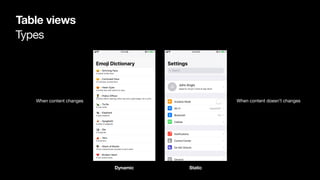
Types
Table views
Dynamic Static
When content changes When content doesn’t changes
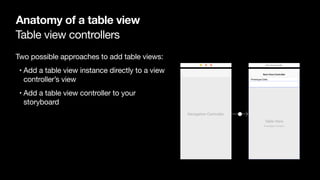
Table view controllers
Anatomy of a table view
Two possible approaches to add table views:

• Add a table view instance directly to a view
controller’s view 

• Add a table view controller to your
storyboard
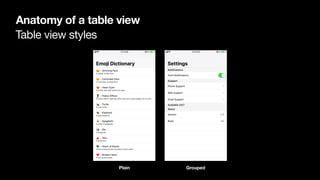
Table view styles
Anatomy of a table view
Plain Grouped
Table view cells (UITableViewCell)
Anatomy of a table view
tableView(_:accessoryButtonTappedForRowWith:)
Every row is represented with a table view cell
In editing mode, the cell content shrinks
Cell content Accessory view
Cell content Reordering controlEditing control
UITableViewCell properties
Anatomy of a table view
Cell property Description
textLabel UILabel for the title
detailTextLabel UILabel for the subtitle
imageView UIImageView for an image
UITableViewCell class defines three properties for cell content
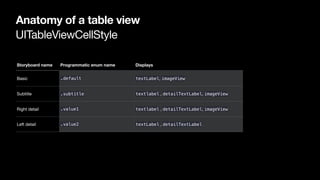
UITableViewCellStyle
Anatomy of a table view
Storyboard name Programmatic enum name Displays
Basic .default textLabel, imageView
Subtitle .subtitle textlabel , detailTextLabel, imageView
Right detail .value1 textlabel , detailTextLabel, imageView
Left detail .value2 textLabel , detailTextLabel
Table view readability margins
Anatomy of a table view
Set tableView.cellLayoutMarginsFollowReadableWidth to true
AdjustedDefault
Index paths
Points to a specific row in a specific section

Accessible through the row and section properties 

• indexPath.row

• indexPath.section

Values are zero-based
Arrays and table views
Collection of similar data

Typically backed by a collection of model objects

var emojis: [Emoji]
[Emoji(symbol: Character("😀"), name: "Grinning Face", description: "A typical smiley face.",
usage: "happiness"),
Emoji(symbol: Character("😕"), name: "Confused Face", description: "A confused, puzzled face.",
usage: "unsure what to think; displeasure"),
Emoji(symbol: Character("😍"), name: "Heart Eyes", description: "A smiley face with hearts for
eyes.", usage: "love of something; attractive")]
Cell dequeueing
Arrays and table views
Table views only load visible cells

Saves memory

Allows for a smooth flow when scrolling 

let cell: UITableViewCell = tableView.dequeueReusableCell(withIdentifier: "Cell", for:
indexPath)
Table view protocols
Protocol Description
UITableViewDataSource Provides data for populating sections and rows
UITableViewDelegate (optional) Customizes appearance and behavior
Number of sections
Table view data source (UITableViewDataSource)
optional func numberOfSections(in tableView: UITableView)
-> Int
If function isn’t provided, the table view assumes
one section
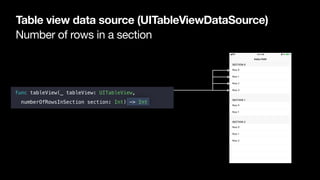
Number of rows in a section
Table view data source (UITableViewDataSource)
func tableView(_ tableView: UITableView,

numberOfRowsInSection section: Int) -> Int
Cell for row at index path
Table view data source (UITableViewDataSource)
func tableView(_ tableView: UITableView, 

cellForRowAt indexPath: IndexPath) -> UITableViewCell
Optional
Table view delegate (UITableViewDelegate)
Responding to accessory view interaction

tableView(_:accessoryButtonTappedForRowWith:)
Responding to user interaction

tableView(_:didSelectRowAt:)
Reload data
reloadData()
To force a data refresh
Table Views
Unit 4—Lesson 5
Learn how to create dynamic table views by
creating an emoji dictionary app
Lab: Meal Tracker
Unit 4—Lesson 5
Practice with the UITableViewDataSource and UITableViewController by
creating an app that will display a list of foods, grouped into three sections, one for
each meal of the day
© 2017 Apple Inc. 

This work is licensed by Apple Inc. under the Creative Commons Attribution-NonCommercial-ShareAlike 4.0 International license.

Table views

  • 1.
  • 2.
    Table views An instanceof the UITableView class A subclass of UIScrollView • Displays a list of items • Displays one or possibly thousands of data objects • Presents vertical scrolling and single-column, multiple rows • Provides customizable options
  • 3.
    Types Table views Dynamic Static Whencontent changes When content doesn’t changes
  • 4.
    Table view controllers Anatomyof a table view Two possible approaches to add table views: • Add a table view instance directly to a view controller’s view • Add a table view controller to your storyboard
  • 5.
    Table view styles Anatomyof a table view Plain Grouped
  • 6.
    Table view cells(UITableViewCell) Anatomy of a table view tableView(_:accessoryButtonTappedForRowWith:) Every row is represented with a table view cell In editing mode, the cell content shrinks Cell content Accessory view Cell content Reordering controlEditing control
  • 7.
    UITableViewCell properties Anatomy ofa table view Cell property Description textLabel UILabel for the title detailTextLabel UILabel for the subtitle imageView UIImageView for an image UITableViewCell class defines three properties for cell content
  • 8.
    UITableViewCellStyle Anatomy of atable view Storyboard name Programmatic enum name Displays Basic .default textLabel, imageView Subtitle .subtitle textlabel , detailTextLabel, imageView Right detail .value1 textlabel , detailTextLabel, imageView Left detail .value2 textLabel , detailTextLabel
  • 9.
    Table view readabilitymargins Anatomy of a table view Set tableView.cellLayoutMarginsFollowReadableWidth to true AdjustedDefault
  • 10.
    Index paths Points toa specific row in a specific section Accessible through the row and section properties • indexPath.row • indexPath.section Values are zero-based
  • 11.
    Arrays and tableviews Collection of similar data Typically backed by a collection of model objects var emojis: [Emoji] [Emoji(symbol: Character("😀"), name: "Grinning Face", description: "A typical smiley face.", usage: "happiness"), Emoji(symbol: Character("😕"), name: "Confused Face", description: "A confused, puzzled face.", usage: "unsure what to think; displeasure"), Emoji(symbol: Character("😍"), name: "Heart Eyes", description: "A smiley face with hearts for eyes.", usage: "love of something; attractive")]
  • 12.
    Cell dequeueing Arrays andtable views Table views only load visible cells Saves memory Allows for a smooth flow when scrolling let cell: UITableViewCell = tableView.dequeueReusableCell(withIdentifier: "Cell", for: indexPath)
  • 13.
    Table view protocols ProtocolDescription UITableViewDataSource Provides data for populating sections and rows UITableViewDelegate (optional) Customizes appearance and behavior
  • 14.
    Number of sections Tableview data source (UITableViewDataSource) optional func numberOfSections(in tableView: UITableView) -> Int If function isn’t provided, the table view assumes one section
  • 15.
    Number of rowsin a section Table view data source (UITableViewDataSource) func tableView(_ tableView: UITableView,
 numberOfRowsInSection section: Int) -> Int
  • 16.
    Cell for rowat index path Table view data source (UITableViewDataSource) func tableView(_ tableView: UITableView, 
 cellForRowAt indexPath: IndexPath) -> UITableViewCell
  • 17.
    Optional Table view delegate(UITableViewDelegate) Responding to accessory view interaction tableView(_:accessoryButtonTappedForRowWith:) Responding to user interaction tableView(_:didSelectRowAt:)
  • 18.
  • 19.
    Table Views Unit 4—Lesson5 Learn how to create dynamic table views by creating an emoji dictionary app
  • 20.
    Lab: Meal Tracker Unit4—Lesson 5 Practice with the UITableViewDataSource and UITableViewController by creating an app that will display a list of foods, grouped into three sections, one for each meal of the day
  • 21.
    © 2017 AppleInc. This work is licensed by Apple Inc. under the Creative Commons Attribution-NonCommercial-ShareAlike 4.0 International license.