Adobe Dreamweaver CS3 Revealed CHAPTER FIVE: USING HTML TABLES TO LAY OUT A PAGE
Chapter 5 Lessons Create a table Resize, split, and merge cells Insert and align images in table cells Insert text and format cell content
Tables Are placeholders made up of small boxes (cells), into which you can insert text and graphics Consist of cells  Arranged horizontally in rows and vertically in columns Give you control over the placement of each object
Inserting Graphics and Text in Tables Control placement of elements in relation to each other Specify amount of space between each page element Always plan how your table will look with all the text and graphics in it Even a rough sketch will save you time
Create a Table Understanding table modes Creating a table in standard mode Planning a table  Setting table accessibility preferences for tables Drawing a table in layout mode
Understanding Table Modes There are two ways to create a table: Click Table on the Insert bar Click View, Table Mode, Layout Mode; then click the Draw Layout Table button or the Draw Layout Cell button
Anatomy of a Table Cell Border Row Cell Spacing
Anatomy of a Cell Vertical alignment Horizontal alignment Width Height Text Wrap Border color Border width Background image Background color Cell
Anatomy of a Row Vertical alignment Horizontal alignment Width Height Text Wrap Border color Border width Background image Background color Row
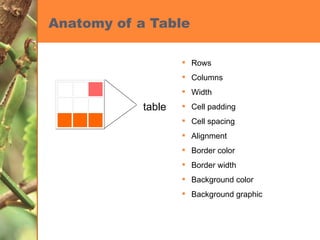
Anatomy of a Table Rows Columns Width Cell padding Cell spacing Alignment Border color Border width Background color Background graphic table
Standard Mode Useful when you want to create a table with a specific number of columns and rows Use the Table dialog box to set: Rows, columns, border thickness, table width, cell padding, and cell spacing
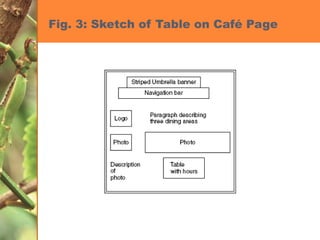
Planning a Table Sketch a plan for a table that shows its location on the Web page and the placement of text and graphics in its cells Decide whether to include borders around the tables and cells.  Setting the border value to 0 causes the table to appear invisible, so that viewers will not realize that you used a table for the page layout unless they look at the code
Accessibility Preferences To make a table more accessible to visually handicapped viewers, add Table caption Table summary (does not appear on screen) Table headers Can be placed at the top or sides of table Are automatically centered and bold
Drawing a Table in Layout Mode Ideal when placing elements on a Web page without specifying number of rows and columns Draw Layout Cell button Layout Table button
Fig. 3: Sketch of Table on Café Page
Fig. 4: Table Dialog Box Table properties Header options Accessibility options
Expanded Tables Mode Allows you to change to a table view with expanded table borders and temporary cell padding and cell spacing Easier to actually see how many rows and columns you have in your table The Expanded Tables mode allows you to see each cell clearly
Fig. 6: Expanded Tables Mode Displays more space between cells for easier editing
Fig. 8: Table in Layout Mode Table displayed in layout mode Layout tab Standard mode button Expanded mode button
Resize, Split and Merge Cells You can resize the rows or columns manually or by entering numbers in the properties inspector You can also take one cell and split it into two or more cells You can take two or more cells and merge them into one cell
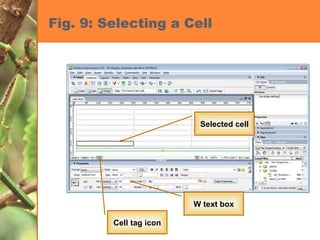
Fig. 9: Selecting a Cell Cell tag icon W text box Selected cell
Fig. 10: Resizing the Row Height Resizing pointer
Fig. 11: Splitting a Cell into Two Rows Number of rows text box Splits cell into Rows or Columns button
Fig. 12: Splitting One Cell into Two Two cells split from one
Fig. 14: Code View for Merged Cells colspan tag
Insert Images in Table Cells Use the Image command on the Images Menu on the Insert bar Drag it from the Assets panel into cell
Aligning Images in Table Cells You can align graphics horizontally and vertically within a cell Use the Horz (or Vert) alignment option in the Property inspector To control spacing between cells, use cell padding and cell spacing
Fig. 16: Vertically Aligning Cell Contents Vertical alignment options
Fig. 18: Images Inserted into Cells cafe_logo.gif cheesecake.jpg
Fig. 20: Aligning Images in Cells Centered banner and navigation bar Centered logo Centered cheesecake photo Left-aligned cafe photo
Inserting Text in a Table Type Copy/paste Import
Format Cell Content Easier to do in Standard mode than in Layout mode Select the contents in the cell, then apply formatting to it Can format each item individually or select the entire cell and format it
Formatting Cells Different than formatting cell content Can include setting properties that visually enhance the cell appearance Cell width, background color, alignment Select the cell or place the insertion point inside the cell, then choose the cell formatting options in the Property inspector
Fig. 21: Property Inspector Showing Options for Formatting Cell Contents Image selected inside a cell Properties for selected graphic
Fig. 22: Property Inspector Showing Options for Formatting a Cell Properties for selected  cell,  not image Insertion point in cell
Fig. 23: Importing and Typing Text  into Cells Imported text describing the cafe Text typed into cell
Importing Text Can import delimited text file Export as delimited text from Spreadsheet program Database program Import tabular data to Dreamweaver
Fig. 25: Adding Nested Tables Top row header Nested table
Fig. 27: Formatting Cells Using Horizontal Alignment Vert and Horz list arrows Insertion point inside cell with no elements selected
Fig. 29: Hiding Visual Aids Hide all visual aids option Visual aids button Dotted lines show borders  are hidden
Chapter 5 Tasks Create a table Resize, split, and merge cells Insert and align images in table cells Insert text and format cell content

Dreamweaver Ch05

  • 1.
    Adobe Dreamweaver CS3Revealed CHAPTER FIVE: USING HTML TABLES TO LAY OUT A PAGE
  • 2.
    Chapter 5 LessonsCreate a table Resize, split, and merge cells Insert and align images in table cells Insert text and format cell content
  • 3.
    Tables Are placeholdersmade up of small boxes (cells), into which you can insert text and graphics Consist of cells Arranged horizontally in rows and vertically in columns Give you control over the placement of each object
  • 4.
    Inserting Graphics andText in Tables Control placement of elements in relation to each other Specify amount of space between each page element Always plan how your table will look with all the text and graphics in it Even a rough sketch will save you time
  • 5.
    Create a TableUnderstanding table modes Creating a table in standard mode Planning a table Setting table accessibility preferences for tables Drawing a table in layout mode
  • 6.
    Understanding Table ModesThere are two ways to create a table: Click Table on the Insert bar Click View, Table Mode, Layout Mode; then click the Draw Layout Table button or the Draw Layout Cell button
  • 7.
    Anatomy of aTable Cell Border Row Cell Spacing
  • 8.
    Anatomy of aCell Vertical alignment Horizontal alignment Width Height Text Wrap Border color Border width Background image Background color Cell
  • 9.
    Anatomy of aRow Vertical alignment Horizontal alignment Width Height Text Wrap Border color Border width Background image Background color Row
  • 10.
    Anatomy of aTable Rows Columns Width Cell padding Cell spacing Alignment Border color Border width Background color Background graphic table
  • 11.
    Standard Mode Usefulwhen you want to create a table with a specific number of columns and rows Use the Table dialog box to set: Rows, columns, border thickness, table width, cell padding, and cell spacing
  • 12.
    Planning a TableSketch a plan for a table that shows its location on the Web page and the placement of text and graphics in its cells Decide whether to include borders around the tables and cells. Setting the border value to 0 causes the table to appear invisible, so that viewers will not realize that you used a table for the page layout unless they look at the code
  • 13.
    Accessibility Preferences Tomake a table more accessible to visually handicapped viewers, add Table caption Table summary (does not appear on screen) Table headers Can be placed at the top or sides of table Are automatically centered and bold
  • 14.
    Drawing a Tablein Layout Mode Ideal when placing elements on a Web page without specifying number of rows and columns Draw Layout Cell button Layout Table button
  • 15.
    Fig. 3: Sketchof Table on Café Page
  • 16.
    Fig. 4: TableDialog Box Table properties Header options Accessibility options
  • 17.
    Expanded Tables ModeAllows you to change to a table view with expanded table borders and temporary cell padding and cell spacing Easier to actually see how many rows and columns you have in your table The Expanded Tables mode allows you to see each cell clearly
  • 18.
    Fig. 6: ExpandedTables Mode Displays more space between cells for easier editing
  • 19.
    Fig. 8: Tablein Layout Mode Table displayed in layout mode Layout tab Standard mode button Expanded mode button
  • 20.
    Resize, Split andMerge Cells You can resize the rows or columns manually or by entering numbers in the properties inspector You can also take one cell and split it into two or more cells You can take two or more cells and merge them into one cell
  • 21.
    Fig. 9: Selectinga Cell Cell tag icon W text box Selected cell
  • 22.
    Fig. 10: Resizingthe Row Height Resizing pointer
  • 23.
    Fig. 11: Splittinga Cell into Two Rows Number of rows text box Splits cell into Rows or Columns button
  • 24.
    Fig. 12: SplittingOne Cell into Two Two cells split from one
  • 25.
    Fig. 14: CodeView for Merged Cells colspan tag
  • 26.
    Insert Images inTable Cells Use the Image command on the Images Menu on the Insert bar Drag it from the Assets panel into cell
  • 27.
    Aligning Images inTable Cells You can align graphics horizontally and vertically within a cell Use the Horz (or Vert) alignment option in the Property inspector To control spacing between cells, use cell padding and cell spacing
  • 28.
    Fig. 16: VerticallyAligning Cell Contents Vertical alignment options
  • 29.
    Fig. 18: ImagesInserted into Cells cafe_logo.gif cheesecake.jpg
  • 30.
    Fig. 20: AligningImages in Cells Centered banner and navigation bar Centered logo Centered cheesecake photo Left-aligned cafe photo
  • 31.
    Inserting Text ina Table Type Copy/paste Import
  • 32.
    Format Cell ContentEasier to do in Standard mode than in Layout mode Select the contents in the cell, then apply formatting to it Can format each item individually or select the entire cell and format it
  • 33.
    Formatting Cells Differentthan formatting cell content Can include setting properties that visually enhance the cell appearance Cell width, background color, alignment Select the cell or place the insertion point inside the cell, then choose the cell formatting options in the Property inspector
  • 34.
    Fig. 21: PropertyInspector Showing Options for Formatting Cell Contents Image selected inside a cell Properties for selected graphic
  • 35.
    Fig. 22: PropertyInspector Showing Options for Formatting a Cell Properties for selected cell, not image Insertion point in cell
  • 36.
    Fig. 23: Importingand Typing Text into Cells Imported text describing the cafe Text typed into cell
  • 37.
    Importing Text Canimport delimited text file Export as delimited text from Spreadsheet program Database program Import tabular data to Dreamweaver
  • 38.
    Fig. 25: AddingNested Tables Top row header Nested table
  • 39.
    Fig. 27: FormattingCells Using Horizontal Alignment Vert and Horz list arrows Insertion point inside cell with no elements selected
  • 40.
    Fig. 29: HidingVisual Aids Hide all visual aids option Visual aids button Dotted lines show borders are hidden
  • 41.
    Chapter 5 TasksCreate a table Resize, split, and merge cells Insert and align images in table cells Insert text and format cell content