1 2 3 4 5 6 Spreadsheets 101 A B C D E F G Business Computer Technology
Objectives  5.01  - Identify advantages and uses of spreadsheet software and charts/graphs. 5.02  - Identify and explain spreadsheet terminology.  5.03  - Create and save basic spreadsheets and apply formulas. 5.04  – Retrieve, edit, manipulate, and print various spreadsheets.   5.05  -  Create various charts/graphs from spreadsheets .
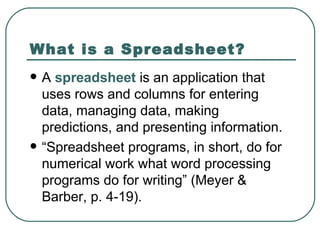
What is a Spreadsheet?  A  spreadsheet  is an application that uses rows and columns for entering data, managing data, making predictions, and presenting information. “Spreadsheet programs, in short, do for numerical work what word processing programs do for writing” (Meyer & Barber, p. 4-19).
Uses of a Spreadsheet Prepare budgets and financial statements Manage inventory Maintain student grades Analyze information Manage personal information such as account balances, loan payments, etc.
Advantages of a Spreadsheet Organize information Sort  – Arrange information in a particular order (for example from A – Z). Filter  – Pull out specific pieces of information (for example all last names that begin with “L”).  Perform mathematical operations Formula  – simple equation which uses the symbols (+) addition, (-) subtraction, (*) multiplication, and (/) division (for example =D4+E4 or =D4*E4).  Function ( fx ) – built-in software calculations for more complex formulas. For example =AVERAGE(B2:B6).  Use of charts and graphs to present information Ability to make predictions through  what-if statements
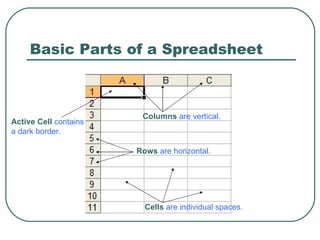
Basic Parts of a Spreadsheet Active   Cell  contains a dark border.  Columns   are vertical.  Rows   are horizontal.  Cells   are individual spaces.
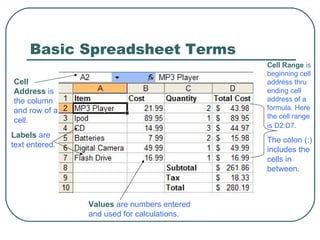
Basic Spreadsheet Terms Labels  are text entered.  Cell Range   is beginning cell address thru ending cell address of a formula. Here the cell range is D2:D7.   The colon (:) includes the cells in between.  Values   are numbers entered and used for calculations.   Cell Address  is the column and row of a cell.
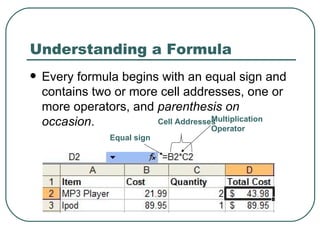
Understanding a Formula  Every formula begins with an equal sign and contains two or more cell addresses, one or more operators, and  parenthesis   on occasion . Equal sign Cell Addresses Multiplication Operator
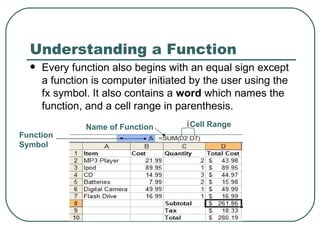
Understanding a Function Every function also begins with an equal sign except a function is computer initiated by the user using the fx symbol. It also contains a  word  which names the function, and a cell range in parenthesis.  Name of Function Cell Range  Function Symbol
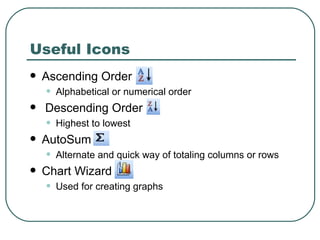
Useful Icons Ascending Order Alphabetical or numerical order Descending Order Highest to lowest  AutoSum  Alternate and quick way of totaling columns or rows Chart Wizard Used for creating graphs
Your Turn:  Applying What  You’ve Learned  Spreadsheets 101 Assessments Short Answer/Multiple Choice (Slides 12 – 21) Practical (Slide 22 – 23)
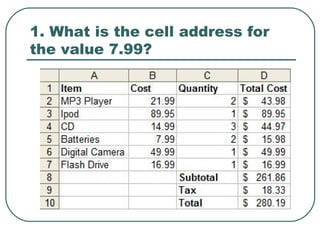
1. What is the cell address for the value 7.99?
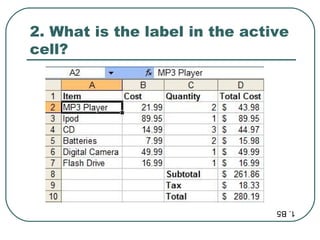
2. What is the label in the active cell?  1. B5
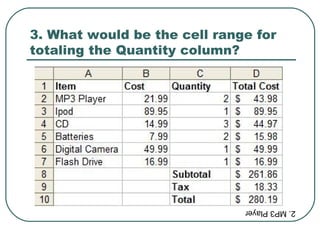
3. What would be the cell range for totaling the Quantity column? 2. MP3 Player
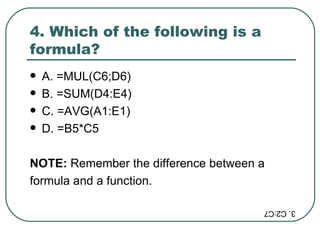
4. Which of the following is a formula?  A. =MUL(C6;D6) B. =SUM(D4:E4) C. =AVG(A1:E1) D. =B5*C5 NOTE:  Remember the difference between a  formula and a function.  3. C2:C7
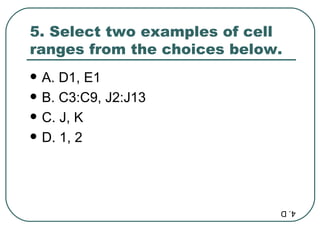
5. Select two examples of cell ranges from the choices below.  A. D1, E1 B. C3:C9, J2:J13  C. J, K D. 1, 2 4. D
6. Allyson uses a spreadsheet to track and calculate her weekly allowance. She spent $5 dollars on a CD. What operator should she use to calculate her balance? A. * B. + C. - D. / 5. B
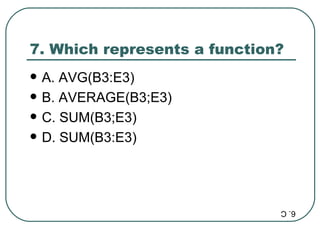
7. Which represents a function? A. AVG(B3:E3) B. AVERAGE(B3;E3) C. SUM(B3;E3) D. SUM(B3:E3) 6. C
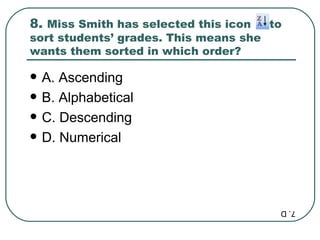
8.  Miss Smith has selected this icon  to sort students’ grades. This means she wants them sorted in which order? A. Ascending B. Alphabetical C. Descending D. Numerical 7. D
9. What is the name of each space in a spreadsheet? A. Cell reference B. Cell address C. Active cell D. Cell 8. C
10. Which of the following is the symbol used to begin performing functions of all sorts?  A.   B.  fx C. D.  9. D
Open a blank spreadsheet and enter the following data: 10. B
Next Steps Insert a  formula  in cells D2 thru D9 that calculates the  Total per Item .  Insert a  function  or use  AutoSum  in cell D10 which calculates the total amount made for all items sold. Create a  column graph  using the chart wizard icon to show the Menu Items and Number Sold.  (Follow all screen defaults.)   NOTE: To select both columns, highlight the  Menu Items  column. Then, hold down the  CTRL key  to also select the  Number Sold  column.
Final Steps Type your  Name  in cell A31.  After finishing, check your work using the next slide.  Then, hold down the CTRL key & press the grave accent key (beneath escape) and print your spreadsheet with the formulas displayed. Submit your practice for class participation credit.
How Did You Do?  Practical Assessment Answer Key
Congratulations on learning the basics of Spreadsheet use.
Sources  Microsoft Clipart  Opening slide clipart modified by whita1bd to resemble a spreadsheet.  Meyer, M. & Baber, R. (1997). Computers in your future 2 nd  edition. Indianapolis, IN: Macmillan Publishing.  North Carolina Business Computer Technology Course Blueprint. (2003).  Spreadsheet print screens and icons by whita1bd

Spreadsheets 101

  • 1.
    1 2 34 5 6 Spreadsheets 101 A B C D E F G Business Computer Technology
  • 2.
    Objectives 5.01 - Identify advantages and uses of spreadsheet software and charts/graphs. 5.02 - Identify and explain spreadsheet terminology. 5.03 - Create and save basic spreadsheets and apply formulas. 5.04 – Retrieve, edit, manipulate, and print various spreadsheets. 5.05 - Create various charts/graphs from spreadsheets .
  • 3.
    What is aSpreadsheet? A spreadsheet is an application that uses rows and columns for entering data, managing data, making predictions, and presenting information. “Spreadsheet programs, in short, do for numerical work what word processing programs do for writing” (Meyer & Barber, p. 4-19).
  • 4.
    Uses of aSpreadsheet Prepare budgets and financial statements Manage inventory Maintain student grades Analyze information Manage personal information such as account balances, loan payments, etc.
  • 5.
    Advantages of aSpreadsheet Organize information Sort – Arrange information in a particular order (for example from A – Z). Filter – Pull out specific pieces of information (for example all last names that begin with “L”). Perform mathematical operations Formula – simple equation which uses the symbols (+) addition, (-) subtraction, (*) multiplication, and (/) division (for example =D4+E4 or =D4*E4). Function ( fx ) – built-in software calculations for more complex formulas. For example =AVERAGE(B2:B6). Use of charts and graphs to present information Ability to make predictions through what-if statements
  • 6.
    Basic Parts ofa Spreadsheet Active Cell contains a dark border. Columns are vertical. Rows are horizontal. Cells are individual spaces.
  • 7.
    Basic Spreadsheet TermsLabels are text entered. Cell Range is beginning cell address thru ending cell address of a formula. Here the cell range is D2:D7. The colon (:) includes the cells in between. Values are numbers entered and used for calculations. Cell Address is the column and row of a cell.
  • 8.
    Understanding a Formula Every formula begins with an equal sign and contains two or more cell addresses, one or more operators, and parenthesis on occasion . Equal sign Cell Addresses Multiplication Operator
  • 9.
    Understanding a FunctionEvery function also begins with an equal sign except a function is computer initiated by the user using the fx symbol. It also contains a word which names the function, and a cell range in parenthesis. Name of Function Cell Range Function Symbol
  • 10.
    Useful Icons AscendingOrder Alphabetical or numerical order Descending Order Highest to lowest AutoSum Alternate and quick way of totaling columns or rows Chart Wizard Used for creating graphs
  • 11.
    Your Turn: Applying What You’ve Learned Spreadsheets 101 Assessments Short Answer/Multiple Choice (Slides 12 – 21) Practical (Slide 22 – 23)
  • 12.
    1. What isthe cell address for the value 7.99?
  • 13.
    2. What isthe label in the active cell? 1. B5
  • 14.
    3. What wouldbe the cell range for totaling the Quantity column? 2. MP3 Player
  • 15.
    4. Which ofthe following is a formula? A. =MUL(C6;D6) B. =SUM(D4:E4) C. =AVG(A1:E1) D. =B5*C5 NOTE: Remember the difference between a formula and a function. 3. C2:C7
  • 16.
    5. Select twoexamples of cell ranges from the choices below. A. D1, E1 B. C3:C9, J2:J13 C. J, K D. 1, 2 4. D
  • 17.
    6. Allyson usesa spreadsheet to track and calculate her weekly allowance. She spent $5 dollars on a CD. What operator should she use to calculate her balance? A. * B. + C. - D. / 5. B
  • 18.
    7. Which representsa function? A. AVG(B3:E3) B. AVERAGE(B3;E3) C. SUM(B3;E3) D. SUM(B3:E3) 6. C
  • 19.
    8. MissSmith has selected this icon to sort students’ grades. This means she wants them sorted in which order? A. Ascending B. Alphabetical C. Descending D. Numerical 7. D
  • 20.
    9. What isthe name of each space in a spreadsheet? A. Cell reference B. Cell address C. Active cell D. Cell 8. C
  • 21.
    10. Which ofthe following is the symbol used to begin performing functions of all sorts? A.  B. fx C. D. 9. D
  • 22.
    Open a blankspreadsheet and enter the following data: 10. B
  • 23.
    Next Steps Inserta formula in cells D2 thru D9 that calculates the Total per Item . Insert a function or use AutoSum in cell D10 which calculates the total amount made for all items sold. Create a column graph using the chart wizard icon to show the Menu Items and Number Sold. (Follow all screen defaults.) NOTE: To select both columns, highlight the Menu Items column. Then, hold down the CTRL key to also select the Number Sold column.
  • 24.
    Final Steps Typeyour Name in cell A31. After finishing, check your work using the next slide. Then, hold down the CTRL key & press the grave accent key (beneath escape) and print your spreadsheet with the formulas displayed. Submit your practice for class participation credit.
  • 25.
    How Did YouDo? Practical Assessment Answer Key
  • 26.
    Congratulations on learningthe basics of Spreadsheet use.
  • 27.
    Sources MicrosoftClipart Opening slide clipart modified by whita1bd to resemble a spreadsheet. Meyer, M. & Baber, R. (1997). Computers in your future 2 nd edition. Indianapolis, IN: Macmillan Publishing. North Carolina Business Computer Technology Course Blueprint. (2003). Spreadsheet print screens and icons by whita1bd