Copyright by © J.W. Zuyderduyn www.LearnSolidWorks.com Page 1
Copyright by © J.W. Zuyderduyn www.LearnSolidWorks.com Page 2
About LearnSolidWorks.com
Hi, my name is Jan-Willem Zuyderduyn and I live in the
Netherlands. I am a Lead Product Designer and founder of
LearnSolidWorks.com.
Since 2009 I help SolidWorkers to improve their SolidWorks
modeling skills by developing practical, step-by-step
SolidWorks tutorials.
I am the author of dozens of SolidWorks eBooks and videos
(125.000+ downloads) and 4 premium SolidWorks self-study
packages all available on LearnSolidWorks.com.
In these practical SolidWorks tutorial packages, I will show
you exactly how to model a stunning Aston Martin One-77
sports car, an incredible American Chopper, an enormous
108 ft. Superyacht and even an entire (76 meter!) long
Boeing 747-8:
http://learnsolidworks.com/pricing
Are we already connected on social media?
• Click here to connect with me on LinkedIn
• Click here to follow me on Instagram
• Click here to like my Facebook page
I encourage you to share this eBook with your colleagues and friends.
Happy modeling!
Jan-Willem Zuyderduyn
Founder LearnSolidWorks.com
Copyright by © J.W. Zuyderduyn www.LearnSolidWorks.com Page 3
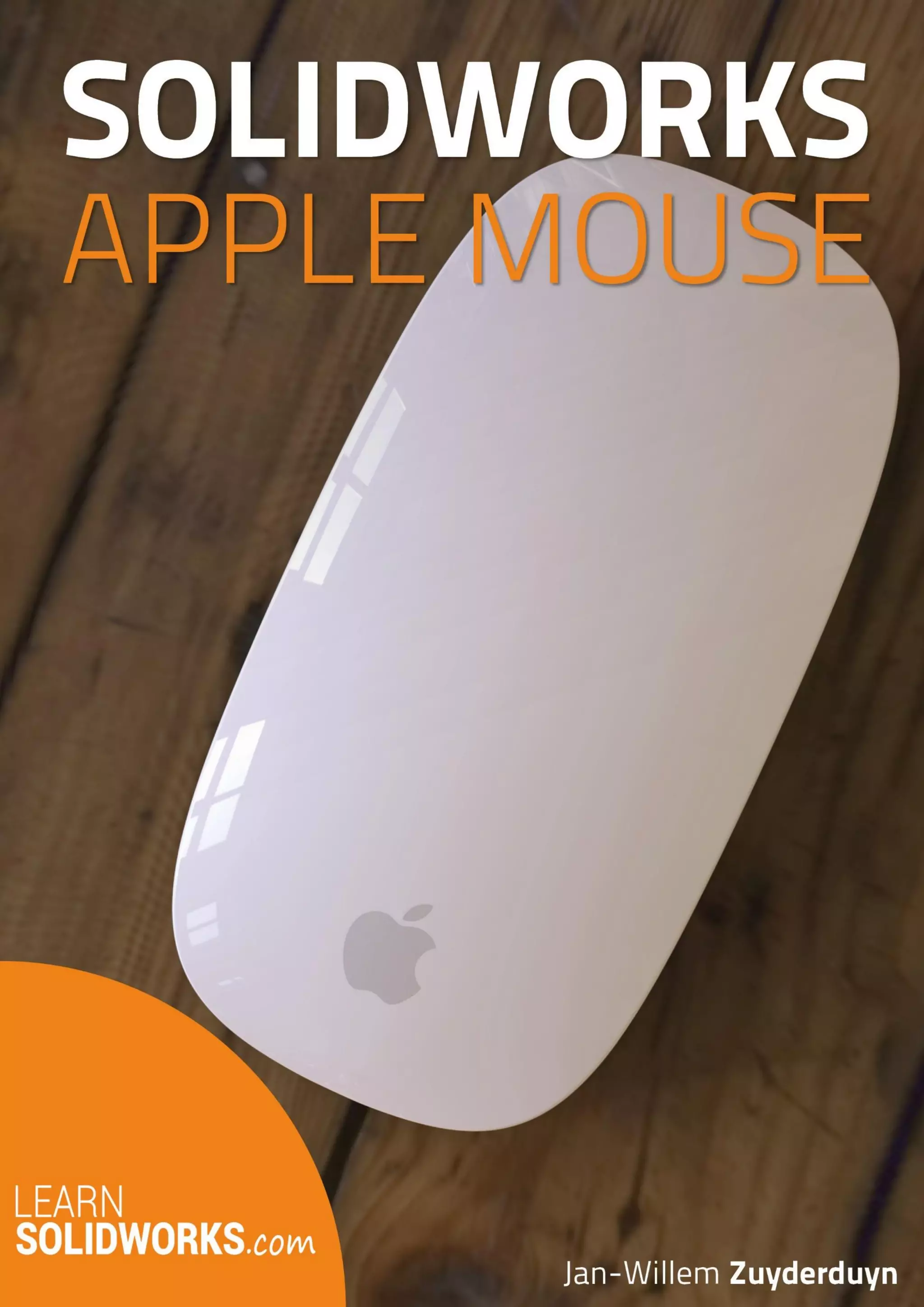
How to model Apple’s Magic Mouse in SolidWorks?
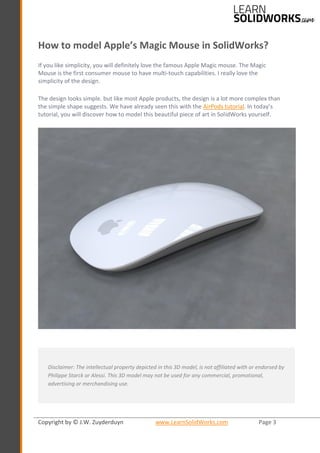
If you like simplicity, you will definitely love the famous Apple Magic mouse. The Magic
Mouse is the first consumer mouse to have multi-touch capabilities. I really love the
simplicity of the design.
The design looks simple. but like most Apple products, the design is a lot more complex than
the simple shape suggests. We have already seen this with the AirPods tutorial. In today’s
tutorial, you will discover how to model this beautiful piece of art in SolidWorks yourself.
Disclaimer: The intellectual property depicted in this 3D model, is not affiliated with or endorsed by
Philippe Starck or Alessi. This 3D model may not be used for any commercial, promotional,
advertising or merchandising use.
Copyright by © J.W. Zuyderduyn www.LearnSolidWorks.com Page 4
Open a New Part with model units set to millimeters
Go to: File > New > Part
Save the file with the following name: Apple Mouse.SLDPRT
Create a 2D Sketch on the Right Plane (Sketch 1)
Select the Right Plane from the Feature tree and click on the sketch icon
Click on the Normal To icon
Go to: Tools > Sketch Entities > Midpoint Line
Draw a horizontal midpoint line starting from the origin
Go to: Tools > Dimensions > Smart
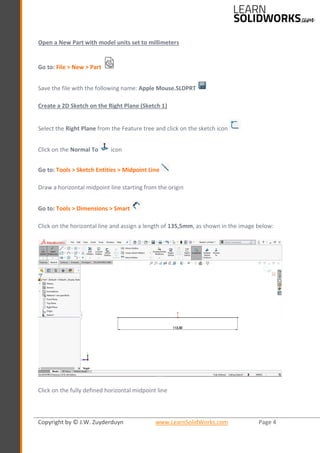
Click on the horizontal line and assign a length of 135,5mm, as shown in the image below:
Click on the fully defined horizontal midpoint line
Copyright by © J.W. Zuyderduyn www.LearnSolidWorks.com Page 5
Go to the Line Properties > Option
Tick the ‘For Construction’ checkbox
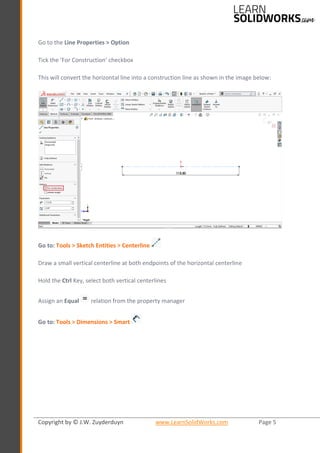
This will convert the horizontal line into a construction line as shown in the image below:
Go to: Tools > Sketch Entities > Centerline
Draw a small vertical centerline at both endpoints of the horizontal centerline
Hold the Ctrl Key, select both vertical centerlines
Assign an Equal relation from the property manager
Go to: Tools > Dimensions > Smart
Copyright by © J.W. Zuyderduyn www.LearnSolidWorks.com Page 6
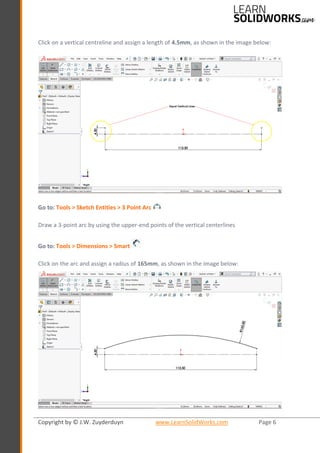
Click on a vertical centreline and assign a length of 4.5mm, as shown in the image below:
Go to: Tools > Sketch Entities > 3 Point Arc
Draw a 3-point arc by using the upper-end points of the vertical centerlines
Go to: Tools > Dimensions > Smart
Click on the arc and assign a radius of 165mm, as shown in the image below:
Copyright by © J.W. Zuyderduyn www.LearnSolidWorks.com Page 7
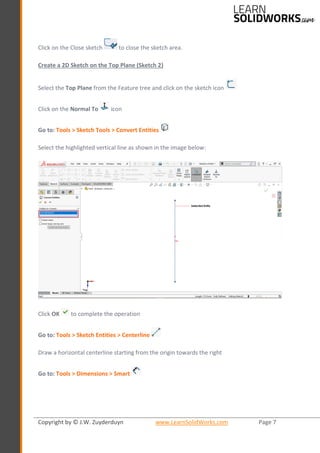
Click on the Close sketch to close the sketch area.
Create a 2D Sketch on the Top Plane (Sketch 2)
Select the Top Plane from the Feature tree and click on the sketch icon
Click on the Normal To icon
Go to: Tools > Sketch Tools > Convert Entities
Select the highlighted vertical line as shown in the image below:
Click OK to complete the operation
Go to: Tools > Sketch Entities > Centerline
Draw a horizontal centerline starting from the origin towards the right
Go to: Tools > Dimensions > Smart
Copyright by © J.W. Zuyderduyn www.LearnSolidWorks.com Page 8
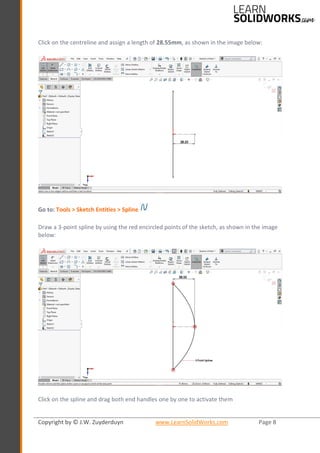
Click on the centreline and assign a length of 28.55mm, as shown in the image below:
Go to: Tools > Sketch Entities > Spline
Draw a 3-point spline by using the red encircled points of the sketch, as shown in the image
below:
Click on the spline and drag both end handles one by one to activate them
Copyright by © J.W. Zuyderduyn www.LearnSolidWorks.com Page 9
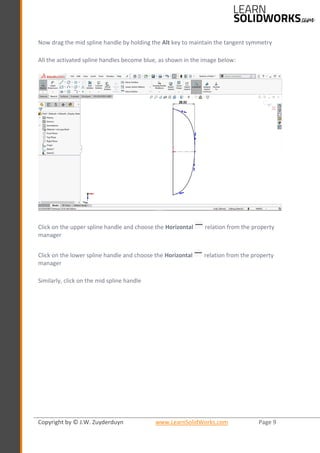
Now drag the mid spline handle by holding the Alt key to maintain the tangent symmetry
All the activated spline handles become blue, as shown in the image below:
Click on the upper spline handle and choose the Horizontal relation from the property
manager
Click on the lower spline handle and choose the Horizontal relation from the property
manager
Similarly, click on the mid spline handle
Copyright by © J.W. Zuyderduyn www.LearnSolidWorks.com Page 10
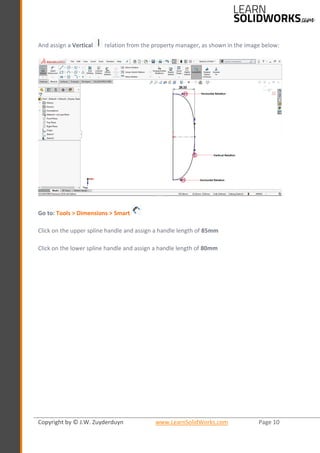
And assign a Vertical relation from the property manager, as shown in the image below:
Go to: Tools > Dimensions > Smart
Click on the upper spline handle and assign a handle length of 85mm
Click on the lower spline handle and assign a handle length of 80mm
Copyright by © J.W. Zuyderduyn www.LearnSolidWorks.com Page 11
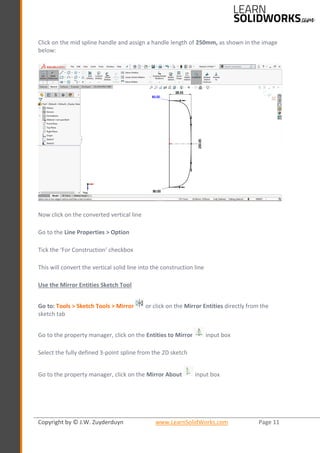
Click on the mid spline handle and assign a handle length of 250mm, as shown in the image
below:
Now click on the converted vertical line
Go to the Line Properties > Option
Tick the ‘For Construction’ checkbox
This will convert the vertical solid line into the construction line
Use the Mirror Entities Sketch Tool
Go to: Tools > Sketch Tools > Mirror or click on the Mirror Entities directly from the
sketch tab
Go to the property manager, click on the Entities to Mirror input box
Select the fully defined 3-point spline from the 2D sketch
Go to the property manager, click on the Mirror About input box
Copyright by © J.W. Zuyderduyn www.LearnSolidWorks.com Page 12
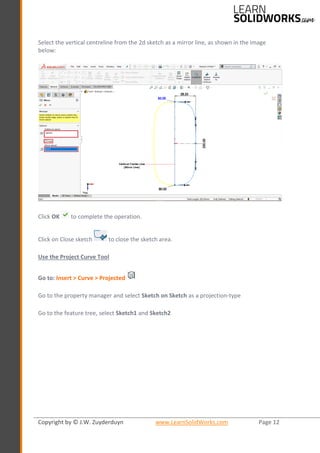
Select the vertical centreline from the 2d sketch as a mirror line, as shown in the image
below:
Click OK to complete the operation.
Click on Close sketch to close the sketch area.
Use the Project Curve Tool
Go to: Insert > Curve > Projected
Go to the property manager and select Sketch on Sketch as a projection-type
Go to the feature tree, select Sketch1 and Sketch2
Copyright by © J.W. Zuyderduyn www.LearnSolidWorks.com Page 13
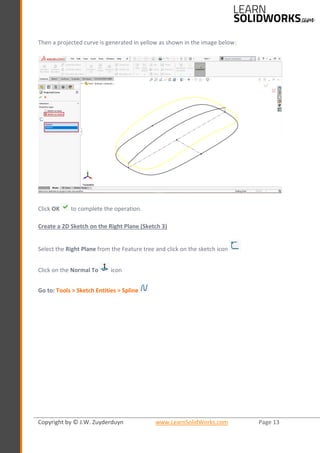
Then a projected curve is generated in yellow as shown in the image below:
Click OK to complete the operation.
Create a 2D Sketch on the Right Plane (Sketch 3)
Select the Right Plane from the Feature tree and click on the sketch icon
Click on the Normal To icon
Go to: Tools > Sketch Entities > Spline
Copyright by © J.W. Zuyderduyn www.LearnSolidWorks.com Page 14
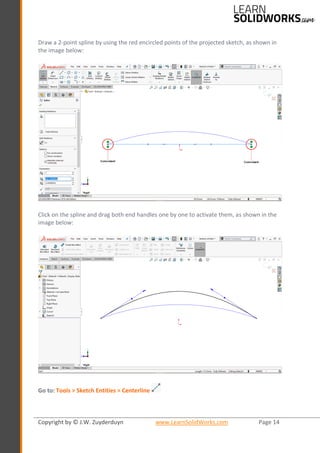
Draw a 2-point spline by using the red encircled points of the projected sketch, as shown in
the image below:
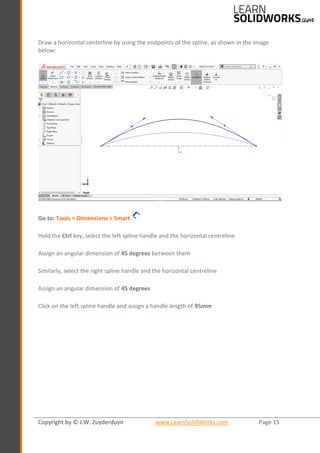
Click on the spline and drag both end handles one by one to activate them, as shown in the
image below:
Go to: Tools > Sketch Entities > Centerline
Copyright by © J.W. Zuyderduyn www.LearnSolidWorks.com Page 15
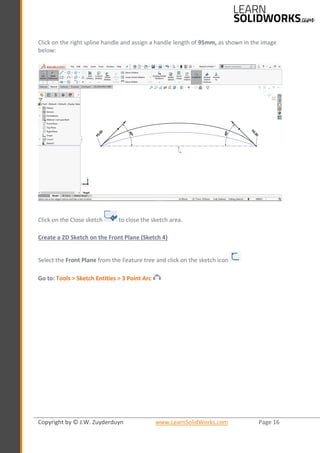
Draw a horizontal centerline by using the endpoints of the spline, as shown in the image
below:
Go to: Tools > Dimensions > Smart
Hold the Ctrl key, select the left spline handle and the horizontal centreline
Assign an angular dimension of 45 degrees between them
Similarly, select the right spline handle and the horizontal centreline
Assign an angular dimension of 45 degrees
Click on the left spline handle and assign a handle length of 95mm
Copyright by © J.W. Zuyderduyn www.LearnSolidWorks.com Page 16
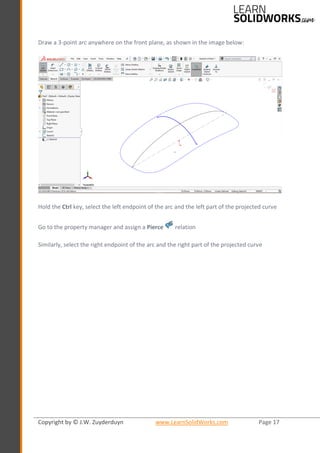
Click on the right spline handle and assign a handle length of 95mm, as shown in the image
below:
Click on the Close sketch to close the sketch area.
Create a 2D Sketch on the Front Plane (Sketch 4)
Select the Front Plane from the Feature tree and click on the sketch icon
Go to: Tools > Sketch Entities > 3 Point Arc
Copyright by © J.W. Zuyderduyn www.LearnSolidWorks.com Page 17
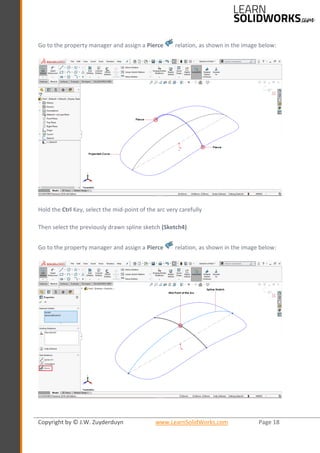
Draw a 3-point arc anywhere on the front plane, as shown in the image below:
Hold the Ctrl key, select the left endpoint of the arc and the left part of the projected curve
Go to the property manager and assign a Pierce relation
Similarly, select the right endpoint of the arc and the right part of the projected curve
Copyright by © J.W. Zuyderduyn www.LearnSolidWorks.com Page 18
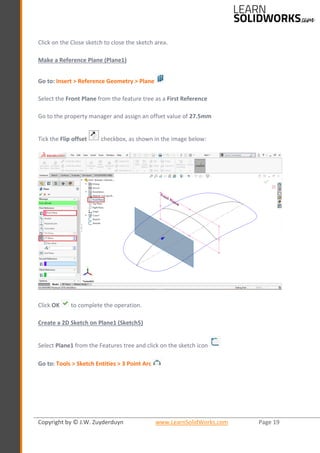
Go to the property manager and assign a Pierce relation, as shown in the image below:
Hold the Ctrl Key, select the mid-point of the arc very carefully
Then select the previously drawn spline sketch (Sketch4)
Go to the property manager and assign a Pierce relation, as shown in the image below:
Copyright by © J.W. Zuyderduyn www.LearnSolidWorks.com Page 19
Click on the Close sketch to close the sketch area.
Make a Reference Plane (Plane1)
Go to: Insert > Reference Geometry > Plane
Select the Front Plane from the feature tree as a First Reference
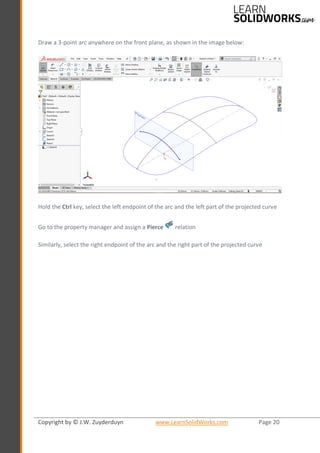
Go to the property manager and assign an offset value of 27.5mm
Tick the Flip offset checkbox, as shown in the image below:
Click OK to complete the operation.
Create a 2D Sketch on Plane1 (Sketch5)
Select Plane1 from the Features tree and click on the sketch icon
Go to: Tools > Sketch Entities > 3 Point Arc
Copyright by © J.W. Zuyderduyn www.LearnSolidWorks.com Page 20
Draw a 3-point arc anywhere on the front plane, as shown in the image below:
Hold the Ctrl key, select the left endpoint of the arc and the left part of the projected curve
Go to the property manager and assign a Pierce relation
Similarly, select the right endpoint of the arc and the right part of the projected curve
Copyright by © J.W. Zuyderduyn www.LearnSolidWorks.com Page 21
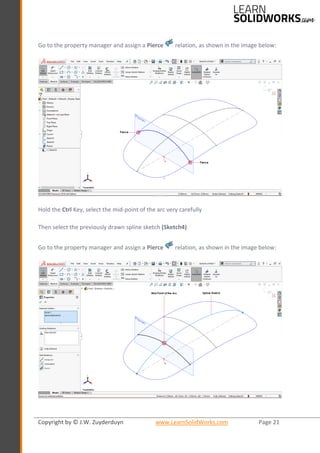
Go to the property manager and assign a Pierce relation, as shown in the image below:
Hold the Ctrl Key, select the mid-point of the arc very carefully
Then select the previously drawn spline sketch (Sketch4)
Go to the property manager and assign a Pierce relation, as shown in the image below:
Copyright by © J.W. Zuyderduyn www.LearnSolidWorks.com Page 22
Click on the Close sketch to close the sketch area.
Make a Reference Plane (Plane2)
Go to: Insert > Reference Geometry > Plane
Select the Front Plane from the feature tree as a First Reference
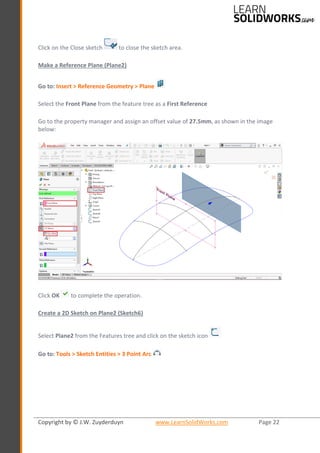
Go to the property manager and assign an offset value of 27.5mm, as shown in the image
below:
Click OK to complete the operation.
Create a 2D Sketch on Plane2 (Sketch6)
Select Plane2 from the Features tree and click on the sketch icon
Go to: Tools > Sketch Entities > 3 Point Arc
Copyright by © J.W. Zuyderduyn www.LearnSolidWorks.com Page 23
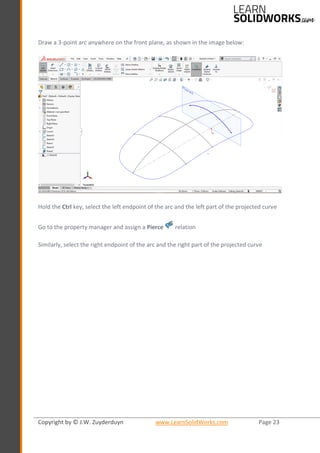
Draw a 3-point arc anywhere on the front plane, as shown in the image below:
Hold the Ctrl key, select the left endpoint of the arc and the left part of the projected curve
Go to the property manager and assign a Pierce relation
Similarly, select the right endpoint of the arc and the right part of the projected curve
Copyright by © J.W. Zuyderduyn www.LearnSolidWorks.com Page 24
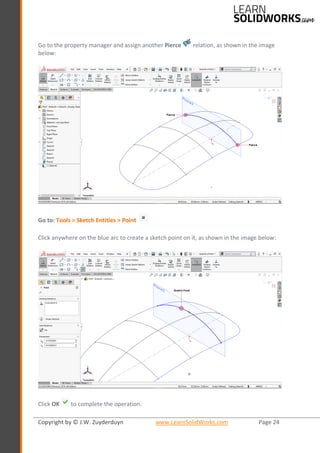
Go to the property manager and assign another Pierce relation, as shown in the image
below:
Go to: Tools > Sketch Entities > Point
Click anywhere on the blue arc to create a sketch point on it, as shown in the image below:
Click OK to complete the operation.
Copyright by © J.W. Zuyderduyn www.LearnSolidWorks.com Page 25
Hold the Ctrl Key, select that Sketch Point and the previously drawn spline sketch (Sketch4)
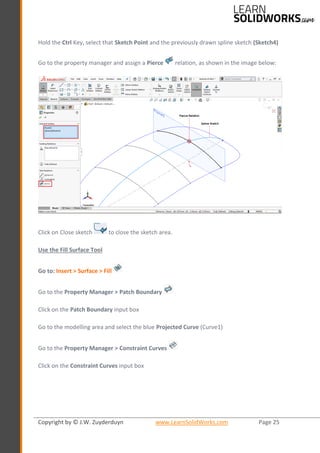
Go to the property manager and assign a Pierce relation, as shown in the image below:
Click on Close sketch to close the sketch area.
Use the Fill Surface Tool
Go to: Insert > Surface > Fill
Go to the Property Manager > Patch Boundary
Click on the Patch Boundary input box
Go to the modelling area and select the blue Projected Curve (Curve1)
Go to the Property Manager > Constraint Curves
Click on the Constraint Curves input box
Copyright by © J.W. Zuyderduyn www.LearnSolidWorks.com Page 26
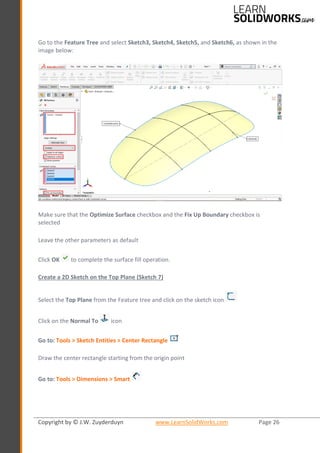
Go to the Feature Tree and select Sketch3, Sketch4, Sketch5, and Sketch6, as shown in the
image below:
Make sure that the Optimize Surface checkbox and the Fix Up Boundary checkbox is
selected
Leave the other parameters as default
Click OK to complete the surface fill operation.
Create a 2D Sketch on the Top Plane (Sketch 7)
Select the Top Plane from the Feature tree and click on the sketch icon
Click on the Normal To icon
Go to: Tools > Sketch Entities > Center Rectangle
Draw the center rectangle starting from the origin point
Go to: Tools > Dimensions > Smart
Copyright by © J.W. Zuyderduyn www.LearnSolidWorks.com Page 27
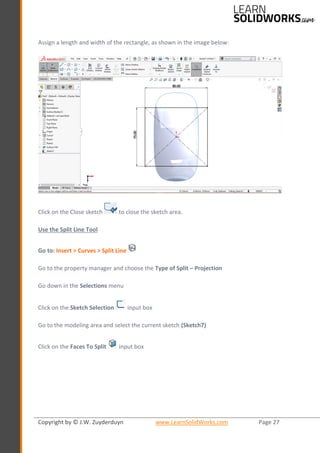
Assign a length and width of the rectangle, as shown in the image below:
Click on the Close sketch to close the sketch area.
Use the Split Line Tool
Go to: Insert > Curves > Split Line
Go to the property manager and choose the Type of Split – Projection
Go down in the Selections menu
Click on the Sketch Selection input box
Go to the modeling area and select the current sketch (Sketch7)
Click on the Faces To Split input box
Copyright by © J.W. Zuyderduyn www.LearnSolidWorks.com Page 28
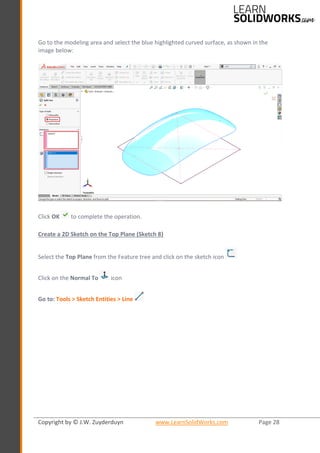
Go to the modeling area and select the blue highlighted curved surface, as shown in the
image below:
Click OK to complete the operation.
Create a 2D Sketch on the Top Plane (Sketch 8)
Select the Top Plane from the Feature tree and click on the sketch icon
Click on the Normal To icon
Go to: Tools > Sketch Entities > Line
Copyright by © J.W. Zuyderduyn www.LearnSolidWorks.com Page 29
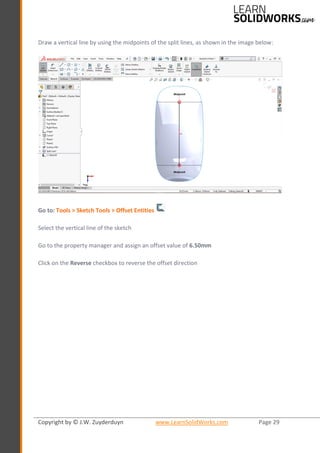
Draw a vertical line by using the midpoints of the split lines, as shown in the image below:
Go to: Tools > Sketch Tools > Offset Entities
Select the vertical line of the sketch
Go to the property manager and assign an offset value of 6.50mm
Click on the Reverse checkbox to reverse the offset direction
Copyright by © J.W. Zuyderduyn www.LearnSolidWorks.com Page 30
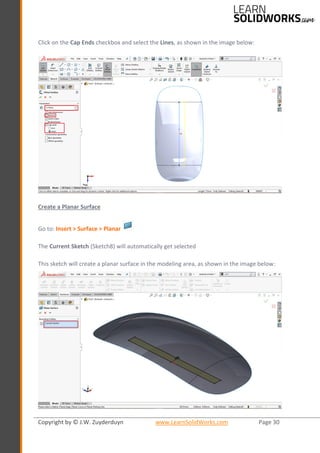
Click on the Cap Ends checkbox and select the Lines, as shown in the image below:
Create a Planar Surface
Go to: Insert > Surface > Planar
The Current Sketch (Sketch8) will automatically get selected
This sketch will create a planar surface in the modeling area, as shown in the image below:
Copyright by © J.W. Zuyderduyn www.LearnSolidWorks.com Page 31
Click OK to complete the operation.
Make a Surface Loft
Go to: Insert > Surface > Loft…
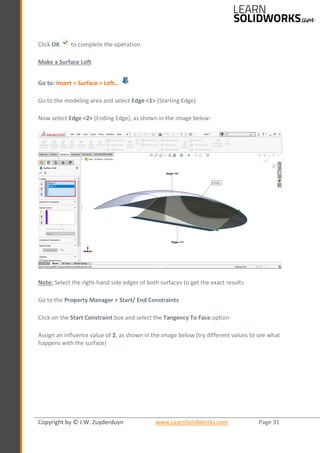
Go to the modeling area and select Edge <1> (Starting Edge)
Now select Edge <2> (Ending Edge), as shown in the image below:
Note: Select the right-hand side edges of both surfaces to get the exact results
Go to the Property Manager > Start/ End Constraints
Click on the Start Constraint box and select the Tangency To Face option
Assign an influence value of 2, as shown in the image below (try different values to see what
happens with the surface)
Copyright by © J.W. Zuyderduyn www.LearnSolidWorks.com Page 32
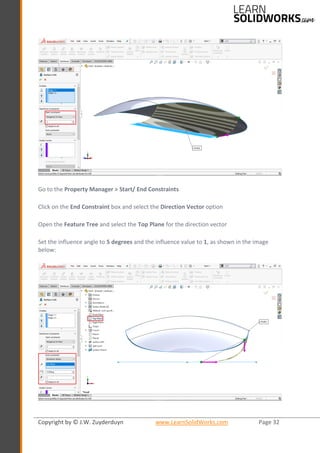
Go to the Property Manager > Start/ End Constraints
Click on the End Constraint box and select the Direction Vector option
Open the Feature Tree and select the Top Plane for the direction vector
Set the influence angle to 5 degrees and the influence value to 1, as shown in the image
below:
Copyright by © J.W. Zuyderduyn www.LearnSolidWorks.com Page 33
Click OK to complete the surface loft operation.
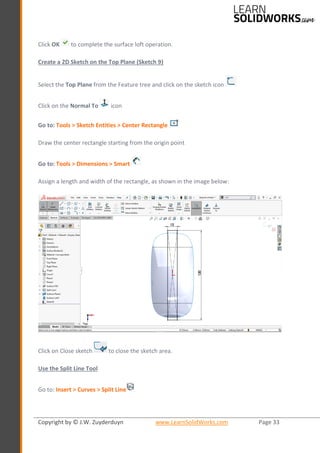
Create a 2D Sketch on the Top Plane (Sketch 9)
Select the Top Plane from the Feature tree and click on the sketch icon
Click on the Normal To icon
Go to: Tools > Sketch Entities > Center Rectangle
Draw the center rectangle starting from the origin point
Go to: Tools > Dimensions > Smart
Assign a length and width of the rectangle, as shown in the image below:
Click on Close sketch to close the sketch area.
Use the Split Line Tool
Go to: Insert > Curves > Split Line
Copyright by © J.W. Zuyderduyn www.LearnSolidWorks.com Page 34
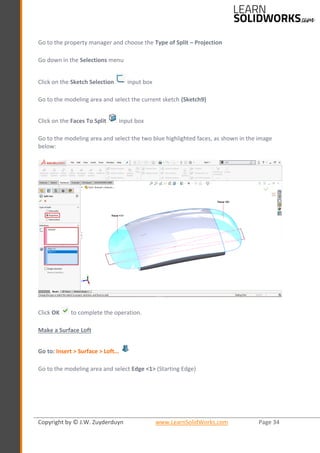
Go to the property manager and choose the Type of Split – Projection
Go down in the Selections menu
Click on the Sketch Selection input box
Go to the modeling area and select the current sketch (Sketch9)
Click on the Faces To Split input box
Go to the modeling area and select the two blue highlighted faces, as shown in the image
below:
Click OK to complete the operation.
Make a Surface Loft
Go to: Insert > Surface > Loft…
Go to the modeling area and select Edge <1> (Starting Edge)
Copyright by © J.W. Zuyderduyn www.LearnSolidWorks.com Page 35
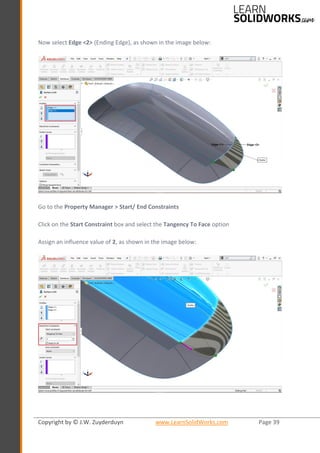
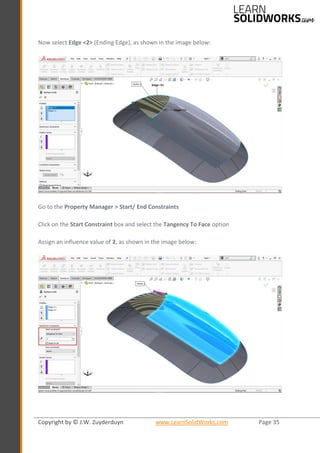
Now select Edge <2> (Ending Edge), as shown in the image below:
Go to the Property Manager > Start/ End Constraints
Click on the Start Constraint box and select the Tangency To Face option
Assign an influence value of 2, as shown in the image below:
Copyright by © J.W. Zuyderduyn www.LearnSolidWorks.com Page 36
Leave the End Constraint box to None
Click OK to complete the surface loft operation.
Make another Surface Loft
Go to: Insert > Surface > Loft…
Go to the modeling area and select Edge <1> (Starting Edge)
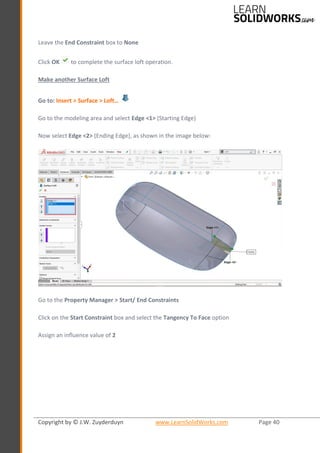
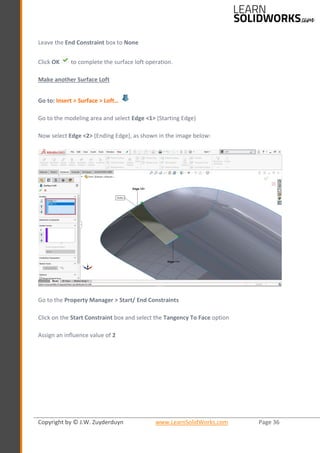
Now select Edge <2> (Ending Edge), as shown in the image below:
Go to the Property Manager > Start/ End Constraints
Click on the Start Constraint box and select the Tangency To Face option
Assign an influence value of 2
Copyright by © J.W. Zuyderduyn www.LearnSolidWorks.com Page 37
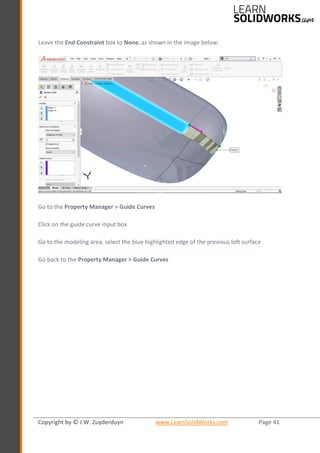
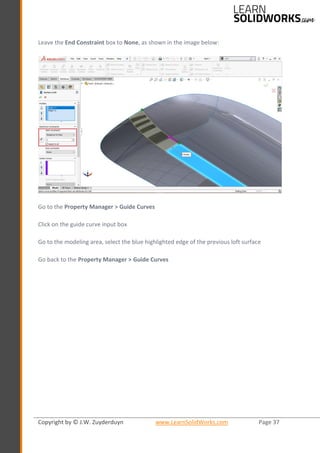
Leave the End Constraint box to None, as shown in the image below:
Go to the Property Manager > Guide Curves
Click on the guide curve input box
Go to the modeling area, select the blue highlighted edge of the previous loft surface
Go back to the Property Manager > Guide Curves
Copyright by © J.W. Zuyderduyn www.LearnSolidWorks.com Page 38
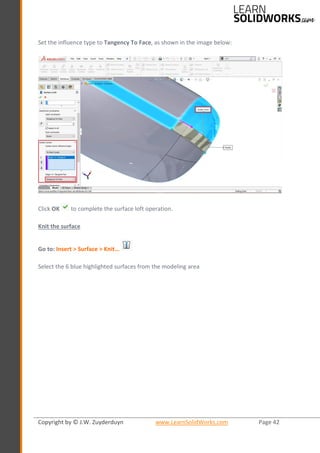
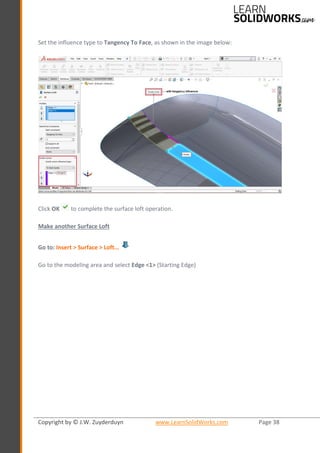
Set the influence type to Tangency To Face, as shown in the image below:
Click OK to complete the surface loft operation.
Make another Surface Loft
Go to: Insert > Surface > Loft…
Go to the modeling area and select Edge <1> (Starting Edge)
Copyright by © J.W. Zuyderduyn www.LearnSolidWorks.com Page 39
Now select Edge <2> (Ending Edge), as shown in the image below:
Go to the Property Manager > Start/ End Constraints
Click on the Start Constraint box and select the Tangency To Face option
Assign an influence value of 2, as shown in the image below:
Copyright by © J.W. Zuyderduyn www.LearnSolidWorks.com Page 40
Leave the End Constraint box to None
Click OK to complete the surface loft operation.
Make another Surface Loft
Go to: Insert > Surface > Loft…
Go to the modeling area and select Edge <1> (Starting Edge)
Now select Edge <2> (Ending Edge), as shown in the image below:
Go to the Property Manager > Start/ End Constraints
Click on the Start Constraint box and select the Tangency To Face option
Assign an influence value of 2
Copyright by © J.W. Zuyderduyn www.LearnSolidWorks.com Page 41
Leave the End Constraint box to None, as shown in the image below:
Go to the Property Manager > Guide Curves
Click on the guide curve input box
Go to the modeling area, select the blue highlighted edge of the previous loft surface
Go back to the Property Manager > Guide Curves
Copyright by © J.W. Zuyderduyn www.LearnSolidWorks.com Page 42
Set the influence type to Tangency To Face, as shown in the image below:
Click OK to complete the surface loft operation.
Knit the surface
Go to: Insert > Surface > Knit…
Select the 6 blue highlighted surfaces from the modeling area
Copyright by © J.W. Zuyderduyn www.LearnSolidWorks.com Page 43
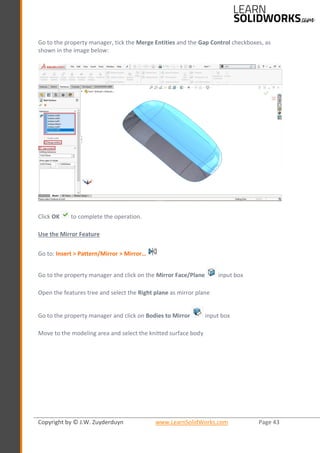
Go to the property manager, tick the Merge Entities and the Gap Control checkboxes, as
shown in the image below:
Click OK to complete the operation.
Use the Mirror Feature
Go to: Insert > Pattern/Mirror > Mirror…
Go to the property manager and click on the Mirror Face/Plane input box
Open the features tree and select the Right plane as mirror plane
Go to the property manager and click on Bodies to Mirror input box
Move to the modeling area and select the knitted surface body
Copyright by © J.W. Zuyderduyn www.LearnSolidWorks.com Page 44
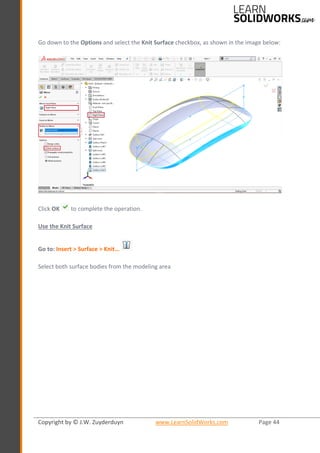
Go down to the Options and select the Knit Surface checkbox, as shown in the image below:
Click OK to complete the operation.
Use the Knit Surface
Go to: Insert > Surface > Knit…
Select both surface bodies from the modeling area
Copyright by © J.W. Zuyderduyn www.LearnSolidWorks.com Page 45
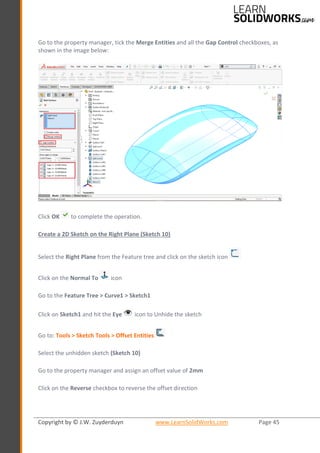
Go to the property manager, tick the Merge Entities and all the Gap Control checkboxes, as
shown in the image below:
Click OK to complete the operation.
Create a 2D Sketch on the Right Plane (Sketch 10)
Select the Right Plane from the Feature tree and click on the sketch icon
Click on the Normal To icon
Go to the Feature Tree > Curve1 > Sketch1
Click on Sketch1 and hit the Eye icon to Unhide the sketch
Go to: Tools > Sketch Tools > Offset Entities
Select the unhidden sketch (Sketch 10)
Go to the property manager and assign an offset value of 2mm
Click on the Reverse checkbox to reverse the offset direction
Copyright by © J.W. Zuyderduyn www.LearnSolidWorks.com Page 46
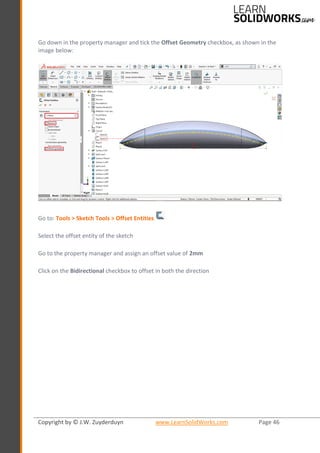
Go down in the property manager and tick the Offset Geometry checkbox, as shown in the
image below:
Go to: Tools > Sketch Tools > Offset Entities
Select the offset entity of the sketch
Go to the property manager and assign an offset value of 2mm
Click on the Bidirectional checkbox to offset in both the direction
Copyright by © J.W. Zuyderduyn www.LearnSolidWorks.com Page 47
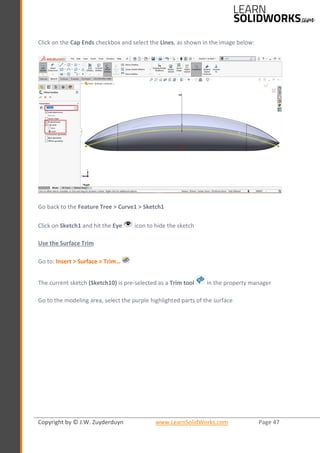
Click on the Cap Ends checkbox and select the Lines, as shown in the image below:
Go back to the Feature Tree > Curve1 > Sketch1
Click on Sketch1 and hit the Eye icon to hide the sketch
Use the Surface Trim
Go to: Insert > Surface > Trim…
The current sketch (Sketch10) is pre-selected as a Trim tool in the property manager
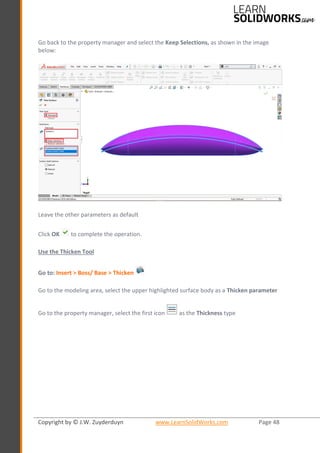
Go to the modeling area, select the purple highlighted parts of the surface
Copyright by © J.W. Zuyderduyn www.LearnSolidWorks.com Page 48
Go back to the property manager and select the Keep Selections, as shown in the image
below:
Leave the other parameters as default
Click OK to complete the operation.
Use the Thicken Tool
Go to: Insert > Boss/ Base > Thicken
Go to the modeling area, select the upper highlighted surface body as a Thicken parameter
Go to the property manager, select the first icon as the Thickness type
Copyright by © J.W. Zuyderduyn www.LearnSolidWorks.com Page 49
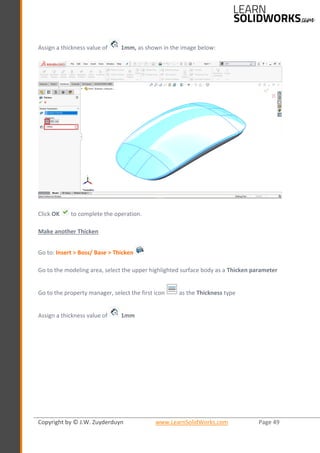
Assign a thickness value of 1mm, as shown in the image below:
Click OK to complete the operation.
Make another Thicken
Go to: Insert > Boss/ Base > Thicken
Go to the modeling area, select the upper highlighted surface body as a Thicken parameter
Go to the property manager, select the first icon as the Thickness type
Assign a thickness value of 1mm
Copyright by © J.W. Zuyderduyn www.LearnSolidWorks.com Page 50
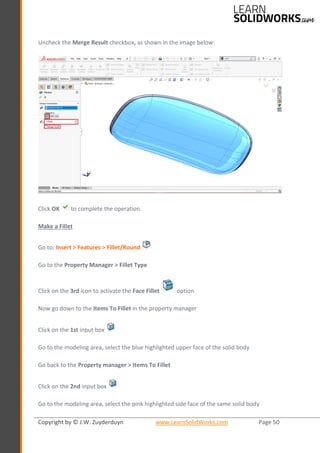
Uncheck the Merge Result checkbox, as shown in the image below:
Click OK to complete the operation.
Make a Fillet
Go to: Insert > Features > Fillet/Round
Go to the Property Manager > Fillet Type
Click on the 3rd icon to activate the Face Fillet option
Now go down to the Items To Fillet in the property manager
Click on the 1st input box
Go to the modeling area, select the blue highlighted upper face of the solid body
Go back to the Property manager > Items To Fillet
Click on the 2nd input box
Go to the modeling area, select the pink highlighted side face of the same solid body
Copyright by © J.W. Zuyderduyn www.LearnSolidWorks.com Page 51
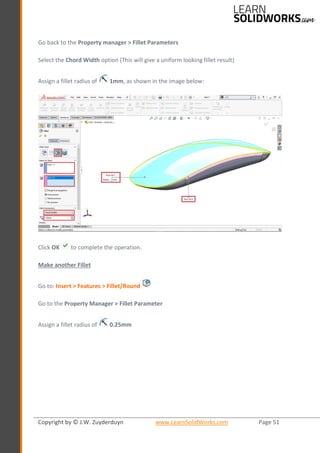
Go back to the Property manager > Fillet Parameters
Select the Chord Width option (This will give a uniform looking fillet result)
Assign a fillet radius of 1mm, as shown in the image below:
Click OK to complete the operation.
Make another Fillet
Go to: Insert > Features > Fillet/Round
Go to the Property Manager > Fillet Parameter
Assign a fillet radius of 0.25mm
Copyright by © J.W. Zuyderduyn www.LearnSolidWorks.com Page 52
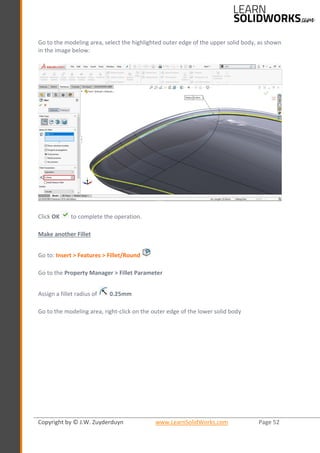
Go to the modeling area, select the highlighted outer edge of the upper solid body, as shown
in the image below:
Click OK to complete the operation.
Make another Fillet
Go to: Insert > Features > Fillet/Round
Go to the Property Manager > Fillet Parameter
Assign a fillet radius of 0.25mm
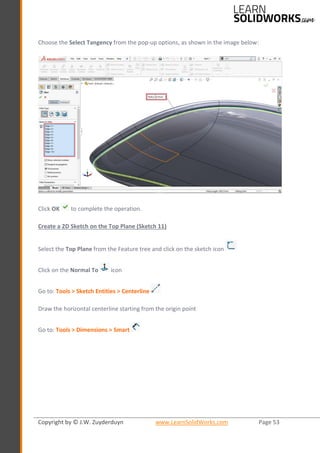
Go to the modeling area, right-click on the outer edge of the lower solid body
Copyright by © J.W. Zuyderduyn www.LearnSolidWorks.com Page 53
Choose the Select Tangency from the pop-up options, as shown in the image below:
Click OK to complete the operation.
Create a 2D Sketch on the Top Plane (Sketch 11)
Select the Top Plane from the Feature tree and click on the sketch icon
Click on the Normal To icon
Go to: Tools > Sketch Entities > Centerline
Draw the horizontal centerline starting from the origin point
Go to: Tools > Dimensions > Smart
Copyright by © J.W. Zuyderduyn www.LearnSolidWorks.com Page 54
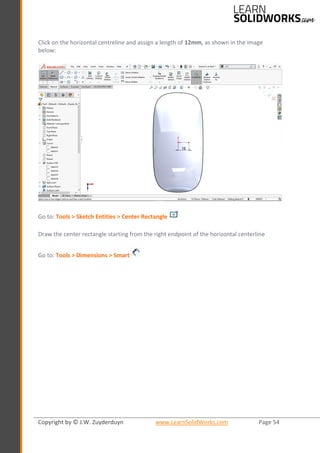
Click on the horizontal centreline and assign a length of 12mm, as shown in the image
below:
Go to: Tools > Sketch Entities > Center Rectangle
Draw the center rectangle starting from the right endpoint of the horizontal centerline
Go to: Tools > Dimensions > Smart
Copyright by © J.W. Zuyderduyn www.LearnSolidWorks.com Page 55
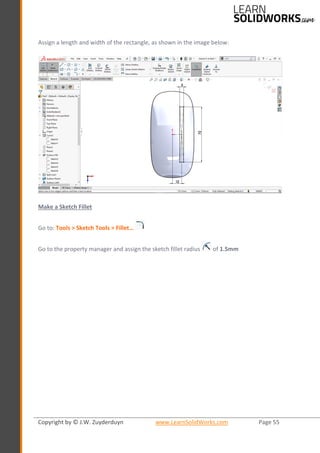
Assign a length and width of the rectangle, as shown in the image below:
Make a Sketch Fillet
Go to: Tools > Sketch Tools > Fillet…
Go to the property manager and assign the sketch fillet radius of 1.5mm
Copyright by © J.W. Zuyderduyn www.LearnSolidWorks.com Page 56
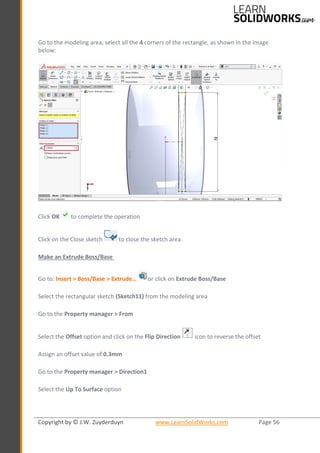
Go to the modeling area, select all the 4 corners of the rectangle, as shown in the image
below:
Click OK to complete the operation
Click on the Close sketch to close the sketch area.
Make an Extrude Boss/Base
Go to: Insert > Boss/Base > Extrude… or click on Extrude Boss/Base
Select the rectangular sketch (Sketch11) from the modeling area
Go to the Property manager > From
Select the Offset option and click on the Flip Direction icon to reverse the offset
Assign an offset value of 0.3mm
Go to the Property manager > Direction1
Select the Up To Surface option
Copyright by © J.W. Zuyderduyn www.LearnSolidWorks.com Page 57
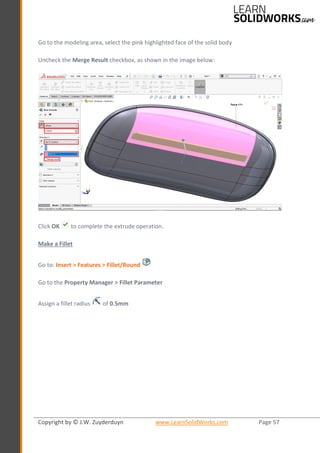
Go to the modeling area, select the pink highlighted face of the solid body
Uncheck the Merge Result checkbox, as shown in the image below:
Click OK to complete the extrude operation.
Make a Fillet
Go to: Insert > Features > Fillet/Round
Go to the Property Manager > Fillet Parameter
Assign a fillet radius of 0.5mm
Copyright by © J.W. Zuyderduyn www.LearnSolidWorks.com Page 58
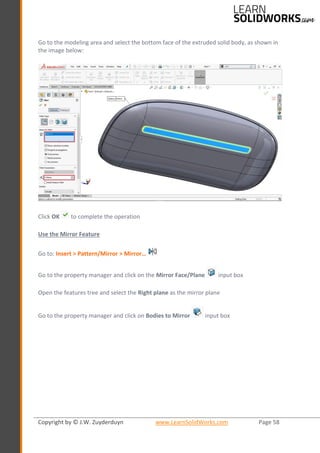
Go to the modeling area and select the bottom face of the extruded solid body, as shown in
the image below:
Click OK to complete the operation
Use the Mirror Feature
Go to: Insert > Pattern/Mirror > Mirror…
Go to the property manager and click on the Mirror Face/Plane input box
Open the features tree and select the Right plane as the mirror plane
Go to the property manager and click on Bodies to Mirror input box
Copyright by © J.W. Zuyderduyn www.LearnSolidWorks.com Page 59
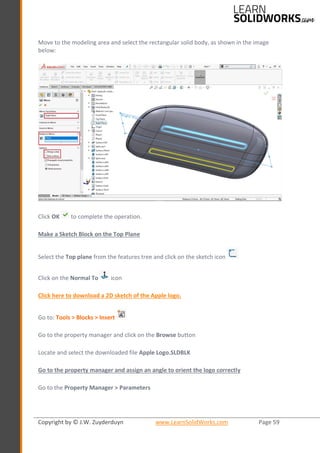
Move to the modeling area and select the rectangular solid body, as shown in the image
below:
Click OK to complete the operation.
Make a Sketch Block on the Top Plane
Select the Top plane from the features tree and click on the sketch icon
Click on the Normal To icon
Click here to download a 2D sketch of the Apple logo.
Go to: Tools > Blocks > Insert
Go to the property manager and click on the Browse button
Locate and select the downloaded file Apple Logo.SLDBLK
Go to the property manager and assign an angle to orient the logo correctly
Go to the Property Manager > Parameters
Copyright by © J.W. Zuyderduyn www.LearnSolidWorks.com Page 60
Assign the scale value of 0.8 to scale down the block
Then assign the angle of 180 degrees to orient the logo correctly
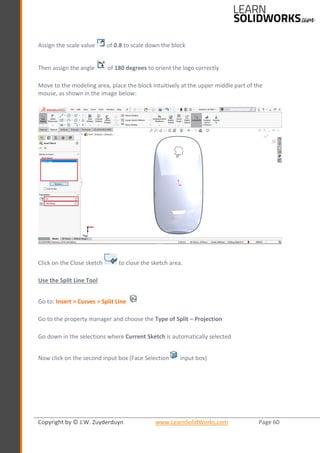
Move to the modeling area, place the block intuitively at the upper middle part of the
mouse, as shown in the image below:
Click on the Close sketch to close the sketch area.
Use the Split Line Tool
Go to: Insert > Curves > Split Line
Go to the property manager and choose the Type of Split – Projection
Go down in the selections where Current Sketch is automatically selected
Now click on the second input box (Face Selection input box)
Copyright by © J.W. Zuyderduyn www.LearnSolidWorks.com Page 61
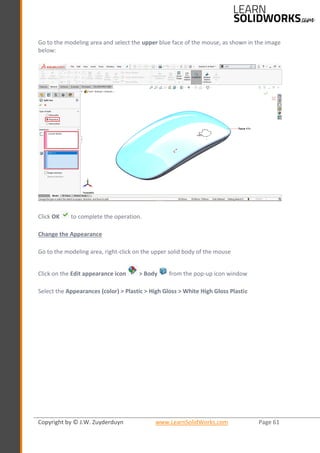
Go to the modeling area and select the upper blue face of the mouse, as shown in the image
below:
Click OK to complete the operation.
Change the Appearance
Go to the modeling area, right-click on the upper solid body of the mouse
Click on the Edit appearance icon > Body from the pop-up icon window
Select the Appearances (color) > Plastic > High Gloss > White High Gloss Plastic
Copyright by © J.W. Zuyderduyn www.LearnSolidWorks.com Page 62
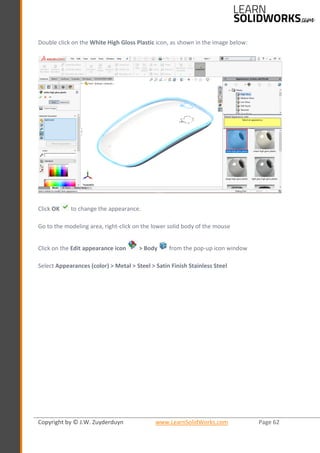
Double click on the White High Gloss Plastic icon, as shown in the image below:
Click OK to change the appearance.
Go to the modeling area, right-click on the lower solid body of the mouse
Click on the Edit appearance icon > Body from the pop-up icon window
Select Appearances (color) > Metal > Steel > Satin Finish Stainless Steel
Copyright by © J.W. Zuyderduyn www.LearnSolidWorks.com Page 63
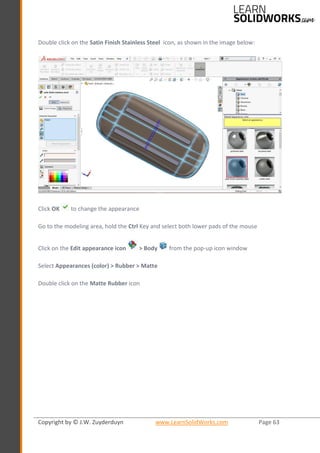
Double click on the Satin Finish Stainless Steel icon, as shown in the image below:
Click OK to change the appearance
Go to the modeling area, hold the Ctrl Key and select both lower pads of the mouse
Click on the Edit appearance icon > Body from the pop-up icon window
Select Appearances (color) > Rubber > Matte
Double click on the Matte Rubber icon
Copyright by © J.W. Zuyderduyn www.LearnSolidWorks.com Page 64
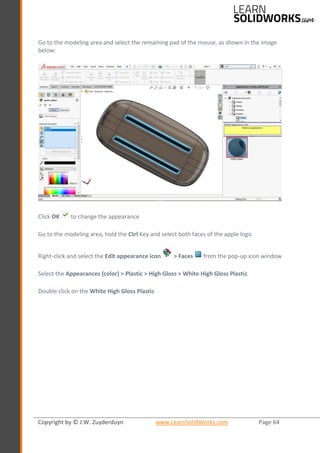
Go to the modeling area and select the remaining pad of the mouse, as shown in the image
below:
Click OK to change the appearance
Go to the modeling area, hold the Ctrl Key and select both faces of the apple logo
Right-click and select the Edit appearance icon > Faces from the pop-up icon window
Select the Appearances (color) > Plastic > High Gloss > White High Gloss Plastic
Double click on the White High Gloss Plastic
Copyright by © J.W. Zuyderduyn www.LearnSolidWorks.com Page 65
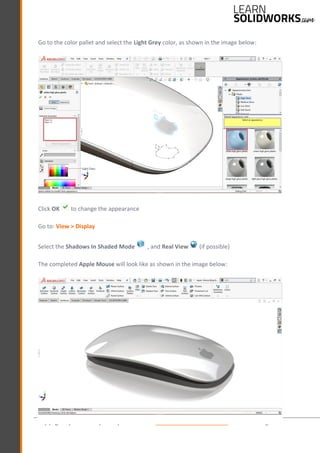
Go to the color pallet and select the Light Grey color, as shown in the image below:
Click OK to change the appearance
Go to: View > Display
Select the Shadows In Shaded Mode , and Real View (if possible)
The completed Apple Mouse will look like as shown in the image below:
Copyright by © J.W. Zuyderduyn www.LearnSolidWorks.com Page 66
Save the File again
Congratulations, you’ve just completed the Apple mouse!
I know it was a lot of work (so was developing this tutorial!) but hopefully you’ve learned a
couple of new things. 😊
Did you like this tutorial and are you eager to learn more? Then you should really check my
SolidWorks Boeing 747 course. In this video training course, I will show you how to model an
incredible Boeing 747-8 in SolidWorks from scratch.
Click here for a free video to start modeling your own Boeing 747-8 in SolidWorks.
Best regards,
Jan-Willem Zuyderduyn

Solidworks apple mouse Design

  • 1.
    Copyright by ©J.W. Zuyderduyn www.LearnSolidWorks.com Page 1
  • 2.
    Copyright by ©J.W. Zuyderduyn www.LearnSolidWorks.com Page 2 About LearnSolidWorks.com Hi, my name is Jan-Willem Zuyderduyn and I live in the Netherlands. I am a Lead Product Designer and founder of LearnSolidWorks.com. Since 2009 I help SolidWorkers to improve their SolidWorks modeling skills by developing practical, step-by-step SolidWorks tutorials. I am the author of dozens of SolidWorks eBooks and videos (125.000+ downloads) and 4 premium SolidWorks self-study packages all available on LearnSolidWorks.com. In these practical SolidWorks tutorial packages, I will show you exactly how to model a stunning Aston Martin One-77 sports car, an incredible American Chopper, an enormous 108 ft. Superyacht and even an entire (76 meter!) long Boeing 747-8: http://learnsolidworks.com/pricing Are we already connected on social media? • Click here to connect with me on LinkedIn • Click here to follow me on Instagram • Click here to like my Facebook page I encourage you to share this eBook with your colleagues and friends. Happy modeling! Jan-Willem Zuyderduyn Founder LearnSolidWorks.com
  • 3.
    Copyright by ©J.W. Zuyderduyn www.LearnSolidWorks.com Page 3 How to model Apple’s Magic Mouse in SolidWorks? If you like simplicity, you will definitely love the famous Apple Magic mouse. The Magic Mouse is the first consumer mouse to have multi-touch capabilities. I really love the simplicity of the design. The design looks simple. but like most Apple products, the design is a lot more complex than the simple shape suggests. We have already seen this with the AirPods tutorial. In today’s tutorial, you will discover how to model this beautiful piece of art in SolidWorks yourself. Disclaimer: The intellectual property depicted in this 3D model, is not affiliated with or endorsed by Philippe Starck or Alessi. This 3D model may not be used for any commercial, promotional, advertising or merchandising use.
  • 4.
    Copyright by ©J.W. Zuyderduyn www.LearnSolidWorks.com Page 4 Open a New Part with model units set to millimeters Go to: File > New > Part Save the file with the following name: Apple Mouse.SLDPRT Create a 2D Sketch on the Right Plane (Sketch 1) Select the Right Plane from the Feature tree and click on the sketch icon Click on the Normal To icon Go to: Tools > Sketch Entities > Midpoint Line Draw a horizontal midpoint line starting from the origin Go to: Tools > Dimensions > Smart Click on the horizontal line and assign a length of 135,5mm, as shown in the image below: Click on the fully defined horizontal midpoint line
  • 5.
    Copyright by ©J.W. Zuyderduyn www.LearnSolidWorks.com Page 5 Go to the Line Properties > Option Tick the ‘For Construction’ checkbox This will convert the horizontal line into a construction line as shown in the image below: Go to: Tools > Sketch Entities > Centerline Draw a small vertical centerline at both endpoints of the horizontal centerline Hold the Ctrl Key, select both vertical centerlines Assign an Equal relation from the property manager Go to: Tools > Dimensions > Smart
  • 6.
    Copyright by ©J.W. Zuyderduyn www.LearnSolidWorks.com Page 6 Click on a vertical centreline and assign a length of 4.5mm, as shown in the image below: Go to: Tools > Sketch Entities > 3 Point Arc Draw a 3-point arc by using the upper-end points of the vertical centerlines Go to: Tools > Dimensions > Smart Click on the arc and assign a radius of 165mm, as shown in the image below:
  • 7.
    Copyright by ©J.W. Zuyderduyn www.LearnSolidWorks.com Page 7 Click on the Close sketch to close the sketch area. Create a 2D Sketch on the Top Plane (Sketch 2) Select the Top Plane from the Feature tree and click on the sketch icon Click on the Normal To icon Go to: Tools > Sketch Tools > Convert Entities Select the highlighted vertical line as shown in the image below: Click OK to complete the operation Go to: Tools > Sketch Entities > Centerline Draw a horizontal centerline starting from the origin towards the right Go to: Tools > Dimensions > Smart
  • 8.
    Copyright by ©J.W. Zuyderduyn www.LearnSolidWorks.com Page 8 Click on the centreline and assign a length of 28.55mm, as shown in the image below: Go to: Tools > Sketch Entities > Spline Draw a 3-point spline by using the red encircled points of the sketch, as shown in the image below: Click on the spline and drag both end handles one by one to activate them
  • 9.
    Copyright by ©J.W. Zuyderduyn www.LearnSolidWorks.com Page 9 Now drag the mid spline handle by holding the Alt key to maintain the tangent symmetry All the activated spline handles become blue, as shown in the image below: Click on the upper spline handle and choose the Horizontal relation from the property manager Click on the lower spline handle and choose the Horizontal relation from the property manager Similarly, click on the mid spline handle
  • 10.
    Copyright by ©J.W. Zuyderduyn www.LearnSolidWorks.com Page 10 And assign a Vertical relation from the property manager, as shown in the image below: Go to: Tools > Dimensions > Smart Click on the upper spline handle and assign a handle length of 85mm Click on the lower spline handle and assign a handle length of 80mm
  • 11.
    Copyright by ©J.W. Zuyderduyn www.LearnSolidWorks.com Page 11 Click on the mid spline handle and assign a handle length of 250mm, as shown in the image below: Now click on the converted vertical line Go to the Line Properties > Option Tick the ‘For Construction’ checkbox This will convert the vertical solid line into the construction line Use the Mirror Entities Sketch Tool Go to: Tools > Sketch Tools > Mirror or click on the Mirror Entities directly from the sketch tab Go to the property manager, click on the Entities to Mirror input box Select the fully defined 3-point spline from the 2D sketch Go to the property manager, click on the Mirror About input box
  • 12.
    Copyright by ©J.W. Zuyderduyn www.LearnSolidWorks.com Page 12 Select the vertical centreline from the 2d sketch as a mirror line, as shown in the image below: Click OK to complete the operation. Click on Close sketch to close the sketch area. Use the Project Curve Tool Go to: Insert > Curve > Projected Go to the property manager and select Sketch on Sketch as a projection-type Go to the feature tree, select Sketch1 and Sketch2
  • 13.
    Copyright by ©J.W. Zuyderduyn www.LearnSolidWorks.com Page 13 Then a projected curve is generated in yellow as shown in the image below: Click OK to complete the operation. Create a 2D Sketch on the Right Plane (Sketch 3) Select the Right Plane from the Feature tree and click on the sketch icon Click on the Normal To icon Go to: Tools > Sketch Entities > Spline
  • 14.
    Copyright by ©J.W. Zuyderduyn www.LearnSolidWorks.com Page 14 Draw a 2-point spline by using the red encircled points of the projected sketch, as shown in the image below: Click on the spline and drag both end handles one by one to activate them, as shown in the image below: Go to: Tools > Sketch Entities > Centerline
  • 15.
    Copyright by ©J.W. Zuyderduyn www.LearnSolidWorks.com Page 15 Draw a horizontal centerline by using the endpoints of the spline, as shown in the image below: Go to: Tools > Dimensions > Smart Hold the Ctrl key, select the left spline handle and the horizontal centreline Assign an angular dimension of 45 degrees between them Similarly, select the right spline handle and the horizontal centreline Assign an angular dimension of 45 degrees Click on the left spline handle and assign a handle length of 95mm
  • 16.
    Copyright by ©J.W. Zuyderduyn www.LearnSolidWorks.com Page 16 Click on the right spline handle and assign a handle length of 95mm, as shown in the image below: Click on the Close sketch to close the sketch area. Create a 2D Sketch on the Front Plane (Sketch 4) Select the Front Plane from the Feature tree and click on the sketch icon Go to: Tools > Sketch Entities > 3 Point Arc
  • 17.
    Copyright by ©J.W. Zuyderduyn www.LearnSolidWorks.com Page 17 Draw a 3-point arc anywhere on the front plane, as shown in the image below: Hold the Ctrl key, select the left endpoint of the arc and the left part of the projected curve Go to the property manager and assign a Pierce relation Similarly, select the right endpoint of the arc and the right part of the projected curve
  • 18.
    Copyright by ©J.W. Zuyderduyn www.LearnSolidWorks.com Page 18 Go to the property manager and assign a Pierce relation, as shown in the image below: Hold the Ctrl Key, select the mid-point of the arc very carefully Then select the previously drawn spline sketch (Sketch4) Go to the property manager and assign a Pierce relation, as shown in the image below:
  • 19.
    Copyright by ©J.W. Zuyderduyn www.LearnSolidWorks.com Page 19 Click on the Close sketch to close the sketch area. Make a Reference Plane (Plane1) Go to: Insert > Reference Geometry > Plane Select the Front Plane from the feature tree as a First Reference Go to the property manager and assign an offset value of 27.5mm Tick the Flip offset checkbox, as shown in the image below: Click OK to complete the operation. Create a 2D Sketch on Plane1 (Sketch5) Select Plane1 from the Features tree and click on the sketch icon Go to: Tools > Sketch Entities > 3 Point Arc
  • 20.
    Copyright by ©J.W. Zuyderduyn www.LearnSolidWorks.com Page 20 Draw a 3-point arc anywhere on the front plane, as shown in the image below: Hold the Ctrl key, select the left endpoint of the arc and the left part of the projected curve Go to the property manager and assign a Pierce relation Similarly, select the right endpoint of the arc and the right part of the projected curve
  • 21.
    Copyright by ©J.W. Zuyderduyn www.LearnSolidWorks.com Page 21 Go to the property manager and assign a Pierce relation, as shown in the image below: Hold the Ctrl Key, select the mid-point of the arc very carefully Then select the previously drawn spline sketch (Sketch4) Go to the property manager and assign a Pierce relation, as shown in the image below:
  • 22.
    Copyright by ©J.W. Zuyderduyn www.LearnSolidWorks.com Page 22 Click on the Close sketch to close the sketch area. Make a Reference Plane (Plane2) Go to: Insert > Reference Geometry > Plane Select the Front Plane from the feature tree as a First Reference Go to the property manager and assign an offset value of 27.5mm, as shown in the image below: Click OK to complete the operation. Create a 2D Sketch on Plane2 (Sketch6) Select Plane2 from the Features tree and click on the sketch icon Go to: Tools > Sketch Entities > 3 Point Arc
  • 23.
    Copyright by ©J.W. Zuyderduyn www.LearnSolidWorks.com Page 23 Draw a 3-point arc anywhere on the front plane, as shown in the image below: Hold the Ctrl key, select the left endpoint of the arc and the left part of the projected curve Go to the property manager and assign a Pierce relation Similarly, select the right endpoint of the arc and the right part of the projected curve
  • 24.
    Copyright by ©J.W. Zuyderduyn www.LearnSolidWorks.com Page 24 Go to the property manager and assign another Pierce relation, as shown in the image below: Go to: Tools > Sketch Entities > Point Click anywhere on the blue arc to create a sketch point on it, as shown in the image below: Click OK to complete the operation.
  • 25.
    Copyright by ©J.W. Zuyderduyn www.LearnSolidWorks.com Page 25 Hold the Ctrl Key, select that Sketch Point and the previously drawn spline sketch (Sketch4) Go to the property manager and assign a Pierce relation, as shown in the image below: Click on Close sketch to close the sketch area. Use the Fill Surface Tool Go to: Insert > Surface > Fill Go to the Property Manager > Patch Boundary Click on the Patch Boundary input box Go to the modelling area and select the blue Projected Curve (Curve1) Go to the Property Manager > Constraint Curves Click on the Constraint Curves input box
  • 26.
    Copyright by ©J.W. Zuyderduyn www.LearnSolidWorks.com Page 26 Go to the Feature Tree and select Sketch3, Sketch4, Sketch5, and Sketch6, as shown in the image below: Make sure that the Optimize Surface checkbox and the Fix Up Boundary checkbox is selected Leave the other parameters as default Click OK to complete the surface fill operation. Create a 2D Sketch on the Top Plane (Sketch 7) Select the Top Plane from the Feature tree and click on the sketch icon Click on the Normal To icon Go to: Tools > Sketch Entities > Center Rectangle Draw the center rectangle starting from the origin point Go to: Tools > Dimensions > Smart
  • 27.
    Copyright by ©J.W. Zuyderduyn www.LearnSolidWorks.com Page 27 Assign a length and width of the rectangle, as shown in the image below: Click on the Close sketch to close the sketch area. Use the Split Line Tool Go to: Insert > Curves > Split Line Go to the property manager and choose the Type of Split – Projection Go down in the Selections menu Click on the Sketch Selection input box Go to the modeling area and select the current sketch (Sketch7) Click on the Faces To Split input box
  • 28.
    Copyright by ©J.W. Zuyderduyn www.LearnSolidWorks.com Page 28 Go to the modeling area and select the blue highlighted curved surface, as shown in the image below: Click OK to complete the operation. Create a 2D Sketch on the Top Plane (Sketch 8) Select the Top Plane from the Feature tree and click on the sketch icon Click on the Normal To icon Go to: Tools > Sketch Entities > Line
  • 29.
    Copyright by ©J.W. Zuyderduyn www.LearnSolidWorks.com Page 29 Draw a vertical line by using the midpoints of the split lines, as shown in the image below: Go to: Tools > Sketch Tools > Offset Entities Select the vertical line of the sketch Go to the property manager and assign an offset value of 6.50mm Click on the Reverse checkbox to reverse the offset direction
  • 30.
    Copyright by ©J.W. Zuyderduyn www.LearnSolidWorks.com Page 30 Click on the Cap Ends checkbox and select the Lines, as shown in the image below: Create a Planar Surface Go to: Insert > Surface > Planar The Current Sketch (Sketch8) will automatically get selected This sketch will create a planar surface in the modeling area, as shown in the image below:
  • 31.
    Copyright by ©J.W. Zuyderduyn www.LearnSolidWorks.com Page 31 Click OK to complete the operation. Make a Surface Loft Go to: Insert > Surface > Loft… Go to the modeling area and select Edge <1> (Starting Edge) Now select Edge <2> (Ending Edge), as shown in the image below: Note: Select the right-hand side edges of both surfaces to get the exact results Go to the Property Manager > Start/ End Constraints Click on the Start Constraint box and select the Tangency To Face option Assign an influence value of 2, as shown in the image below (try different values to see what happens with the surface)
  • 32.
    Copyright by ©J.W. Zuyderduyn www.LearnSolidWorks.com Page 32 Go to the Property Manager > Start/ End Constraints Click on the End Constraint box and select the Direction Vector option Open the Feature Tree and select the Top Plane for the direction vector Set the influence angle to 5 degrees and the influence value to 1, as shown in the image below:
  • 33.
    Copyright by ©J.W. Zuyderduyn www.LearnSolidWorks.com Page 33 Click OK to complete the surface loft operation. Create a 2D Sketch on the Top Plane (Sketch 9) Select the Top Plane from the Feature tree and click on the sketch icon Click on the Normal To icon Go to: Tools > Sketch Entities > Center Rectangle Draw the center rectangle starting from the origin point Go to: Tools > Dimensions > Smart Assign a length and width of the rectangle, as shown in the image below: Click on Close sketch to close the sketch area. Use the Split Line Tool Go to: Insert > Curves > Split Line
  • 34.
    Copyright by ©J.W. Zuyderduyn www.LearnSolidWorks.com Page 34 Go to the property manager and choose the Type of Split – Projection Go down in the Selections menu Click on the Sketch Selection input box Go to the modeling area and select the current sketch (Sketch9) Click on the Faces To Split input box Go to the modeling area and select the two blue highlighted faces, as shown in the image below: Click OK to complete the operation. Make a Surface Loft Go to: Insert > Surface > Loft… Go to the modeling area and select Edge <1> (Starting Edge)
  • 35.
    Copyright by ©J.W. Zuyderduyn www.LearnSolidWorks.com Page 35 Now select Edge <2> (Ending Edge), as shown in the image below: Go to the Property Manager > Start/ End Constraints Click on the Start Constraint box and select the Tangency To Face option Assign an influence value of 2, as shown in the image below:
  • 36.
    Copyright by ©J.W. Zuyderduyn www.LearnSolidWorks.com Page 36 Leave the End Constraint box to None Click OK to complete the surface loft operation. Make another Surface Loft Go to: Insert > Surface > Loft… Go to the modeling area and select Edge <1> (Starting Edge) Now select Edge <2> (Ending Edge), as shown in the image below: Go to the Property Manager > Start/ End Constraints Click on the Start Constraint box and select the Tangency To Face option Assign an influence value of 2
  • 37.
    Copyright by ©J.W. Zuyderduyn www.LearnSolidWorks.com Page 37 Leave the End Constraint box to None, as shown in the image below: Go to the Property Manager > Guide Curves Click on the guide curve input box Go to the modeling area, select the blue highlighted edge of the previous loft surface Go back to the Property Manager > Guide Curves
  • 38.
    Copyright by ©J.W. Zuyderduyn www.LearnSolidWorks.com Page 38 Set the influence type to Tangency To Face, as shown in the image below: Click OK to complete the surface loft operation. Make another Surface Loft Go to: Insert > Surface > Loft… Go to the modeling area and select Edge <1> (Starting Edge)
  • 39.
    Copyright by ©J.W. Zuyderduyn www.LearnSolidWorks.com Page 39 Now select Edge <2> (Ending Edge), as shown in the image below: Go to the Property Manager > Start/ End Constraints Click on the Start Constraint box and select the Tangency To Face option Assign an influence value of 2, as shown in the image below:
  • 40.
    Copyright by ©J.W. Zuyderduyn www.LearnSolidWorks.com Page 40 Leave the End Constraint box to None Click OK to complete the surface loft operation. Make another Surface Loft Go to: Insert > Surface > Loft… Go to the modeling area and select Edge <1> (Starting Edge) Now select Edge <2> (Ending Edge), as shown in the image below: Go to the Property Manager > Start/ End Constraints Click on the Start Constraint box and select the Tangency To Face option Assign an influence value of 2
  • 41.
    Copyright by ©J.W. Zuyderduyn www.LearnSolidWorks.com Page 41 Leave the End Constraint box to None, as shown in the image below: Go to the Property Manager > Guide Curves Click on the guide curve input box Go to the modeling area, select the blue highlighted edge of the previous loft surface Go back to the Property Manager > Guide Curves
  • 42.
    Copyright by ©J.W. Zuyderduyn www.LearnSolidWorks.com Page 42 Set the influence type to Tangency To Face, as shown in the image below: Click OK to complete the surface loft operation. Knit the surface Go to: Insert > Surface > Knit… Select the 6 blue highlighted surfaces from the modeling area
  • 43.
    Copyright by ©J.W. Zuyderduyn www.LearnSolidWorks.com Page 43 Go to the property manager, tick the Merge Entities and the Gap Control checkboxes, as shown in the image below: Click OK to complete the operation. Use the Mirror Feature Go to: Insert > Pattern/Mirror > Mirror… Go to the property manager and click on the Mirror Face/Plane input box Open the features tree and select the Right plane as mirror plane Go to the property manager and click on Bodies to Mirror input box Move to the modeling area and select the knitted surface body
  • 44.
    Copyright by ©J.W. Zuyderduyn www.LearnSolidWorks.com Page 44 Go down to the Options and select the Knit Surface checkbox, as shown in the image below: Click OK to complete the operation. Use the Knit Surface Go to: Insert > Surface > Knit… Select both surface bodies from the modeling area
  • 45.
    Copyright by ©J.W. Zuyderduyn www.LearnSolidWorks.com Page 45 Go to the property manager, tick the Merge Entities and all the Gap Control checkboxes, as shown in the image below: Click OK to complete the operation. Create a 2D Sketch on the Right Plane (Sketch 10) Select the Right Plane from the Feature tree and click on the sketch icon Click on the Normal To icon Go to the Feature Tree > Curve1 > Sketch1 Click on Sketch1 and hit the Eye icon to Unhide the sketch Go to: Tools > Sketch Tools > Offset Entities Select the unhidden sketch (Sketch 10) Go to the property manager and assign an offset value of 2mm Click on the Reverse checkbox to reverse the offset direction
  • 46.
    Copyright by ©J.W. Zuyderduyn www.LearnSolidWorks.com Page 46 Go down in the property manager and tick the Offset Geometry checkbox, as shown in the image below: Go to: Tools > Sketch Tools > Offset Entities Select the offset entity of the sketch Go to the property manager and assign an offset value of 2mm Click on the Bidirectional checkbox to offset in both the direction
  • 47.
    Copyright by ©J.W. Zuyderduyn www.LearnSolidWorks.com Page 47 Click on the Cap Ends checkbox and select the Lines, as shown in the image below: Go back to the Feature Tree > Curve1 > Sketch1 Click on Sketch1 and hit the Eye icon to hide the sketch Use the Surface Trim Go to: Insert > Surface > Trim… The current sketch (Sketch10) is pre-selected as a Trim tool in the property manager Go to the modeling area, select the purple highlighted parts of the surface
  • 48.
    Copyright by ©J.W. Zuyderduyn www.LearnSolidWorks.com Page 48 Go back to the property manager and select the Keep Selections, as shown in the image below: Leave the other parameters as default Click OK to complete the operation. Use the Thicken Tool Go to: Insert > Boss/ Base > Thicken Go to the modeling area, select the upper highlighted surface body as a Thicken parameter Go to the property manager, select the first icon as the Thickness type
  • 49.
    Copyright by ©J.W. Zuyderduyn www.LearnSolidWorks.com Page 49 Assign a thickness value of 1mm, as shown in the image below: Click OK to complete the operation. Make another Thicken Go to: Insert > Boss/ Base > Thicken Go to the modeling area, select the upper highlighted surface body as a Thicken parameter Go to the property manager, select the first icon as the Thickness type Assign a thickness value of 1mm
  • 50.
    Copyright by ©J.W. Zuyderduyn www.LearnSolidWorks.com Page 50 Uncheck the Merge Result checkbox, as shown in the image below: Click OK to complete the operation. Make a Fillet Go to: Insert > Features > Fillet/Round Go to the Property Manager > Fillet Type Click on the 3rd icon to activate the Face Fillet option Now go down to the Items To Fillet in the property manager Click on the 1st input box Go to the modeling area, select the blue highlighted upper face of the solid body Go back to the Property manager > Items To Fillet Click on the 2nd input box Go to the modeling area, select the pink highlighted side face of the same solid body
  • 51.
    Copyright by ©J.W. Zuyderduyn www.LearnSolidWorks.com Page 51 Go back to the Property manager > Fillet Parameters Select the Chord Width option (This will give a uniform looking fillet result) Assign a fillet radius of 1mm, as shown in the image below: Click OK to complete the operation. Make another Fillet Go to: Insert > Features > Fillet/Round Go to the Property Manager > Fillet Parameter Assign a fillet radius of 0.25mm
  • 52.
    Copyright by ©J.W. Zuyderduyn www.LearnSolidWorks.com Page 52 Go to the modeling area, select the highlighted outer edge of the upper solid body, as shown in the image below: Click OK to complete the operation. Make another Fillet Go to: Insert > Features > Fillet/Round Go to the Property Manager > Fillet Parameter Assign a fillet radius of 0.25mm Go to the modeling area, right-click on the outer edge of the lower solid body
  • 53.
    Copyright by ©J.W. Zuyderduyn www.LearnSolidWorks.com Page 53 Choose the Select Tangency from the pop-up options, as shown in the image below: Click OK to complete the operation. Create a 2D Sketch on the Top Plane (Sketch 11) Select the Top Plane from the Feature tree and click on the sketch icon Click on the Normal To icon Go to: Tools > Sketch Entities > Centerline Draw the horizontal centerline starting from the origin point Go to: Tools > Dimensions > Smart
  • 54.
    Copyright by ©J.W. Zuyderduyn www.LearnSolidWorks.com Page 54 Click on the horizontal centreline and assign a length of 12mm, as shown in the image below: Go to: Tools > Sketch Entities > Center Rectangle Draw the center rectangle starting from the right endpoint of the horizontal centerline Go to: Tools > Dimensions > Smart
  • 55.
    Copyright by ©J.W. Zuyderduyn www.LearnSolidWorks.com Page 55 Assign a length and width of the rectangle, as shown in the image below: Make a Sketch Fillet Go to: Tools > Sketch Tools > Fillet… Go to the property manager and assign the sketch fillet radius of 1.5mm
  • 56.
    Copyright by ©J.W. Zuyderduyn www.LearnSolidWorks.com Page 56 Go to the modeling area, select all the 4 corners of the rectangle, as shown in the image below: Click OK to complete the operation Click on the Close sketch to close the sketch area. Make an Extrude Boss/Base Go to: Insert > Boss/Base > Extrude… or click on Extrude Boss/Base Select the rectangular sketch (Sketch11) from the modeling area Go to the Property manager > From Select the Offset option and click on the Flip Direction icon to reverse the offset Assign an offset value of 0.3mm Go to the Property manager > Direction1 Select the Up To Surface option
  • 57.
    Copyright by ©J.W. Zuyderduyn www.LearnSolidWorks.com Page 57 Go to the modeling area, select the pink highlighted face of the solid body Uncheck the Merge Result checkbox, as shown in the image below: Click OK to complete the extrude operation. Make a Fillet Go to: Insert > Features > Fillet/Round Go to the Property Manager > Fillet Parameter Assign a fillet radius of 0.5mm
  • 58.
    Copyright by ©J.W. Zuyderduyn www.LearnSolidWorks.com Page 58 Go to the modeling area and select the bottom face of the extruded solid body, as shown in the image below: Click OK to complete the operation Use the Mirror Feature Go to: Insert > Pattern/Mirror > Mirror… Go to the property manager and click on the Mirror Face/Plane input box Open the features tree and select the Right plane as the mirror plane Go to the property manager and click on Bodies to Mirror input box
  • 59.
    Copyright by ©J.W. Zuyderduyn www.LearnSolidWorks.com Page 59 Move to the modeling area and select the rectangular solid body, as shown in the image below: Click OK to complete the operation. Make a Sketch Block on the Top Plane Select the Top plane from the features tree and click on the sketch icon Click on the Normal To icon Click here to download a 2D sketch of the Apple logo. Go to: Tools > Blocks > Insert Go to the property manager and click on the Browse button Locate and select the downloaded file Apple Logo.SLDBLK Go to the property manager and assign an angle to orient the logo correctly Go to the Property Manager > Parameters
  • 60.
    Copyright by ©J.W. Zuyderduyn www.LearnSolidWorks.com Page 60 Assign the scale value of 0.8 to scale down the block Then assign the angle of 180 degrees to orient the logo correctly Move to the modeling area, place the block intuitively at the upper middle part of the mouse, as shown in the image below: Click on the Close sketch to close the sketch area. Use the Split Line Tool Go to: Insert > Curves > Split Line Go to the property manager and choose the Type of Split – Projection Go down in the selections where Current Sketch is automatically selected Now click on the second input box (Face Selection input box)
  • 61.
    Copyright by ©J.W. Zuyderduyn www.LearnSolidWorks.com Page 61 Go to the modeling area and select the upper blue face of the mouse, as shown in the image below: Click OK to complete the operation. Change the Appearance Go to the modeling area, right-click on the upper solid body of the mouse Click on the Edit appearance icon > Body from the pop-up icon window Select the Appearances (color) > Plastic > High Gloss > White High Gloss Plastic
  • 62.
    Copyright by ©J.W. Zuyderduyn www.LearnSolidWorks.com Page 62 Double click on the White High Gloss Plastic icon, as shown in the image below: Click OK to change the appearance. Go to the modeling area, right-click on the lower solid body of the mouse Click on the Edit appearance icon > Body from the pop-up icon window Select Appearances (color) > Metal > Steel > Satin Finish Stainless Steel
  • 63.
    Copyright by ©J.W. Zuyderduyn www.LearnSolidWorks.com Page 63 Double click on the Satin Finish Stainless Steel icon, as shown in the image below: Click OK to change the appearance Go to the modeling area, hold the Ctrl Key and select both lower pads of the mouse Click on the Edit appearance icon > Body from the pop-up icon window Select Appearances (color) > Rubber > Matte Double click on the Matte Rubber icon
  • 64.
    Copyright by ©J.W. Zuyderduyn www.LearnSolidWorks.com Page 64 Go to the modeling area and select the remaining pad of the mouse, as shown in the image below: Click OK to change the appearance Go to the modeling area, hold the Ctrl Key and select both faces of the apple logo Right-click and select the Edit appearance icon > Faces from the pop-up icon window Select the Appearances (color) > Plastic > High Gloss > White High Gloss Plastic Double click on the White High Gloss Plastic
  • 65.
    Copyright by ©J.W. Zuyderduyn www.LearnSolidWorks.com Page 65 Go to the color pallet and select the Light Grey color, as shown in the image below: Click OK to change the appearance Go to: View > Display Select the Shadows In Shaded Mode , and Real View (if possible) The completed Apple Mouse will look like as shown in the image below:
  • 66.
    Copyright by ©J.W. Zuyderduyn www.LearnSolidWorks.com Page 66 Save the File again Congratulations, you’ve just completed the Apple mouse! I know it was a lot of work (so was developing this tutorial!) but hopefully you’ve learned a couple of new things. 😊 Did you like this tutorial and are you eager to learn more? Then you should really check my SolidWorks Boeing 747 course. In this video training course, I will show you how to model an incredible Boeing 747-8 in SolidWorks from scratch. Click here for a free video to start modeling your own Boeing 747-8 in SolidWorks. Best regards, Jan-Willem Zuyderduyn