How to insert an imageShannon Sowbyshsowby@weber.k12.ut.us
Before you do anything, make sure your cursor is positioned where you want your picture to appear.
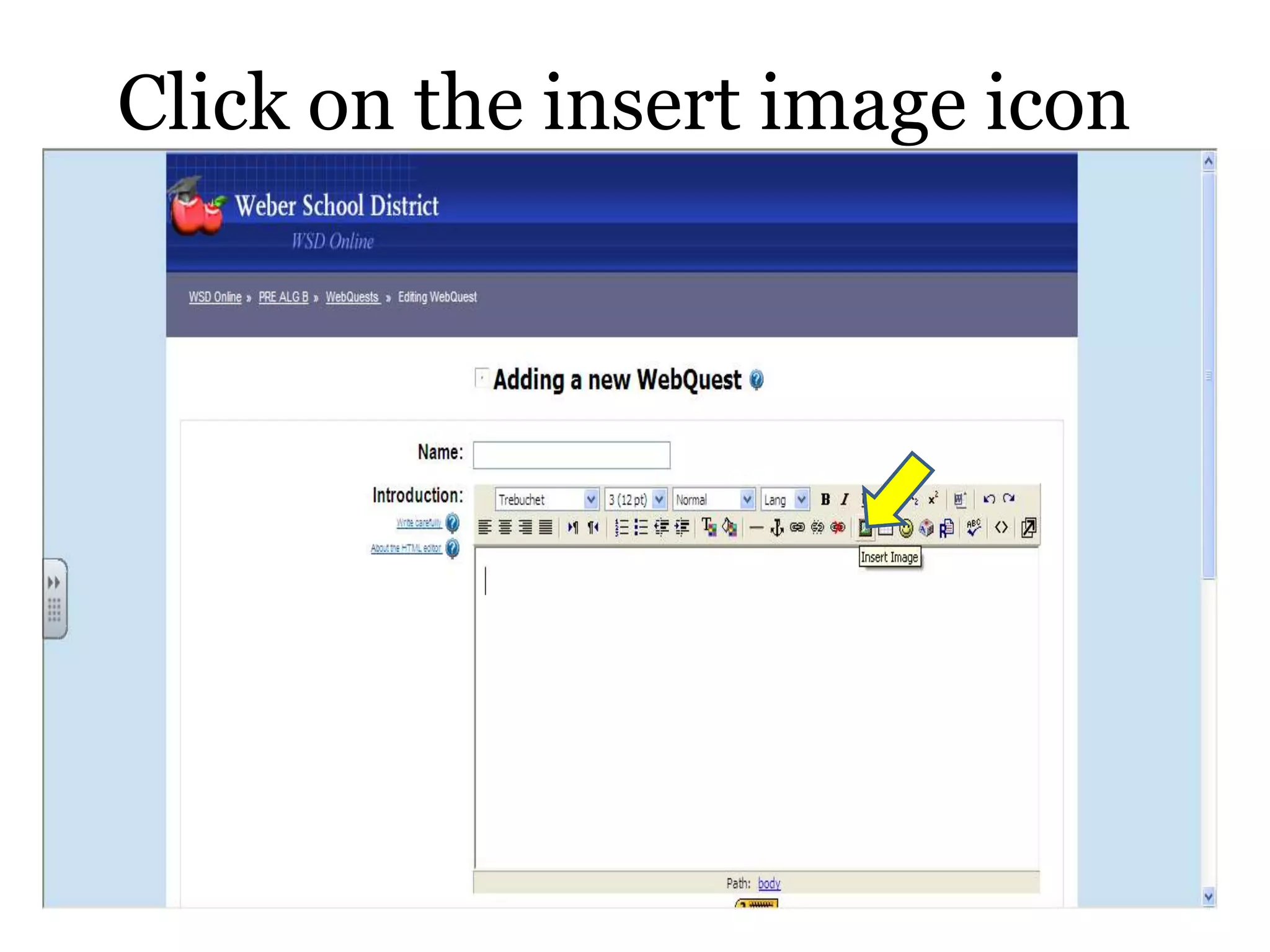
Click on the insert image icon
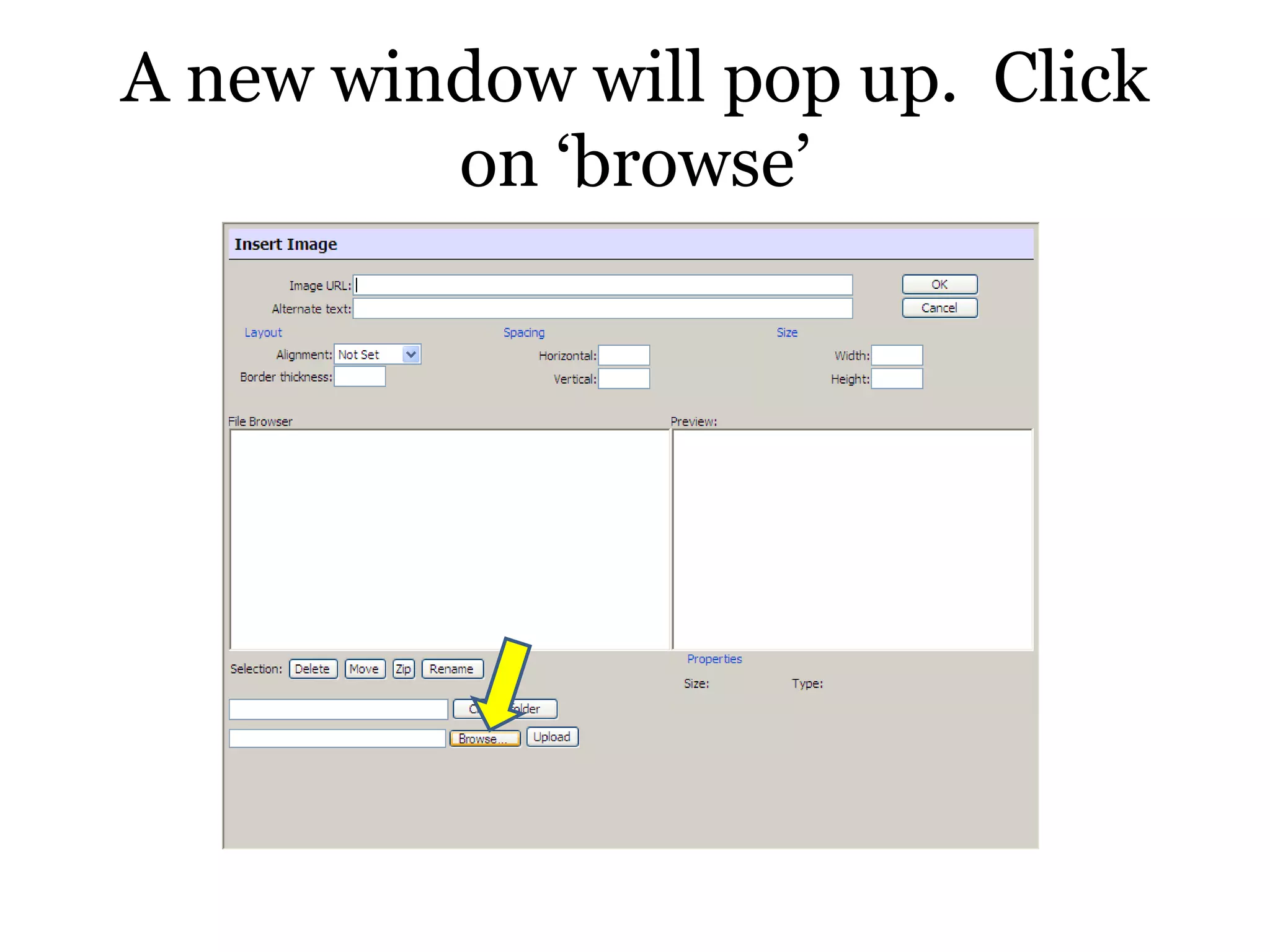
A new window will pop up.  Click on ‘browse’
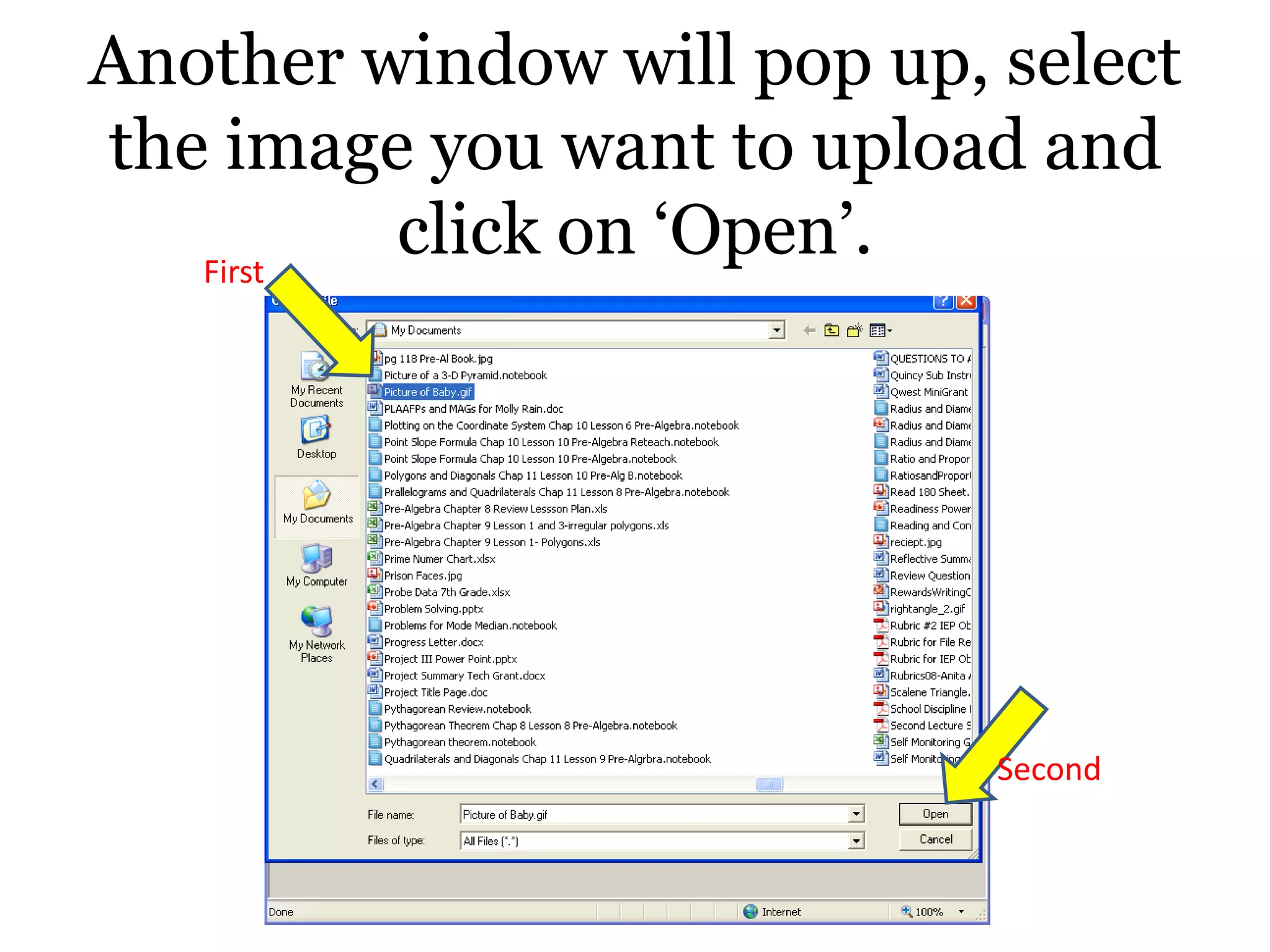
Another window will pop up, select the image you want to upload and click on ‘Open’.FirstSecond
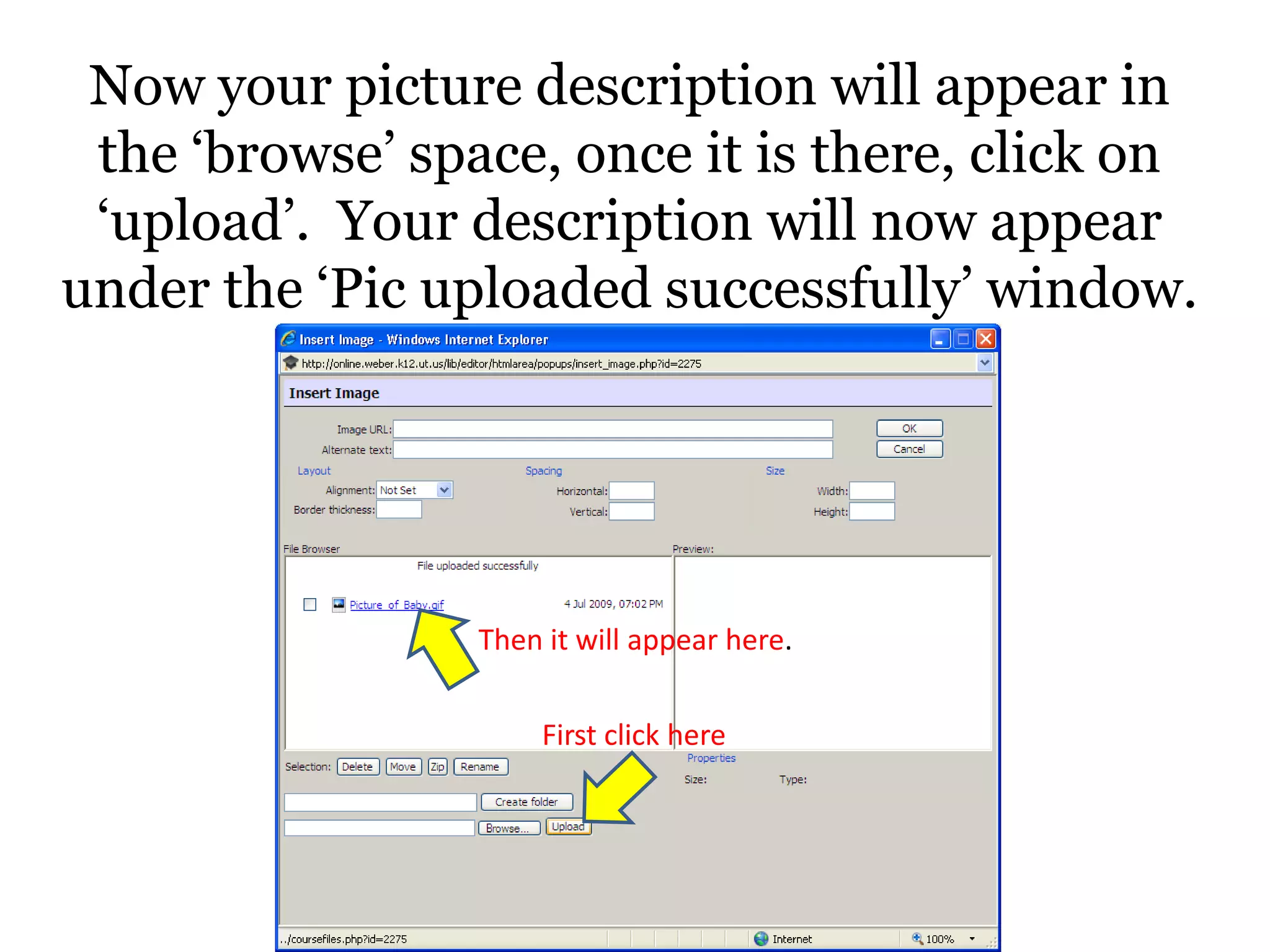
Now your picture description will appear in the ‘browse’ space, once it is there, click on ‘upload’.  Your description will now appear under the ‘Pic uploaded successfully’ window. Then it will appear here.First click here
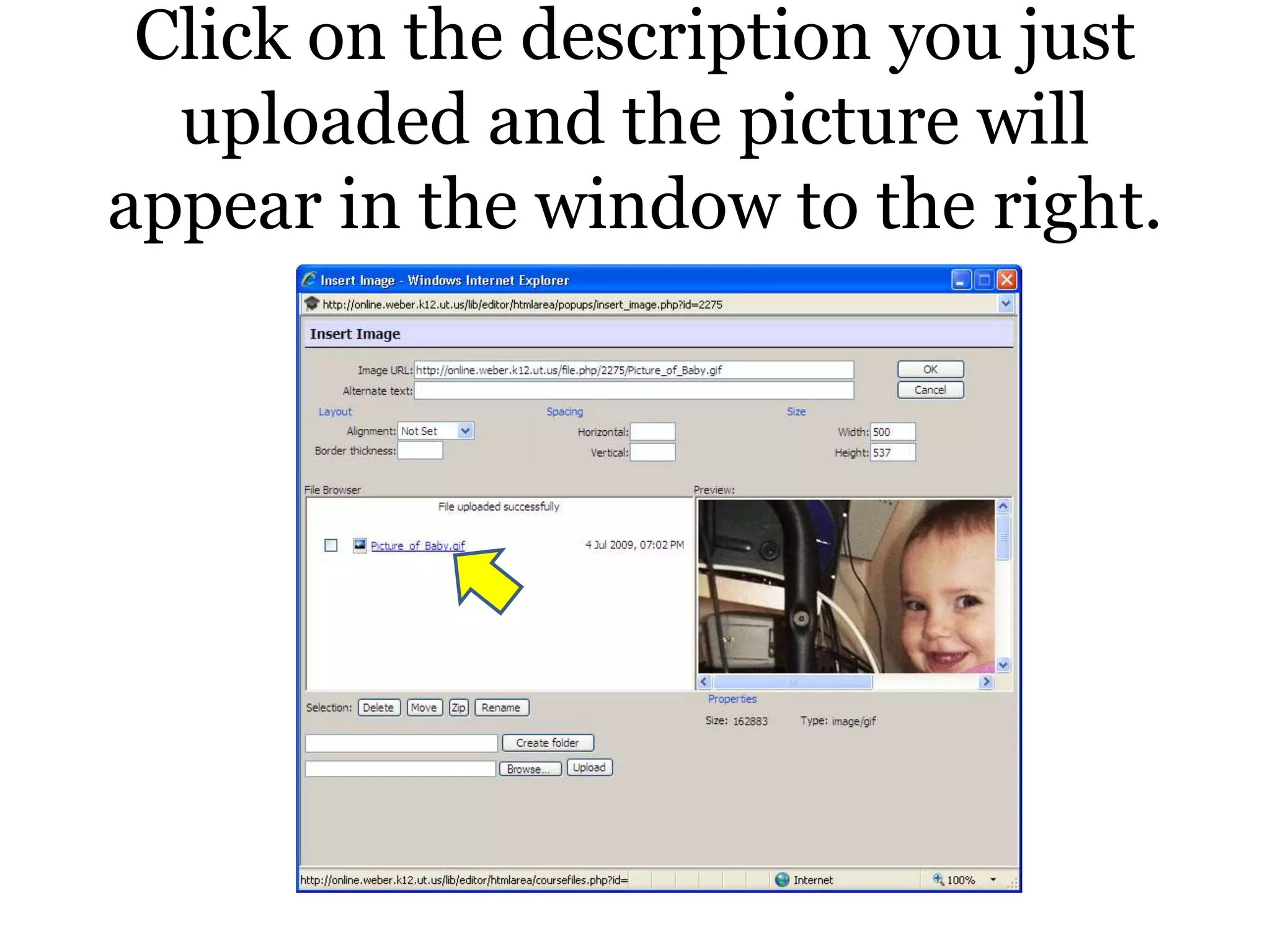
Click on the description you just uploaded and the picture will appear in the window to the right.
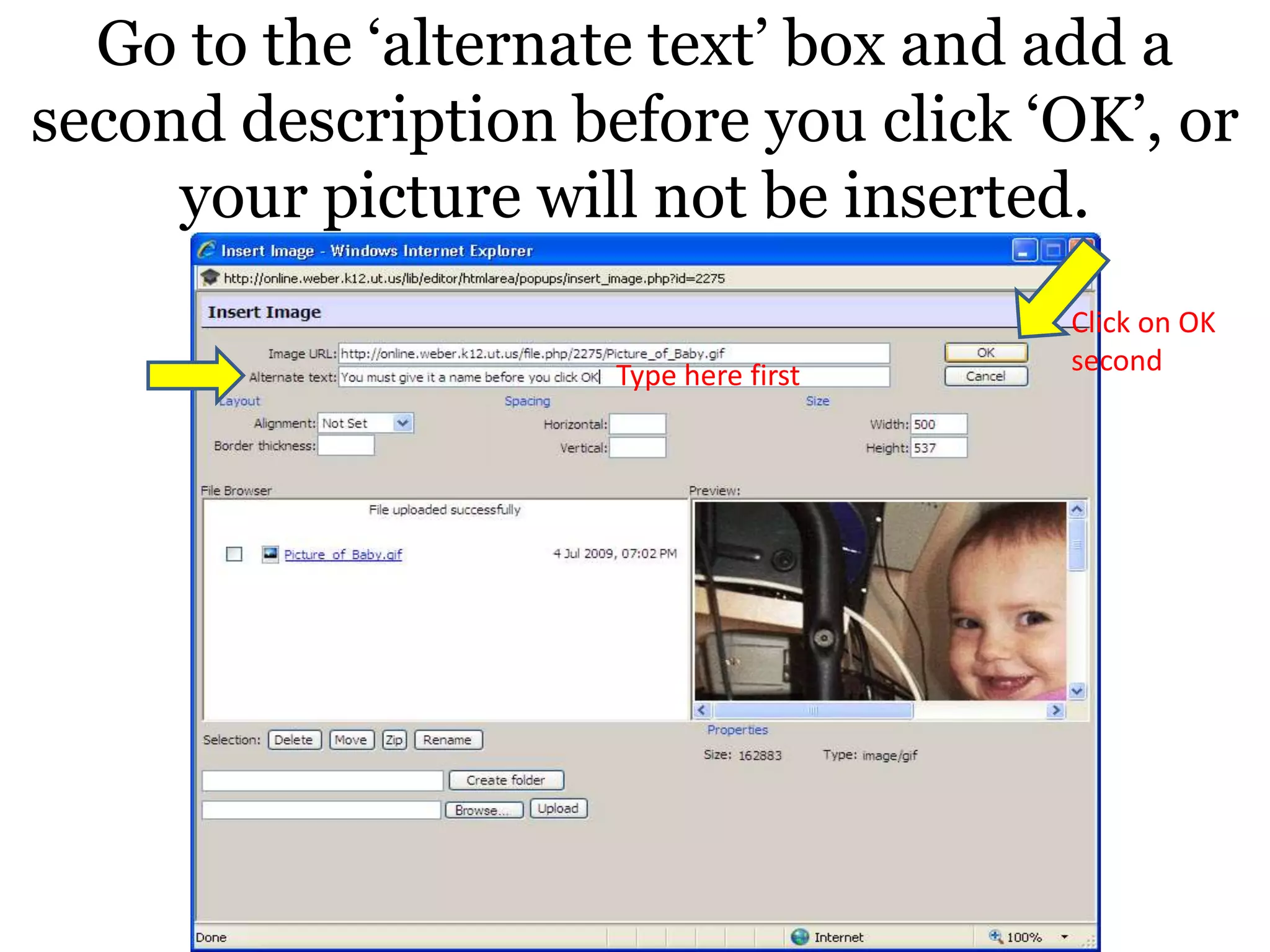
Go to the ‘alternate text’ box and add a second description before you click ‘OK’, or your picture will not be inserted.Click on OK secondType here first
Your picture will then appear where you left your cursor in the original window.

How To Insert An Image.Ppt

  • 1.
    How to insertan imageShannon Sowbyshsowby@weber.k12.ut.us
  • 2.
    Before you doanything, make sure your cursor is positioned where you want your picture to appear.
  • 3.
    Click on theinsert image icon
  • 4.
    A new windowwill pop up. Click on ‘browse’
  • 5.
    Another window willpop up, select the image you want to upload and click on ‘Open’.FirstSecond
  • 6.
    Now your picturedescription will appear in the ‘browse’ space, once it is there, click on ‘upload’. Your description will now appear under the ‘Pic uploaded successfully’ window. Then it will appear here.First click here
  • 7.
    Click on thedescription you just uploaded and the picture will appear in the window to the right.
  • 8.
    Go to the‘alternate text’ box and add a second description before you click ‘OK’, or your picture will not be inserted.Click on OK secondType here first
  • 9.
    Your picture willthen appear where you left your cursor in the original window.