Beyond “Favorites” Web 2.0, Social Bookmarking, and Del.icio.us Allison Mackley Derry Township School District  January 2008
Outline Web 2.0 Tagging Social Bookmarking Del.icio.us Implications for Teaching and Learning
What is Web 2.0? Collaborative culture Wisdom of the Crowds/Knowledge of the Masses User-centered (vs. creator centered) Web-based software (vs. computer-based software) More than new technologies—a change in attitude Interactive and engaging What is Web2.0 - Tim O'Reilly
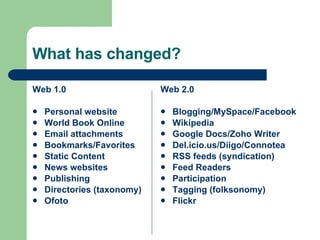
What has changed? Web 1.0 Personal website World Book Online Email attachments Bookmarks/Favorites Static Content News websites Publishing  Directories (taxonomy) Ofoto Web 2.0 Blogging/MySpace/Facebook Wikipedia Google Docs/Zoho Writer Del.icio.us/Diigo/Connotea RSS feeds (syndication) Feed Readers Participation Tagging (folksonomy) Flickr
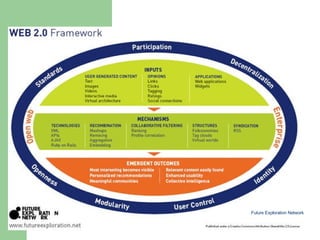
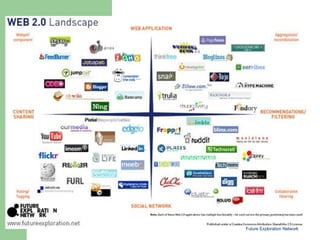
Future Exploration Network
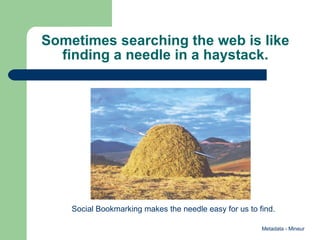
Sometimes searching the web is like finding a needle in a haystack. Social Bookmarking makes the needle easy for us to find. Metadata - Mineur
Social Bookmarking Managing information by saving bookmarks to a public web site and “tagging” them with keywords Store bookmarks that you can access on any computer Add tags that make sense to you Designate bookmarks as public or private Search for resources that others have tagged and gain insights from other users to locate information on a topic Seven Things You Should Know about Social Bookmarking
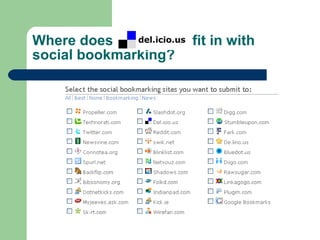
Where does  fit in with social bookmarking?
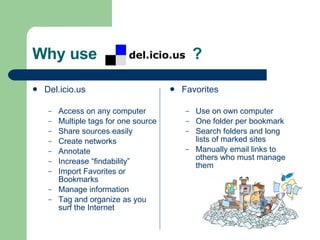
Why use ? Del.icio.us Access on any computer Multiple tags for one source Share sources easily Create networks Annotate Increase “findability” Import Favorites or Bookmarks Manage information Tag and organize as you surf the Internet Favorites Use on own computer One folder per bookmark Search folders and long lists of marked sites Manually email links to others who must manage them
How Can I Use Social Bookmarking?  Allison’s Del.icio.us View the “ Social Bookmarking ” resources that have been tagged. Watch the tutorial titled  Video: Social Bookmarking in Plain English - Common Craft - Explanations in Plain English Visit   Del.icio.us   to get started.  Click the “about” link at the bottom of the page for helpful information.
What Are Tags? Tags are one-word descriptors that you can assign to your bookmarks on del.icio.us to help you organize information.  Tags are similar to keywords, but they are chosen by you.  You can assign as many tags to a bookmark as you like, and rename or delete the tags later.  Be sure you have thought about your tagging scheme.  Create common tags for particular assignments/topics or groups of people.
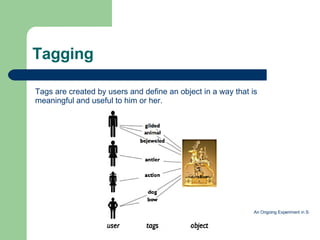
Tagging Tags are created by users and define an object in a way that is meaningful and useful to him or her. An Ongoing Experiment in Social Tagging, Folksonomy, and Museums
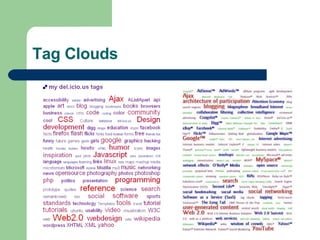
Tag Clouds
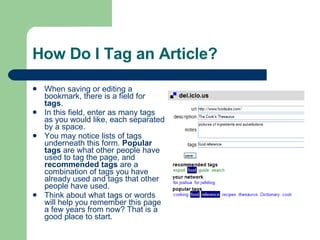
How Do I Tag an Article? When saving or editing a bookmark, there is a field for  tags .  In this field, enter as many tags as you would like, each separated by a space.  You may notice lists of tags underneath this form.  Popular tags  are what other people have used to tag the page, and  recommended tags  are a combination of tags you have already used and tags that other people have used.  Think about what tags or words will help you remember this page a few years from now? That is a good place to start.
How Do I Import My Favorites? If you have bookmarks stored in your browser that you would  like to upload to del.icio.us, you can choose import/upload in your settings to add them to your account.  This is a convenient way to consolidate bookmarks from multiple computers.  You will be able to access those bookmarks from any computer connected to the Internet.
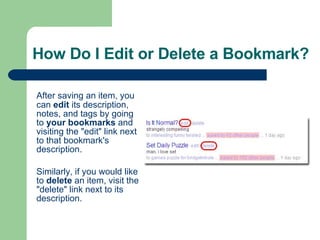
How Do I Edit or Delete a Bookmark? After saving an item, you can  edit  its description, notes, and tags by going to  your bookmarks  and visiting the "edit" link next to that bookmark's description.  Similarly, if you would like to  delete  an item, visit the "delete" link next to its description.
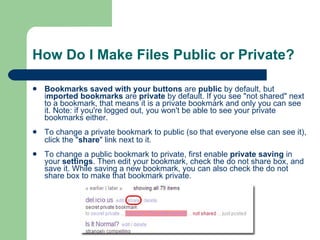
How Do I Make Files Public or Private? Bookmarks saved with your buttons  are  public  by default, but i mported bookmarks  are  private  by default. If you see "not shared" next to a bookmark, that means it is a private bookmark and only you can see it. Note: if you're logged out, you won't be able to see your private bookmarks either.  To change a private bookmark to public (so that everyone else can see it), click the " share " link next to it.   To change a public bookmark to private, first enable  private saving  in your  settings . Then edit your bookmark, check the do not share box, and save it. While saving a new bookmark, you can also check the do not share box to make that bookmark private.
How Do I Share My Tagged Articles? On del.icio.us, you can  share  your bookmarks with everyone.  First, you can tell everyone the  link  to your public bookmarks – for example, mine is  http://del.icio.us/allisons21 To share bookmarks in a  specific tag , provide a link to  http://del.icio.us/allisons21/tag  (name the specific tag in place of “tag”) There are also  RSS feeds  available for your bookmarks and tags, which anyone can subscribe to.
How Do I Explore  Other User’s Bookmarks? Search a specific tag.  For example, to take a look at all the bookmarks saved recently that are tagged with your favorite topic, go to a page like  del.icio.us/tag/ semanticweb  or  del.icio.us/tag/writing .  You can also see relevant items bookmarked by a lot of users by visiting  del.icio.us/popular/ semanticweb  or  del.icio.us/tag/writing .
How Do I Explore  Other User’s Bookmarks?  (continued) The del.icio.us search engine may also be helpful to you: it searches users' descriptions, notes, and tags. There's a search box on the top right corner of most pages on del.icio.us - type in your favorite keywords to see what people have bookmarked about them.   Most of the bookmarks on del.icio.us are public, which means you can look at everyone else's bookmarks -- try visiting the usernames associated with bookmarks that you find while browsing. If a person has a lot of interesting bookmarks, you can add them to  your network  to see more of them in the future.
How Do I Subscribe to a Tag? Subscriptions allow you to watch all your favorite tags in one place. After you add a tag to your subscriptions, del.icio.us watches for everyone's bookmarks saved with that tag and delivers them to your subscriptions page. It's a tag aggregator, good for watching what people are bookmarking about a favorite topic (or a bunch of them). You can view your subscriptions by clicking subscriptions at the top of any page of del.icio.us, or by visiting  del.icio.us/subscriptions . To add a new subscription, visit the edit link on the right side of the page. Labels, which you can also create on the edit page, are an optional way to group together related tag subscriptions. You can delete an unwanted subscription from the edit page, or by clicking the X next to a subscription on the right side of your subscription list.  After adding a new subscription, bookmarks may not show up on the page immediately - wait a little while, and the right bookmarks should appear. There is no way to delete items from the page, but they disappear after a length of time.  Your tag subscriptions are public, and you can explore other people's subscriptions by visiting  del.icio.us/subscriptions/username .
How Do I Form a Network? Your  network  connects you to other del.icio.us users: friends, family, coworkers, even new people you run across while exploring del.icio.us. It is a people-aggregator, collecting your favorite users' latest bookmarks in one place for you to view and enjoy.  You can  view and manage  your network by going to your network at the top of the page, or by visiting  del.icio.us/network . Your network is  visible to other users by default . If you do not want others to see to whom you are connected, you can make your  network private  by following the  network settings  link on your network page.  To  add a person  to your network, you can  type their username  into the add box on the right side of your network page, or you can use the  add username to your network  link in the grey bar at the top of other people's bookmarks pages.
How Do I Receive Bookmarks  from Other Users? The “ Links for You ” link at the top of any page on del.icio.us, becomes  bold  when you receive a new bookmark from someone.  You can also get to “Links for You” by visiting  del.icio.us/for .  There is no way to delete items from this page right now.  Your “Links for You” page is not visible to other users.
How Do I Send Bookmarks  to Another User? If the person is already part of your network, you can click that  for:username  tag provided for you  when saving a bookmark , and the bookmark will  show up on their “Links for You” page .  You can also type in  for:username ,  and the link will be sent to that person.  Sending a link within del.icio.us can be easier and quicker than email or instant messaging, and your friend or coworker will have a  permanent copy of the link  that is easy to add to his or her own bookmarks.  When you tag a bookmark with  for:username , only you will be able to see that tag, even though the whole bookmark may be public.
Implications for  Teaching and Learning Potential to change how we manage information Know how to retrieve information using a framework created by and shared with peers and colleagues - an essential information literacy skill Encourage virtual collaboration Open possibilities to learn and understand perspectives of others Simplify distribution of resources among peers and students
Classroom Application Create working bibliographies for units or projects by sharing a common tag Build lists of resources with students and/or colleagues Create a network of people with common interests Analyze the tags that others have used for certain bookmarks Develop a information management plan for organizing information Use digital technology to save, organize and view articles rather than printing.

Beyond Favorites - Delicious

  • 1.
    Beyond “Favorites” Web2.0, Social Bookmarking, and Del.icio.us Allison Mackley Derry Township School District January 2008
  • 2.
    Outline Web 2.0Tagging Social Bookmarking Del.icio.us Implications for Teaching and Learning
  • 3.
    What is Web2.0? Collaborative culture Wisdom of the Crowds/Knowledge of the Masses User-centered (vs. creator centered) Web-based software (vs. computer-based software) More than new technologies—a change in attitude Interactive and engaging What is Web2.0 - Tim O'Reilly
  • 4.
    What has changed?Web 1.0 Personal website World Book Online Email attachments Bookmarks/Favorites Static Content News websites Publishing Directories (taxonomy) Ofoto Web 2.0 Blogging/MySpace/Facebook Wikipedia Google Docs/Zoho Writer Del.icio.us/Diigo/Connotea RSS feeds (syndication) Feed Readers Participation Tagging (folksonomy) Flickr
  • 5.
  • 6.
  • 7.
    Sometimes searching theweb is like finding a needle in a haystack. Social Bookmarking makes the needle easy for us to find. Metadata - Mineur
  • 8.
    Social Bookmarking Managinginformation by saving bookmarks to a public web site and “tagging” them with keywords Store bookmarks that you can access on any computer Add tags that make sense to you Designate bookmarks as public or private Search for resources that others have tagged and gain insights from other users to locate information on a topic Seven Things You Should Know about Social Bookmarking
  • 9.
    Where does fit in with social bookmarking?
  • 10.
    Why use ?Del.icio.us Access on any computer Multiple tags for one source Share sources easily Create networks Annotate Increase “findability” Import Favorites or Bookmarks Manage information Tag and organize as you surf the Internet Favorites Use on own computer One folder per bookmark Search folders and long lists of marked sites Manually email links to others who must manage them
  • 11.
    How Can IUse Social Bookmarking? Allison’s Del.icio.us View the “ Social Bookmarking ” resources that have been tagged. Watch the tutorial titled Video: Social Bookmarking in Plain English - Common Craft - Explanations in Plain English Visit Del.icio.us to get started. Click the “about” link at the bottom of the page for helpful information.
  • 12.
    What Are Tags?Tags are one-word descriptors that you can assign to your bookmarks on del.icio.us to help you organize information. Tags are similar to keywords, but they are chosen by you. You can assign as many tags to a bookmark as you like, and rename or delete the tags later. Be sure you have thought about your tagging scheme. Create common tags for particular assignments/topics or groups of people.
  • 13.
    Tagging Tags arecreated by users and define an object in a way that is meaningful and useful to him or her. An Ongoing Experiment in Social Tagging, Folksonomy, and Museums
  • 14.
  • 15.
    How Do ITag an Article? When saving or editing a bookmark, there is a field for tags . In this field, enter as many tags as you would like, each separated by a space. You may notice lists of tags underneath this form. Popular tags are what other people have used to tag the page, and recommended tags are a combination of tags you have already used and tags that other people have used. Think about what tags or words will help you remember this page a few years from now? That is a good place to start.
  • 16.
    How Do IImport My Favorites? If you have bookmarks stored in your browser that you would like to upload to del.icio.us, you can choose import/upload in your settings to add them to your account. This is a convenient way to consolidate bookmarks from multiple computers. You will be able to access those bookmarks from any computer connected to the Internet.
  • 17.
    How Do IEdit or Delete a Bookmark? After saving an item, you can edit its description, notes, and tags by going to your bookmarks and visiting the "edit" link next to that bookmark's description. Similarly, if you would like to delete an item, visit the "delete" link next to its description.
  • 18.
    How Do IMake Files Public or Private? Bookmarks saved with your buttons are public by default, but i mported bookmarks are private by default. If you see "not shared" next to a bookmark, that means it is a private bookmark and only you can see it. Note: if you're logged out, you won't be able to see your private bookmarks either. To change a private bookmark to public (so that everyone else can see it), click the " share " link next to it. To change a public bookmark to private, first enable private saving in your settings . Then edit your bookmark, check the do not share box, and save it. While saving a new bookmark, you can also check the do not share box to make that bookmark private.
  • 19.
    How Do IShare My Tagged Articles? On del.icio.us, you can share your bookmarks with everyone. First, you can tell everyone the link to your public bookmarks – for example, mine is http://del.icio.us/allisons21 To share bookmarks in a specific tag , provide a link to http://del.icio.us/allisons21/tag (name the specific tag in place of “tag”) There are also RSS feeds available for your bookmarks and tags, which anyone can subscribe to.
  • 20.
    How Do IExplore Other User’s Bookmarks? Search a specific tag. For example, to take a look at all the bookmarks saved recently that are tagged with your favorite topic, go to a page like del.icio.us/tag/ semanticweb or del.icio.us/tag/writing . You can also see relevant items bookmarked by a lot of users by visiting del.icio.us/popular/ semanticweb or del.icio.us/tag/writing .
  • 21.
    How Do IExplore Other User’s Bookmarks? (continued) The del.icio.us search engine may also be helpful to you: it searches users' descriptions, notes, and tags. There's a search box on the top right corner of most pages on del.icio.us - type in your favorite keywords to see what people have bookmarked about them. Most of the bookmarks on del.icio.us are public, which means you can look at everyone else's bookmarks -- try visiting the usernames associated with bookmarks that you find while browsing. If a person has a lot of interesting bookmarks, you can add them to your network to see more of them in the future.
  • 22.
    How Do ISubscribe to a Tag? Subscriptions allow you to watch all your favorite tags in one place. After you add a tag to your subscriptions, del.icio.us watches for everyone's bookmarks saved with that tag and delivers them to your subscriptions page. It's a tag aggregator, good for watching what people are bookmarking about a favorite topic (or a bunch of them). You can view your subscriptions by clicking subscriptions at the top of any page of del.icio.us, or by visiting del.icio.us/subscriptions . To add a new subscription, visit the edit link on the right side of the page. Labels, which you can also create on the edit page, are an optional way to group together related tag subscriptions. You can delete an unwanted subscription from the edit page, or by clicking the X next to a subscription on the right side of your subscription list. After adding a new subscription, bookmarks may not show up on the page immediately - wait a little while, and the right bookmarks should appear. There is no way to delete items from the page, but they disappear after a length of time. Your tag subscriptions are public, and you can explore other people's subscriptions by visiting del.icio.us/subscriptions/username .
  • 23.
    How Do IForm a Network? Your network connects you to other del.icio.us users: friends, family, coworkers, even new people you run across while exploring del.icio.us. It is a people-aggregator, collecting your favorite users' latest bookmarks in one place for you to view and enjoy. You can view and manage your network by going to your network at the top of the page, or by visiting del.icio.us/network . Your network is visible to other users by default . If you do not want others to see to whom you are connected, you can make your network private by following the network settings link on your network page. To add a person to your network, you can type their username into the add box on the right side of your network page, or you can use the add username to your network link in the grey bar at the top of other people's bookmarks pages.
  • 24.
    How Do IReceive Bookmarks from Other Users? The “ Links for You ” link at the top of any page on del.icio.us, becomes bold when you receive a new bookmark from someone. You can also get to “Links for You” by visiting del.icio.us/for . There is no way to delete items from this page right now. Your “Links for You” page is not visible to other users.
  • 25.
    How Do ISend Bookmarks to Another User? If the person is already part of your network, you can click that for:username tag provided for you when saving a bookmark , and the bookmark will show up on their “Links for You” page . You can also type in for:username , and the link will be sent to that person. Sending a link within del.icio.us can be easier and quicker than email or instant messaging, and your friend or coworker will have a permanent copy of the link that is easy to add to his or her own bookmarks. When you tag a bookmark with for:username , only you will be able to see that tag, even though the whole bookmark may be public.
  • 26.
    Implications for Teaching and Learning Potential to change how we manage information Know how to retrieve information using a framework created by and shared with peers and colleagues - an essential information literacy skill Encourage virtual collaboration Open possibilities to learn and understand perspectives of others Simplify distribution of resources among peers and students
  • 27.
    Classroom Application Createworking bibliographies for units or projects by sharing a common tag Build lists of resources with students and/or colleagues Create a network of people with common interests Analyze the tags that others have used for certain bookmarks Develop a information management plan for organizing information Use digital technology to save, organize and view articles rather than printing.