A Curation Tool
By:
Erin Brinkley
Theresa Roderique
What is Delicious?
 Created by Yahoo.com
 A social bookmarking website for storing, sharing,
and locating web bookmarks.
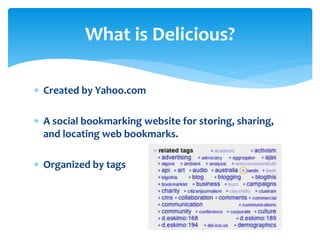
 Organized by tags
Overview of Delicious: Outline
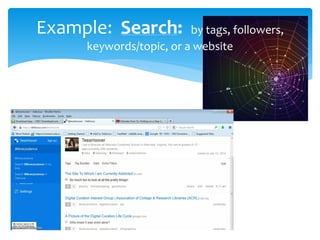
 Search: by tags, followers, keywords/topic, or a website
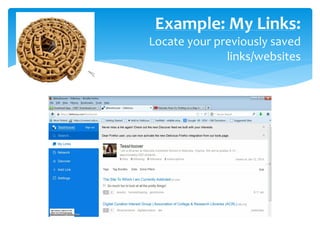
 My Links: Locate your previously saved links/websites

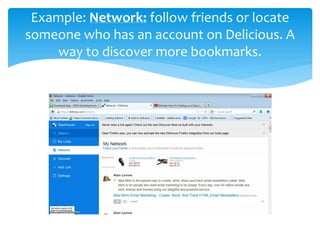
 Network: follow friends or locate someone who has an account
on Delicious. A way to discover more bookmarks.
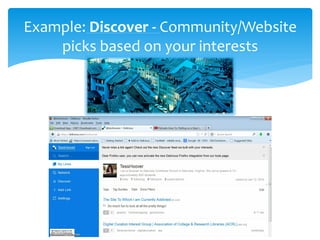
 Discover: Community/Website picks based on your interests
(based on what you have saved as your links)
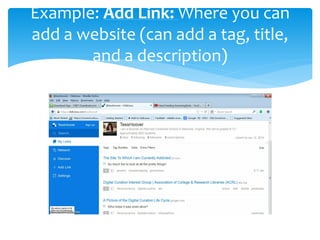
 Add Link: Where you can add a website (can add a tag, title, and a
description)
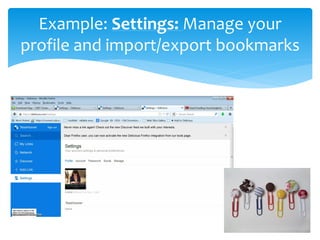
 Settings: Manage your profile and import/export bookmarks
Special Features: Tags
 By adding a tag(s) to a link/website you save, it is easy to
locate and organize your information by topic.

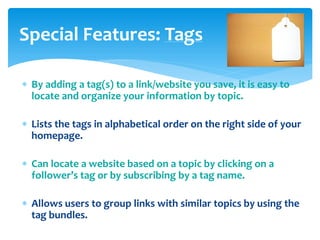
 Lists the tags in alphabetical order on the right side of your
homepage.
 Can locate a website based on a topic by clicking on a
follower’s tag or by subscribing by a tag name.
 Allows users to group links with similar topics by using the
tag bundles.
Special Features: Social Aspect
 The option to view people who are following your links
and the option to follow others (Like friends on
Facebook).
 You can add a picture and bio to your profile.
 You can share a link on Facebook or Twitter through
the website.
 You can click to have your links private or public from
followers.
Limitations
 Plain and simple design to the website
 Does not have a lot of bells and whistles like most social
bookmarking websites (simple and easy)
 There is no pop-up window on the web browser like most
bookmarking websites offer, so you have to go back to the
Delicious website to add a link.
 Can only add one picture of yourself (The social aspect is
not as great as Facebook)
How to Get Started
 www.Delicious.com (could download the App)
 Click on “Join Delicious” for free (can sign up through Twitter,
Facebook, Google, or your email)
 Create username and password
 Option to add Delicious to your toolbar to have easier access
 Option to import existing bookmarks on your computer right in
the beginning
How to get started …
Saving a link
 Click on “add link”

 Type in the URL or copy and paste it from the website
 The title of the link automatically appears, but it can be
changed.
 Suggestions for tags show up or you may create your own (add
them)

 Comment: you may add a description of the link for you and
your followers.
 Special Features: make public/private or share a link on
Facebook/Twitter
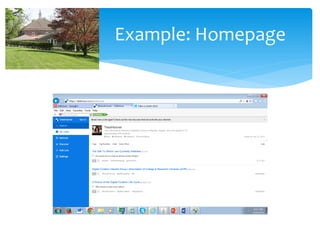
Example: Homepage
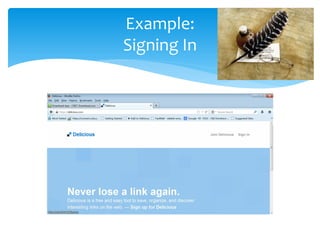
Example:
Signing In
Example: Search:

by tags, followers,
keywords/topic, or a website
Example: My Links:
Locate your previously saved
links/websites
Example: Network: follow friends or locate
someone who has an account on Delicious. A
way to discover more bookmarks.
Example: Discover - Community/Website
picks based on your interests
Example: Add Link: Where you can
add a website (can add a tag, title,
and a description)
Example: Settings: Manage your
profile and import/export bookmarks
Where to learn more…
* Look up Delicious on Wikipedia or click this link:
http://en.wikipedia.org/wiki/Delicious_%28website%29
This article provides a decent site description, history, and overview of
AVOS Systems, Delicious’ parent company.
Click on http://www.socialmediaexaminer.com/how-to-use-delicioussocial-bookmarking/
This is a very understandable, comprehensive description and tutorial
for novices. It does a much better job than I could illuminating the
tremendous variety of options available in Delicious.
Google “collaborative librarianship social bookmarking sites review.”
Your first hit will take you to an informative scholarly article that
discusses the expanding role of social bookmarking in libraries and
compares/contrasts four popular sites, of which Delicious is on.

Curation delicious (final)

  • 1.
    A Curation Tool By: ErinBrinkley Theresa Roderique
  • 2.
    What is Delicious? Created by Yahoo.com  A social bookmarking website for storing, sharing, and locating web bookmarks.  Organized by tags
  • 3.
    Overview of Delicious:Outline  Search: by tags, followers, keywords/topic, or a website  My Links: Locate your previously saved links/websites  Network: follow friends or locate someone who has an account on Delicious. A way to discover more bookmarks.  Discover: Community/Website picks based on your interests (based on what you have saved as your links)  Add Link: Where you can add a website (can add a tag, title, and a description)  Settings: Manage your profile and import/export bookmarks
  • 4.
    Special Features: Tags By adding a tag(s) to a link/website you save, it is easy to locate and organize your information by topic.  Lists the tags in alphabetical order on the right side of your homepage.  Can locate a website based on a topic by clicking on a follower’s tag or by subscribing by a tag name.  Allows users to group links with similar topics by using the tag bundles.
  • 5.
    Special Features: SocialAspect  The option to view people who are following your links and the option to follow others (Like friends on Facebook).  You can add a picture and bio to your profile.  You can share a link on Facebook or Twitter through the website.  You can click to have your links private or public from followers.
  • 6.
    Limitations  Plain andsimple design to the website  Does not have a lot of bells and whistles like most social bookmarking websites (simple and easy)  There is no pop-up window on the web browser like most bookmarking websites offer, so you have to go back to the Delicious website to add a link.  Can only add one picture of yourself (The social aspect is not as great as Facebook)
  • 7.
    How to GetStarted  www.Delicious.com (could download the App)  Click on “Join Delicious” for free (can sign up through Twitter, Facebook, Google, or your email)  Create username and password  Option to add Delicious to your toolbar to have easier access  Option to import existing bookmarks on your computer right in the beginning
  • 8.
    How to getstarted … Saving a link  Click on “add link”  Type in the URL or copy and paste it from the website  The title of the link automatically appears, but it can be changed.  Suggestions for tags show up or you may create your own (add them)  Comment: you may add a description of the link for you and your followers.  Special Features: make public/private or share a link on Facebook/Twitter
  • 9.
  • 10.
  • 11.
    Example: Search: by tags,followers, keywords/topic, or a website
  • 12.
    Example: My Links: Locateyour previously saved links/websites
  • 13.
    Example: Network: followfriends or locate someone who has an account on Delicious. A way to discover more bookmarks.
  • 14.
    Example: Discover -Community/Website picks based on your interests
  • 15.
    Example: Add Link:Where you can add a website (can add a tag, title, and a description)
  • 16.
    Example: Settings: Manageyour profile and import/export bookmarks
  • 17.
    Where to learnmore… * Look up Delicious on Wikipedia or click this link: http://en.wikipedia.org/wiki/Delicious_%28website%29 This article provides a decent site description, history, and overview of AVOS Systems, Delicious’ parent company. Click on http://www.socialmediaexaminer.com/how-to-use-delicioussocial-bookmarking/ This is a very understandable, comprehensive description and tutorial for novices. It does a much better job than I could illuminating the tremendous variety of options available in Delicious. Google “collaborative librarianship social bookmarking sites review.” Your first hit will take you to an informative scholarly article that discusses the expanding role of social bookmarking in libraries and compares/contrasts four popular sites, of which Delicious is on.