SharePoint and Your
Nonprofit
Monthly webinar
Series
September 2020
About Community IT
Advancing mission
through the effective
of technology.
100% Employee
Owned
Presenter
Steve Longenecker
Director IT Consulting
Agenda
What is SharePoint?
The SharePoint Pitch
•End User Experience
•Preparing for a Migration
What is
SharePoint?
• SharePoint is a platform for developing and
delivering websites and web resources.
• SharePoint was originally developed as a
separate product; the rough edges of its
integration with Azure Active Directory,
Exchange, etc. are sometimes visible.
• At Community IT we focus on SharePoint’s
ability to deliver cloud document sharing
services.
OneDrive is a special case of
SharePoint where you save your
private files (sometimes described
as “My SharePoint”)
As such, we sometimes use the
term SharePoint as the opposite of
OneDrive, meaning “shared cloud
file storage.”
“Teams” is in some ways simply a
new user interface for delivering
Office 365 services, including
SharePoint.
Leverage the Power of the Cloud
When was my last
SharePoint Webinar?
Where do we even save
the old PowerPoint slide
decks?
I’ll just search at
http://office.com.
Results in less than one
second.
Cloud File Storage Benefits
• Files are available anywhere with Internet.
Working remotely is as good as working in the
office where the file server is.
• Redundancy and availability
• Superior versioning
• More ways to share files
• Potentially better security
• Decommission your file server
Why Office 365 SharePoint specifically?
Service is delivered by a giant,
long-standing enterprise services
company committed to and
counting on the success of the
product.
SharePoint
Advantages
Microsoft provides
significant discounts to
Nonprofits.
The product is constantly
improving.
There is deep Integration
with the rest of the Microsoft
Stack.
What about Box or Dropbox?
• Box and Dropbox are more expensive (for nonprofits).
• We still like Dropbox for small G Suite email clients (better than
Google Drive). We don’t get complaints about Dropbox.
• SharePoint is better than Box on Microsoft Office documents
(and when collaborating with other Office 365 customers).
• Box is better for non-Microsoft Office documents and for
collaborating with non-Office 365 customers.
• Except a lot of Box functionality that impresses needs an IT
presence to build out. I see its attraction in the enterprise.
Browser
Interactions
Users can:
•Create new files
•Upload files
•Read and edit files
•Share files
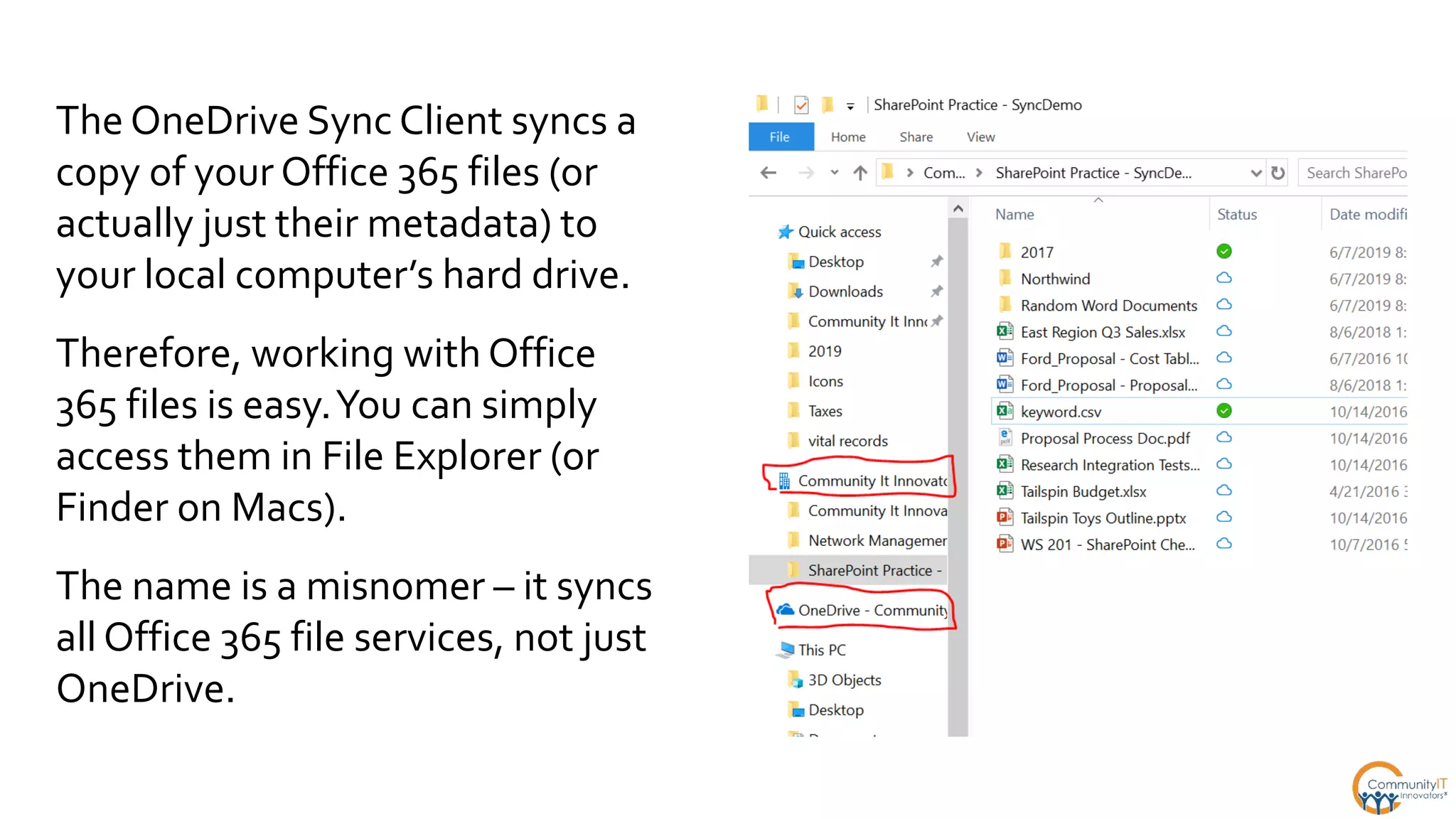
The OneDrive Sync Client syncs a
copy of your Office 365 files (or
actually just their metadata) to
your local computer’s hard drive.
Therefore, working with Office
365 files is easy.You can simply
access them in File Explorer (or
Finder on Macs).
The name is a misnomer – it syncs
all Office 365 file services, not just
OneDrive.
Office Desktop Suite
Current-version Office Desktop Suite is
SharePoint aware.
After a SharePoint-based document opens,
Word/Excel/PowerPoint seamlessly
“streams” the authoritative cloud version.
• Autosave is on
• The cloud version history is available
• Co-authoring is possible
Sharing occurs through
“share links.”
“Anyone” links will work requiring any
authentication.The links can be forwarded around;
they are easy to use.
“Specific people” requires you to enter email
addresses that are then associated with the link,
and the share link will ONLY work for people with
those email addresses.
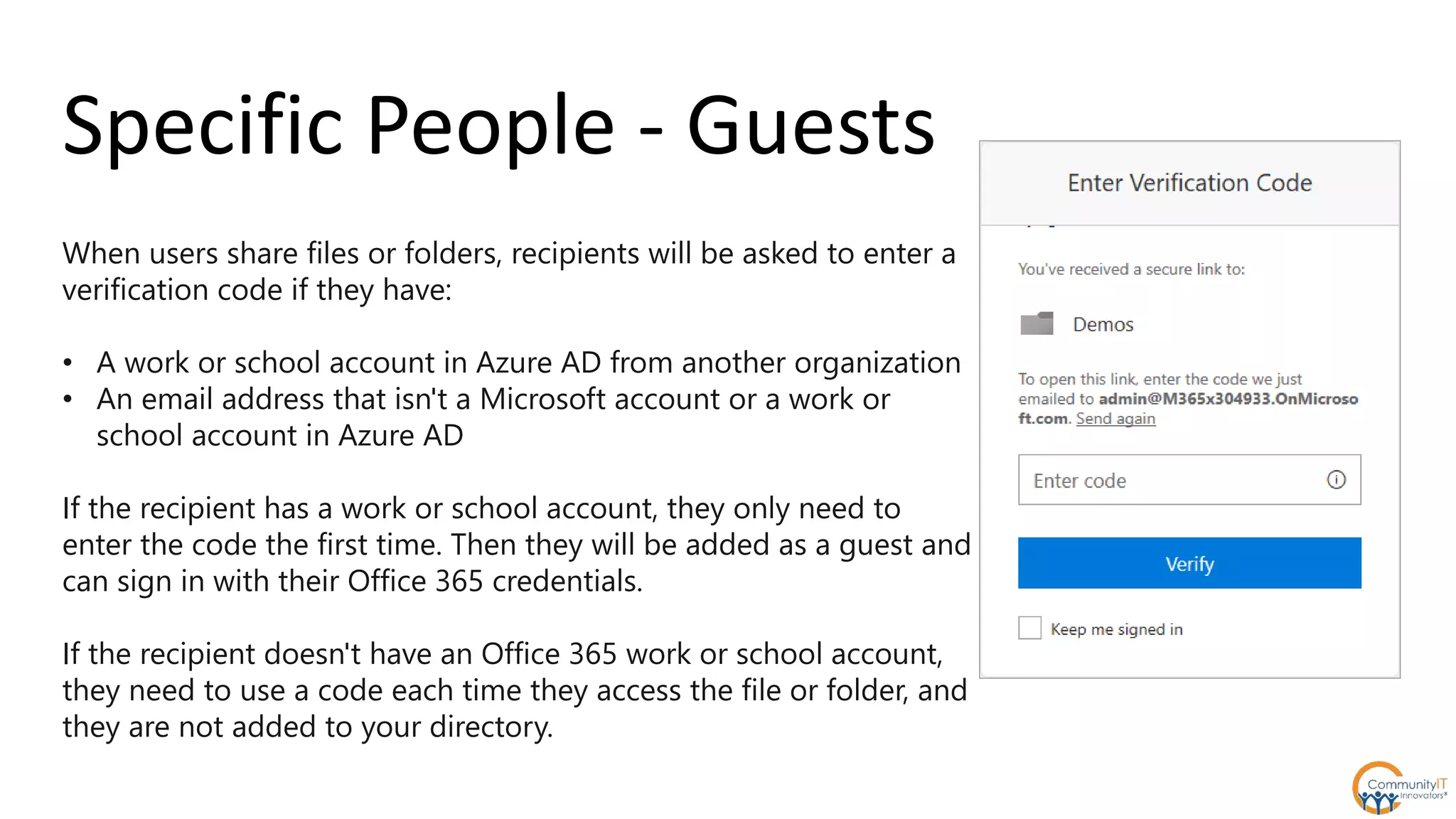
When users share files or folders, recipients will be asked to enter a
verification code if they have:
• A work or school account in Azure AD from another organization
• An email address that isn't a Microsoft account or a work or
school account in Azure AD
If the recipient has a work or school account, they only need to
enter the code the first time. Then they will be added as a guest and
can sign in with their Office 365 credentials.
If the recipient doesn't have an Office 365 work or school account,
they need to use a code each time they access the file or folder, and
they are not added to your directory.
Specific People - Guests
SharePoint Implementations:
Keys to Success
• Windows 10 and Office 365 ProPlus Microsoft 365 Apps
for Business
• Email is already in Office 365 Exchange Online
• Relatively clean and intuitive existing folder/file structure
• Clear wins for users (not just “we need to replace our file
server because it’s old”)
• Support from leadership
• Provide training
Design Decisions
Swim downstream. Don’t fight the Microsoft current.
• Plan to use folder hierarchy for document organization. Microsoft is not
emphasizing metadata tagging.
• Plan for users to use the OneDrive Sync Client. Do not plan to “map” drives even if
third-party tools promise it can be done with WebDav.
• Microsoft spins up an “Office 365 Group” when you create a new SharePoint site.
IT should manage permissions to a single Documents library in that site though the
membership of that Group (IOW, in Azure Active Directory, not in SP itself).
• Don’t use subsites. Don’t create multiple libraries within a site.
• Don’t break inheritance of permissions folders.
• The design principles of SharePoint Server 2013 do not apply.
Expectations Management
Swim downstream. Don’t fight the
Microsoft current.
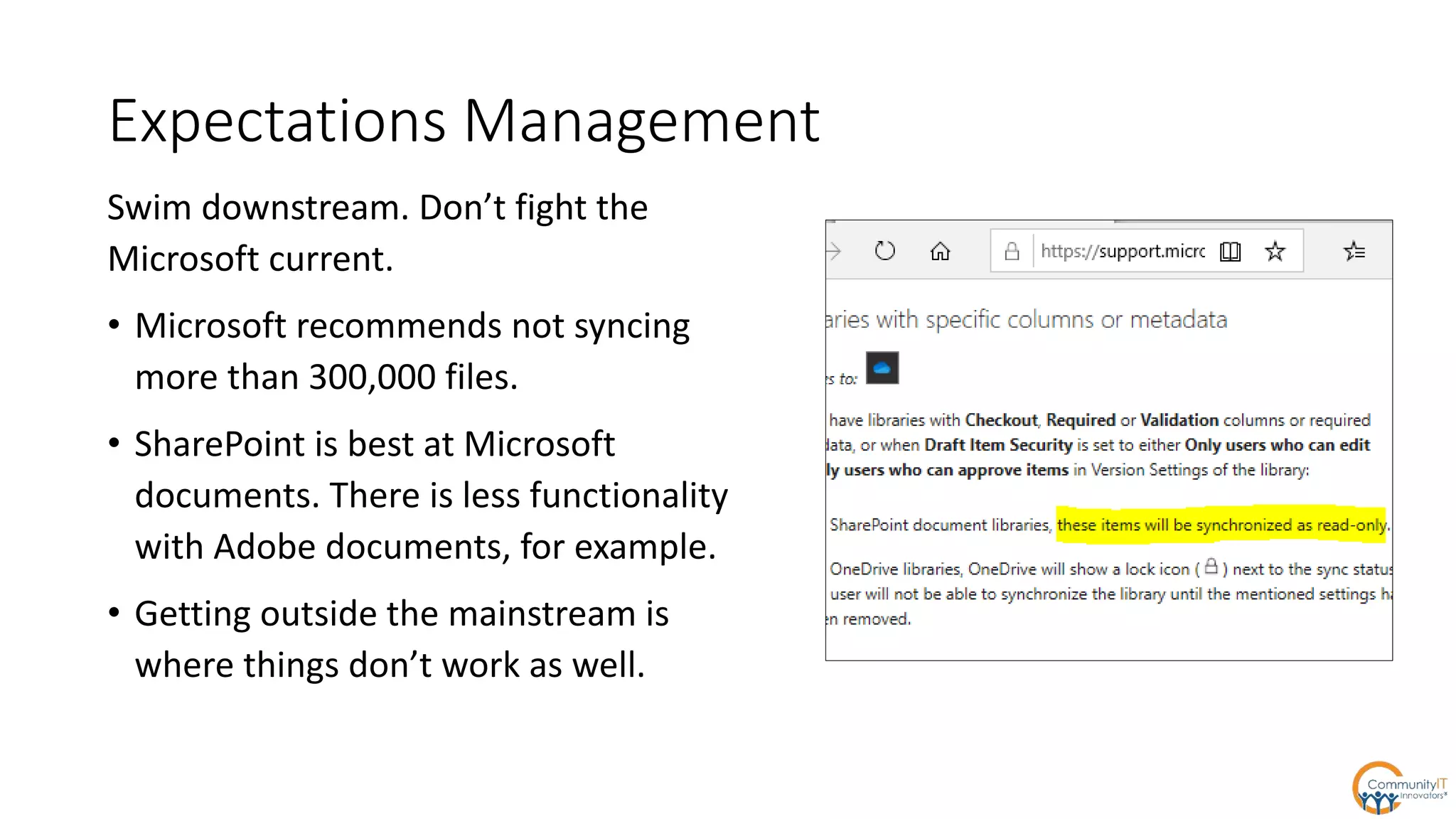
• Microsoft recommends not syncing
more than 300,000 files.
• SharePoint is best at Microsoft
documents. There is less functionality
with Adobe documents, for example.
• Getting outside the mainstream is
where things don’t work as well.
Governance Decisions
Restrict syncing to domain-joined PC’s?
Allow external sharing?
Role of Microsoft Teams?
What are the control points for
creating/managing SharePoint libraries?
Prepping on the File Server
Permissions – planning, discovery, etc.
Plan if purging/archiving unneeded files.
Long file paths may need remediation.
Hyperlinks between files will break.
If your folder hierarchy is a mess, clean it up on
the server BEFORE the migration.
SharePoint is not ideal for video
SharePoint is OK for images
SharePoint does not work for databases,
including MS Access
RDP Servers
OneDrive Sync Clients won’t work with
modern RDP Server user profile virtual
disks
This can make a headache for long
transitions to SharePoint if RDP
server(s) are currently relied upon for
file server access.
Watch for “Import/Export” from
Line of Business Apps
Old school applications are good at exporting and importing to
local folders and mapped file server shares
Exporting and Importing directly to SharePoint is generally
impossible, but exporting/importing to a sync’d folder is generally
not impossible (but can be tricky)
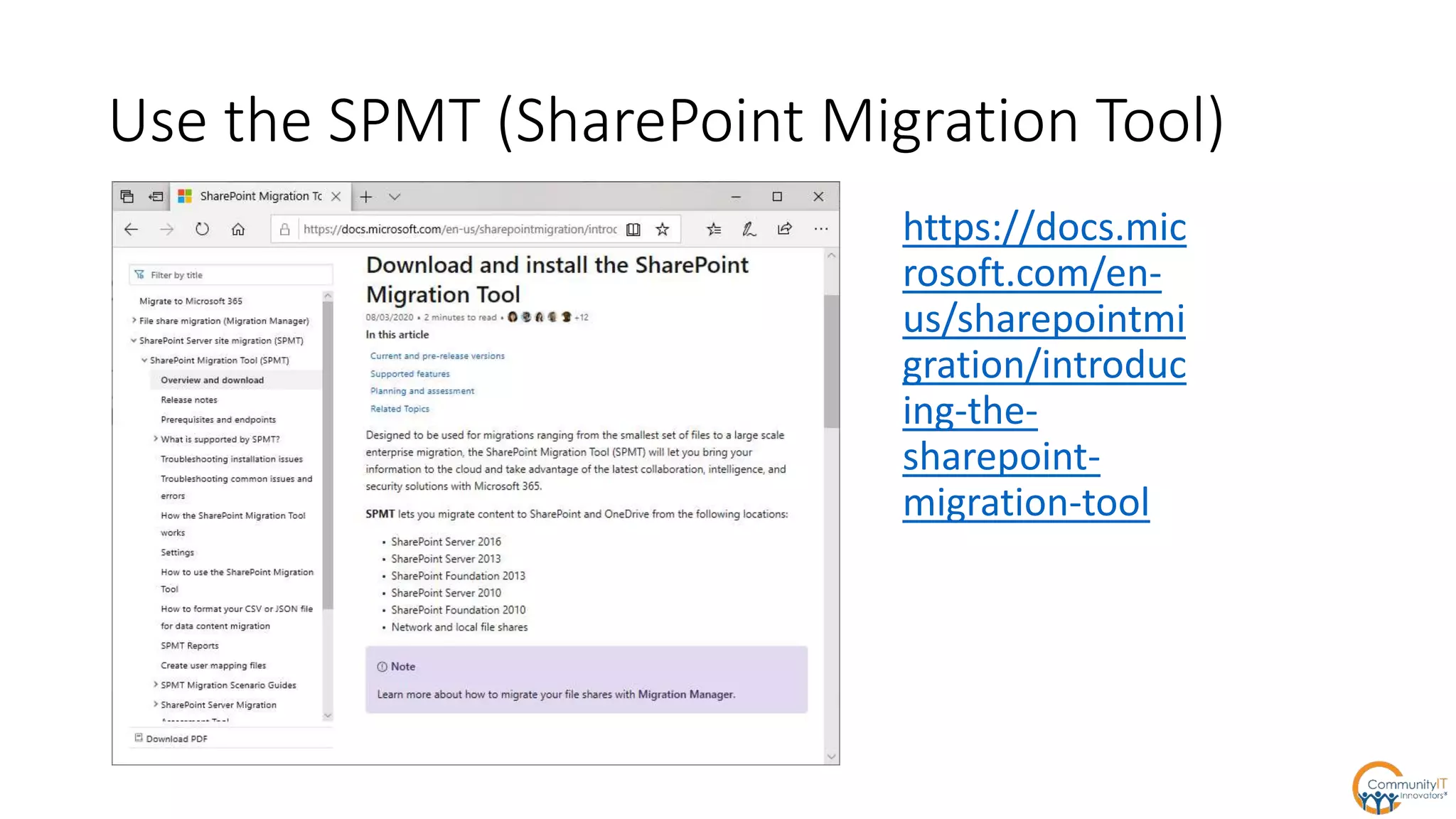
Use the SPMT (SharePoint Migration Tool)
https://docs.mic
rosoft.com/en-
us/sharepointmi
gration/introduc
ing-the-
sharepoint-
migration-tool
Upcoming
Webinar
Cybersecurity Training for
Nonprofits
Wednesday October 21
3:00 – 4:00 PM EST
Questions?

SharePoint Online for Nonprofits

  • 1.
    SharePoint and Your Nonprofit Monthlywebinar Series September 2020
  • 2.
    About Community IT Advancingmission through the effective of technology. 100% Employee Owned
  • 3.
  • 4.
    Agenda What is SharePoint? TheSharePoint Pitch •End User Experience •Preparing for a Migration
  • 5.
    What is SharePoint? • SharePointis a platform for developing and delivering websites and web resources. • SharePoint was originally developed as a separate product; the rough edges of its integration with Azure Active Directory, Exchange, etc. are sometimes visible. • At Community IT we focus on SharePoint’s ability to deliver cloud document sharing services.
  • 6.
    OneDrive is aspecial case of SharePoint where you save your private files (sometimes described as “My SharePoint”) As such, we sometimes use the term SharePoint as the opposite of OneDrive, meaning “shared cloud file storage.” “Teams” is in some ways simply a new user interface for delivering Office 365 services, including SharePoint.
  • 7.
    Leverage the Powerof the Cloud When was my last SharePoint Webinar? Where do we even save the old PowerPoint slide decks? I’ll just search at http://office.com. Results in less than one second.
  • 8.
    Cloud File StorageBenefits • Files are available anywhere with Internet. Working remotely is as good as working in the office where the file server is. • Redundancy and availability • Superior versioning • More ways to share files • Potentially better security • Decommission your file server
  • 9.
    Why Office 365SharePoint specifically? Service is delivered by a giant, long-standing enterprise services company committed to and counting on the success of the product.
  • 10.
    SharePoint Advantages Microsoft provides significant discountsto Nonprofits. The product is constantly improving. There is deep Integration with the rest of the Microsoft Stack.
  • 11.
    What about Boxor Dropbox? • Box and Dropbox are more expensive (for nonprofits). • We still like Dropbox for small G Suite email clients (better than Google Drive). We don’t get complaints about Dropbox. • SharePoint is better than Box on Microsoft Office documents (and when collaborating with other Office 365 customers). • Box is better for non-Microsoft Office documents and for collaborating with non-Office 365 customers. • Except a lot of Box functionality that impresses needs an IT presence to build out. I see its attraction in the enterprise.
  • 12.
    Browser Interactions Users can: •Create newfiles •Upload files •Read and edit files •Share files
  • 13.
    The OneDrive SyncClient syncs a copy of your Office 365 files (or actually just their metadata) to your local computer’s hard drive. Therefore, working with Office 365 files is easy.You can simply access them in File Explorer (or Finder on Macs). The name is a misnomer – it syncs all Office 365 file services, not just OneDrive.
  • 14.
    Office Desktop Suite Current-versionOffice Desktop Suite is SharePoint aware. After a SharePoint-based document opens, Word/Excel/PowerPoint seamlessly “streams” the authoritative cloud version. • Autosave is on • The cloud version history is available • Co-authoring is possible
  • 15.
    Sharing occurs through “sharelinks.” “Anyone” links will work requiring any authentication.The links can be forwarded around; they are easy to use. “Specific people” requires you to enter email addresses that are then associated with the link, and the share link will ONLY work for people with those email addresses.
  • 16.
    When users sharefiles or folders, recipients will be asked to enter a verification code if they have: • A work or school account in Azure AD from another organization • An email address that isn't a Microsoft account or a work or school account in Azure AD If the recipient has a work or school account, they only need to enter the code the first time. Then they will be added as a guest and can sign in with their Office 365 credentials. If the recipient doesn't have an Office 365 work or school account, they need to use a code each time they access the file or folder, and they are not added to your directory. Specific People - Guests
  • 19.
    SharePoint Implementations: Keys toSuccess • Windows 10 and Office 365 ProPlus Microsoft 365 Apps for Business • Email is already in Office 365 Exchange Online • Relatively clean and intuitive existing folder/file structure • Clear wins for users (not just “we need to replace our file server because it’s old”) • Support from leadership • Provide training
  • 20.
    Design Decisions Swim downstream.Don’t fight the Microsoft current. • Plan to use folder hierarchy for document organization. Microsoft is not emphasizing metadata tagging. • Plan for users to use the OneDrive Sync Client. Do not plan to “map” drives even if third-party tools promise it can be done with WebDav. • Microsoft spins up an “Office 365 Group” when you create a new SharePoint site. IT should manage permissions to a single Documents library in that site though the membership of that Group (IOW, in Azure Active Directory, not in SP itself). • Don’t use subsites. Don’t create multiple libraries within a site. • Don’t break inheritance of permissions folders. • The design principles of SharePoint Server 2013 do not apply.
  • 21.
    Expectations Management Swim downstream.Don’t fight the Microsoft current. • Microsoft recommends not syncing more than 300,000 files. • SharePoint is best at Microsoft documents. There is less functionality with Adobe documents, for example. • Getting outside the mainstream is where things don’t work as well.
  • 22.
    Governance Decisions Restrict syncingto domain-joined PC’s? Allow external sharing? Role of Microsoft Teams? What are the control points for creating/managing SharePoint libraries?
  • 23.
    Prepping on theFile Server Permissions – planning, discovery, etc. Plan if purging/archiving unneeded files. Long file paths may need remediation. Hyperlinks between files will break. If your folder hierarchy is a mess, clean it up on the server BEFORE the migration. SharePoint is not ideal for video SharePoint is OK for images SharePoint does not work for databases, including MS Access
  • 24.
    RDP Servers OneDrive SyncClients won’t work with modern RDP Server user profile virtual disks This can make a headache for long transitions to SharePoint if RDP server(s) are currently relied upon for file server access.
  • 25.
    Watch for “Import/Export”from Line of Business Apps Old school applications are good at exporting and importing to local folders and mapped file server shares Exporting and Importing directly to SharePoint is generally impossible, but exporting/importing to a sync’d folder is generally not impossible (but can be tricky)
  • 26.
    Use the SPMT(SharePoint Migration Tool) https://docs.mic rosoft.com/en- us/sharepointmi gration/introduc ing-the- sharepoint- migration-tool
  • 27.
  • 28.

Editor's Notes

  • #8 By the way, it is this search window that I trust the most. The one inside SharePoint (that just searches the library) is okay, but I feel like it doesn’t do as well, plus I like that this main search field searches all available Office 365 properties including email attachments.
  • #9 Decommission all your servers? “Potentially better security” because you have to use other parts of the Office 365 stack to realize potential security. Like Azure Active Directory allows MFA.
  • #11 Will mention recent improvements as they come up in the rest of the preso. Rest of Microsoft stack (in no particular order) Word Online (browser-based version of Windows) Windows Office 365 Mobile Apps Office Desktop Suite (Co-authoring) Microsoft Data loss prevention (DLP) Microsoft Information Rights Management Microsoft identity (MFA, SSO)
  • #14 Recent Improvement: business to business sync Explanation about metadata.
  • #16 Benefits of sharing a link vs. emailing attachments. Recent improvements – anyone links now allow sign-in, so you can leverage business to business sharing, so you can edit an anyone link document in the desktop app. Block download.
  • #17 Currently can be a pain point.
  • #20 Copied from June 2019 preso. Note that we have had a couple clients implement SharePoint/OneDrive on top of Gsuite for email.