Setting up your virtual infrastructure
using FIWARE Lab Cloud
Fernando López Aguilar
Technological Expert. IT and Cloud Architect
fernando.lopezaguilar@telefonica.com
@flopezaguilar
1
Content
 FIWARE Lab Cloud Hosting: Overview and Architecture
 FIWARE Lab: Basic functionalities
 FIWARE Identity Services
 FIWARE Compute Services
 FIWARE Storage Services
 FIWARE Lab: Extended functionalities
 FIWARE Network Services
 FIWARE Lab: PaaS, working with Blueprints
 Reference Information
FIWARE Lab Cloud Hosting: Overview
and Architecture
2
3
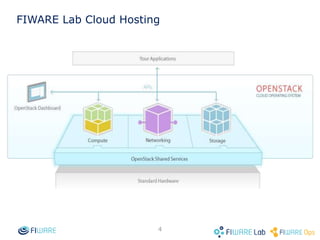
FIWARE Lab Cloud Hosting
4
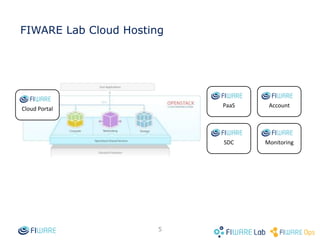
FIWARE Lab Cloud Hosting
Cloud Portal
PaaS
SDC Monitoring
Account
5
Summary
 Account: Manages identity and organizations; provides
authentication and authorization for other services (OpenStack
Keystone).
 Compute: Manages the lifecycle of compute instances.
Responsibilities include spawning, scheduling and decommissioning
of VMs (OpenStack Nova).
 Network: Enable Network-Connectivity-as-a-Service for other
services, e.g. Compute, (OpenStack Neutron).
 Storage:
 Persistent block storage for running compute instances (OpenStack
Cinder).
 Stores and retrieves arbitrary unstructured data object and provide
storage for other services, e.g. Image, (OpenStack Swift).
6
Summary
 Image: Stores and retrieves VM disk images used by compute
(OpenStack Glance).
 Monitoring: Monitoring information about VMs
 SDC: Deploying Software in VMs
 PaaS Manager
 Working with regions
 Creating Tiers and deploying Blueprints
7
FIWARE Lab Cloud – Multiregion
8
FIWARE Lab Cloud – Multiregion
http://fi-health.lab.fiware.org/
Basic functionalities: Identity Services
9
10
Identity Services
 Creating an account
 https://account.lab.fiware.org
 Understanding account categories
 Understanding organizations
 Mapped to OS tenants
 Signing in in Cloud Portal
 https://cloud.lab.fi-ware.org
 SSO
11
Add new user
Enter your email and password
to access to the FIWARE Lab.
If you do not have it or forgot it,
sign up or request for a new one.
12
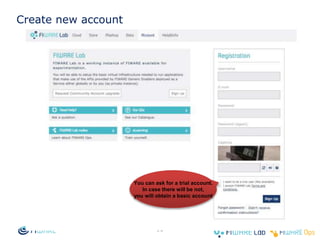
Create new account
You can ask for a trial account.
In case there will be not,
you will obtain a basic account
13
FIWARE Lab Account Categories
Trial
Basic Community
1
2
3
4
5
6
7
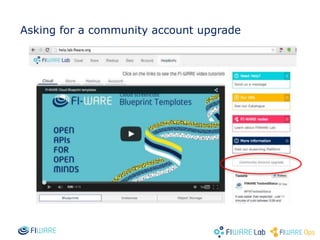
Asking for a community account upgrade
14
Asking for a community account upgrade
15
Basic functionalities: Compute Services
16
17
FIWARE Lab Cloud Hosting: basic
functionalities
 Create your keypair (private key)
 Create security group (incoming ports to VM, e.g. 22 for ssh)
 Deploy your instance
 choice from a library of predefined images, e.g. Centros, Ubuntu, etc.
 choice flavor of resource configuration.
 choice security group.
 choice keypair to ssh into VM.
 specify configuration scripts (optional).
18
FIWARE Lab Cloud Hosting: basic
functionalities
 Associate public IP with the instance.
19
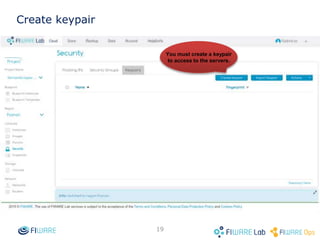
Create keypair
You must create a keypair
to access to the servers.
20
Create keypair
21
Create keypair
22
How to connect from Windows (I)
 Install PuTTY and PuTTYgen from http://www.putty.org/
 Convert your Keypair to PPK
 Start PuTTYgen (e.g. From the Start menu, click All Programs > PuTTY
> PuTTYgen)
 Click Load and select the Keypair file (e.g. my_cert.pem). You’ll need to
display All Files (*.*) to see your Keypair.
 Click Open. And select the destination path and name of your PPK file.
23
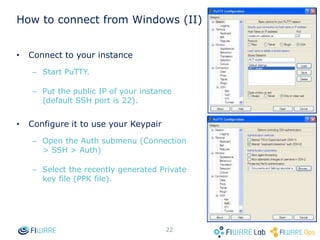
How to connect from Windows (II)
 Connect to your instance
 Start PuTTY.
 Put the public IP of your instance (default
SSH port is 22).
 Configure it to use your Keypair
 Open the Auth submenu (Connection >
SSH > Auth)
 Select the recently generated Private key
file (PPK file).
24
How to obtain your public key from pem file
 Secure to have the proper permissions:
$ chmod 600 private.pem
 Create the public key:
$ ssh-keygen –y –f private.pem >> publickey.pub
 Add the public key to your system
$ cat publickey.pub >> ~/.ssh/id_rsa.pub
25
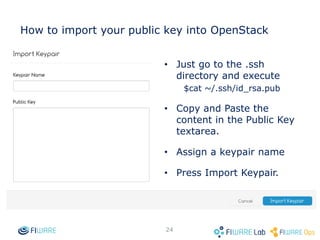
How to import your public key into
OpenStack
 Just go to the .ssh directory and
execute
$cat ~/.ssh/id_rsa.pub
 Copy and Paste the content in the
Public Key textarea.
 Assign a keypair name
 Press Import Keypair.
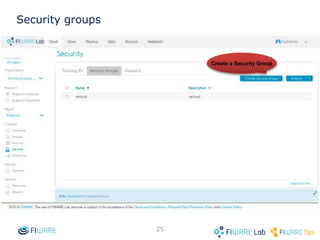
Security groups
Create a Security Group
26
27
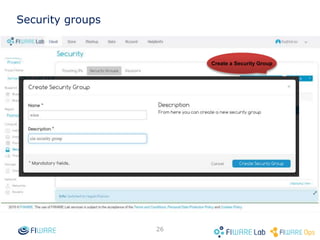
Security groups
28
Create and edit Security Group rules
29
Create and edit Security Group rules
30
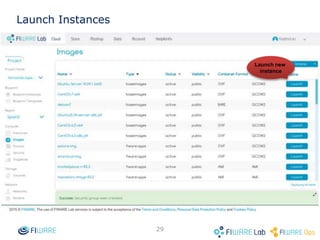
Launch Instances
Launch new
instance
31
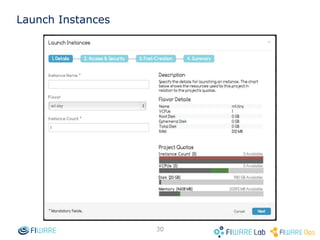
Launch Instances
32
Launch Instances
33
Launch Instances
Drag&Drop the
“shared-net”
network
34
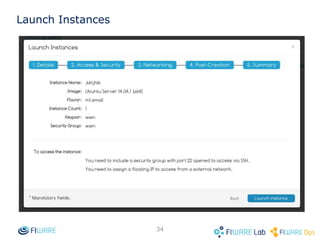
Launch Instances
Do not change
anything here
35
Launch Instances
36
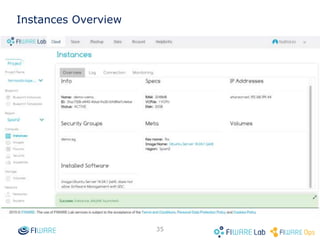
Instances Overview
37
Allocate IP to Project
Allocate new IP
38
Allocate IP to Project
Allocate new IP
39
Allocate IP to Project
40
Allocate IP to Project
41
Allocate IP to Project
42
Access to the instance
Basic functionalities: Storage Services
43
44
FIWARE Lab Cloud Hosting: storage
functionalities
 Create volumes
 Attach volume to servers
 Configure the instance to detect the new volume
 Create containers in the object storage
 Upload objects into your containers
 Object Storage API
45
Create a volume
46
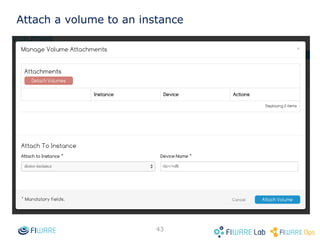
Attach a volume to an instance
47
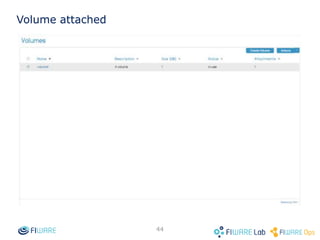
Volume attached
48
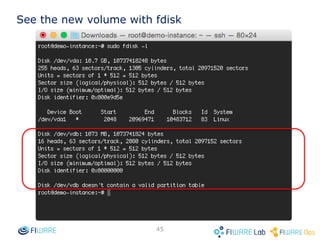
See the new volume with fdisk
49
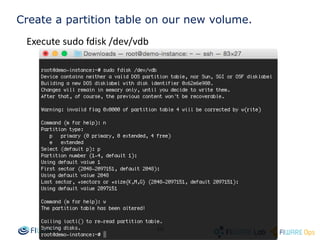
Create a partition table on our new volume
50
Create a ext3 file system
51
Mounting our new volume.
 Create a mount point called /data and mount /dev/vdb1
$ sudo mkdir /data
$ sudo mount /dev/vdb1 /data
 At this point, the volume’s storage is accessible to Linux.
 Modify /etc/fstab to allow remounts the volume on restarts.
52
Check the created volume
53
Object Storage: Create a container
54
Upload an object into the container
55
Upload an object to the container
Extended functionalities: Network Services
56
57
FIWARE Lab Cloud Hosting: networks
functionalities
 Create your own network
 Create your subnet associate to the previous network

 Create a router
 Set gateway
58
FIWARE Lab Cloud Hosting: networks
functionalities
 Assign subnet
 Deploy your instance
 Assign public IP to your instance
 Check the new instance.
59
FIWARE Lab Cloud Hosting: working with
networks
 Multi-tenancy
 High or Low?
 Do I need to isolate tenants?
 Even if you trust them, you might want isolation.
 Tenant creates his own network(s) and router(s) allowing complex
network topologies for multi-tier applications.
60
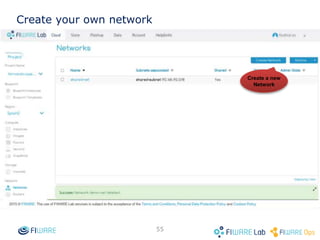
Create your own network
Create a new
Network
61
Create your own network
Assign a name
For the network
62
Add subnet associate to the previous network
Add subnet
63
Add subnet associate to the previous network
Add Network
Address (CIDR)
Define DNS
server
64
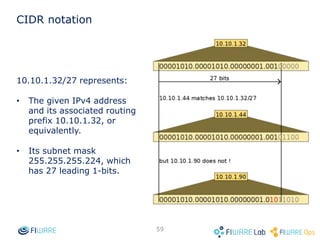
CIDR notation
10.10.1.32/27 represents:
 The given IPv4 address and
its associated routing prefix
10.10.1.32, or equivalently.
 Its subnet mask
255.255.255.224, which has
27 leading 1-bits.
65
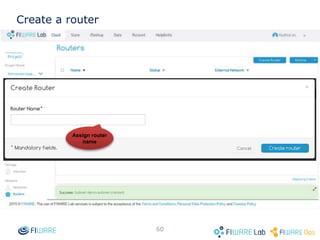
Create a router
Assign router
name
66
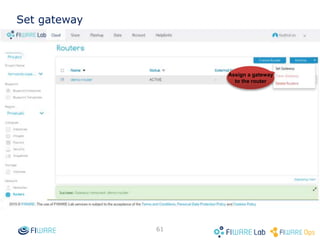
Set gateway
Assign a gateway
to the router
67
Set gateway
Select the
network
68
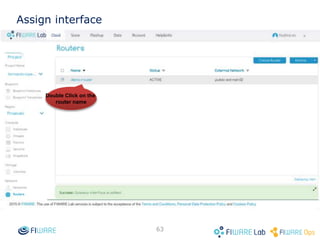
Assign interface
Double Click on the
router name
69
Assign interface
Add interface
(subnet)
70
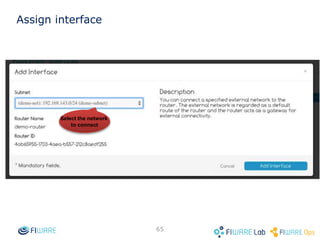
Assign interface
Select the network
to connect
71
Assign interface
72
Deploy a new instance: Details
73
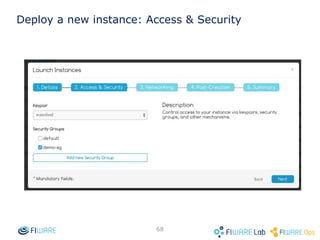
Deploy a new instance: Access & Security
74
Deploy a new instance: Networking
Select the network
to connect
75
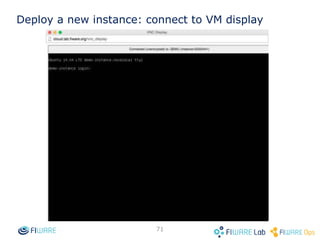
Deploy a new instance: connect to VM
display
Select connect to
Interface
76
Deploy a new instance: connect to VM
display
77
Assign public IP to your instance
78
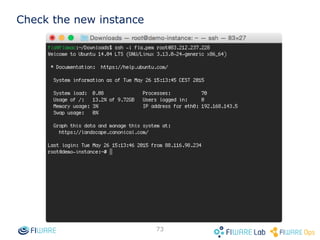
Check the new instance
Extended functionalities: PaaS, working with
Blueprints
79
80
FIWARE Lab Cloud Hosting
 Deploying components for your application.
 Create blueprint templates.
 Create Tiers on a blueprint template.
81
FIWARE Lab Cloud Hosting
 Launch blueprint templates -> create blueprint instances
 See details of the blueprint instance
 Check the SW installed on the blueprint instance
82
Real scenario
 Users want to define lots of parameters.
 Password, ports, default installation.
 Users want to install several things in the same server.
 Tomcat + git, tomcat + java + git, …
 Users need to deploy complex environment.
 One server for Tomcat, another for MySQL, …
 Some parameters are unknown before instantiate the system.
83
Deploying components for your application
 Deploying applications and not only Servers.
 Ad hoc installation (not template usage).
 Managing applications in Servers (install, uninstall, configure,
snapshot…).
 Deploying different environments for that applications.
84
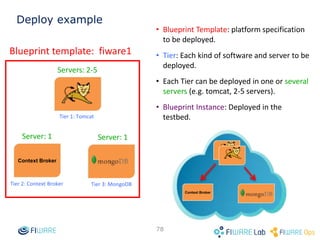
Deploy example
 Blueprint Template: platform specification
to be deployed.
 Tier: Each kind of software and server to
be deployed.
 Each Tier can be deployed in one or
several servers (e.g. tomcat, 2-5 servers).
 Blueprint Instance: Deployed in the
testbed.
Blueprint template: fiware1
Tier 1: Tomcat
Tier 2: Context Broker Tier 3: MongoDB
Server: 1 Server: 1
Servers: 2-5
Context Broker
Context Broker
85
Create a new blueprint template
Press the option
“Blueprint Templates”
from menu
You can open the Catalog of
Blueprint Template or create one
from the scratch.
86
Create a new blueprint template
You should introduce the
“Name” and the “Description”.
87
Add tiers
To add new Tier, press
“demo-template” name.
88
Add tiers After press “Add Tier” you see
this windows to define
the servers of this tier.
You must select a Keypair
to access to those servers.
You should specify the
maximum, minimum and current
number of servers
89
Add software in tier
Install software pressing
the mouse right click.
90
Add software in tier
Edit special attributes like
default port.
91
Add software in tier
92
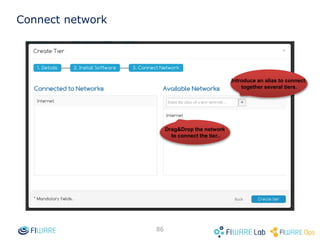
Connect network
Drag&Drop the network
to connect the tier..
Introduce an alias to connect
together several tiers.
93
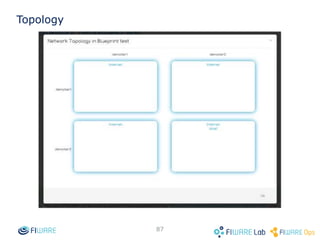
Topology
94
Launch a Blueprint Template -> Blueprint Instance
Press “Action” and select
“Launch Template” to launch
the Instance.
95
Launch a Blueprint Template -> Blueprint
Instance
You should specify the “Name”
and “Description” for
your blueprint.
96
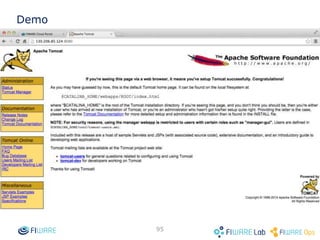
Demo
Firstly, the deployment
of infrastructure.
97
Demo
Secondly, the installation
of the software.
98
Demo
Finally, if all was ok.
Pressing the name you can
see the tiers of this blueprint.
99
Demo
Press it to get information
of your server.
100
Demo
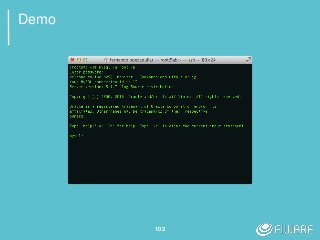
101
Demo
102
Demo
Reference Information
103
104
Documentation
 FIWARE Cloud Portal:
 Documentation: http://catalogue.fi-ware.org/enablers/self-service-
interfaces-cloud-portal-upm
 FIWARE Cloud Infrastructure
 Account: http://catalogue.fi-ware.org/enablers/identity-management-
keyrock
 SDC: http://catalogue.fi-ware.org/enablers/software-deployment-
configuration-sagitta
 PaaS Manager: http://catalogue.fi-ware.org/enablers/paas-manager-
pegasus
 FIWARE eLearning Platform
 http://edu.fi-ware.org/
105
106
If you have any question or problem
contact to
fiware-lab-help@lists.fi-ware.org
You can go to stackoverflow and ask
question with the tag fiware and/or
filab.
Thank you!
http://fiware.org
Follow @FIWARE on Twitter
107
Thank you!
http://fiware.org
Follow @FIWARE on Twitter

Setting up your virtual infrastructure using FIWARE Lab Cloud

Editor's Notes

  • #69 1. En la primera slide poned una lista de puntos de lo que se puede hacer con ese GE/set de GEs. Me refiero en plan titulares, sin muchas explicaciones. 2. Mostrad un ejemplo representativo de uno o varios de los puntos anteriores.     Recordad: si lo hacéis como demo, poned slides con capturas y explicaciones también (así sirve también por si la demo os falla en ese momento ;-) ). 3. Mostrad un enlace donde pondremos esta semana las slides de la Campus que tienen los detalles de todos los puntos mencionados en 1.    (Poned la lista de ficheros pero dejad el enlace en blanco que ya lo pondremos a última hora).
  • #88 ssh -i ~/Downloads/keypairfla.pem root@130.206.83.38 mysql -u root -p mysql321go